If you’re experiencing lag every time you open OneDrive on your Apple device, it might be time to reset OneDrive Mac to avoid any application issues getting worse and causing files to get lost or damaged. If you just want to purge your MacBook of digital junk, MacKeeper’s Safe Cleanup can come to your rescue. Keep your Mac clutter-free for smoother app usage!
Before you reset the OneDrive app on your Mac, here are a couple of things you should make a note of beforehand to ensure no folders or data go missing.
Our team of Clario Tech experts recommends:
Check for Pending uploads that still need to sync.
Back up files that are crucial and local-only.
Unlink or sign out of OneDrive before you restart.
A note from our experts:
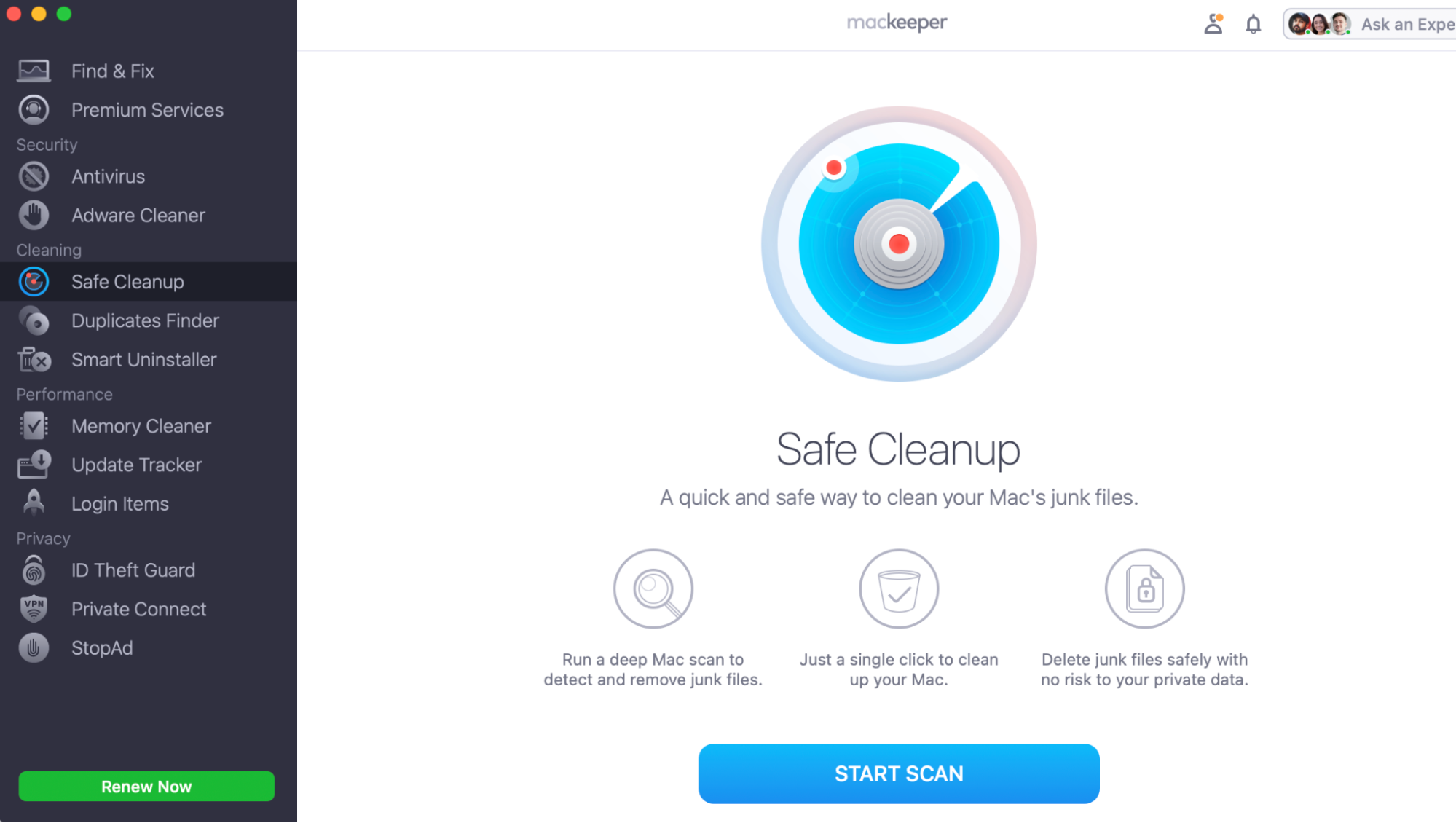
Keeping your Mac free of clutter can be a pain, especially as digital debris is not easy to find–you can end up navigating through every Finder library folder or application only for your Mac to still be slow when you run commands. That’s why we recommend an automatic clean-up helper like our very own MacKeeper’s Safe Cleanup tool. You can run a full-device scan, and within seconds, it’ll find all the files and cache you can clean to help reduce resource consumption and free up space.
Here’s how to use MacKeepers Safe Cleanup to keep your Mac’s performance stable:
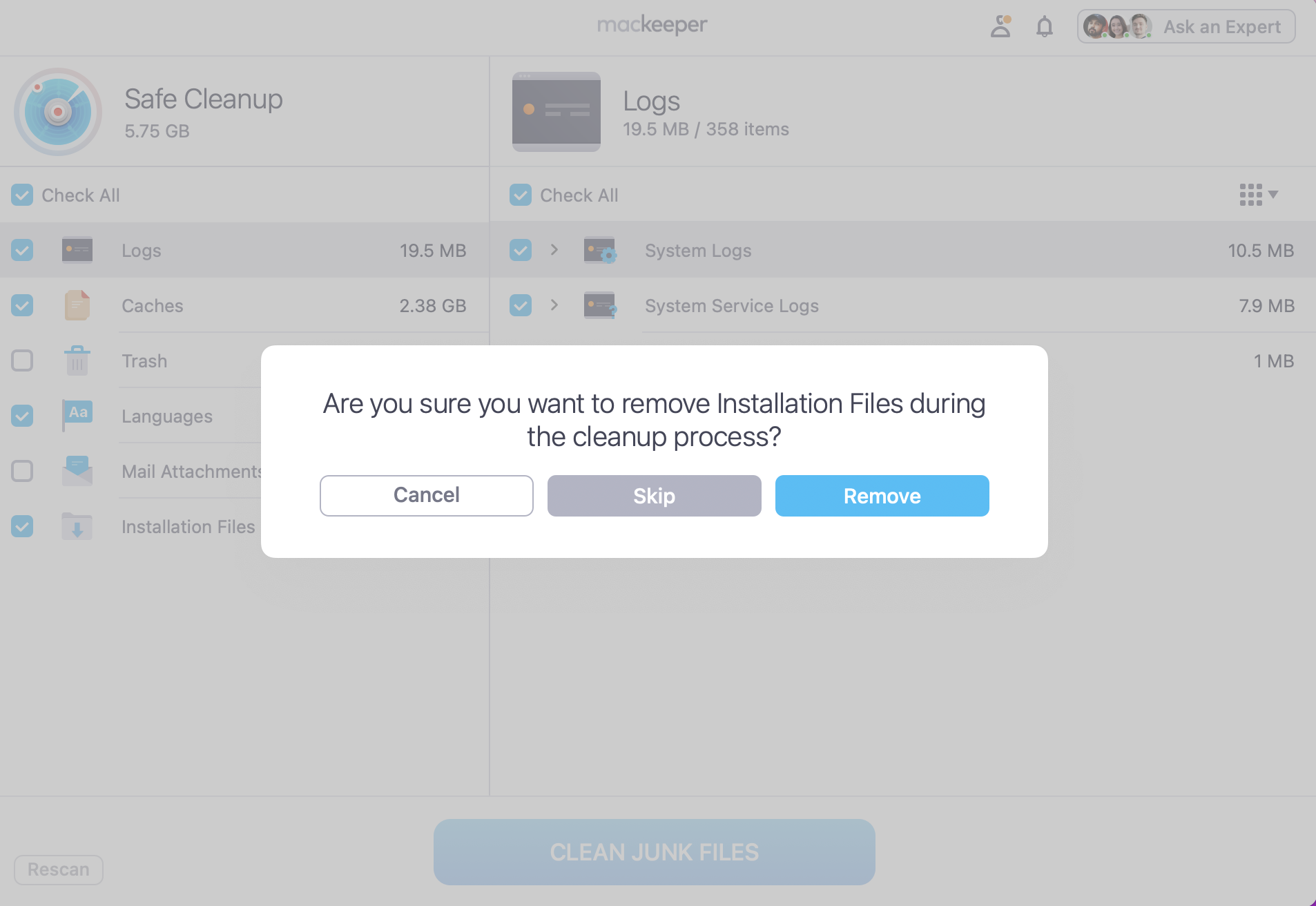
Once done, tick all the Logs, Cache, and Trash you want to remove.
Press Clean Junk Files, and Confirm.
Step 1. In the MacKeeper app, go to Safe Cleanup and press Start ScanStep 2. Tick what you want to delete and press Clean Junk Files > Remove
1. Check that OneDrive is up to date
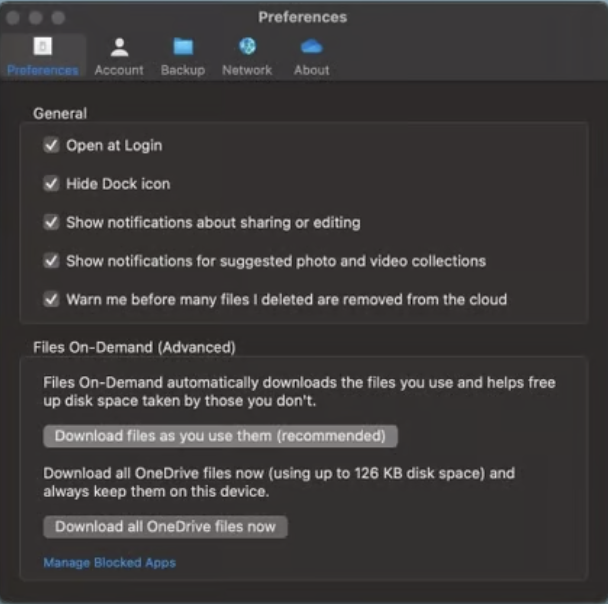
Before you reset OneDrive macOS, it’s worth checking a few things first–to avoid running into any unexpected issues later on. For instance, checking whether OneDrive is up-to-date could show you if this is the cause behind your application lag or slowness. You just need to open the About page in your OneDrive Preference Menu to check if your version is up-to-date.
Open OneDrive About page, go to Preferences and check your application is up to date
2. Quit the OneDrive app properly
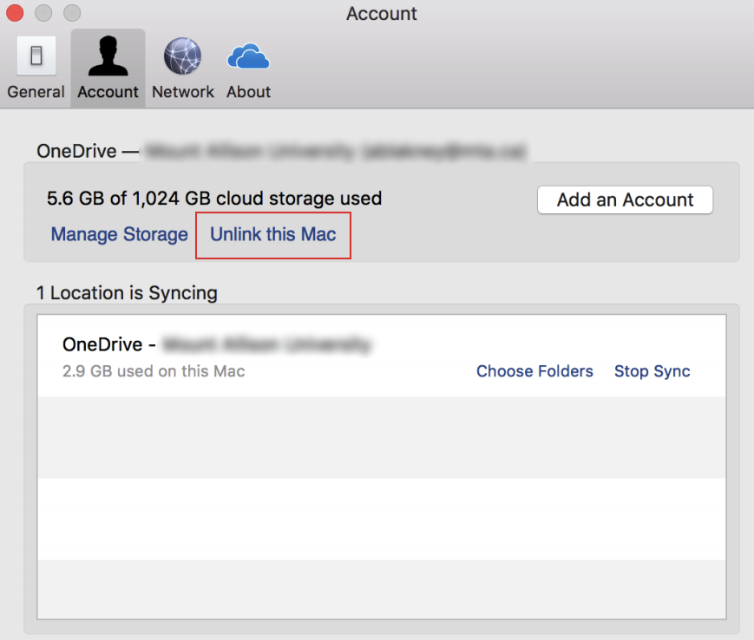
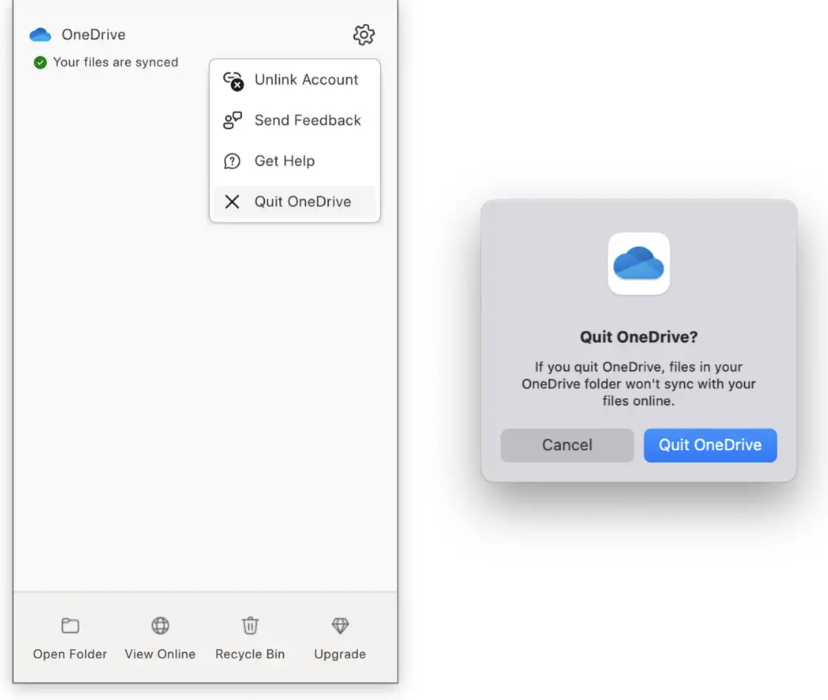
Next, you’ll want to properly Quit the OneDrive app before you start the process of resetting it. The quickest way to do this is to select Unlink your account, close OneDrive, and disallow it from restarting when your Macintosh powers up.
In your OneDrive account settings, you can click on Unlink the Mac
3. Locate your current OneDrive sync folder
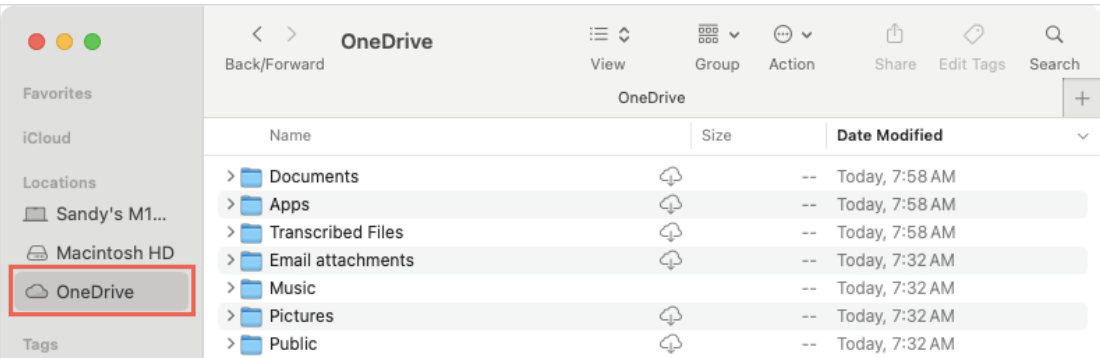
To find your current OneDrive folder on your MacBook Air or Pro, the steps are very straightforward. Just open Finder and search for OneDrive Sync Folder. Simple.
In Finder, search for OneDrive Sync Folder
Steps for resetting OneDrive on macOS
After you have followed our previous advice above, you can continue and reset the OneDrive app on macOS, as this will help if you’ve noticed OneDrive not syncing on Mac.
Let us show you our steps to help you reset OneDrive on macOS:
Quit OneDrive by clicking on the Cloud Icon in your Menu Bar and selecting Quit.
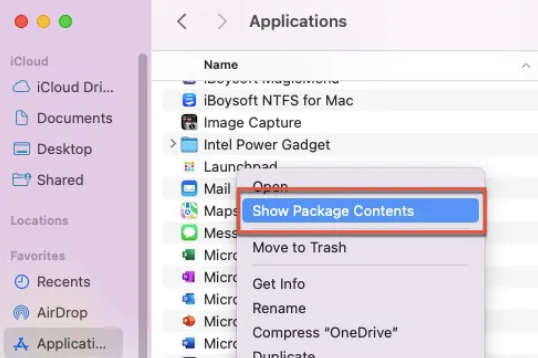
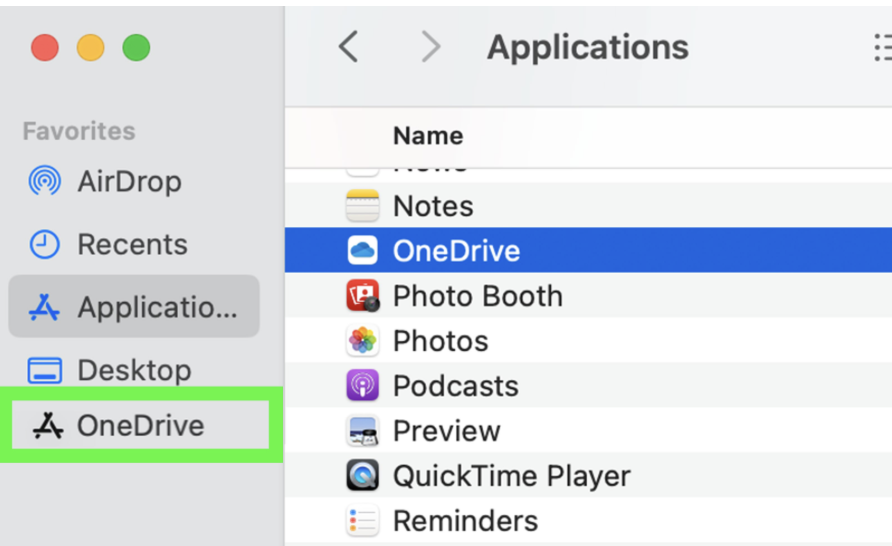
Open the OneDrive app packaging by first opening Finder > Applications Folder > OneDrive. Then Control-click on OneDrive and select Show Package Contents.
Navigate to the resources folder by clicking on Contents > Resources.
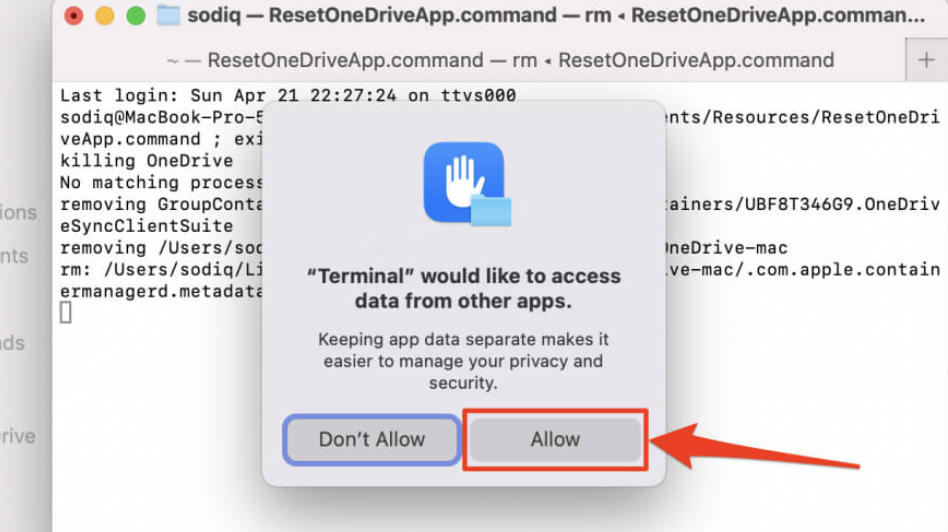
Run the ResetOneDriveApp.command script by double-clicking the ResetOneDriveApp.command file. This will launch Terminal to open and execute the reset.
Relaunch OneDrive and sign in again only after Terminal says Process Completed. Go back into your Applications Folder to reopen OneDrive from the exact same folder location.
Step 1. Quit OneDrive by clicking on the Cloud Icon and pressing QuitStep 2. In Fider go to Applications > OneDrive > Show Package Contents> Contents > ResourcesStep 3. Right-click on ResetOneDriveApp.command file to allow the Terminal reset commandStep 4. Relaunch OneDrive from your Application Folder once Terminal reset is completed
Clearing up your Mac and its apps with ease
There you have it: the steps to reset OneDrive macOS aren't as tricky as you think. So long as you remember to close the app and allow pending syncs to finish first, you shouldn’t run into any problems.
Still worried about the cache or trash OneDrive is leaving behind on your device? Don’t forget to take full advantage of MacKeeper's Safe Cleanup tool–within seconds, it’ll scan and clean your Mac of digital buildup, allowing your applications to perform as they should.
We respect your privacy and
use cookies
for the best site experience.
Privacy Preferences Center
We use cookies along with other tools to give you the best possible experience while using the
MacKeeper website. Cookies are small text files that help the website load faster. The cookies we
use don’t contain any type of personal data meaning they never store information such as your
location, email address, or IP address.
Help us improve how you interact with our website by accepting the use of cookies. You can change
your privacy settings whenever you like.
Manage consent
All cookies
These cookies are strictly necessary for enabling basic website functionality (including page
navigation, form submission, language detection, post commenting), downloading and purchasing
software. The website might malfunction without these cookies.