
In this article you will find the following:
Why you might want to remove Skype from your Mac?
With Skype officially shut down as of May 2025, there’s little reason to keep it around. From our experience, the app and its cached data can quietly eat up gigabytes, and holding onto a discontinued tool only adds clutter you’ll never use. Whether you’ve switched to Teams, Zoom, or something else, removing it keeps your macOS tidy and your storage free for what matters.
If freeing space is your main goal, our guide on how to clean up storage on Mac shows you where the biggest savings usually hide.
There are a few other reasons we'd suggest clearing it out:
- No more updates. A retired app no longer receives security or compatibility patches, so leaving it installed can become a small liability over time on your MacBook.
- Wasted background activity. It may keep background processes and login items running for a service you can't even use anymore, quietly chipping away at performance.
- Less clutter. Removing Skype cleanly gives you one less thing running in the background and one less icon cluttering your Applications folder.
A note from our experts:
Dragging an app to the Trash rarely removes everything—hidden leftovers linger in your Library, quietly taking up valuable space and dragging down performance. When an app misbehaves or you want a truly clean slate, our team suggest using MacKeeper’s Smart Uninstaller, which safely removes problematic apps. Developed by Clario Tech, MacKeeper is Apple-notarized and offers memory optimization, so your Mac keeps running smoothly long after the cleanup. Try it yourself!
Methods to delete Skype from Mac
There’s more than one way to delete Skype from Mac, and the right one depends on how thorough and how hands-on you want to be. Below, we’ll walk you through the manual route, the automated MacKeeper method, and the Terminal approach for anyone comfortable with the command line.
If you’d like a broader refresher first, our general guide on how to uninstall app on Mac covers the fundamentals that apply to almost any program.
1. How to remove Skype on Mac manually?
If you like to see exactly what you’re deleting, the manual method puts you in full control. We’ll quit Skype first, then move the app itself to the Trash before tackling its leftovers in a later section.
Walk through it like this:
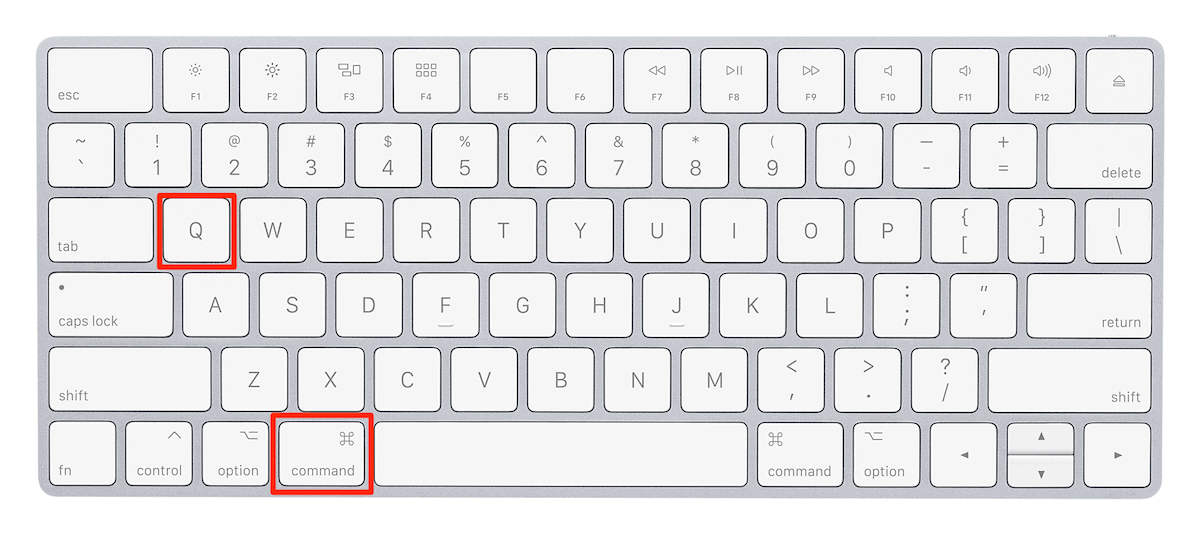
- Quit Skype completely, or press Command + Q if it’s the active app.
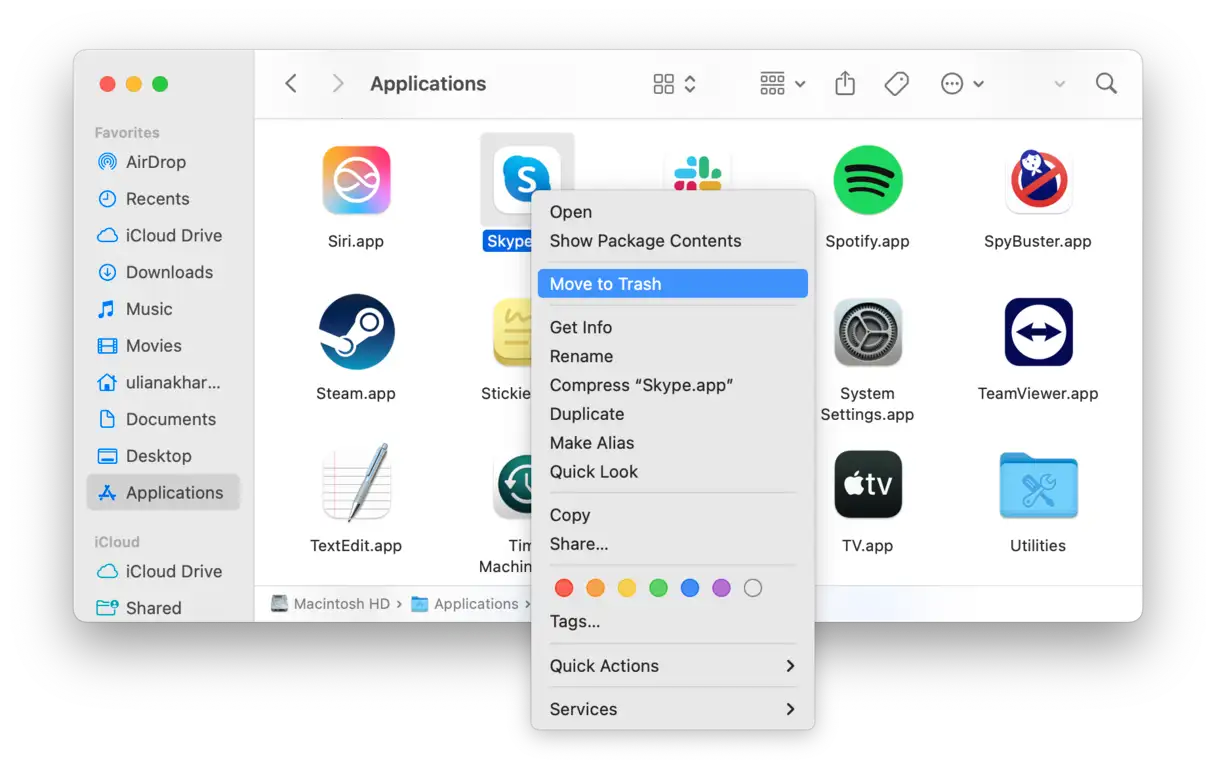
- Open Finder and click Applications in the sidebar.
- Drag the Skype icon to the Trash, or right-click it and choose Move to Trash.
- Right-click the Trash in the Dock and select Empty Trash to finalize removal.

2. How to uninstall Skype using MacKeeper?
When you’d rather not hunt down stray files yourself, a dedicated uninstaller does the digging for you. In our experience, this is the fastest way to remove Skype from Mac completely, since it catches the hidden service files a manual drag leaves behind.
Get it done in a few clicks:
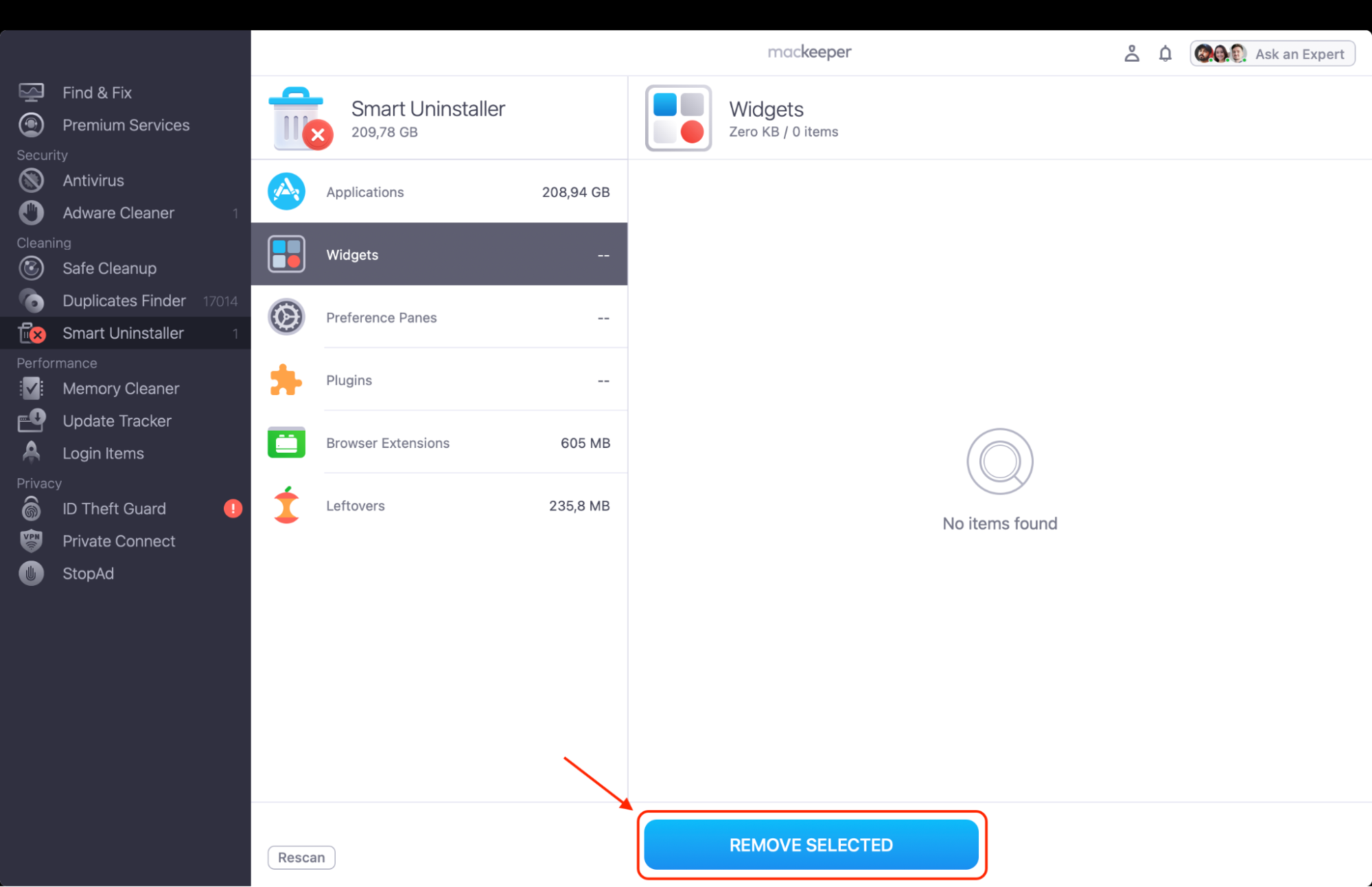
- Open MacKeeper and choose Smart Uninstaller from the left sidebar.
- Click Start Scan and wait for the full list of applications to appear.
- Locate Skype in the results and select the checkbox beside it.
- Click Remove, then confirm to erase Skype and all its leftovers at once.


3. How to delete Skype using Terminal?
For the technically confident, Terminal offers a direct, no-frills route. We’d only recommend this if you’re comfortable typing commands carefully, since a mistyped path can affect files you didn’t intend to touch.
Proceed carefully with these commands:
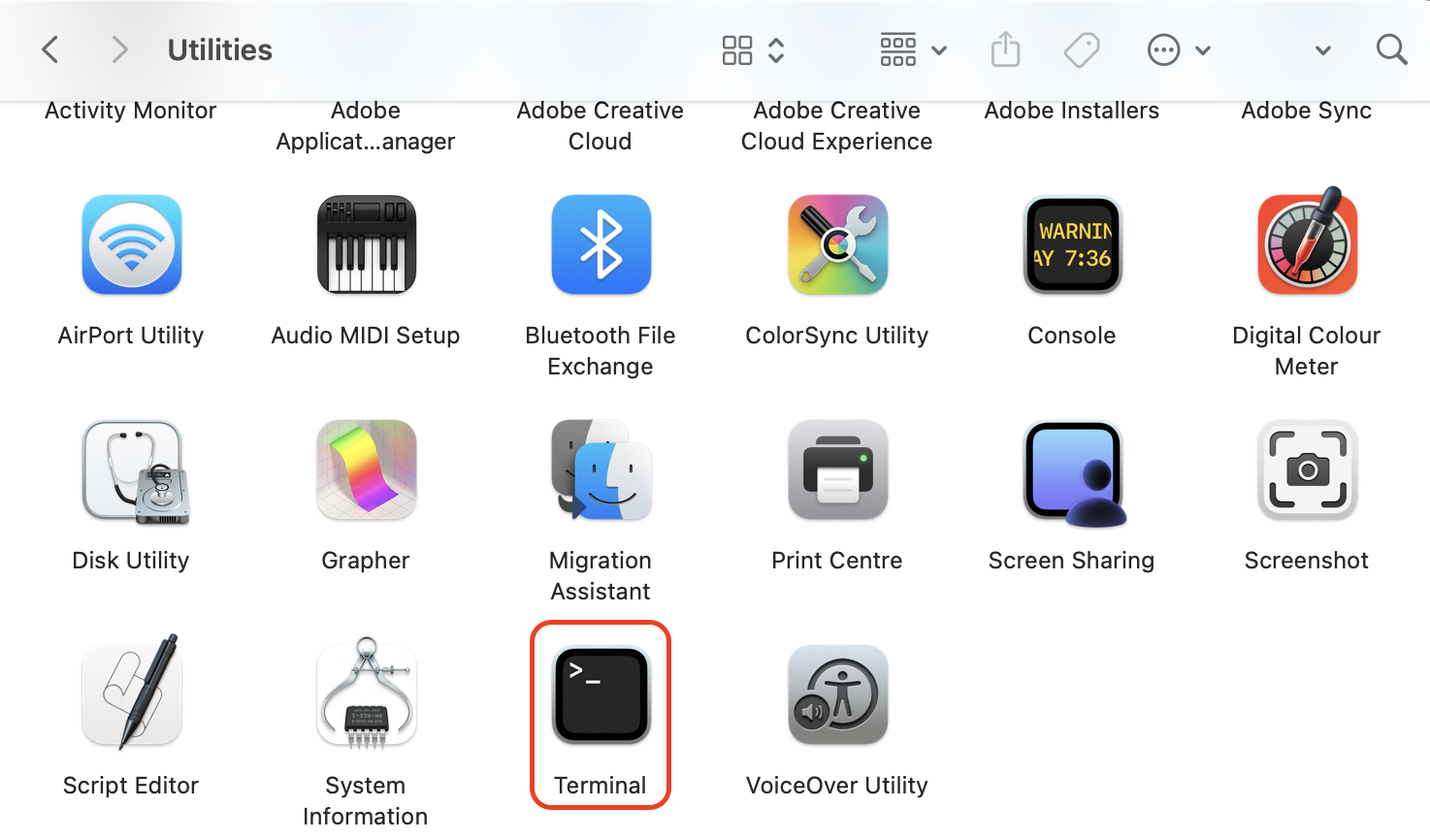
- Open Finder, go to Applications > Utilities, and launch Terminal.
- Type killall Skype and press Return to close any running process.
- Type rm -rf "/Applications/Skype.app" and press Return to delete the app.
- Enter rm -rf ~/Library/Caches/com.skype.skype and press Return to clear its cache.



How to completely remove Skype leftover files on Mac?
Even after the app is gone, Skype scatters caches, preferences, and support files across your Library folder. Clearing them out is what makes the removal truly complete, and from what we can tell, it’s where most of the reclaimed space comes from.
Track down the remnants this way:
- In Finder, click Go in the menu bar and choose Go to Folder.
- Type ~/Library and press Return to open your hidden Library folder.
- Check Application Support, Caches, Preferences, and Containers for any Skype items and drag them to the Trash.
- Right-click the Trash and choose Empty Trash to delete the leftovers for good.

For a deeper look at hunting down remnants from any program, our guide on how to clean app leftovers on macOS is worth a read.
A tip gained from our tests: Many of these files are hidden by default, so if a folder looks empty, press Command + Shift + . (period) in Finder to reveal hidden items before you search. And if you ever can’t find a specific file listed in a guide, don’t worry—it simply means Skype never generated it on your system, so there’s nothing there to remove.
What to use instead of Skype on Mac?
With Skype gone for good, you're probably weighing what to switch to. From our experience, the best replacement depends on how you'll use it, so here are the standouts worth trying on your Mac:
- Microsoft Teams. The official successor, with your existing Microsoft contacts carried over.
- Zoom. Hard to beat for reliable group video calls and screen sharing.
- FaceTime. Already built into macOS, so there's nothing extra to install.
- Discord. Great for casual voice chats and community groups.
Each installs in minutes, letting you leave Skype behind without losing touch with anyone.
Conclusion
Now that Skype has been discontinued, learning how to uninstall Skype on Mac is really about doing it thoroughly: quit the app, remove it from Applications, and sweep out the leftover files hiding in your Library. Whether you go manual, use Terminal, or let an uninstaller handle it, a complete removal frees up space and keeps your Mac clutter-free.
If you’d rather skip the manual hunt, MacKeeper’s Smart Uninstaller is the practical choice. As a macOS utility software that protects your Mac and provides adware and malware removal, MacKeeper deletes stubborn apps and their hidden files in a single pass, so you’re never left with digital clutter dragging your Mac down.