
In this article you will find the following:
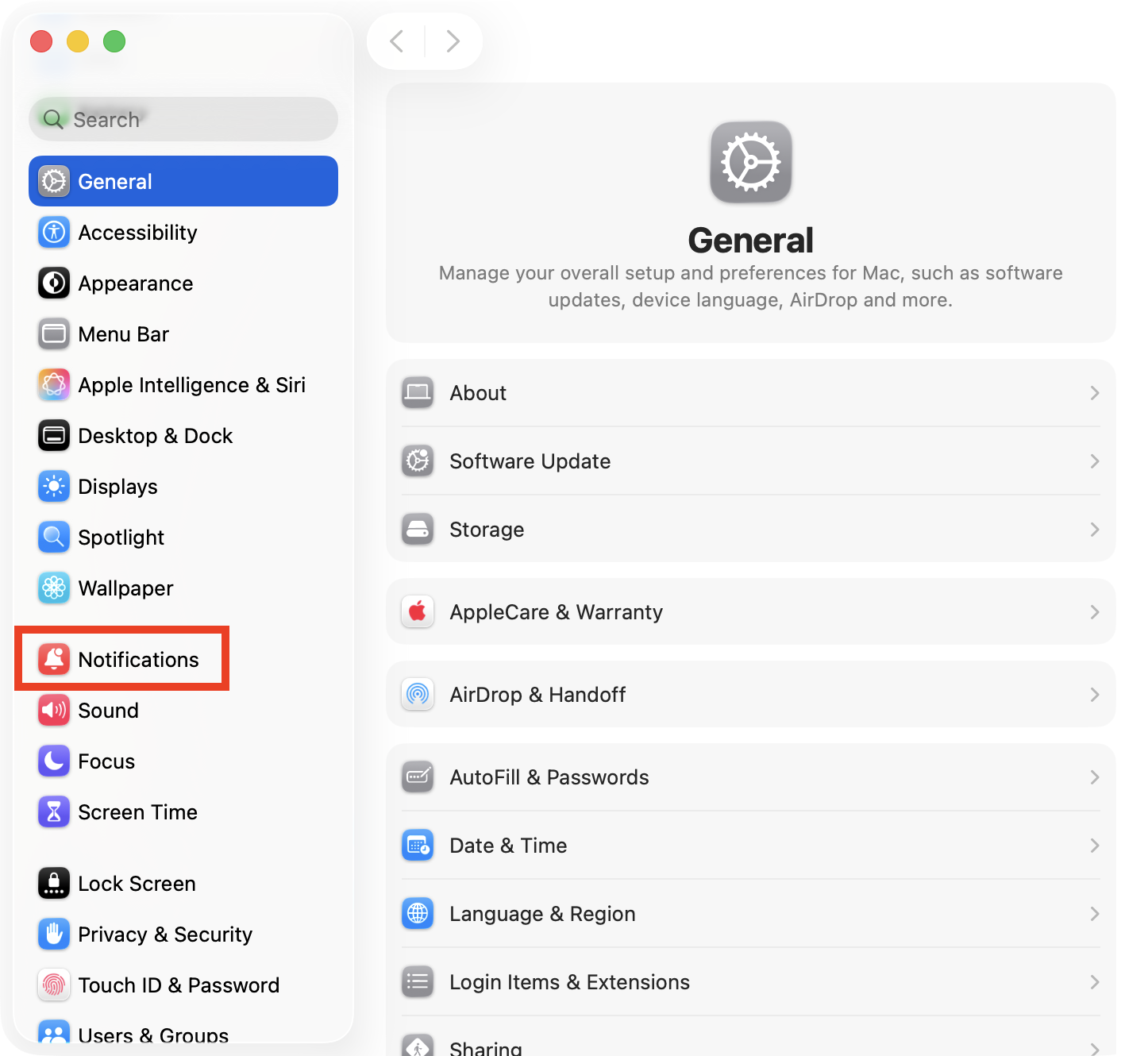
The quickest way to disable notifications on Mac is to go into System Settings, click Notifications in the sidebar, and then select a program to disable the Allow notifications option.
macOS notification system overview
The notification system within Apple’s macOS operating system helps us stay on top of all our alerts, including Mail and iMessage, FaceTime and other video calls, and any notifications sent by apps. There are three types of notifications we can choose from:
| Desktop | Notification Center | Lock Screen | |
| Appearance | Banner in the top-right corner of your screen | Banner in Notification Center | Banner in the top-right corner of the Lock Screen |
| When it appears | Immediately unless Do Not Disturb is enabled or notifications are silenced by Focus mode | Immediately | Immediately unless Do Not Disturb is enabled or notifications are silenced by Focus mode |
| Permanent or temporary? | Either; select in System Settings | Either; select in System Settings | Either; select in System Settings |
You don’t have to choose just one notification type. In fact, by default, all three are enabled when you allow notifications from an app, but you can change this within System Settings. In addition, you can choose whether notifications hide themselves after a brief period, or if they stay until you dismiss them.
How to turn off notifications on Mac?
An easy and effective way to silence notifications on Mac is to go to the Notifications section within System Settings and then disable alerts for all the apps you no longer want to be distracted by. However, if you only wish to stop notifications on MacBook temporarily, try these tricks:
- Mute notifications directly from alert banners
- Do Not Disturb
- Focus mode
A note from our experts:
You’ll need to adjust your browser settings to block notifications from websites. We also recommend using MacKeeper’s StopAd, developed by Clario Tech, to block out distractions while you’re using the web. It removes ads, banners, and other annoyances to deliver a much more pleasant browsing experience that’s smoother and faster to load.
1. Mute notifications directly from alert banners
We’ve found that one of the most convenient ways to temporarily stop unwanted alerts on Mac is to mute them from within the notification itself. Try this:
- When an unwanted notification appears, click the arrow icon in the top-right corner of the banner to expand it.
- Click the ellipses (...) to open the options, then choose Mute for 1 Hour or Mute for Today. Alternatively, select Turn Off to completely disable all future notifications from this app.
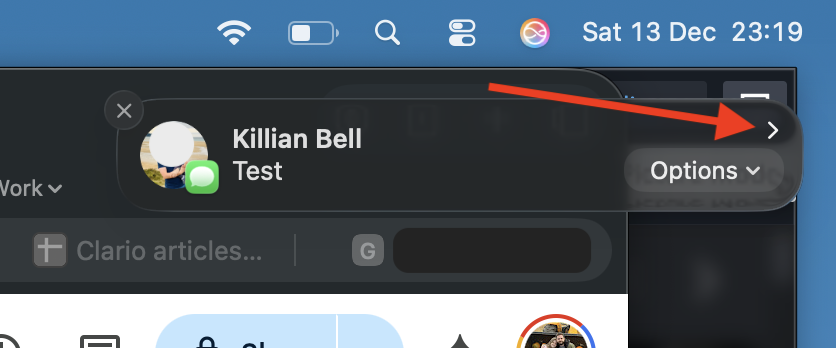
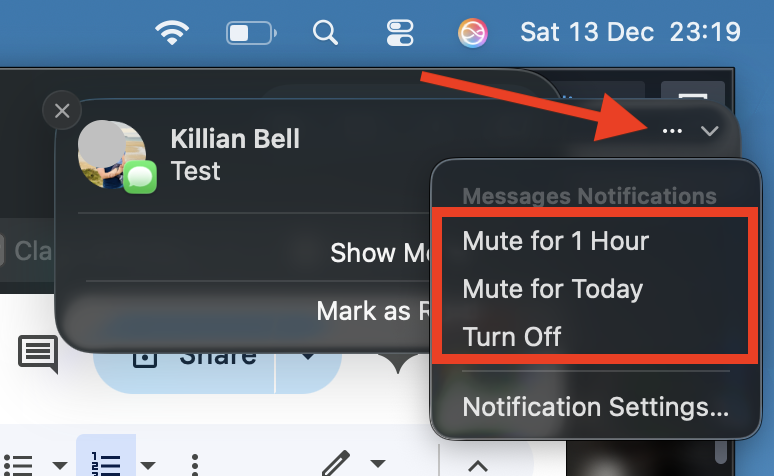
We can use a similar trick on iOS, so if you’re wondering how to silence notifications on iPhone, this is one way to block alerts from specific apps.
2. Do Not Disturb
Those who know how to turn on Do Not Disturb on Mac will already know that this is usually the best way to put a stop to all notifications temporarily. If you haven’t yet tried it out, here’s how to enable it:
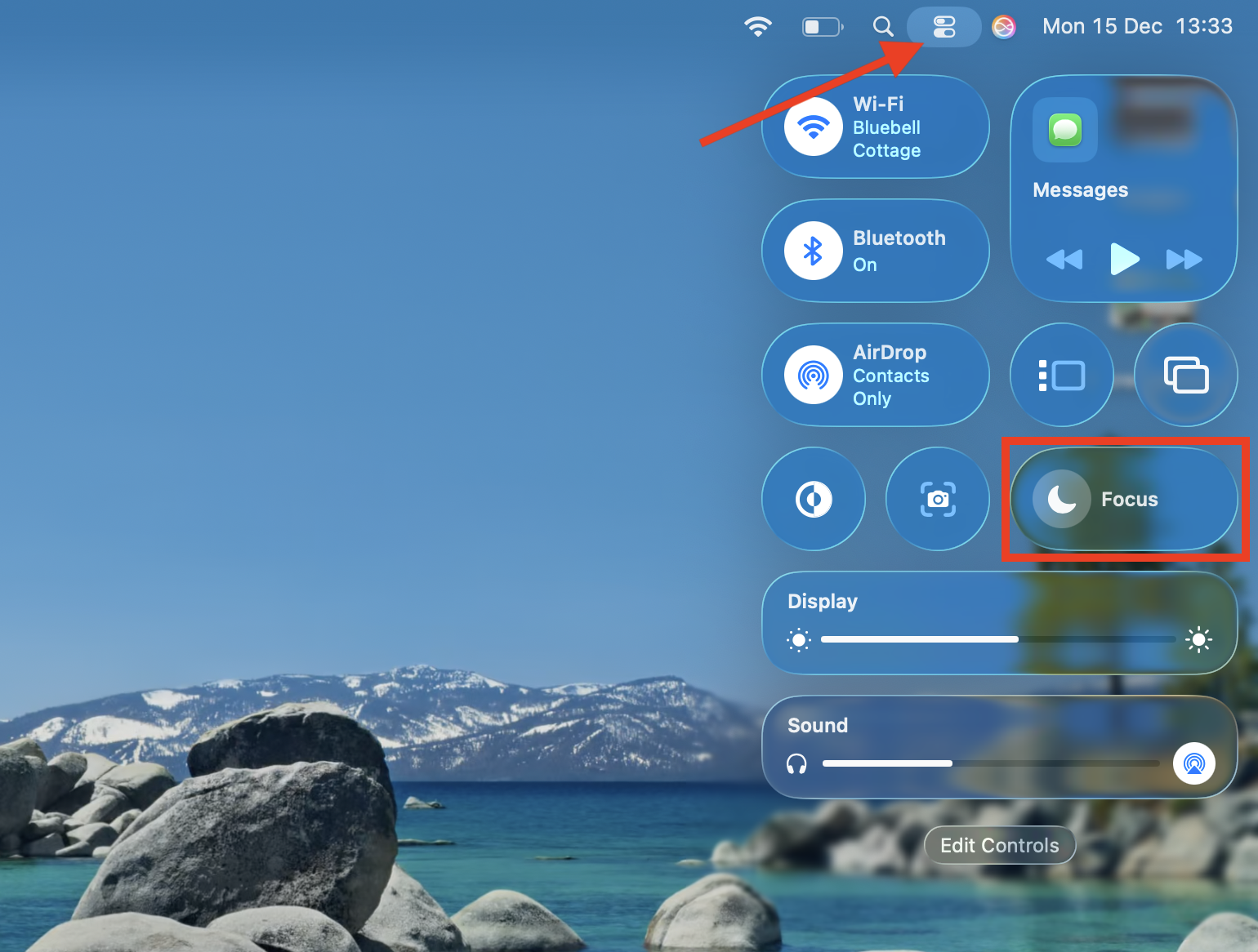
- Click the Control Center icon in your Mac’s menu bar, then select Focus.
- Choose Do Not Disturb to enable it. You can also click For 1 hour or Until tomorrow morning if you want to specify how long Do Not Disturb stays on for.
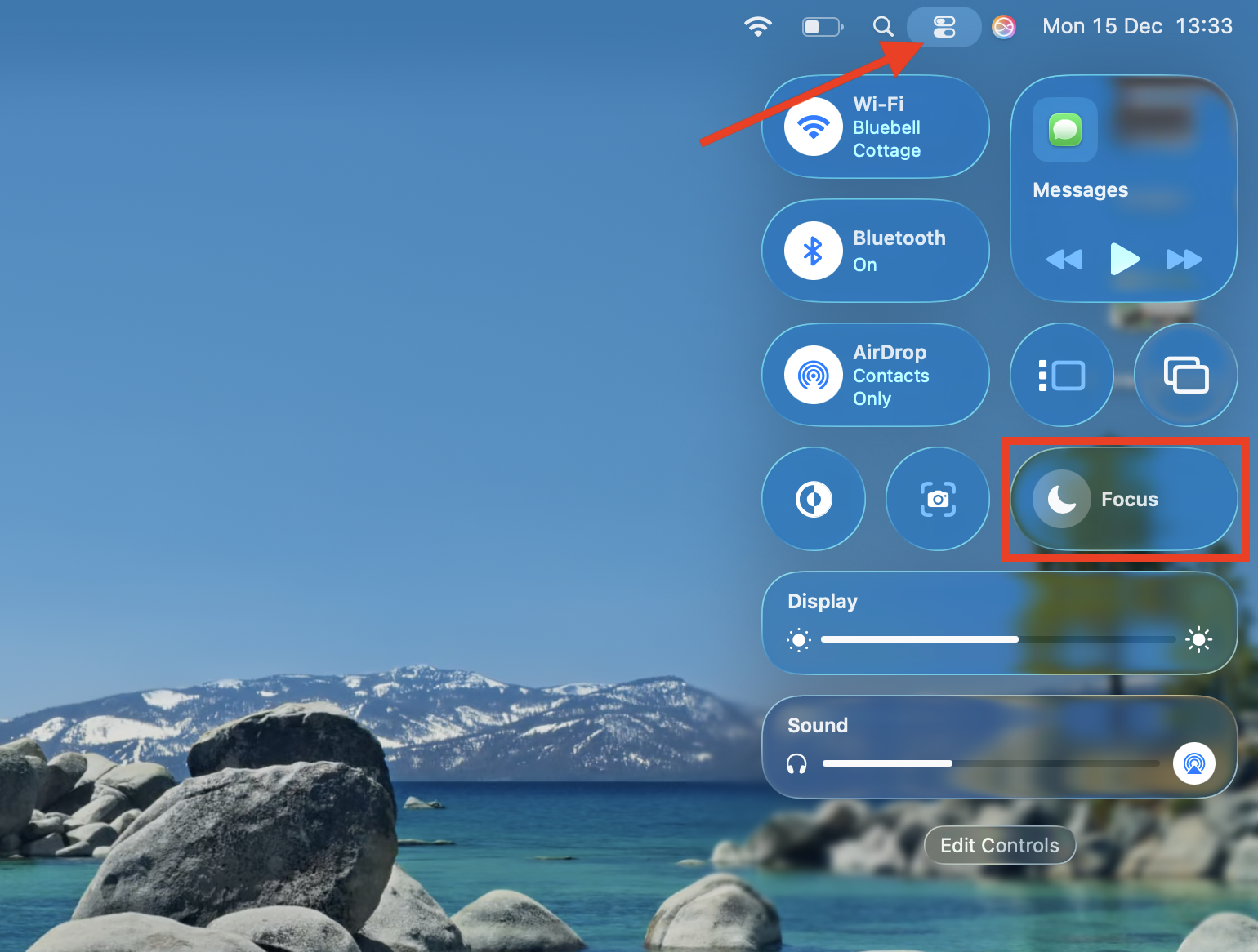
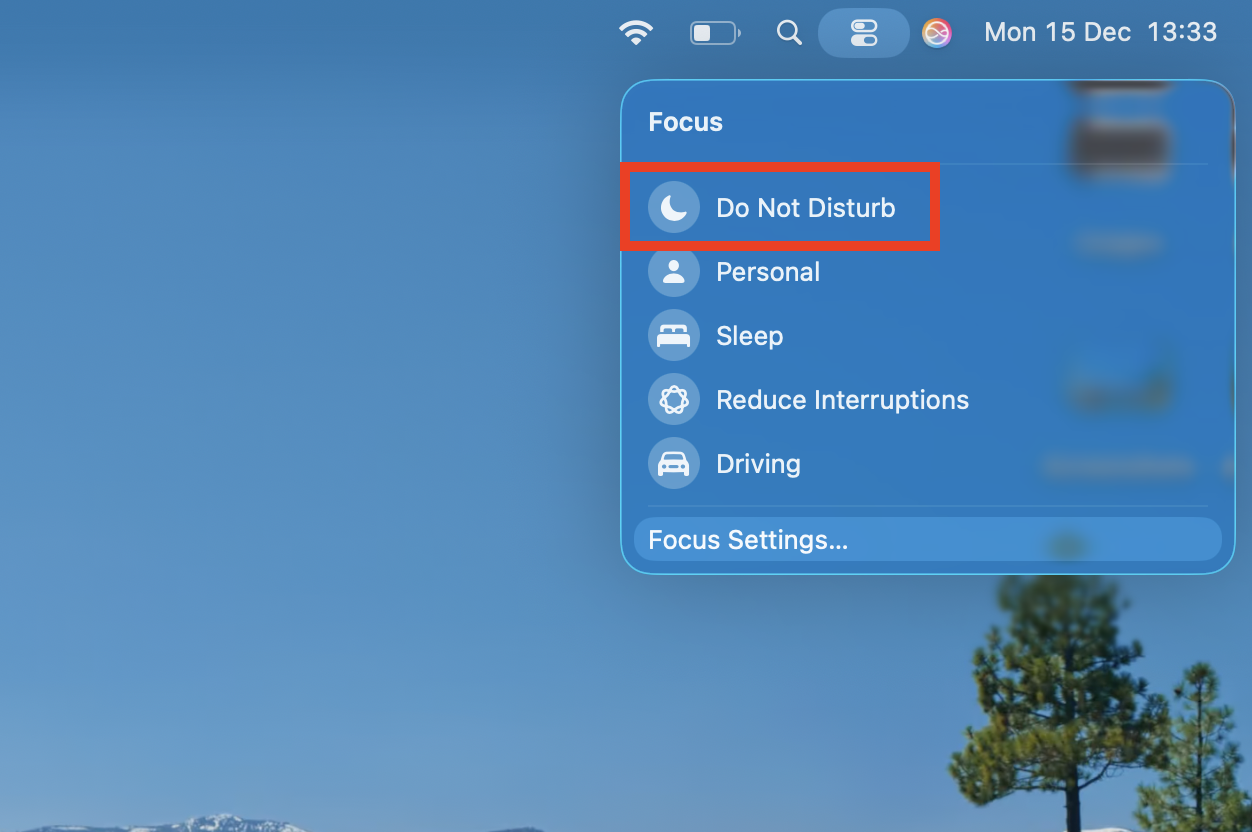
Rather than just silencing individual apps, Do Not Disturb prevents all alerts from appearing until it’s turned off, which is what makes it so useful.
3. Focus mode
Focus mode in macOS is similar to Do Not Disturb, except it lets us customize our notification settings to allow alerts from certain apps or people. In addition, we can create different Focus modes for various scenarios. Here’s how:
- Access Control Center on Mac, then click Focus.
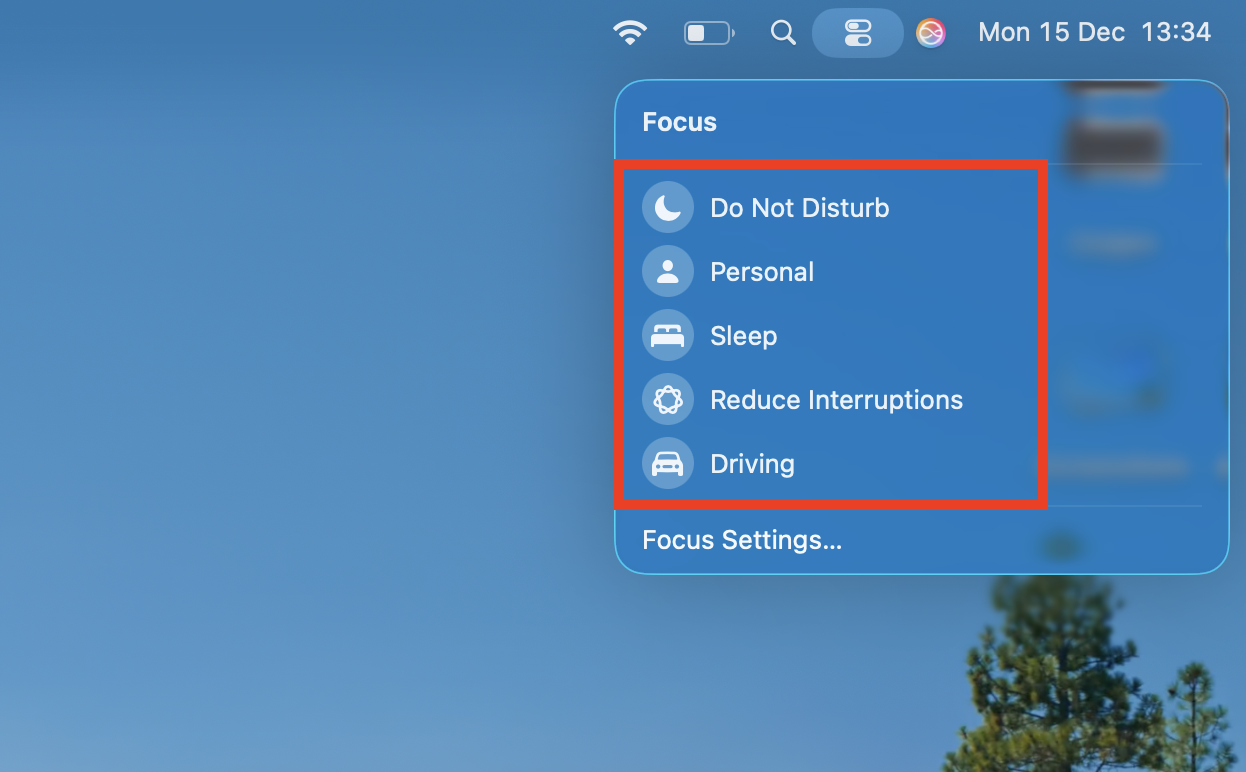
- Select the Focus mode you want to enable.
- To customize and create new Focus modes, click Focus Settings.
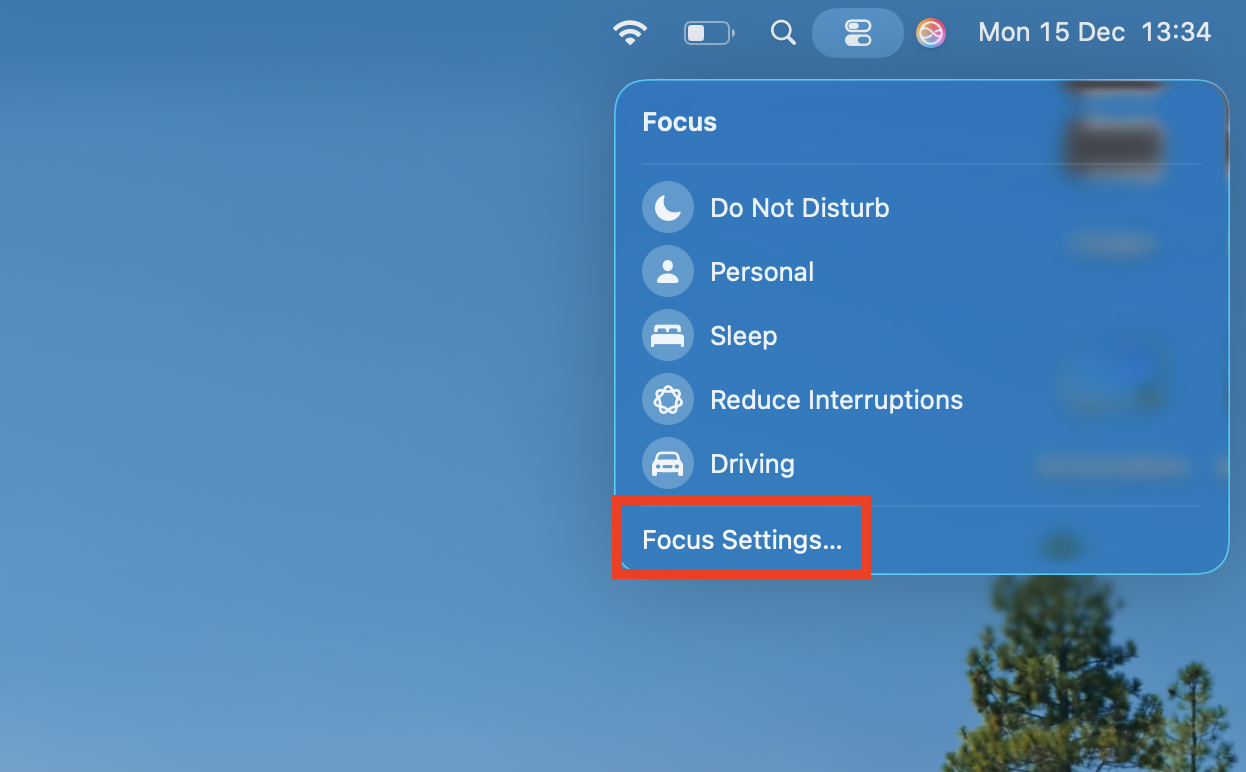
In Focus Settings, you can select an existing mode to modify it, or click Add Focus to create a new one. You can also choose whether to sync Focus modes across all your Apple devices, and whether to notify others of your Focus status when they try to contact you.
How to mute notifications for specific apps and websites on Mac?
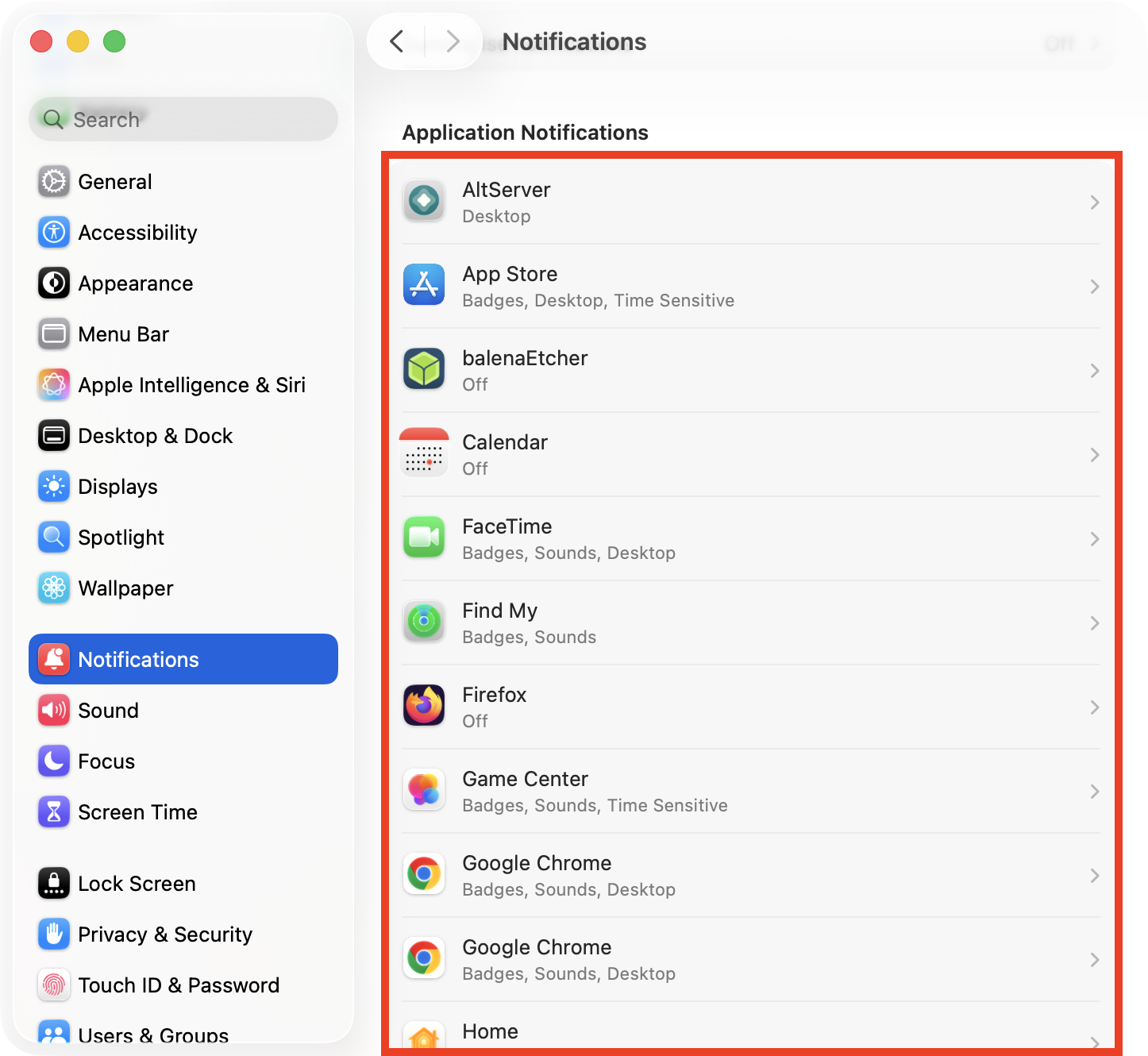
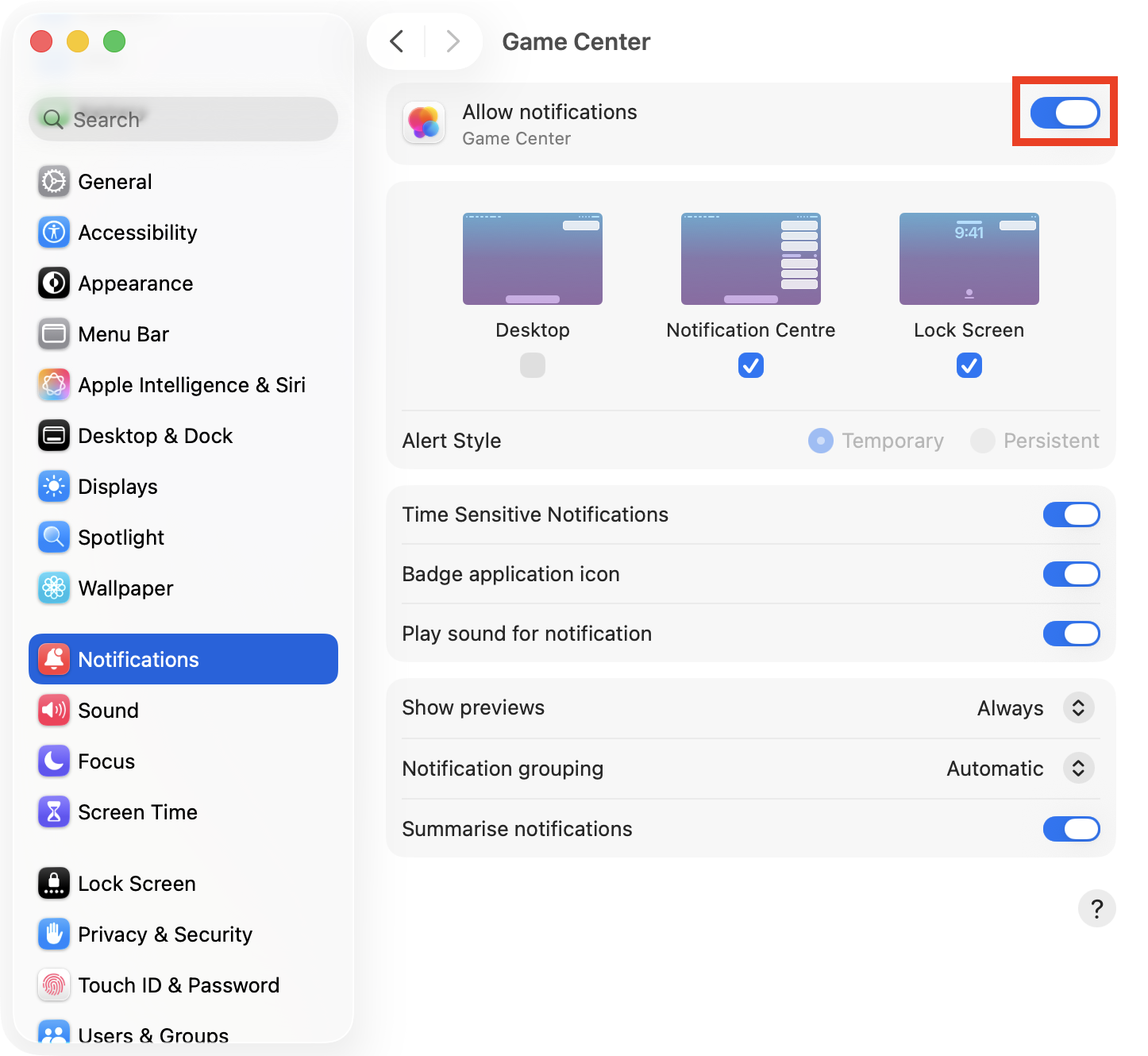
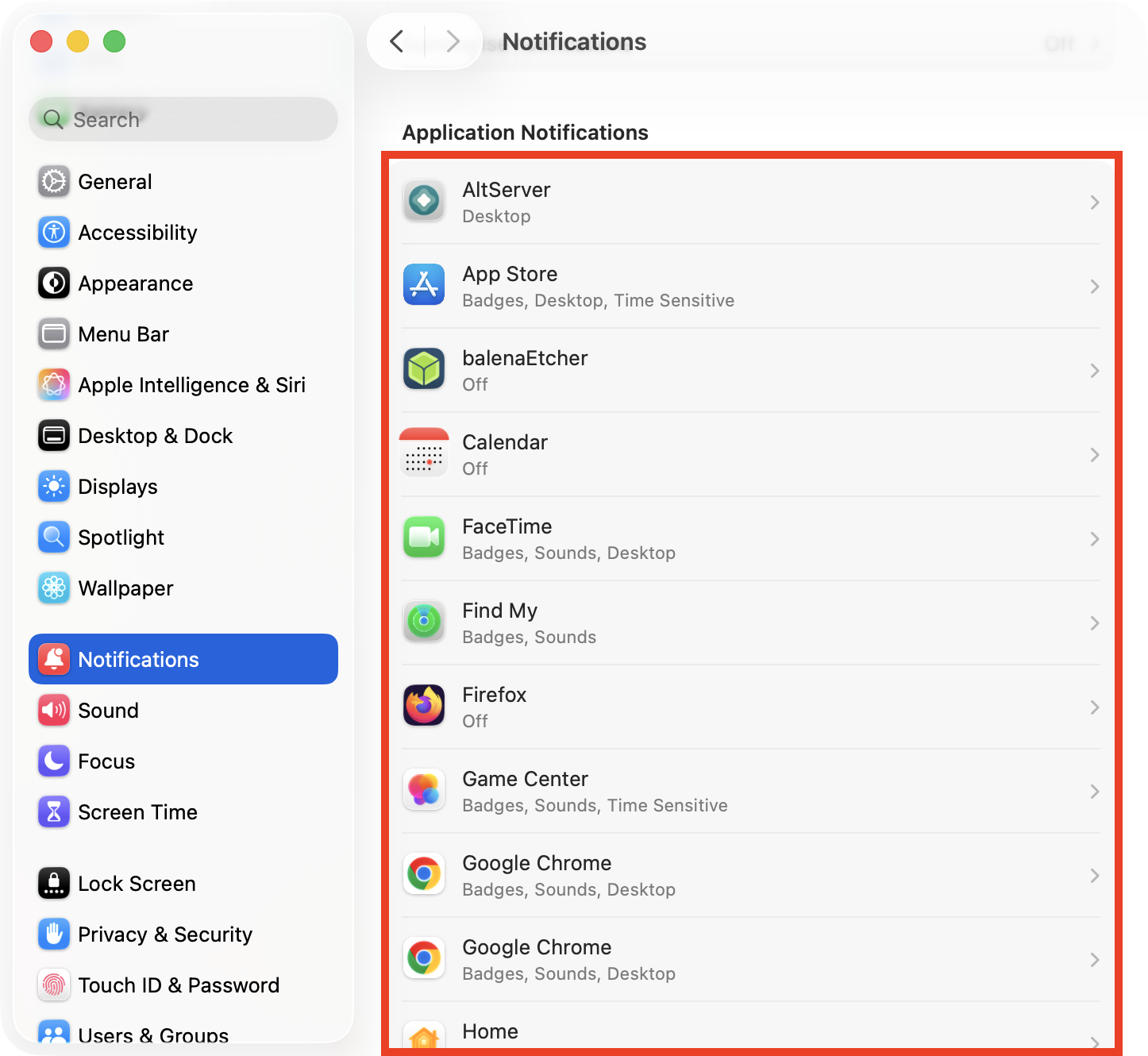
We often find ourselves wanting to block out certain apps that are particularly distracting while allowing other programs to alert us when they need to. We can do this by going to System Settings > Notifications, selecting an app or website from the list, then clicking the toggle to turn notifications off.
Here are some other options we often use to mute specific apps and websites:
- Disable notifications for individual apps
- Silence browser/website notifications
- Using “Delivery Quietly” or similar app-level settings
- Turn off notification sounds for specific apps
1. Disable notifications for individual apps
We can completely disable notifications for individual apps from within the Apple System Settings app, like so:
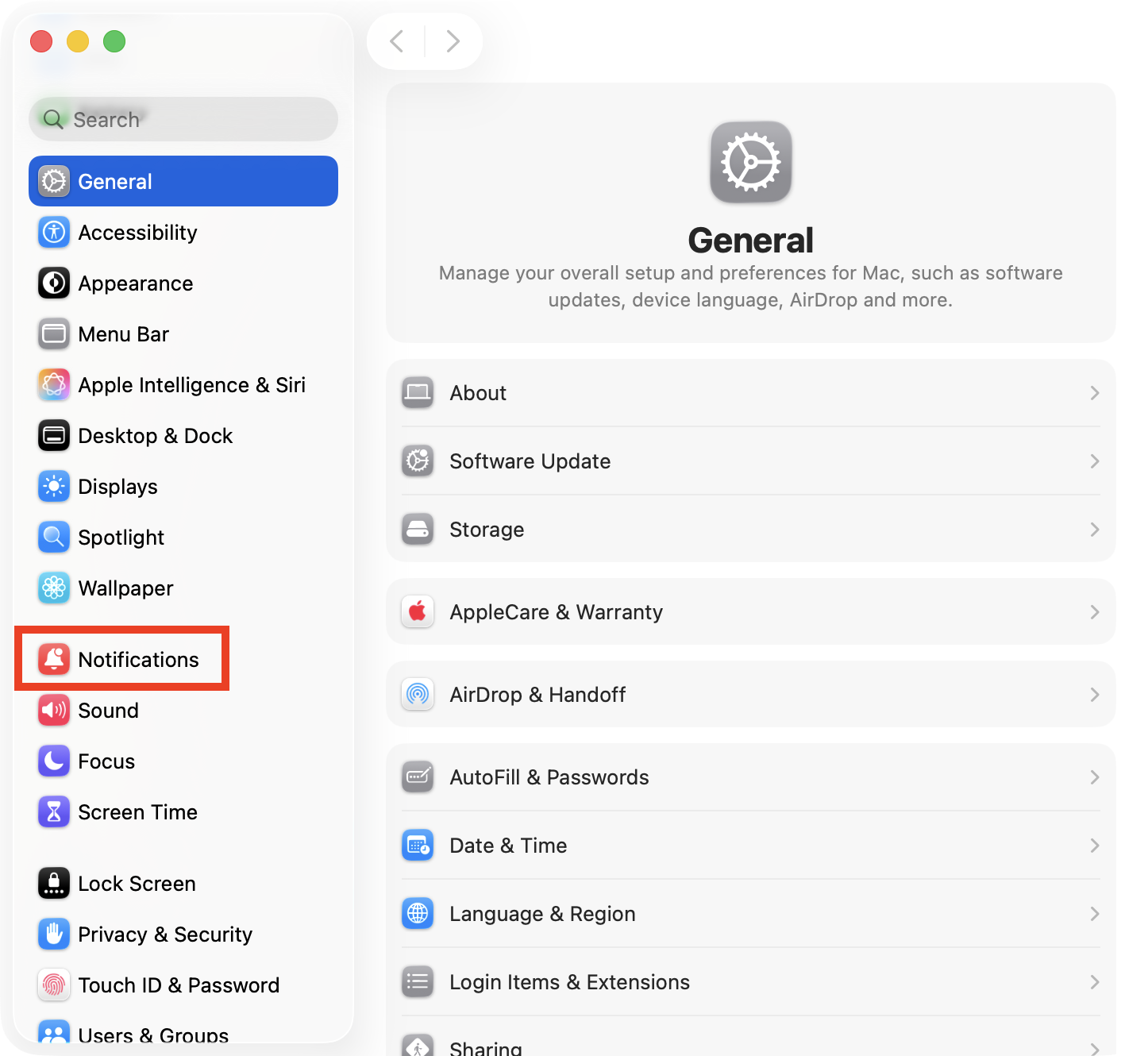
- Open System Settings, then select Notifications.
- In the list of apps, select the one you want to silence.
- Click the toggle to disable all notifications, or use the other options to choose your preferences.
2. Silence browser/website notifications
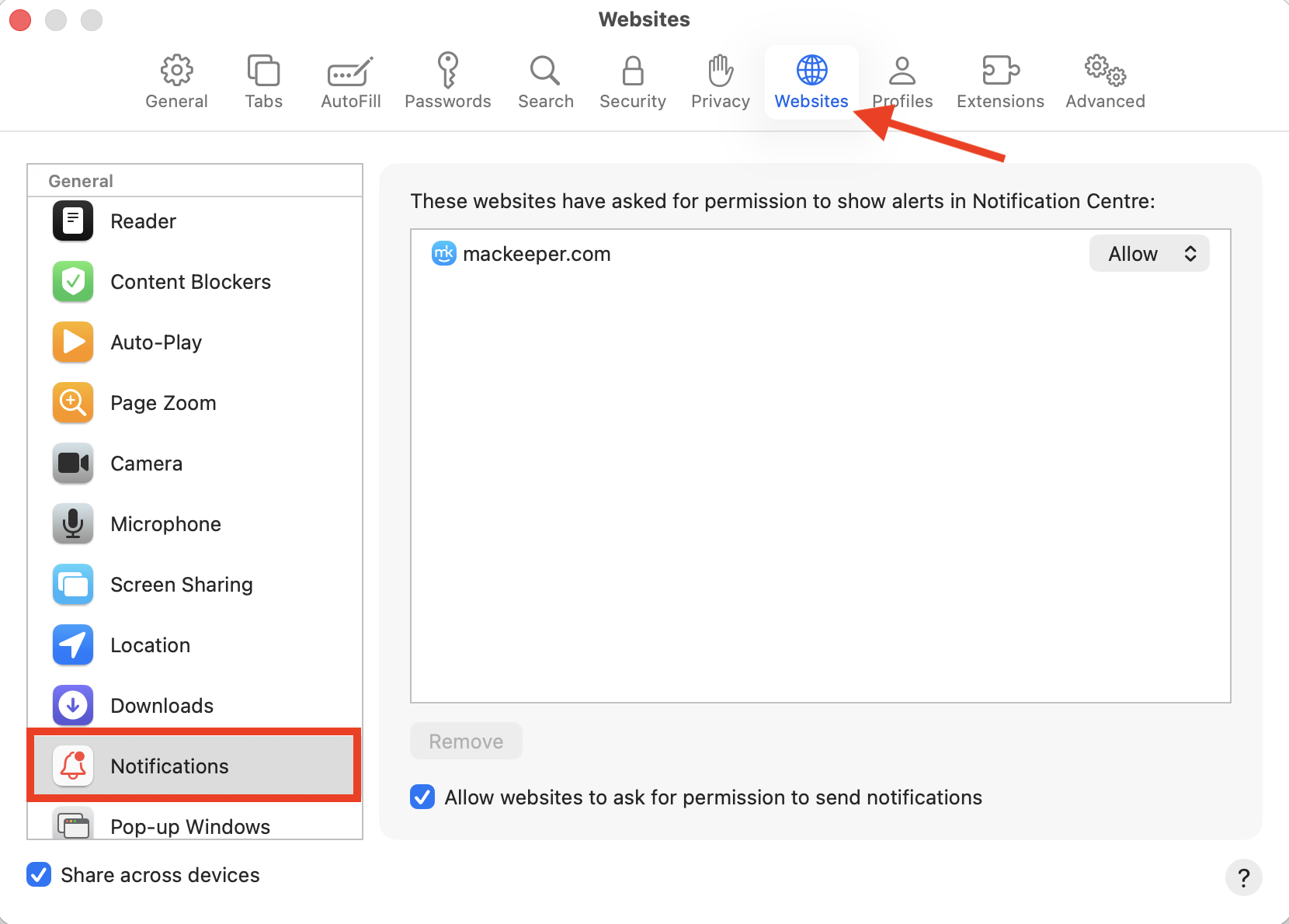
Modern browsers allow our favorite websites to notify us for things like breaking news, special offers, or new content. You may want to block some of these without stopping other websites from sending you alerts. Here’s how to do that in Safari:
- Open Safari, then select Safari > Settings in the menu bar.
- Click the Websites tab, then select Notifications.
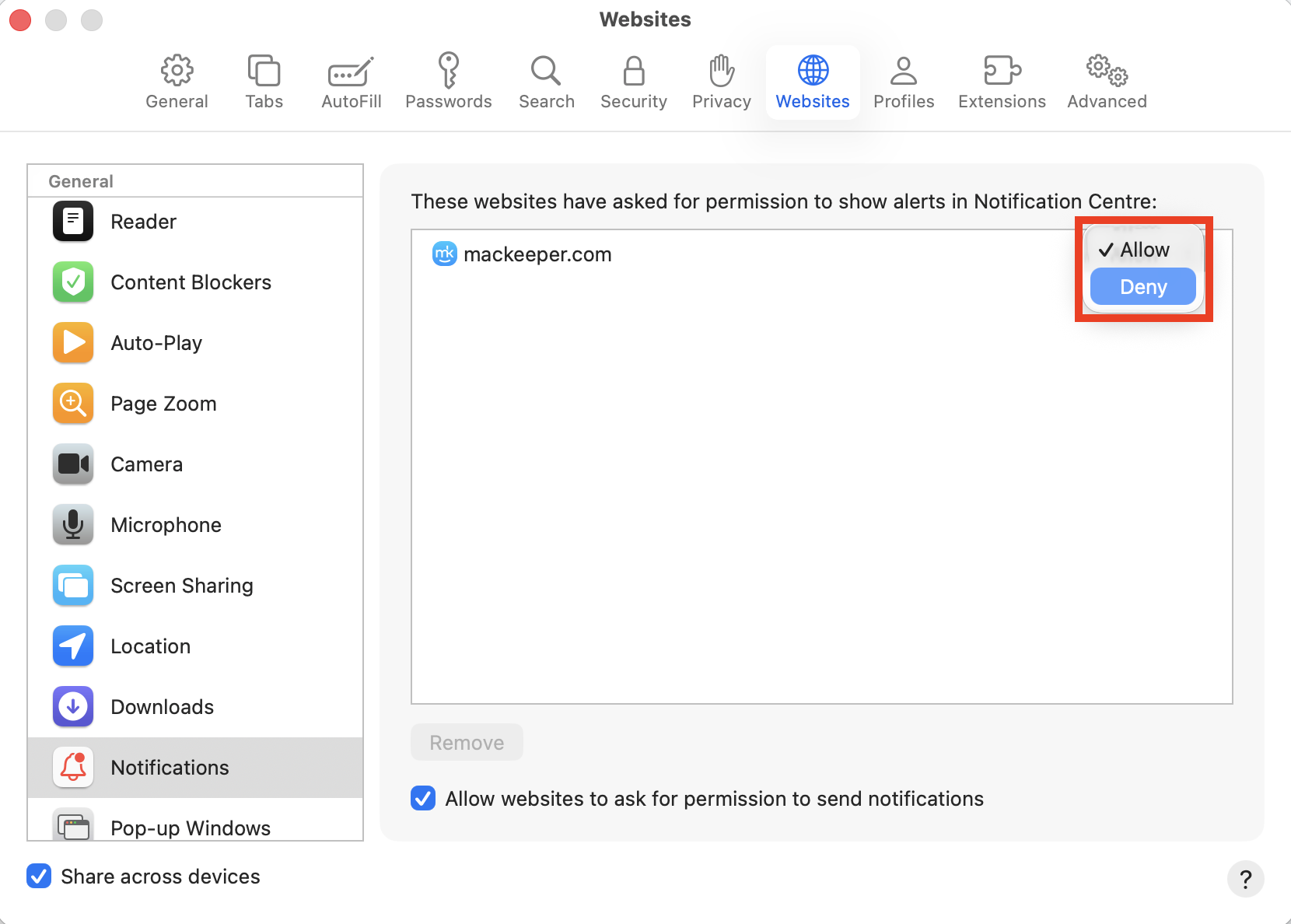
- Pick Deny in the drop-down menu system next to a website to stop its alerts.

Google Chrome and other browsers also allow you to mute notifications on Mac—simply go into the settings menu and look for the notification preferences.
3. Using “Deliver Quietly” or similar app‑level settings
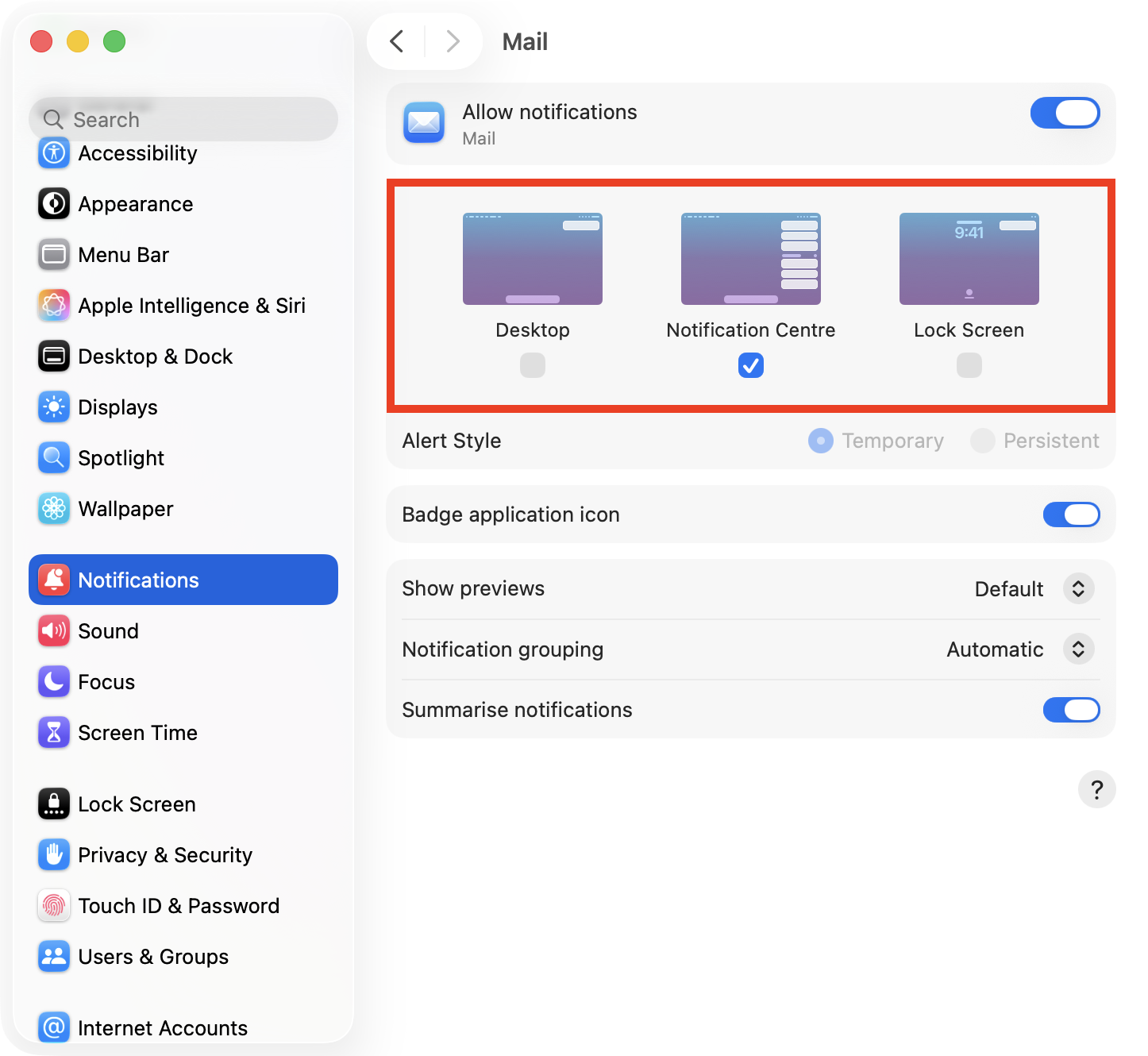
Apple removed the “Deliver Quietly” option from notifications in macOS several years ago, however, we can achieve the same effect by sending alerts from specific apps straight to Notification Center. Try this:
- Go to System Settings > Notifications on your computer.
- Select the app you want to silence.
- Uncheck Desktop and Lock Screen notifications, leaving only Notification Center enabled.
4. Turn off notification sounds for specific apps
If you’re happy to see incoming notifications but you’d prefer them to not make a sound, you can silence alerts without blocking them completely. Follow these steps:
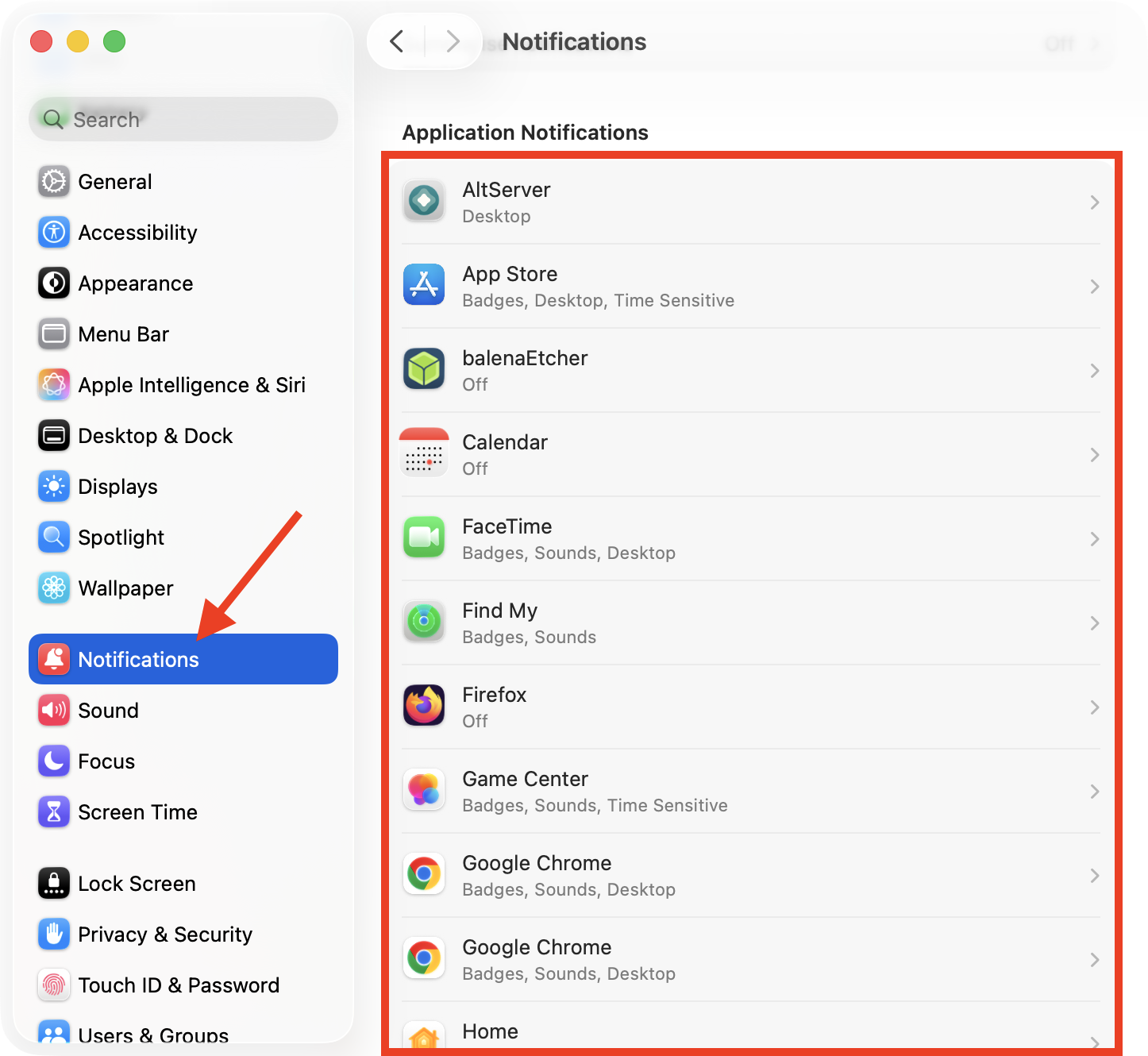
- In System Settings > Notifications, select the app you want to silence.
- Turn off Play sound for notification to silence it.
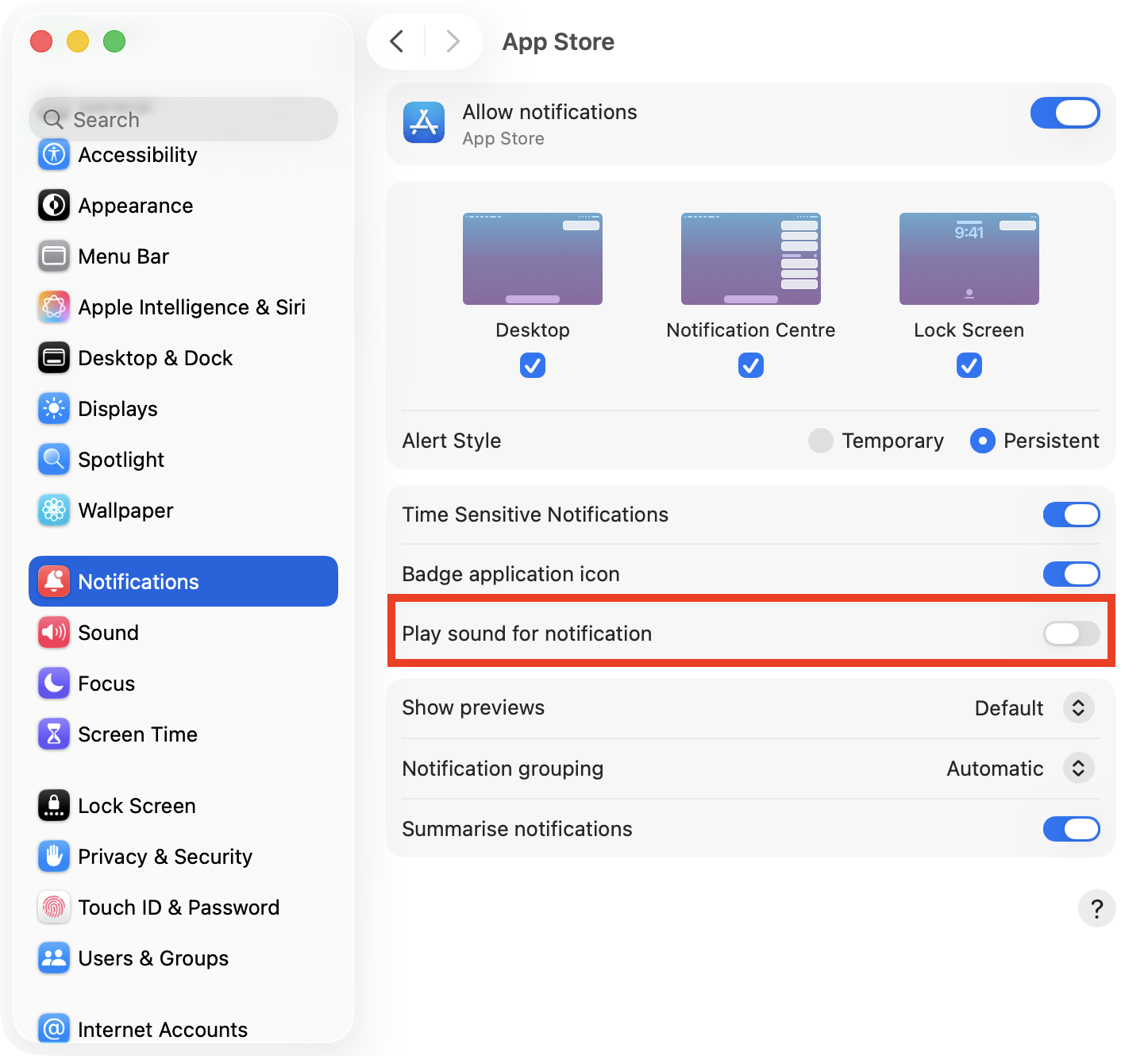
Disabling sound notifications is a great solution for those who want to know how to turn off the ringer on MacBook. It ensures you won’t miss any FaceTime or VoIP calls, but you won’t have to listen to them ringing before you answer.
Conclusion
When you’re desperate for a little peace and quiet while you work, there are a whole bunch of easy ways to silence notifications on Mac, like blocking alerts from specific apps, turning off notification sounds, or using features like Do Not Disturb to turn off notifications on Mac for a short period of time.
You can also adjust the notification settings within your browser to mute specific websites. And to greatly improve your browsing experience, use MacKeeper’s StopAd to remove ugly ads, annoying popups, and distracting banners from all your favorite websites.