If you can’t exit screen recording on Mac quickly, it can cause unnecessary captures, oversized files, and duplicate recordings, which clutter your device. MacKeeper’s Duplicates Finder is a macOS utility software designed to find and remove duplicates safely and quickly, freeing up your disk space and keeping your Mac running smoothly.
To turn off screen recording on Mac, go to the Menu bar and click the Stop button in the top-right corner. Additionally, you can immediately finish the recording with the keyboard shortcut by pressing the Command + Control + Esc combination. Your screen recordings automatically save to your default location, where you can review, trim, or delete files.
How screen recording works on Mac?
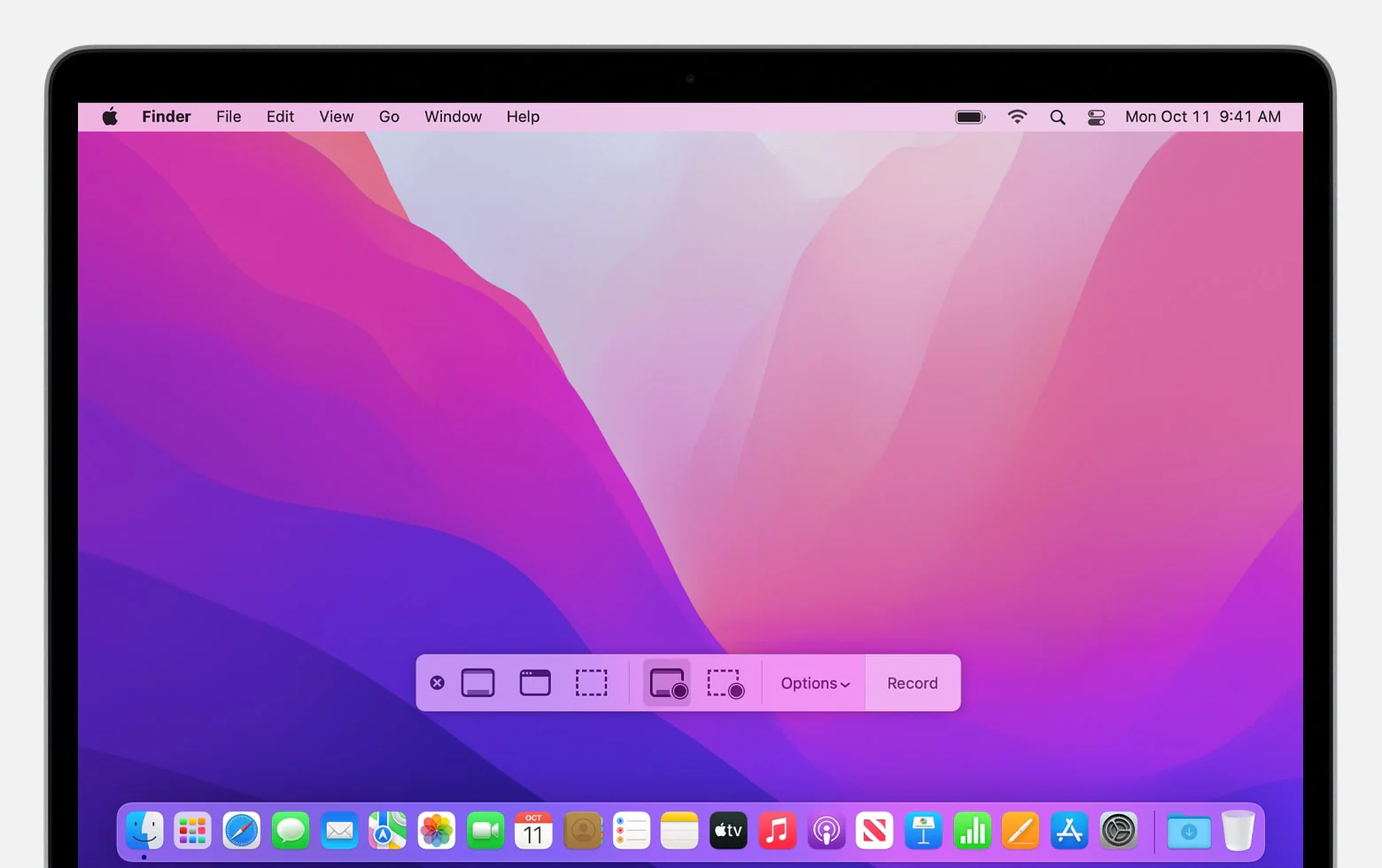
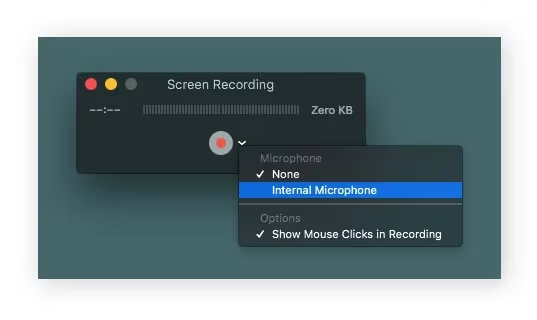
As remote work isn’t a rare phenomenon today, everyone knows how to record a video on a Mac. It’s useful for creating video introductions, capturing live streams, or sharing tutorials. MacOS offers simple and efficient screen recording features that run in the background and automatically save recordings. One of the ways to start recording your screen is by pressing the Command + Shift + 5 combination. Alternatively, you can do it through QuickTime Player. Apple also allows you to choose whether to capture the entire screen, a selected part, or a specific window, and you decide when to enable the microphone.
I think these built-in tools were designed to make your workflow quite straightforward and stress-free. You don’t need to search for reliable third-party apps or adjust complicated settings. One more significant advantage is that recordings are saved instantly without any additional steps. When the recording is finished, you’ll see the preview, ready to be trimmed or shared. However, if your everyday workflow includes sharing instructions, saving online meetings, and reporting issues, you need to know how to end Mac screen recording when it isn’t relevant.
Another advantage of screen recording on Mac is its flexibility. If you need just a visual recording, turn off the microphone. On the contrary, if you need a detailed recording for tutorials, business presentations, gaming, or webinars, but you experience an issue when QuickTime screen recording no audio, there are simple and practical ways to resolve the problem.
How to end screen recording on Mac?
To stop screen recording on Mac isn’t a complicated task. There are several ways to do it, and the choice depends on how you started the process. I suggest the following:
The most straightforward method is to do it via the Menu bar icon. Go to the menu bar at the top of your window and click the small circular Stop button.
The quickest way is to use the keyboard shortcut. Press the Command + Control + Esc combination to stop recording your screen instantly, without moving your mouse.
If you started the recording process via the Screenshot Toolbar, press the same shortcut (Command + Shift + 5) or click Stop directly from the menu bar to exit screen recording on Mac.
You should know that after stopping the recording process, macOS automatically saves the video and shows a small preview in the corner of your screen. It allows you to trim, delete, or share the video quickly with no additional tools.
1. Stop screen recording using the menu bar
Let's dwell on the first way to stop screen recording on your Apple laptop, mentioned above. This method is the simplest and fastest. You can end screen recording by using the Stop icon in the menu bar, which is always visible and doesn’t require any tools or sophisticated steps to remember. If you’re a new Mac user, definitely consider this method.
Follow my instructions to end screen recording via the menu bar:
When you start recording your screen, macOS automatically places the Stop icon in the top-right corner of the screen.
If you want to stop screen recording, just move your cursor to the menu bar and click the Stop button.
Click the Stop button to stop screen recording
2. End screen recording with keyboard shortcuts
Personally, I prefer using keyboard shortcuts to end screen recording. I find this method the fastest and most convenient. Try it, if you don’t like extra cursor movement and want to end the process quickly with the simple key combination, just like me.
Do the following to end screen recording with keyboard shortcuts:
Press the Command + Control + Esc combination to stop recording your screen.
After breaking the capturing process, your macOS automatically saves the video, providing you with the opportunity to handle it.
3. Stopping recording started in QuickTime Player
This section focuses on QuickTime Player, a built-in macOS tool designed to record audio and video content, including your screen. If you prefer using QuickTime Player for recording your screen, it offers several ways to finish this process.
Here’s the instruction on how to stop screen recording in QuickTime Player via the Stop button:
Starting to record your screen, QuickTime Player instantly displays the Stopicon in the upper-right corner of the menu bar.
Click the Stop button to finish recording your screen.
When QuickTime Player is capturing your screen, stop it by clicking the Stop button
Alternatively, follow my hints below to stop screen recording in QuickTime Player with the keyboard shortcut:
Start a new recording in QuickTime Player.
Press the Ctrl + Command + Esc combination to stop recording your screen.
4. Force stop screen recording using Activity Monitor
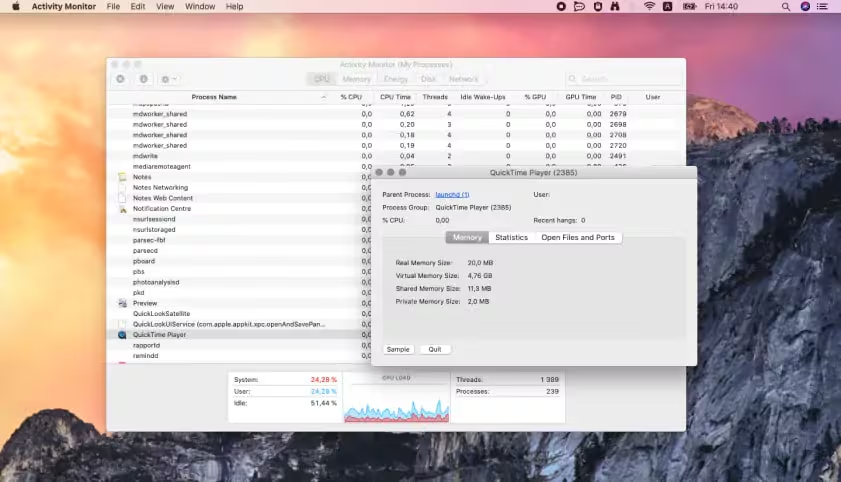
If recording doesn’t stop on your Mac, it’s time for Activity Monitor to take the stage. If you face any issues while recording your screen on Mac, for example, the Stop button disappears suddenly, use the Activity Monitor to end the process forcefully.
Take the following steps to stop screen recording forcefully on your Mac using Activity Monitor:
Go to Finder ➙ find Applications ➙ open Utilities ➙ launch Activity Monitor.
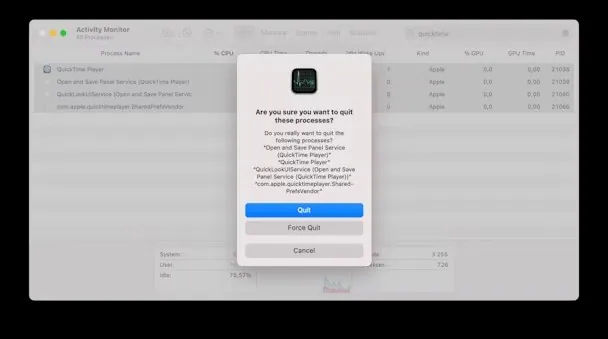
In Activity Monitor, find QuickTime Player ➙ click the X button ➙ choose Quit ➙ click Force Quit to end the screen recording forcefully.
Step 1. Finder > Applications > Activity Monitor > QuickTime PlayerStep 2. Quit QuickTime Player
A note from our experts:
One common issue you may encounter while recording your screen is the accumulation of multiple versions of the same file. Over time, these duplicates take an awful lot of storage space. MacKeeper offers an efficient solution to this problem - Duplicates Finder, designed to identify and remove duplicates safely.
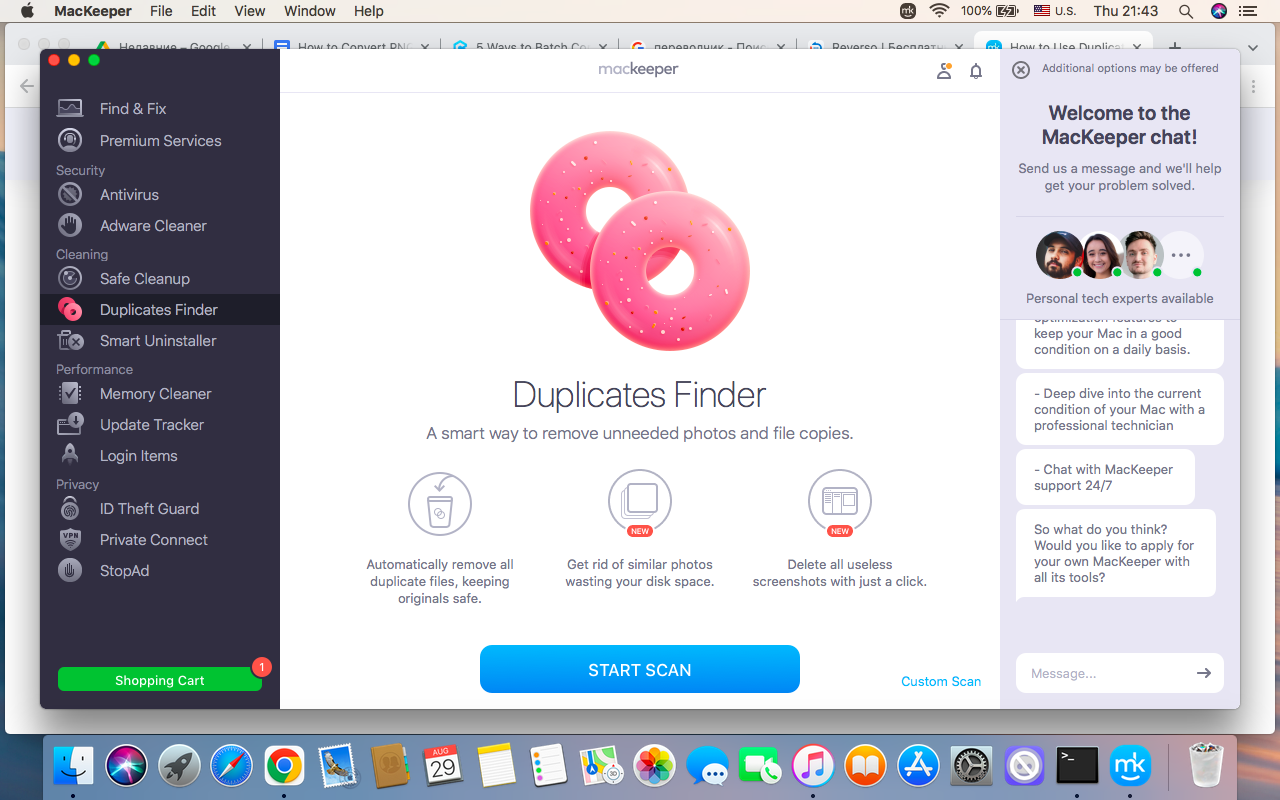
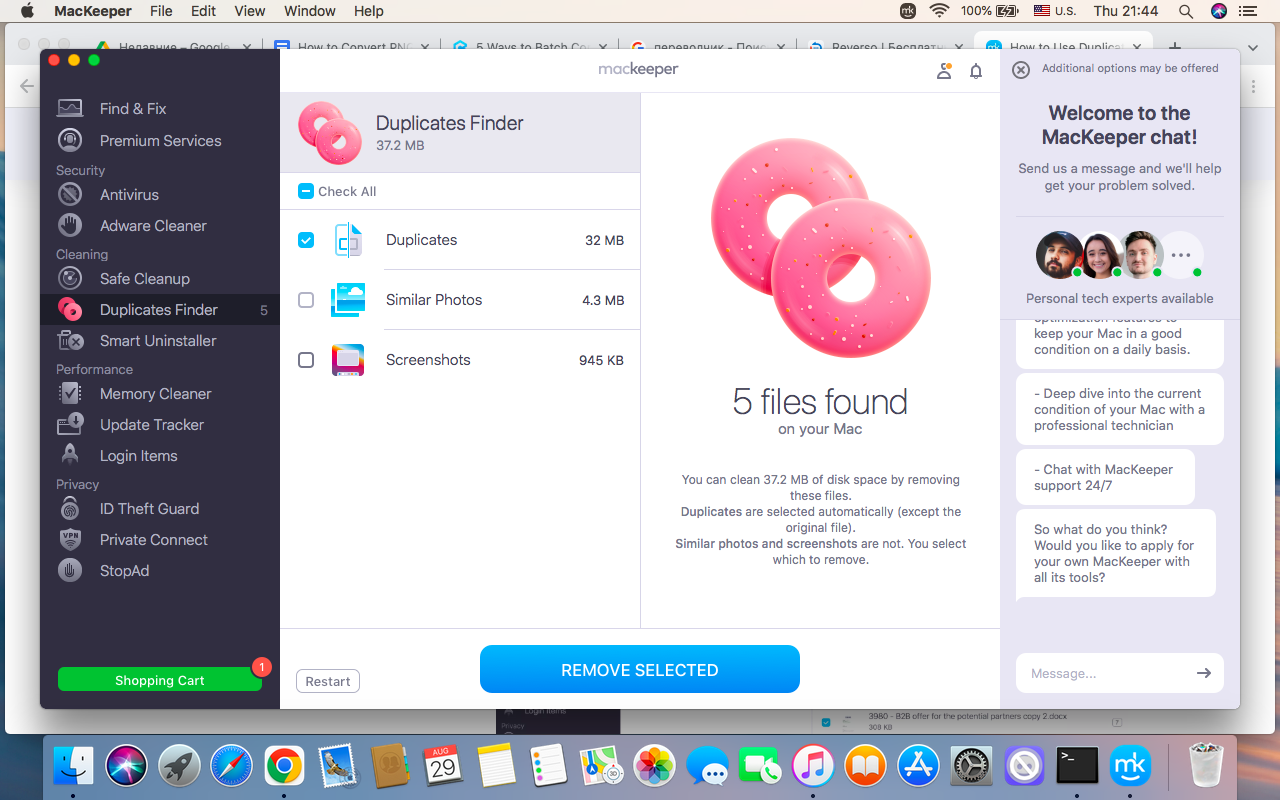
Do the following to eliminate identical screen recordings from your Mac via MacKeeper’s Duplicates Finder:
Find the Duplicates Finder tool from the left sidebar.
Select the Start Scan option to start scanning your Mac for any copies.
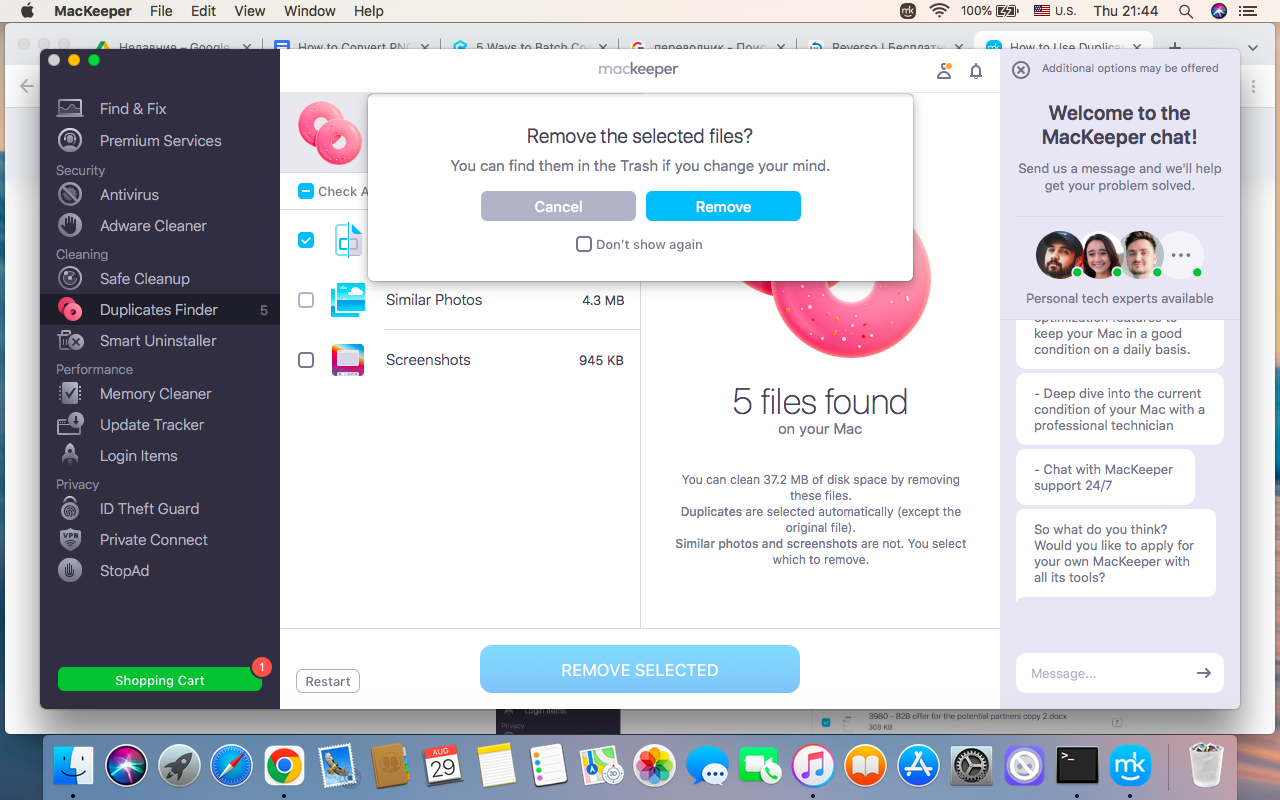
After the scan is completed, select unnecessary duplicates and click Remove Selected to delete them ➙ confirm the removal.
Step 1. Launch the MacKeeper app > Choose Duplicates Finder > Start ScanStep 2. Select unnecessary duplicates > Click Remove SelectedStep 3. Remove the selected files
When screen recording won’t stop on Mac?
If you’ve tried all the methods from above, but your Mac continues recording your screen, it may happen due to several reasons:
Hidden controls
Frozen apps
System glitches
Fortunately, all these issues aren’t too serious and can be overcome by simple solutions, like closing the process in Activity Monitor or restarting your Mac.
An extra piece of advice from our team:
One more problem you may come across is the MacBook microphone not working when you need audio and video content. The attached article will guide you through the best solutions to resolve this inconvenience.
Conclusion
Stopping screen recording on your Mac is a simple task if you know the available methods. You can use the Stop button, keyboard shortcuts, or end the recording in QuickTime Player.
When dealing with screen recording, don’t forget to free up storage space from multiple duplicates. Remember that you can use MacKeeper’s Duplicates Finder to do it quickly and safely.
We respect your privacy and
use cookies
for the best site experience.
Privacy Preferences Center
We use cookies along with other tools to give you the best possible experience while using the
MacKeeper website. Cookies are small text files that help the website load faster. The cookies we
use don’t contain any type of personal data meaning they never store information such as your
location, email address, or IP address.
Help us improve how you interact with our website by accepting the use of cookies. You can change
your privacy settings whenever you like.
Manage consent
All cookies
These cookies are strictly necessary for enabling basic website functionality (including page
navigation, form submission, language detection, post commenting), downloading and purchasing
software. The website might malfunction without these cookies.