Centre Stage is an app that uses advanced face tracking technology to keep you in frame whilst on video calls and conferences. It syncs to the hardware on your Mac to create a shared ecosystem so that your camera can move freely as you do–keeping you visible in each frame. Just turn on camera, and Centre Stage will ensure you remain in position.
Centre Stage is an app that uses advanced face tracking technology to keep you in frame whilst on video calls and conferences. It syncs to the hardware on your Mac to create a shared ecosystem so that your camera can move freely as you do–keeping you visible in each frame. Just turn on camera, and Centre Stage will ensure you remain in position.
Why turn off Center Stage on your Mac?
While Center Stage can be useful for keeping your face in a central screen position, the frequent display adjustments can become a nuisance–the constant following can cause screen disruptions on calls and lag during presentations. So wanting to turn off Center Stage on Mac for more screen control is understandable.
A note from our experts:
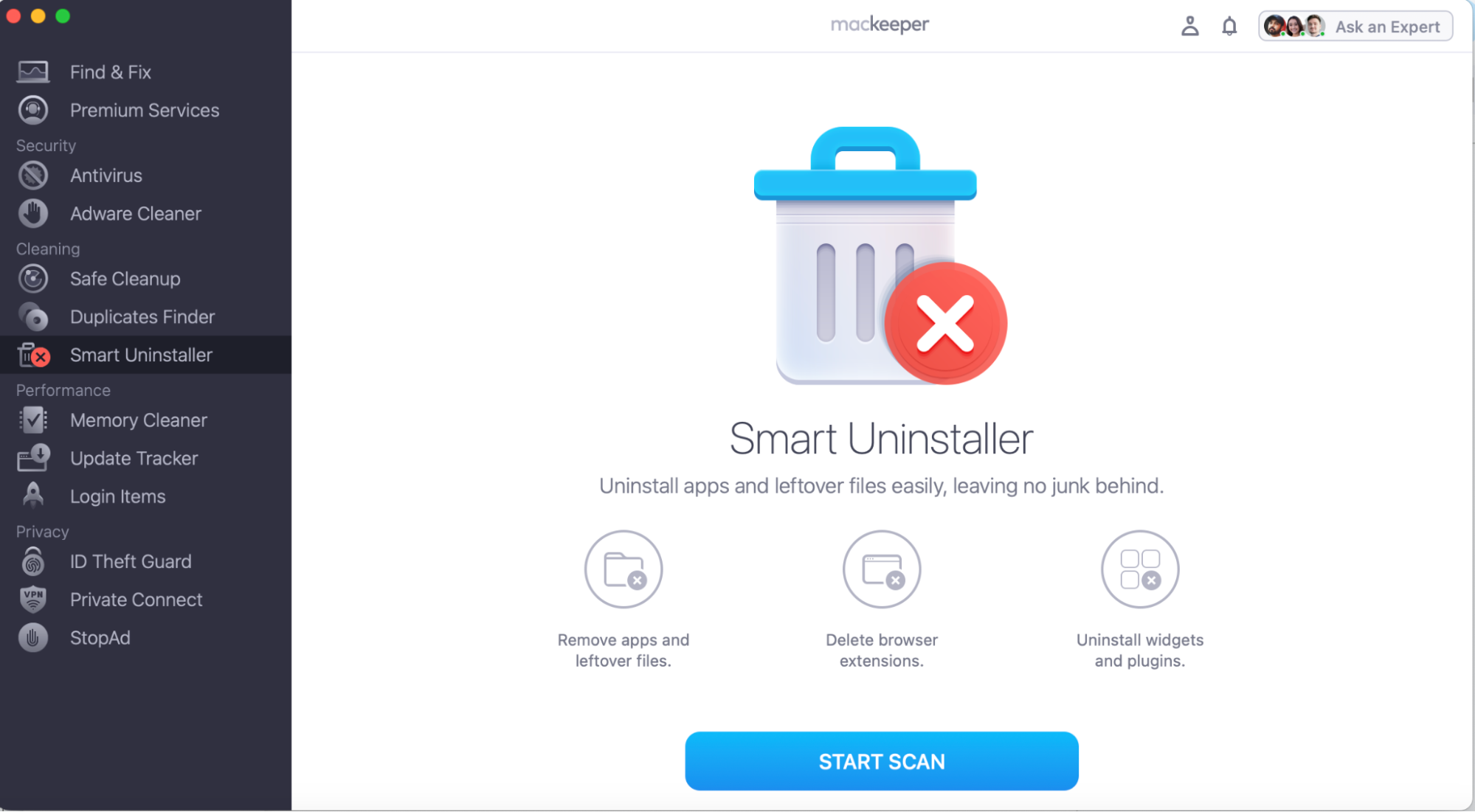
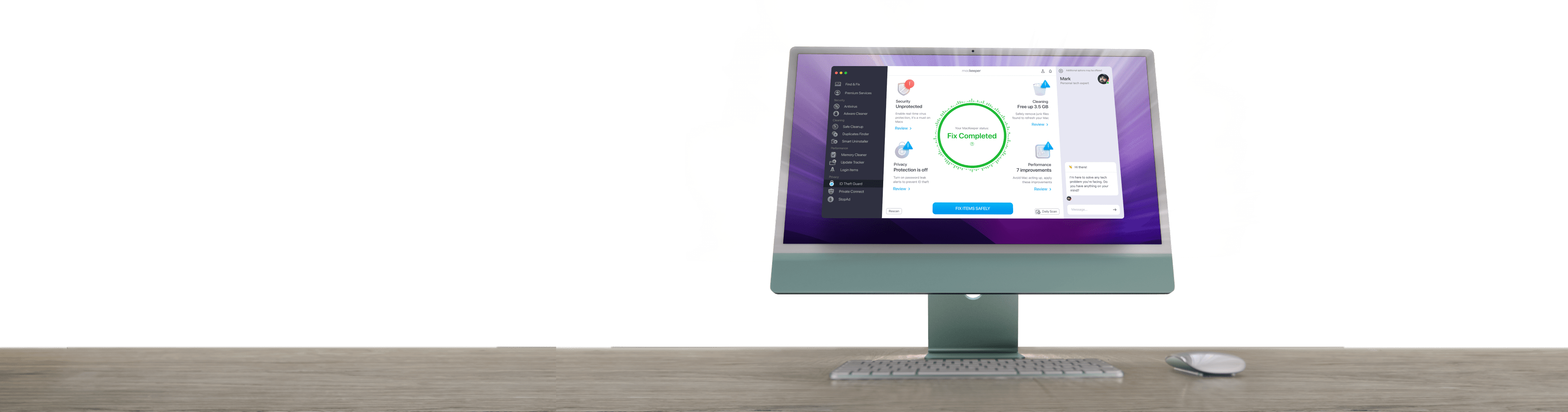
If you’re getting fed up with the Centre Stage app or you don’t really need it on your Apple device anymore, you can turn off the tracker. However, we would recommend uninstalling the application to avoid any leftover cache or clutter that demands disk space. MacKeepers Smart Uninstaller does all the hard work for you–removing an unwanted app and all its files.
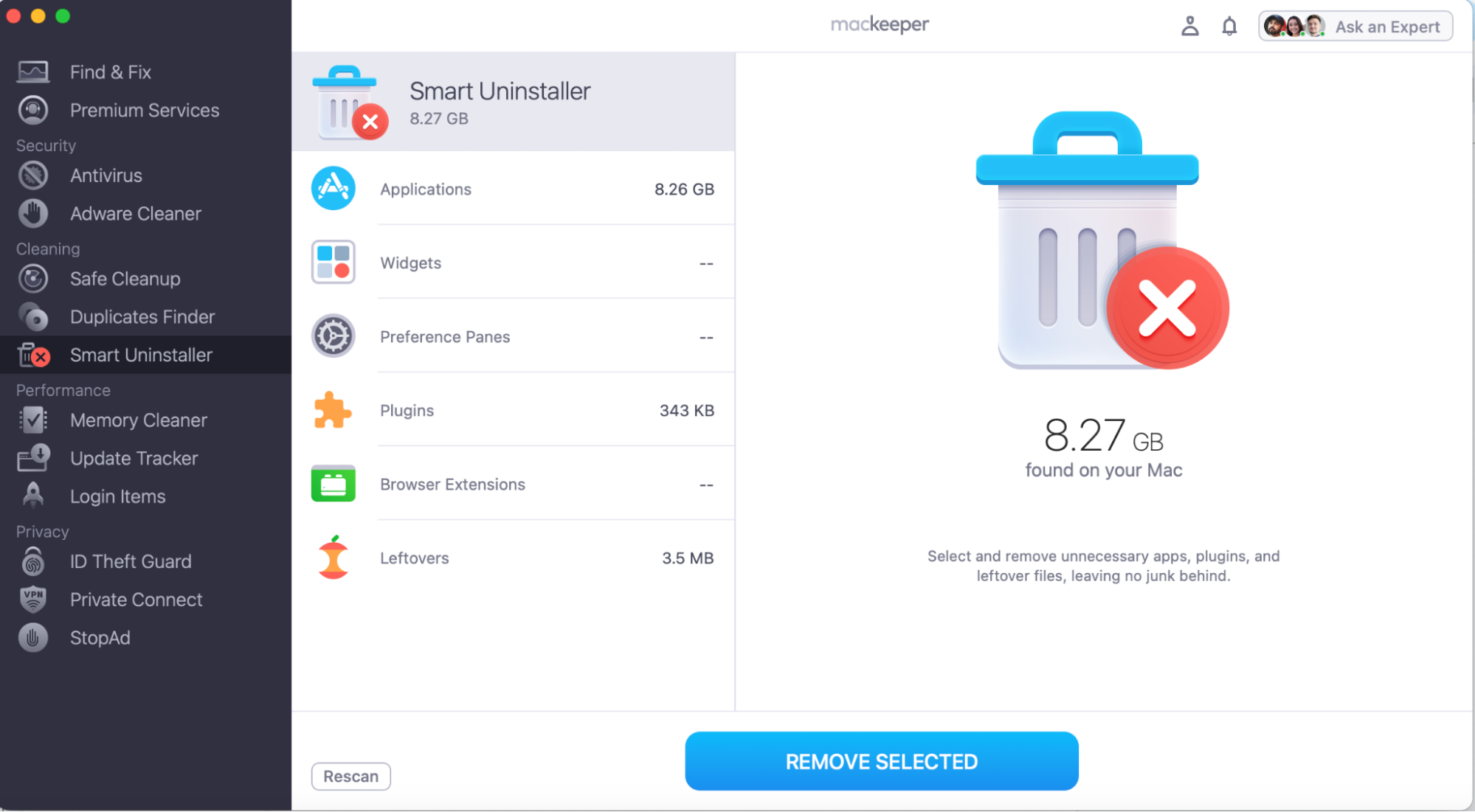
Step 1. In the MacKeeper app, go to Smart Uninstaller and press Start ScanStep 2. Look through the list, tick the app you want to uninstall, and press Remove Selected
How to disable Center Stage on Mac?
If you don’t want to completely uninstall Center Stage from your MacBook, you can disable Center Stage on Mac instead. This allows you to turn off or enable the camera tracking feature when needed, so do the following:
Disable Center Stage via the menu bar (macOS Sonoma or later)
Turn off Center Stage via Control Center (macOS Ventura or earlier)
Reset manual pan and zoom framing
Turn off unwanted background video effects
1. Disable Center Stage via the menu bar (macOS Sonoma or later)
One way you can stop Center Stage on Mac is by using the menu bar while your screen call or video is running and toggling it on/off. However, this can be limited depending on your version of macOS because there’s a difference between macOS Sonoma and Ventura–older patches have limitations.
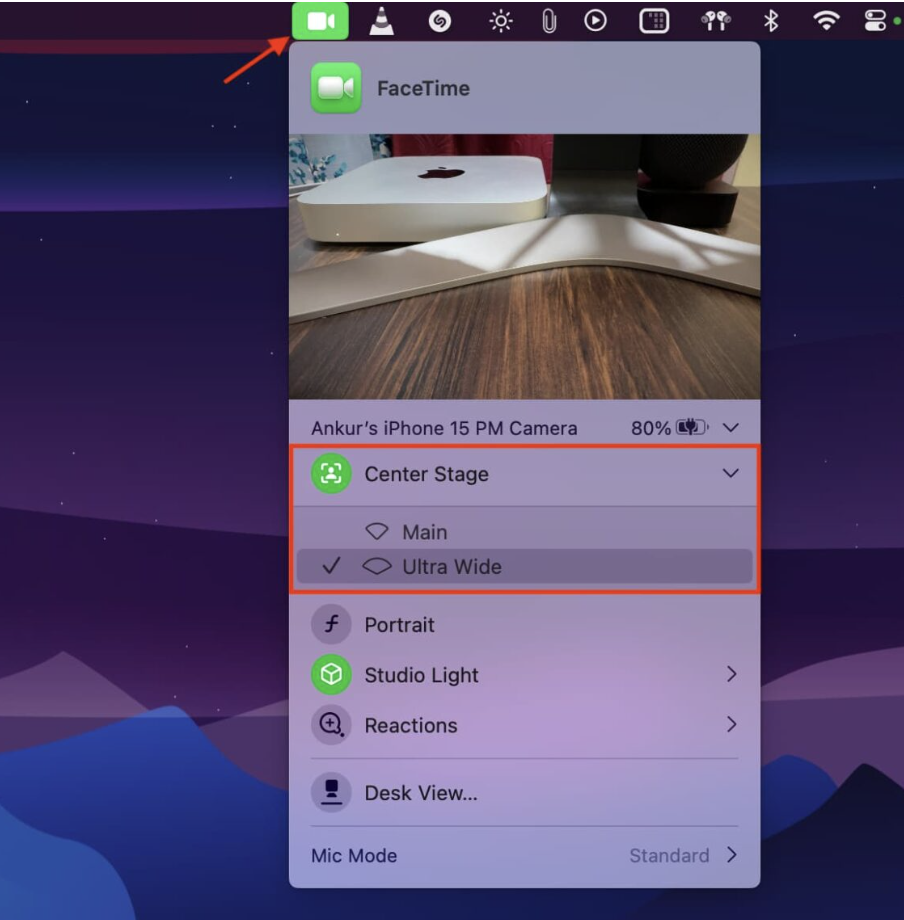
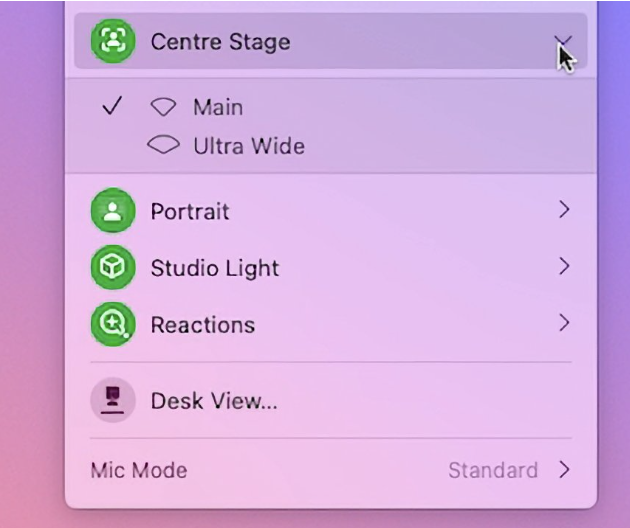
Here’s how to disable Centre Stage via the menu bar with macOS Sonoma or later:
Open your video app.
Go to the top-right corner of your screen and click the Green Camera Icon.
Click on Centre Stage to toggle it off.
Open your video app, click on the green icon, and press on Centre Stage to toggle the feature on or off
2. Turn off Center Stage via Control Center (macOS Ventura or earlier)
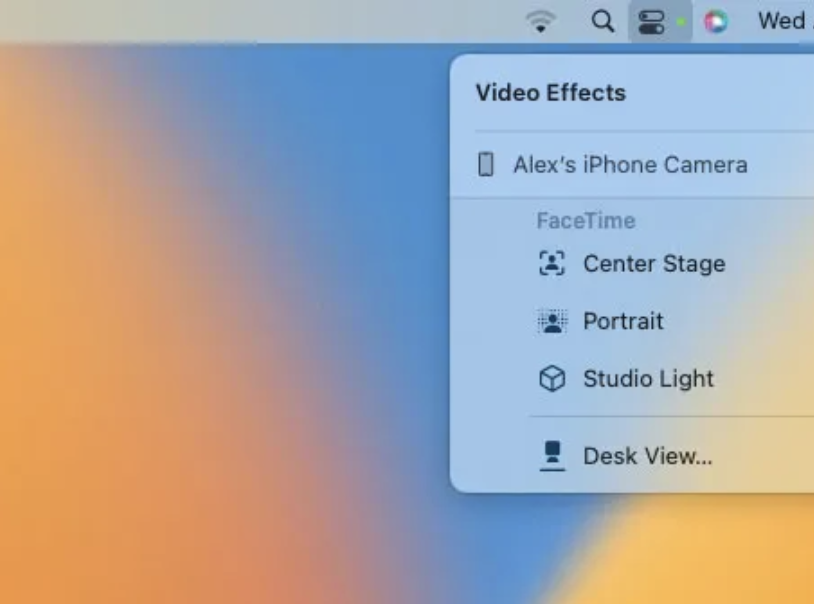
For Macintosh devices that run Ventura or earlier OS, you can still shut off Center Stage on Mac, but the steps are slightly different. Instead of using the menu bar, you’ll access Centre Stage from your Control Center.
Let us show you how to turn off Centre Stage via Control Center on macOS Ventura:
Click on the Control Center in the top-right corner of your menu bar.
Go to Video Effects.
Press Center Stage to toggle it off.
To turn off Center Stage with macOS Ventura, click on Control Center > Center Stage to disable
3. Reset manual pan and zoom framing
You can also reset your camera and zoom framing manually. It’s a simple process that gives you back full control of your stage setting display.
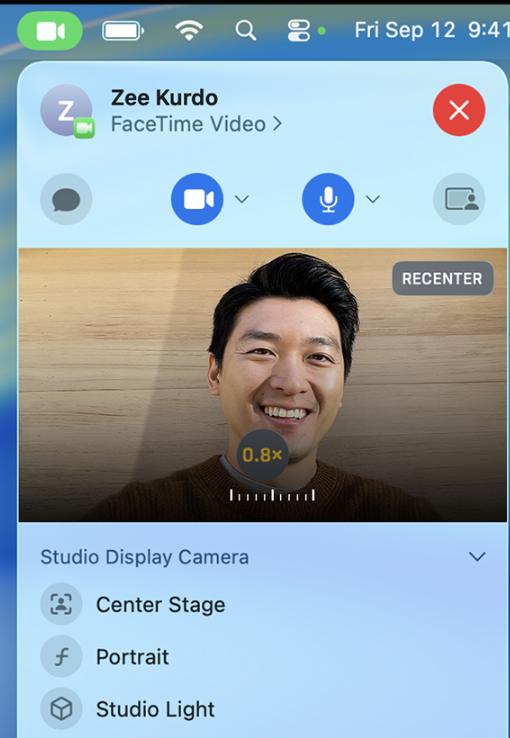
Here’s how to reset zoom framing manually:
Open up your video app.
Toggle off Center Stage.
Hover your pointer over the camera preview window.
Click Recenter or use the Zoom bar to adjust zoom.
Click and drag inside the preview frame to manually pan your view.
Step 1. Toggle off Centre Stage on your MacStep 2. Manually pan your view by pressing Recenter, or dragging inside the preview frame to pan the view
4. Turn off unwanted background video effects
If it’s not just Center Stage effects you want to turn off and stop, but all your video features, you can easily set your new video preferences within your camera settings menu.
Let us show you how to access your camera settings menu:
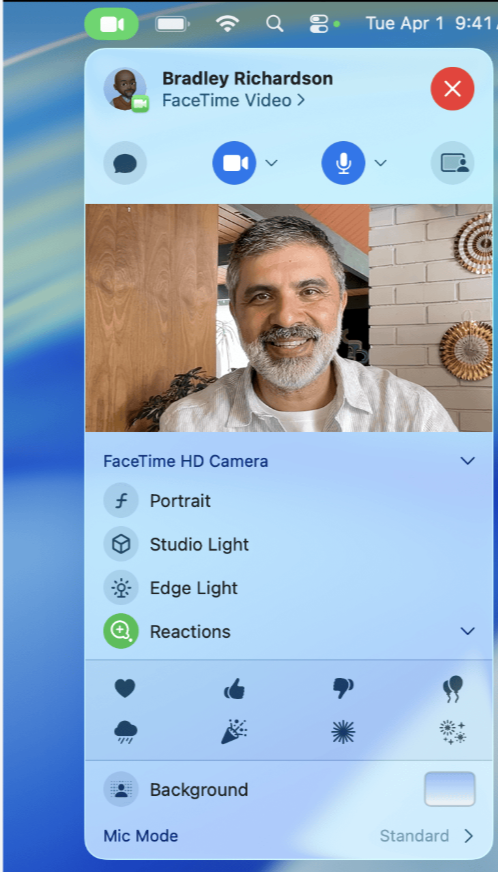
With your video app open, click on your Menu Bar.
Press the Green Button.
Open the drop-down menu.
Turn off Portrait, Studio Light, Edge Light, and Reactions by unselecting them.
Open your video, click the menu bar > green camera icon, and toggle all features in the drop-down
Turning off Center Stage for more control over video effects
Wanting to temporarily turn off or completely stop Center Stage on Mac from altering your video effects couldn’t be easier, as long as you know how to access the controls based on your version of macOS. You’ll either open the menu bar or Control Centre to toggle off Center Stage.
To say goodbye to Centre Stage for good, MacKeeper’s Smart Uninstaller can help you thoroughly rid your device of the app and its associated files in seconds–so you can regain control over video effects. Download it today and try it for yourself.
We respect your privacy and
use cookies
for the best site experience.
Privacy Preferences Center
We use cookies along with other tools to give you the best possible experience while using the
MacKeeper website. Cookies are small text files that help the website load faster. The cookies we
use don’t contain any type of personal data meaning they never store information such as your
location, email address, or IP address.
Help us improve how you interact with our website by accepting the use of cookies. You can change
your privacy settings whenever you like.
Manage consent
All cookies
These cookies are strictly necessary for enabling basic website functionality (including page
navigation, form submission, language detection, post commenting), downloading and purchasing
software. The website might malfunction without these cookies.