Continuity Camera is a convenient feature, but it can become frustrating when it’s hard to turn it off. In this guide, we’ll show you how to take back control of your Mac. Consider also activating MacKeeper’s StopAd to get rid of annoying alerts.
Continuity Camera lets you use your iPhone’s rear camera as a high-quality webcam for your Mac, with no extra software required. It’s an excellent alternative if your Mac’s built-in camera isn’t working, or if you want an upgrade for enhanced capabilities, including Center Stage, Desk View, and Portrait mode. Plus, we remind you that it’s also possible to use your iPhone’s microphone for sharper audio during video calls from your Mac.
This feature is available on Macs running macOS Ventura or later. Is upgrading worthwhile beyond Continuity Camera? Explore our Monterey vs Ventura comparison to discover all the new enhancements.
How does Continuity Camera work on Mac?
Continuity Camera operates when your Mac and iPhone are nearby and connected, either wirelessly or via cable, with both devices signed in to the same Apple ID. To use your iPhone as a webcam, place it in landscape mode on a stable mount above your Mac. Open a video-calling app, and your Mac should automatically recognize the iPhone’s camera. If it doesn’t, check the app’s camera settings to select your iPhone manually. You can also choose your iPhone’s microphone in System Settings, although this step is optional.
An extra hint from us:
Continuity Camera is just one of the standout features that have enhanced the Mac experience in recent years. Widgets on Mac and expanded Control Center customization are also game-changers. Explore our guide for further details.
Pros and cons of using Continuity Camera on Mac
As with any technology, using your iPhone camera as a webcam on your Mac comes with its own set of benefits and drawbacks. Below, our team explores the key pros and cons to help you decide if this feature is right for you:
Pros
Delivers practical convenience with impressive video and audio quality.
Unlocks advanced features of your iPhone camera on your Mac.
Enables wireless webcam functionality.
Automatically connects in most cases, with minimal setup required.
Cons
May occasionally experience inconsistent performance or fail to connect immediately.
Can significantly drain the battery on both your iPhone and Mac.
Potential risk of iPhone overheating during extended use.
Requires a compatible mount, which is sold separately.
As we mentioned, this feature can significantly impact the battery life of both your Mac and iPhone. For tips on maximizing battery efficiency, check out our guide on how to battery on MacBook.
What to check before turning off Continuity Camera on Mac?
Thinking about disabling Continuity Camera because it’s not working as expected? Before you turn it off and miss out on its benefits, our team of experts suggests trying a few troubleshooting steps first.
Check your iPhone and Mac specs
We recommend starting by verifying that your iPhone and Mac meet the essential system requirements for Continuity Camera to function properly:
Owning an iPhone XR or newer, running iOS 16 or later
Having a supported Mac with macOS Ventura or later installed
Signing in both devices to the same Apple Account
Make sure your Wi-Fi and Bluetooth are turned on
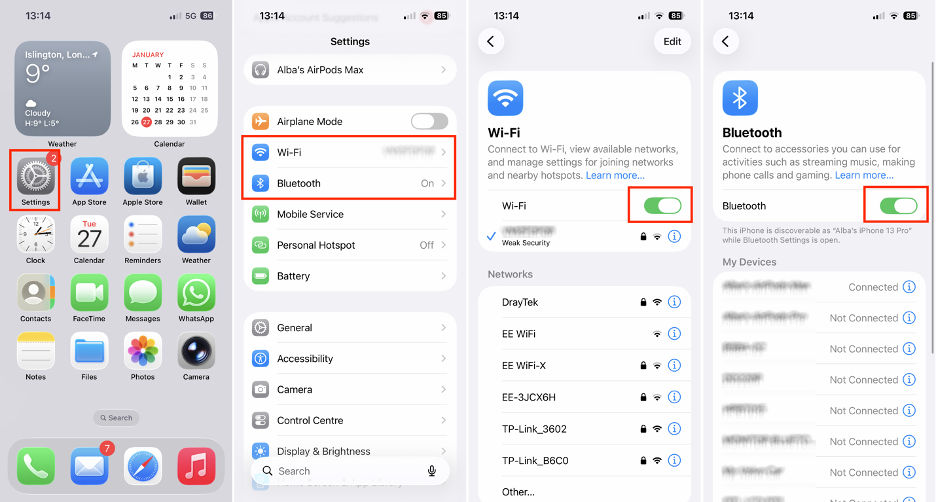
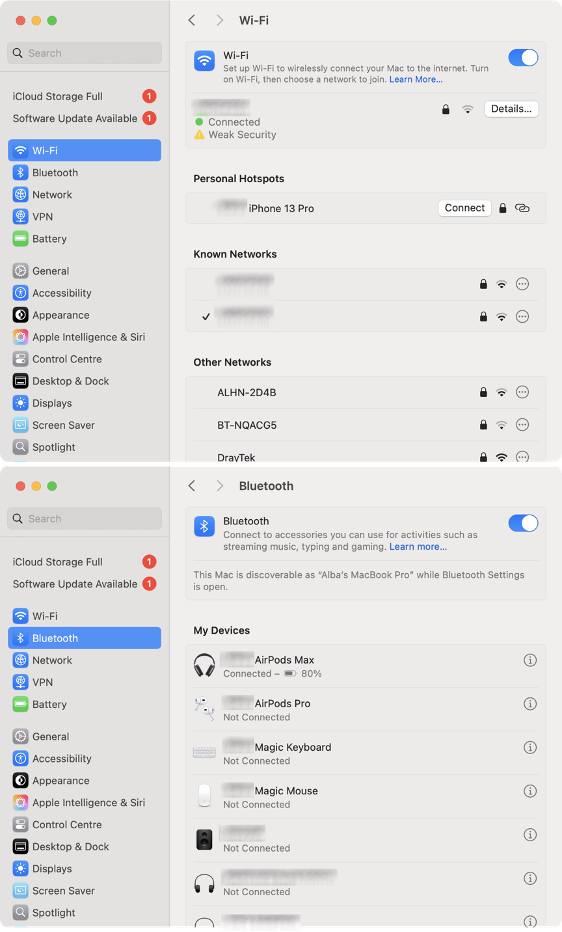
Based on our experience, you should also check that both Wi-Fi and Bluetooth are enabled on your Mac and iPhone before attempting to connect. To ensure seamless pairing, follow the steps below:
On your iPhone, go to Settings.
Tap Wi-Fi, then make sure the toggle is on.
Next, tap Bluetooth, then make sure the switch is turned on.
On your Mac, open System Settings.
Click Wi-Fi in the sidebar, then turn on the toggle.
Click Bluetooth, and make sure the toggle is enabled.
Step 1. On your iPhone, open Settings > Wi-Fi/BluetoothStep 2. On your Mac, go to System Settings > Wi-Fi/Bluetooth
Move your devices closer
If the steps above don’t resolve the issue, your devices may simply be too far apart. We advise moving your Mac and iPhone closer together to help them recognize each other and ensure Continuity Camera works smoothly.
How to disable Continuity Camera on Mac?
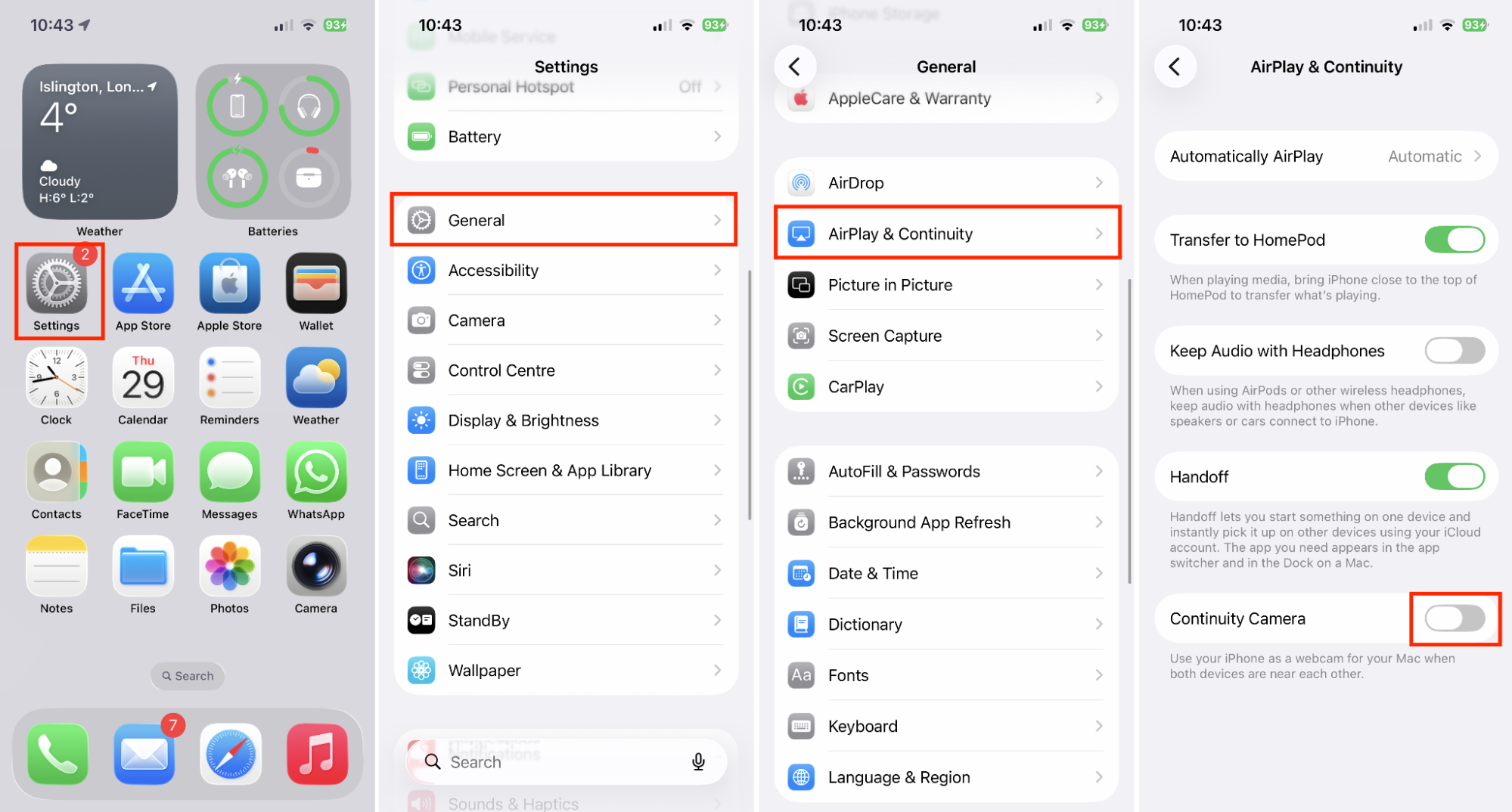
To disable the Continuity Camera feature, you should do so on your iPhone. Open the Settings app, scroll down, and select General. Next, tap AirPlay & Continuity, then locate Continuity Camera at the bottom of your screen and turn the toggle off.
Settings > General > AirPlay & Continuity > Continuity Camera
If you’re looking for a more radical solution, you might consider how to disconnect your iPhone from MacBook. Our guide will show you how to stop syncing the same Apple ID on both devices, which is a prerequisite for using Continuity Camera.
A note from our experts:
It can be frustrating when your iPhone camera automatically connects every time you make a video call on your Mac. For a smoother, distraction-free experience, turn off Continuity Camera. You should also consider eliminating pop-up ads and intrusive alerts with MacKeeper’s StopAd. This Apple-notarized, macOS-optimized cybersecurity tool protects you from adware and enhances your online browsing.
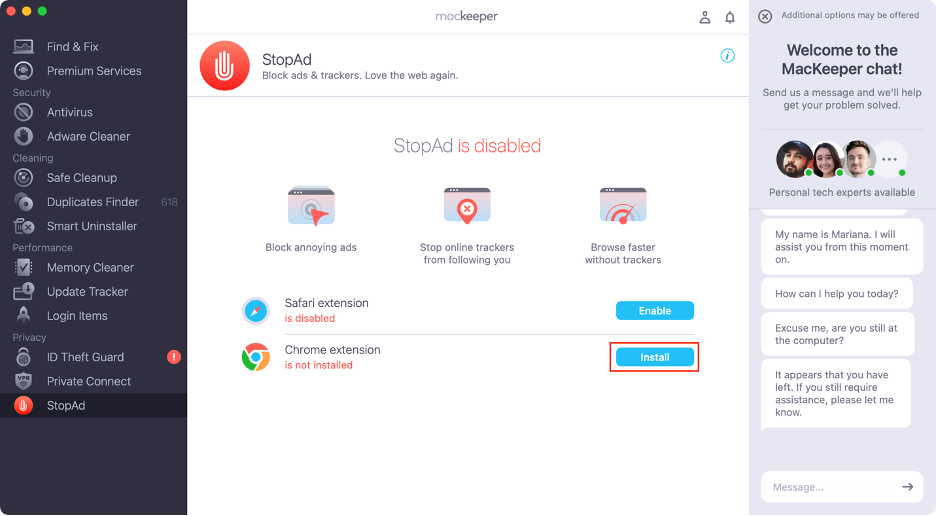
Find the steps below to use MacKeeper’s StopAd on Mac:
Step 1. MacKeeper > StopAd > OpenStep 2. Click InstallStep 3. Add the StopAd extension to your browser
How to close the Continuity app on Mac instead?
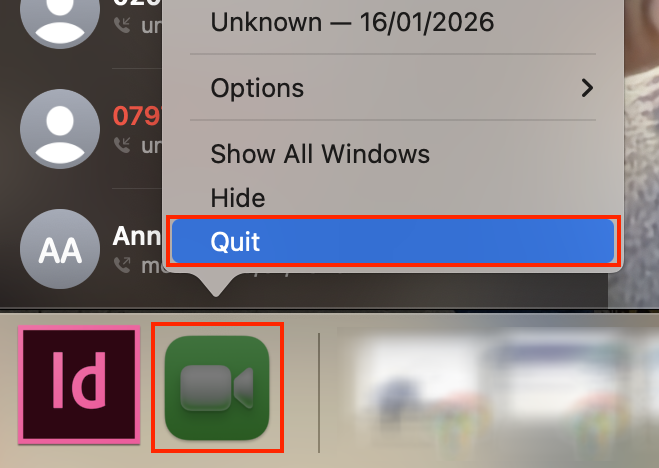
Continuity Camera doesn’t have a standalone app, so you can’t simply close it if you no longer want to use your iPhone as a webcam on your Mac. However, you can temporarily stop the connection by quitting the video call app that’s currently using your iPhone’s camera. To do this, right-click the app’s icon in the Dock and select Quit. We’d like to warn you, though, that this is a temporary fix. Your iPhone camera will automatically reconnect the next time you open the app on your Mac.
Right-click the icon in the Dock > Select Quit
Conclusion on disconnecting Continuity Camera on Mac
Continuity Camera is a powerful feature that dramatically improves the quality of your Mac’s camera. However, it isn’t always essential, and it can quickly drain your devices’ batteries. To stop using your iPhone as a webcam, open the Settings app, tap General, then select AirPlay & Continuity, and switch off the Continuity Camera toggle.
For an uninterrupted, seamless experience, our team also suggests using MacKeeper’s StopAd to block intrusive pop-up ads. Overall, Clario Tech’s MacKeeper stands out as an all-in-one macOS utility, offering robust real-time antivirus protection and performance optimization tools.
We respect your privacy and
use cookies
for the best site experience.
Privacy Preferences Center
We use cookies along with other tools to give you the best possible experience while using the
MacKeeper website. Cookies are small text files that help the website load faster. The cookies we
use don’t contain any type of personal data meaning they never store information such as your
location, email address, or IP address.
Help us improve how you interact with our website by accepting the use of cookies. You can change
your privacy settings whenever you like.
Manage consent
All cookies
These cookies are strictly necessary for enabling basic website functionality (including page
navigation, form submission, language detection, post commenting), downloading and purchasing
software. The website might malfunction without these cookies.