Typing an em dash on your Mac helps add emphasis, convey your tone and attitude naturally, and make your writing clearer for the reader, but searching for this mark can interrupt your train of thought, which is undeniably distracting. With MacKeeper’s Safe Cleanup, you can keep your system optimized and responsive, maintaining smooth performance of your Mac, even for small tasks, like inserting marks and symbols.
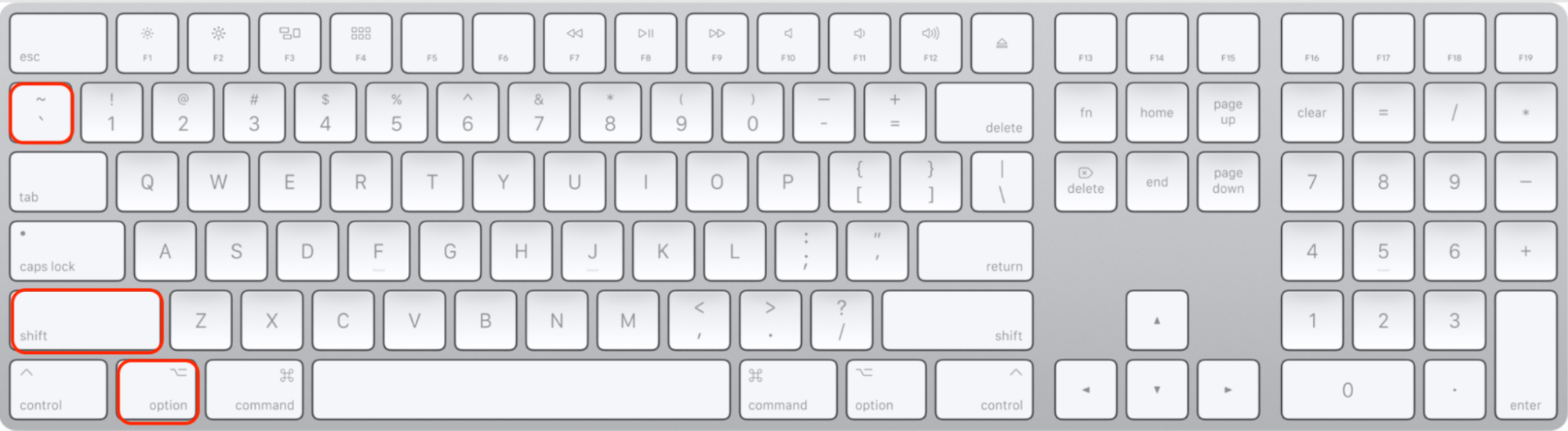
To make an em dash on Mac, press the Option + Shift + Hyphen combination simultaneously. This keyboard shortcut instantly inserts the em dash, helping structure your sentence with no need to insert the mark manually or copy and paste from external sources.
Though Mac laptops are known for their reliability and powerful features, some functions may seem quite unfamiliar - especially for new macOS users. I guess each of us has experienced confusion when trying to type special characters on Mac keyboard, often ending up copying and pasting the symbols you were looking for. The em dash is a perfect example: it’s widely used in writing, but not immediately obvious to insert.
What is em dash on Mac?
An em dash on Mac is a long horizontal punctuation mark (—) used to highlight important information, indicate pauses, or replace commas or parentheses in a sentence. This mark helps to improve readability and clarity in writing, and can be easily created with a shortcut.
How to make em dash on Mac?
If you need to type em dash on Mac, you can do it by pressing Option + Shift + Hyphen at the same time. This keyboard shortcut works in most apps, but there are alternatives. Try typing two Hyphens, which automatically become an em dash.
A note from our experts:
To write an em dash on Mac is a simple task that can be quickly achieved with a keyboard shortcut. However, if you’re dealing with a sluggish system, even basic tasks can be a headache. Over time, your Mac saves temporary files, caches, logs, and leftover data, which take up storage space, slowing down your system’s performance. I suggest you let MacKeeper’s Safe Cleanup handle the issue quickly and safely. This tool offers an important preparation step required to gain a more speedy performance on a Mac by deleting the old and unnecessary files before updating to the latest macOS version.
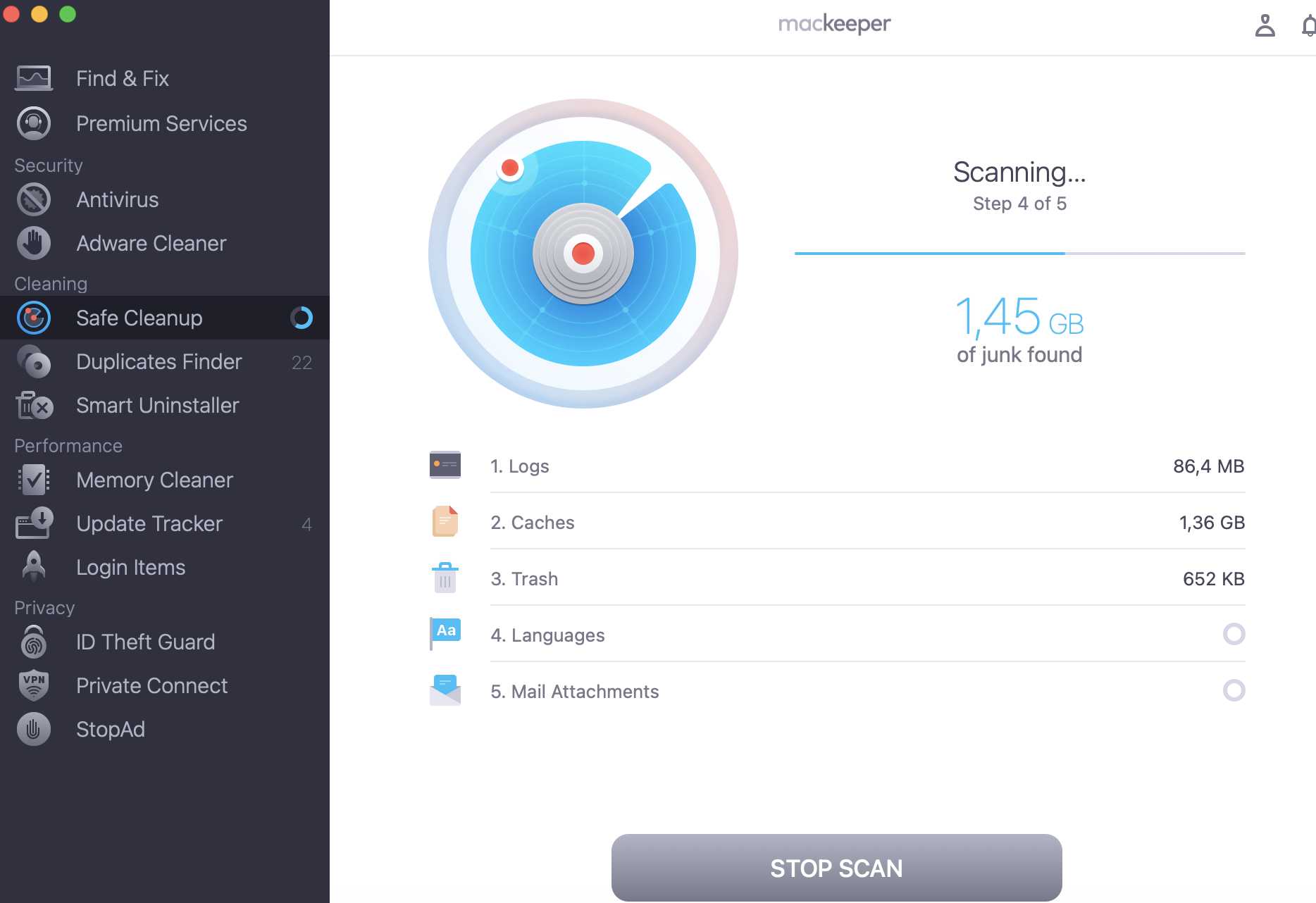
Here are detailed instructions on how to clear your Mac using MacKeeper’s Safe Cleanup:
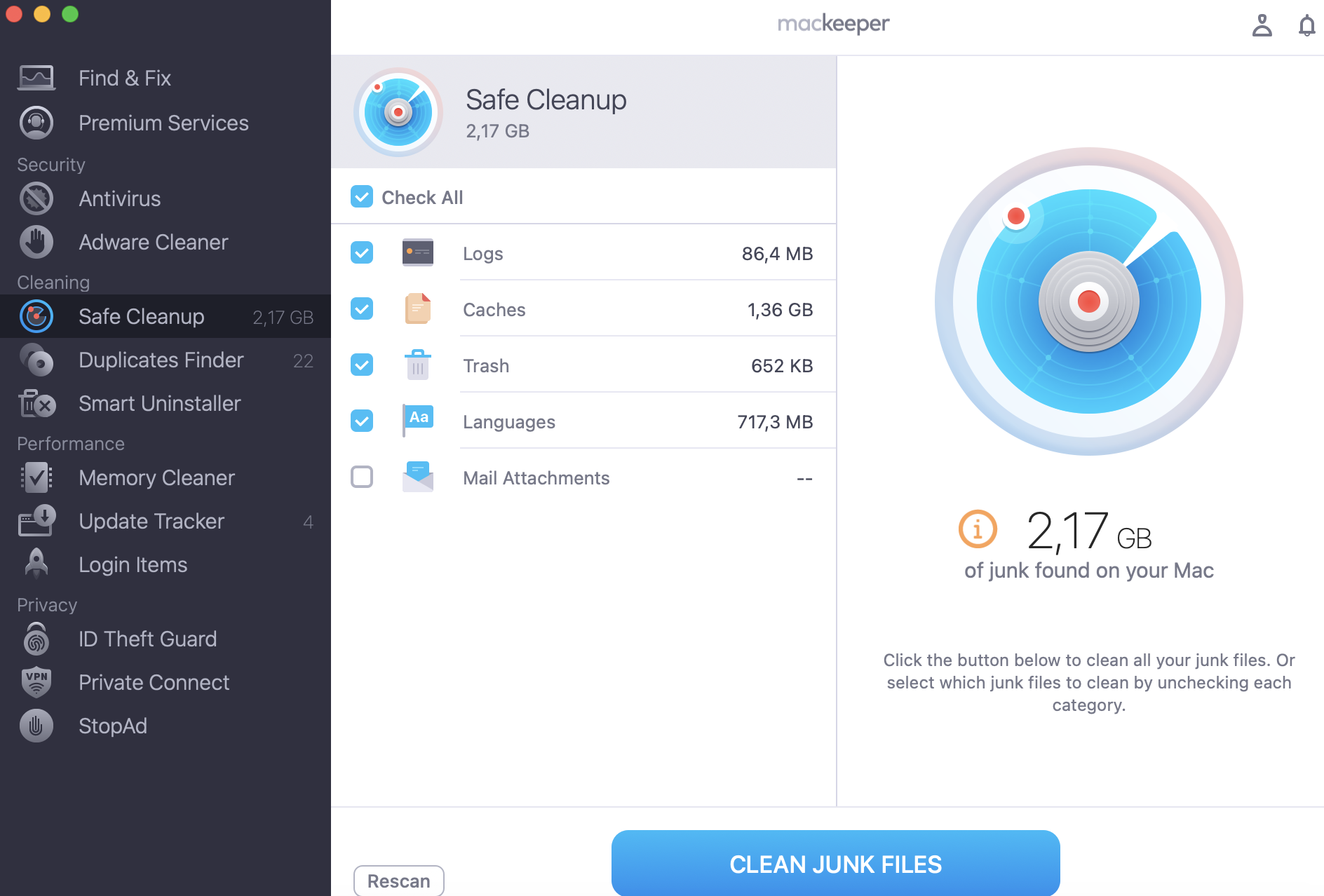
After the scan is completed, choose the files you don’t need, and click the Clean Junk Files button to remove them.
Step 1. MacKeeper > Safe Cleanup > Start ScanStep 2. Wait for the results > choose the files you want to delete > Clean Junk Files
1. Keyboard shortcut
As writing is my everyday activity, I often need to type the em dash shortcut Mac to emphasize a significant part of the sentence. I’ll be honest, there was a time when I used copy-paste method to create the mark, but now I know the alternative, easy ways to do it. I chose keyboard shortcuts as the most convenient method to write an em dash on Mac, among all the available ones.
Do the following to insert an em dash on your Mac with a keyboard shortcut:
press Option + Shift + Hyphen (-) keys at the same time ➙ the em dash instantly appears.
Press Option + Shift + Hyphen
Believe me, this combination becomes automatic after a few times of using. It helps you to stay focused on your thoughts, the content you’re creating, rather than on mechanical steps for inserting a punctuation mark or symbol.
I use the same approach to access the Mac emoji keyboard to highlight my feelings, add tone, or even express ideas without words.
2. Using Character Viewer
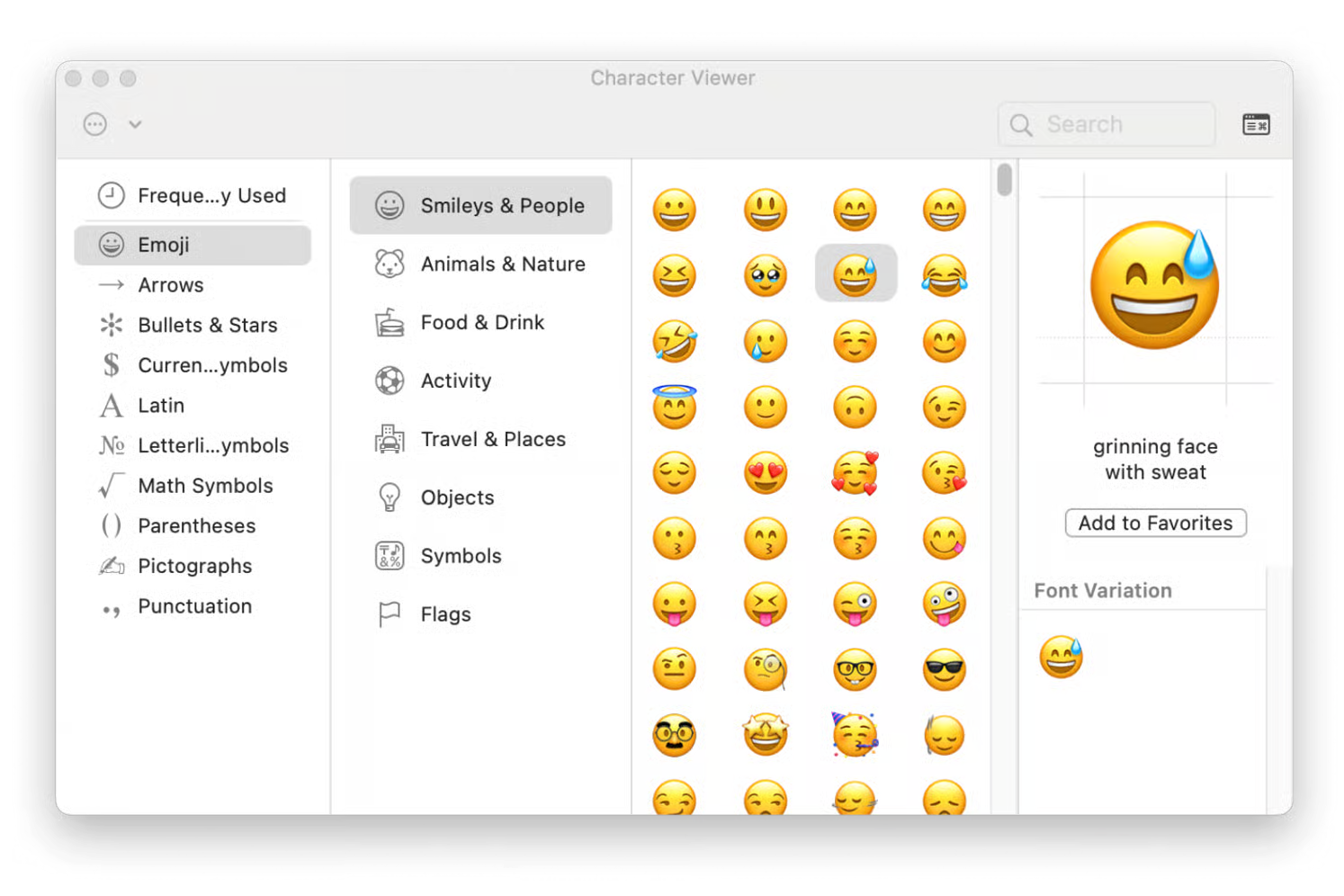
If you don’t like remembering keyboard shortcuts, or don’t use this symbol as often as I do, or prefer seeing the marks you’re inserting, you can use Character Viewer. Character Viewer offers a menu with all symbols and marks you may need.
There are two ways to launch Character Viewer to type an em dash on your Mac.
Via the Menu bar:
Go to System Settings ➙ open Keyboard.
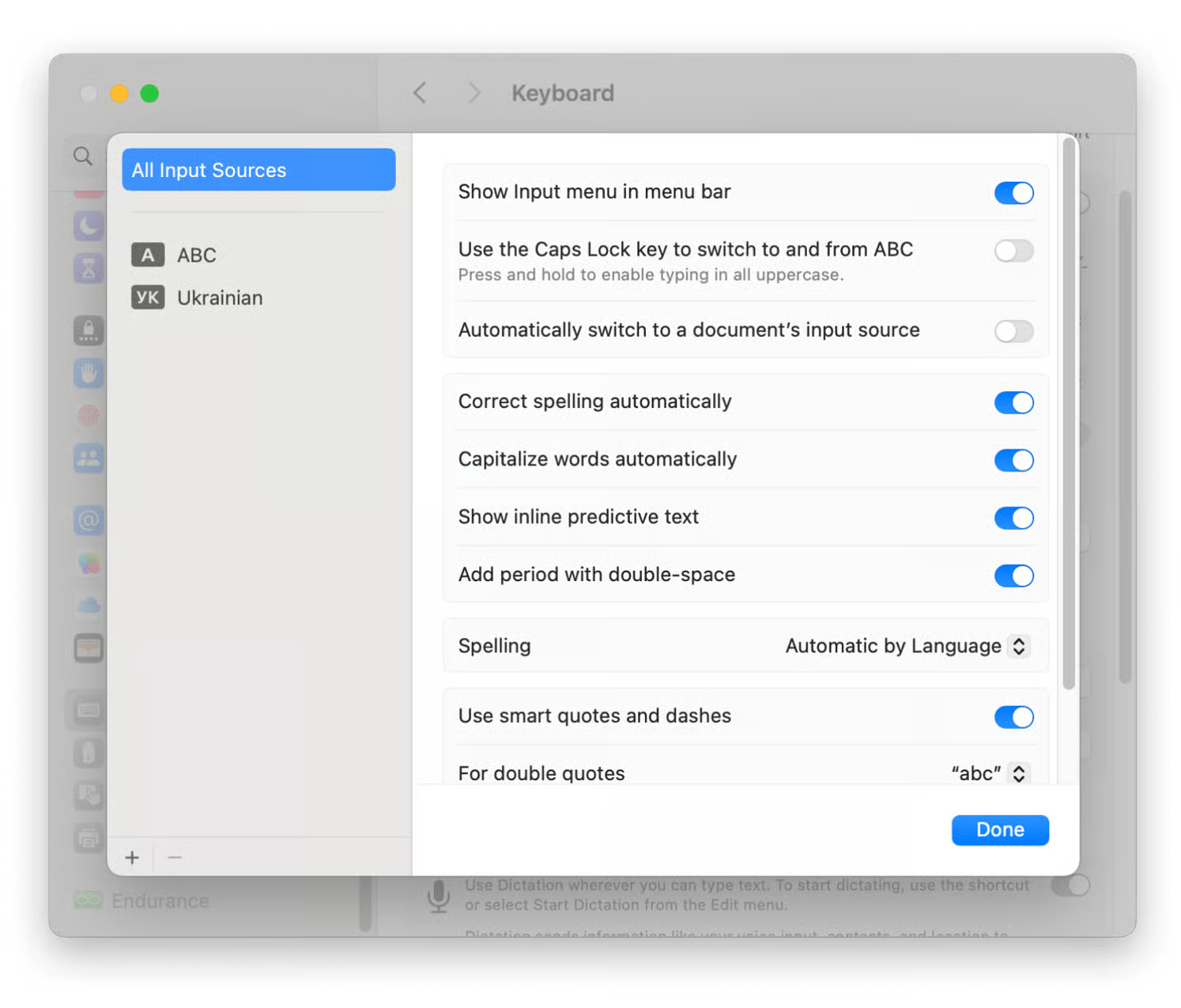
Scroll down and find the Input Sources option ➙ click Edit.
Click an Input icon (a flag or a globe) ➙ select the Show Emoji & Symbols feature.
System Settings > Keyboard > Input Sources > Edit > Input Icon > Show Emoji & Symbols
Via the Keyboard Shortcut:
Press the Control + Command + Space combination.
Select the symbol you need from the emoji & symbols panel in Character Viewer.
Control+Command+Space > Select the Mark or Symbol
3. Text replacements
Another way to type an em dash when writing on Mac is to use text replacements. Text replacements are a built-in macOS feature that works across most apps, making typing faster and more convenient. It’s a popular choice among writers. Instead of remembering combinations or interrupting your workflow, you can create a shortcut that converts a few characters into an em dash.
Follow my instructions to create an em dash by text replacements:
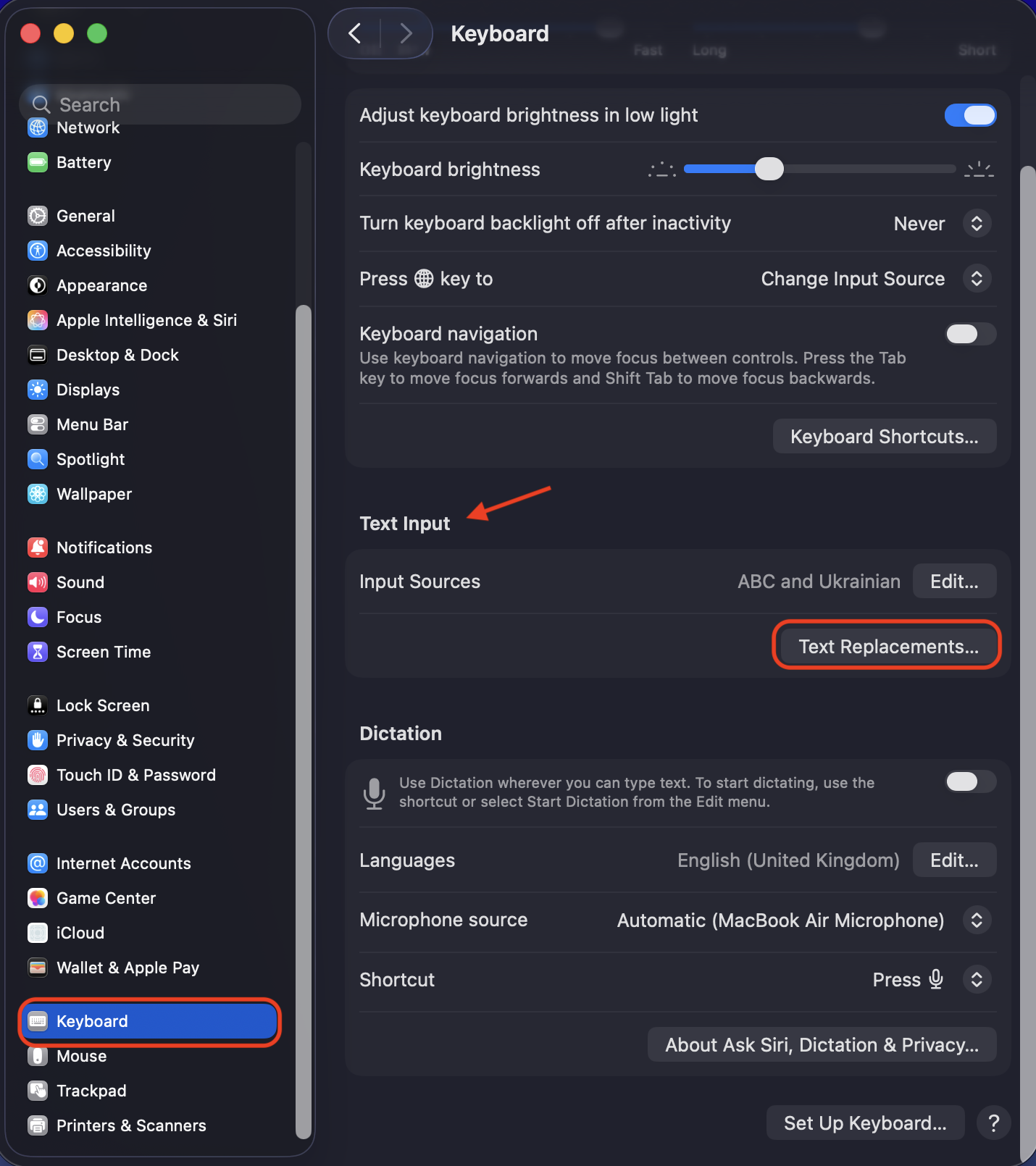
Open System Settings ➙ go to the Keyboard option.
Choose Text Input ➙ select Text Replacements.
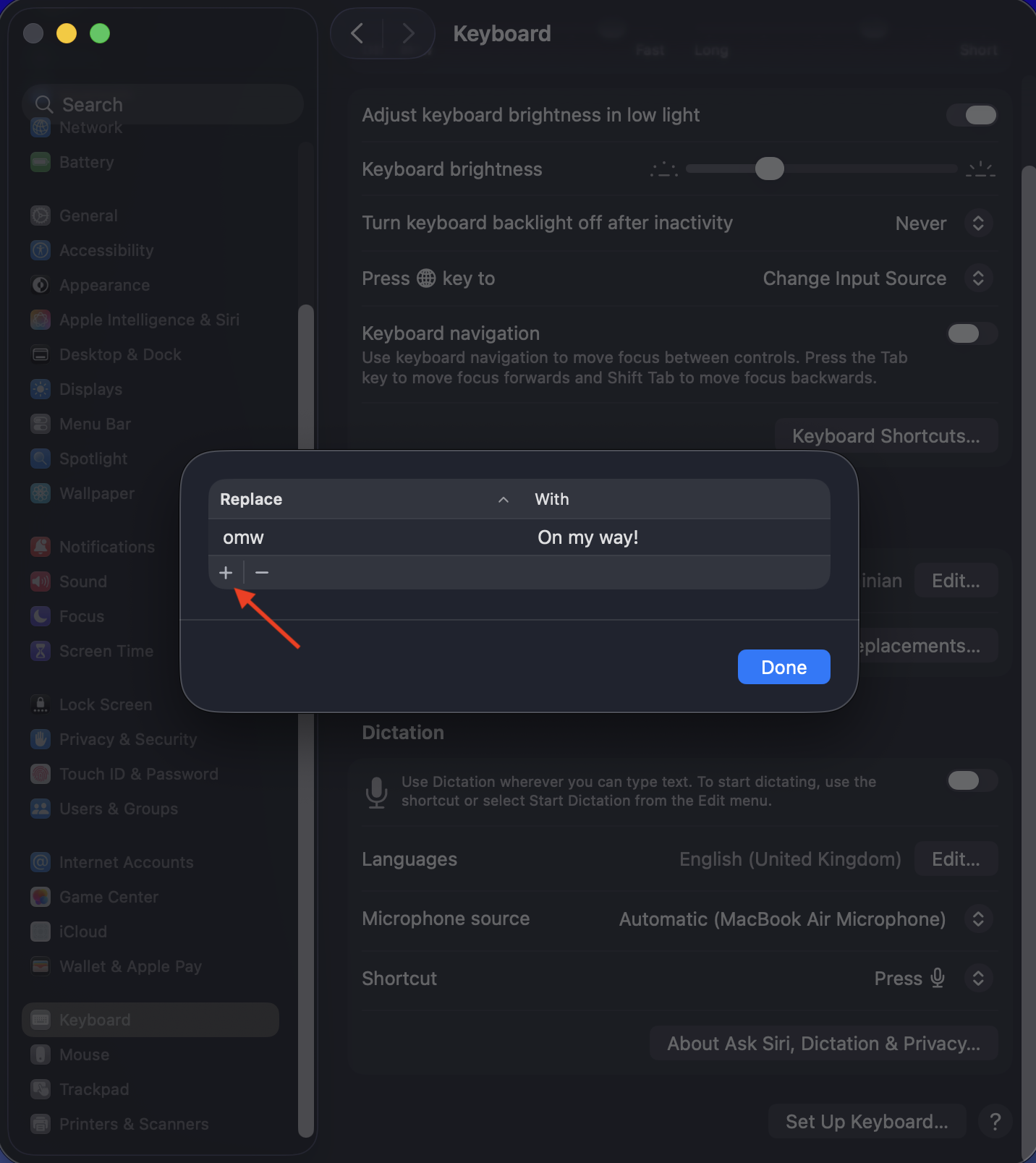
Press the Plus button (+).
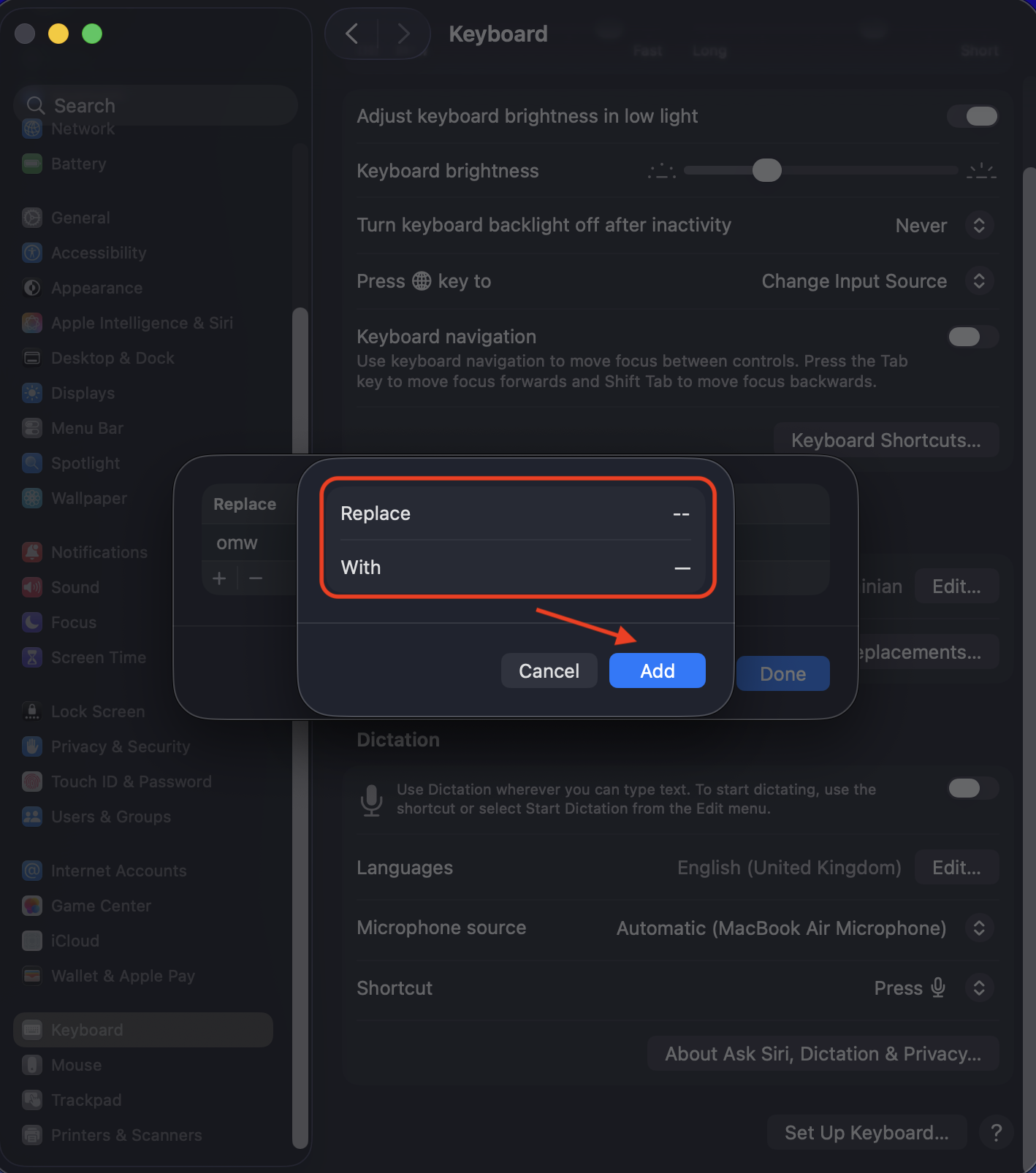
Type the shortcut (--) in the Replace field ➙ paste an em dash in the With field ➙ click Add.
Step 1. System Settings > Keyboard > Text Input > Text ReplacementsStep 2. Press the Plus button (+) > type the shortcut (--) in the Replace field Step 3. Paste an em dash in the With field > click Add
After these settings, when you type your shortcut followed by a space or a punctuation mark, your system will automatically replace it with an em dash.
While you’re here, I’d like to remind you how to turn off auto capitalization on Mac, as it also often interrupts your writing.
Conclusion
Inserting an em dash on your Mac is a simple way to make your writing feel more natural and expressive. You can choose the method that best suits your workflow. You can use a keyboard shortcut, set up the Character Viewer, or create text replacements. Each option has its own advantages, but they all serve the same purpose: helping you stay focused on the context you’re creating without interrupting for technical details.
To keep the process smooth and uninterrupted, it’s important to ensure your system stays optimized. With MacKeeper’s Safe Cleanup, you can keep your Mac free from unnecessary clutter, improve responsiveness, and maintain efficient performance, including simple tasks like writing an em dash.
We respect your privacy and
use cookies
for the best site experience.
Privacy Preferences Center
We use cookies along with other tools to give you the best possible experience while using the
MacKeeper website. Cookies are small text files that help the website load faster. The cookies we
use don’t contain any type of personal data meaning they never store information such as your
location, email address, or IP address.
Help us improve how you interact with our website by accepting the use of cookies. You can change
your privacy settings whenever you like.
Manage consent
All cookies
These cookies are strictly necessary for enabling basic website functionality (including page
navigation, form submission, language detection, post commenting), downloading and purchasing
software. The website might malfunction without these cookies.