
In this article you will find the following:
What is Bitdefender on Mac?
Not sure what Bitdefender is? Think of it like a third-party security application that is designed to protect macOS systems and find malware, phishing, and other hidden viruses. It offers real-time scanning, online protection, Time Machine backup support, and a built-in VPN. We recommend checking out our Bitdefender for Mac review for a full deep-dive into the app's pros and cons.
Should you delete Bitdefender from Mac?
If you have Bitdefender installed on your Apple device and you’re not sure whether to delete Bitdefender Mac version, it’s worth thinking about how often you use the application. Ask yourself, do you rely on it frequently, or do you use a different anti-virus extension on your Mac? If you have MacKeeper’s Anti-Virus or similar software downloaded, Bitdefender might be taking up space and resources–we recommend using one cybersecurity app at a time.
A note from our experts:
It’s essential to have reputable and reliable anti-virus software to protect your Mac. If you do decide that Bitdefender is no longer needed because you prefer a different cyber security app, MacKeeper’s Smart Uninstaller feature is here to help. Our tool will completely remove the application and all of its leftover files, so unlike a manual deletion, nothing will remain hidden deep within your Mac’s library. It takes just a few clicks, and it’ll smoothly get rid of any unwanted apps from your device.
How to remove Bitdefender from Mac?
Ready to remove Bitdefender from your Mac? There are three methods you can deploy: Bitdefender’s own built-in uninstaller, a third-party uninstaller tool, or manual removal. You can use the uninstaller app you already have or, if you don't have one, we suggest using MacKeeper's Smart Uninstaller. Alternatively, you can delete Bitdefender manually.
1. Get rid of with own uninstaller
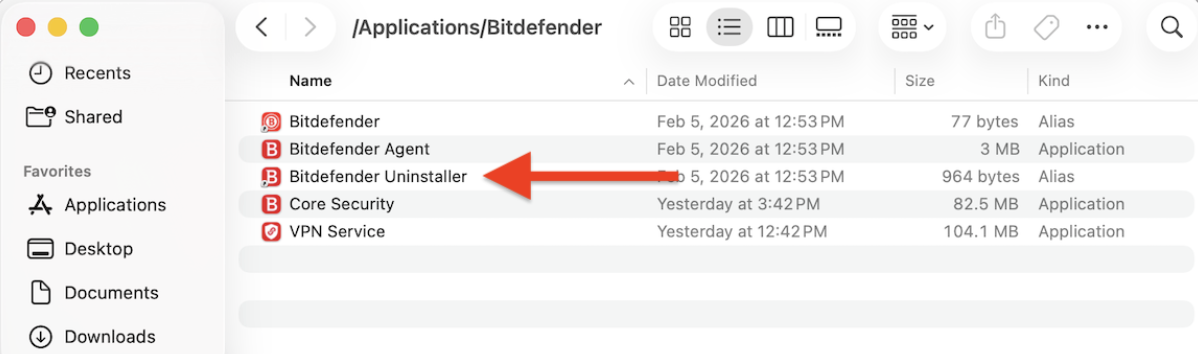
You can get rid of Bitdefneder on Mac using the built-in uninstaller function on the Bitdefender application. We recommend trying it this way before manually removing the app from your Mac, as you’ll want to ensure no hidden files remain, as using the built-in uninstaller reduces the chances of glitches.
Here’s how to use Bitdefender's uninstall feature:
- In the Bitdefender app, go to the Menu bar and press Turn Off Auto Pilot.
- Quit the Bitdefender app.
- Open Finder’s Go to Folder, and type in the /Library/Bitdefender/Central/Agent/ path.
- Double-click Bitdefender Uninstaller.
- Follow the on-screen instructions to uninstall the app.
- Type in your admin name and password when requested.
2. Remove Bitdefender on Mac with MacKeeper
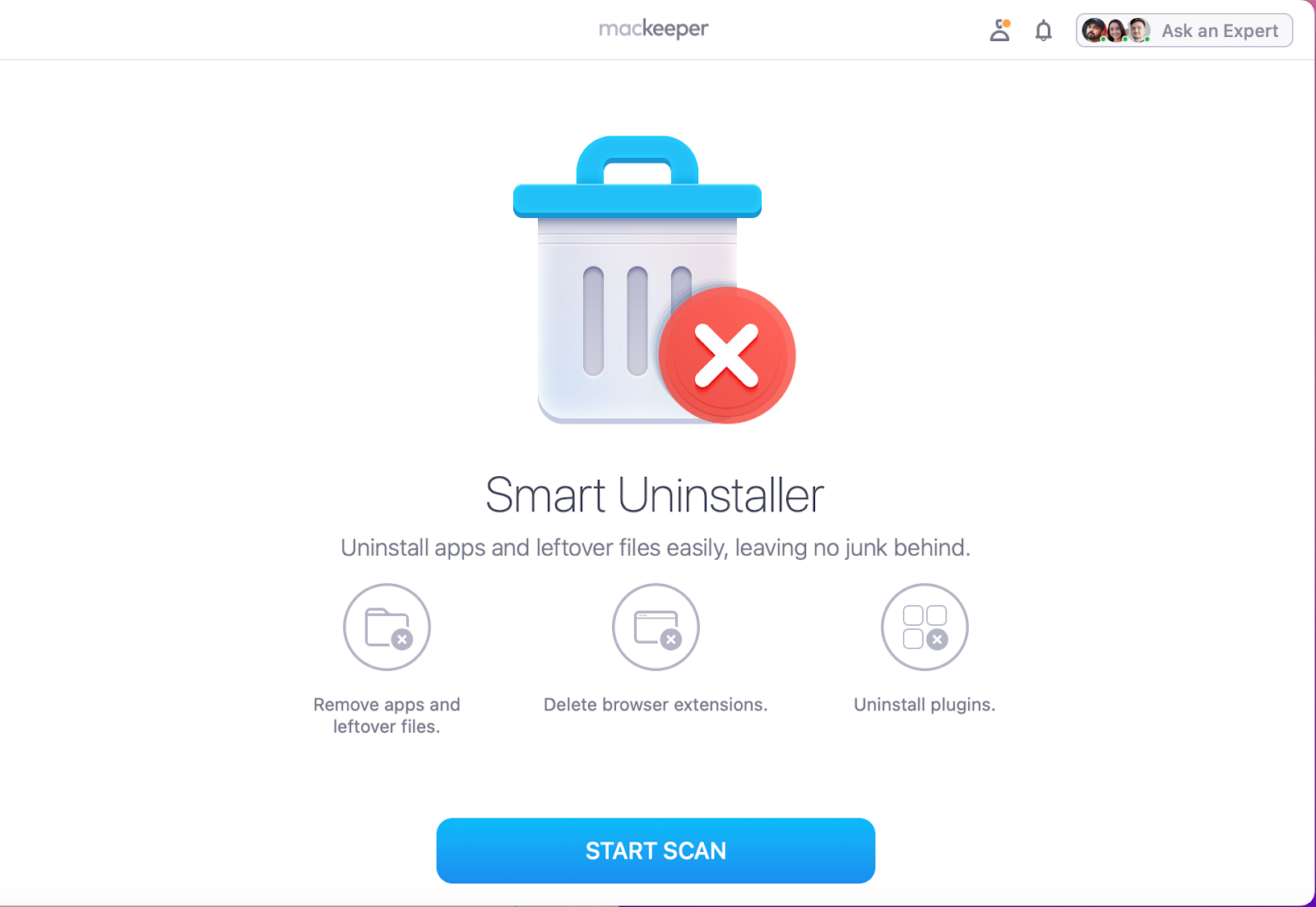
While you can use your own uninstaller to remove Bitdefender on Mac, we recommend using MacKeeper’s Smart Uninstaller if you want to completely remove all traces of the app. In a few clicks, our uninstaller app can delete hidden logs and leftover files to ensure nothing is left behind, cluttering up your free space.
Here’s how to remove Bitdefender with MacKeeper’s Smart Uninstaller:
- Install and open MacKeeper.
- Open Smart Uninstaller.
- Click on Start Scan.
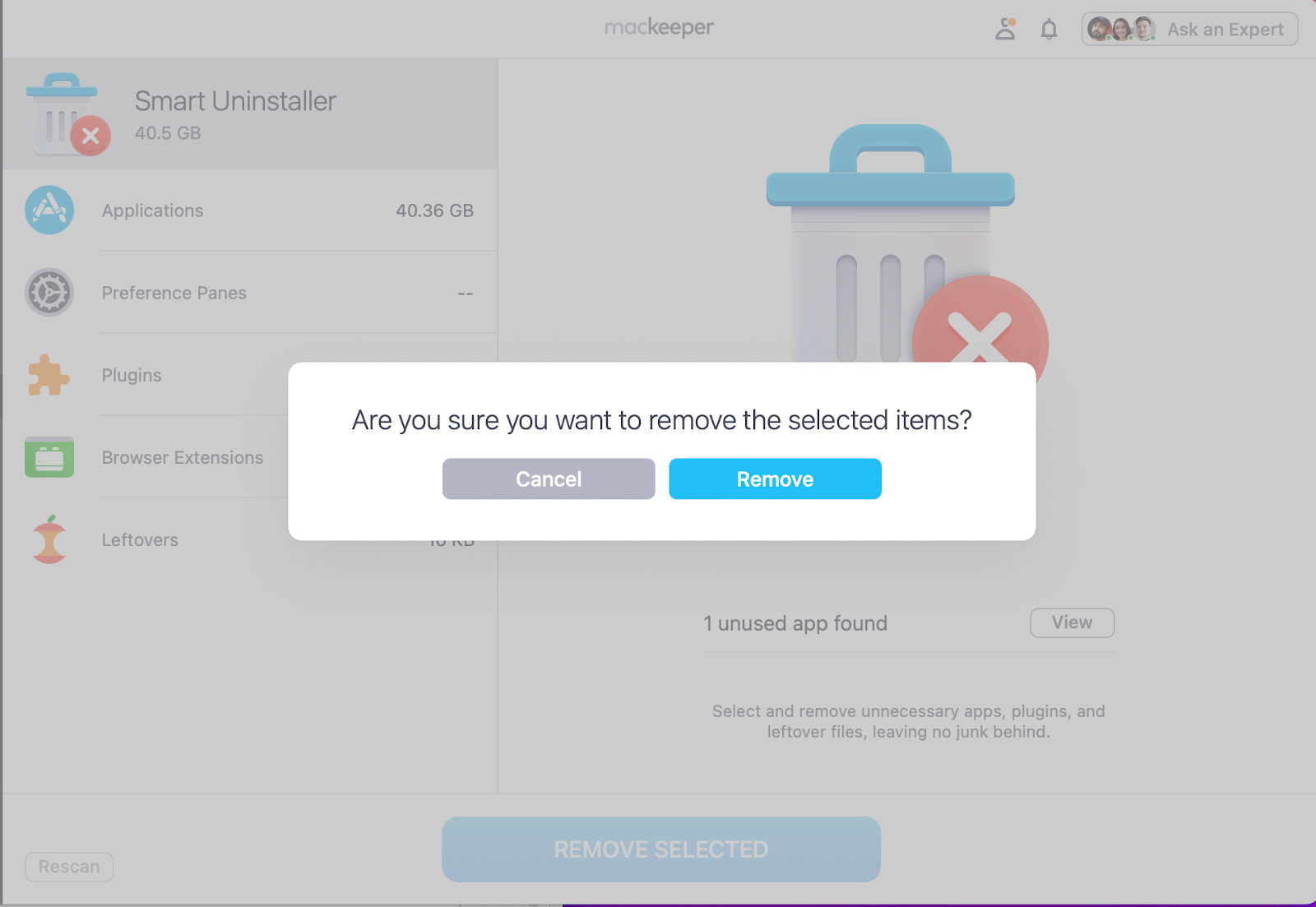
- Look through your Applications and select Bitdefender.
- Press Remove Selected > Remove.
3. Delete Bitdefender from Mac manually
Would you prefer to manually uninstall app on Mac, like Bitdefender, by yourself? While you can remove unwanted apps on your Mac manually, we don't necessarily advise this if the app in question is a large application like Bitdefender, as this is a complex cybersecurity program. These kinds of apps need to be removed properly; otherwise, your device could be vulnerable to viruses and threats.
If you’re still certain about manually removing Bitdefender from your MacBook, make sure you also search and delete any leftover files to avoid system glitches.
Here’s how to delete Bitfinder from Mac manually:
- Click on Finder in your Dock.
- Open Applications.
- Look for Bitdefender, control-click, and select Move to Bin.
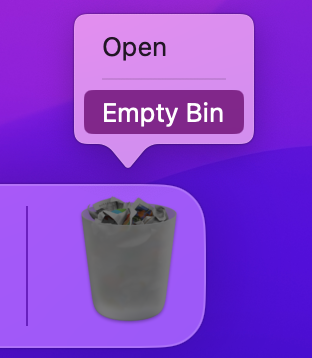
- Right-click the Bin icon in your Dock and select Empty.
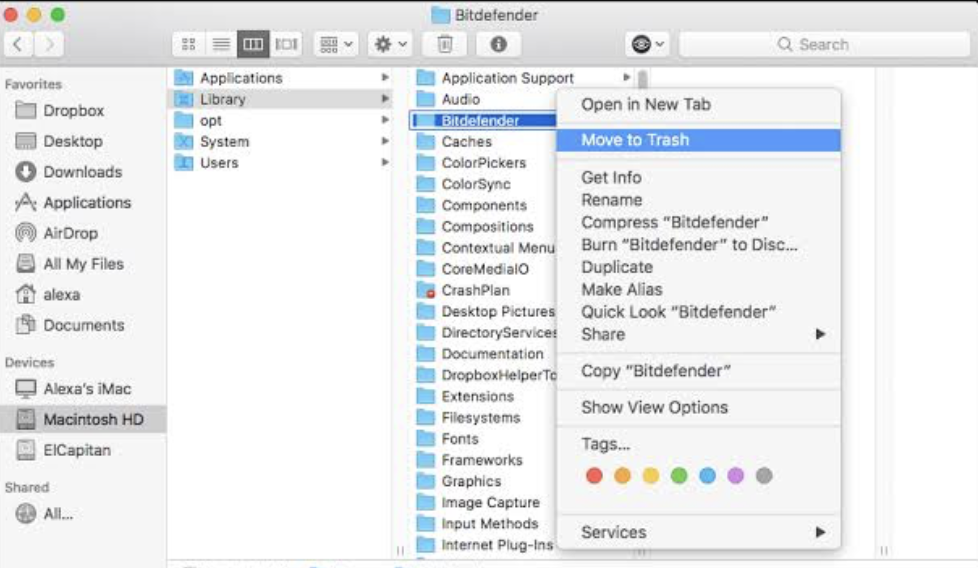
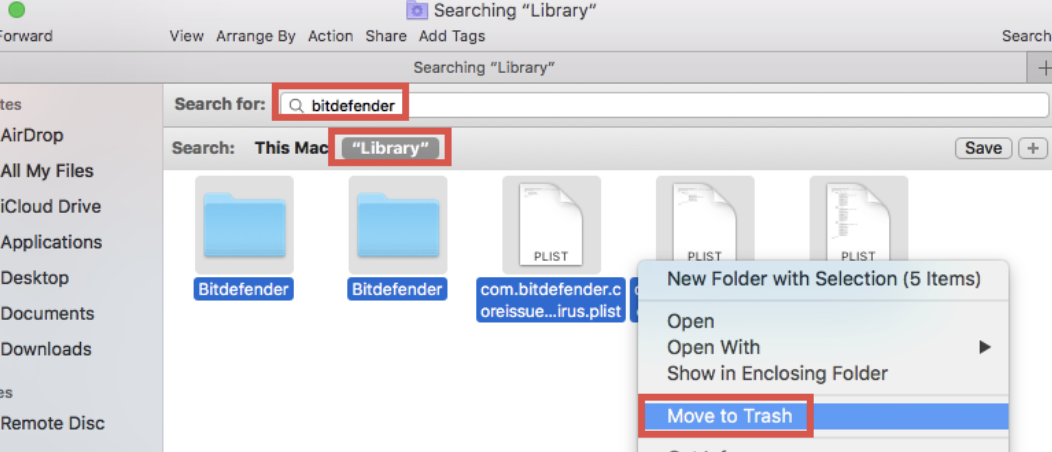
- Re-open Finder, click on Go > Go to Folder and type in: ~/Library/Caches.
- Search your folders, checking for any leftover Bitdefender files to Move to Bin.
- Restart Mac.
Troubleshooting Bitdefender removal from Mac
When Bitdefender won’t uninstall from your Mac, make sure the app is not running in the background. We also recommend that you check the compatibility with your version of OSX, as this can prevent apps from being properly uninstalled. You may need to reinstall Bitdefender, then use a trusted scanner or uninstaller to remove remaining files. Be sure to check out our guide on how to delete apps on Mac that won't delete to walk you through additional troubleshooting to help you avoid common removal errors.
Uninstalling Bitdefender from your Mac for good
Finally ready to uninstall the pesky Bitdefender application from your MacBook device? If you are ready and decide to remove it manually, then we do want to remind you to take caution. You need to go through all of your library folders to ensure no leftover files are scattered deep within your content folders–this is certain to take time and require you to be patient. But if there are hidden files still lurking on your Mac, you can be sure Bitdefender has not been fully uninstalled, and it may lead to system glitches as well as stolen disk space.
That’s why we recommend using an uninstaller, as it can help you avoid system errors and wasted space. Our very own MacKeeper’s Smart Uninstaller can do all the hard work for you. Within seconds, it can scan your system and remove all unwanted applications for you. In just a few clicks, the automatic uninstaller will remove all traces, leaving no leftover files behind. That way, you’ll be able to get back to your Mac activities, uninterrupted, in no time.