We strongly recommend that you uninstall ShotScribus software in Mac if you find it on your Apple machine. This app is likely to be malicious, meaning it could cause damage to your computer or steal your data. For easier, more complete removal, use MacKeeper’s Smart Uninstaller, which will leave nothing behind.
ShotScribus appears to be a fake app, trading on the name of two popular, legitimate open-source apps—Shotcut and Scribus. Shotcut is a video editor, while Scribus is a page layout tool.
When we searched for ShotScribus on the internet, we found a lot of obscure web pages and social media posts, which we suspect were all written by AI chatbots. One site we found had a list of staff and contributors, and none of them seem to exist. The only trustworthy results were articles like this, saying how to remove ShotScribus.
Based on what we found, it seems that ShotScribus is malware, backed by AI-generated articles to make it seem legit. If you find an app called ShotScribus on your Mac, you should remove it immediately.
How to remove ShotScribus software in Mac?
Whenever you want to uninstall apps on Mac or MacBook, we recommend a few standard processes. Follow the steps we lay out here, and you’ll completely remove the unwanted software from your system. These steps can be used for any software, not just ShotScribus.
1. Quit ShotScribus app
First things first, you should quit the ShotScribus app. You can press Cmd + Q to quit the app, or press Cmd + Opt + Esc to open the Force Quit Applications tool. However, to make sure you properly stop ShotScribus from running, we suggest quitting the app with Activity Monitor, because this lets you see and shut down background processes too, which you might not realise are even running. Do as follows:
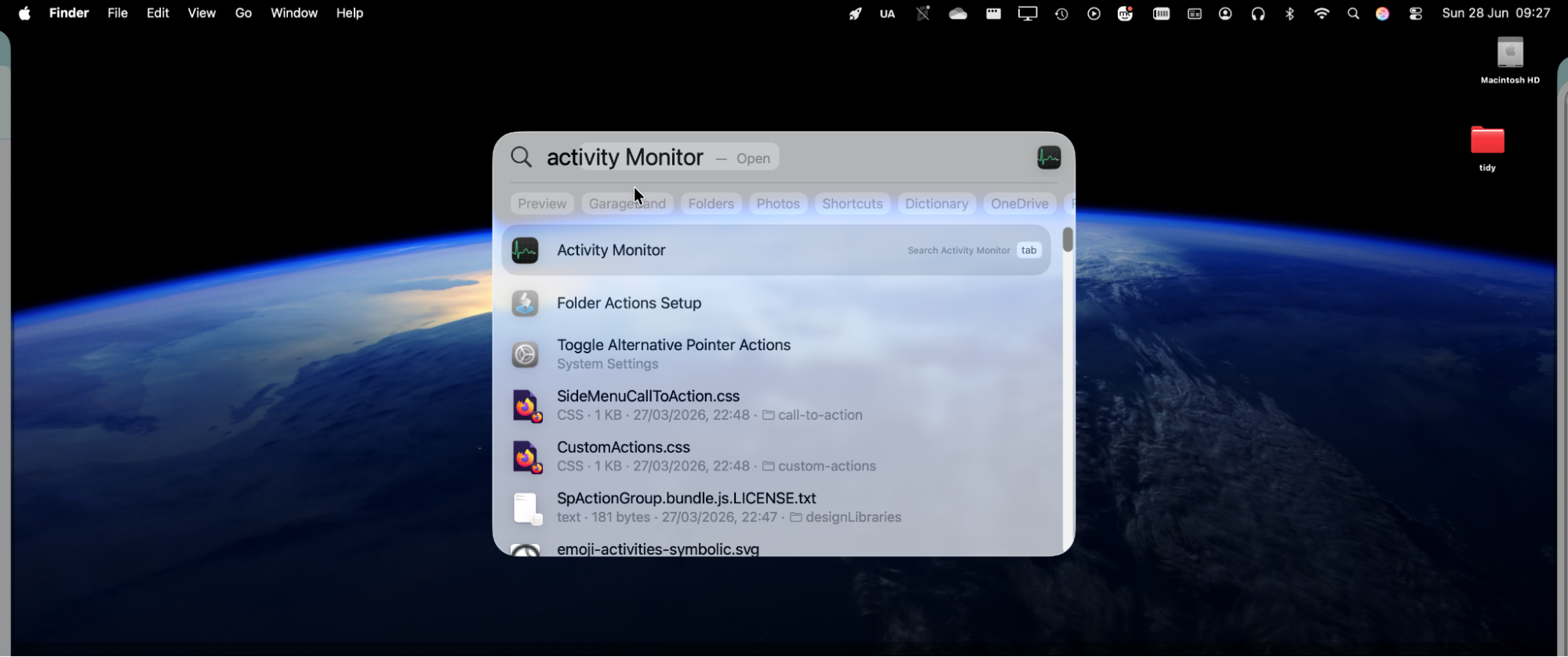
Open Activity Monitor from Applications > Utilities, or find it using Spotlight.
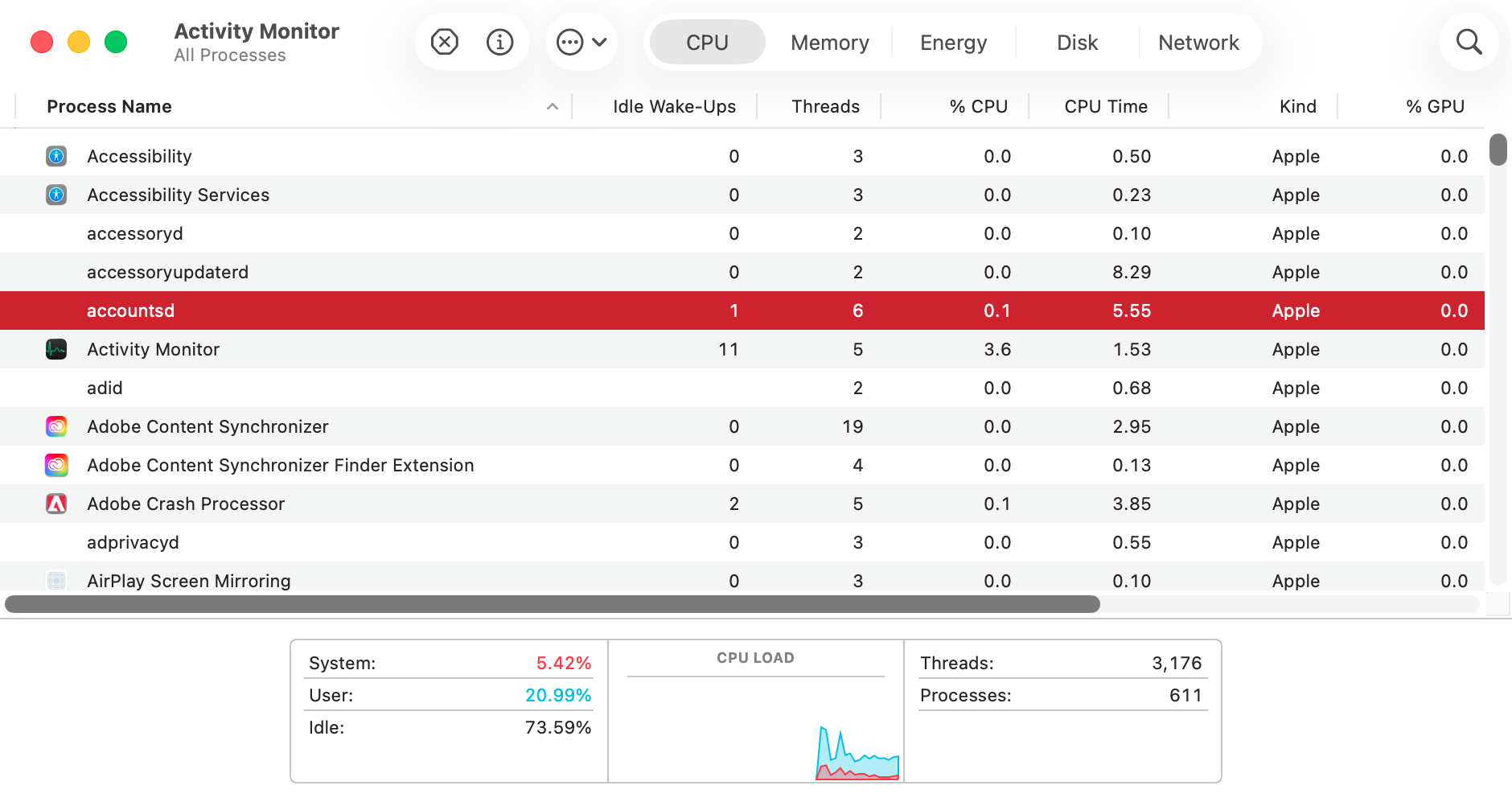
Look through the results for any processes that could be the ShotScribus app (note, we’ve selected a random background process for this demonstration).
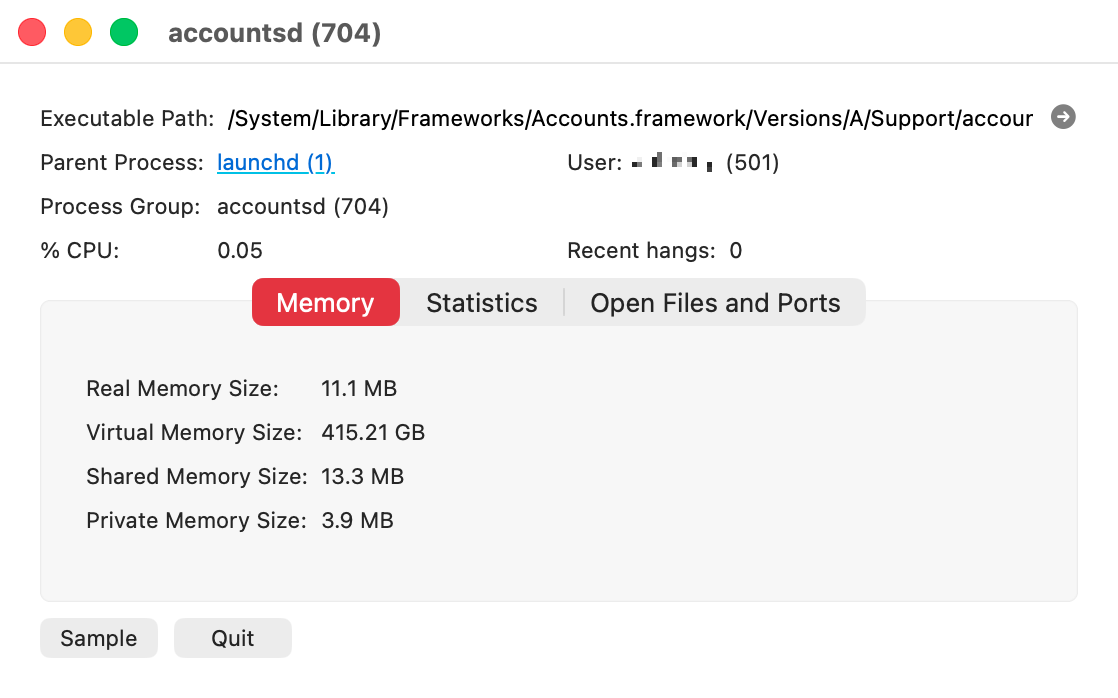
Double-click the process, and click Quit.
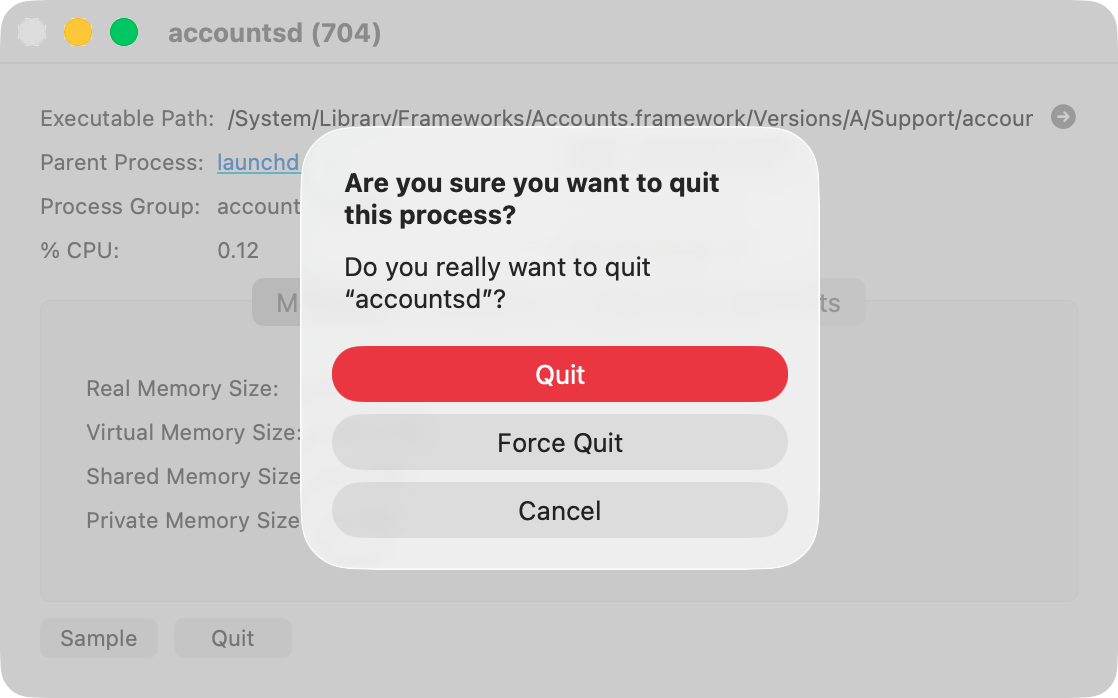
In the pop-up, select Force Quit.
Step 1. Open Activity MonitorStep 2. Select anything related to ShotScribusStep 3. Click the Quit buttonStep 4. Click Force Quit
2. Delete app via Finder
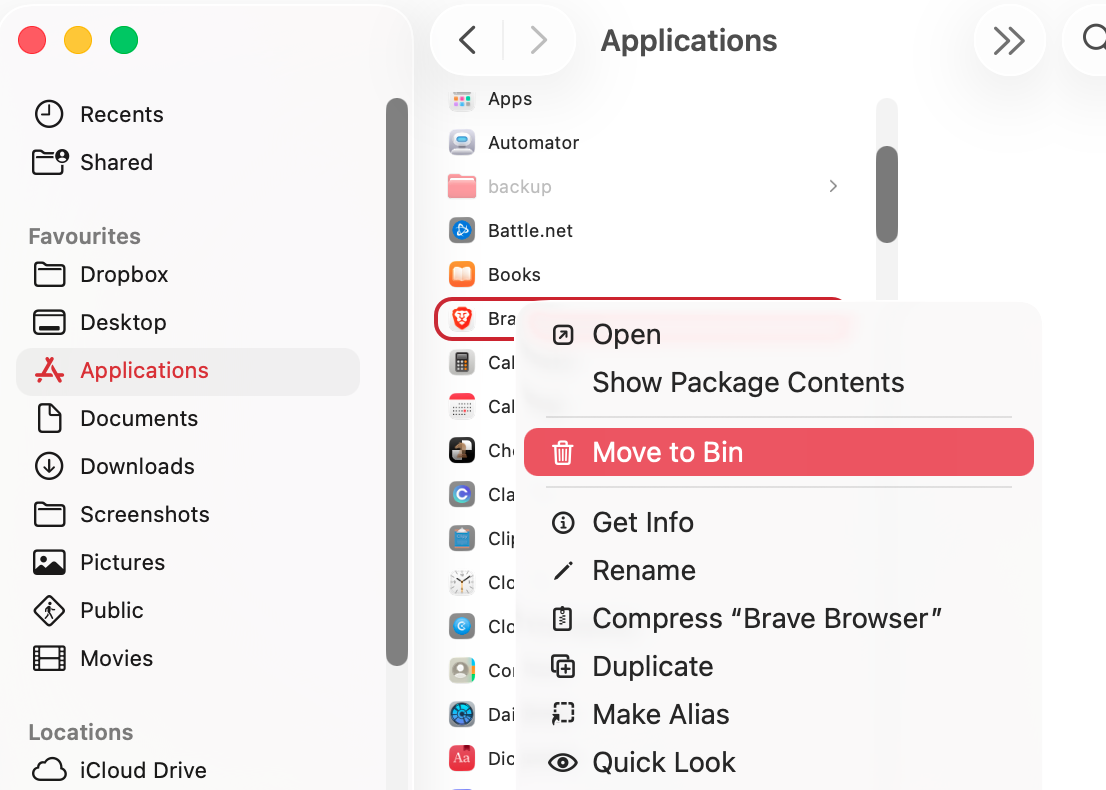
Next, you want to delete the ShotScribus program, which is most likely to be installed to your Applications folder. Here’s how:
Navigate to your Applications folder in Finder. There’s usually a shortcut on the left-hand side of every Finder window.
Look through the folder for the ShotScribus app (or anything suspicious that you don’t recognize), then drag it to your Trash.
You can also right-click the icon, and select Send to Trash (Send to Bin in some regions).
Delete the ShotScribus app from your Applications folder
A note from our experts:
Unfortunately, simply stopping and deleting malicious apps isn’t enough. It’s common for them to keep hidden files and folders on your machine, which are still a threat.
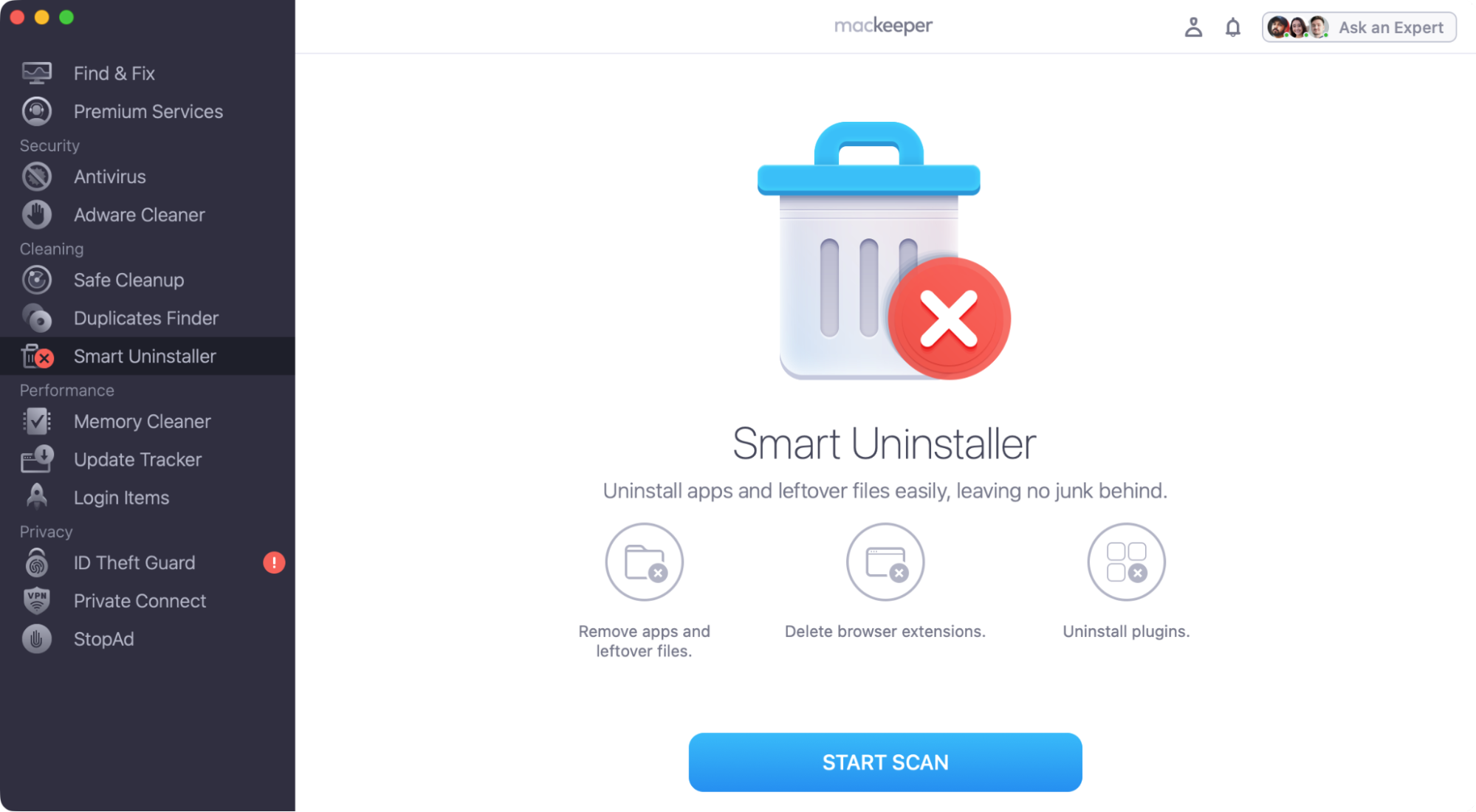
To completely remove ShotScribus and any leftover data, use MacKeeper’s Smart Uninstaller tool:
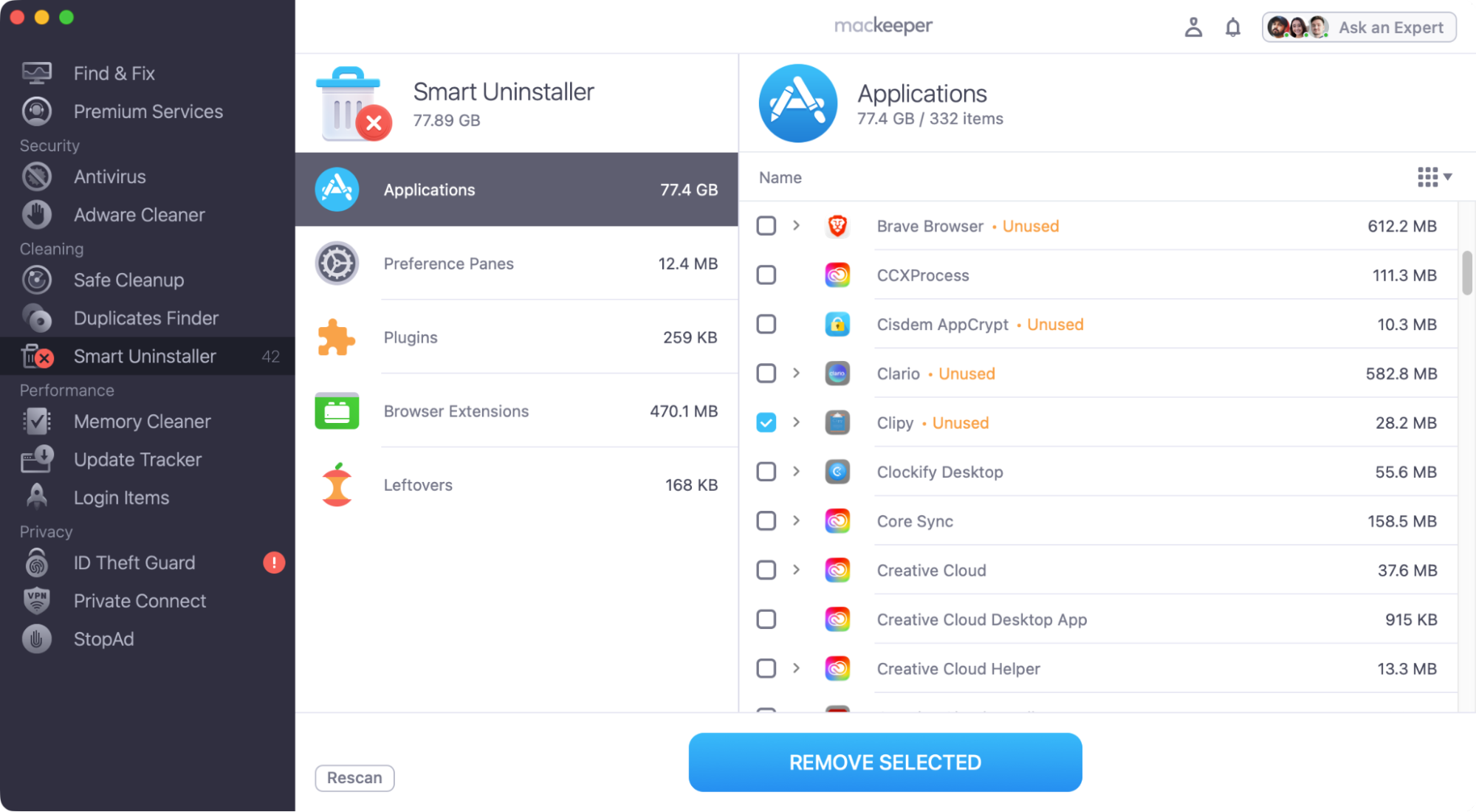
When the scan is done, look through the results and select anything related to ShotScribus.
Click Remove Selected.
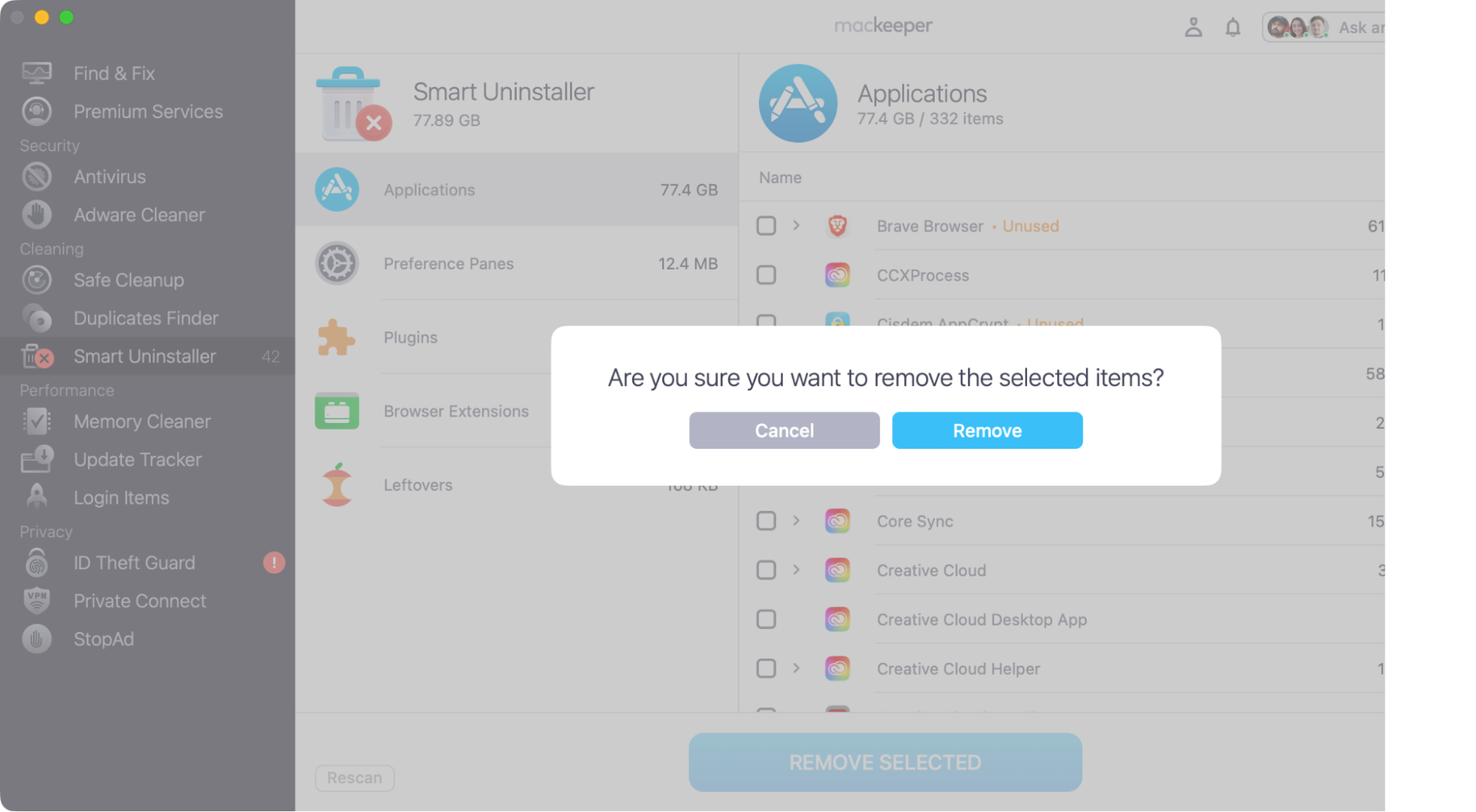
In the pop-up, click Remove.
Step 1. Select Smart Uninstaller, and click Start ScanStep 2. Choose what to delete, then click Remove SelectedStep 3. Confirm removal by clicking the Remove button
3. Get rid of ShotScribus software hidden files
We’ve already shown how easy it is to remove clean app leftovers on Mac with MacKeeper, but what if you prefer to do it manually? Well, it’s possible but also time-consuming and more difficult. This is what you need to do:
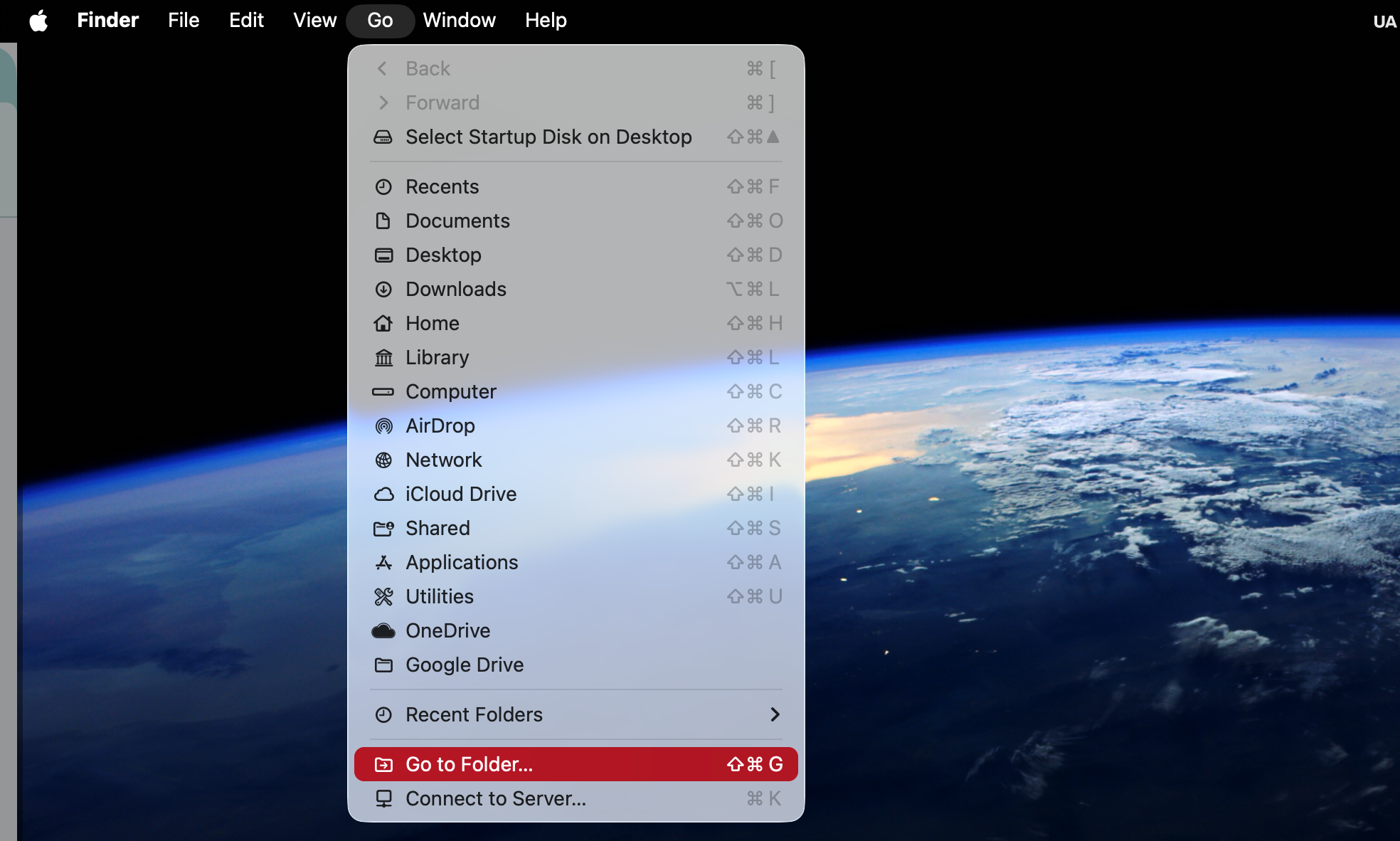
While in a Finder window, select Go > Go to Folder from your menu bar.
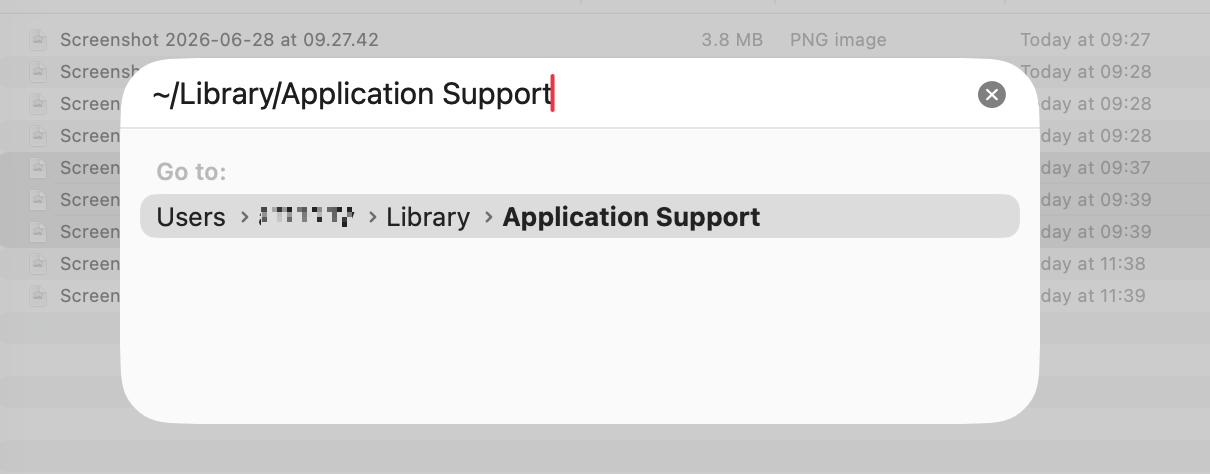
Type or paste in ~/Library/Application Support, and press Enter.
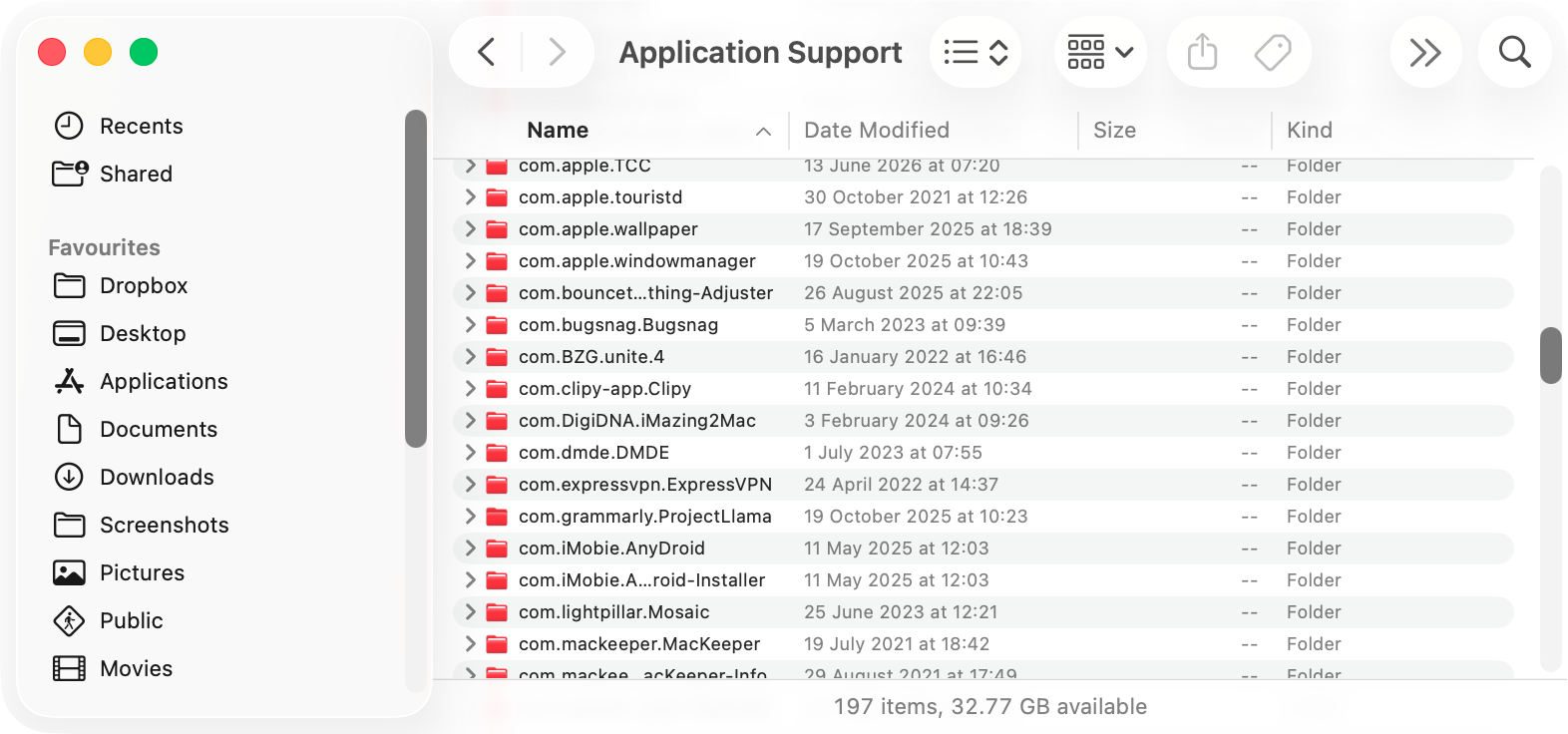
Look for anything related to ShotScribus and delete it.
Repeat these steps for:
~/Library/Containers/
~/Library/Preferences/
~/Library/LaunchAgents/
~/Library/Cookies/
~/Library/Caches/
~/Library/Logs/
/Library/Application Support/
/Library/Caches/
/Library/Preferences/
/Library/Logs/
/Library/LaunchAgents/
Restart your Mac.
Step 1. Choose Go > Go to Folder from your menu barStep 2. Navigate to Application SupportStep 3. Erase anything linked to ShotScribus
An extra hint from us:
We also strongly recommend running a virus scan on your Mac with MacKeeper’s Antivirus tool. It also offers real-time protection, so ShotScribus will be prevented from coming back.
4. Empty trash on Mac
After sending anything to your Trash, it’s important to empty Trash on your Mac afterwards. Otherwise, that data isn’t actually deleted but is still in your Mac’s storage. So after putting ShotScribus and any of its supporting files in your Trash, right-click the Trash icon in your Dock, and select Empty Trash.
Make sure to empty your Trash!
A warning from our team: Remember, though, this will only erase the files you manage to find. If ShotScribus has other hidden files that you missed, they could still cause issues.
What to do if ShotScribus software won't delete?
In some cases, ShotScribus may be more difficult to uninstall. Based on what we know about other malicious software, there are a few scenarios to look out for and some common solutions.
The app isn’t in your Applications folder: Mac apps don’t have to run from your Applications folder. Check in your Downloads folder for the ShotScribus app. If it’s not there, try using Spotlight or a third-party search tool to look for ShotScribus on your computer.
The app reinstalls itself: Unfortunately, malicious apps can come back. Sometimes, this is by design—by hiding files on your Mac, these apps can simply download themselves if you try to delete them. You might also be accidentally reinstalling the app yourself by revisiting an infected web page or using a malicious web browser extension.
Trying to delete the app brings up an error message: Sometimes, when you try to delete an app, it fails because the app is currently running. Use Activity Monitor to shut down any background processes associated with ShotScribus, then try deleting it again.
ShotScribus runs by itself when you start your Mac: If this happens, it's likely because ShotScribus has installed a login item. Head to your System Settings, and look under General > Login Items & Extensions. You can also manually delete these items from your Mac’s LaunchAgents and LaunchDaemons folders, but you’ll save yourself a lot of headaches if you use MacKeeper’s Login Items tool instead.
If these steps don’t work, you still have a couple of options, which can help you get rid of ShotScribus:
Restore from a backup: Whether you use Time Machine or a third-party backup app, you might be able to restore your Mac to a state when it didn’t have ShotScribus on it. Of course, any data you’ve created since then will be lost too. If there’s anything you want to keep, we suggest backing that up to an external drive or the cloud. Just make sure you don’t back up anything related to ShotScribus—otherwise, you’ll end up stuck with the same problem again.
Reinstall macOS: If nothing else works, you may need to reinstall your Mac’s operating system. This will wipe everything off your Mac, including files, documents, photos, settings, and apps. After reinstalling macOS, it’s vital that you avoid repeating whatever action resulted in ShotScribus being on your Mac in the first place.
Keep your Mac free of unwanted apps
Properly uninstalling apps like ShotScribus can be a nuisance, but by following our guide, you can remove this unwanted software from your Mac. However, because malicious software can also hide files on your Mac’s disk drive, it’s not a good idea to just delete the app and leave it. You need to dive into your system and cache folders too, and erase anything that could be related to ShotScribus—a time-consuming and potentially dangerous way to deal with the problem.
That’s where MacKeeper’s Smart Uninstaller can make a real difference. Not only does it uninstall apps, but it searches your Mac for any leftover files and will clean those out too. That means apps like ShotScribus find it harder to come back or carry out any other unwanted actions.
We respect your privacy and
use cookies
for the best site experience.
Privacy Preferences Center
We use cookies along with other tools to give you the best possible experience while using the
MacKeeper website. Cookies are small text files that help the website load faster. The cookies we
use don’t contain any type of personal data meaning they never store information such as your
location, email address, or IP address.
Help us improve how you interact with our website by accepting the use of cookies. You can change
your privacy settings whenever you like.
Manage consent
All cookies
These cookies are strictly necessary for enabling basic website functionality (including page
navigation, form submission, language detection, post commenting), downloading and purchasing
software. The website might malfunction without these cookies.