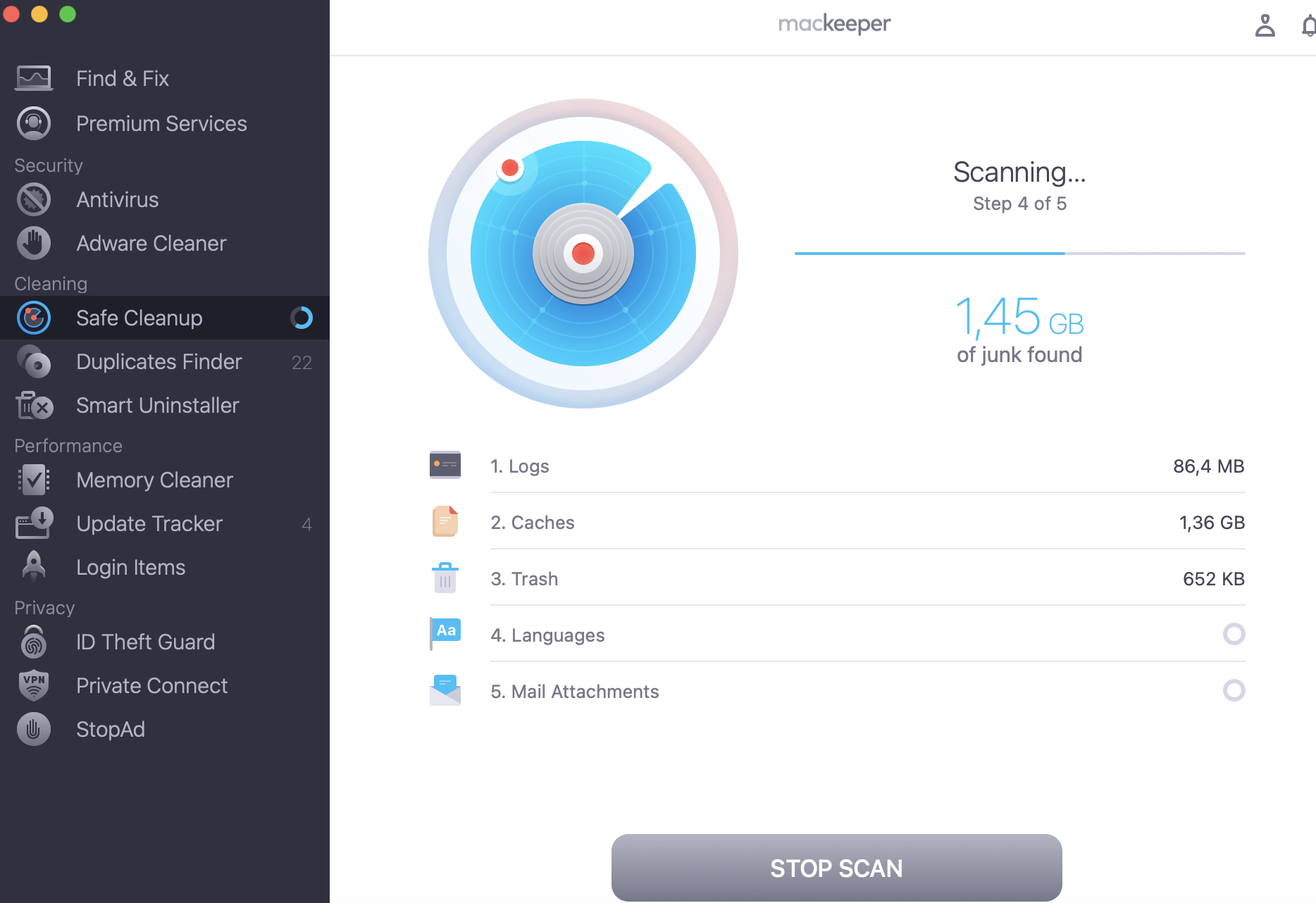
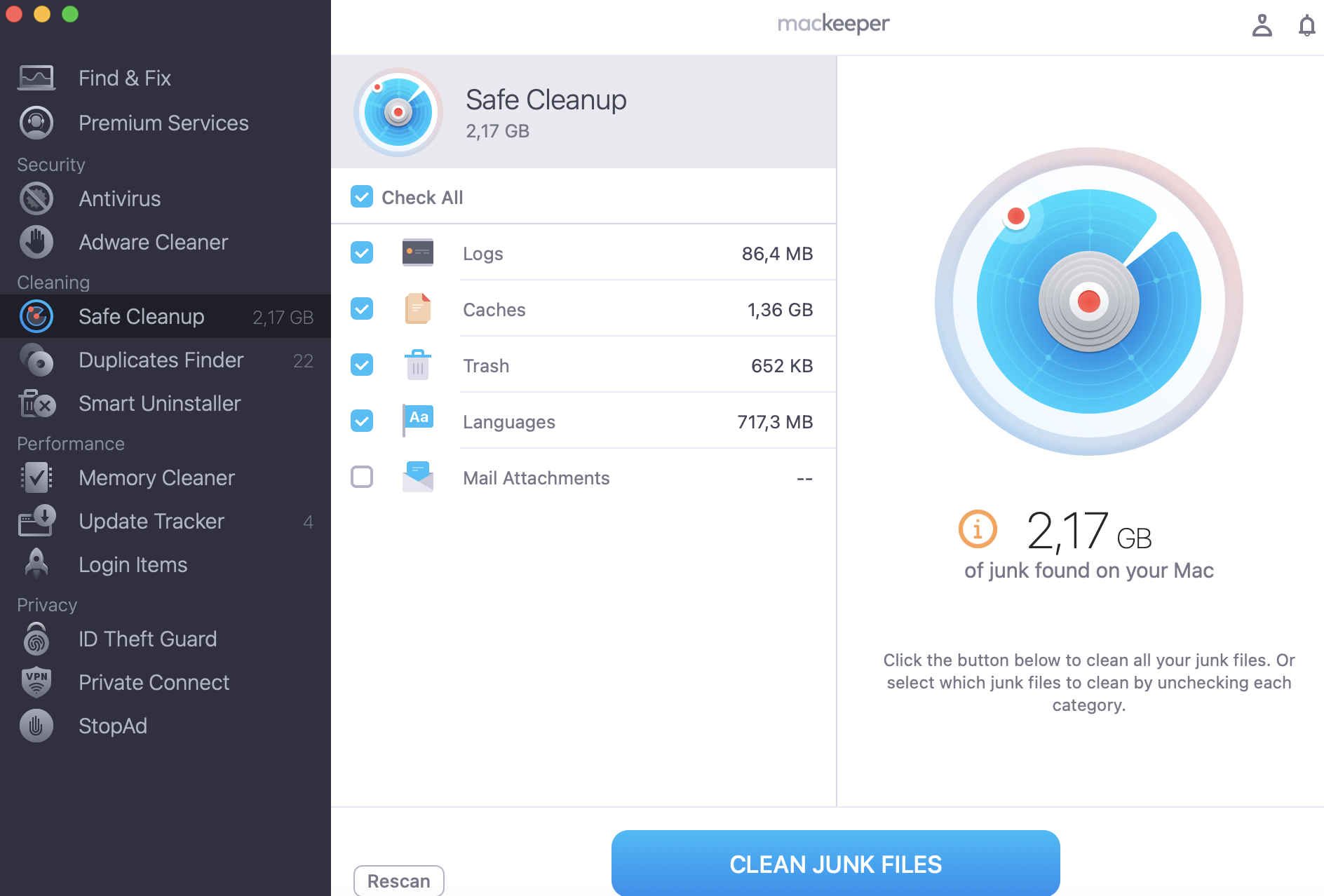
Locked out and scrambling to find your FileVault recovery key? It happens to plenty of Mac owners, and the fix is usually simpler than it feels. While you sort it out, MacKeeper’s Safe Cleanup clears trash, caches, and junk files in one click to keep your Mac clean.
Think of your FileVault Recovery Key as a spare key to a locked safe. When you turn on FileVault encryption, macOS creates this 24-character code as a backup way in. It scrambles everything on your disk, so no one can read your files without permission.
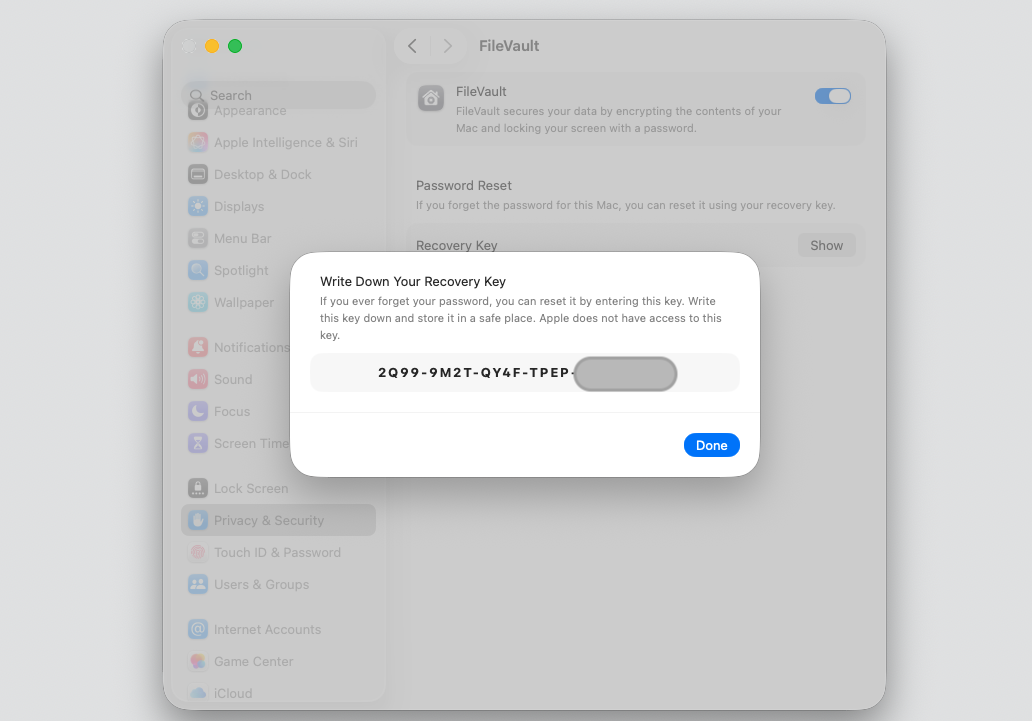
Wondering what a FileVault Recovery Key looks like? We’d say it’s a long string of letters and numbers split into groups by hyphens, generated by macOS on your MacBook or desktop Mac. You can see it on screen during setup, and it’s unique to your device.
Normally, you unlock your Mac with your account password. The Recovery Key steps in when that password isn’t available—for example, when you see a message to enter a password to unlock the disk Macintosh HD, and nothing you type works. It’s your safety net for getting back to your own encrypted data.
When do you need a FileVault recovery key?
You won’t reach for this code every day, but a few common moments call for it. Knowing them ahead of time saves a lot of stress, so take a pause to get yourself ready:
You forgot your Mac login password and can’t get past the sign-in screen.
Your account won’t accept the password you’re sure is correct.
macOS Recovery asks for the key during a reset or repair.
You’re using a managed work or school Mac with strict access rules.
You’re troubleshooting access to an encrypted startup disk.
If you’d like to understand the bigger picture of how this protection works, it helps to learn how to encrypt files on your Mac in the first place. That context makes the Recovery Key feel far less mysterious.
Where to find a FileVault Recovery Key on Mac?
Where your key lives depends on how you set up FileVault. So if you’re asking where my FileVault Recovery Key is, the honest answer is—it’s in one of a few predictable places. macOS asks you to choose one of two options during setup: store the key in your Apple Account or write down a personal key yourself. Later, we’ll guide you with the concrete steps to feel supported—continue reading.
A note from our experts:
Before you become familiar with the Recovery Key in practice, we’d like to remind you to keep your system clean and prepared for any changes. MacKeeper’s Safe Cleanup will do this job for you in the best optimized way.
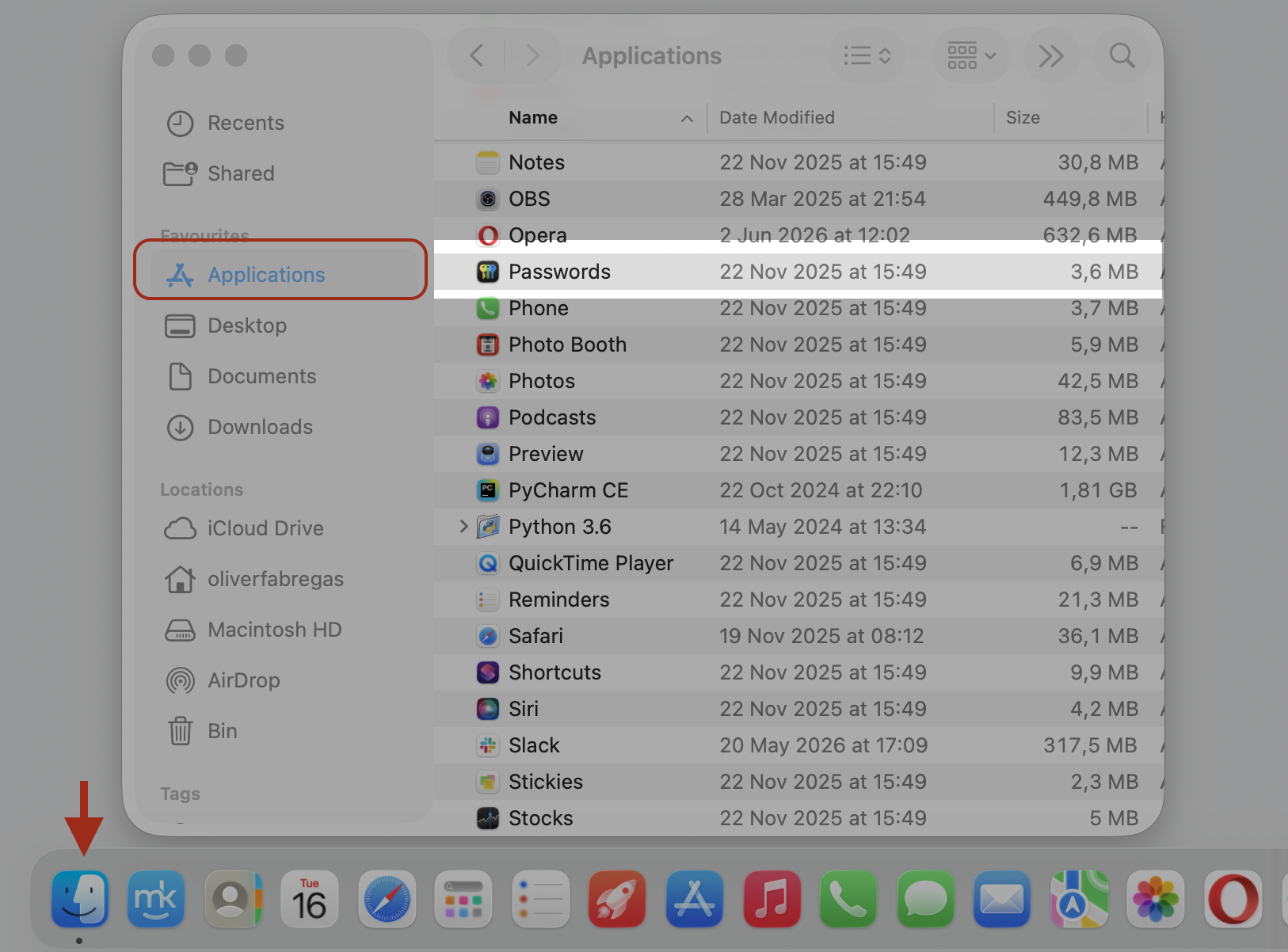
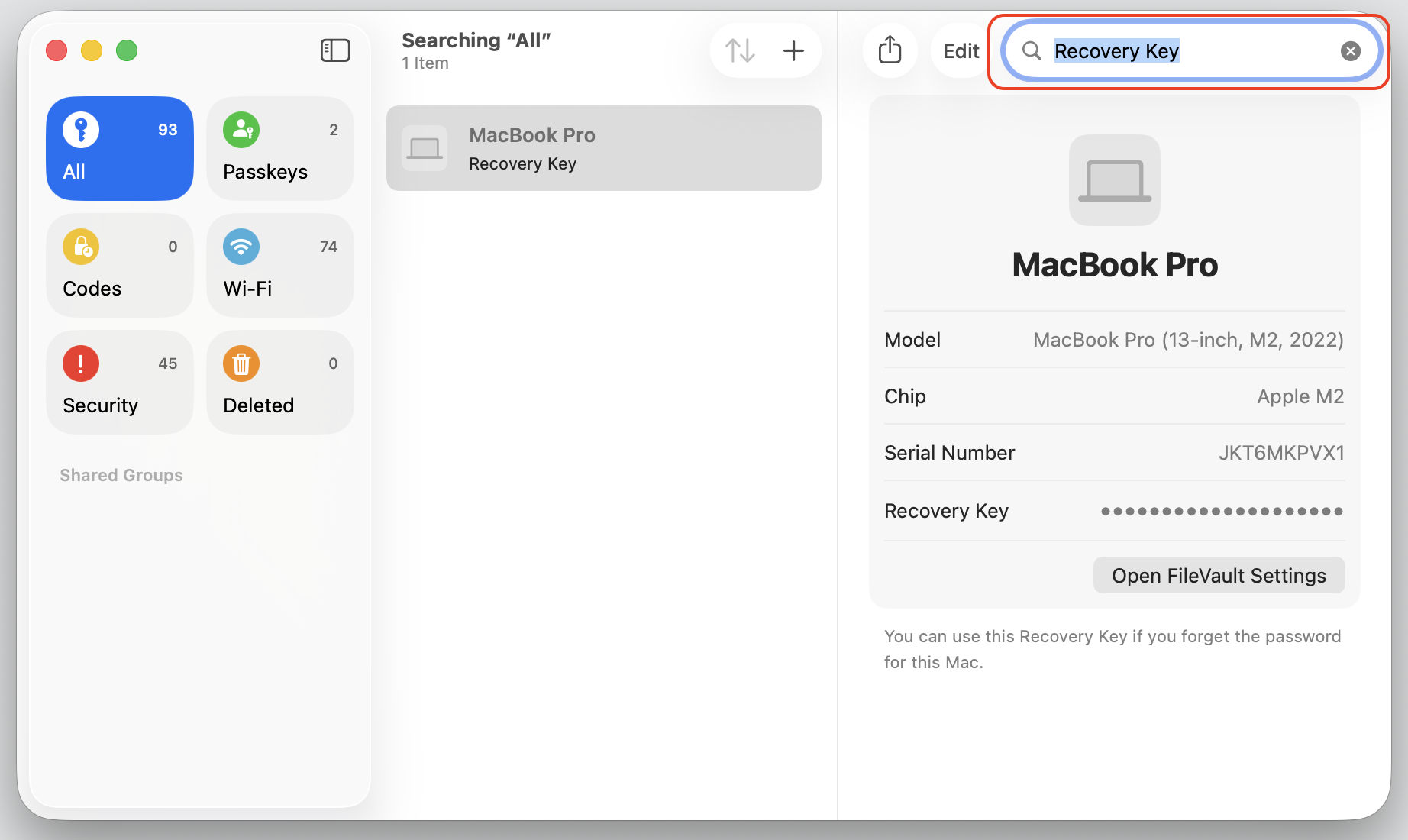
If you’re signed in to the same Apple Account across devices, your key may be saved and synced for you. The Passwords app is the first place to look. Do the following:
Open the Passwords app on your Mac, iPhone, or iPad.
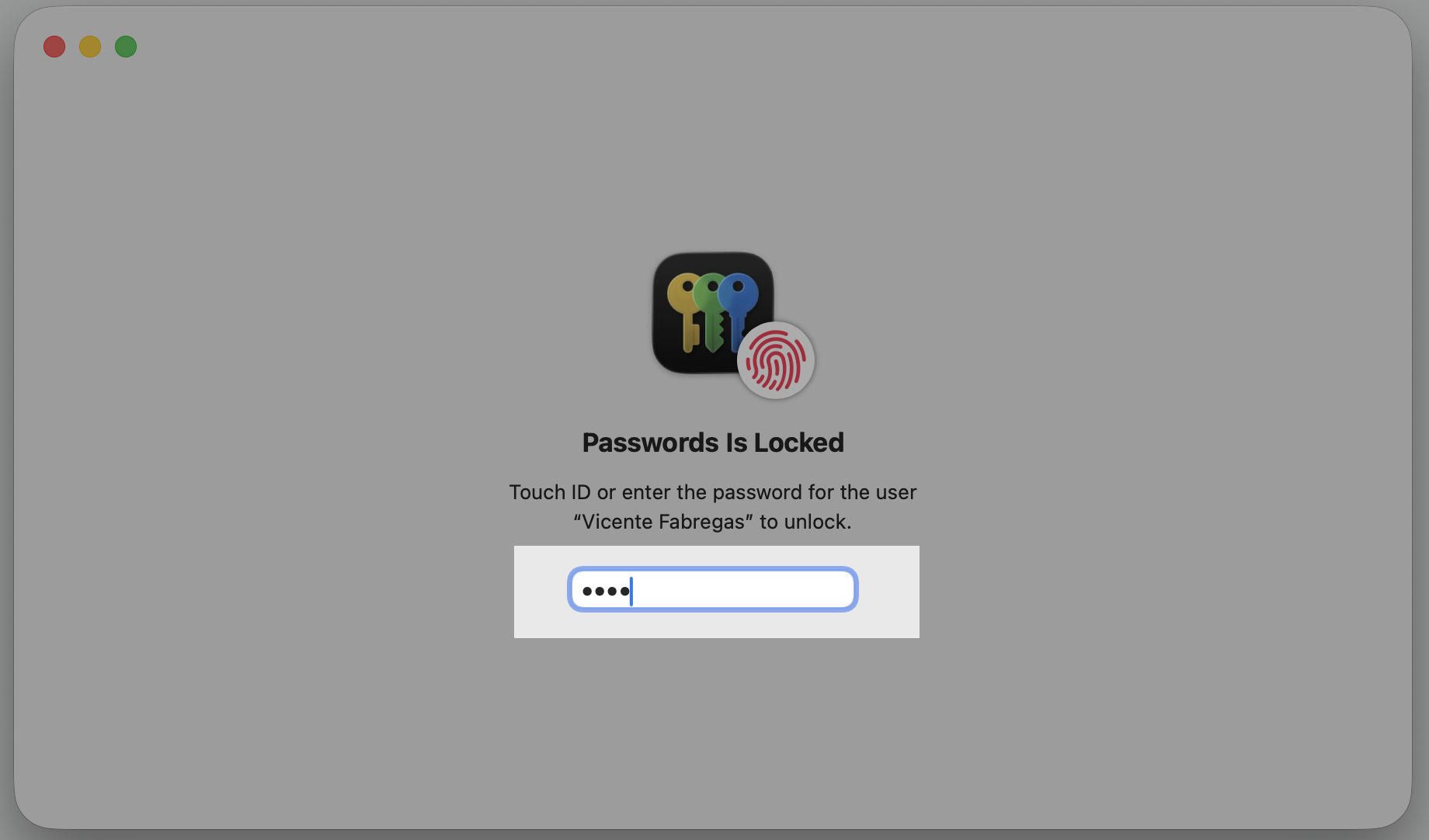
Unlock the app with Face ID, Touch ID, your device passcode, or your Mac login password.
Look for an entry that matches your Mac’s name or mentions a recovery key.
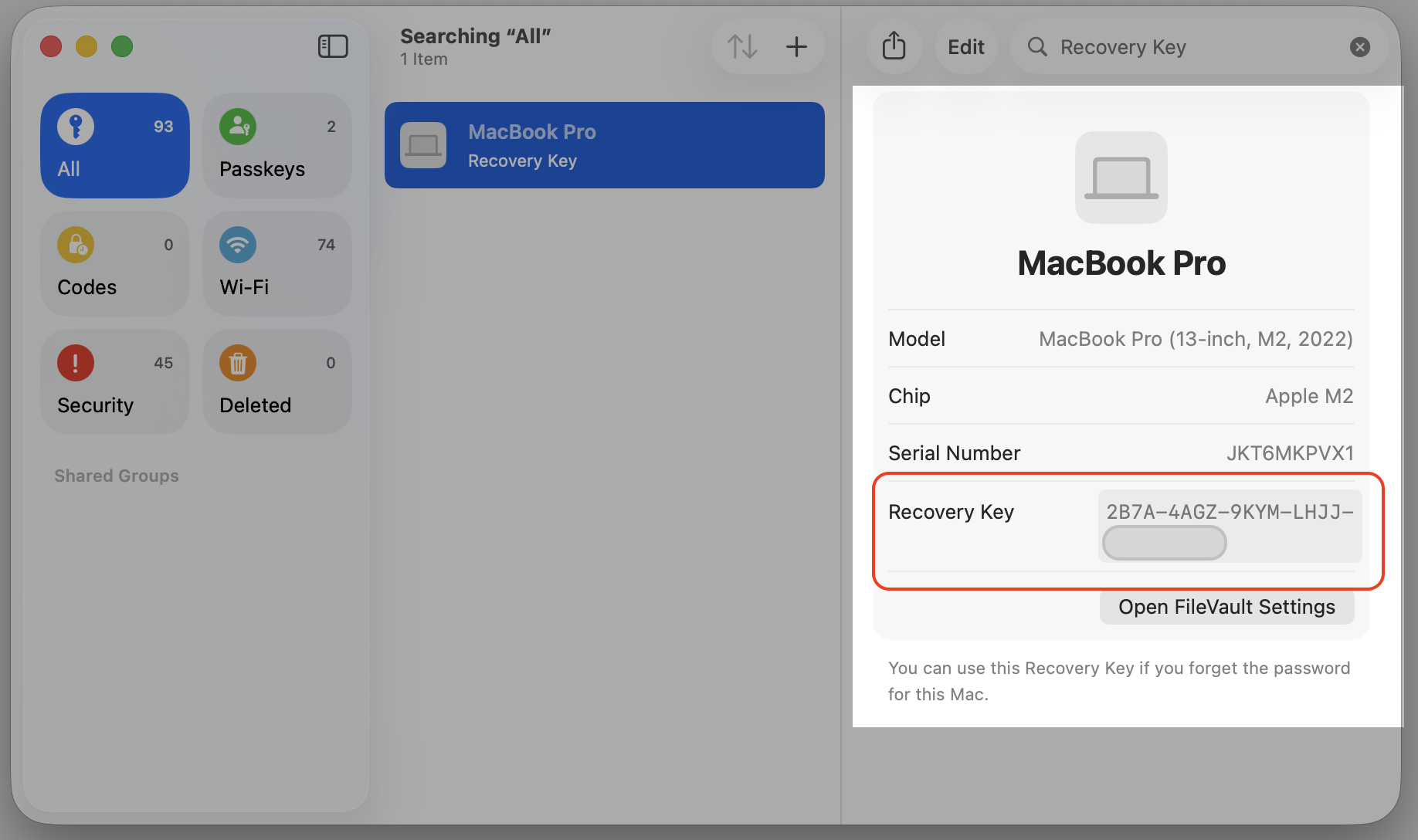
Select that entry to display the saved code, then copy it somewhere safe.
Step 1. Go to Finder > Applications > Password appStep 2. Unlock the app Step 3. Type Recovery Key in the search boxStep 4. Copy and Save your FileVault Recovery Key
An extra help from our team:
This is also a good moment to learn how to manage Keychain passwords, since your Mac quietly stores plenty of important credentials in the background. Learn how with our guide.
2. Change your Mac password using a FireVault Recovery Key
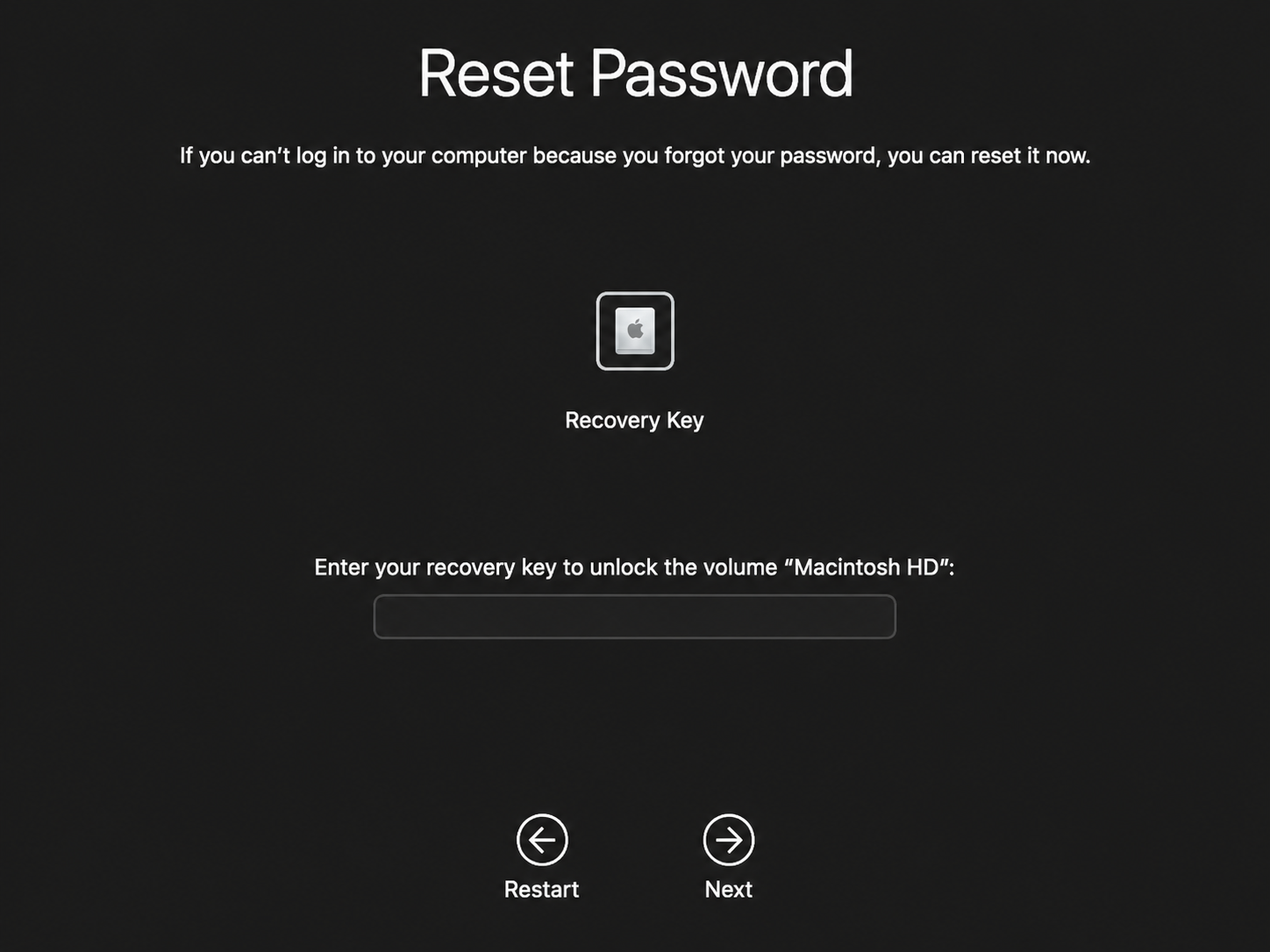
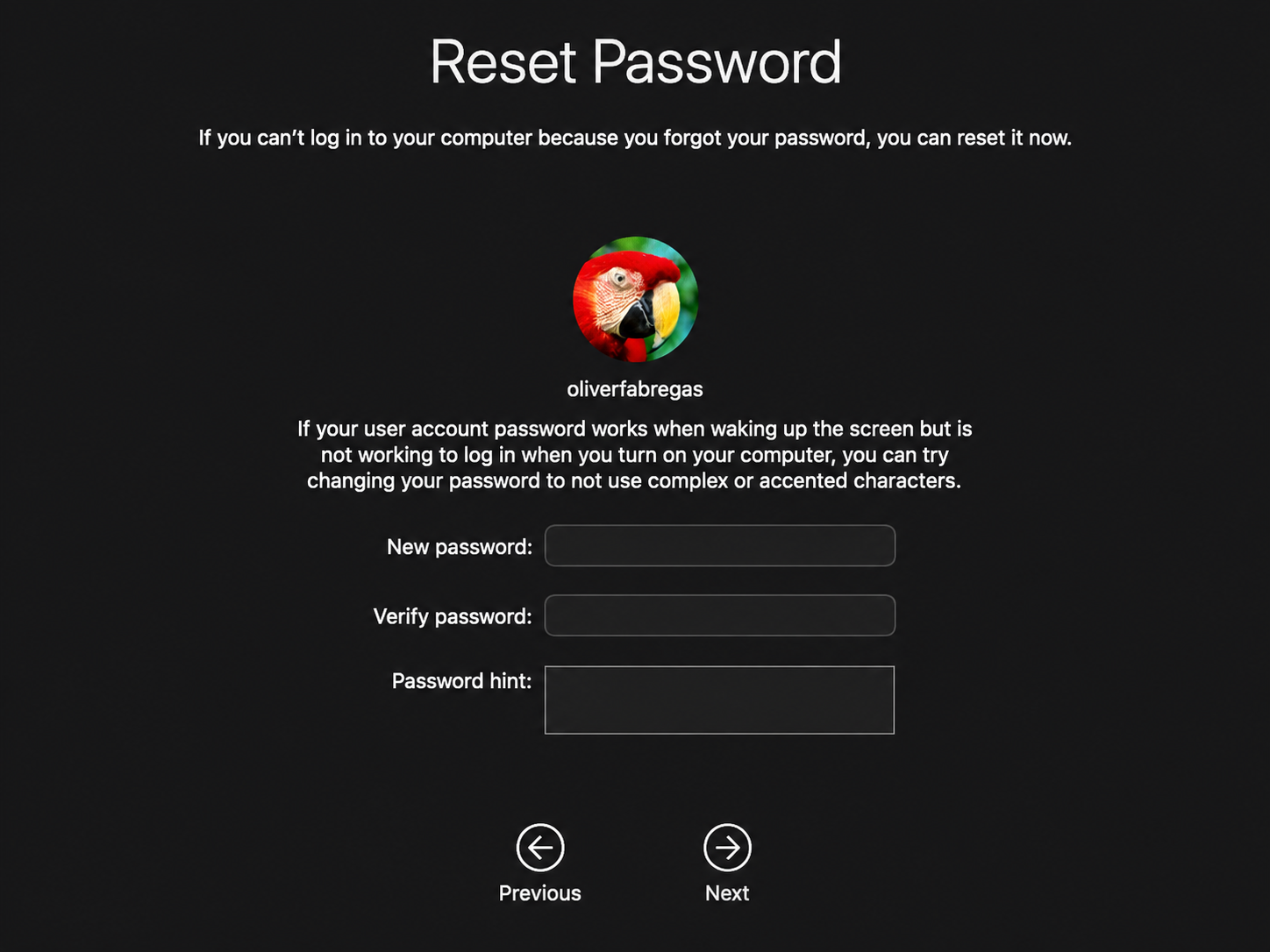
If FileVault is enabled and your Mac is set to use a recovery key, you can use the Recovery Key to reset your Mac's login password that no longer works or has been forgotten. Here’s how:
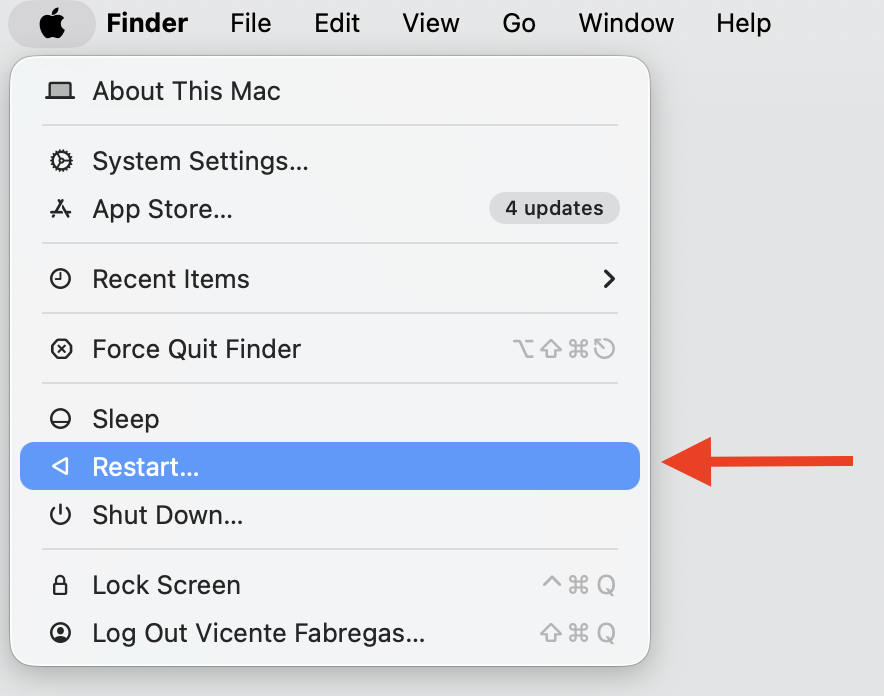
Restart your Mac and wait for the login screen.
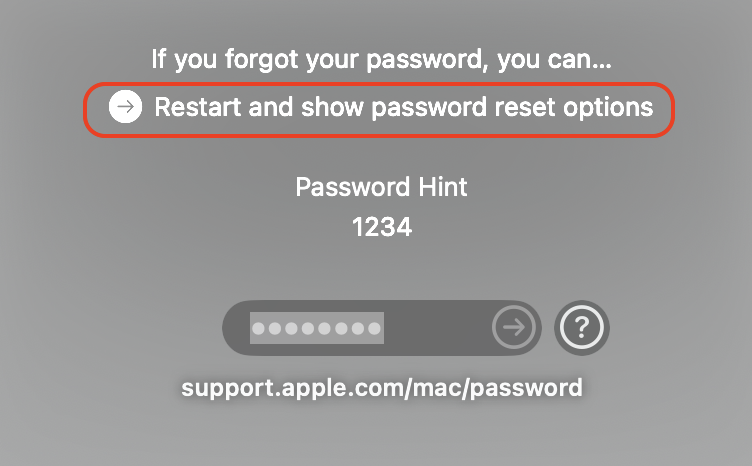
Enter the wrong password several times until the password reset option appears.
Enter your FileVault Recovery Key when prompted.
Follow the onscreen steps to create a new Mac login password.
Restart your Mac and sign in with the new password.
Step 1. Go to Apple Logo and select RestartStep 2. Enter the wrong password several times Step 3. When password reset option appears > select itStep 4. Enter your Recovery Key and press NextStep 5. Enter the new Mac login password
An extra hint from us:
If you’re unsure of your Apple credentials, it’s worth knowing how to reset an Apple ID password from another device before you start.
3. Check personal notes and physical backups
During setup, macOS shows the key and trusts you to save it. Many people do—they just forget where. Retrace your steps through these common spots:
A handwritten note tucked in a drawer or notebook
A printed copy filed with other important documents
A photo of the setup screen in your photo library
A secure note on an external drive or USB stick
An entry saved inside a password manager
It only takes one of these to come through, so check each one before assuming the key is gone.
4. Check with your IT admin for work or school Mac
Managed Macs play by different rules. If your device came from an employer or school, you likely never saw the key. In this case, we suggest the following:
Confirm the Mac is enrolled in a device management or MDM system.
Reach out to your organization’s IT administrator or help desk.
Ask them to look up the FileVault Recovery Key tied to your device.
Use the key they provide to unlock the disk when prompted.
5. Check whether you already have the correct key
Found a code that might be the one? Before you rely on it, confirm it actually belongs to this Mac. You can do this while you’re still logged in. Then, proceed with our instructions below:
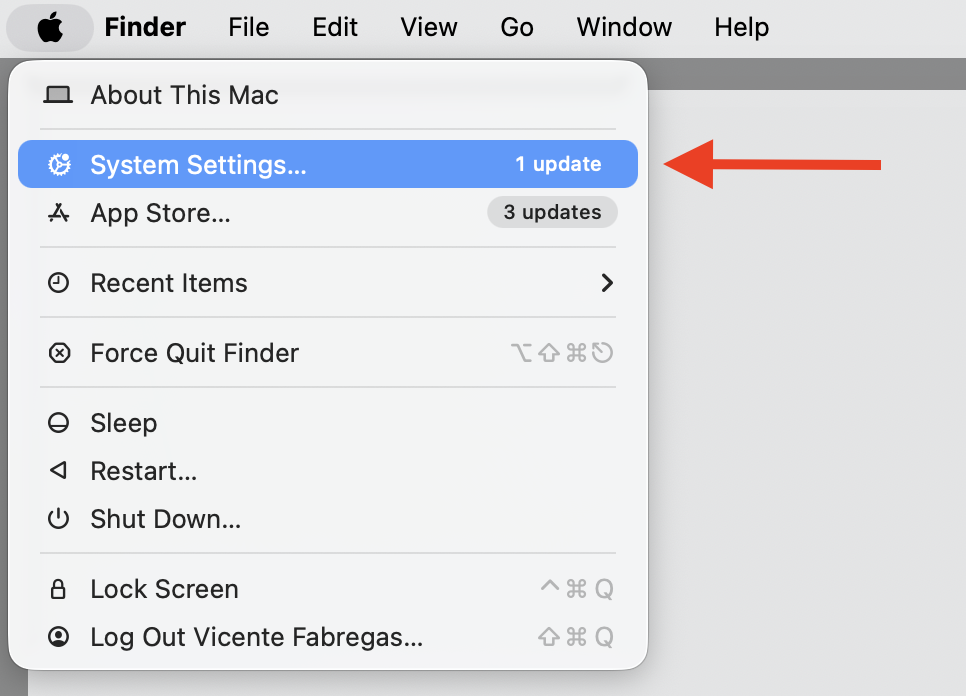
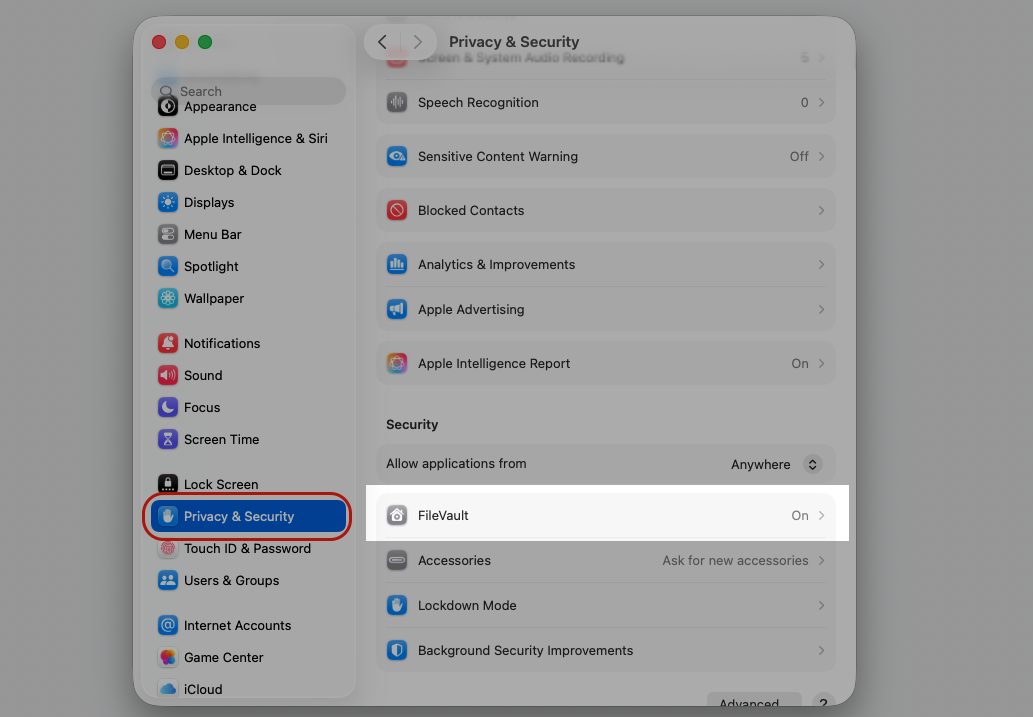
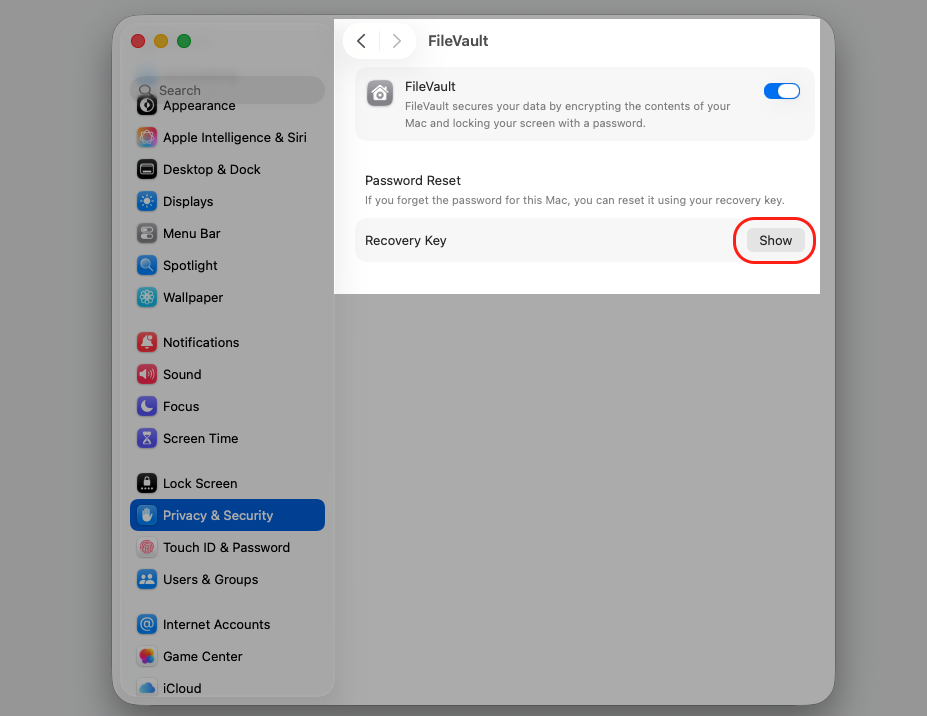
Open System Settings, then go to Privacy & Security.
Find the FileVault section and review its current status.
Store the confirmed key somewhere safe—not somewhere physically on your Mac’s computer, including the desktop or files folder.
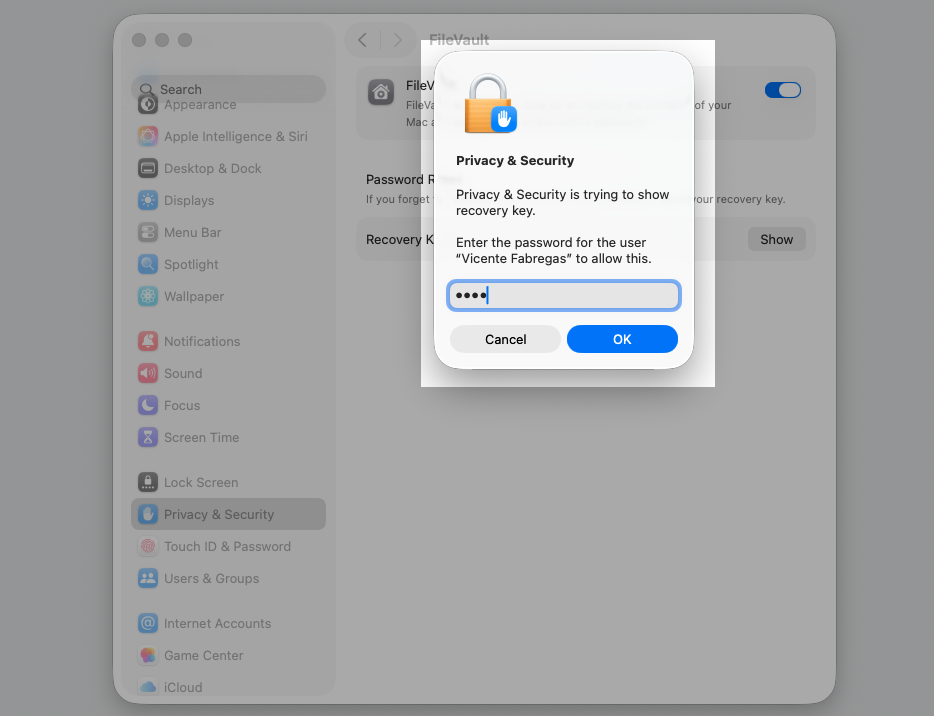
Step 1. Go to Apple menu > System SettingsStep 2. Select Privacy &Security and go to FileVault optionStep 3. Press the Show buttonStep 4. Unlock Privacy & Security settings with user passwordStep 5. Save this Recovery Key outside of your device
What to do if FileVault Recovery Key is lost?
Let’s be honest about the hard case. If you set a personal key, never saved it, and your Mac isn’t managed, that exact key usually can’t be retrieved. Apple doesn’t keep a copy for personal devices, and that’s the point of strong encryption.
There’s still good news if you can log in. While you’re signed in with admin access, you can turn FileVault off and on again to generate a fresh key, then save it properly this time. If a forgotten login is the real roadblock, knowing how to deal with a forgotten admin password situation gets you back in control.
How to store FileVault Recovery Key safely?
Once you have a working key, treat it with care. The goal is to keep it somewhere safe yet reachable—not locked inside the very Mac it unlocks. So, our suggestions here include:
Save it in a trusted password manager for quick, secure access.
Keep a secure note synced across devices you control.
Print a copy and store it somewhere private, like a home safe.
Use a managed enterprise vault if you’re part of an organization.
Whatever you choose, don’t make the encrypted Mac the only home for the key. Picking the best password manager gives you a reliable, user-friendly place to keep it for years.
Conclusion
Trying to find your FileVault recovery key comes down to how it was set up—a personal FileVault Recovery Key or IT-managed storage. Check each spot calmly, and you’ll likely get back in. To keep your Mac clean while you’re at it, use MacKeeper’s Safe Cleanup to clear junk and all the file rubbish in one click.
We respect your privacy and
use cookies
for the best site experience.
Privacy Preferences Center
We use cookies along with other tools to give you the best possible experience while using the
MacKeeper website. Cookies are small text files that help the website load faster. The cookies we
use don’t contain any type of personal data meaning they never store information such as your
location, email address, or IP address.
Help us improve how you interact with our website by accepting the use of cookies. You can change
your privacy settings whenever you like.
Manage consent
All cookies
These cookies are strictly necessary for enabling basic website functionality (including page
navigation, form submission, language detection, post commenting), downloading and purchasing
software. The website might malfunction without these cookies.