
In this article you will find the following:
What to do before uninstalling Firefox from your MacBook?
Before you remove Firefox from your Mac, take a moment to save anything you’d hate to lose. Bookmarks, saved passwords, and open tabs can be lost when the browser is gone. Here’s a quick prep checklist:
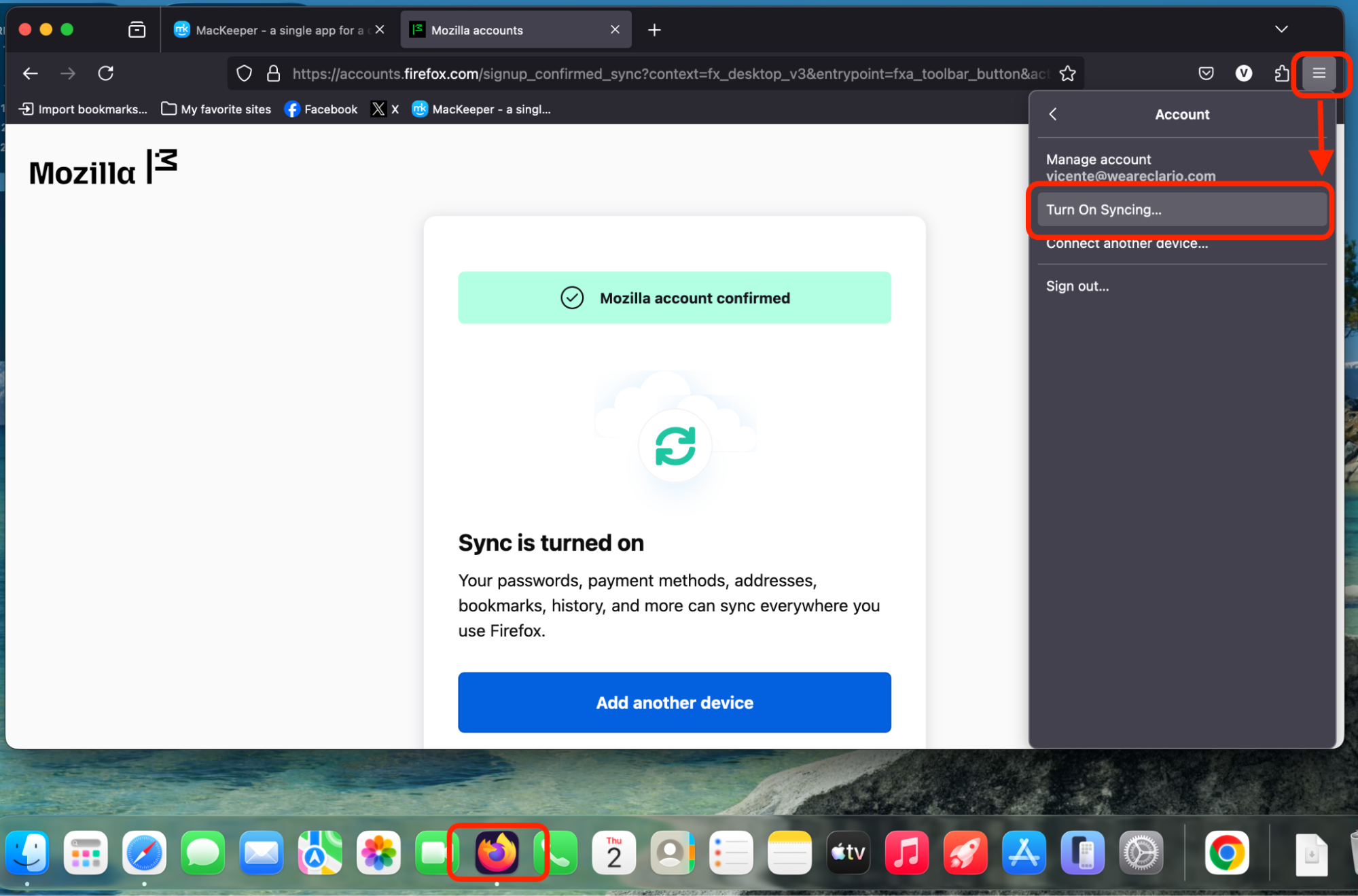
- Sync your Firefox account. If you’re signed in to a Mozilla account, your bookmarks, history, and passwords are already backed up to the cloud. Confirm the sync is up to date before you proceed.
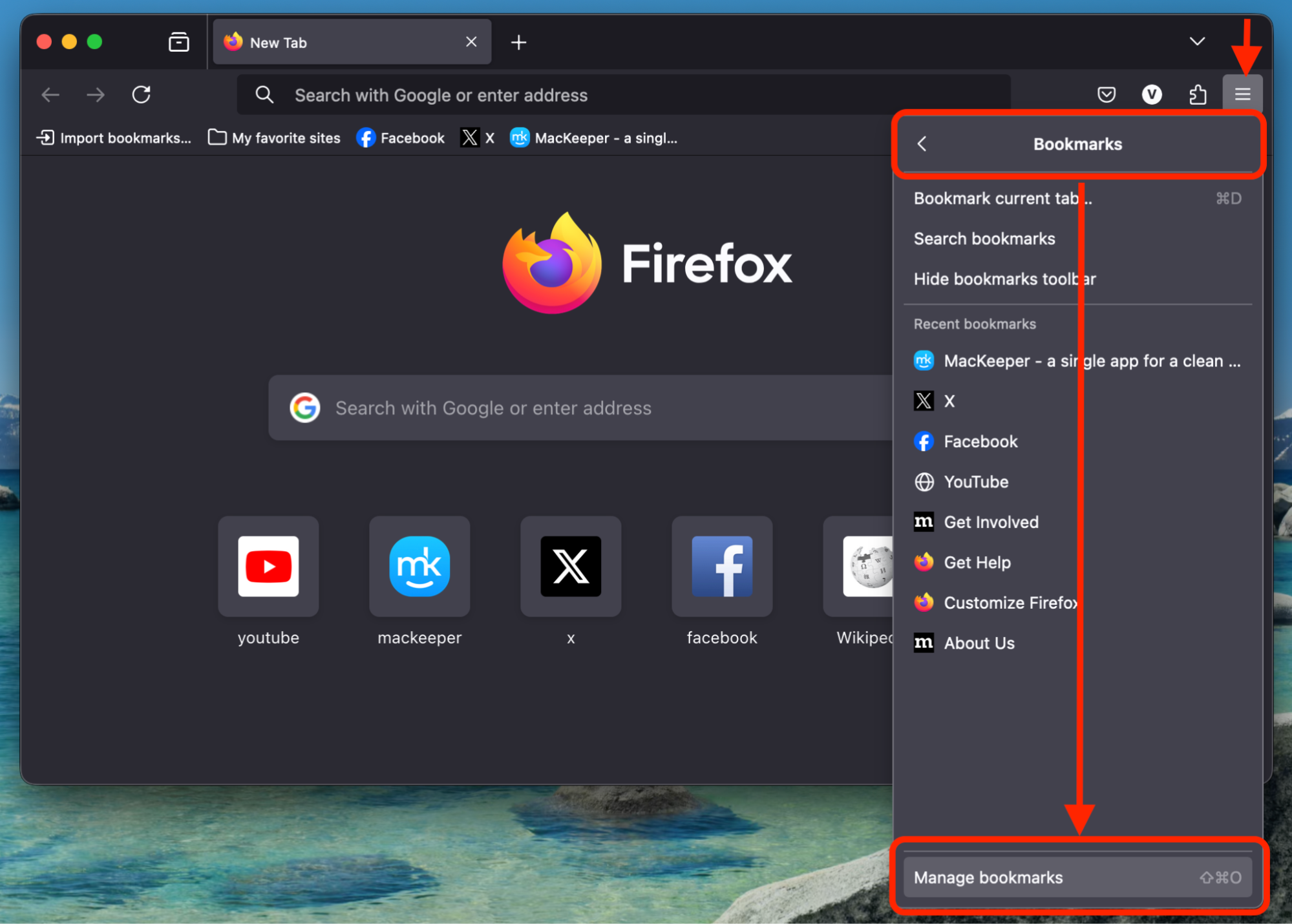
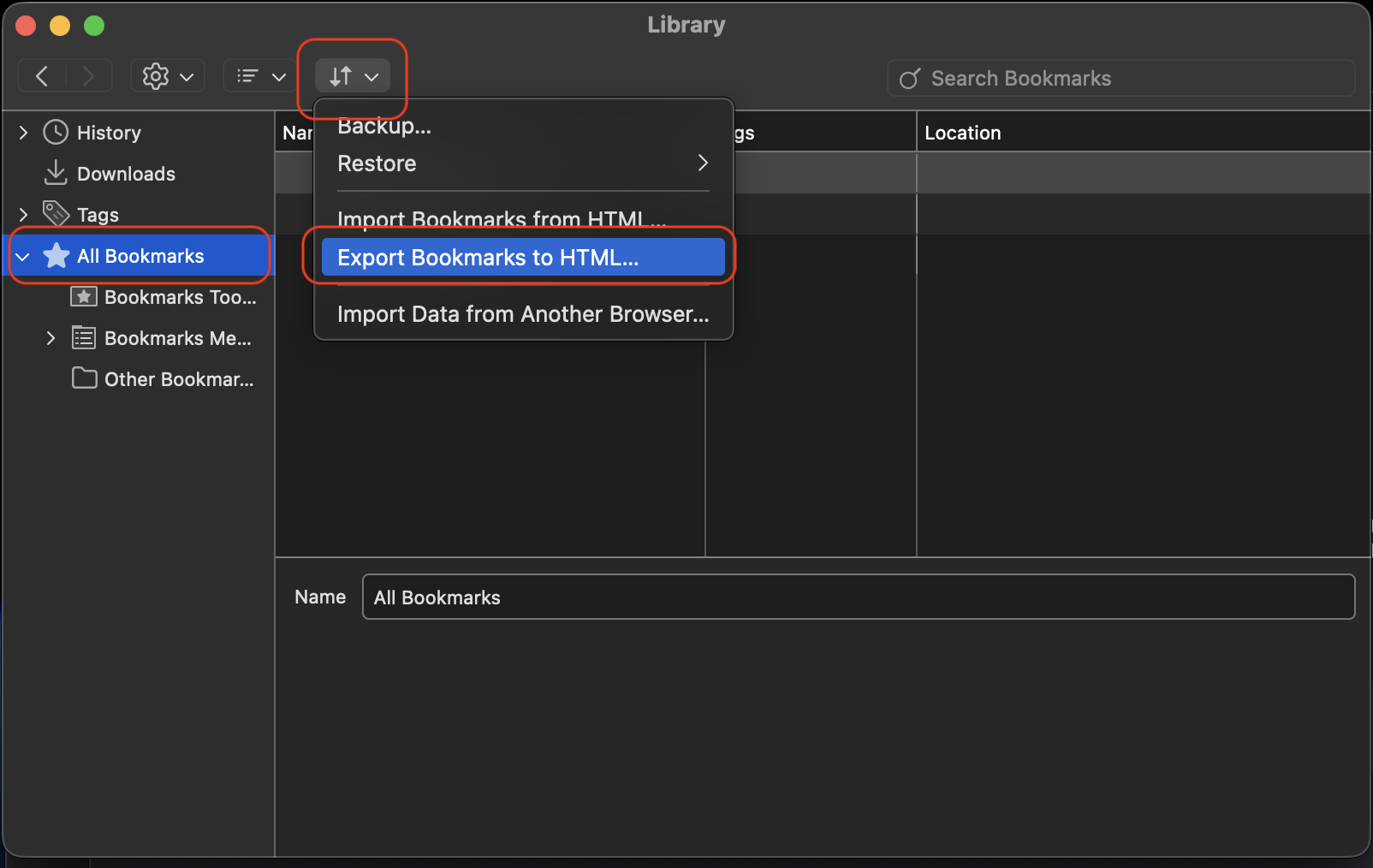
- Export bookmarks manually. Open Firefox, go to Bookmarks › Manage Bookmarks, then choose Import and Backup › Export Bookmarks to HTML. Save the file in a location easy to find.
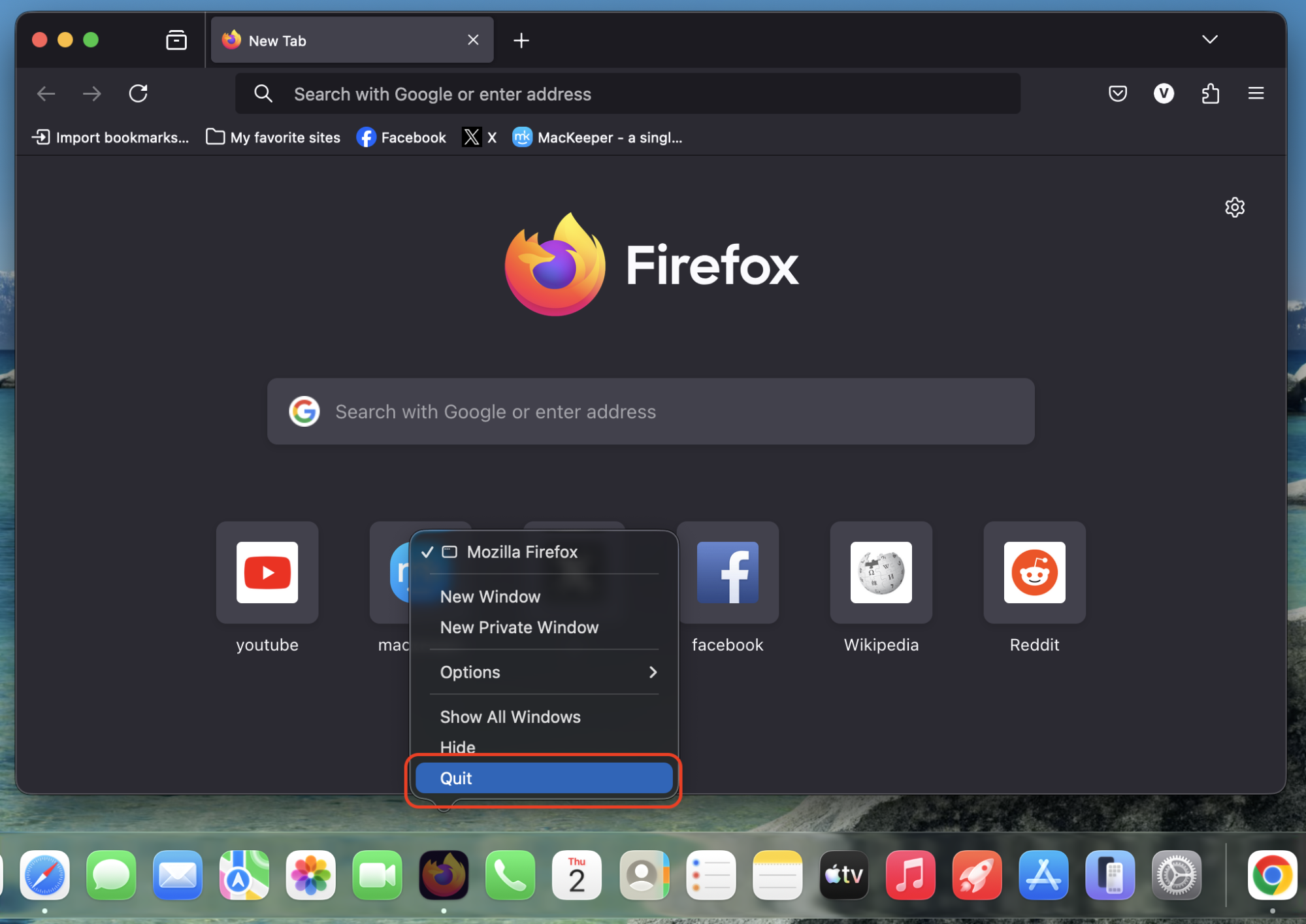
- Quit Firefox. You can’t delete an app that is still running. Right-click the Firefox icon in the Dock and choose Quit, or press Command + Q. Or if the right-click setup doesn’t work on your Mac, either right-click its icon in the Dock and choose Quit, or hold the Control key and click the icon (control-click), then select Quit.
If your reason for removing Mozilla Firefox is that Firefox keeps crashing, you might want to try troubleshooting first—sometimes a quick reset is enough to bring the browser back to life.
How to delete Firefox from Mac?
There are several ways to delete Mozilla Firefox from Mac—from a simple drag-and-drop to using Terminal commands. The method you pick depends on how comfortable you’re with macOS. If you ever need to completely uninstall applications on Mac, the same principles apply to Firefox.
1. Remove Firefox using Finder
Finder is the most straightforward way to remove Firefox from your Apple computer. It’s the default file manager on every Mac and MacBook, so you don’t need to install anything extra. Here’s how:
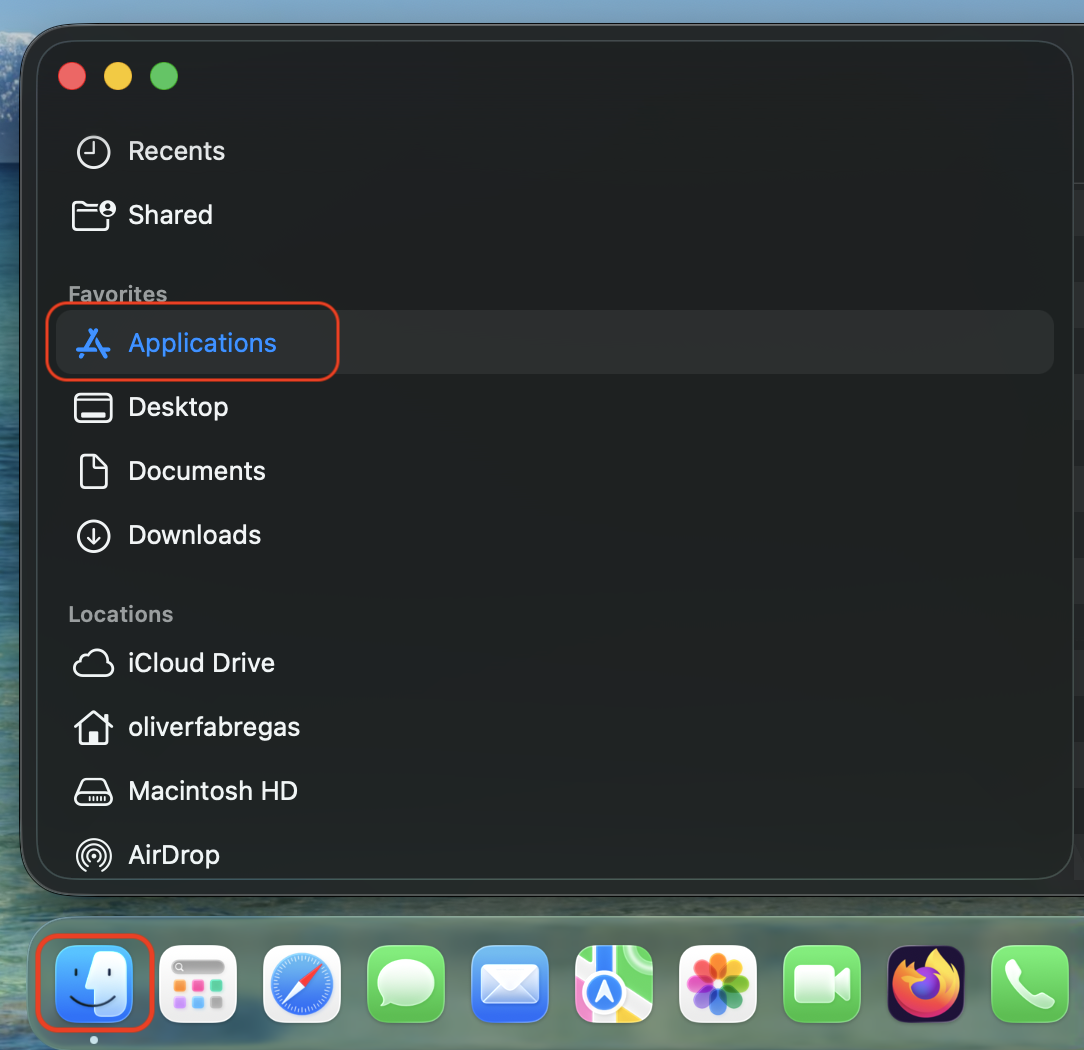
- Open Finder from the Dock.
- Click Applications in the left sidebar.
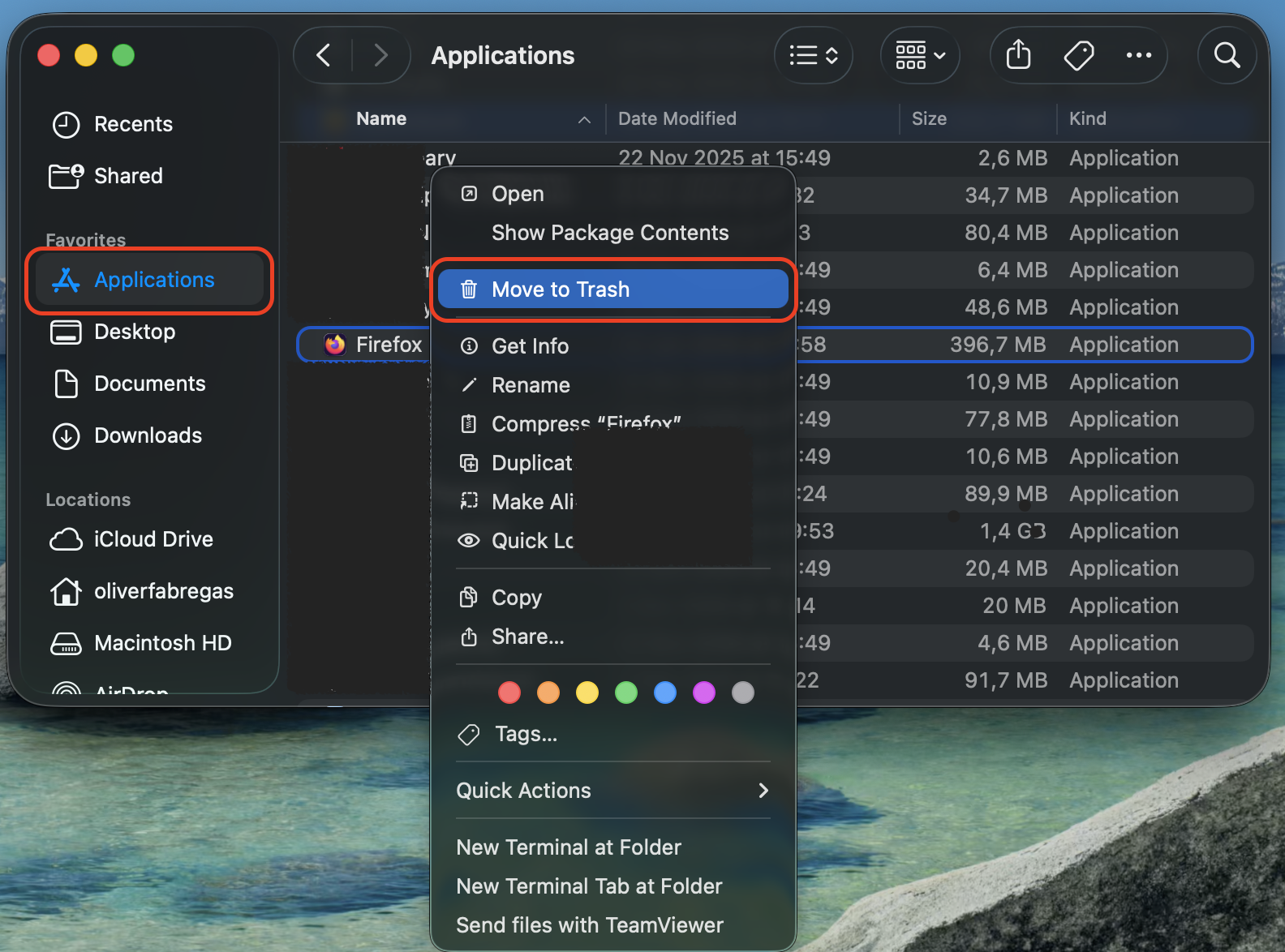
- Locate Firefox.app in the list.
- Drag it to the Trash, or right-click and select Move to Trash.
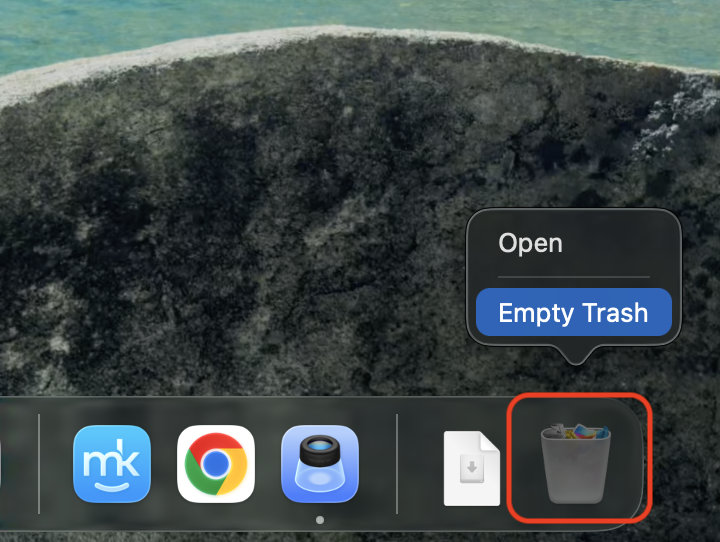
- Right-click the Trash icon in the Dock and choose Empty Trash to finalize the removal.
2. Uninstall Firefox with Terminal
Before proceeding with Terminal, make sure you quit the Firefox app first.
Terminal gives you direct, command-line control over macOS—handy if you’re comfortable typing commands. If you’ve never used it before, check out this guide on the open Terminal shortcut to get started. If you’re more familiar with it, follow our instructions:
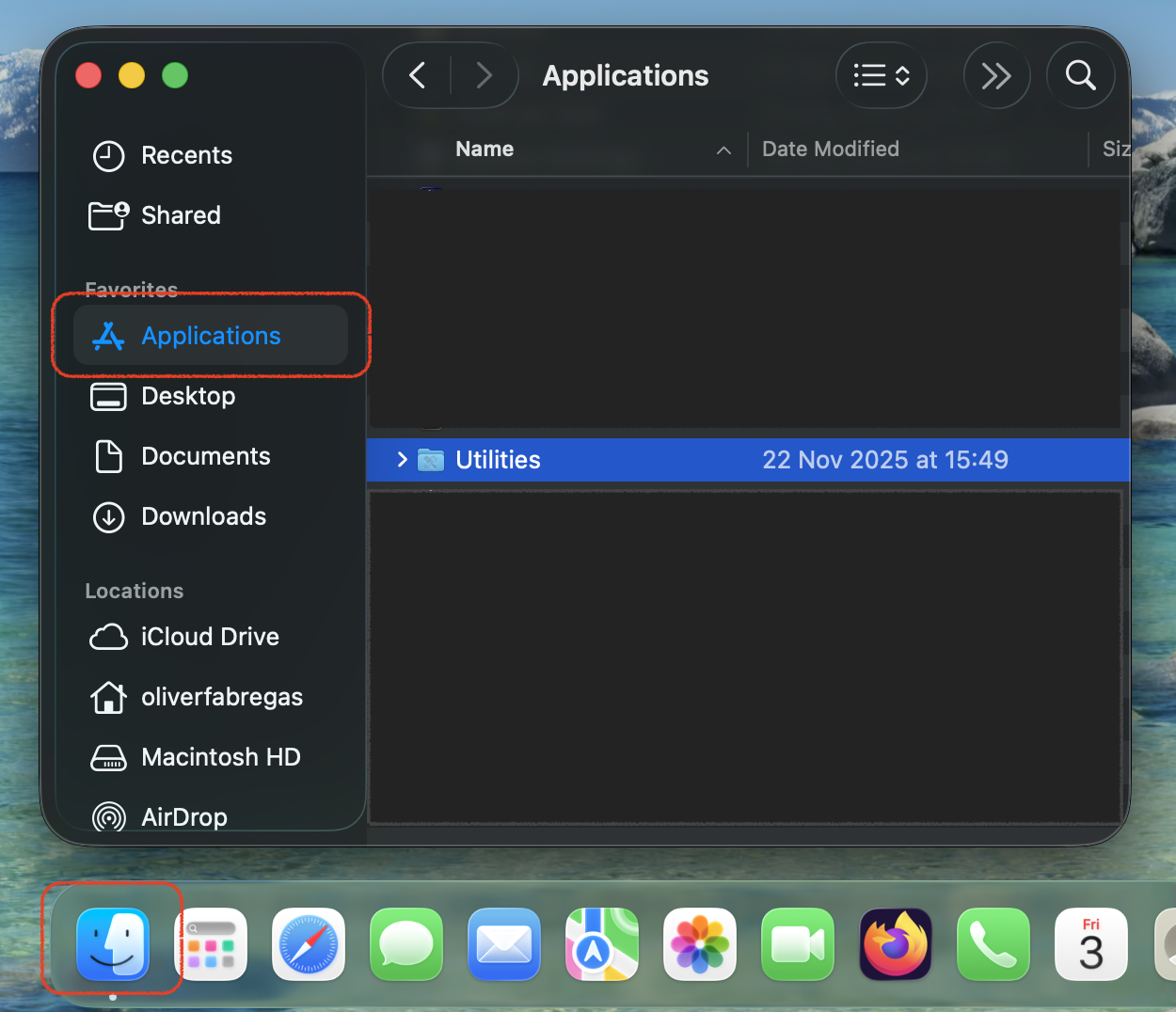
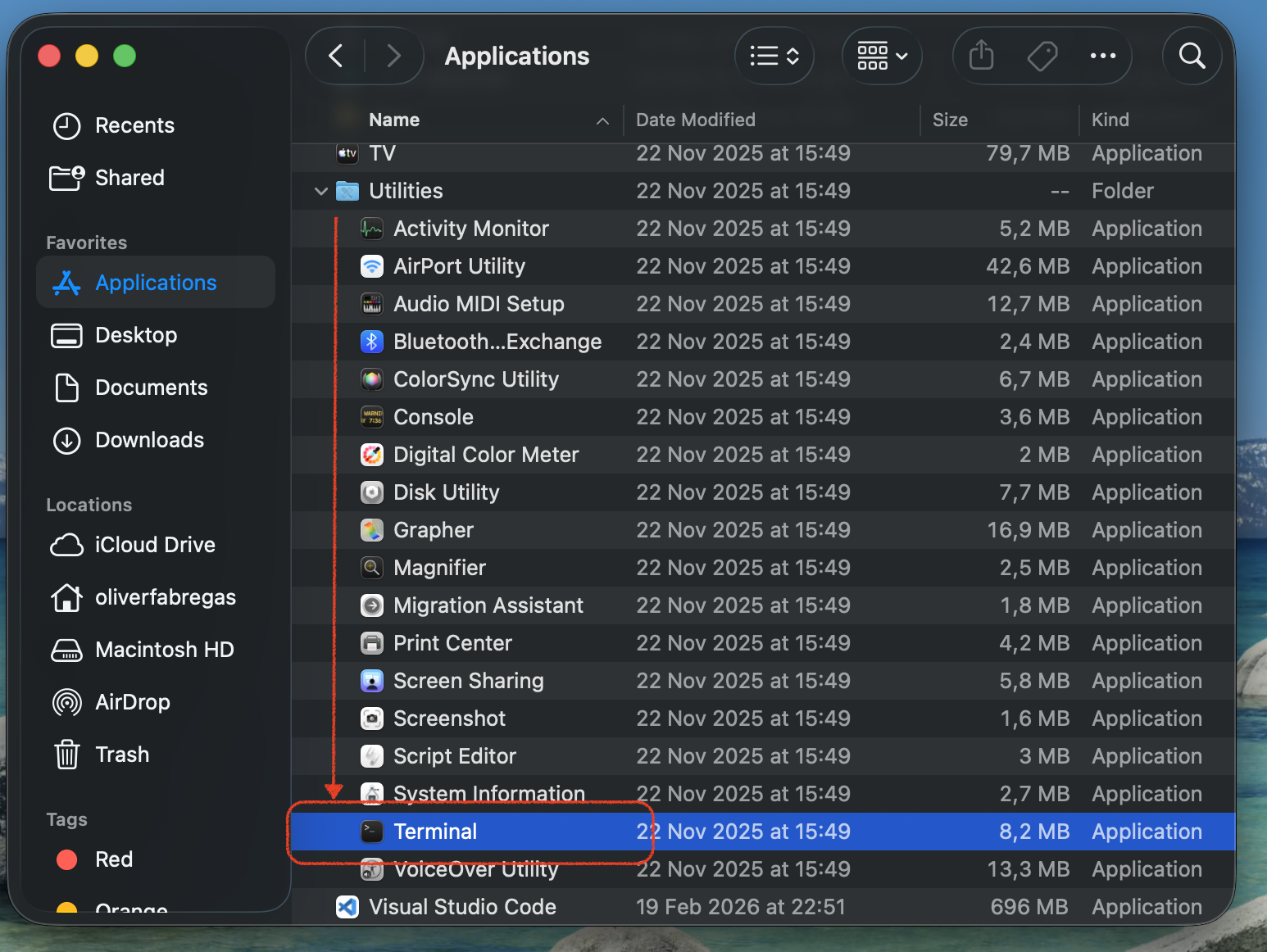
- Open Terminal (go to Applications › Utilities › Terminal).
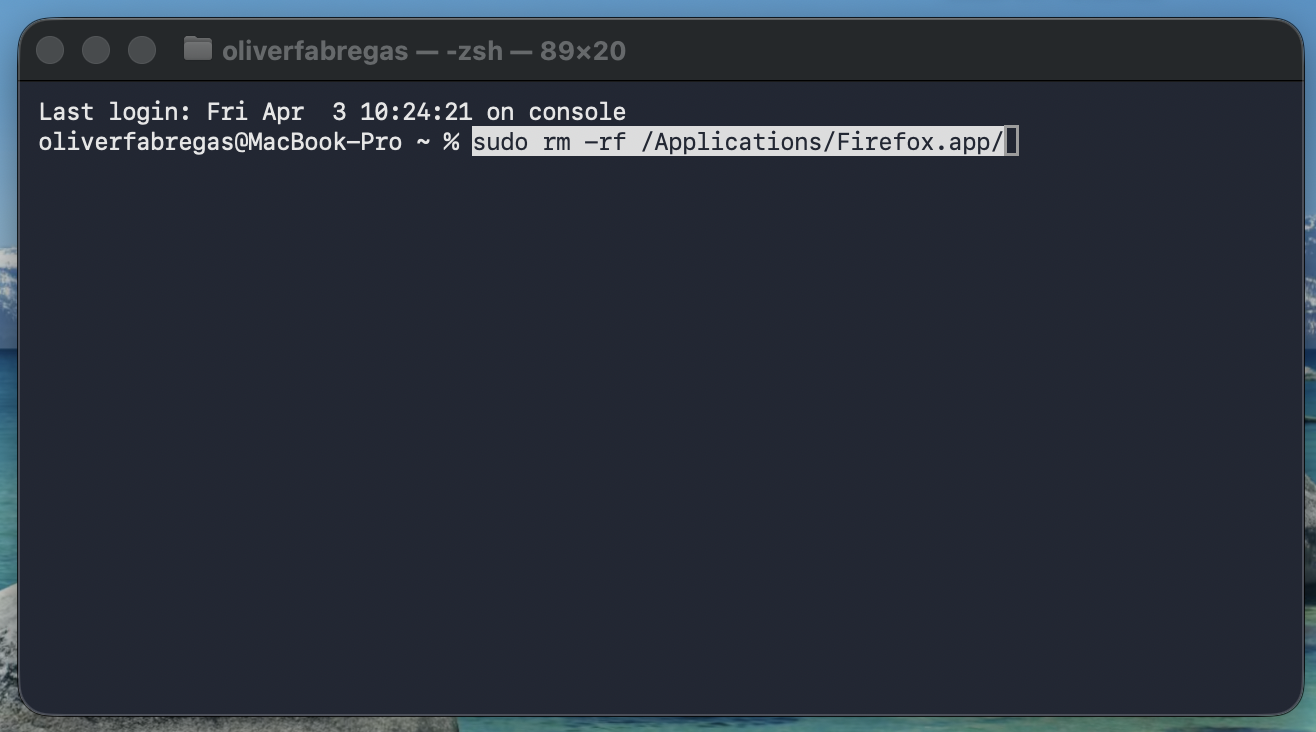
- Type the following command and press Return:
- sudo rm -rf /Applications/Firefox.app/
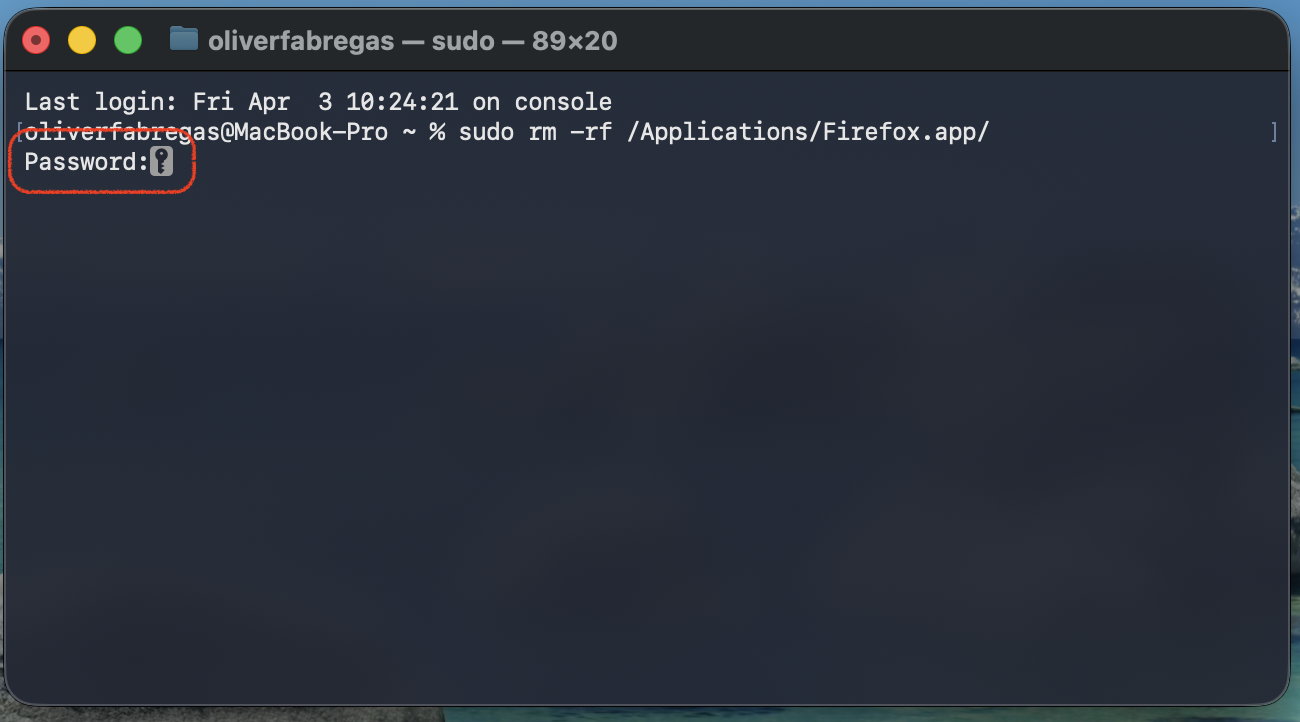
- Enter your administrator password when prompted. The characters won’t appear on screen (no dots or asterisks)—that’s normal and done for security, so others can’t see your password while you’re typing.
- Press Return again. Firefox will be removed without a confirmation message, so double-check the command before you run it.
A word of caution from our team: Terminal executes commands instantly and doesn’t send deleted items to the Trash. A typo could remove the wrong file, so make sure you’ve typed everything correctly.
3. Use third-party app uninstallers
If manual removal feels like too much work, a dedicated uninstaller tool can handle everything automatically. These tools scan your Mac for the app and its associated files—caches, preferences, support folders—and delete them in one go.
MacKeeper’s Smart Uninstaller is built for exactly this. It finds Firefox along with every hidden leftover file, so you can fully uninstall Firefox on Mac without digging through Library folders yourself. It’s also helpful when you need to force delete app on Mac—like stubborn apps that refuse to go away.
Here’s how to use it:
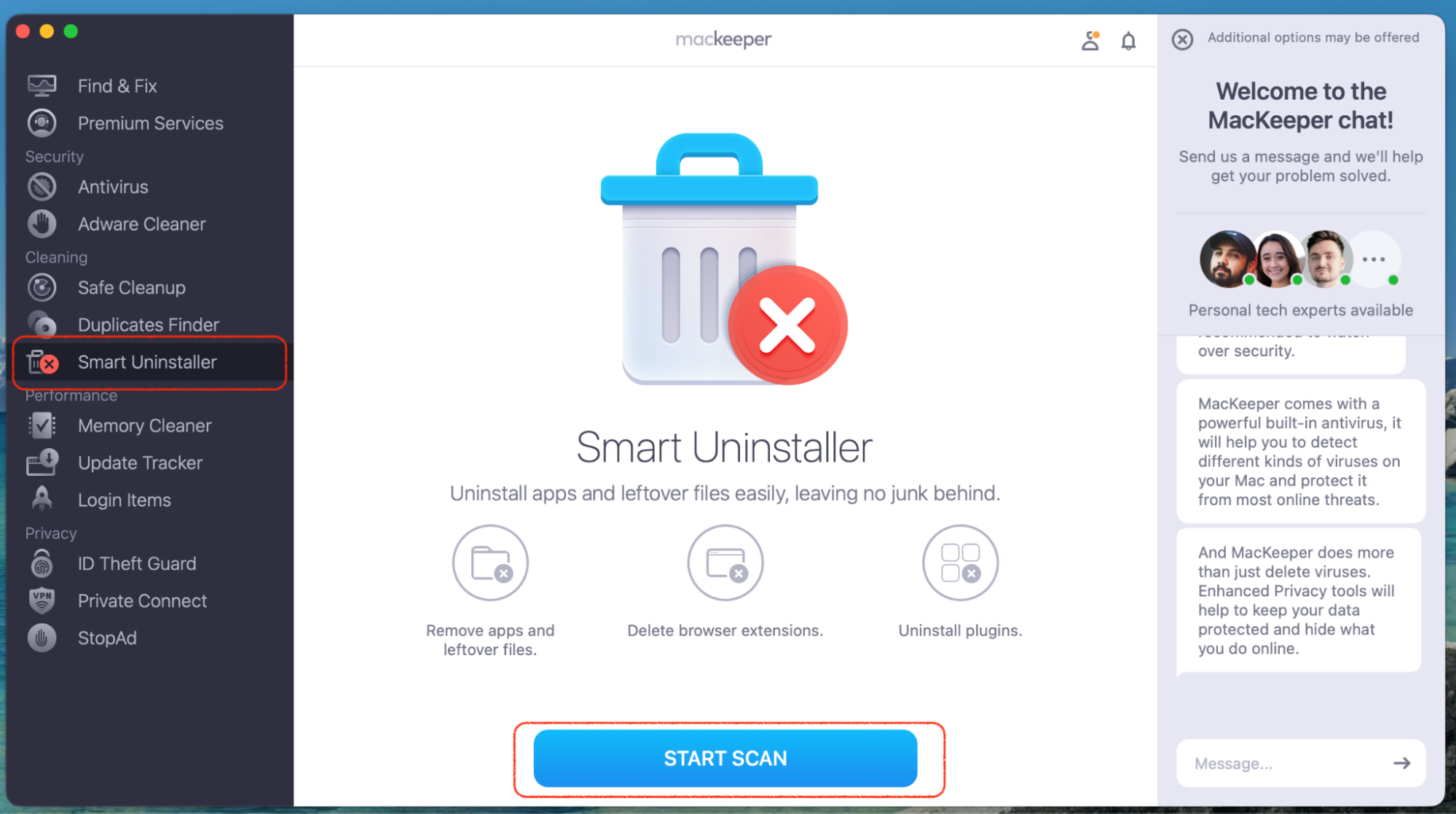
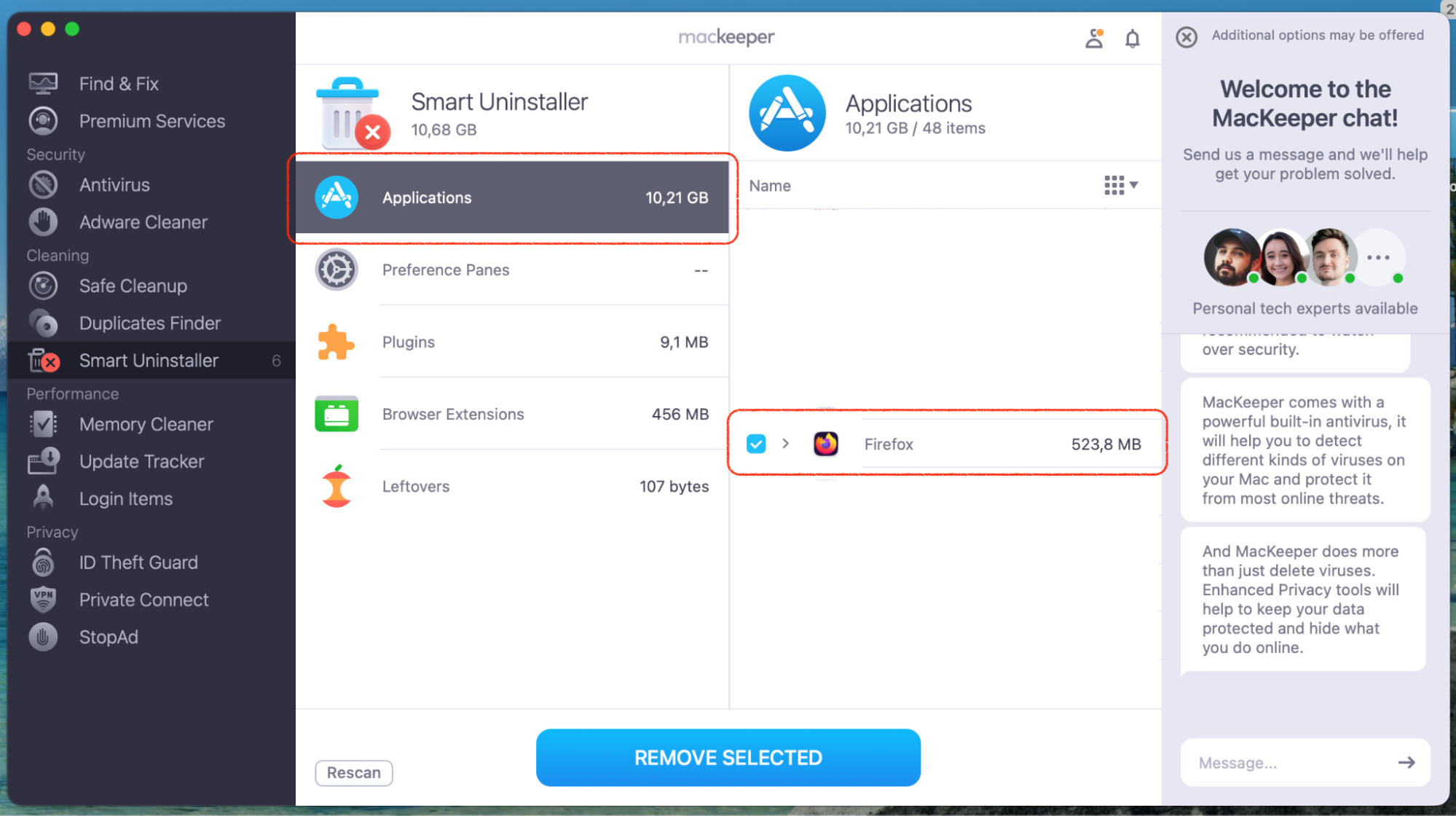
- Open MacKeeper and select Smart Uninstaller.
- Click Start Scan and wait for the scan to finish.
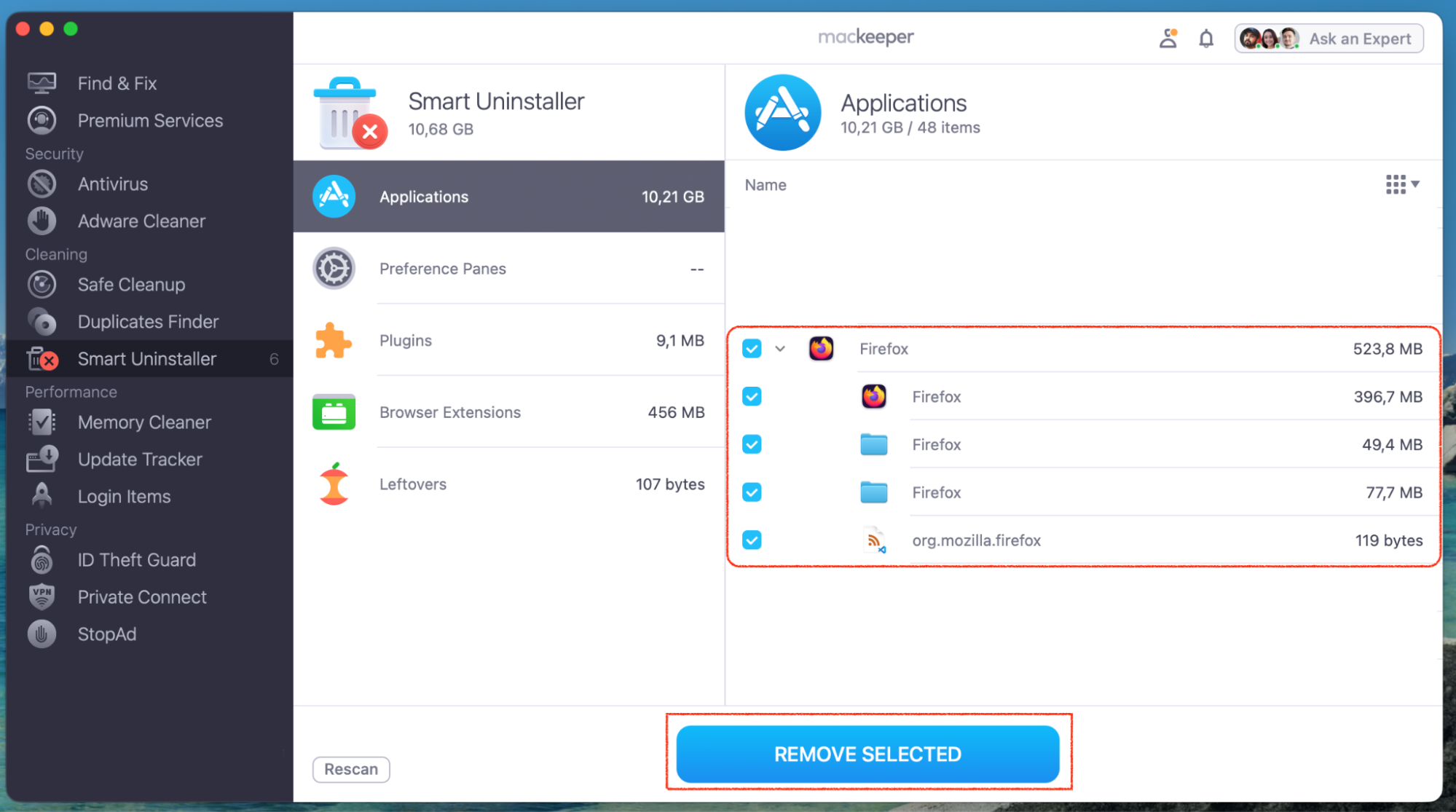
- Find Firefox in the list of apps and select it.
- Click Remove Selected to completely remove Firefox and its leftovers.
How to remove Firefox leftover files on Mac?
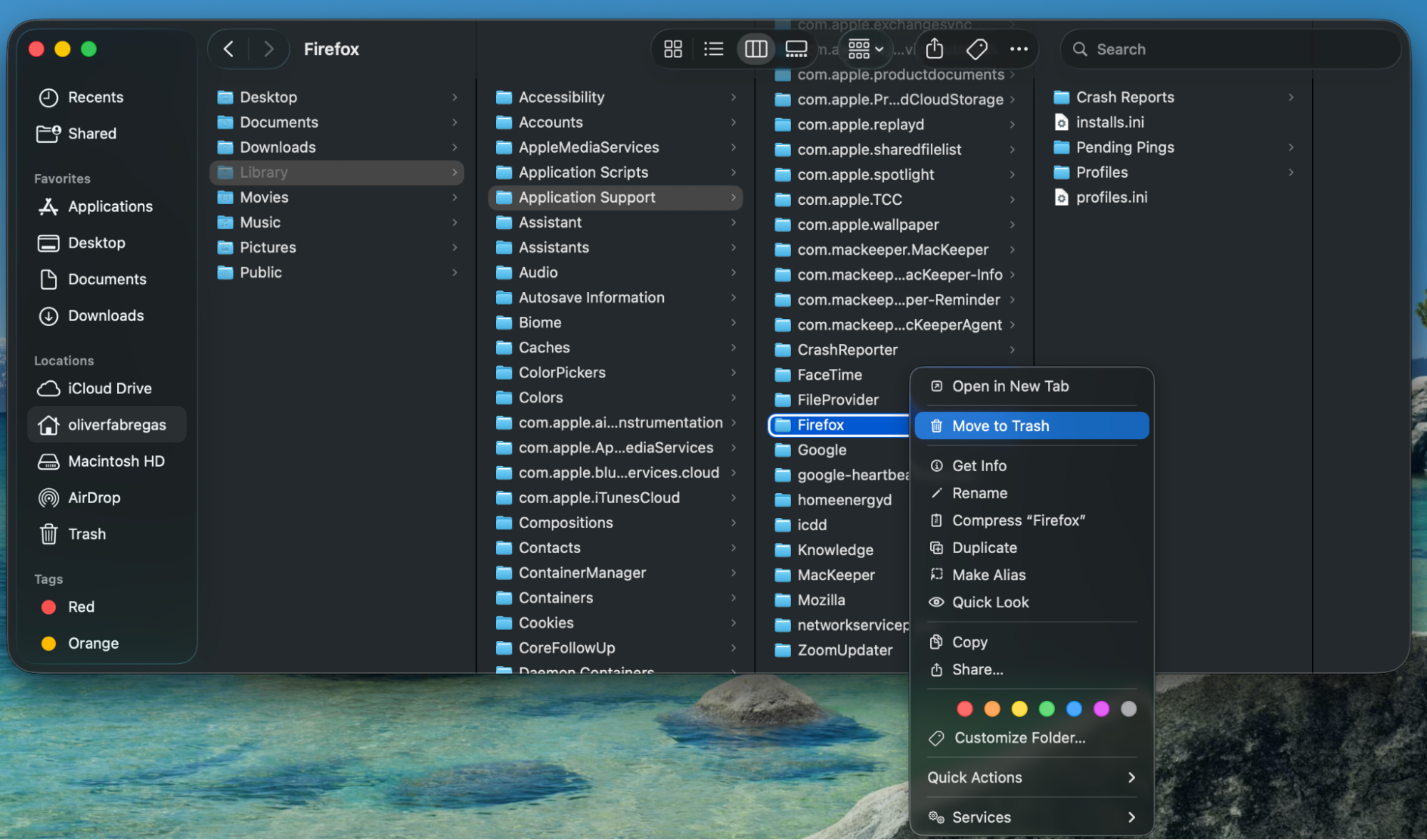
We’d like to warn you that dragging Firefox to the Trash removes the app itself, but it doesn’t touch the support files scattered across your Library folder. These leftovers—caches, saved preferences, and session data—can quietly take up storage space. To fully delete app on Mac, you’ll need to clear them out manually.
Here’s how to find and delete Firefox leftover files:
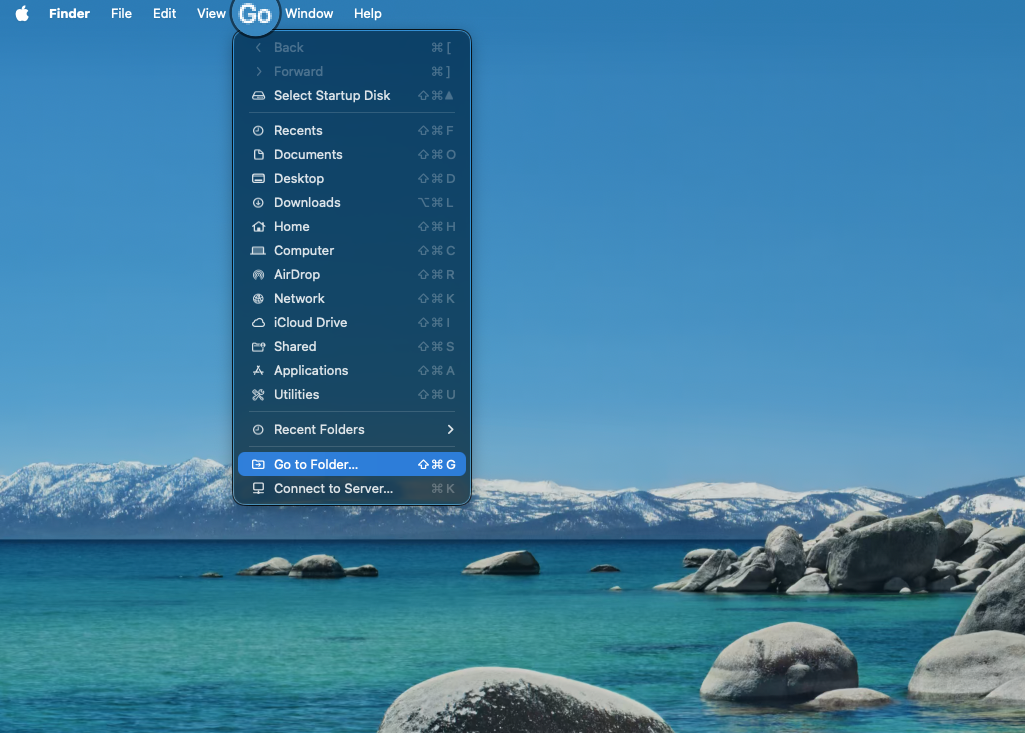
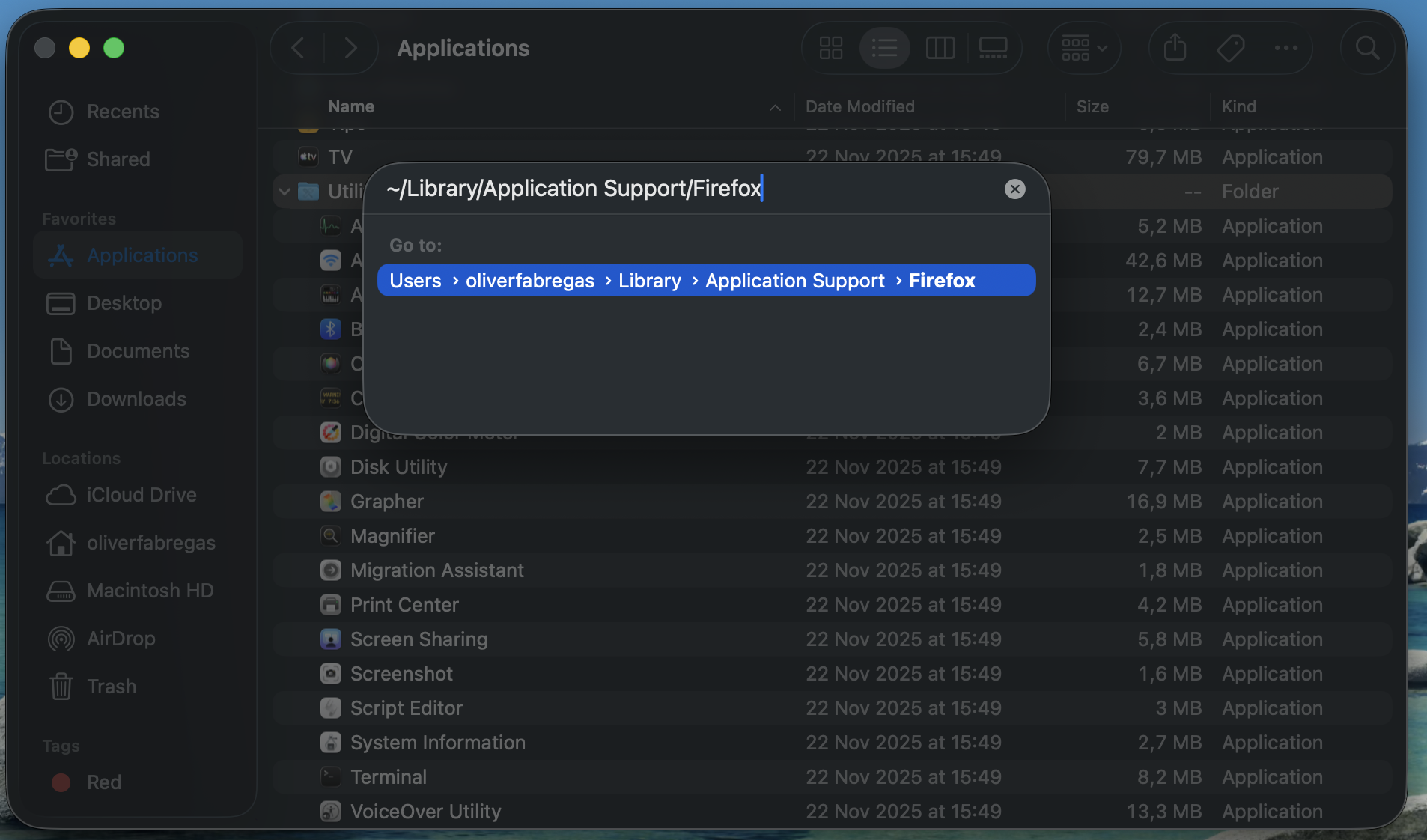
- Open Finder, click Go in the menu bar, then select Go to Folder.
- Type each of the following paths one at a time and look for any files or folders related to Mozilla or Firefox:
- ~/Library/Application Support/Firefox
- ~/Library/Caches/Firefox
- ~/Library/Caches/Mozilla
- ~/Library/Preferences/org.mozilla.firefox.plist
- ~/Library/Saved Application State/org.mozilla.firefox.savedState
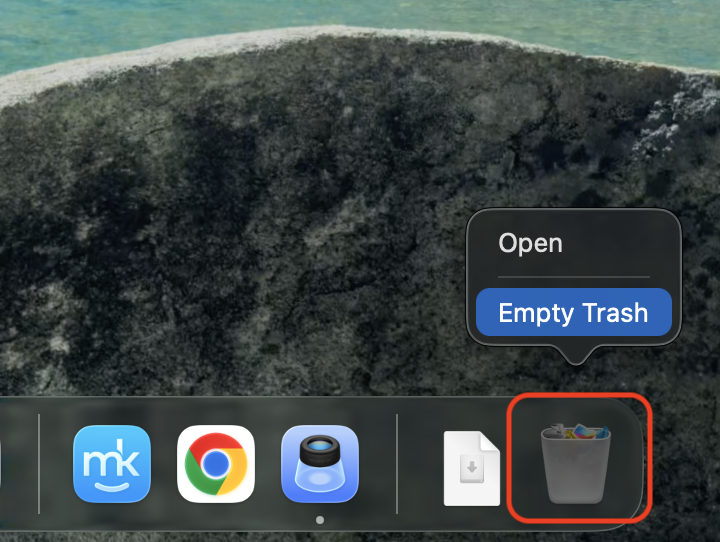
- Move any Mozilla or Firefox files and folders you find to the Trash.
- Empty the Trash to free up the space.
A warning from us: Be careful not to delete files that belong to other apps. If a folder name clearly says “Mozilla” or “Firefox,” it’s safe to remove.
Conclusion
Whether you use Finder, Terminal, or a dedicated tool, you can uninstall Firefox on Mac in just a few steps. Removing leftover files ensures the browser is gone for good. For a quick, clean removal without the manual work, MacKeeper’s Smart Uninstaller handles the entire process—try it today.