Unlocking your MacBook Pro without a password may become a difficult task for a non-techy user. If you feel a need for a helping hand, then consult tech experts. For example, MacKeeper’s Premium Services can help you with almost any tech issue remotely 24/7.
You can get into your MacBook Pro without the password. Obviously, it’s easier to unlock your Mac if you remember your credentials, but there are other options. You can reset your password using Apple ID, use another device to help you, or even factory reset your Mac.
The security macOS provides is good, so to log in to your Mac, you’ll need at least one piece of secure information. This could be:
Your password
The password for another admin user on your MacBook Pro
Your Apple ID and password
Your FileVault Recovery Key, if enabled
If you don’t have any of these, it may be more complicated—but there are ways to recover access.
A note from our experts:
If you forget your password and can’t unlock your MacBook Pro, you might need the help of an expert. MacKeeper’s Premium Services provides tech support for Apple devices 24/7. Our consultants assist with any Mac-related issue.
Step 1. Mackeeper > Premium Services > Chat NowStep 2. Enter the details of your issue
How to get into MacBook Pro without password
There are several methods to sign in to MacBook Pro without a password. For some of them, you may need to plan ahead. You could set up a FileVault Recovery Key or connect your Apple Watch in advance in case you need to sign into a MacBook Pro without a password in the future.
In addition to planning ahead for password issues, all Mac users should be prepared to detect and remove malware. You can do this with reliable privacy and security software.
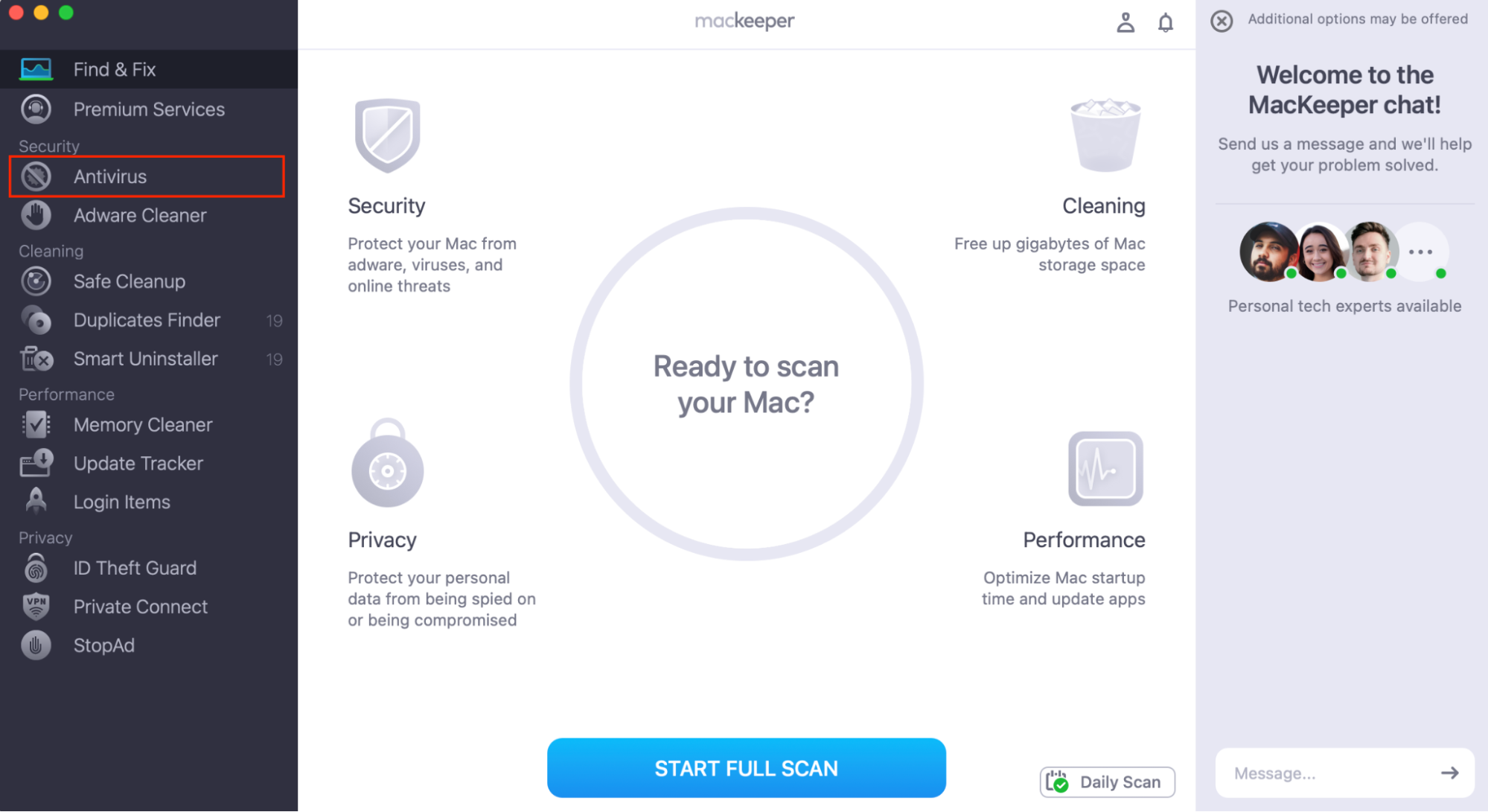
Do you want real-time antivirus protection, on-demand malware scans, and a regularly updated virus database? MacKeeper’s Antivirus has all these features—and your first week of use is free.
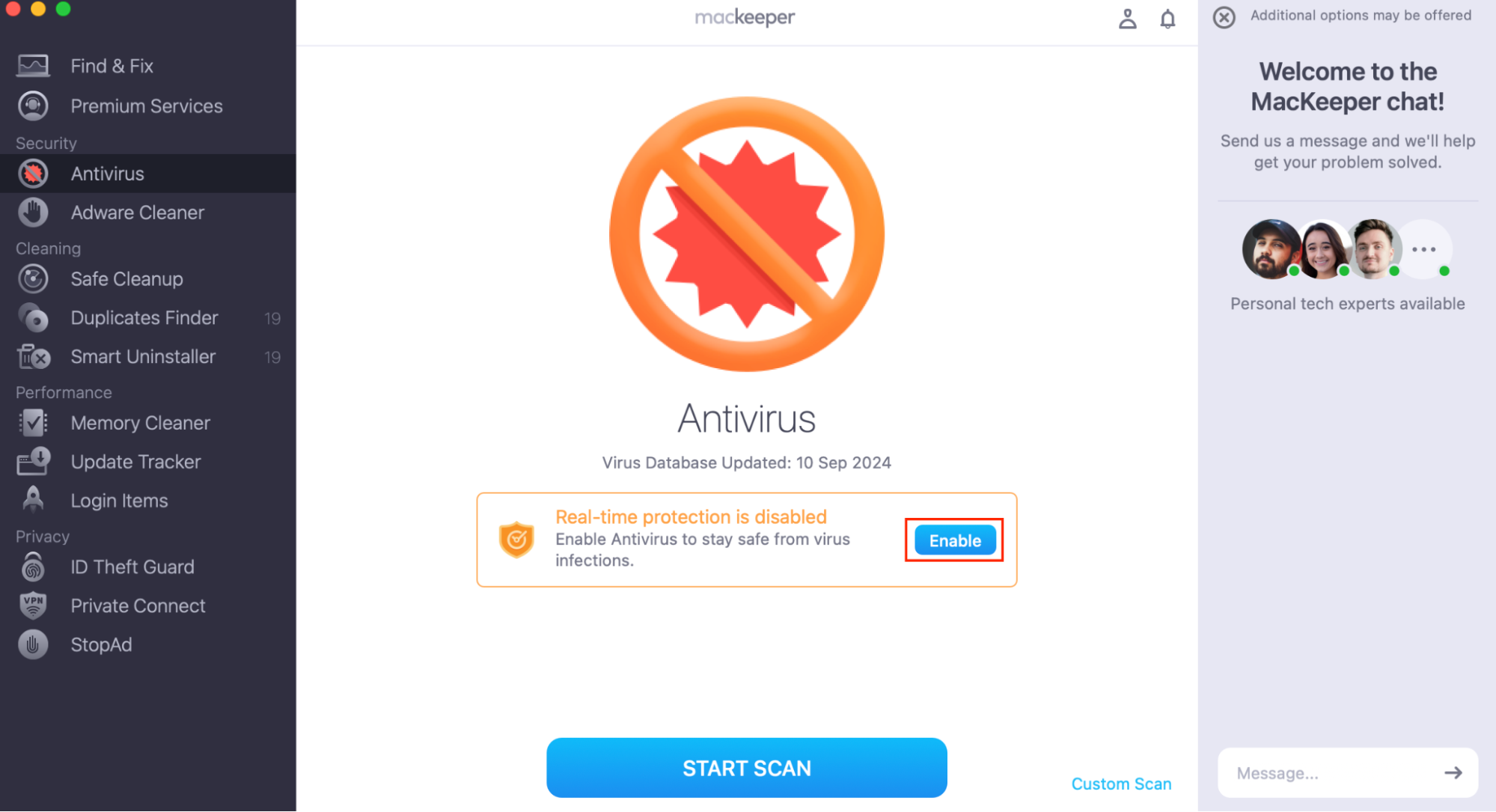
Make sure that real-time protection is turned on. If it isn’t, click Enable to keep your Mac safe.
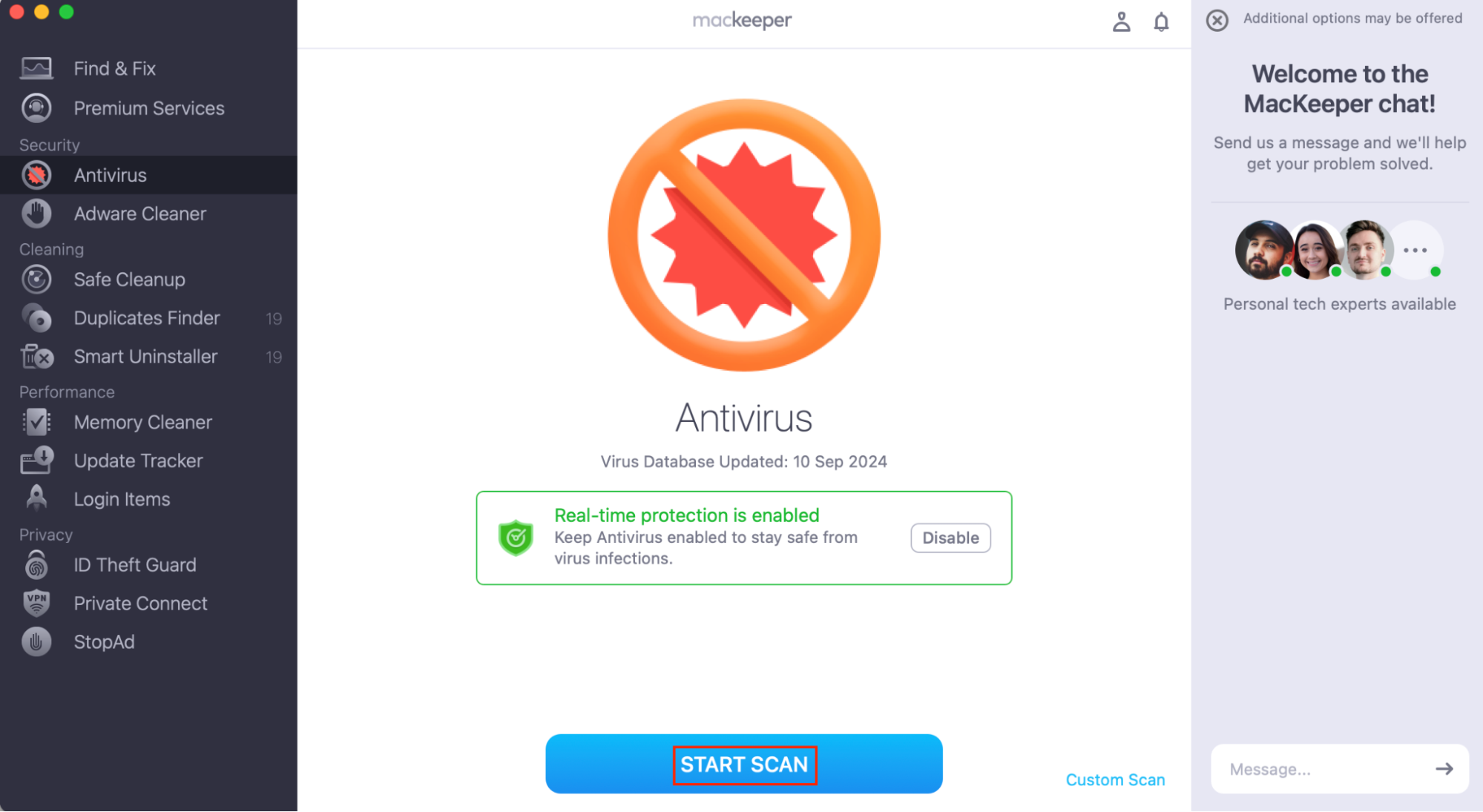
Choose Start Scan.
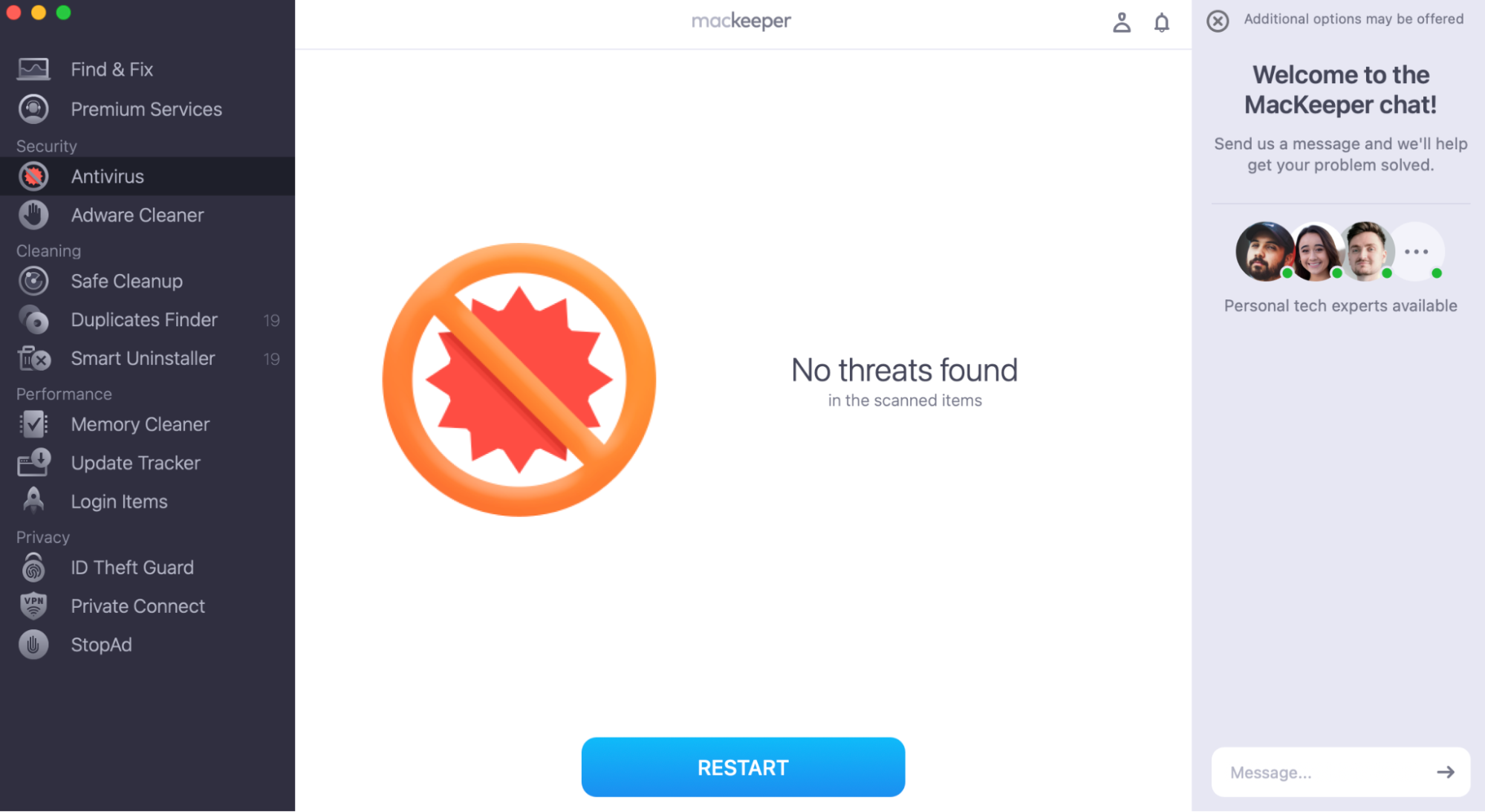
Follow the on-screen instructions to remove any threats.
Step 1. Open MacKeeper and choose Antivirus from the sidebarStep 2. Click EnableStep 3. Choose Start ScanStep 4. Follow the on-screen instructions to remove any threats
Our expert’s tip: Do you know your password, but still can’t log in? Before you try to log in to your MacBook Pro without password, make sure that Caps Lock is off.
1. Reset your password using Apple ID
When you first set up your Mac, you had the option to link it to your Apple ID. If you choose this option, you can easily reset your password.
Important:
If you’re struggling to log in to your Apple ID, find out how to unlock Apple ID.
To reset your password using Apple ID:
Enter the wrong password three times.
You’ll then see two different options. Choose Reset using your Apple ID.
Your Mac may restart. When it asks for your Apple ID, enter the details.
Your Mac may ask you several different things now:
If you’re asked to create a new Keychain, click OK to restart.
If you’re asked to enter a password, choose Forgotten All Passwords.
If you’re asked to Deactivate Mac, confirm that you want to Deactivate your Mac—it’s only temporary.
Choose a new password when prompted, and click Next.
Restart your Mac, then log in using your new password.
If you have another account on your laptop, use it to reset your password:
A note from our team: For this method to work, the other account must be an admin account.
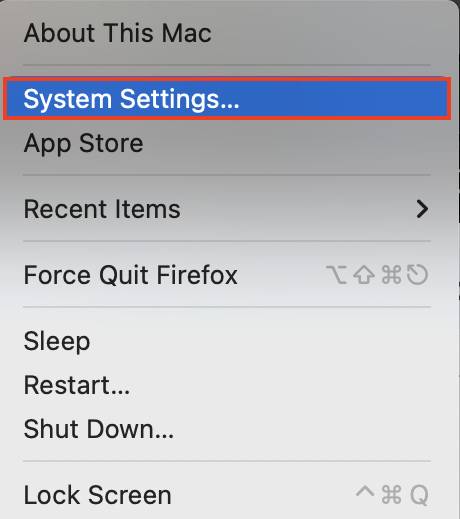
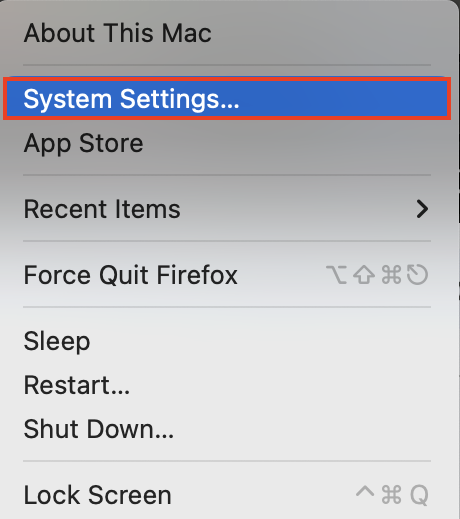
Log in using the other account, then go to Apple menu > System Settings.
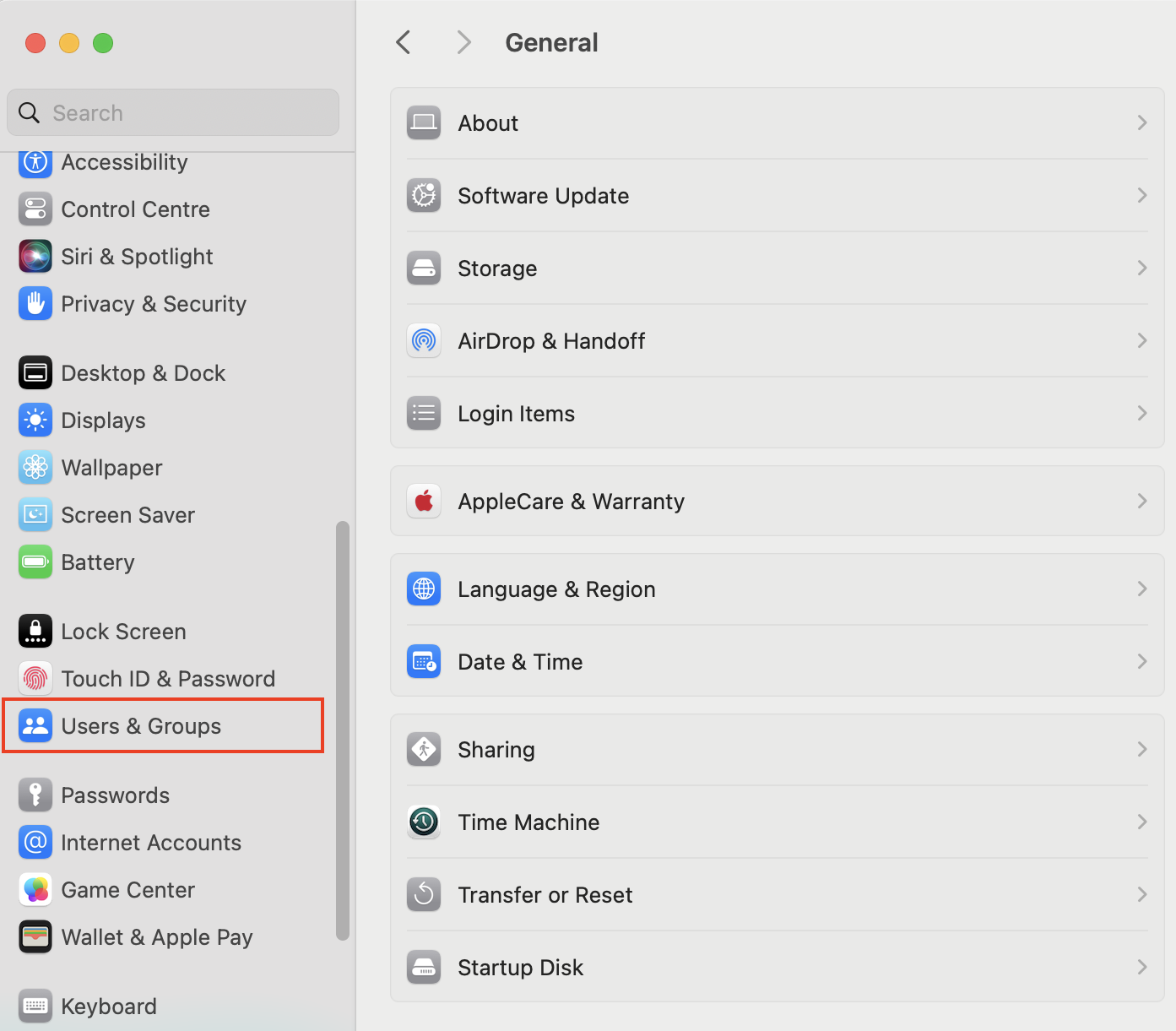
Choose Users & Groups.
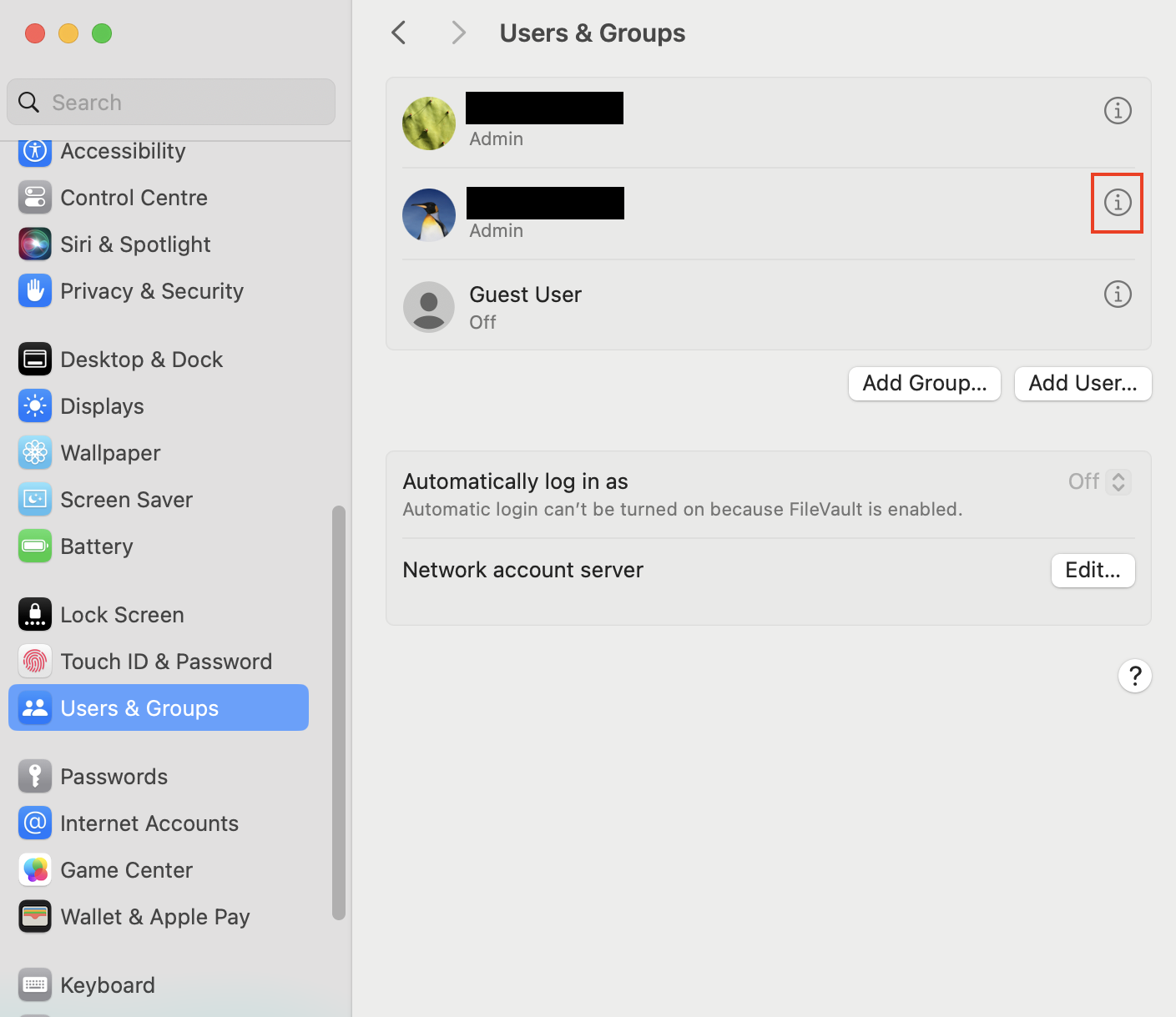
Click the i next to your username.
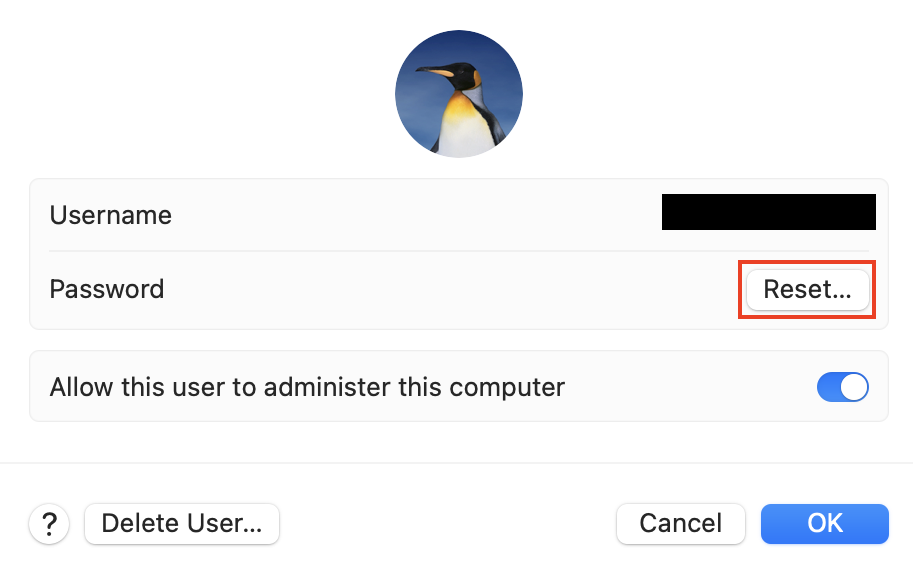
Select the Reset option next to Password.
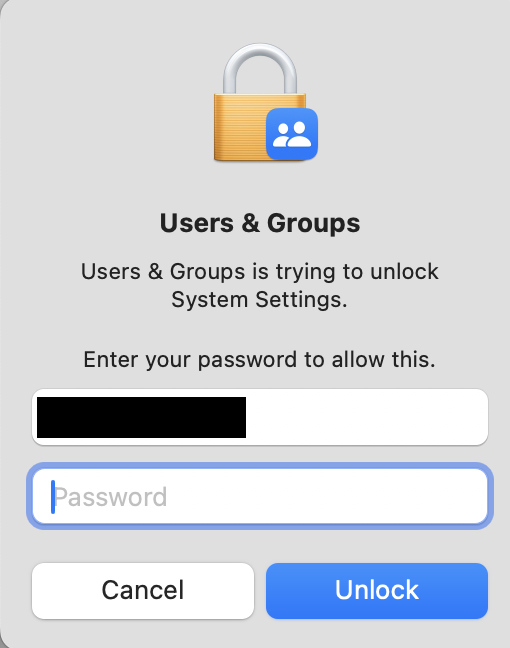
Enter the password of the account you’re currently logged into, and click Unlock.
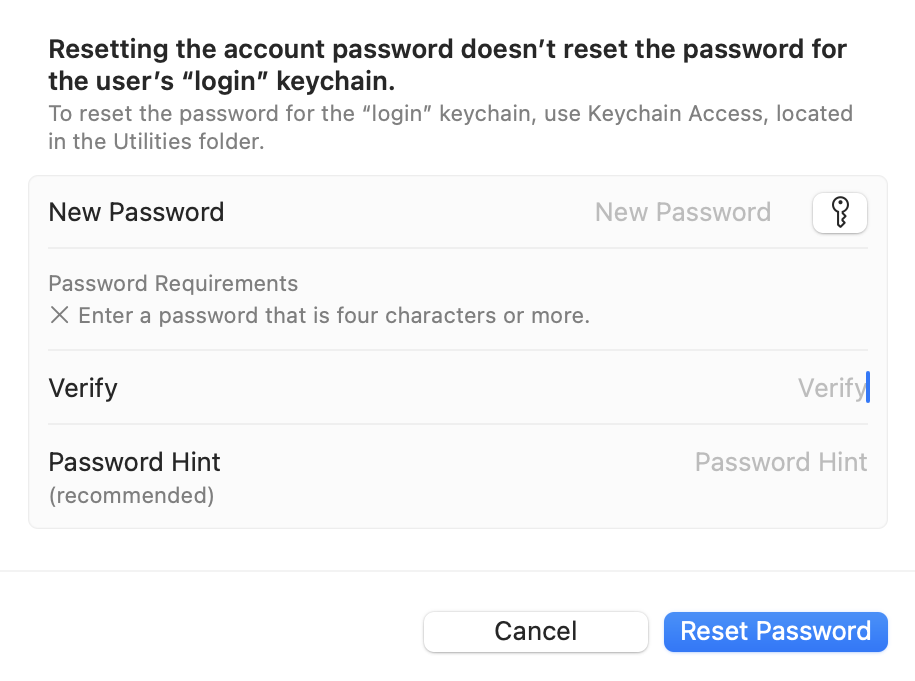
Choose a new password, then click Reset Password to save it.
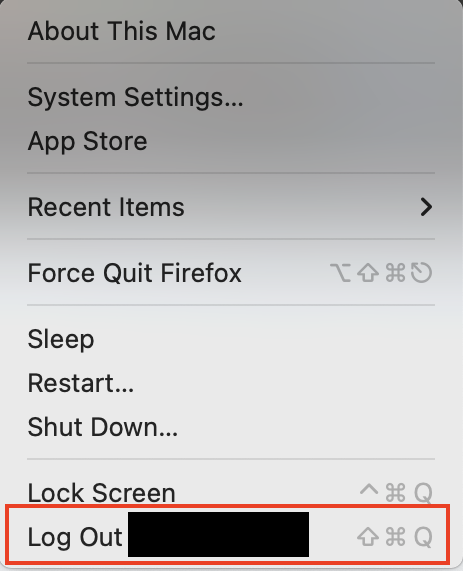
Go to Apple menu > Log Out [username], and then log in with your original username and your new password.
Step 1. Log in using the other account, then go to Apple menu > System SettingsStep 2. Choose Users & Groups from the sidebarStep 3. Click the i next to your usernameStep 4. Select the Reset option next to PasswordStep 5. Enter the password of the account you’re currently logged into, and click UnlockStep 6. Choose a new password, then click Reset PasswordStep 7. Go to Apple menu > Log Out [username], and then log in with your new password
3. Get into your MacBook Pro with Apple Watch
Do you use another Apple device? If you have an Apple Watch, you can use it to unlock a MacBook Pro without a password.
For this to work, though, you need to have already enabled the Use Apple Watch to unlock your application and your Mac option.
To set up Apple Watch unlock, follow these steps:
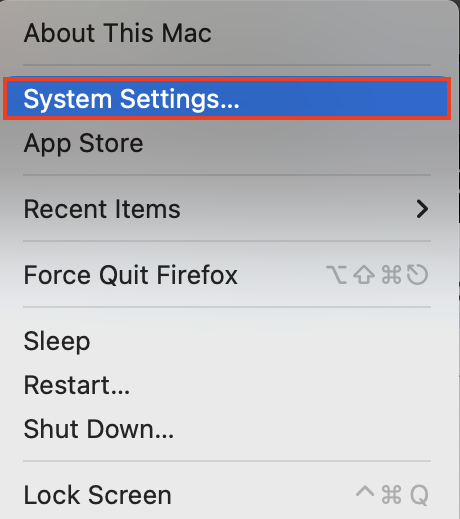
Go to Apple menu > System Settings.
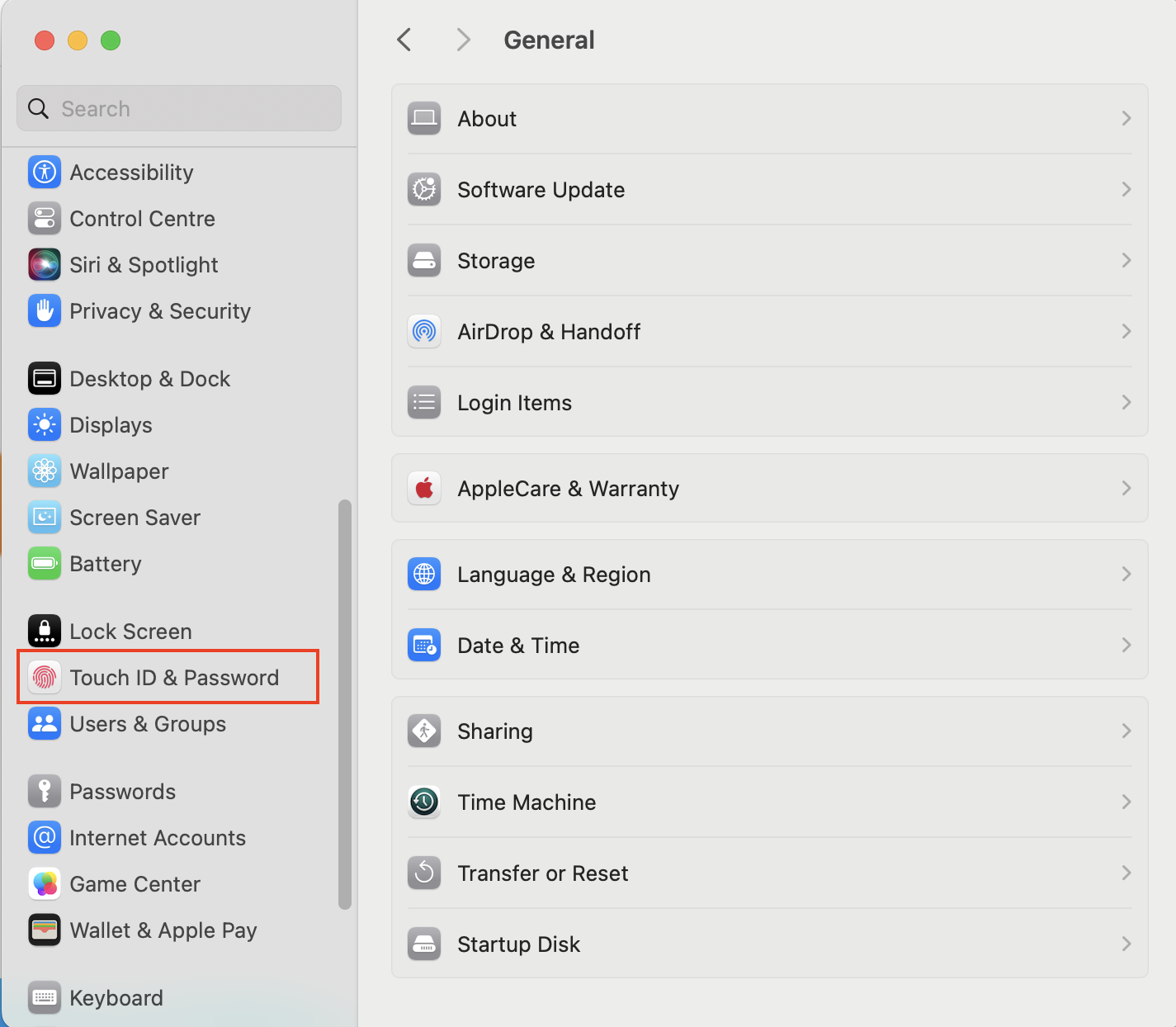
Click Touch ID & Password in the sidebar.
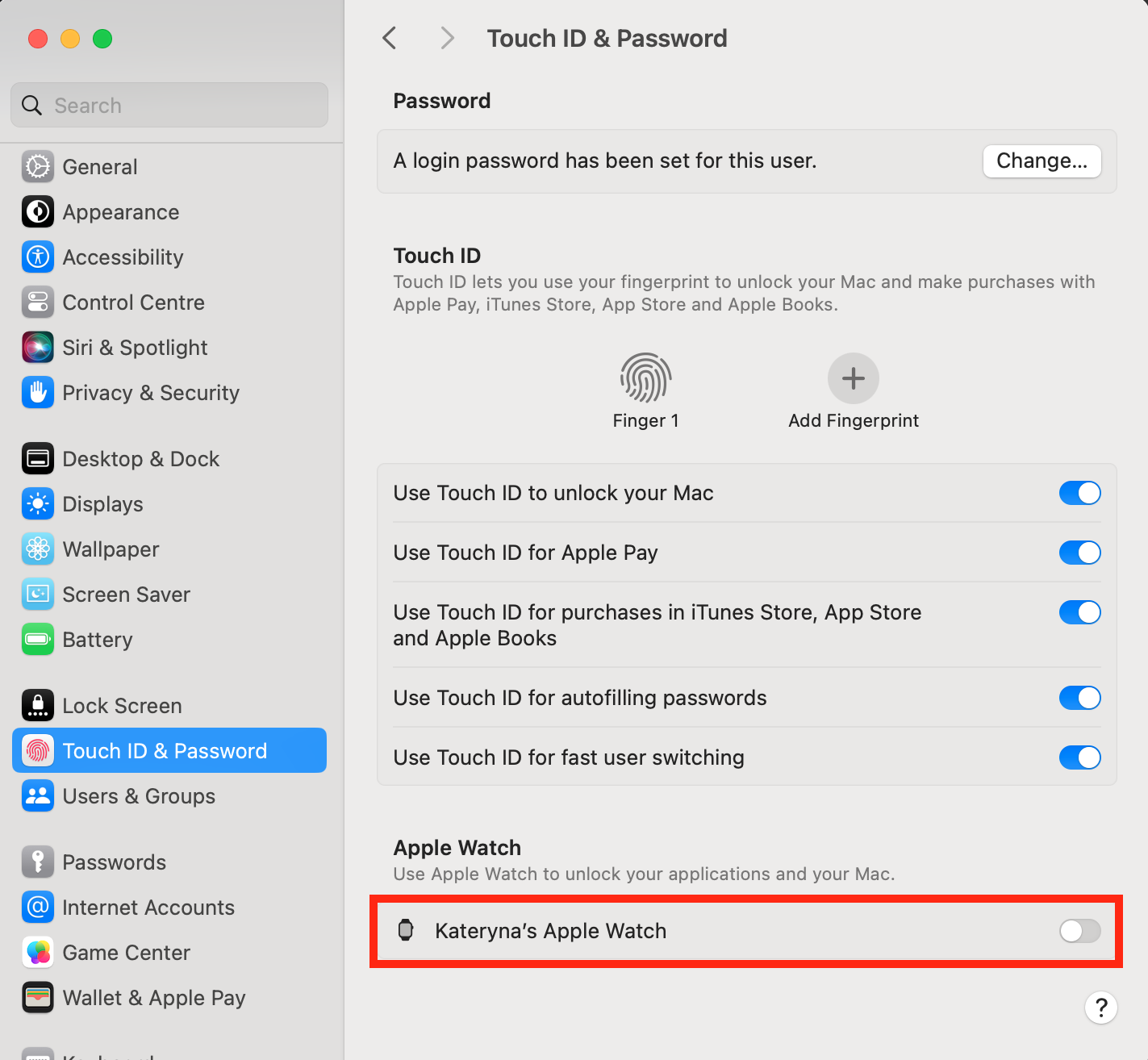
Under Use Apple Watch to unlock your application and your Mac, toggle the slider next to your Apple Watch.
Step 1. Go to Apple menu > System SettingsStep 2. Click Touch ID & PasswordStep 3. Toggle the slider next to your Apple Watch
A pro tip from us: You can also use this section of System Settings to enable Touch ID, so you won’t need to enter your password every time you log in.
4. Use FileVault Recovery Key
FileVault is a macOS feature that makes sure sensitive data is encrypted. If you have a FileVault Recovery Key, you can use this to get access to your Mac.
To set up FileVault Recovery Key:
Go to Apple menu > System Settings.
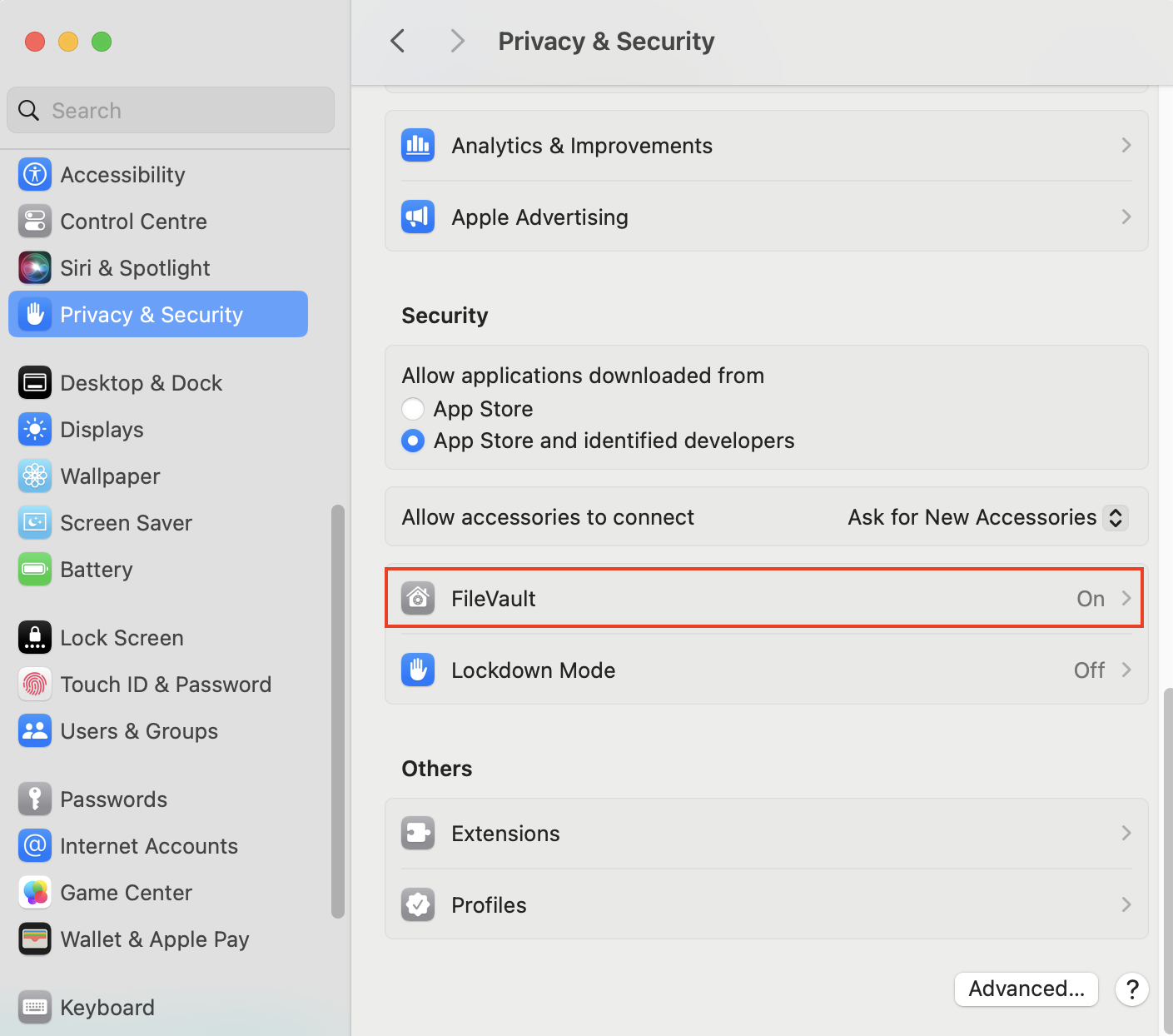
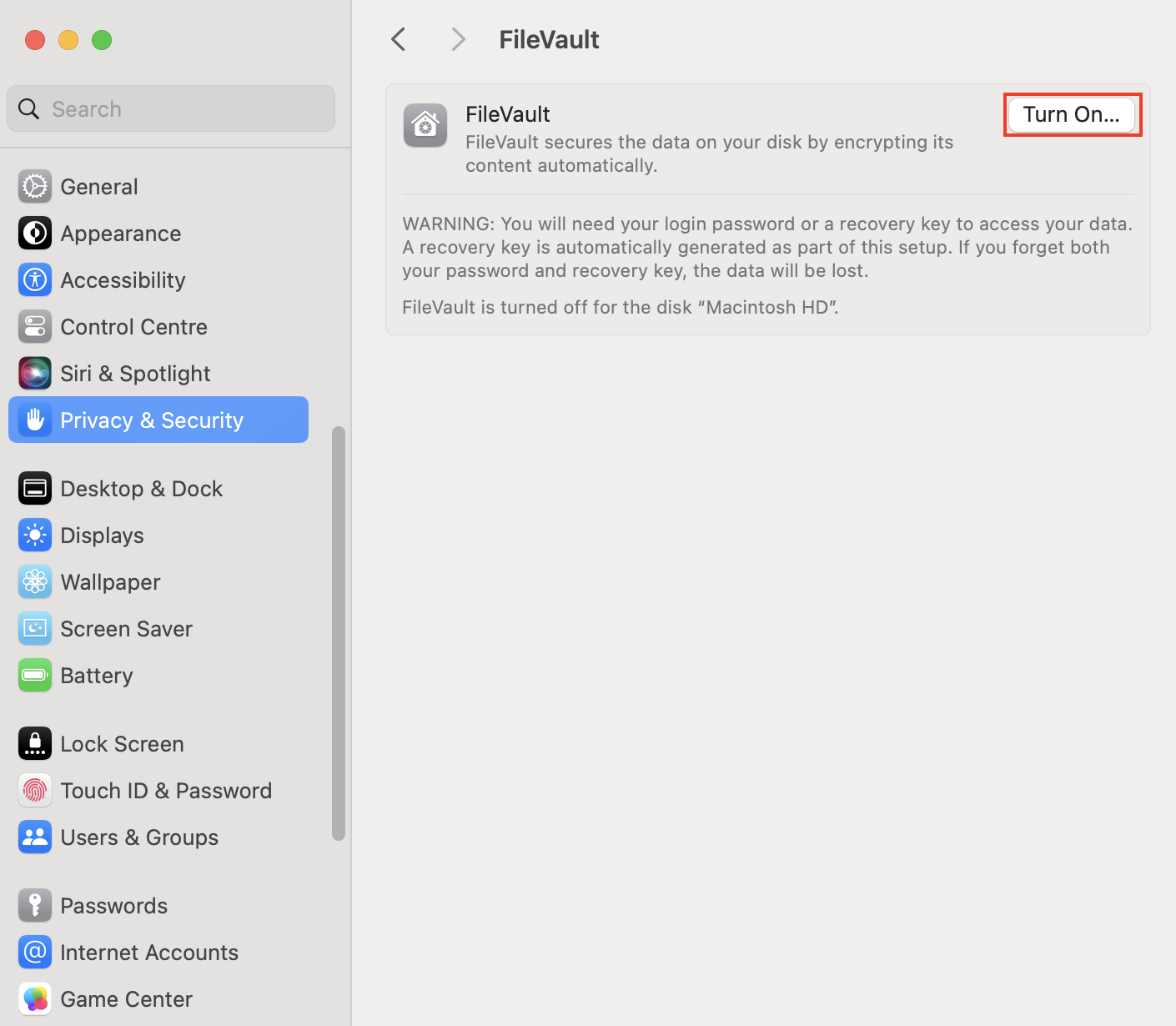
Choose Privacy & Security, and scroll down to FileVault.
Click Turn On.
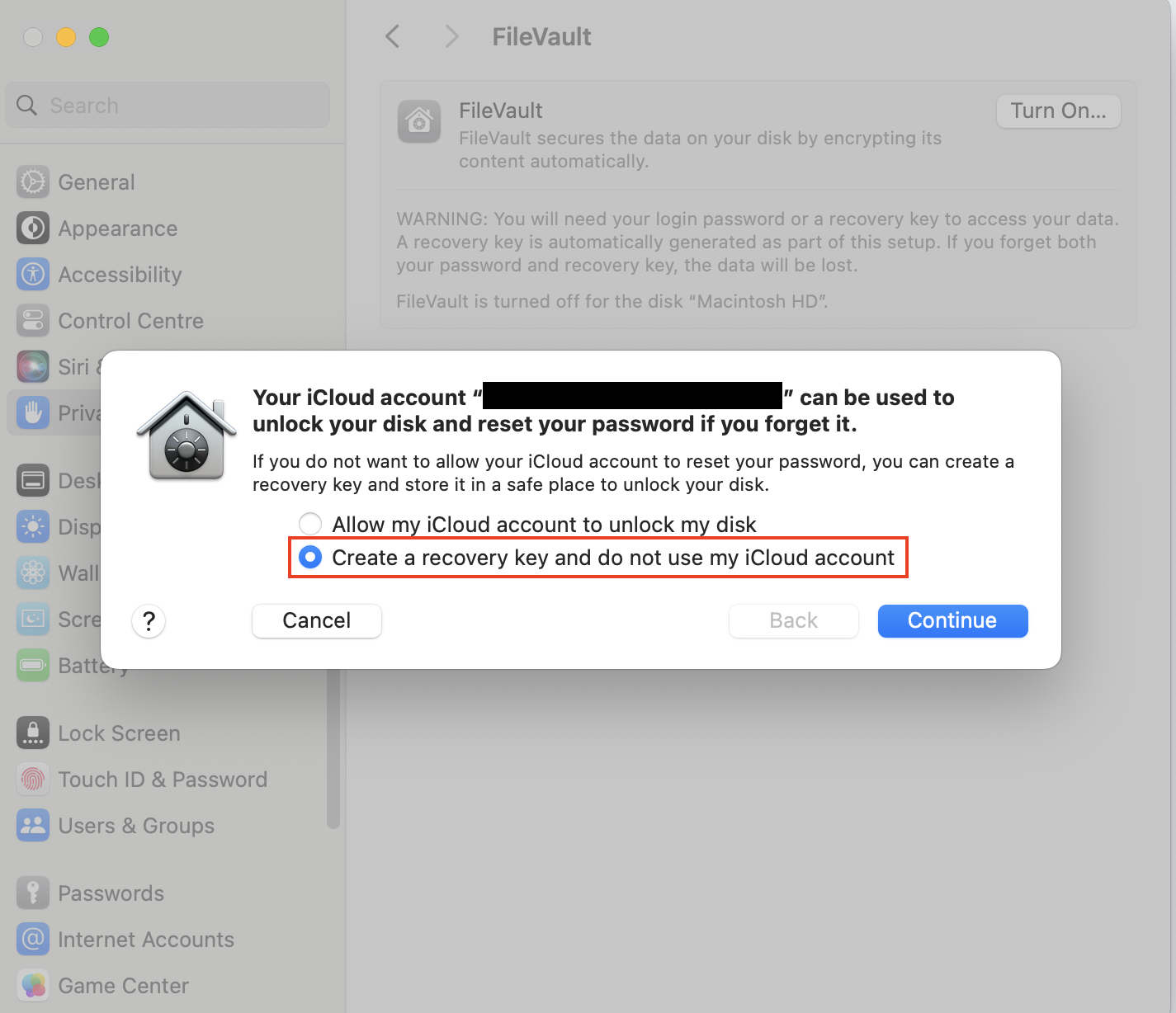
Choose Create a recovery key and do not use my iCloud account and press Continue. Write down the Key.
Step 1. Go to Apple menu > System SettingsStep 2. Choose Privacy & Security from the sidebar, and scroll down to FileVaultStep 3. Click Turn OnStep 4. Choose "Create a recovery key and do not use my iCloud account", press Continue, and write down the Recovery Key
When you need to log in to MacBook Pro without a password, follow these steps:
Enter the wrong password three times.
You’ll be asked if you want to restart and see password reset options. Choose to do this.
Select the FileVault Recovery Key option.
Enter your Recovery Key.
When prompted, change your password and follow the on-screen instructions.
5. Unlock your MacBook Pro in Recovery Mode
You can access the Password Reset Assistant by booting in Recovery Mode.
How to boot in Recovery Mode with an Intel Processor:
Shut down your MacBook.
Press the Power button to turn your Mac on.
Hold down Command+R until you see the Apple logo.
How to boot in Recovery Mode with an Apple silicon chip:
Shut down your MacBook.
Hold the Power button down until you see startup options. Select Options and then click Continue.
You can now access the Password Reset Assistant:
In the menu bar, choose Utilities > Terminal.
Type resetpassword and press Enter.
You’ll be asked to choose an admin user. Click Forgotten All Passwords?
Click Deactivate Mac and confirm that you want to do this.
You may now see an Activation Lock screen—if so, enter your Apple ID email address and password.
You’ll see the Reset Password screen. Enter your new password information and press Next.
Choose Exit, and then Apple menu > Restart. You can now log in with your new password.
6. Unlock your MacBook Pro with the Apple team's support
If you’ve tried all these methods, or they’re not applicable to you, and you still can’t get into MacBook Pro without a password, you might need help from the Apple team to bypass it.
If you haven’t had any luck with the previous methods, you don’t need to throw your MacBook Pro away. Your locked Apple computer will still work—but you’ll need to reset it to factory settings.
Remember, when you reset your Mac to factory settings, you’ll erase your data. This may include downloaded software, documents, and other personal settings. To avoid losing too much, make sure that you plan regular backups.
Conclusion
If you’ve forgotten the password for your MacBook Pro, you might be worried that you’ll lose access forever. But that doesn’t have to be the case.
Even if you can easily log in to your Mac with your password right now, it’s useful to plan ahead and know what you would do if it did happen.
Planning ahead is important for all users. In addition to knowing how to get into a MacBook Pro without a password, it’s crucial to have reliable antivirus software to keep on top of malware. MacKeeper’s Antivirus offers real-time protection, removing 99.7% of known threats.
We respect your privacy and
use cookies
for the best site experience.
Privacy Preferences Center
We use cookies along with other tools to give you the best possible experience while using the
MacKeeper website. Cookies are small text files that help the website load faster. The cookies we
use don’t contain any type of personal data meaning they never store information such as your
location, email address, or IP address.
Help us improve how you interact with our website by accepting the use of cookies. You can change
your privacy settings whenever you like.
Manage consent
All cookies
These cookies are strictly necessary for enabling basic website functionality (including page
navigation, form submission, language detection, post commenting), downloading and purchasing
software. The website might malfunction without these cookies.