How Long Will Macbook Last Before You Need To Replace It
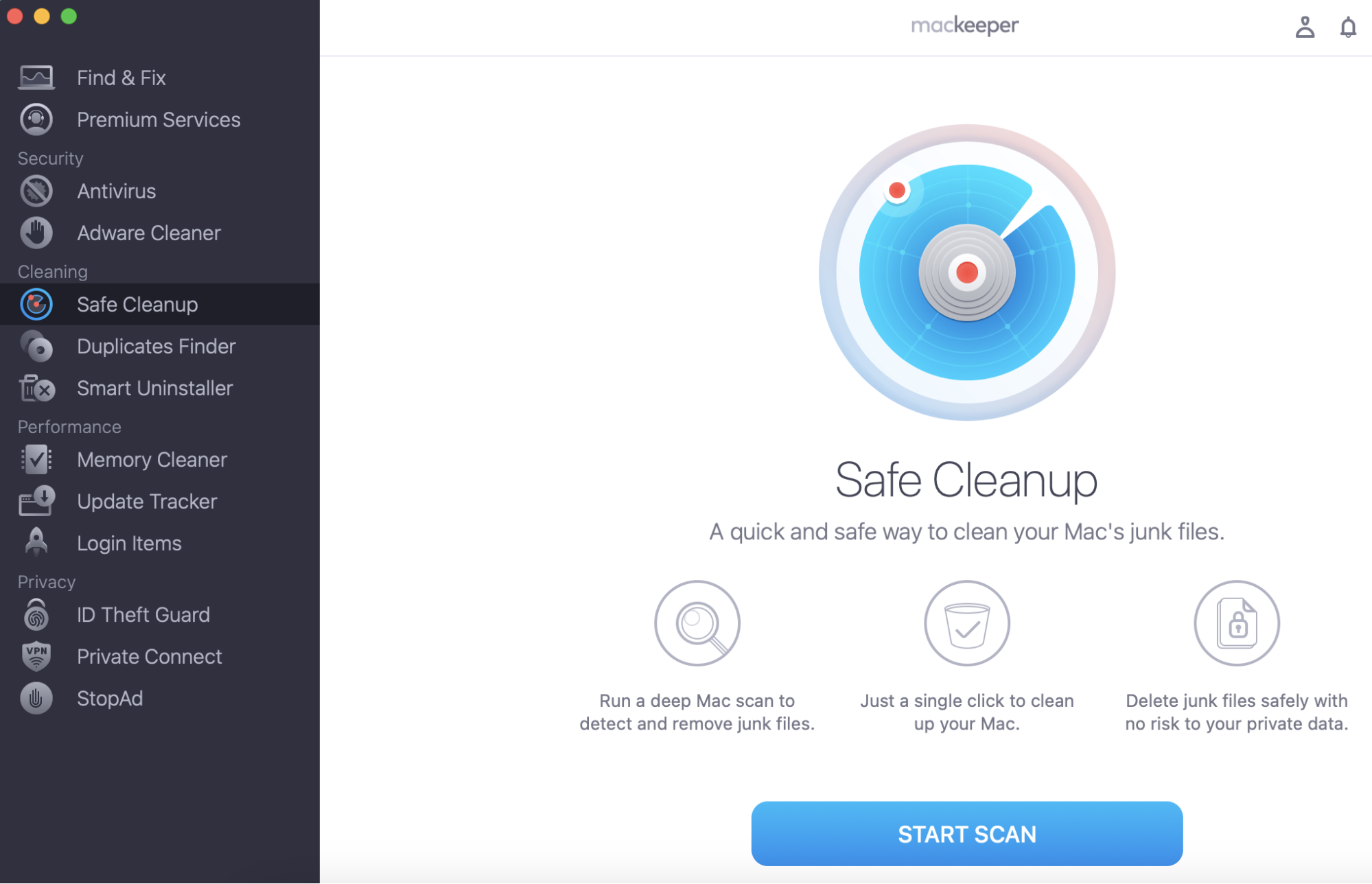
The period of how long your MacBook will last before you need to replace it depends on the tasks you use it for and the way you care for it. But the universal way to make it last longer is to clean, optimize, and protect on a regular basis. MacKeeper’s Safe Cleanup can help you with that—it can regularly scan your device for junk files and keep your Mac optimized.
It's no secret that Apple products are notoriously expensive. So, when you do make the investment in a new Mac, you want to be sure that it will be your companion for years. The good news is that Macs are built to last, especially with proper care. However, how long your Mac will last before you need to replace it depends on a variety of reasons.
While some people say that they switch out their MacBook every year or two, others claim that they have had the same one for five or six years without any issues. So, if you want to know the truth behind how long do Macs really last, keep reading.
What Factors Affect Mac Lifespan?
When it comes to a Mac’s longevity, there is no one-size-fits-all. In some cases, Mac devices can even come with issues straight out of the box. If you suspect that your Mac is having unusual problems, you can check the Apple Service Program for possible recall notices.
Aside from this, there are several factors that affect how long you can expect to use your Mac device before it’s time to upgrade. Here are some of them:
Software Update
Battery Life
RAM & Storage
Software updates
As you probably know, Apple releases new versions of macOS every year. With software updates, you can experience the benefits of Apple’s newest innovations designed to make your Mac work better. However, this isn’t always the case.
With each new version, your MacBook operating system will generally require more processing power and storage than the last. Because of this, if you want to keep your MacBook up-to-date with the latest software, you'll likely need to upgrade to a newer model every few years.
On the other hand, if you're not too worried about running the latest software, you can probably get away with using an older MacBook for longer. For example, many people are still using MacBooks that are five or six years old without any major problems.
Battery life
In general, MacBooks are known for their long battery life and reliability. However, like any other piece of technology, they will eventually start to show signs of wear and tear, especially when it comes to its battery.
For most users, the battery in a MacBook will last for around three to four years before it needs to be replaced. However, it can last much longer if you make sure to have proper good battery care habits. Alternatively, you can also pay to have your battery replaced for a fee.
A note from our experts:
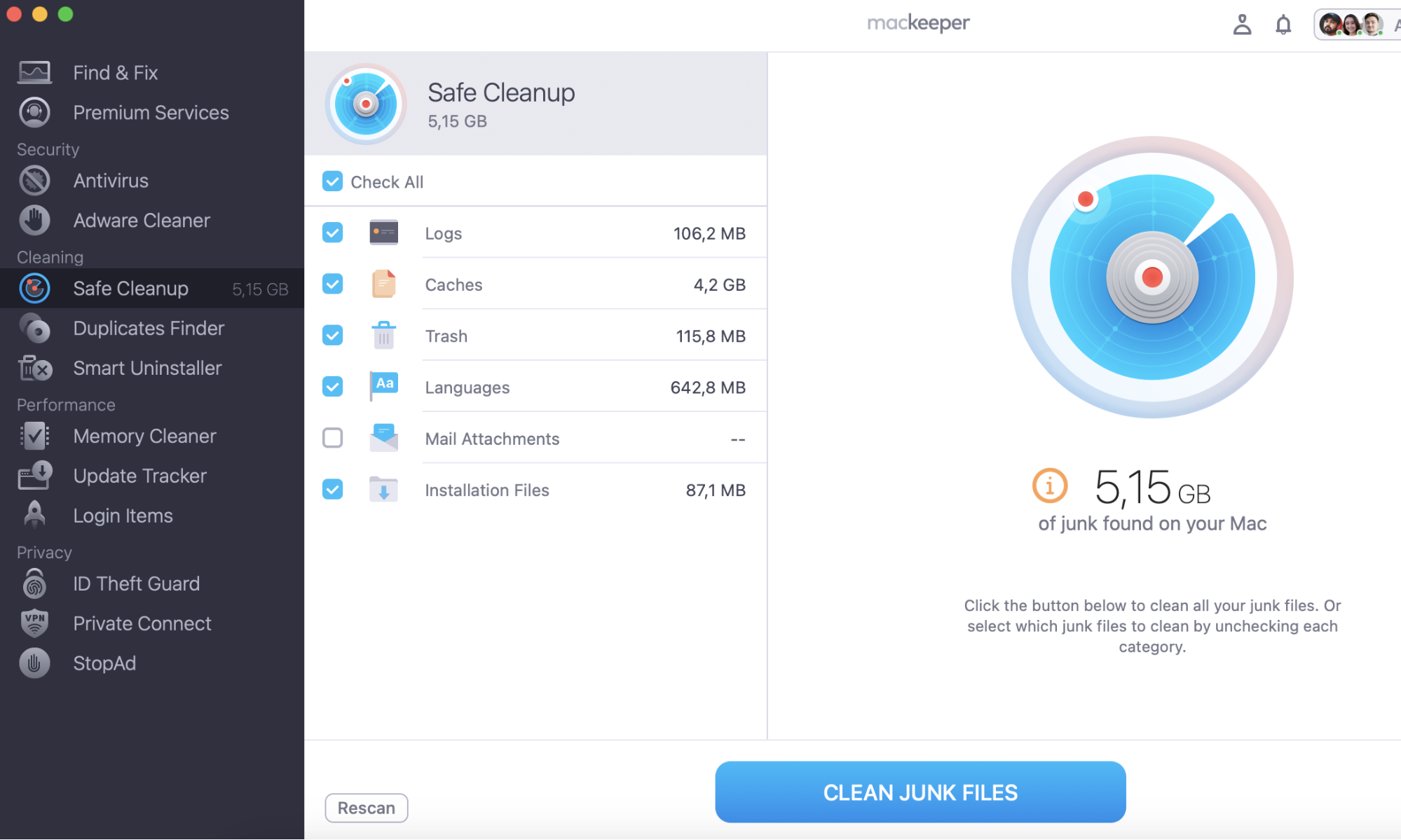
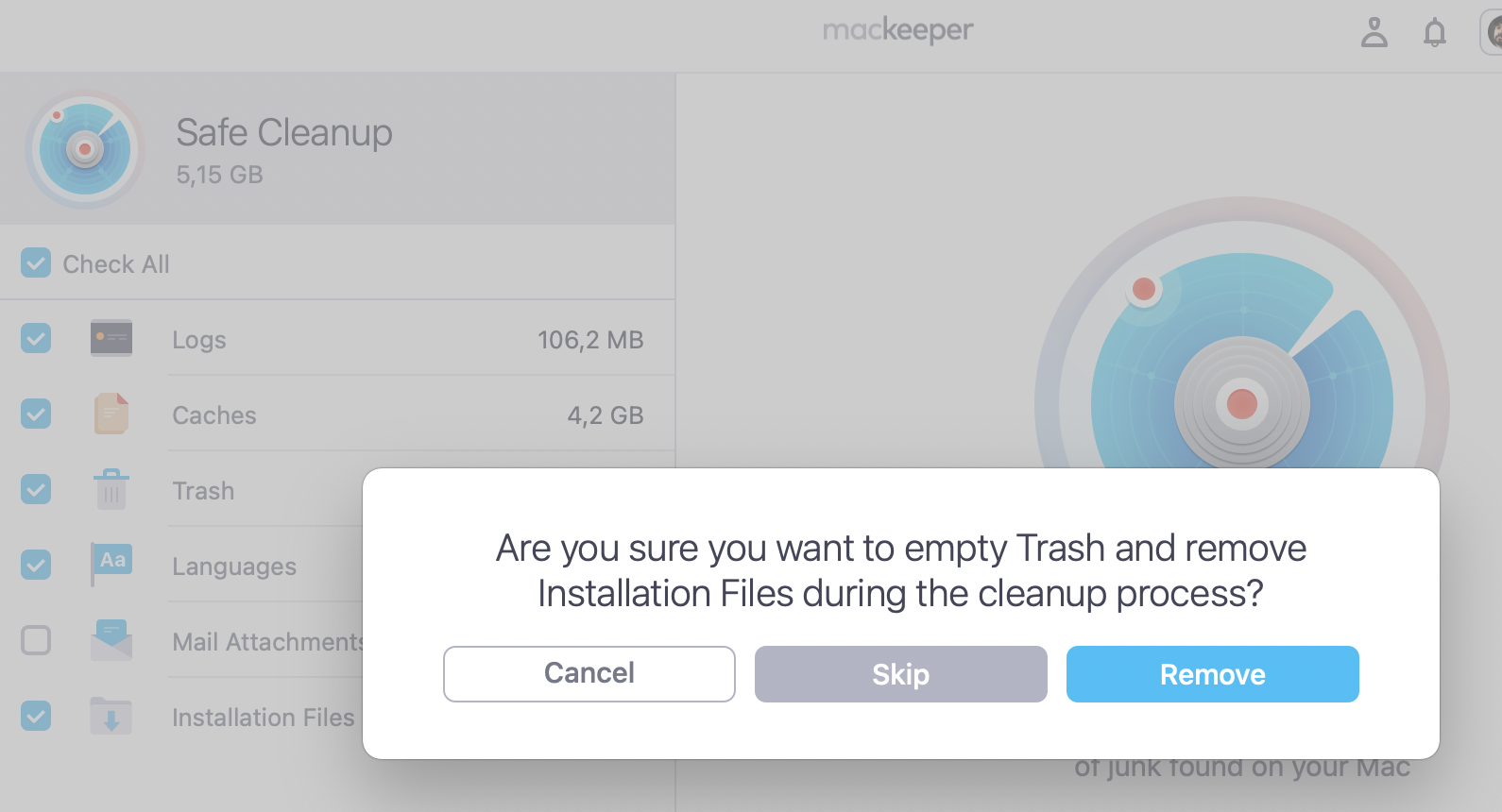
To prolong your Mac’s life, you should take care of its storage. Fortunately, MacKeeper’s Safe Cleanup can help to cope with this task. Instead of the painstaking and long process of manual junk removal, let a dedicated app free up your Mac storage in a few clicks.
Should you notice that your Mac device is becoming quite sluggish, you'll need to take a look at the MacBook's RAM and storage. If you have a tendency to always maximize both your RAM and storage, your Mac may have a shorter lifespan overall.
If your MacBook only has a few gigabytes of RAM and a small solid-state drive (SSD), you're more likely to need an upgrade sooner, rather than later. But, if it has at least 16 GB of RAM and a large SSD, it should be able to handle anything you throw at it for years to come.
When and why should you replace your Mac?
If your current MacBook is still getting the job done, there's no need to upgrade just for the sake of it. However, there are some cases wherein getting a newer, faster model may make sense for you and your lifestyle.
If you're thinking about replacing your Mac, here are some reasons why it may be worth the upgrade:
Software OS requirements
Poor Mac battery life
Higher processing power requirements
Software OS requirements & security risks
Although there is no absolute timeline, Apple is known to stop software updates for older versions of its hardware. Because technology tends to evolve rapidly, older Mac models aren't always equipped to handle the specifications necessary to run OS updates.
While most people can get away with slightly outdated operating systems, it can be tricky for people who use specific programs which may require the latest OS for it to work. In addition, you will not be able to protect yourself from the various security risks that Apple has found solutions to and resolve through updates. Thankfully, it’s easy to update your Mac’s operating system.
Poor Mac battery life
One of the most common reasons to replace a MacBook is due to poor battery life and no longer being able to charge. Although you can delay the process of degradation by taking care of your device, it's a normal part of wear-and-tear for devices that use lithium-ion batteries. With this, it's not uncommon for the battery in a MacBook to start failing after years of regular use.
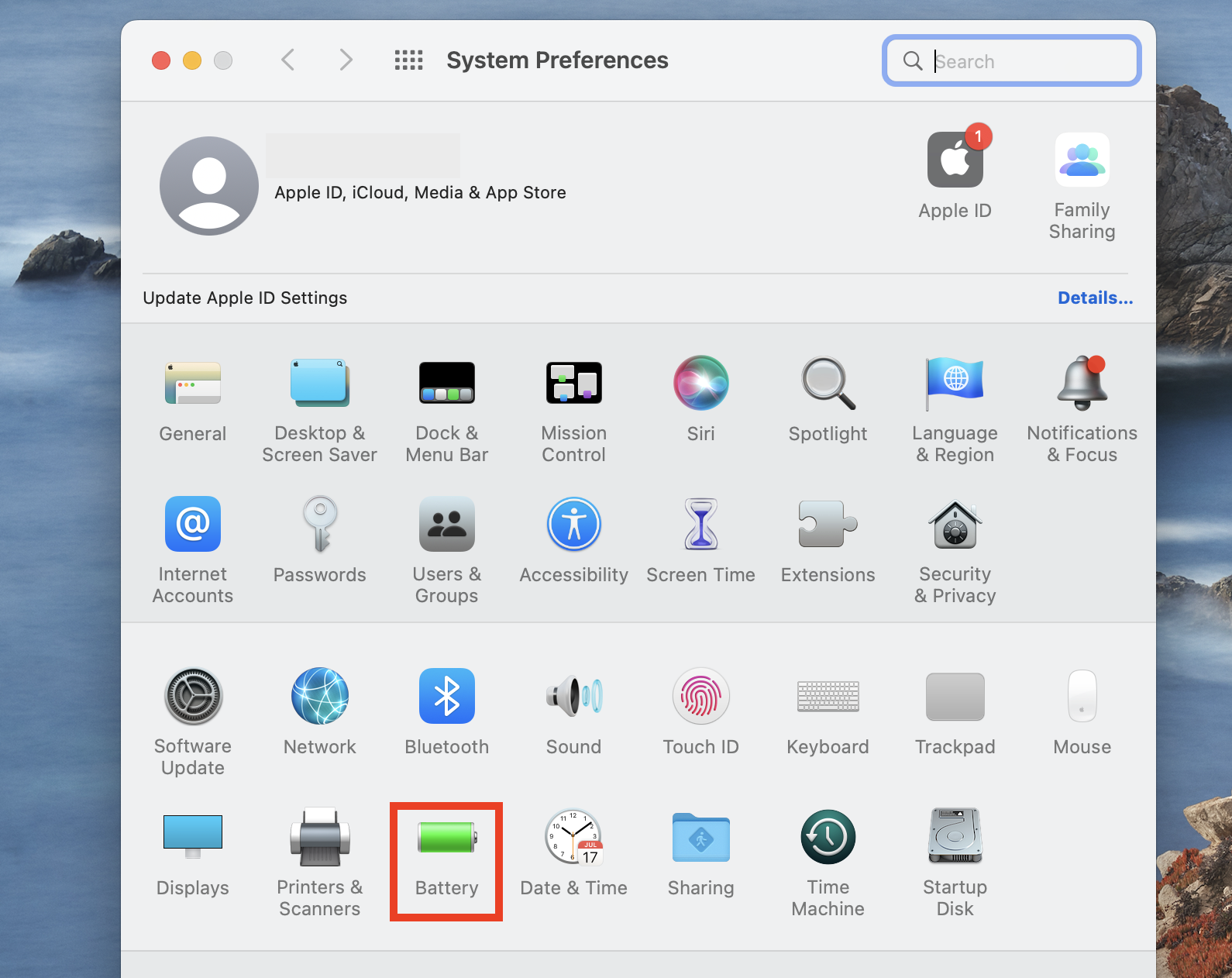
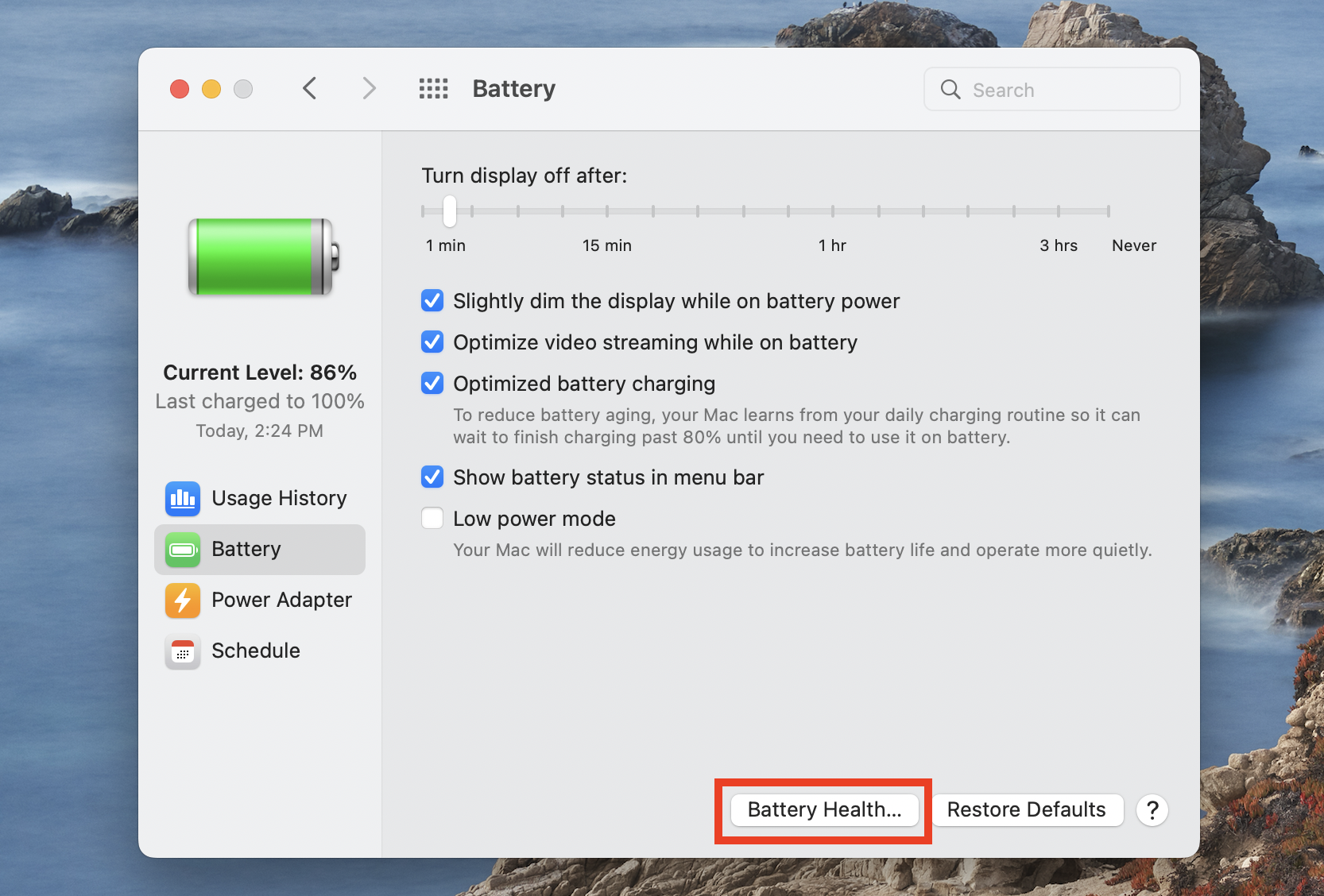
To check the health of your MacBook's battery, here’s how:
On your Mac device, open System Preferences.
Select Battery.
In the lower part of the screen, select Battery Health.
Step 1. Open System Preferences and select BatteryStep 2. Select Battery Health
From there, you'll be able to see how many charge cycles your MacBook's battery has gone through. According to Apple, MacBook batteries are expected to last for around 1000 charge cycles before it needs replacement.
Higher processing power requirements
Another common reason people choose to replace their Mac is that they need more power. While a MacBook with lower processing power may have been enough for you before, it's possible that your processing power requirements change with time.
For example, you may have started a new career that requires apps with heavy rendering requirements, such as 3D modeling or video editing. Or, you may have started new hobbies, such as gaming, where your processing speed can make or break your overall experience.
In general, if you find yourself constantly running into performance issues or needing to upgrade your software, it might be time to invest in a new MacBook Pro with more RAM.
Keep Your MacBook Working for Longer
So, how long do Macs really last? Well, it all depends on your individual needs and usage habits. Ultimately, it all comes down to how you use your MacBook and how well you take care of it. If you can’t accurately pinpoint issues with your Mac, you can contact Apple Support for help.
Thankfully, it’s possible to keep your Mac running better for longer without taking too much of your time. By investing in tools like MacKeeper’s Safe Cleanup, you can rest easy knowing that it can take care of several routine maintenance needs such as junk cleaning for your Mac.
We respect your privacy and
use cookies
for the best site experience.
Privacy Preferences Center
We use cookies along with other tools to give you the best possible experience while using the
MacKeeper website. Cookies are small text files that help the website load faster. The cookies we
use don’t contain any type of personal data meaning they never store information such as your
location, email address, or IP address.
Help us improve how you interact with our website by accepting the use of cookies. You can change
your privacy settings whenever you like.
Manage consent
All cookies
These cookies are strictly necessary for enabling basic website functionality (including page
navigation, form submission, language detection, post commenting), downloading and purchasing
software. The website might malfunction without these cookies.