Are your Mac’s keys getting stuck and feeling sticky, leaving you frustrated and unable to be as productive as you’d like to be? Don’t worry, we’ll help you unstick your keyboard keys to prevent any further inconvenience. Should you get stuck, MacKeeper’s Premium Services are available to help troubleshoot and resolve common macOS issues with the assistance of tech experts whenever you need it.
To fix sticky keys on a MacBook, blow out debris with a can of compressed air while holding your Mac at a 75-degree angle. Cleaning the MacBook keyboard with a lint-free cloth dampened with 70% isopropyl alcohol is also effective—use it to gently wipe the affected area. Apple repair programs are another option—you may be eligible for a free replacement through the Keyboard Service Program if you own an older MacBook with a Butterfly keyboard.
Why are my MacBook keys sticky?
Dust, debris, and damage are common causes for sticky MacBook keys. Hair and food particles also tend to get trapped in the gaps under the keycaps. Even the smallest drop of sugary drinks can leave a sticky residue because the sugar acts like glue after it dries.
Your fingers’ natural oils can eventually leave a grimy buildup on your keyboard over time. Additionally, MacBook devices made between 2015 and 2019 feature a butterfly keyboard that is known to be sensitive—the keys are prone to getting stuck, even due to the tiniest speck of dust.
This is unlike an Apple mouse not working, which is typically due to connection problems.
How to fix sticky keys on a MacBook?
Hold your Mac at a 75-degree angle and spray the keyboard or keys with the compressed air from left to right (avoid inverting the air). Turn your device to its right side and spray the keyboard from left to right again. Rotate your Mac to its left side and repeat.
A note from our experts:
Cleaning sticky keys on a Mac can be a tedious process, especially if you haven’t done it before. The good news is you don’t have to do it yourself. MacKeeper’s Premium Services exist to efficiently fix Mac problems like sticky keys, helping to get you back on track as soon as possible.
Join the thousands of Mac owners who trust MacKeeper with the health and management of their devices. MacKeeper is notarized by Apple, meaning it’s been automatically scanned for signs of malicious software and verified as coming from a trusted developer—Clario Tech.
Don’t just take our word for it, experience it for yourself. Use MacKeeper’s Premium Services to release sticky keys:
Choose the Premium Services solution from the sidebar.
Click on the Chat Now button and explain your problem to the tech expert in the chat.
Follow their instructions where applicable and you’ll be sorted in no time.
If you choose the DIY route, follow the set of instructions below to remove any dirt or gunk from your MacBook keys.
1. Turn off the Mac
We always start by switching off the MacBook device to prevent accidentally pressing any keys while we clean them.
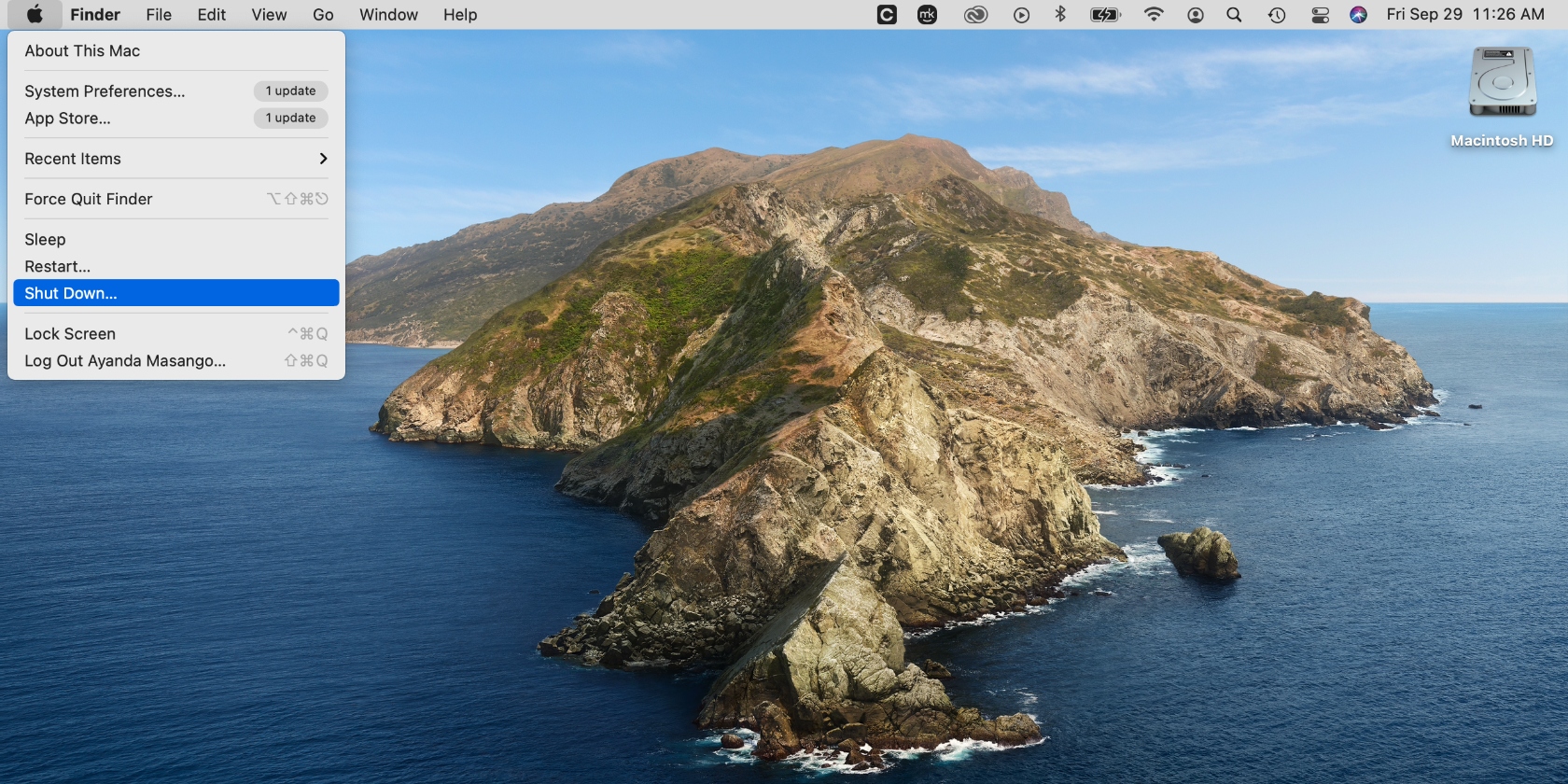
Here’s how to power off your Mac:
Navigate to the Apple menu.
Click on it and select the Shut Down option from the drop-down menu.
2. Remove the sticky keys
When all the sticky keys just won’t budge, we remove them so we can clean them individually. This also gives us a chance to check for any dirt on the actual keyboard and clean it too.
Follow these steps to remove sticky keys on your Mac:
Ensure your computer is unplugged for safety reasons.
Gently remove sticky keys with a guitar pick or something similar. Avoid using metal objects that could cause any damage.
If a MacBook key won’t snap back after removing it, just align the plastic mounting brackets with their tiny metal clips and press down gently until they click into place (according to Apple Support, while the butterfly or scissor mechanisms are delicate, they’re designed to snap back into place if positioned correctly).
3. Clean the keyboard
We’ve found that a warm, soapy water solution is usually the most effective for loosening any dried debris on the key caps. It’s also a safer method than scrubbing the key caps clean, which could cause damage.
Clean the keyboard by following this approach:
Place the sticky key caps in warm, soapy water for 10-15 minutes to loosen dried debris.
Rinse the caps thoroughly with clean water.
While they dry, wipe the area where the keys were removed on the keyboard with an alcohol-dampened cotton swab. Don’t forget to clean the underside of the dried key caps and wait for everything to completely dry before reassembly.
An extra bonus:
If you prefer using a Touch Bar instead of the Mac keyboard, you might be interested to explore what to do when the MacBook’s Touch Bar isn’t working. Learn it with us and forget your troubles.
4. Put the keys back
Once the key caps are clean and everything is dry, we reattach the key caps carefully. Note that this process differs from that of connecting a keyboard to a Mac.
Here’s how to return keys to the Mac keyboard:
Carefully align the key caps and click them into place.
Test all the buttons on the key you repaired to ensure it functions properly. If not, chances are it wasn’t successfully clicked into place.
Easily fix MacBook sticky keys
When MacBook keys are stuck, like the space or shortcut keys, it can sometimes feel like your keyboard is broken, but you’ll be relieved to know this can be easily fixed. Follow the helpful tips in this guide to restore your keys’ functionality. Remove and clean each sticky key and the area you removed it from, and then reattach the keys once everything has dried. Ensure you use warm, soapy water and isopropyl alcohol to carefully wipe everything down.
Don’t forget to thoroughly dry the areas you’ve cleaned before reattaching the key caps you removed. We recommend that you regularly clean your keyboard, even when the keys don’t necessarily feel sticky (like when the buttons don’t spring back), as this is a sign that it could be dirty in areas you don’t see or in hard-to-reach areas, like under the key caps. Remember, oil buildup from your fingers can also affect your Mac key caps’ functionality.
Or simply skip the brainwork and let a professional help you fix your problem. Use MacKeeper’s Premium Services to get expert assistance on any Mac-related issues like this one and system-related problems that could be more complex or tedious for the average Mac user.
We respect your privacy and
use cookies
for the best site experience.
Privacy Preferences Center
We use cookies along with other tools to give you the best possible experience while using the
MacKeeper website. Cookies are small text files that help the website load faster. The cookies we
use don’t contain any type of personal data meaning they never store information such as your
location, email address, or IP address.
Help us improve how you interact with our website by accepting the use of cookies. You can change
your privacy settings whenever you like.
Manage consent
All cookies
These cookies are strictly necessary for enabling basic website functionality (including page
navigation, form submission, language detection, post commenting), downloading and purchasing
software. The website might malfunction without these cookies.