We understand how frustrating it can be when your Mac running macOS Sierra is slow or showing signs of deep system errors–the only viable solution being a full factory reset. But, before you restore Mac Sierra to factory settings, we recommend MacKeeper’s Safe Cleanup to help you find and remove digital junk to make the reset smoother.
If a macOS Sierra factory reset is needed to speed up or wipe your device before giving it to someone else, the process is fairly straightforward. Intel-based Macs can reboot their OS with Command + R to enter Recovery Mode. From Disk Utility, you can erase the main drive. Then, Exit Disk Utility, press Reinstall macOS, and follow the instructions to get fresh Sierra software. Our Clario Tech experts recommend that you back up your computer first to avoid running into installation issues.
How to prepare for factory reset on macOS Sierra?
Before you reset Mac OS Sierra, we encourage you to prepare your computer so you can keep your personal data safe. We recommend you sign out of all your cloud accounts and use Time Machine for large data backups. Finally, you’ll want to check that your internet connection is stable before proceeding.
Before you get started:
Preparing your Mac before a factory reset is imperative, as you’ll need to make sure there’s enough space on your drive before you start. Unsure how much space macOS High Sierra takes? Our supporting blog article will walk you through clever ways to free up space on your device. We’ll show you how to delete temporary files, get rid of temporary drivers, and even remove unnecessary programs that could all be holding your device back.
1. Use Time Machine to backup data
Backing up your Mac before factory resetting OS Sierra is crucial. Thankfully, Apple’s built-in Time Machine application makes the process effortless. This Apple program allows you to save entire versions of all your files and media content automatically. Using this backup method ensures your data stays safe while you start the process to erase Mac Sierra and restore it to factory settings.
Here’s how to use Time Machine to backup data:
Connect an external hard drive to your Mac.
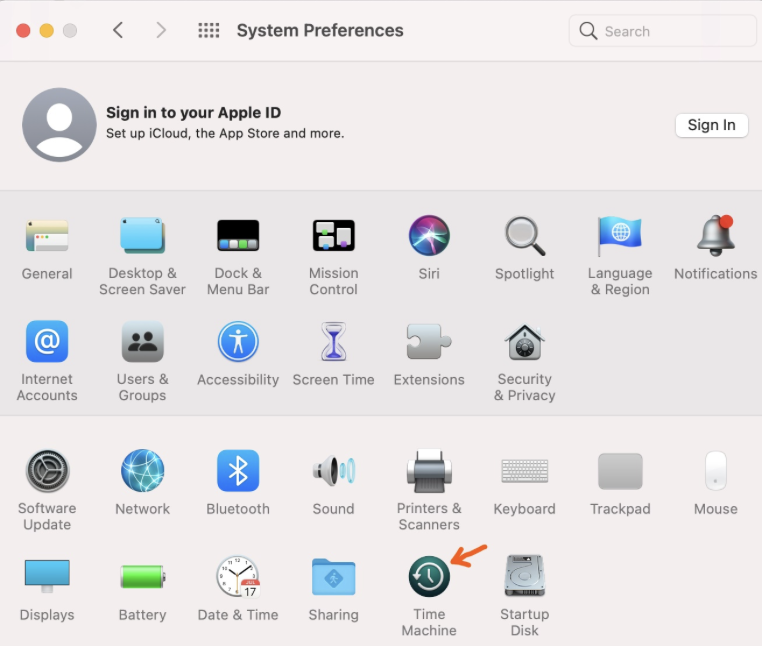
Open System Settings.
Go to General > Time Machine.
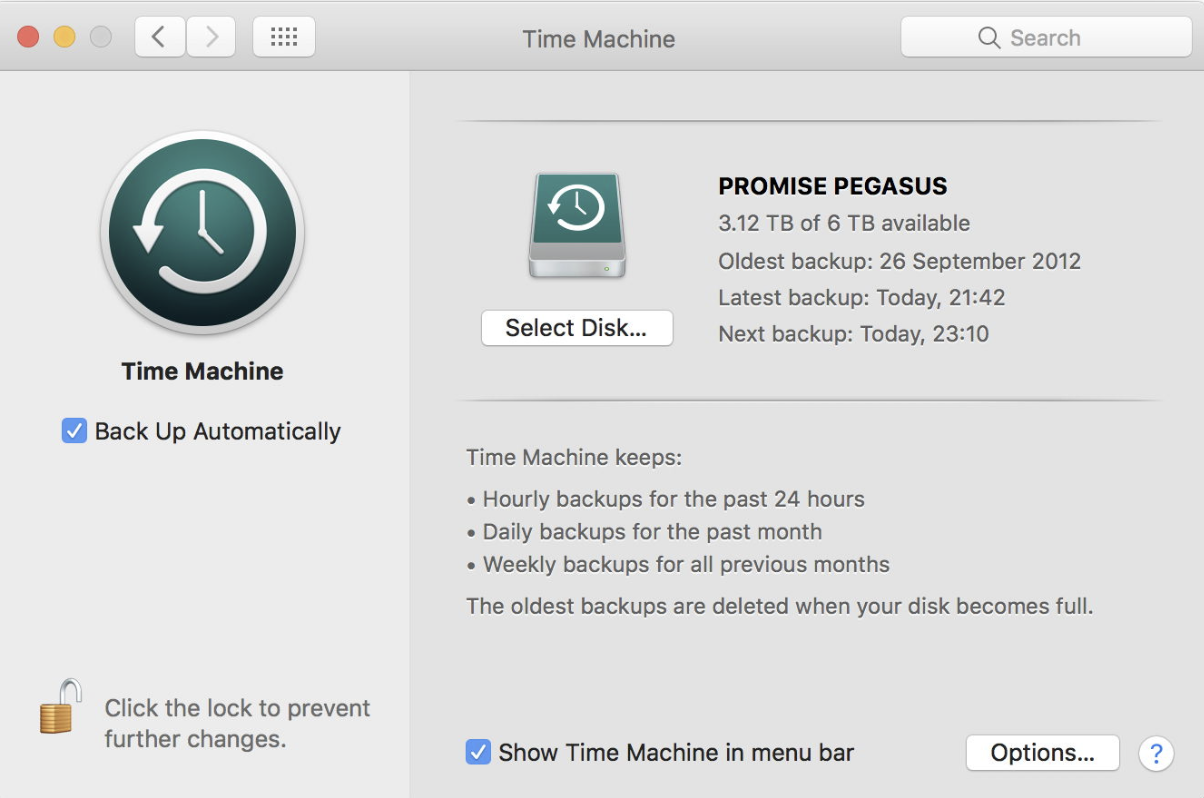
Click on Select Backup Disk, choose your external drive, and press Use Disk.
Turn Time Machine On to start automatic backups on Mac.
Step 1. After connecting your hard drive to your Mac, go to System Settings to open Time MachineStep 2. Click on Select Backup Disk, choose your drive, and press Use Disk
2. Make sure you have a stable connection
While you might be able to wipe Mac Sierra without needing an internet connection, you won’t be able to reinstall your new version of macOS until you’re connected again. That’s why we encourage you to check that your connection is stable before you try to reset Mac Sierra back to factory settings.
This is a step commonly overlooked, as many of us assume our devices are always connected, but loose cables or system glitches can knock out internet stability unknowingly; that’s why checking is imperative.
Here’s how to check your internet connection:
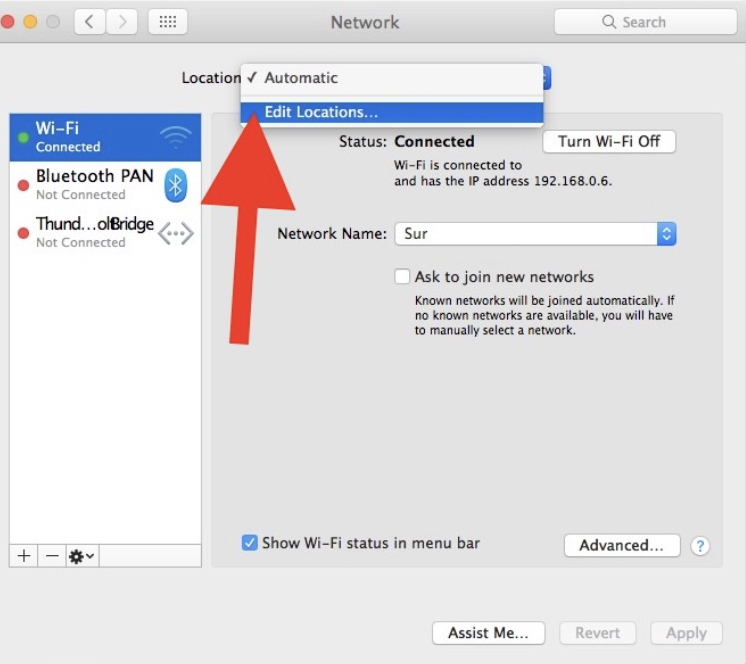
Click on the Apple Icon and choose System Preferences.
Select Network.
Look for a Green Dot next to the name of your Wi-Fi or Ethernet cable.
In System Preferences, go to Network and look for a green dot next to Connected
3. Sign out of your accounts
The last step to help prepare your MacBook Air, Pro, or iMac with OS Sierra for a full factory reset is to make sure you aren’t still logged into your personal accounts, like iCloud or iTunes. This is especially important to avoid losing chat logs, pending downloads, or removing sensitive data—in case you’re resetting the device for a new owner. You wouldn’t want your data to be lost or accessible by a new owner–signing out of your accounts is the best way to keep your content secure and private.
Let us show you the easiest way to sign out of your accounts:
For iCloud:
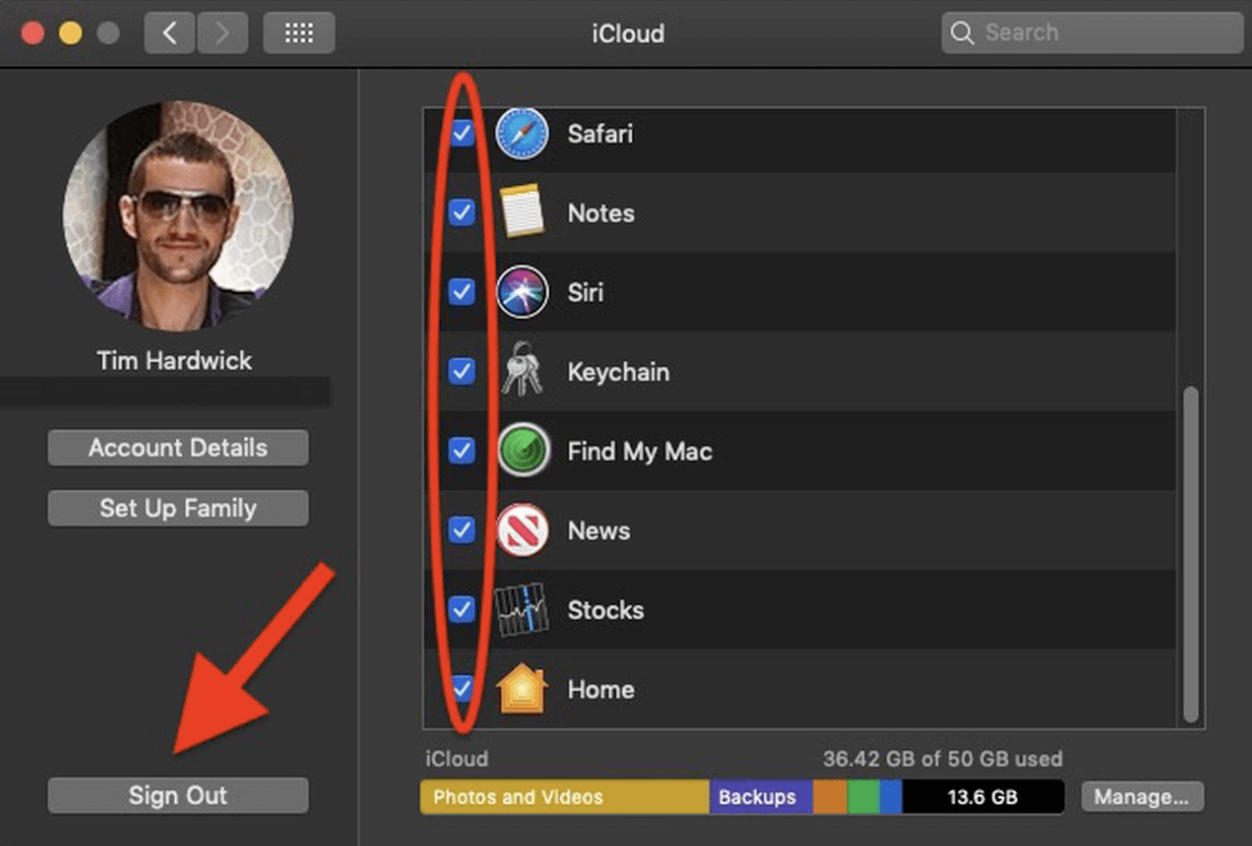
Click on Apple ID in System Preferences.
Choose Overview, tick apps, and click Sign Out.
Open System Preferences Overview, tick all apps, and click Sign out
For iTunes:
Open the iTunes app.
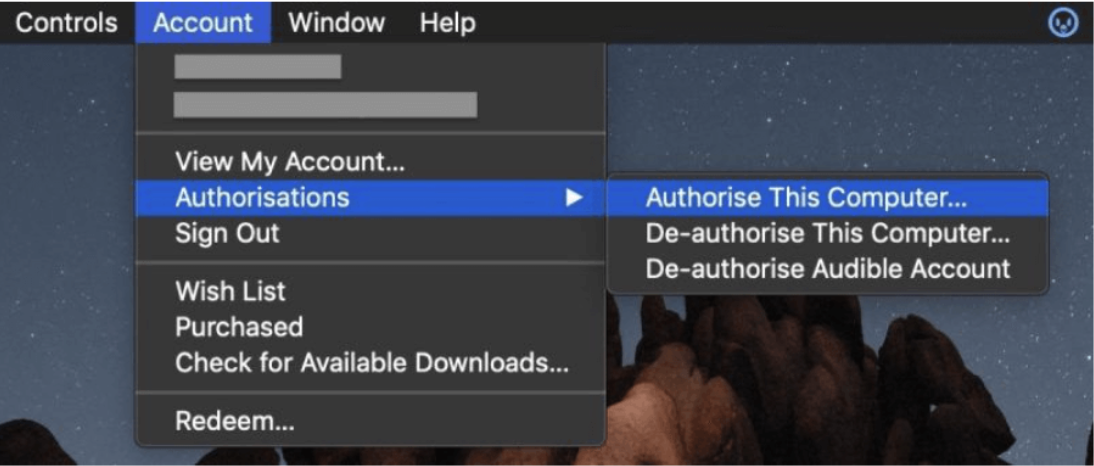
Click on Account > Authorizations > De-authorize This Computer.
Open iTunes, click on Account Authorizations > De-authorize This Computer
A note from our experts:
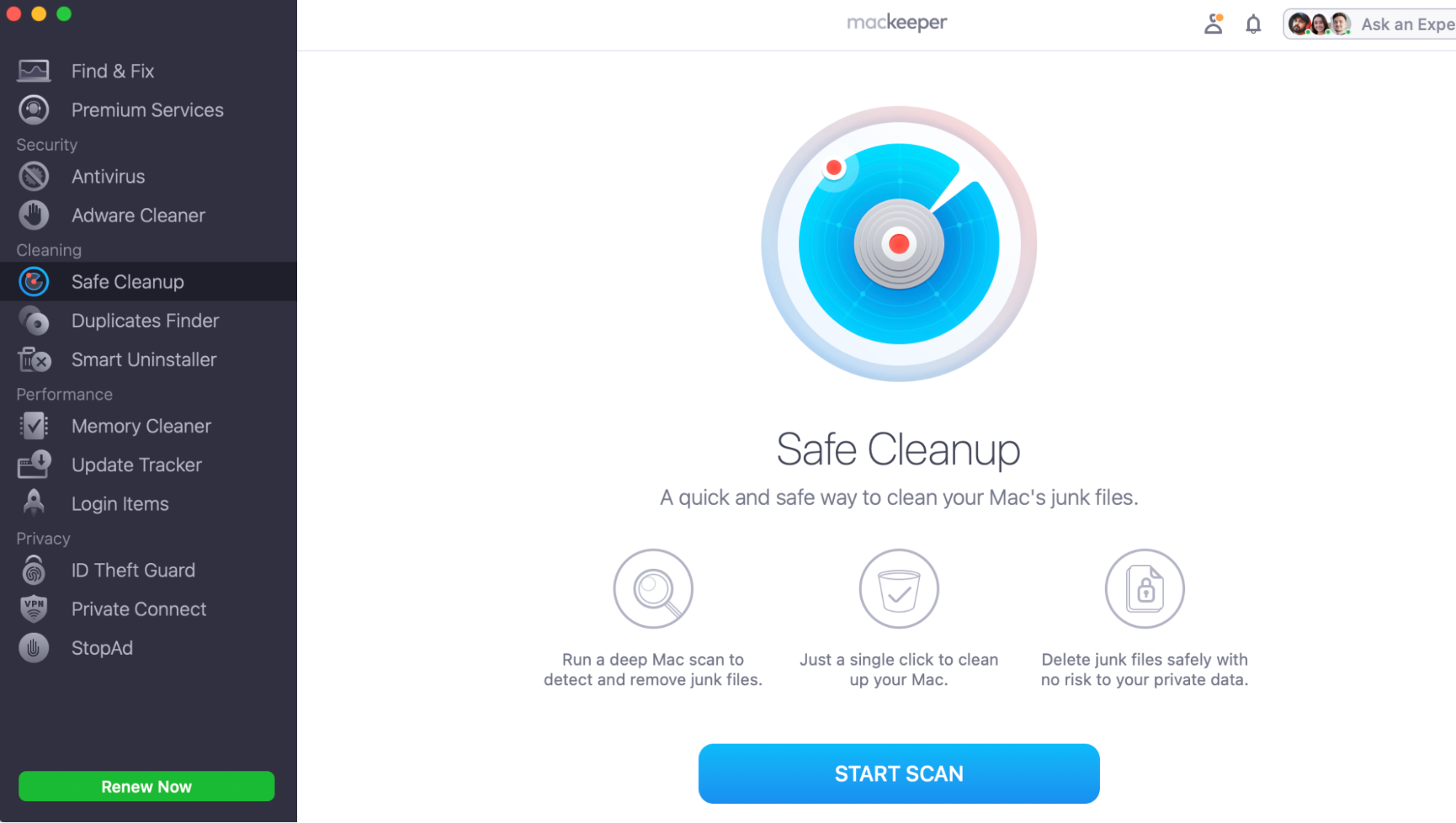
Even though we’ve shown you how to thoroughly prepare your Mac for a safe factory reset on macOS Sierra, we also want to remind you of the importance of freeing up as much space on your computer as possible. Many of our happy customers regularly use MacKeeper’s Safe Cleanup tool as it can automatically find and purge their Macs of digital clutter that's responsible for eating up essential space.
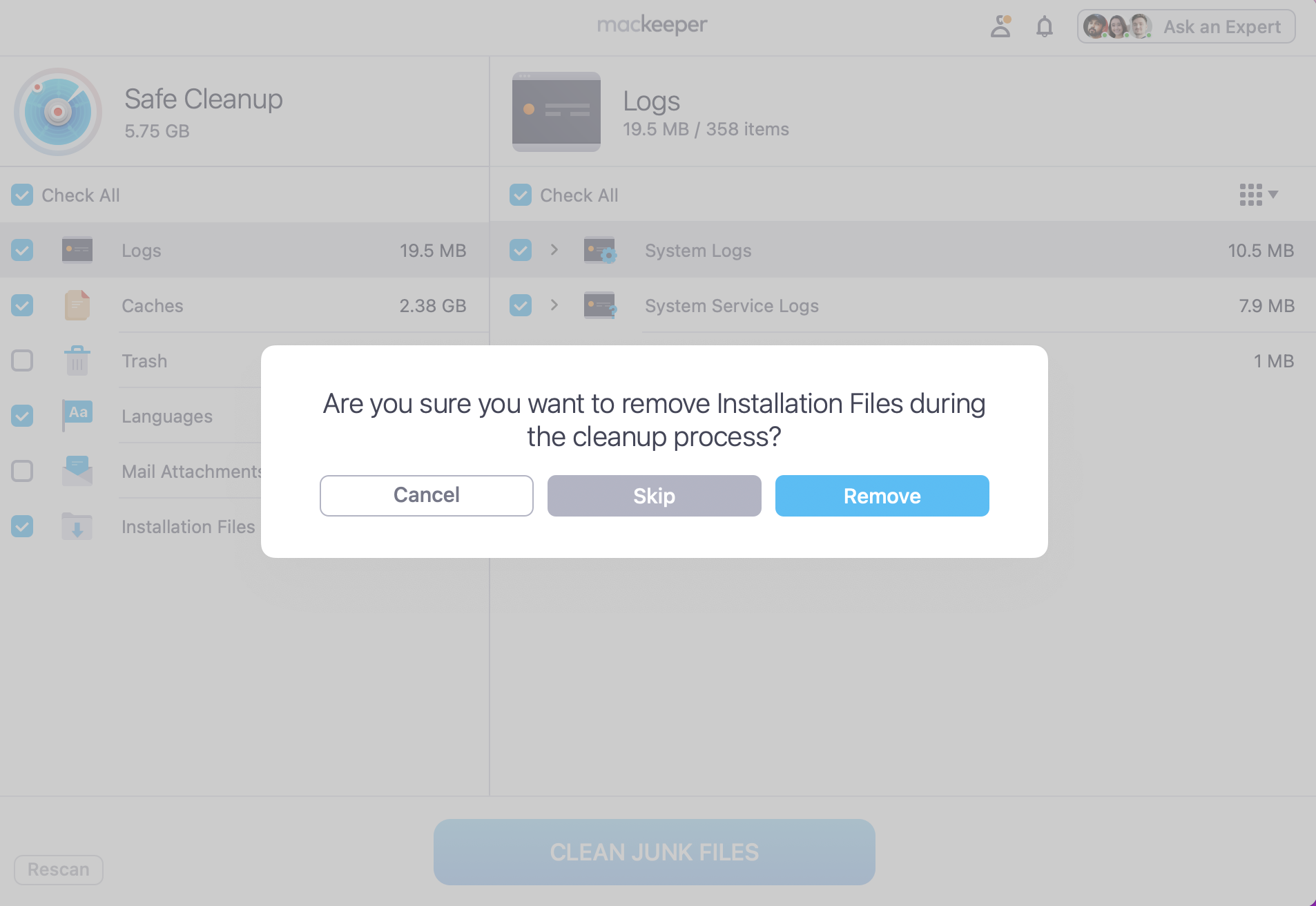
Once done, tick all the Logs, Cache, and Trash you want to delete.
Press Clean Junk Files, and Remove.
Step 1. In the MacKeeper app, go to Safe Cleanup and click on Start ScanStep 2. Tick everything you want to delete and press Clean Junk Files > Remove
How to restore Mac Sierra to factory settings?
When your Apple computer becomes slow, or you want to reset macOS Sierra in order to sell your device, we suggest restoring your Mac to its factory settings. You can do this by restarting Mac in Recovery Mode, erasing the hard drive with Disk Utility, and then reinstalling macOS Sierra software.
1. Restart Mac in Recovery Mode
Are you looking to restore Mac Sierra to factory settings? The first step is to restart your computer in recovery mode. If you’re wondering what Mac recovery Mode is, it's a built-in macOS environment that lets us access tools without overbearing the operating system. When in recovery mode, you can erase the hard drive, reinstall the OS, and fix any disk errors you may have encountered.
Here’s how to restart your Mac in Recovery Mode:
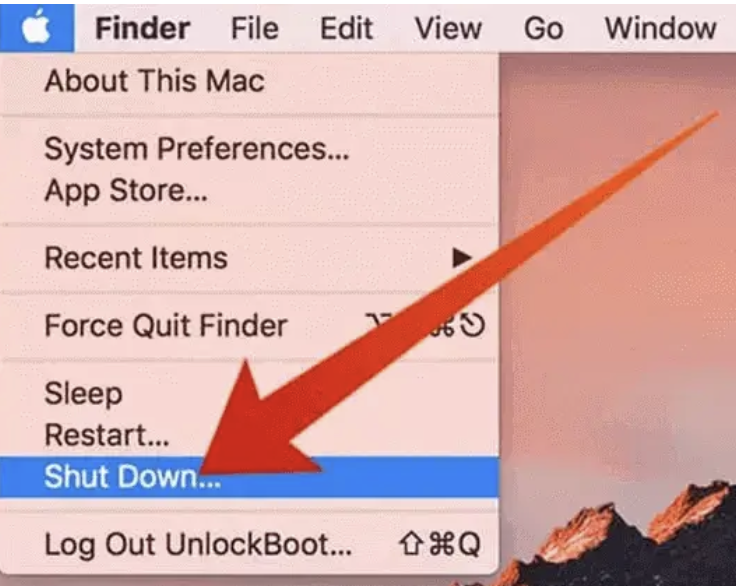
Click on the Apple Icon and press Shut Down.
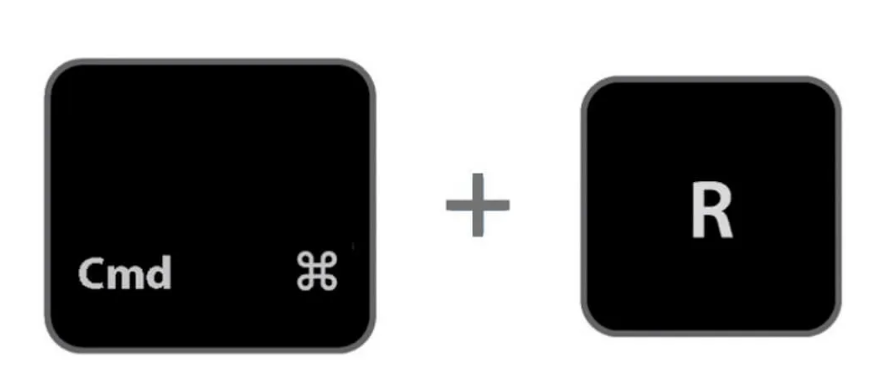
Power on your Mac but press and hold Command + R to enter Recovery Mode.
Let go when you see the Apple logo.
Step 1. Shut down your MacStep 2. Press and hold Command and R to enter Recovery Mode
2. Erase the hard Drive with Disk Utility
Once you’ve entered Recovery Mode, you can now erase the hard drive using Disk Utility—this will help remove old files, fix disk issues, and prepare your system for a clean installation. The better prepared you are, the easier the process will be. Many Mac users are faced with the hassle of insufficient space, so erasing your hard drive and other old content will improve the chances of a smoother re-installation of macOS Sierra.
Here’s how to erase your hard drive with Disk Utility:
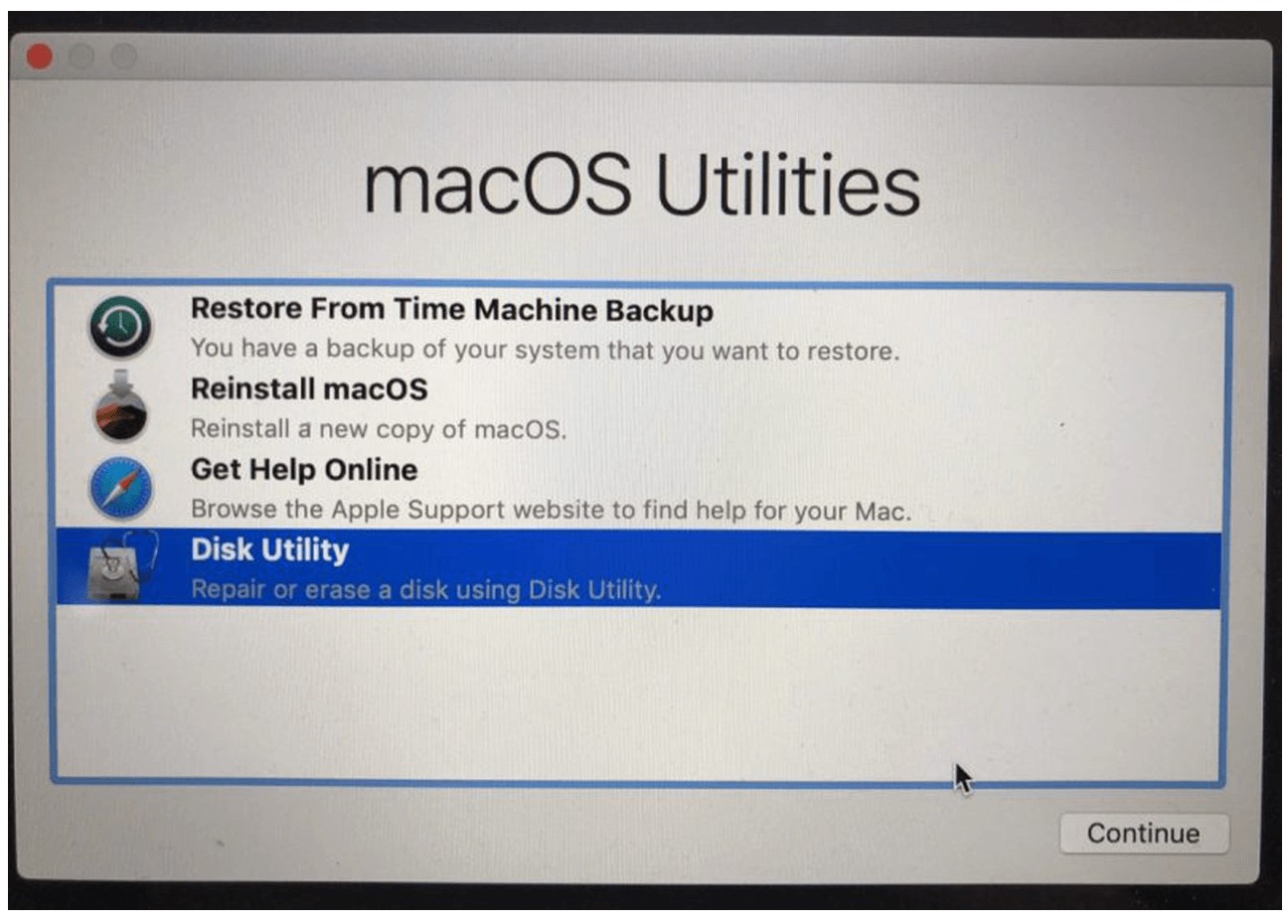
While in Recovery Mode, click on Disk Utility and then Continue.
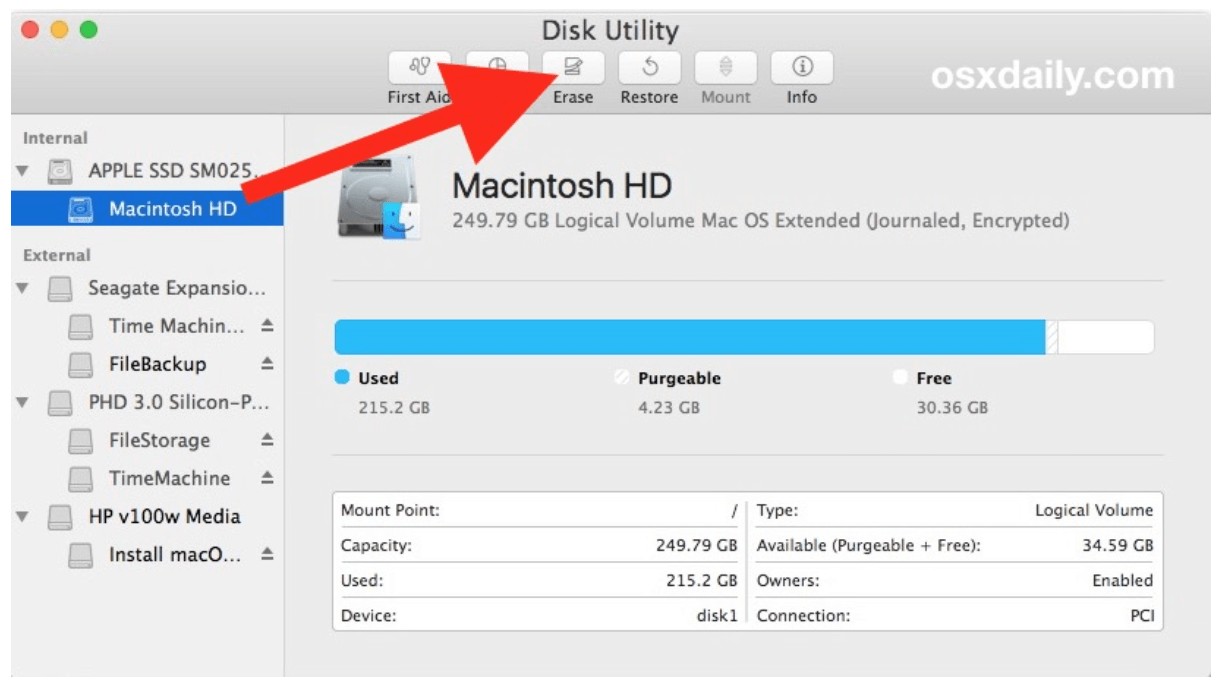
Select Macintosh HD and press Erase.
Once complete, click Done.
Close Disk Utility and return to macOS Utilities.
Step 1. In macOS Utilities, click on Disk Utility, and press ContinueStep 2. Click on Macintosh HD and press Erase
Extra help from MacKeeper:
Our team of Clario Tech experts suggests familiarising yourself with how to delete other volumes in containers on Mac, to ensure nothing unnecessary remains before reinstalling macOS Sierra. To help you, our supporting blog will show you how to use a Mac cleaner and manually delete content to free up essential space.
3. Reinstall macOS Sierra
The final step that’s left is to reinstall macOS Sierra onto your device. To assist, we recommend you first make sure that you’ve followed all our other preparation steps before proceeding. The reason why we make this suggestion is to help you avoid any accidental data loss or negative impact on the integrity of your MacBook or Apple computer. The last thing you want is to lose important files or not correctly delete your old version of macOS before you try to reinstall a new version–those scenarios would lead to significant software glitches that could affect your device’s security as well as stability.
Here’s how to reinstall macOS Sierra:
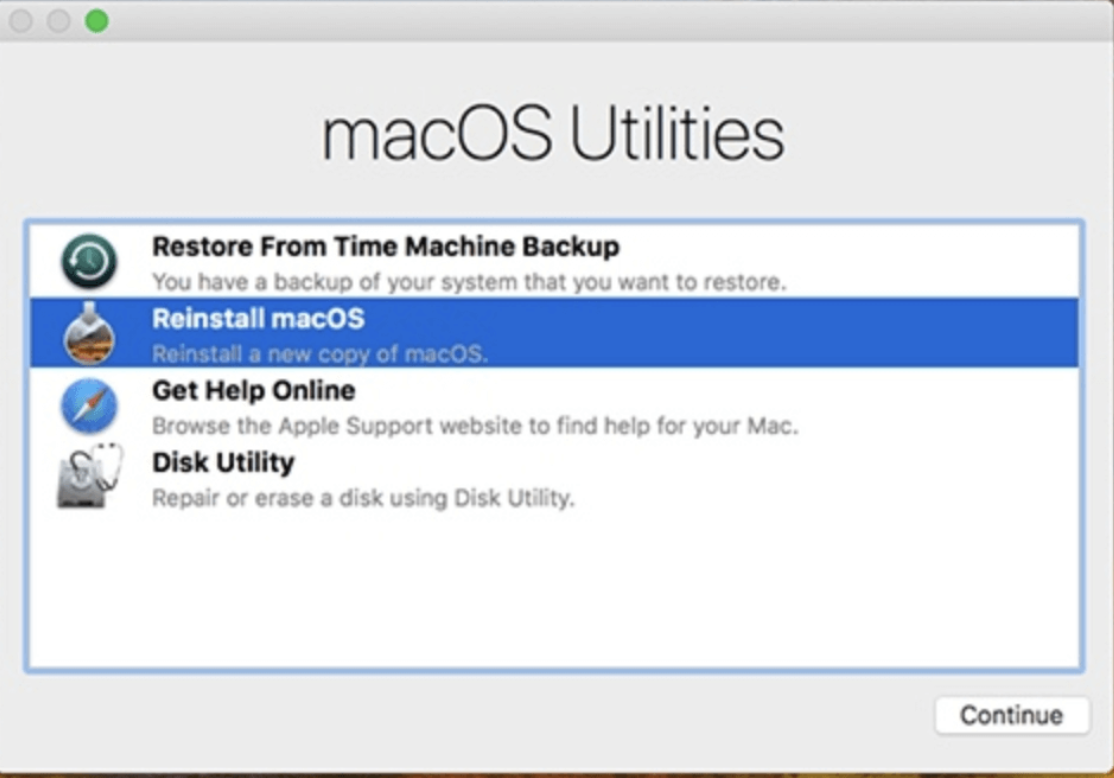
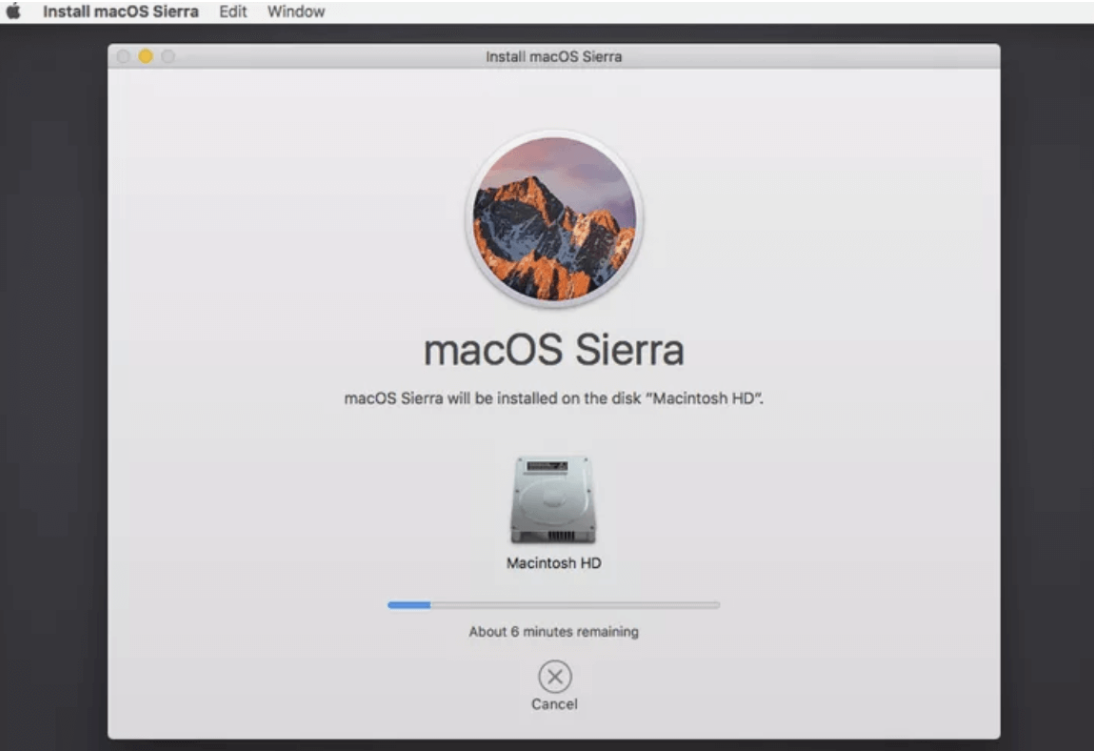
In the macOS Utilities window, click on Reinstall macOS.
Click on Continue.
Follow the on-screen instructions to finish the installation.
Step 1. Once you’re ready, select Reinstall macOS and click on ContinueStep 2. Follow the on-screen instructions to install a new version of macOS Sierra
Fix common problems after a factory reset on macOS Sierra
Now that you’ve factory reset macOS Sierra, the software should be like new again. In case you do run into any failed installation issues or slowness, we have extra tips that should help. We would recommend that you restart your Mac and run Disk Utilities First Aid to check for any system errors in Recovery Mode. If your problems continue, reformat your drive and reinstall the OS.
Resetting macOS Sierra with MacKeeper’s help
Fingers crossed your MacBook or iMac computer is now working as expected with a new version of Sierra software, as there’s no need to put up with a slow or cluttered Mac. We’ve shown you how to prepare your system, backup your data, and restore macOS Sierra to factory settings so you can start fresh. We do want to stress the importance of having a stable internet connection and plenty of free space on your computer before reinstalling any new OS software to avoid system glitches.
For an extra hand, we want to remind you of MacKeeper's Safe Cleanup tool. After a quick scan, it’ll help you find and declutter all your old junk files, freeing up essential space to assist in a smooth Sierra reinstallation. The most common reason for OS installation or general MacBook slowness can be linked back to how much space is being used on your device. That’s why we want to encourage all Mac users to routinely declutter their Macs to support device stability and allow any downloads to proceed without issues.
We respect your privacy and
use cookies
for the best site experience.
Privacy Preferences Center
We use cookies along with other tools to give you the best possible experience while using the
MacKeeper website. Cookies are small text files that help the website load faster. The cookies we
use don’t contain any type of personal data meaning they never store information such as your
location, email address, or IP address.
Help us improve how you interact with our website by accepting the use of cookies. You can change
your privacy settings whenever you like.
Manage consent
All cookies
These cookies are strictly necessary for enabling basic website functionality (including page
navigation, form submission, language detection, post commenting), downloading and purchasing
software. The website might malfunction without these cookies.