macOS Tahoe 26 vs Sonoma 14—understanding the difference is crucial if you’re thinking about upgrading. If you do decide to install Sonoma, use MacKeeper’s Safe Cleanup to remove junk files first for a smoother upgrade experience.
macOS Tahoe is a more modern version of the Mac operating system, released in late 2025. Sonoma was released in 2023 and was followed by Sequoia the next year. Tahoe has newer features, including the ‘Liquid Glass’ interface, but if you’re unsure about the performance of your Mac, you might want to stay on Sonoma.
Difference between macOS Tahoe and Sonoma
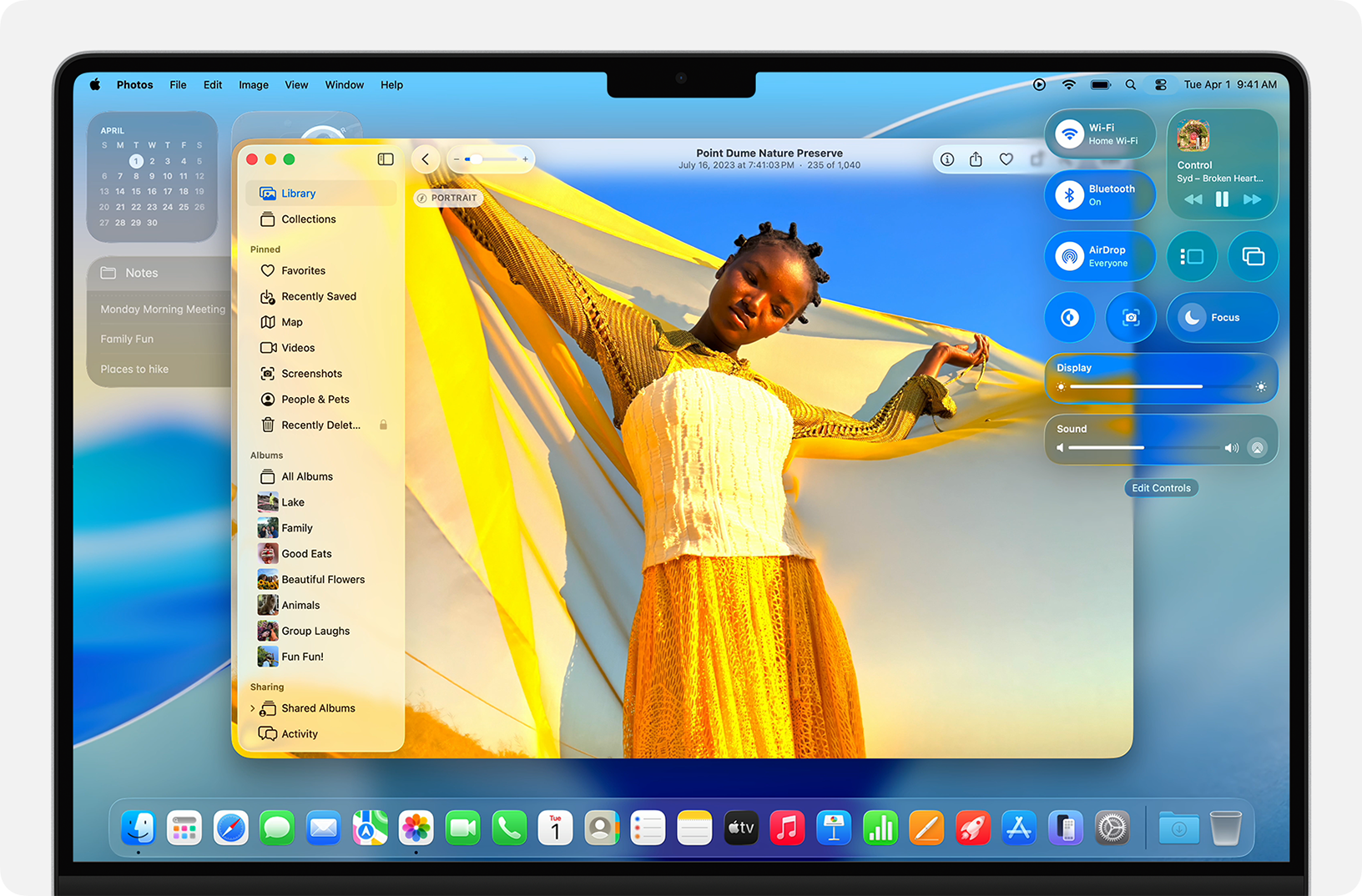
The main difference between macOS Tahoe and Sonoma is that Sonoma is two years older. Tahoe includes all the improvements made in both Sonoma and Sequoia. Sonoma introduced revamped widgets, easier screen sharing, improved privacy in Safari, Game Mode, and more. Sequoia features like iPhone Mirroring, window tiling, and a new passwords app. With Tahoe, macOS got a big visual overhaul, called “Liquid Glass”, plus enhancements to Spotlight, improved AI, and a new Phone app. For the most modern experience, users should generally install the newest version of macOS that their Mac runs.
How else do they compare? Here’s a quick macOS comparison from our team:
macOS Sonoma 14: Released in 2023. Best for compatibility with older Macs and stable, predictable performance, because any bugs have likely already been found and fixed.
macOS Sequoia 15: Released in 2025. Best for more modern features than Sonoma, and also compatibility with some older Macs. Includes Apple Intelligence.
macOS Tahoe 26: Released in 2025. Best for all the latest features and more years of feature and security updates. Offers enhanced Apple Intelligence features. May have more unresolved bugs than older versions of macOS.
Interface of macOS Tahoe and Sonoma
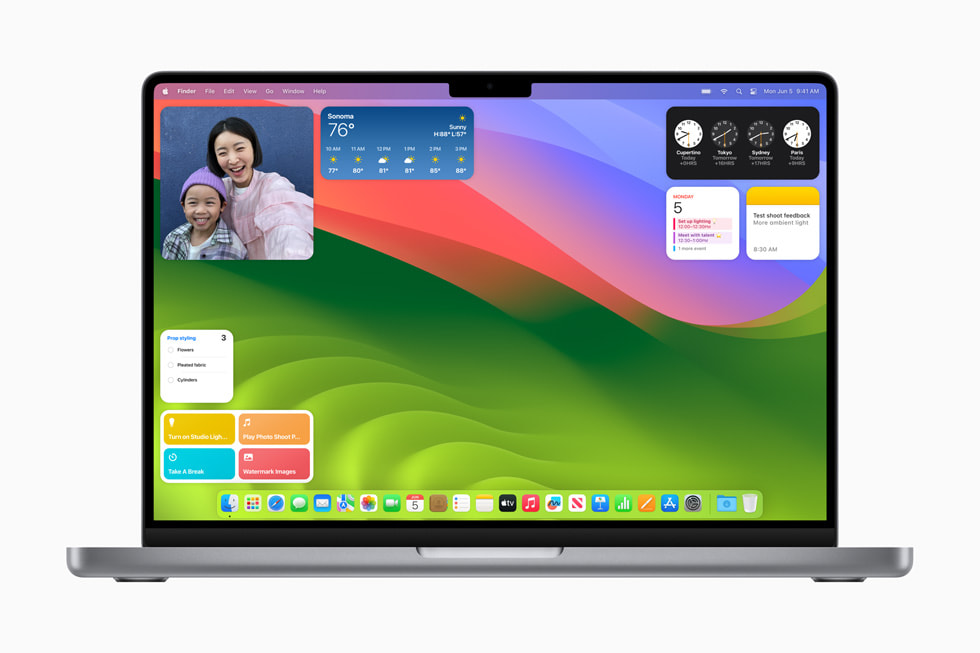
macOS Sonoma ramped up the power of desktop widgets, as well as offering upgraded integration between Macs and iPhones. Apple built on these improvements in Tahoe, introducing powerful AI-driven workflows and a more dynamic user interface. System-wide predictive actions and contextual Siri integrations enable users to automate tasks and increase productivity.
macOS Sonoma introduced brand-new desktop widgetsmacOS Tahoe has a striking new look, called "Liquid Glass"
macOS Tahoe and Sonoma: Performance and system stability
As the older operating system, macOS Sonoma offers more predictable and stable performance. Both Apple and third-party app developers have had more time to work out kinks and issue fixes. Tahoe is a next-gen OS with greater optimisation for Apple’s M-series Neural Engine for AI, including background AI tasks.
Struggling for performance after upgrading? Read our guide on what to do if your Mac’s running slow after an update. There are often some simple things you can do to get a speed boost.
A note from our experts:
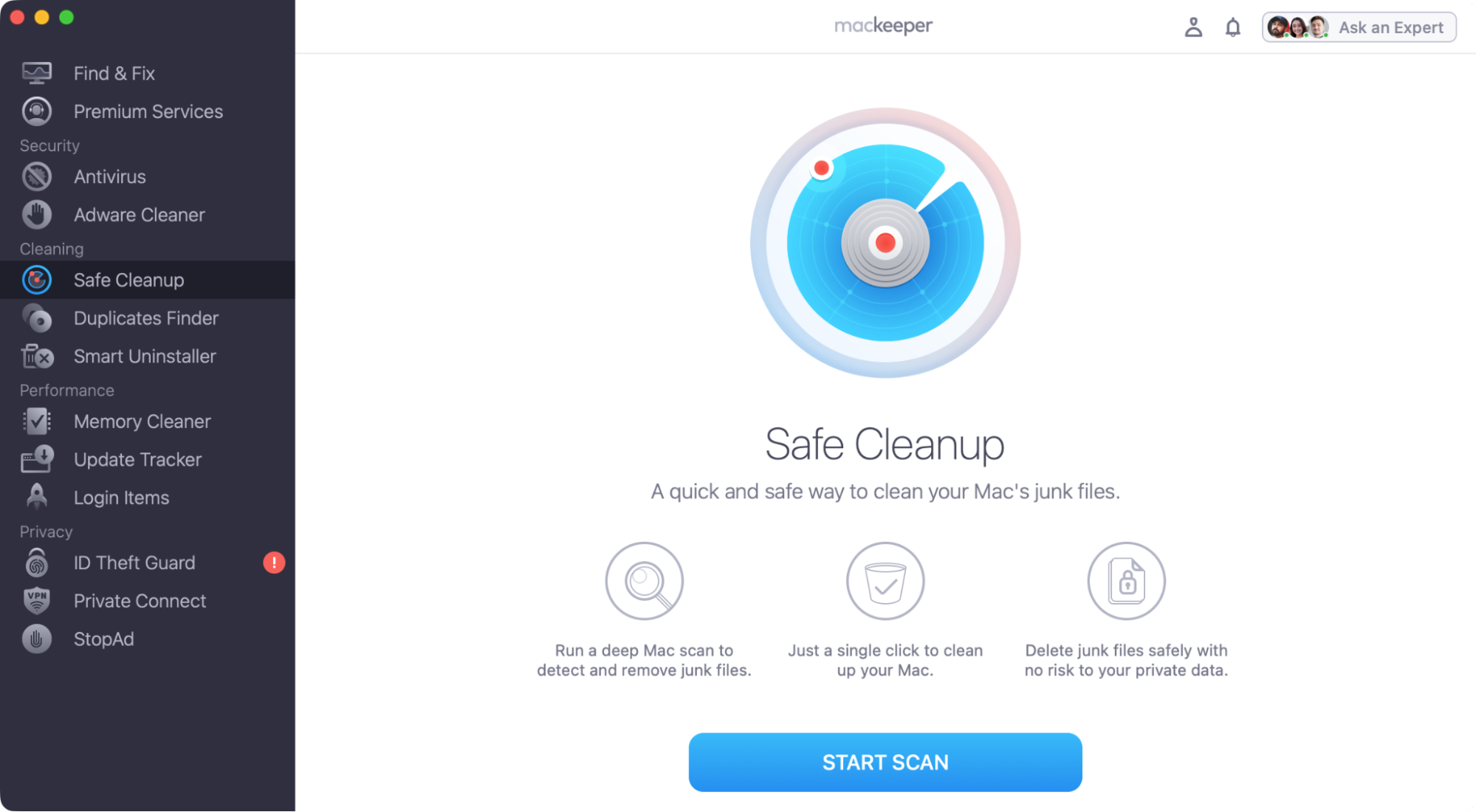
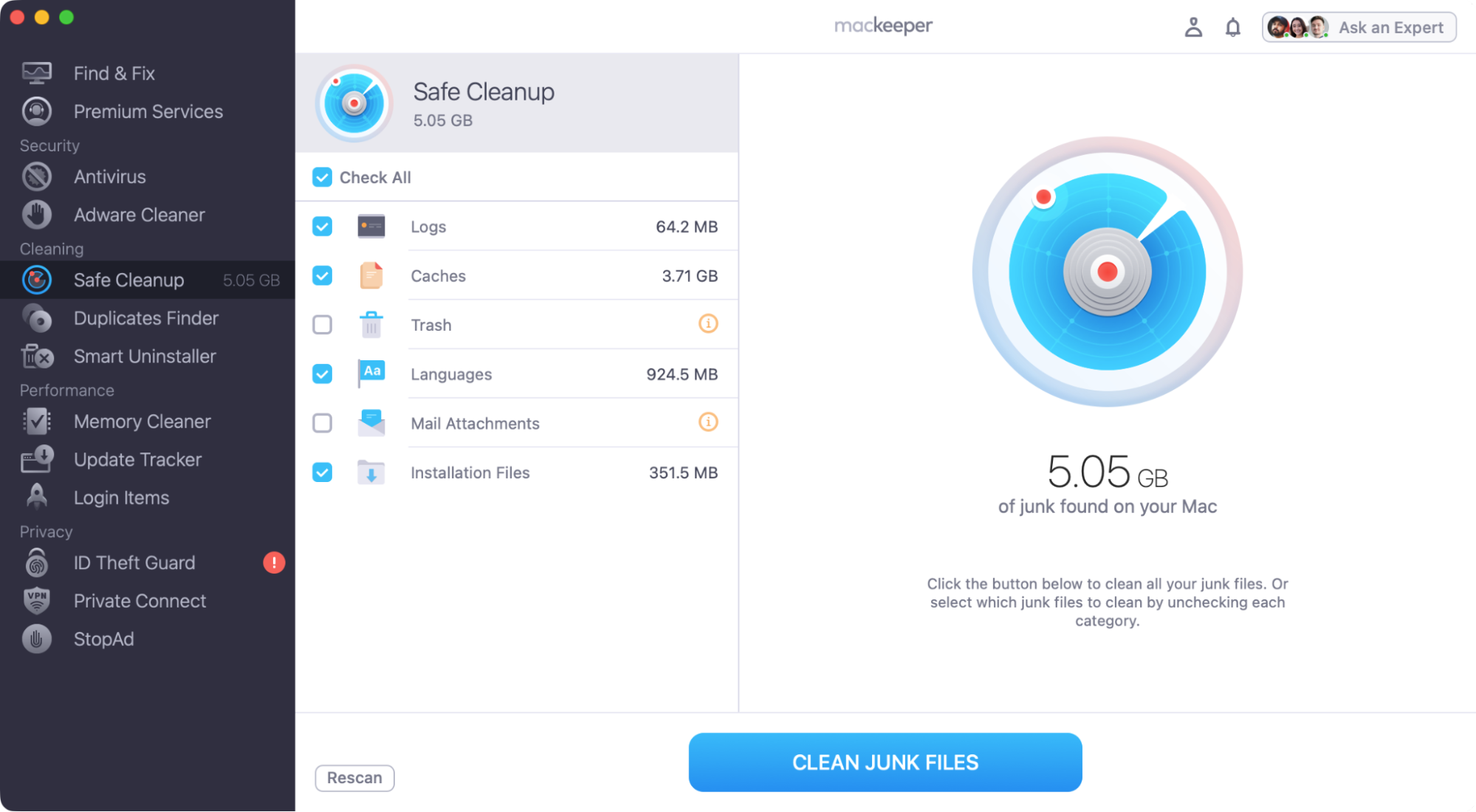
Before you upgrade your Mac to macOS Tahoe, you need to make sure you have enough disk space. If you’re a few gigabytes short, you can quickly remove junk data using MacKeeper’s Safe Cleanup tool, like this:
macOS Sonoma introduced a new Game Mode, better video conferencing features, and overhauled desktop widgets. macOS Tahoe is heavily focused on Apple Intelligence AI (which debuted in Sequoia), but also offers a new “Liquid Glass” visual design and a more powerful version of Spotlight.
New features in macOS Sonoma
A more condensed login experience.
Interactive widgets, which automatically change colour to maintain legibility.
iPhone Continuity mode on your Mac.
Presenter overlay and other video conferencing enhancements.
Manage separate profiles in Safari, plus link tracking detection, and more.
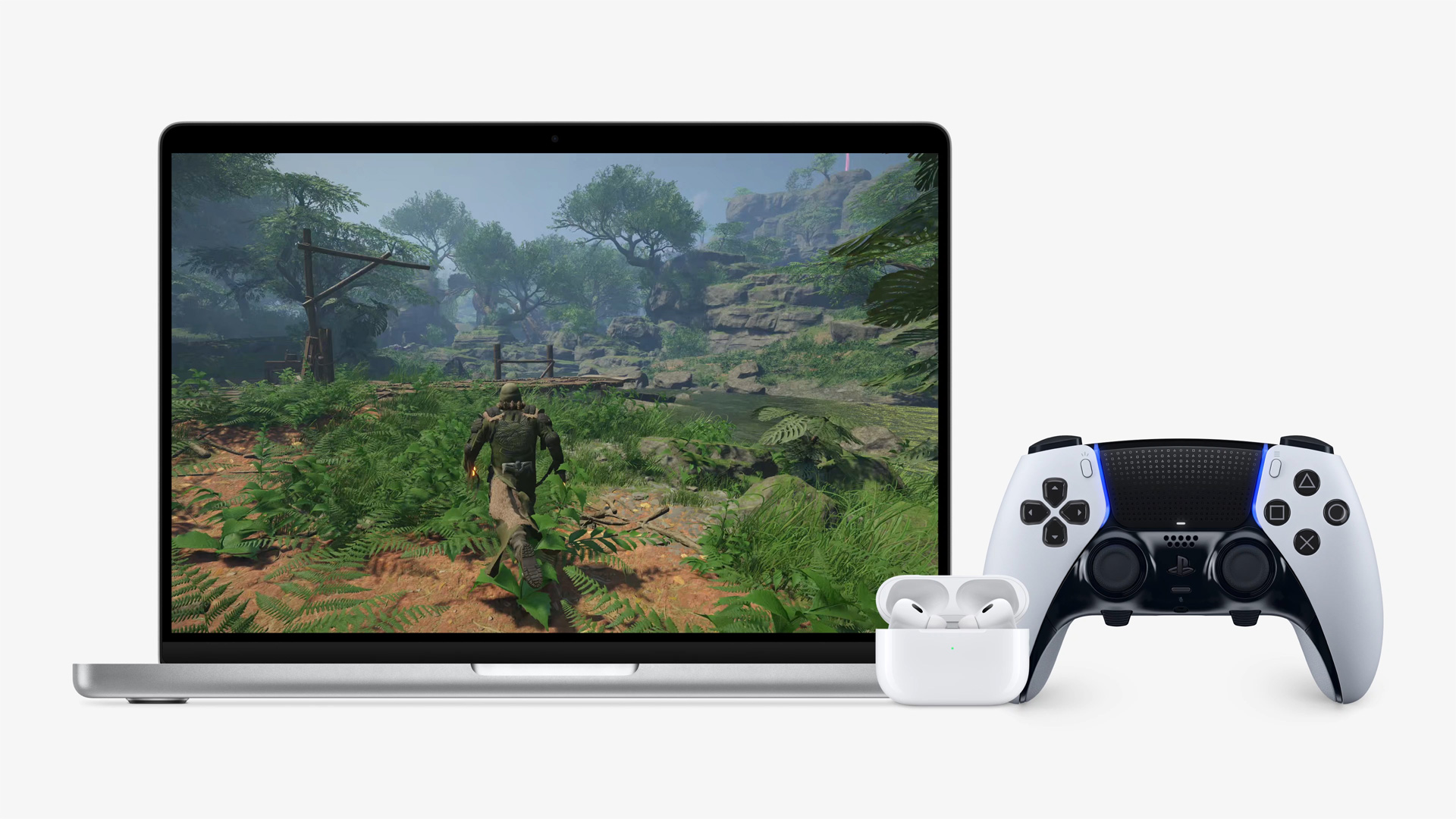
Game Mode, which automatically prioritizes games to boost performance.
One of the main new features in macOS Sonoma was Game Mode
New features in macOS Tahoe
Liquid Glass interface, offering greater information clarity and productivity.
Enhanced Apple Intelligence features to aid automation (Apple Silicon only).
New Phone app for making calls from your Mac.
Live translation of text in Messages.
Image Playground, which lets you create images with AI.
The biggest ever Spotlight update, improving search functions.
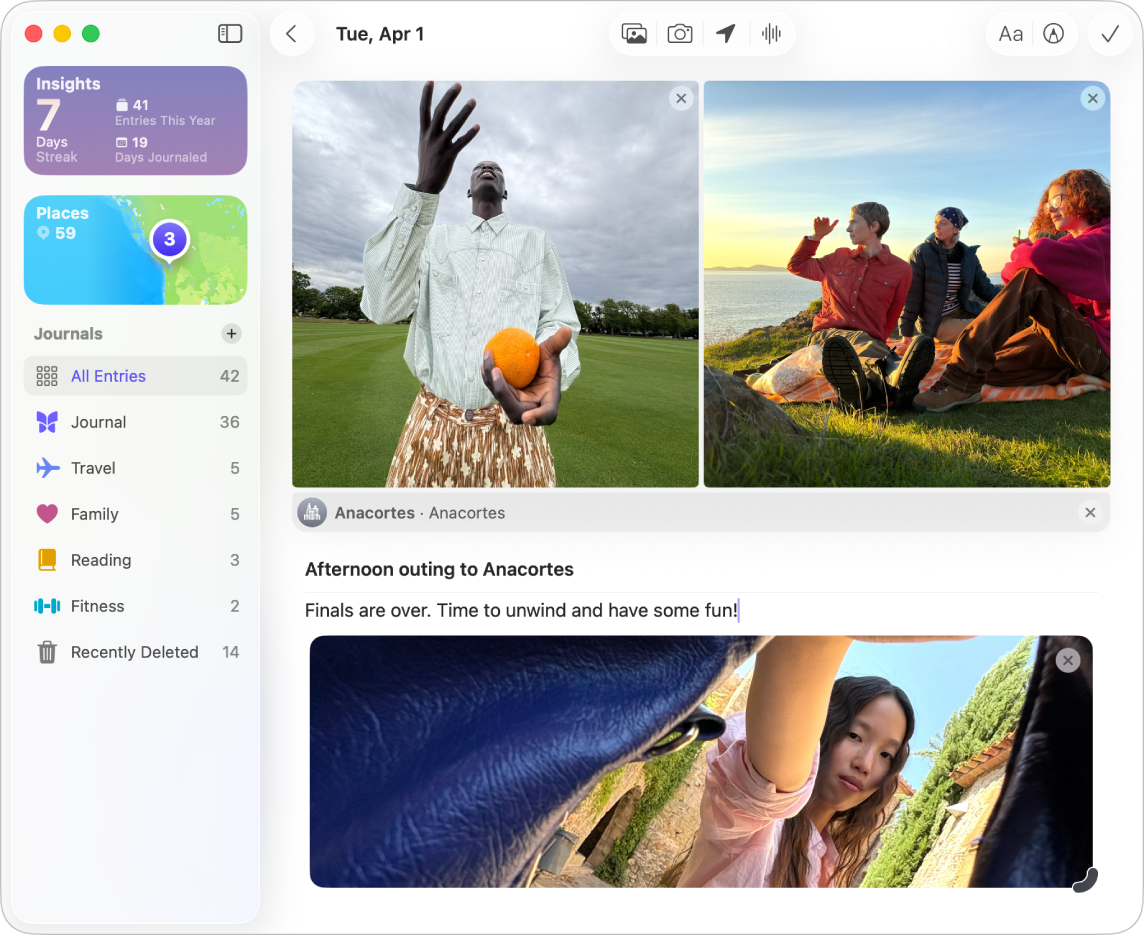
New Games and Journal apps for Mac and MacBook users.
In macOS Tahoe, you get some new apps, including Journal
macOS Tahoe and Sonoma compatibility
Both macOS Tahoe and Sonoma support a wide range of Macs. However, Tahoe drops support for some older Macs and will be the last version that works with Intel models. Because of Tahoe’s increased AI features, some people recommend having at least 16GB of RAM in your Mac.
If you're wondering, “Is my Mac too old to update?”, check out our dedicated macOS Sonoma compatibility article. You can also look for Apple’s official compatibility lists to verify if your Mac is unsupported.
Which is better: macOS Tahoe or Sonoma?
macOS Tahoe vs Sonoma—which is best? For all the latest features and continued access to updates and patches, in our professional opinion, you should choose Tahoe, assuming your Mac is supported. For older Macs and for greater compatibility with legacy hardware, drivers, and apps, you might be better off running macOS Sonoma.
If you want to be able to update macOS for longer, then we believe that Tahoe is the best choice for sure. You’ll get both feature updates, accessibility improvements, and security patches for longer than you will with Sonoma.
Choose the OS that matches your needs
We’ve pitted macOS Sonoma vs Tahoe to see which one is right for you, but ultimately, it depends on what Mac you have and how you use it. For most people, it’s best to run the newest version of macOS you can, so you get the latest features and better long-term support. If you have an older Mac, however, or if you rely on legacy hardware or software, you might need to stick with Sonoma or Sequoia. Some people say 16GB is needed for Tahoe, but we haven’t experienced any significant issues running it on an 8GB M1 machine, so it’s not a definite rule.
If you do decide you want to give Tahoe a spin, then you’ll need at least 40GB of free disk space. Before you even get started with your upgrade, we advise you to clear out a few gigabytes with MacKeeper’s Safe Cleanup—an easy, risk-free way to find and remove unneeded and junk data on your Mac.
We respect your privacy and
use cookies
for the best site experience.
Privacy Preferences Center
We use cookies along with other tools to give you the best possible experience while using the
MacKeeper website. Cookies are small text files that help the website load faster. The cookies we
use don’t contain any type of personal data meaning they never store information such as your
location, email address, or IP address.
Help us improve how you interact with our website by accepting the use of cookies. You can change
your privacy settings whenever you like.
Manage consent
All cookies
These cookies are strictly necessary for enabling basic website functionality (including page
navigation, form submission, language detection, post commenting), downloading and purchasing
software. The website might malfunction without these cookies.