When Microsoft Word won’t open on your Mac, we know how frustrating it can be. You just want to open your documents and do your work, but the app refuses to play nicely. MacKeeper’s Premium Services can connect you with our team of experts in seconds, and one of our advisors will help you diagnose the problem and share practical solutions to get Microsoft Word running again.
If you keep having problems every time you open Microsoft Word, we have a few simple recommendations that can help you quickly troubleshoot the app. We’ve found great success with Force Quitting Word, checking for updates, and resetting Microsoft app preferences. Many Mac computer users have also told us that they’ve successfully fixed their issues by repairing Microsoft by using Disk Utility or re-opening Word in Safe Mode.
Why won't Word open on your Mac?
Have you ever found yourself frantically clicking to try to open Word, then after several attempts, it finally loads, only for Microsoft Word to quit unexpectedly on Mac just seconds later? This is likely to be caused by a conflicting or damaged file deep within the application. It’s all too common for corrupted preference files or an outdated version of software to cause glitches with Word. Your problem could also be linked to insufficient permissions.
A note from our experts:
When Microsoft Word won't open on a Mac, it can be difficult to diagnose the cause of this nuisance and therefore make it hard to know how to troubleshoot the app to get it working again. Allow us to introduce MacKeeper’s Premium Services—our online chat platform that connects you with one of our experienced agents in seconds. From there, you’ll be able to get personalized support with actionable steps that you can follow to get Microsoft Word back on track.
Here’s how to access and use MacKeeper’s Premium services:
In the chat, describe the issues you’re facing with Microsoft Word to our Clario Tech experts for tailored steps to troubleshoot the app.
Step 1. For Microsoft Word support, open up the MacKeeper app and click on Premium ServicesStep 2. Open the chat function to connect with one of our experts to get Word back on track
How to fix Microsoft Word not opening on your Mac?
To fix Microsoft Word not opening on your Mac, there are several solutions to try. One method we’ve found to work is Force Quitting and then restarting Microsoft Word on a MacBook. We also recommend the following solutions:
Update macOS and Microsoft Word
Restart your Mac
Try Safe mode boot
Use “Open and Repair” in Word
Clearing application cache
Freeing up RAM
Fixing permissions and access rights
Creating new Mac user account
1. Update macOS and Microsoft Word
Sometimes the simplest solution can be all that’s needed–outstanding macOS or Microsoft Word updates could be all that stands in the way of the app running smoothly. That’s why we recommend checking for pending updates before moving ahead with our other troubleshooting steps.
Update macOS
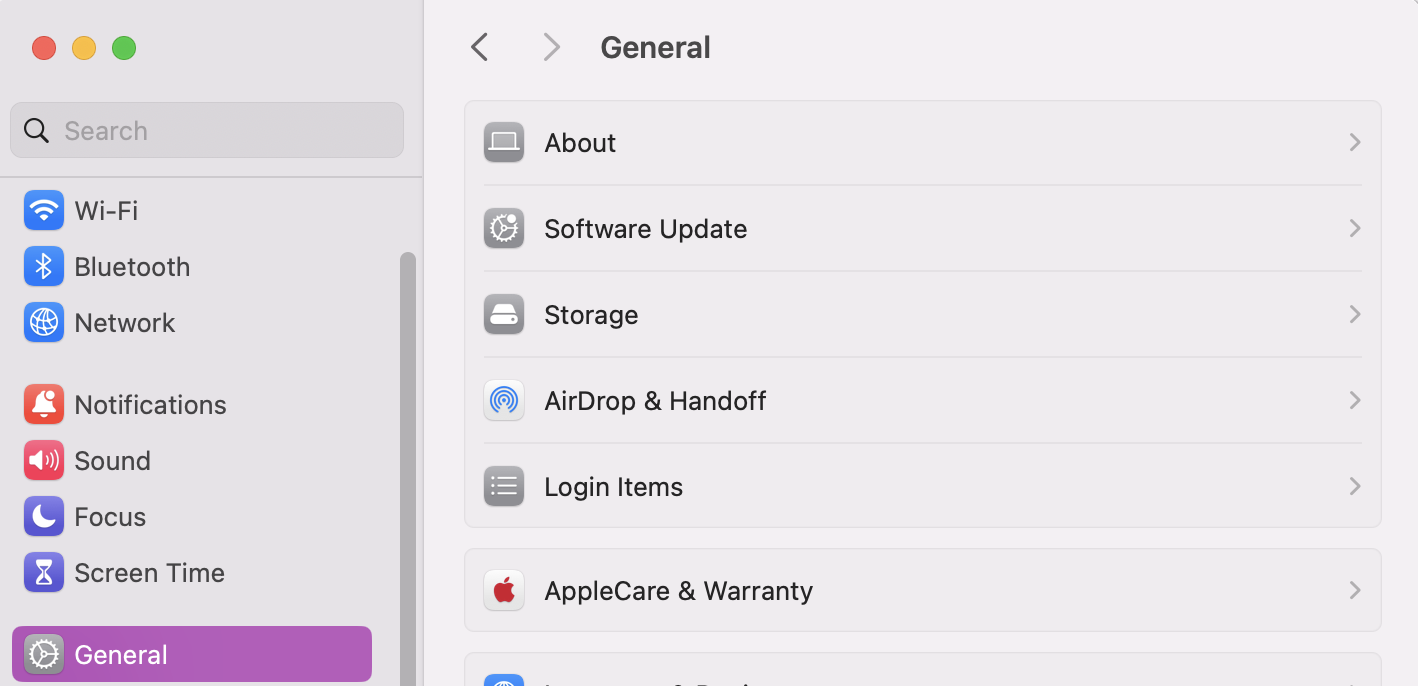
Here’s how to check for macOS updates:
Open System Settings.
Go to General.
Click on Software Updates.
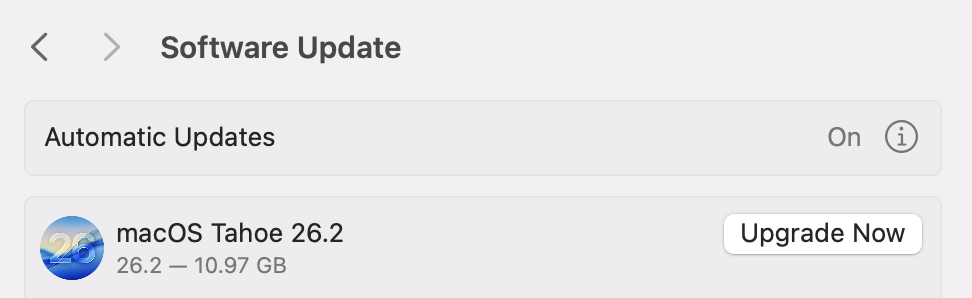
If any updates are available, click Update Now.
Step 1. In System Settings, go to General and click on Software UpdatesStep 2. Check for updates, and if any are available, click on Update Now
Update Microsoft Word
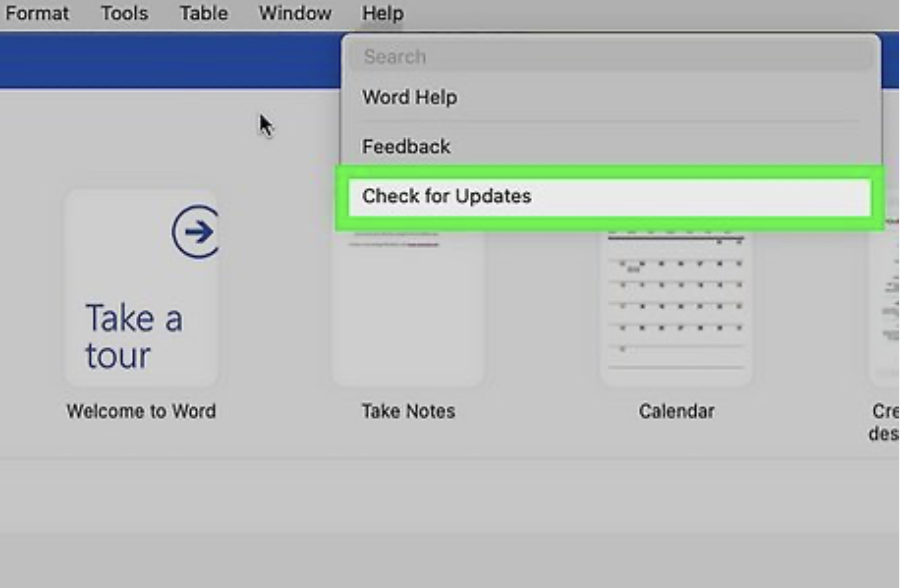
Here’s how to make sure your version of Microsoft Word is up to date:
Open Word.
Click on Help > Check for Updates.
To check for updates, open Word and click on Help > Check for Updates
2. Restart your Mac
If updating macOS or Microsoft Word hasn’t fixed your problems and Microsoft Word is still not responding on your Mac, we now suggest restarting your Mac. This will close all running processes and apps, giving Word a chance to start fresh when you come to re-open it.
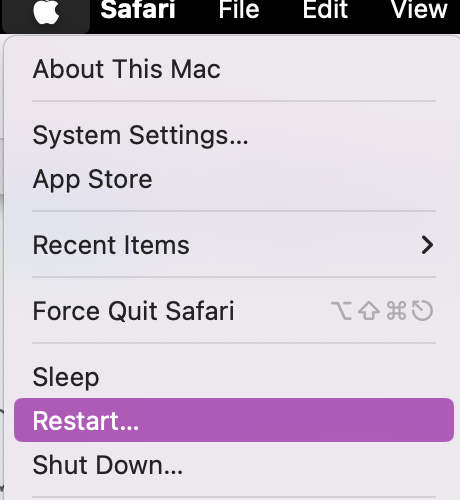
Here’s how to safely restart your Mac:
Click on the Apple Icon.
Press Restart.
Click on the Apple Icon and select Restart
3. Try Safe mode boot
In case you’re in need of opening Word urgently, one of our short-term solutions is running the app in Safe Mode. We only recommend this if accessing Word is urgent, as this solution isn’t a long-term fix.
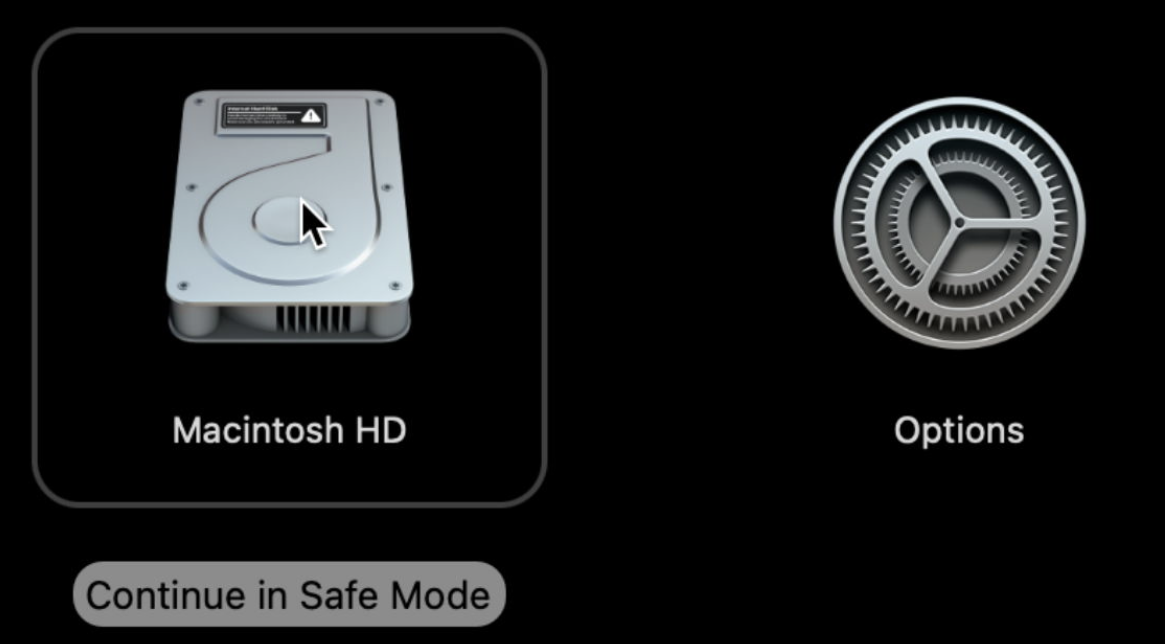
Here’s how to open Word when booted into Safe Mode:
Restart your Mac.
Press and hold the Power button.
Select Macintosh HD as the intended location.
Hold down Shift and click Continue in Safe Mode.
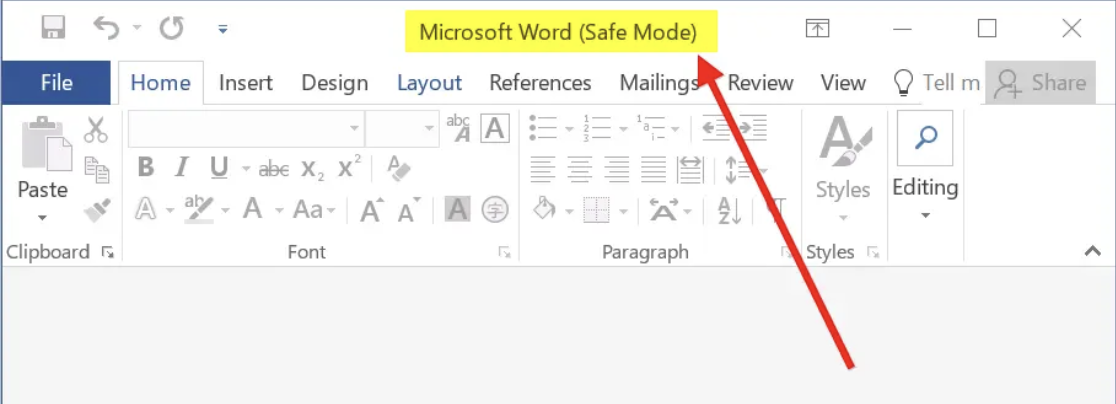
Open Microsoft Word.
Step 1. Restart the Mac, select Macintosh HD, and hold Shift to be able to continue in Safe ModeStep 2. Open Microsoft Word while in Safe Mode
4. Use “Open and Repair” in Word
Is Microsoft opening but freezing or refusing to load beyond just the main screen? It might be worth checking if the app needs repairing, in case the fault is due to a corrupted file within the Word document you’re trying to open.
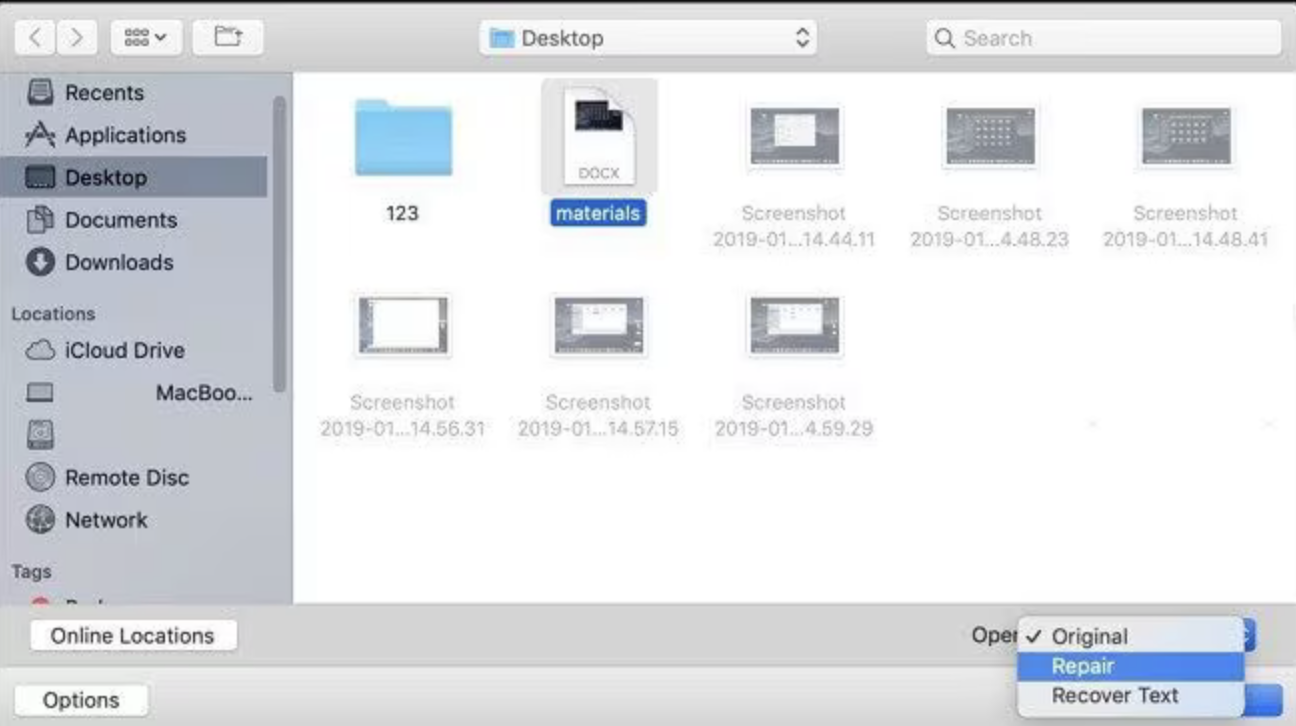
Here’s the way we recommend you repair a Word file on Mac:
Open Microsoft Word.
Click on File > Open.
Select the document you’re having issues with.
Choose Repair and click OK.
In Word, highlight the file you want to open and select Repair > OK
Extra help from the MacKeeper team:
Are you getting the error “your account doesn't allow editing on a Mac?” If you are, it’s possible your subscription to Microsoft services has run out and needs reactivating. Our supporting blog piece can walk you through how to log in to Office 365 and renew your access, getting you back to your work in no time.
5. Clearing application cache
If you’ve checked for updates, repaired documents that you suspected were glitchening, and you’ve still had no success with opening Word, it’s time to see if the cache is the issue. Your Mac is constantly storing cache, and an accumulation from every program on your computer is bound to affect stability.
Let us show you how to find and clear the application cache:
Open Finder.
Click on Go > Go to Folder.
Type in the following path and click Go: ~/Library/Caches/
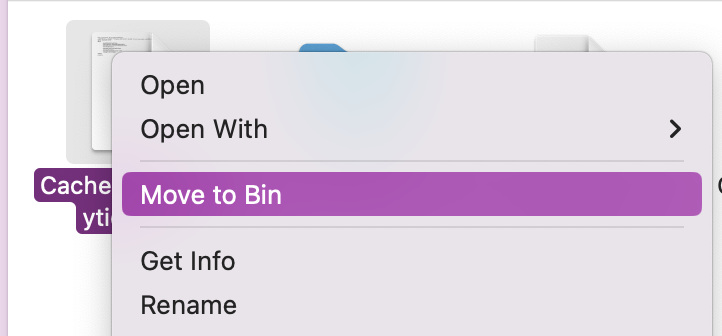
Look for system cache files and Move to Bin.
Step 1. In Finder’s Go to Folder shortcut, type in the following path: ~/Library/Caches/Step 2. Look for unwanted system cache and drag it to your Bin
6. Freeing up RAM
Some device maintenance is also a proven method to help apps, like Word, respond better, as decluttering digital debris can reduce CPU and stabilise your computer resource consumption. We recommend checking the RAM you have left and decluttering problem files or apps you don’t need.
Here’s how to check your available RAM:
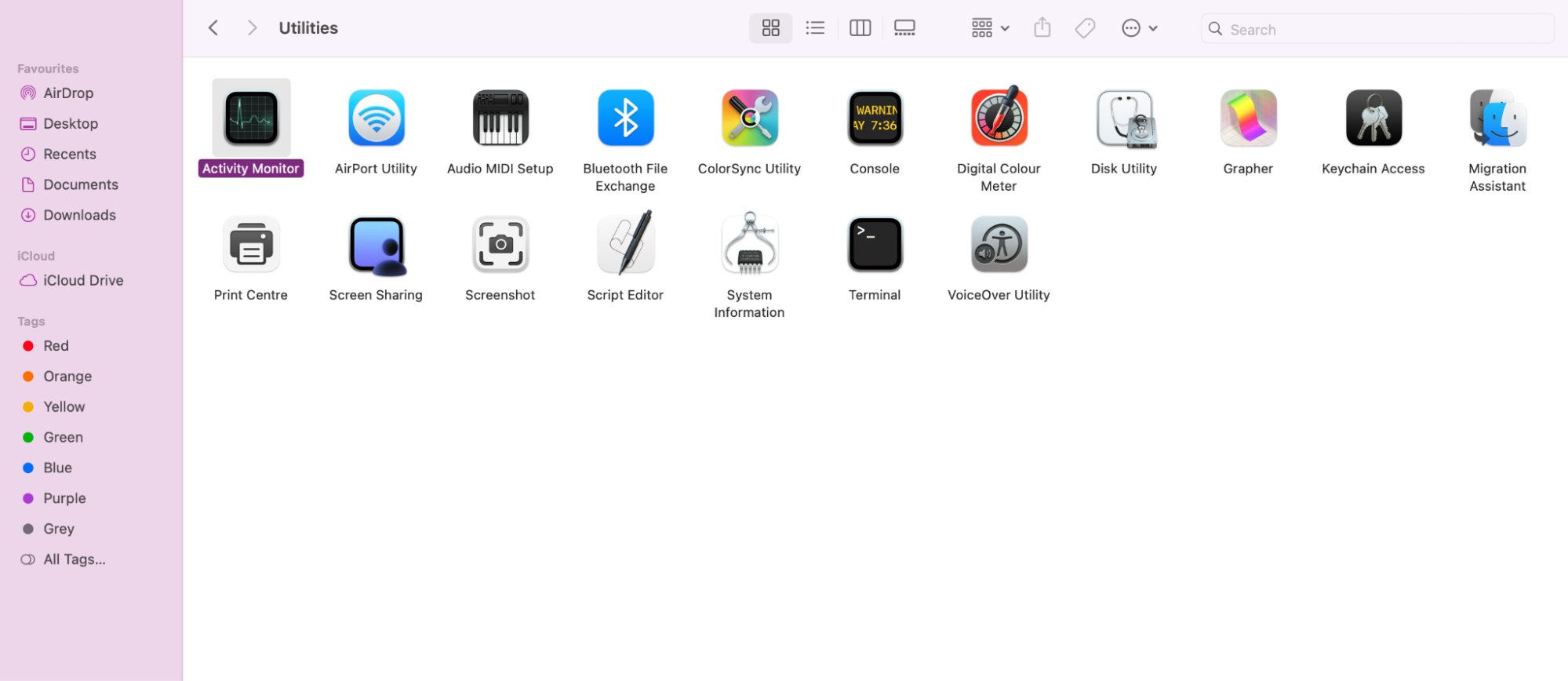
In Finder, go to Applications > Utilities.
Open Activity Monitor.
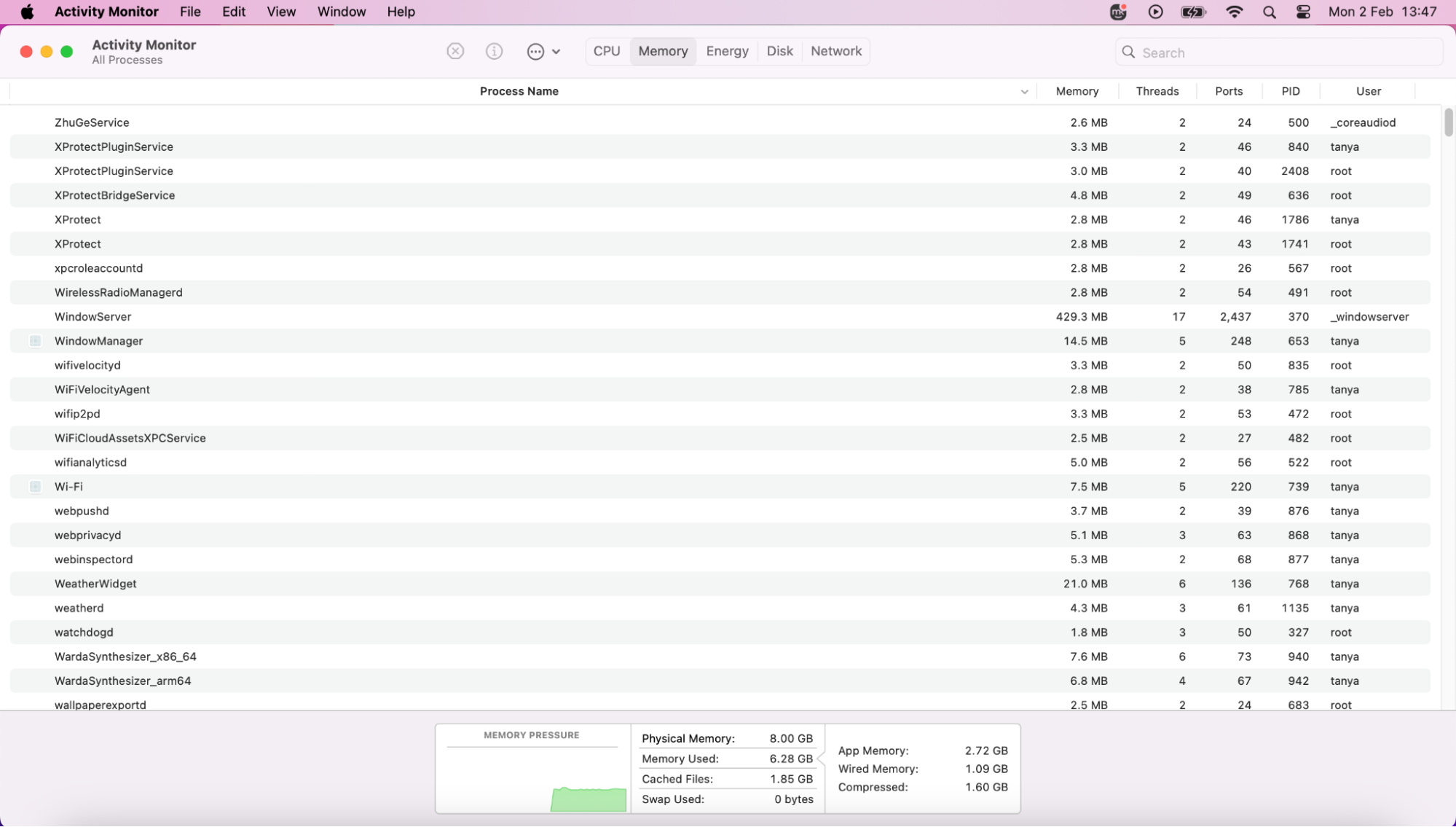
Click on the Memory tab and check Memory Used.
Step 1. In Finder, go to Applications > Utilities and open Activity MonitorStep 2. Click on Memory and check Memory Used
If your memory usage is red, we recommend decluttering unused files and apps to free up RAM to help Word run with fewer interruptions.
7. Fixing permissions and access rights
Another reason Microsoft Word won’t open on your Mac may be due to limited permissions or access blocking the app from launching correctly. We’ve seen this happen when files become corrupted and prevent Word from accessing resources. Using Disk Utility is one of the most effective ways to repair permission issues and restore access so Word can run normally.
Here’s how to fix permissions in Disk Utility:
Make sure all apps are closed first.
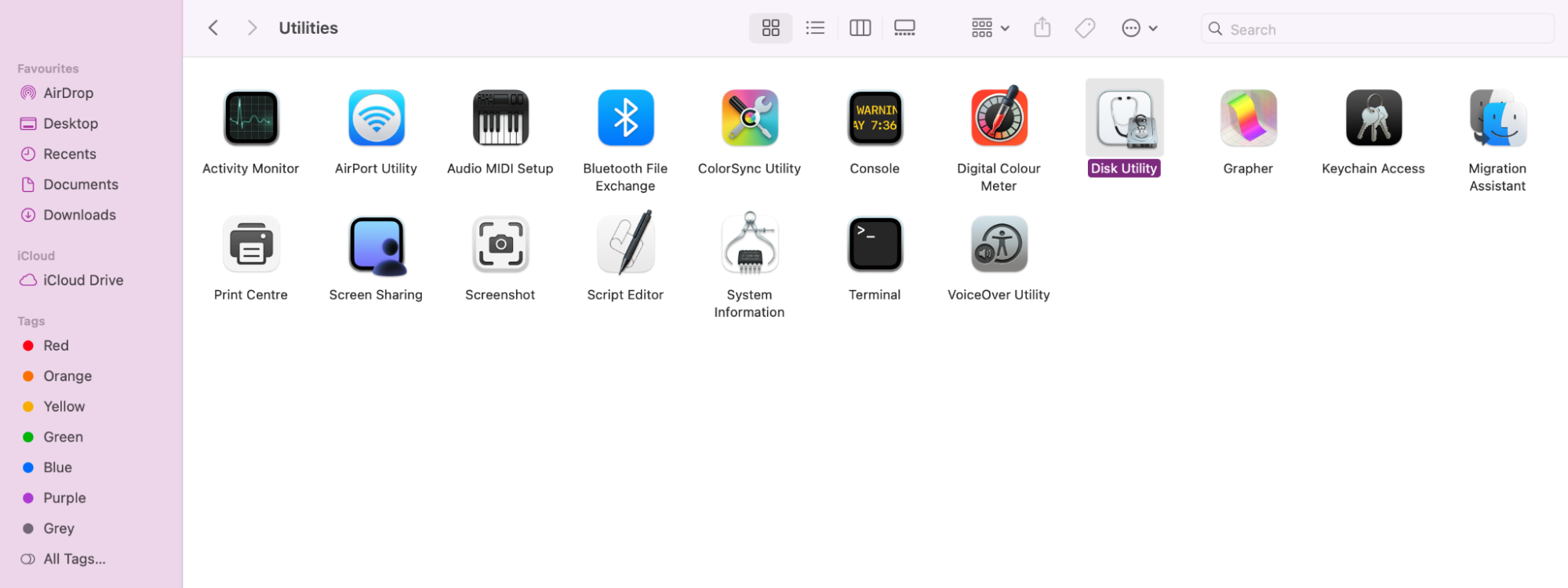
In Finder, go to Applications > Utilities.
Select Disk Utility.
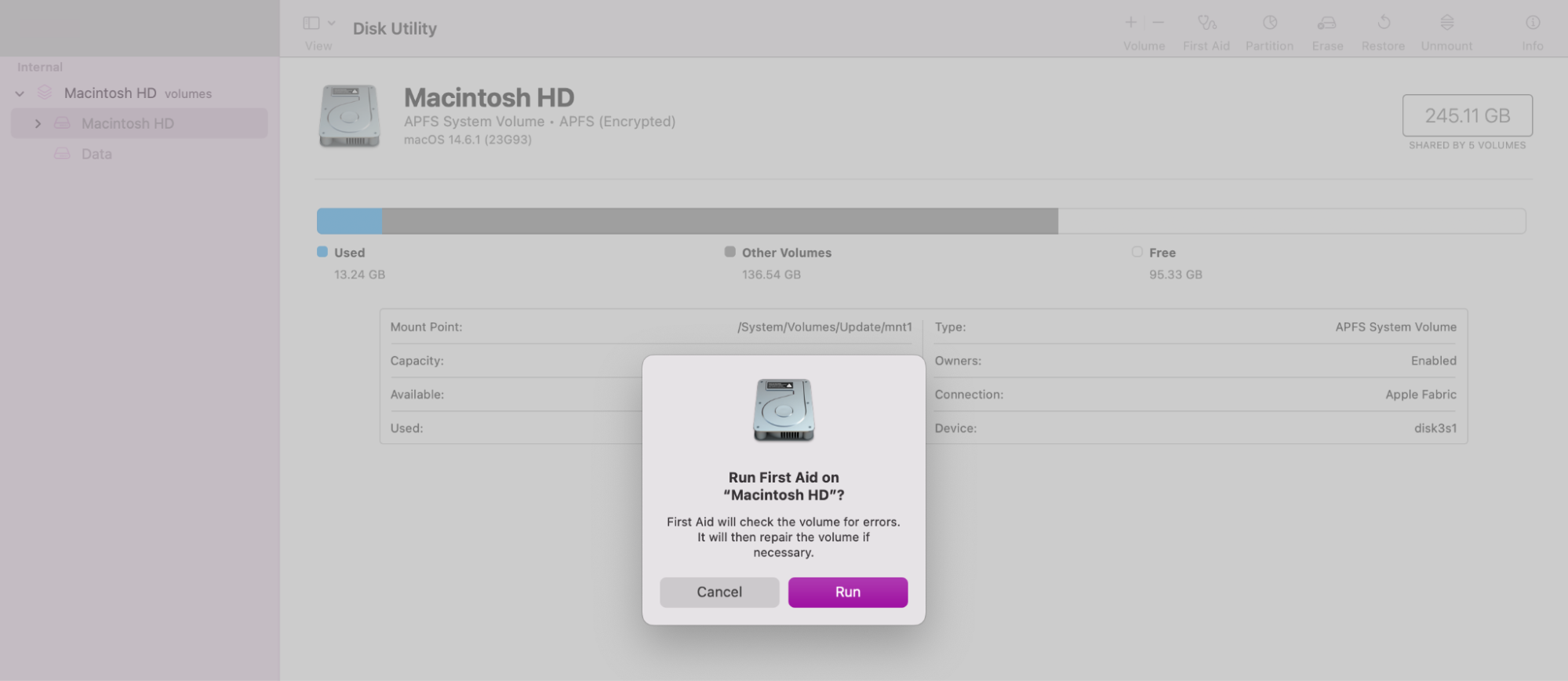
Choose Macintosh HD.
Click First Aid and select Run.
Once complete, restart your Mac and reopen Word.
Step 1. Open Disk UtilityStep 2. Choose Macintosh HD, click First Aid, and Select Run
8. Creating new Mac user account
In the unlikely case that none of our troubleshooting steps above successfully repaired Microsoft Word, it might now be a good idea to create a new Mac user account with all new preferences and permissions. This allows a clean Word application to run on your computer, hopefully responding as expected.
Here’s how to create a new Mac user account:
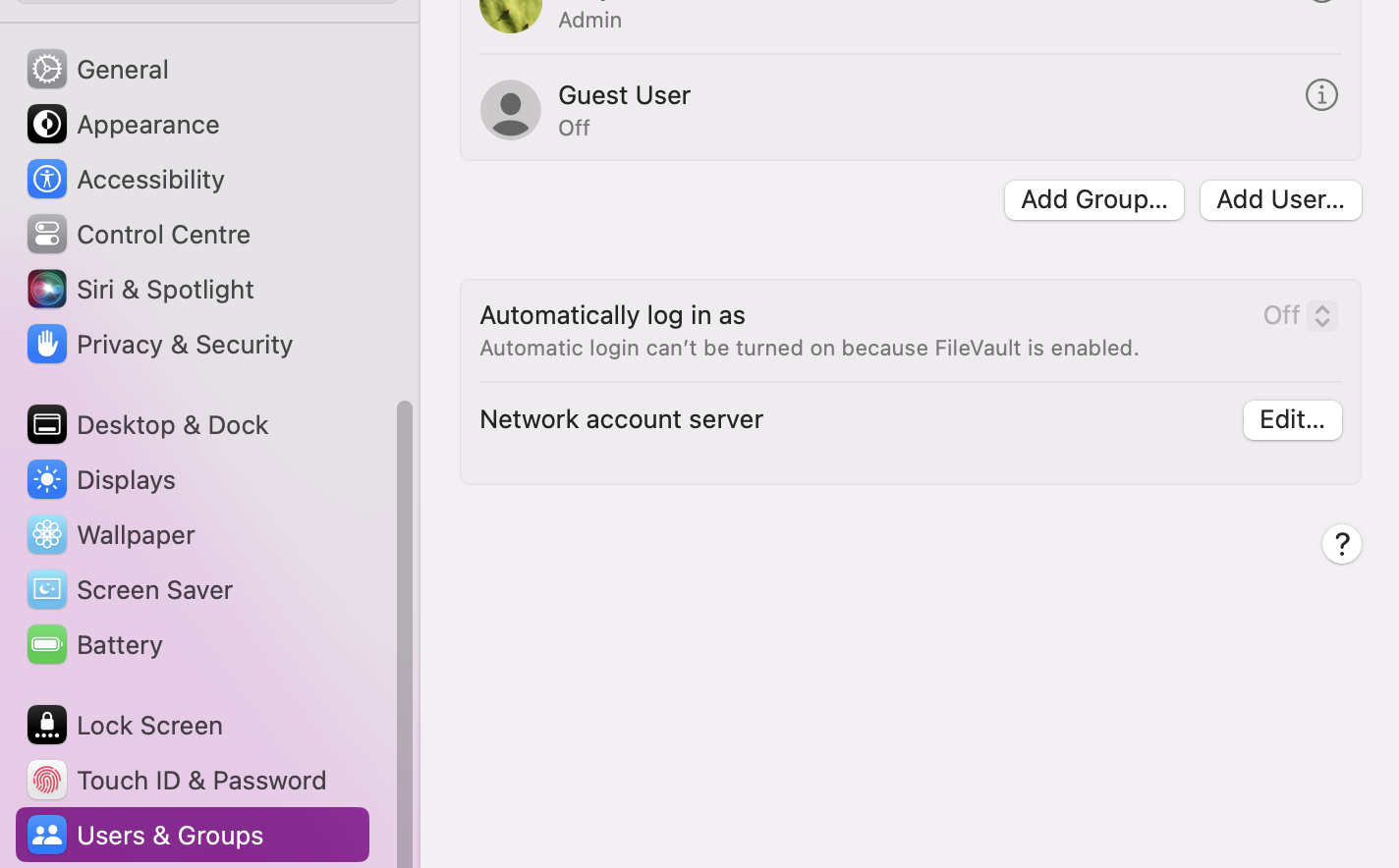
In System Settings, go to Users and Groups.
Click on Add User and fill out your account details.
Log in to your new account and open Word as normal.
In Settings, go to Users & Groups and click on Add User to create a new account
Repairing Microsoft Word with MacKeeper’s help
When Microsoft Word won’t open on your Mac, it can leave you feeling stuck, especially when you need to open your documents for work or school assignments. We’ve seen this happen most often when macOS or Word needs updating, or when corrupted cache files stop the app from launching at all. That’s why we recommend checking regularly for updates and clearing the cache to remove files that may be causing glitches or problems.
Don’t want to deal with the frustration on your own? MacKeeper’s Premium Services are here for you. Together, we’ll pinpoint why Microsoft isn’t opening on your Mac and share custom steps to help you fix the issue. In no time at all, you’ll be back to your work with confidence.
We respect your privacy and
use cookies
for the best site experience.
Privacy Preferences Center
We use cookies along with other tools to give you the best possible experience while using the
MacKeeper website. Cookies are small text files that help the website load faster. The cookies we
use don’t contain any type of personal data meaning they never store information such as your
location, email address, or IP address.
Help us improve how you interact with our website by accepting the use of cookies. You can change
your privacy settings whenever you like.
Manage consent
All cookies
These cookies are strictly necessary for enabling basic website functionality (including page
navigation, form submission, language detection, post commenting), downloading and purchasing
software. The website might malfunction without these cookies.