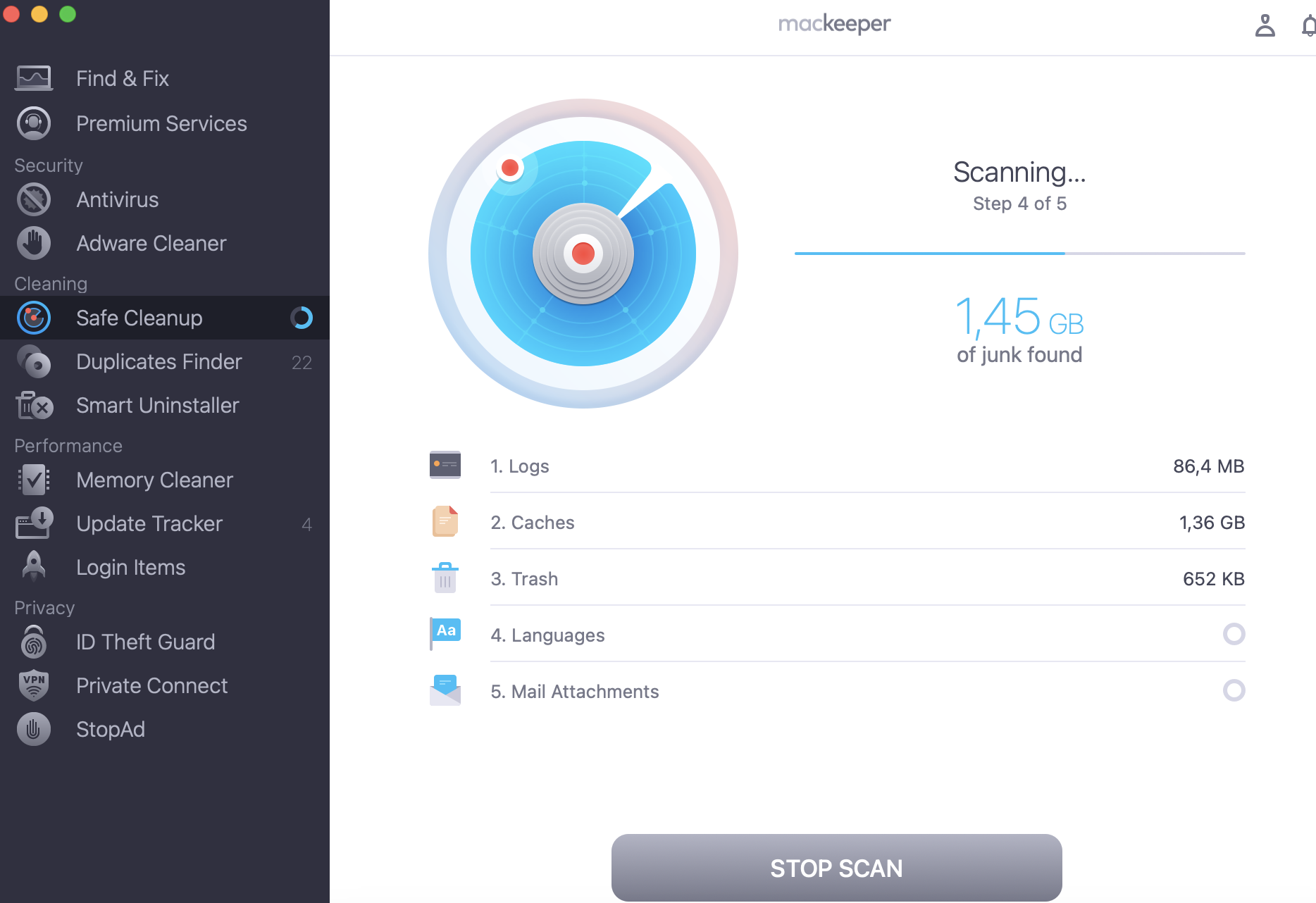
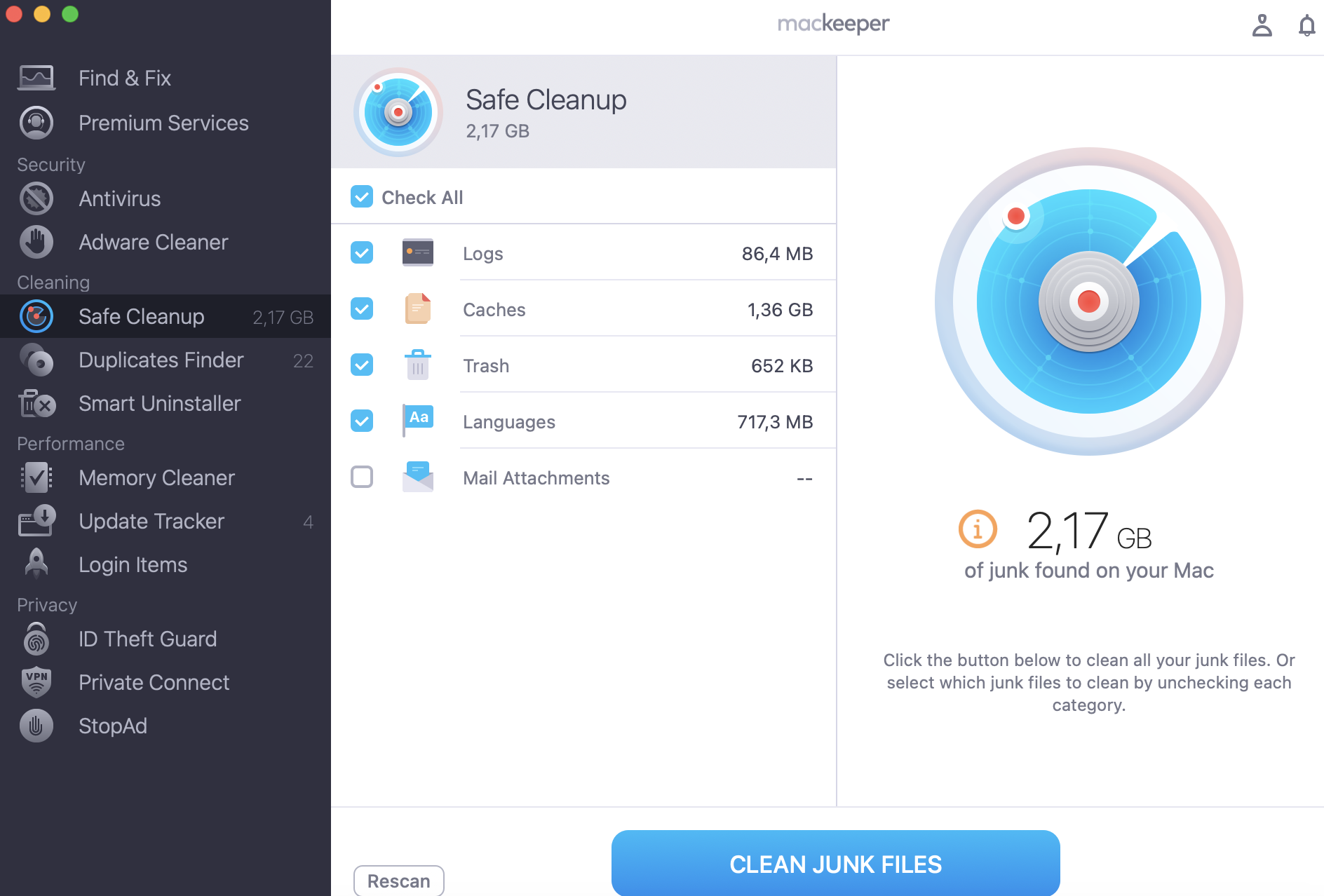
Upgrading to macOS Tahoe can improve your Mac’s performance and security, but some users may experience slower speeds or compatibility issues after the installation. Before installing macOS Tahoe, use MacKeeper’s Safe Cleanup to delete unnecessary files, free up storage space, preparing your laptop for smooth upgrading.
Upgrading to macOS Tahoe is worthwhile if you want to enjoy the latest features, privacy improvements, and system optimizations. Though early versions had some issues, updates like 26.2 have improved reliability and speed. Before upgrading, back up your data and confirm your apps work smoothly with the new system.
What macOS Tahoe mean for everyday use?
If you’ve been searching how to update MacBook lately, you need to know that macOS Tahoe is the newest operating system, unique and intelligent. It combines AI-powered features with Apple’s traditional approach. Thanks to this sophisticated approach, you don’t need to adjust to an entirely new environment, as everything looks familiar on the surface while becoming far more advanced behind the scenes.
Unlike the previous versions, Tahoe isn’t focused on redesign, so once updated, you won’t notice any visual changes. However, after a few days of usage, you’ll feel the improvements. The system runs faster, switching between tasks becomes smoother, and all apps become more responsive.
One of the reasons I’ve always appreciated Apple is its constant upgrading. At the same time, I find it frustrating when updates completely change the interface, so I need to
adapt to interface layout and navigation. macOS Tahoe takes a different approach, as it isn’t about drastic changes, but about meaningful improvements at its core. If you don’t want to waste time relearning where things are, it’s recommended to update to macOS Tahoe.
Key changes and new capabilities in macOS 26
At first glance, macOS Tahoe doesn’t seem like a brand new concept. It doesn’t affect the interface, but offers substantial improvements to make your Mac experience more polished. One of the most notable features of the system is its seamless integration of AI-powered tools across all its features, without requiring external changes. But check it out in more detail below.
Performance and compatibility. You won’t notice any visual changes after updating to macOS Tahoe; however, you’ll enjoy improved performance on your Mac. On new Apple devices, macOS Tahoe feels smooth and responsive, while older devices need some time for adaptation. AI-powered processes implemented by macOS Tahoe can affect battery life for the first few days.
Features. The most essential characteristic of macOS Tahoe is its smooth integration of AI-powered tools into daily workflows. Tahoe doesn’t try to amaze users with flashy pictures. Instead, the system becomes more responsive. You’ll notice that the navigation becomes cleaner, notifications are less distracting, and multitasking is easier.
Security. Apple has always been focused on privacy and system protection, which makes it trusted by millions of users. macOS Tahoe always brings security improvements, though they aren’t visible at first glance. The system becomes more attentive to app permissions, background activity, and data access.
Risks. macOS Tahoe seems to be a mature and sophisticated system, but not all Macs behave the same way after upgrading. This update may be incompatible with older software. Older plugins, drivers, or tools may stop working on macOS Tahoe until the updates are released. This issue is especially inconvenient for users who rely on their Macs professionally every day.
Now, I’ll dwell on each point on a deeper level.
Performance and compatibility considerations
MacOS Tahoe doesn’t feel the same on every Mac. After a profound research, I understood that this update depends greatly on the hardware and age of your device. It’s a particular feature of this system.
On newer Macs, Tahoe feels perfect, demonstrating its full potential. The AI-powered features flow into the everyday workflow, without slowing anything down. Everything from opening apps to switching between them is easy and productive.
As for older Macs, it’s a slightly different story. Updates are available, but performance improvements aren’t visible. On the contrary, during the first days of installation, some users notice increased battery usage, occasional warmth, and slow responsiveness.
A note from our experts:
One thing you should understand before upgrading to macOS Tahoe is that system updates don’t always guarantee smooth performance of your laptop. Actually, your Mac’s condition matters a lot. Don’t forget that over time, your Mac collects temporary files, outdated caches, duplicates, old logs, and other unnecessary files that consume storage and affect your Mac’s performance. That’s why I suggest using MacKeeper’s Safe Cleanup as a secure alternative to gain better performance on your Apple laptop by deleting the old and unnecessary data. This tool, developed by Clario Tech, offers to remove clutter that has accumulated over months or even years just in a few clicks.
Follow these instructions to make your Mac more responsive with MacKeeper’s Safe Cleanup:
For me, macOS Tahoe is a system that quietly improves your Mac’s performance from the inside. Let’s distinguish the most vivid peculiarities of it, which you’ll notice after some time of usage:
Smart AI integration. The most distinct feature that influences all the features, making them more responsive and efficient.
Smooth multitasking. My favorite peculiarity is that it makes switching between apps fast and managing multiple windows more organized.
Better responsiveness. With macOS Tahoe, especially on new Macs, you’ll feel that your device is working with no effort, smoothly and rapidly.
Unique liquid glass design. Though macOS Tahoe doesn't bring many visual changes, it offers a new half-silvered visual style that seems elegant and distinctive.
Security and future support
It’s advisable to upgrade to Tahoe not only to get new features and improved performance, but also to maintain security and ensure future support. Remember that older operating systems can’t receive new security patches and updates, which makes such devices more vulnerable over time.
Possible risks and workflow changes with macOS Tahoe
Updating to macOS Tahoe may slightly affect the performance of some apps, especially on older Macs. Older programs and utilities usually require additional updates to perform properly with the new operating system. In some cases, users can notice slower performance or missing features immediately after the update.
Reasons to upgrade to macOS Tahoe (26)
Let’s sum up the reasons why you should upgrade to macOS Tahoe:
Smooth AI integration across everyday features.
Better security and future updates.
Faster everyday performance.
Unique liquid glass design.
Reasons to be cautious about upgrading
However, before talking about Tahoe, you should first get the answer to this question: is your Mac too old to update? This is crucial!
I suggest you see the other side and understand possible reasons not to upgrade to Tahoe.
Older Macs may experience slower performance.
Early updates may have bugs.
Who macOS Tahoe is best suited for?
Upgrading to macOS Tahoe is a good idea for users who prefer a smooth and smart Mac performance without adjusting to a completely new system. It’s also an important step for users of different Apple devices, as Tahoe syncing and shared features run flawlessly. It’s best suited for newer Apple Silicon Macs, where its updates work most efficiently.
Who may want to stay on current macOS version?
Users of older Macs, especially those who rely on their laptops for daily work, may prefer to stay on their current macOS versions to avoid disrupting stable and predictable performance.
Preparing your Mac before upgrading to macOS Tahoe
Before upgrading to macOS Tahoe, don’t hesitate to prepare your laptop to make the process smooth and risk-free. Remember that the upgrade may fail if your MacBook shows not enough space for update.
Do the following before upgrading:
Create a backup of important files.
Clear unnecessary files and free up the storage space.
Check whether your essential apps are compatible with Tahoe.
Conclusion
macOS Tahoe is a reliable update for users who want a smooth and modern Mac experience without major interface changes. Tahoe improves everyday workflow while keeping the familiar macOS environment. However, upgrading may not be the best solution for users of older Macs that aren’t fully optimized or compatible with Tahoe.
Before installing macOS Tahoe, it’s an excellent idea to prepare your Mac by removing unnecessary files and freeing up storage space. MacKeeper’s Safe Cleanup is a leading solution for safely cleaning old caches, system clutter, and temporary files that build up over time. A cleaner Mac optimizes the upgrade process and improves the overall system performance.
We respect your privacy and
use cookies
for the best site experience.
Privacy Preferences Center
We use cookies along with other tools to give you the best possible experience while using the
MacKeeper website. Cookies are small text files that help the website load faster. The cookies we
use don’t contain any type of personal data meaning they never store information such as your
location, email address, or IP address.
Help us improve how you interact with our website by accepting the use of cookies. You can change
your privacy settings whenever you like.
Manage consent
All cookies
These cookies are strictly necessary for enabling basic website functionality (including page
navigation, form submission, language detection, post commenting), downloading and purchasing
software. The website might malfunction without these cookies.