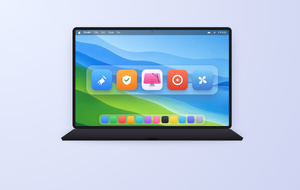
Not sure whether you should run your Mac on macOS Sequoia or Tahoe? If you decide to upgrade, make sure you have plenty of disk space with MacKeeper’s Safe Cleanup—the fast way to clear out junk data.
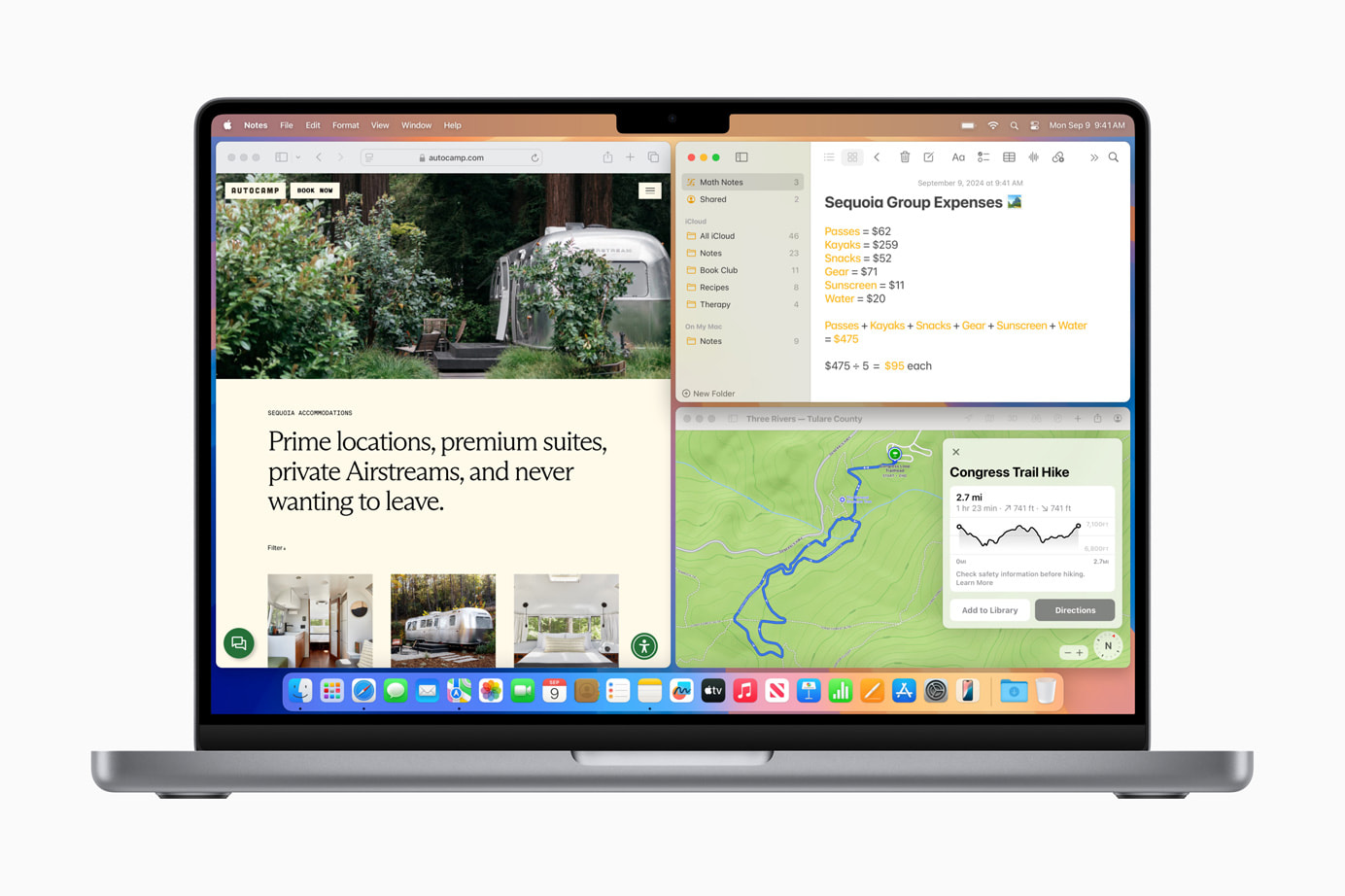
macOS 26 (Tahoe) is the first version of the Mac operating system that’s numbered by year. It follows macOS 15 (Sequoia). Tahoe features a substantial visual overhaul, called Liquid Glass, as well as a better iPhone integration, enhanced Spotlight abilities, accessibility improvements, live translation via Apple Intelligence, and the addition of Journal and Games apps. There are other, less prominent changes in Tahoe too, like password history in the Passwords app and stronger alignment with iOS and iPadOS.
What are the differences between macOS Tahoe and Sequoia?
Key macOS Tahoe vs Sequoia differences include 24-bit color and Powerline fonts in Terminal; a new visual design called Liquid Glass; the ability to change the operating system’s performance with Themes; redesigned volume and brightness overlays; Markdown support in Apple Notes; a new Games app; a Phone app that works with a connected iPhone; and Live Translation powered by AI.
1. Installation size and system requirements
The macOS Sequoia installer in the Mac App Store is 12.1GB, but you need more space to finish the installation. We’d suggest you have at least 40GB of free storage on your Mac or MacBook before you download and install Sequoia, just to be safe. You can run Sequoia on a wide range of Apple Silicon and Intel models, including some from as far back as 2018.
The macOS Tahoe installer is around 14GB in size, and you’ll also want about 40GB of free storage before you upgrade. Tahoe is the final version of macOS that will support Intel Macs. Apart from the 16-inch, 2019 MacBook Pro and the 2019 Mac Pro, all the supported models are from 2020 or later.
A note from our experts:
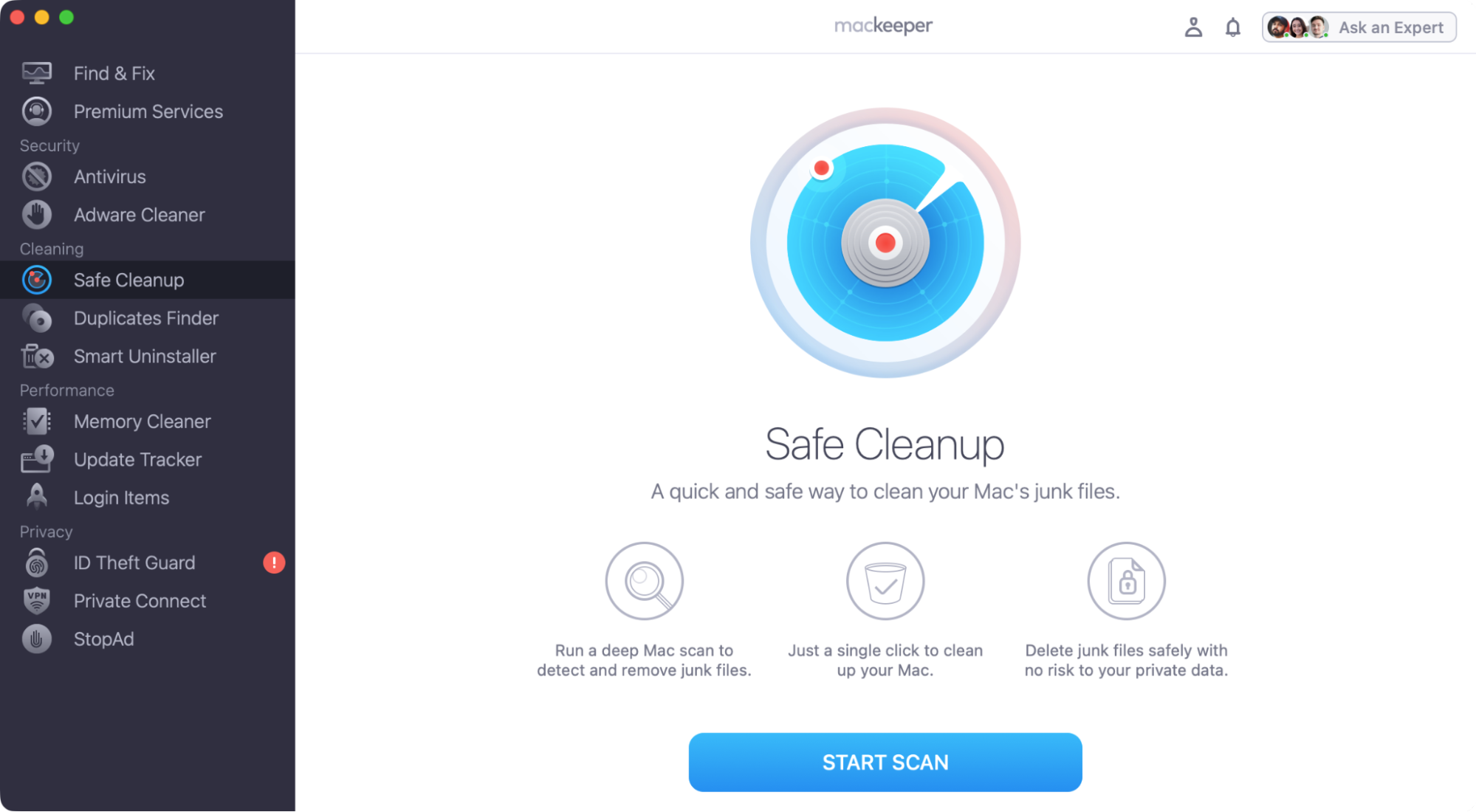
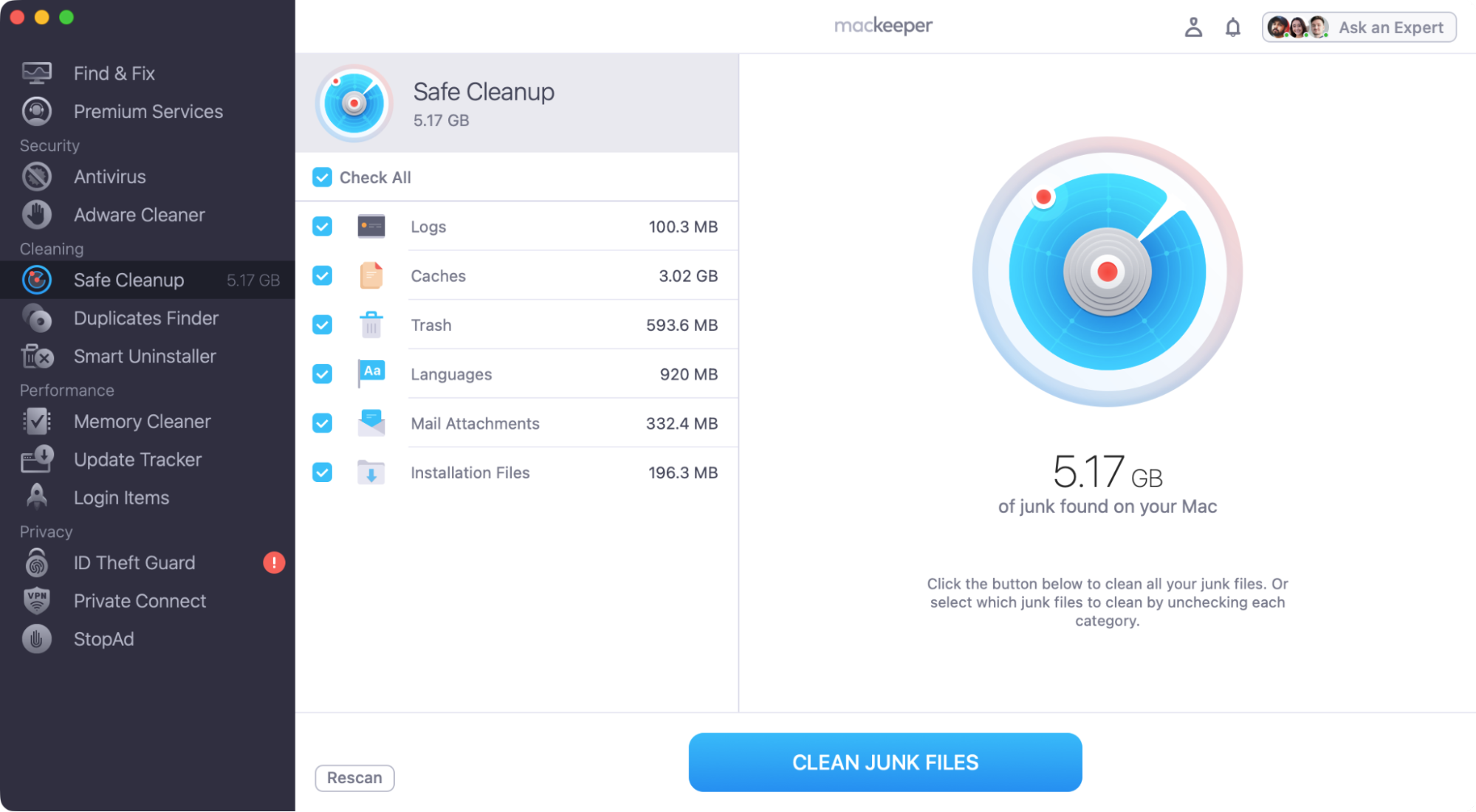
Not enough space to update to macOS Tahoe? If so, your installation will fail and may cause other issues. With MacKeeper’s Safe Cleanup, you can quickly find unneeded data and safely delete it.
When the scan is done, select anything that you’d like to delete, and click Clean Junk Files.
Step 1. Open Safe Cleanup and click Start ScanStep 2. Select what to remove, and click Clean Junk Files
2. Battery life
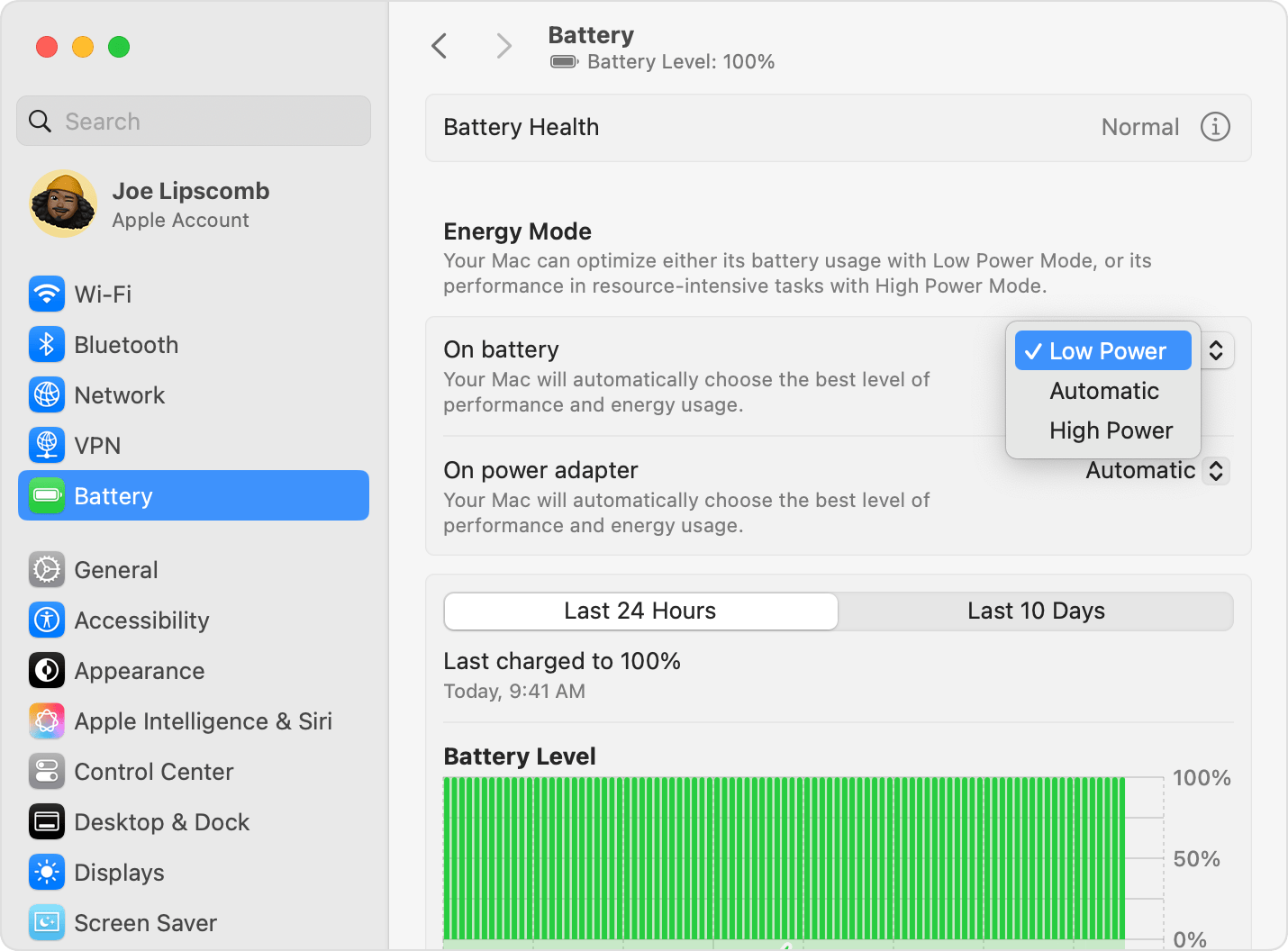
When it comes to battery life, there’s no point in us doing a comprehensive macOS Tahoe vs Sequoia comparison. Why? Because MacBook battery performance varies massively—and for many reasons, including:
The age and model of your MacBook.
What apps you have installed and what they’re doing in the background.
How bright your screen is.
How loud your MacBook’s volume is.
Whether you’re on Wi-Fi or Ethernet.
Some users have reported a drop in battery life after upgrading to Tahoe. Others say it got better. In many cases, battery life fell immediately after the upgrade and then picked up, once macOS had finished reindexing its files.
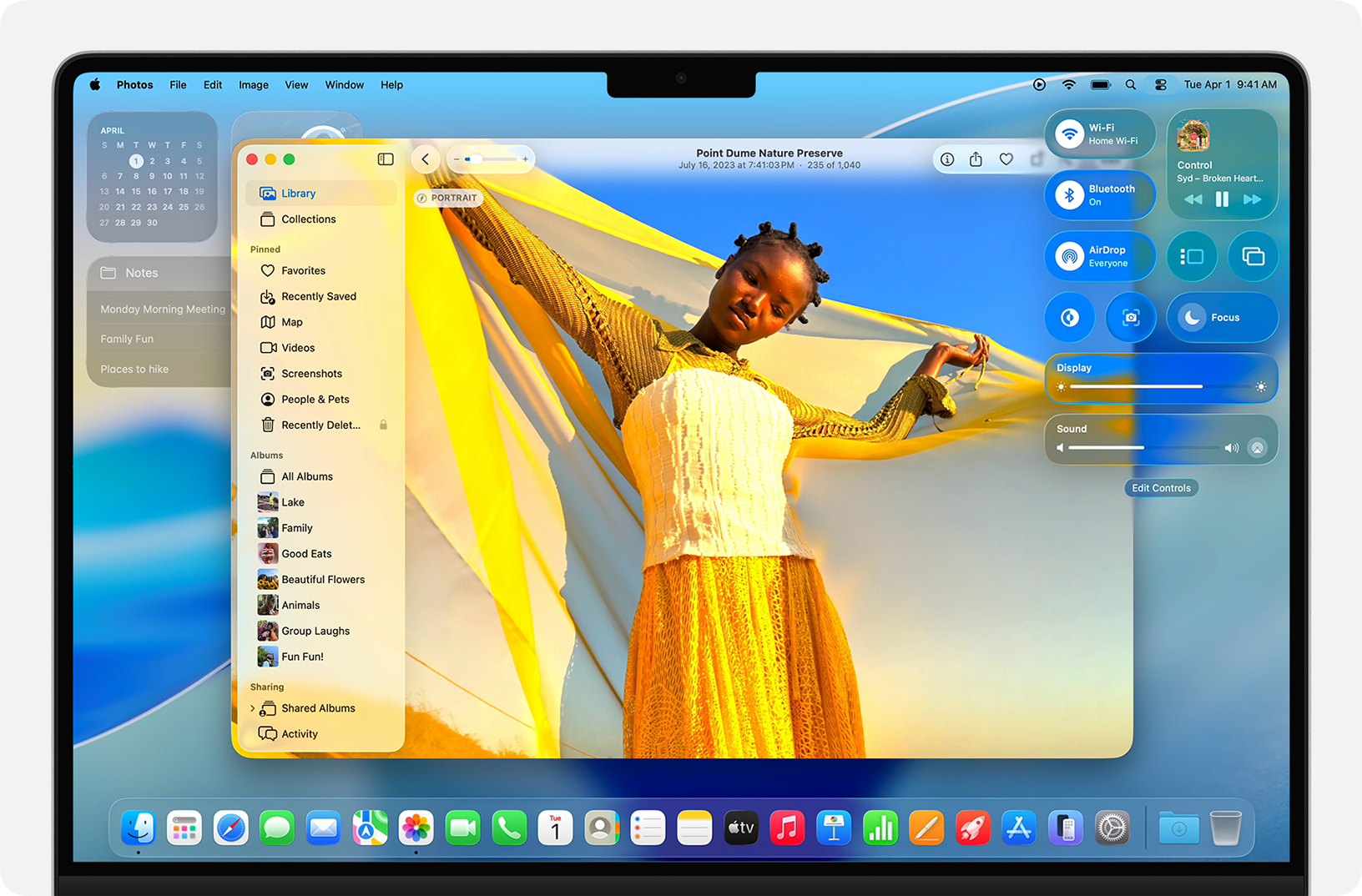
Liquid Glass brings more translucent elements to macOS Tahoe, on everything from widgets to notifications. The corners of windows are also much more pronounced in Tahoe, compared to Sequoia.
The way the UI behaves in Tahoe is different too. For example, toolbars in apps shrink when you scroll, and you can also customize folder icons with colours, symbols, and emojis.
One thing that Sequoia has that Tahoe doesn’t is Launchpad. Apple removed it from the later OS but improved Spotlight to make it better at launching apps.
macOS 15 Sequoia offers a clean and modern experienceUpgrading to Tahoe introduces the Liquid Glass interface
4. Spotlight and system search
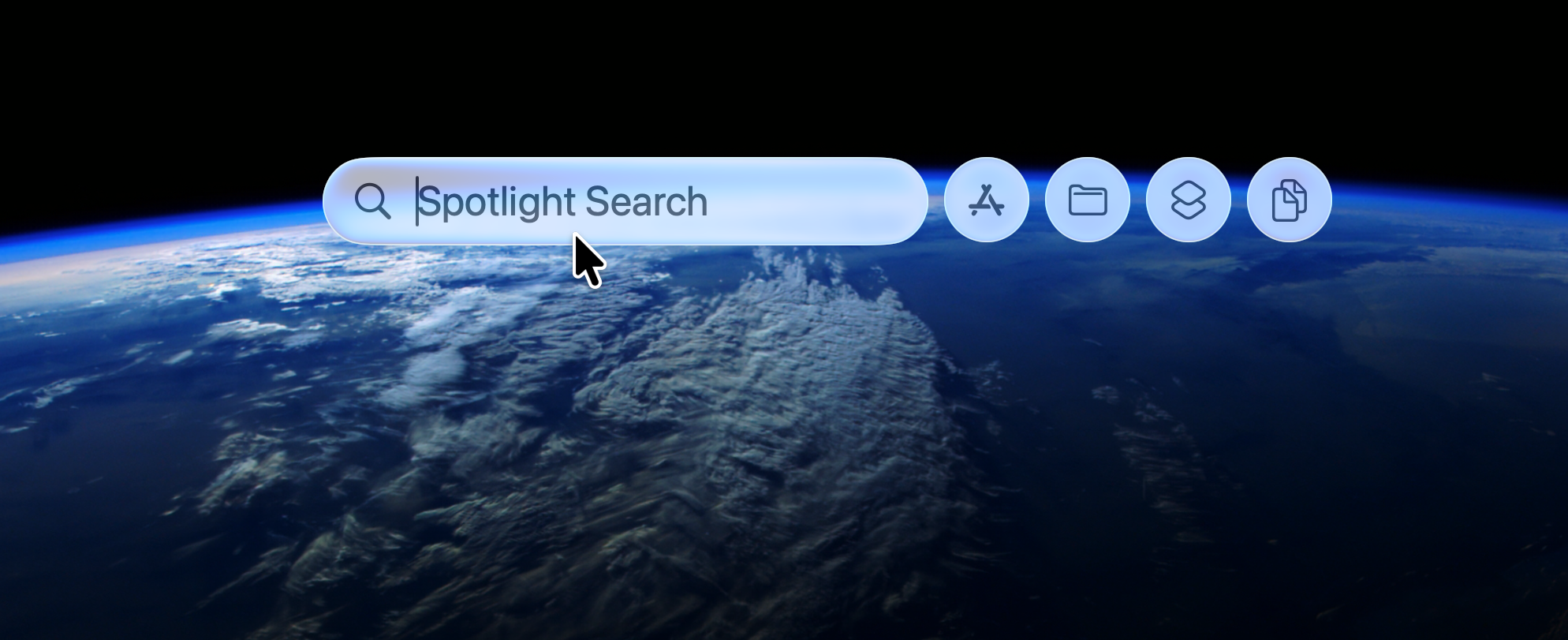
Moving from Sequoia to Tahoe, you’ll notice Spotlight is even more powerful. We were already big fans of Spotlight, but in Tahoe, it’s even better. Improvements include:
The ability to limit your search to apps, files, actions, and your clipboard history.
New keyboard shortcuts to search for different things.
Filters for your search results, including filtering by location.
Launch both Mac and iPhone apps.
The familiar Spotlight tool in SequoiaSpotlight has been given an overhaul in macOS Tahoe
5. iPhone integration and continuity
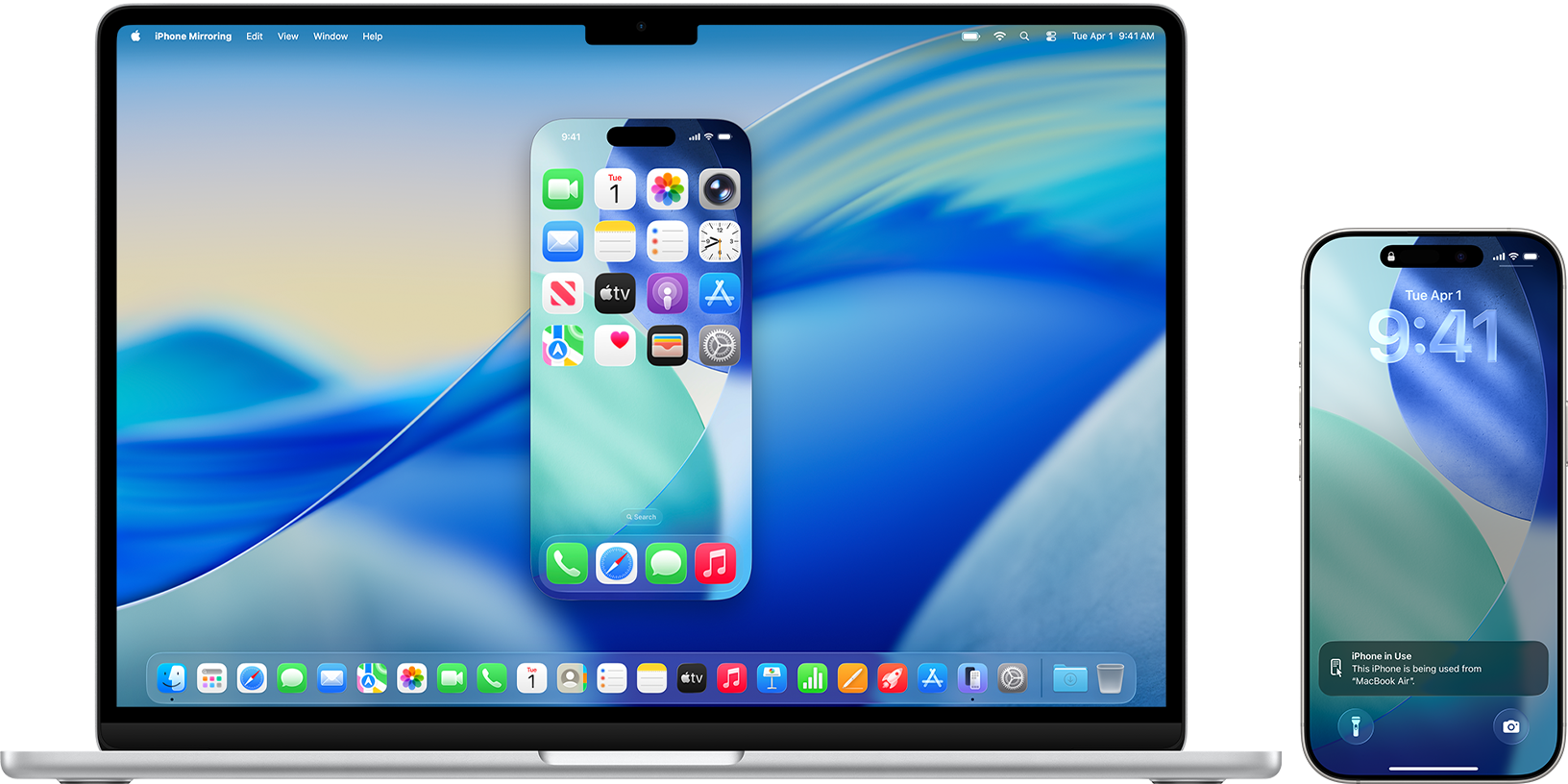
iPhone owners got a big boost with macOS Sequoia. The iPhone Mirroring feature lets you control your phone directly from your Mac. You can open apps, transfer files, see notifications, and more.
In macOS Tahoe, the iPhone integration has continued to improve—and you can now access your iPhone’s Live Activities from your Mac. Live Activities let you easily track tasks and events, giving you regular updates and offering more interaction than simple notifications.
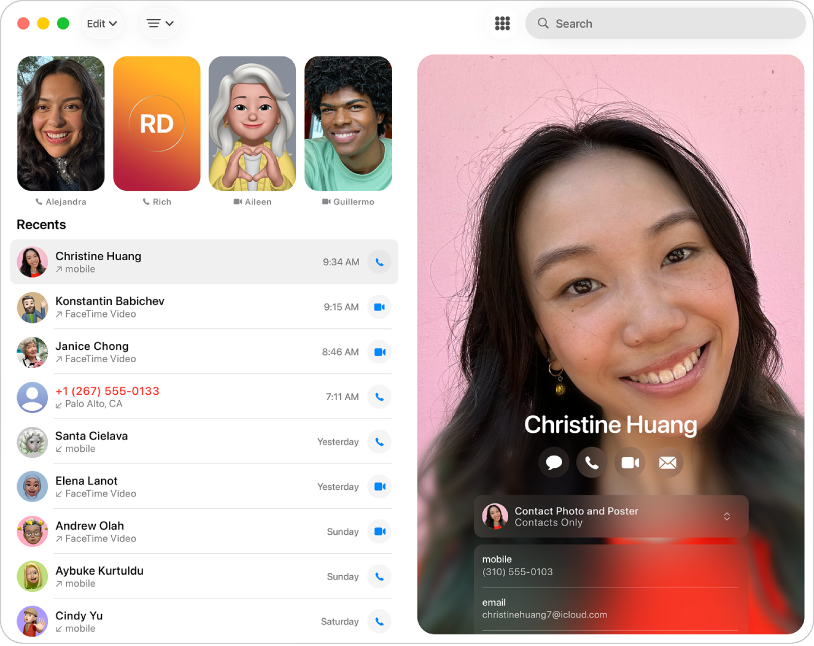
macOS Sequoia was the first version to feature iPhone mirroringIn macOS 26 Tahoe, you now have a new Phone app
6. Apple Intelligence and smart features
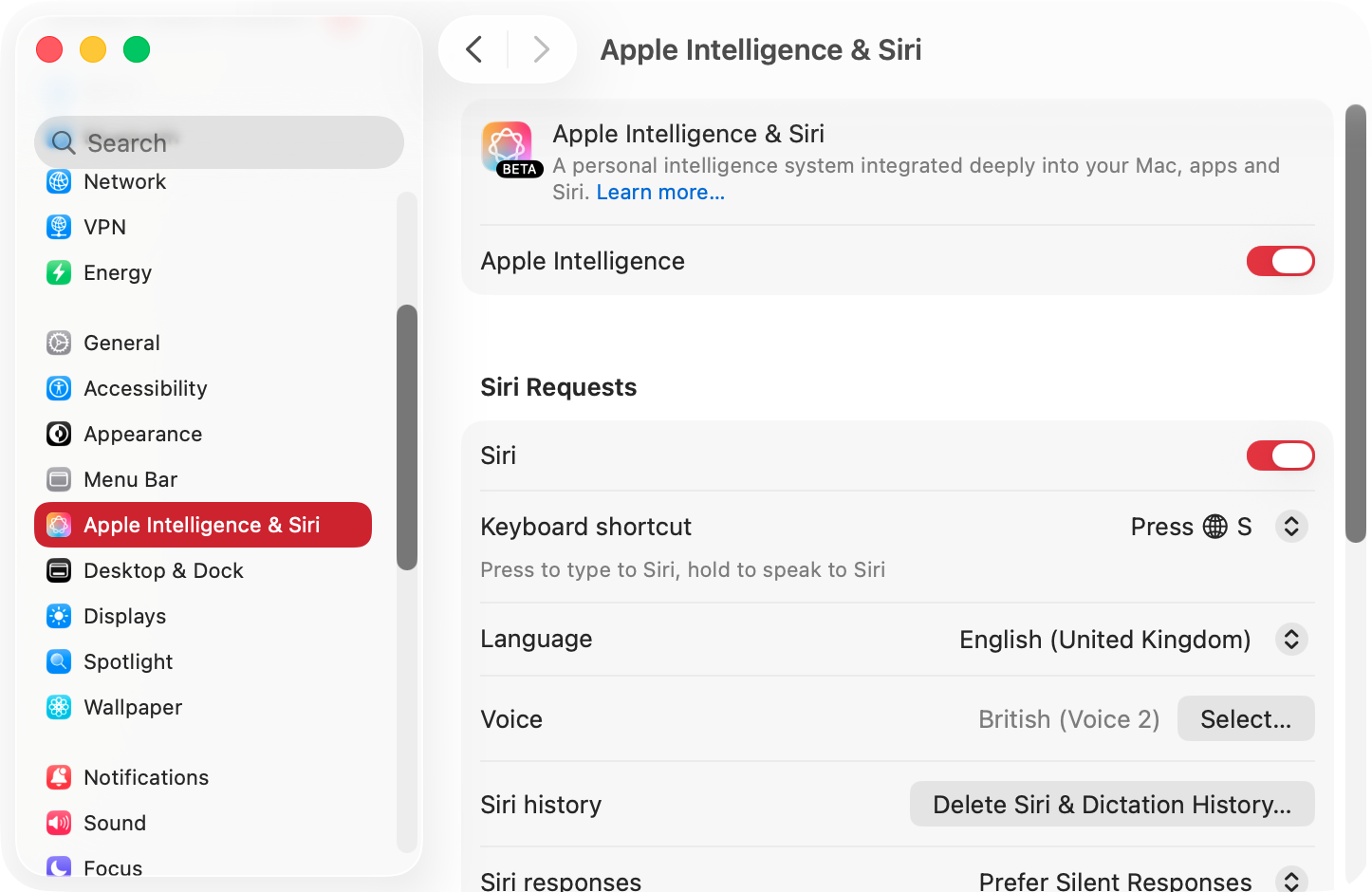
In Sequoia, Siri was enhanced with the addition of Apple Intelligence. It lets you use AI to automate everything from emails to image creation. In Tahoe, Apple has continued to build on that AI integration, but the key features are the same, including the ability to use ChatGPT in macOS.
Let’s continue our macOS Sequoia vs Tahoe comparison with a look at the built-in apps. Tahoe introduces a few new apps to your Mac.
First up, a new app for phone calls. Previously, you had to use the FaceTime app to do this, but now thanks to the dedicated Phone app, you don’t have to.
Next, another feature that uses your iPhone—Magnifier. You can already use your iPhone as a webcam, but with this feature, you can magnify images from your handset’s camera and see them on your Mac.
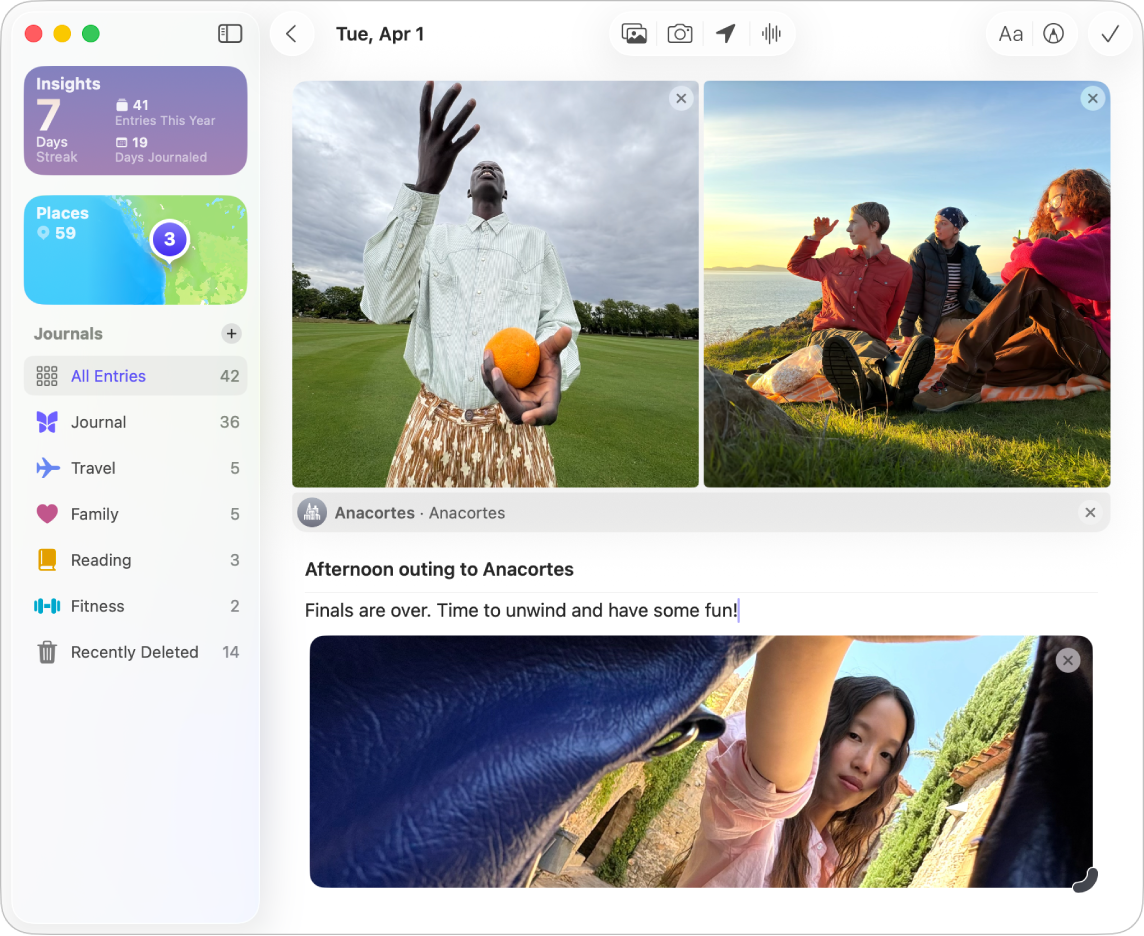
The new Journal app, meanwhile, lets you build a record of your life using photos, text, videos, audio recordings, and location data. This app was previously only available on iPhone and iPad.
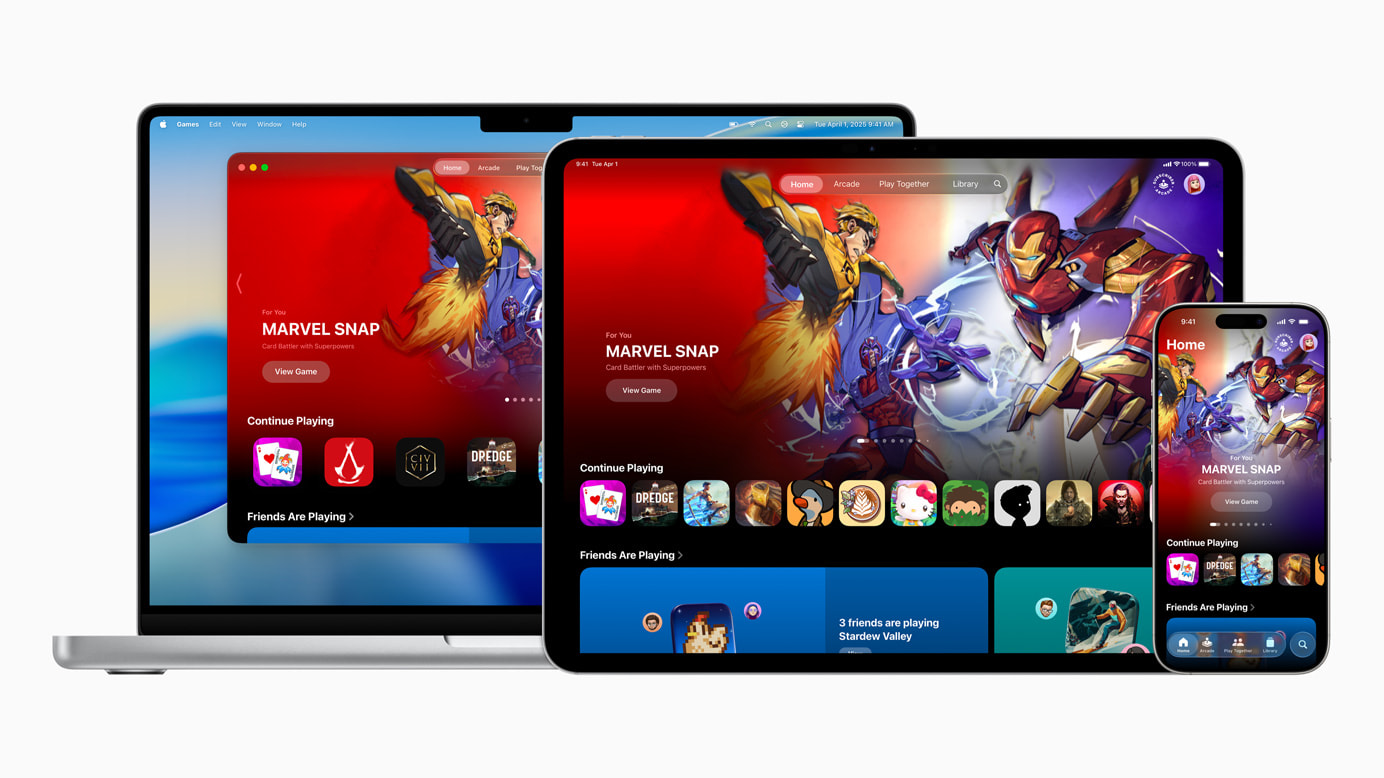
Last but not least, the new Games app. This shows you all the games on your Mac, and it includes a Game Overlay, which lets you see friends, adjust settings, and more.
Keep a record of your life with Tahoe's Journal appThere's a new Games app for Tahoe users
8. Performance and stability expectations
Whenever you upgrade your Mac’s operating system, the performance may change. Hopefully, your computer will be faster after you upgrade, but it can also go the other way, especially with older Macs.
In our personal experience, no recent macOS upgrades have had a noticeable effect on performance or stability. All Apple Silicon Macs, from the M1 upwards, can easily handle Sequoia and Tahoe. Older Intel Macs may work better with Sequoia. To be sure, you can test the MacBook performance.
9. Graphics performance and gaming
Rather than improving graphical performance, the gaming-focused updates in Tahoe revolve around usability. The new Games app is designed to bring all your gaming software into one place, as well as helping you connect with other players. It also integrates with the Games app for iPhone and iPad.
10. Compatibility and support
The age of the Intel Mac is now almost over. Tahoe is the last version of macOS that will support Intel machines, although they’ll continue to get security patches for a few more years. Being older, Sequoia supports older Macs, so it might be your only option if you have an Intel model.
Moving forward, Apple is fully focused on its Apple Silicon processors. These high-performance chips feature not only in Macs but also in iPads, offering even greater integration between your Apple devices.
Both Tahoe and Sequoia are actively supported by Apple, meaning they get regular security updates. In Tahoe, that includes Background Security Improvements, which are small updates, continually strengthening your defences. Other than that, there are no major new security features in Tahoe, compared to Sequoia.
Which is better for your MacBook: Tahoe or Sequoia?
This is what it all comes down to. In the battle of macOS Tahoe vs macOS Sequoia, which one should you choose?
For most people, we recommend upgrading to Tahoe. You’ll get all the latest features, it will be supported for longer, and you'll get a fresh experience.
You may want to keep Sequoia if you have an older Intel Mac that might struggle to run Tahoe. Also, if you don’t like the new design, it might be better to stick with what you’ve got.
Get smoother upgrades today
Whether you choose macOS Tahoe or Sequoia, you get a modern, easy-to-use operating system. Tahoe adds some cool new features, like the improved Spotlight and the new Games app, but nothing that you can’t live without. Sequoia is still a good OS, even if it is older.
If you do choose to upgrade, make sure you have enough space, using MacKeeper’s Safe Cleanup tool. In just a few clicks, you can delete all kinds of junk, including cached data, old log files, and unneeded language packs. Easy!
We respect your privacy and
use cookies
for the best site experience.
Privacy Preferences Center
We use cookies along with other tools to give you the best possible experience while using the
MacKeeper website. Cookies are small text files that help the website load faster. The cookies we
use don’t contain any type of personal data meaning they never store information such as your
location, email address, or IP address.
Help us improve how you interact with our website by accepting the use of cookies. You can change
your privacy settings whenever you like.
Manage consent
All cookies
These cookies are strictly necessary for enabling basic website functionality (including page
navigation, form submission, language detection, post commenting), downloading and purchasing
software. The website might malfunction without these cookies.