When you are struggling with a sidecar not working, the inability to extend your workspace across devices can disrupt your entire creative flow and productivity. MacKeeper’s Premium Services team offers 24/7 access to certified technical experts who can provide real-time, personalized guidance to resolve complex Apple ecosystem glitches and connection failures instantly.
To fix the sidecar not working, check that both devices have the same Apple ID signed in, with Wi-Fi and Bluetooth turned on. You may need to restart both devices, ensure they are close to each other, and check system requirements. If the problem persists, try signing out and back into your Apple ID on both devices, checking your firewall settings, or connecting with a USB cable.
What is Sidecar?
"Sidecar" is a native Apple feature that allows you to use your iPad as a second display for your Mac, extending or mirroring your desktop workspace. Essentially, this "extended workspace" lets you run multiple apps on each screen or use the Apple Pencil on your iPad to control Mac apps.
Why Sidecar might stop working?
Sidecar may stop working due to network connectivity issues like unstable Wi-Fi, Bluetooth being off, or devices being on different networks. We have seen that incorrect settings, such as not being signed into the same Apple ID or having Handoff disabled, are also common culprits, though VPN interference often triggers unexpected timeouts.
How to fix Sidecar not working?
In order to fix Sidecar not working, make sure both devices are near each other, signed into the same Apple ID, and have Wi-Fi, Bluetooth, and Handoff enabled. Restarting your devices or toggling these settings often resolves unexpected connection timeouts.
A note from our experts:
When contacts stop syncing, troubleshooting can turn into a long cycle of toggling iCloud, checking IDs, and restarting devices. MacKeeper is a macOS utility software developed by Clario Tech, and our Premium Services team uses professional diagnostic tools to identify contact-sync failures much faster than manual trial-and-error.
Here's how to use Premium Services to troubleshoot the issue quickly:
Open MacKeeper and choose Premium Services from the left sidebar.
Click Chat Now to connect with a certified expert trained in macOS and iCloud troubleshooting.
Open MacKeeper, click Premium Services in the sidebar, then choose Chat Now
1. Restarting Mac and iPad
Rebooting often resolves the handshake failure, causing your devices to disconnect without reason. We’ve found that a quick restart clears minor software glitches and refreshes background services responsible for Sidecar. It’s a reliable first step to try before digging into complex system settings or reconfiguring your entire iCloud account for your setup.
Follow our steps to restart your Apple device:
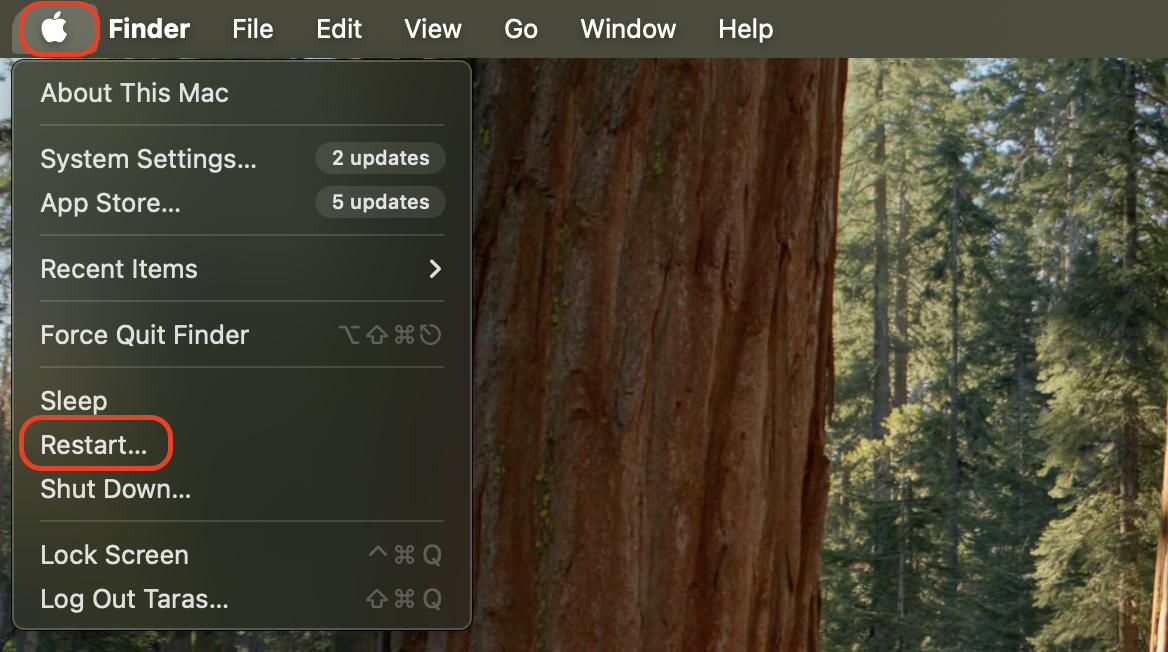
Click the Apple menu and select Restart.
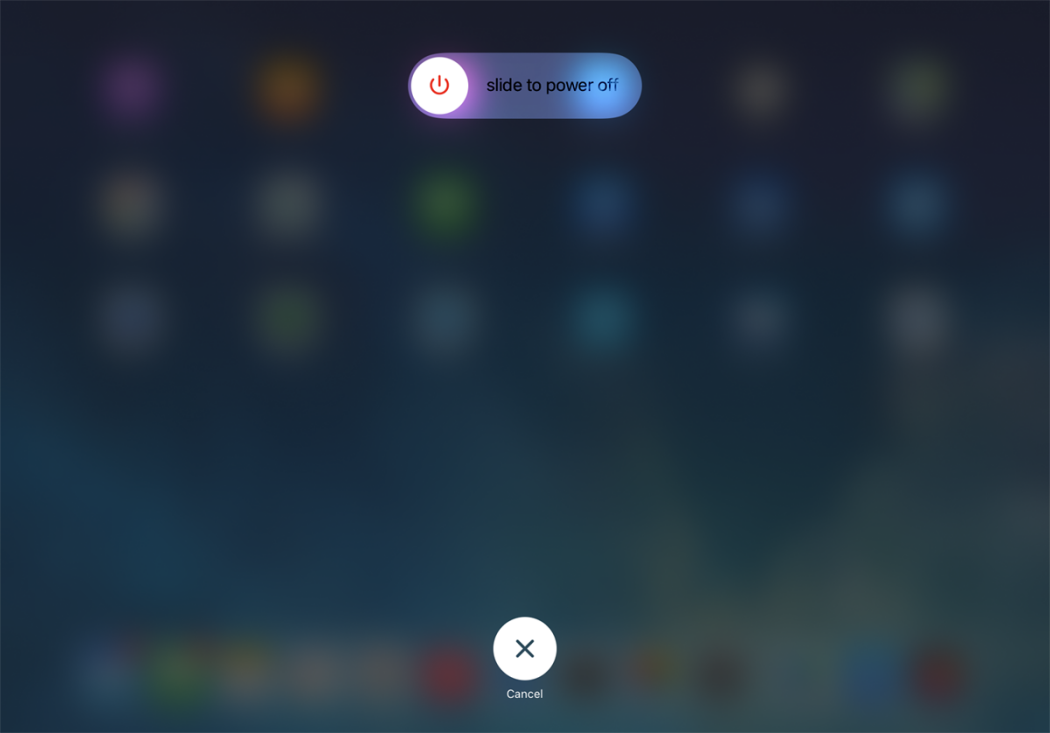
Hold the top and volume button until the slider appears.
Slide to power off, then turn the device back on.
Step 1. On Mac, click the Apple menu and select RestartStep 2. On iPad, hold the top and volume buttons until the slider appears
2. Updating macOS and iPadOS
Sidecar is sensitive to version mismatches between your hardware. We have noticed that this works best if you keep seeing a persistent, annoying device timed out error.
To update your devices:
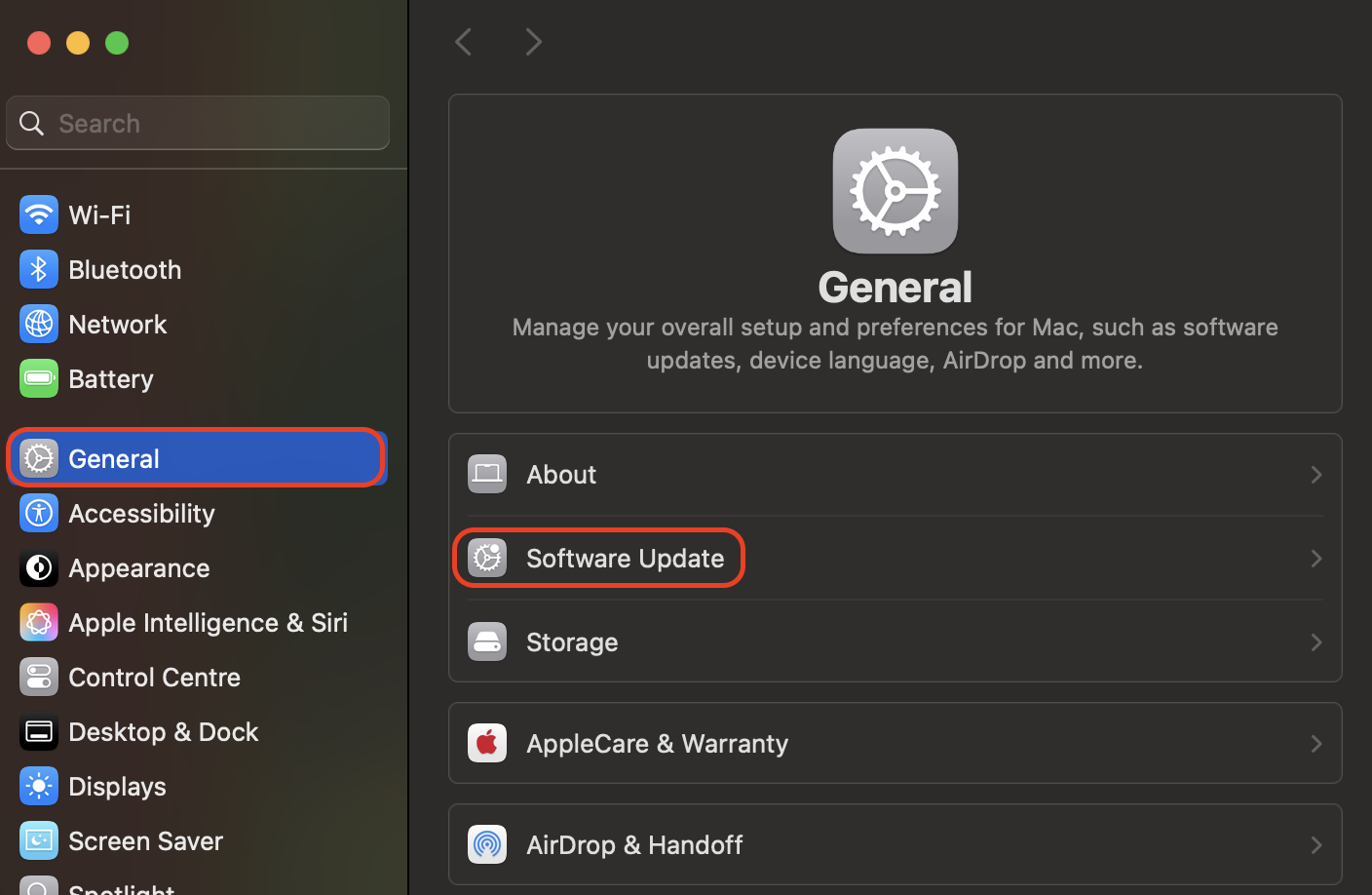
On Mac, click System Settings > General > Software Update.
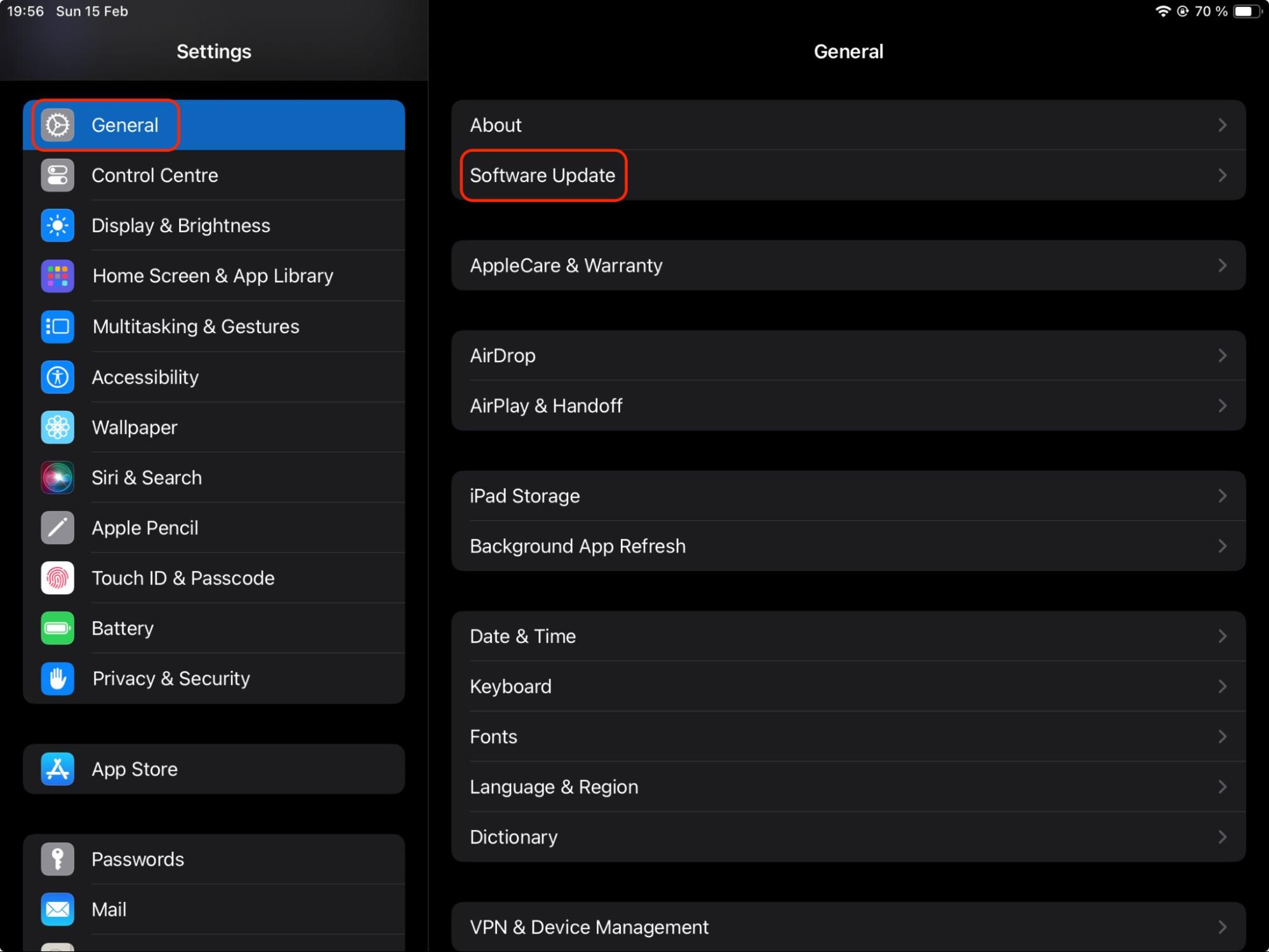
On iPad, navigate to Settings > General > Software Update.
Install all available updates.
Restart your devices.
Step 1. On Mac, click System Settings > General > Software UpdateStep 2. On iPad, navigate to Settings > General > Software Update
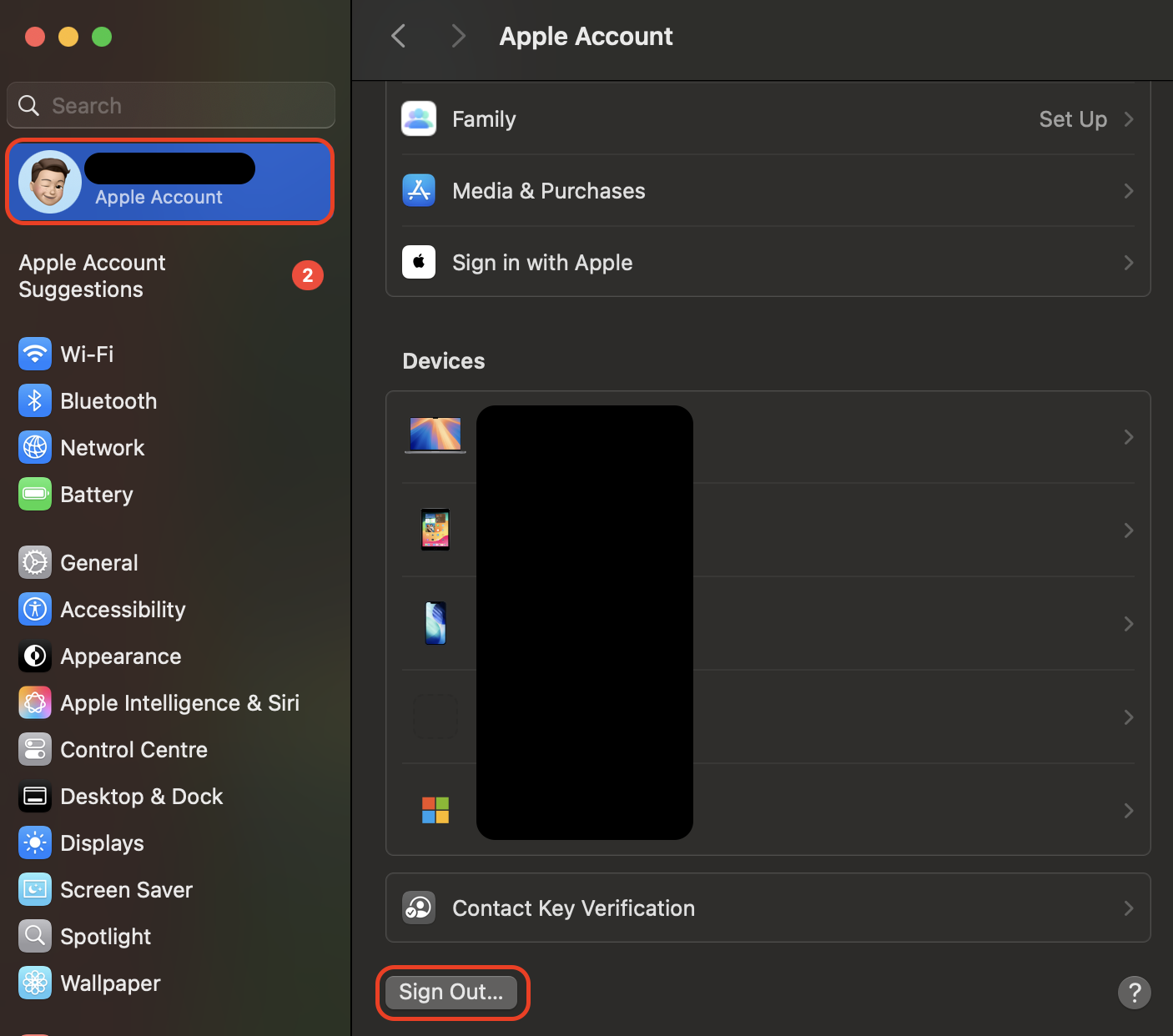
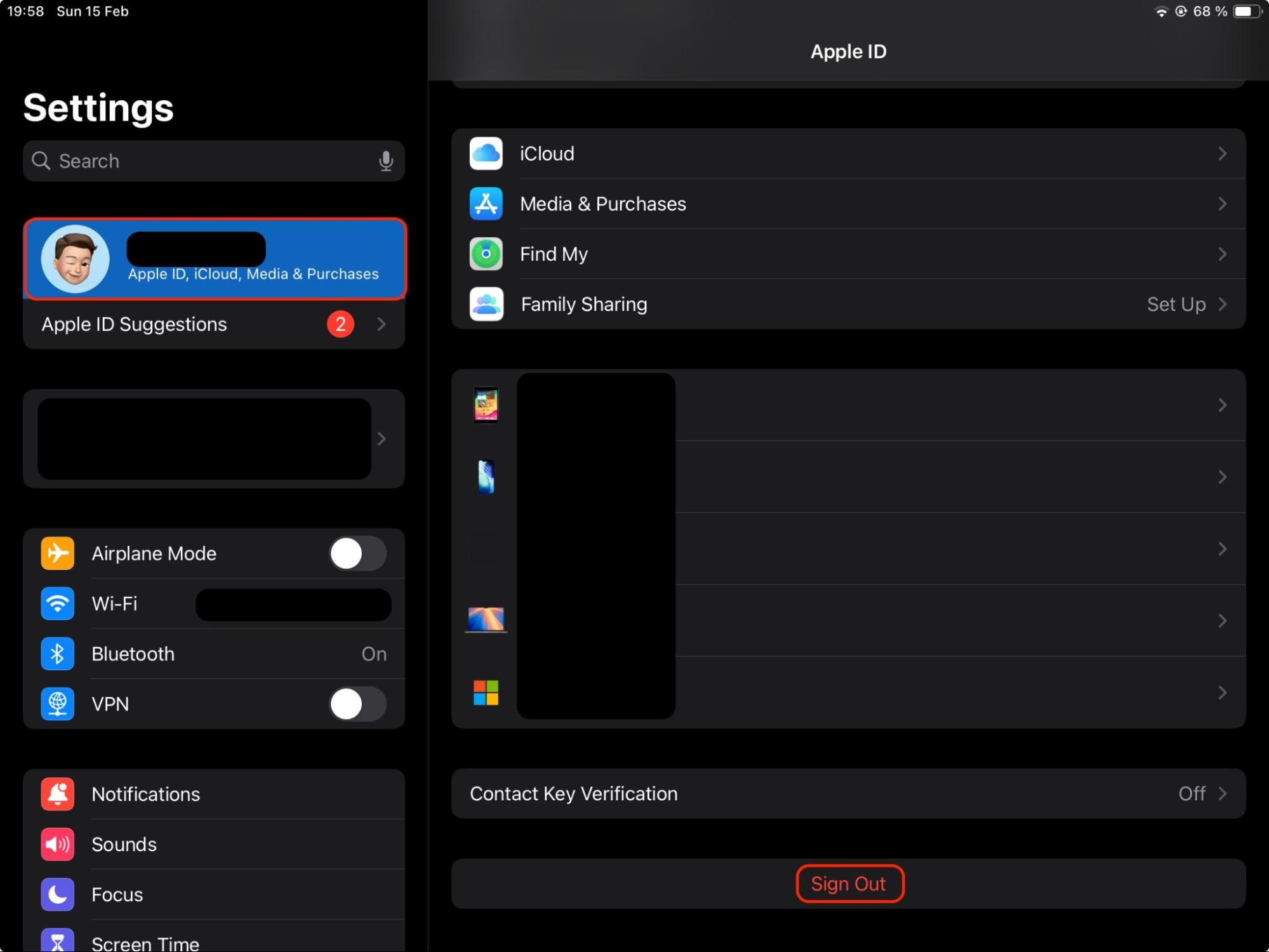
3. Signing out and in of Apple ID
Credential errors can silently block your devices from recognizing each other. If the system fails to verify your identity, you may need to reset Bluetooth and re-authenticate your account. This forces a fresh security handshake.
Below are the steps to refresh your account:
Click Sign Out in the Apple ID menu on Mac.
Tap your name in iPad Settings and choose Sign Out.
Sign back into both devices and reset Bluetooth.
Step 1. Click Sign Out in the Apple ID menu on MacStep 2. Tap your name in iPad Settings and choose Sign Out
4. Resetting NVRAM / SMC
When hardware settings become corrupted, your Mac might struggle with display outputs or wireless radios. Resetting the NVRAM or SMC fixes deep-seated issues that standard reboots cannot reach.
Here’s your guide for resetting hardware:
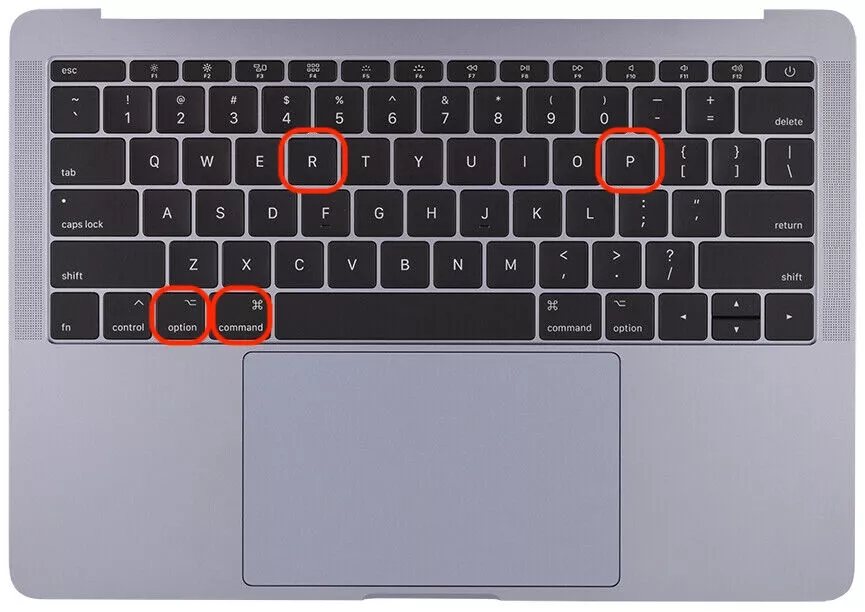
Shut down and hold Option + Command + P + R.
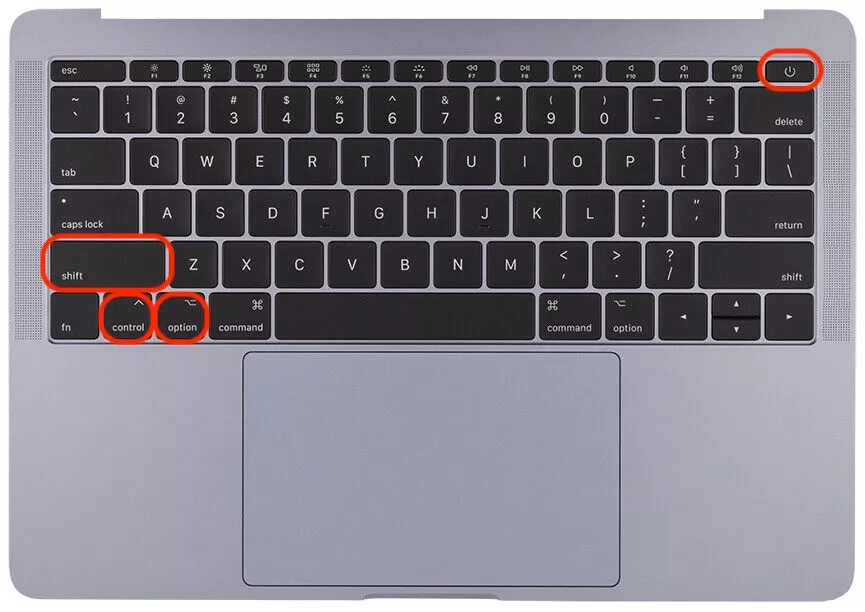
For SMC, hold Shift + Control + Option + Power.
Release the keys after ten seconds and restart normally.
Step 1. Shut down and hold Option + Command + P + RStep 2. For SMC, hold Shift + Control + Option + Power
5. Let connections in your firewall
A strict firewall can block communication between your iPad and your Mac. If you find your Bluetooth not working in tandem with Sidecar, your security settings might be the culprit. We recommend adjusting these rules to allow the specific signals your devices need to maintain a stable and permanent link.
To authorize the link:
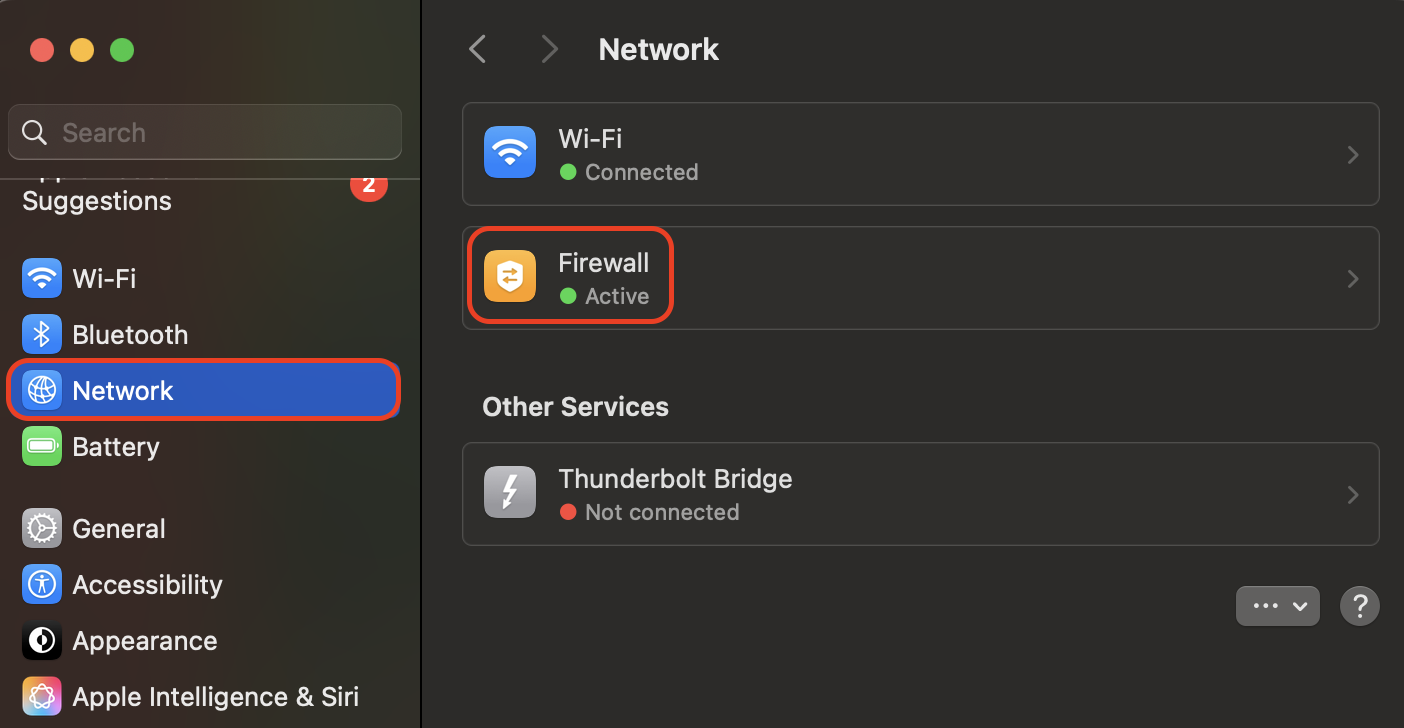
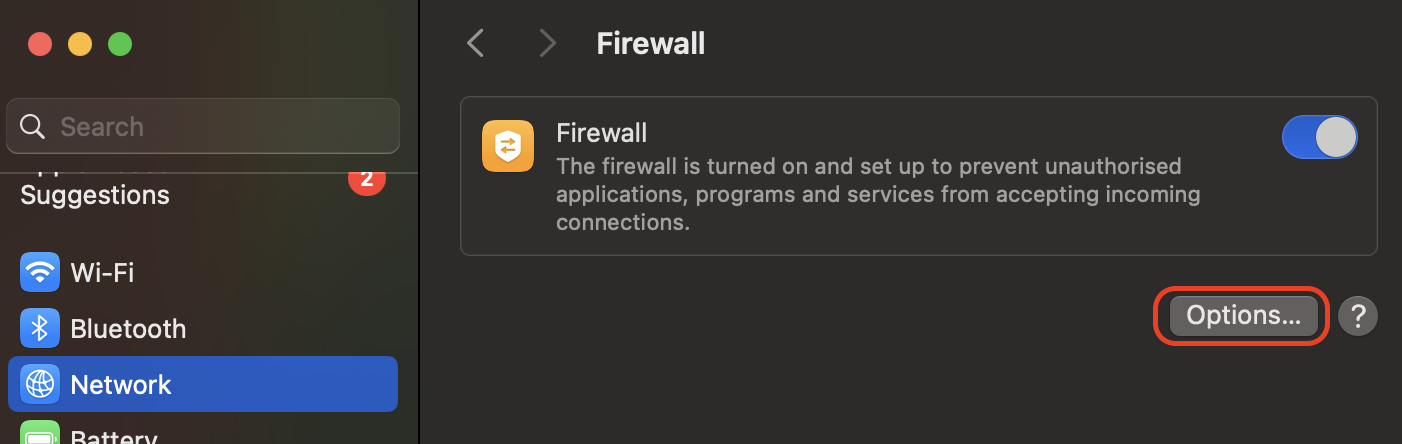
Navigate to System Settings > Network > Firewall > Options.
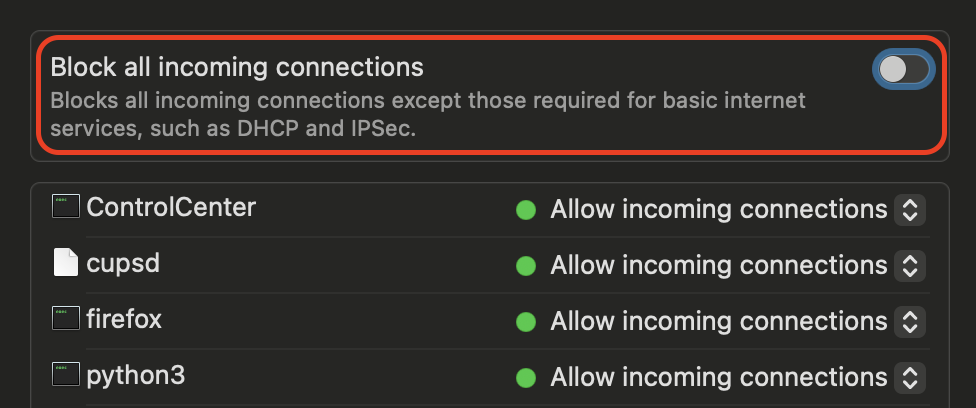
Uncheck the Block all incoming connections box.
Click OK to save and restart the connection.
Step 1. Navigate to System Settings > Network > FirewallStep 2. Click OptionsStep 3. Uncheck the "Block all incoming connections" box and click OK
6. Clearing cache and preferences
Over time, old configuration files build up and conflict with your current setup. Purging system caches removes obsolete data, causing the device to time out. We have seen that a clean preference folder often resolves stubborn, unexplained connection failures.
Follow our steps to purge cached data:
Go to ~/Library/Preferences in the Finder menu.
Delete all files starting with com.apple.sidecar beginning.
Restart your Mac to generate clean preference files.
Go to ~/Library/Preferences in the Finder menu and delete all files starting with "com.apple.sidecar"
Conclusion
Resolving Sidecar not working issues usually requires aligning your Apple ID, Wi-Fi, and Handoff settings across devices. Once you verify hardware compatibility and refresh your wireless connections, your iPad should function flawlessly as a secondary Mac display.
MacKeeper’s Premium Services will help you keep your system stable. If you’re still struggling, our certified experts can help you overcome connectivity fears and fix things manually in real time.
We respect your privacy and
use cookies
for the best site experience.
Privacy Preferences Center
We use cookies along with other tools to give you the best possible experience while using the
MacKeeper website. Cookies are small text files that help the website load faster. The cookies we
use don’t contain any type of personal data meaning they never store information such as your
location, email address, or IP address.
Help us improve how you interact with our website by accepting the use of cookies. You can change
your privacy settings whenever you like.
Manage consent
All cookies
These cookies are strictly necessary for enabling basic website functionality (including page
navigation, form submission, language detection, post commenting), downloading and purchasing
software. The website might malfunction without these cookies.