How do you fix the spacebar on your MacBook when it’s not working? By reading our guide—but if you need extra help, try MacKeeper’s Premium Services for instant tech support at any time, seven days a week.
If the spacebar isn’t working on your Mac, it could be due to physical damage to the keyboard or dirt stuck under the key itself. However, this problem can also be caused by software issues, such as bugs in macOS and compatibility issues with third-party apps. We suggest that you check the keyboard is clean and dry first before moving on to more advanced fixes.
How to fix spacebar not working on Mac?
If your Mac spacebar isn’t working, first visually inspect the keyboard itself. Look for dirt, crumbs, and other contaminants, and try to carefully remove it. Blowing a can of compressed air into the keys can help with this. Also, look for signs of moisture. Spilled drinks and other liquids can stop the keyboard from working. If it’s clean and dry, restart your Mac. You can also reset the SMC and NVRAM (or PRAM) if you have an Intel Mac.
A note for our experts:
MacBook spacebar problems can sometimes be caused by serious faults. If you find yourself in that situation, reach out to our Premium Services team for expert help:
Click Chat Now and explain your issue to our online agent.
MacKeeper's Premium Services team are available 24/7
1. Remove dust from keyboard
Dust and other debris can get your MacBook spacebar stuck and prevent it from working. You can use a can of compressed air to blow out whatever is stuck there.
You might also be able to shake debris loose, but be careful doing this with a MacBook. With external keyboards, you can usually get away with a lot more vigorous shaking.
It’s also possible to remove the spacebar and clean underneath with isopropyl alcohol. However, we wouldn’t advise doing this if your MacBook spacebar is sticking, because laptop keys are often difficult to get back on.
2. Ensure keyboard connection
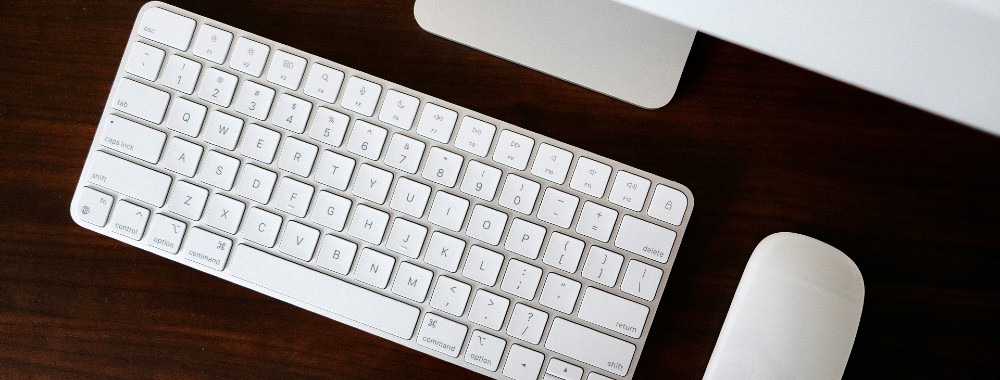
Do you have an iMac, Mac mini, Mac Studio, or Mac Pro? With all these models, you need an external keyboard, so we advise making sure it’s connected properly to your Mac.
If you have a USB keyboard:
Check it’s fully plugged into your Mac.
Try using a different USB port.
Check the USB cable isn’t damaged.
If you have a Bluetooth keyboard:
Try turning Bluetooth off and on again on your Mac.
Turn the keyboard off and on again.
Check your keyboard is charged or has fresh batteries.
Make sure your keyboard is in Bluetooth range of your Mac.
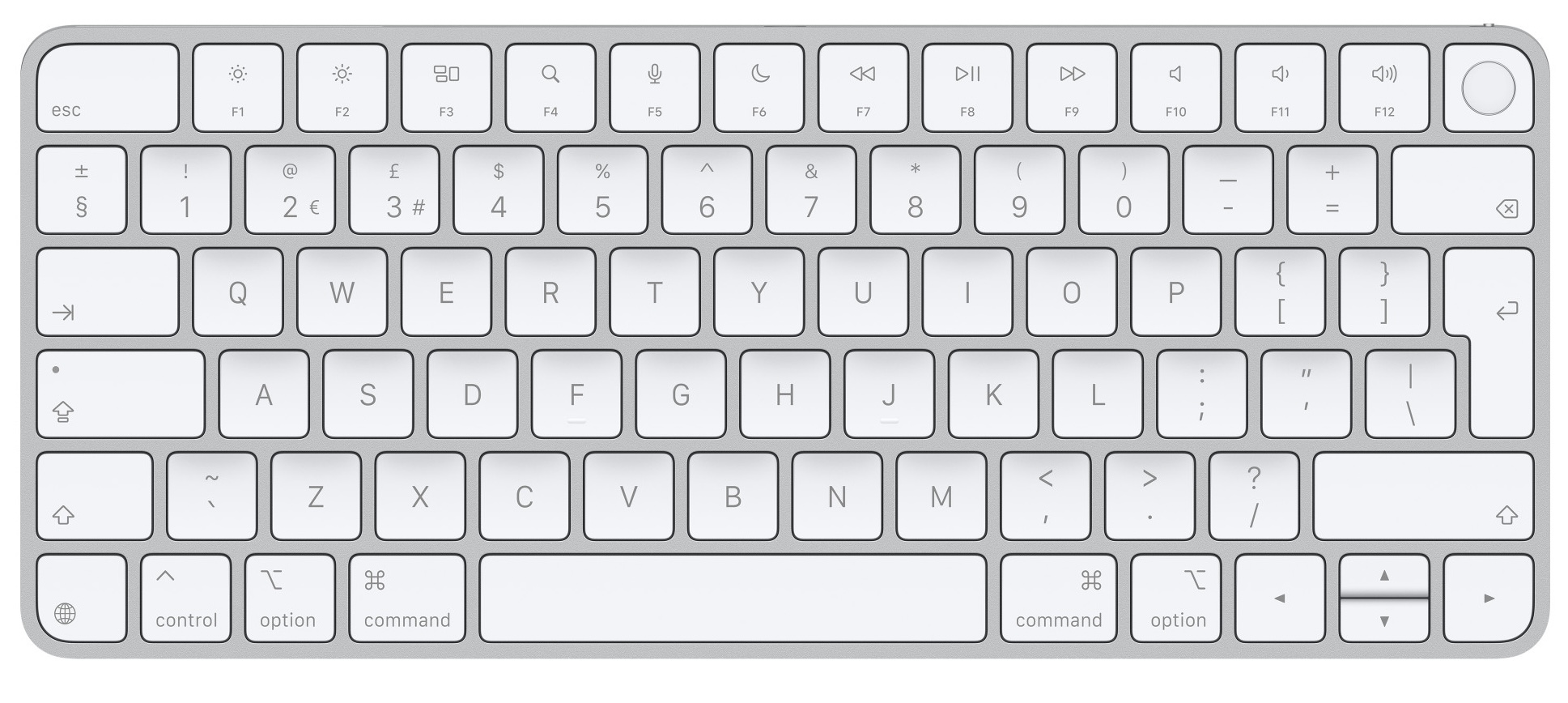
Apple's Magic Keyboards can connect via Bluetooth or USB
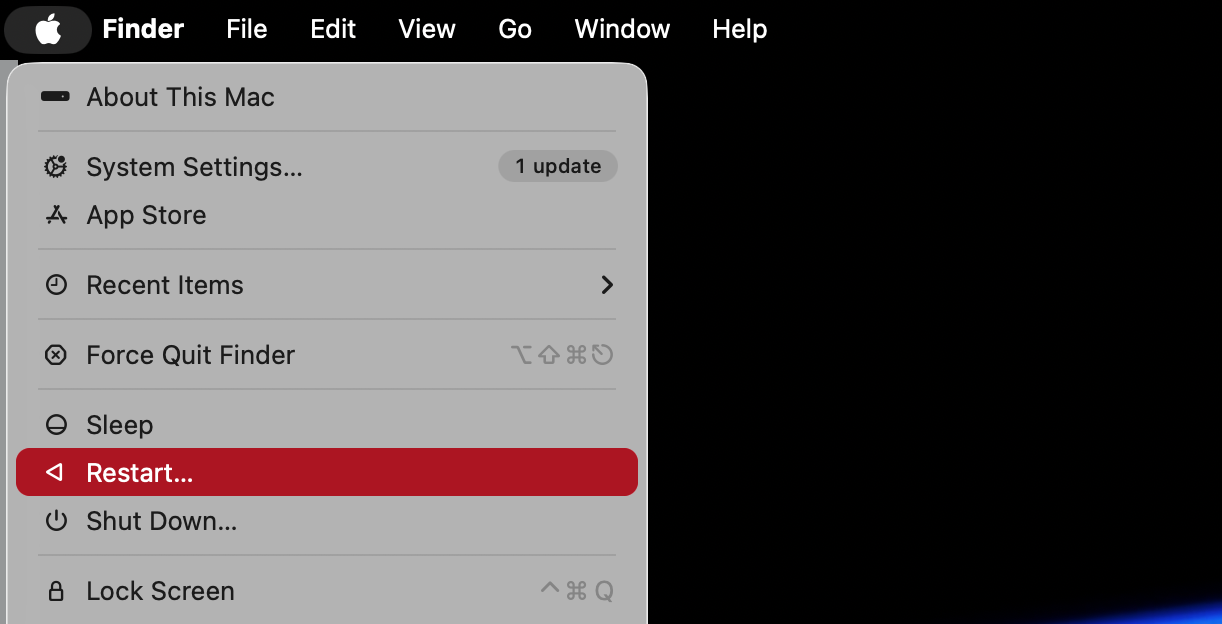
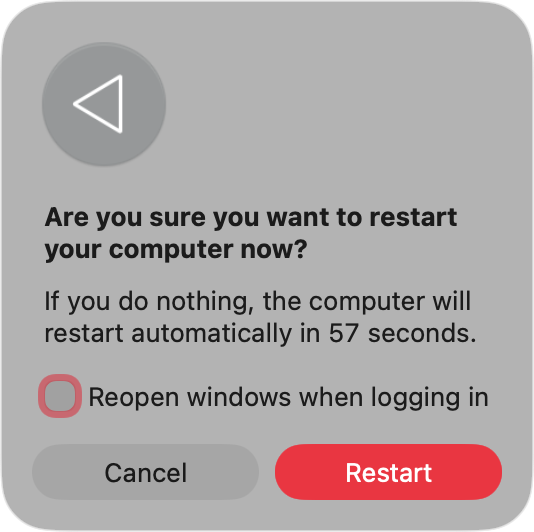
Temporary problems can also cause your spacebar to stop working on your Mac. To clear them, you simply need to restart your computer, like this:
Click the Apple icon in the top left of your screen.
Select Restart.
Click the Restart button.
When you’re back in macOS, check your spacebar.
Step 1. Select Restart from the Apple menuStep 2. Click the Restart button
5. Check for malware
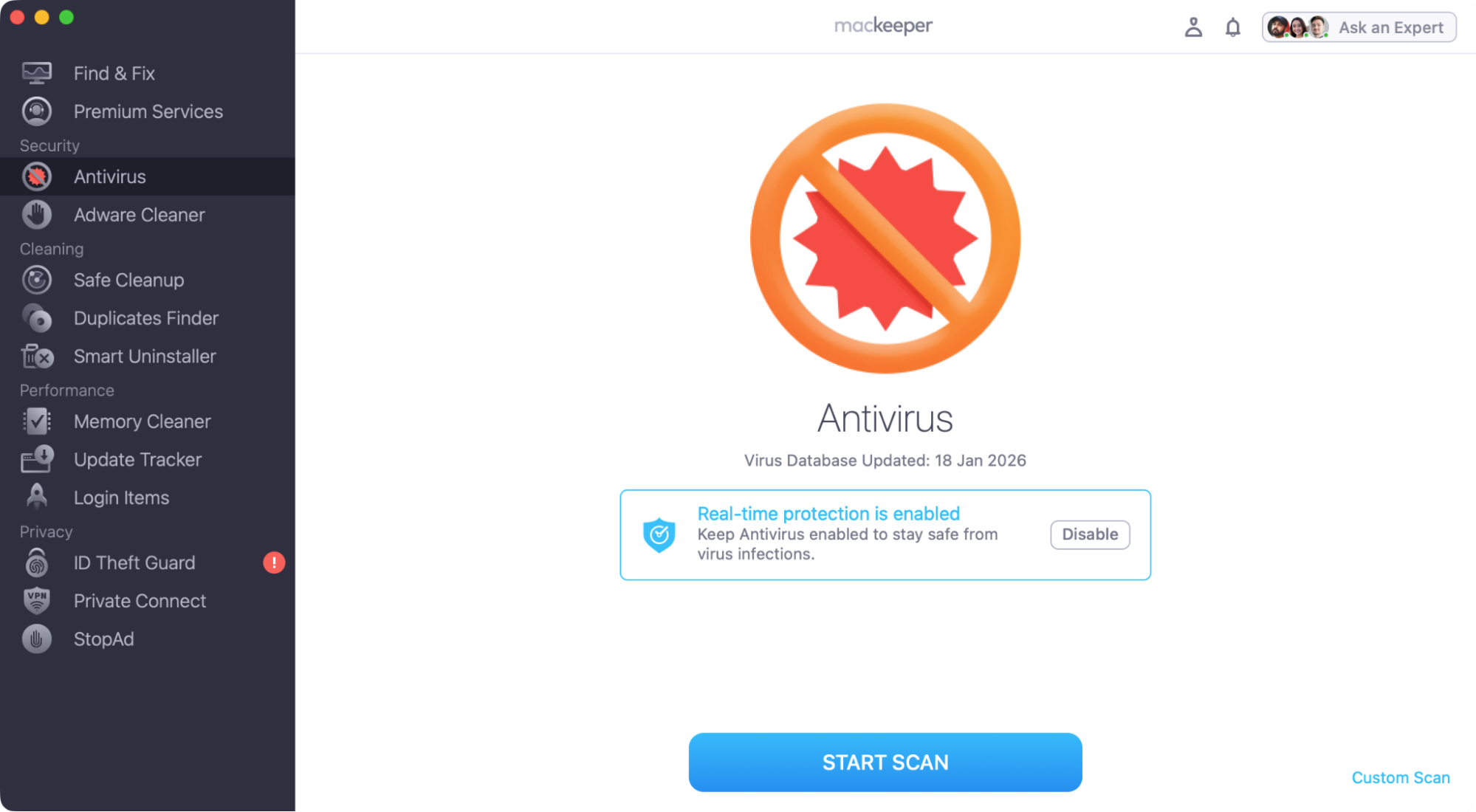
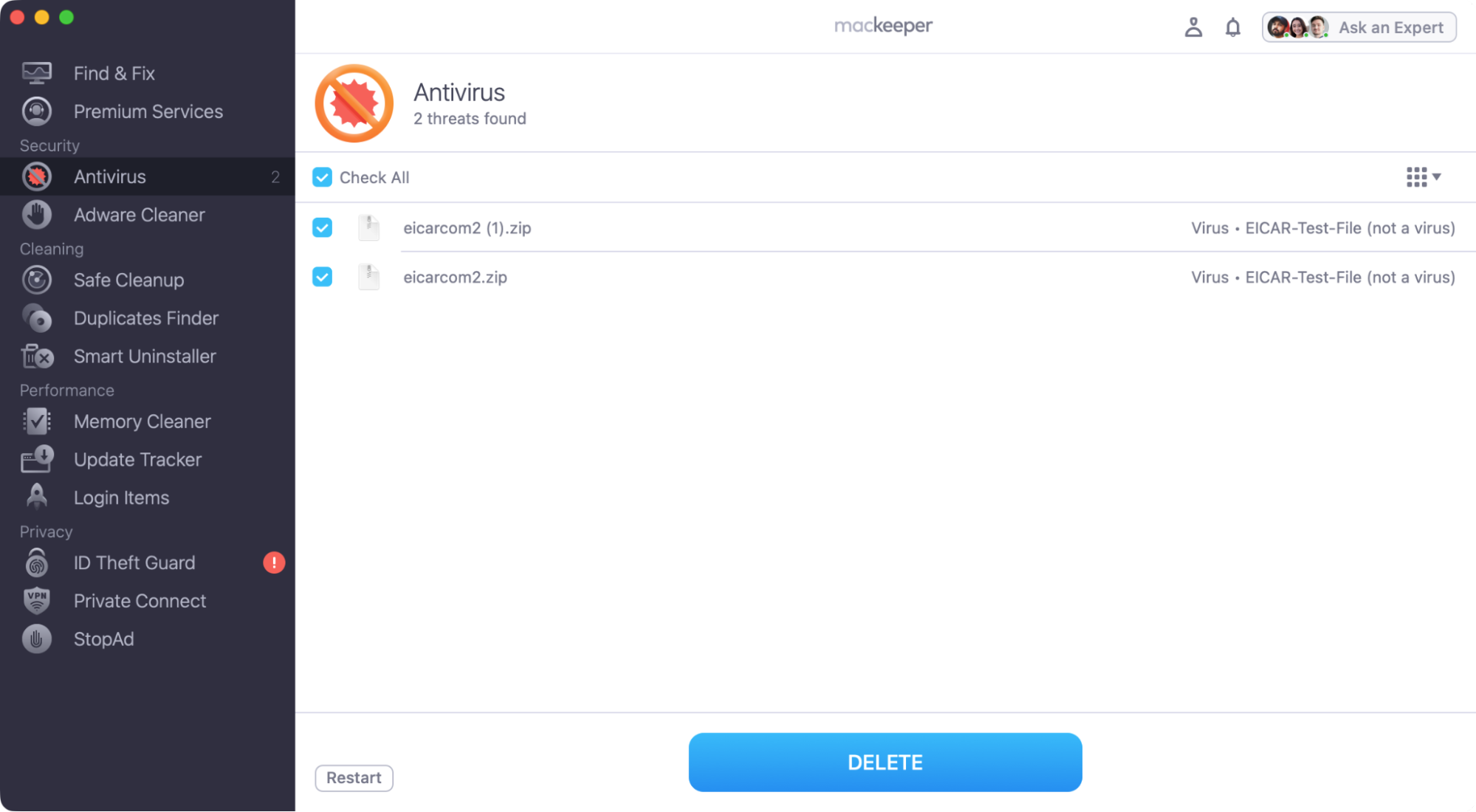
Sadly, your Mac spacebar issue might be caused by a virus or some other form of malware. We recommend checking your computer with MacKeeper’s Antivirus:
If MacKeeper finds malware, select it and click Delete.
Now see if your spacebar is working.
Step 1. Choose Antivirus, and click Start Scan
6. Reset SMC
On an Intel Mac, the SMC (System Management Controller) controls various power-related functions, which may affect your keyboard. Resetting the SMC may help.
To reset the SMC on an Intel MacBook with a T2 Security Chip:
Turn off your MacBook.
Press and hold down Left Ctrl+Left Opt+Right Shift.
Wait seven seconds, then press and hold the power button too.
Let your Mac turn on.
To reset the SMC on an Intel MacBook without a T2 chip:
Shut down your MacBook.
Press and hold Left Shift+Left Ctrl+Left Opt+Power for 10 seconds.
Turn your MacBook back on.
To reset the SMC on an Intel desktop Mac:
Shut down your Mac, and unplug the power cable.
Wait 15 seconds, then plug the power back in.
Wait five seconds, then turn on your Mac.
After resetting your SMC, log back into macOS and see if your spacebar is working.
7. Update your macOS
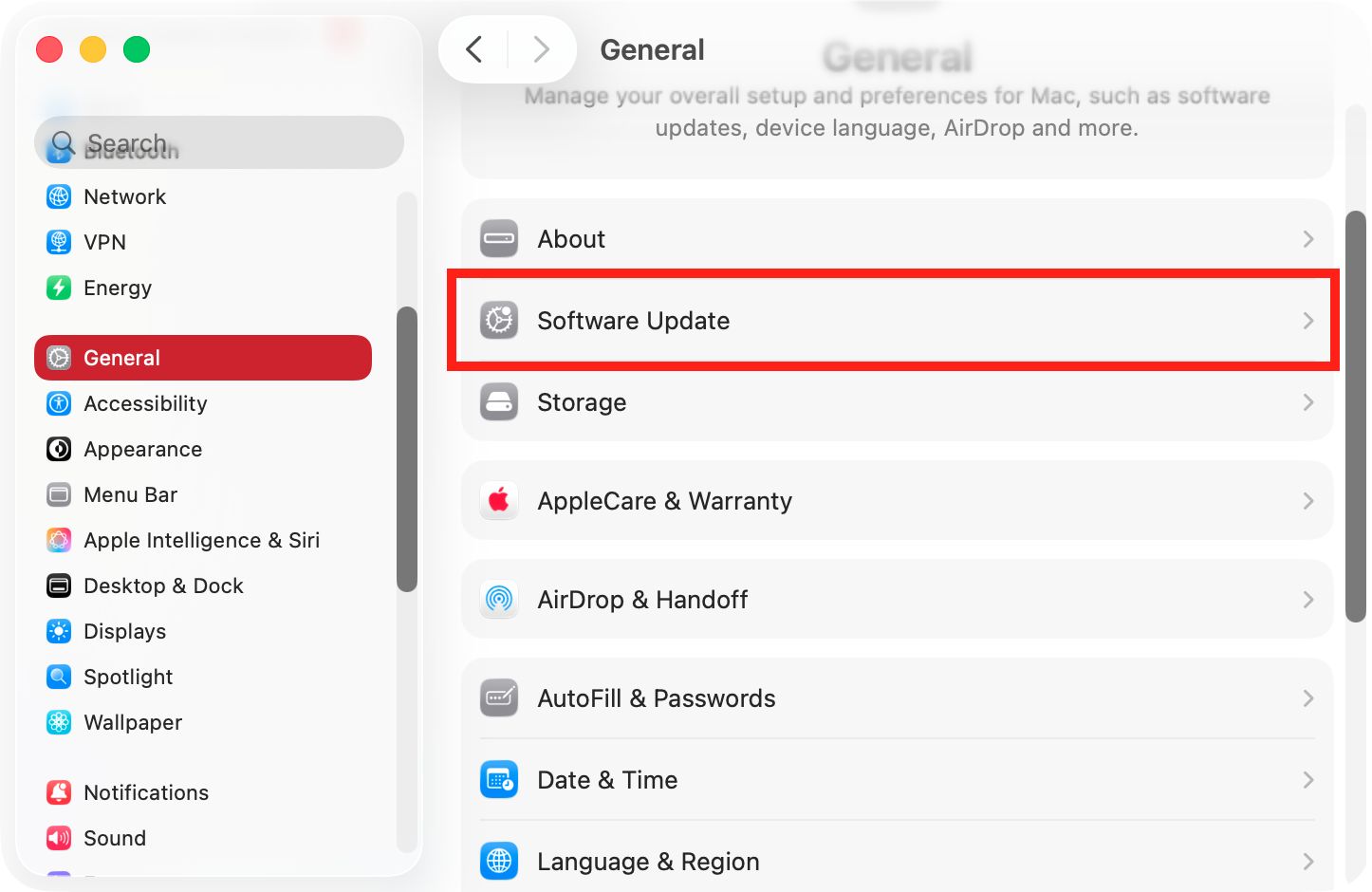
Although rare, bugs do occasionally creep into macOS. We highly recommend checking if your Mac is up to date if your spacebar isn’t working. Here’s how:
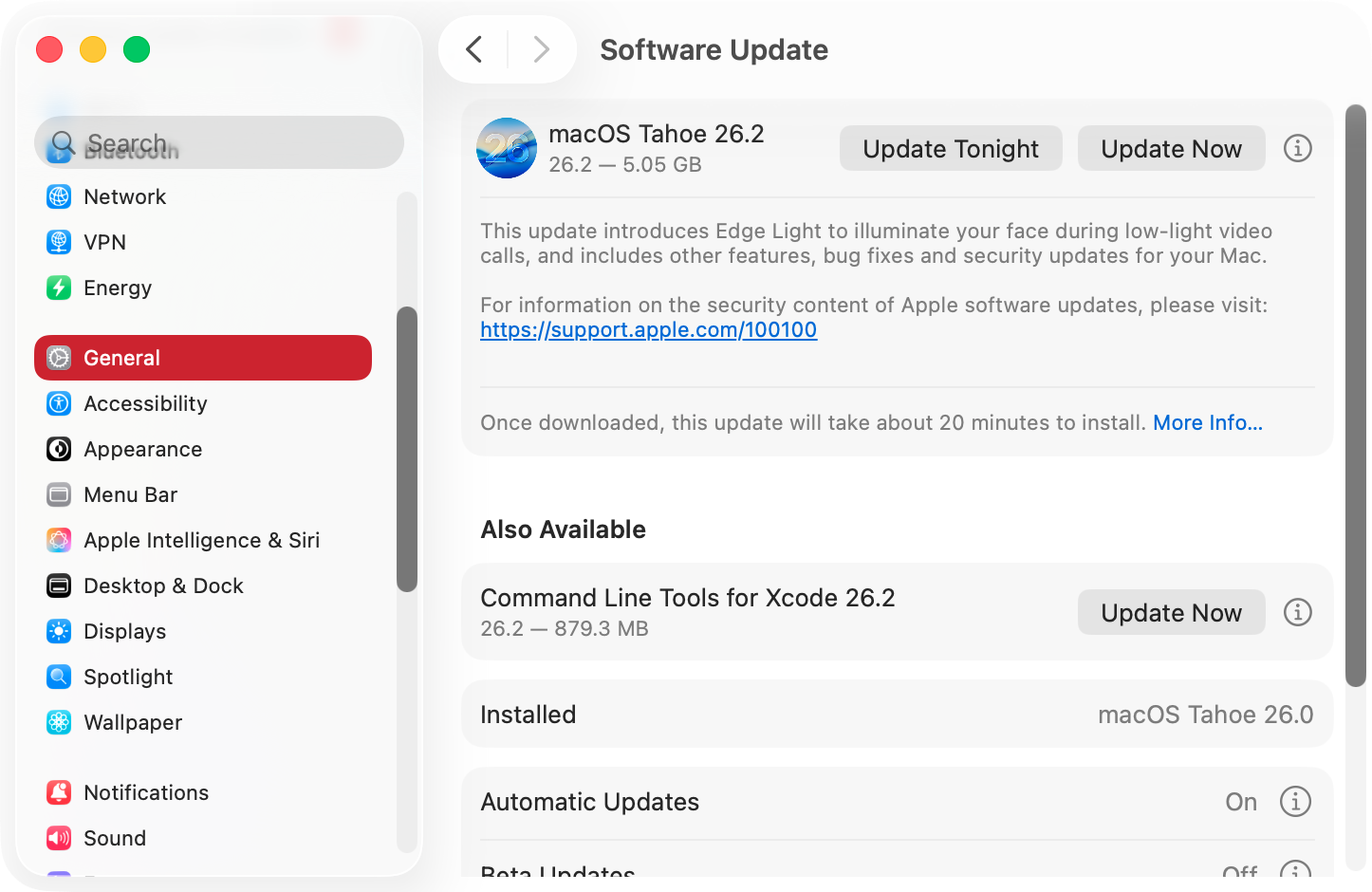
Open System Settings, and go to General > Software Update.
If you see an update, click Update Now.
Follow the instructions on screen to install the update.
Restart your Mac, and see if your spacebar is fixed.
Step 1. Select General > Software UpdateStep 2. Apply any updates that are waiting
Our extra hint:
You can also update macOS from the command line. Read our guide on how to open Terminal on macOS for more information about how this tool works.
8. Reset NVRAM or PRAM
Resetting NVRAM or PRAM can fix the spacebar on your MacBook. To reset NVRAM or PRAM on an Apple Silicon Mac, simply restart your machine.
Do as follows to reset NVRAM or PRAM on an Intel Mac:
Turn off your Mac.
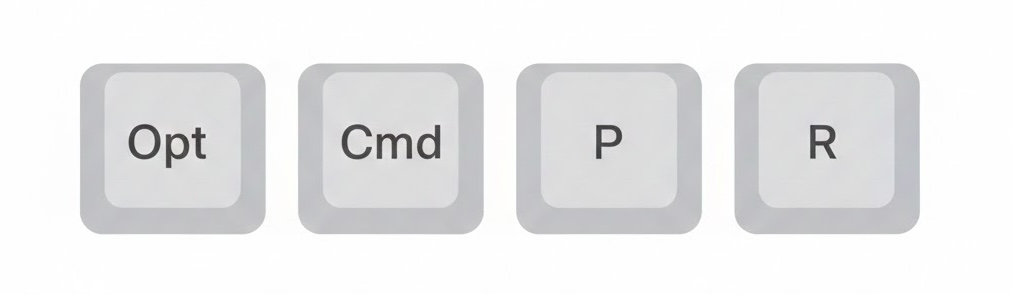
Turn your Mac back on, and immediately press and hold Opt+Cmd+P+R for around 20 seconds. Your Mac might restart more than once.
Check to see if your spacebar is working properly.
Hold Opt+Cmd+P+R to restart your NVRAM or PRAM
9. Replace your keyboard
If you have an external keyboard, and you can’t get it working, you might need to buy a new one.
Of course, if you can’t fix the spacebar on your MacBook, you can’t simply replace the keyboard. If your MacBook is under warranty or covered by AppleCare, reach out to Apple for help. Otherwise, seek third-party expert support (use your Mac’s Secure Empty Trash feature before giving your Mac to anyone else).
Don’t get lost in spacebar problems
If the spacebar on your Mac is stuck or not working, it’s probably caused by dirt or a temporary software issue. A quick bit of cleaning and a restart is usually enough to get your spacebar working again.
Hopefully, one of our fixes has got you back on track, but if you need more support, you know what to do—reach out to MacKeeper’s Premium Services team. They’re experts in all things Apple, and they’re ready to help at any time.
We respect your privacy and
use cookies
for the best site experience.
Privacy Preferences Center
We use cookies along with other tools to give you the best possible experience while using the
MacKeeper website. Cookies are small text files that help the website load faster. The cookies we
use don’t contain any type of personal data meaning they never store information such as your
location, email address, or IP address.
Help us improve how you interact with our website by accepting the use of cookies. You can change
your privacy settings whenever you like.
Manage consent
All cookies
These cookies are strictly necessary for enabling basic website functionality (including page
navigation, form submission, language detection, post commenting), downloading and purchasing
software. The website might malfunction without these cookies.