Seeing a high CPU alert for Imagent Mac can be incredibly frustrating when you're trying to stay productive, but identifying this background process is the first step toward reclaiming your system's speed. Our team at MacKeeper offers a specialized Memory Cleaner tool that instantly detects and terminates resource-hungry daemons like imagent.
Imagent is a background macOS process that listens for incoming FaceTime and iMessage invitations, even when the apps are closed. It resides within the IMCore framework and manages instant messaging features. Fortunately, you can stop it by logging out of FaceTime and iMessage to free up system resources and significantly boost speed.
Definition of imagent on Mac
Imagent Mac process is a core background daemon that facilitates Apple’s communication services by listening for incoming FaceTime calls and syncing iMessage data across your devices. It remains active even when messaging apps are closed, so you never miss a notification. If it begins consuming excessive CPU, logging out of FaceTime and iMessage, or force-quitting the process can immediately restore your Mac's performance and responsiveness while cooling down your hardware effectively.
Why imagent use so much memory or CPU on Mac?
Imagent usually starts hogging resources when message syncing gets stuck or if there's a conflict with your iCloud login. We've seen this happen quite often after a macOS update, where the process gets trapped in a loop trying to process old FaceTime invitations or iMessage data. Our tests show that these spikes are often temporary, but they can cause significant lag and high fan noise until the process is manually refreshed or the accounts are re-linked.
A note from our experts:
Looking for a quick way to boost your MacBook’s performance? Since MacKeeper is a leading solution in Mac optimization and cybersecurity, we’ve verified that its Memory Cleaner is the ideal tool for terminating resource-hungry background daemons like Imagent that drain your RAM. It is a fast and reliable utility that optimizes memory in real time, ensuring you’ll have a smoother, faster Mac experience without worrying about software conflicts.
To get expert help with MacKeeper’s Memory Cleaner:
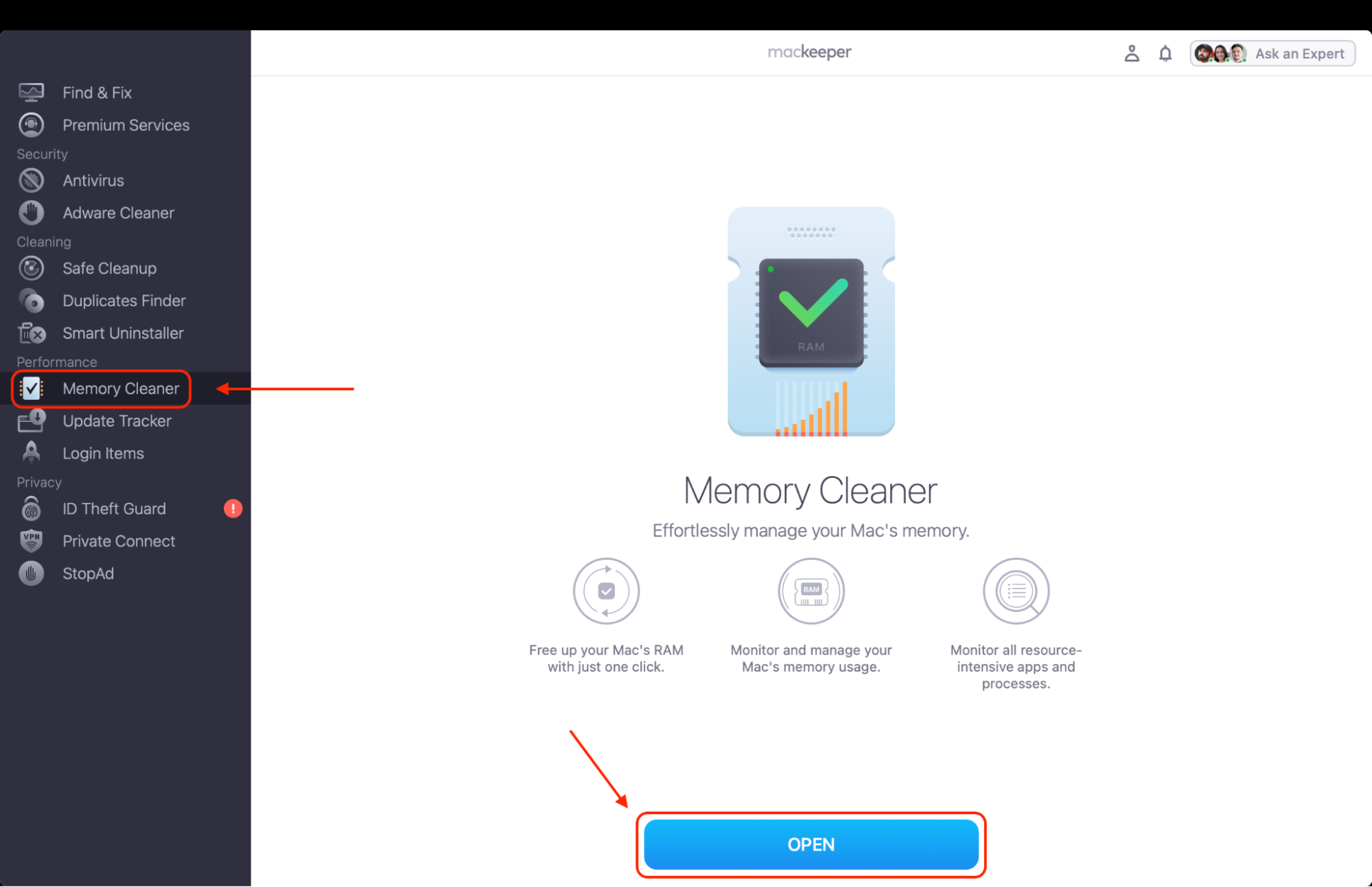
Select Memory Cleaner from the left-hand sidebar and click Open.
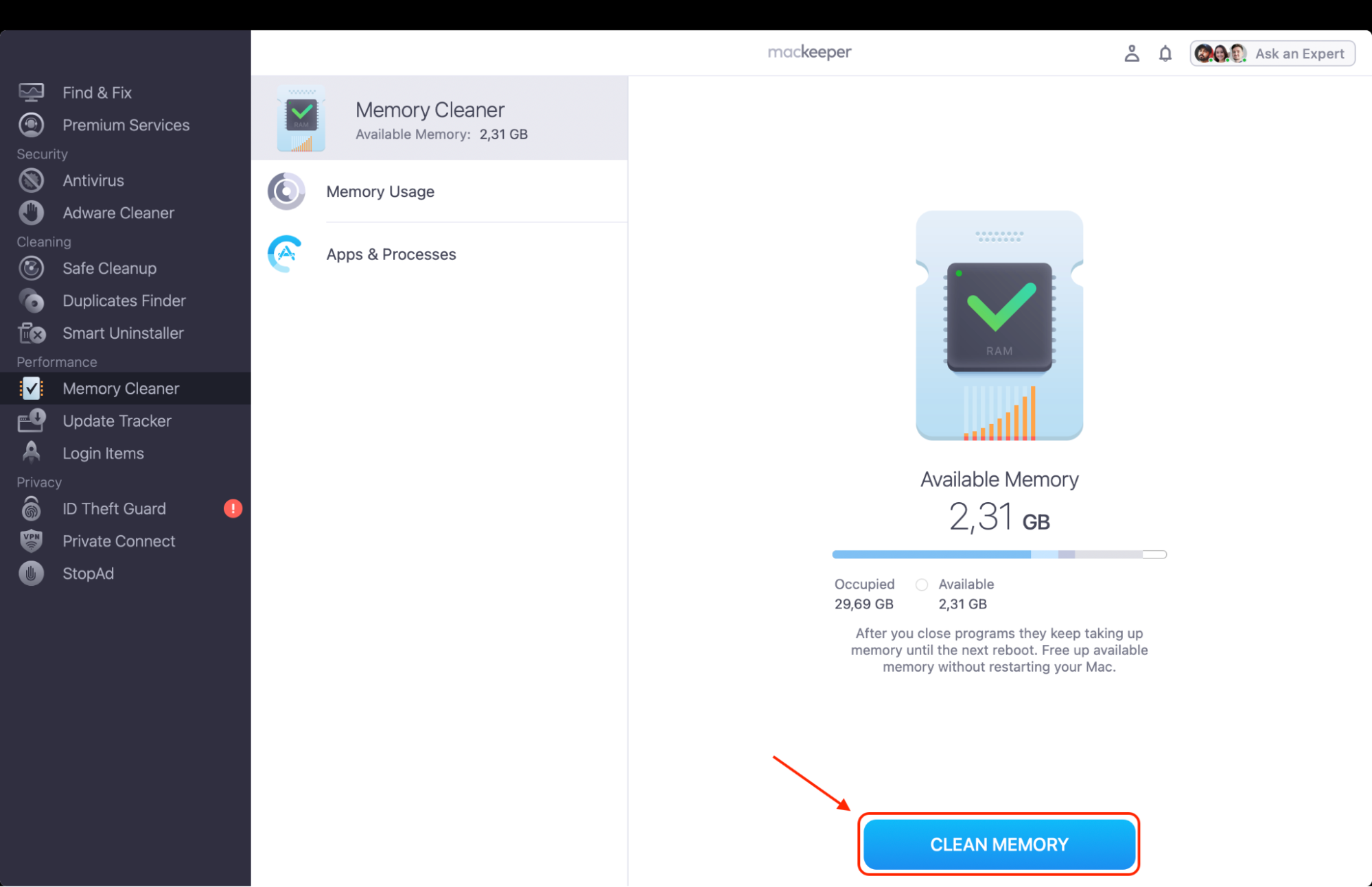
Review your Memory usage and the Apps & Processes list to see if Imagent is consuming excessive resources.
To reclaim your RAM and speed up your system, simply press Clean Memory.
Step 1. Open MacKeeper, go to Memory Cleaner, and click OpenStep 2. Look through your Memory usage and press Clean Memory to clear RAM
How to fix Imagent uses so much memory or CPU on Mac?
If you notice your fans spinning loudly, we've found that resetting the Imagent process is usually the quickest fix for high CPU or memory usage. This background daemon often gets stuck in a loop during iCloud syncing or after a system update. Based on our tests, you can resolve these performance issues by refreshing your messaging accounts or manually terminating the process in Activity Monitor to restore your Mac's speed.
1. Log out and back into Messages
In our experience, Imagent issues are often tied to account authentication errors within the Messages app. If you’re struggling with system lag, learning how to open Activity Monitor on a Mac is the most effective way to identify if Imagent is the specific daemon hogging your CPU.
Use these instructions to reset your login:
Open the Messages app and navigate to the top menu bar to find Settings.
Go to the iMessage tab and click the Sign Out button to disconnect your Apple ID.
Confirm by clicking Sign Out again when the prompt appears on your screen.
Go to the iMessage tab and click the Sign Out button to disconnect your Apple ID
2. Disable and enable FaceTime
Since Imagent is the primary agent for FaceTime invitations, we suggest refreshing your FaceTime settings if the CPU usage remains high. Our experts recommend checking the MacBook Control Center for connectivity issues or cycling the app service to clear the queue.
Here’s a quick guide to do it:
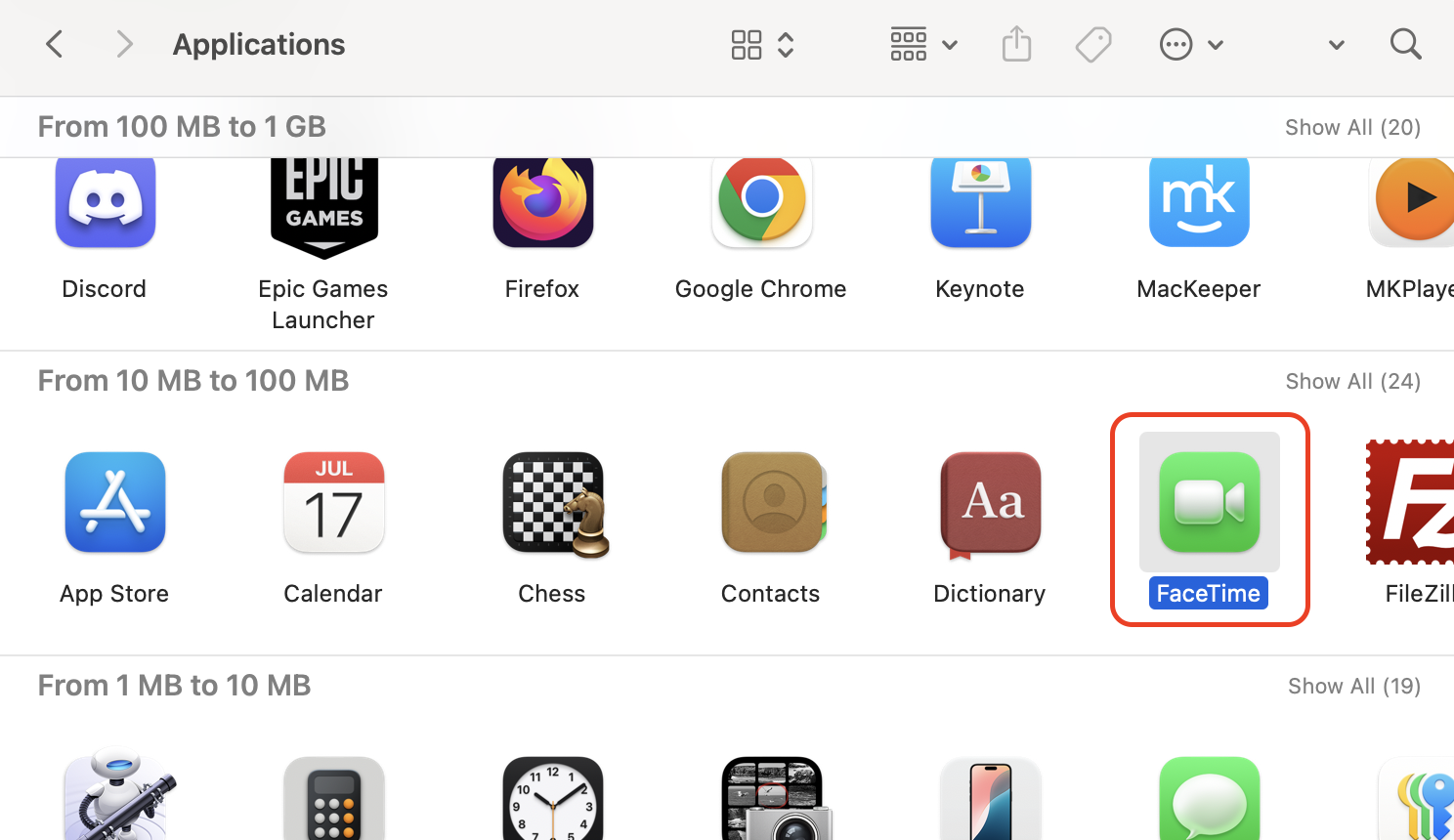
Launch the FaceTime application from your Applications folder.
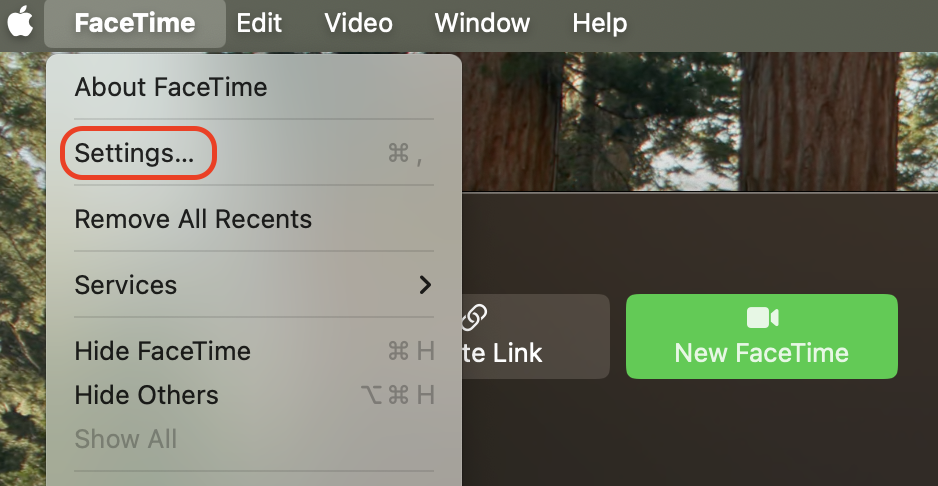
Go to the menu bar at the top and select FaceTime > Settings.
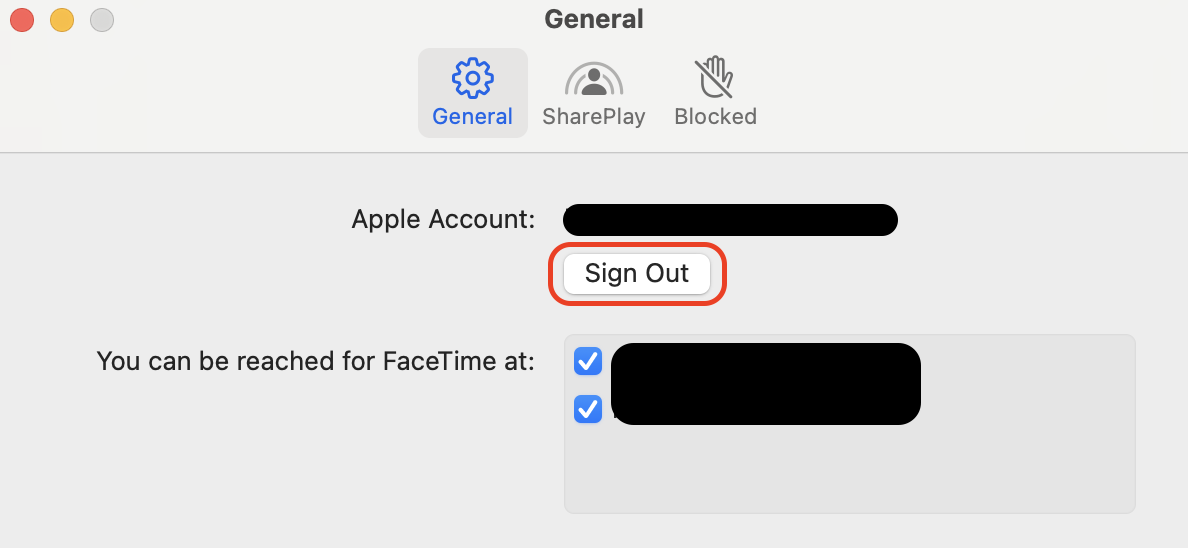
In the General tab, look for your Apple Account, and click Sign Out.
Step 1. Launch the FaceTime application from your Applications folderStep 2. Go to the menu bar at the top and select FaceTime > SettingsStep 3. In the General tab, look for your Apple Account and simply click Sign Out
3. Force quit the process via Activity Monitor
When a process is totally unresponsive, we find that a manual "kill" command is the most direct way to reclaim your resources.
Open Activity Monitor and use the CPU or Memory tabs to sort active tasks.
Use the search bar in the top-right corner to type "imagent" and isolate the process.
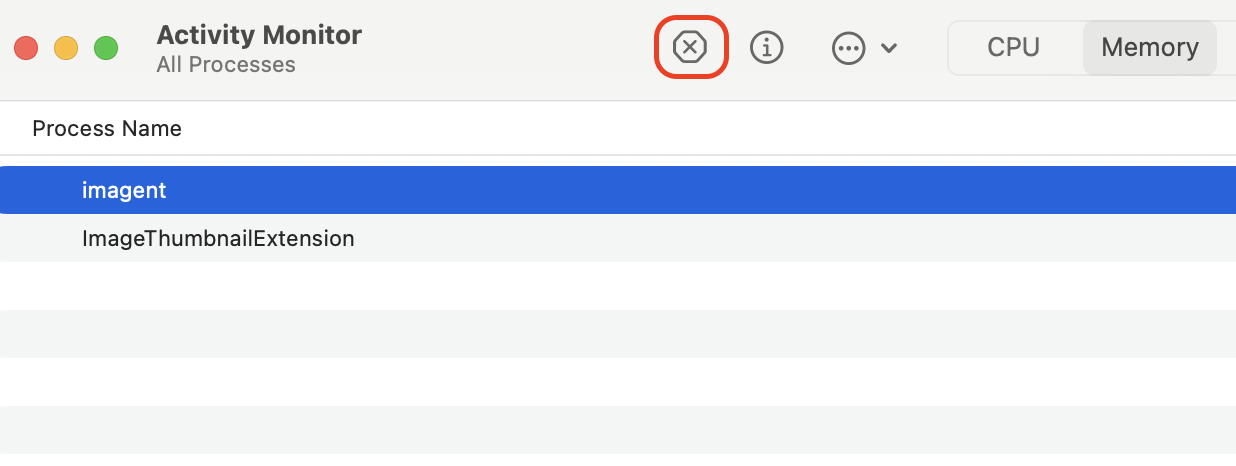
Highlight the Imagent entry and click the X button at the top of the window.
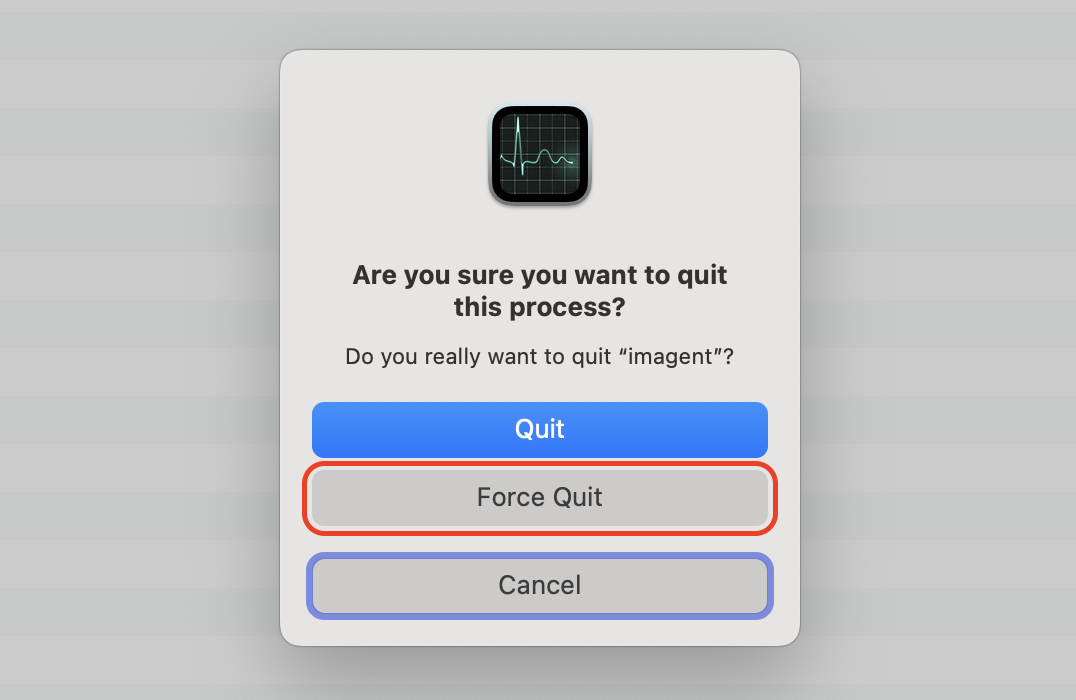
Select Force Quit to immediately stop the process and free up your system's RAM.
Step 1. From the Activity Monitor, highlight the Imagent entry and click the X button at the top of the windowStep 2. Select Force Quit
4. Update your macOS software
We always recommend keeping your system up to date, as Apple frequently releases patches for known memory leaks.
If you’re unsure how to open Activity Monitor on Mac to verify the fix afterward, perform the following:
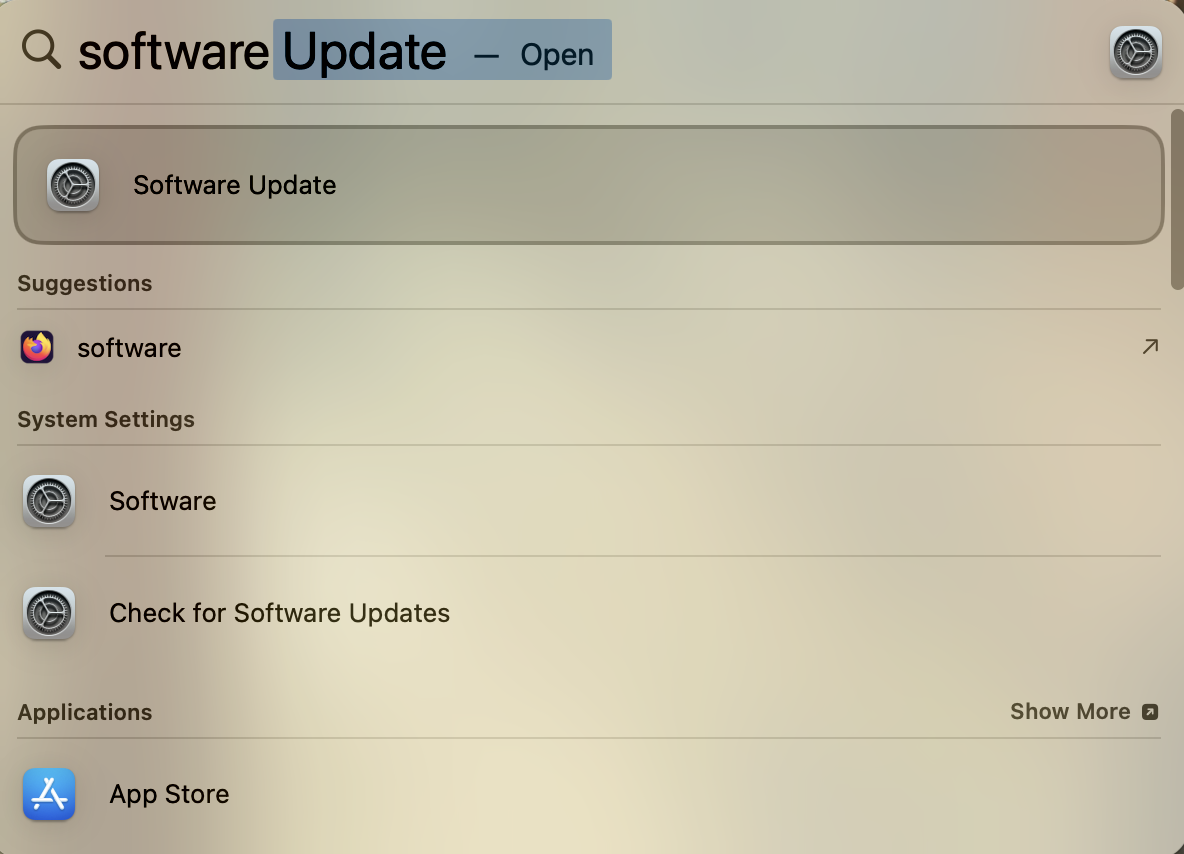
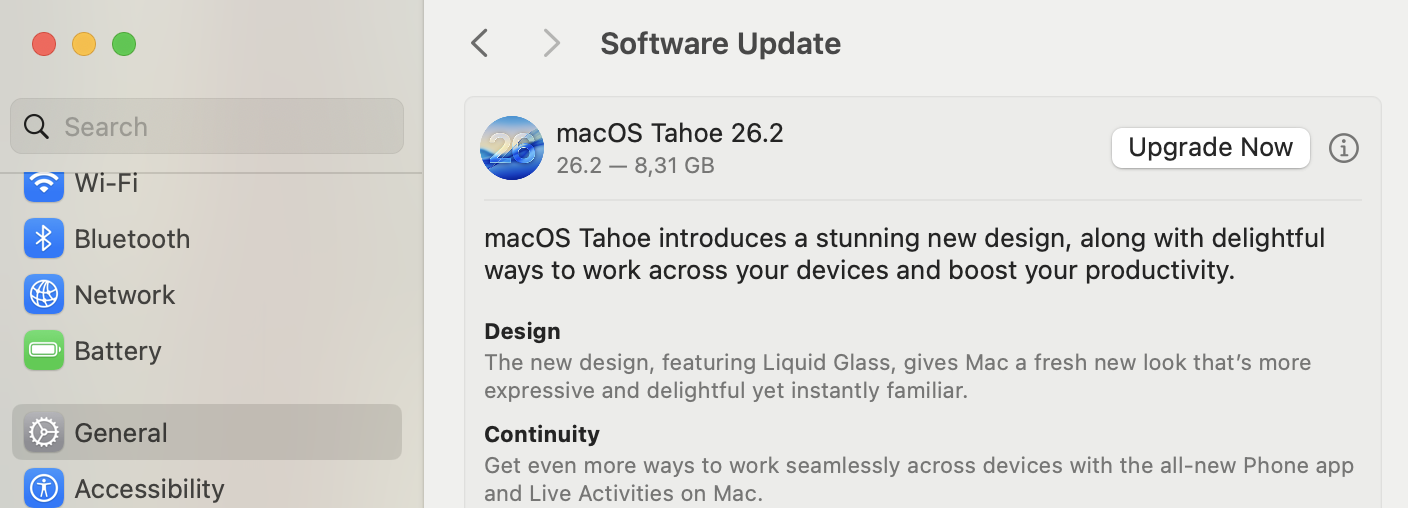
Press Command + Space to open Spotlight and type "Software Update". This is how you take advantage of the search on a Mac feature.
Click Software Update in the General tab to check for available macOS updates.
Install any pending updates and restart your Mac once the installation is complete.
Step 1. Press Command + Space to open Spotlight and type "Software Update"Step 2. Click Software Update in the General tab to check for available macOS updates
Conclusion
Imagent is a background daemon facilitating FaceTime and iMessage sync, but it can occasionally trigger high CPU usage that slows you down. To resolve this, MacKeeper offers memory optimization through the Memory Cleaner feature. With its help, you can instantly clear out resource-heavy processes in a more advanced and easier way than using the Activity Monitor, which can miss some background processes.
We respect your privacy and
use cookies
for the best site experience.
Privacy Preferences Center
We use cookies along with other tools to give you the best possible experience while using the
MacKeeper website. Cookies are small text files that help the website load faster. The cookies we
use don’t contain any type of personal data meaning they never store information such as your
location, email address, or IP address.
Help us improve how you interact with our website by accepting the use of cookies. You can change
your privacy settings whenever you like.
Manage consent
All cookies
These cookies are strictly necessary for enabling basic website functionality (including page
navigation, form submission, language detection, post commenting), downloading and purchasing
software. The website might malfunction without these cookies.