Your Mac starts glitching, freezing, and performing poorly. In many cases, this is caused by outdated apps, while in other cases, it may be caused by processes like IMDPersistenceAgent. In this case, we recommend using MacKeeper’s Memory Cleaner to quickly and efficiently manage your Mac’s processes in a few clicks.
IMDPersistenceAgent is a background process that supports Apple’s messaging services, including messages, FaceTime, and even Apple ID. It also helps manage message-related data and syncs iMessage across devices. Like other Mac processes, IMDPersistenceAgent runs in the background, unnoticed, until it slows down your Mac, indicating that it is consuming significant system resources and dampening your Mac’s performance.
IMDPersistenceAgent is used by several Apple messaging and identity components or system services and is built to run quietly in the background. These services include the iMessage app, iCloud message syncing, FaceTime, Apple ID and identity services, Continuity and Handoff services, and Keychain-linked authentication flows.
Why IMDPersistenceAgent may consume high CPU on Mac?
IMDPersistenceAgent may consume high CPU during iCloud syncing for iMessage, especially when syncing messages with either a lot of attachments or a large message history. It also happens when a Messages database is either damaged due to a forced shutdown or an interrupted update. Additionally, it happens when Continuity and SMS relay resync between your iPhone and Mac.
How to diagnose IMDPersistenceAgent high CPU usage on Mac?
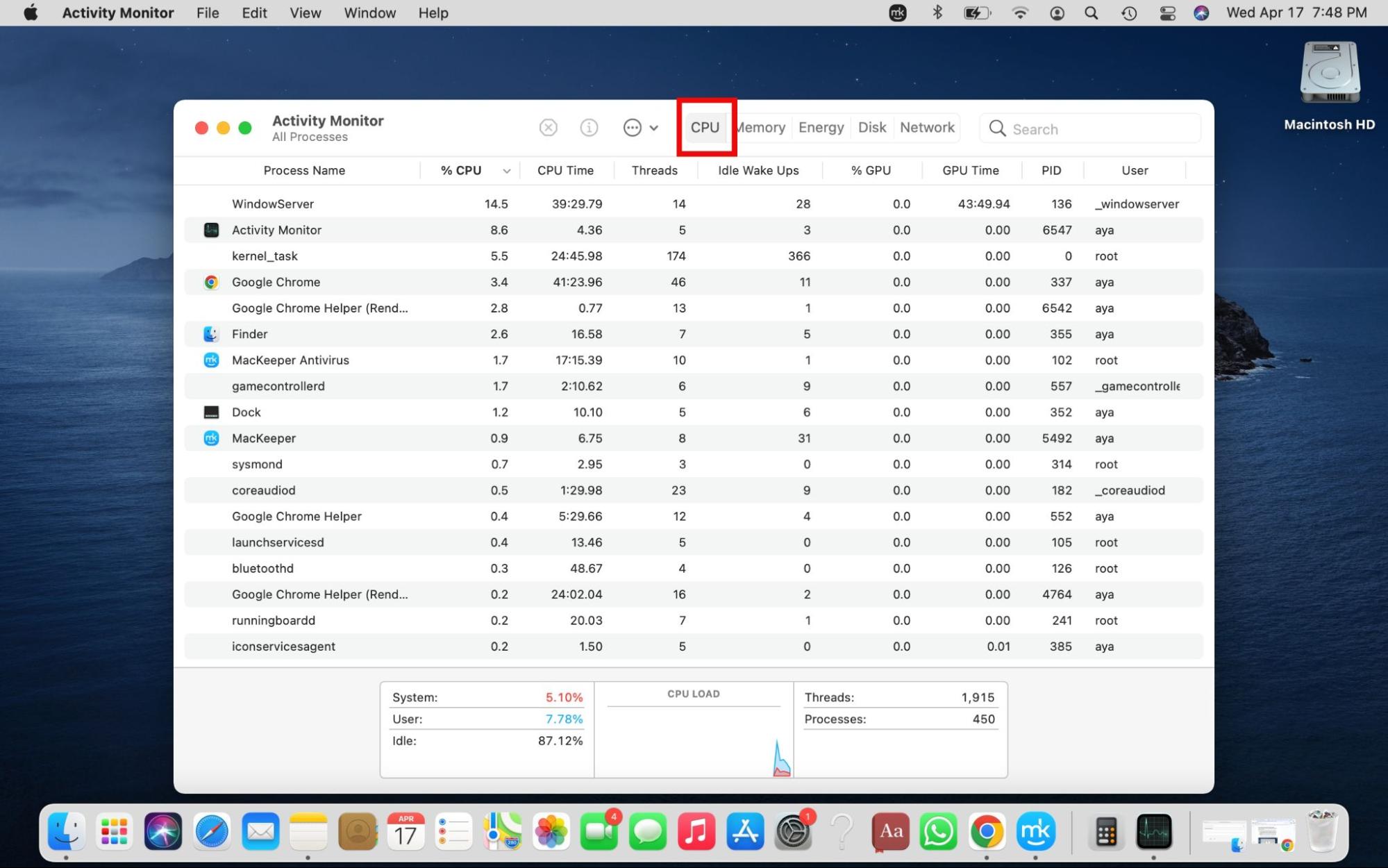
You can determine if IMDPersistenceAgent is consuming high CPU in Mac’s Activity Monitor, which provides a view of all resource-intensive apps using the processor, disks, memory, network, etc. In Mac’s Activity Monitor, check the process’ CPU usage under the CPU tab. If IMDPersistenceAgent appears toward the top of the list of processes, it’s consuming a lot of CPU resources.
A note from our experts:
Many Mac users don’t know about background processes, including their names and functions, much less how to manage problematic ones. And you don’t have to. MacKeeper’s Memory Cleaner automatically detects redundant processes responsible for your Mac’s performance issues and closes them in a few easy steps. Owned by Clario Tech, MacKeeper is trusted by Mac owners like you worldwide, making it the go-to solution for smart Mac management.
Here’s how to kill problematic processes using MacKeeper’s Memory Cleaner:
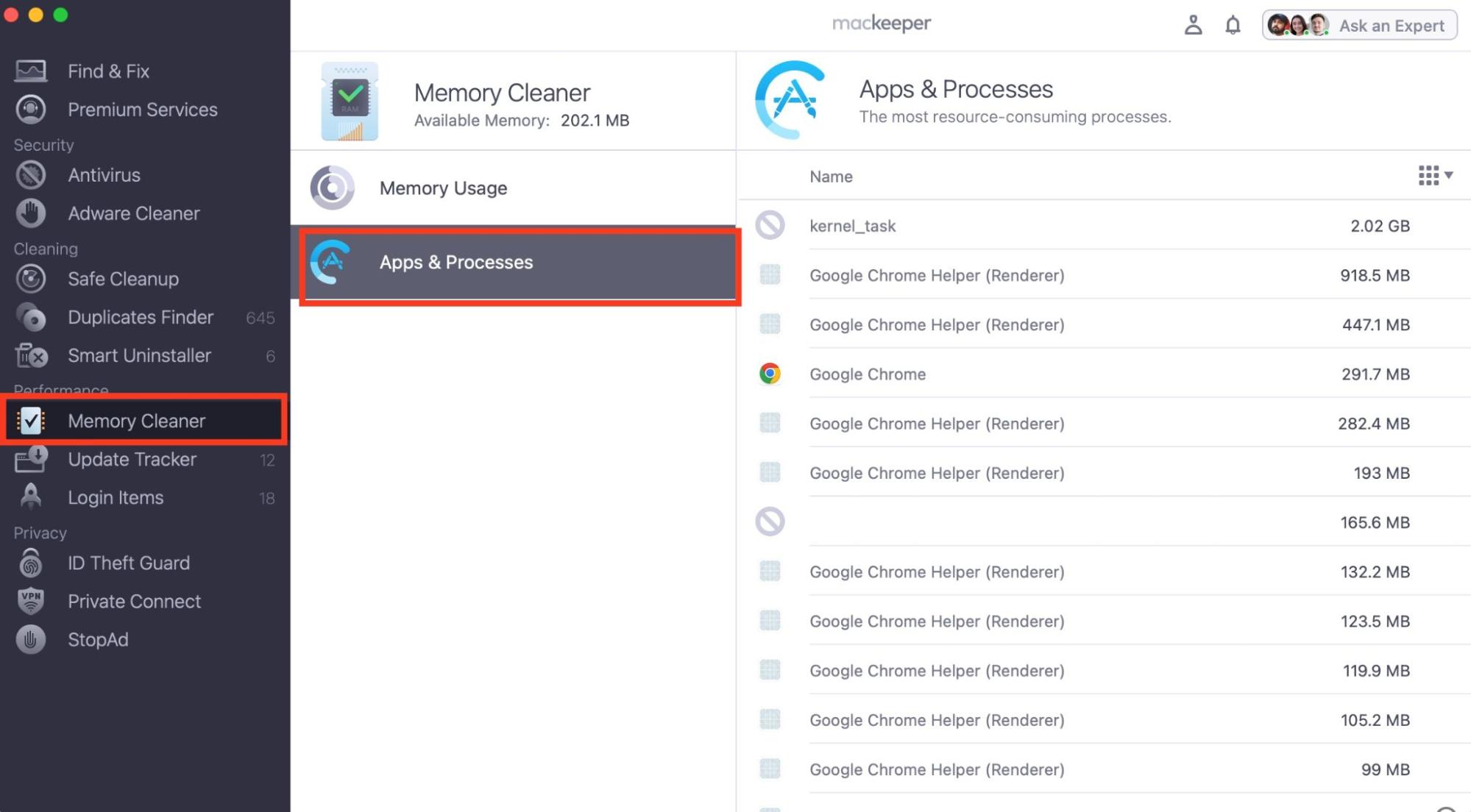
Download and install MacKeeper on your MacBook Pro, MacBook Air, iMac, or Mac mini device and choose Memory Cleaner > Apps & Processes.
MacKeeper will scan your Mac for active processes and present them to you in a list. Find the IMDPersistenceAgent process, hover over it, and hit the X icon next to it.
How to fix IMDPersistenceAgent high CPU usage on Mac?
There are many ways to fix IMDPersistenceAgent high CPU usage on Mac. For instance, you can quit or kill the process in Activity Monitor. Fix it with macOS updates or patches. Disable or reset Handoff & Continuity. Check for stuck or unsent iMessage items. Consolidate or remove duplicate contact/message accounts. Scan for malware or unwanted software. Optionally, reset NVRAM/SMC.
Want the details? Find the relevant solution below and follow the steps in its section.
1. Quit or kill the process
Mac’s Activity Monitor is our go-to solution for killing high-consumption processes on a Mac. It’s also the most straightforward method, which is why we use it when our Mac is performing poorly.
Here’s how to kill the IMDPersistenceAgent process in Activity Monitor:
Open Activity Monitor via Finder and select the CPU tab at the top of the window.
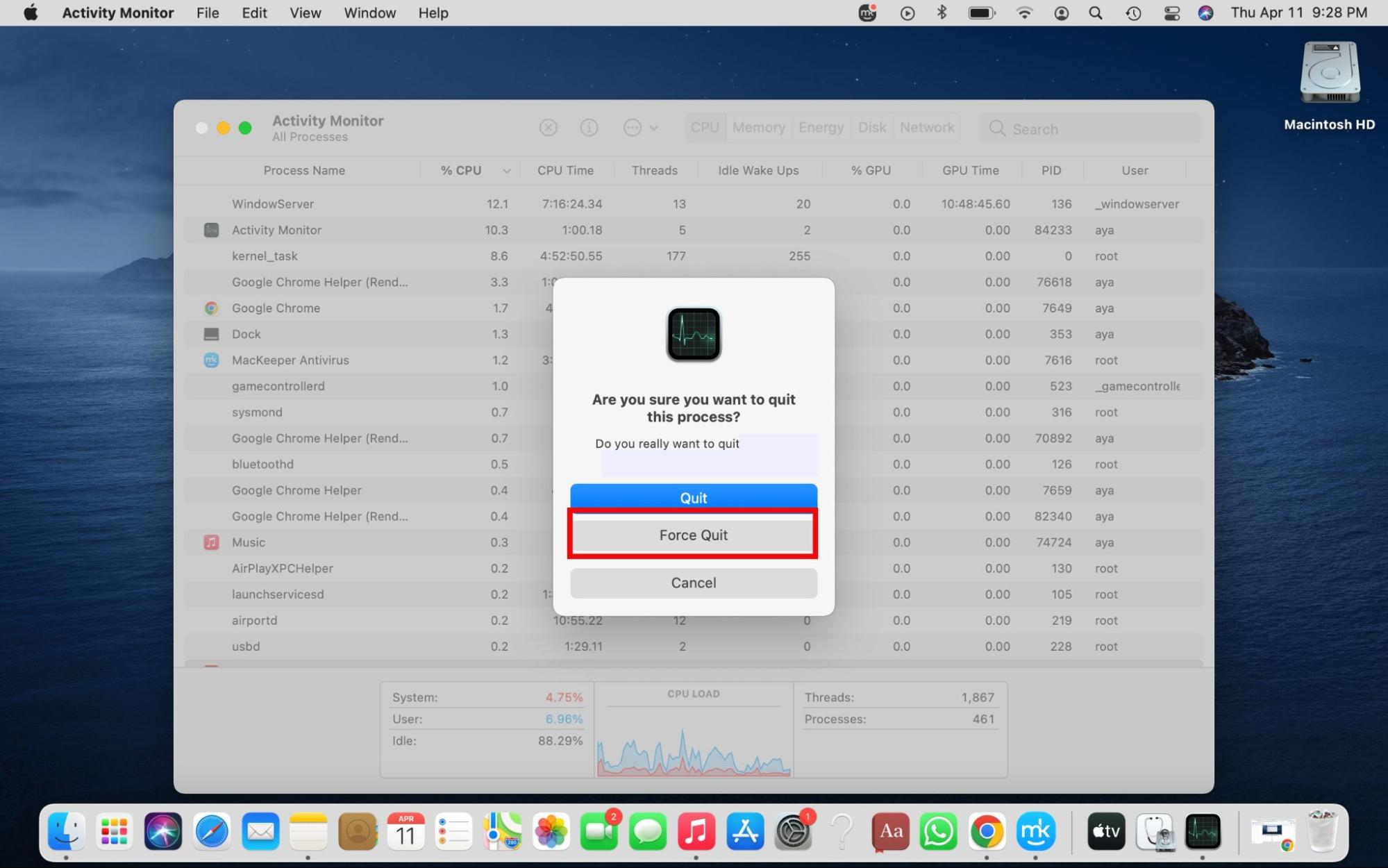
Find IMDPersistenceAgent on the list, click on it, hit the X icon at the top, and select either Quit or Force Quit.
Step 1. Open Activity Monitor > CPUStep 2. Quit or Force Quit IMDPersistenceAgent
2. macOS updates or patches
We’ve noticed that IMDPersistenceAgent consumes a lot of resources when we delay updating macOS. Apple releases bug fixes and security patches through macOS and app updates. So if you missed a recent software update, chances are the patches and fixes for IMDPersistenceAgent are included in it.
Follow these steps to look for recent Mac updates:
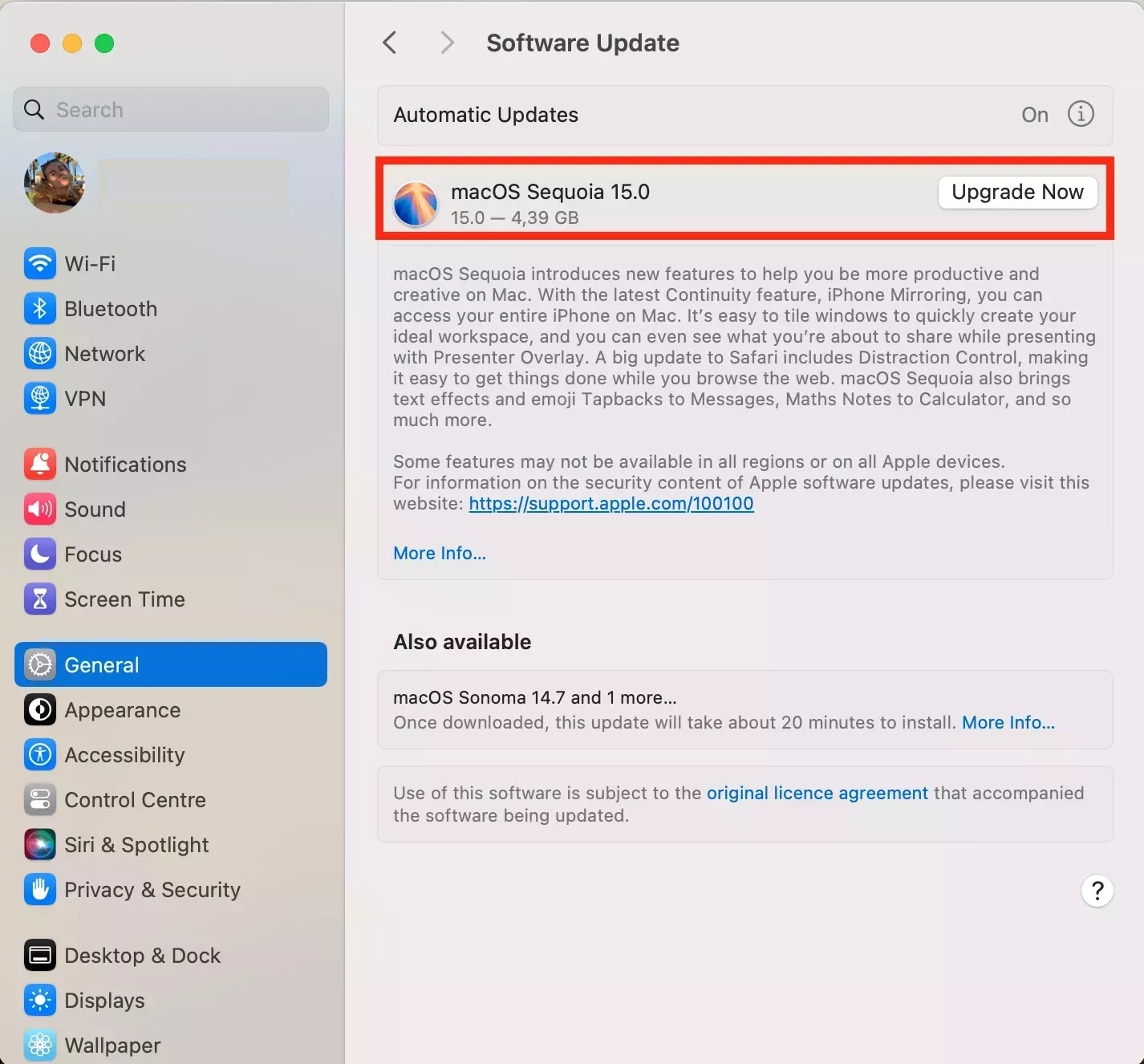
Click on the Apple logo > System Settings > General > Software Update.
Wait for your Mac to look for updates—this process only takes a few moments—and then press Update Now or Upgrade Now to implement available updates.
3. Disable or reset Handoff & Continuity
At any given moment, Handoff & Continuity could be syncing messaging and call state across devices. So we sometimes disable Handoff & Continuity as a diagnostic step to determine whether cross-device sync is responsible for IMDPersistenceAgent’s high CPU usage.
How to Disable Handoff & Continuity on your macOS Ventura and later:
Click on the Apple menu > System Settings > General.
Select AirDrop & Handoff.
Uncheck the Allow Handoff between this Mac and your iCloud devices setting.
4. Check for stuck or unsent iMessage items
Another easy fix we like to try is checking for any unsent texts in iMessage, as stuck messages can spike the IMDPersistenceAgent process’ resource consumption.
Here’s how to check for unsent texts in iMessages:
Open iMessage on your Mac.
Open recent chats, look for unsent messages, and delete or resend them.
5. Consolidate or remove duplicate contact/message accounts
Having multiple contact accounts causes macOS to duplicate contact cards for the same person, which leads to repetition and, ultimately, high CPU and memory usage. For this reason, we prefer to manage duplicate contacts by either consolidating or removing copies.
Here’s how to manage duplicate contacts on a Mac:
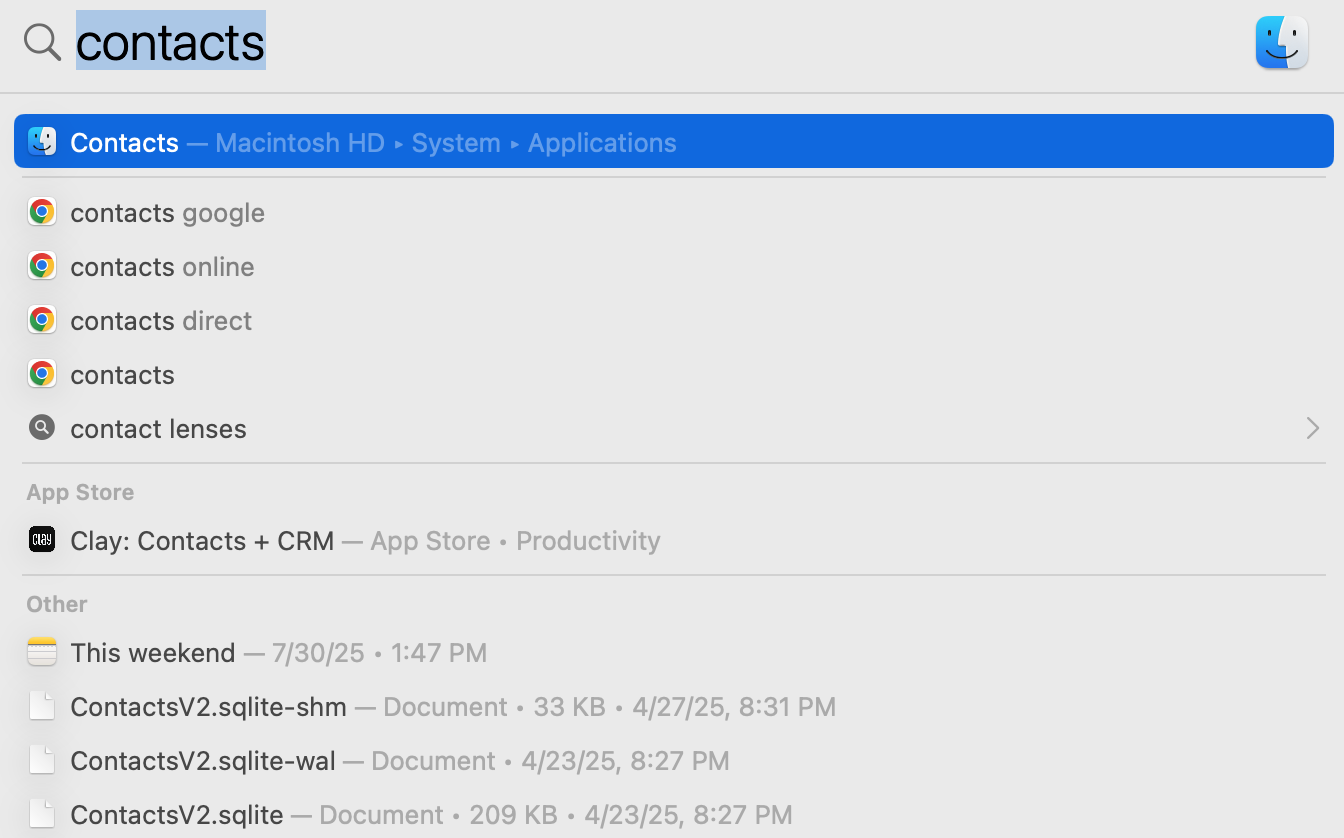
Open the Contacts app.
Look for duplicates and either delete copies or consolidate data into one contact card.
6. Scan for malware or unwanted software
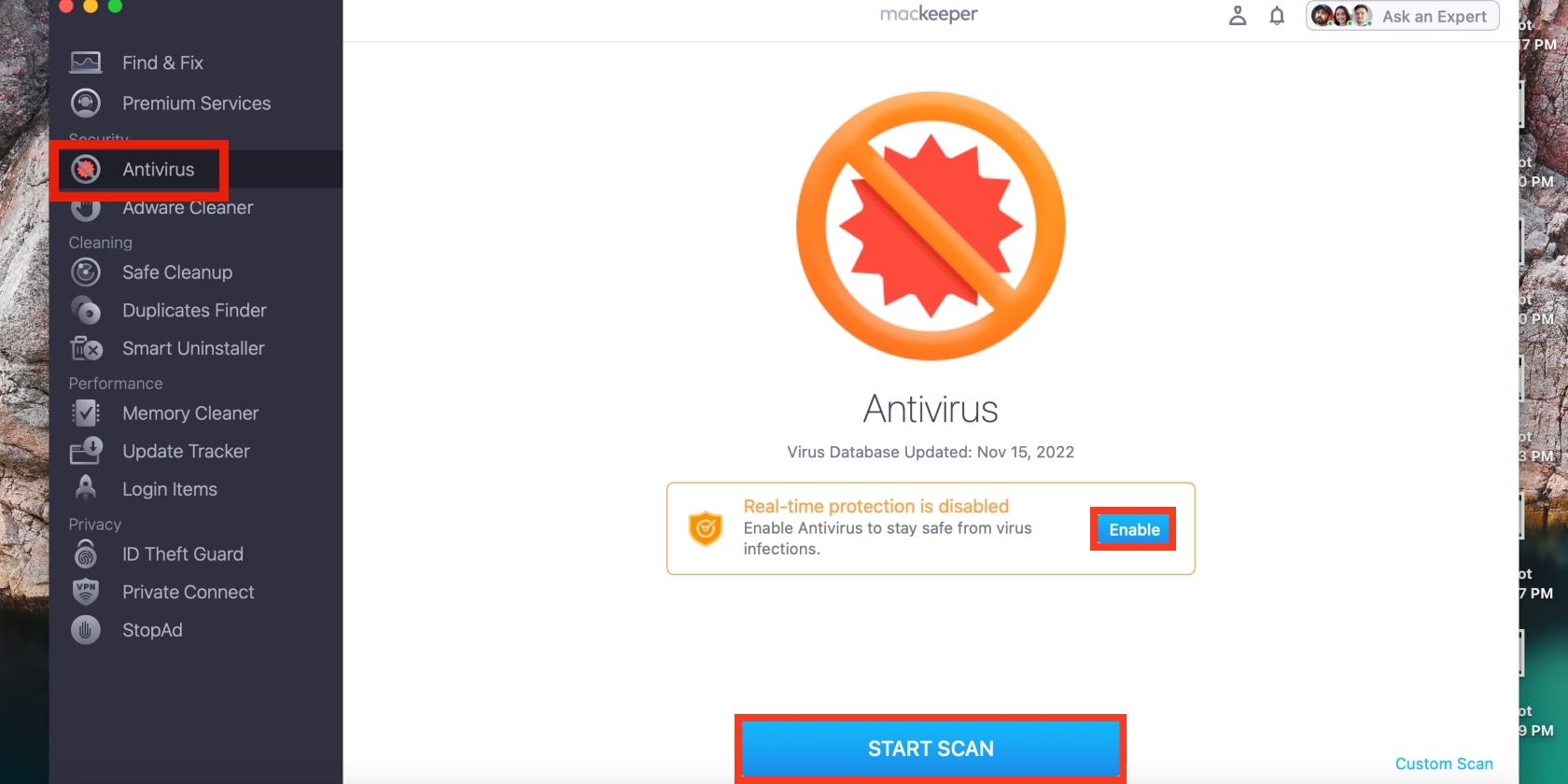
As secure as Mac devices are, they aren’t immune to malware infections. We recommend using an antivirus tool to check for hidden viruses and malware, which are common culprits for high CPU consumption.
Follow these steps to look for malware and viruses on a Mac:
Enable real-time protection and click on Launch Antivirus > Start Scan.
7. Optional: Reset NVRAM/SMC
NVRAM or PRAM helps your Mac’s operating system boot properly by rectifying problematic startup disk settings. Processes such as IMDPersistenceAgent tend to misbehave when those settings are out of sync. For this reason, we like to reset NVRAM as a last resort when nothing we’ve tried has worked.
Here’s how to reset NVRAM/PRAM on a Mac:
Switch off your Mac and immediately hold down the power button.
Power it back on, and quickly hold down the Command + Option + P + R keys, releasing after 20 seconds.
Step 1. Switch off your Mac and immediately hold down the power buttonStep 2. Hold down the Command + Option + P + R keys
Fix IMDPersistenceAgent’s high CPU consumption on a Mac
The IMDPersistenceAgent consuming a lot of CPU resources can be a huge inconvenience, especially since it dampens your Mac’s performance, such as slowing it down without notice. Thankfully, we’ve listed all the fixes you can try in our handy guide—such as quitting the process in Activity Monitor, implementing macOS updates, checking for unsent texts in iMessage, and more.
While Activity Monitor is an excellent tool for managing Mac processes, few users are comfortable quitting problematic processes manually. If you’re one of them, consider using MacKeeper’s Memory Cleaner to automatically detect and close high-CPU consumption processes like Mac’s IMDPersistenceAgent.
We respect your privacy and
use cookies
for the best site experience.
Privacy Preferences Center
We use cookies along with other tools to give you the best possible experience while using the
MacKeeper website. Cookies are small text files that help the website load faster. The cookies we
use don’t contain any type of personal data meaning they never store information such as your
location, email address, or IP address.
Help us improve how you interact with our website by accepting the use of cookies. You can change
your privacy settings whenever you like.
Manage consent
All cookies
These cookies are strictly necessary for enabling basic website functionality (including page
navigation, form submission, language detection, post commenting), downloading and purchasing
software. The website might malfunction without these cookies.