Finding rapportd Mac in your network logs or seeing a sudden request for incoming connections can be a major headache, especially if you're worried about unauthorized access to your private data. Our Memory Cleaner within the MacKeeper suite is a professional solution for this situation, as it allows you to identify and quit resource-heavy processes like rapportd, ensuring your Mac stays fast and responsive.
This error means rapportd on Mac is a background daemon facilitating communication features like Phone Call Handoff and Handoff between Apple devices. Located at /usr/libexec/rapportd, it becomes active in macOS High Sierra. It’s safe to allow its incoming network connections. However, ensure it’s not the IBM Trusteer version.
Why you might notice rapportd on Mac?
You might first encounter the rapportd mac meaning when a sudden macOS firewall notification pops up at login, asking for permission to accept incoming network connections. We’ve found that our users often notice this daemon after a recent system update or while tracking down resource-heavy tasks in Activity Monitor that appear to be "chatting" with other devices on their local network. It typically becomes visible when your Mac is actively facilitating Continuity features, such as Universal Clipboard or Phone Call Handoff, across your Apple ecosystem.
A note from our experts:
Looking for a quick way to boost your MacBook’s performance? MacKeeper offers memory optimization via our Memory Cleaner feature, a fast and reliable tool that terminates resource-hungry processes that drain your RAM. It’s easy to use and fully compatible with macOS. Plus, it optimizes memory in real time, meaning you’ll have a smoother, faster Mac experience in no time without the worry of any software conflicts.
To get expert help with MacKeeper’s Memory Cleaner:
Download MacKeeper and open the app on your device.
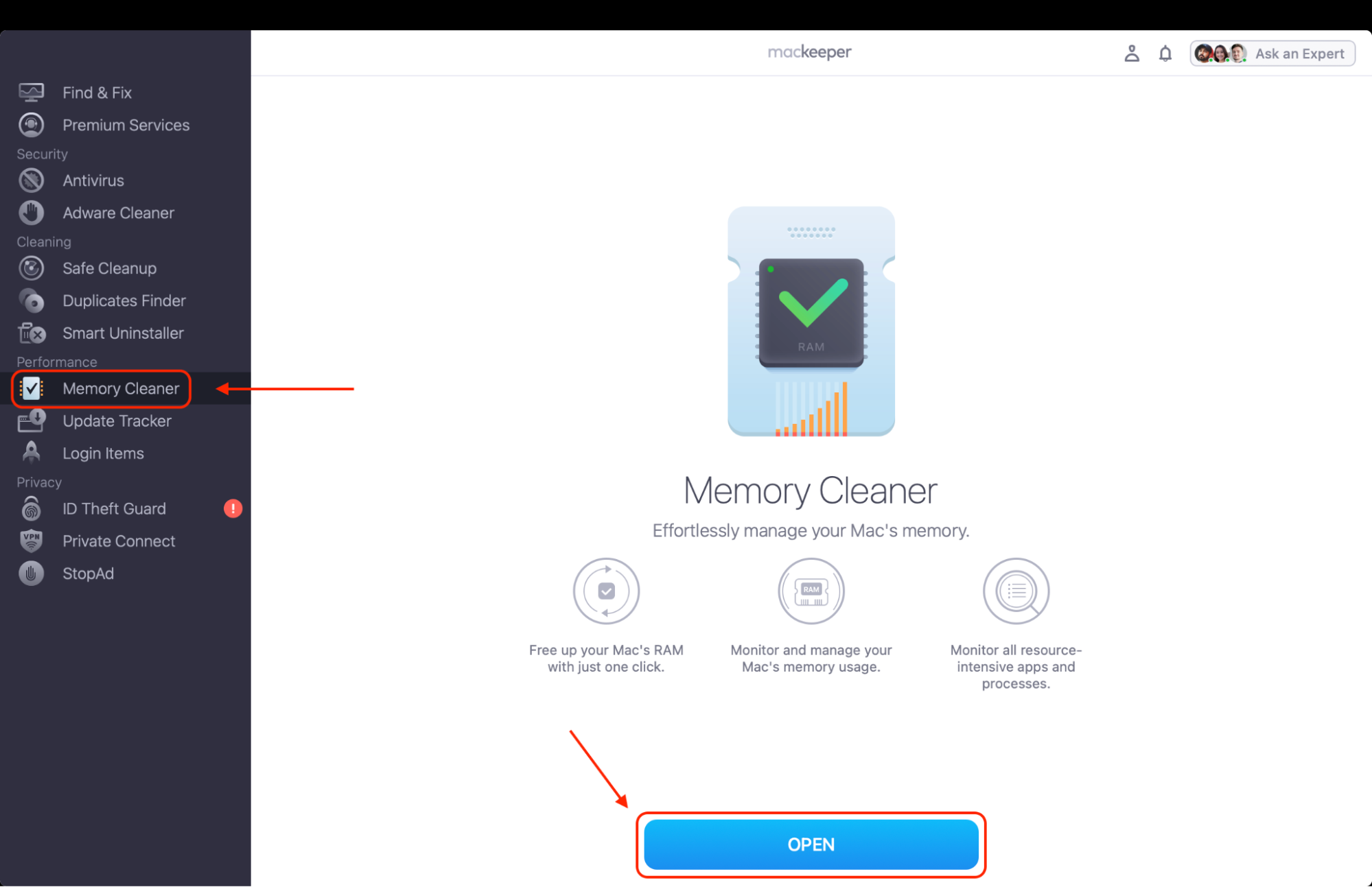
Select Memory Cleaner from the left-hand sidebar and click Open.
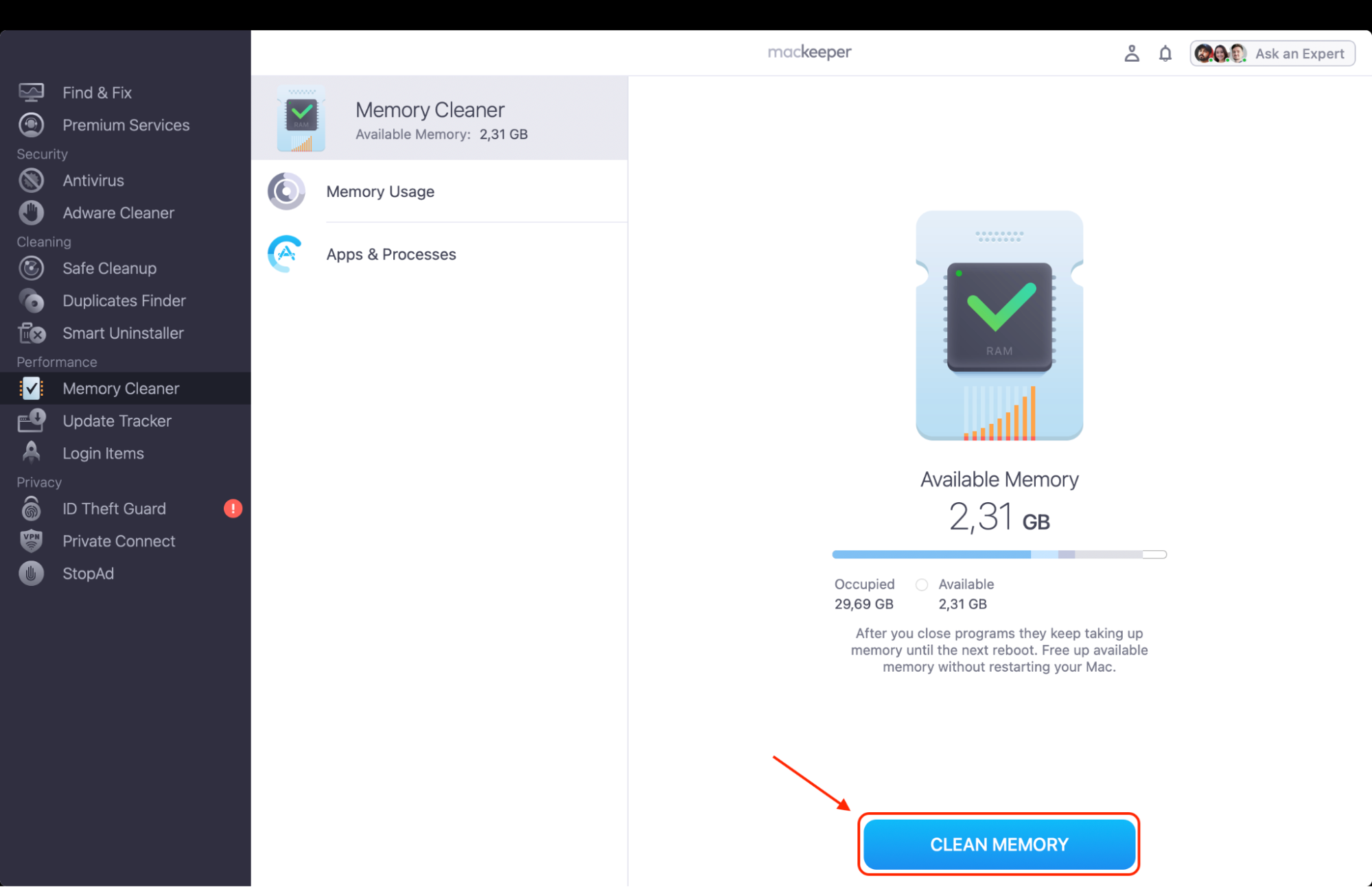
Review your Memory usage to see if processes like rapportd are consuming excessive resources.
To reclaim your RAM and speed up your system, simply press Clean Memory.
Step 1. Open MacKeeper, go to Memory Cleaner, and click OpenStep 2. Look through your Memory usage and press Clean Memory to free up RAM
How Rapportd works on Mac?
Think of rapportd as the invisible air traffic controller for your Apple ecosystem. It lives in your system folders and silently manages the "handshakes" between your Mac, iPhone, and iPad. Whenever you copy text on your phone and paste it onto your laptop, or when a phone call rings directly on your MacBook, this daemon is the engine making that magic happen.
It operates by listening for local network signals and using Bluetooth and Wi-Fi to "discover" your other nearby devices. If you’re curious about how to see what is running on your Mac to spot it yourself, you can find it tucked away in Activity Monitor or by using the Terminal command ps aux | grep rapportd.
While it stays quiet most of the time, it’s constantly ready to facilitate features like Universal Control and HomeKit automation, ensuring your devices feel like one cohesive unit rather than separate machines.
Should you remove or disable rapportd on Mac?
We don’t recommend removing it, as it’s a vital Apple process for features like Handoff and Universal Clipboard. If the network prompts bother you, simply toggle off Handoff in your MacBook control center or System Settings rather than disabling the system files.
How to tell if rapportd is safe or a threat?
Finding the rapportd Mac meaning doesn't have to be a mystery. We've found that it's just a matter of knowing how to tell a helpful system tool apart from something that's just slowing you down. Identifying the "good" rapportd from the "bad" one is straightforward once you know where to look.
To check if rapportd is safe or a threat, do the following:
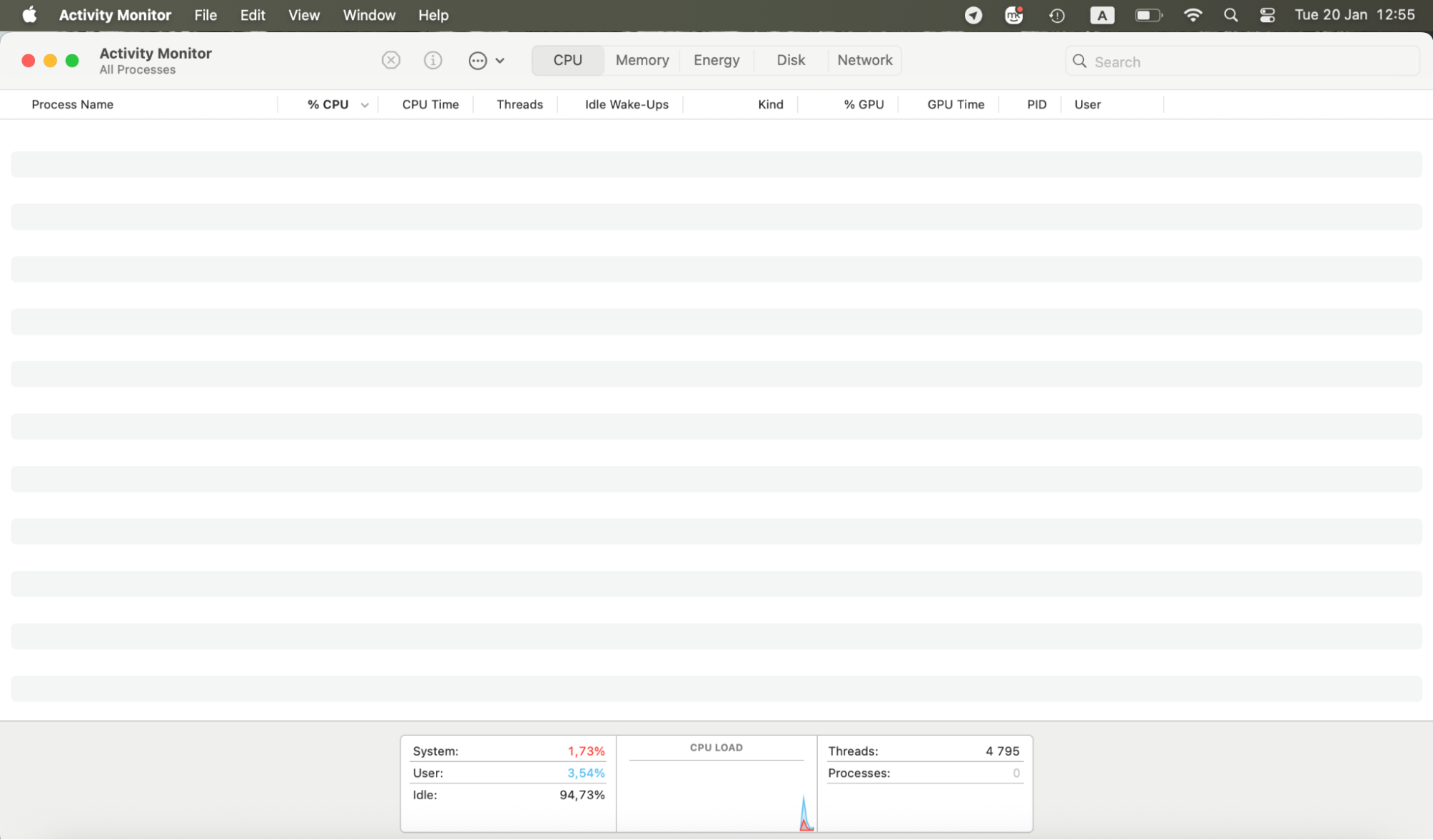
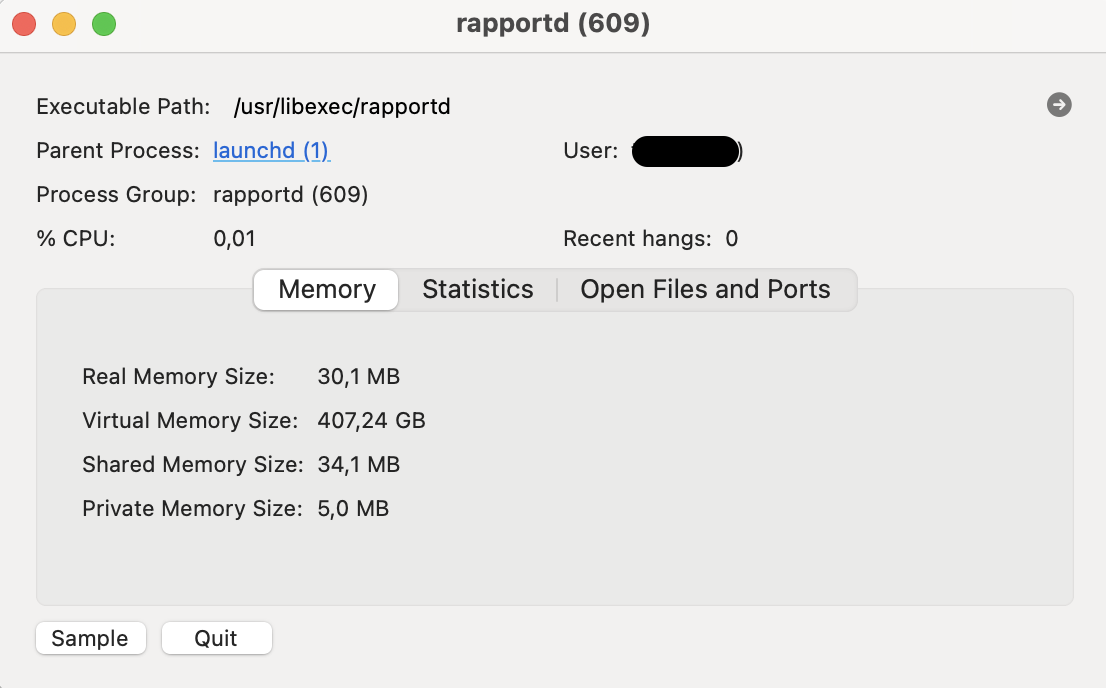
Use Activity Monitor to inspect the process; if it’s located at /usr/libexec/rapportd, it’s the legitimate Apple daemon you need for continuity.
If the path shows /Library/Rapport/, you're likely dealing with IBM Trusteer software, which isn't an Apple system file and is known for dragging down performance.
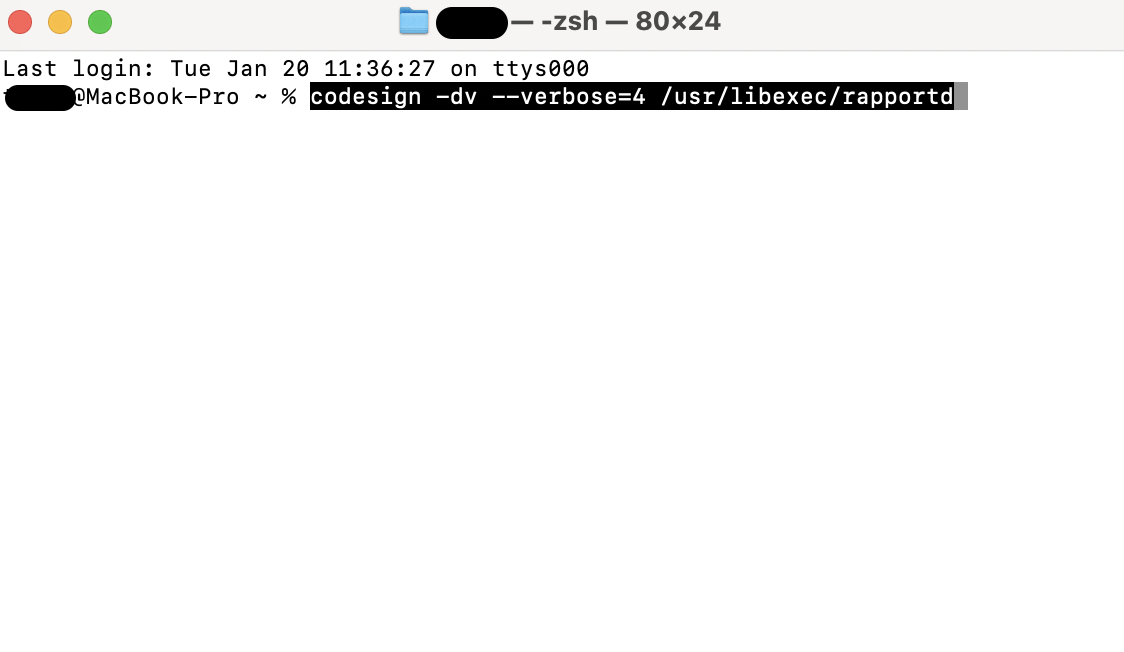
You can run codesign -dv --verbose=4 /usr/libexec/rapportd in Terminal to confirm it’s officially signed by Apple and protected by system integrity protection.
Executing ps aux | grep rapportd will show you exactly which version is currently active and where it’s running from on your disk.
Legitimate system paths include /System/Library/LaunchDaemons/com.apple.rapportd.plist and /usr/share/man/man8/rapportd.8.
Step 1. Use Activity Monitor to inspect the process; if it’s located at /usr/libexec/rapportd, it’s the legitimate Apple daemon you need for continuityStep 2. If the path shows /Library/Rapport/, you're likely dealing with IBM Trusteer softwareStep 3. You can run codesign -dv --verbose=4 /usr/libexec/rapportd in Terminal to confirm it’s officially signed by Apple and protected by system integrity protection
Common issues and how to fix them
Sometimes even the most helpful background processes can hit a snag, and we’ve found that rapportd is no exception to the occasional system hiccup.
In our experience, the common rapportd issues and their fixes are the following:
Endless firewall pop-ups. If you're tired of clicking "allow," try toggling Handoff off and back on in your system settings to refresh the daemon's permissions.
Handoff is not working. If your devices stop "talking" to each other, signing out of iCloud on your Mac and signing back in can often jumpstart the communication framework.
"Not responding" status. This common error in Activity Monitor is often fixed by a simple system restart, which clears the daemon's temporary cache and resolves internal conflicts. If you’re struggling to locate Activity Monitor or any other app, learning how to search on a Mac can significantly improve your productivity by helping you navigate your system like a pro.
Conflict with third-party security. Apps like Norton or Little Snitch might repeatedly block the process; we suggest adding rapportd to your security app's "always allow" list to stop the interference.
Conclusion
We’ve seen that the rapportd Mac isn’t nearly as scary as those sudden firewall pop-ups make it seem. It’s simply a dedicated Apple daemon working behind the scenes to ensure your iPhone and Mac stay in perfect sync for features like Handoff and Universal Clipboard.
If you're looking to keep your system snappy without the manual guesswork, we're here to help. MacKeeper is a leading solution in Mac optimization and cybersecurity, and is a macOS utility software trusted by millions of users to keep their hardware running like new. Our Memory Cleaner tool is specifically designed to sweep away resource-hogging processes, giving you a faster, smoother experience with just one click.
We respect your privacy and
use cookies
for the best site experience.
Privacy Preferences Center
We use cookies along with other tools to give you the best possible experience while using the
MacKeeper website. Cookies are small text files that help the website load faster. The cookies we
use don’t contain any type of personal data meaning they never store information such as your
location, email address, or IP address.
Help us improve how you interact with our website by accepting the use of cookies. You can change
your privacy settings whenever you like.
Manage consent
All cookies
These cookies are strictly necessary for enabling basic website functionality (including page
navigation, form submission, language detection, post commenting), downloading and purchasing
software. The website might malfunction without these cookies.