If you’re wondering what does Spring Loading mean on Mac, you’re in the right place. This feature is designed to simplify file management. Go on reading to learn how it works. While mastering Spring Loading, try using MacKeeper’s Login Items to adjust startup apps and keep your Mac running smoothly.
Spring Loading is a built-in macOS feature that makes accessing folders and subfolders much easier. Instead of opening each folder manually, you can drag the file over a folder and pause for a moment. The folder will open automatically, allowing you to continue dragging it through additional folders until you finally reach your destination. Once you drop the file, any folders that were opened temporarily close automatically, keeping your workspace organized.
Spring Loading Mac meaning is especially useful for users who often organize files into nested folders. Rather than opening multiple Finder windows in advance, you can simply keep dragging the file until you reach the needed location. So if you’re looking to improve your overall drag and drop performance on your macOS, Spring Loading is one of those simple yet powerful features that can save you time during everyday tasks. You can also manage the delay before folders open or disable the feature entirely in your Mac’s Accessibility settings.
How to use Spring Loading on Mac?
Once you understand what is spring loading on Mac, you’ll see that using it is quite straightforward, and can speed up file management in Finder significantly. We’d say that this feature works automatically, so there’s nothing you need to launch before using it.
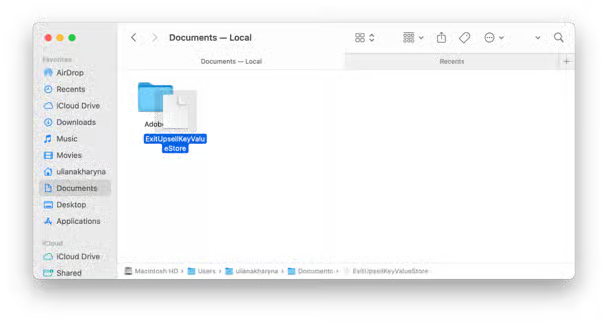
To use Spring Loading, click and hold the file or folder you want to move. Without releasing the mouse button or trackpad, drag the item over the folder you want to open and pause for a moment. Finder will automatically open the folder. Now you can continue dragging the item through subfolders in the same way. When you reach the location you were looking for, release the file to complete the moving process. If you frequently move files between multiple folders, Spring Loading makes the process much faster and more convenient.
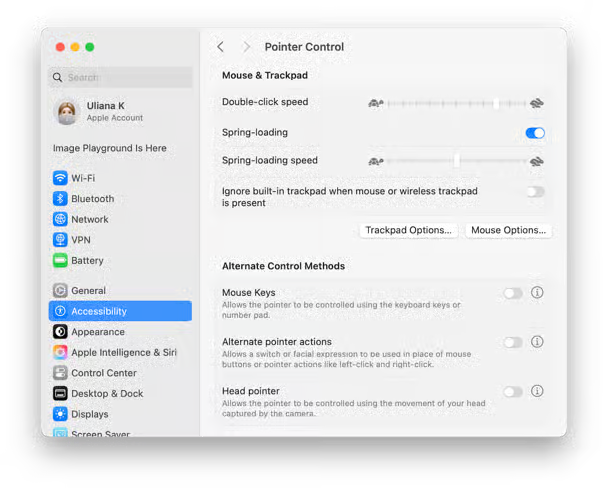
If Spring Folder doesn’t work properly, make sure it’s enabled. Open System Settings > go to Accessibility > find Pointer Control. Here, you can not only enable or disable Spring Loading, but also control how quickly folders open while you’re dragging an item.
A note from our experts:
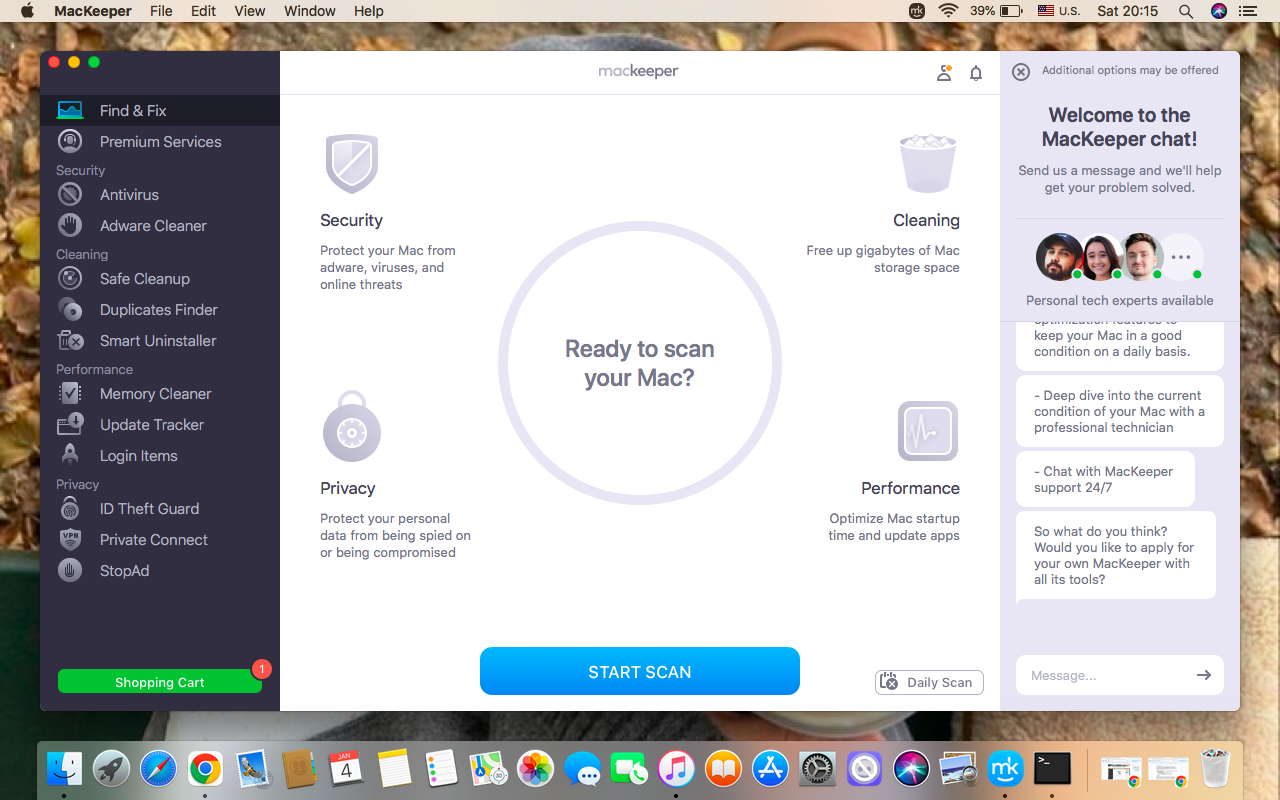
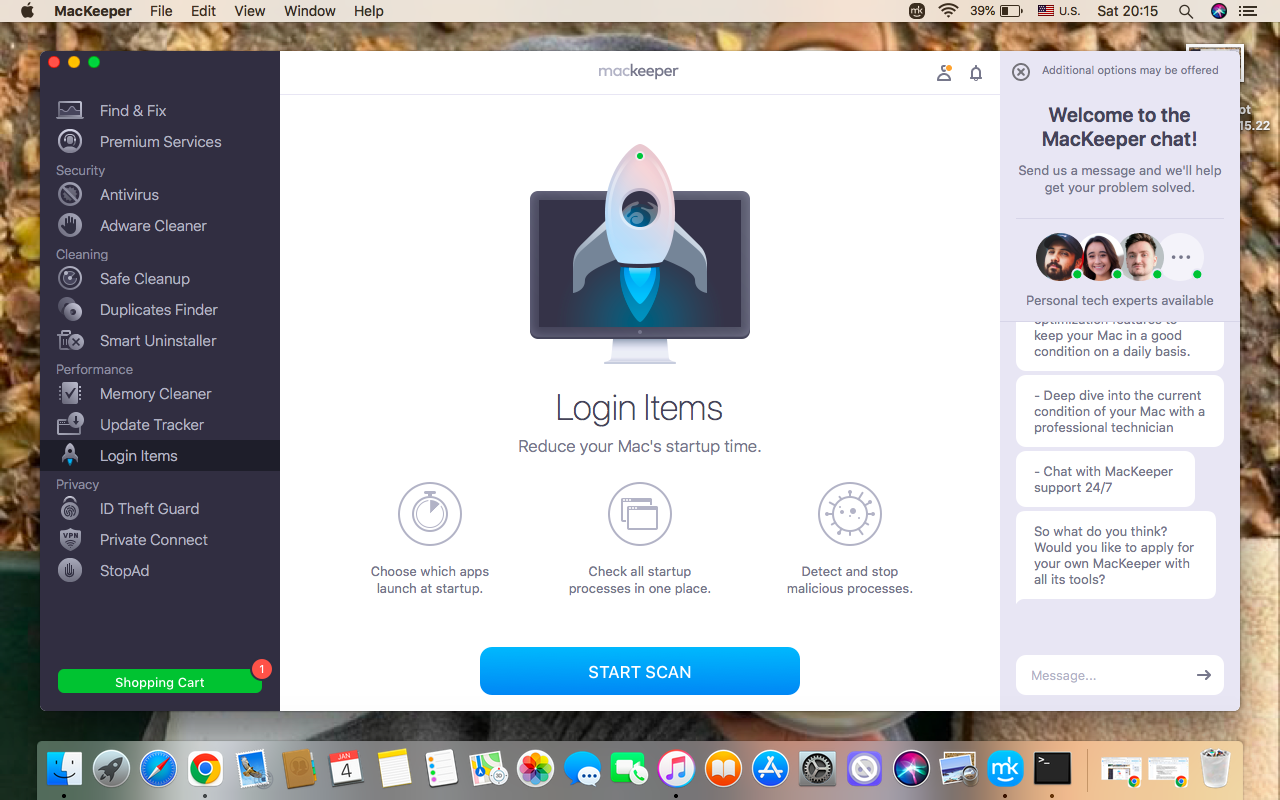
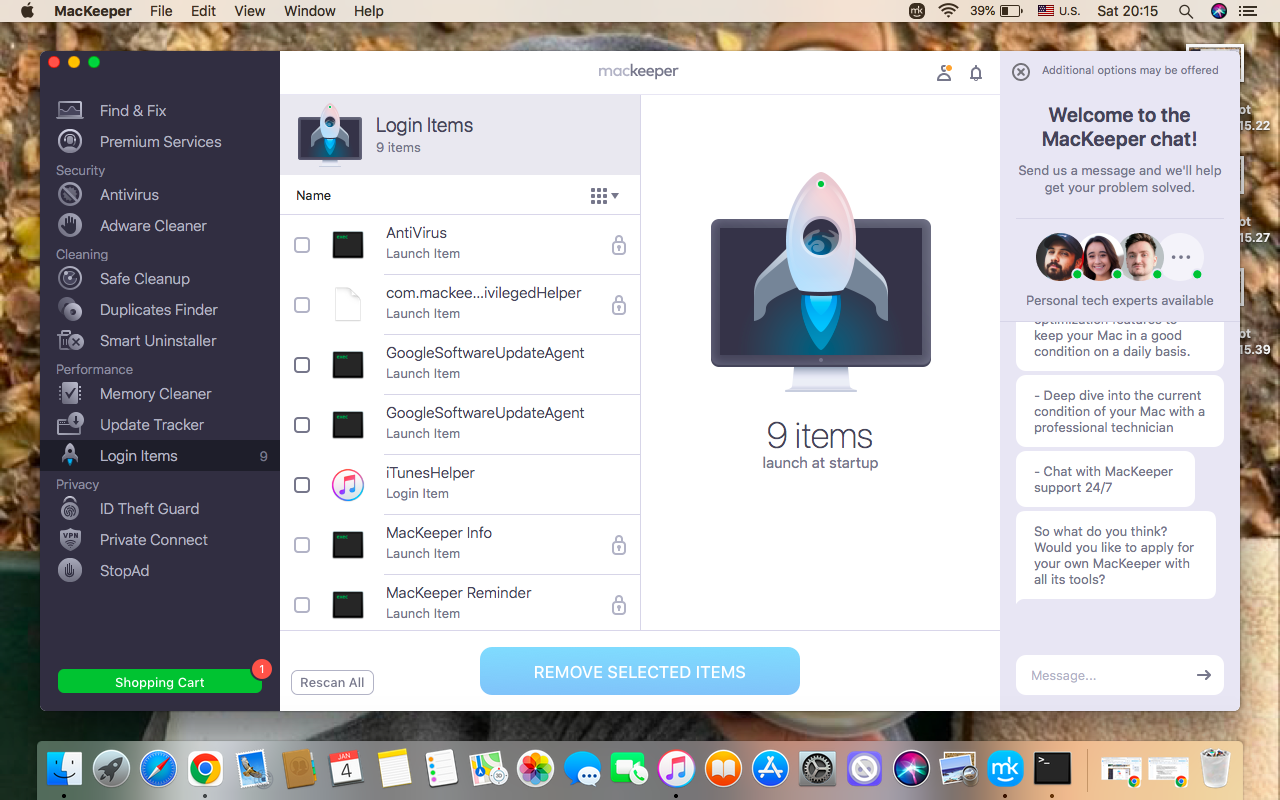
While Spring Loading helps you organize files more efficiently, filtering the programs that launch automatically when your Mac starts up is also important for optimizing app management. Too many startup apps can slow down your Mac’s overall performance by consuming system resources and running unnecessary background processes. The solution is to use MacKeeper’s Login Items to manage the programs that launch automatically at startup quickly and safely.
Follow our guidelines below to reduce background activity with MacKeeper’s Login Items:
Spring Loading offers you more control by letting you customize folders to work faster or slower to suit your workflow. For example, if folders open too quickly, you may accidentally open the wrong one, wasting your time on multiple steps. At the same time, if they take too long to open, completing file management tasks becomes slower and less efficient.
Here’s how to customize spring-loaded folders:
Go to Apple Menu > open System Settings.
select Accessibility ➙ choose Pointer Control.
System Settings > Accessibility > Pointer Control
2. Use spring loading with tabs
If you prefer Finder tabs to multiple windows, we recommend you to use them to move spring-loaded files between folders. It helps to move files between different locations while keeping your desktop organized.
Do the following to use spring loading with tabs:
Open a new Finder window > click the file or folder you want to move.
Drag the file or folder over the tab where is your destination > pause for a moment > drop the item.
Finder Window > Drag the item > Pause > Drop the item
What is spring loading speed on Mac?
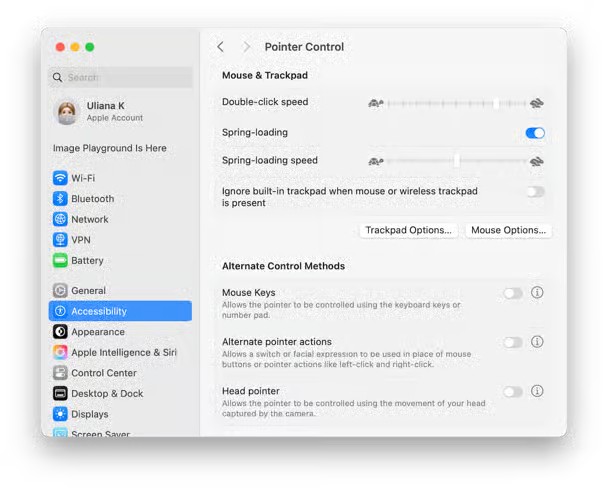
Spring loading speed is a setting that determines how long you need to wait before the folder automatically opens while you’re dragging an item. This setting is controlled using a slider next to the Spring Loading speed.
Here are our instructions on how to adjust the Spring Loading speed:
Move the slider to the left to set a longer delay.
Move the slider to the right to set a shorter delay.
Move the slider
How to disable spring loading on Mac?
If you don’t use Spring Loading, you can turn this feature off. From our experience, disabling it prevents Finder from automatically opening folders, giving you more control.
Take these steps to disable Spring Loading on your Mac:
Go to the Apple Menu > open System Settings.
Choose Accessibility > find Pointer Control > turn Spring Loading off.
System Settings > Accessibility > Pointer Control > Disable Spring Loading
Conclusion
Spring Loading is a simple macOS tool that makes moving files faster by automatically opening folders during drag-and-drop action. To keep your Mac’s overall performance efficient, we also suggest using MacKeeper’s Login Items. It’ll help you to disable unnecessary startup programs, reducing background resource usage.
We respect your privacy and
use cookies
for the best site experience.
Privacy Preferences Center
We use cookies along with other tools to give you the best possible experience while using the
MacKeeper website. Cookies are small text files that help the website load faster. The cookies we
use don’t contain any type of personal data meaning they never store information such as your
location, email address, or IP address.
Help us improve how you interact with our website by accepting the use of cookies. You can change
your privacy settings whenever you like.
Manage consent
All cookies
These cookies are strictly necessary for enabling basic website functionality (including page
navigation, form submission, language detection, post commenting), downloading and purchasing
software. The website might malfunction without these cookies.