After reading this article, you’ll discover that opening and creating .zip files on a Mac is much easier than you’ve thought before. What you really need to think of now is how to minimize the risks of cluttering your device with useless files afterwards. The answer is a good cleaning tool like MacKeeper’s Safe Cleanup—it effectively clears your storage and removes any possible junk.
Oftentimes, when you download files from the internet, you may find out they are compressed. Such files allow for sending multiple pictures or documents in one go. Various OS offer different applications for the purposes of compressing and decompressing files.
In this guide, we’ll have a look at how to create and open compressed files on a Mac.
In order to create a zip file, Macs offer an in-built app installed by default—the Archive Utility tool. The app is able to open files with a .zip extension. There is also an application called The Unarchiver, which is also designed for Macs. You can download the app from its official website.
A note from our experts:
Compressed files can save space on your Mac. However, if your Mac is already cluttered with different items, it’s time to remove the unnecessary ones. To save your time, assign this task to MacKeeper’s Safe Cleanup.
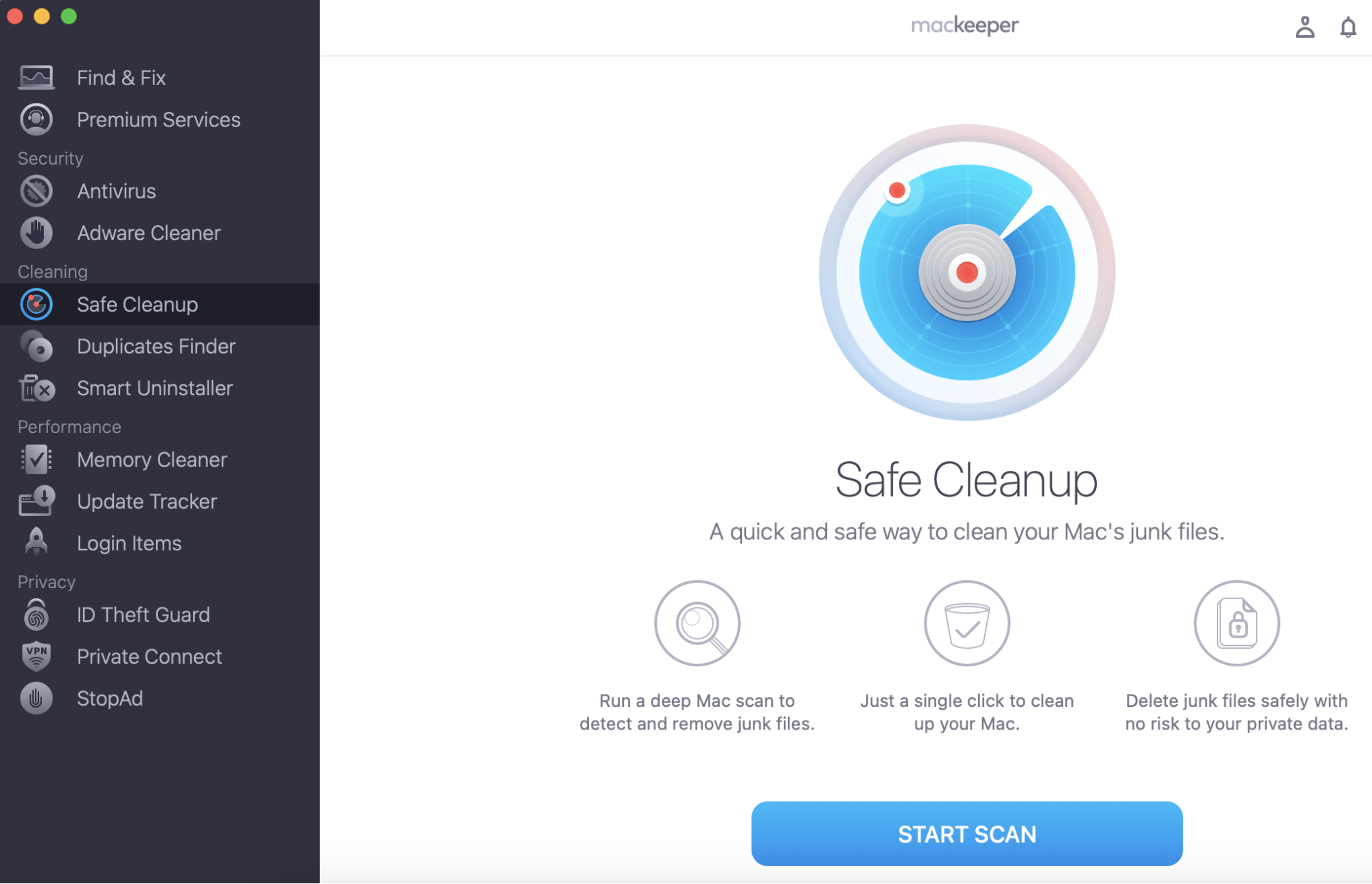
Select Safe Cleanup from the sidebar and click Start Scan.
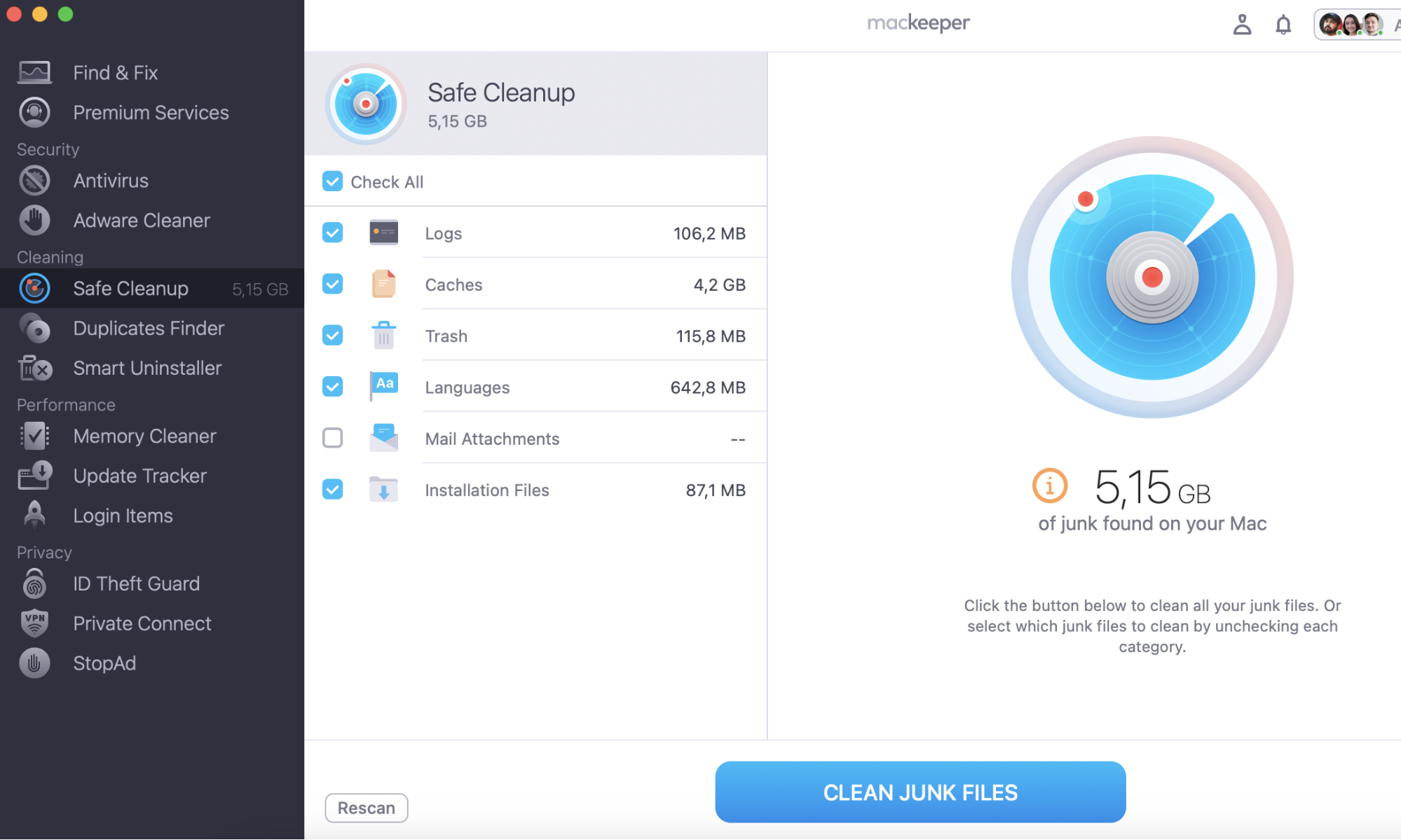
Choose the files to delete and click Clean Junk Files.
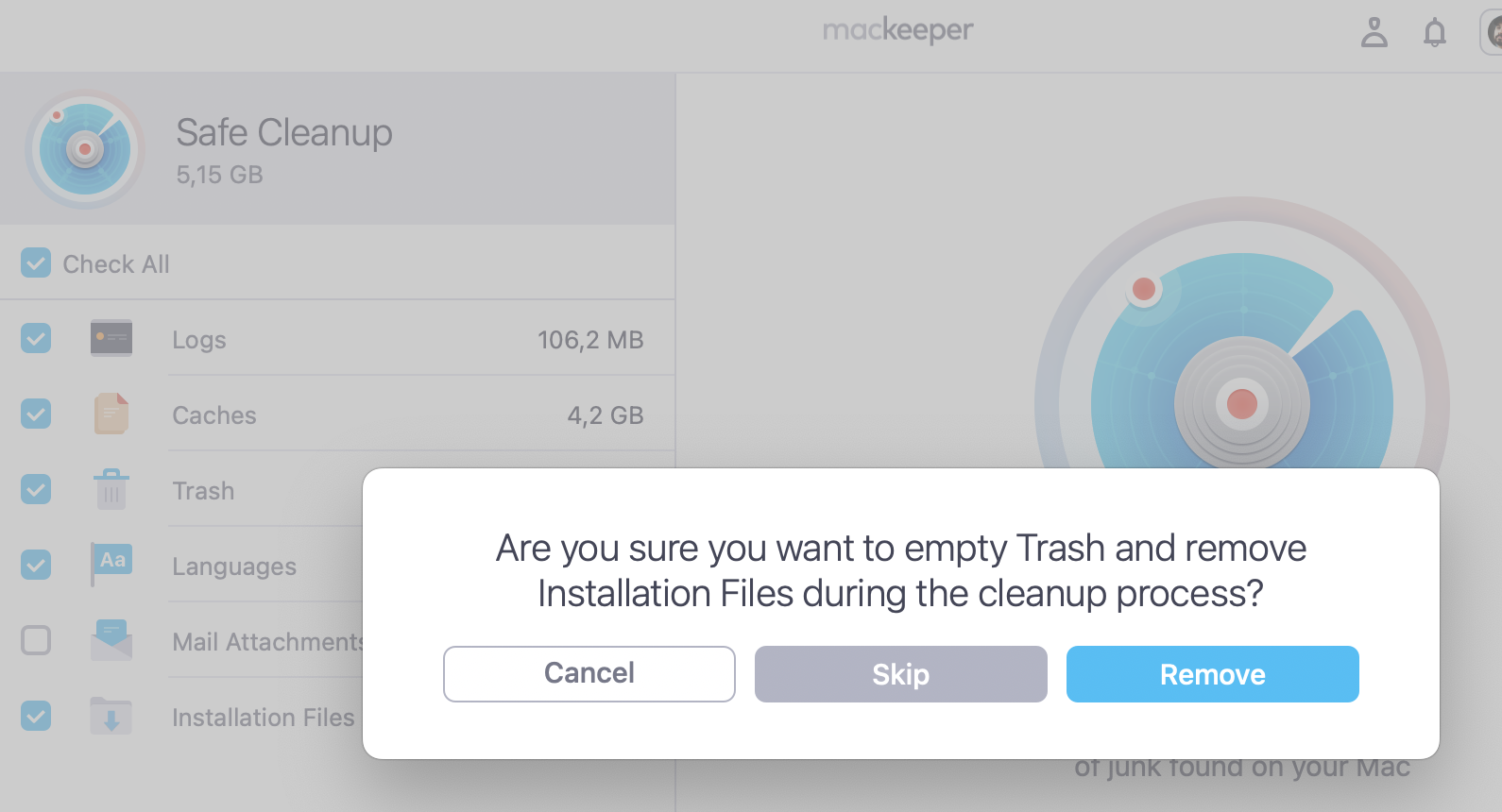
Step 1. MacKeeper > Safe Cleanup > Start ScanStep 2. Select the files from the list > Clean Junk FilesStep 3. Click Remove
How to unzip files on a Mac
Here’s how to open .zip files on your Mac with Archive Utility:
Double-click on the zipped file.
Archive Utility will unzip the file automatically and place it into the same folder where the zipped file is located.
Find the unzipped file and open it by double-clicking on it.
Unfortunately, if the compressed file has .sit formatting, you will not be able to decompress it with a default app, so you will have to use third-party apps like Stuffit. You can download a free version of the application from the official website.
How to zip files on a Mac
If you need to zip Mac files, follow these simple steps:
Select the files you want to compress.
Right-click or hold Control and click.
Choose Compress in the context menu that appears.
The zipped file is placed into the same folder where the unzipped file is.
How to change Archive Utility preferences
While Archive Utility is running, right-click on the application’s name. In the context menu that opens, choose Preferences. When the Preferences window opens, you will see a number of available options. You can choose the route for the uncompressed files and specify your further actions with the uncompressed files.
Automatic deletion of the archived files after they are uncompressed is a real time-saver. It will save your computer from junk files clogging up your hard drive.
How to enable password protection for zip files
Sometimes, you might need password protection for your zipped files to prevent unauthorized access. There are two options to make a password-protected file. The first option is to use the Terminal. If you are familiar with the command line you can type in zip -e archivename.zip filetoprotect.txt, then enter and verify the password.
The second way is arguably easier—use the built-in Archive Utility, which has the same functionality of assigning a password.
How to extract zip files with Terminal
If the compressed file is in the .tar or .tgz format, in order to decompress it, you should use the built-in Mac application called Terminal. Your actions should be as follows:
Open Terminal.
Use the cd command to indicate where the decompressed file should be located.
Type unzip file.zip into the Terminal to run the zip command.
How to restore deleted zip files
If you don’t like to keep unnecessary files on your hard drive, you may have a habit of cleaning your Mac from this type of junk. During the clean-up, you may accidentally delete important zip files. Luckily, there is a way to restore those files. Read a detailed guide on recovering deleted Mac files.
Third-party apps for compressing or decompressing Mac files
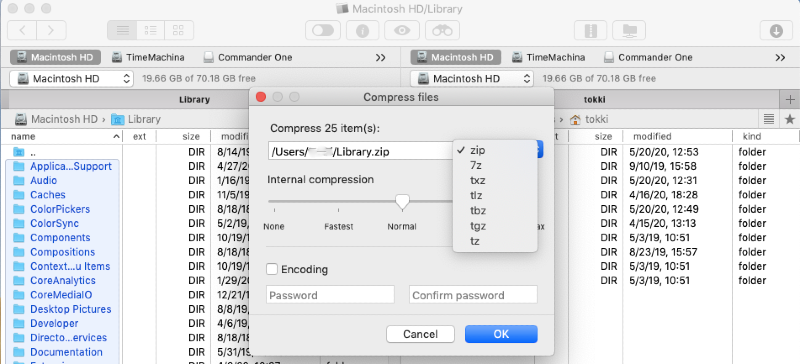
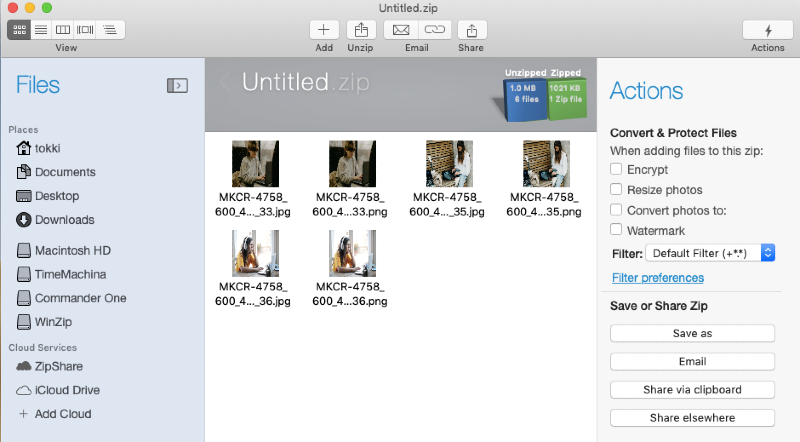
Commander One. As a file manager, the app can also work with archived files. It is considered to be one of the best archiving utilities for macOS. Users can define the degree of condenseness of archive format (.zip, .zt, .tgz, etc.).
WinZip. This is a multifunctional application, which a lot of Mac users should have on their computers. Besides unzipping files on Macs, it can convert Microsoft Office documents into a PDF format.
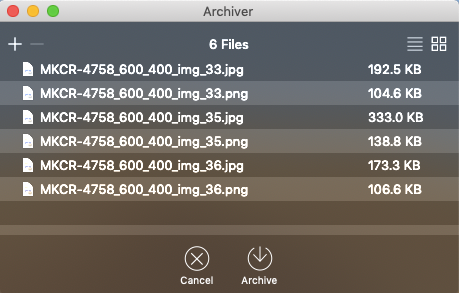
Archiver. This powerful app can offer great functionality and a user-friendly interface. The app can both archive and unzip files, as well as break them into parts. Archiver can deal with more than 30 file formats.
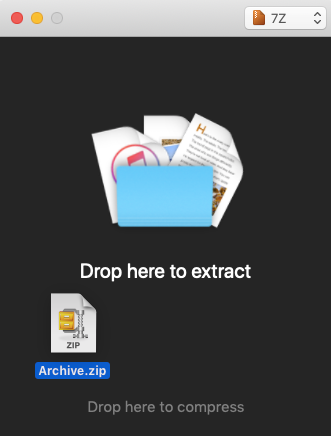
Keka. This extremely simple archiving app works with many formats. A useful option is to make it a default archiving app that is launched by double-clicking. In this case, you will definitely know how to extract zip files on Mac.
FAQ
Why can't I unzip files on a Mac?
A common reason for a failure to open zip files on a Mac is that there are Cyrillic symbols in the file name. The use of Terminal may help fixing the problem.
How do I unzip files on a Mac for free?
Archive Utility is a completely free built-in application that helps to unzip macOS files.
Does Mac automatically unzip files?
Yes, Macs have an in-built application, Archive Utility, for unpacking zip files on a Mac. It is compatible with the majority of compression formats.
We respect your privacy and
use cookies
for the best site experience.
Privacy Preferences Center
We use cookies along with other tools to give you the best possible experience while using the
MacKeeper website. Cookies are small text files that help the website load faster. The cookies we
use don’t contain any type of personal data meaning they never store information such as your
location, email address, or IP address.
Help us improve how you interact with our website by accepting the use of cookies. You can change
your privacy settings whenever you like.
Manage consent
All cookies
These cookies are strictly necessary for enabling basic website functionality (including page
navigation, form submission, language detection, post commenting), downloading and purchasing
software. The website might malfunction without these cookies.