If you’ve noticed ampdevicesagent causing high CPU usage on your Mac and slowing down your system, you’re not alone. But frustrating macOS performance issues don’t have to persist, as MacKeeper’s Memory Cleaner can help you close processes and restore your device to smooth, stable performance.
Still unsure what ampdevicesagent means? Simply put, when you see the amp devices agent on Mac, it is a genuine macOS component responsible for syncing, backing up, and keeping your iOS devices updated. It isn’t third-party software or malware, so there’s no need to worry about scams. Many Mac users consider this agent as a built-in part of their operating system, as it supports smoother performance and helps improve CPU usage on Mac.
Why does AMP Devices Agent appear?
It can be a pain when you keep seeing the amp devices agent on Mac, but it means your system has slowed down significantly and needs attention. In most cases, iCloud syncing or backups can trigger high CPU, and then the AMP Device Agent appears to help you manage it. It’s your Mac’s way of alerting you to errors, like cloud high CPU.
A note from our experts:
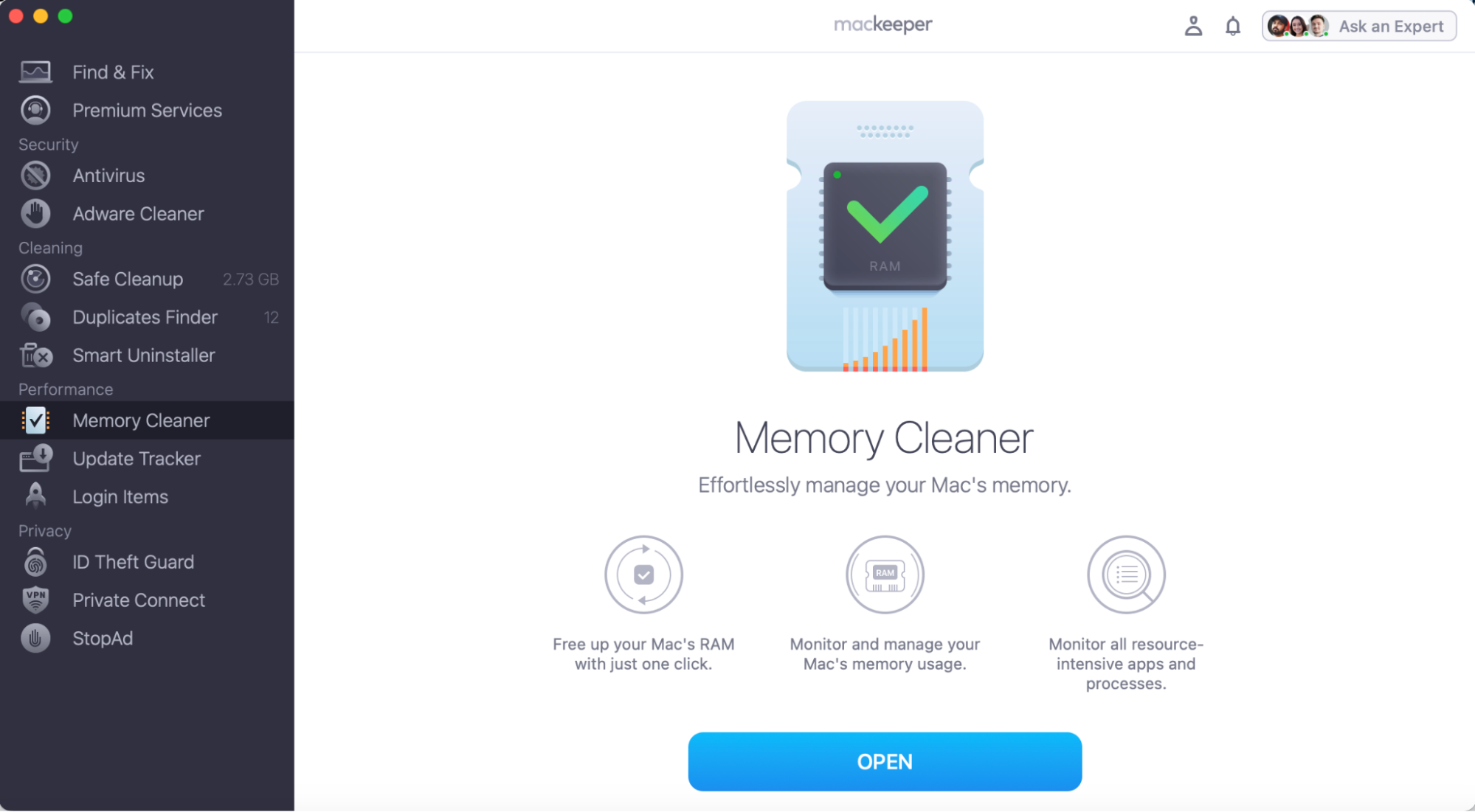
Need to delete old, redundant processes from your Mac? Instead of manually scrolling through your library to free up space, why not let MacKeeper’s Memory Cleaner help? Our tool can search for all your hidden background processes and clean your memory once and for all. That way, you’ll increase RAM and stop the Amp Device Agent in its tracks.
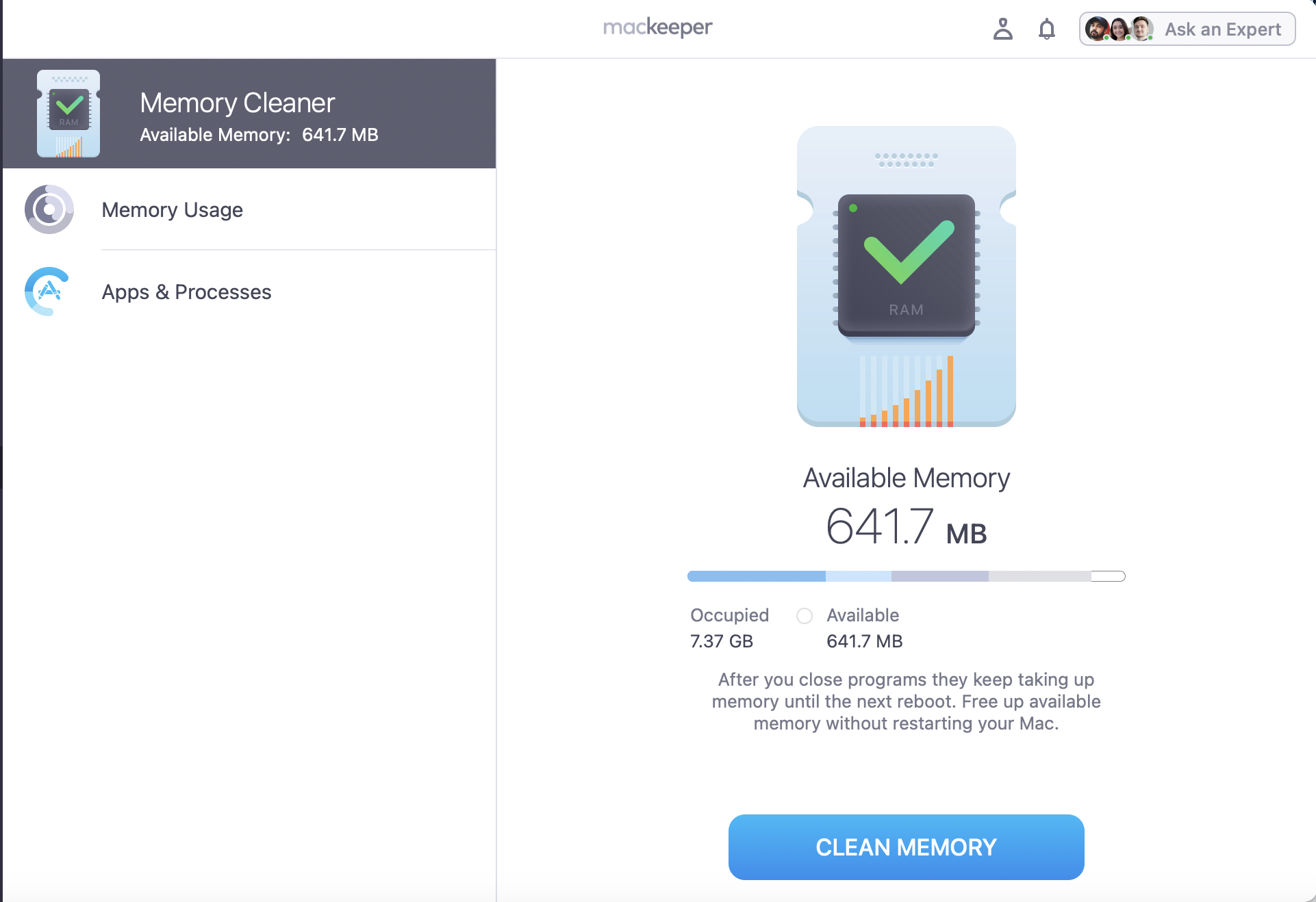
Review your Apps & Processes and click Clean Memory.
Step 1. Open MacKeeper, go to Memory Cleaner, and press OpenStep 2. Review and click the Clean Memory button
How to fix AMP Devices Agent high CPU usage?
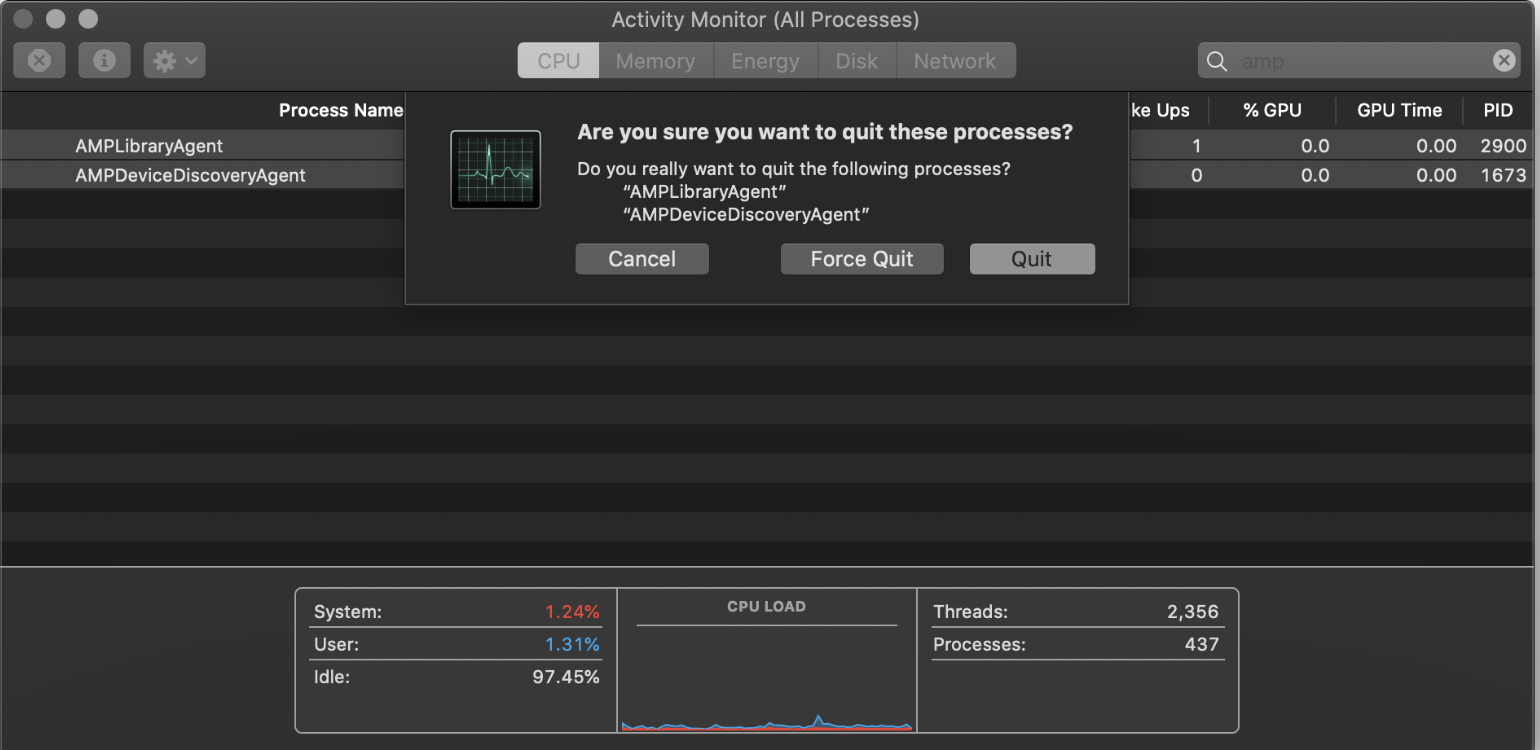
To fix the amp devices' high CPU usage, start by checking whether your iOS device is connected to your Mac–disconnect before you continue. Then open Activity Monitor and Quit AMPDevicesAgent process to close background apps on Mac and stop unnecessary processes from skyrocketing your CPU.
We’ve also found success with other immediate fixes and deeper troubleshooting methods—read below to find out which exactly.
Immediate fixes:
Restart your Mac:Restart your Mac to close all open apps, processes, and activities.
Disconnect connected iPhone or iPad:Unplug or disconnect iOS devices from your Mac.
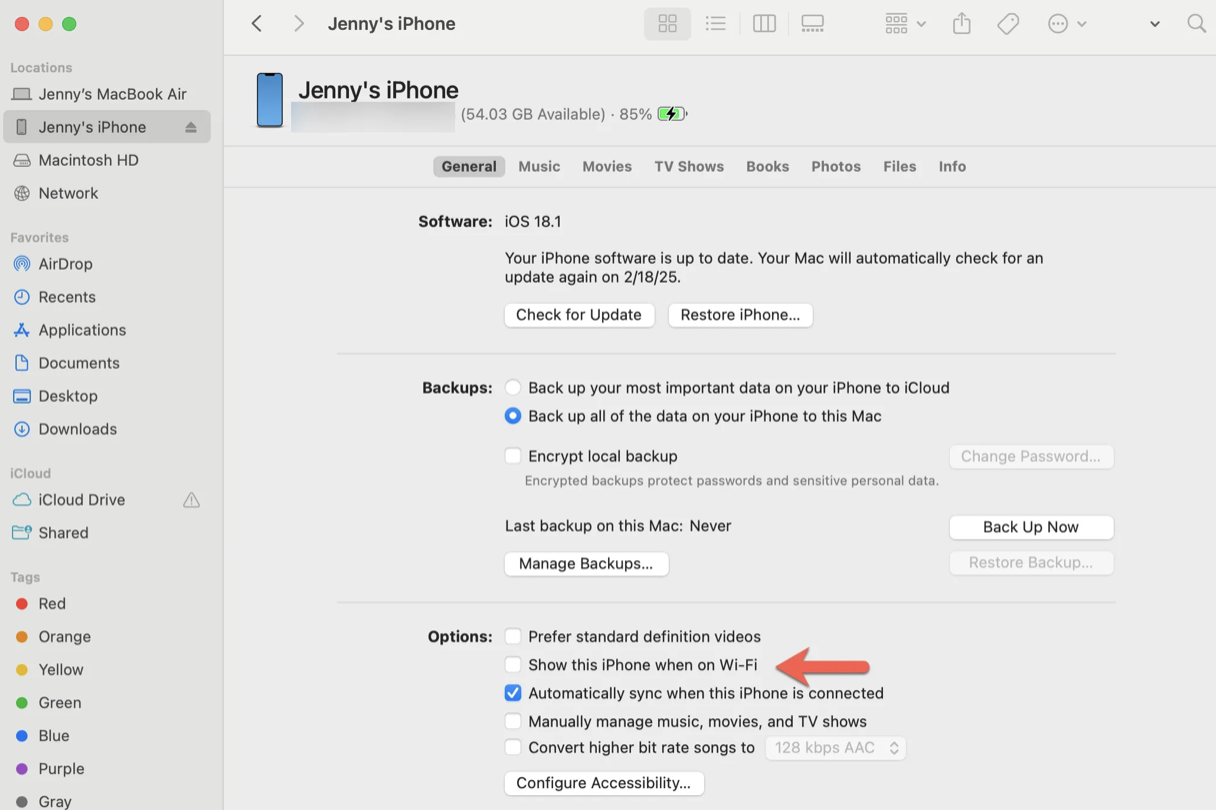
Hide device from being discovered by Wi-Fi: Untick Show this iPhone when on Wi-Fi.
Force quit AMPDevicesAgent: Open Activity Monitor, look for AMPDevicesAgent, and Quit.
Restart Finder after quitting Agent: After quitting, restart Finder to clear the device connection.
Deeper troubleshooting:
Check Music Library and related agents: Move files from folders, then remove cache & reimport.
Cisco AMP for endpoints (enterprise users only): It’s a cloud-based security solution.
Boot Mac in Safe Mode:Boot and restart your Mac without any conflicting cache.
Check for macOS updates:Check System Settings for outstanding updates to fix bugs.
Scan Mac for malware:Run an antivirus scan on your device to detect and remove malware.
1. Restart your Mac
In our experience, restarting your Mac is an effective way to give your laptop the boost it needs. We've noticed how well this can fix temporary system glitches and prevent background syncing issues–hopefully it’ll also help you resolve the amp devices agent on Mac:
Here’s how to safely restart your Mac:
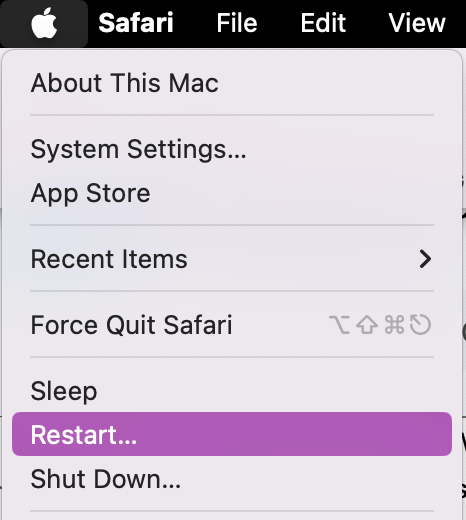
Click on the Apple Icon in the top left corner.
Press Restart Mac.
Restart your Mac to stop all system glitches and background syncing
2. Disconnect the connected iPhone or iPad
Another quick fix you can try is disconnecting your iPhone or iPad from your Mac. Our experts have found that removing connected iOS devices often immediately reduces AMPDevicesAgent high CPU activity. That’s why we recommend that you try this solution to boost your system without needing extra troubleshooting.
3. Hide device from being discovered by Wi-Fi
If your Mac still feels slow, try hiding your iOS device from Wi-Fi discovery when it’s connected. You’d be surprised how much background syncing happens between your iPhone and Mac—and how often it triggers AMPDevicesAgent on Mac as well as system slowdowns.
Here’s how to stop your iOS device from being discovered by Wi-Fi:
Open Finder.
Click on your iOS device.
Untick Show this iPhone when on Wi-Fi.
In Finder, click on your iOS device and untick Show this iPhone when on Wi-Fi
4. Force quit AMPDevicesAgent in Activity Monitor
One of the most efficient and time-saving solutions that we’ve seen the most success with is to use Activity Monitor to Force Quit AMPDevicesAgent. This method temporarily reduces CPU spikes that are known to be caused by syncs that are stuck or glitching.
Here’s how you can force-quit AMPDevicesAgent in Activity Monitor yourself:
In Finder, go to the Applications Folder and open Activity Monitor.
Search for AMPDevicesAgent and press Quit.
You may need to enter your Login Password to confirm your actions.
In Activity Monitor, search for AMPDevicesAgent and press Quit
5. Restart Finder after quitting Agent
Have you just quit the ampdevicesagent in Activity Monitor? If so, the process is not yet complete. Now, we recommend restarting Finder to fully reset macOS services and ensure all the changes you’ve made have been successful at reducing your CPU usage.
Let us show you how to restart Finder:
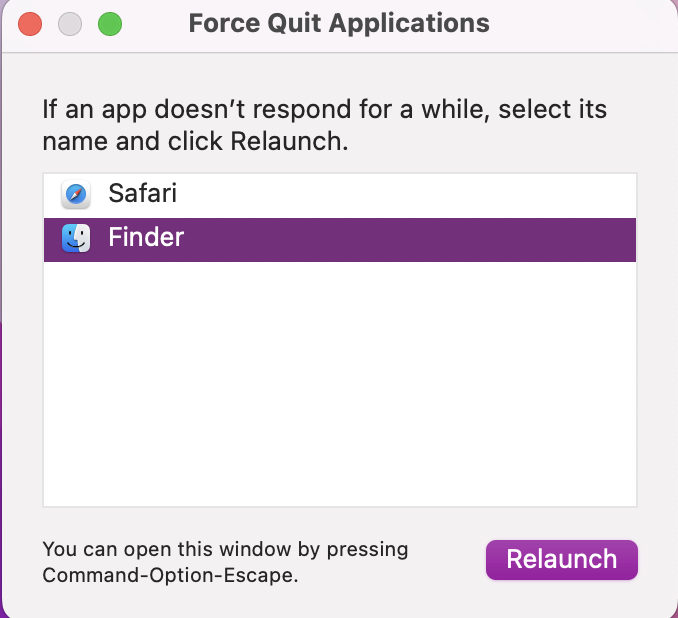
Click on the Apple Icon and choose Force Quit.
Highlight Finder and press Relaunch.
Open Force Quit Applications pop-up, select Finder, and press Relaunch
6. Check Music Library and related agents
Need to go a little deeper? You’d be surprised how much corrupted music and media cache can affect your background processes on Mac–that’s why we suggest checking your Music Library in case it's the culprit behind your system errors.
Here’s how:
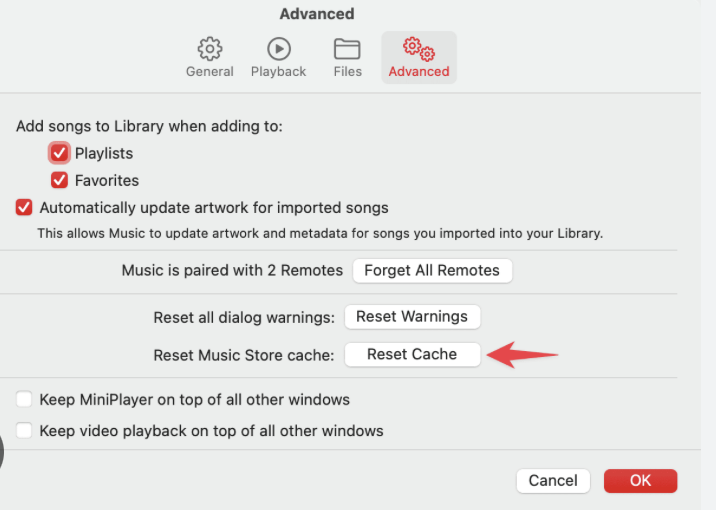
Open your Music app and go to Advanced Settings.
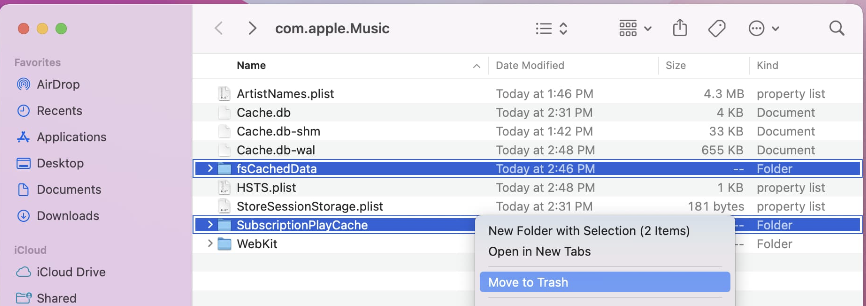
If you use Apple Music, you can press Reset Cache to free up resources instantly. Alternatively, you can manually look through your Finder Library for Music cache to remove.
Right-click any suspected cache and Move to Bin.
Step 1. Open your Music app, and look for the advanced Settings for the option to Reset cacheStep 2. Manually look for any Music-related cache in your Mac’s Finder Library
7. Cisco AMP for endpoints (enterprise users only)
Do you use your device exclusively for work or studying? If so, Cisco AMP for endpoints is known to run frequent security scans that can be linked to CPU spikes and system slowdowns. In case your system is continuously slow, we recommend adjusting your setting to help restore performance.
8. Boot Mac in Safe Mode
Another reliable way you can clear system cache that could be triggering unwanted AMPDevicesAgent activity is to boot your Mac in Safe Mode. Here’s how:
Shut down your Mac.
Press the power button, and at the same time, hold down the Shift key.
Release Shift when you see the Login Window.
In the menu bar, you can look for Safe Boot to confirm you’re in Safe Mode.
When turning on your Mac, hold down Shift until you see the Login Window to boot into Safe Mode
9. Check for macOS updates
It might not seem important, but keeping your macOS up to date is vital for both stability and security. New software patches ensure bugs are fixed whilst still keeping your system protected. Therefore, we strongly encourage all Mac users to regularly check for updates.
Here's how:
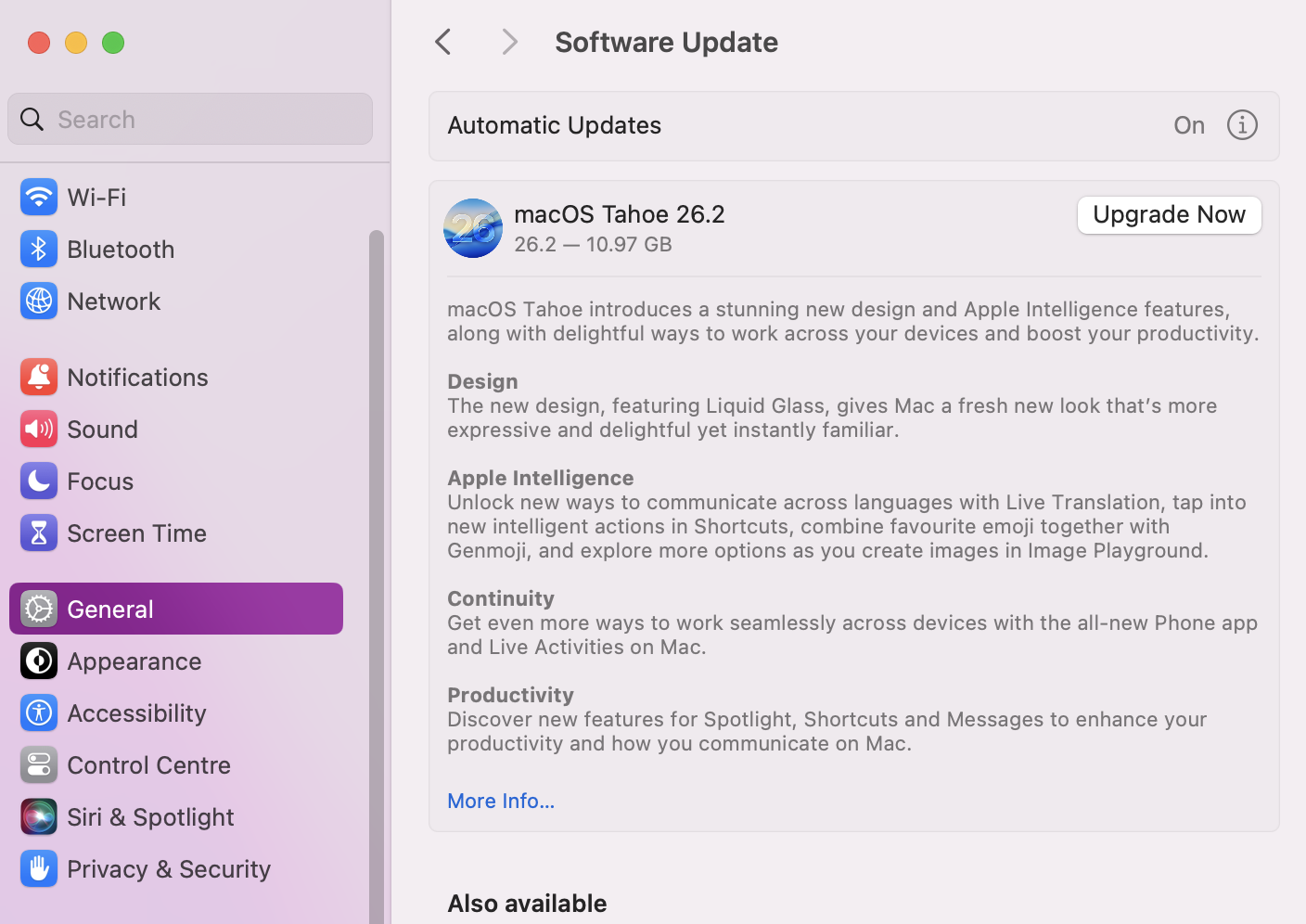
Open System Settings.
Go to General > Software Updates.
If any updates are available, click Update Now.
In System Settings, go to General > Software Updates and press Update Now if an update is ready
10. Scan Mac for malware
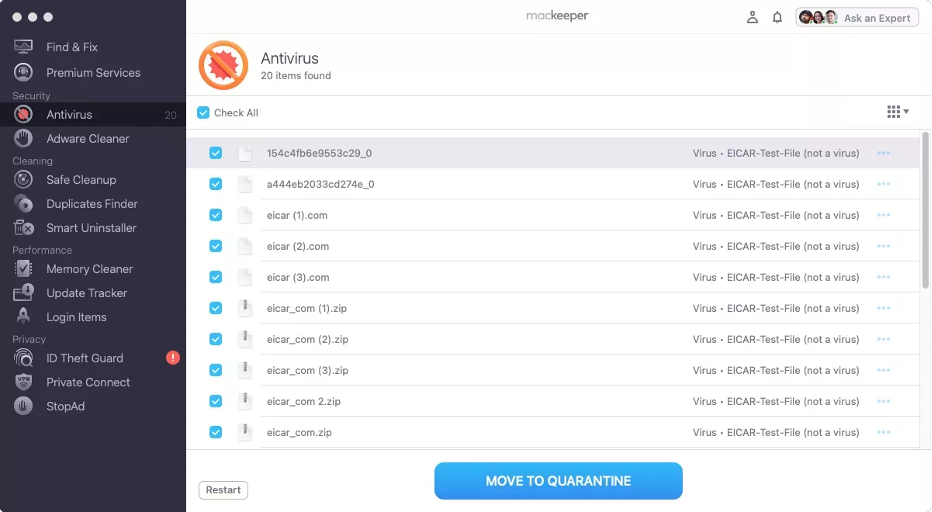
Still no luck? If your system glitches and slowness persists, we urge you to immediately scan your device to check for a virus or malware. Abnormally high CPU usage is very suspicious.
Here's how to run a scan with MacKeeper’s Antivirus made by Clario Tech:
Step 1. Open the MacKeeper app, click on Antivirus, and press Start ScanStep 2. If you find anything suspicious, highlight it and press Move to Quarantine
When AMP Devices Agent high CPU is normal?
Don’t be alarmed if your CPU spikes, as there are instances when a temporary CPU peak is both normal and a sign that your Mac’s health is stable. High CPU usage for AMPdeviceAgent is very common when you’re syncing your iOS devices for updates–even after they’ve updated. This is due to the CPU usage fixing itself to re-adjust your system.
An extra hint from us:
If you suspect macOS contactsd high CPU is the problem behind your device slowdowns, then the troubleshooting steps in our supporting blog article will come in very handy. We’ll show you how to kill the background process to stop nuisance disruptions affecting your Mac activities.
AMP Devices Agent wants to use your confidential information message
You’re minding your business on your Mac when all of a sudden, you see the message AMP Devices Agent wants to use your confidential information—we know that many Apple users begin to panic here about their confidential data, but it’s a real macOS prompt. It’ll pop up if your macOS is Catalina or later, and you manage your iOS backups via your Mac’s Finder or iTunes. You should click Always Allow to avoid annoying pop-ups or further interference.
Managing high CPU usage with MacKeeper
Now you know that if you ever experience a sudden spike in your CPU usage, it could be linked to AMPDevicesAgent on Mac. In this instance, you’re now well-equipped with several quick fixes, like restarting your Mac, as well as deeper troubleshooting steps like updating macOS, to help you bring your system back under control.
For long-term system support, you can count on MacKeeper’s Memory Cleaner to come to your rescue. Should you ever need to get to the bottom of unnecessary background processes, we’ll help you free up resources and prevent slowdowns in no time.
We respect your privacy and
use cookies
for the best site experience.
Privacy Preferences Center
We use cookies along with other tools to give you the best possible experience while using the
MacKeeper website. Cookies are small text files that help the website load faster. The cookies we
use don’t contain any type of personal data meaning they never store information such as your
location, email address, or IP address.
Help us improve how you interact with our website by accepting the use of cookies. You can change
your privacy settings whenever you like.
Manage consent
All cookies
These cookies are strictly necessary for enabling basic website functionality (including page
navigation, form submission, language detection, post commenting), downloading and purchasing
software. The website might malfunction without these cookies.