Juggling a dozen open apps on your Mac and losing track of them? The App Switcher on MacBook helps you jump between them in a snap. And when too many apps slow down startup, MacKeeper’s Login Items trims hidden launch-at-startup apps so your Mac wakes up ready to go.
Ever pressed Command + Tab by accident and seen a row of icons flash across your screen? That’s the macOS App Switcher—a simple overlay that shows every app you have open right now. It’s built into every MacBook, so there’s nothing to install.
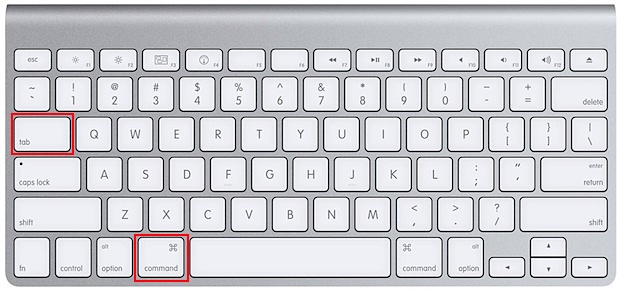
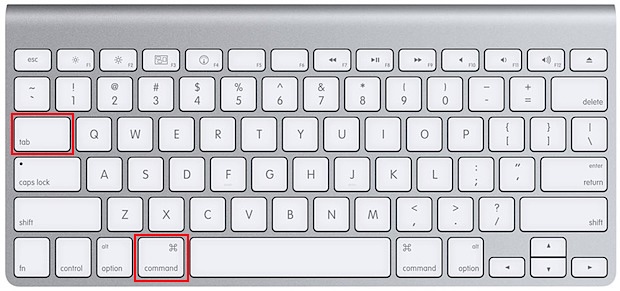
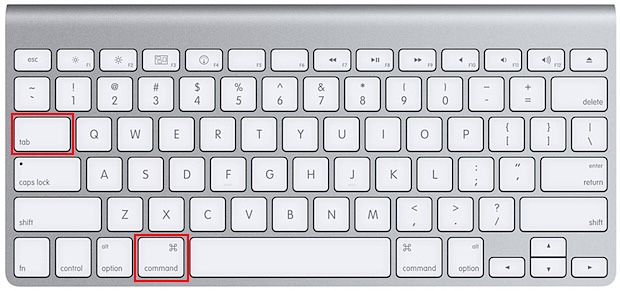
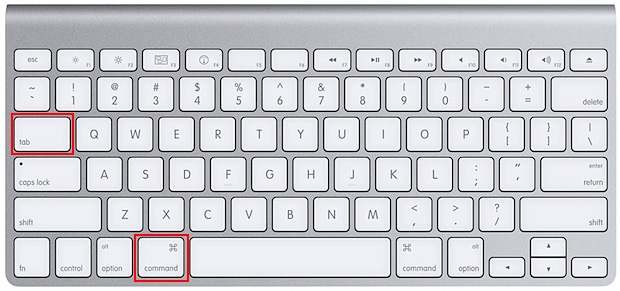
Hold down the Command key, tap Tab, and the Mac App Switcher command tab overlay appears in the middle of your screen. Keep holding Command and tap Tab again to move through your open apps one by one. Let go, and you land in the app you picked.
In our practice, it’s one of several ways macOS helps you manage a busy desktop. If you like keeping windows neatly grouped, Stage Manager on MacBook is another handy interface worth exploring, since it tucks background windows out of the way while you work.
App Switcher vs switching between windows on Mac
Here’s a point that trips up a lot of people—the App Switcher moves you between apps, not between individual windows. So if you have three Safari windows open, the switcher treats them as one app, not three.
Say you’re writing in two separate Pages documents. The task switcher Mac overlay shows Pages just once. To hop between those two windows, you’d use a different shortcut instead.
To cycle through windows of the same app, press Command + ` (the backtick key, just above Tab). And when you want to see all open windows at once across every app, Mission Control gives you the full picture in a single glance.
A note from our experts:
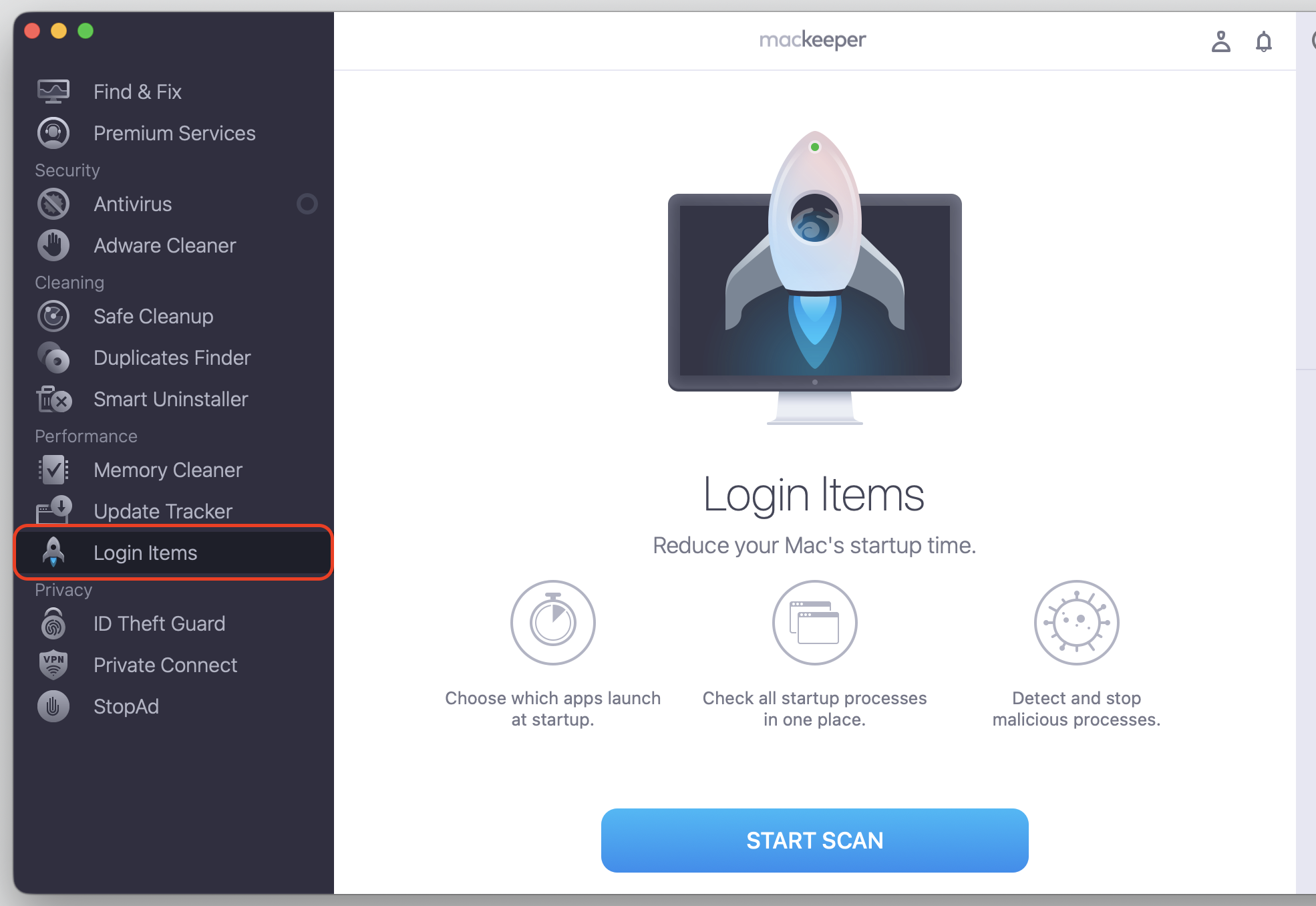
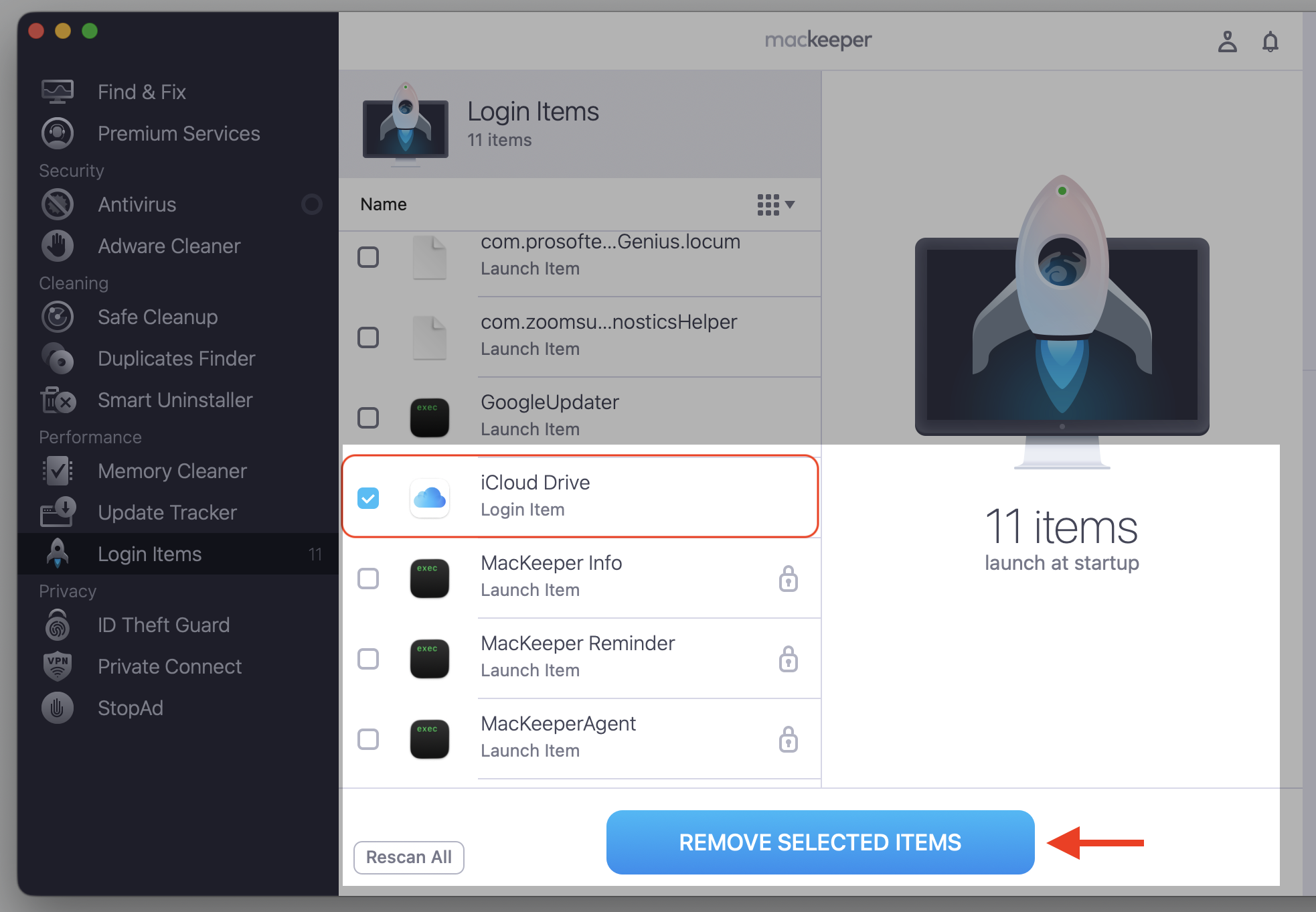
Knowing how to effectively navigate between the programs, or, in other words, different windows on your Mac, is important for your daily routine. At the same time, it’s equally critical to remove redundant programs from the list to make this transition quicker. For this aim, we recommend reducing the number of startup items you won’t need to close or force-quit afterward. Getting this job is easier with the help of MacKeeper’s Login Items, as its dedicated purpose is exactly to remove non-essential programs from launching at every Mac’s startup.
Tick the boxes to choose the unnecessary startup programs.
Confirm your decision with the Remove Selected Items button.
Step 1. Go to MacKeeper > Login Items and select Start ScanStep 2. Select the desired boxes and click Remove Selected Items
App Switcher shortcuts on Mac
Once you know a few keys, the app and window switcher on Mac becomes second nature. Below, we’ve prepared the list of the Mac App Switcher shortcut combinations worth memorizing—check it out.
What you want to do
Keys to press
Open the switcher and move forward
Hold Command, tap Tab
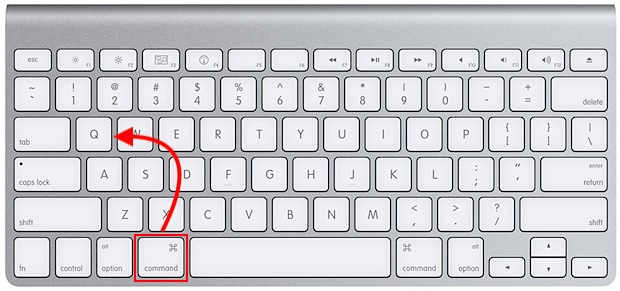
Move backward through apps
Hold Command + Shift, tap Tab
Move with arrow keys
Hold Command, press the left or right arrow
Select with mouse or trackpad
Press Command+Tabe and click an icon
Cancel without switching
Hold Command, press Esc
Want more combinations like these? Our roundup of Mac shortcut keys covers the ones that save you the most time each day.
How to bring back minimized app with App Switcher?
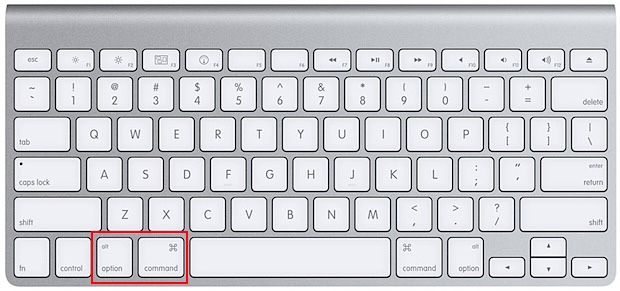
Here’s a quirk worth knowing—if you’ve minimized an app to the Dock, simply selecting it in the switcher won’t always reopen the window. The Option key is the trick that fixes this, so follow our instructions:
Hold down the Command key to open the App Switcher.
Keep Command held and tap Tab until the minimized app’s icon is highlighted.
Before letting go of Command, press and hold the Option key.
Release Command first, then release Option. The minimized window springs back to the front.
Step 1. Press Command+TabStep 2. Select the app by pressing Tab while holding the Command keyStep 3. Once the app is selected, press Option while holding the Command key to open it
How to view all windows of app from App Switcher?
If one app has several windows open, the switcher can fan them all out for you using App Exposé. This makes it easy to land on the exact window you need. Do this:
Hold Command and tap Tab to bring up the switcher.
Keep Command held and move to the app you want to inspect.
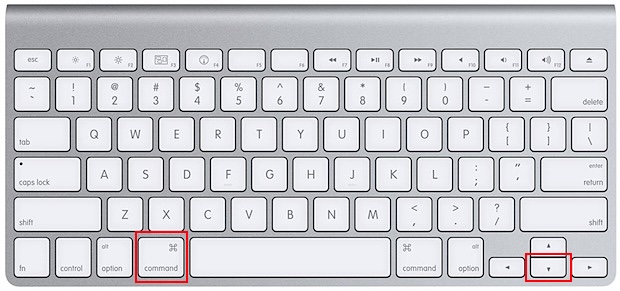
With that app highlighted, press the Down arrow or release Command.
All of that app’s windows spread across the screen—click the one you want to work in.
Step 1. Press Command+TabStep 2. Select the app by pressing Tab while holding the Command keyStep 3. With that app highlighted, press the Down arrow or release Command
How to open files with App Switcher?
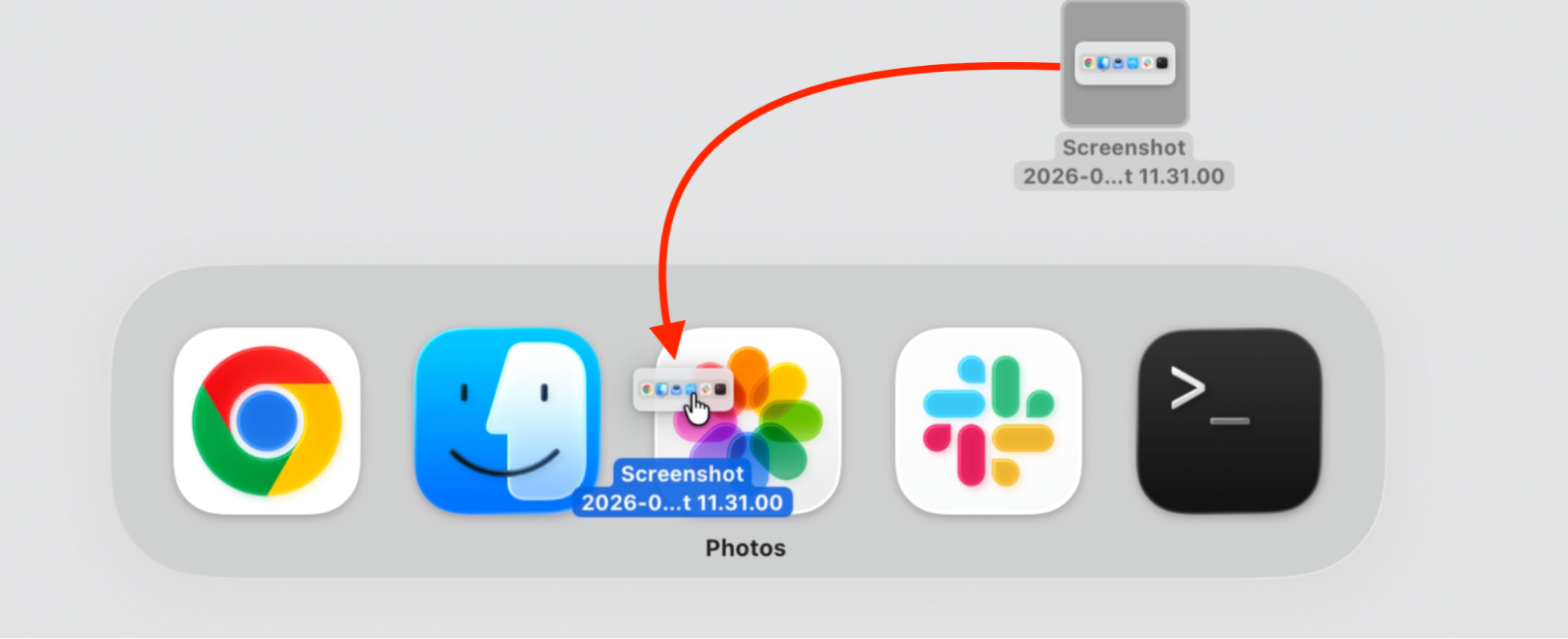
This one feels almost like a magic trick. You can drop a file straight onto an app icon in the switcher to open it there—handy when you want a photo in a specific editor or a document in a different app. Here’s how:
Click and start dragging the file from your desktop or a Finder window.
While still holding the file, press and hold Command, then tap Tab.
Keep dragging and move your pointer over the app icon you want to use.
Drop the file onto that icon. The app opens with your file ready to go.
Step 1. Press Command+TabStep 2. Select the app by pressing Tab while holding the Command keyStep 3. Drop the file onto that icon app
How to quit apps from App Switcher?
The switcher doubles as a quick way to clear desktop clutter. You can hide an app you’re not using if you work on the older macOS versions or better quit one entirely, all without leaving the overlay. To do the latter:
Hold Command and tap Tab to open the switcher.
Move to the app you want to tidy away.
With it highlighted, press Q to quit it.
Release Command. The app slips into the background or quits, leaving you a cleaner screen.
Step 1. Press Command+TabStep 2. Select the app by pressing Tab while holding the Command keyStep 3. With the app highlighted, press Q to quit it
Switch faster and start your Mac clean
The App Switcher on Mac is more than a quick jump between apps—it restores windows, opens files, hides clutter, and quits apps in seconds. But if a crowd of startup apps still drags out your boot time, MacKeeper’s Login Items finds and removes the hidden ones. Try it today to feel the better Mac performance!
We respect your privacy and
use cookies
for the best site experience.
Privacy Preferences Center
We use cookies along with other tools to give you the best possible experience while using the
MacKeeper website. Cookies are small text files that help the website load faster. The cookies we
use don’t contain any type of personal data meaning they never store information such as your
location, email address, or IP address.
Help us improve how you interact with our website by accepting the use of cookies. You can change
your privacy settings whenever you like.
Manage consent
All cookies
These cookies are strictly necessary for enabling basic website functionality (including page
navigation, form submission, language detection, post commenting), downloading and purchasing
software. The website might malfunction without these cookies.