You’ve decided to move on from Docker Desktop after years of using it, but you can’t delete it from your Mac? If you’re looking for solutions for deleting Docker Desktop without losing your files, our top pick for safely removing Docker from your Mac is MacKeeper’s Smart Uninstaller. It deletes unwanted apps and their associated files, ensuring that nothing is left behind.
Docker separates software from infrastructure to accelerate how teams build and deploy applications. Instead of using bulky virtual machines that require heavy guest operating systems, it packages code into lightweight containers. These units share the host system's kernel while remaining completely isolated.
This efficient architecture makes the platform a perfect match for PaaS cloud ecosystems, which automate background server management so developers can focus purely on writing software. While it runs natively on modern computers today, running it on legacy operating systems years ago required a workaround package known as the now-outdated Docker Toolbox.
Why you might want to uninstall Docker Desktop?
While Docker is a fantastic tool for developers, it’s not always a permanent fixture on every machine. You might find yourself needing to completely remove Docker Desktop from your system for several practical reasons.
From our experience, the main reasons to uninstall Docker from your Mac are the following:
System slowdowns: The application demands substantial CPU and RAM, which can visibly lag your computer during heavy tasks.
Alternative tools: You’re migrating to newer or different container managers, such as Podman or Kubernetes.
Battery drain: Running the background engines consumes significant power, cutting your laptop's battery life down to just a few hours.
Frequent crashes: Persistent bugs, daemon connectivity errors, or sudden software freezes ruin your daily user experience.
A note from our experts:
Though there are several ways to uninstall Docker Desktop from your MacBook, most of them demand your time, attention, and knowledge of your way around a Mac. For these reasons, we’ve found that the simplest solution is to use MacKeeper’s Smart Uninstaller. It automates the process by quickly finding and deleting unwanted or unused apps while keeping your files and data intact, saving you time. Download MacKeeper and see for yourself.
How to remove Docker Desktop from your Mac?
You can delete Docker Desktop via its built-in uninstaller. If you’re comfortable deleting macOS applications, manually uninstall Docker Desktop from the Applications folder. Another option is to use a third-party app to delete Docker Desktop.
1. Use Docker Desktop's built-in uninstaller
We recommend using Docker Desktop’s native uninstaller to remove the app. Not only is it the most straightforward solution, but it also safely removes associated files at no risk to your Mac. In addition, Docker’s built-in uninstaller requires no additional software, making it convenient and cost-effective, too.
Follow the steps below to remove Docker Desktop using its native uninstaller:
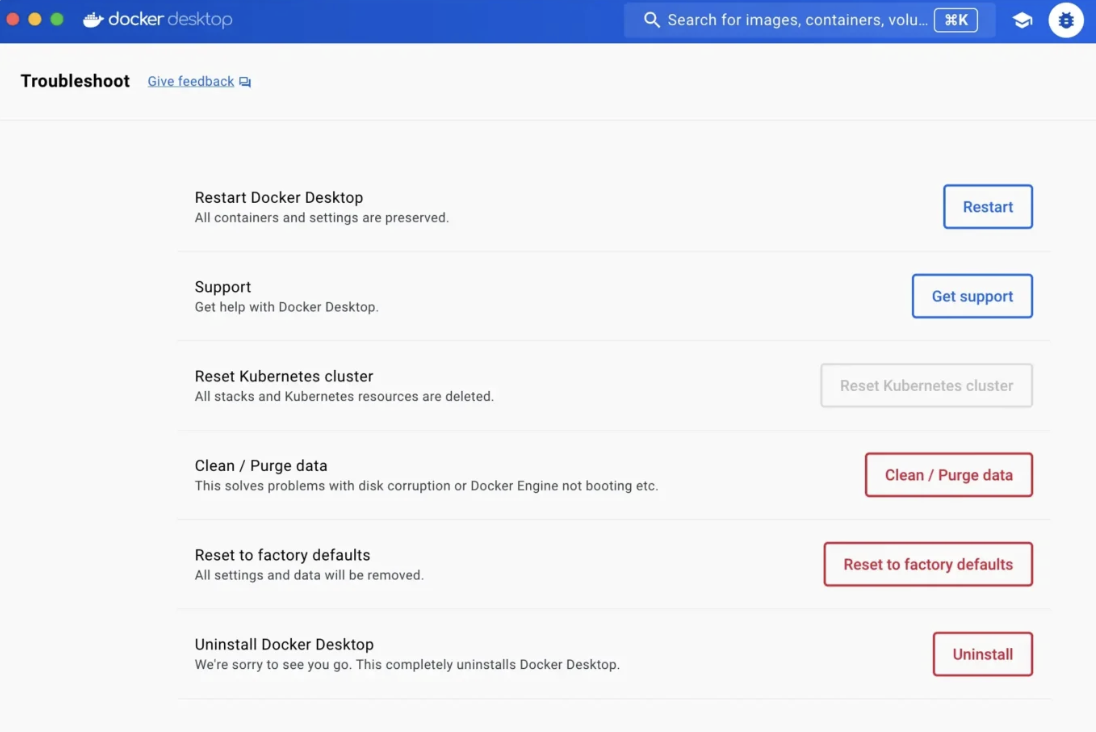
Open Docker Desktop using the Docker Dashboard or the relevant icon and click the Troubleshoot icon. (Note that the icon may differ depending on your Docker version.)
A troubleshoot menu will appear—click on Uninstall. You may be asked to confirm your decision to uninstall the app.
2. Manually uninstall Docker Desktop
Another fix is manually deleting Docker Desktop from your computer. Since this method requires a lot of involvement from you, we typically use it as a last resort or if we’re quite comfortable navigating files and folders in Finder on a Mac. After all, whether you use Docker Desktop’s native uninstaller or a third-party app, it helps to know how to delete the app yourself in case nothing else works.
Follow this approach to remove the Docker Desktop app the DIY way:
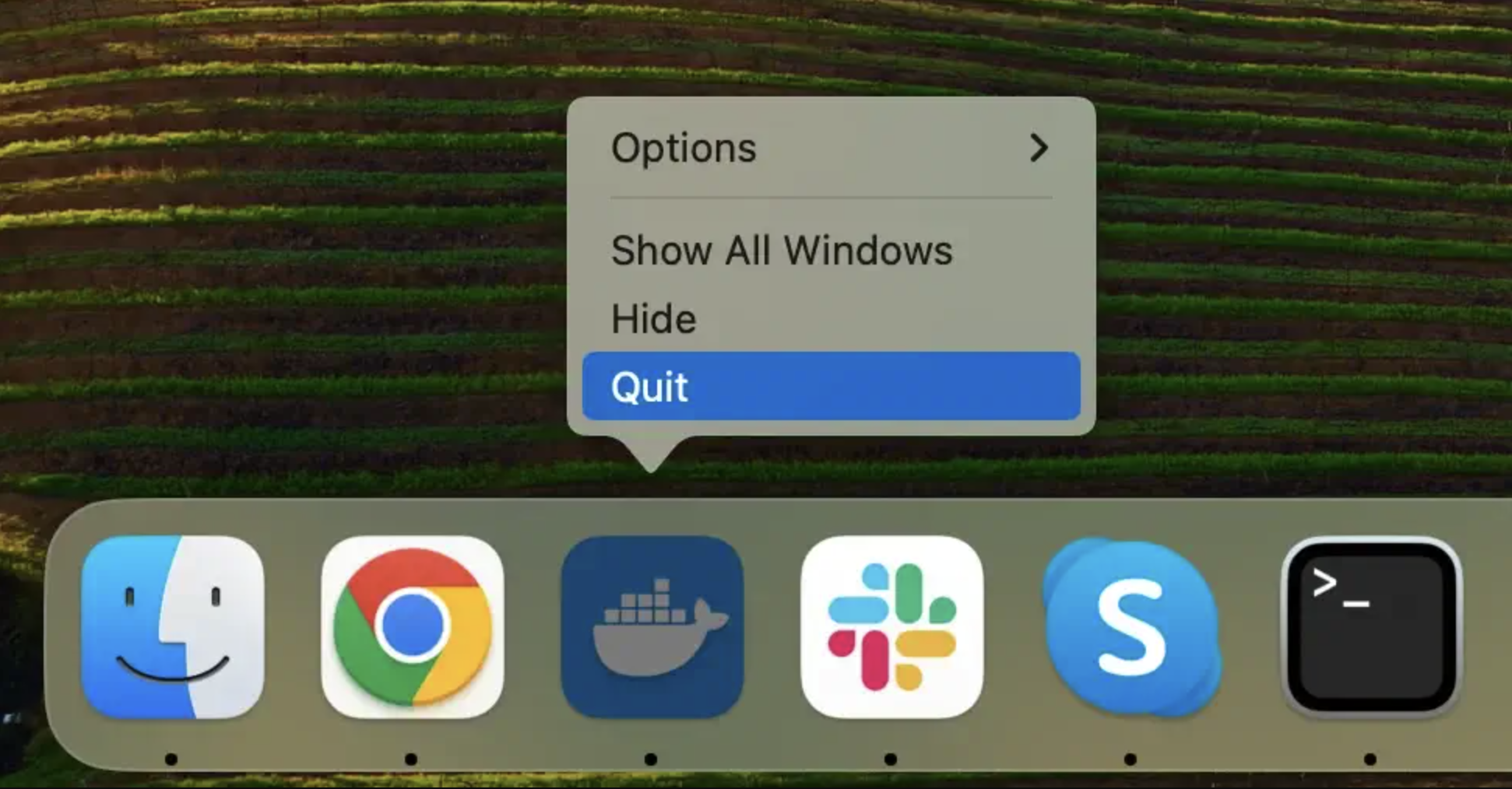
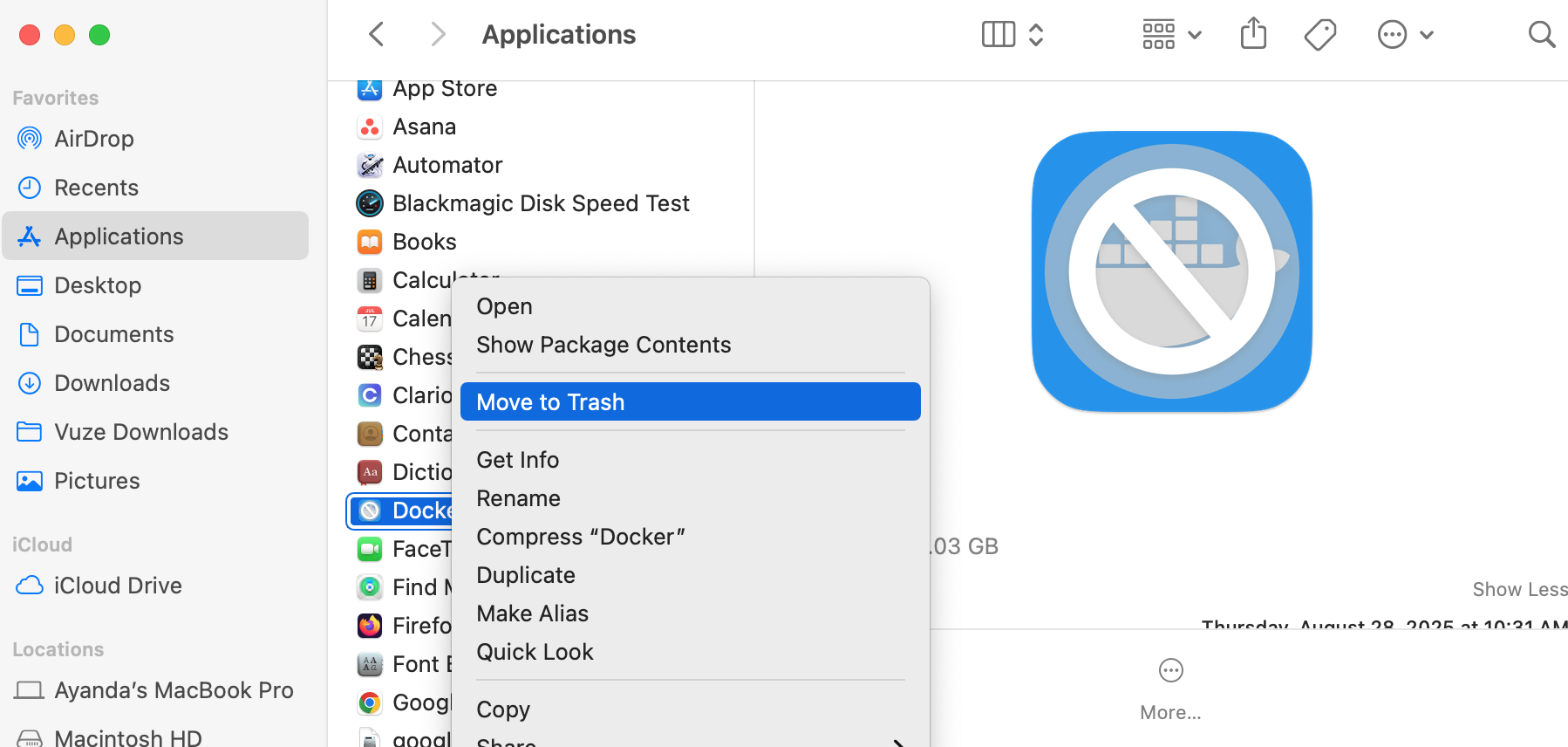
Quit the Docker Desktop app, go to Finder > Applications, and either drag the app to the Trash or right-click on it and choose the Move to Trash option from the drop-down menu.
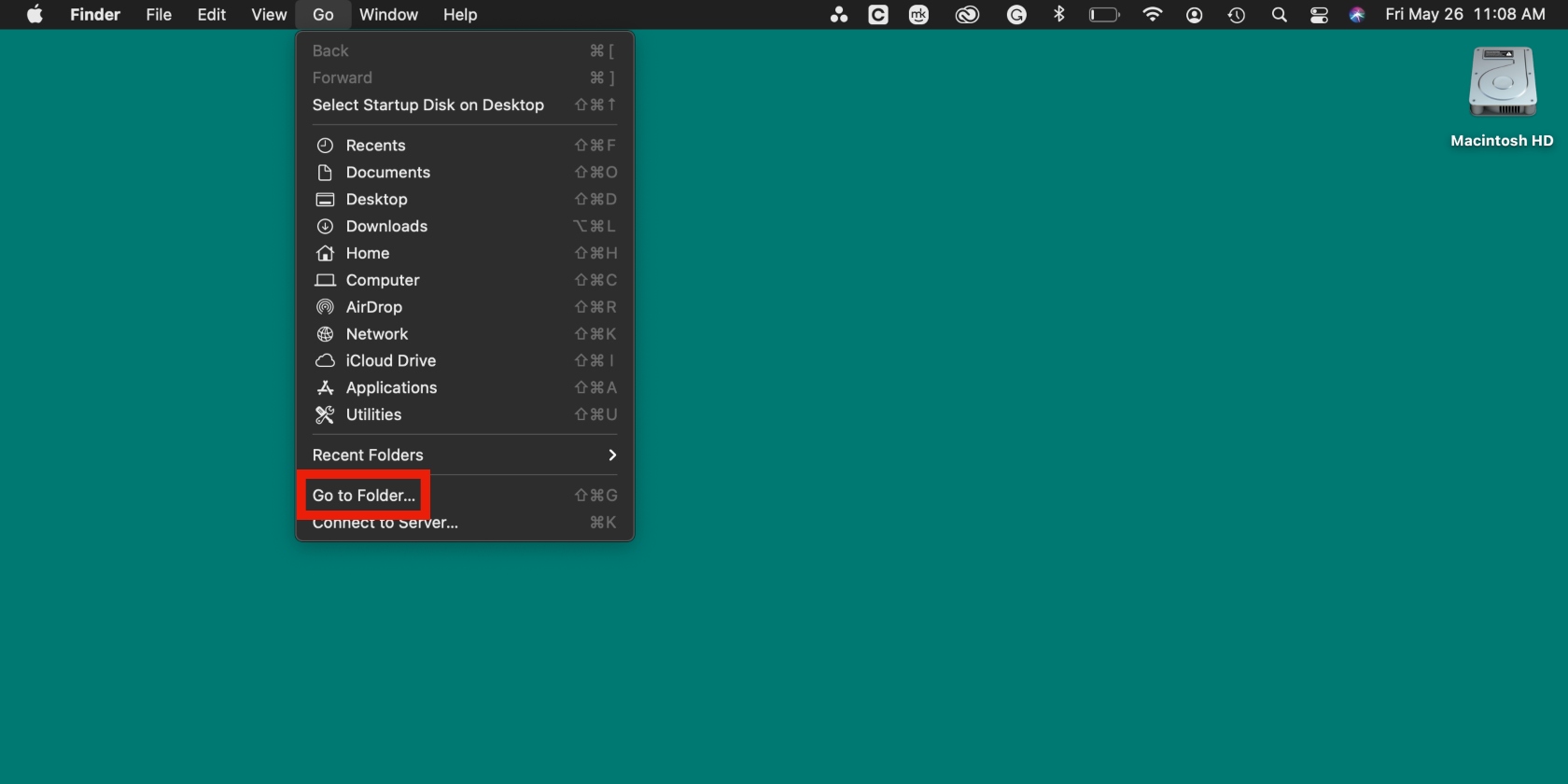
To remove leftover files, quit Docker, select Go > Go to Folder in Finder, and then paste each path below to get rid of any remaining files. Keep in mind that paths differ depending on the version of Docker you have installed. Also, avoid losing your files by backing them up first. And whatever you do, don't remove files you don't recognize. Choose between these locations:
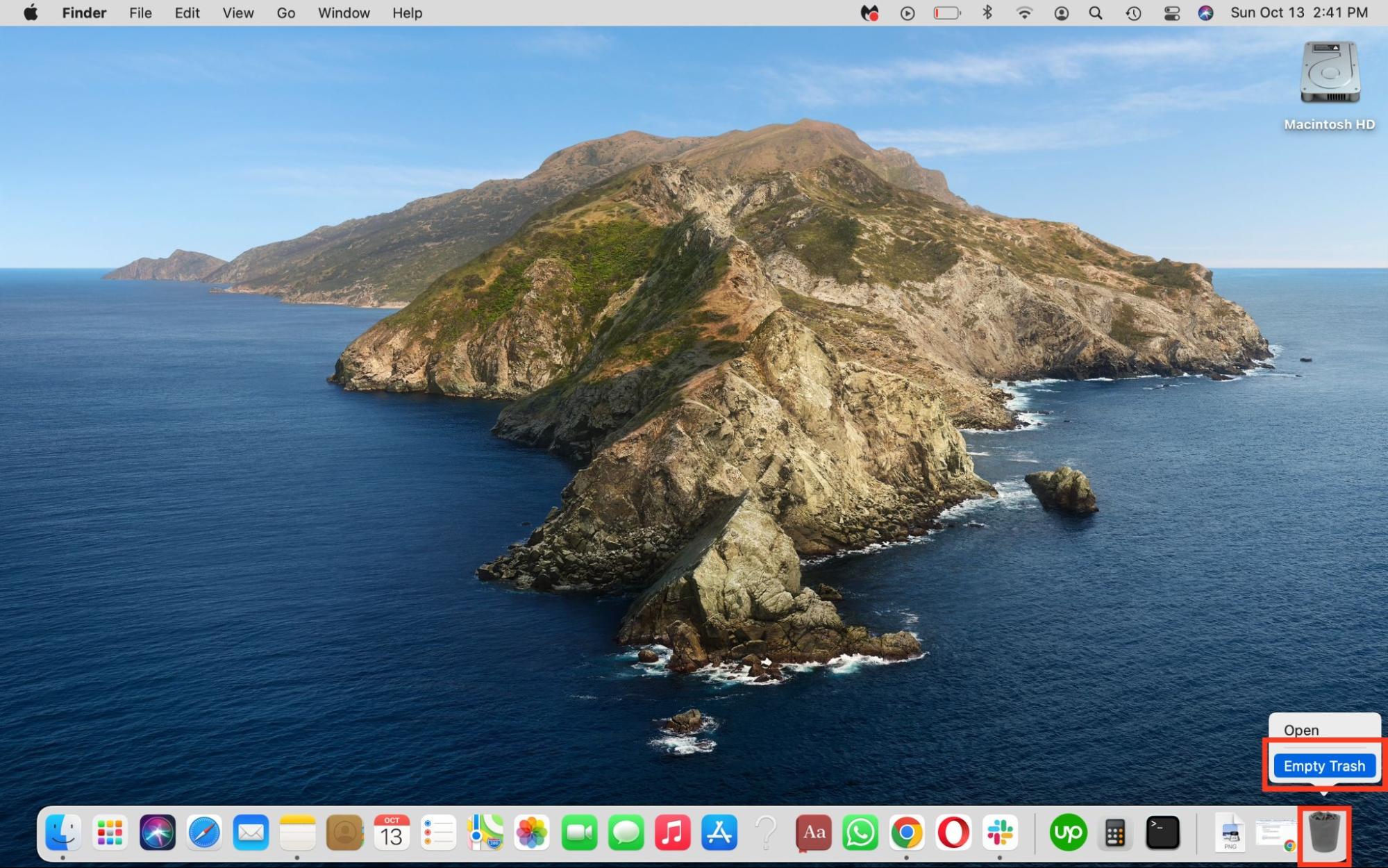
From the Dock, right-click on the Trash can and select the Empty Trash option. This ensures Docker Desktop and its related files are permanently removed from your Mac.
Step 1. Delete Docker Desktop via FinderStep 2. Select Finder > Go > Go to FolderStep 3. Right-click on the Trash can and select Empty Trash
A heads-up from our team: Please note that some file paths depend on the version of Docker you’ve installed. If a specific file path doesn’t work when you search for it, it’s probably not applicable to your Docker version.
3. Uninstall Docker with Terminal
Copy and paste the command: [path to Docker app]/Contents/MacOS/uninstall and hit Enter.
Hint from our team: All you need to delete Docker from your Mac is to enter the command, replacing the information in the square brackets with the full file path. You may have to enter your administrator’s credentials as well.
Entering Terminal command to delete Docker
If that doesn’t work, use the commands below instead. Hit the Return key after each one:
When you’re unable to delete the app, Mac’s Terminal can be used to install apps with Homebrew on OS X El Capitan and other Mac operating systems, including Sonoma and Sequoia. However, using it incorrectly can cause you to lose important files. To do it right, learn how to use Terminal command line on a Mac and reduce the errors.
4. Uninstall Docker Desktop on Mac using Homebrew
If we had used Homebrew to set up Docker Desktop on our Mac, then we use the same package manager to clear our device of it. This step ensures our package environment stays clean and prevents any broken dependencies down the line.
Here’s how to completely strip the application and its background configurations using the command line:
Start by quitting the active Docker app if it’s currently running in the background before running any cleanup commands.
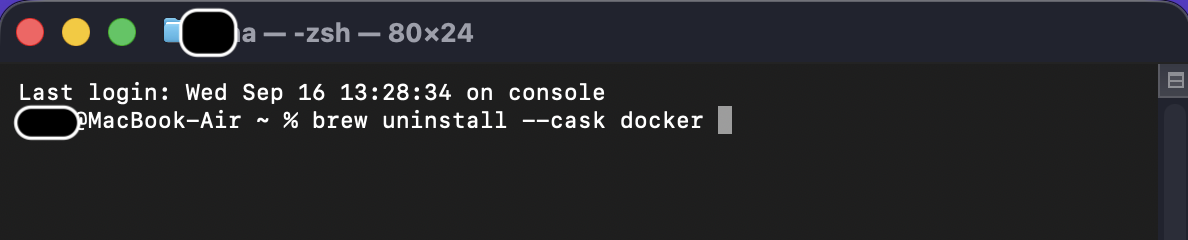
Open the Terminal utility and execute the cask uninstallation command by typing:
brew uninstall --cask docker
Homebrew removes the core application, but lingering container data and settings usually stay behind. To wipe out the remaining files and clear your disk space, remove the main configuration folders by running:
Step 1. Quit the Docker app if it’s currently running in the backgroundStep 2. Enter the command brew uninstall --cask docker in TerminalStep 3. Enter the Terminal commands rm -rf ~/.docker and rm -rf ~/Library/Group\ Containers/group.com.docker
5. Use MacKeeper to uninstall Docker
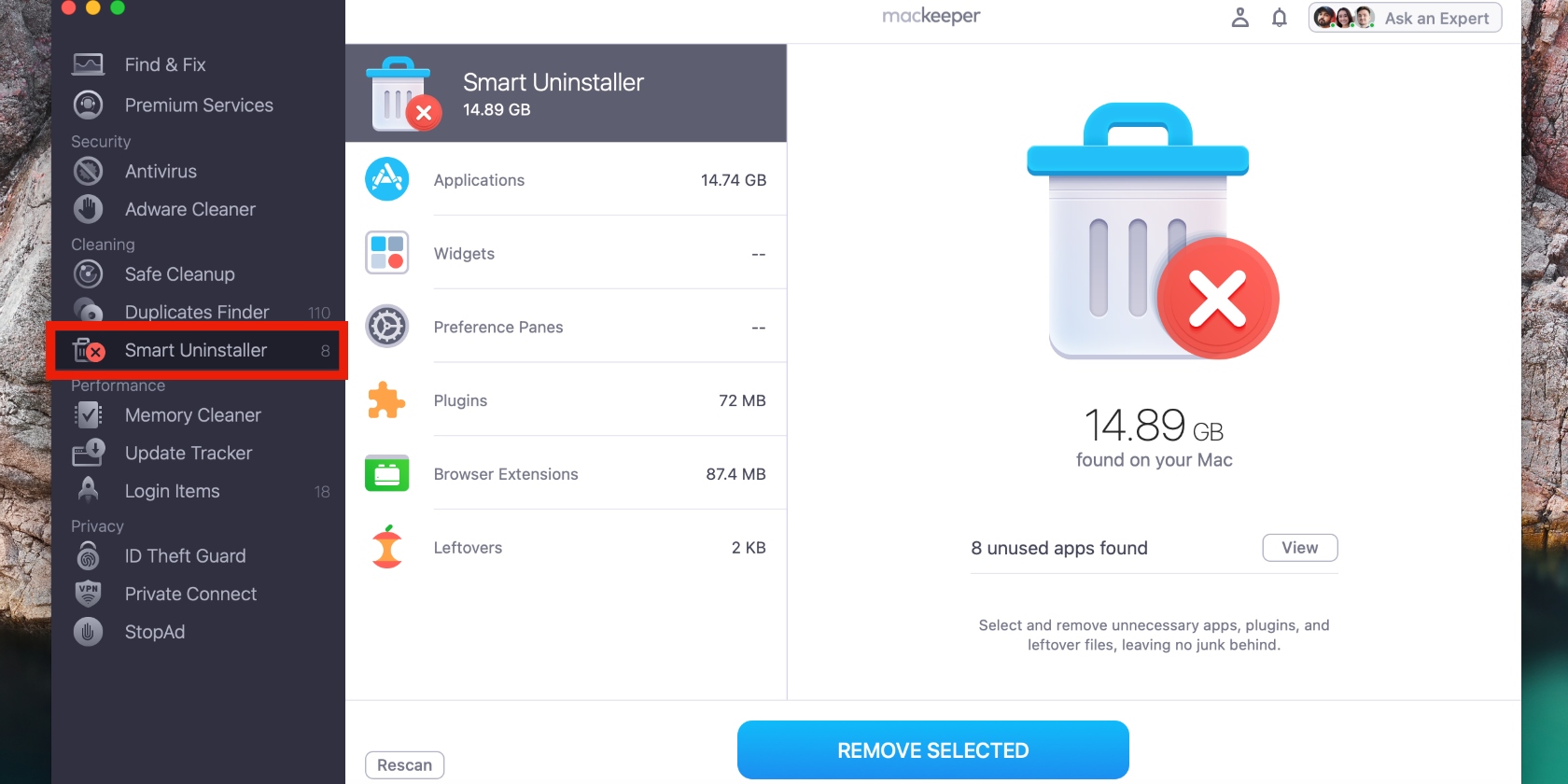
Third-party tools can automatically find and delete Docker Desktop and all related system files within minutes, with minimal involvement from you. For this reason, we recommend using MacKeeper’s Smart Uninstaller to fully remove Docker Desktop from your Mac laptop, especially if you’re looking for a one-click solution, aren’t comfortable editing Library folders manually, or don’t know where the Applications folder is on a Mac.
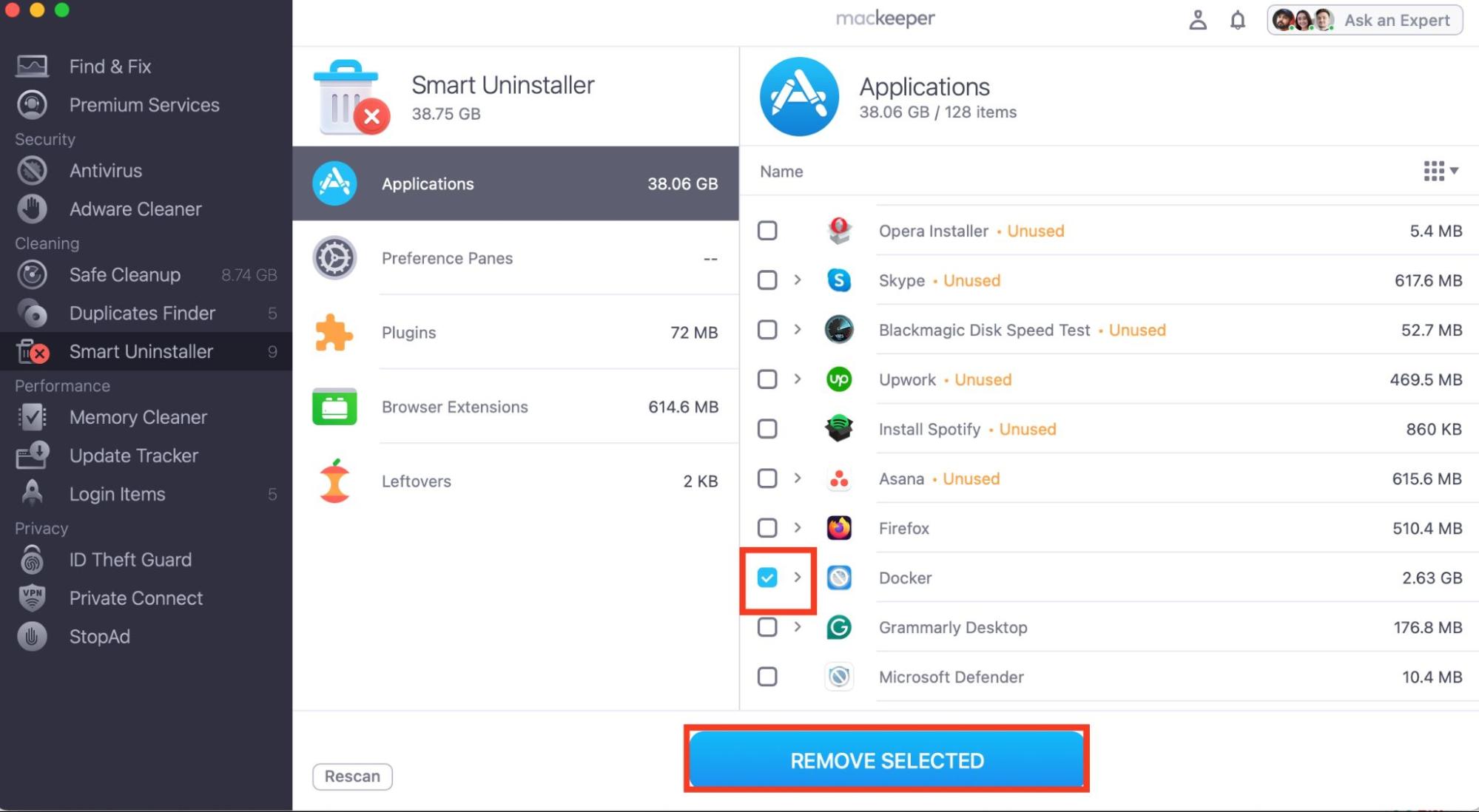
Here’s how to use MacKeeper’s Smart Uninstaller to quickly delete Docker Desktop from your Mac:
Did you know? MacKeeper is notarized by Apple, giving you peace of mind that it’s safe and free of known malware.
How to clear Docker cache on Mac
Now that Docker is deleted, clear its cache to avoid being stuck with unnecessary files:
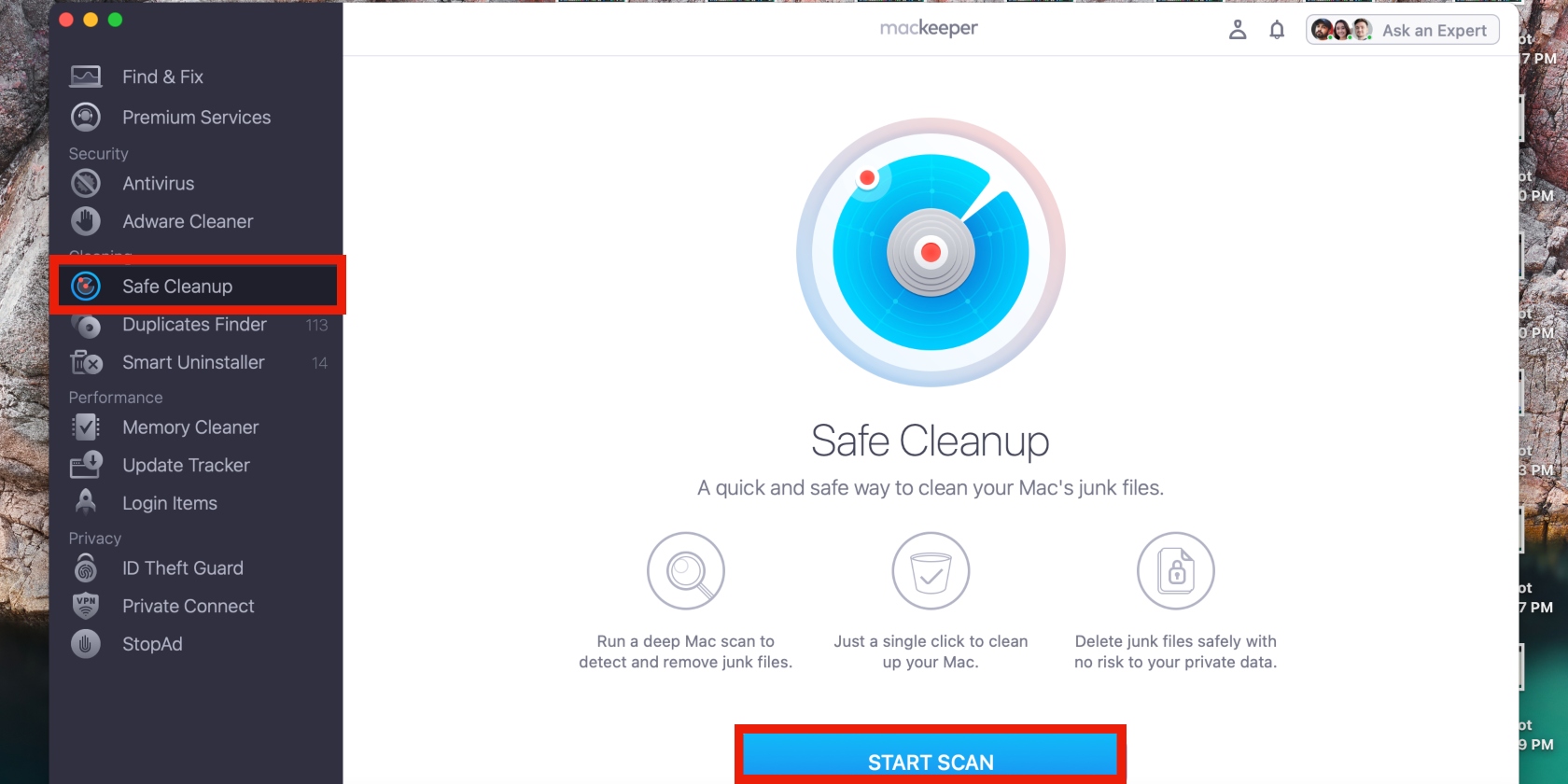
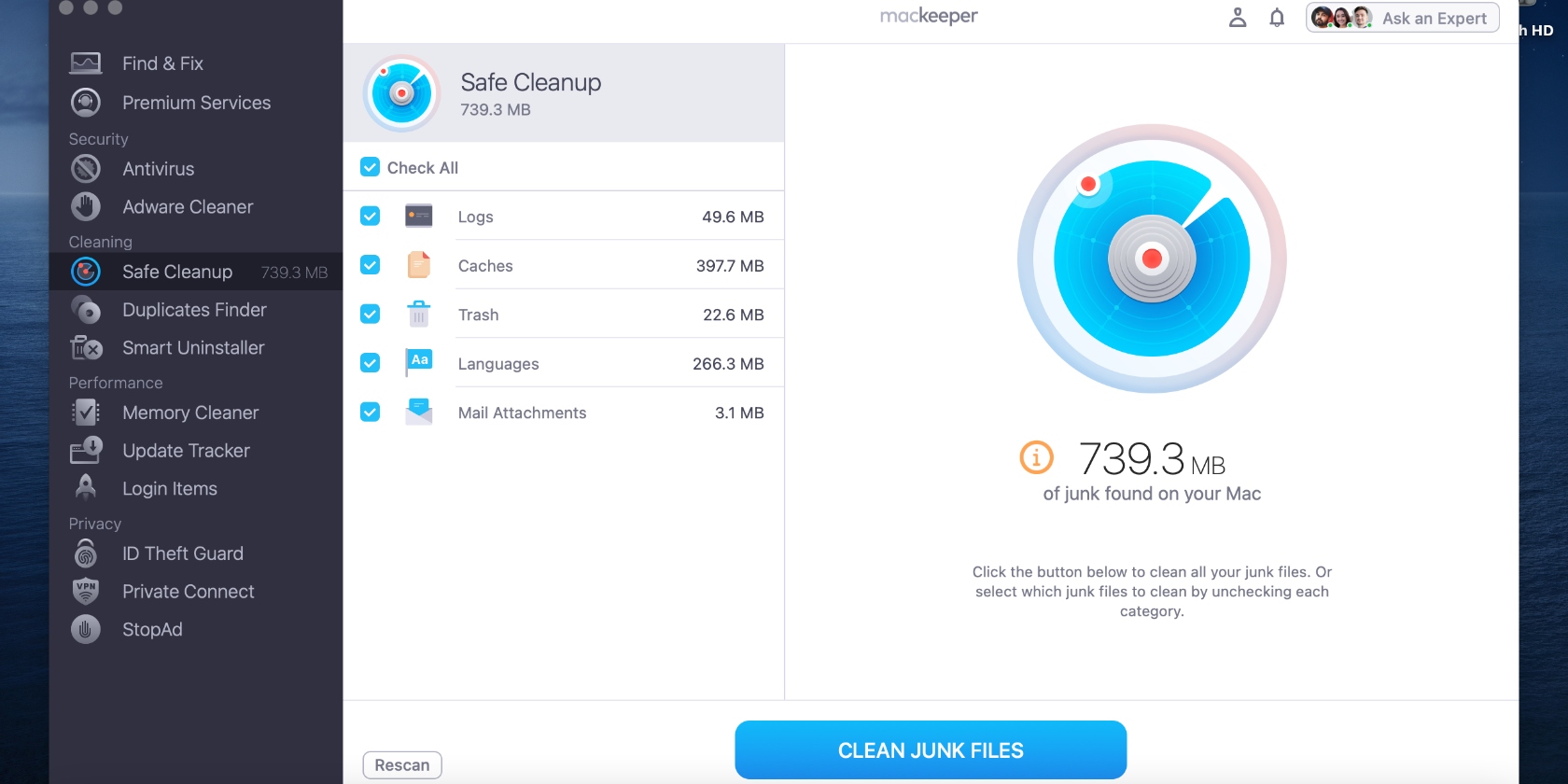
Open the MacKeeper app and select Safe Cleanup in the sidebar
Click Start Scan and hit the Clean Junk Files button once the scan is done. This should remove all cache and junk files on your Mac, including those belonging to Docker.
Step 1. Open MacKeeper > Safe CleanupStep 2. Remove Docker cache now
Tip from the MacKeeper’s experts:
Many factors can cause your Mac to slow down, like loading it with unnecessary files and not deleting apps and programs fully. If you’re decluttering your Mac, ensure you clear cache files to clean the disk effectively. Additionally, as with clearing cache on any other app, deleting Docker cache is one way to optimize your Mac’s performance.
Safely delete Docker Desktop from your Mac
Sometimes, deleting an app is more complicated than downloading and using it. If you’ve found this to be true for you, we’ve offered easy ways to completely uninstall Docker on Mac—whether you want to do it yourself or simplify the process with a third-party app or the native uninstaller.
If you prefer a hassle-free solution, MacKeeper’s Smart Uninstaller is the answer. Use it to save time and avoid making costly mistakes, like deleting your data, when you want to uninstall apps on a Mac. Our tool quickly and safely deletes the apps you want to get rid of while protecting your Mac and preventing unwanted data loss. It also helps to improve your Mac’s performance by completely cleaning unwanted files related to your apps.
Enjoyed this article? Explore our blog developed by Clario Tech team to learn more tips, tricks, and guides, like what unsupported apps are on Mac.
We respect your privacy and
use cookies
for the best site experience.
Privacy Preferences Center
We use cookies along with other tools to give you the best possible experience while using the
MacKeeper website. Cookies are small text files that help the website load faster. The cookies we
use don’t contain any type of personal data meaning they never store information such as your
location, email address, or IP address.
Help us improve how you interact with our website by accepting the use of cookies. You can change
your privacy settings whenever you like.
Manage consent
All cookies
These cookies are strictly necessary for enabling basic website functionality (including page
navigation, form submission, language detection, post commenting), downloading and purchasing
software. The website might malfunction without these cookies.
![To delete Docker from Mac using Terminal, enter the command [path to Docker app]/Contents/MacOS/uninstall in Terminal and press Enter. You may be asked to enter your administrator's credentials.](https://static-cdn.mackeeper.com/mk-blog-upload/images/new_b40136a6ad.jpg "To delete Docker from Mac using Terminal, enter the command [path to Docker app]/Contents/MacOS/uninstall in Terminal and press Enter. You may be asked to enter your administrator's credentials.")