If you’re a regular user of Google Drive on Mac, you might be wondering how you can link Google Drive to Mac Finder. First, we would encourage you to prioritize making space on your Mac before making any application changes–MacKeeper’s Login Items can manage startup apps and limit unnecessary processes, helping Google Drive run smoothly.
When you install Google Drive on your MacBook, you’ll be able to integrate the app with Finder–you’ll just need to ensure you set up Google Drive in Mac Finder correctly. This integration will allow you to access Google Drive in Finder as a Location, Sidebar item, or its own accessible Drive Folder. How it shows up in Finder will depend on your setup preference.
Before Google Drive can appear in Finder
Before you add Google Drive to Finder, you’ll need a Google Account ready to connect and the desktop version of Google Drive. To ensure a smooth transfer and integration, we advise you to check that you have a stable internet connection, plenty of storage space, and the right macOS permissions before you proceed. Failure to prepare your device ahead of time could lead to syncing issues resulting in Finder not working.
A note from our experts:
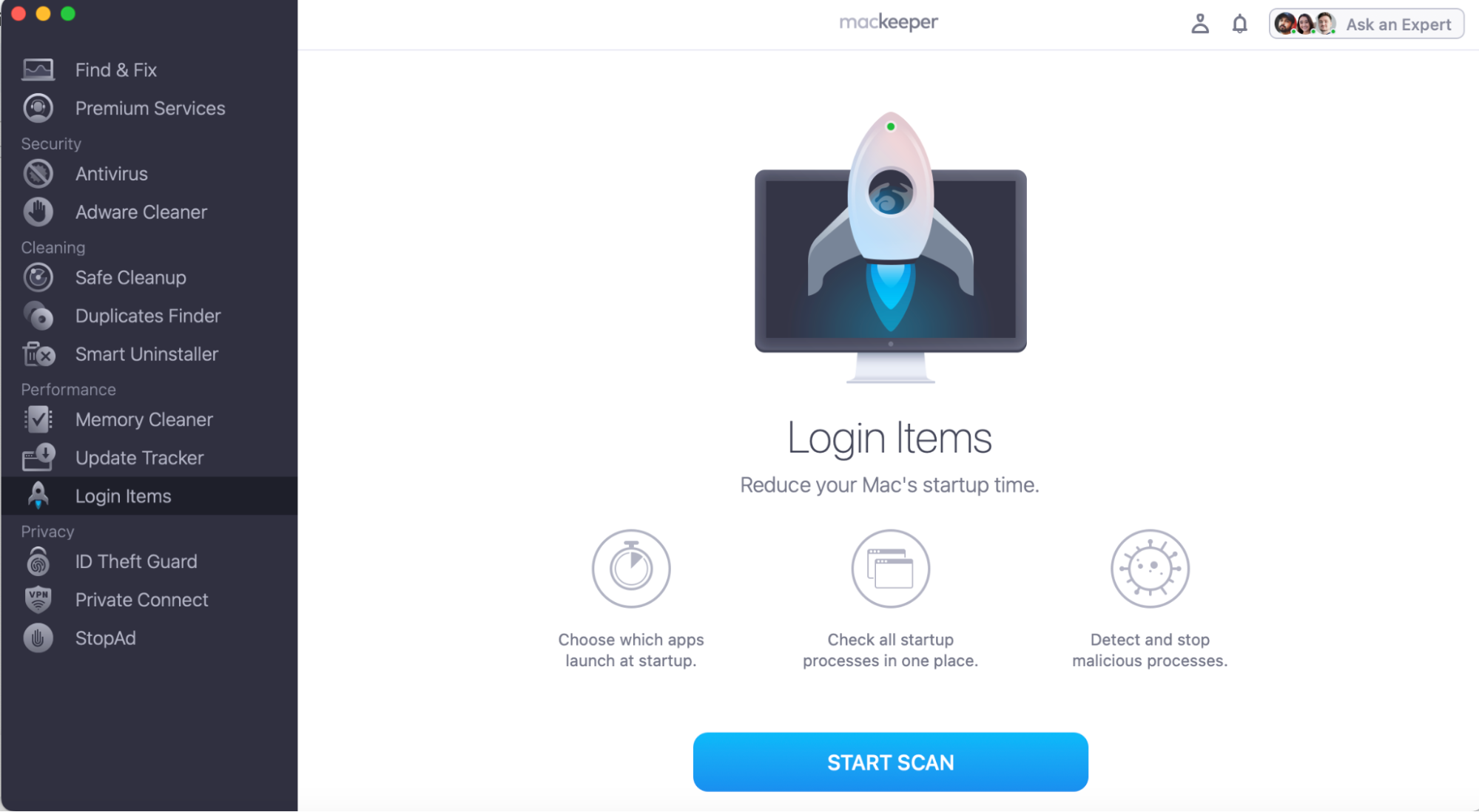
Preparing your device is an important step to avoid syncing errors–that’s why we want to introduce you to MacKeeper’s Login Items tool. It’ll help optimize your startup apps by allowing you to filter what programs launch when you power up your Macintosh. Managing and limiting unnecessary processes will support your Mac’s stability and improve its ability to keep up with new Mac activities and demanding apps–like Google Drive.
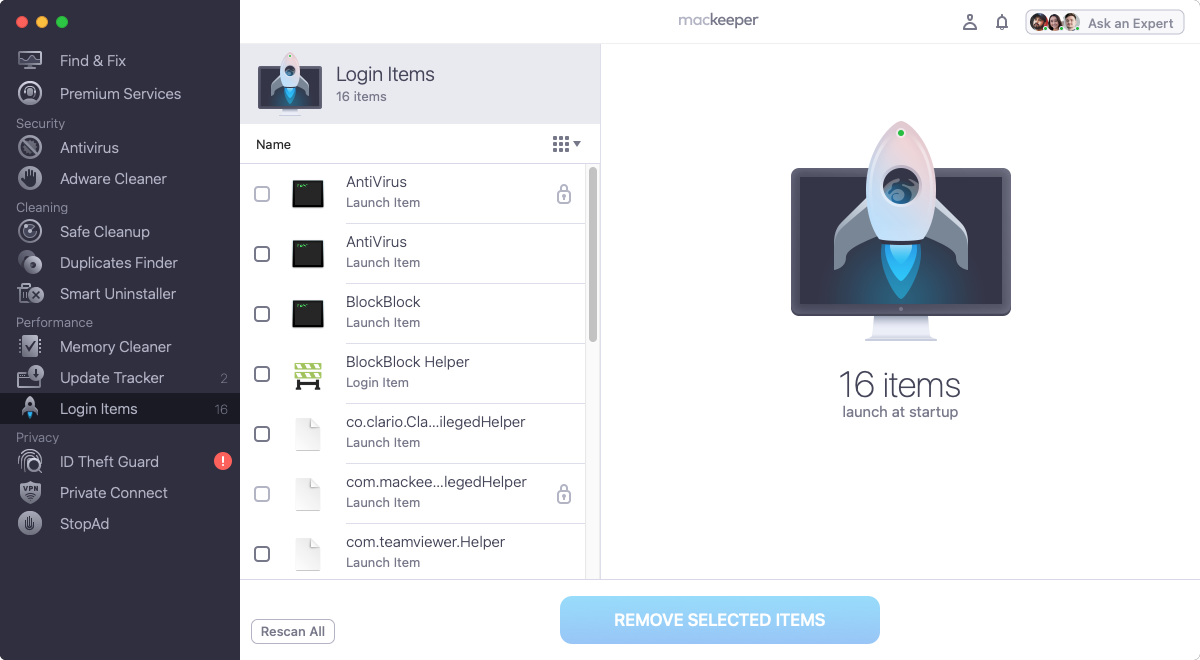
Review your Login Items, select any you don’t need, and press Remove Selected Items.
Step 1. In the MacKeeper app, open Login Items and press the Start Scan buttonStep 2. After your scan, review your Login Items to remove any you no longer need
How to add Google Drive to Finder on Mac?
Still interested in adding Google Drive to Finder on your Apple Mac? Our Clario Tech Experts’ number one piece of advice is to ensure that you use the official Google Drive desktop app, as this will make the connection within Finder much smoother. But if you do change your mind about using Finder as your file organiser, you can check out our guide macOS Finder alternative, for alternative file managers to help improve your MacBook organization.
1. Download Google Drive for desktop
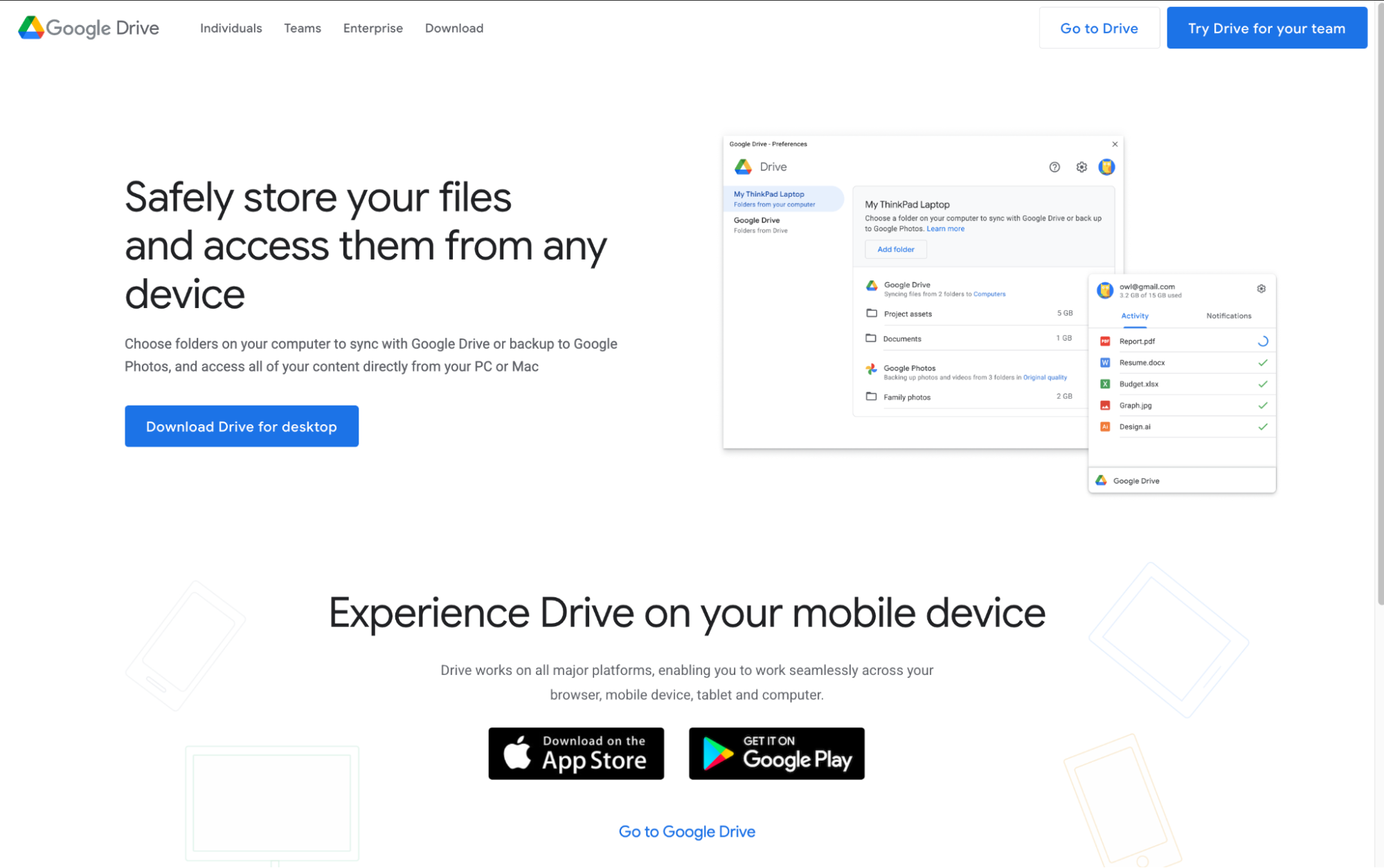
When you’re ready to install Google Drive on Mac Finder, make sure you go to the official desktop app download from Google and avoid any unofficial or third-party installers. This will guarantee both your device's safety and the legitimacy of the application.
In Chrome, search for Google Drive Desktop, and on the official page, press Download Drive for Desktop
2. Install Google Drive on your Mac
Once you have initiated the download for Google Drive for desktop edition on your Mac, you’ll need to allow the download to finish before you can carry on and install the Google interface on your device.
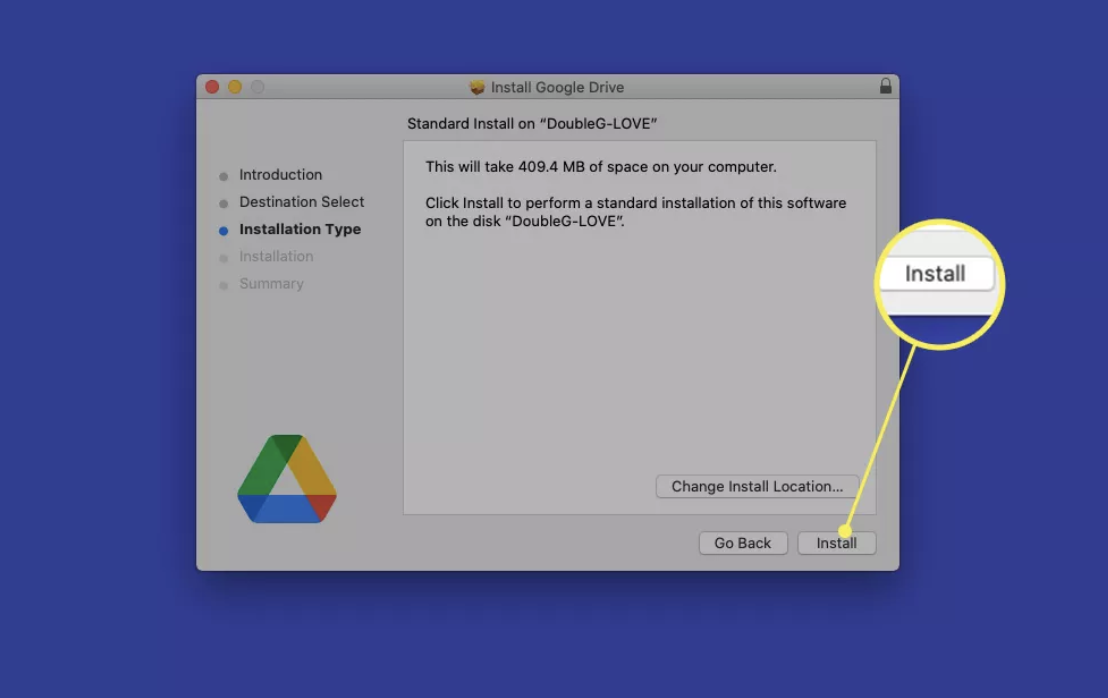
When the download is complete, here’s how to install Google Drive on your Mac:
Open the Google Drive installer.
Press Continue > Install.
Follow the on-screen instructions and allow macOS permissions if prompted.
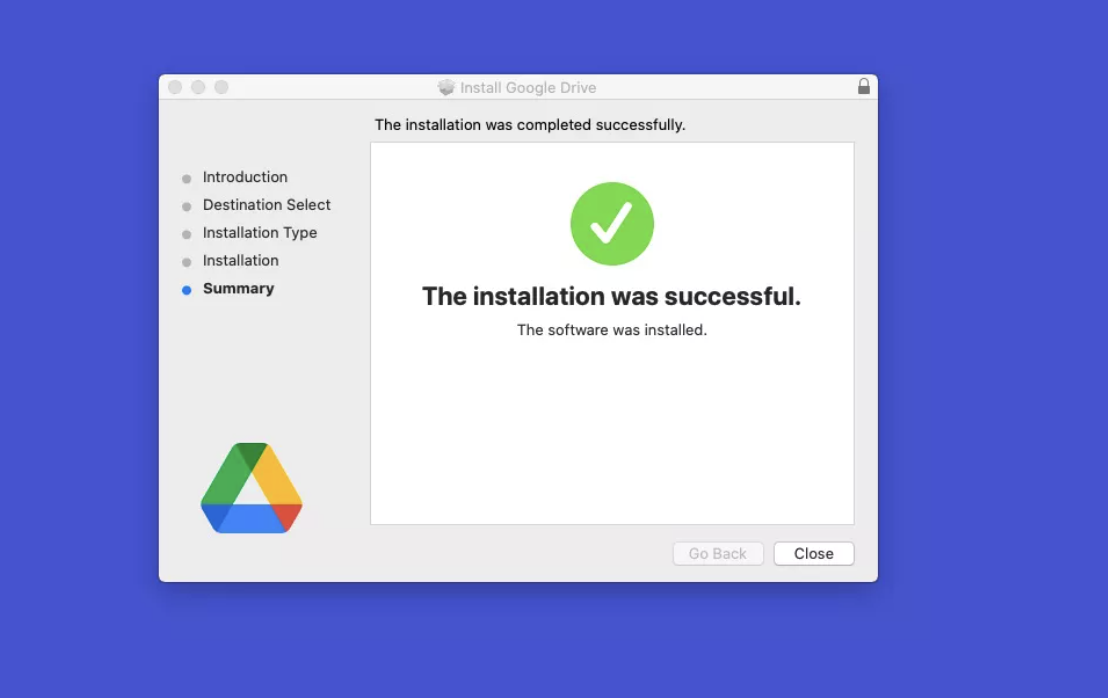
Step 1. Open the downloaded Google Drive installer, press Continue > InstallStep 2. Allow the installation to finish before pressing Close
3. Sign in with your Google Account
You will not necessarily see Google Drive in your Finder right away, and this is because Google Drive still requires you to sign in with your Google Account before it can sync or show files in Finder.
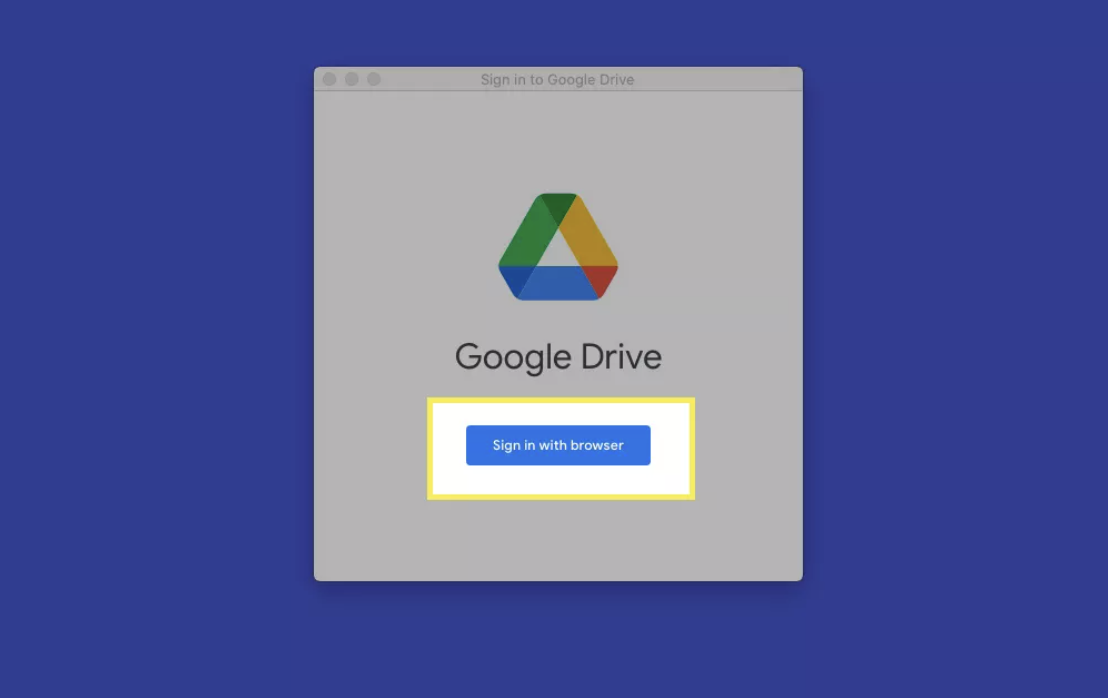
In case you’re unsure, let us show you how to sign in to your Google Account on desktop:
In the Google Drive pop-up, press Sign in with browser to continue.
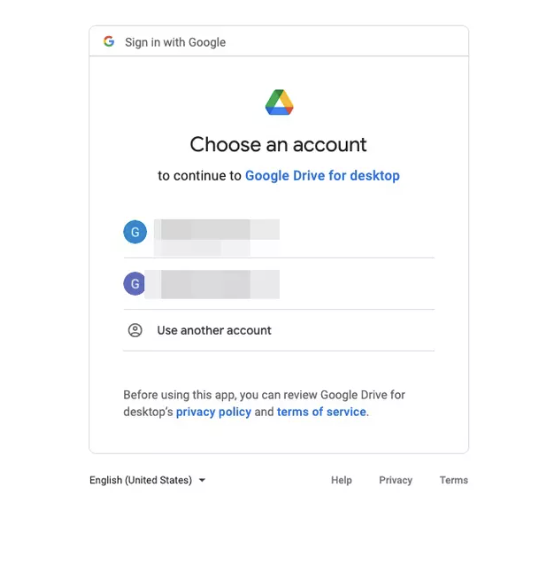
Select your Account.
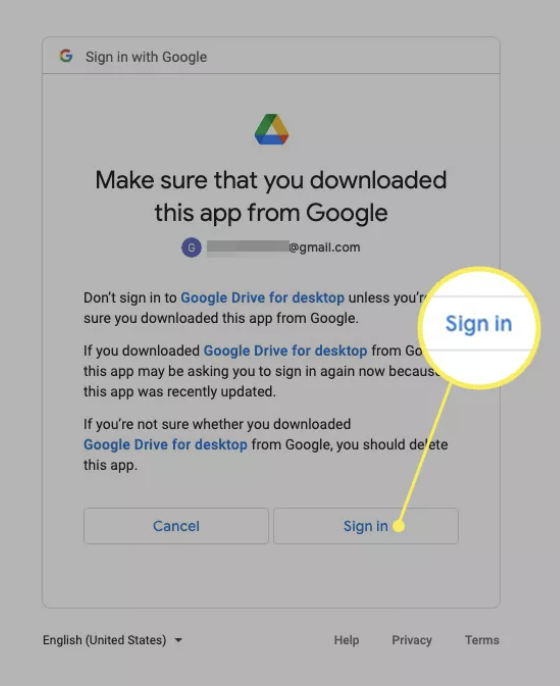
Review permissions and press Sign in.
Step 1. Click on Sign in with browserStep 2. Select your Account to sign in toStep 3. Review and check your permissions, and click Sign in
4. Choose Stream files or Mirror files
Finally, you may be asked about your preffered syncing options. Google Drive can either Stream Files that are in the cloud and ready for you to access from your computer, saving local storage. Alternatively, you can choose to Mirror Files, where your content is offline by default but will demand more Mac storage.
Where does Google Drive appear in Finder?
When Google Drive has downloaded, you should be able to open Finder and find Google Drive immediately. You might need to search for it under Locations, access it via the sidebar, or as its own folder–how it appears will depend on your macOS version. To help you, our guide on how to view all files can walk you through finding any and all missing folders buried deep within Finder.
How to get Google Drive to Finder sidebar?
Finder can make it easier for you to access your Google Drive, but if you want a shortcut, you can drag the app to connect it to the sidebar–it’ll be there every time you open Finder. Should you experience left menu missing, it just might be accidentally hidden from view. But we do recommend reading through the attached guide just in case troubleshooting is necessary to find the cause and make it reappear again.
Adding Google Drive to Finder and optimizing space with ease
Ready to set up Google Drive in Mac Finder? We recommend using the official Google website to find the installer and following all the on-screen instructions to avoid any interface problems or issues with disappearing files. You will also need an internet connection, so make sure it’s stable before starting.
And if space is an issue when installing Google Drive, we recommend using MacKeeper’s Login Items tool. It’ll help you manage your startup apps and optimize your device’s speed–allowing large applications like Google Drive to run with ease. Try it out today, your Mac will thank you.
We respect your privacy and
use cookies
for the best site experience.
Privacy Preferences Center
We use cookies along with other tools to give you the best possible experience while using the
MacKeeper website. Cookies are small text files that help the website load faster. The cookies we
use don’t contain any type of personal data meaning they never store information such as your
location, email address, or IP address.
Help us improve how you interact with our website by accepting the use of cookies. You can change
your privacy settings whenever you like.
Manage consent
All cookies
These cookies are strictly necessary for enabling basic website functionality (including page
navigation, form submission, language detection, post commenting), downloading and purchasing
software. The website might malfunction without these cookies.