If your Mac is running slowly, you can use Activity Monitor to find out what’s causing the problem. However, it can be confusing, especially with unfamiliar macOS processes like AppSSOAgent. For an easier way to speed up your machine, try MacKeeper’s Memory Cleaner.
AppSSOAgent is a background process in macOS that starts automatically when you turn on your Mac and helps create a smoother, overall better user experience. It’s part of the Single Sign-On (SSO) authentication scheme, which lets you access apps, resources, and websites on your Apple devices without repeatedly entering your credentials after you’ve logged in once.
The AppSSOAgent process serves as a bridge between your Mac and your identity provider (IdP). As part of the Platform SSO, it integrates your Mac login credentials with your IdP, enabling seamless, secure authentication. After the device is registered with the IdP, the SSO extension completes the user registration and generates a ticket valid for approximately 10 hours. During this time, any authentication requests are handled automatically, requiring no further action from the user.
This streamlined process makes using your Mac faster. However, running many background processes at once can slow your computer over time. Check out our experts’ advice to speed up your Mac.
A note from our experts:
Background processes like AppSSOAgent are crucial for macOS to run smoothly, but having too many running at once can slow down your Mac. Developed by Clario Tech, MacKeeper’s Memory Cleaner is trusted by millions to help optimize memory and boost performance. MacKeeper’s tool also automatically quits unnecessary processes and keeps your apps up to date to ensure your Mac runs smoothly.
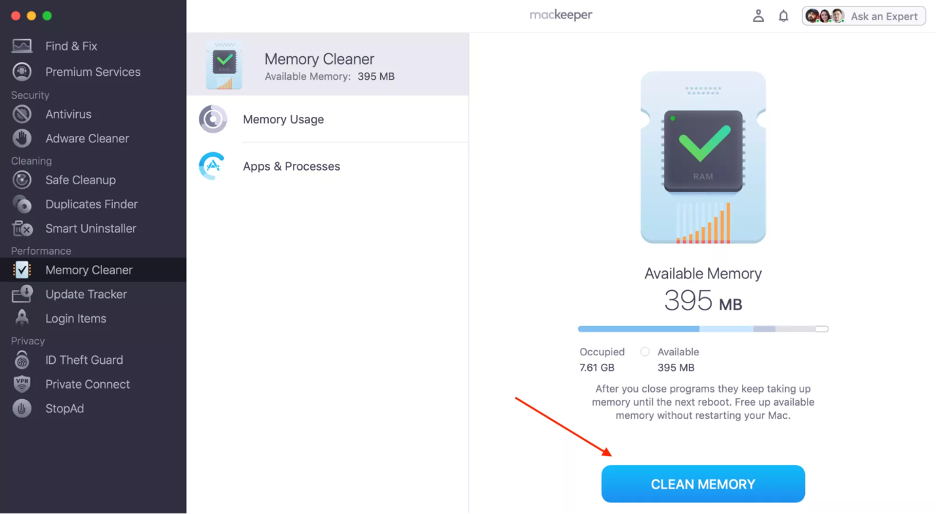
Follow these steps to use MacKeeper’s Memory Cleaner on Mac:
Select Memory Cleaner from the sidebar, right under Performance.
Hit Open.
Click Clean Memory.
Repeat the steps above every time you need to boost your Mac’s performance.
Step 1. Open MacKeeper’s Memory CleanerStep 2. Click Clean MemoryStep 3. Check the memory you’ve released
Fix AppSSOAgent high CPU usage
If you notice the AppSSOAgent process using too many resources on your Mac, it’s important to address the issue. While you can temporarily stop the process using Activity Monitor, this is only a short-term fix. For more lasting results, we recommend using macOS tools such as Console and First Aid, disabling contact syncing, resetting NVRAM/SMC, and updating your system.
1. Use Activity Monitor to Force Quit app
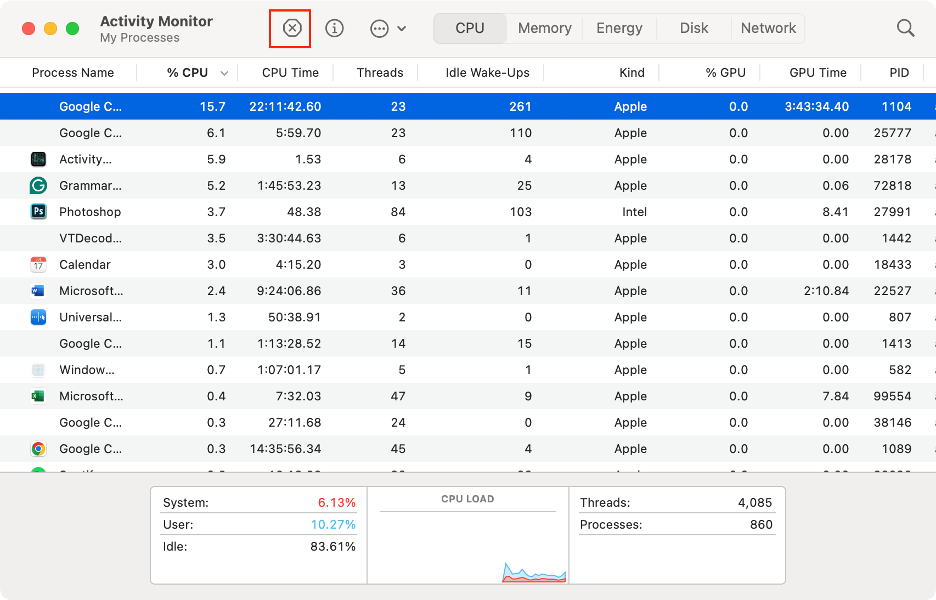
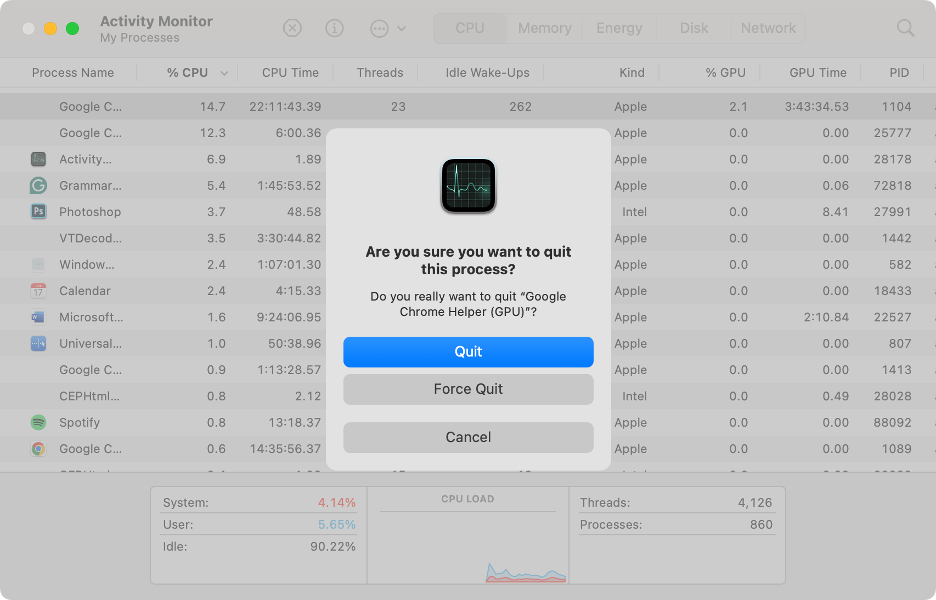
The macOS Activity Monitor utility is a helpful tool that you can use to close background apps on Mac. You can also use it to close the AppSSOAgent process temporarily, but keep in mind that it’ll restart automatically. Additionally, we suggest using Activity Monitor to force quit any apps that may be causing performance issues on your Mac.
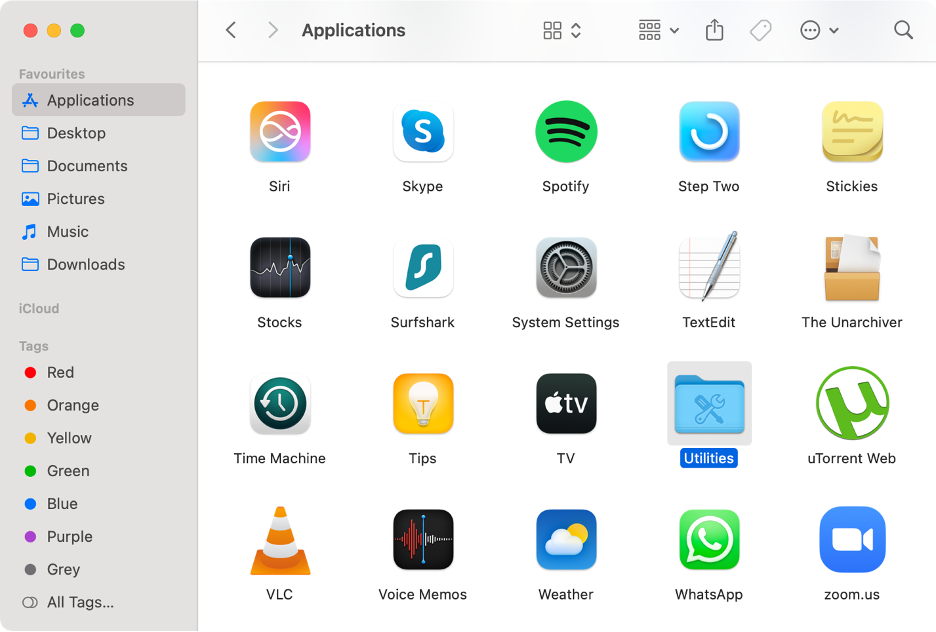
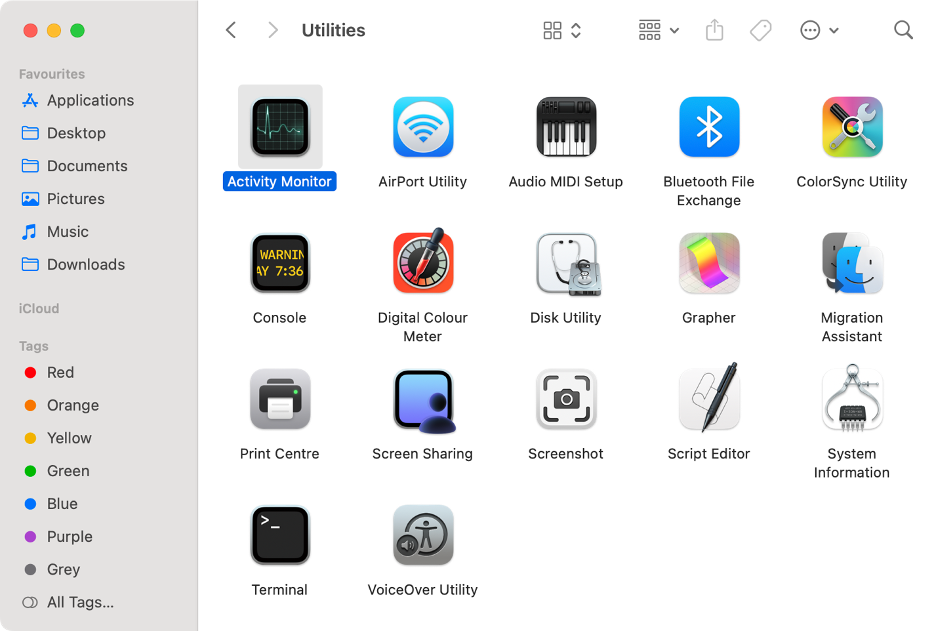
Here’s how to solve the high CPU usage issue using Activity Monitor:
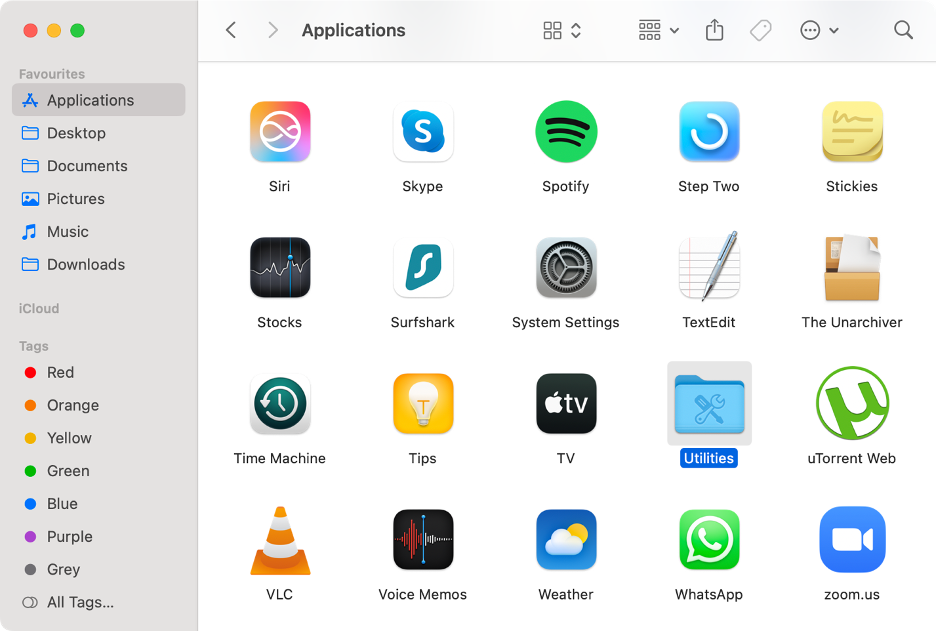
Go to Finder, then select the Applications folder.
Open the Utilities folder.
Launch Activity Monitor.
Find and select AppSSOAgent and the apps that are causing the issue.
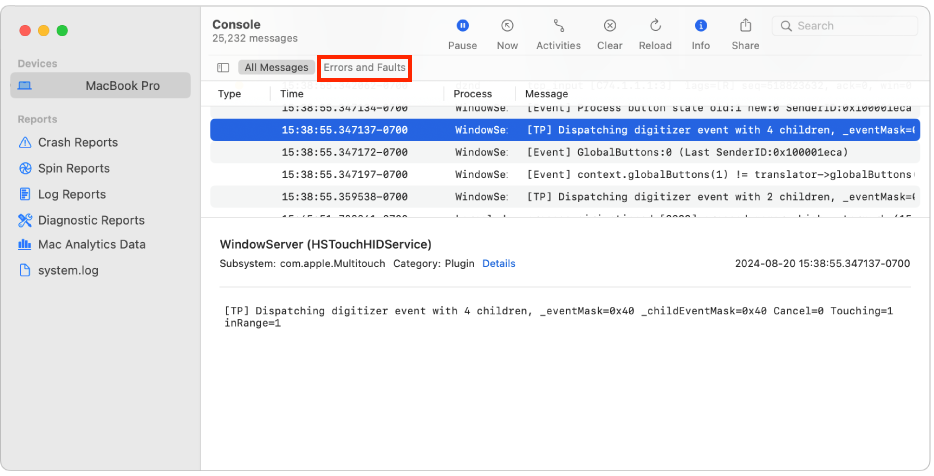
From our experience, one of the first steps in addressing high CPU usage by the AppSSOAgent process is to identify the underlying cause. The built-in Console app is a valuable tool for this. We suggest using it to check for errors and faults, particularly those related to syncing with the Contacts app.
Here’s how to check error logs in the Mac Console app:
Go to Finder, then select the Applications folder.
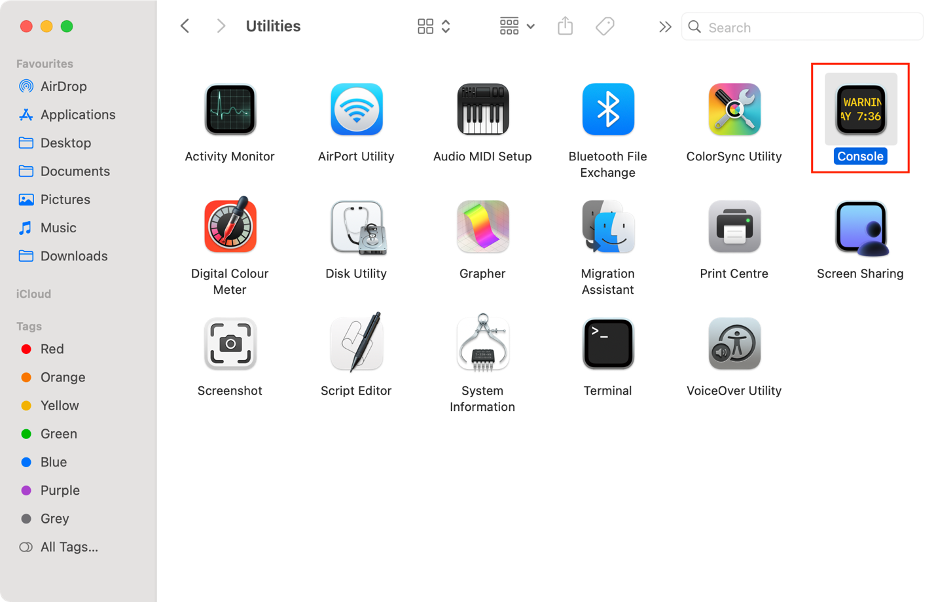
Open the Utilities folder.
Launch Console.
Select the Errors and Faults tab.
Look for error logs related to “AddressBookSync” and “MCContactsManager”.
Export or delete the contact that might be causing the issue.
Step 1. Finder > Applications > UtilitiesStep 2. Launch ConsoleStep 3. Select Errors and Faults > Find relevant errors
3. Disable contact syncing
As previously said, the Contacts app could be a key factor behind the AppSSOAgent process consuming excessive CPU on your Mac. To help identify the cause, we think you should check for potential synchronization issues with iCloud that might be affecting Contacts.
Follow our tips to disable contact syncing on your Mac:
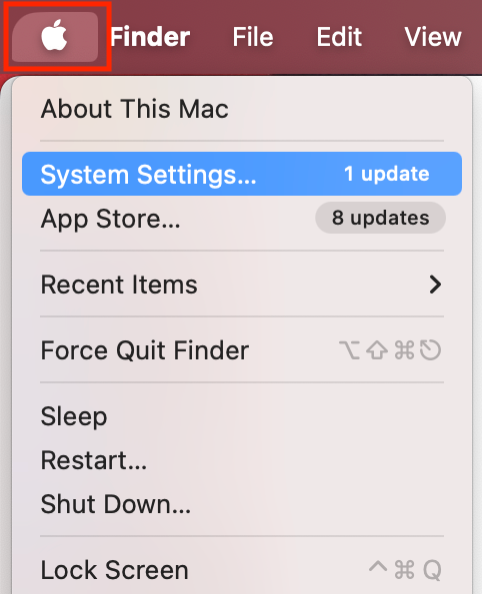
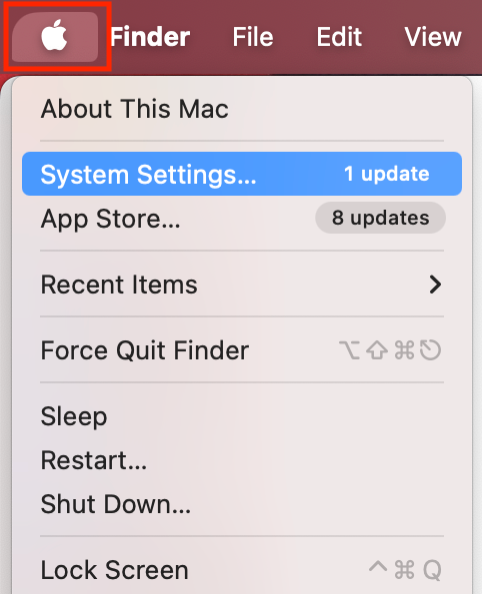
Click the Apple logo in the menu bar.
Select System Settings from the dropdown menu.
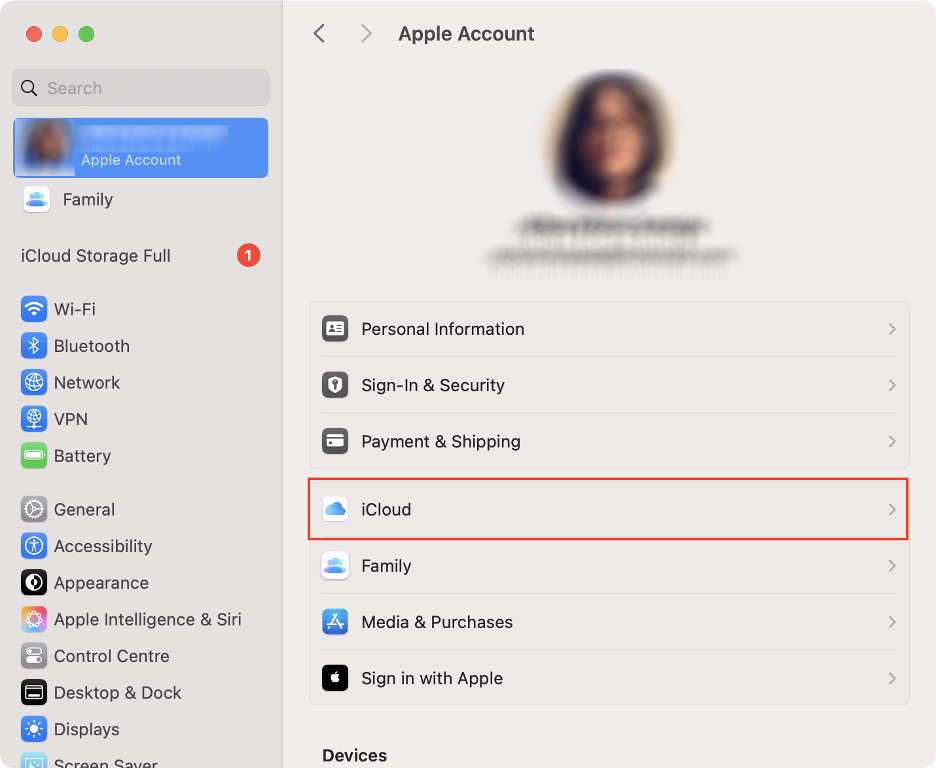
Click on your Apple Account.
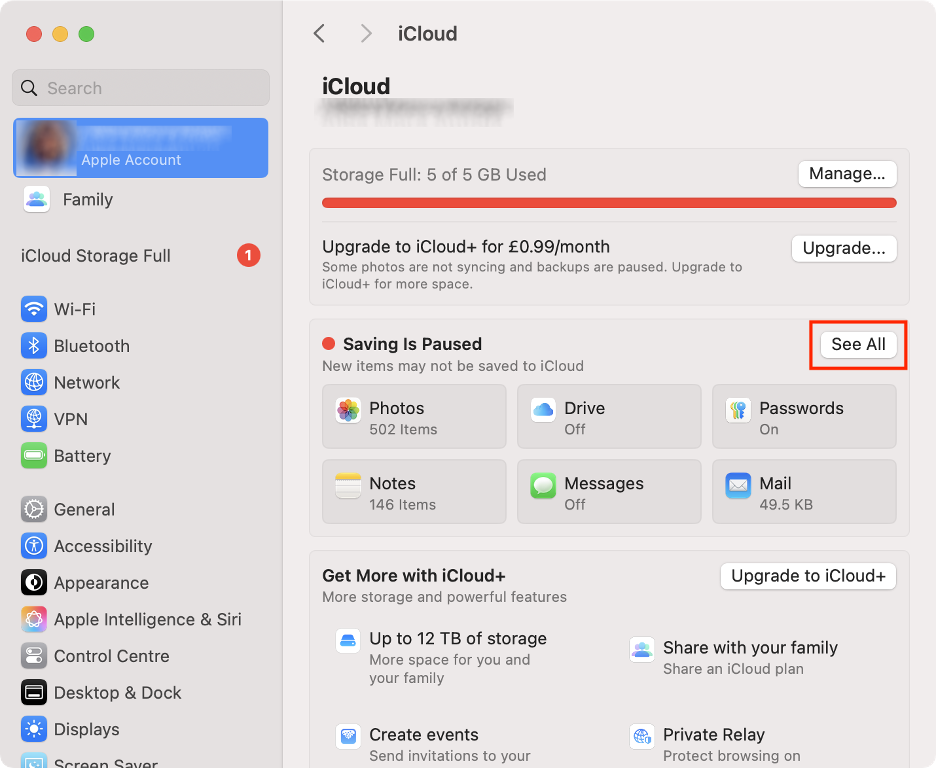
Click iCloud, then click the See All button.
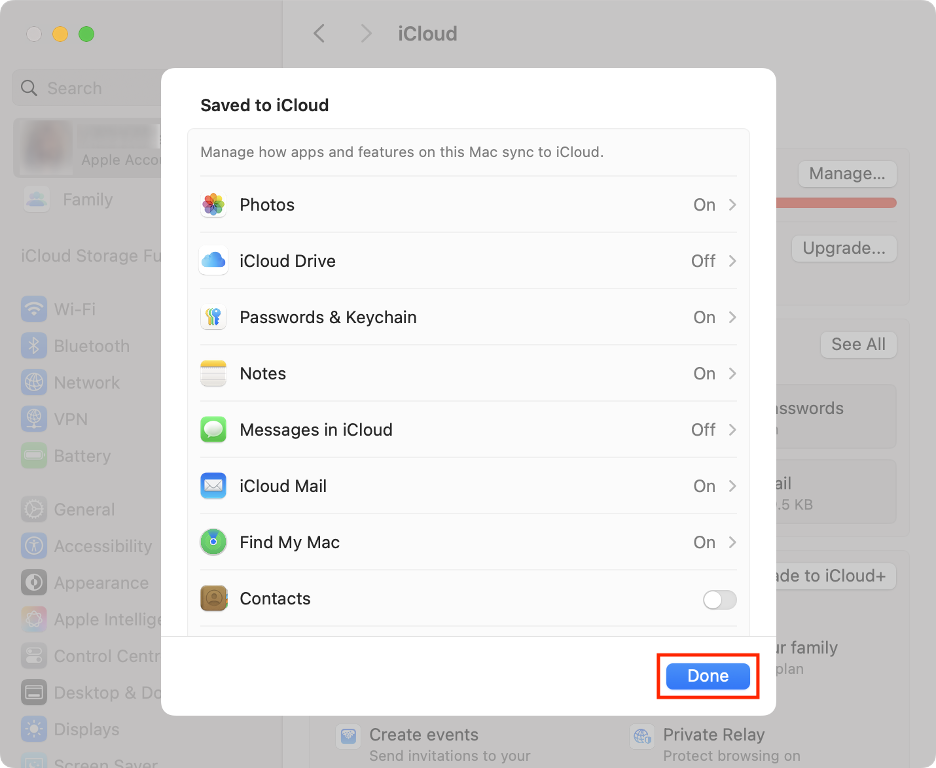
Disable the toggle next to Contacts.
Wait a few minutes to see if this resolves the CPU issue.
Step 1. Apple logo > System SettingsStep 2. Apple Account > iCloudStep 3. Click See AllStep 4. Disable the Contacts toggle
4. Repair disk via First Aid
Another useful solution we recommend is to run the First Aid tool in Disk Utility—it’s available on every Mac. This tool can repair disk issues that might be causing the AppSSOAgent process to use more CPU than normal.
To do this, follow our brief guide below:
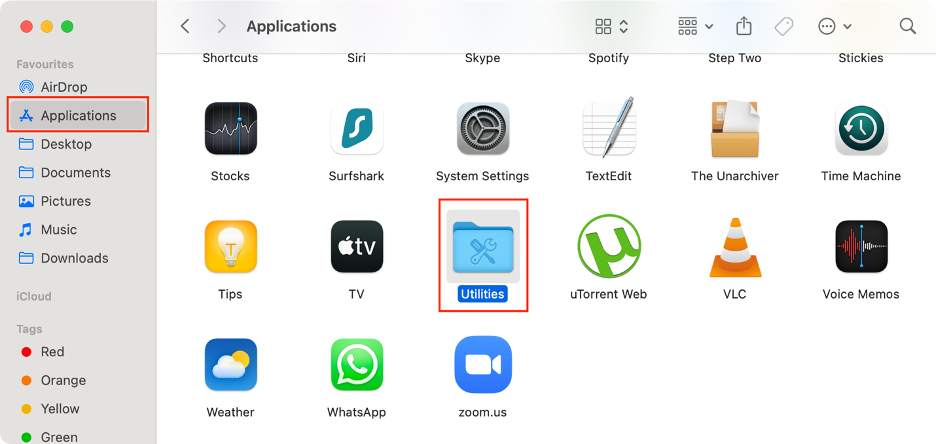
Go to Finder, then select the Applications folder.
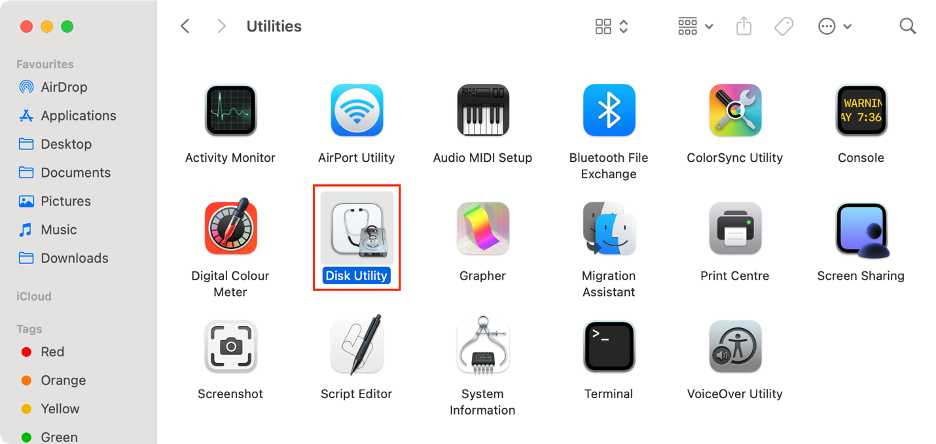
Open the Utilities folder.
Launch Disk Utility.
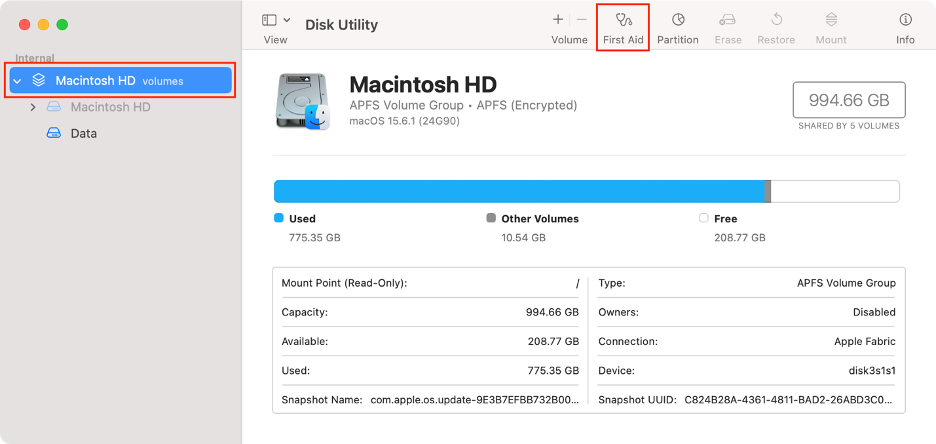
Choose your internal drive.
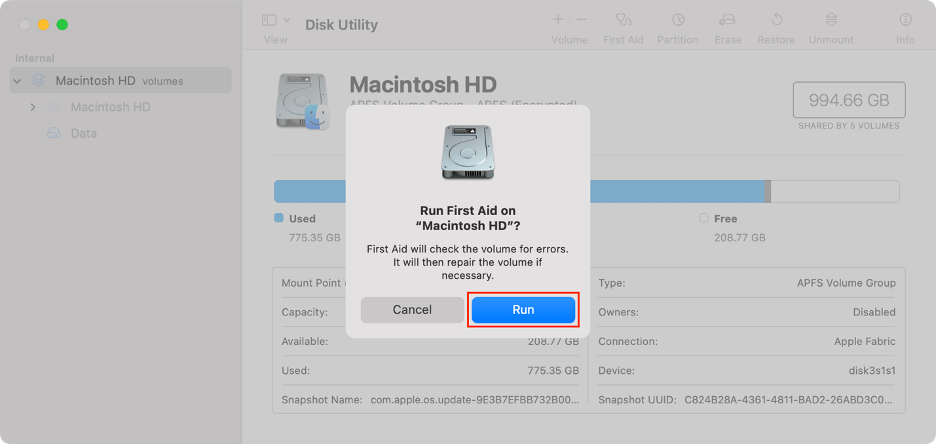
Click First Aid, then hit Run.
Step 1. Finder > Applications > UtilitiesStep 2. Launch Disk UtilityStep 3. Choose your disk > Hit First AidStep 4. Click Run
5. Reset NVRAM/SMC
If you’re using a Mac with an Intel chip, our experts recommend resetting both the NVRAM and SMC to help resolve performance issues like this. For those with Silicon-based Macs, this step isn’t necessary, as these processes run automatically on the latest models.
Use the steps below to reset NVRAM and SMC and fix common software issues on your Mac:
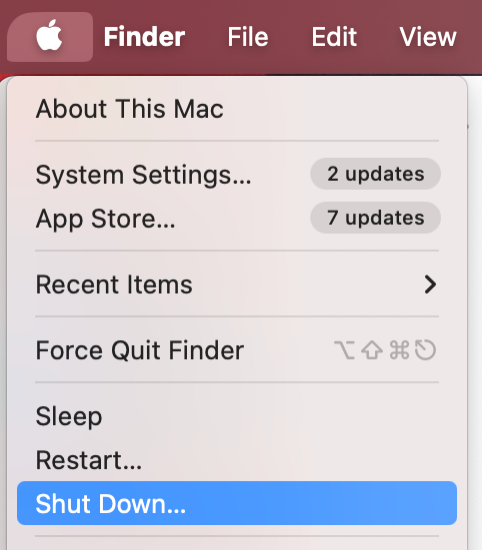
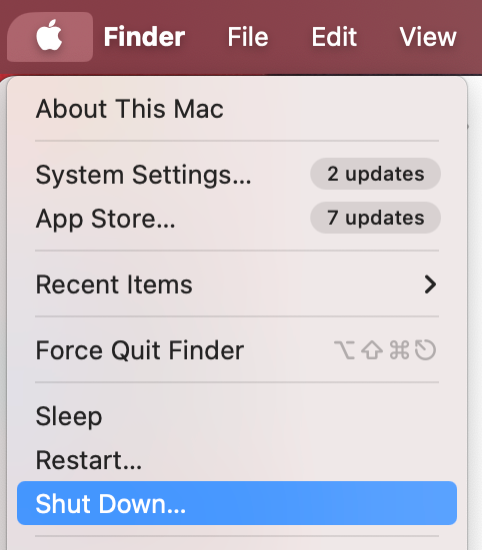
Click the Apple icon in the menu bar.
Select Shut Down from the dropdown menu.
Press the Power button until your Mac starts powering up.
To reset your NVRAM, press and hold Command + Option + P + R simultaneously.
Let go after about 20 seconds.
To reset your SMC, repeat steps 1-2.
Then, press and hold Shift + Option + Control + Power button at the same time.
Let go of all keys after 10 seconds.
Step 1. Apple logo > Shut DownStep 2. Press the Power button > Hold down Command + Option + P + RStep 3. Apple logo > Shut DownStep 4. Press the Shift + Option + Command + Power button
6. Check macOS for updates
As a final step, updating your software can help resolve excessive CPU usage by the AppSSOAgent process. Keeping your Mac up to date with the latest version of macOS is always recommended, but we particularly suggest doing so when you notice performance problems. However, keep in mind that you won’t be able to restore any deleted processes on Mac.
Simply follow these steps to update macOS:
Click the Apple logo in the menu bar.
Select System Settings from the dropdown menu.
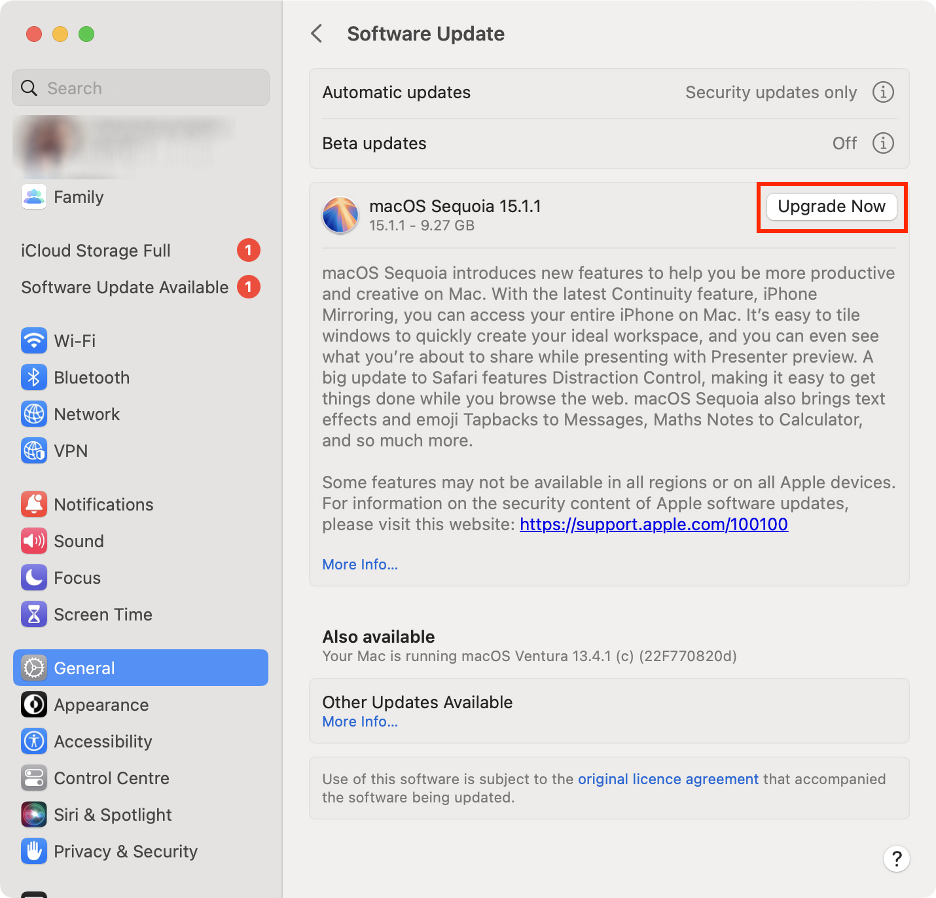
Scroll down and click General from the left sidebar.
Click Software Update.
Click the Upgrade Now button.
Step 1. Apple logo > System SettingsStep 2. General > Software UpdateStep 3. Click Upgrade Now
Take control of macOS AppSSOAgent now and for good!
The AppSSOAgent process plays an important role in streamlining the macOS user experience. However, it can occasionally consume excessive CPU resources. To address this, try using tools such as Activity Monitor, Console, and First Aid, keep your system updated, disable contact syncing, and reset NVRAM/SMC.
If your Mac continues to slow down, we suggest using a third-party tool like MacKeeper’s Memory Cleaner. Developed by Clario Tech, MacKeeper not only enhances memory performance but also protects your machine against viruses and other online threats.
We respect your privacy and
use cookies
for the best site experience.
Privacy Preferences Center
We use cookies along with other tools to give you the best possible experience while using the
MacKeeper website. Cookies are small text files that help the website load faster. The cookies we
use don’t contain any type of personal data meaning they never store information such as your
location, email address, or IP address.
Help us improve how you interact with our website by accepting the use of cookies. You can change
your privacy settings whenever you like.
Manage consent
All cookies
These cookies are strictly necessary for enabling basic website functionality (including page
navigation, form submission, language detection, post commenting), downloading and purchasing
software. The website might malfunction without these cookies.