If your Downloads folder is crammed full, you may want to set the default download location on your Mac to somewhere else. And you’re thinking of ways to clean old, unwanted data off your machine, do it quickly and easily with MacKeeper’s Safe Cleanup tool.
To change the download location on your Mac, you need to alter the settings of all your various apps. For example, if you change the default download destination in your Safari settings, your other browsers will continue to download files to your Downloads folder as normal. You need to dig into your settings for each app and individually pick your favored download location.
Can I change download location on Mac?
You can choose your download location on Mac in two different ways. You can do it on the fly when you save a file. If the app you’re using lets you, choose Save As, and then manually pick a save location. But if you want to change an app’s default download location, look at the app’s settings for a way to choose a custom location.
Not sure where your Downloads folder is? Read our guide on how to get to Downloads on Mac.
A note from our experts:
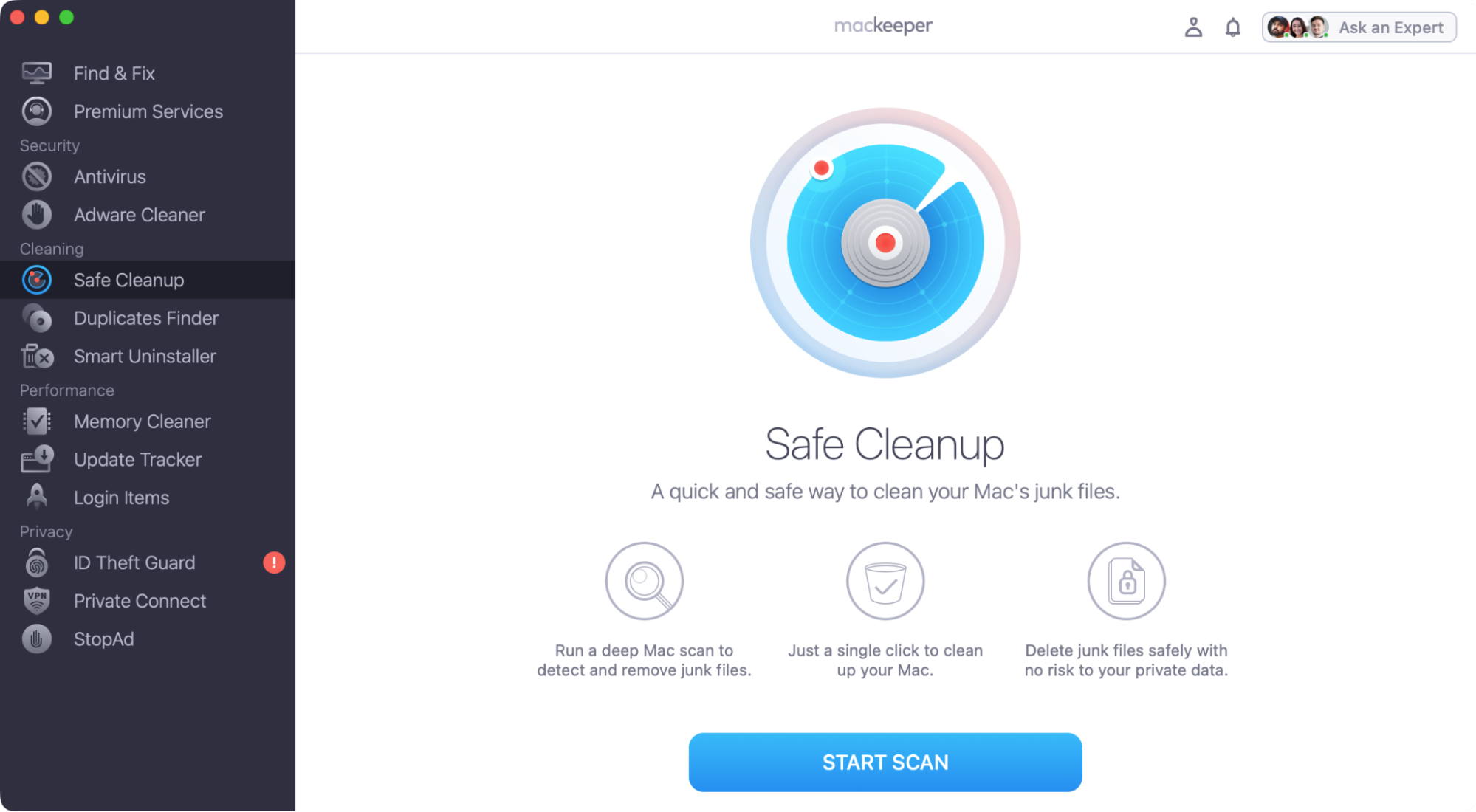
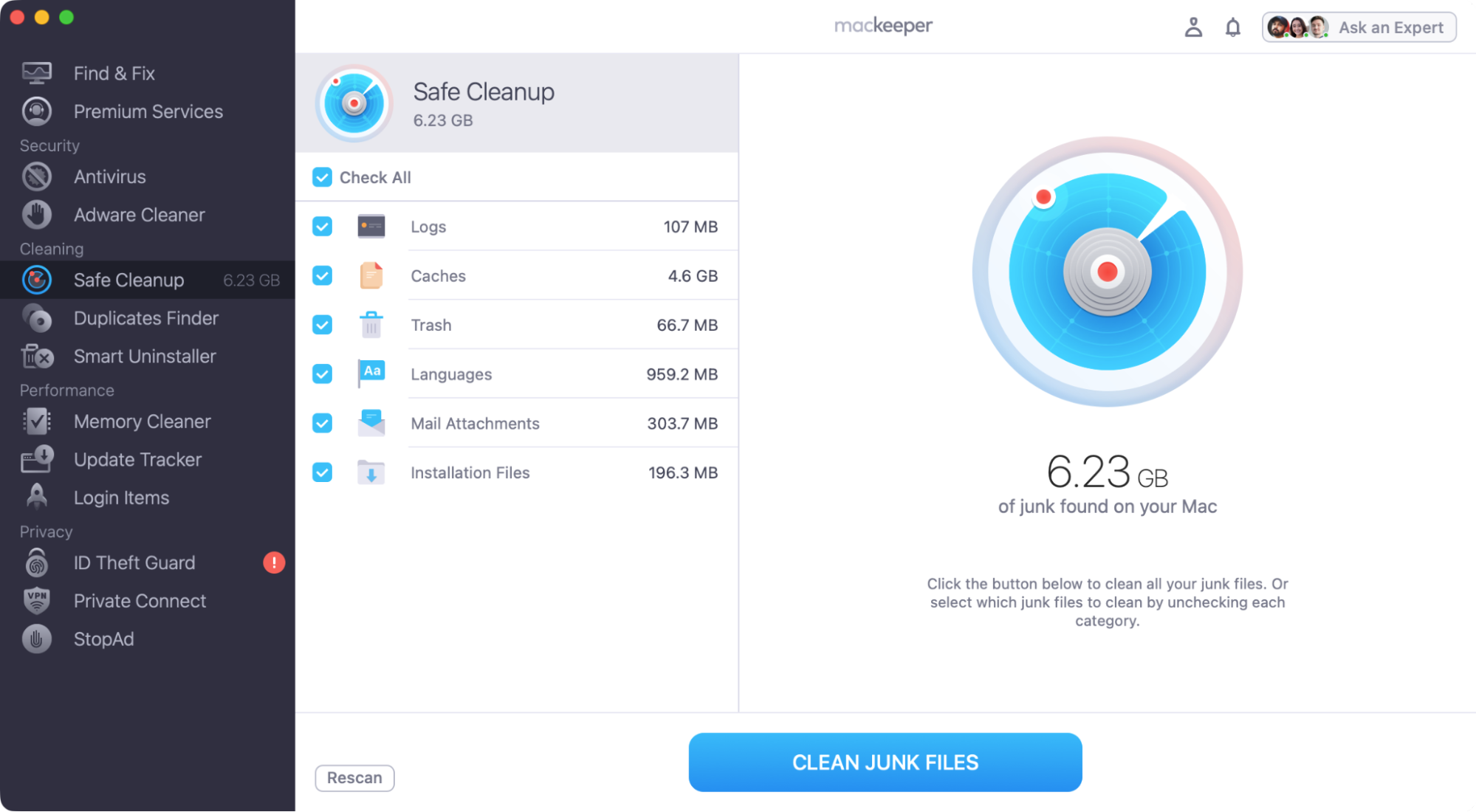
For a fast, fuss-free way to unclutter your Downloads folder, take MacKeeper’s Safe Cleanup tool for a spin. A click here, a click there, and it’ll safely clear out all kinds of junk, including cached data, old log files, and unneeded language packs.
When the scan is complete, choose what to remove, and click Clean Junk Files.
Step 1. Select Safe Cleanup and click Start ScanStep 2. Select anything you want to delete, and click Clean Junk Files
Also, we recommend you reading our guide on how to delete temp files on Mac for more in-depth advice about clearing out junk data.
Why change your macOS download location?
If you’re happy for all your downloaded files to go to the same location, you don’t need to change anything. However, you might want to choose a different destination for reasons like this:
To keep your downloads from different browsers separate from each other.
So you can have your web browsing downloads separate from downloaded email attachments.
Because you want to download files directly to an external drive, saving space on your main hard disk.
To automatically download files to your iCloud Drive folder, which will then be backed up online.
Although most apps download to the macOS Downloads folder by default, they don’t have to—and there’s nothing stopping you from changing download location on your Mac. However, you have to make this change individually, per app. In Safari’s settings, go to the General tab, and change the File download location to whatever you want. Alternatively, set it to Ask for each download. You can do something similar with other web browsers, including Google Chrome, as well as with email clients like Apple Mail.
1. Manage download locations in Safari
Safari gives you complete control over where files are downloaded to on your Mac or MacBook. For instance, if you want to send files automatically to your desktop or an external storage device, you can. This is how we do it:
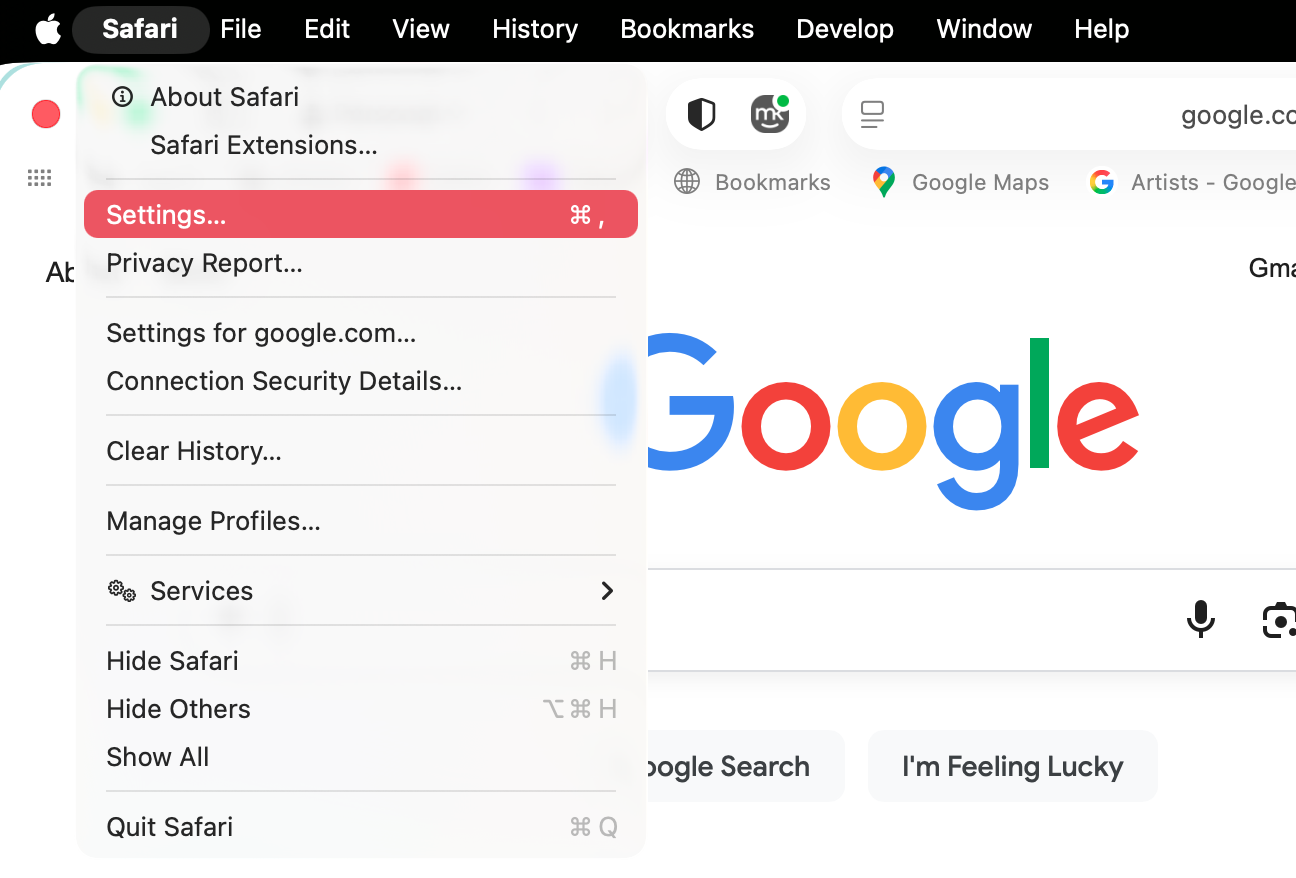
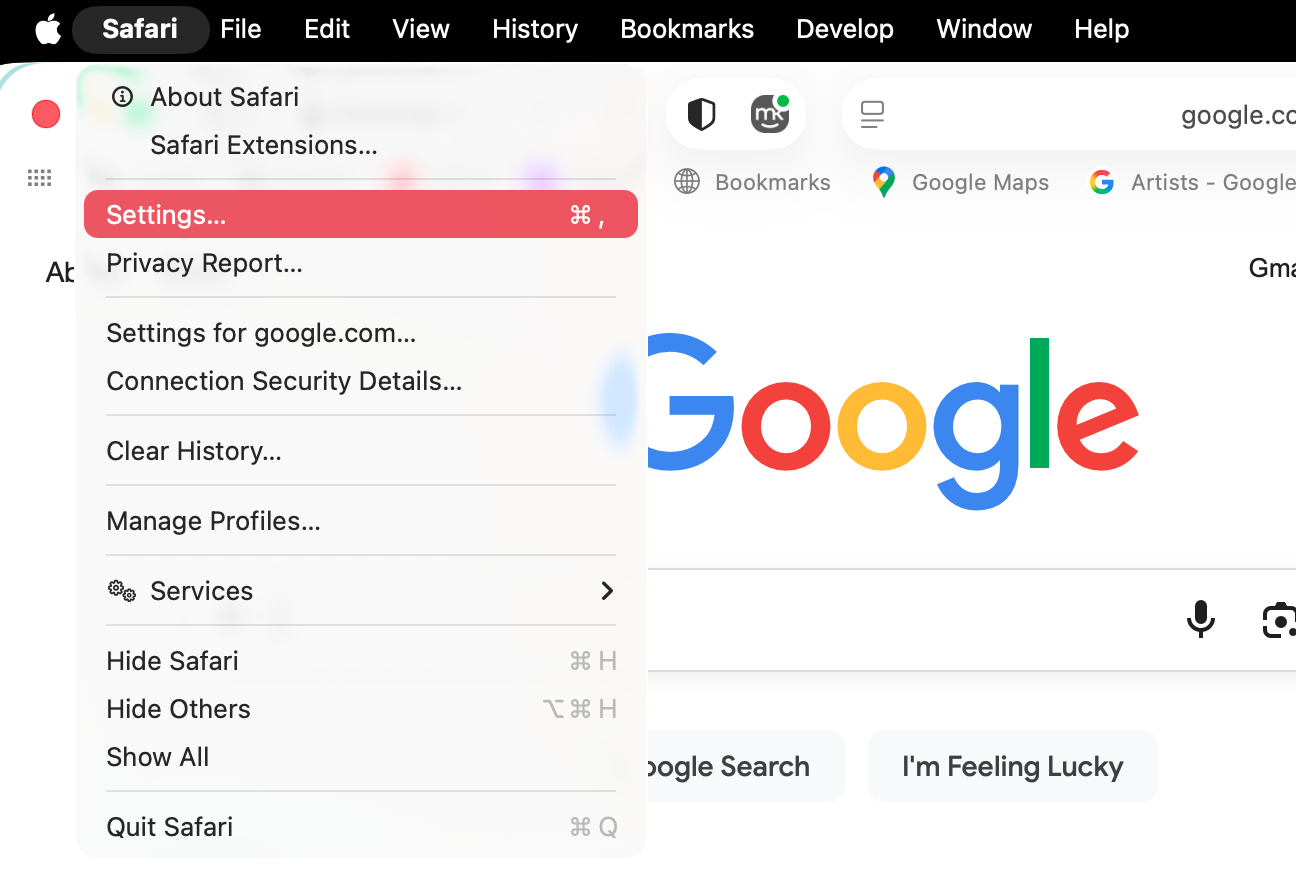
While in Safari, select Safari > Settings from your menu bar, at the top of your screen.
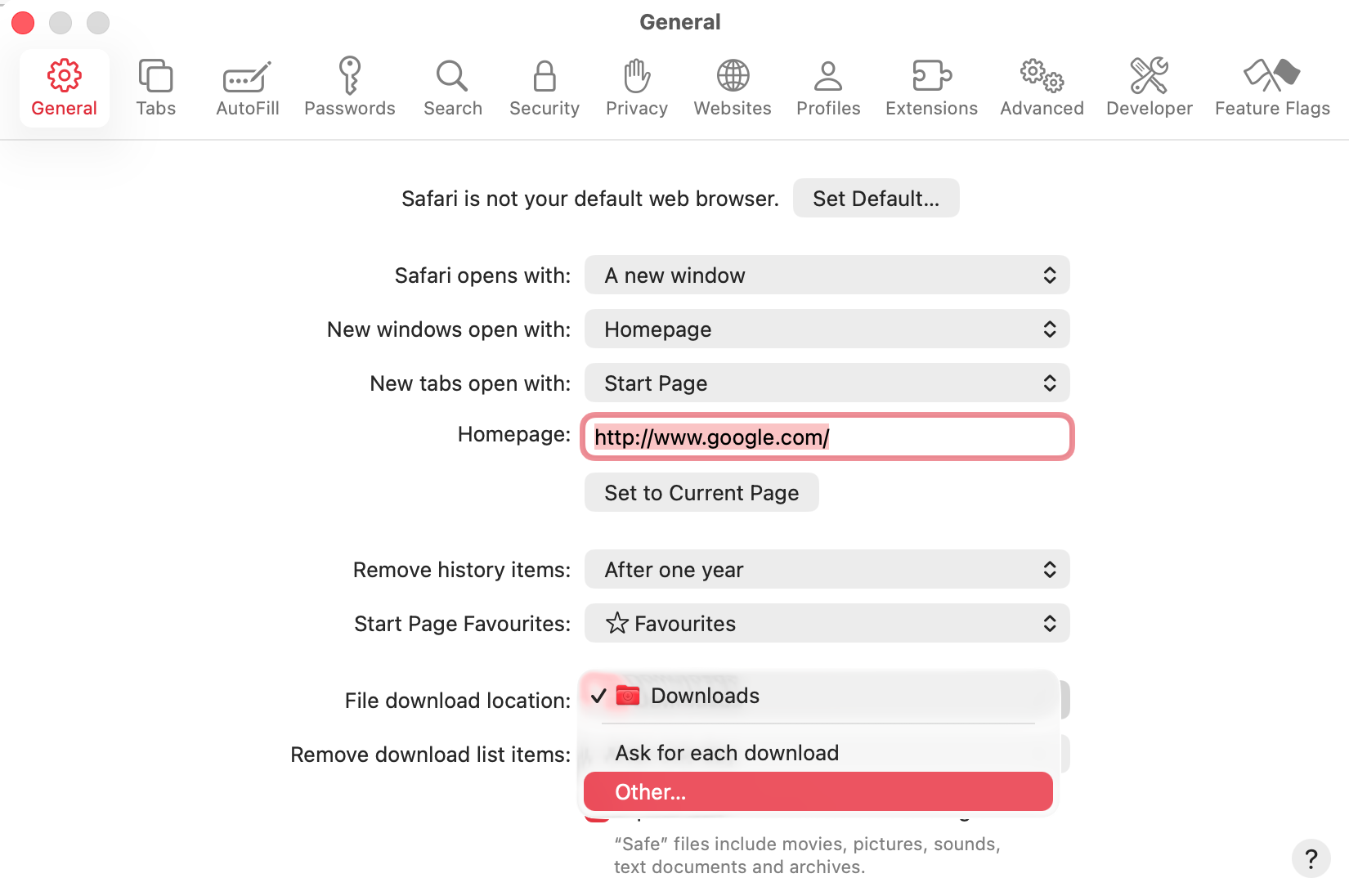
In the General tab, open the dropdown menu next to File downloadlocation, and select Other.
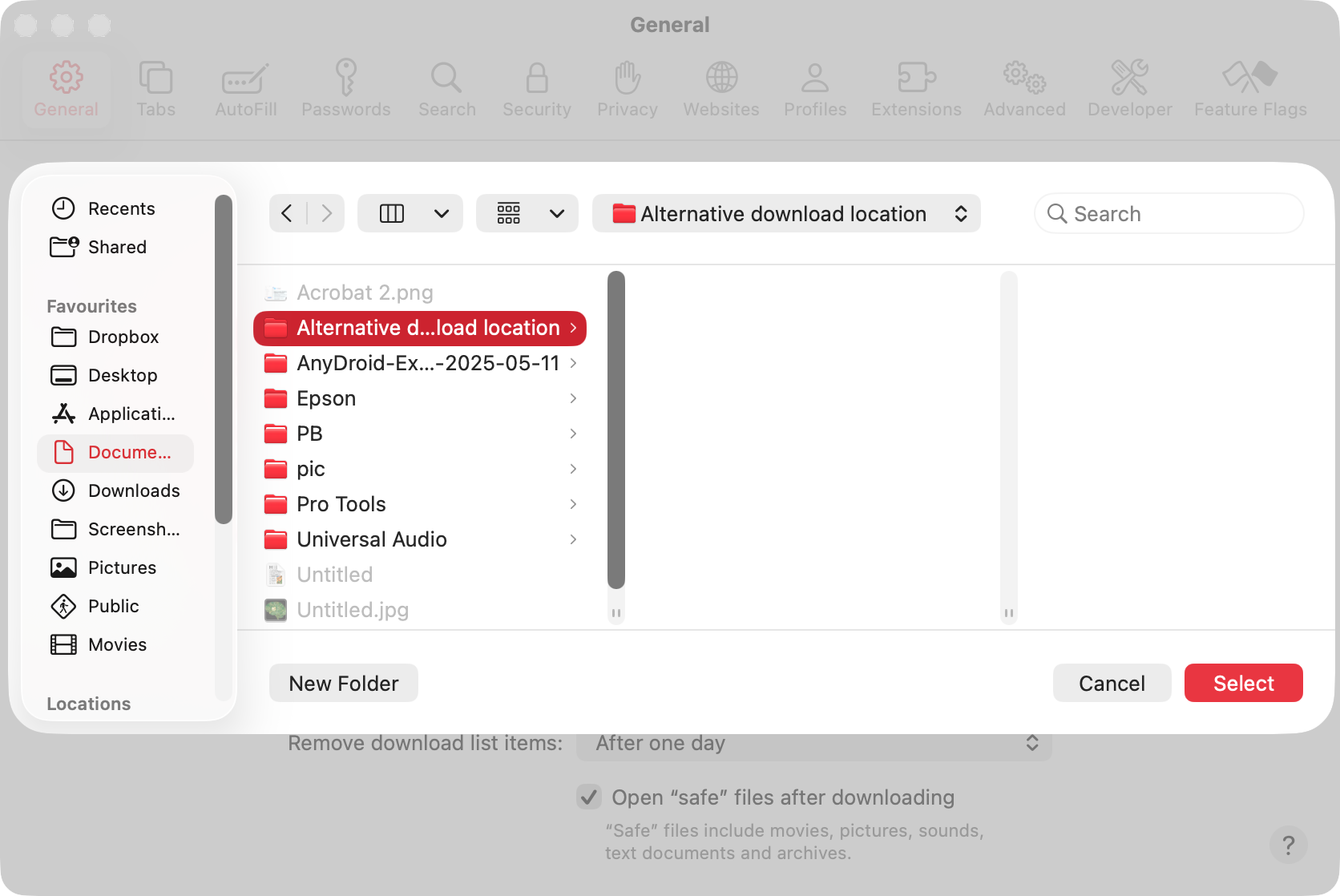
Navigate to the location where you want files to download to, and click Select.
Alternatively, for File download location, choose Ask for each download. Every time you download a file, Safari will ask where you want to save it to.
Step 1. Select Safari > Settings from your menu barStep 2. In the General section, use the dropdown menu to change your download locationStep 3. Use Finder to select a new location, and click Select
If your Downloads folder is missing, make sure you know how to access the Users folder on your Mac. From there, you should be able to get to Downloads.
2. Change download locations in Chrome
You can also set your download location in Chrome for Mac. To achieve this, you just need to follow these steps:
While you’re in Chrome, select Chrome > Settings from your menu bar.
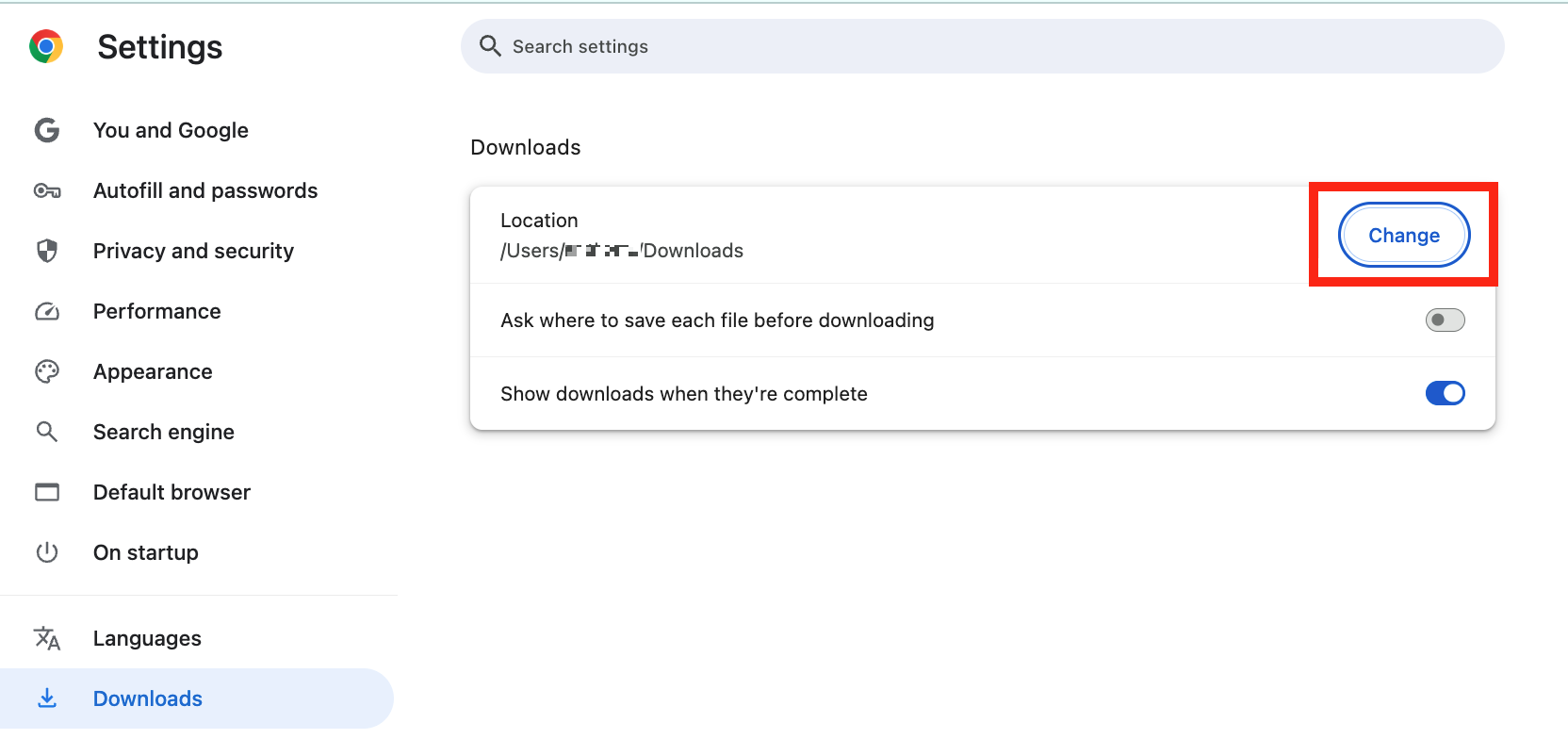
In your Chrome settings, select Downloads from the side menu.
Where it says Location, click the Change button.
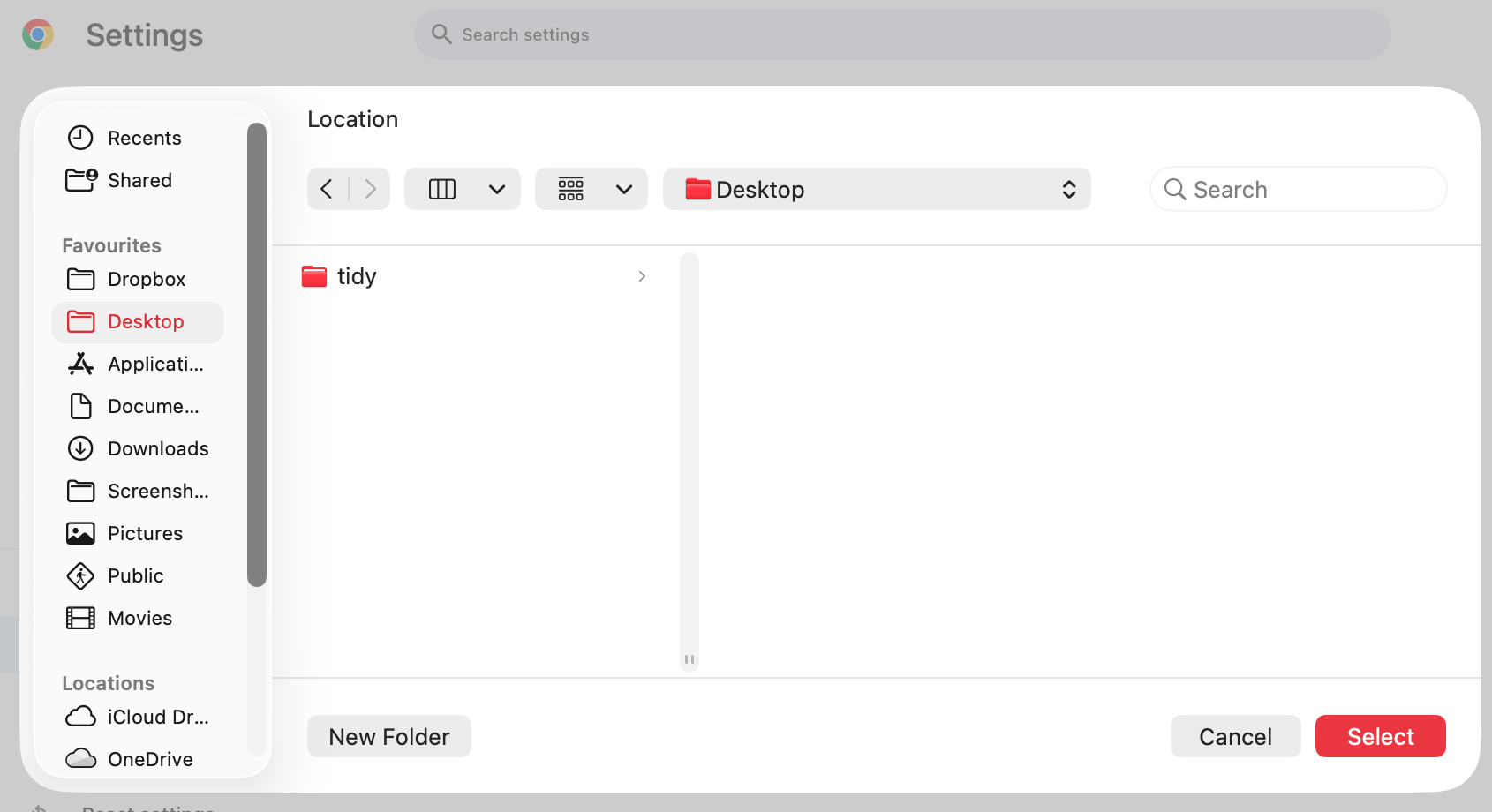
Use Finder to choose a default download location, and click Select.
You can also choose Ask where to save each file before downloading, and you’ll be prompted to pick a location every time.
Step 1. Open up your Chrome settingsStep 2. Click the Change button in the Downloads sectionStep 3. Pick a new location, and click the Select button
3. Set download locations in Firefox
Using Firefox? No worries—we’ve got you covered too. You can change your default download location like this:
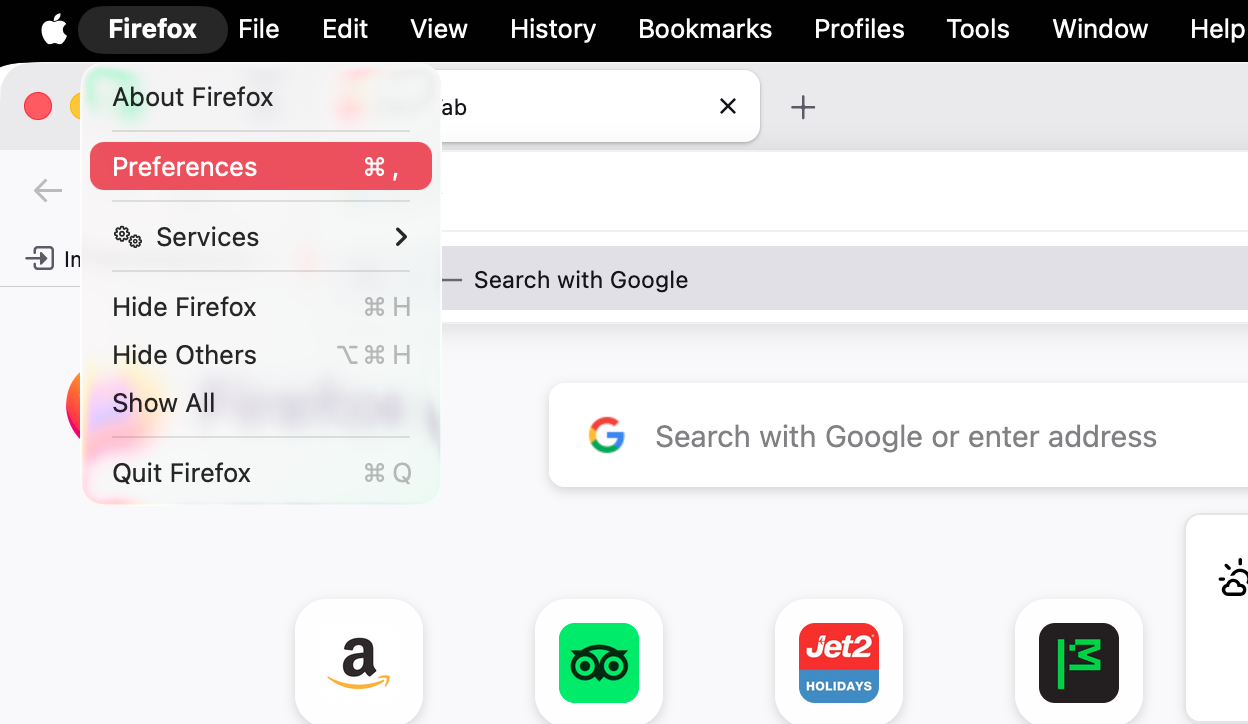
Start Firefox, and then from your menu bar, select Firefox > Preferences.
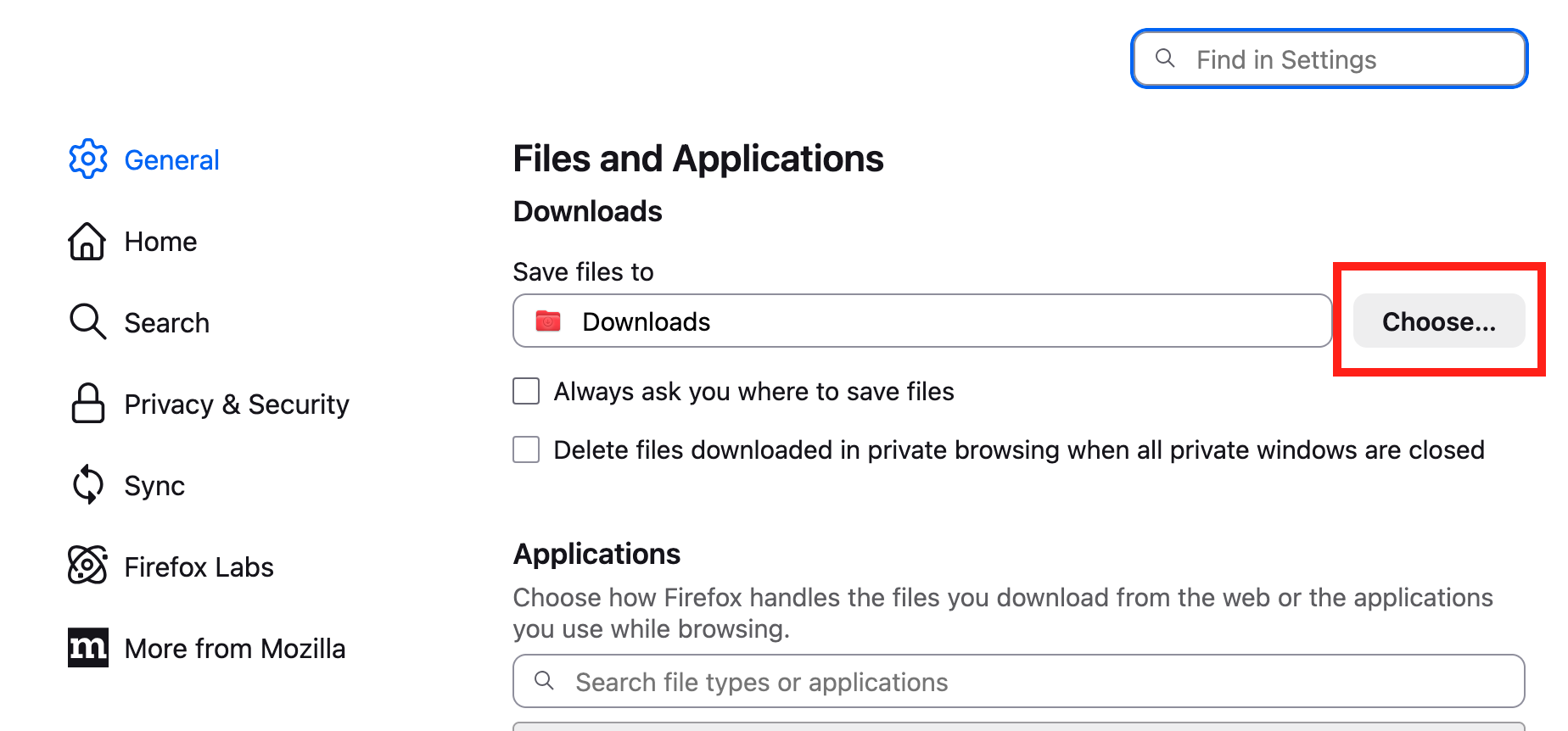
Select General from the side menu, then scroll down to Files and Applications.
Under Save files to, click the Choose button.
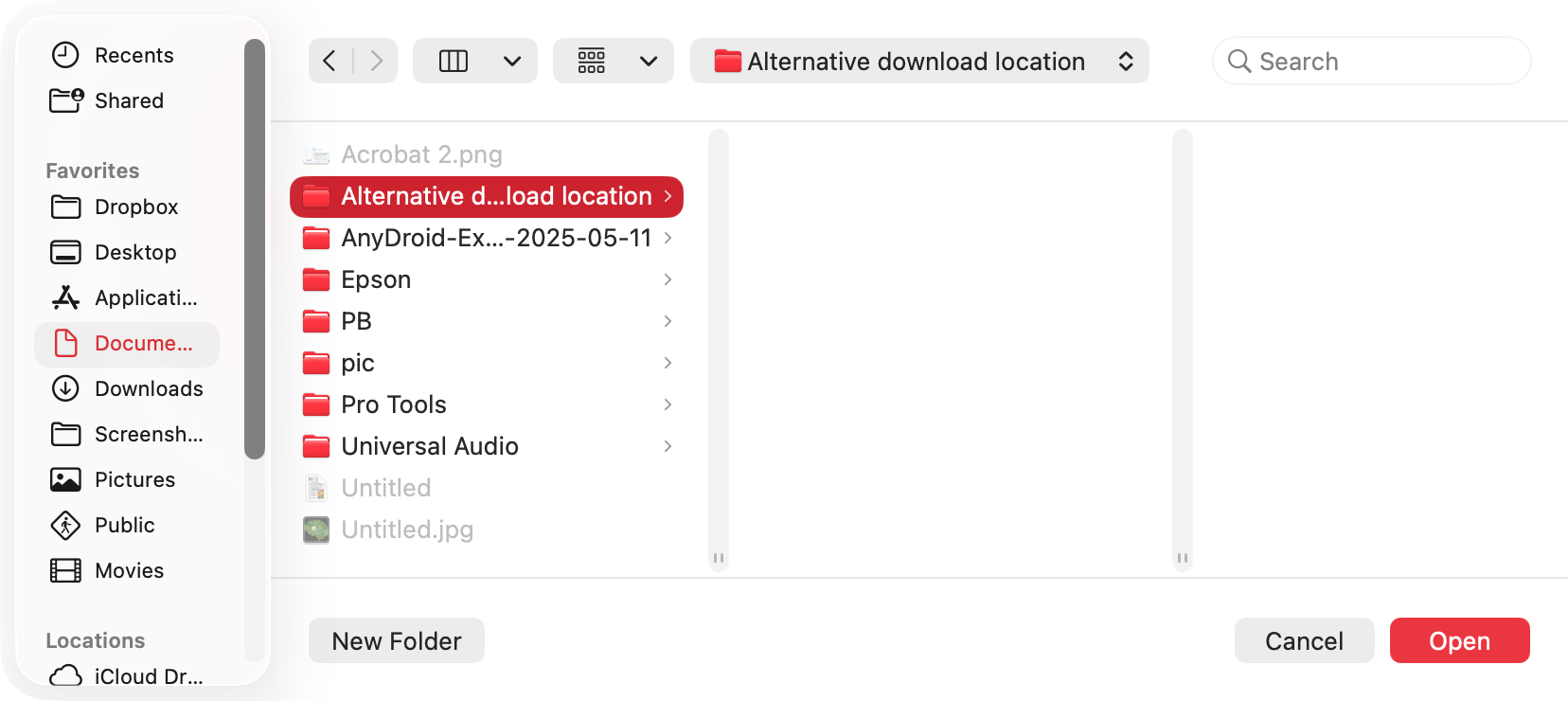
Now navigate your chosen download location, and click the Open button.
You can also tick Always ask you where to save files, and Firefox will always prompt you to make a selection when you download something.
Step 1. Go to Firefox > Preferences in your menu barStep 2. Scroll down, and click the Choose buttonStep 3. Use Finder to select a new location, and click Select
How to manage the Downloads folder on Mac?
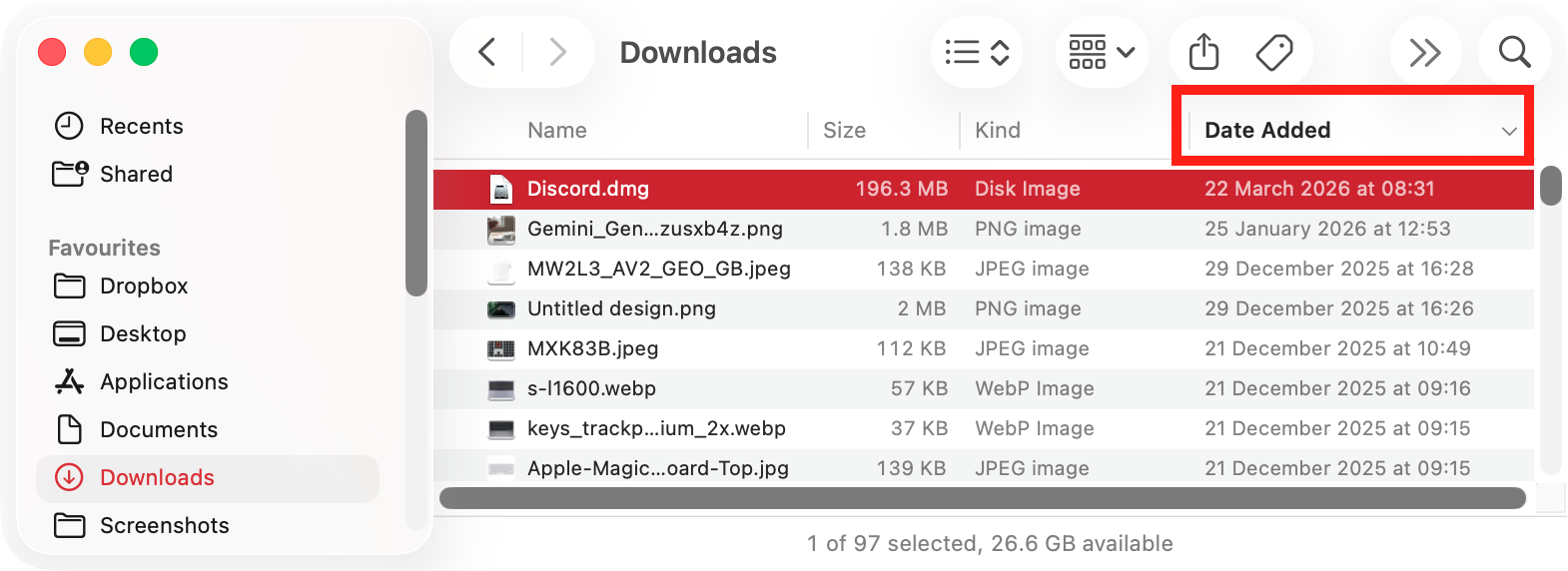
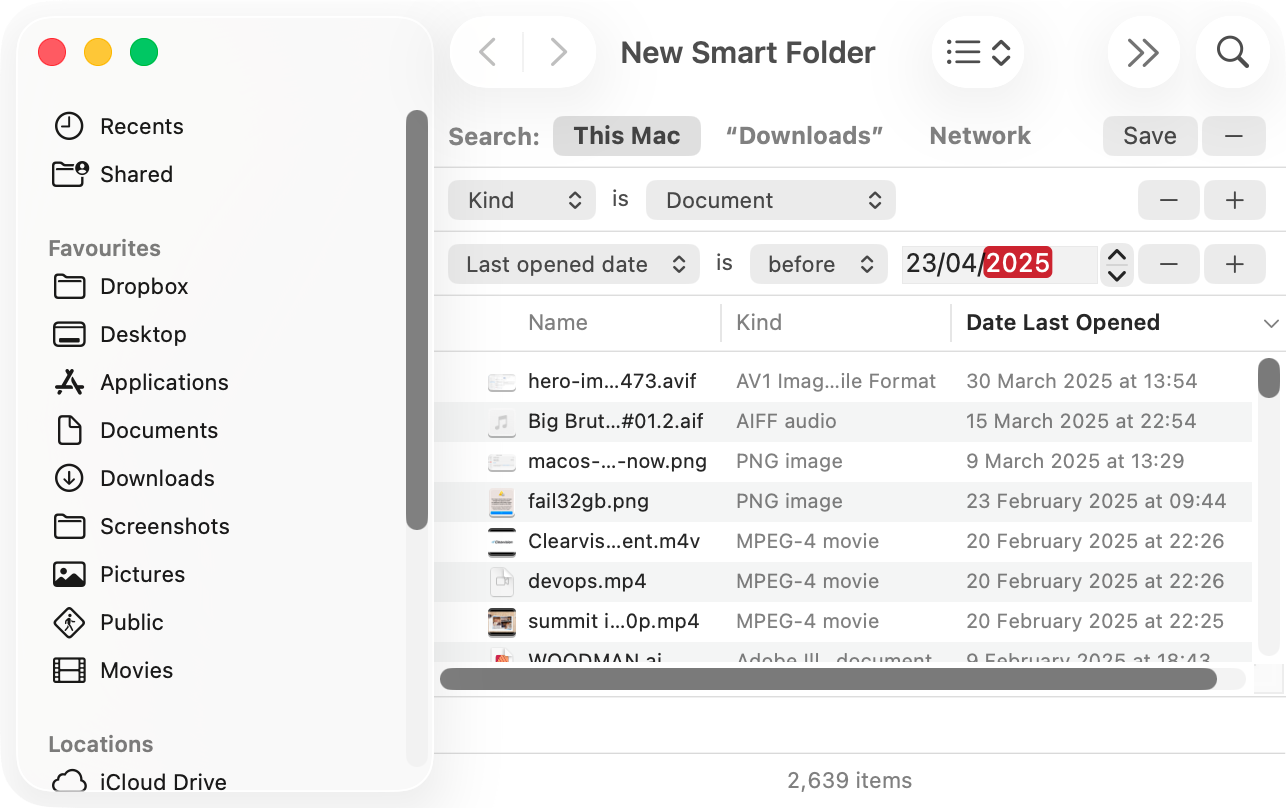
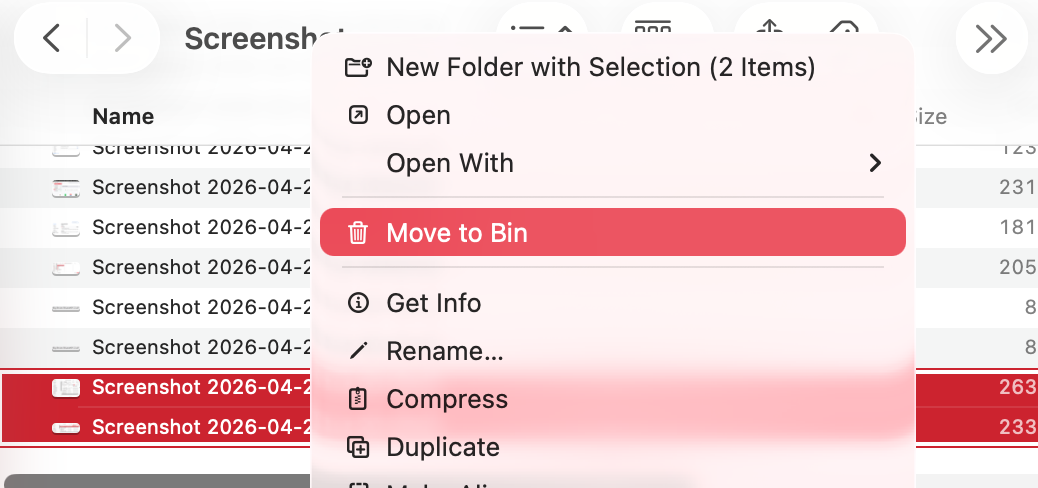
When you’re short of disk space, try managing your Downloads folder more carefully, cleaning out anything you don’t need. Use Finder to sort the files by date or size, and delete large files, old installers, unwanted screenshots and images, and anything else you don’t need. You can also create Smart Folders to group files based on your custom criteria.
Step 1. Sort your Downloads folder using FinderStep 2. You can also create Smart Folders to sort contentStep 3. Delete anything don't need
For more help with managing your downloads, check out our guide on how to delete downloads on Mac.
Better download management starts here
While the default download location makes it easy to find all downloads, regardless of what app you’re using, you might still want to change it. As we’ve shown you here, you’ll need to do this separately for each of your apps, but it’s usually a simple process. Just go into an app’s settings and make a quick tweak. This is handy if you want to offload your downloads to an external drive to save disk space on your Mac—but if you’re looking for a way to free up some room on your computer’s storage, there’s an even simpler way.
The answer is MacKeeper’s Safe Cleanup tool. All you have to do is complete a quick scan, check over the results, select what to delete, and click the Clean Junk Files. In a matter of seconds, it will safely remove old log files, caches, unneeded languages, mail attachments, and old installers. It’ll even empty your Trash for you! Give it a try today.
We respect your privacy and
use cookies
for the best site experience.
Privacy Preferences Center
We use cookies along with other tools to give you the best possible experience while using the
MacKeeper website. Cookies are small text files that help the website load faster. The cookies we
use don’t contain any type of personal data meaning they never store information such as your
location, email address, or IP address.
Help us improve how you interact with our website by accepting the use of cookies. You can change
your privacy settings whenever you like.
Manage consent
All cookies
These cookies are strictly necessary for enabling basic website functionality (including page
navigation, form submission, language detection, post commenting), downloading and purchasing
software. The website might malfunction without these cookies.