If you lost a page you visited earlier, or can’t remember where you saw important information while browsing on your Mac, don’t panic, as you can quickly track your steps. At the same time, use MacKeeper’s Safe Cleanup tool to remove unnecessary leftovers that accumulate during browsing, and keep your system running smoothly.
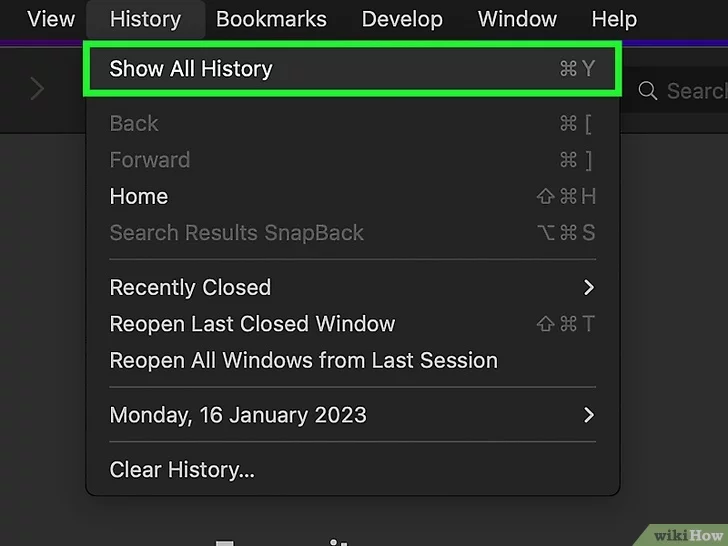
To see the search history on your Mac, open Safari ➙ find History in the top menu bar ➙ click the Show All History option. Alternatively, press the Command + Y combination.
What is search and browsing history?
Search and browser history show your online activity stored by your browser or related services. Browsing history includes the pages you’ve visited, while search history records the queries you’ve entered. Both help you quickly revisit websites and get more relevant suggestions. Additionally, they manage your privacy, allowing you to clear or control this data at any time.
A quick explanation for you: Distinguish between the two easily.
Browsing history: A list of webpages you’ve visited, stored by your browser.
Search history: A list of terms and phrases you’ve entered in search engines and apps.
How to view history on Mac?
To see history on your Mac, open Safari browser, then click History in the top menu, and select Show All History. It opens a list of visited webpages organized by date. For Chrome, press the Command + Y combination. For Firefox, press Cmd + Shift + H.
A note from our experts:
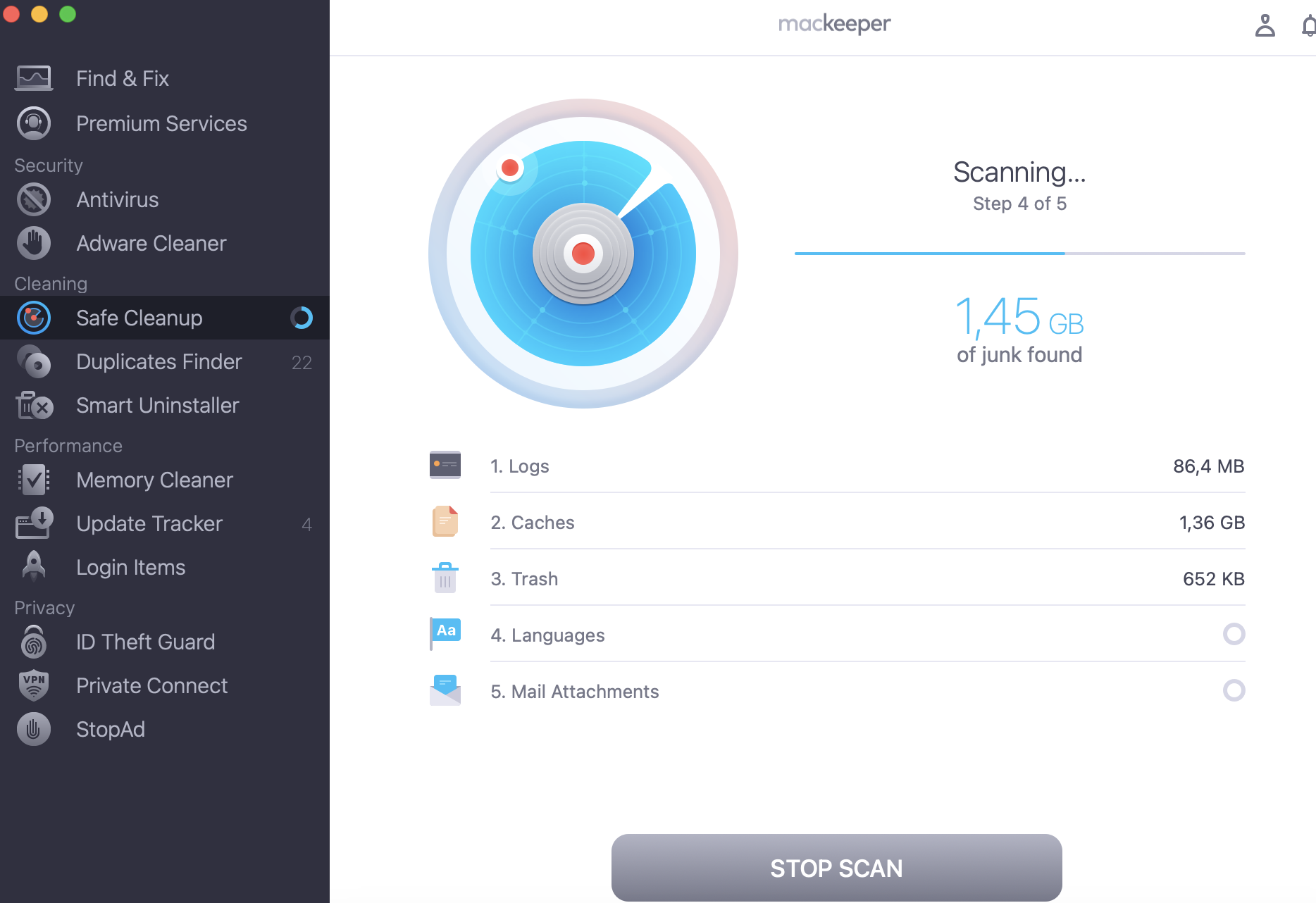
Active everyday browsing leaves a trail of cache files, cookies, and temporary data piling up in the background. Unfortunately, over time, these leftovers slow down your Mac, affecting any apps and features. Obviously, it isn’t enough to know how to delete frequently visited on Mac to fix the issue and keep your laptop organized. That’s where MacKeeper’s Safe Cleanup becomes highly useful. Instead of manually clearing browser data or searching through dozens of folders, this tool makes it easier to remove unnecessary files and maintains the speed and stability of your Mac.
Here’s my step-by-step guide to cleaning up your Mac with MacKeeper’s Safe Cleanup:
While creating new content, I often divide my investigation into several days, that’s why I used to check history on Mac quite often. I need to reopen the webpages I visited earlier to revise the information instead of searching again. If you find it useful too, I’ll tell you how to find a list of recently visited pages.
Follow the instructions to see your history on Mac Safari:
Open the Safari browser ➙ click History in the menu bar at the top of the screen.
Choose Show All History in the drop-down menu.
Step 1. Safari > HistoryStep 2. Show all History
If you prefer shortcuts, press the Command + Y combination to view history on Mac Safari. If you notice your Mac is running slow, don’t forget how to delete history on Safari.
Google Chrome
If you prefer using Google Chrome, your activities are also automatically recorded by the browser, allowing you to recover lost pages and restore previous sessions. So you can easily return to important websites without repeating the search, just find the history on Mac.
Here’s the quickest way to check your search history using Google Chrome on Mac:
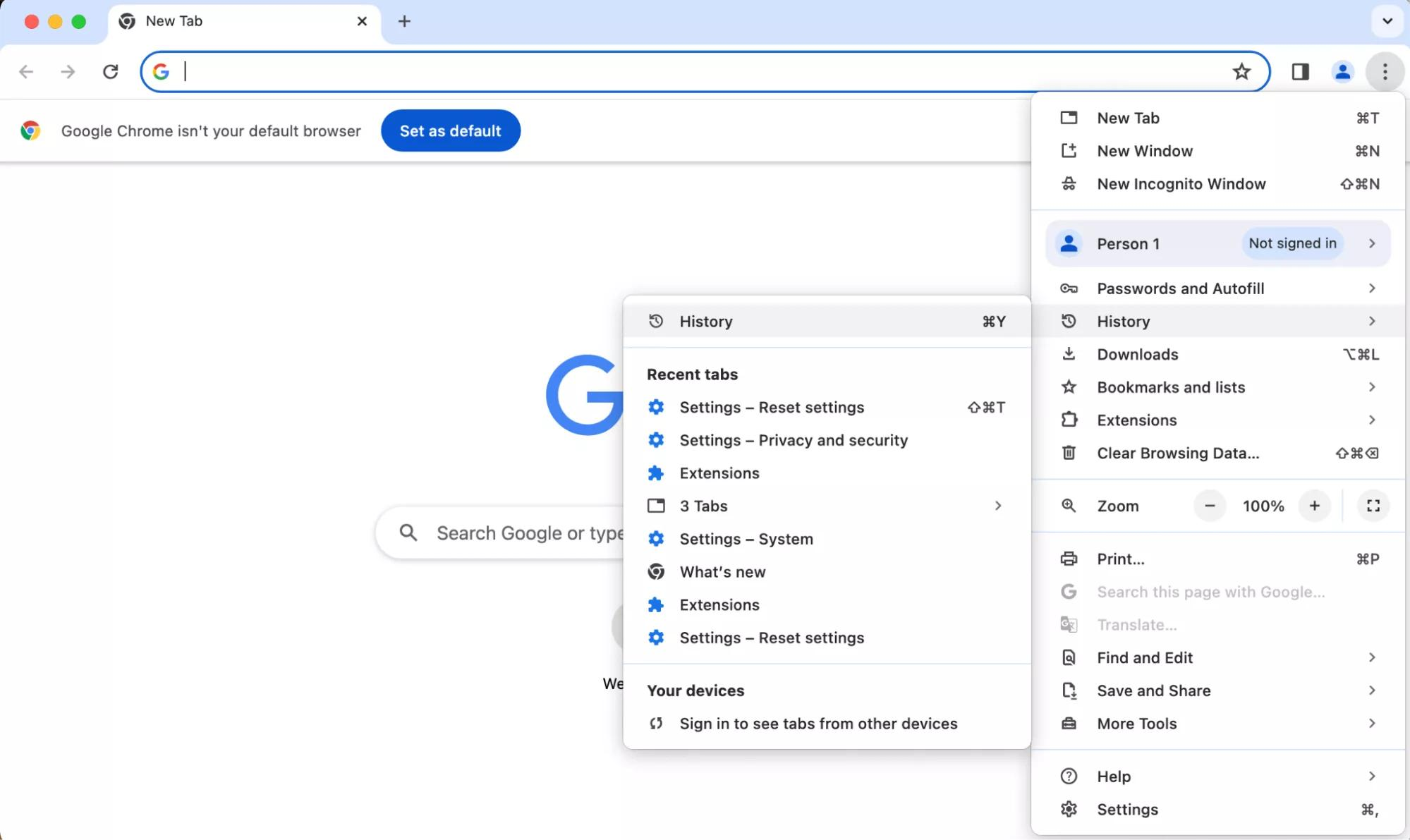
Open Google Chrome ➙ click three vertical dots in the top right corner of the window.
Choose History in the drop-down menu ➙ review your browsing history.
Google Chrome > three vertical dots > History
Also, you can press the Command + Y combination to open your History in Chrome via shortcut.
As Chrome also stores a lot of temporary data over time, I suggest you learn how to delete Google search history.
Mozilla Firefox
If you use Mozilla Firefox, your search history is also under control, so you can retrace your steps anytime and look at your history on Mac. Don’t be afraid to lose the page you’ve accidentally closed, or get lost in plenty of links you’ve traced during the day.
Do the following to open your full history in Mozilla Firefox:
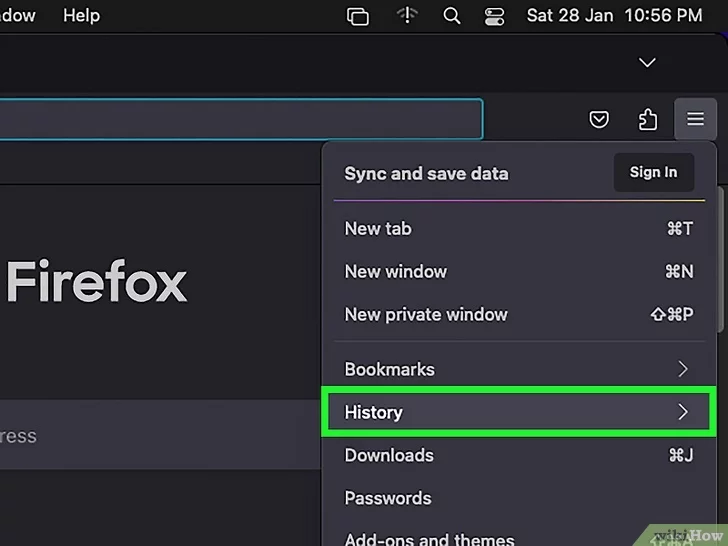
Open Mozilla Firefox ➙ click three horizontal lines in the top right corner of the window.
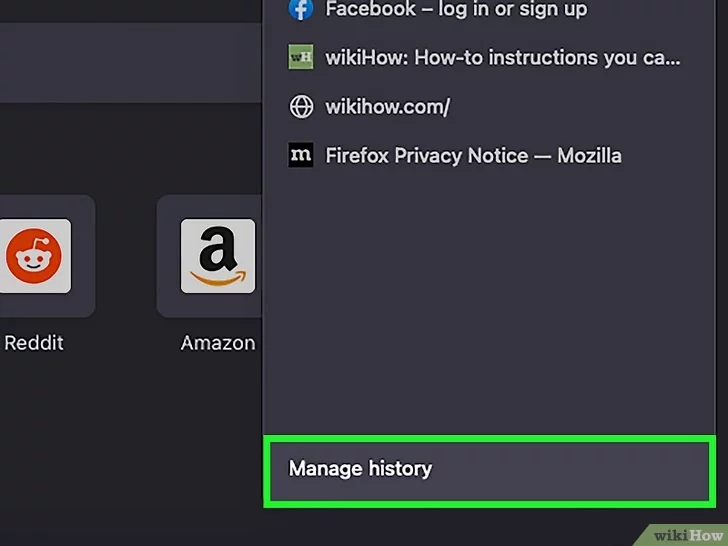
Choose History in the drop-down menu ➙ click Manage History to open a new page.
Step 1. Mozilla Firefox > three horizontal linesStep 2. HistoryStep 3. Manage History
Alternatively, you can press the Command + Y shortcut to open the history in Mozilla Firefox.
Opera
Do you prefer Opera for everyday browsing? If so, you can rely on this browser, not only to research information but also to remember your path. By checking your search history, you can easily retrace your late-night session or revisit sites you never saved.
Follow my instructions below to view your history in Opera on Mac:
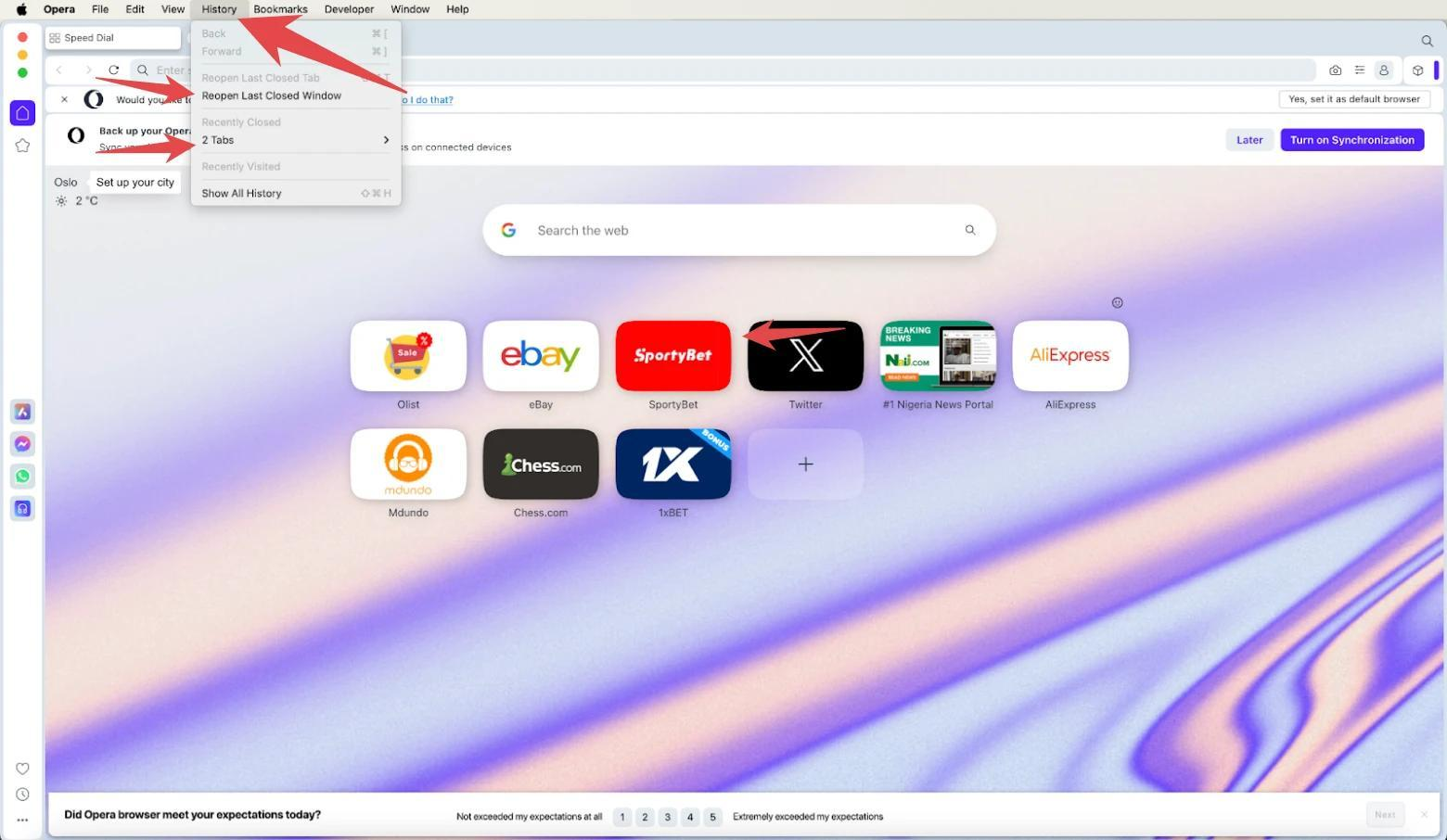
Open Opera browser ➙ click History in the top left corner of the window.
Select the Show all History option to see your full browsing history.
Opera > History > Show all History
If you prefer shortcuts, simply press the Command + Y combination to look at your history on Mac Opera.
Conclusion
To view your search history on a Mac is a simple task that can save you time and effort. It doesn’t matter whether you use Safari, Google Chrome, Mozilla Firefox, or Opera, as each of them keeps a record of your activities. This option makes it easy to revisit important pages that you haven’t saved, recover closed tabs, or clear your browsing activities from other users.
However, keep in mind that your browser activity also stores cache and other temporary files, which can affect your privacy and your Mac’s performance over time. To keep your Apple laptop running smoothly, it’s a good idea to use MacKeeper’s Safe Cleanup tool to detect and remove unnecessary files, maintaining a clean and efficient system.
We respect your privacy and
use cookies
for the best site experience.
Privacy Preferences Center
We use cookies along with other tools to give you the best possible experience while using the
MacKeeper website. Cookies are small text files that help the website load faster. The cookies we
use don’t contain any type of personal data meaning they never store information such as your
location, email address, or IP address.
Help us improve how you interact with our website by accepting the use of cookies. You can change
your privacy settings whenever you like.
Manage consent
All cookies
These cookies are strictly necessary for enabling basic website functionality (including page
navigation, form submission, language detection, post commenting), downloading and purchasing
software. The website might malfunction without these cookies.