As you’re here, it means you know firsthand how quickly the ‘charging on hold rarely used on battery’ notification on your Mac can distract you, especially when you need your device fully charged for an essential activity. Believe me, it’s not a big deal. You can get a quick, stress-free, qualified assistance to overcome the charging issue with MacKeeper’s Premium Services, and you’ll find how to do it in this guide.
The charging on hold (rarely used on battery MacBook) message appears when you keep your laptop plugged in most of the time, which can affect its battery health. This is Apple’s built-in feature called Optimized Battery Charging, which is supposed to pause full charging to make the battery last longer over the years of active usage.
For me, the charging issue has always been an aching point, as I often forget to unplug my Mac, just like my iPhone, and what’s worse—the curling iron. Though I’m not proud of my habit, it’s quite difficult to get rid of it. If you share my pain, don’t hesitate to learn how to know if your MacBook is charging, as this subject hides some pitfalls.
What does charging on hold mean on MacBook?
The charging on hold (rarely used on battery) message means that macOS has temporarily stopped charging the battery for a short period. This feature helps to protect battery health, prevent overheating, reduce aging, and optimize the overall performance. Charging restarts automatically when the system defines it’s right time to continue charging safely.
Why is MacBook charging on hold?
MacBook charging on hold shows that your system has paused charging at around 80 percent. It reduces the time while your Mac is fully charged, extending the battery lifespan. The system analyzes usage habits and temperature, then predicts when unplugging is expected and restarts charging.
A note from our experts:
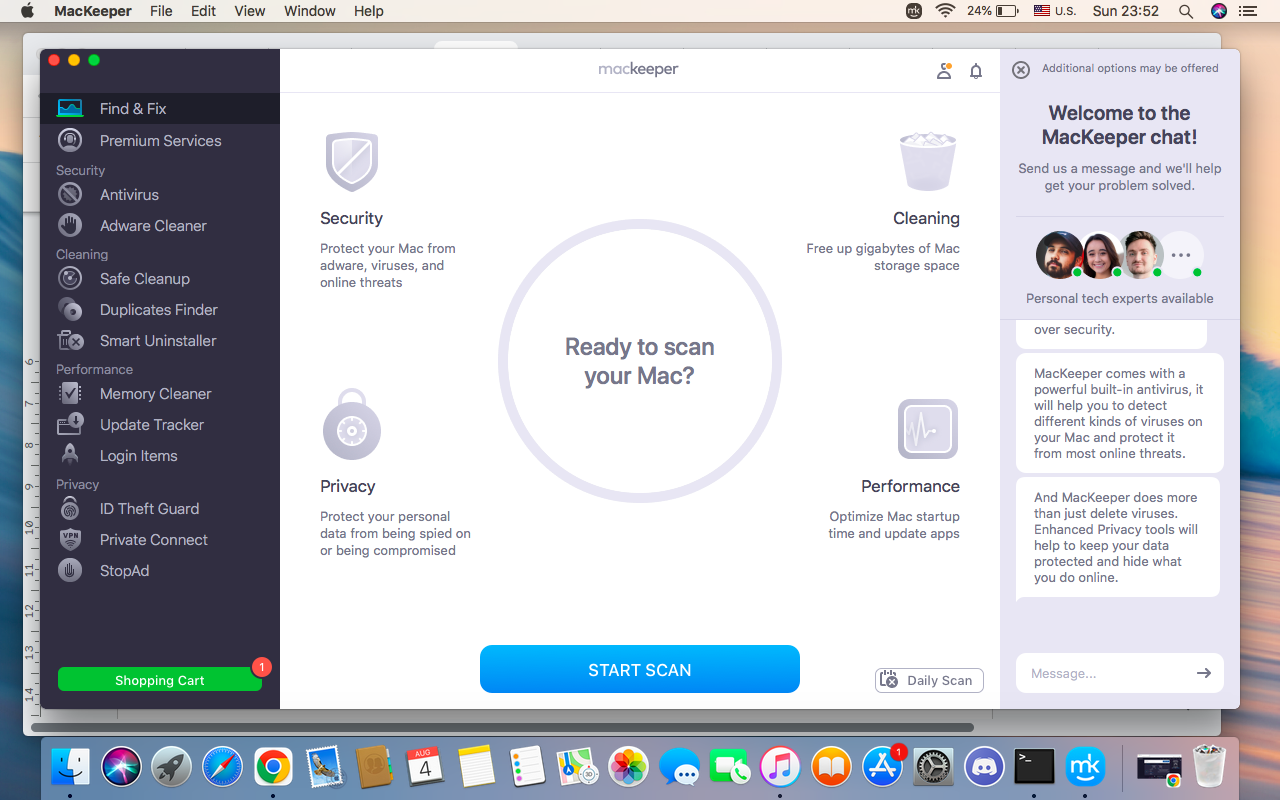
We’ve considered that the charging on hold rarely used on battery feature supports battery health, but this tricky message still raises questions and confusion, especially when charging stops unexpectedly. Quite recently, I used to dig into dozens of links searching for the solution, wasting lots of time, and freaking out more and more. However, there is MacKeeper’s Premium Services—a macOS utility software to troubleshoot the issue professionally. MacKeeper’s Premium Services offer expert assistance available 24/7, provide profound diagnostics, and give a personal solution for every user.
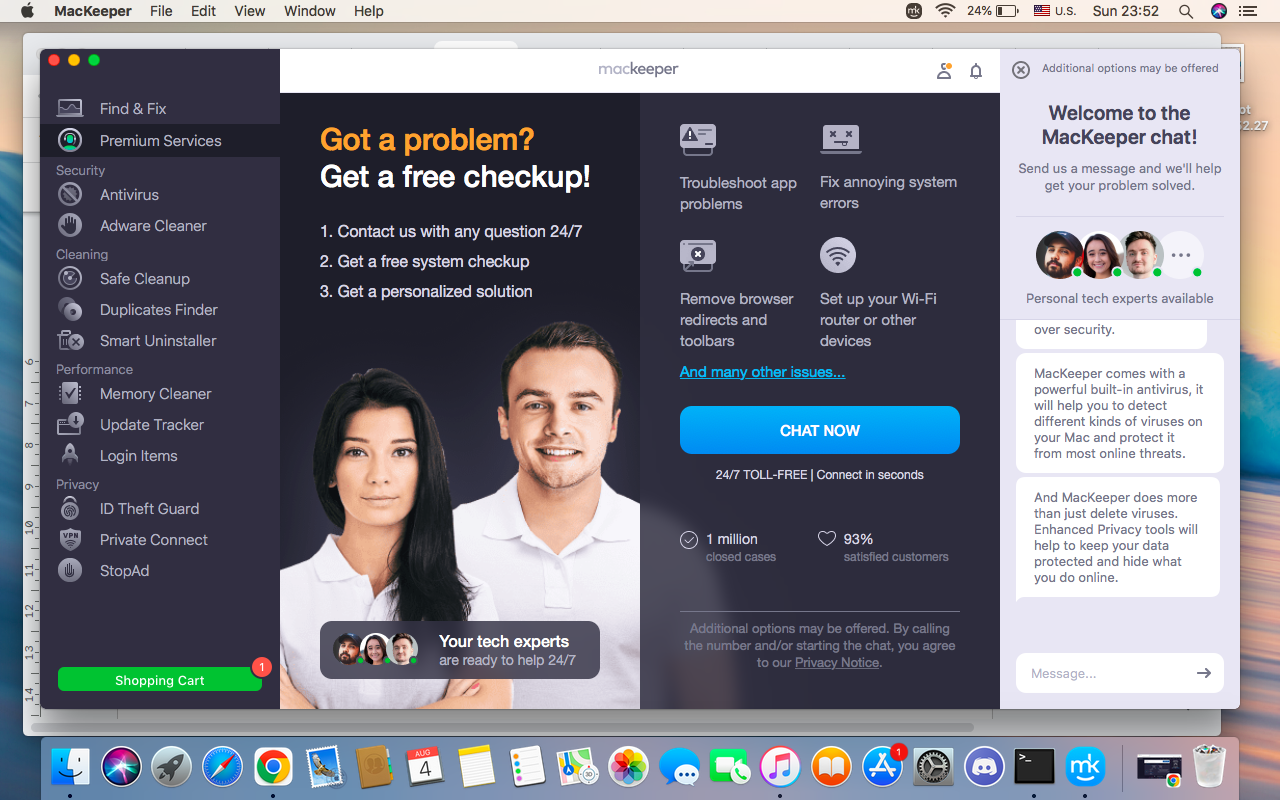
So, if you face the Mac charging on hold rarely used on battery issue, I suggest you to get professional support through MacKeeper’s Premium Services:
Click the Chat Now button and wait for our expert to join the conversation.
Describe the issue you want to solve.
Try the fixing method.
Step 1. MacKeeper > Premium ServicesStep 2. Chat Now > wait for the MacKeeper’s expert to join > describe your problem > wait for the reply
How Optimized Battery Charging works?
If you’re wondering how to save battery on MacBook, you’d better understand how Optimized battery charging works. This feature helps to improve your Mac’s battery lifespan and decrease the time your MacBook stays fully charged, as it speeds up its aging, affecting the overall performance. The system learns your charging habits and pauses charging before 80 percent. If you used to leave your Mac plugged in overnight, the system will charge to this point and then stop. Then macOS completes the last 20 percent when it predicts unplugging. So, the charging on hold message is the system’s optimization, not a bug.
How to force MacBook to charge?
There are several options for what to do if Mac battery isn’t charging. Though you can’t manually force charging on your Mac, try disabling Optimised battery charging in System Settings, if there isn’t overheating, or restarting the System Management Controller (SMM).
Now, I’ll describe the effective methods for forcing your Apple computer to restart charging when it stops the process unexpectedly to protect battery health.
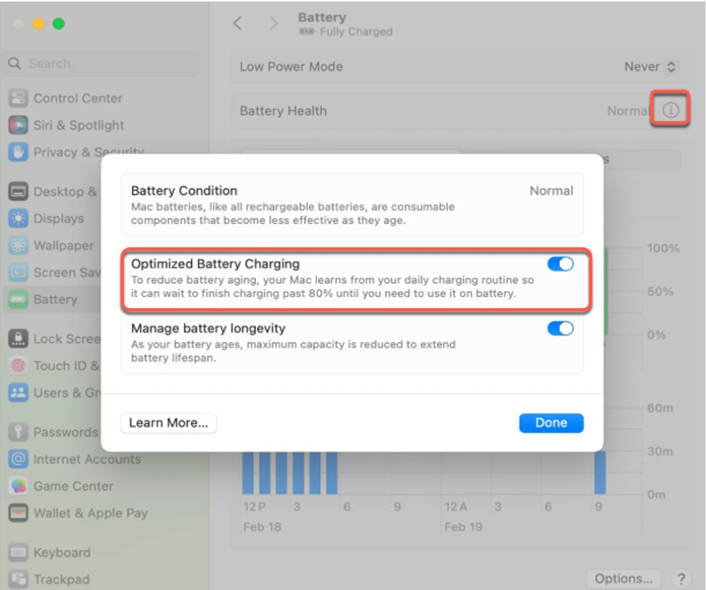
If you’re a user of macOS Ventura or later versions, do the following:
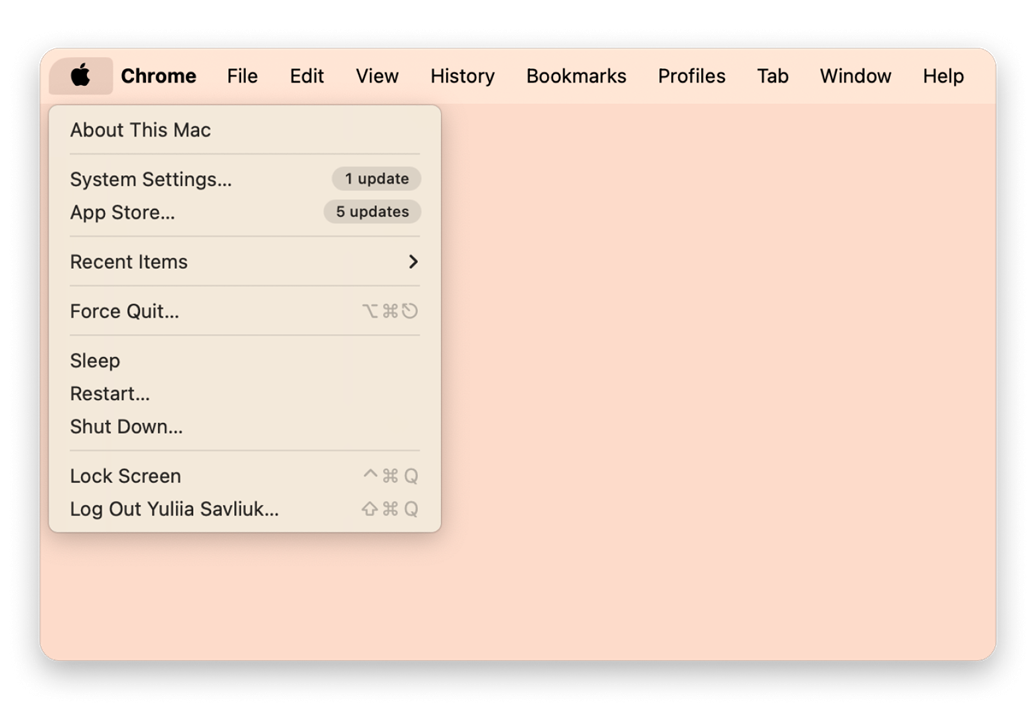
Open Apple menu ➙ select System Settings ➙ choose Battery.
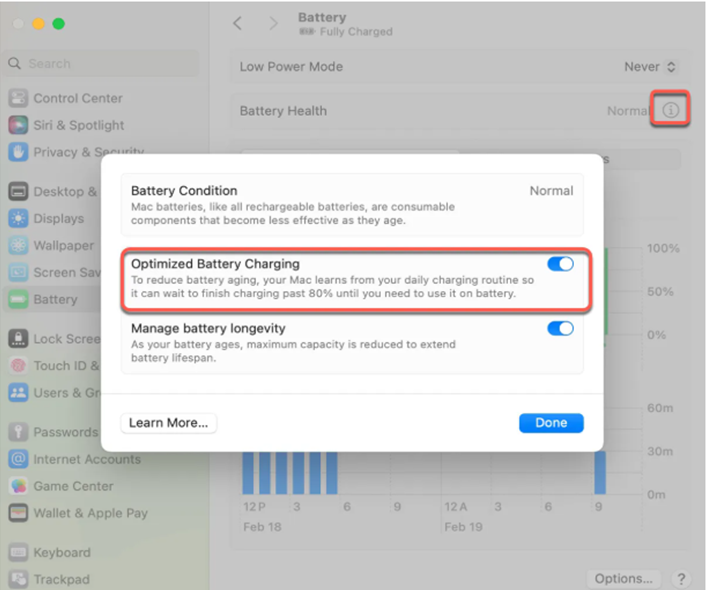
Click Battery option.
Find the Optimized Battery Charging feature ➙ choose Turn off or Turn off until tomorrow.
Click Done.
Step 1. Apple menu > System SettingsStep 2. Battery > Optimized Battery Charging > Done
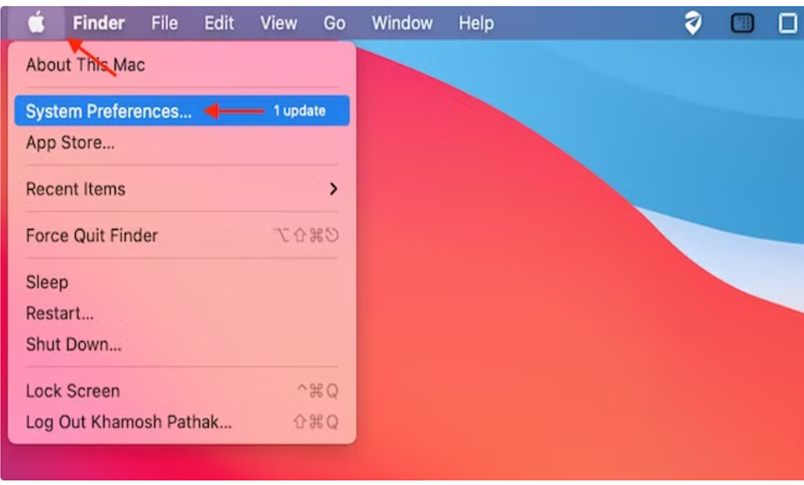
If you use macOS Monterey or Big Sur, here’s the guide for you:
Open Apple menu ➙ choose System Preferences.
Select Battery option.
Find Optimized Batterycharging feature ➙ click Turn off or Turn off until tomorrow.
Step 1. Apple menu > System PreferencesStep 2. Choose Battery > Optimized Battery Charging
An extra hint from me: Don’t forget about the quickest and simplest way to make your Mac charge to full, common for all versions: click the battery icon at the top right corner of your screen ➙ choose Charge to full now (or Until full).
Battery icon > Until full
Still, charging issues aren’t always so easy to resolve. You definitely need to know what does service recommended mean on a Mac battery, as this recommendation presupposes urgent attention. Expend your horizons, and you’ll be ready for any sudden turn.
Conclusion
If your Mac’s battery is stuck at about 80 percent charged and shows the Charging on hold message, there’s no need to panic, as your device isn’t broken. It’s Apple’s smart option to protect battery health and keep a stable, reliable system performance. The Charging on hold feature prevents your Mac from being fully charged, as keeping the battery full all the time can make it age faster.
However, sometimes we need the full 100 percent charging to take the laptop somewhere or for some other reason, then such delays become confusing and irritating. In this case, don’t hesitate to get fast, reliable, professional assistance from MacKeeper’s Premium Services and solve the annoying problem quicker and easier.
We respect your privacy and
use cookies
for the best site experience.
Privacy Preferences Center
We use cookies along with other tools to give you the best possible experience while using the
MacKeeper website. Cookies are small text files that help the website load faster. The cookies we
use don’t contain any type of personal data meaning they never store information such as your
location, email address, or IP address.
Help us improve how you interact with our website by accepting the use of cookies. You can change
your privacy settings whenever you like.
Manage consent
All cookies
These cookies are strictly necessary for enabling basic website functionality (including page
navigation, form submission, language detection, post commenting), downloading and purchasing
software. The website might malfunction without these cookies.