A Mac that's cluttered with junk files, duplicates, and forgotten app leftovers can slow your workflow to a crawl, and this Trend Micro Cleaner One Pro review will help you decide whether it's a genuinely safe, effective solution worth the subscription fee. MacKeeper’s Safe Cleanup removes caches, logs, and trash in a single scan while keeping your personal files untouched, giving you back storage space and faster performance without the guesswork.
In this Cleaner One Pro review, our team tested Trend Micro’s popular Mac optimizer across junk scans, duplicate detection, disk mapping, and startup management. Based on our experience, it’s a decent entry-level cleaner with a friendly interface, but the feature depth and pricing model leave room for improvement compared to more established Mac utility tools currently on the market.
What is Cleaner One Pro?
Cleaner One Pro is a Mac optimization app developed by Trend Micro, a long-established cybersecurity company. It bundles junk cleaning, duplicate detection, disk analysis, and startup control into one interface. Our Trend Micro Cleaner One Pro review found the app aimed at users who want a simple, all-in-one cleaner without digging into advanced technical settings.
Cleaner One Pro features
Our Cleaner One Pro for Mac review covered eight core features, each accessible from the app’s left-hand sidebar. The layout is clean and beginner-friendly, with colour-coded scans and one-click cleanups throughout. Here’s what our team found when we tested each tool individually on a cluttered MacBook running the latest version of macOS.
1. Smart Scan
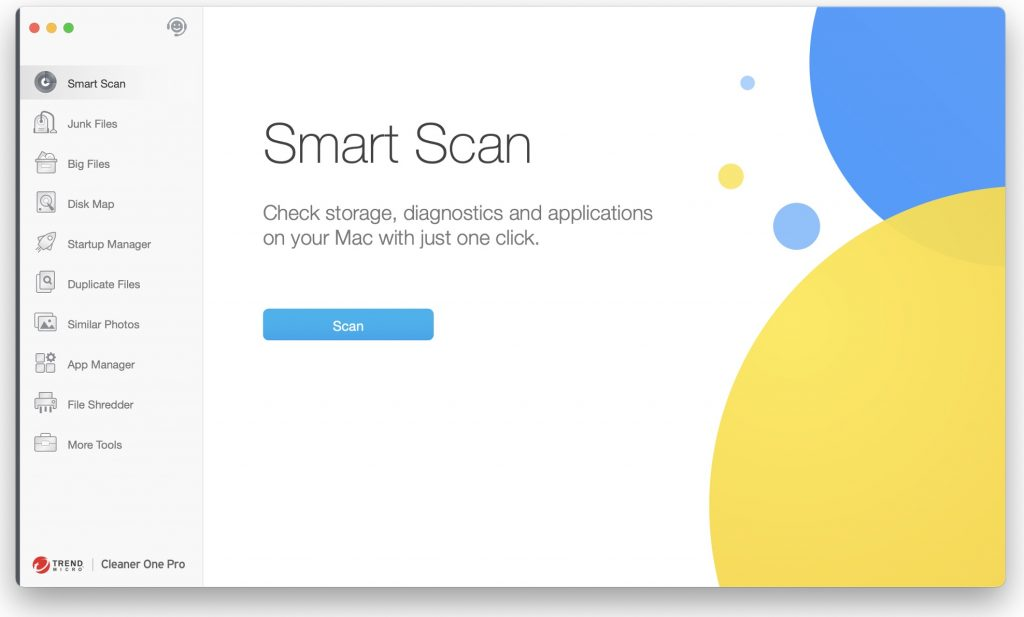
If you want a one-click fix rather than poking through every settings menu, Smart Scan is the first tool you'll reach for, since it sweeps your Mac in a single pass to surface junk files, large files, and startup items ready to clear. We found it quick but shallow in testing, as it surfaces obvious cleanup targets without giving you the granular control some power users expect. Our team recommends using it as a first-pass tool rather than a complete solution.
Smart Scan runs a one-click system check that identifies junk files, large files, and startup items on your MacBook
2. Junk Cleanup
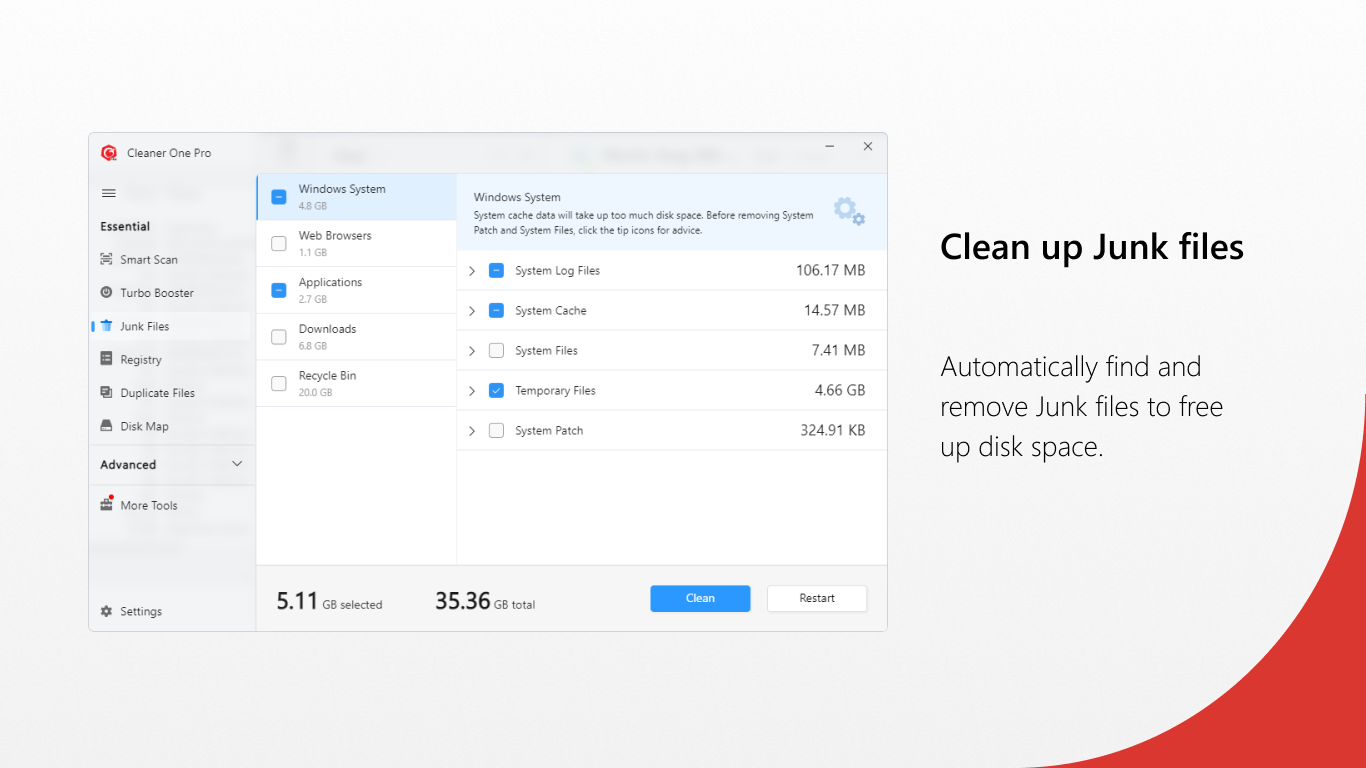
Caches, logs, and temporary files pile up fast on any Mac, which is exactly where Junk Cleanup comes in to clear them from both your system and installed apps. When we’ve been testing its functionality, we’ve noticed it frees up a modest chunk of disk space but misses some app leftovers that our team would expect a thorough cleaner to catch. Results vary depending on how many apps you run and how old your macOS installation is, so we suggest pairing it with another cleanup tool for the best outcome.
Junk Cleanup scans system caches, logs, and temporary files to free up storage space on your Mac
3. Disk Map
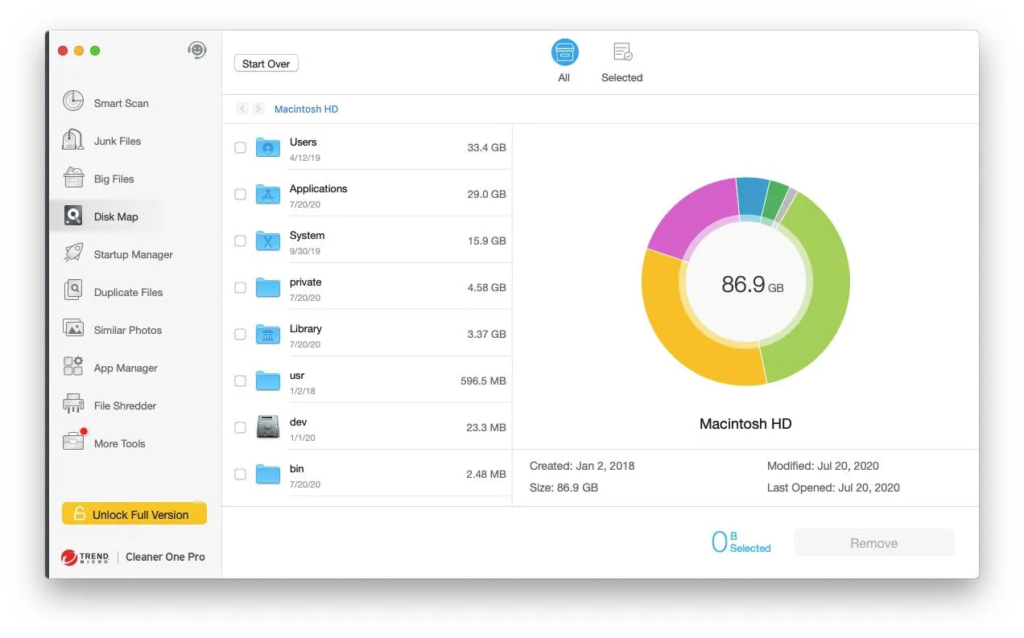
Ever wondered what's actually eating your storage? That's where Disk Map shines, laying out your drive as a colour-coded treemap of folders and file sizes you can explore at a glance. You can drill into any chunk to see the largest items and delete them individually if they’re no longer needed. In our view, it’s one of the most useful and genuinely informative features we tested, especially when your Mac is suddenly running low on space.
Disk Map displays a colour-coded treemap of folders and files to help you identify the largest items
4. Duplicate Files
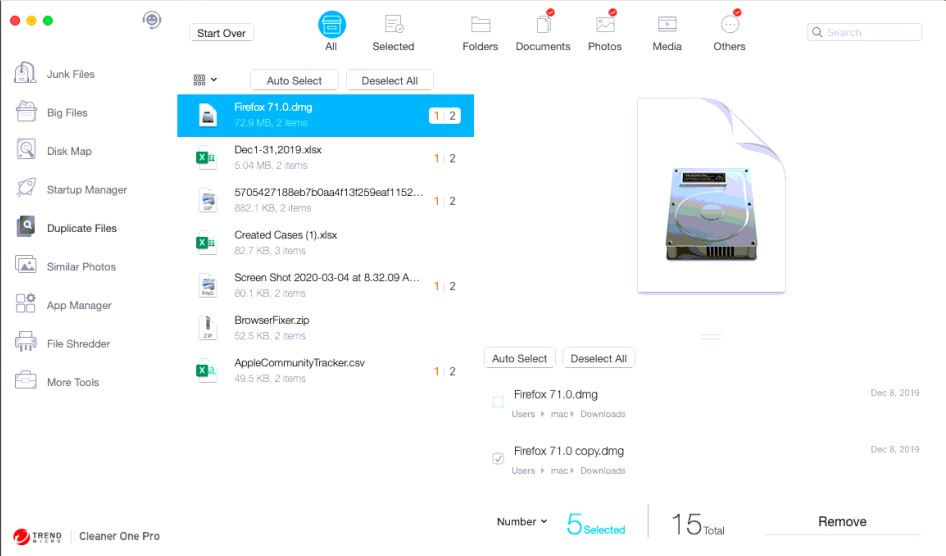
When our team tested the Duplicate Files scanner, we pointed it at large photo folders and document libraries to see how accurately it spotted identical copies across selected drives. In our experience, it works well for photos and documents but can be slow on very large libraries. You select the folders you want scanned, then review and delete duplicates from the results list, with a preview pane that helps you avoid mistakes. Our team appreciates the preview, but the scan speed lags rival tools.
Duplicate Files scans selected folders and drives to find identical copies you can review and remove
5. App Manager
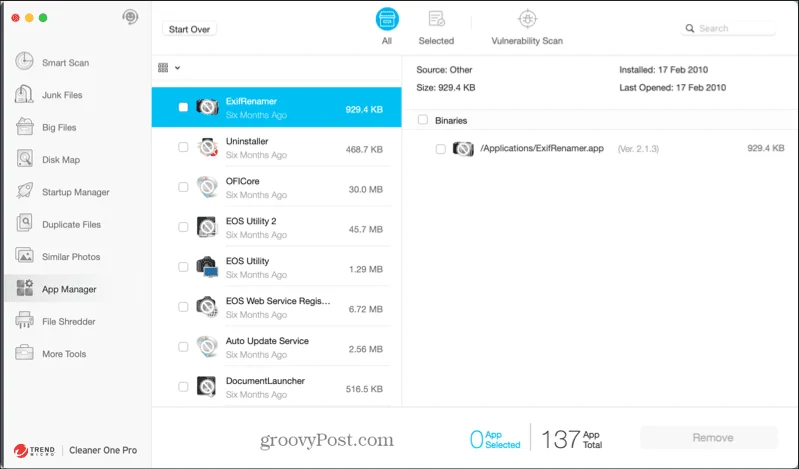
Two tools live under one roof with App Manager, which combines an uninstaller that bundles leftover files with the main app and an update tracker that flags outdated versions of your installed software.
We found the uninstall process cleaner than a manual drag-to-trash, though in our tests it didn’t always catch every leftover file associated with removed apps. Our experts suggest double-checking Library folders manually afterwards if you’re freeing up space after removing heavy apps.
App Manager uninstalls apps with their leftovers and shows outdated versions of installed software
6. File Shredder
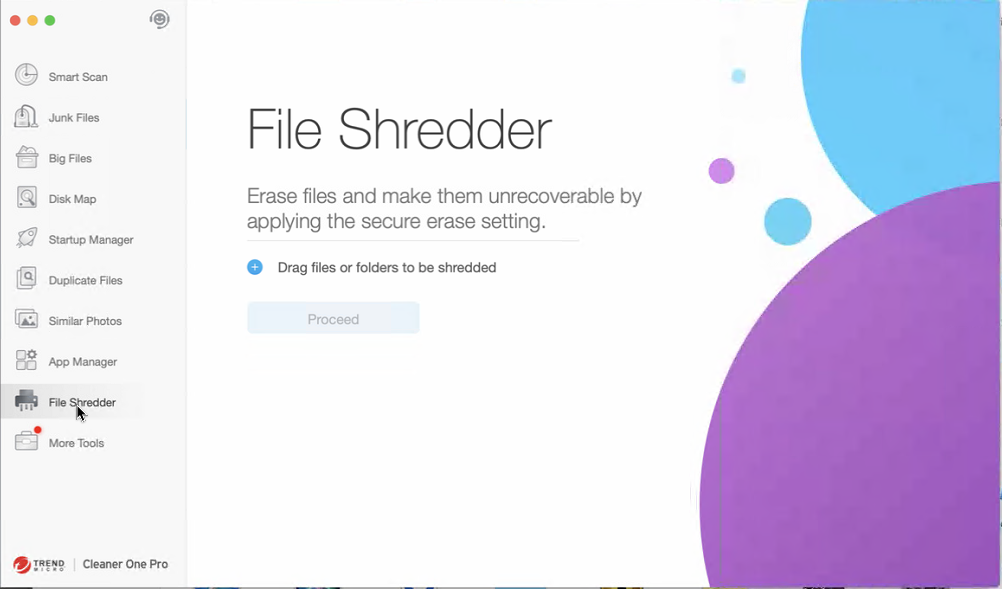
For anyone handling sensitive data on a Mac, File Shredder is the feature worth knowing about, as it overwrites deleted files so they can't be pulled back by recovery tools. You drag files or folders into the tool, confirm the action, and the data is overwritten multiple times until it’s unrecoverable. Our team recommends using this feature for financial documents, tax records, or confidential work files before you sell, trade in, or hand off your Mac to someone else.
File Shredder securely overwrites sensitive files and folders so they can’t be recovered from your Mac
7. Similar Photos
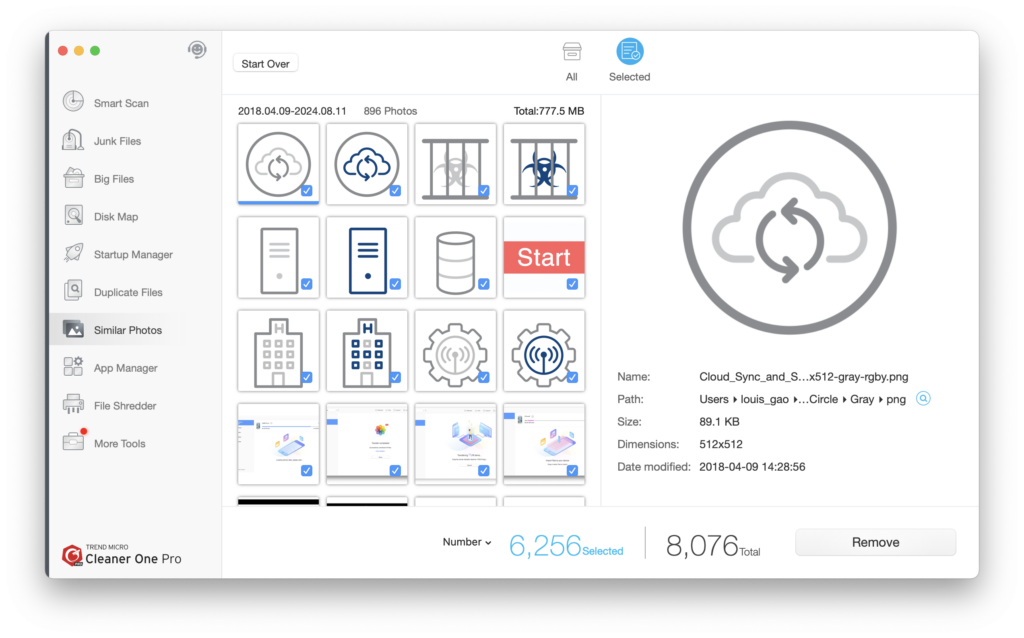
Scrolling through a photo library filled with burst shots and near-identical edits is a task Similar Photos takes off your hands, flagging groups of similar images so you can trim them down quickly. It's one of the most time-saving features for anyone juggling a bloated Photos library, since what would take you hours of manual scrolling gets done in a single scan.
In our tests, the matching was accurate for obvious duplicates but occasionally flagged intentional variations like edited copies, so we suggest you review each group carefully before deleting anything permanently. You can’t undo deletions once confirmed, so caution pays off here.
Similar Photos identifies near-duplicate images in your Photos library so you can review and delete them
8. Startup Manager
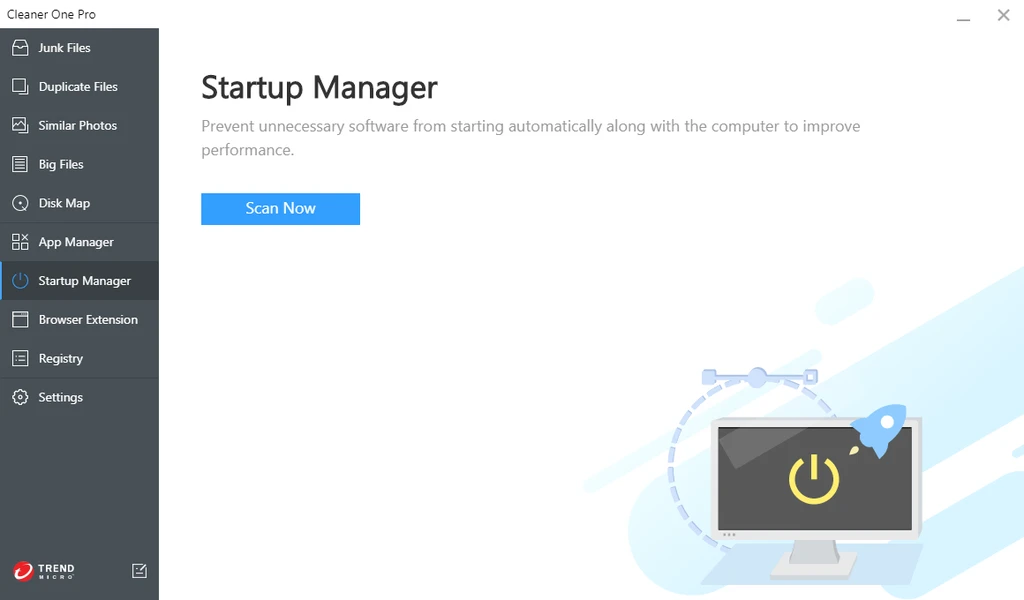
Slow login times usually trace back to the apps and services quietly launching with your Mac, and Startup Manager gives you full visibility into that list so you can disable the ones you don't actually need. In our view, it's a feature worth checking every few months, as new apps often add themselves to your startup list without asking, and you'd be surprised how many you can safely switch off.
Turning off a few unnecessary startup items noticeably sped up our login time in testing, making it one of the more impactful features for everyday Mac performance. We recommend you review your login items every few months as new apps tend to add themselves silently.
Startup Manager lists login items and services so you can disable the ones you don’t need
Cleaner One Pro price
The Cleaner One Pro price starts at around $24.99 per year for a single Mac, with discounts available for multi-device or multi-year subscription plans. A limited free version is also offered. Compared to competitors, the Cleaner One Pro cost sits in the mid-range, though the feature set feels narrower than most premium Mac optimizers we’ve tested.
Pros and cons of Cleaner One Pro
In our testing, Cleaner One Pro’s main strengths are its clean interface, visual disk mapping, and solid junk-cleanup basics. On the downside, the scans can be shallow, the feature depth is limited, and some users find the constant upsell prompts frustrating. Our verdict is that it’s a reasonable pick for beginners but less compelling for advanced Mac users who need deeper control.
A note from our experts:
If Cleaner One Pro’s shallow scans leave you wanting more, MacKeeper’s Safe Cleanup goes deeper by sweeping caches, logs, trash, and app leftovers in a single run while keeping your personal files untouched. Because MacKeeper is a macOS utility software that performs Safe Cleanup scans automatically every 24 hours, your Mac stays clean without any manual effort. And on average, MacKeeper users free up 7.5GB of disk space during their first scan.
Here’s how our team recommends you run Safe Cleanup on your Mac:
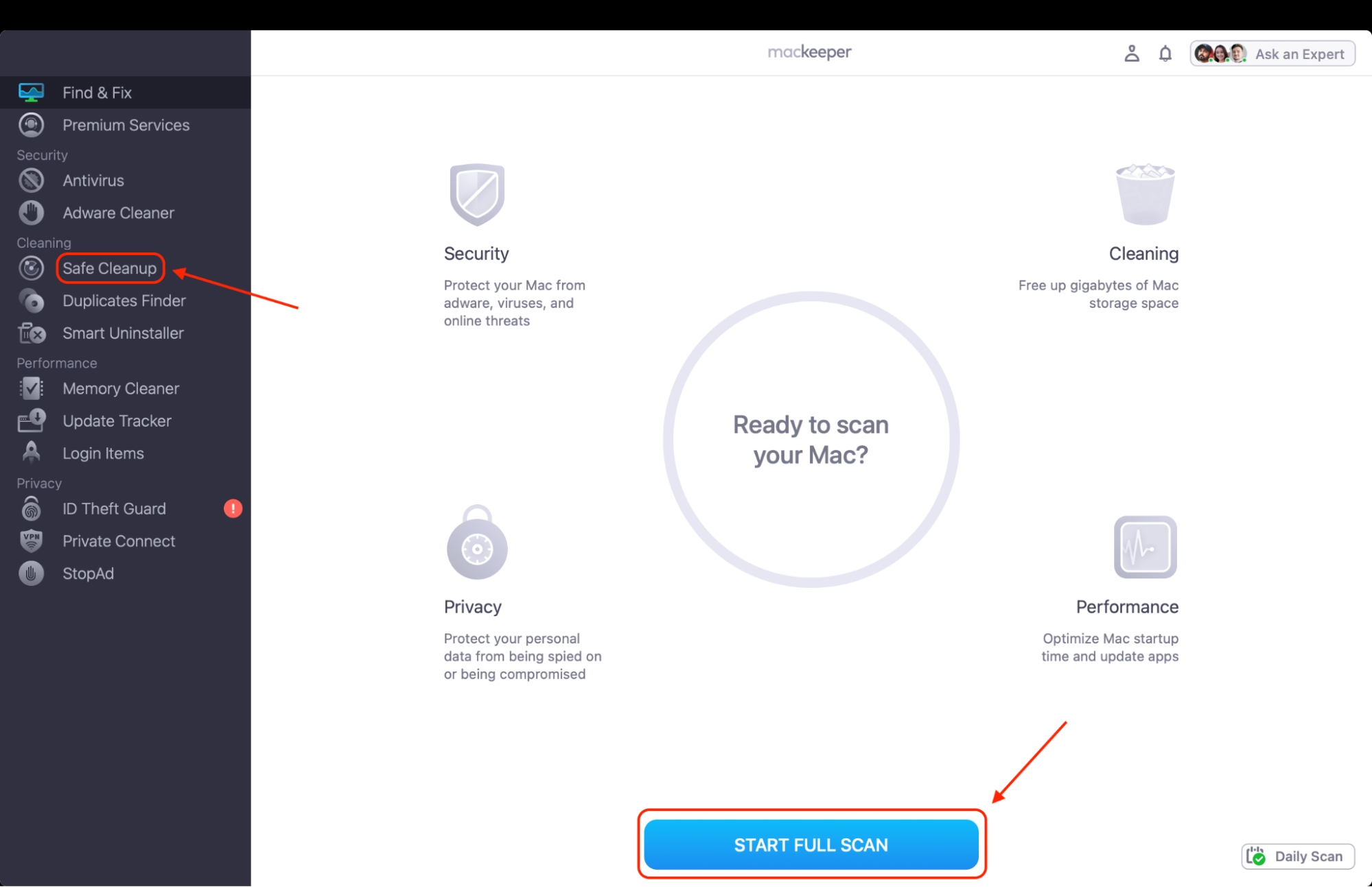
Select Safe Cleanup from the sidebar and click Start Scan to begin scanning your system.
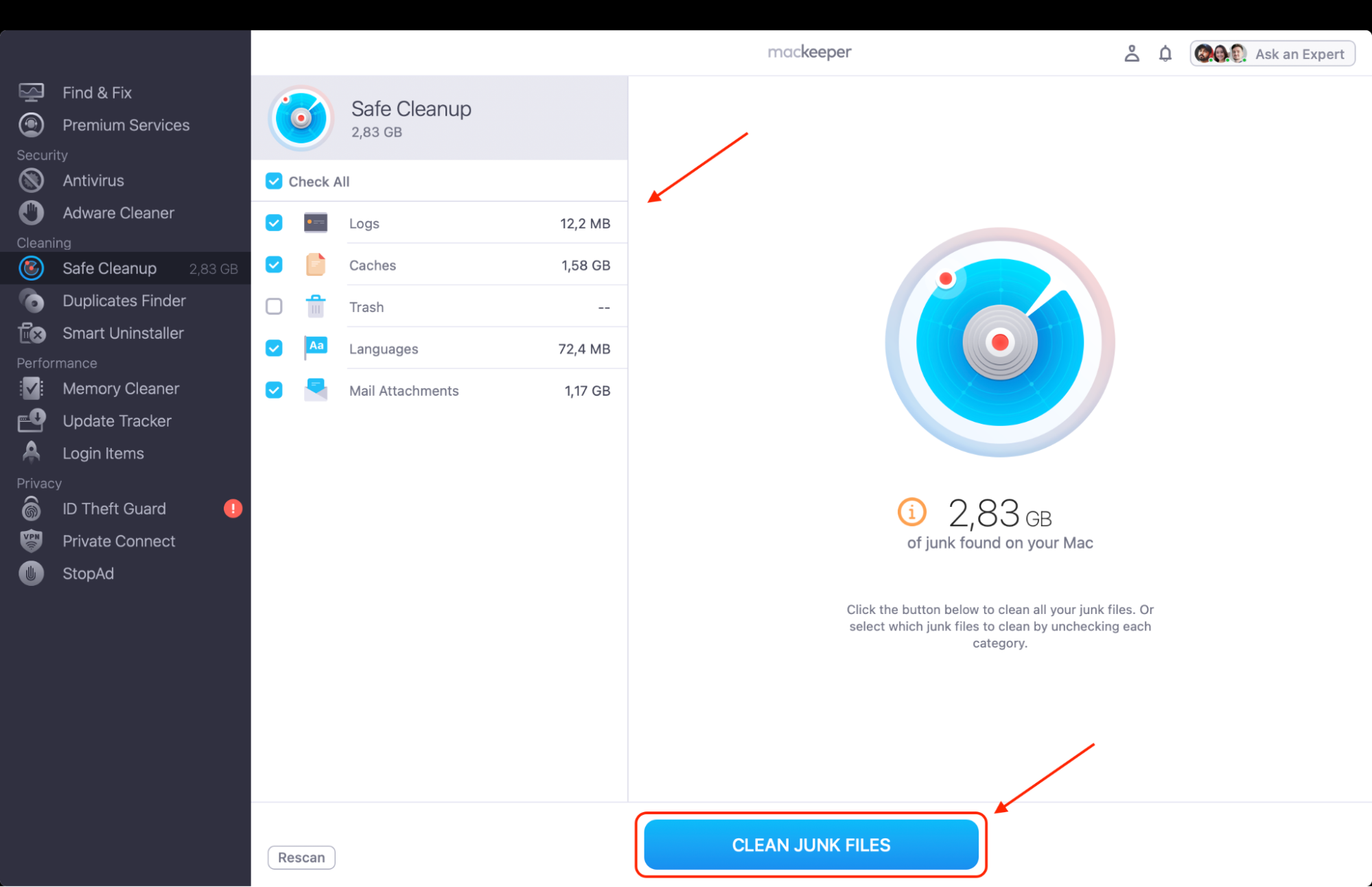
Review the detected junk files and click Clean Junk Files to free up space instantly.
Step 1. Select Safe Cleanup from the sidebar and click Start ScanStep 2. Review the detected junk and click Clean Junk Files to free up space on your Mac
Is Cleaner One Pro safe?
So, is the Cleaner One Pro safe to install and use on your Mac? Yes, Cleaner One Pro is developed by Trend Micro, a well-known cybersecurity company, and it’s available through the Mac App Store, meaning it’s sandboxed and reviewed by Apple.
Our team hasn’t encountered any malicious behavior or data privacy concerns in testing. However, some users on forums report aggressive upsell prompts inside the app, which is a common complaint with freemium Mac cleaners and doesn’t indicate the app itself is unsafe.
Is Cleaner One Pro worth it?
Is Cleaner One Pro any good for everyday Mac maintenance, and how good is Cleaner One Pro compared to the alternatives? After testing the software, we found it's a decent entry-level cleaner but not a standout performer. If you want a straightforward tool to tidy up a cluttered Mac, it gets the job done. For deeper optimization and a broader feature set, one of the best Mac cleaning software options will serve you better.
Conclusion
This Cleaner One Pro legit review shows the app is a reliable, Trend Micro-backed cleaner with a friendly interface, visual disk mapping, and solid basics like junk cleanup and duplicate detection built in.
Our team found it best suited to beginners who want a simple cleanup tool without digging into advanced settings, though the scans can be shallow, and the feature depth is narrower than premium alternatives we’ve tested.
If you’d rather have a deeper, more thorough alternative, MacKeeper protects your Mac with a Safe Cleanup feature that keeps your personal files untouched while it scans for caches, logs, trash, and app leftovers in a single pass.
With MacKeeper, you call the shots by determining what junk, duplicates, or apps you want to remove, so your Mac stays fast, clean, and uncluttered without any of the guesswork or trial-and-error other cleaners demand.
We respect your privacy and
use cookies
for the best site experience.
Privacy Preferences Center
We use cookies along with other tools to give you the best possible experience while using the
MacKeeper website. Cookies are small text files that help the website load faster. The cookies we
use don’t contain any type of personal data meaning they never store information such as your
location, email address, or IP address.
Help us improve how you interact with our website by accepting the use of cookies. You can change
your privacy settings whenever you like.
Manage consent
All cookies
These cookies are strictly necessary for enabling basic website functionality (including page
navigation, form submission, language detection, post commenting), downloading and purchasing
software. The website might malfunction without these cookies.