When you’re experiencing odd issues or random crashes with Google Drive, clearing its cache is often all that’s required to get things working smoothly again—and there are several easy methods of doing that. By far the easiest way to clear the Google Drive cache on Mac is to use MacKeeper’s Safe Cleanup tool from Clario Tech, which not only removes old cache files, but also other unnecessary system junk that hogs valuable space and could be slowing down your computer.
We recommend you delete the Google Drive cache on Mac when you encounter issues, such as slow or unreliable syncing, frequent freezes, and a Google Drive crash. A common cause for these problems is corrupted cache files, so by removing those currently in use, we force a new cache to be created that should alleviate issues without deleting your data stored in the cloud.
Google Drive is considered one of the best cloud storage options for macOS, as well as one of the most affordable. So when you do find yourself having problems with it, we believe it’s more advisable and a lot easier to find a fix rather than switch to a different cloud provider.
Is it safe to clear Google Drive cache on Mac?
It’s perfectly safe to remove the Google Drive cache on MacBook when you’re trying to fix issues. Cache files hold snippets of data that you’re likely to access frequently, allowing it to be read more quickly, and they’re designed to be temporary. Google Drive caches specifically contain local copies of your files and metadata.
Clearing the Google Drive cache doesn’t delete any of the files you’ve saved to Google Drive, but if you’re worried, it’s easy to learn how to back up your Mac. From our experience, the only downside to deleting cache files is that you may notice using Google Drive is slightly slower initially until a new cache has been built. There’s also a risk that you can break things if you delete the wrong files.
A note from our experts:
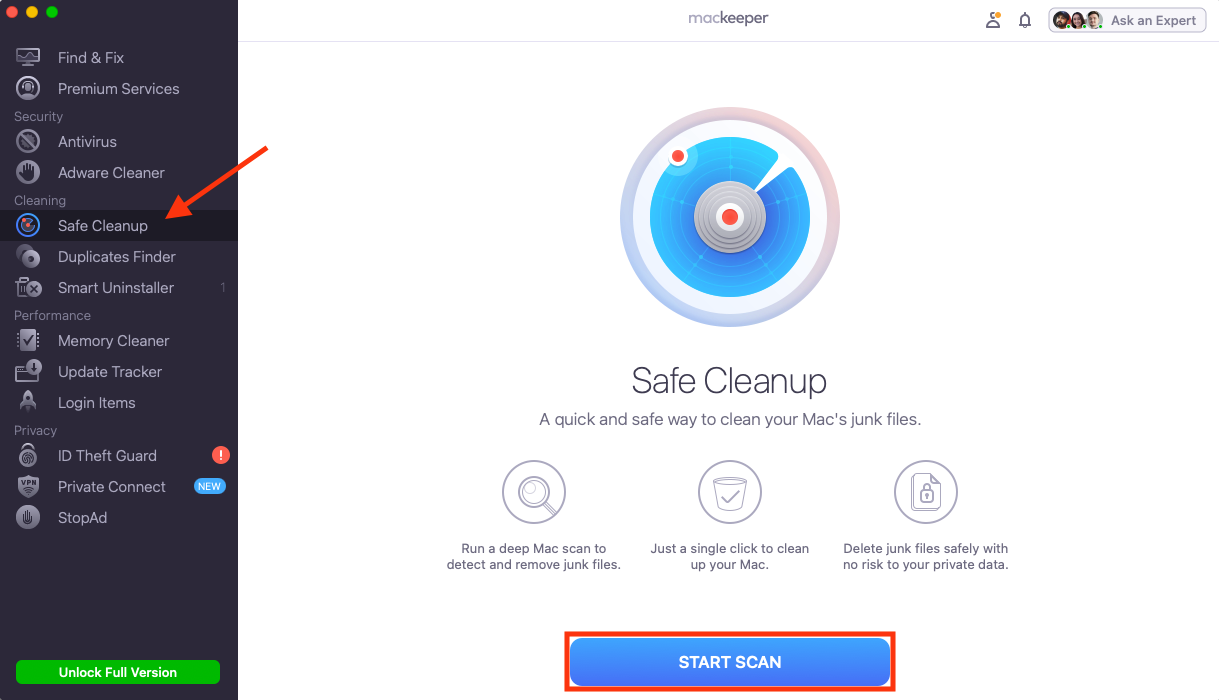
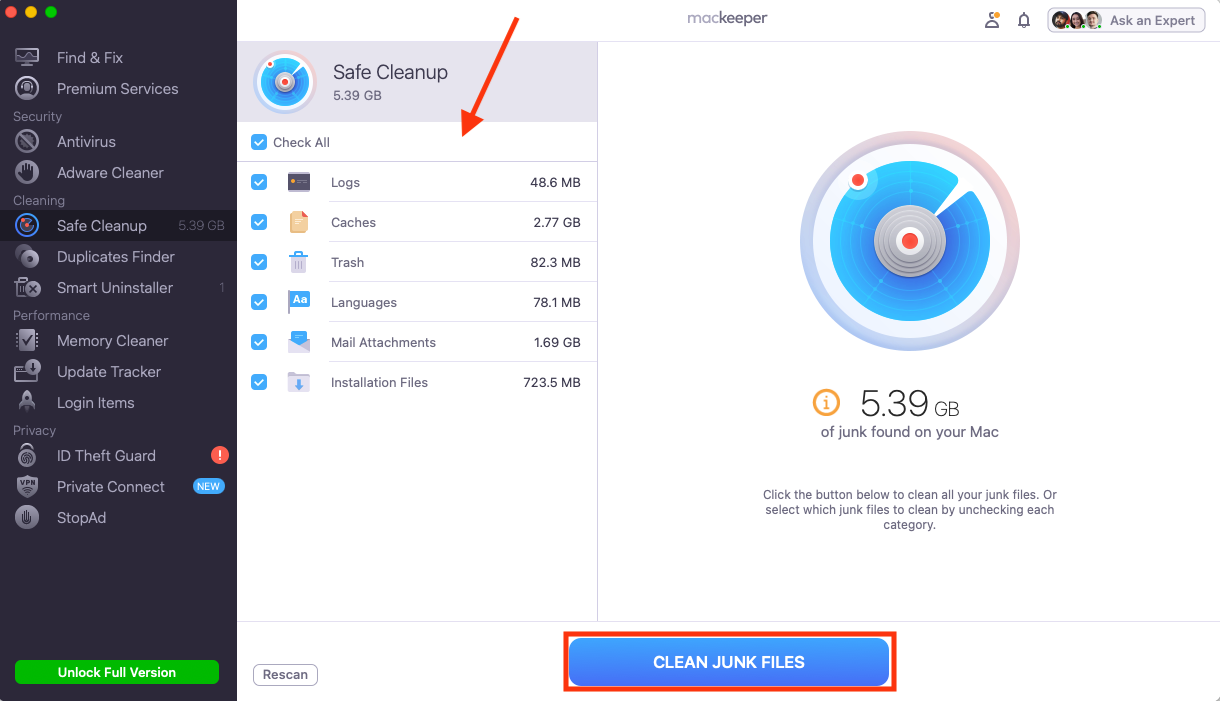
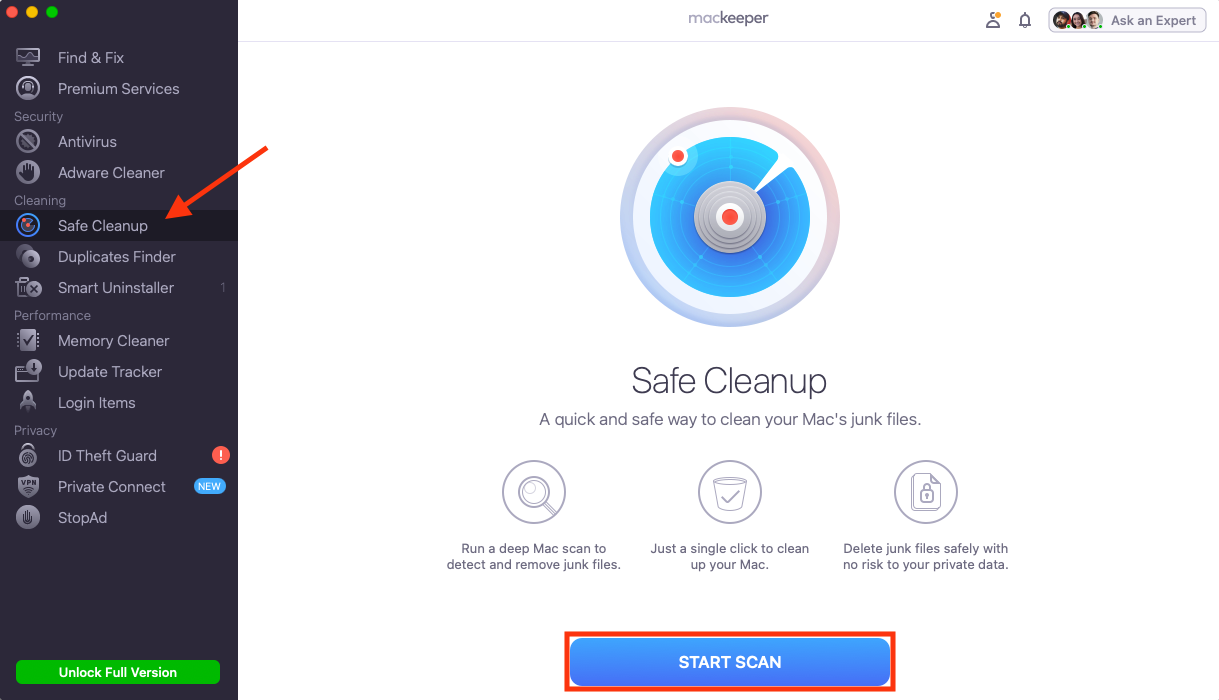
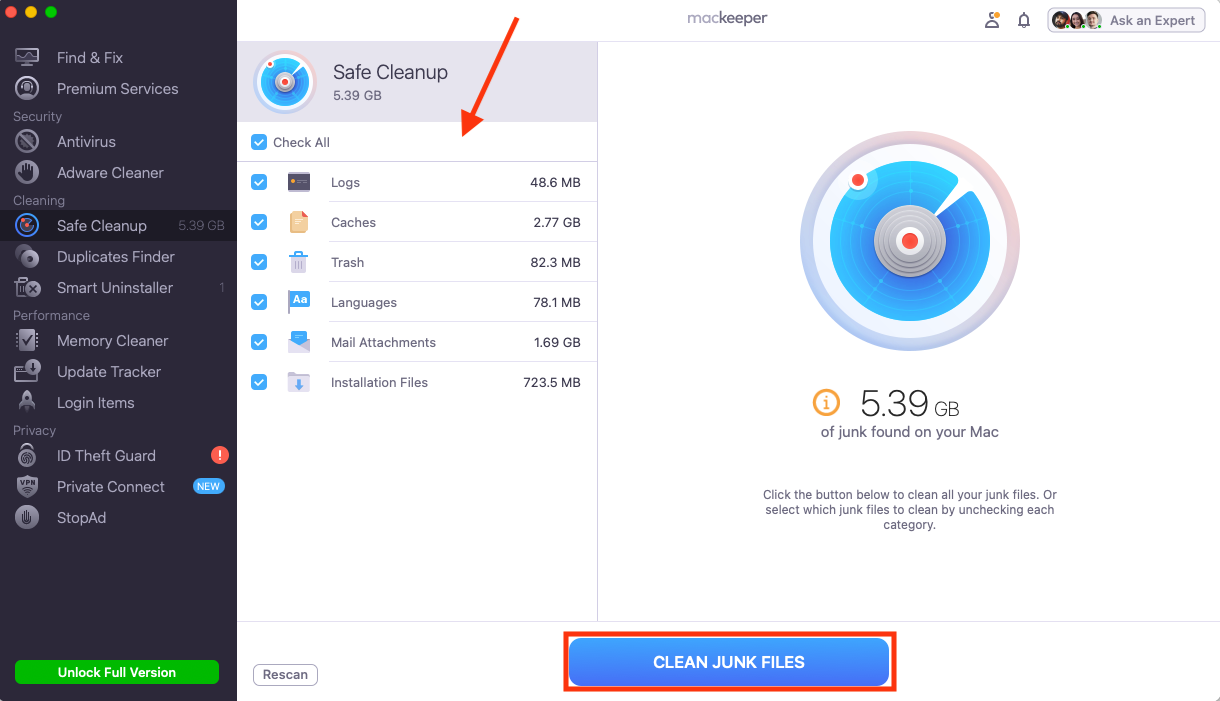
The quickest and safest way to delete Google Drive cache files on Mac, is to use MacKeeper’s Safe Cleanup. It finds all caches for you so that you don’t have to go digging manually, then removes them in just a few clicks without deleting essential system files that macOS relies on. It can also remove other system junk, like old logs and Mail attachments, to free up space. Here’s how to use it:
Select Safe Cleanup in the sidebar, then click Start Scan.
Choose the files you want to remove, ensuring you select Caches, then click Clean Junk Files.
Step 1. Select Safe Cleanup, then click Start ScanStep 2. Choose files to delete, then click Clean Junk Files
How to delete Google Drive cache on Mac
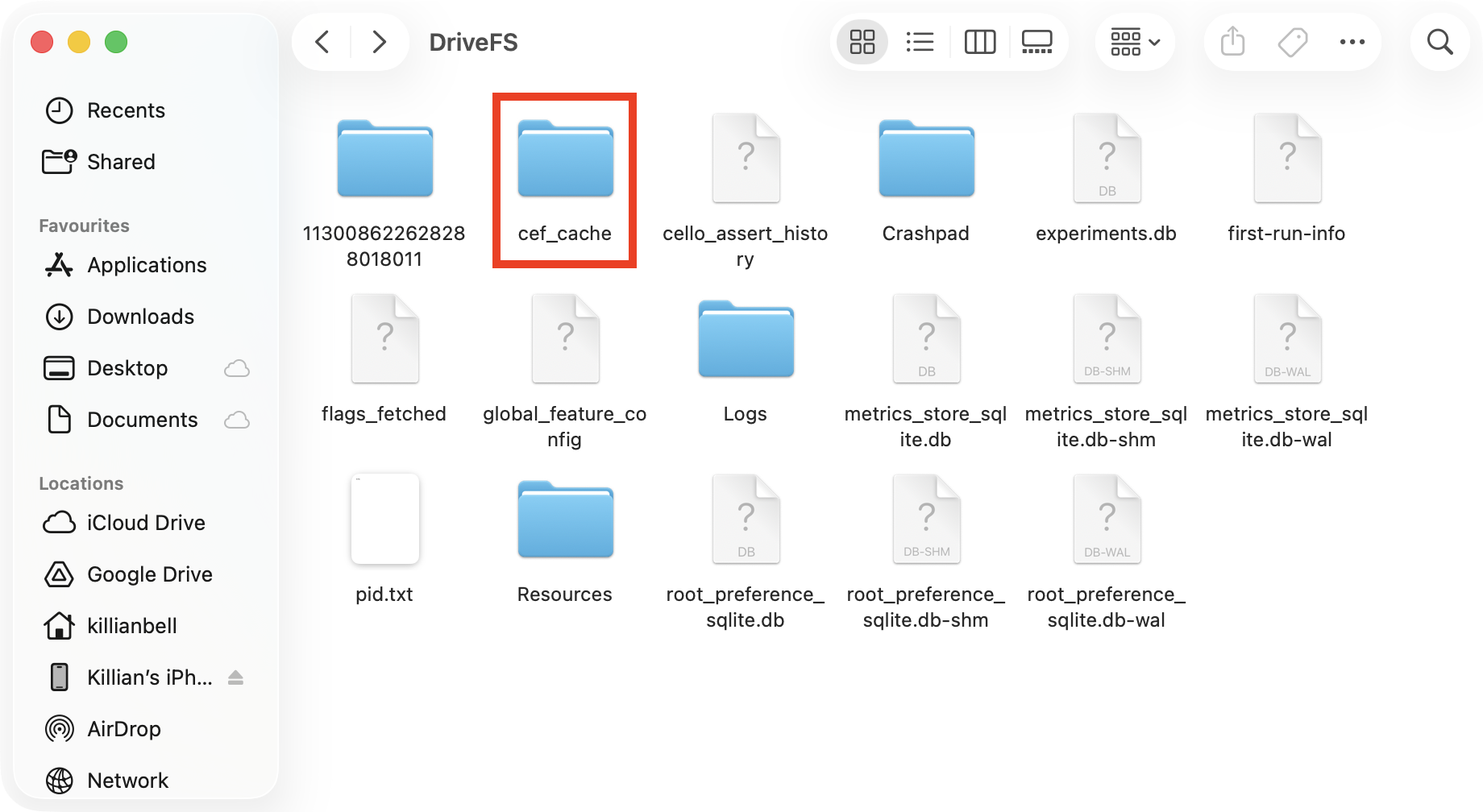
To clear the Google Drive cache on Mac yourself, first quit Google Drive, then navigate to the ~/Library/Application Support/Google/DriveFS/ folder in Finder. Open any files containing the word cache, then delete the files they contain, leaving the folder itself in place. Relaunch Google Drive and continue using it normally to start creating new cache files.
Alternatively, there are other methods you can use. Here are the ones we recommend:
Remove Google Drive cache on Mac manually: Locate and delete the Google Drive cache files within the macOS Finder.
Clear Google Drive cache on Mac web browser: If you have issues with the web-based Google Drive app, delete cache files in Chrome, Safari, and other browsers.
Use a third-party app to remove Google Drive cache from macOS: Let a dedicated cleanup tool do the hard work for you.
1. Remove Google Drive cache on Mac manually
Even if you know how to uninstall Google Drive on Mac, corrupted cache files can get left behind, which will continue to cause problems when you reinstall the app. To make sure the cache files are gone, here’s how we remove the Google Drive cache from MacBook manually:
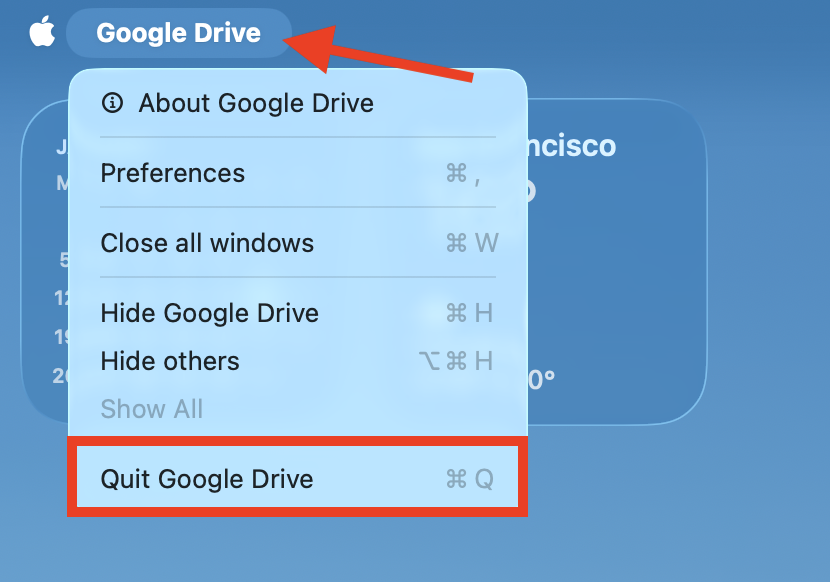
Quit the Google Drive app if it’s running.
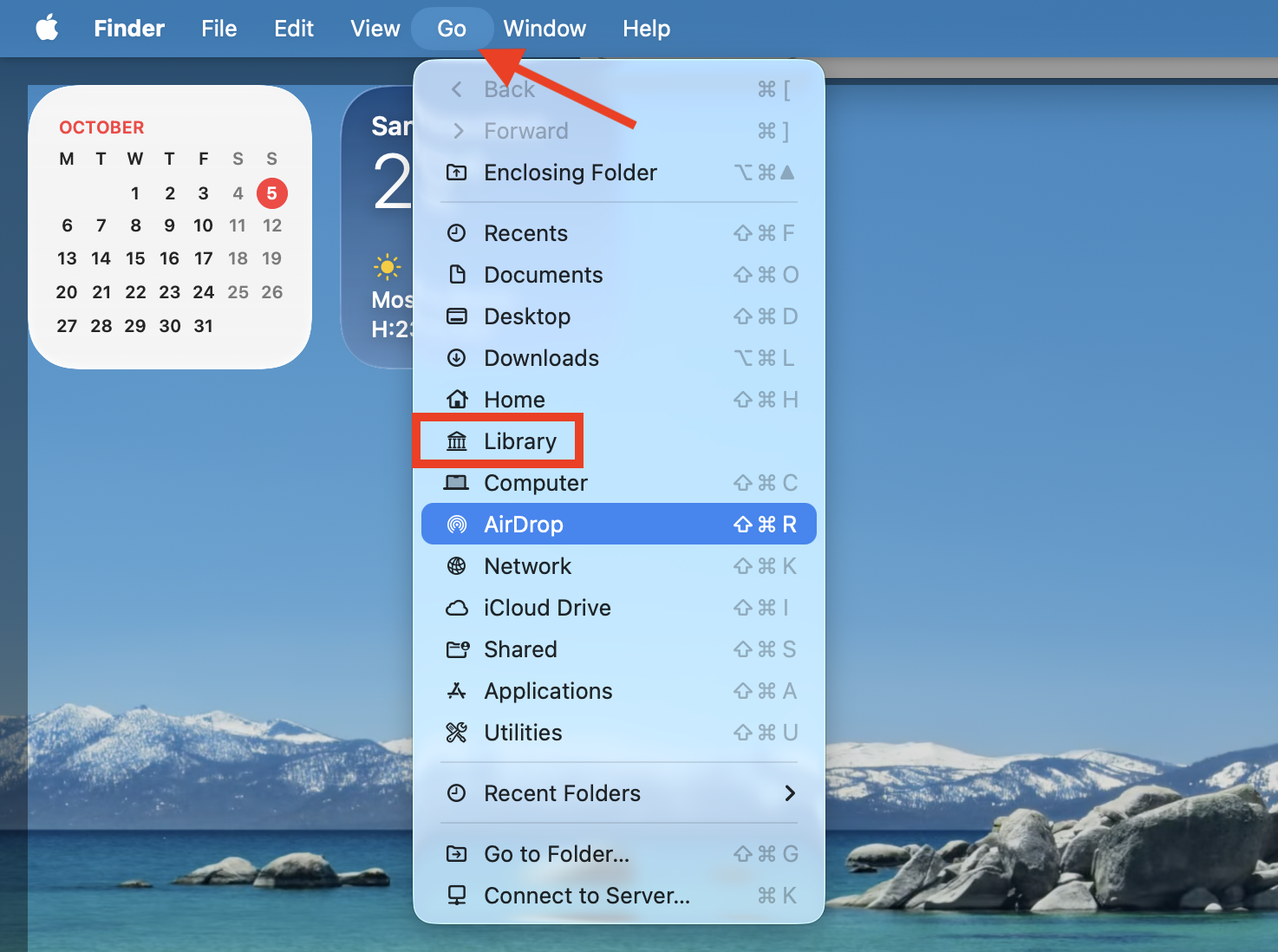
Open Finder, then while holding down the Option key, select Go > Library in the menu bar.
Navigate to Application Support/Google/DriveFS/, then open any folders with cache in the name and delete the files they contain.
Step 1. Go to Google Drive > Quit Google DriveStep 2. While holding the Option key, select Go > LibraryStep 3. Delete all files inside the "cache" folders
2. Clear Google Drive cache on Mac web browser
If you’re running into issues with Google Drive on the web, there are separate cache files for the browser-based version that you’ll need to delete. Find your browser below, then follow our steps specified below.
2.1 Google Chrome
Here’s how to delete the Google Drive cache on Mac if you use Google Chrome:
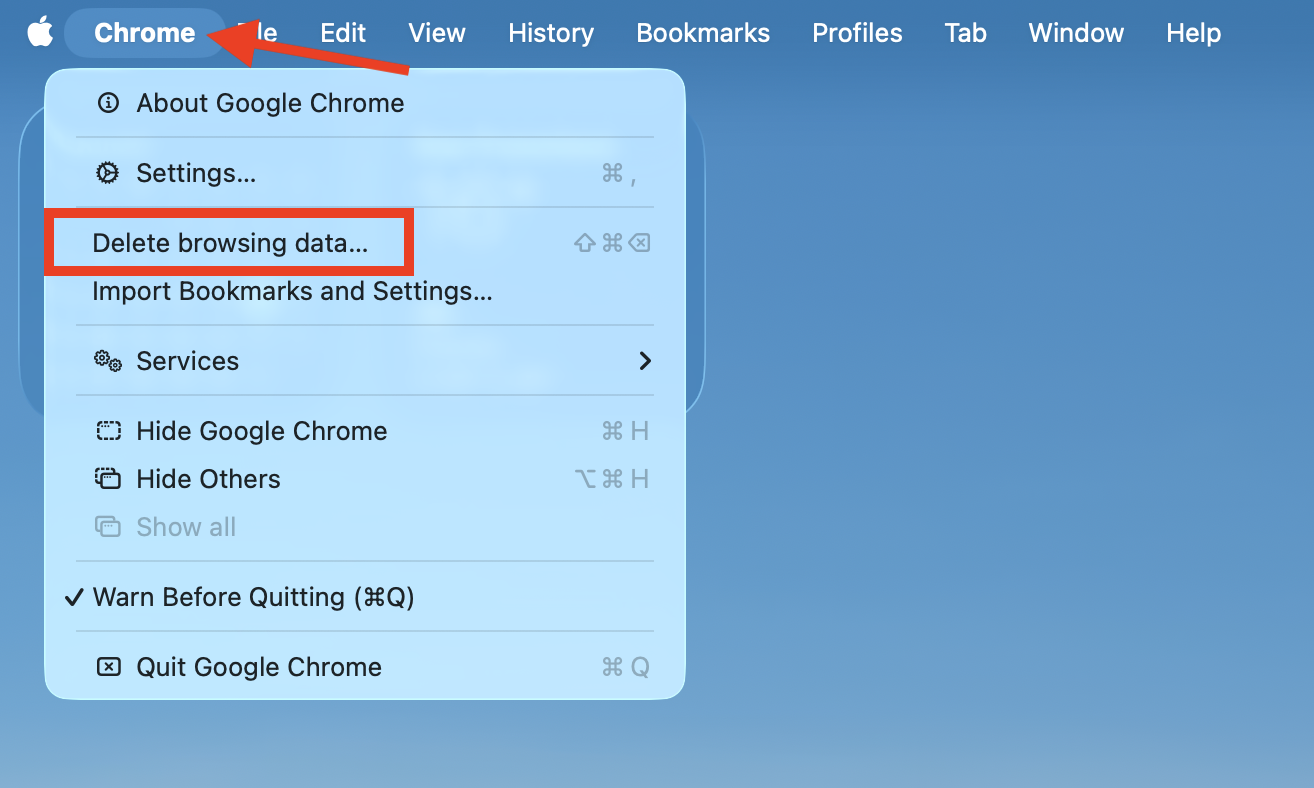
Open Chrome, then go to Chrome > Delete browsing data in the menu bar.
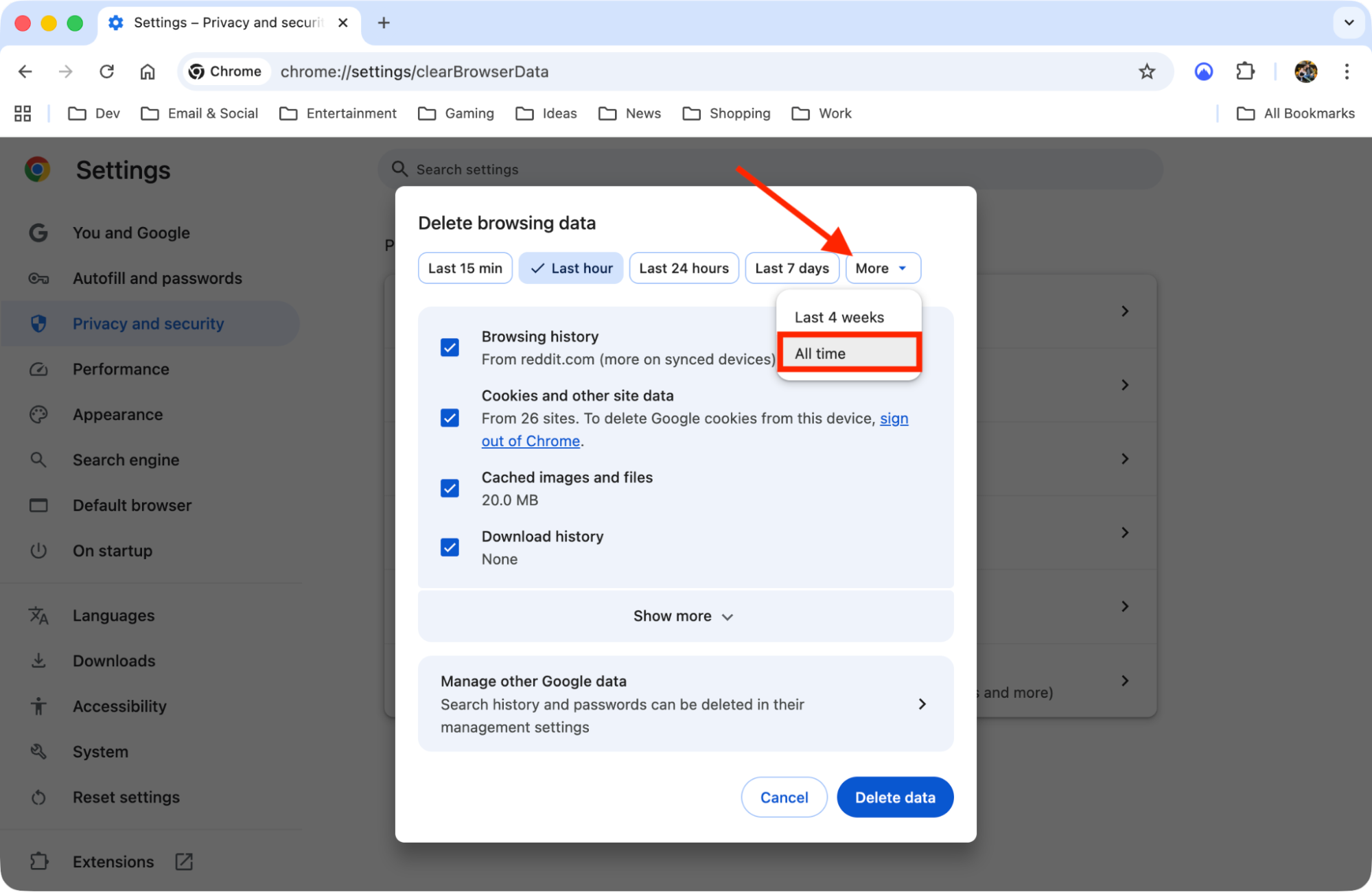
Pick a time range—we recommend going to More > All time.
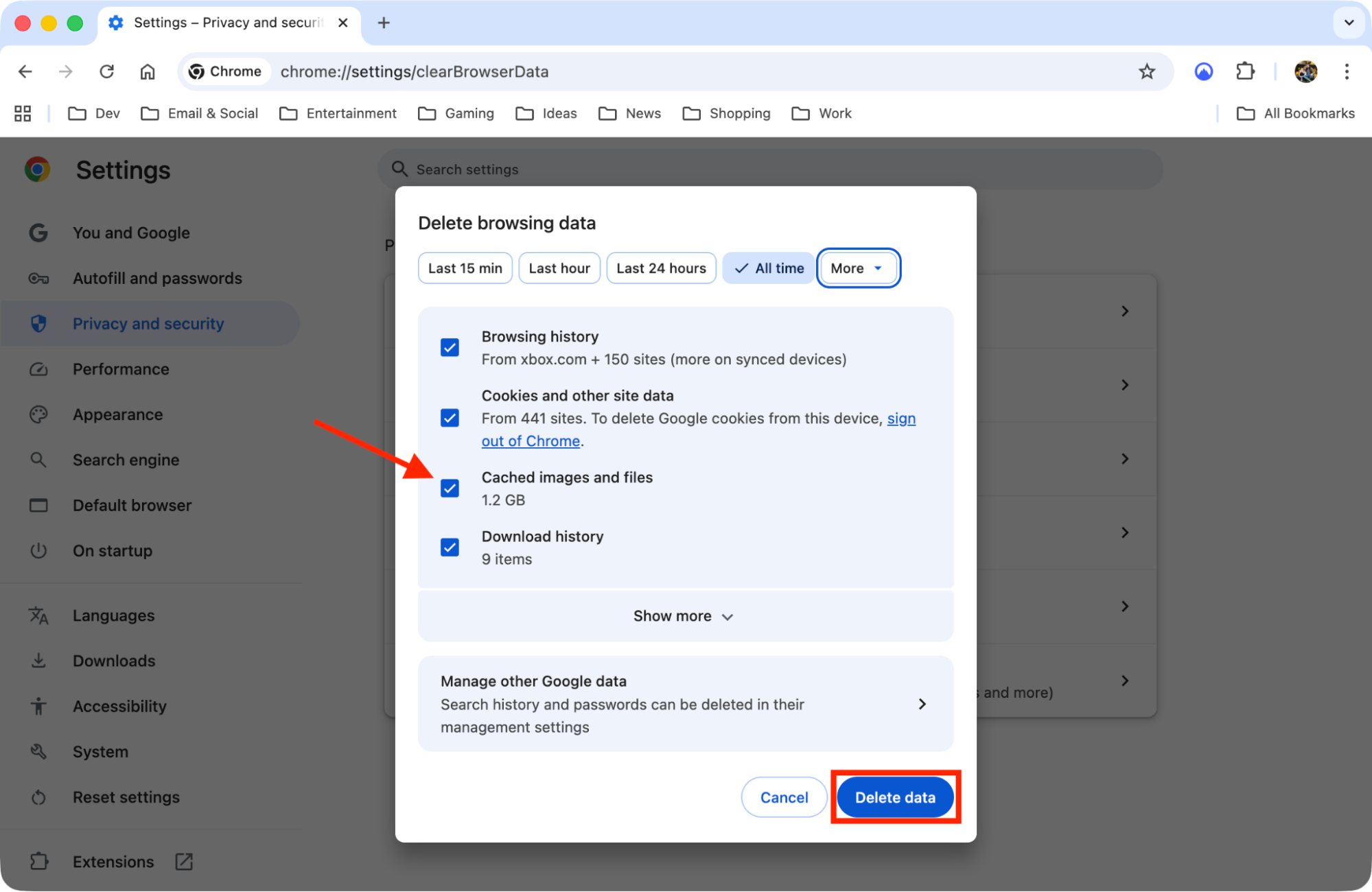
Ensure Cached images and files is selected, then click Delete data.
Step 1. Go to Chrome > Delete browsing dataStep 2. Choose the All time optionStep 3. Select Cached images and files, then click Delete data
2.2 Safari
Here’s how to delete the Google Drive cache in Safari:
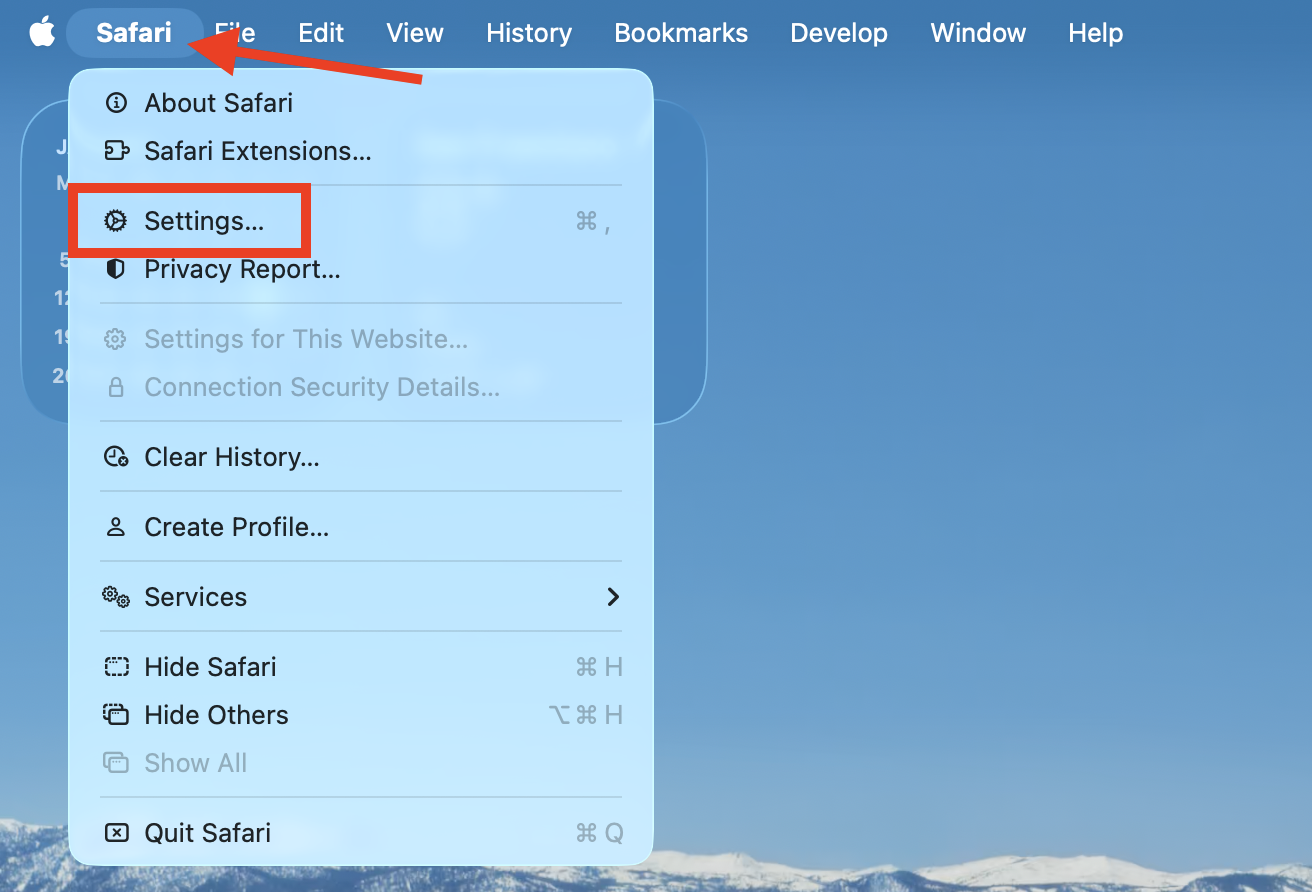
Launch Safari, then select Safari > Settings in the menu bar.
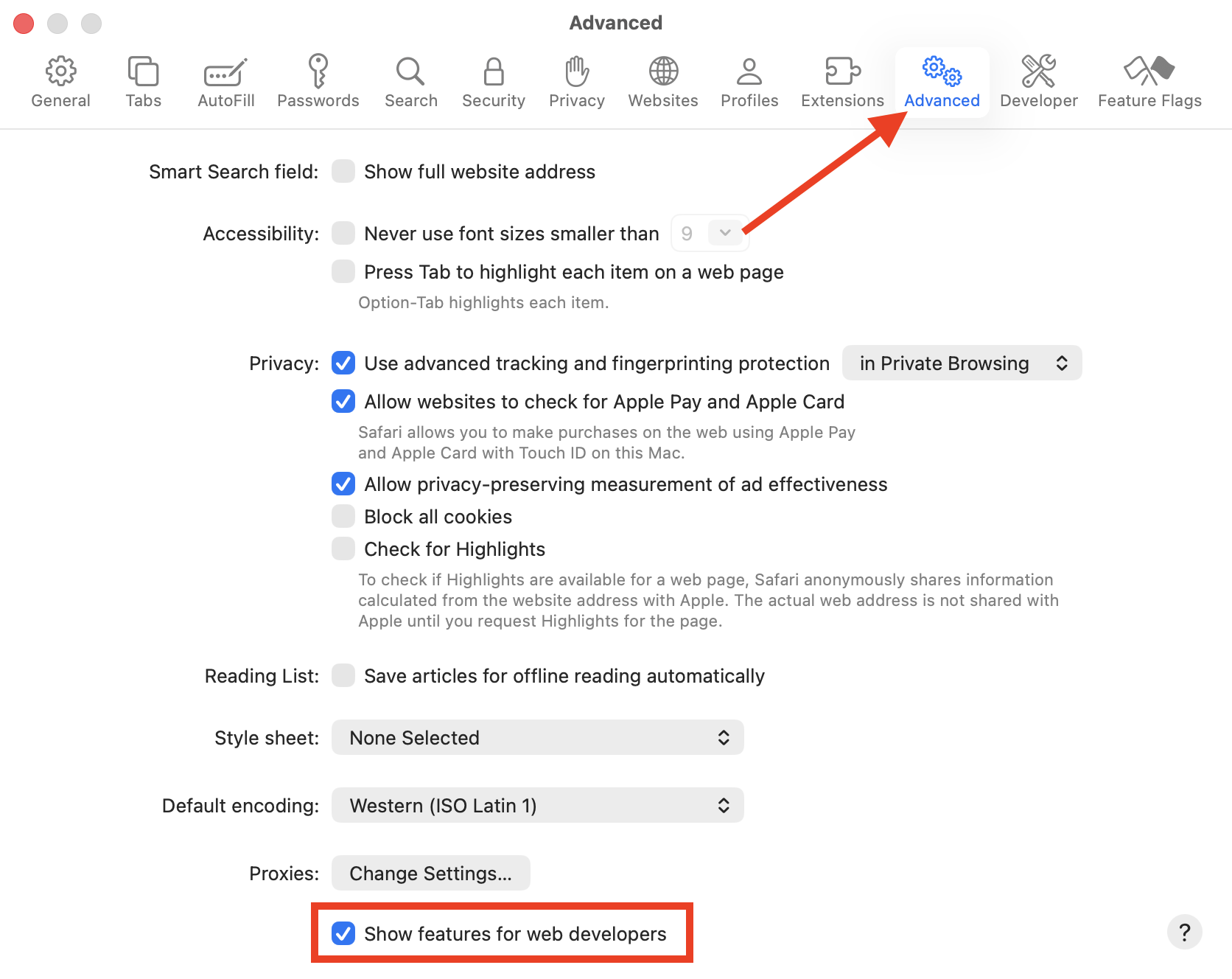
Click the Advanced tab, then enable Show features for web developers.
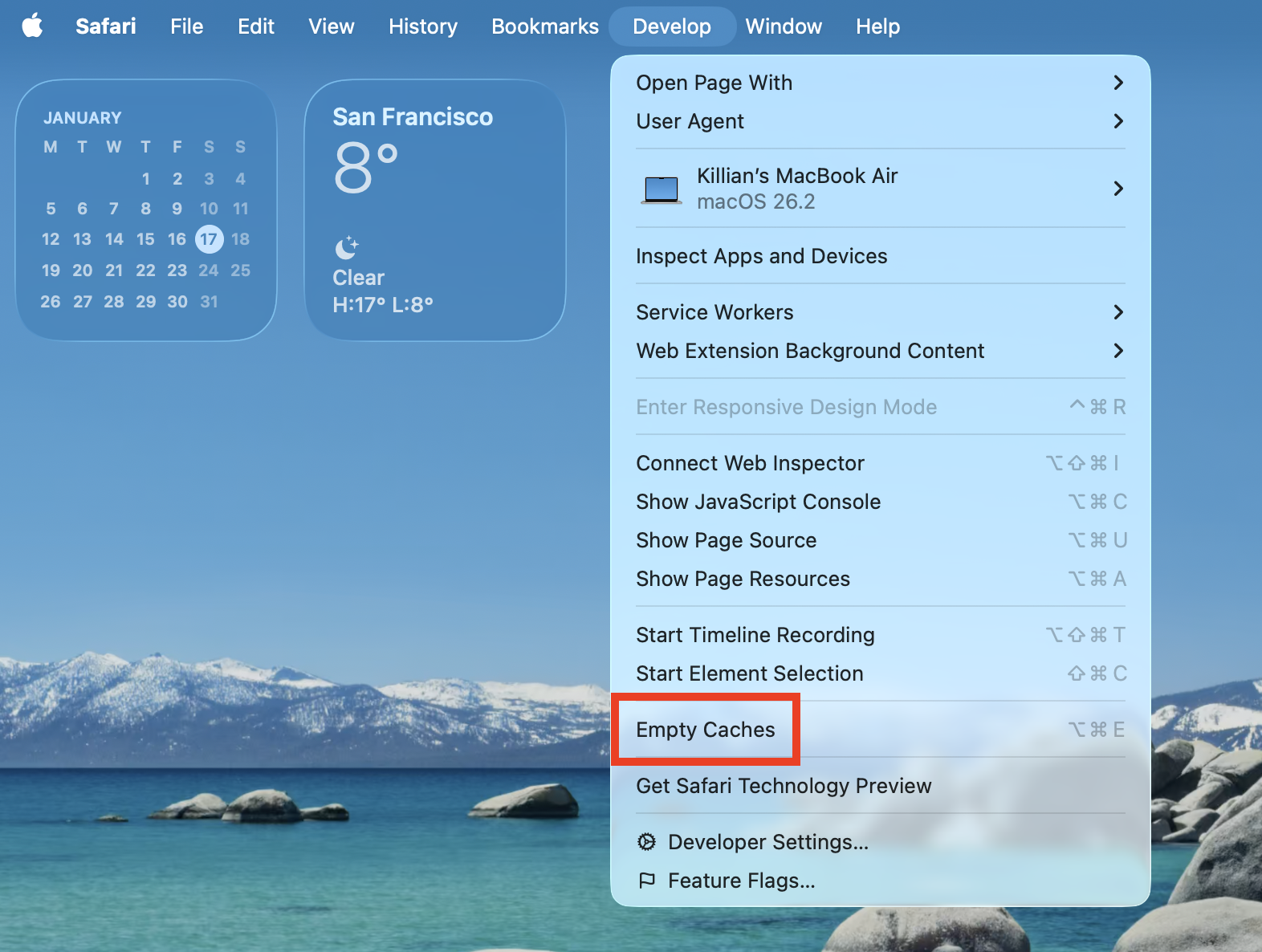
In the menu bar, go to Develop > Empty Caches.
Step 1. Select Safari and then click SettingsStep 2. Go to Advanced, then enable Show features for web developersStep 3. In the Develop menu, click Empty Caches
2.3 Microsoft Edge
Follow these steps to delete the Google Drive cache in Microsoft Edge:
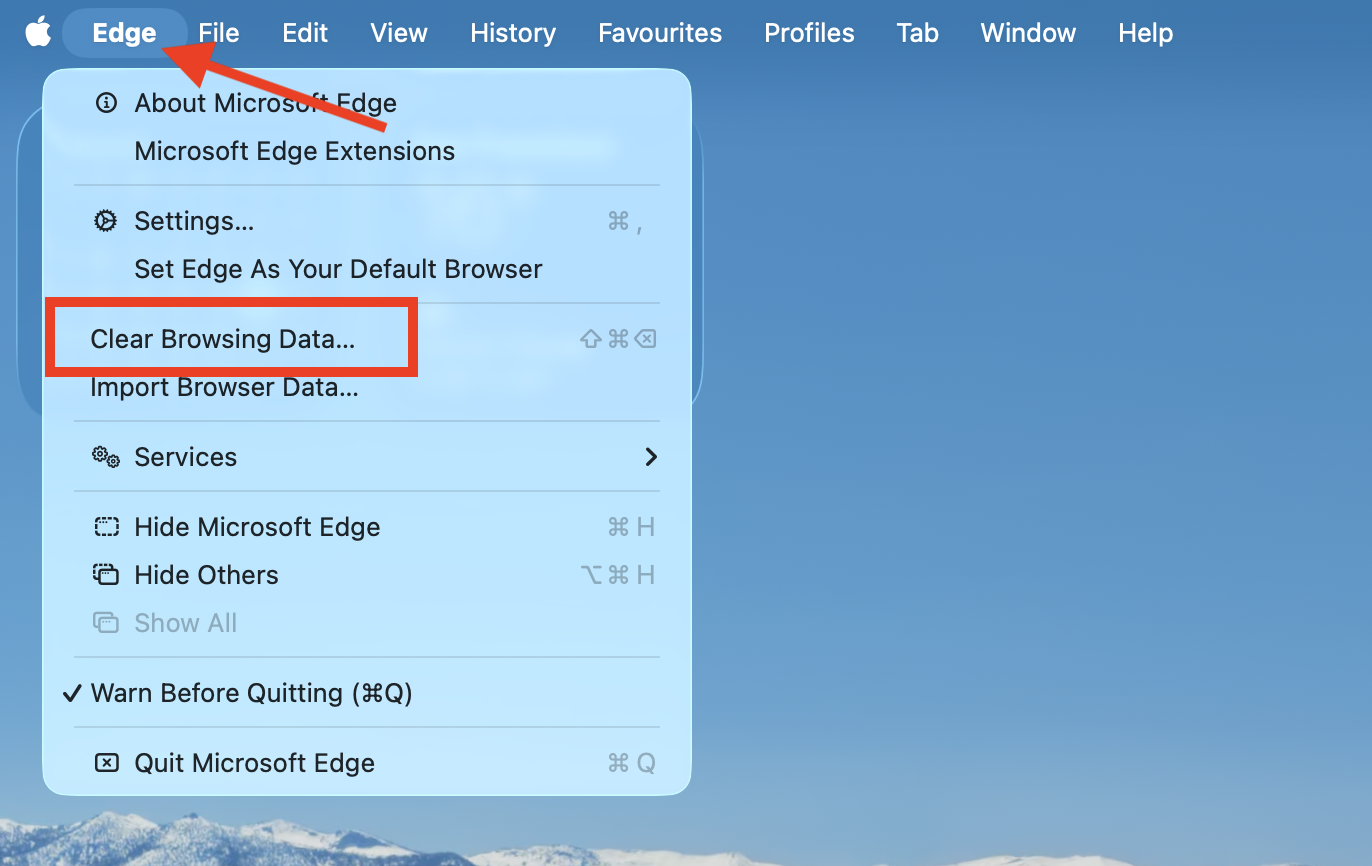
In Edge, select Edge > Clear Browsing Data from the menu bar.
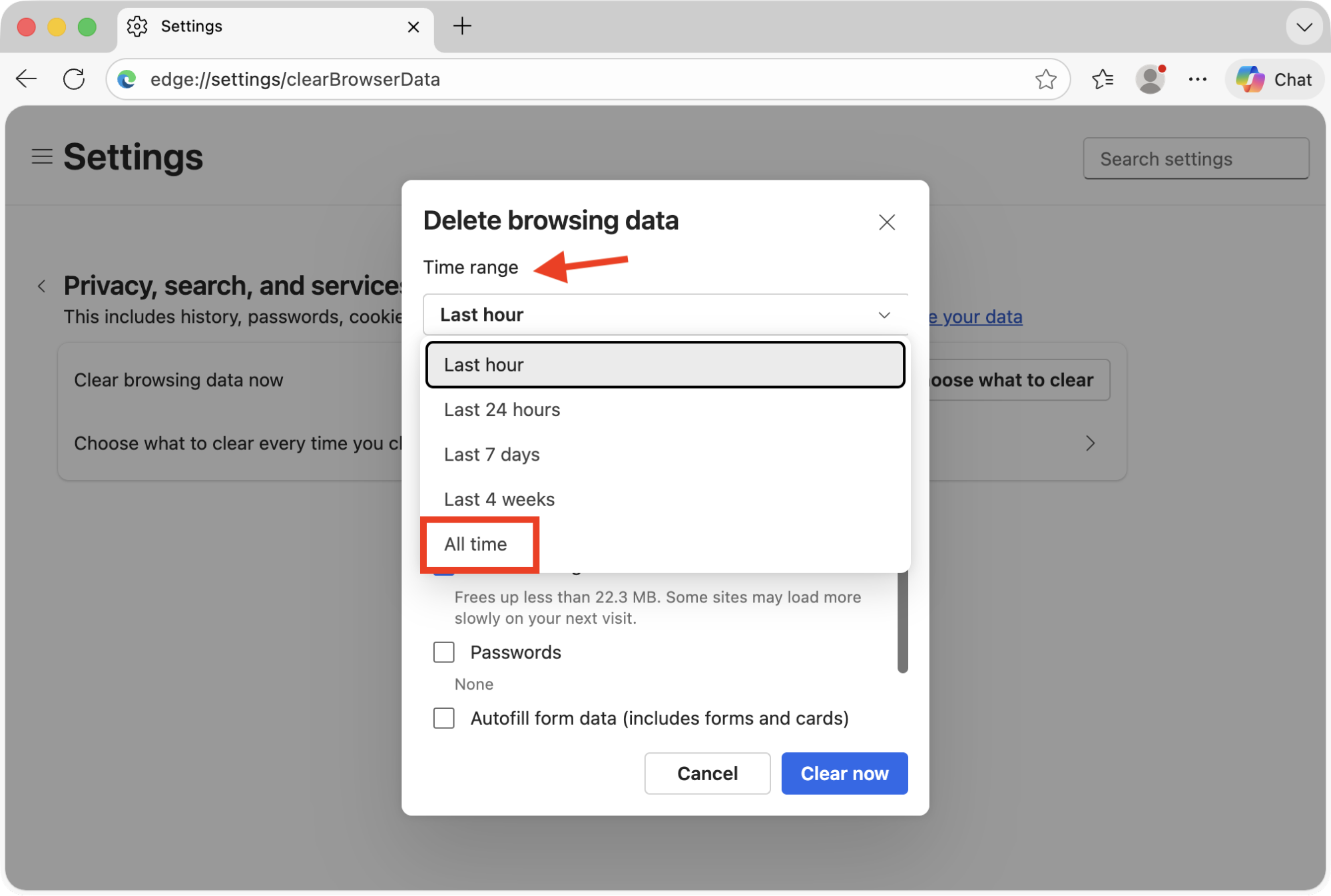
Under Time range, pick All time.
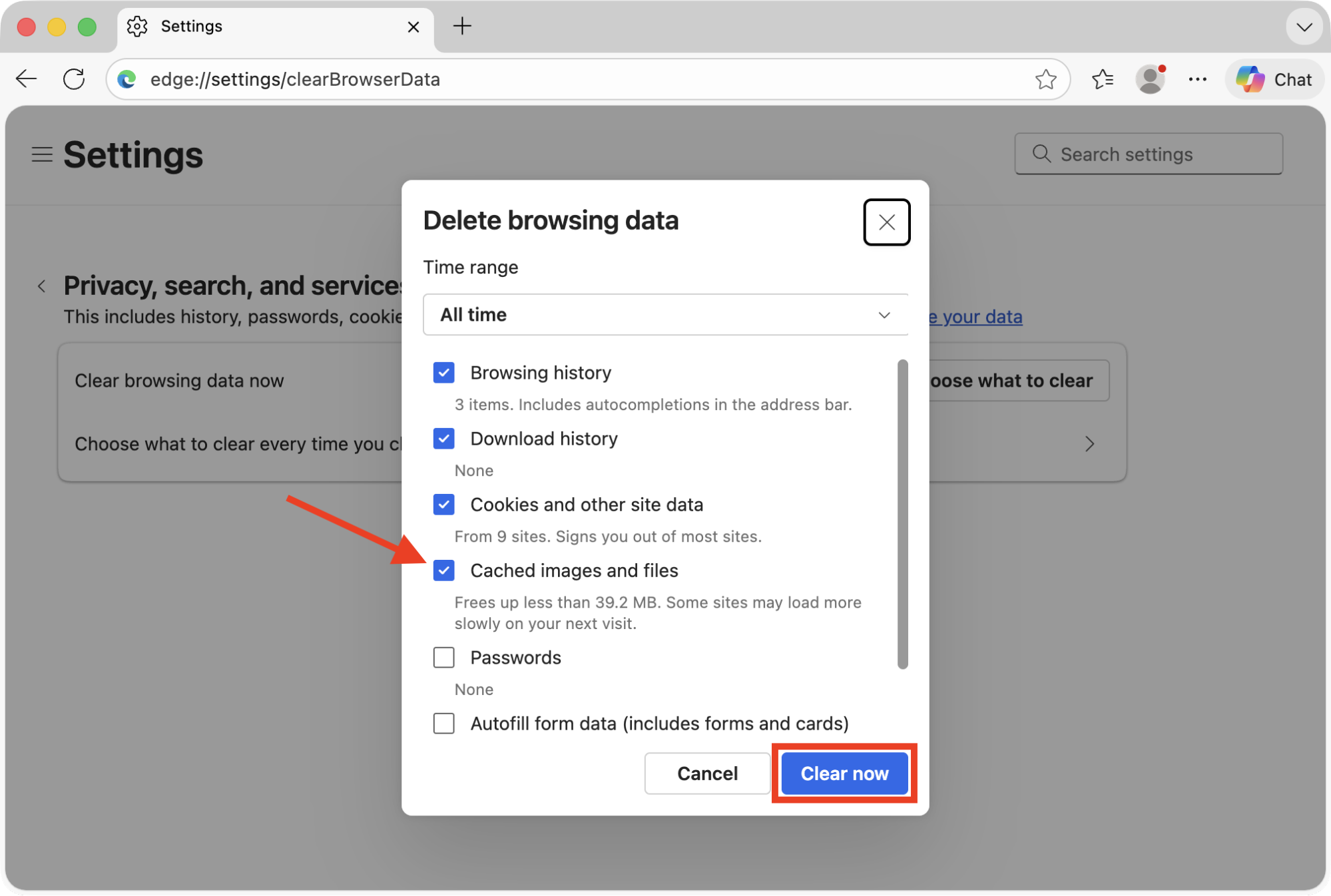
Make sure Cached images and files is selected, then click Clear now.
Step 1. In the Edge menu, choose Clear Browsing DataStep 2. For the Time range, choose All timeStep 3. Select cached images and files, then click Clear Now
2.4 Opera
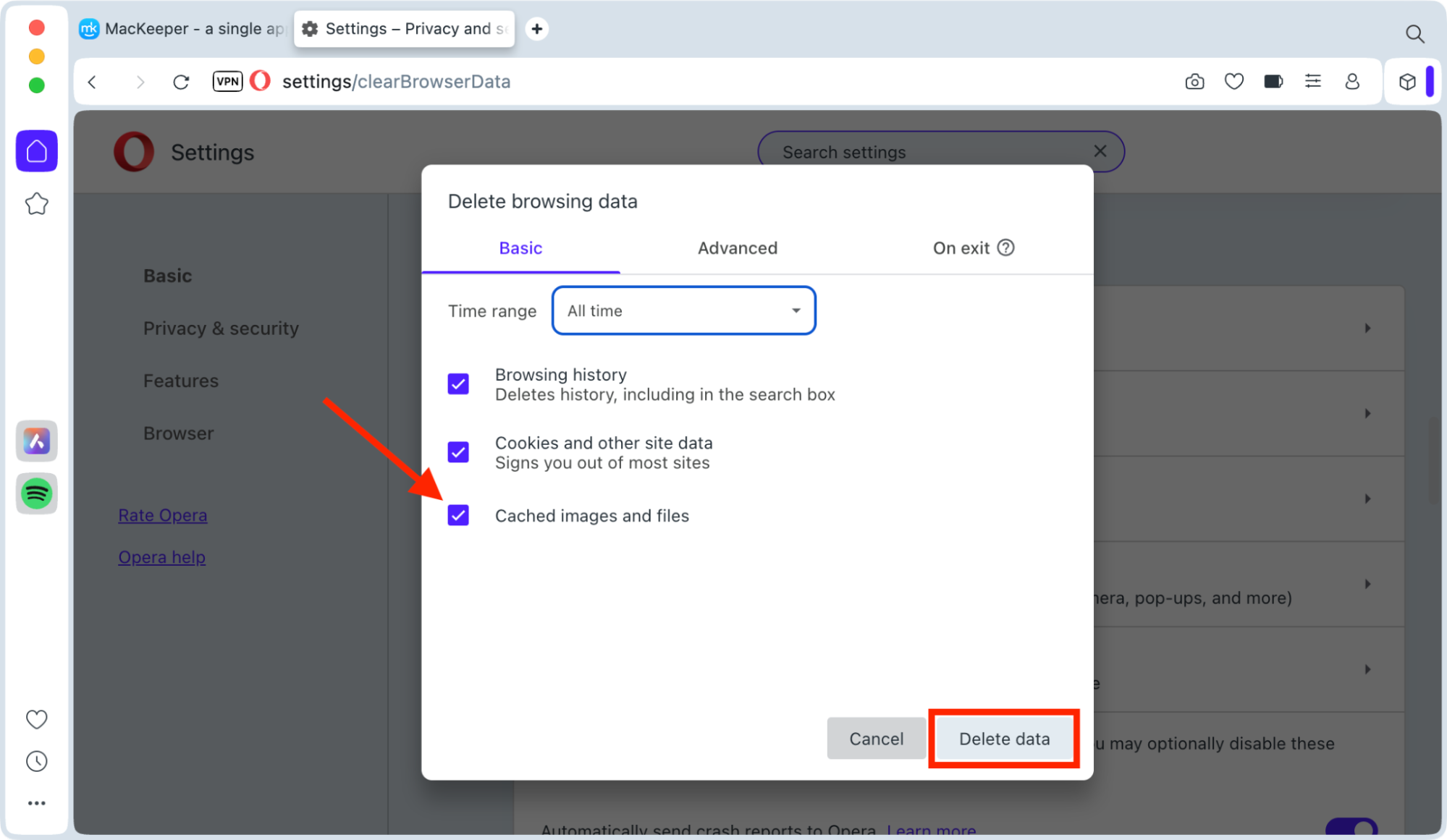
Do this to clear the Google Drive cache in Opera on Mac:
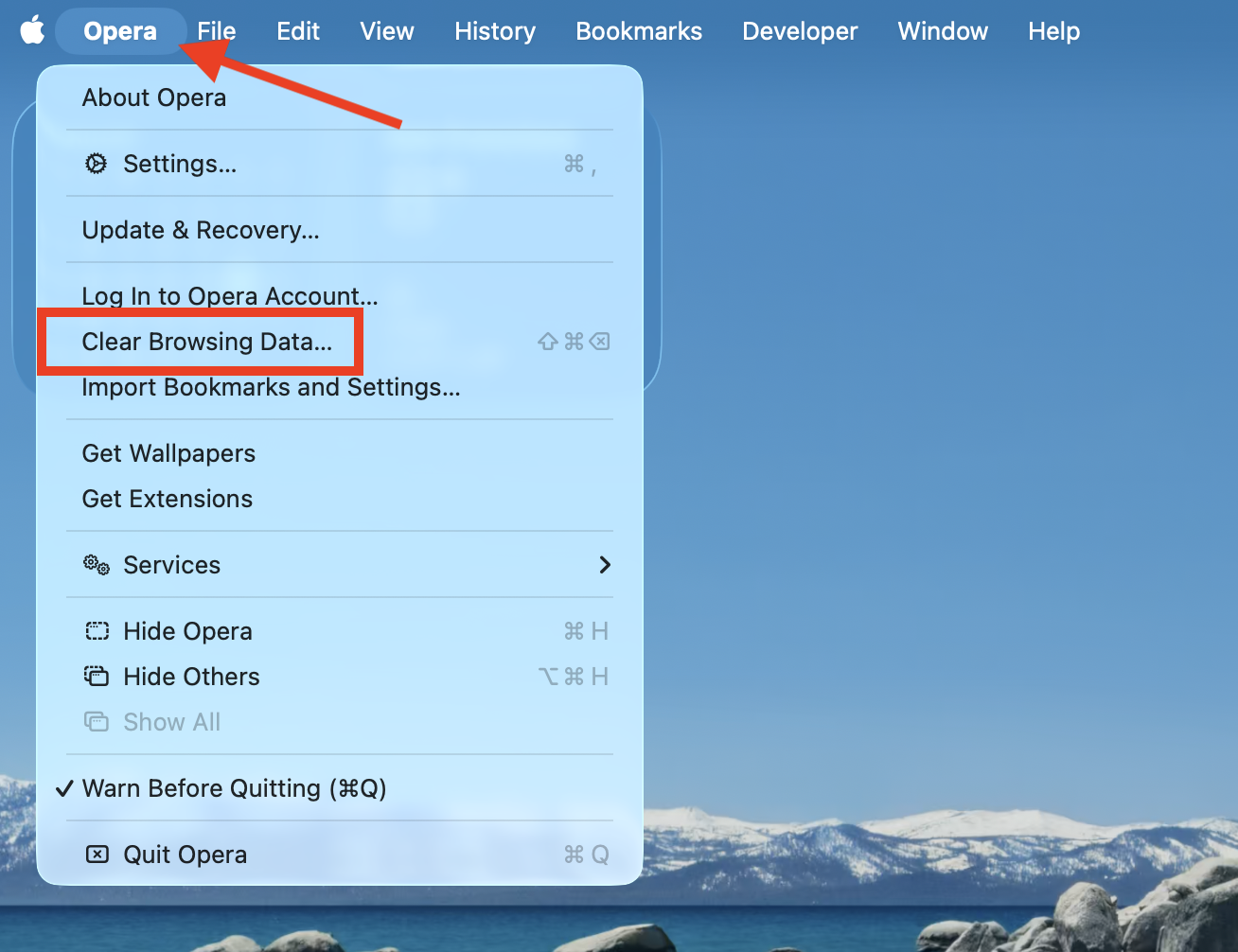
Open Opera, then go to Opera > Clear Browsing Data.
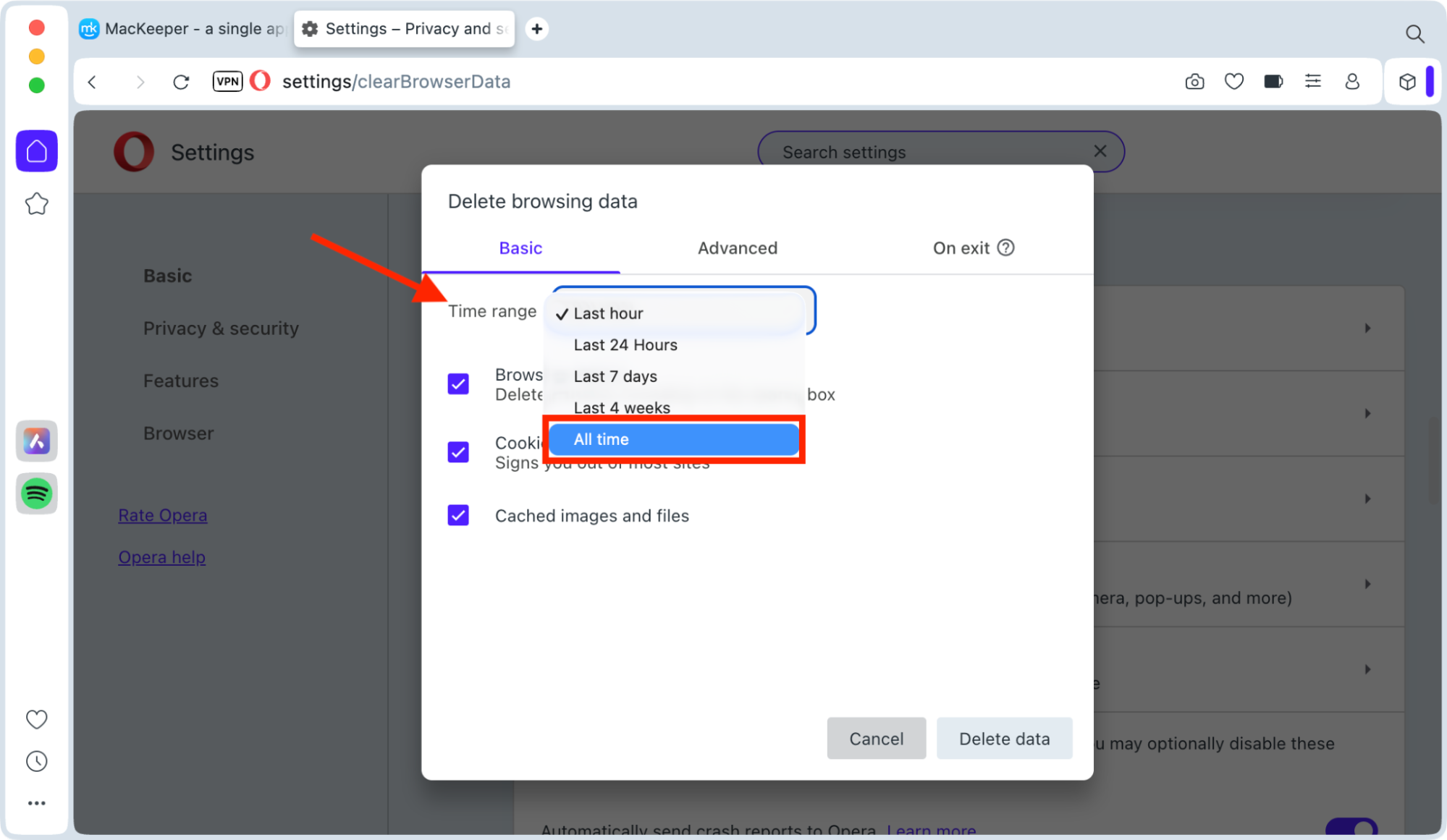
For Time range, select All time.
Ensure Cached imagesand files is checked, then click Delete data.
Step 1. In the Opera menu, choose Clear Browsing DataStep 2. Choose All time next to Time rangeStep 3. Pick Cached images and files, then click Delete data
2.5 Mozilla Firefox
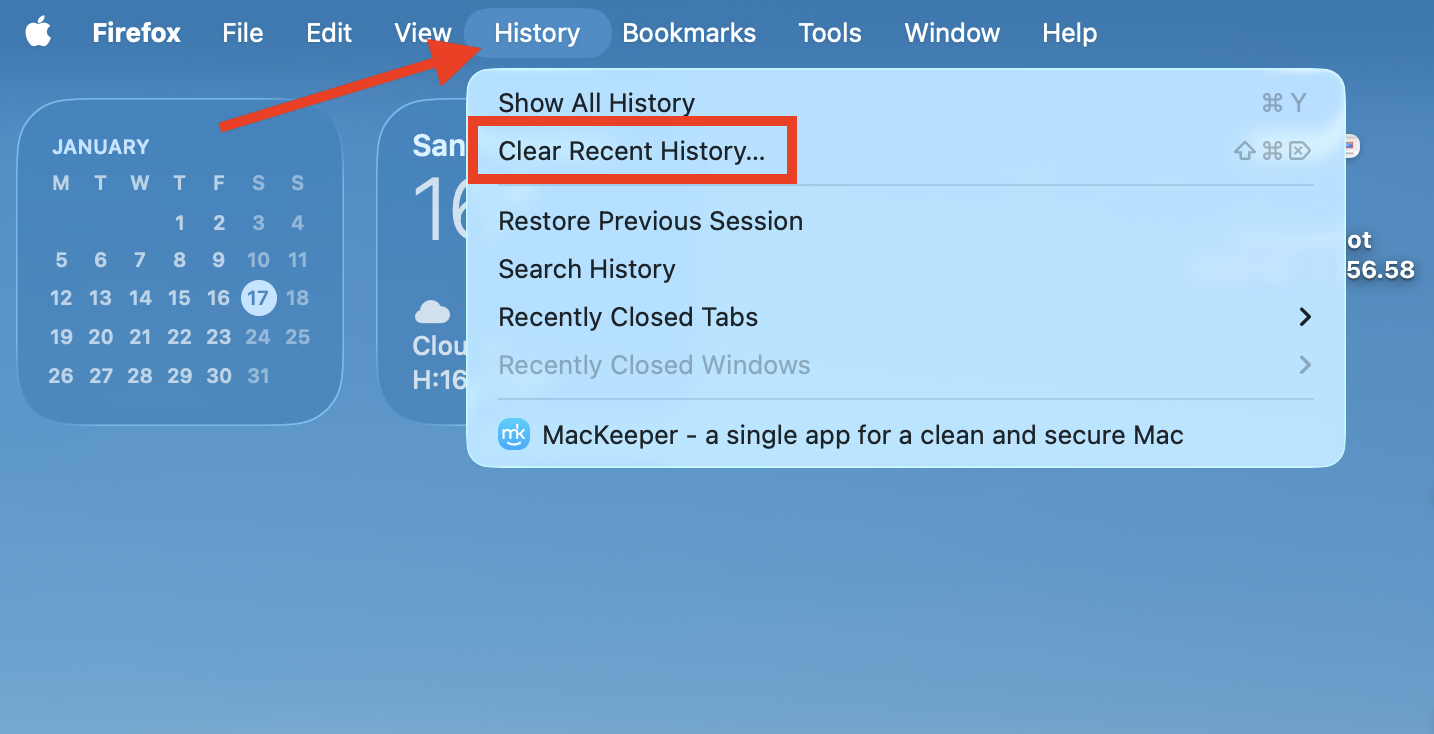
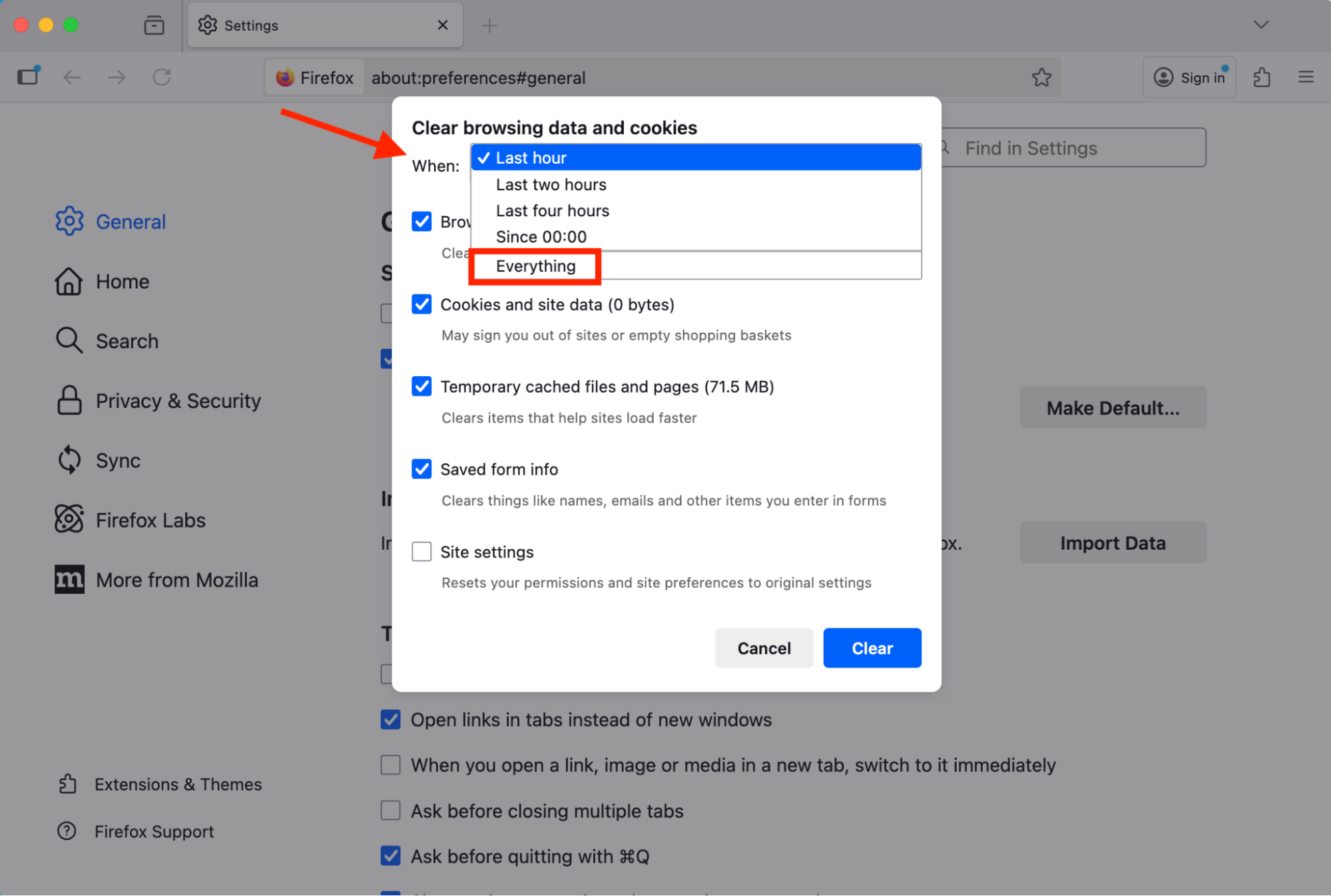
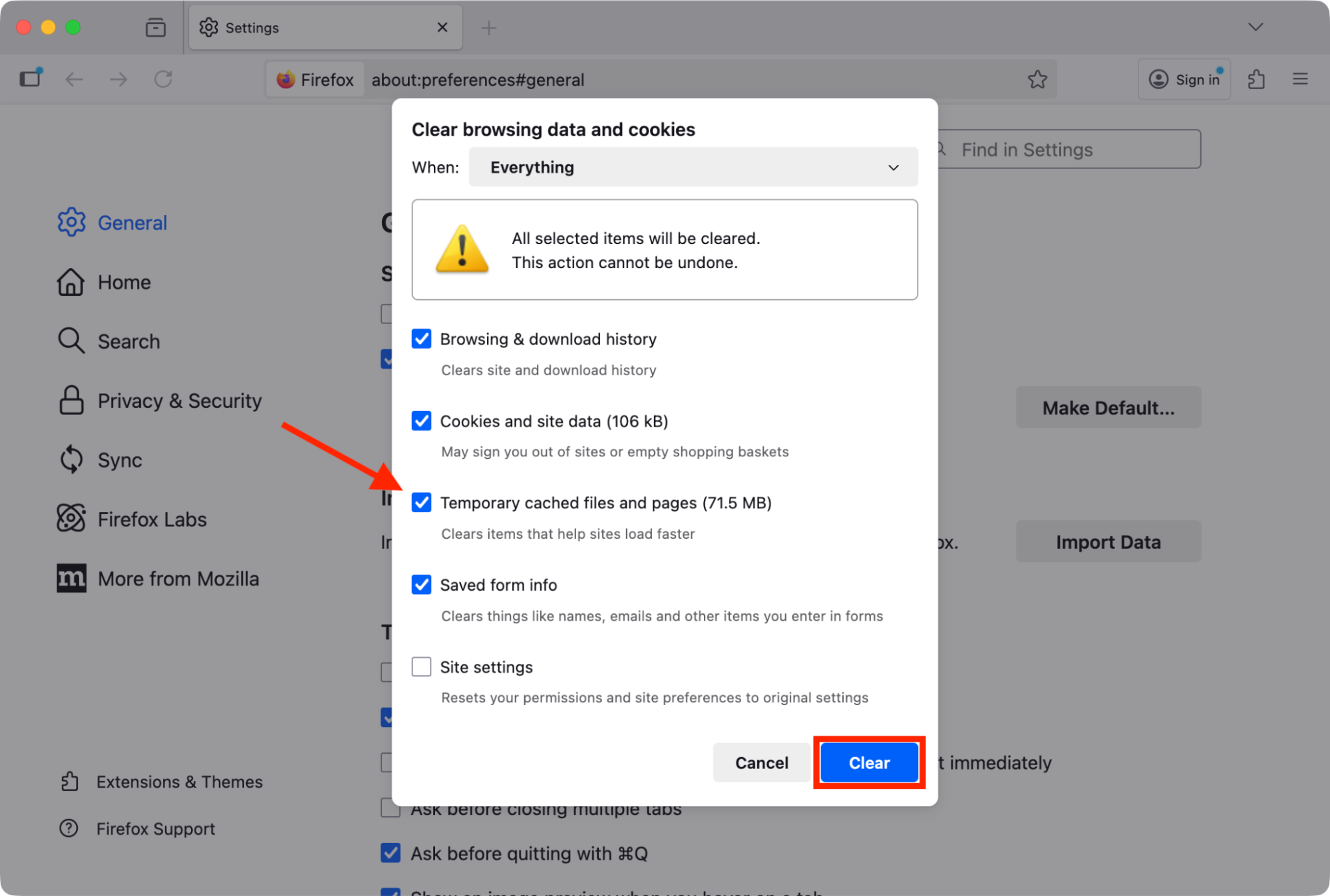
And here’s how to delete the Google Drive cache on Mac if you use Firefox:
In Firefox, go to History > Clear Recent History.
Next to When, choose Everything.
Make sure Temporary cached files and pages is selected, then click Clear.
Step 1. In Firefox, go to History > Clear Recent HistoryStep 2. Next to When, choose EverythingStep 3. Select Temporary cached files, then click Clear
3. Use a third-party app to remove Google Drive cache from macOS
We love to see Mac users fixing issues on their own, but be advised that it’s not always a good idea to clear cache files manually if you’re not experienced. Accidentally deleting the wrong files can cause bigger issues with Google Drive or macOS itself. A much easier and safer solution is to use a third-party tool, such as MacKeeper’s Safe Cleanup developed by Clario Tech.
Safe Cleanup finds all the hidden cache files on your Mac for you, then allows you to delete them all in just a few steps.
Select Safe Cleanup in the sidebar, then click Start Scan to find cache files and system junk.
Pick the files you want to remove, making sure you select Caches, then click Clean Junk Files.
Step 1. Select Safe Cleanup, then click Start ScanStep 2. Choose files to delete, then click Clean Junk Files
MacKeeper’s Safe Cleanup is also excellent at finding and deleting old log files, unused language packs, undeleted Trash, and more system junk. We highly recommend it when you need to quickly free up space on your Mac, like when you can’t update a MacBook because of storage.
Conclusion
When you’re facing issues with Google Drive, and you need to clear its cache on Mac, there are multiple ways to do it, depending on whether you use the desktop Drive app for macOS or the browser-based web app in Safari, Google Chrome, Firefox, Opera, or Microsoft Edge.
The best way to clear the Google Drive cache on Mac without accidentally deleting important files that could lead to system issues is to use MacKeeper’s Safe Cleanup tool from Clario Tech. With just a few clicks, our Safe Cleanup finds hidden cache files and other system junk, then deletes them to free up space and improve performance.
We respect your privacy and
use cookies
for the best site experience.
Privacy Preferences Center
We use cookies along with other tools to give you the best possible experience while using the
MacKeeper website. Cookies are small text files that help the website load faster. The cookies we
use don’t contain any type of personal data meaning they never store information such as your
location, email address, or IP address.
Help us improve how you interact with our website by accepting the use of cookies. You can change
your privacy settings whenever you like.
Manage consent
All cookies
These cookies are strictly necessary for enabling basic website functionality (including page
navigation, form submission, language detection, post commenting), downloading and purchasing
software. The website might malfunction without these cookies.