Searching for Ctrl+Alt+Del on a Mac? Surely you can easily find a corresponding key combination to close unresponsive apps on a Mac, but we suggest an even better option. One of the main reasons for an app's bad performance is its untimely updates—use MacKeeper’s Update Tracker to avoid outdated software in the future.
Are you looking for a Control+Alt+Delete alternative on Mac?
If you’re a former Windows user, you might be curious to know if there’s a Mac equivalent of Ctrl+Alt+Delete, the keyboard shortcut that can launch Task Manager and close applications quickly.
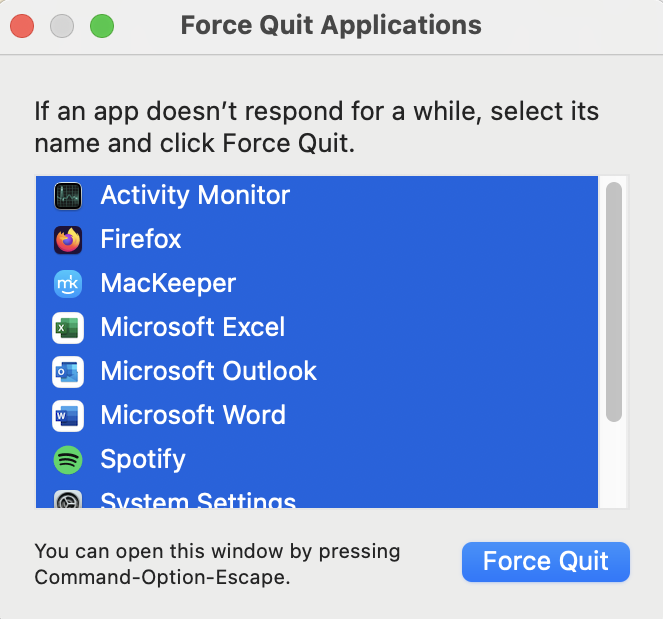
The quickest Mac equivalent of Ctrl+Alt+Delete is also a keyboard shortcut: Command+Option+Escape. This opens the Force Quit Applications window, where you can force quit any apps that aren’t responding.
However, there are other alternatives too.
In this article, we’ll explain the Ctrl+Alt+Delete uses and the alternatives to Ctrl+Alt+Delete on Mac computers.
A note from our experts:
If you’re looking for information on how to use the Ctrl+Alt+Delete shortcut and its alternatives on a Mac, it means you’re experiencing issues with your apps. It is important to update your Mac regularly to avoid apps freezing. The Update Tracker feature in MacKeeper shows all available updates for your programmes, lets you choose exactly what to update, and ensures you are using the most secure versions of your apps.
On Windows PCs, Ctrl+Alt+Delete performs various tasks: it can unlock your computer, open Task Manager, and force-quit a non-responding program.
As an alternative to Ctrl+Alt+Delete on Mac, you can use Activity Monitor to close processes and monitor performance. If you want to close a non-responsive program, there are various methods.
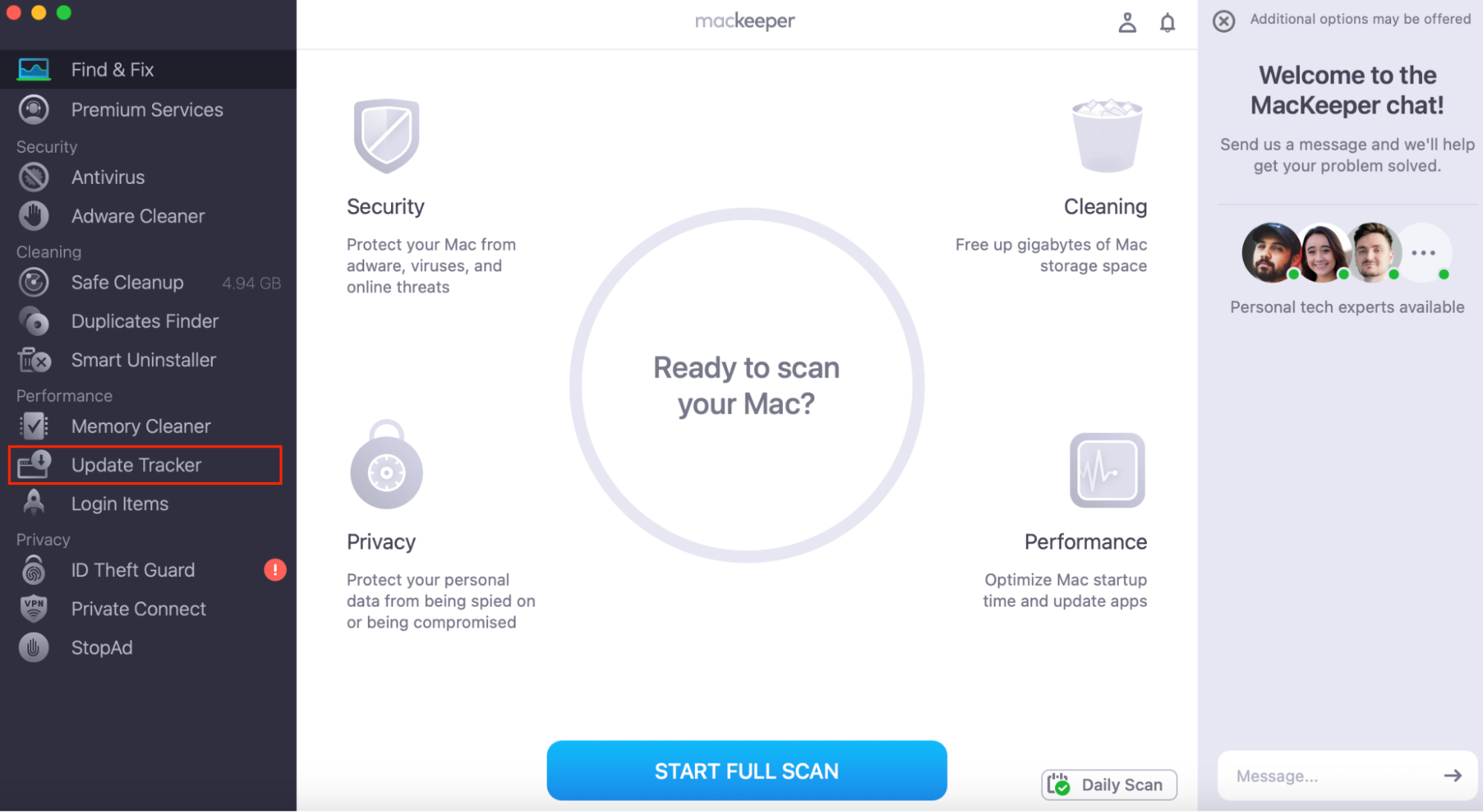
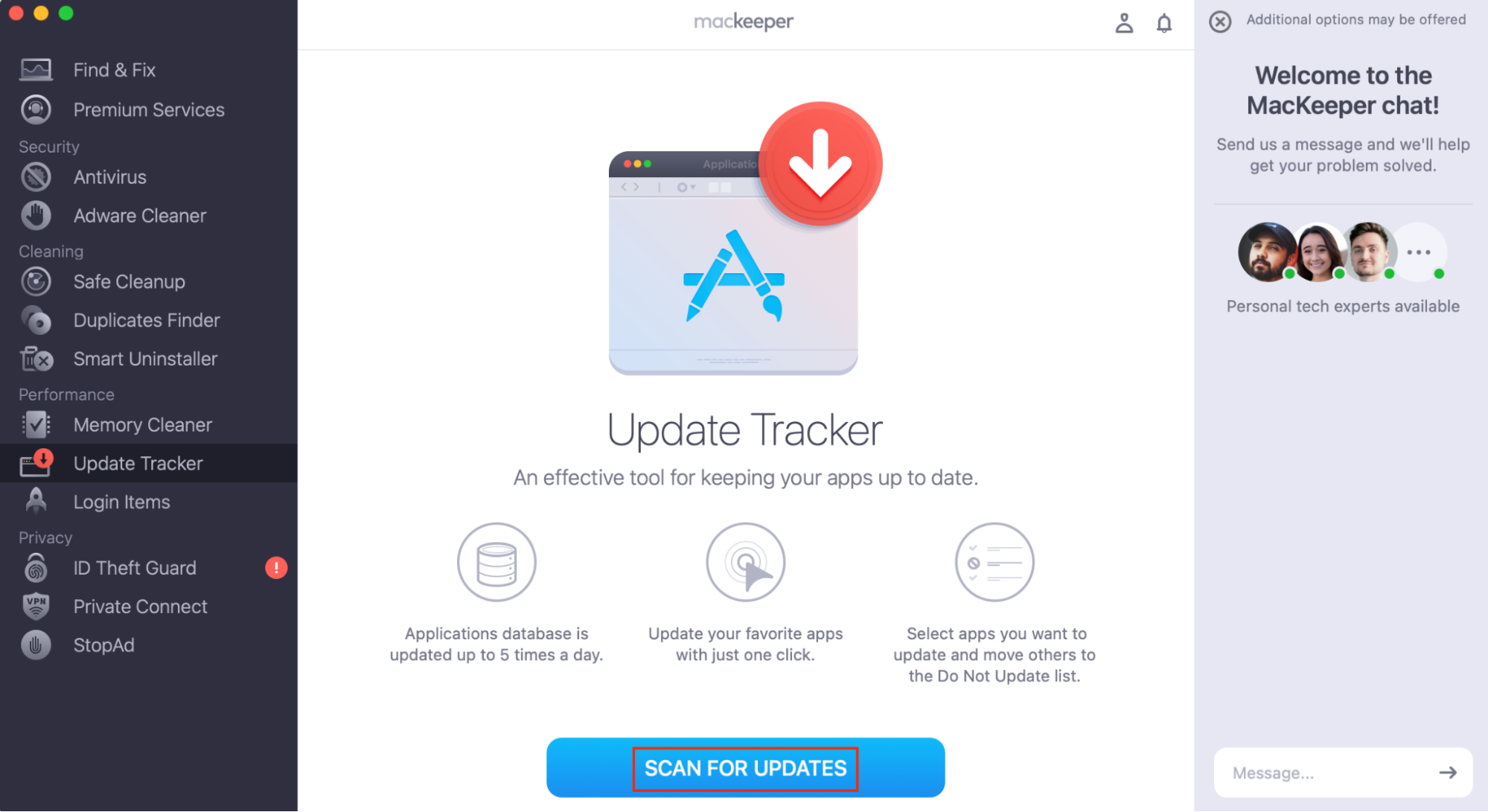
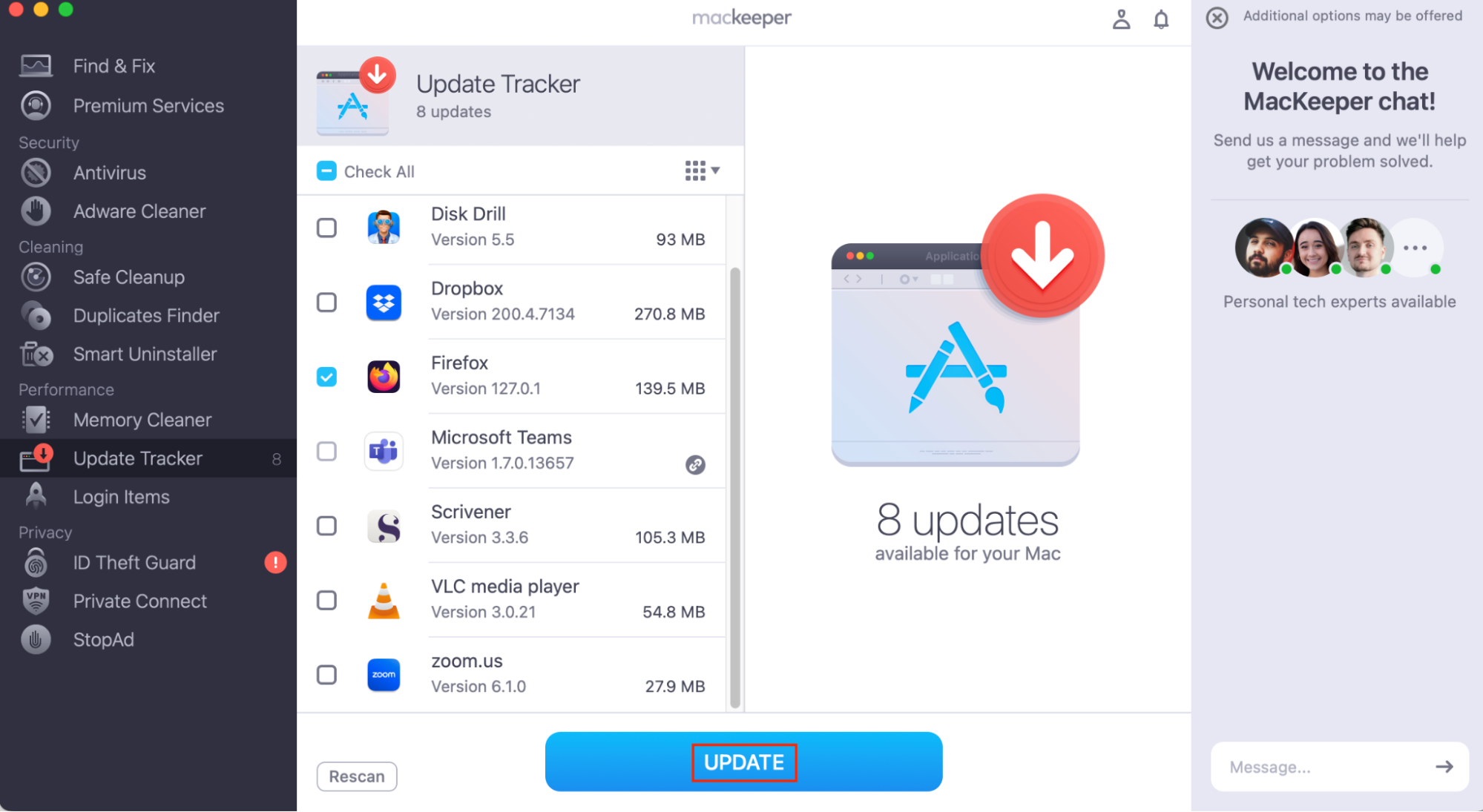
If you find that you need to force quit programs regularly, there could be an issue with a specific app on your Mac. Sometimes this is caused by outdated software–use MacKeeper’s Update Tracker to keep your applications up to date:
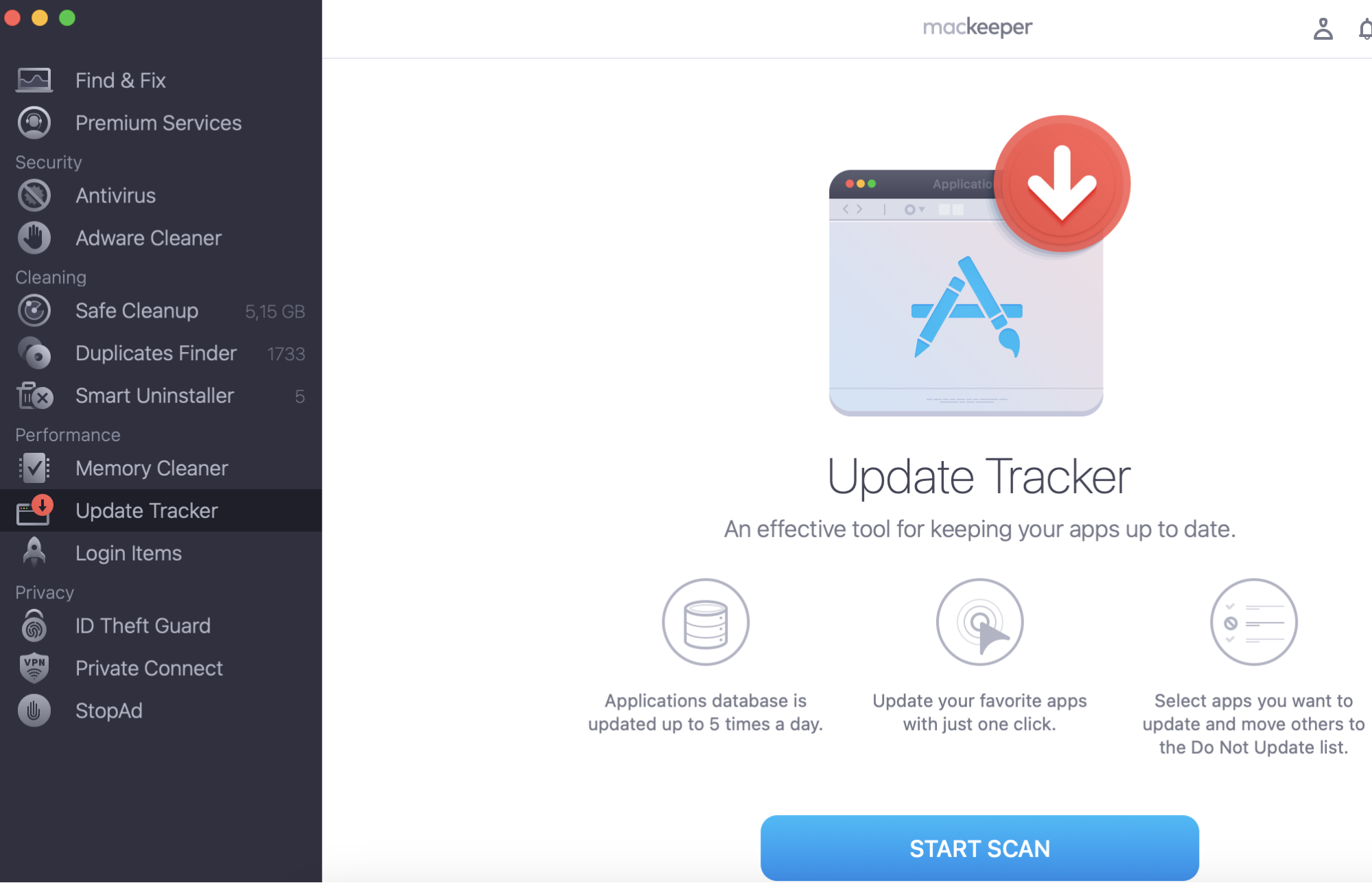
Open MacKeeper and choose Update Tracker from the sidebar.
Click Scan for Updates.
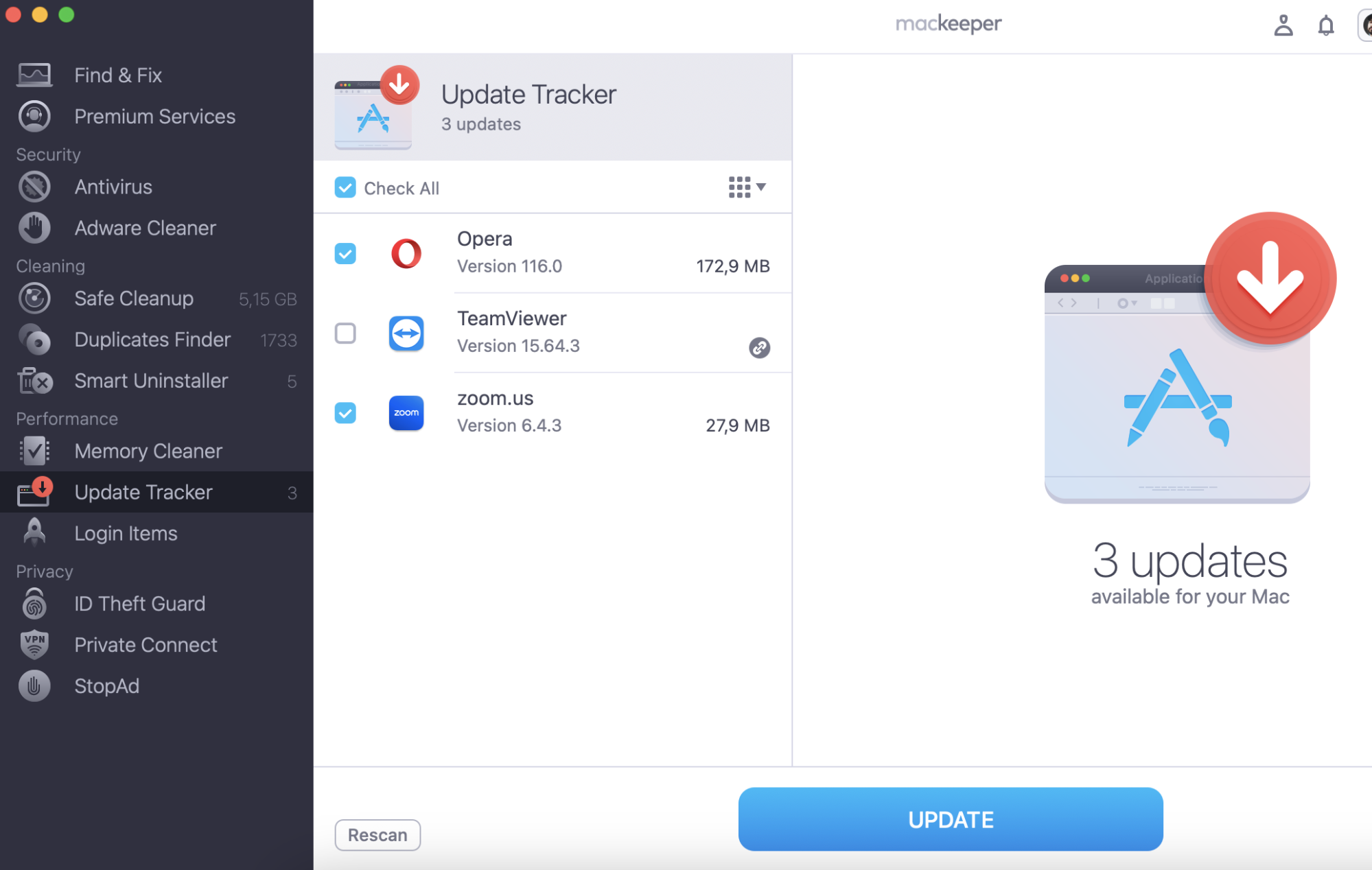
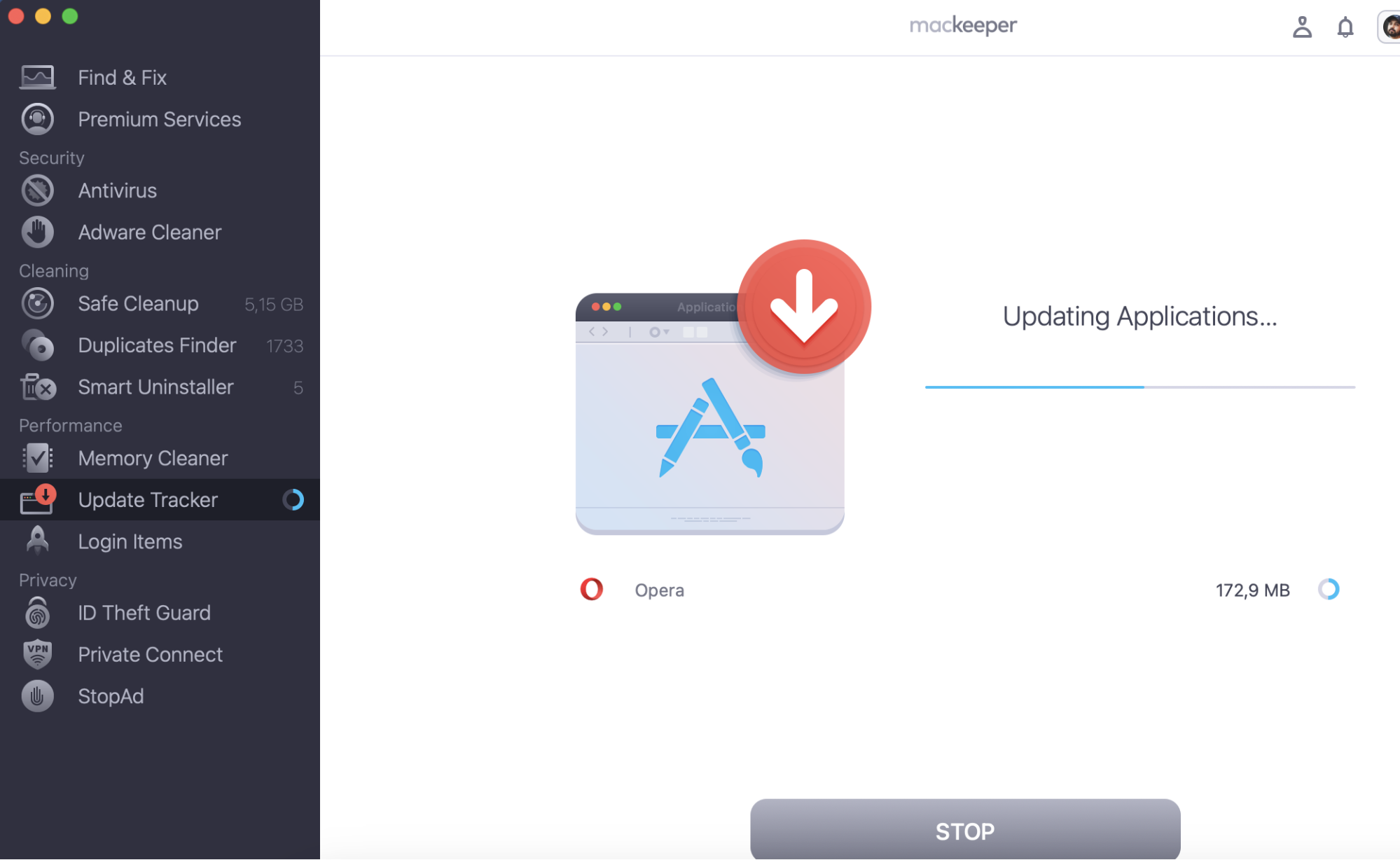
Select the apps you want to update and click Update.
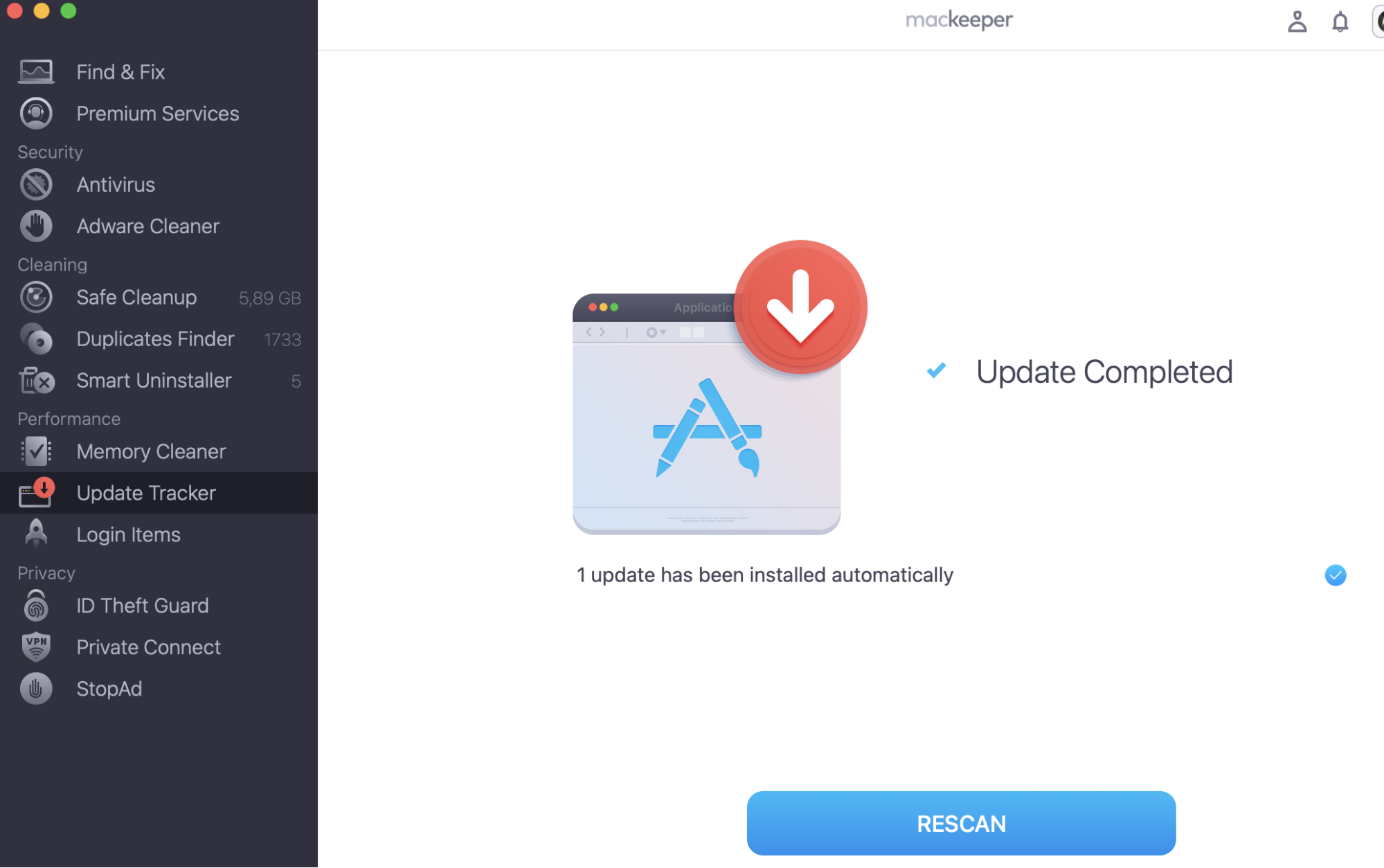
Step 1. Open MacKeeper and choose Update TrackerStep 2. Click Scan for UpdatesStep 3. Select the apps you want to update and click Update
What is the difference between the task manager and Activity Monitor in macOS
If you’re a Windows user, you might have used Task Manager for a variety of things, including:
Force-quitting applications
Ending processes
Managing login items
Looking at information about your computer’s performance
Activity Monitor is similar to Task Manager. It shows information about performance, including CPU usage and processes. However, it doesn’t contain all of Task Manager’s features—some are available elsewhere on your Mac.
For example, to manage login items, go to System Settings > Apple menu > System Settings > General > Login Items.
If you want to force quit an app that isn’t responding, there are a variety of methods, and we’ll explain them in the next section of this article.
If you’re looking for the Mac equivalent of Ctrl+Alt+Delete to force quit an app, below are options available:
Close all programs at once
Use a shortcut to force quit
Use Terminal to close apps
Use the Apple menu
Use the Dock
Use Command+Q
Use Activity Monitor
Important: Force quitting may cause data loss. Remember to save and back up your files regularly.
1. Close all programs at once
If your Mac is having performance issues and you don’t know which app is causing it, you may want to close all of your applications at once.
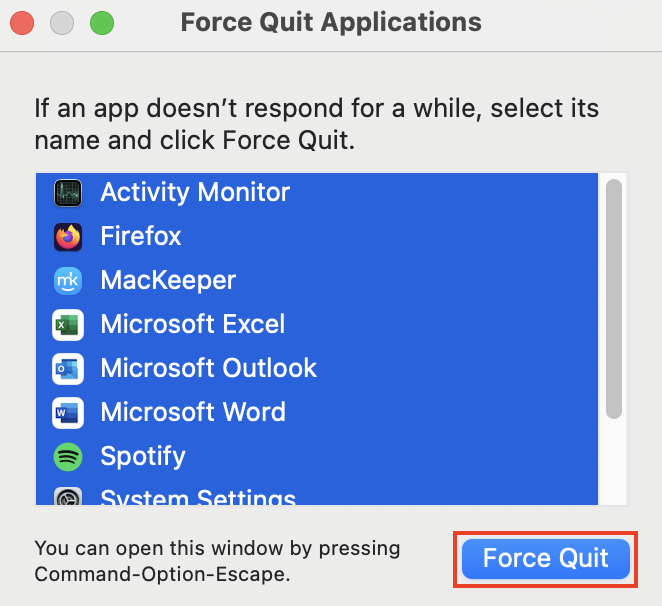
To close all programs at once using the Force Quit Applications tool:
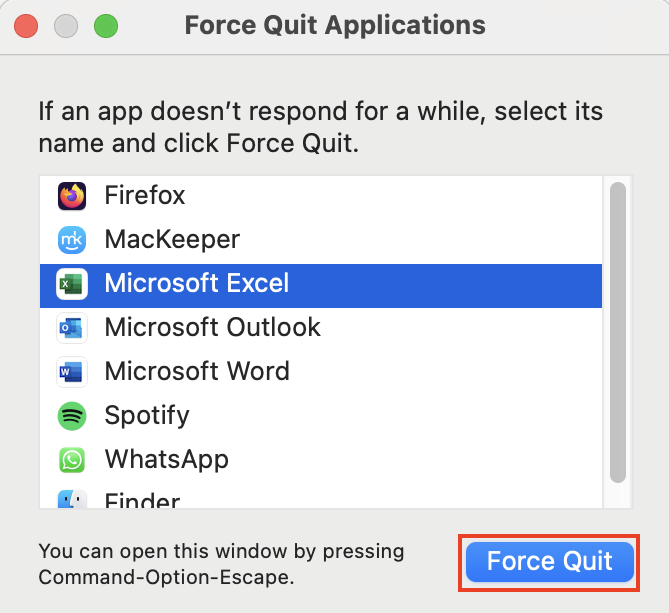
Press Command+Option+Escape, and then press Command+A to select all.
Click Force Quit.
Step 1. Press Command+Option+Escape, and then press Command+AStep 2. Click Force Quit
If your Mac is still experiencing issues, rebooting it may be a good idea—and this can also close your apps.
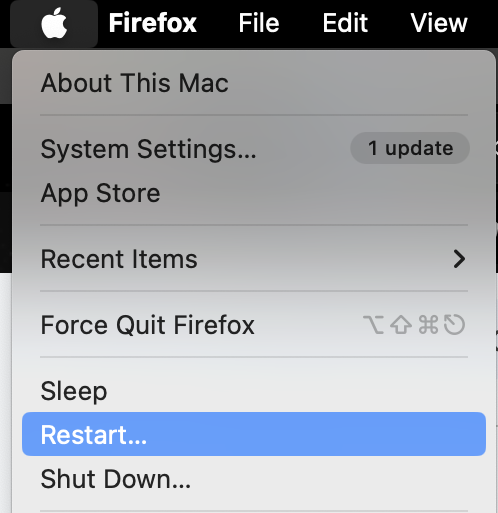
To close all programs at once by rebooting:
Go to Apple menu > Restart.
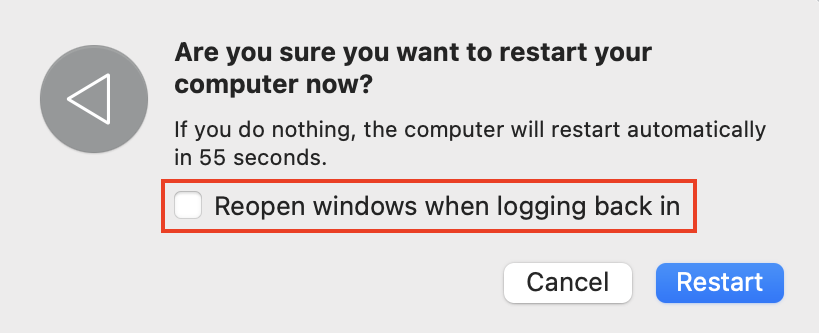
Make sure that Reopen windows when logging back in is unchecked, and click Restart.
Step 1. Go to Apple menu > RestartStep 2. Uncheck the box, and click Restart
2. Use a shortcut to force quit
You may not want or need to close all of your programs at once. As an alternative to Ctrl+Alt+Delete on Mac, you may want another keyboard shortcut.
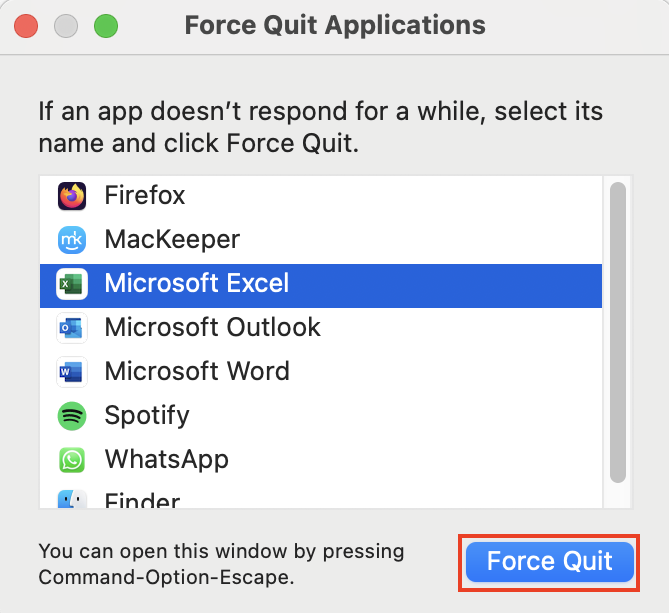
Pressing Command+Option+Escape brings up the Force Quit Application window. From there, you can choose which app to close and click Force Quit to close it.
3. Terminal to close apps
You can close apps using Terminal—although it’s not the easiest method.
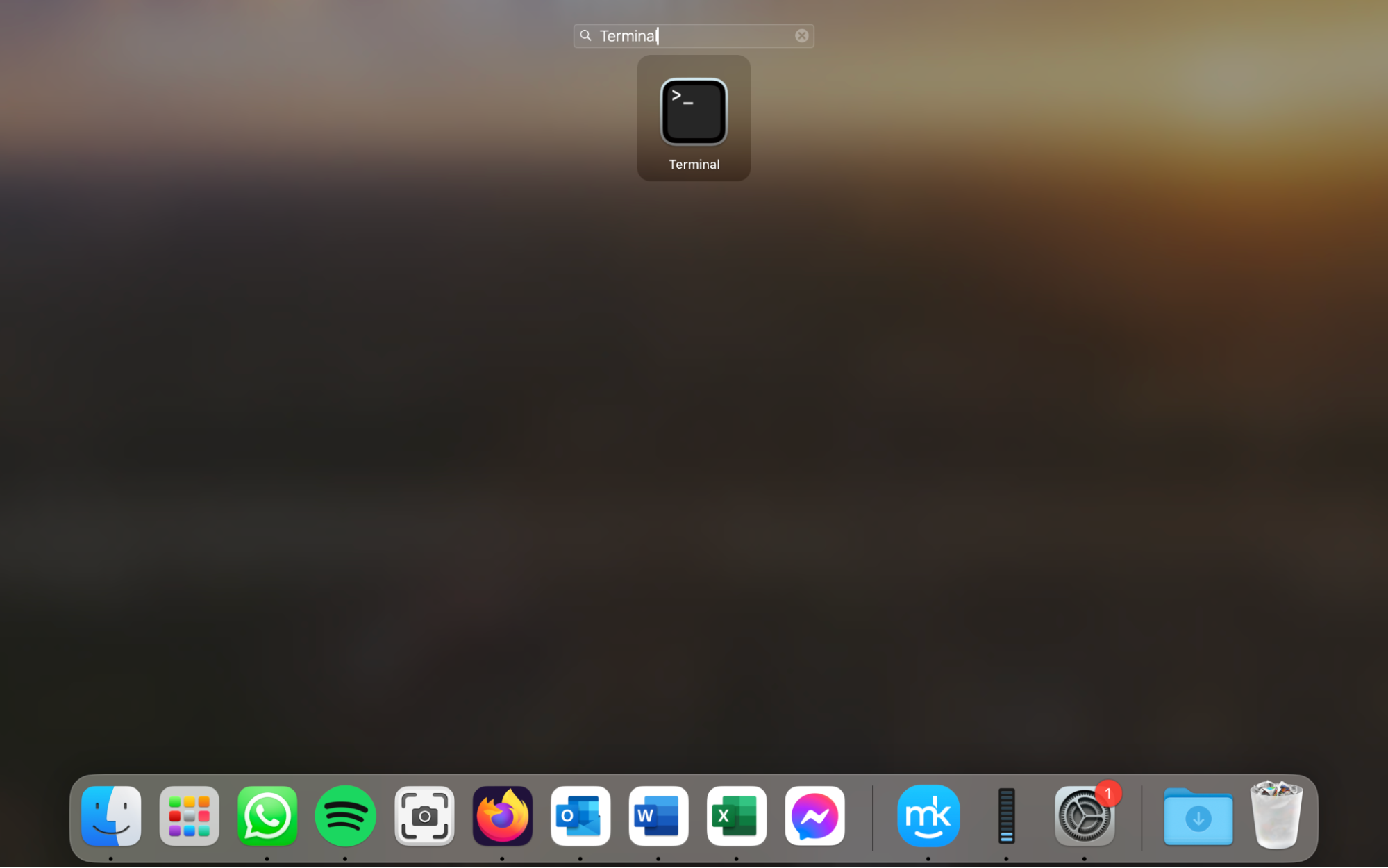
In Launchpad, search for Terminal and open it.
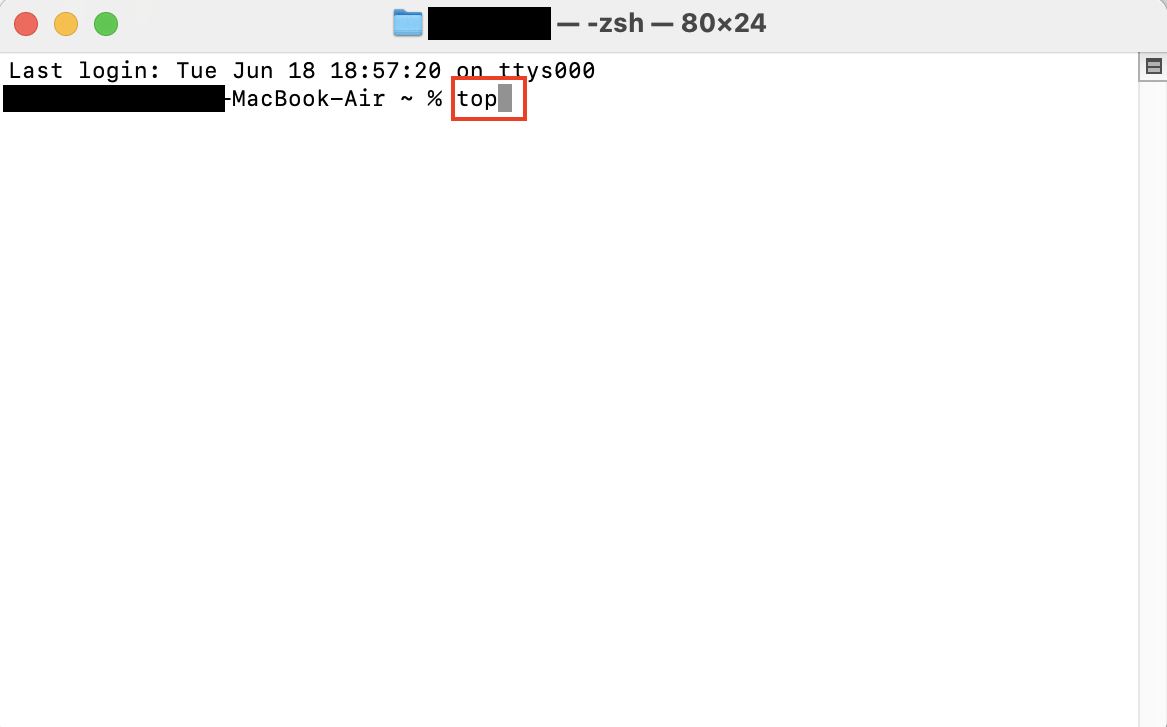
Type the command top and press Enter.
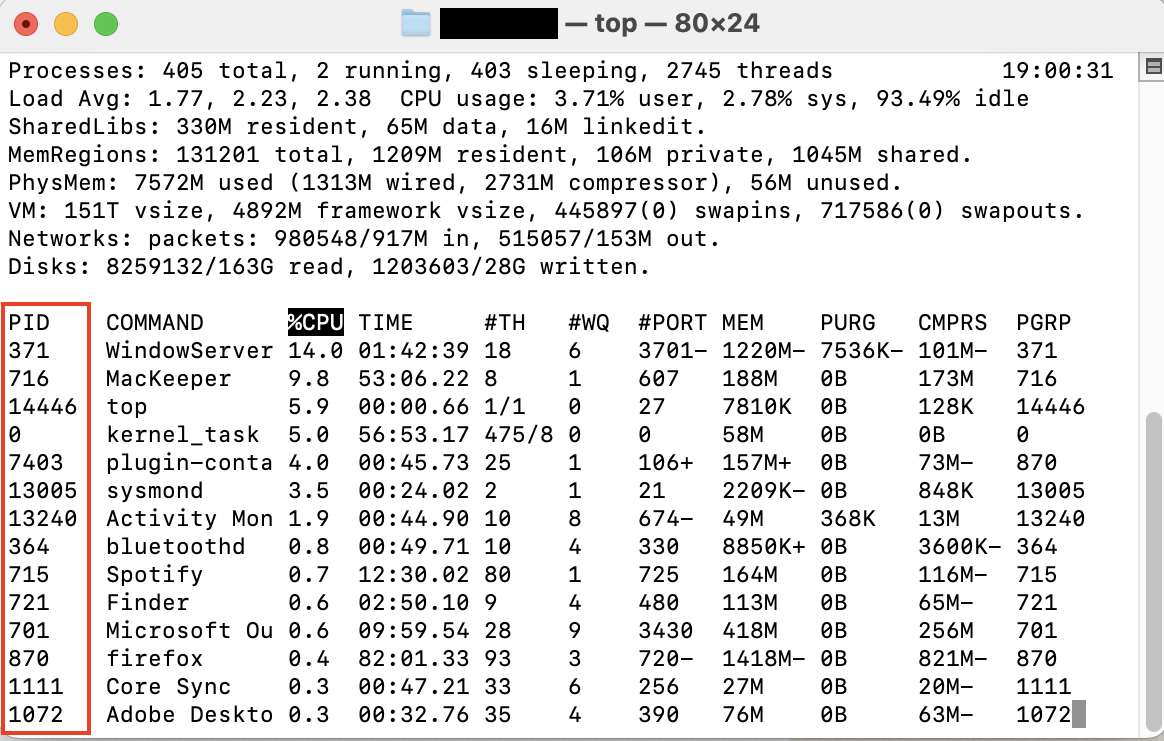
Look for the name of the app that you want to close and find its PID number.
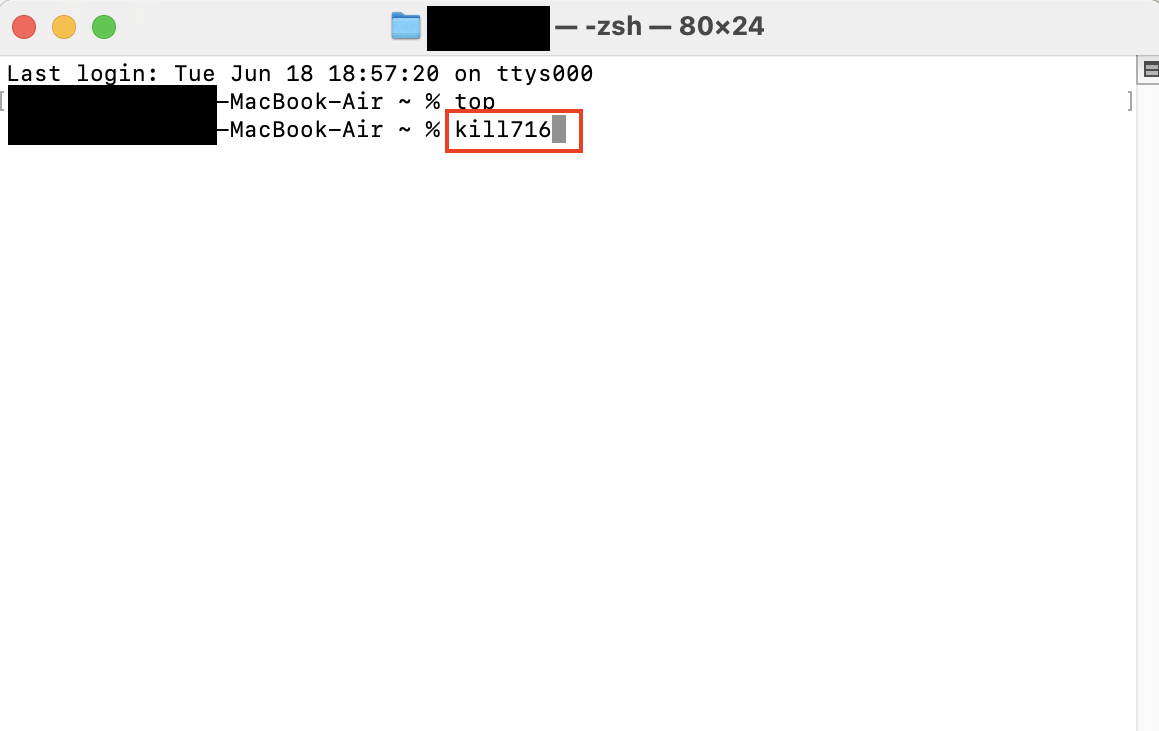
Type q to get the command line back, and then type kill123, where 123 is the PID number of the app you want to close. For example, if MacKeeper’s PID number is 716, and you want to close MacKeeper, you would type kill716. Press Enter.
Step 1. Open TerminalStep 2. Type the command top and press EnterStep 3. Look for the app that you want to close and find its PID numberStep 4. Type “q,” then type “kill123”, where 123 is the PID number, then press Enter
4. Use the Apple menu to force quit on a Mac
If the thought of using shortcuts or Terminal as the Mac equivalent of Ctrl+Alt+Delete seems daunting, don’t worry. There’s an easier way to force quit on your Mac using the Apple menu.
Hint from our team: If you’re using an app in full-screen mode, you may not see the menu bar. Go to the Desktop or move your cursor to the top of the screen to make the menu bar reappear.
Here’s how to force quit the active app on your Mac:
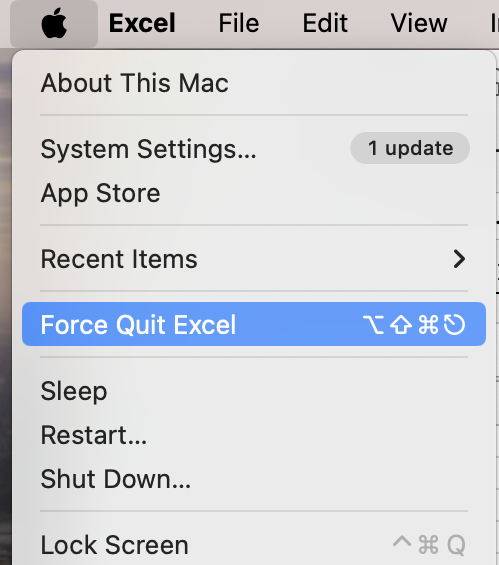
Open the Apple menu and hold down the Shift key.
Choose Force Quit [Application Name].
Open the Apple menu, press the Shift key, and choose Force Quit
To force quit any app through the Apple menu:
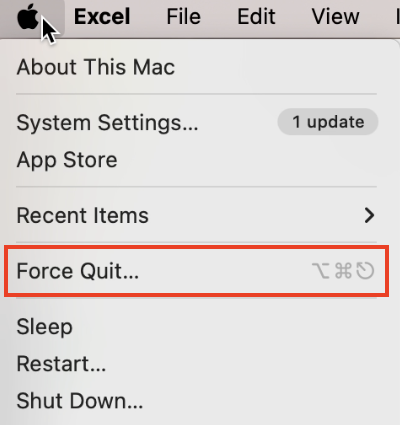
Go to Apple menu > Force Quit.
Choose the app you want to force quit and click Force Quit.
Step 1. Go to Apple menu > Force QuitStep 2. Choose the app you want to force quit and click Force Quit
5. Use Dock
Whenever you open an application, its icon appears on the Dock at the bottom of your screen. Right-clicking or long pressing on this icon will bring up a menu with options including Quit (if the application is working normally) or Force Quit (if the application has stopped responding).
To close an app using the Dock:
Right-click or long-press the app’s icon on the Dock.
Choose Quit or Force Quit.
Right-click or long-press the icon, and choose Quit or Force Quit
Tip from us: If your app is in full-screen mode and you can’t see the Dock, move your cursor to the bottom of the screen, and it will appear.
6. Using Command+Q to close programs
One easy way to imitate Control+Alt+Delete on Mac is to use another keyboard shortcut.
Pressing Command+Q should close your active app instantly. Depending on the application, you may be prompted to save your work.
7. Use Activity Monitor to quit apps
If you’re used to Task Manager, Activity Monitor is the closest Mac equivalent.
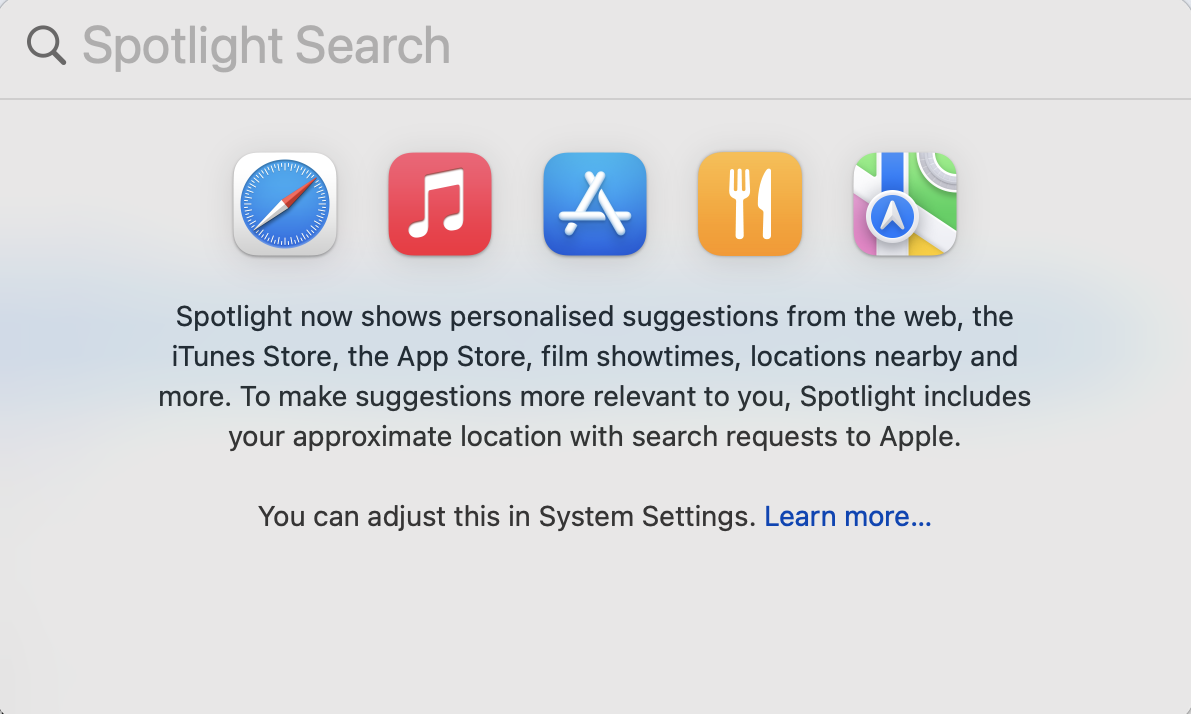
Where is Activity Monitor on Mac? There are a few easy ways to open the Activity Monitor, but the easiest way is probably using Spotlight, your Mac’s search feature.
To open Activity Monitor and quit apps:
Press Command+Space to open Spotlight, and search for Activity Monitor. Press Enter.
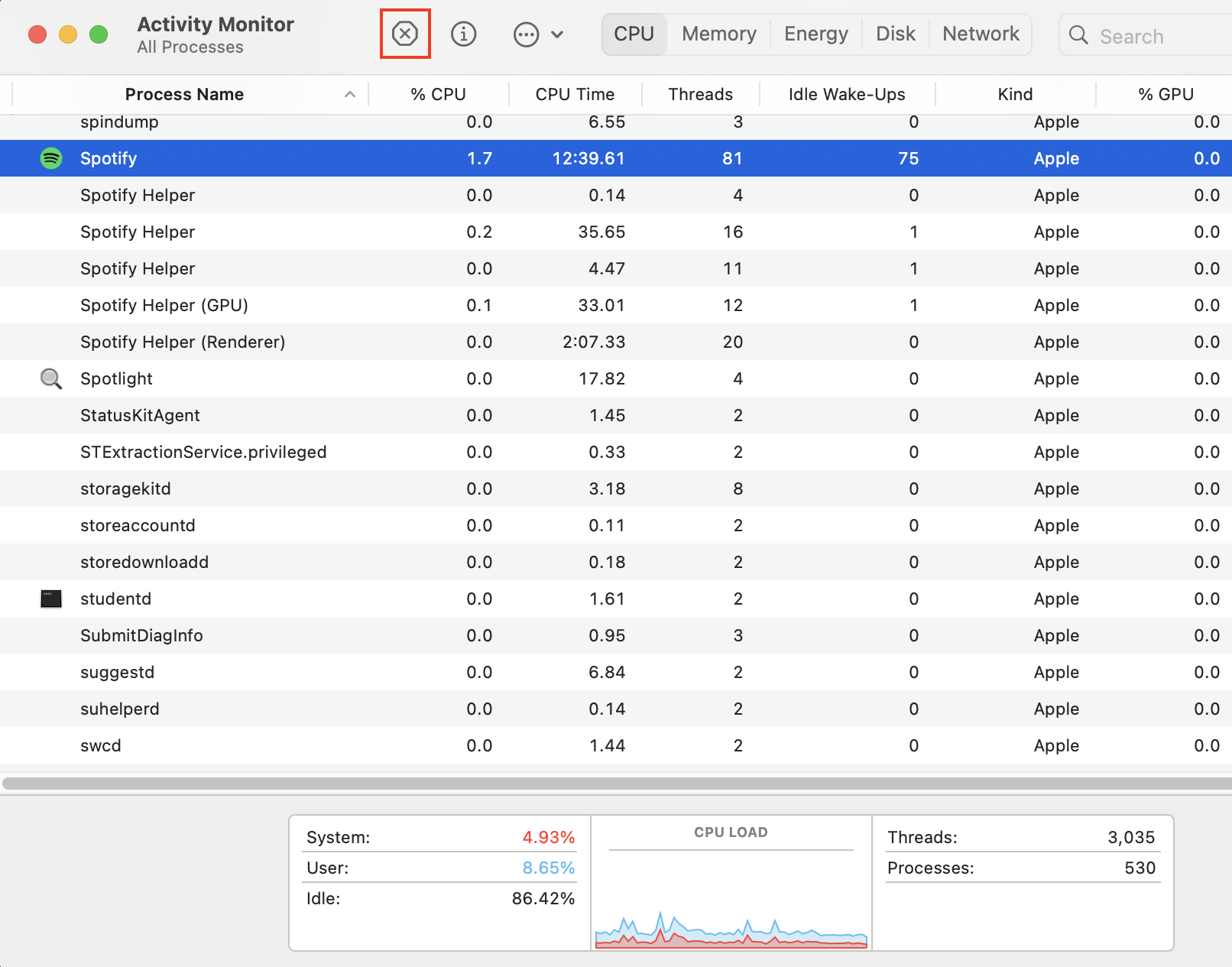
In the list of processes, look for the app you want to close. Select it and click the Stop button. Confirm that you want to quit the process.
Step 1. Press Command+Space and search for Activity Monitor, then press EnterStep 2. Select the app you want to close, and click the Stop button
Conclusion
While there’s no exact Mac equivalent of Ctrl+Alt+Delete, you can still carry out most of its functions easily—especially quitting apps.
If you often need to force quit apps because they stop responding, you may need to update them. Use MacKeeper’s Update Tracker to keep your software up-to-date and running smoothly.
We respect your privacy and
use cookies
for the best site experience.
Privacy Preferences Center
We use cookies along with other tools to give you the best possible experience while using the
MacKeeper website. Cookies are small text files that help the website load faster. The cookies we
use don’t contain any type of personal data meaning they never store information such as your
location, email address, or IP address.
Help us improve how you interact with our website by accepting the use of cookies. You can change
your privacy settings whenever you like.
Manage consent
All cookies
These cookies are strictly necessary for enabling basic website functionality (including page
navigation, form submission, language detection, post commenting), downloading and purchasing
software. The website might malfunction without these cookies.