If your device is lagging or making loud fan noises because a distnoted Mac is gobbling up your system resources, manually killing the process is a quick way to reclaim your speed. We recommend using MacKeeper’s Memory Cleaner to instantly identify and quit these memory-draining daemons, helping your Mac run smoothly without the need for complex manual troubleshooting.
The distnoted process Mac stands for Distributed Notification Services, a background daemon that facilitates inter-process communication by syncing workflows between different apps. While it’s not a critical system service, we’d like to remind you that it ensures your software components operate in concert. Usually, it runs quietly with minimal resource impact.
What makes distnoted go haywire?
The distnoted daemon typically malfunctions when a third-party application repeatedly crashes or attempts unauthorized system access. As a result, this creates a loop where the process consumes excessive CPU and RAM while trying to deliver notifications for the failing software.
1. System errors
In our experience, random system bugs are often the primary reason you will see a runaway distnoted on a Mac activity monitor. When macOS encounters internal sync errors after an update, this daemon can get stuck in a processing loop. We’ve found that the best way to catch these anomalies early is to frequently check RAM usage on Macs. That’s why a quick system refresh usually realigns these background services before they impact your overall stability.
2. Incompatibility
From what we’ve observed, incompatibility between your current macOS version and aging third-party software is a frequent trigger for background service failures. If an app hasn't been updated to support your latest system architecture, it may struggle to communicate through the distributed notification layer. We’ve noticed that even one outdated plugin can cause the entire notification service to spike.
3. Extremely high system load
When your Mac is pushed to its limits by too many open applications, the distnoted Mac CPU usage can skyrocket as it struggles to manage the dense traffic of inter-process messages. In our experts' opinion, this is a classic bottleneck where the system simply becomes overwhelmed. Learning how to clear up RAM on a Mac is essential here to prevent the spinning beachball. We've verified that reducing active tasks allows the daemon to settle and restores normal responsiveness.
4. Malfunctioning software or apps
Misbehaving or "zombie" apps that repeatedly crash are the most common culprits for distnoted issues. When an app fails, it often sends a barrage of system messages that the daemon can't successfully deliver, leading to a resource-heavy loop. Our team has found that cloud services like OneDrive are particularly prone to these glitches. So, we suggest quitting any app that shows high activity alongside distnoted to break the cycle.
A note from our experts:
We’ve noticed that the most effective way to handle a runaway daemon is to target it directly without a full system reboot. Our Memory Cleaner feature optimizes memory, allowing our team to monitor real-time resource consumption and instantly terminate the processes causing your Mac to lag. Because MacKeeper is a leading solution in Mac optimization and cybersecurity, it provides a safer, more intuitive alternative to manual system deep-dives when distnoted goes haywire.
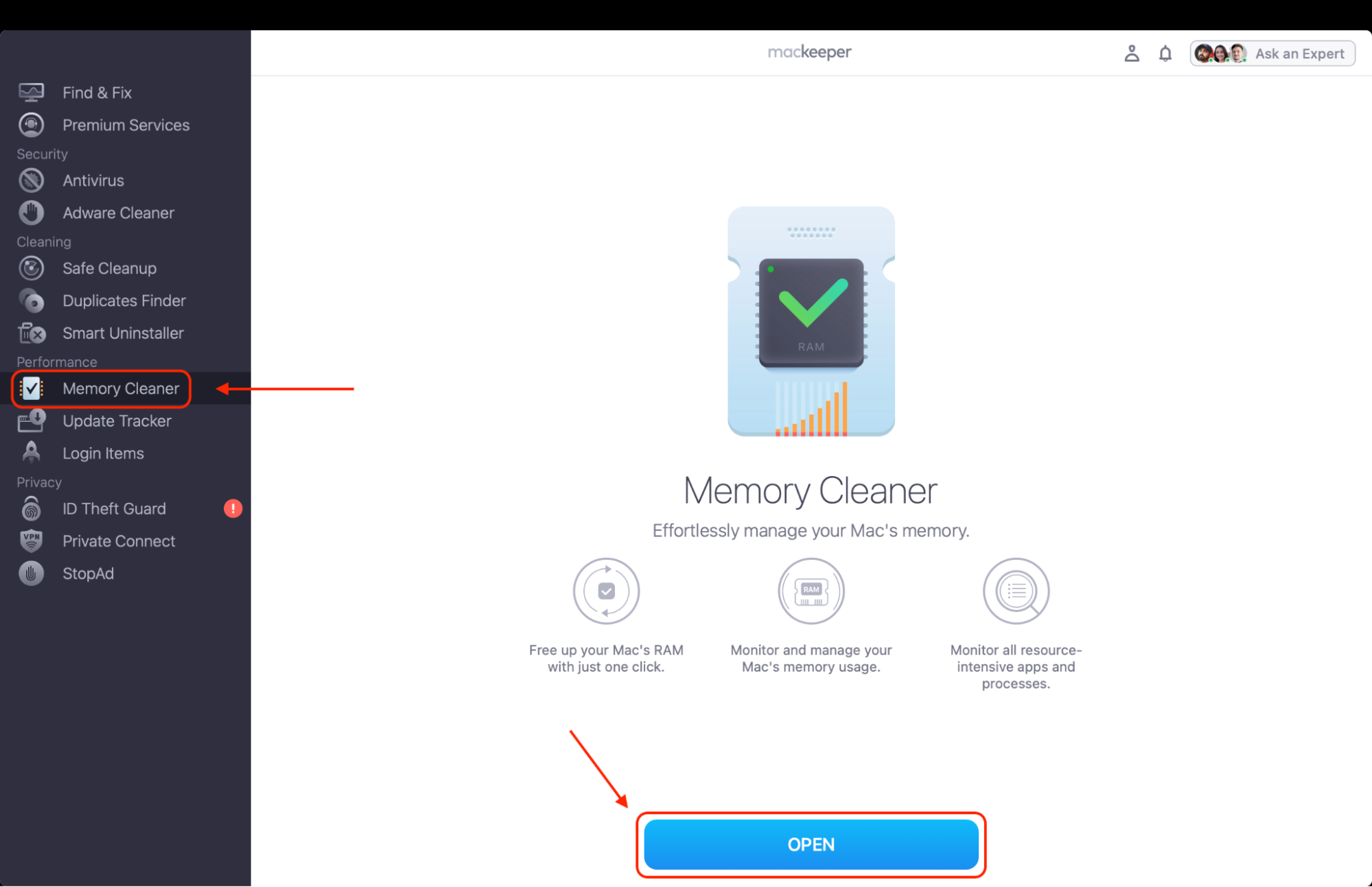
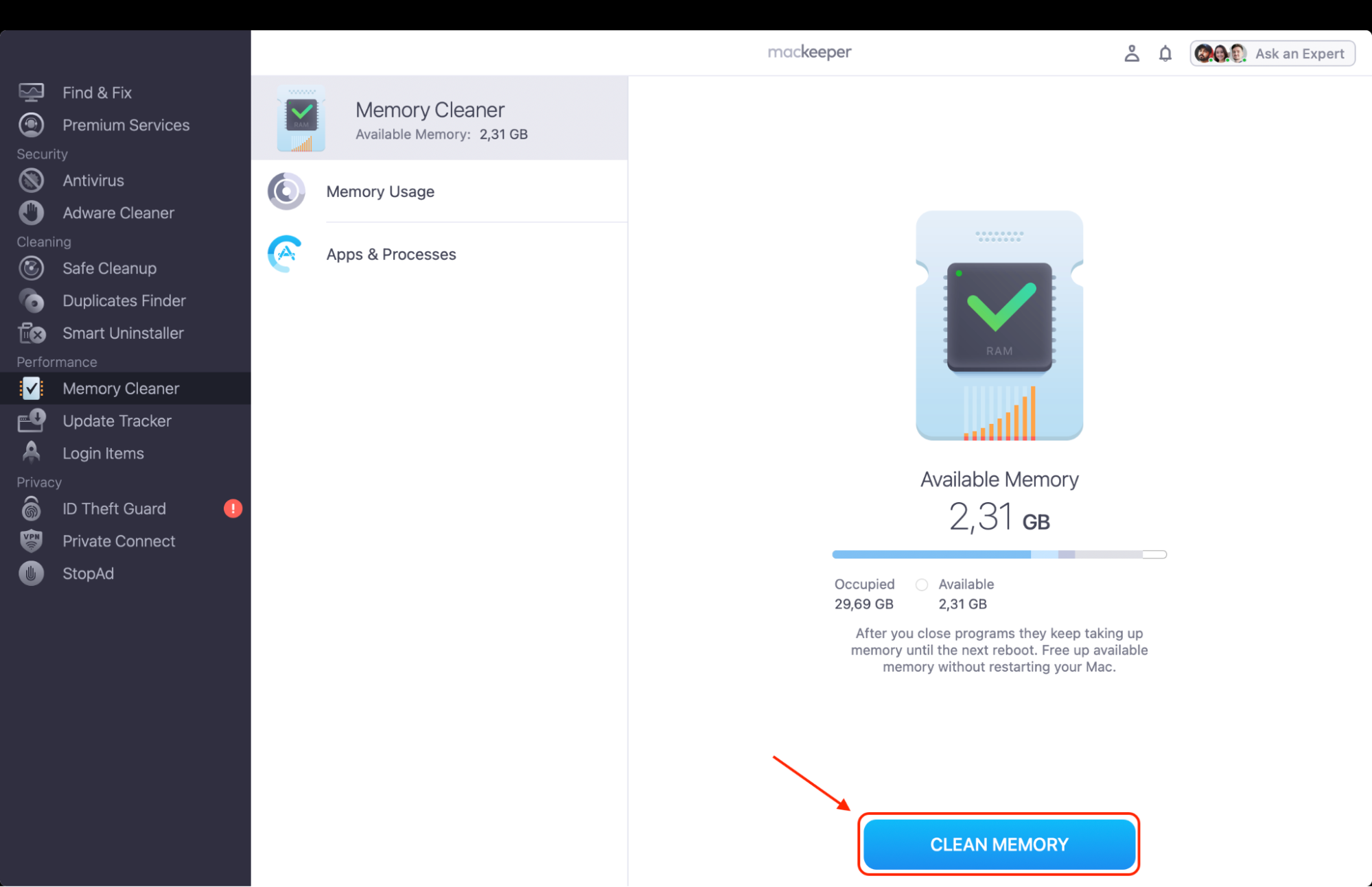
Follow these steps to use MacKeeper’s Memory Cleaner:
Navigate to Memory Cleaner in the sidebar and select the Open button.
Check the Apps & Processes list to identify if distnoted is using too much RAM.
Click Clean Memory to immediately quit unnecessary tasks and boost your performance.
Step 1. Open MacKeeper, go to Memory Cleaner, and click OpenStep 2. Look through your Memory usage and press Clean Memory to clear RAM
How to fix distnoted high memory on Mac?
To resolve high CPU or memory usage from the distnoted process, we suggest restarting your Mac to refresh background services. You can also manually terminate the process in Activity Monitor, toggle Finder extensions for cloud services, or perform a malware scan to ensure system stability.
1. Kill distnoted process
The most direct way to reclaim distnoted Mac memory is to manually terminate the process when it begins to balloon.
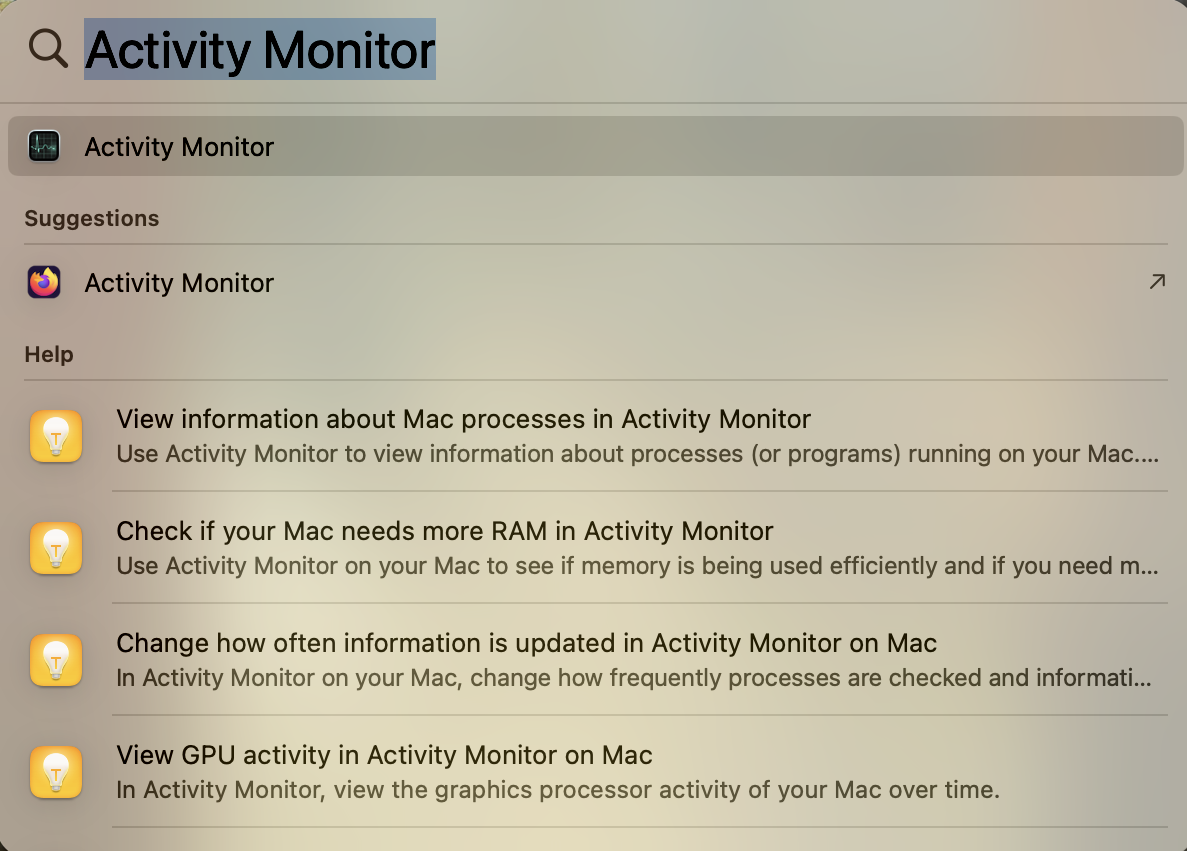
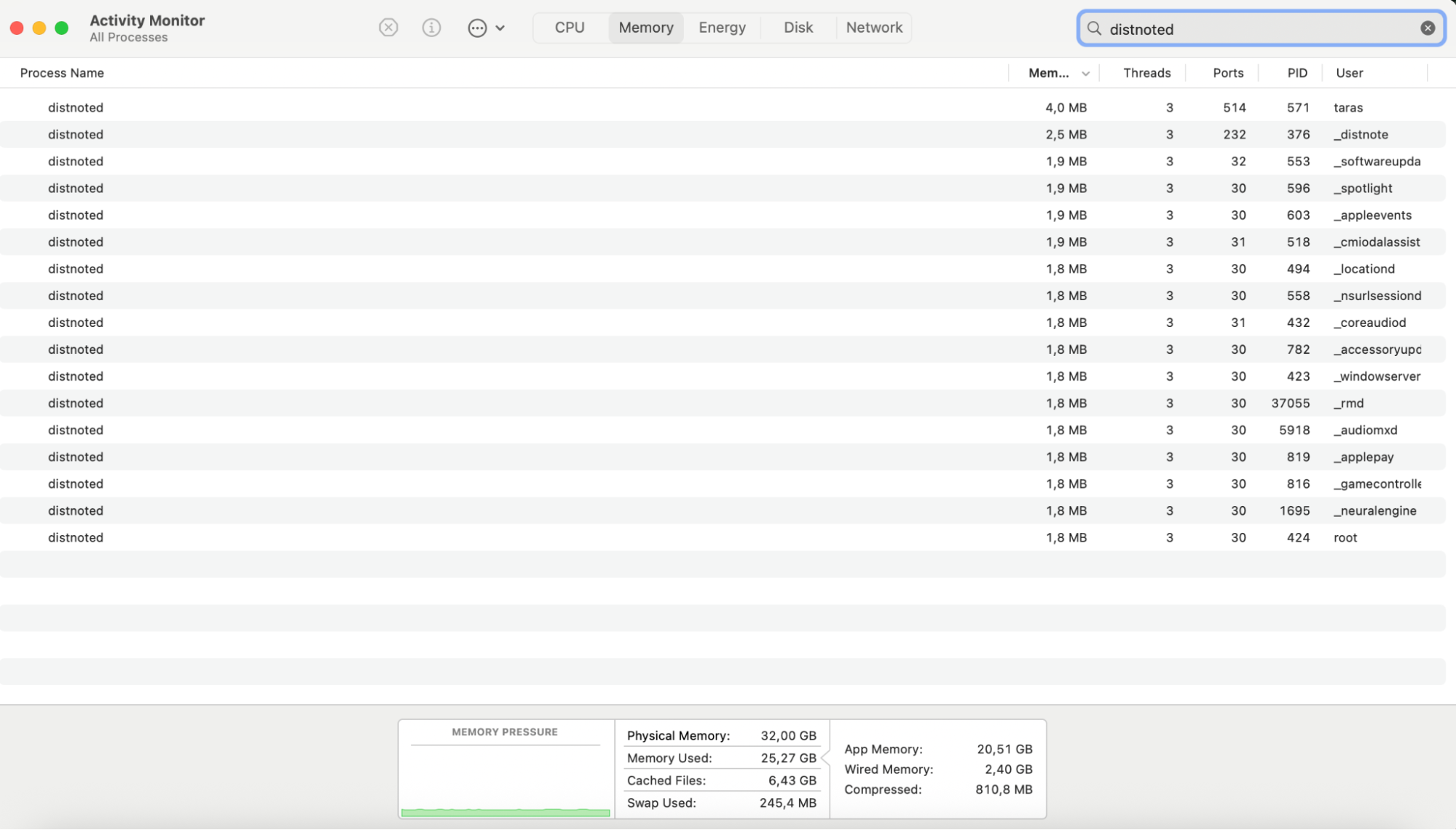
Follow these steps to kill the process:
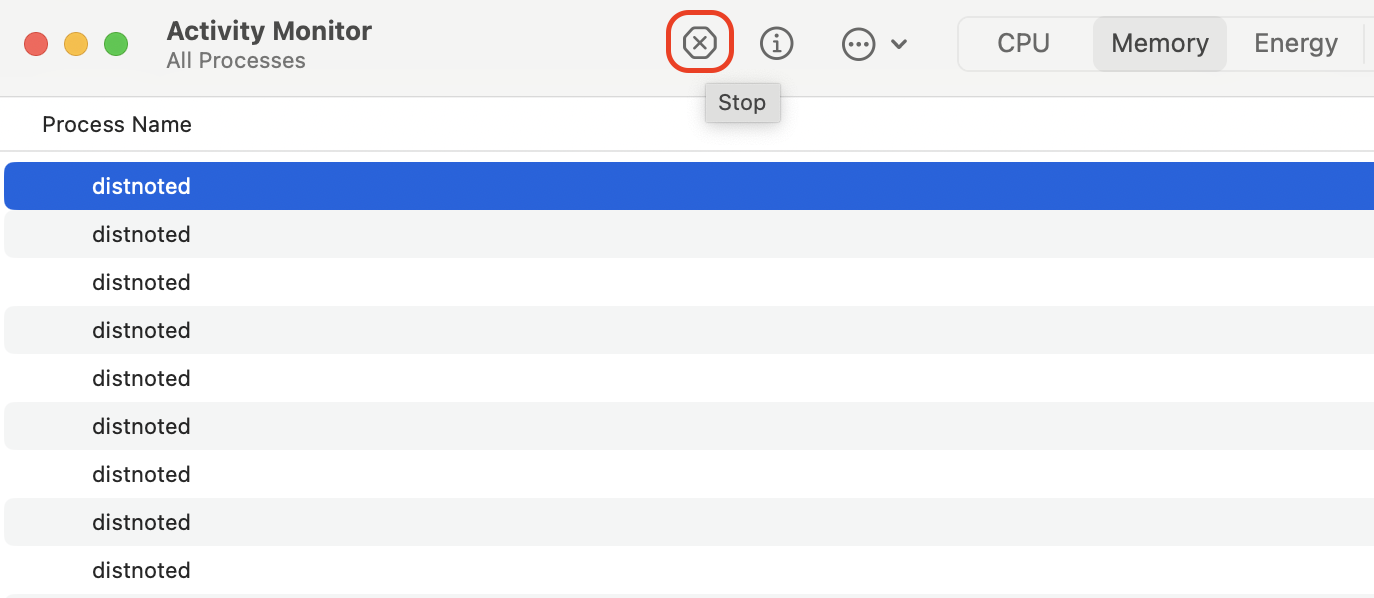
Press Command + Space to open Spotlight, type Activity Monitor, and press Enter.
In the search bar at the top right, type distnoted.
Select the malfunctioning entry from the list to highlight it.
Click the X icon located at the top left of the window.
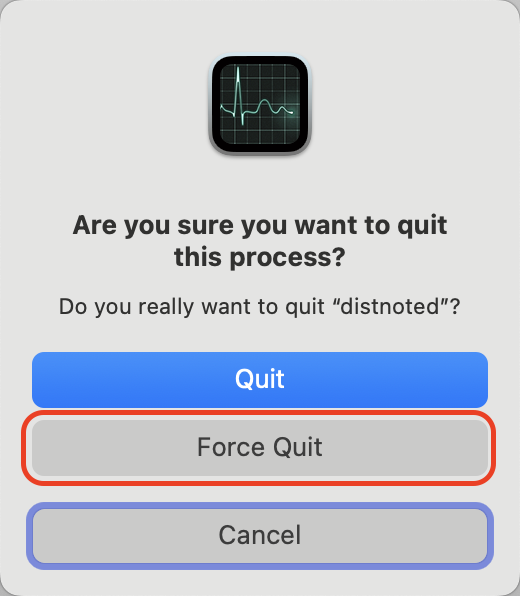
When the confirmation dialog appears, select the Force Quit option.
Repeat these steps for any other instances of the process visible in the Memory or CPU tabs.
Step 1. Press Command + Space to open Spotlight, type Activity Monitor, and press EnterStep 2. In the search bar at the top right, type distnotedStep 3. Select the malfunctioning entry Click the X iconStep 4. Select the Force Quit option
2. Delete unwanted apps
In our opinion, high CPU usage on your Mac is frequently caused by suspicious or poorly optimized third-party software running hidden background tasks.
Here’s how to remove suspicious software:
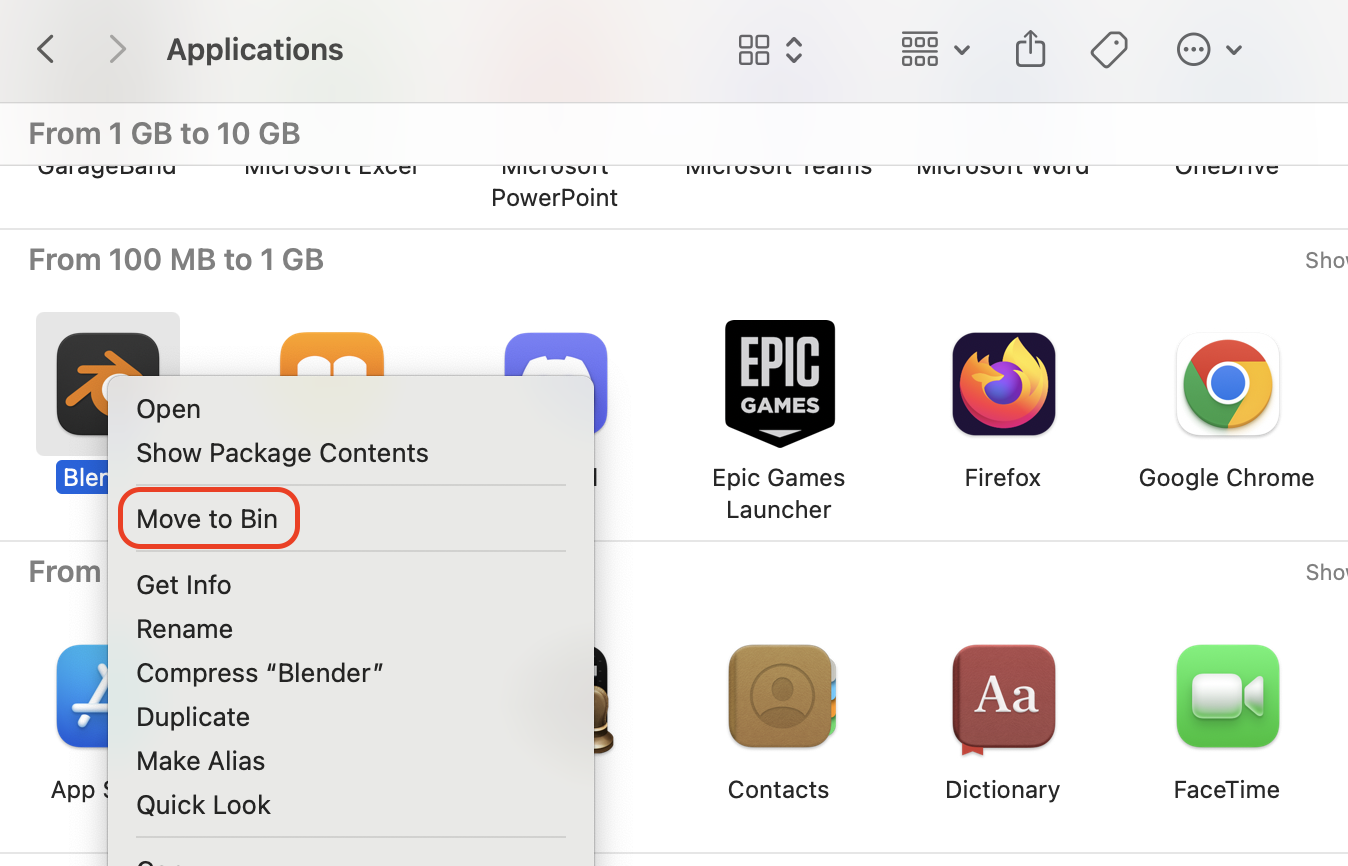
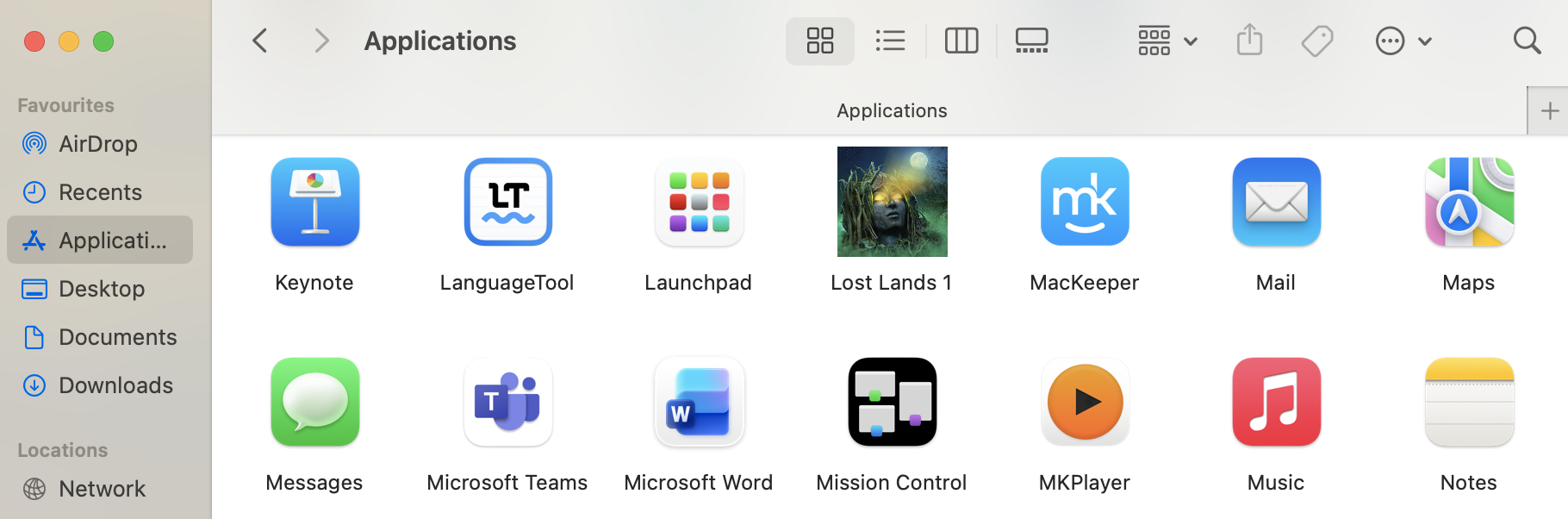
Open the Finder and click on the Applications folder in the sidebar.
Look for any software you don't remember installing or that looks out of place.
Right-click the suspicious app and select Move to Bin.
If prompted, enter your Administrator Password to confirm the deletion.
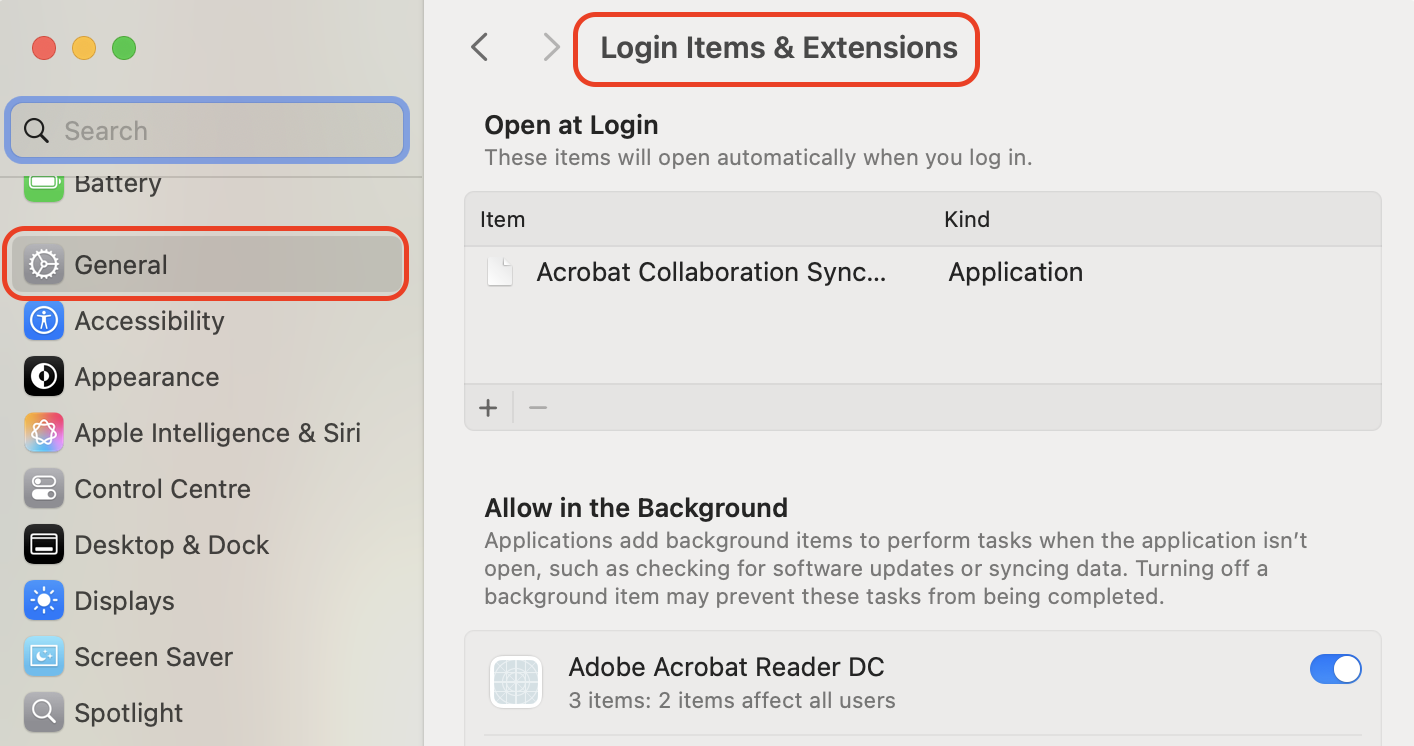
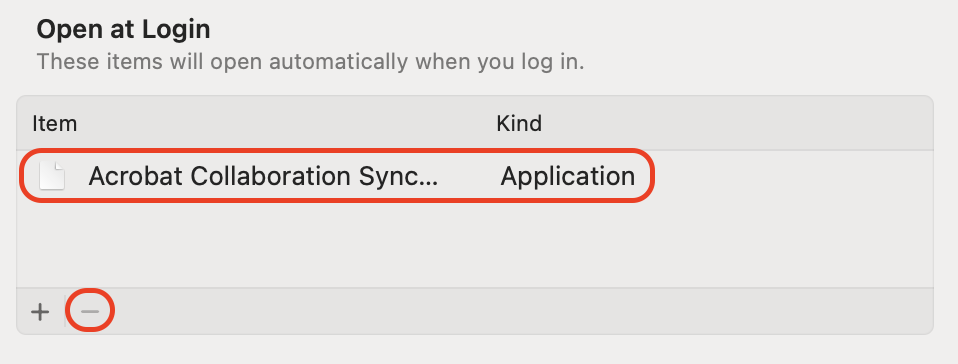
Go to the Apple menu, select System Settings, and navigate to General > Login Items.
Check the list of removed apps and click the Minus (–) button to prevent it from launching at startup.
Empty the Trash to fully remove the files from your drive.
Step 1. From Applications in the Finder, right-click any suspicious app and select Move to BinStep 2. In System Settings, navigate to General > Login ItemsStep 3. Check the list of removed apps and click the Minus (–) button
3. Disable and re-enable Finder extensions
Our team has observed that cloud-syncing tools like OneDrive are notorious for triggering distnoted glitches. This is a vital troubleshooting step when you see running apps on your Mac behaving strangely, even though their status icons appear normal.
To refresh your Finder extensions:
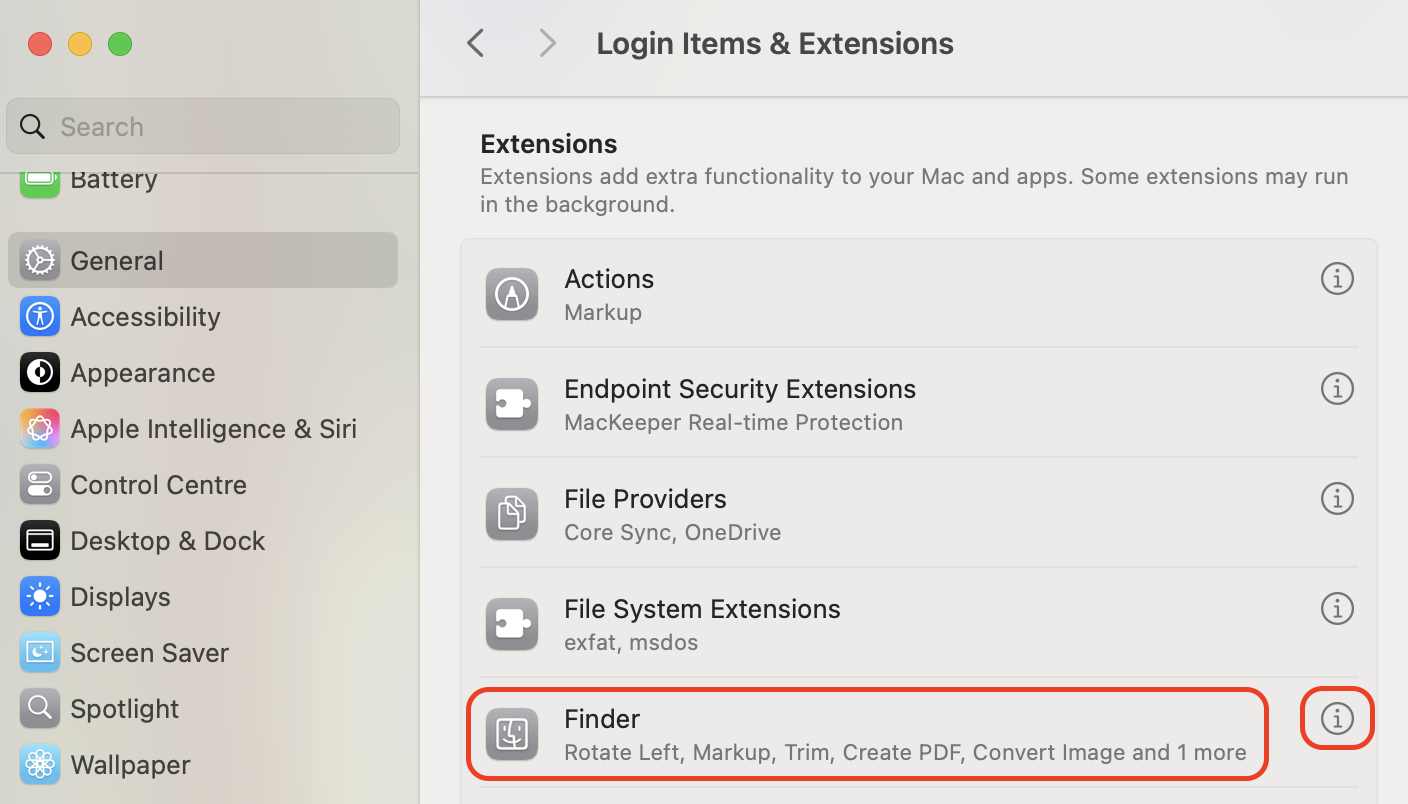
Click the Apple menu in the top left corner and select System Settings.
Scroll down to the Login Items & Extensions section in the sidebar.
Find and select the Extensions menu item.
Locate the Finder entry, then click the Info icon or the entry's text.
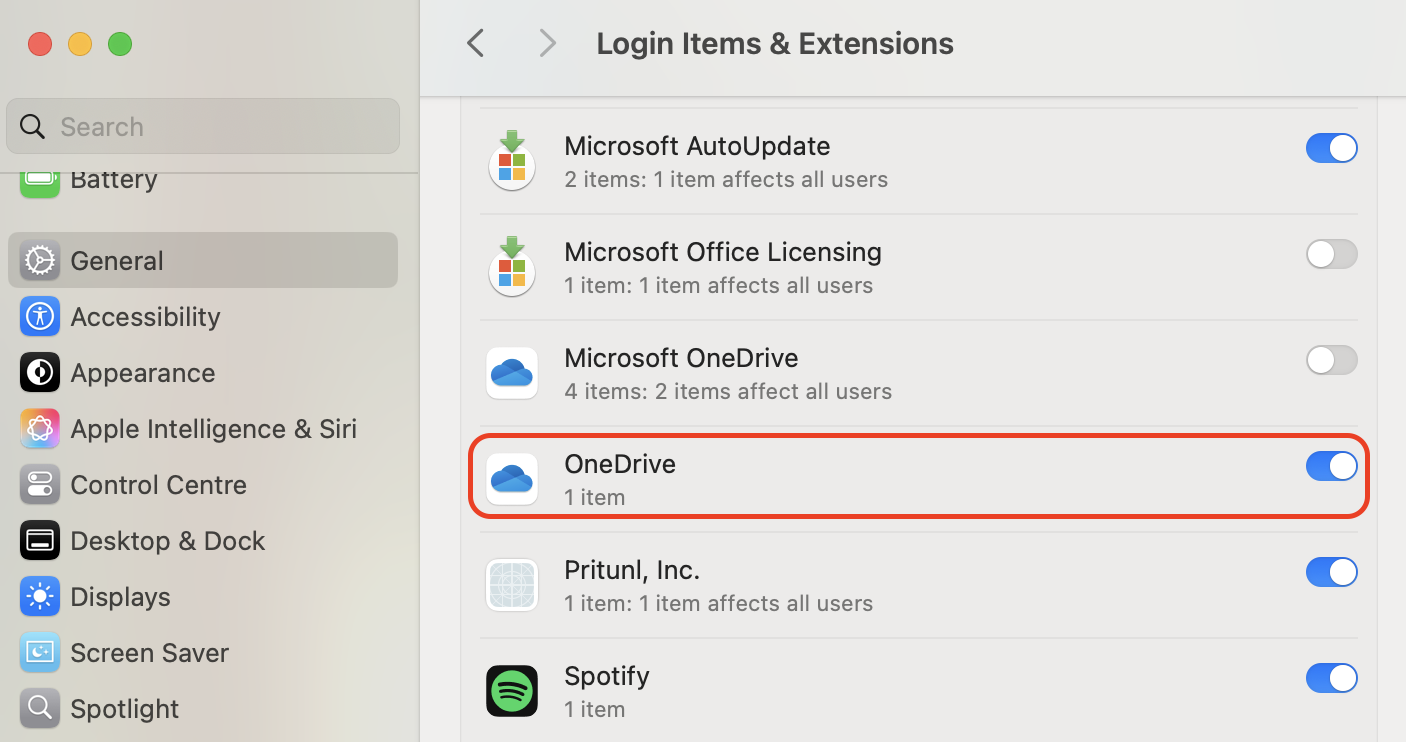
Find the checkbox for OneDrive (or your specific syncing service) and deselect it.
Close the window and wait about 30 seconds for the background service to reset.
Go back to the same menu and select the checkbox to re-enable the integration.
Step 1. From System Settings, type in Login Items & Extensions. There you can locate the Finder entry and click the Info icon or the entry's textStep 2. Find the checkbox for OneDrive (or your specific syncing service) and deselect it
4. Restart your Mac
A full reboot is the most reliable way to terminate "zombie" processes that manual quitting might miss. What makes this method unique is that it flushes the system RAM and resets the inter-process communication layer, where distnoted often gets stuck.
Follow our instructions below to restart your device:
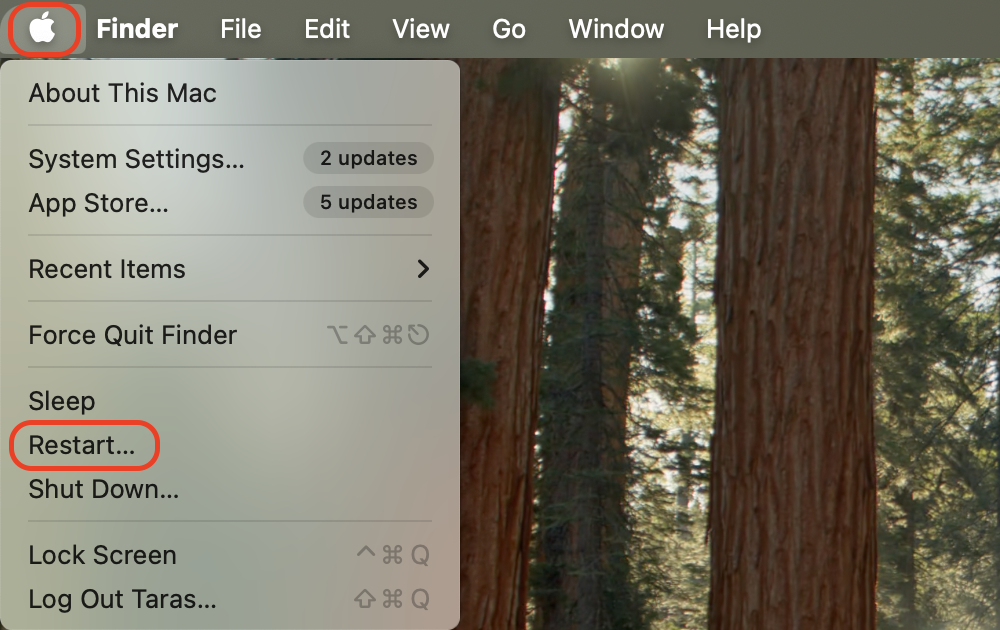
Click the Apple menu icon in the top-left corner of your screen.
Select the Restart... option from the dropdown menu.
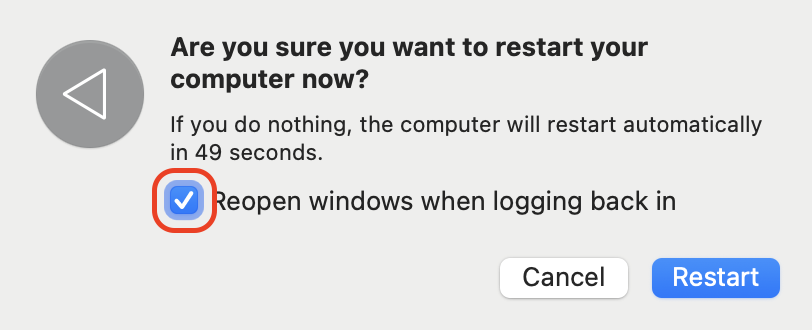
Deselect the Reopen windows when logging back in checkbox to ensure a clean start.
Click the Restart button to confirm the action.
Wait for the Mac to fully shut down, then boot back to the login screen.
Log in to your account and check if the distnoted activity has returned to normal levels.
Step 1. Click the Apple menu icon in the top-left corner of your screen and select Restart...Step 2. Deselect the Reopen windows when logging back in checkbox
5. Scan for malware
Deep-seated infections require professional intervention because standard troubleshooting cannot rectify high resource usage if a hidden threat is intentionally draining your system.
Here’s how to run a security check:
Open the MacKeeper application from your Applications folder.
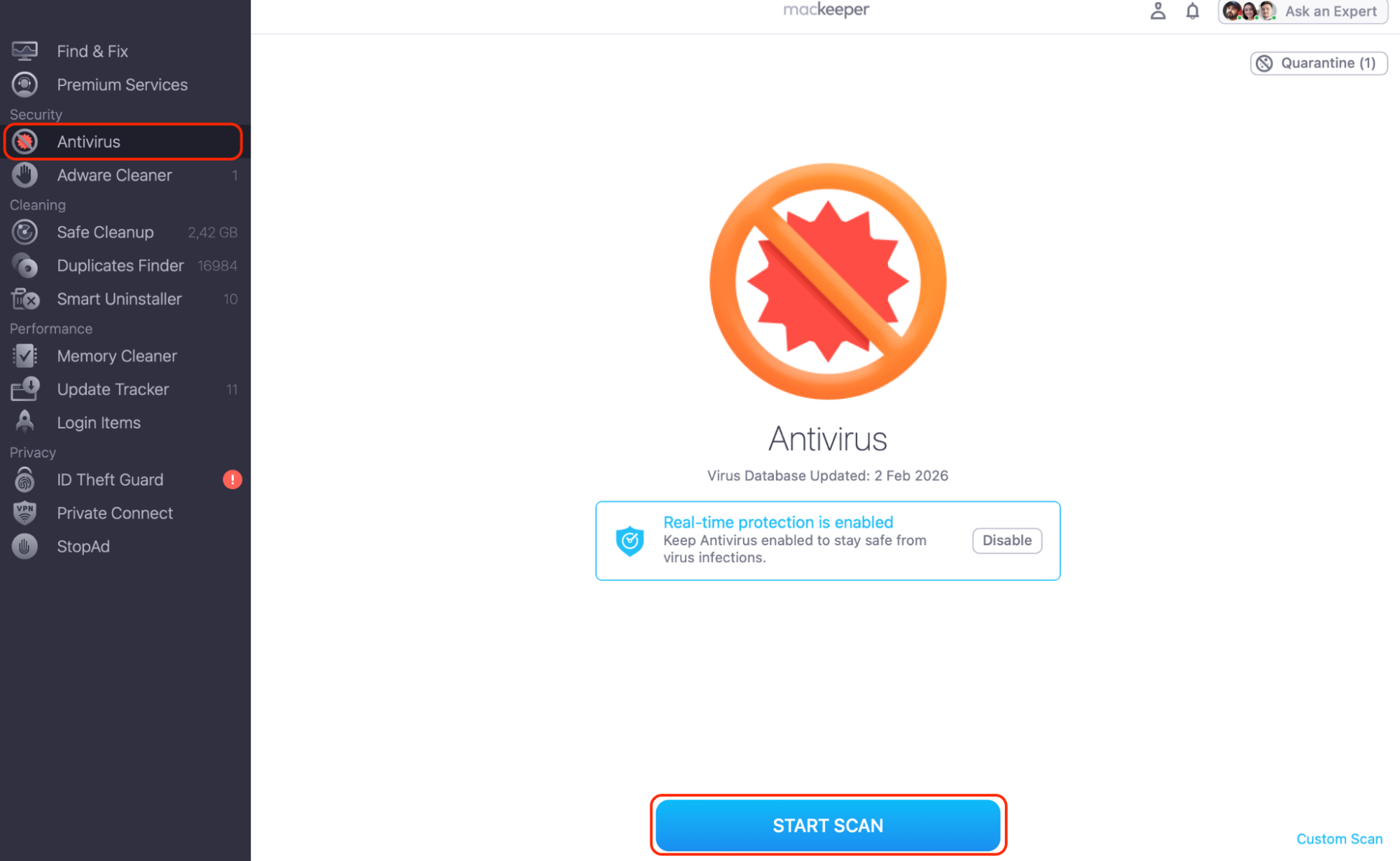
Select the Antivirus tab from the left-hand navigation pane.
Press the Start Scan button to begin searching for viruses, Trojans, and worms.
If any malicious items are detected, click Remove Selected Items.
Step 1. Open the MacKeeper application from your Applications folder and select the Antivirus tabStep 2. Press the Start Scan button
6. Relaunch running apps
Our technical evaluations reveal that specific applications frequently develop internal glitches that overwhelm the distnoted service with a relentless stream of failed notifications.
To properly relaunch your applications:
Identify the apps currently in use and save any unsaved progress.
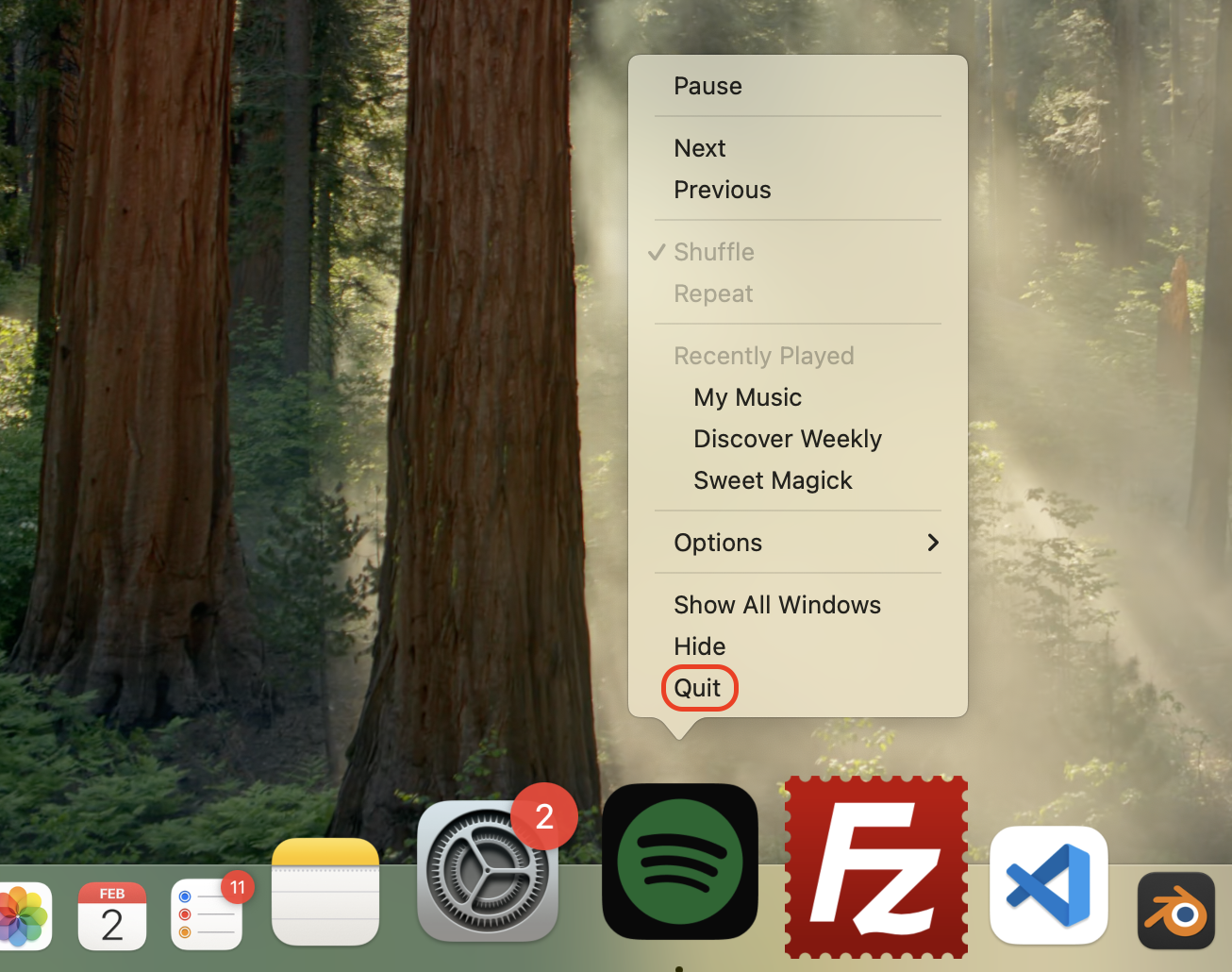
Go to the Dock, right-click an active app icon, and select Quit.
If an app is unresponsive, press Option + Command + Escape to open the Force Quit Applications window.
Select the troublesome app and click the Force Quit button.
Wait a few seconds for all associated background processes to terminate completely.
Open the app again from the Launchpad to see if resource usage stabilizes.
Identify the apps currently in use, go to the Dock, right-click an active app icon, and select Quit
7. Update macOS
According to our internal lab benchmarks, most distnoted malfunctions are actually documented bugs that Apple addresses through subsequent software patches.
Follow these steps to update your system:
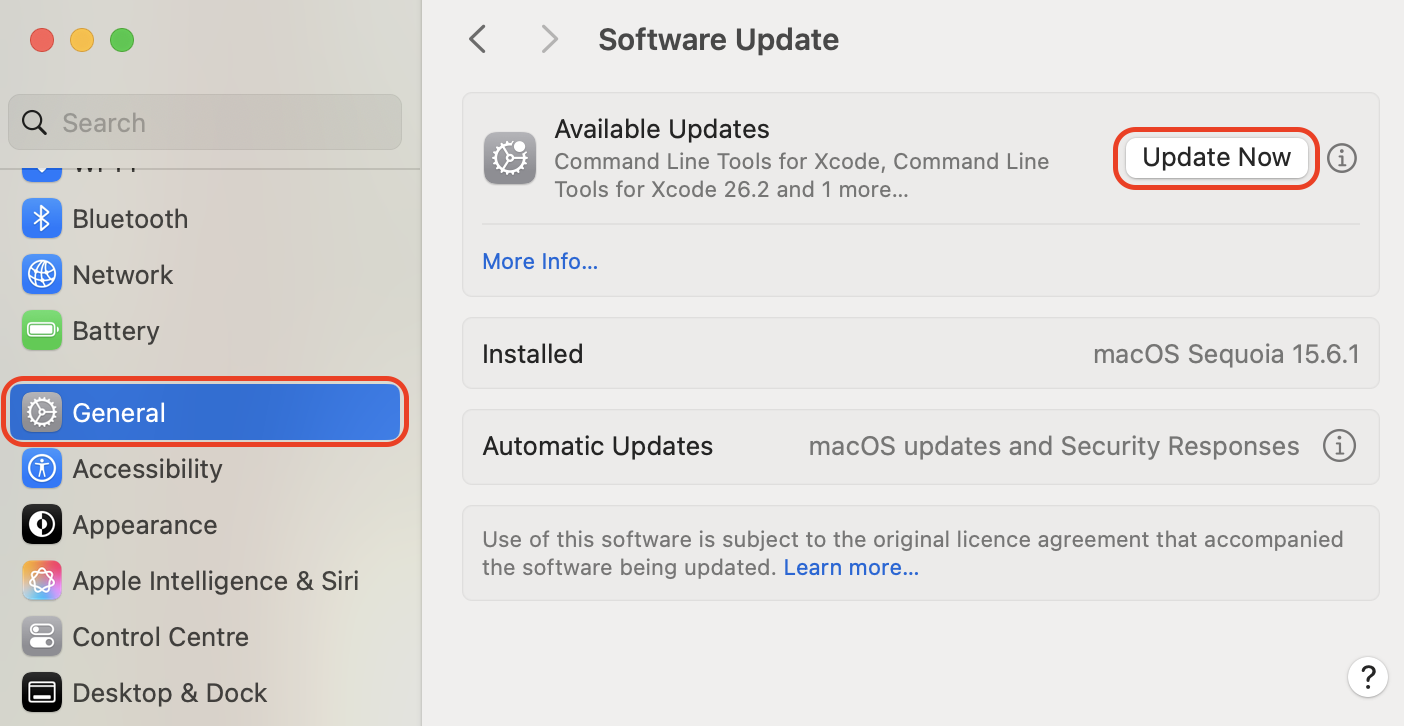
Open the Apple menu and click on System Settings.
Select General in the sidebar and click on Software Update.
Wait for the system to finish checking for available updates.
If an update is available, click the Update Now button.
Keep your device connected to a power source during the entire installation.
Toggle the Automatic Updates switch to On to prevent future resource-heavy bugs.
Go to Software Update from System Settings. Then, click the Update Now button if the update is available
Conclusion
Encountering a runaway distnoted process can be a frustrating hurdle to your productivity. Reclaiming your system speed is usually a matter of terminating the glitchy daemon, refreshing your cloud extensions, or ensuring your software is fully up to date. By following our manual troubleshooting steps, you can effectively silence loud fans and eliminate the lag caused by background communication loops.
MacKeeper is an Apple-notarized utility that helps you maintain peak performance without technical stress, especially when you employ the Memory Cleaner feature. Since it’s optimized for macOS, you can rely on this tool to keep your background processes running exactly as intended.
We respect your privacy and
use cookies
for the best site experience.
Privacy Preferences Center
We use cookies along with other tools to give you the best possible experience while using the
MacKeeper website. Cookies are small text files that help the website load faster. The cookies we
use don’t contain any type of personal data meaning they never store information such as your
location, email address, or IP address.
Help us improve how you interact with our website by accepting the use of cookies. You can change
your privacy settings whenever you like.
Manage consent
All cookies
These cookies are strictly necessary for enabling basic website functionality (including page
navigation, form submission, language detection, post commenting), downloading and purchasing
software. The website might malfunction without these cookies.