Are you confused about what to choose—ExFAT or MS-DOS FAT—for the external drive? Selecting the right file system helps you avoid file size limitations and compatibility issues. Before copying your files, use MacKeeper’s Duplicates Finder to identify and remove unnecessary duplicates on your Mac and free up storage space. Oganize your data for a fast and more efficient transfer!
When formatting a USB flash drive or external drive on your Mac, it’s important to understand the difference between exFAT and MS-DOS FAT. These are file systems that determine how files are organized and stored on devices, such as a USB flash drive, external hard drive, or SD card.
ExFAT (Extended File Allocation Table) was developed by Microsoft to handle files larger than 4 GB, so it’s suitable for high-resolution videos, extensive photo collections, backups, and other large files. Another advantage of ExFAT is that it’s fully supported by both macOS and Windows without requiring additional software. As a result, it’s an excellent option if you often move files between two operating systems. However, if you’re wondering how to transfer data from Mac to Mac, ExFAT is also a good solution, as it allows you to move any files, no matter how large they are.
MS-DOS FAT (Microsoft Disk Operating System with the File Allocation Table) is an older file system that can be read by smart TVs, gaming consoles, printers, and old computers. However, it has one major drawback, as it can’t store files larger than 4 GB. Because of the size restrictions, MS-DOS FAT isn’t the best choice for modern storage devices or for transferring large files.
A note from our experts:
Before choosing ExFAT or MS-DOS FAT to transfer files to external drives, it’s a good idea to organize your data and clean up your Mac. Over time, your Mac can accumulate duplicate photos, videos, downloads, and documents. Copying these duplicates to USB drives only wastes valuable storage space and makes it harder to find the file you actually need.
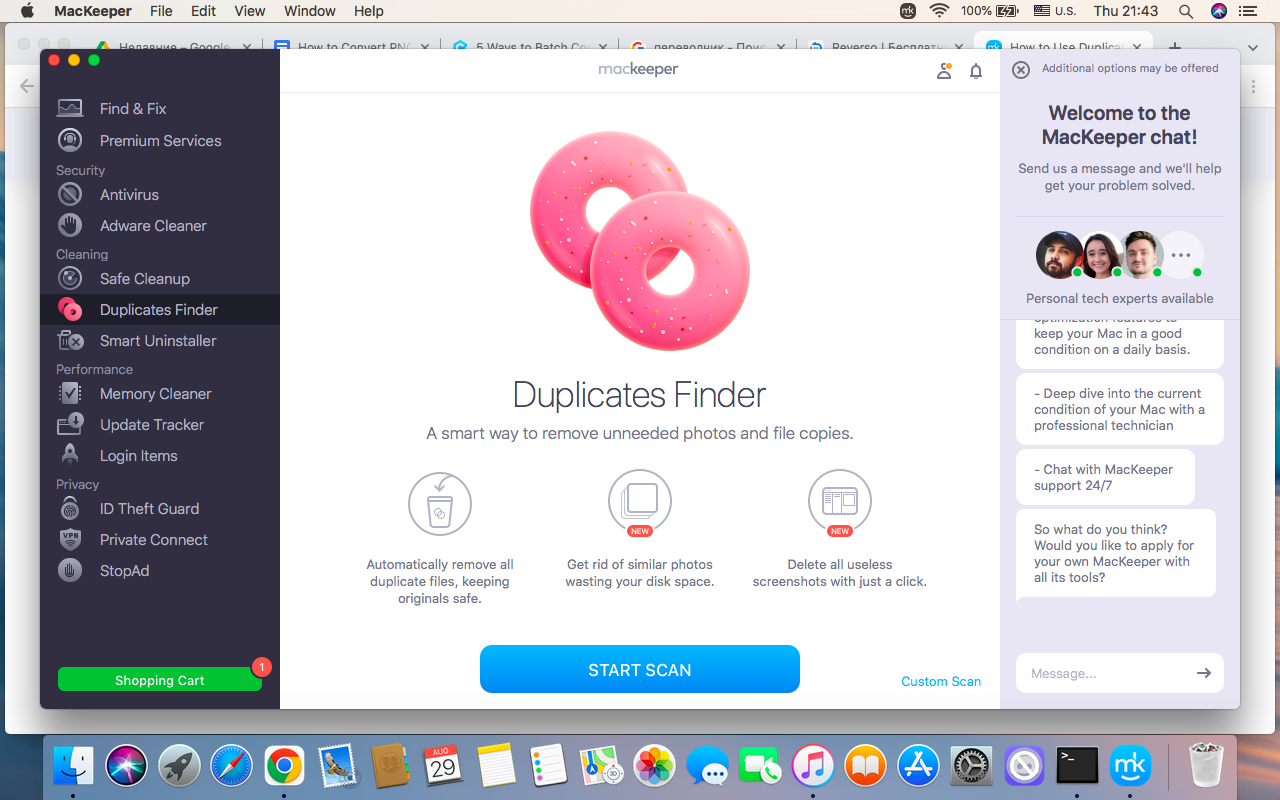
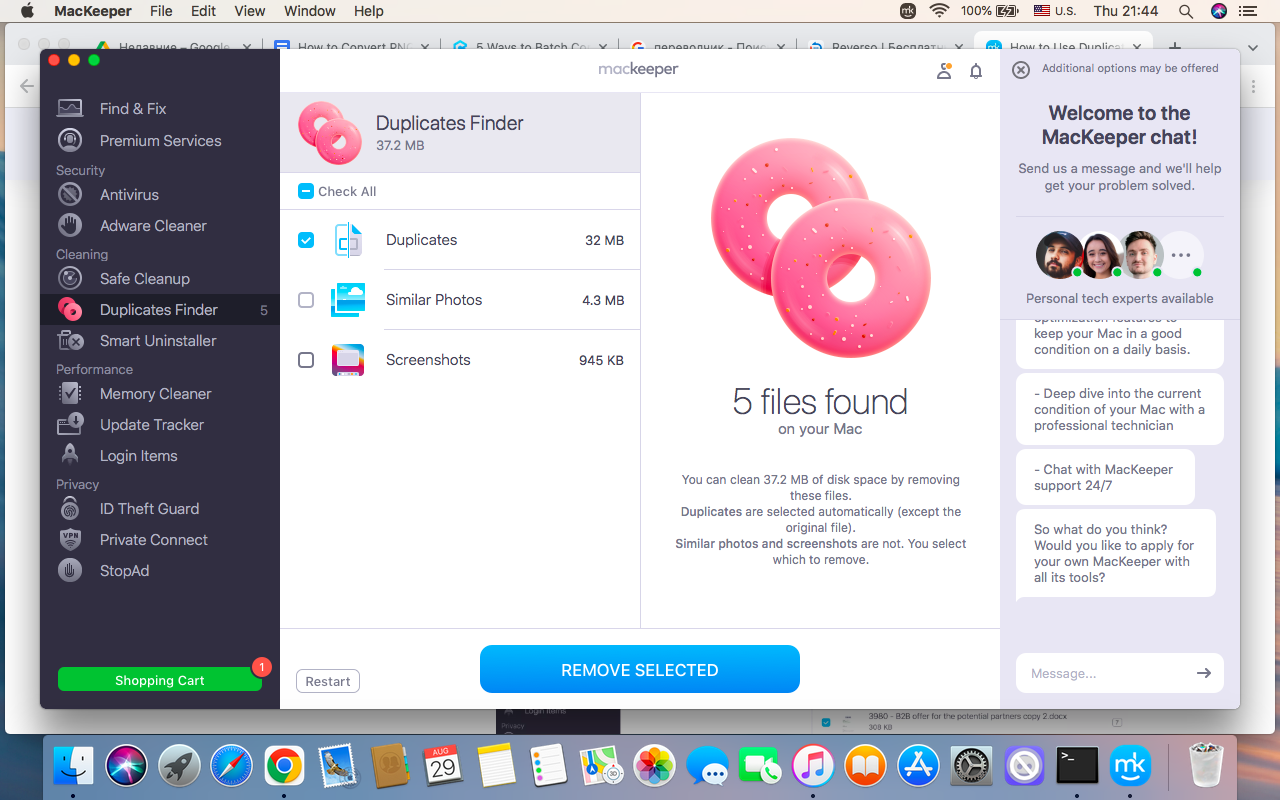
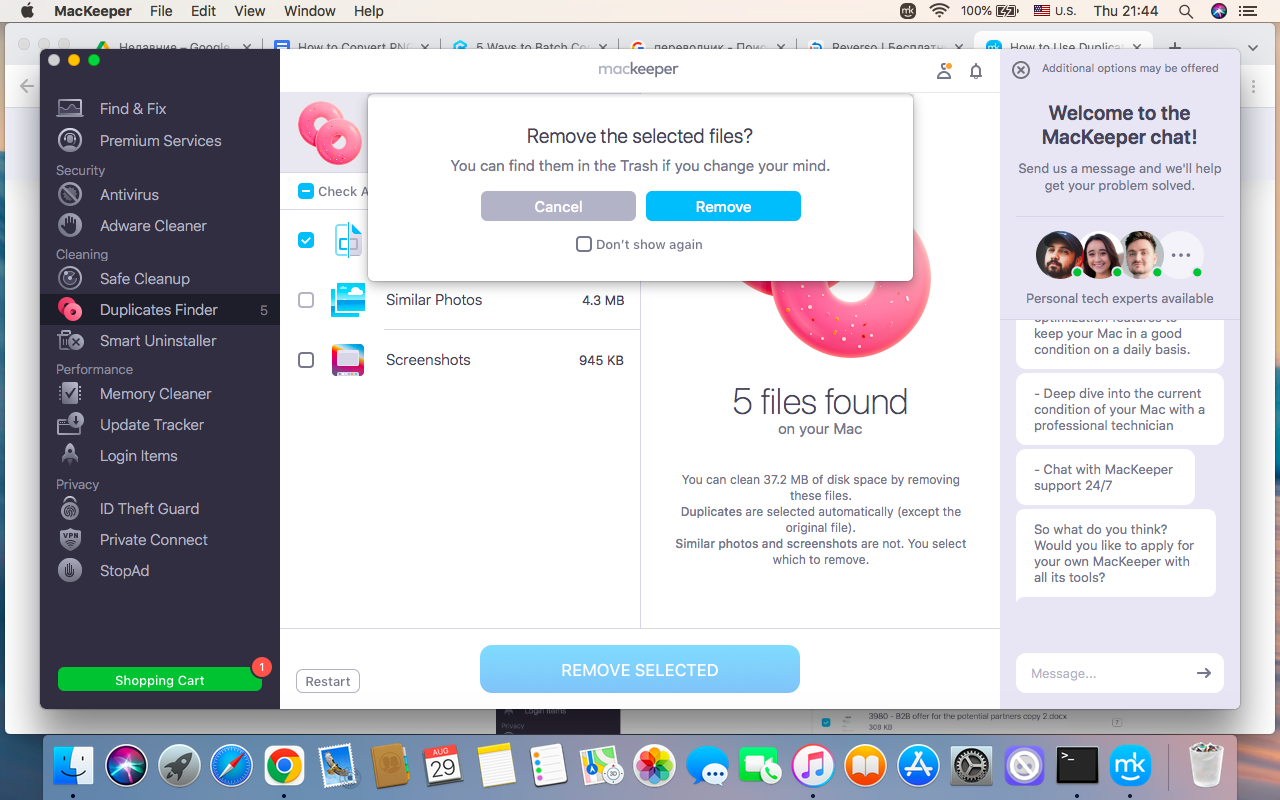
MacKeeper’s Duplicates Finder is an excellent solution. It quickly scans your Mac, identifies duplicates, and safely removes unnecessary copies, leaving you with a clean and well-organized file library before the transfer.
Follow these steps to remove duplicates from your Mac with MacKeeper’s Duplicates Finder:
Although ExFAT and MS-DOS FAT are both file systems that work with macOS and Windows, they have several differences. Here’s a comparison of their key features:
Characteristics
ExFAT
MS-DOS FAT
File size limit
Supports files larger than 4 GB
Supports files up to 4 GB
Best for
Videos, photos, backups, large documents
Photos, documents, and other small files
Compatibility
Modern versions of macOS and Windows
Older versions of macOS and Windows, and outdated devices
If you’re trying to discover how to move files on Mac, ExFAT seems to be a better choice at first sight. That’s because ExFAT supports files larger than 4 GB, making it easy to transfer videos, backups, and other large files between Macs and Windows.
However, MS-DOS FAT is also useful for some purposes. It’s a perfect option when you connect your USB drive to older devices, such as smart TVs, printers, and game consoles.
When to use ExFAT and when MS-DOS FAT?
When deciding ExFAT vs MS-DOS FAT, think about how you’ll use your portable drive. Your choice depends on the type of files you store and the device you’ll connect the drive to.
Choose ExFAT if you need to store large files or transfer data between macOS and Windows. It’s especially useful for video editing, backing up data from your Mac, or storing large photo collections. If you see the error message can’t be copied because it’s too large for the volume’s format on Mac, it means your drive is using MS-DOS FAT because the file exceeds the 4 GB limit. Formatting the drive as ExFAT removes this limitation.
Choose MS-DOS FAT if you don’t plan to store large files and if your external drive will be used with older devices. While MS-DOS FAT isn’t suitable for large videos or backups, it’s a practical choice for sharing pictures, documents, or other small files across older hardware.
Conclusion
Before choosing between ExFAT and MS-DOS FAT, you have to decide how you’re going to use your storage device. If you frequently share large files or switch between macOS and Windows, ExFAT is a better choice for you. It supports files larger than 4 GB and works between both operating systems. If you need compatibility with older devices and only work with files smaller than 4 GB, MS-DOS FAT can help to fulfill your task.
Before transferring your data to external drives, don’t forget to organize your files. MacKeeper’s Duplicates Finder quickly finds and removes unnecessary duplicates that may be occupying a significant amount of storage space. By cleaning up and organizing your files first, you can ensure a faster and more efficient file transfer.
We respect your privacy and
use cookies
for the best site experience.
Privacy Preferences Center
We use cookies along with other tools to give you the best possible experience while using the
MacKeeper website. Cookies are small text files that help the website load faster. The cookies we
use don’t contain any type of personal data meaning they never store information such as your
location, email address, or IP address.
Help us improve how you interact with our website by accepting the use of cookies. You can change
your privacy settings whenever you like.
Manage consent
All cookies
These cookies are strictly necessary for enabling basic website functionality (including page
navigation, form submission, language detection, post commenting), downloading and purchasing
software. The website might malfunction without these cookies.