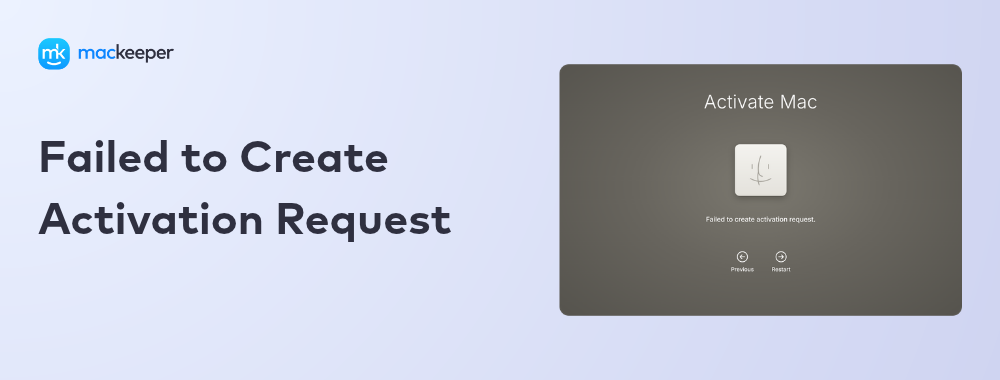
Stuck at the setup screen because your Mac says failed to create activation request? It’s frustrating, but it’s fixable. MacKeeper’s Premium Services connect you with real experts who guide you through tricky Mac moments like this one, step by step. Let’s walk through what’s happening and how to get moving again.
Why does your Mac say ‘failed to create activation request’?
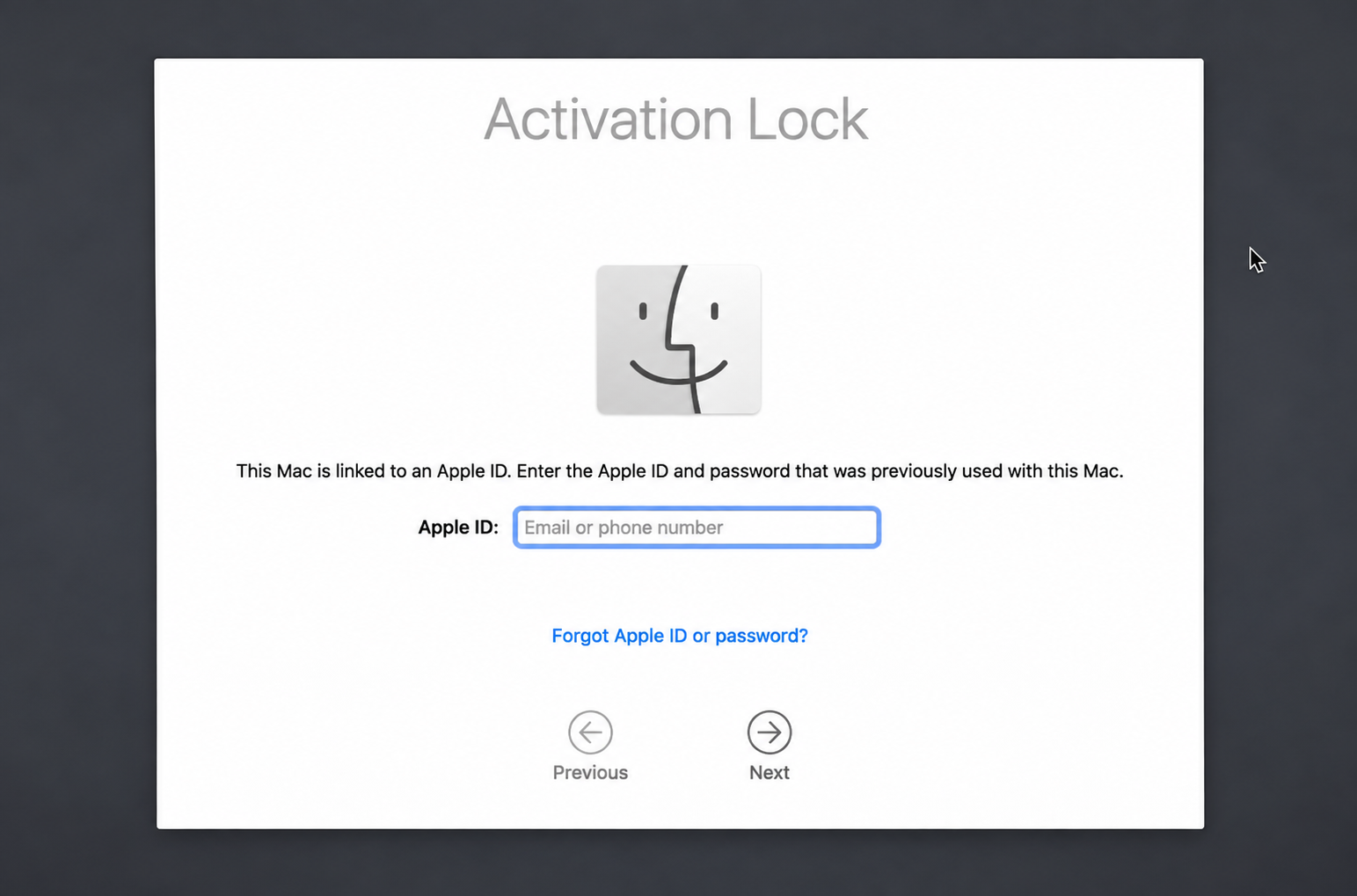
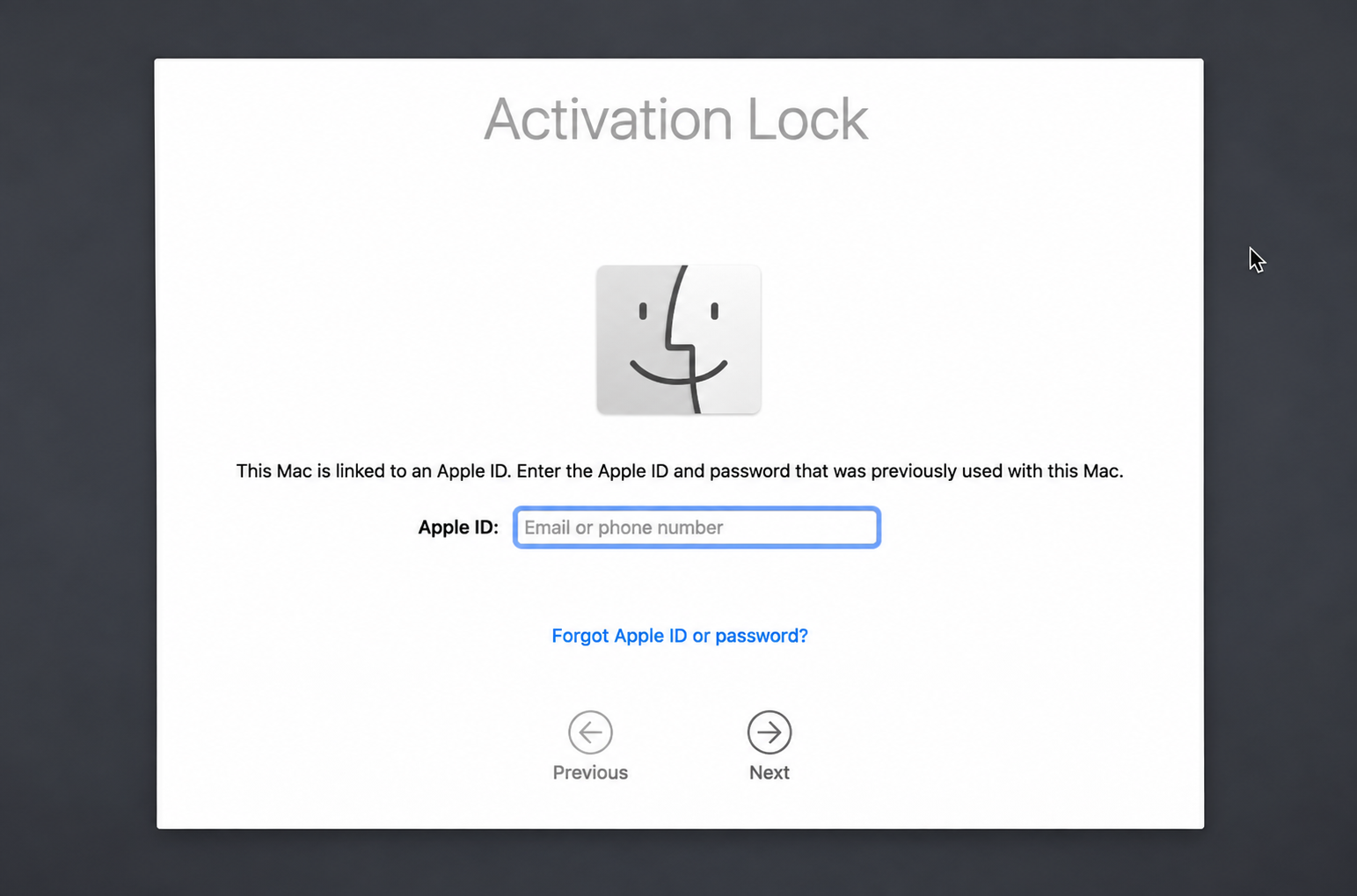
During startup or recovery, your Mac quietly checks in with Apple’s activation servers to confirm it’s yours and unlock it for use. When that check-in can’t complete, macOS displays the "Failed to create activation request" message and pauses at the lock or setup screen. Think of it as a quick handshake between your Mac and Apple’s Activation Lock system, which is tied to your iCloud account. It happens on any Mac—a MacBook, an iMac, or an older Macintosh—and it usually points to one of three causes, such as:
Network barriers. Flaky Wi-Fi, hotel captive portals, and corporate firewall restrictions can stop your Mac from reaching Apple.
Apple ID conflicts. Wrong credentials or erasing a Mac without first turning off Find My can leave the activation lock in the way.
Recovery bugs. A clock desync after a dead battery, a failed password reset, or damaged firmware can interrupt the process.
A note from our experts:
After we’ve explained why your Mac failed to create an activation request, we’re also glad to present you with the solution. Just imagine you can quickly resolve it without trying a million online solutions. Instead, speak to our tech specialists, and they’ll provide you with the relevant troubleshooting method.
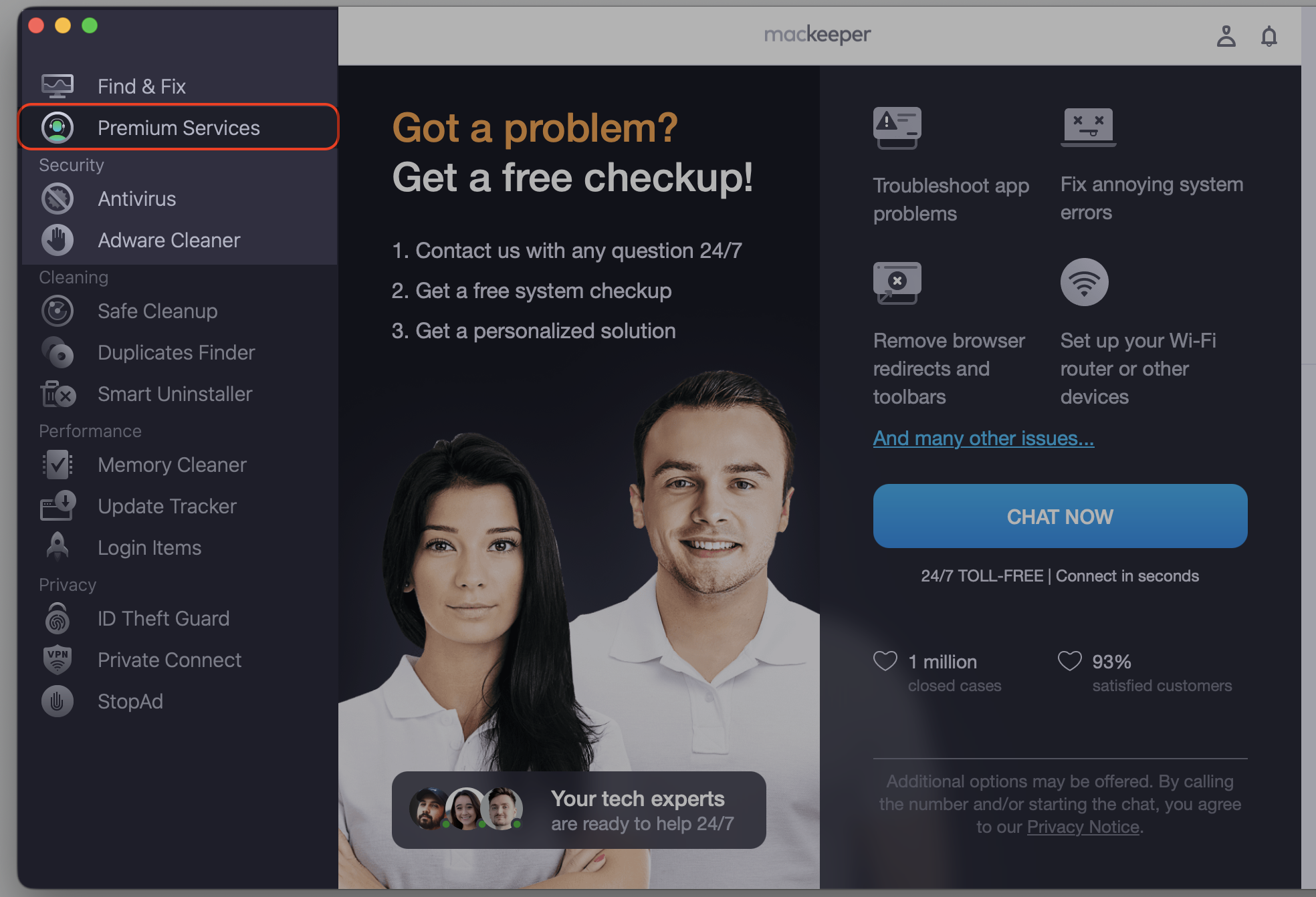
To contact MacKeeper tech support, do the following:
Follow the instructions to solve your Mac-related problem.
Step 1. Go to MacKeeper and choose Premium Services Step 2. Click Chat NowStep 3. Type in your message to explain the problem
How to fix ‘failed to create activation request’ on Mac?
Good news—you can work through most of this yourself. If you’ve typed activate Mac failed to create activation request into a search bar, the methods below are the ones that tend to help. We’ve ordered them from the quickest network checks to deeper system recovery, so try them in sequence. Read our seven methods below before you book a repair.
1. Stable internet connection and network switching
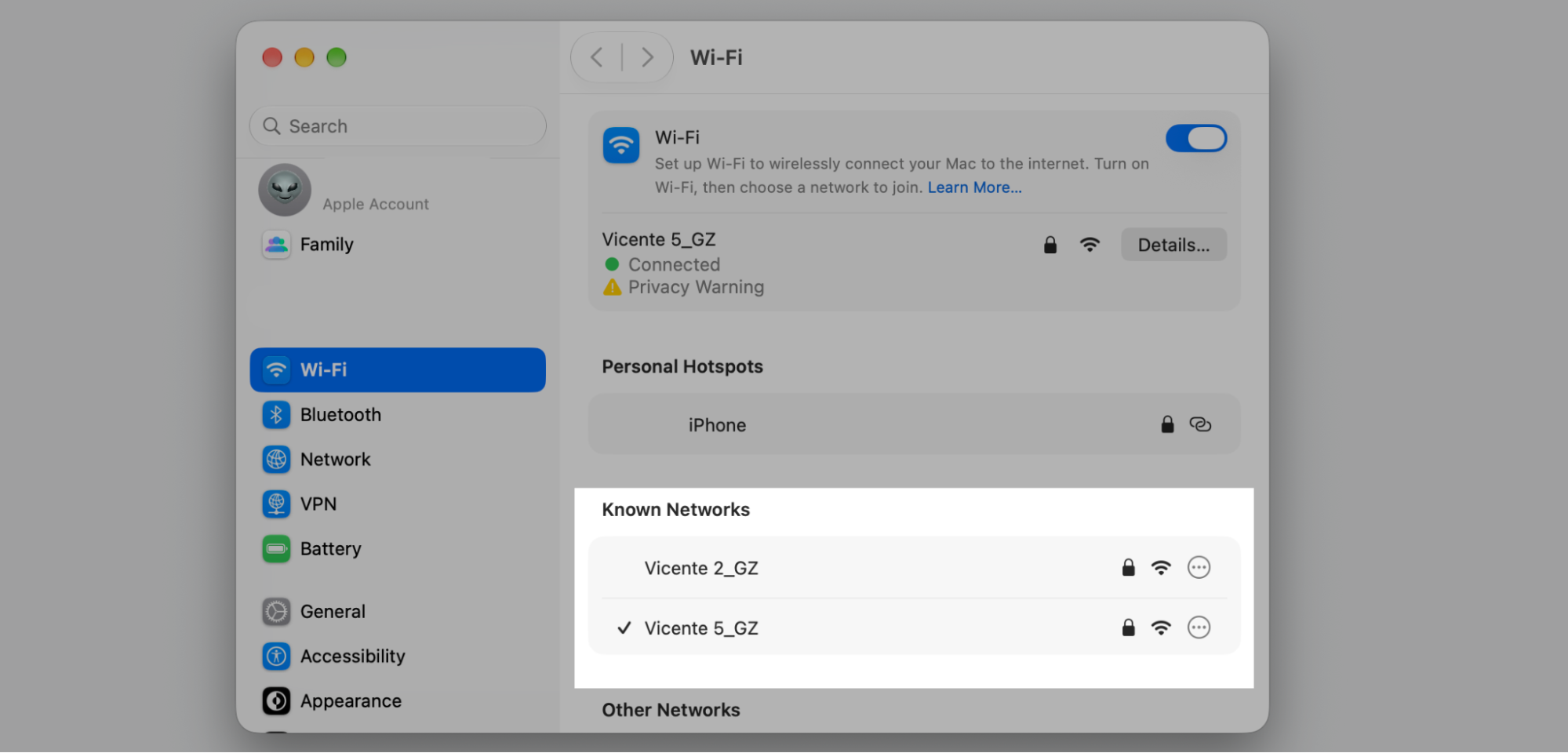
A shaky connection is the most common culprit, so let’s rule it out first. Switching networks sidesteps the captive portals and firewalls that quietly block Apple’s servers.
Here’s how to test a cleaner connection:
Restart your router, or move closer to it, to rule out a weak signal.
Switch to a different Wi-Fi network if one’s available.
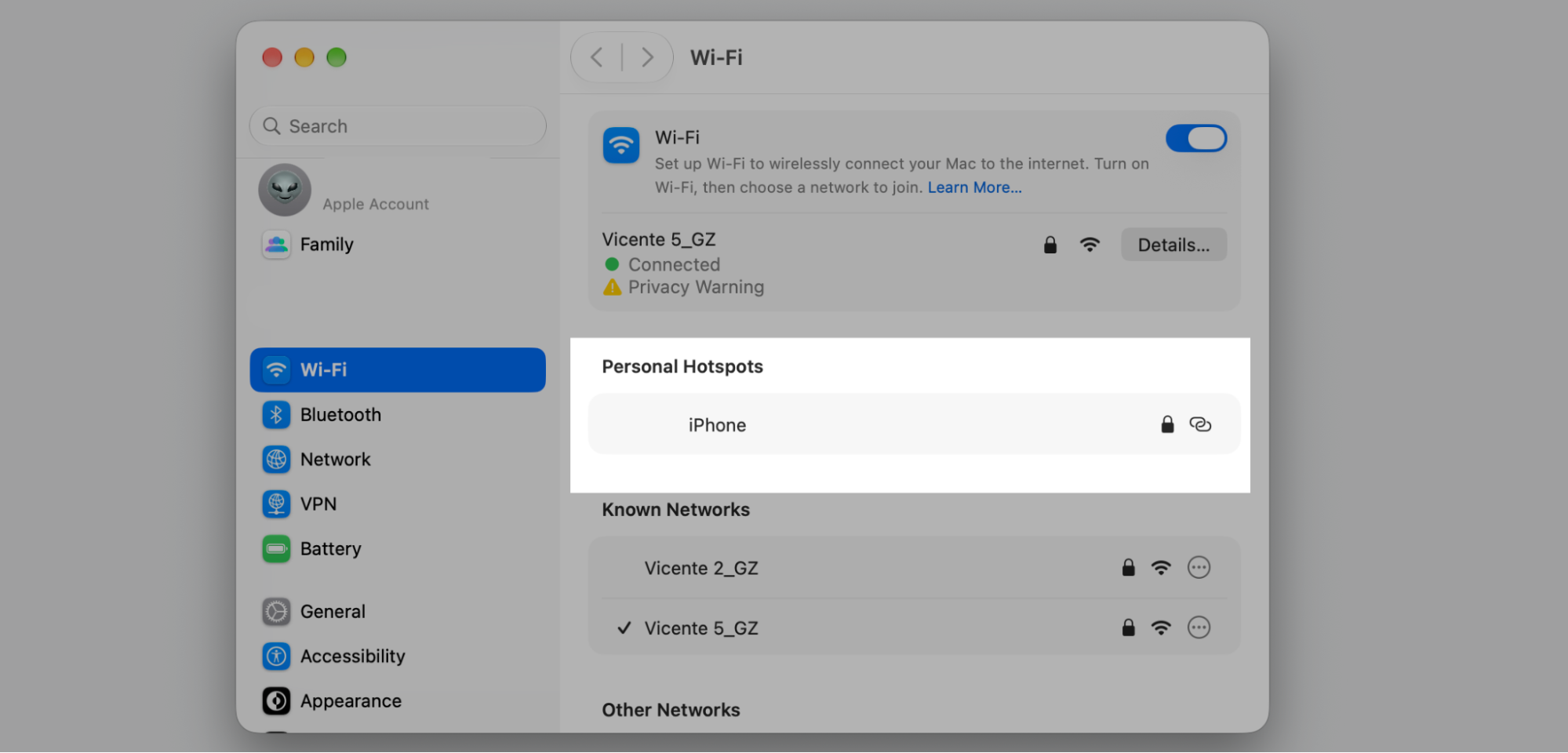
Turn on your phone’s Personal Hotspot and connect your Mac to it.
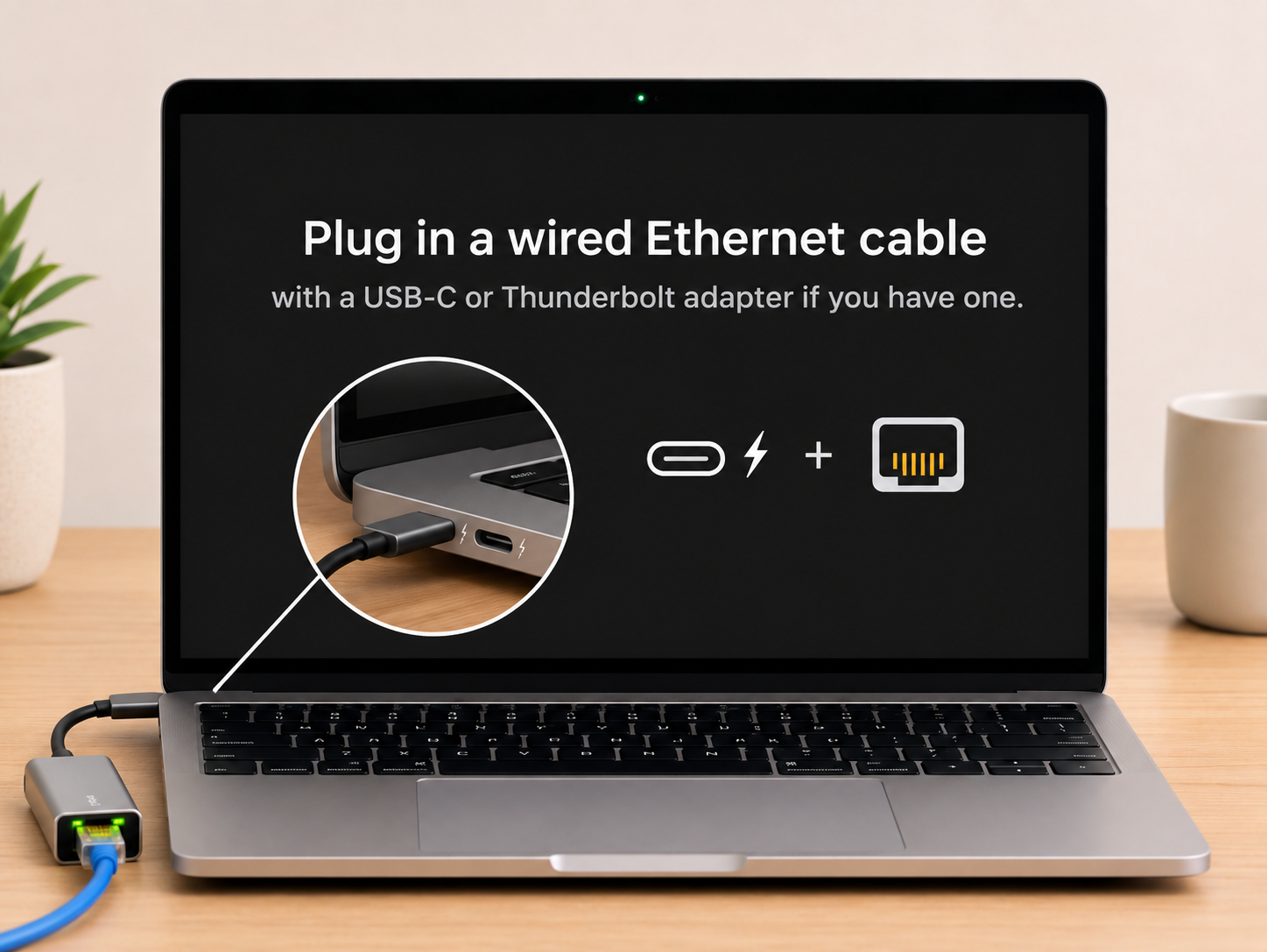
Plug in a wired Ethernet cable with a USB-C or Thunderbolt adapter if you have one.
Retry the activation once you’re on the new connection.
Step 1. Try connecting to a different Wi-Fi network, preferably a 5 GHz networkStep 2. Try connecting your Mac to a Personal Hotspot from your iPhoneStep 3. Connect an Ethernet cable to your Mac using a USB-C or Thunderbolt adapter
2. Apple ID verification and credential reset
If the network’s fine, the holdup may be your login. Let’s confirm your details on another Apple device to rule out a simple typo, and if two-factor codes are the sticking point, you can get Apple ID verification code without phone and still sign in.
Follow these steps to double-check your account:
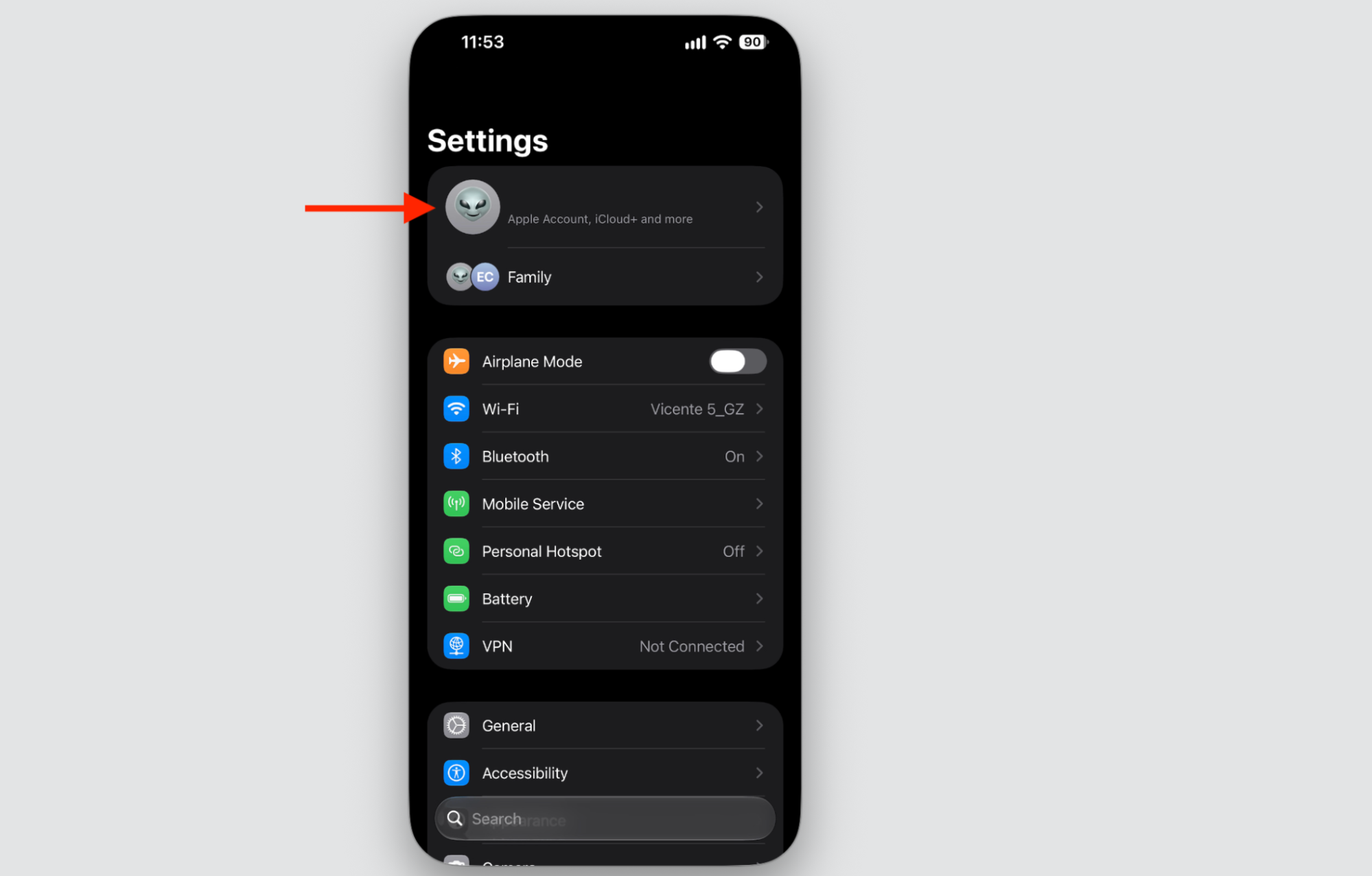
Open Settings on another Apple device and confirm you’re signed in with the correct Apple ID.
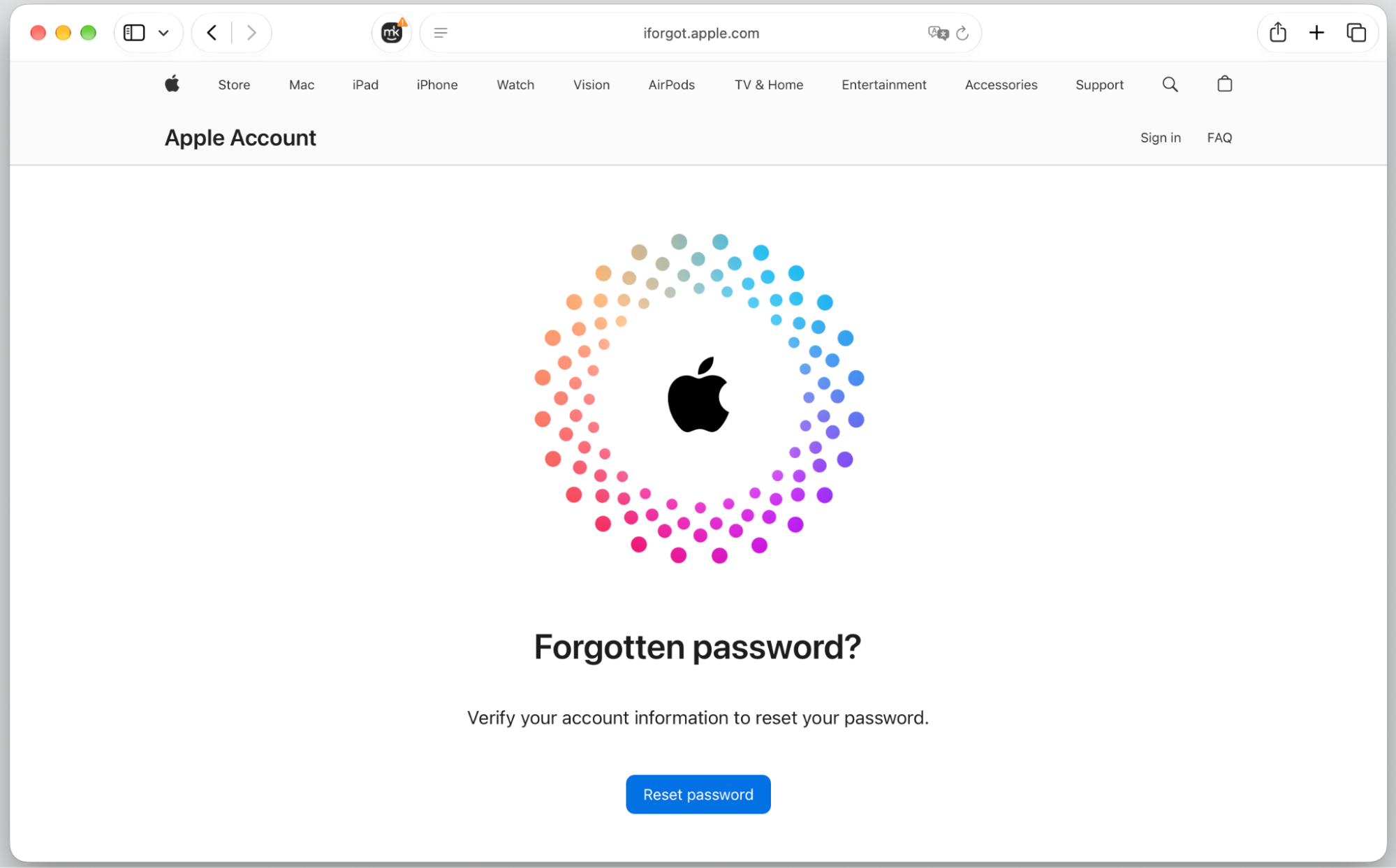
Visit iforgot.apple.com from any browser and reset your password if you’re unsure of it.
Enter your updated details on the Mac’s lock screen.
Retry the activation.
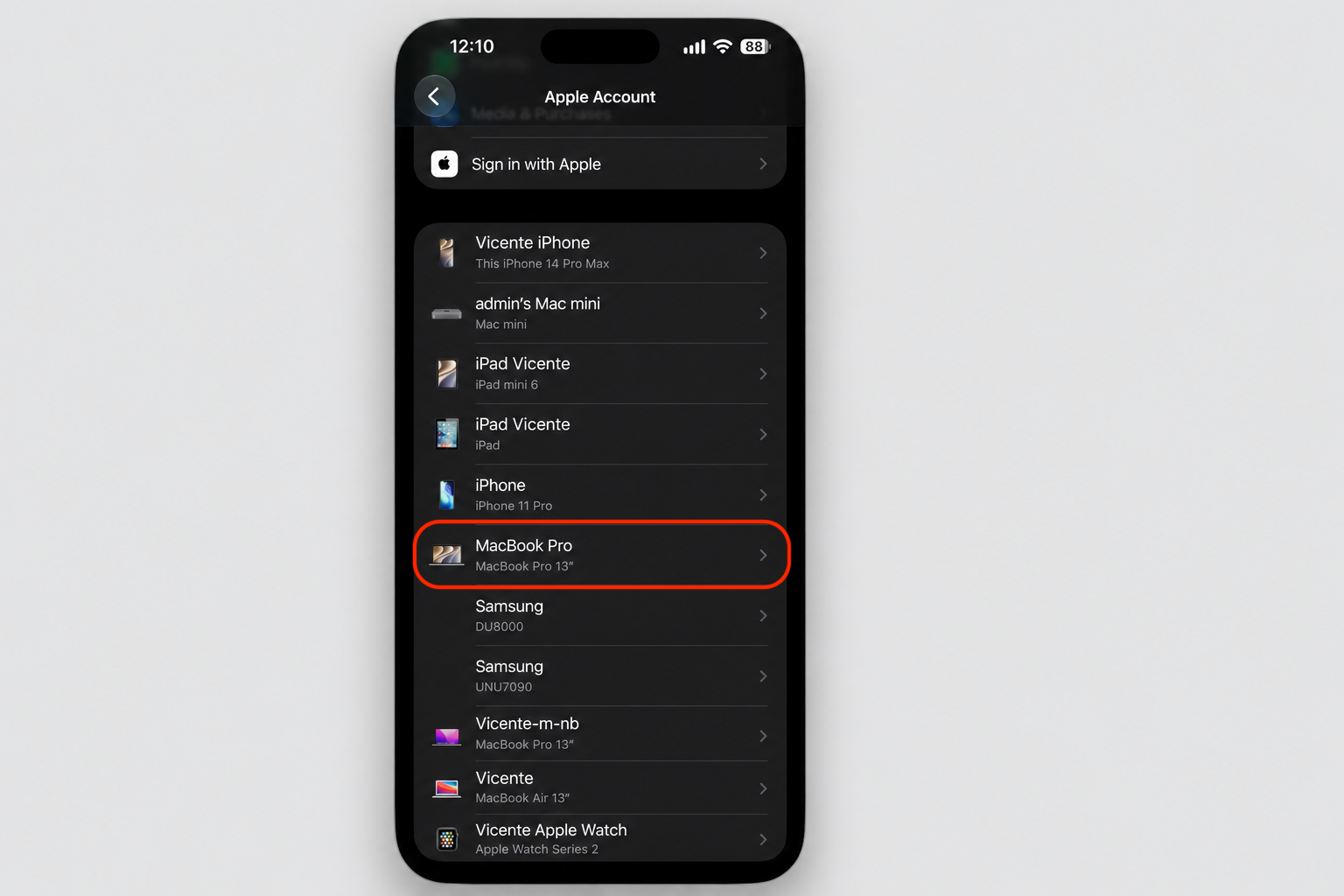
Step 1. Select your Apple Account from another deviceStep 2. Check if your device appears in the list of devices linked to the same Apple AccountStep 3. If you're unsure of your Apple Account password, you can reset it at iforgot.apple.comStep 4. Retry the activation
3. Remote device removal via iCloud Find My
When a locked Mac is still tied to your account, removing it remotely clears the block. We can do this on any spare phone or laptop, as long as you know the Apple ID password associated with the Mac.
Try this from a second device:
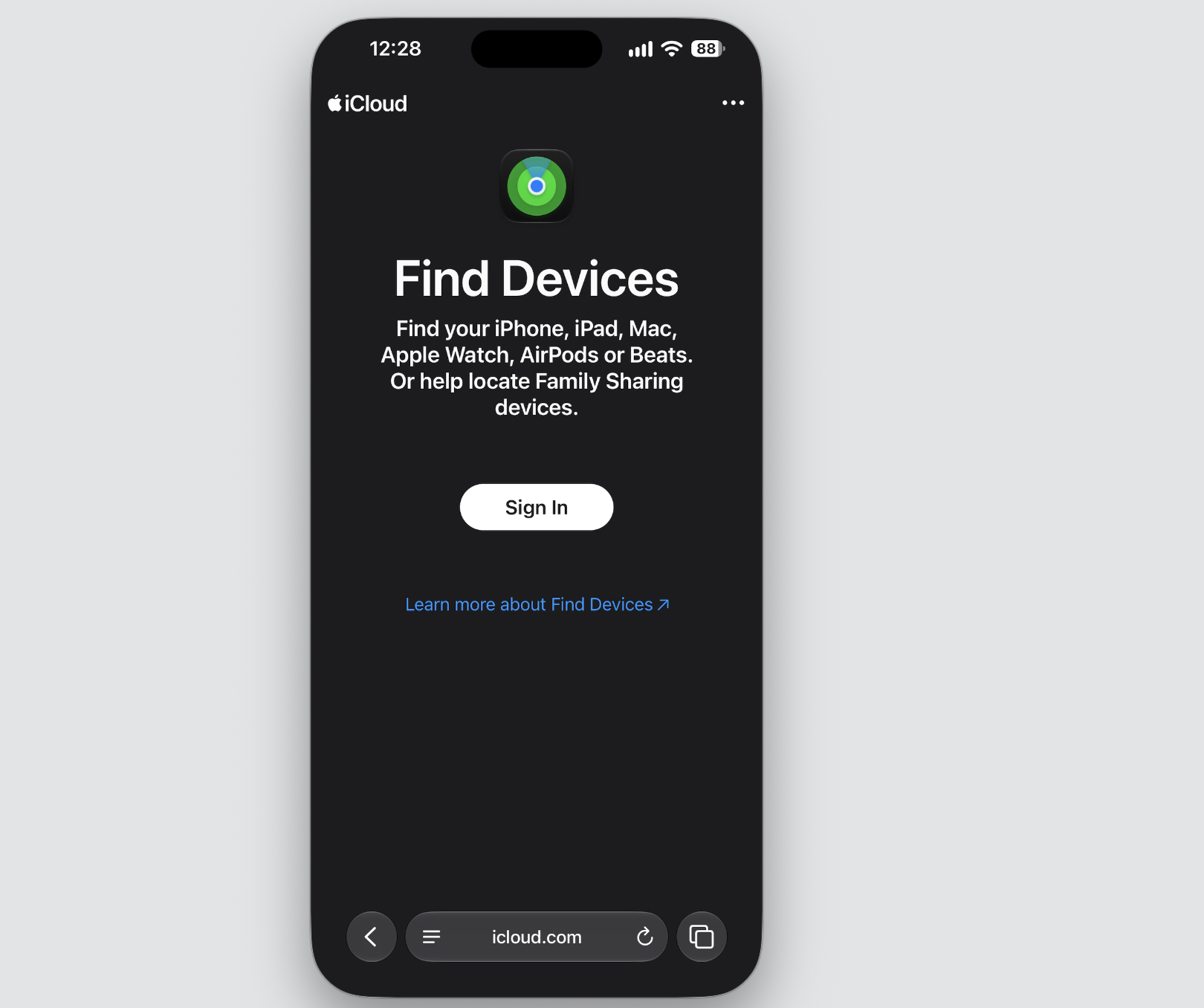
On another phone or laptop, open icloud.com/find and sign in with your Apple ID.
All Devices — select it at the top of the map.
Choose the locked Mac from the list.
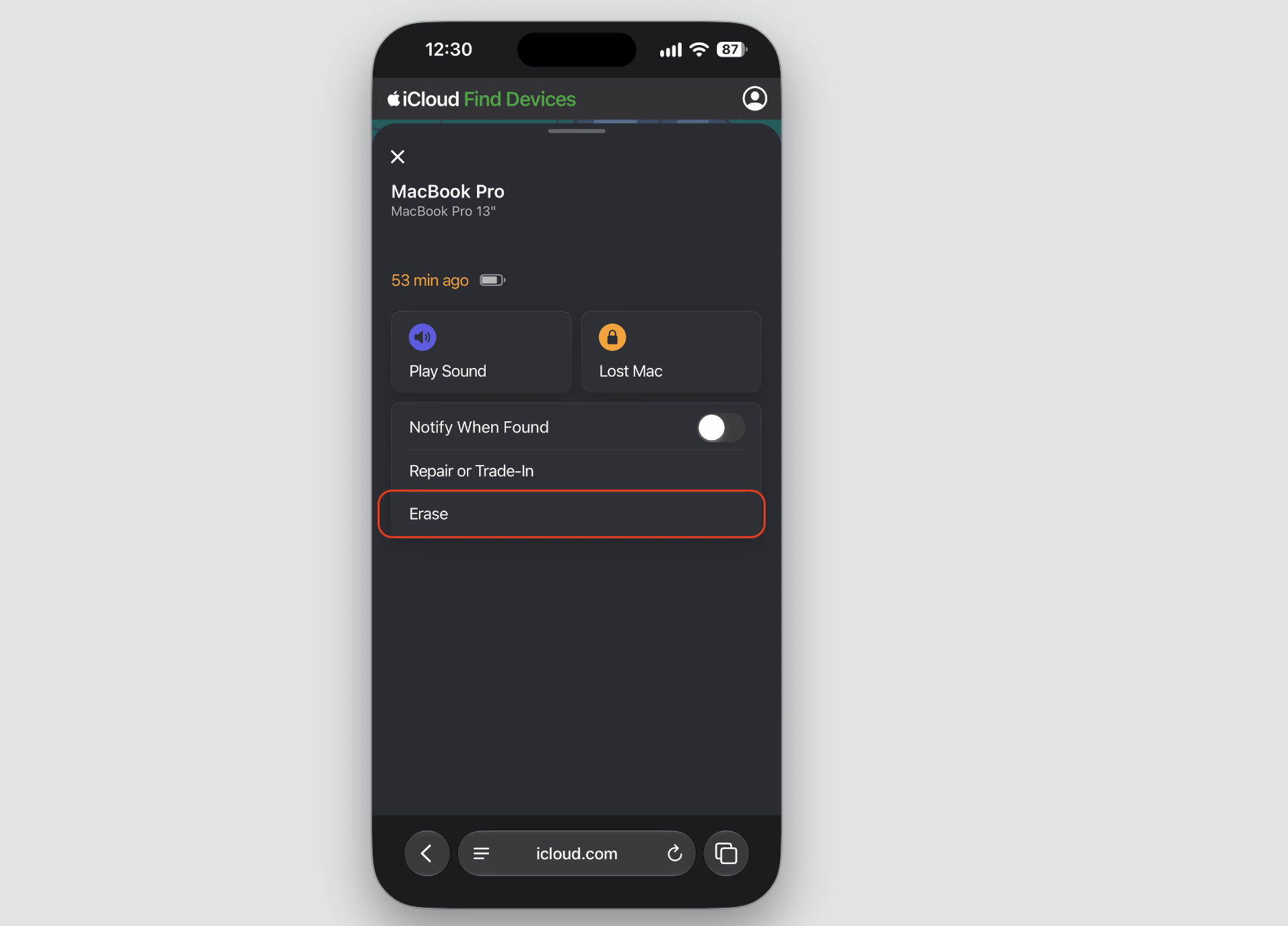
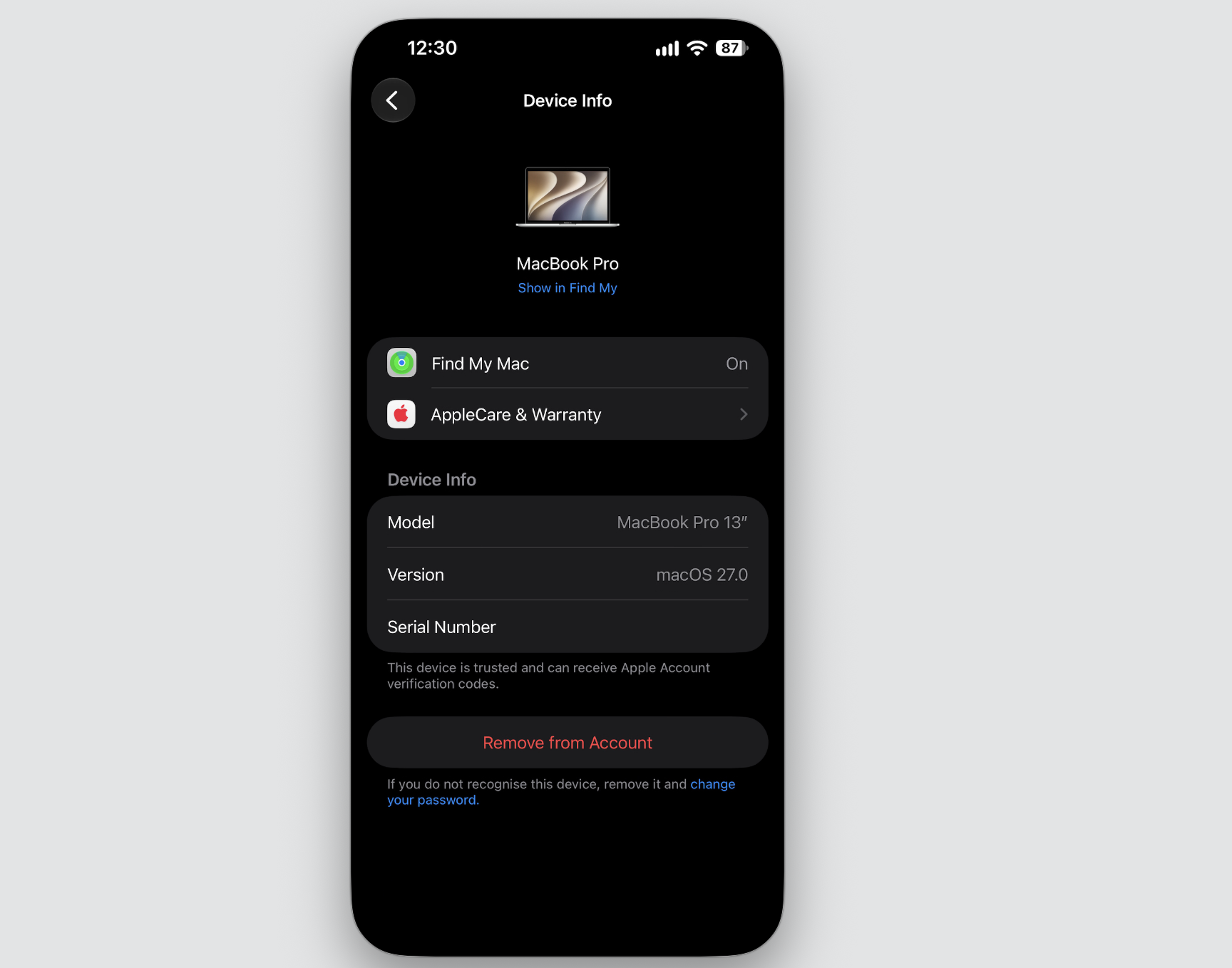
Select Erase This Device, then Remove from Account—this will deactivate the activation lock.
Restart the Mac and try activating again.
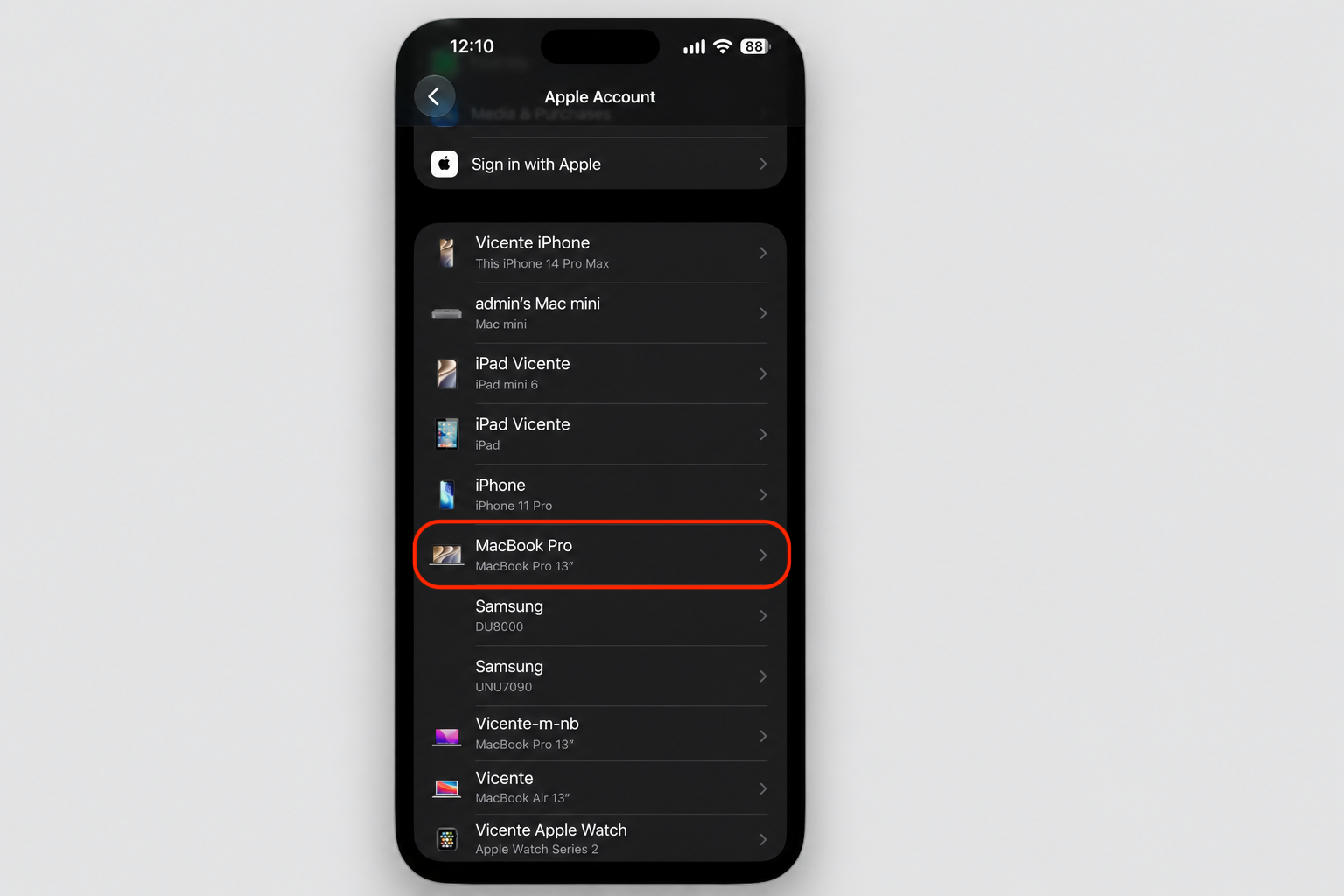
Step 1. Open icloud.com/find and sign in with your Apple IDStep 2. Select Erase Step 3. Go back to Settings > Apple Account > Select the deviceStep 4. Remove the device from the Apple Account
4. System clock correction in Terminal
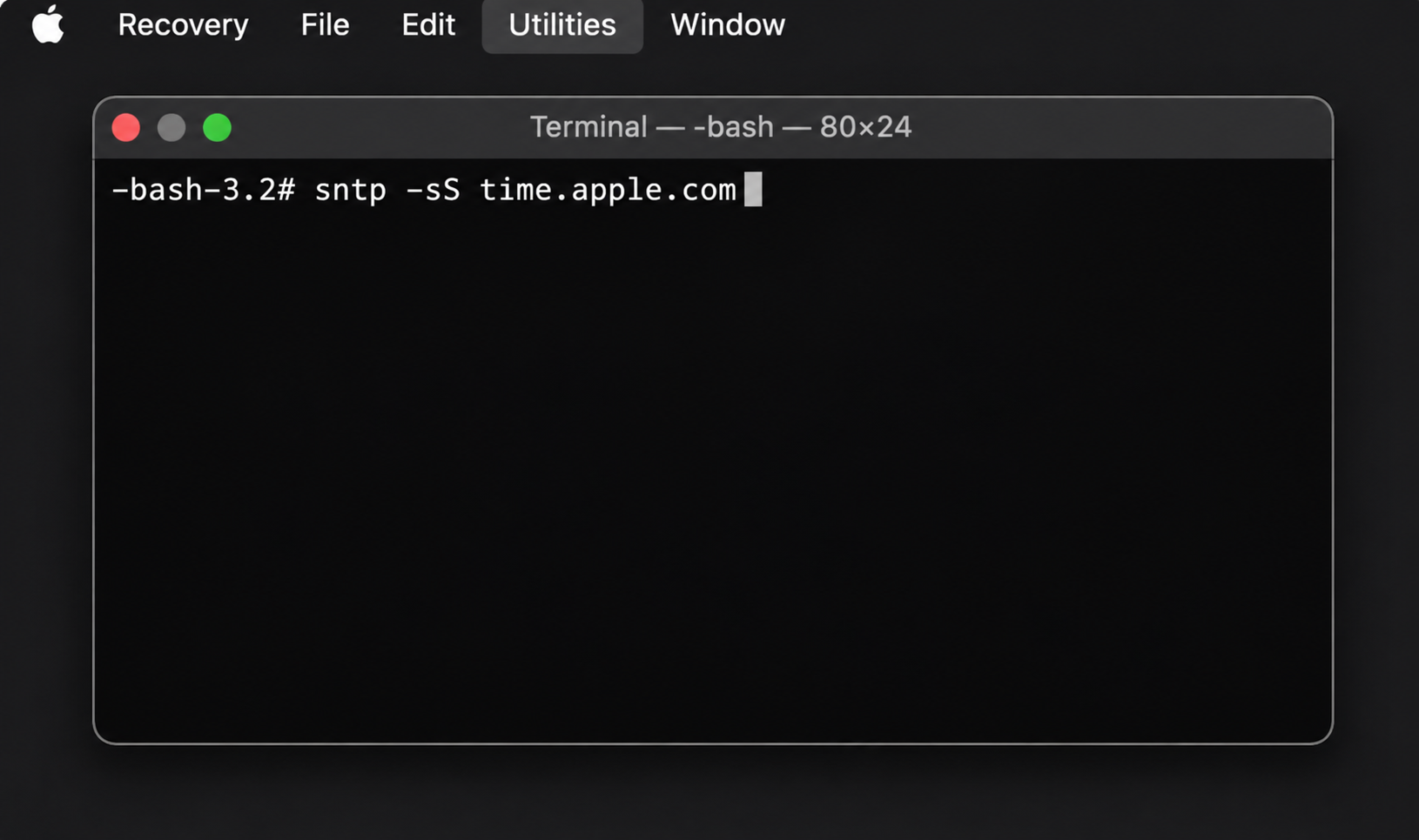
A Mac with the wrong date can’t trust Apple’s security certificates, and that quietly breaks activation. We’ll fix date and time with a short command in recovery mode and get the handshake working.
Run this to reset the clock:
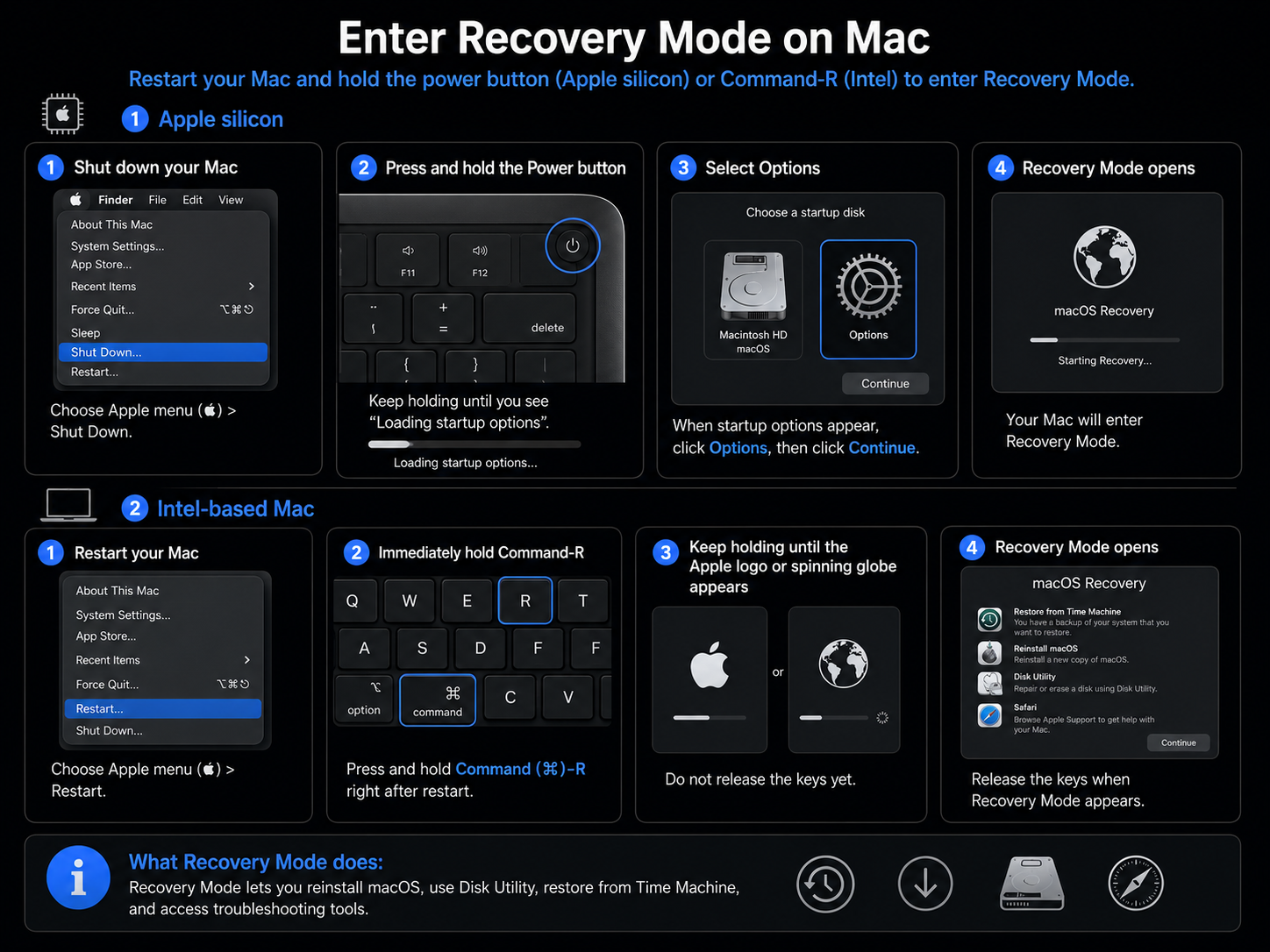
Boot into macOS Recovery—hold the power button until Options appears on Apple silicon, or hold Command-R at startup on Intel.
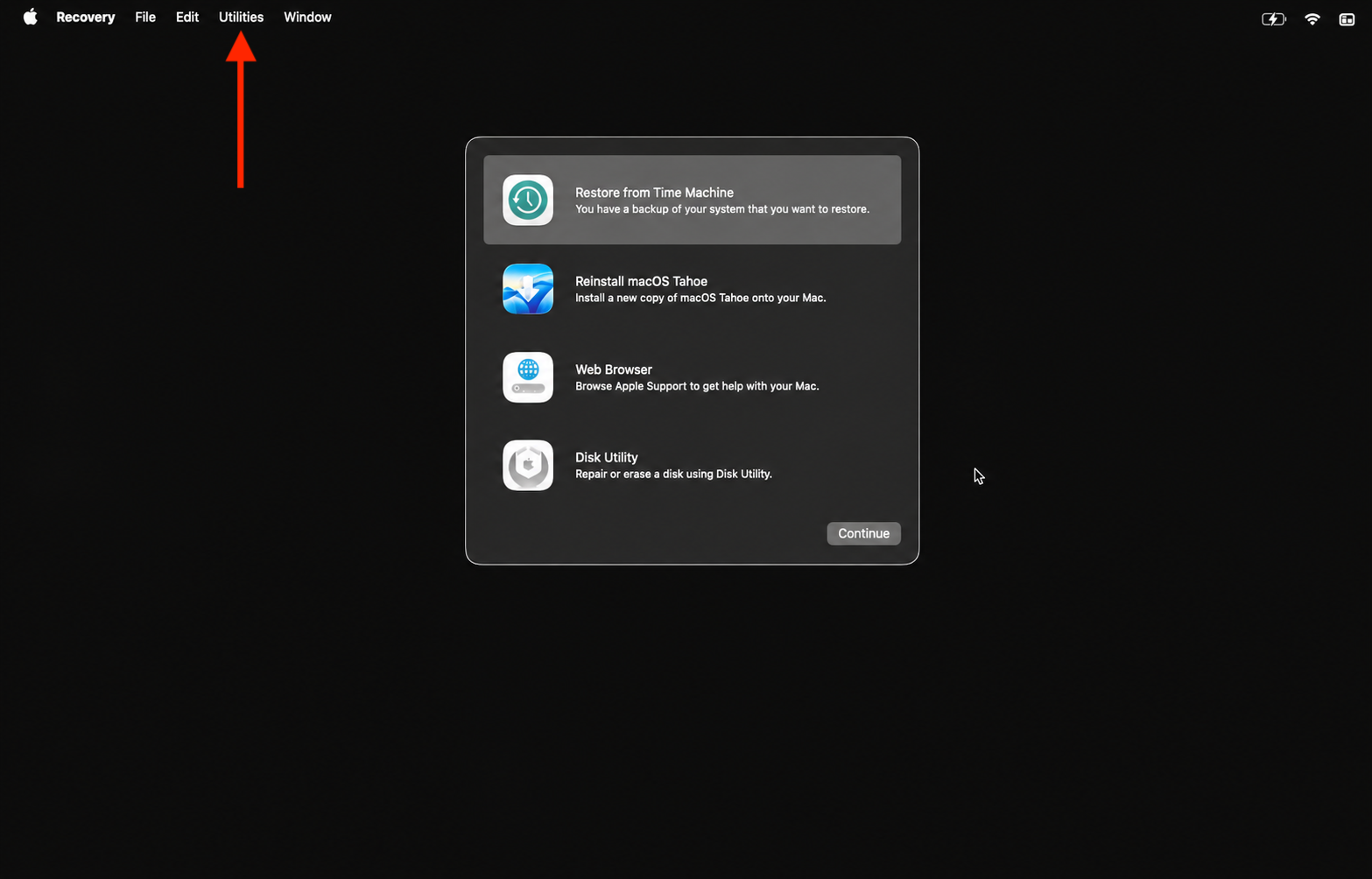
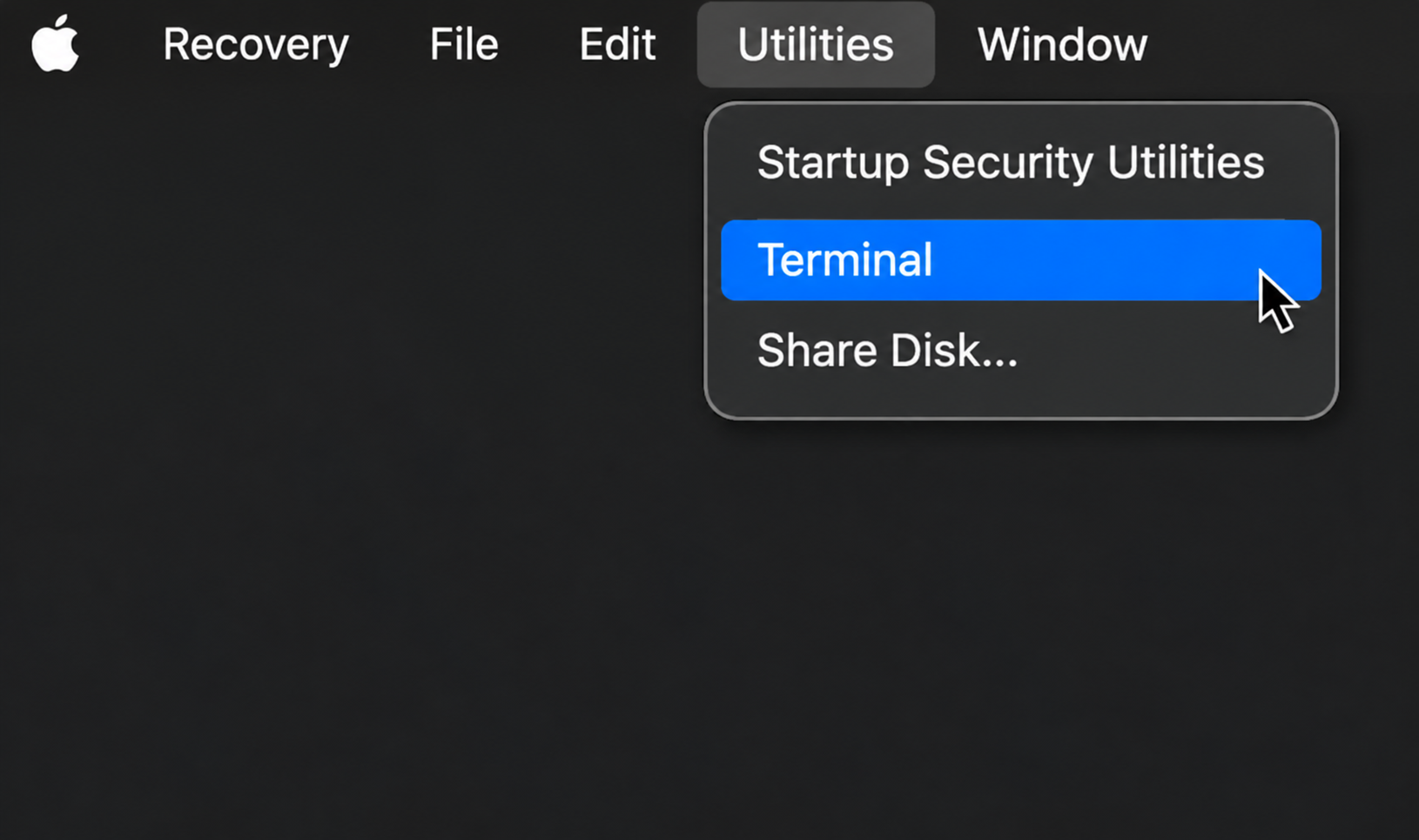
From the menu bar, open Utilities > Terminal.
Type sntp -sS time.apple.com and press Return to sync with Apple’s time server.
Quit Terminal and retry the activation.
Step 1. Boot your Mac in Recovery ModeStep 2. Select UtilitiesStep 3. Open TerminalStep 4. Type sntp -sS time.apple.com and hit ReturnStep 5. Retry the activation
5. Disk wipe via Recovery Assistant
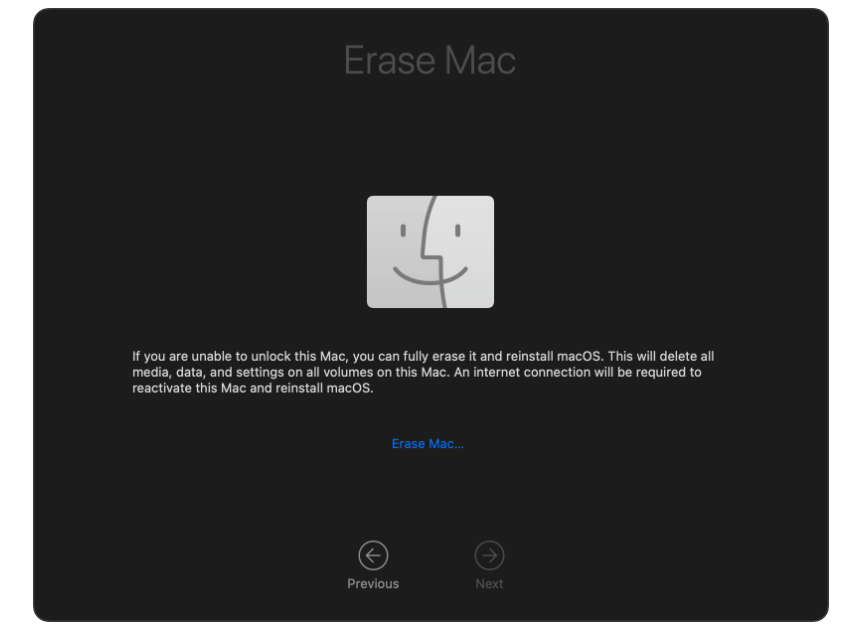
Sometimes the Recovery Assistant fails to create an activation request that sticks around no matter what. When it does, we can erase the startup volume to give your Mac a clean slate and send a fresh activation signal.
When lighter steps stall, erase like this:
Boot into macOS Recovery.
In the menu bar, open the Recovery Assistant menu.
Select Erase Mac.
Confirm your choice and let the Mac restart.
Move through setup and try activating again.
6. Operating a System Clean Reinstall from Recovery Mode
If a wipe alone doesn’t do it, a fresh copy of the system often will. We can reinstall macOS with the built-in recovery tools—no USB stick needed. Keep your Mac plugged in and online, since it downloads a fresh copy from Apple during the process.
A warning from us: We urge you to note that all data will be lost if you proceed with a System Clean Reinstall. However, when this is the only option left, it can help you troubleshoot your Mac issue.
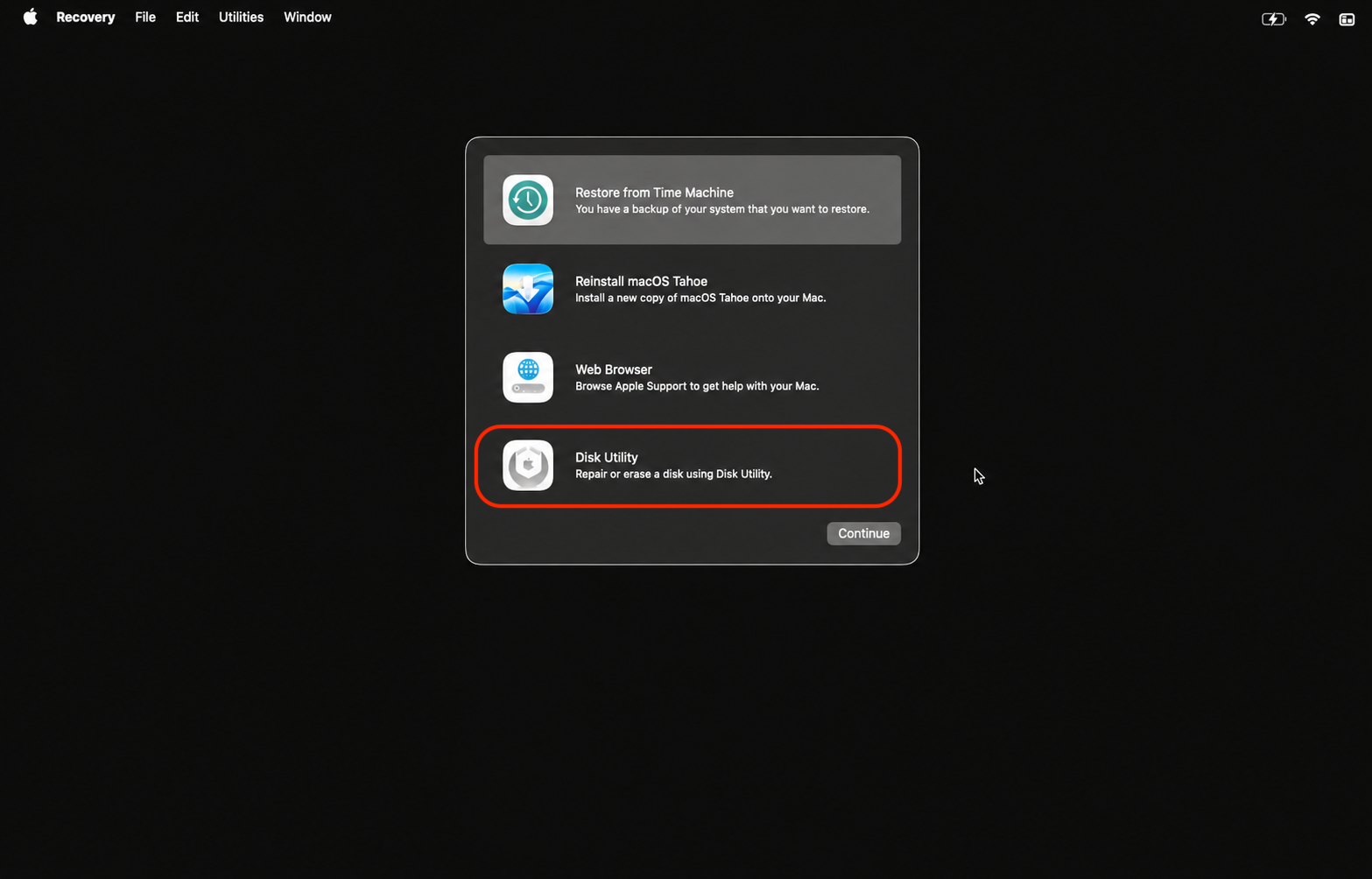
Walk through the reinstall this way:
Boot into macOS Recovery.
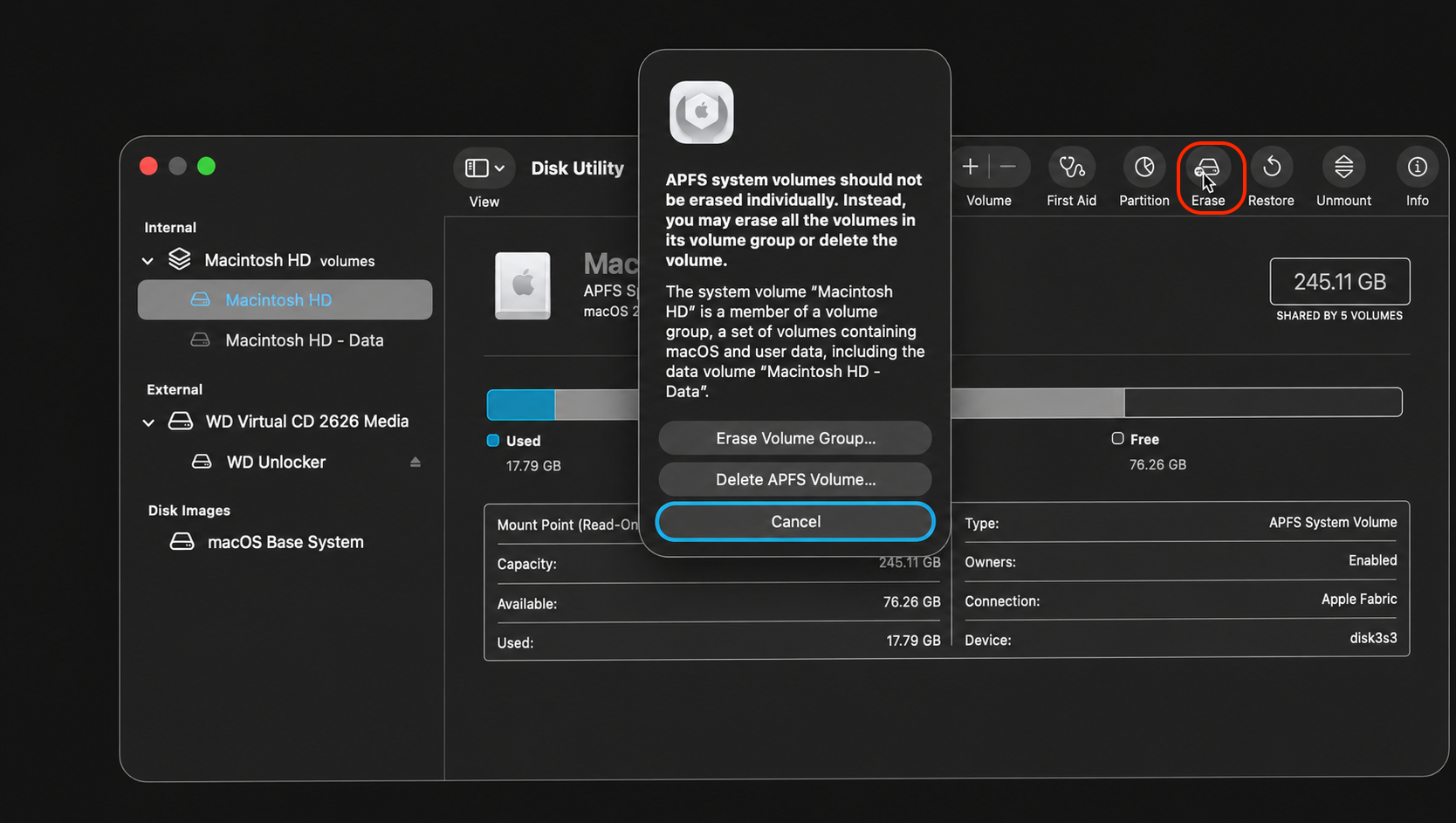
Open Disk Utility, select your startup volume, then select Erase.
Quit Disk Utility to return to the main menu.
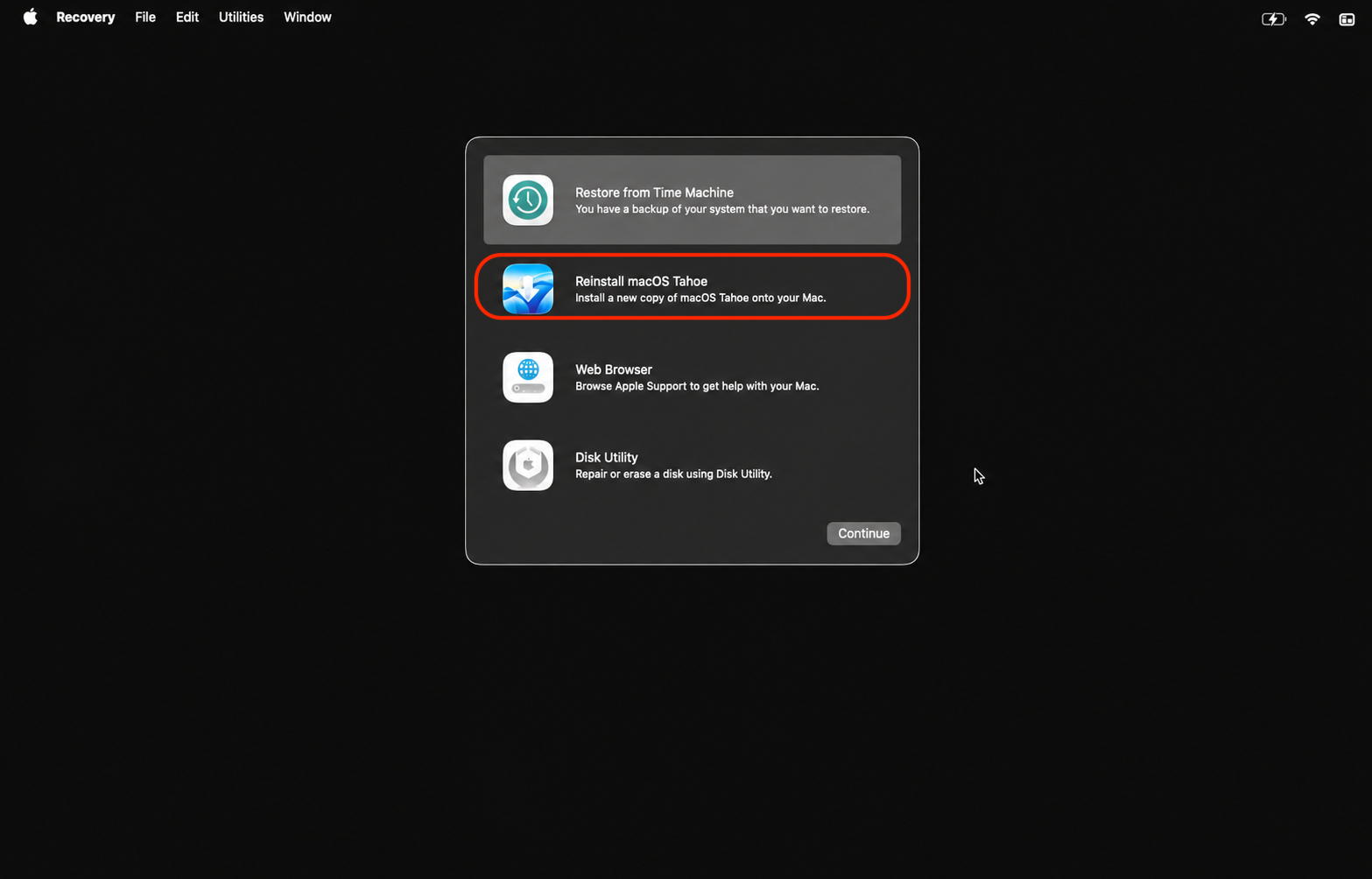
Choose Reinstall macOS and follow the on-screen steps.
Sign in with your Apple ID when setup asks for it.
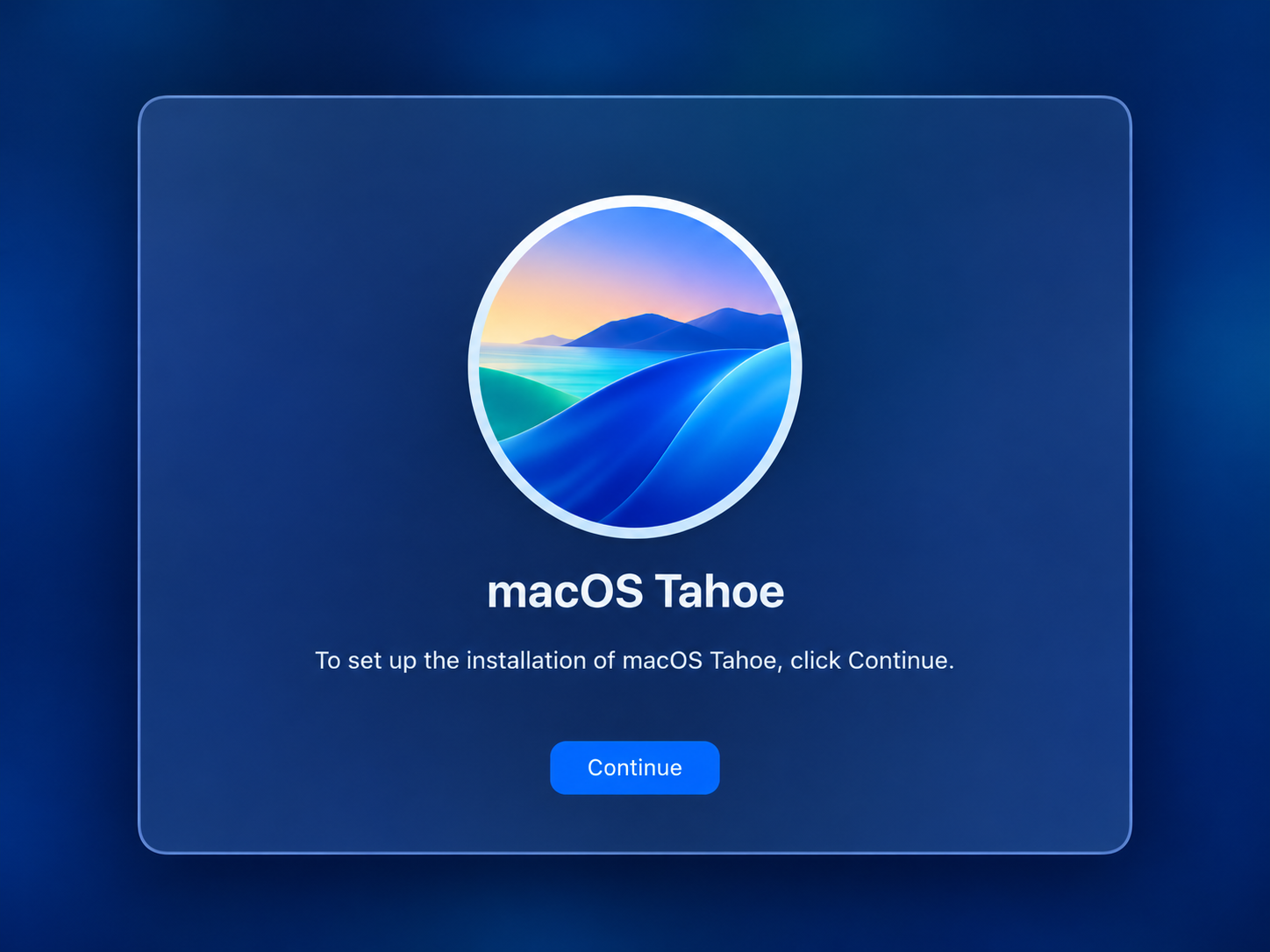
Step 1. Select Disk Utility in Recovery ModeStep 2. Select your startup volume, then choose Erase in APFS FormatStep 3. Go back to Utilities and select Reinstall Mac OS Step 4. Press Continue and follow the instructions
7. Firmware revive and restore using Apple Configurator
When damaged firmware is behind it, you might see the Apple Configurator failed to create activation request message. Here, we connect the locked computer to a second Mac to revive the firmware without losing data, or run a full restore if needed. A revive is the gentle option, so it’s worth trying before a restore, which wipes the drive.
Set up the revive step by step:
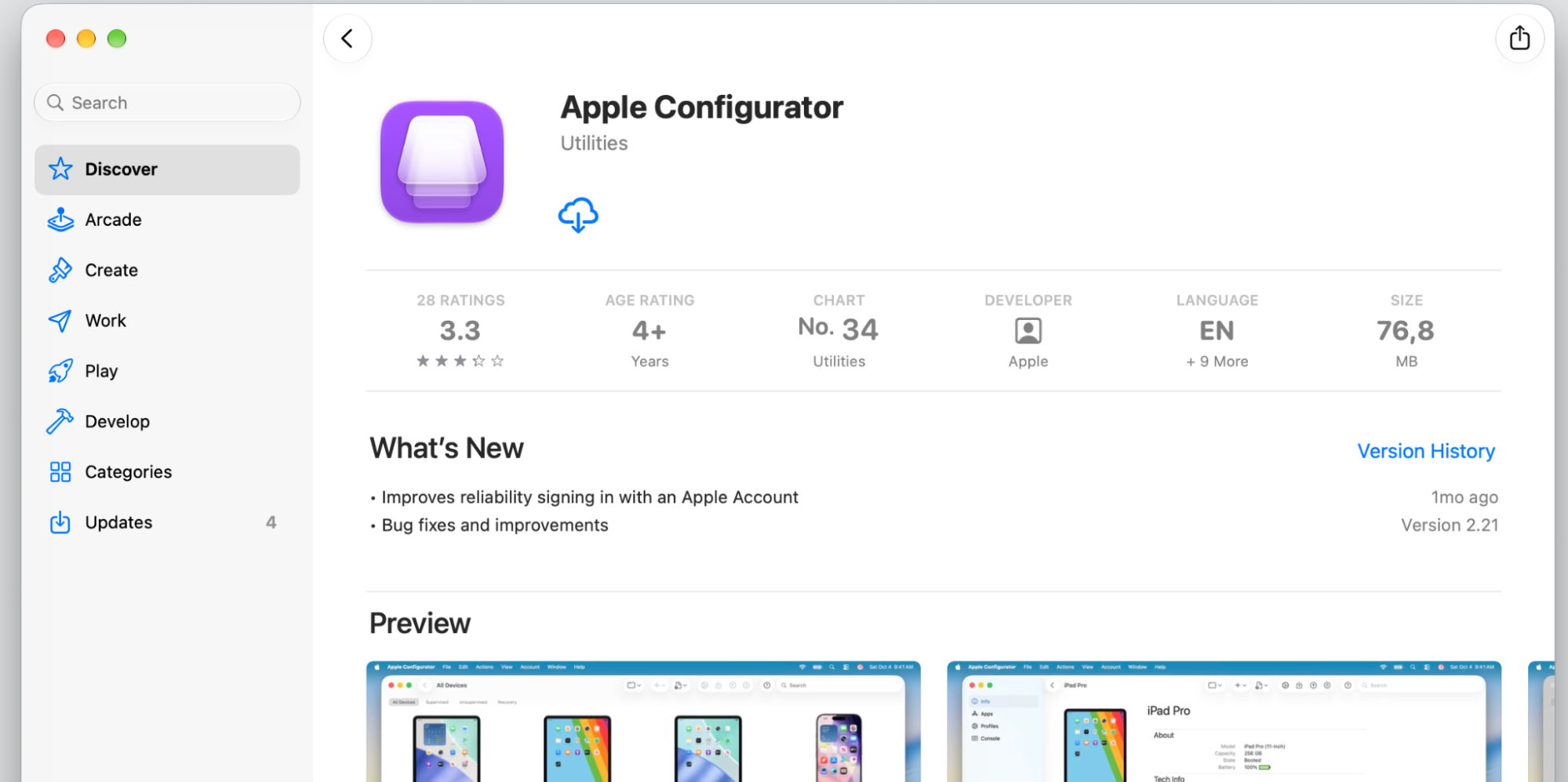
Apple Configurator — install it from the App Store on a second Mac.
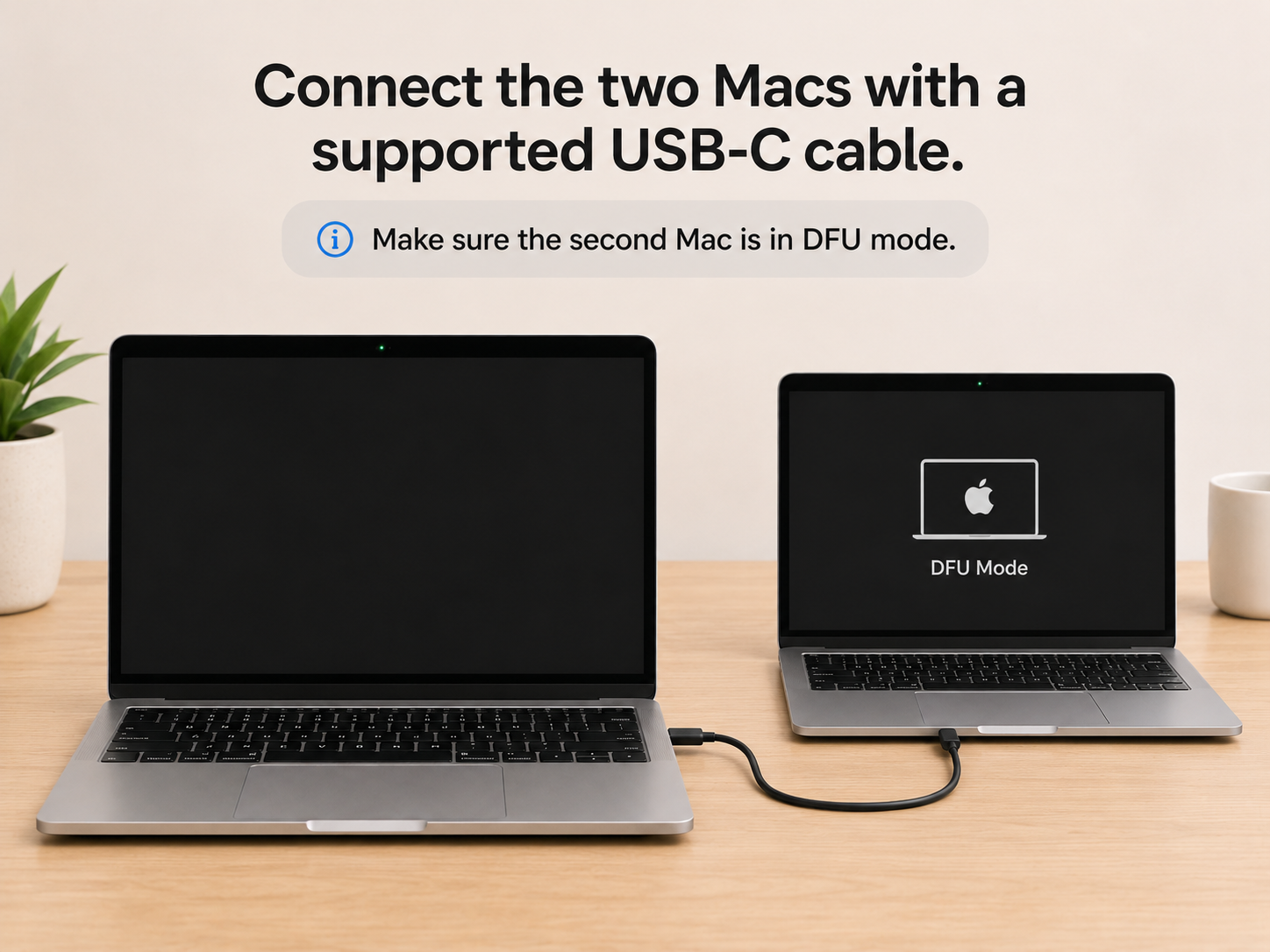
Connect the two Macs with a supported USB-C cable.
Put the locked Mac into DFU mode using the key sequence for your model.
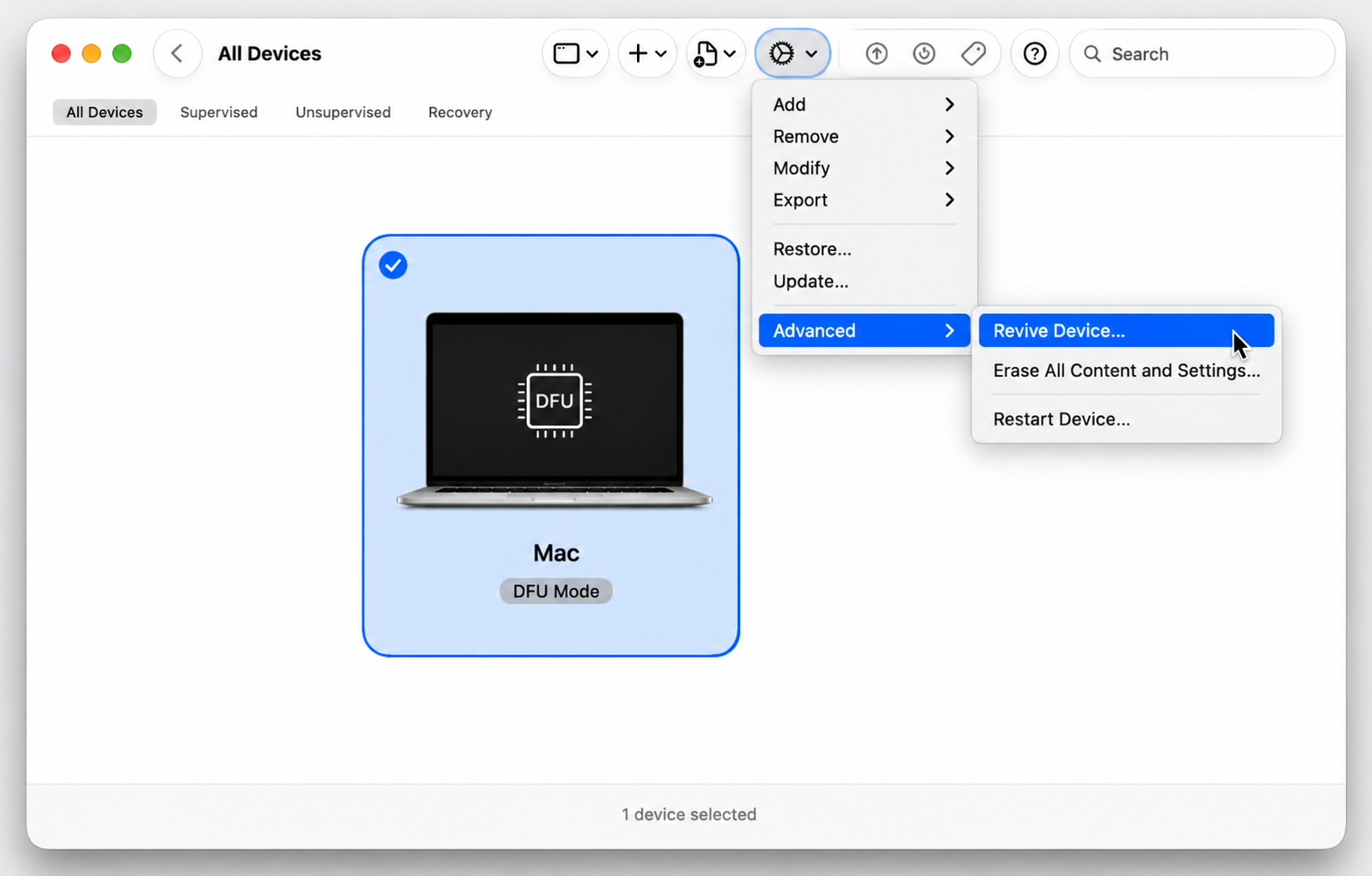
In Apple Configurator, select the Mac, then choose Advanced > Revive Device.
If a revive doesn’t help, choose Restore instead—note this one erases the drive.
Step 1. Download on a second Mac Apple Configurator from the App StoreStep 2. Connect the two Macs and put the locked Mac into DFU modeStep 3. In Apple Configurator, select the Mac, then choose Advanced > Revive Device
What to do if your Mac still will not activate?
If you’ve tried everything and your Mac still won’t budge, a few outside factors could be at play, and none of them mean your Mac is broken. In our opinion, here are the next moves worth making:
Check Apple’s system status page—the activation servers occasionally go down, and there’s nothing to fix on your end.
Ask your IT admin for a bypass code if it’s a work or school Mac, since it may be enrolled in a management profile.
Book a visit to an Apple Store with proof of purchase so a technician can recognize you as the owner and clear the lock.
Conclusion
Seeing the "Failed to create activation request” message can feel like your Mac has shut you out for good, but it rarely has. In most cases, clearing a network hurdle, signing in with the correct Apple ID, or reinstalling macOS gets you back past the setup screen. Work through the methods above in order, and you’ll usually land on the one that helps.
When a step feels over your head, you don’t have to guess your way through it. MacKeeper is an all-in-one Mac maintenance app that bundles cleanup, security, optimization, and privacy tools into one friendly interface, and its Premium Services connect you with real Mac experts through the 24/7 Help Center. They’ll stay with you until your Mac is activated and running smoothly, so reach out the moment you feel stuck.
We respect your privacy and
use cookies
for the best site experience.
Privacy Preferences Center
We use cookies along with other tools to give you the best possible experience while using the
MacKeeper website. Cookies are small text files that help the website load faster. The cookies we
use don’t contain any type of personal data meaning they never store information such as your
location, email address, or IP address.
Help us improve how you interact with our website by accepting the use of cookies. You can change
your privacy settings whenever you like.
Manage consent
All cookies
These cookies are strictly necessary for enabling basic website functionality (including page
navigation, form submission, language detection, post commenting), downloading and purchasing
software. The website might malfunction without these cookies.