Is your MacBook's date and time wrong, throwing off your calendar, messages, and websites? You’re not alone, and it’s an easy thing to sort out. Our guide will walk you through fixing the date and time on your Mac step by step. To accompany, MacKeeper’s Antivirus will keep your Mac safe while you work and perform daily tasks.
A clock that drifts isn’t random—there’s usually a simple cause behind it. We’ve analyzed and compiled the most common reasons your Mac has the wrong date and time below—check it out.
1. Automatic date and time sync is not working
Your Mac normally checks the time with an online time server and quietly corrects itself. When that handshake fails, the clock stops keeping pace and slowly falls behind. If you notice your Mac's date and time not updating on its own, the automatic date and time not updating sync is the first thing to check.
2. Wrong time zone is selected
Sometimes the clock works fine—it’s just set to the wrong place. If your Mac thinks it’s in another city, it’ll show that city’s time instead of yours. This often happens after travel or a fresh setup.
3. Location services are disabled
To set your time zone on its own, macOS needs to know roughly where you are. If Location Services are switched off, it can’t detect your region, and the automatic time zone option simply won’t work.
4. Wrong region is set
Your region settings shape how dates and times are displayed—the order of day and month, the 12- or 24-hour format, and more. If the region doesn’t match where you live, the display can look off even when the time itself is correct.
5. Network or time server issues
A shaky internet connection or a busy time server can stop your Mac from syncing. Since the clock relies on reaching that server, a dropped connection leaves it guessing. We recommend refreshing your connection or resetting network settings to clear this up.
Why accurate date and time matter on Mac?
An accurate clock is one of those quiet things you only notice when it breaks. It keeps your menu bar far more in order. Moreover, it guarantees the following:
Secure connections. Websites use the date to check security certificates, so a wrong clock can block pages or trigger warnings.
Accurate calendar reminders. Are you up for notifications that fire at the right moment, not an hour early or a day late?
Messages, emails, and files saved appropriately. Get alll with the correct timestamp, which keeps everything in the right order.
App logins and syncing. Since many services compare your time with theirs before letting you in, this is important.
In short, we’d say that a correct clock keeps your Mac talking smoothly with the rest of the internet.
How to fix wrong date and time on a Mac?
Below, we’ve listed a few practical ways to change the date and time on a MacBook and keep them correct. Start at the top and work down!
A quick overview of the key methods:
Method
Best for
Restart your Mac
A clock that froze after sleep or an update
Turn on automatic time
Letting macOS keep the clock right for you
Change the time server
Syncing that won’t complete with the default source
Check for updates
Time bugs tied to an older macOS version
Time zone and region
A correct clock showing the wrong place or format
Terminal sync
Forcing a refresh when the settings won’t cooperate
Set time manually
A quick fix when you’re offline
A note from our experts:
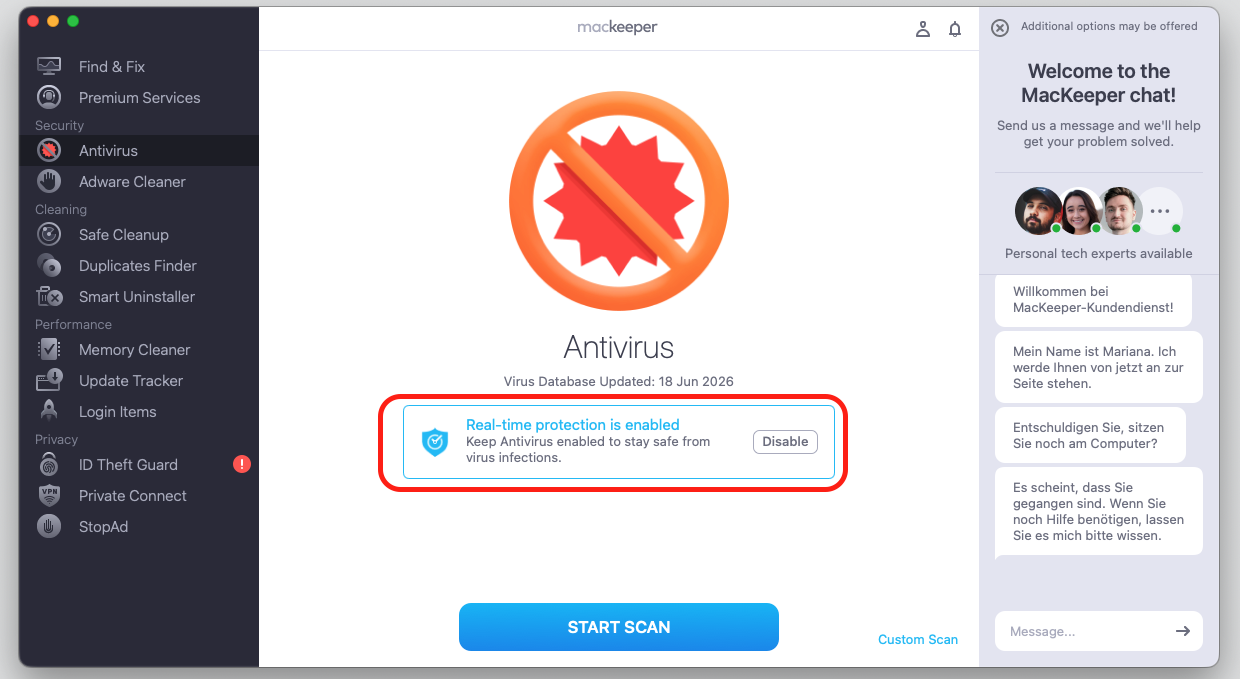
The security of your daily operations on Mac is no less important than maintaining consistent date and time. For this reason, we suggest using MacKeeper’s Antivirus to easily detect and remove malware and other malicious threats from your computer quickly and safely.
Here are our guidelines on how to use MacKeeper's Antivirus:
Click the Enable button and confirm to Start Scan.
Wait until MacKeeper finishes the job. If anything found, remove any detected threats with the Delete button.
Step 1. MacKeeper > Antivirus > Enable Step 2. Check the scan results and behave accordingly
1. Restart your Mac
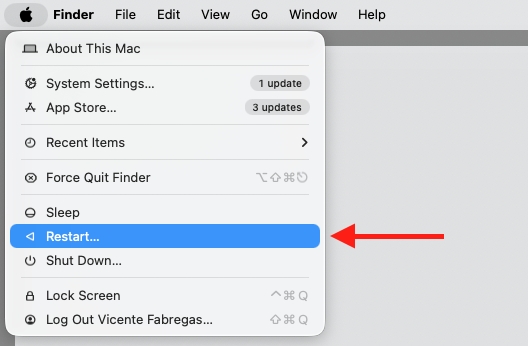
A restart is the simplest first move, and it fixes more than people expect. It clears stuck processes that can quietly knock the clock out of step. Taking a moment to reboot a MacBook often puts the date and time right on its own, and here’s what to do:
Click the Apple menu in the top-left corner.
Select Restart.
Check the clock once your Mac wakes up.
Go to the Apple menu and select Restart
2. Turn on automatic date and time
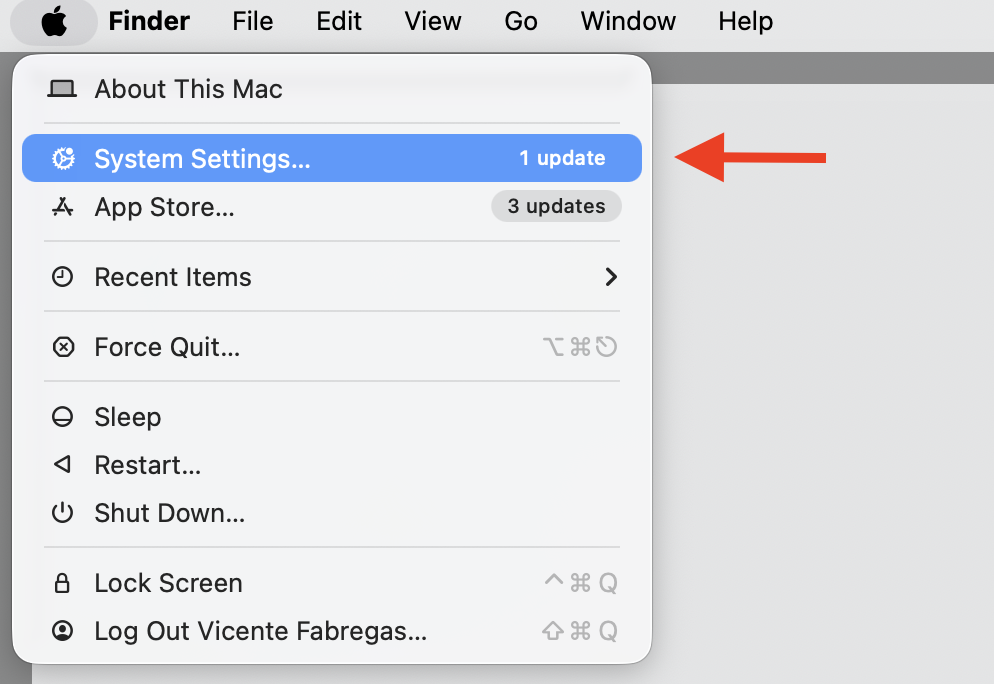
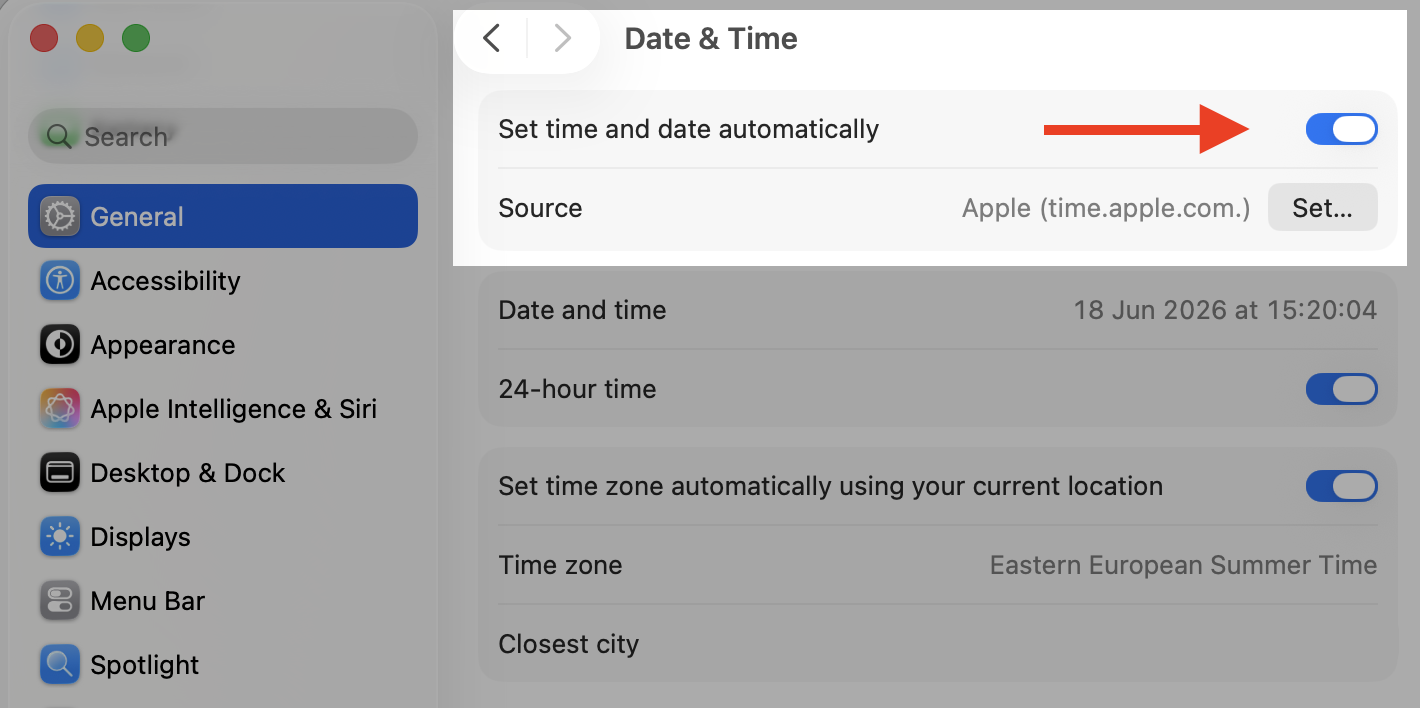
When this is on, macOS quietly keeps the clock right using an online source. It’s the easiest way to set date and time on MacBook and forget about it. Let’s make sure it’s switched on:
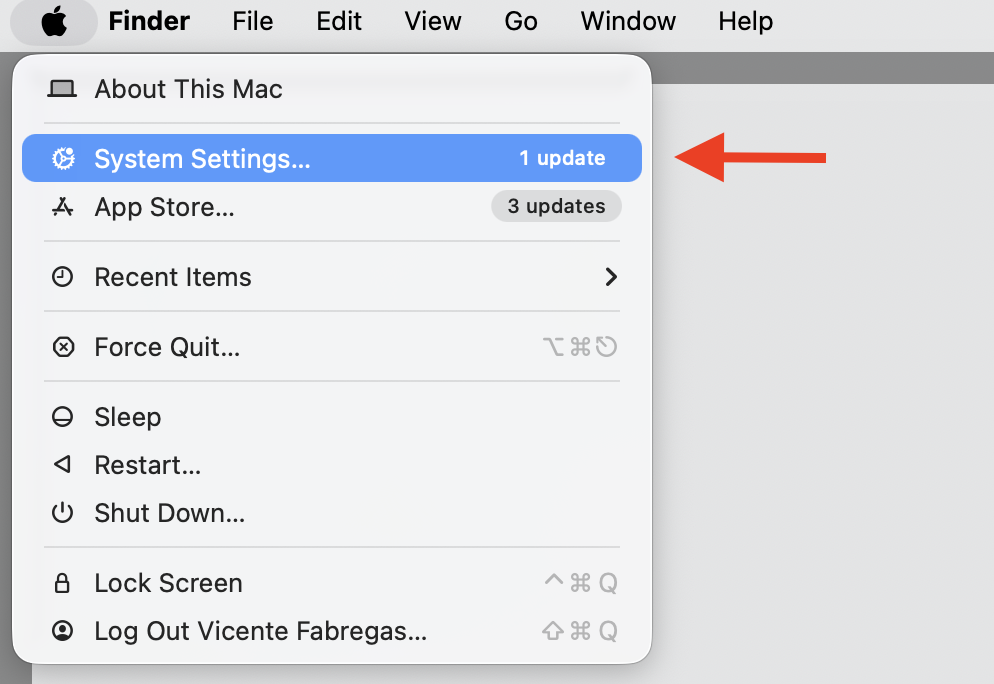
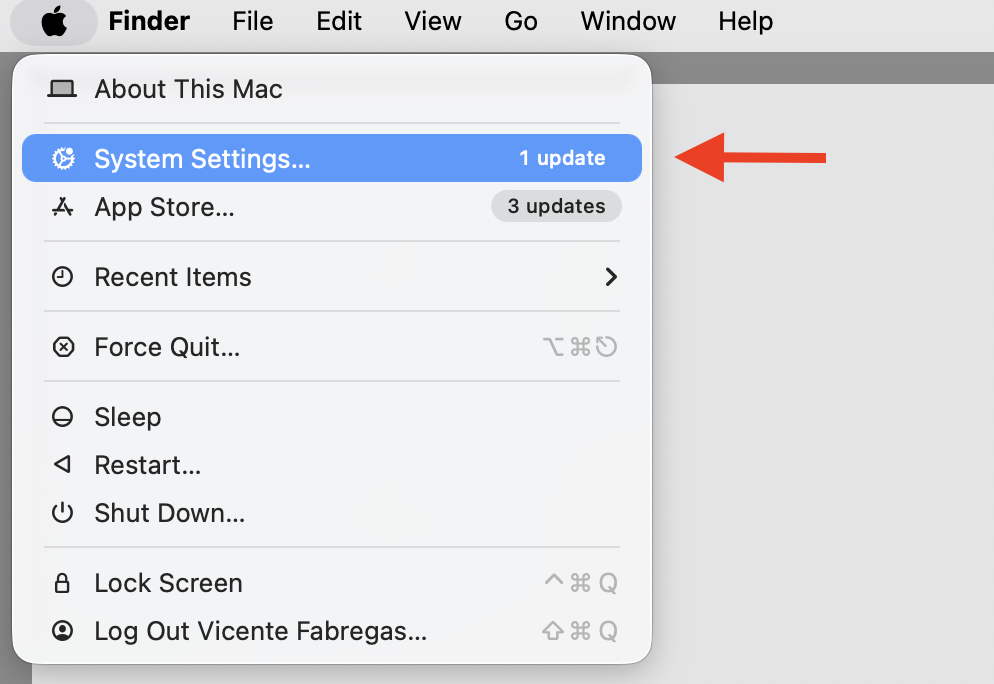
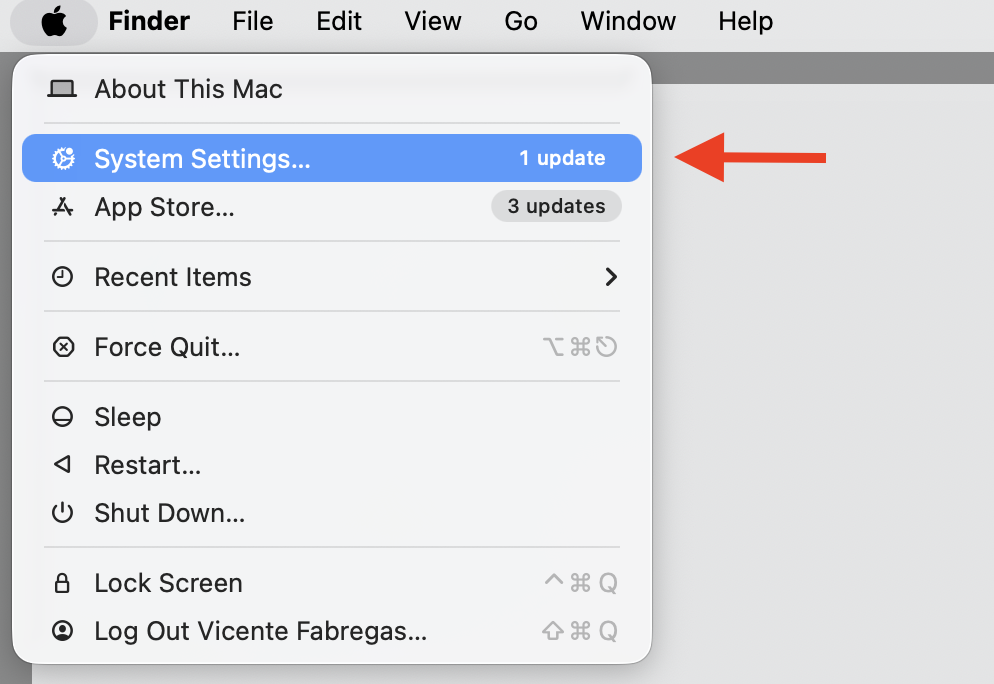
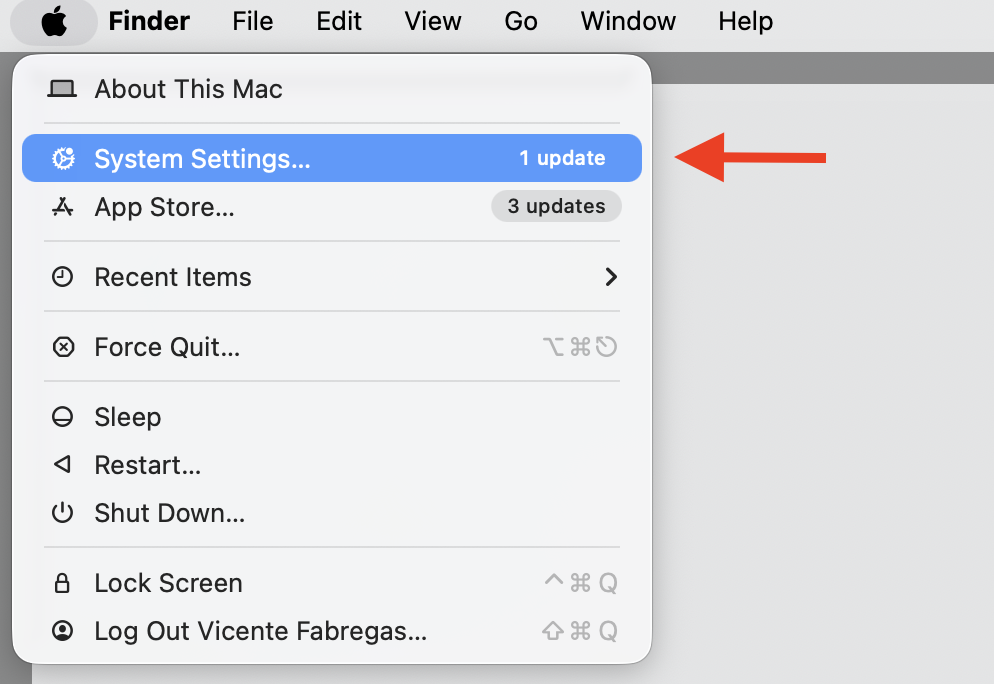
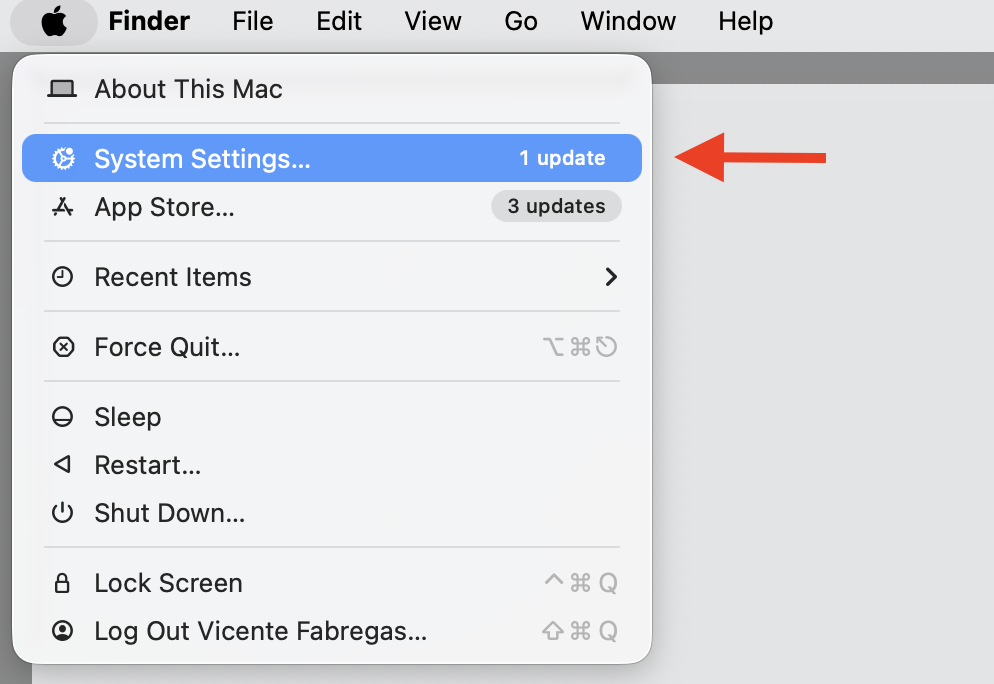
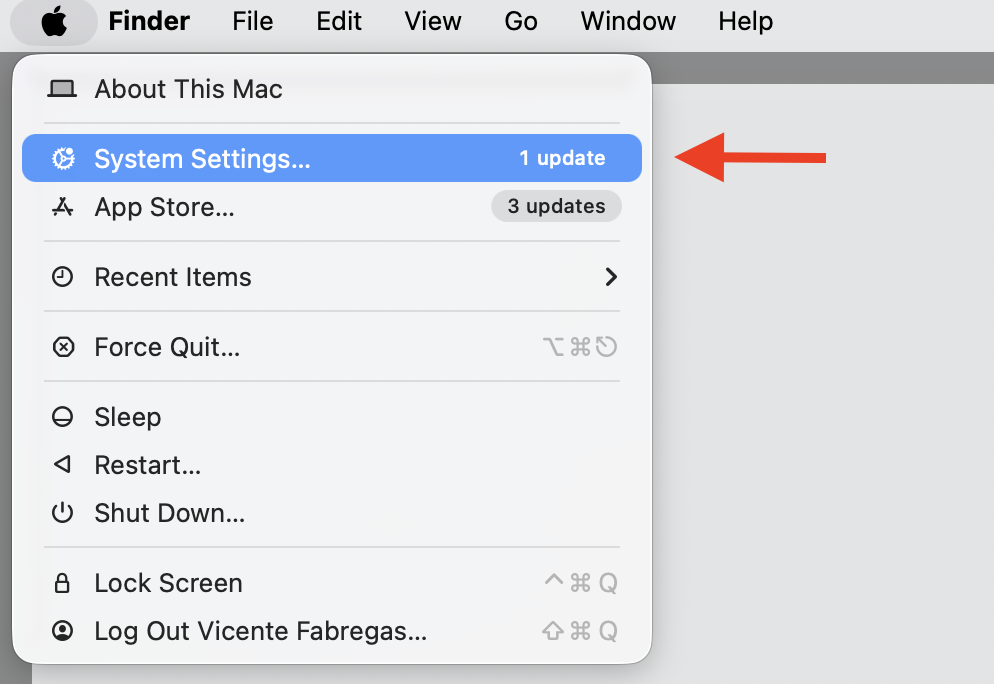
Open the Apple menu and choose System Settings.
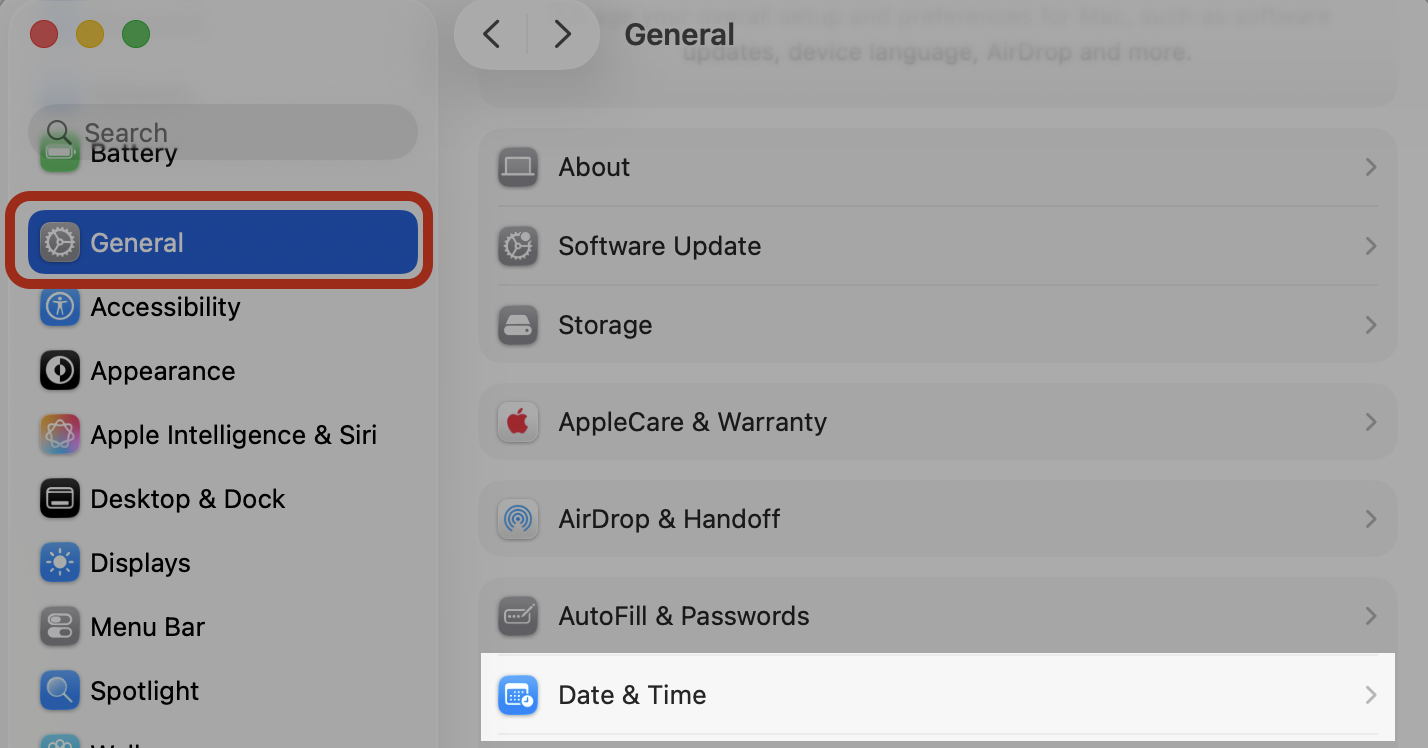
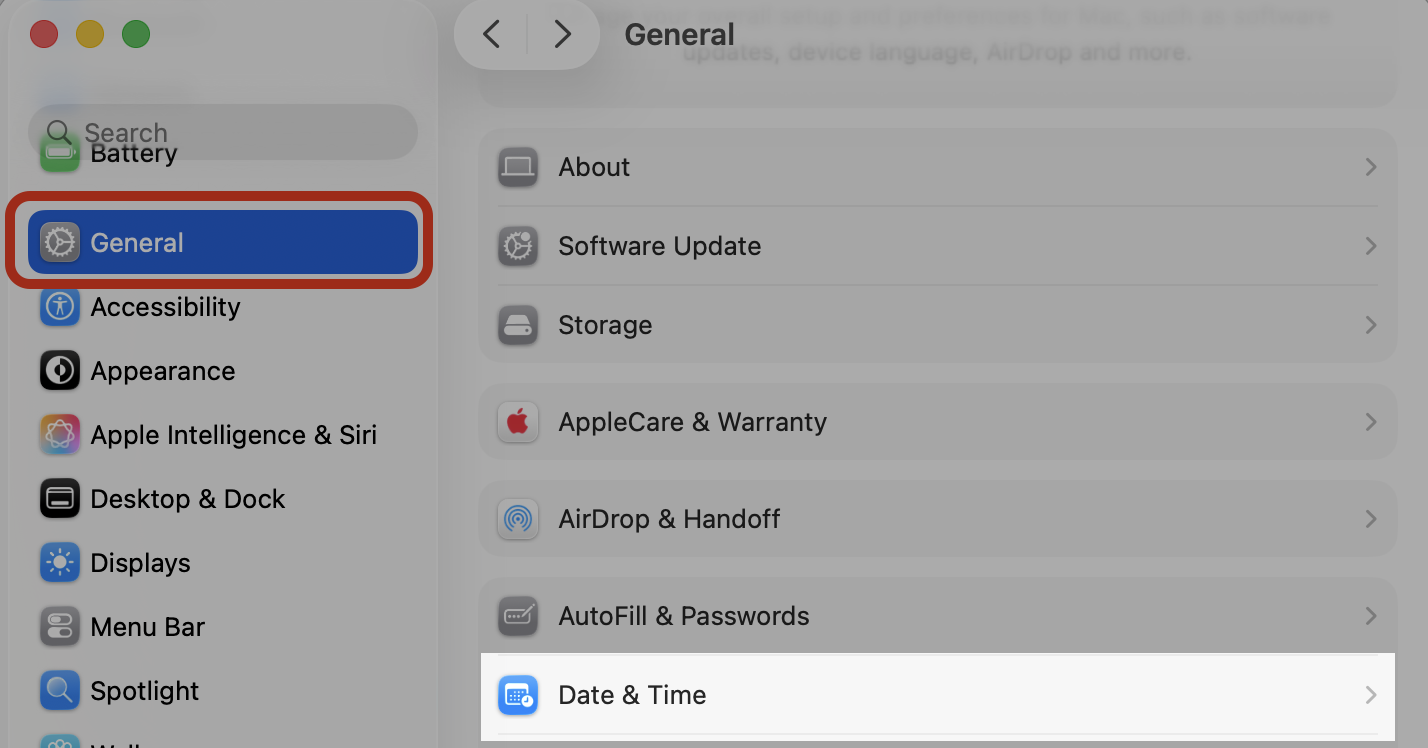
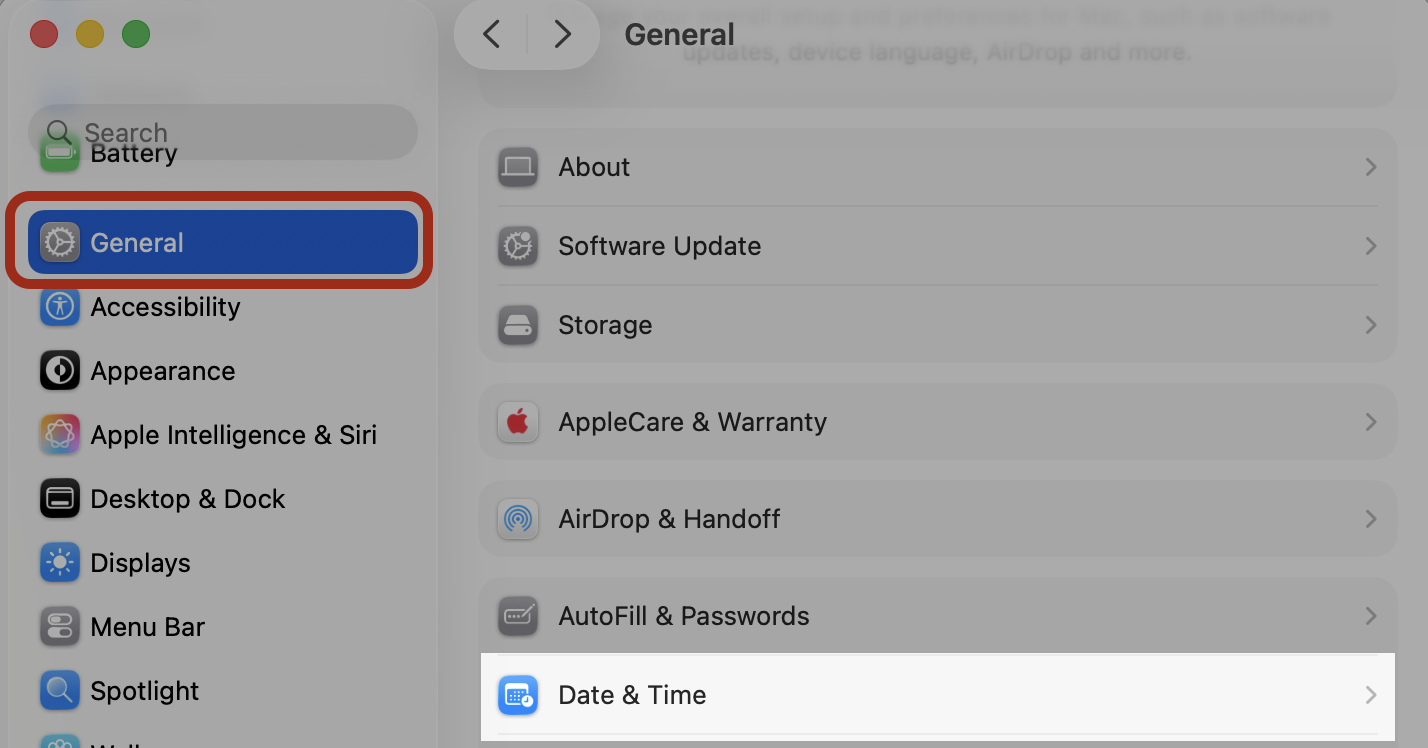
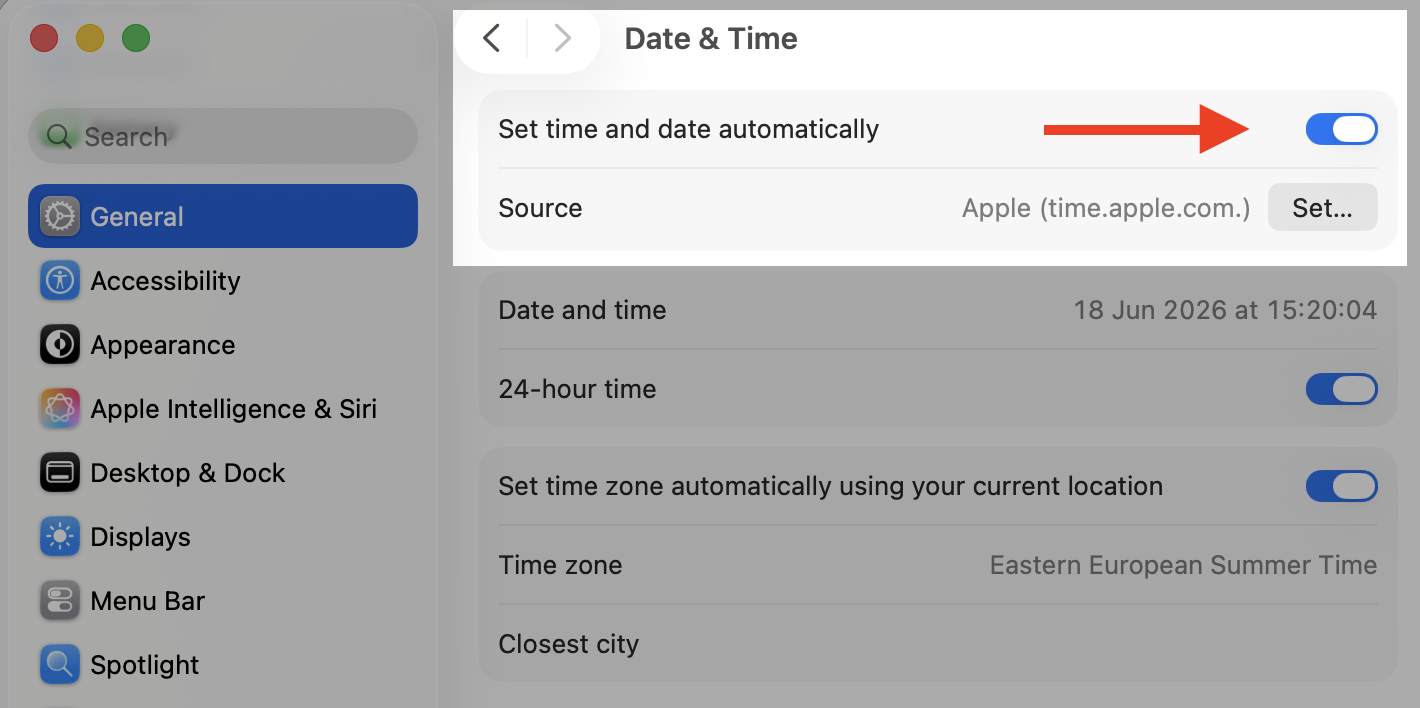
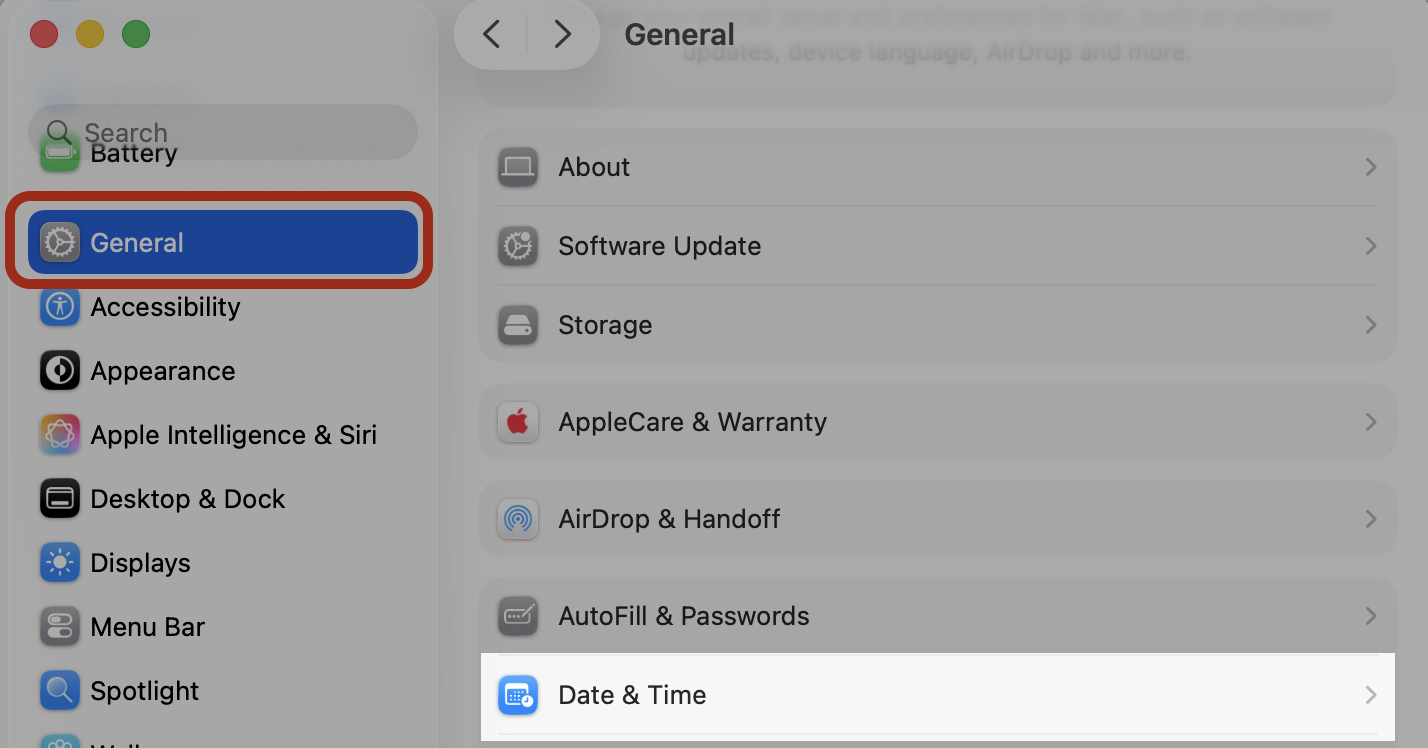
Click General in the sidebar, then Date & Time.
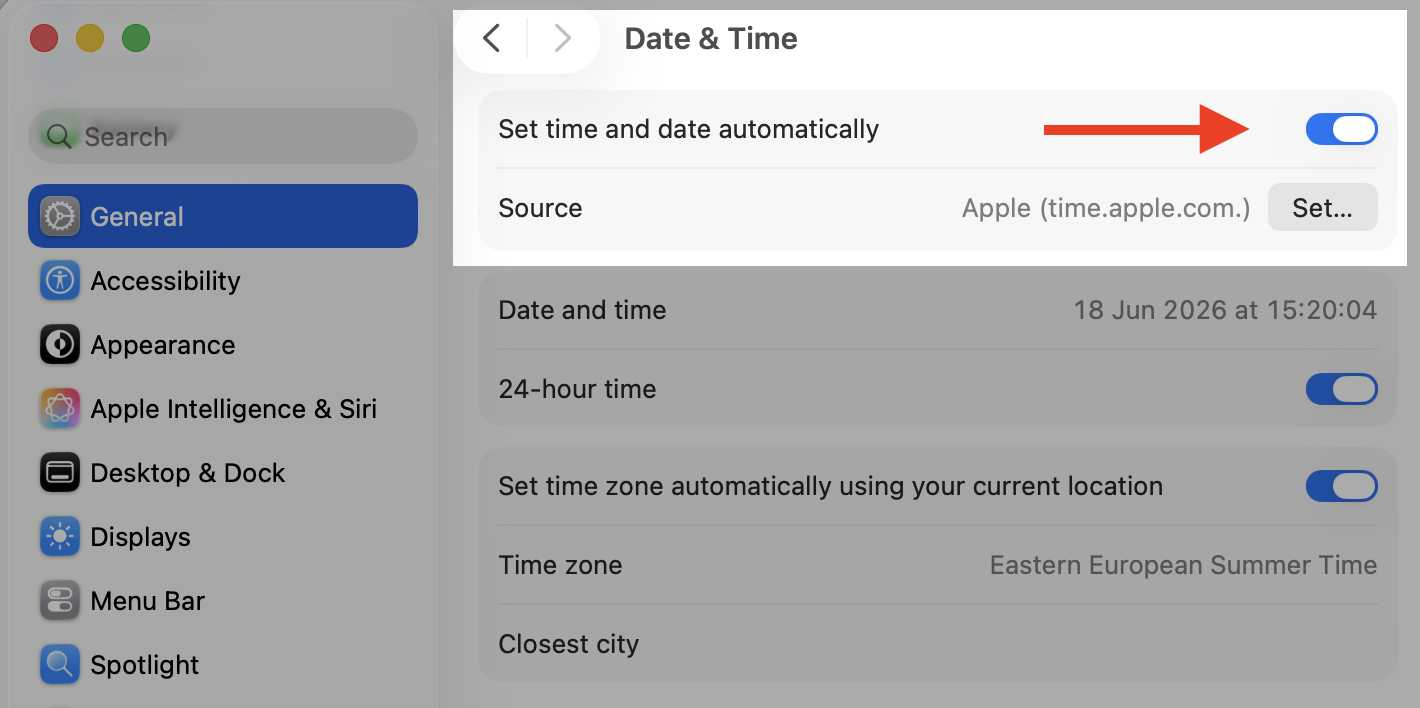
Turn on Set time and date automatically.
If it’s already on, switch it off and back on to nudge a fresh sync.
Step 1. Go to Apple Menu > System SettingsStep 2. Go to General > Date and TimeStep 3. Turn on Set time and date automatically
3. Change the time server
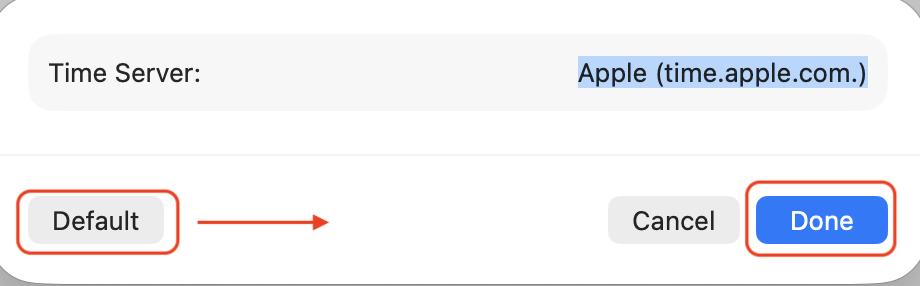
Your Mac asks a time server for the exact time, with Apple’s set as the default. If that source is slow or unreachable, re-entering it gives the connection a clean restart. Do the following:
Go to System Settings > General > Date & Time.
Click Set next to Source.
Select Default, then click Done.
Step 1. Go to Apple Menu > System SettingsStep 2. Go to General > Date and TimeStep 3. Click Set next to SourceStep 4. Select Default > Done
4. Check for macOS updates
Some clock glitches are simply software bugs that Apple has since ironed out. In this case, we suggest installing the latest macOS update to clear them while keeping your Mac on a secure version. Just follow our instructions:
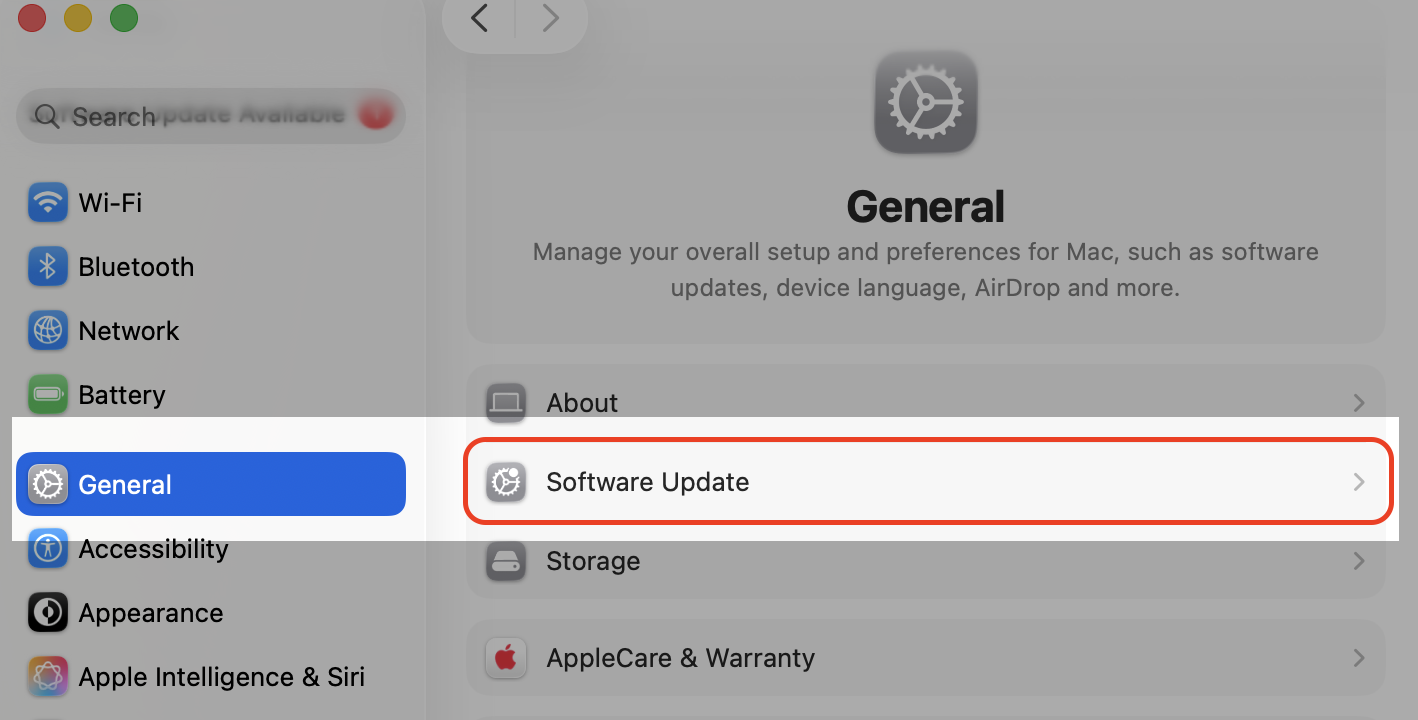
Open System Settings > General > Software Update.
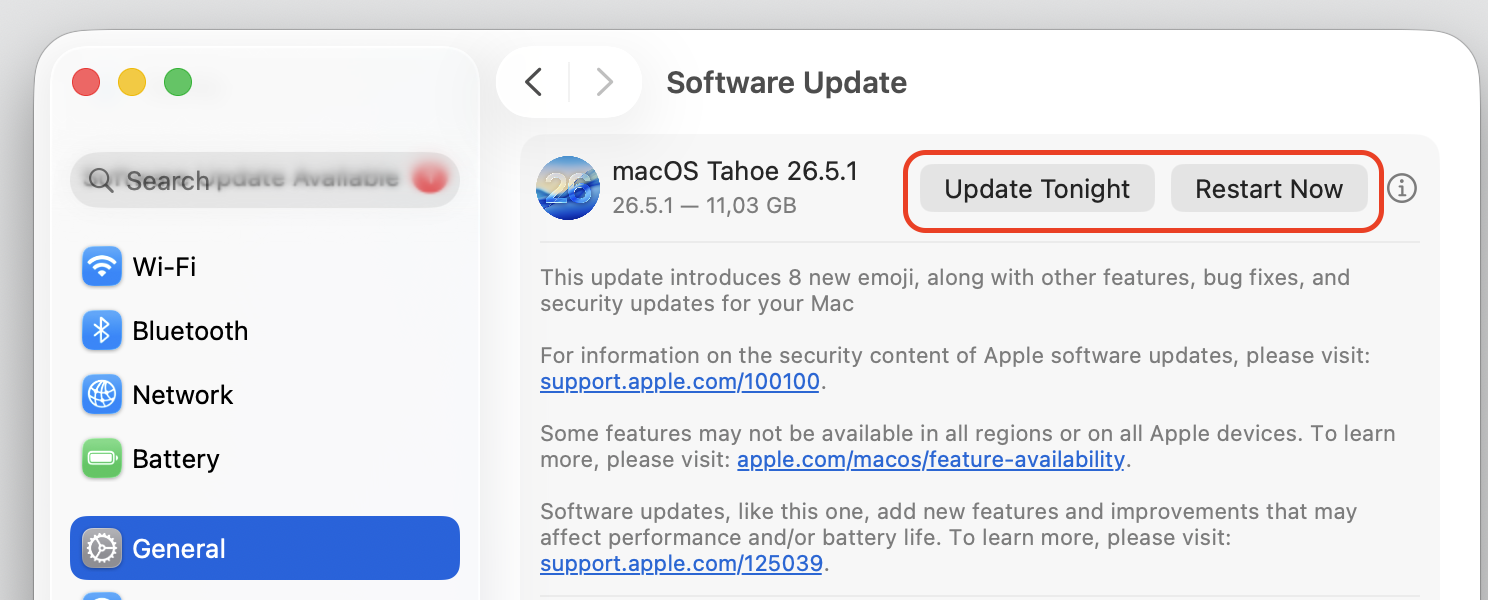
Wait a moment while your Mac checks for any available updates.
If an update is offered, click Update Now and follow the prompts.
Step 1. Go to Apple logo > System SettingsStep 2. Go to General > Software UpdateStep 3. Update macOS if any update is available
5. Check time zone settings
If the clock is accurate but the hours are off, the time zone is the usual suspect. You can let macOS detect it or pick the closest city yourself. Here’s how:
Go to System Settings > General > Date & Time.
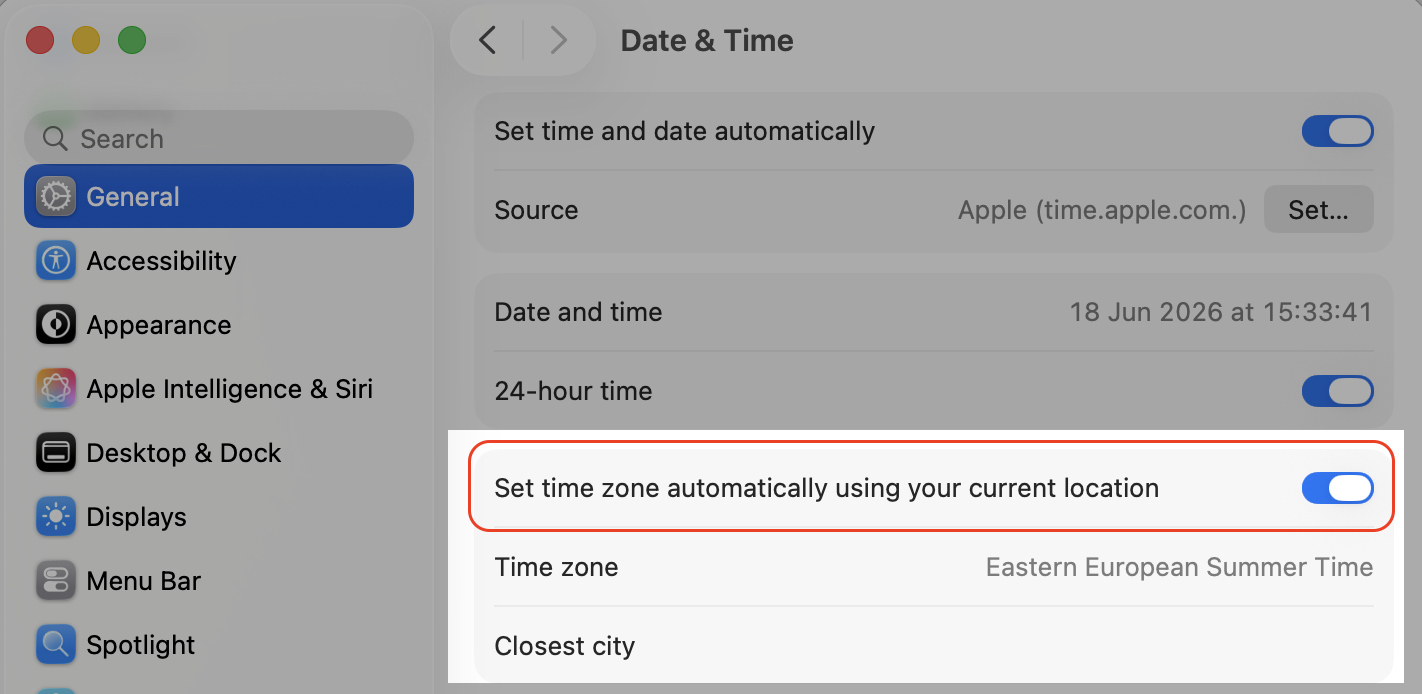
Turn on Set time zone automatically using your current location.
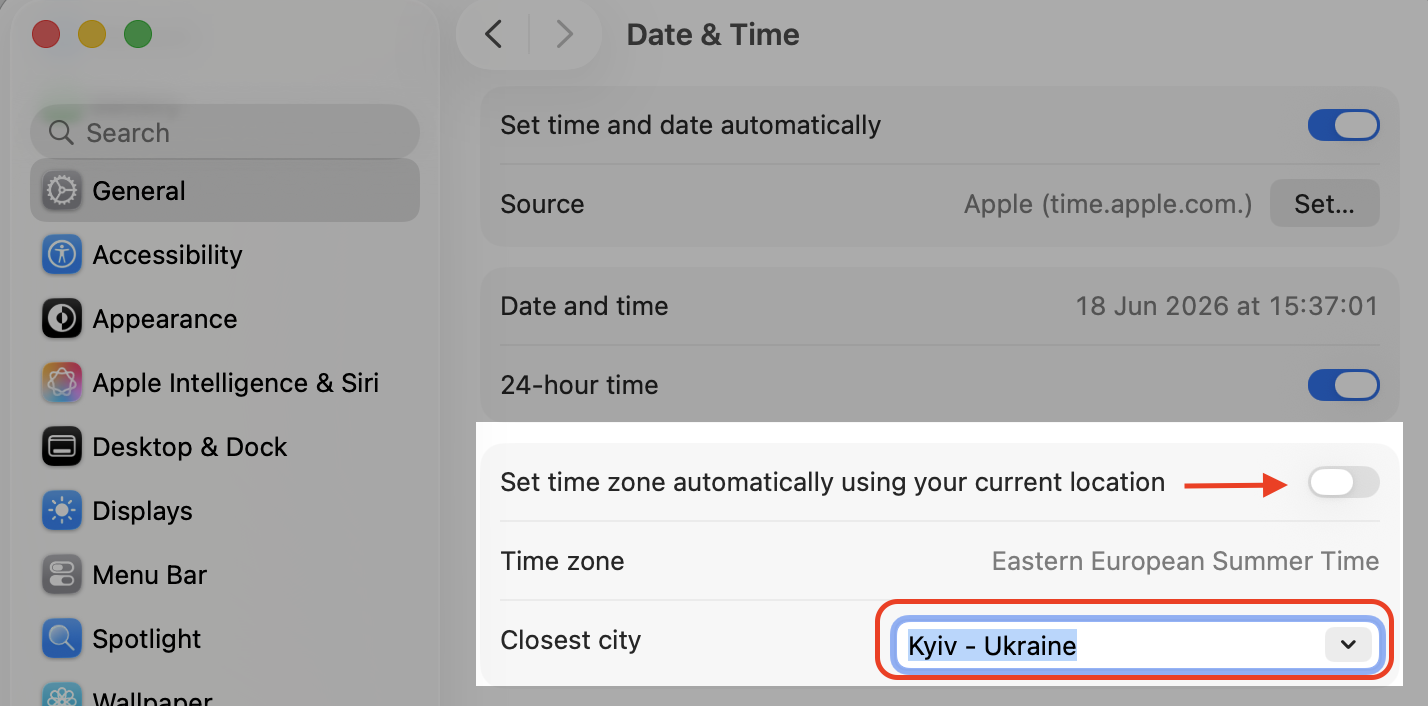
If the zone still looks wrong, switch it off, click Closest City, and choose the right one.
Step 1. Go to Apple Menu > System SettingsStep 2. Go to General > Date and TimeStep 3. Turn on Set time zone automatically using your current locationStep 4. If the zone still looks wrong, switch it off, click Closest City, and choose the right one
6. Enable Location Services for time zone detection
Automatic time zone detection only works when macOS can sense your location. A quick toggle in your privacy settings gets it talking again. Here’s what to do:
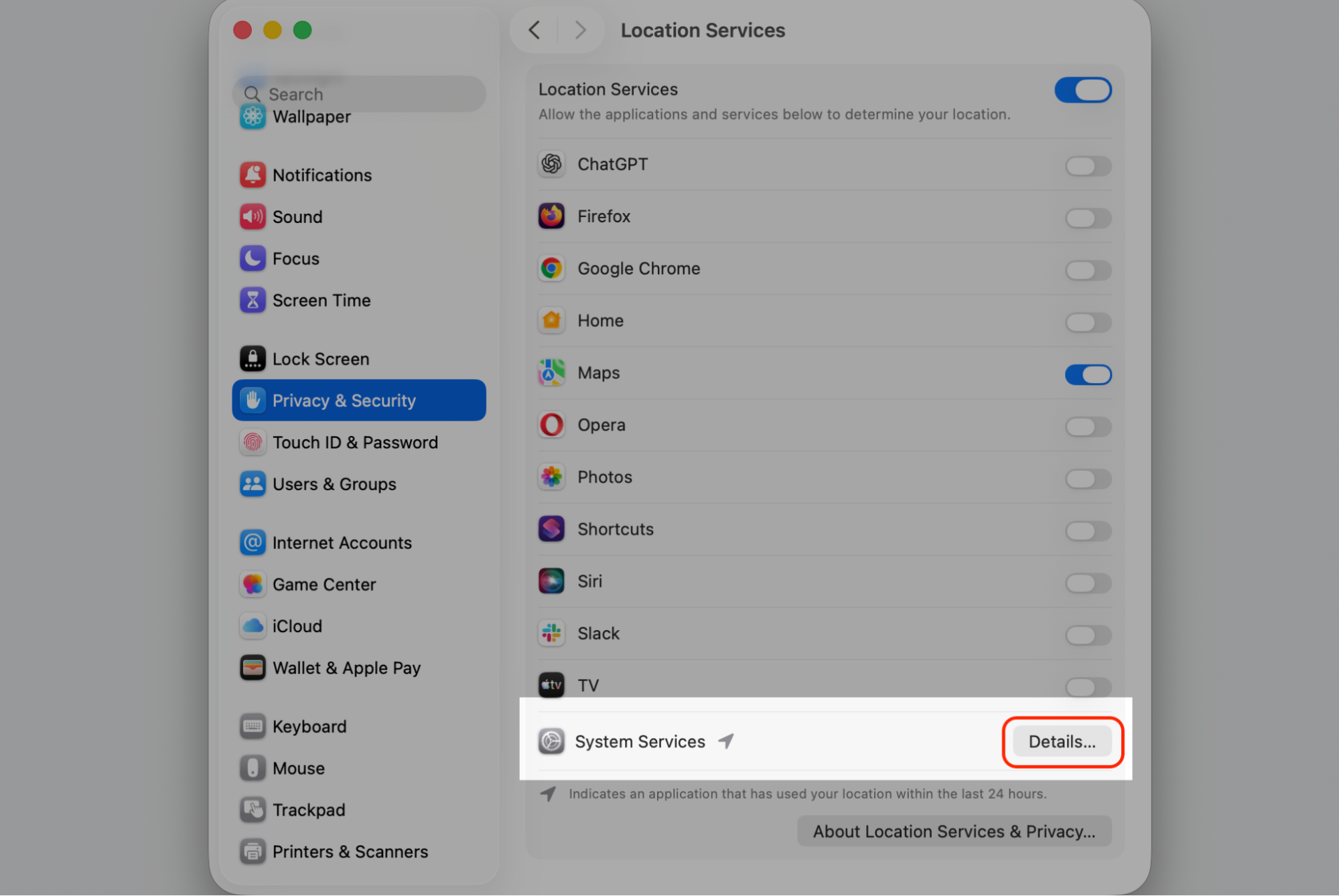
Open System Settings > Privacy & Security > Location Services.
Turn on Location Services.
Scroll to the bottom, click Details next to System Services.
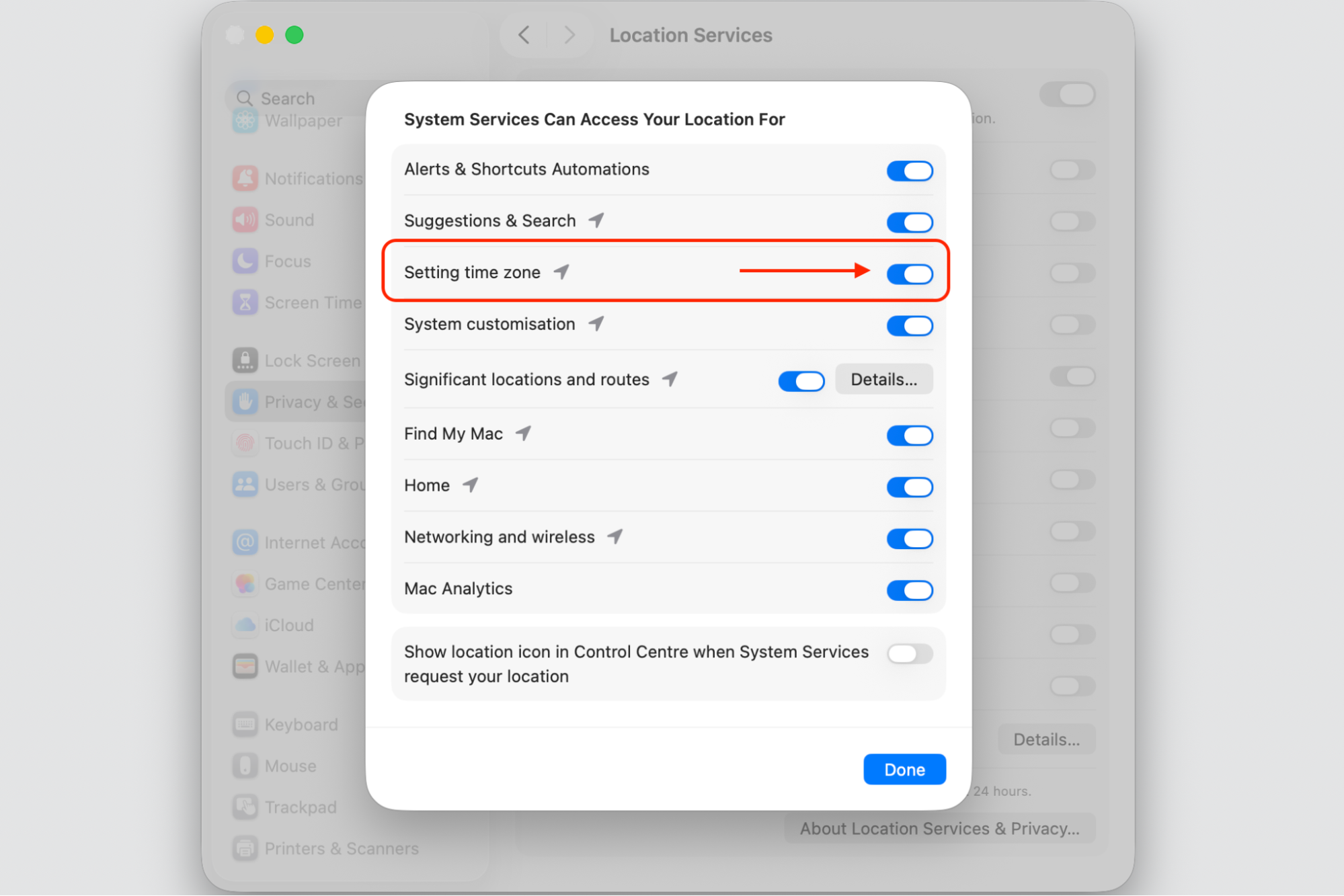
Turn on Setting time zone, then click Done.
Step 1. Go to Apple Menu > System SettingsStep 2. Turn on Location ServicesStep 3. Scroll to the bottom, click Details next to System ServicesStep 4. Turn on Setting time zone > click Done
7. Check language and region settings
When the time is right but the format looks odd—the day and month swapped, let’s say—your region setting is doing it. Matching it to where you live tidies the display. Follow our hints below:
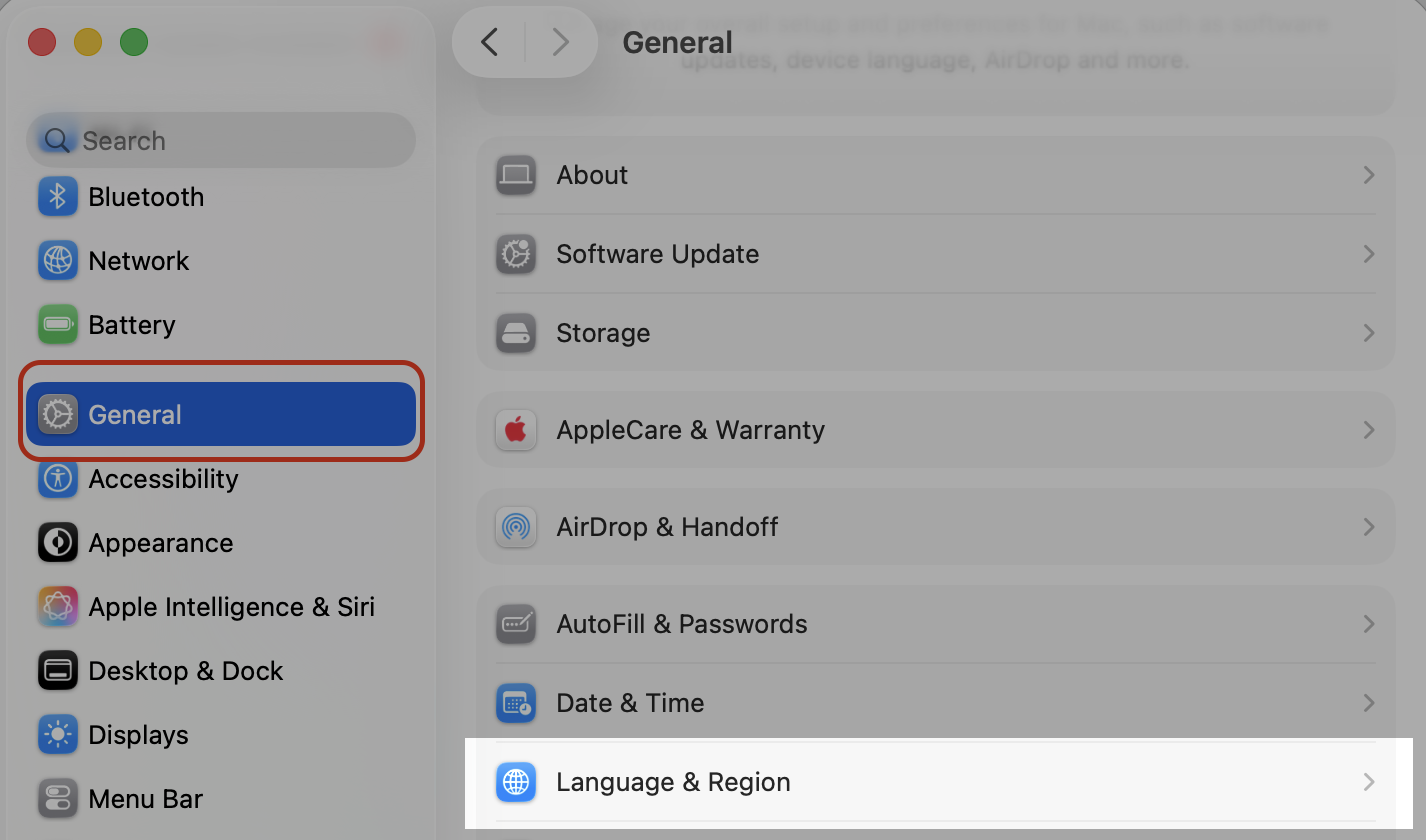
Open System Settings > General > Language & Region.
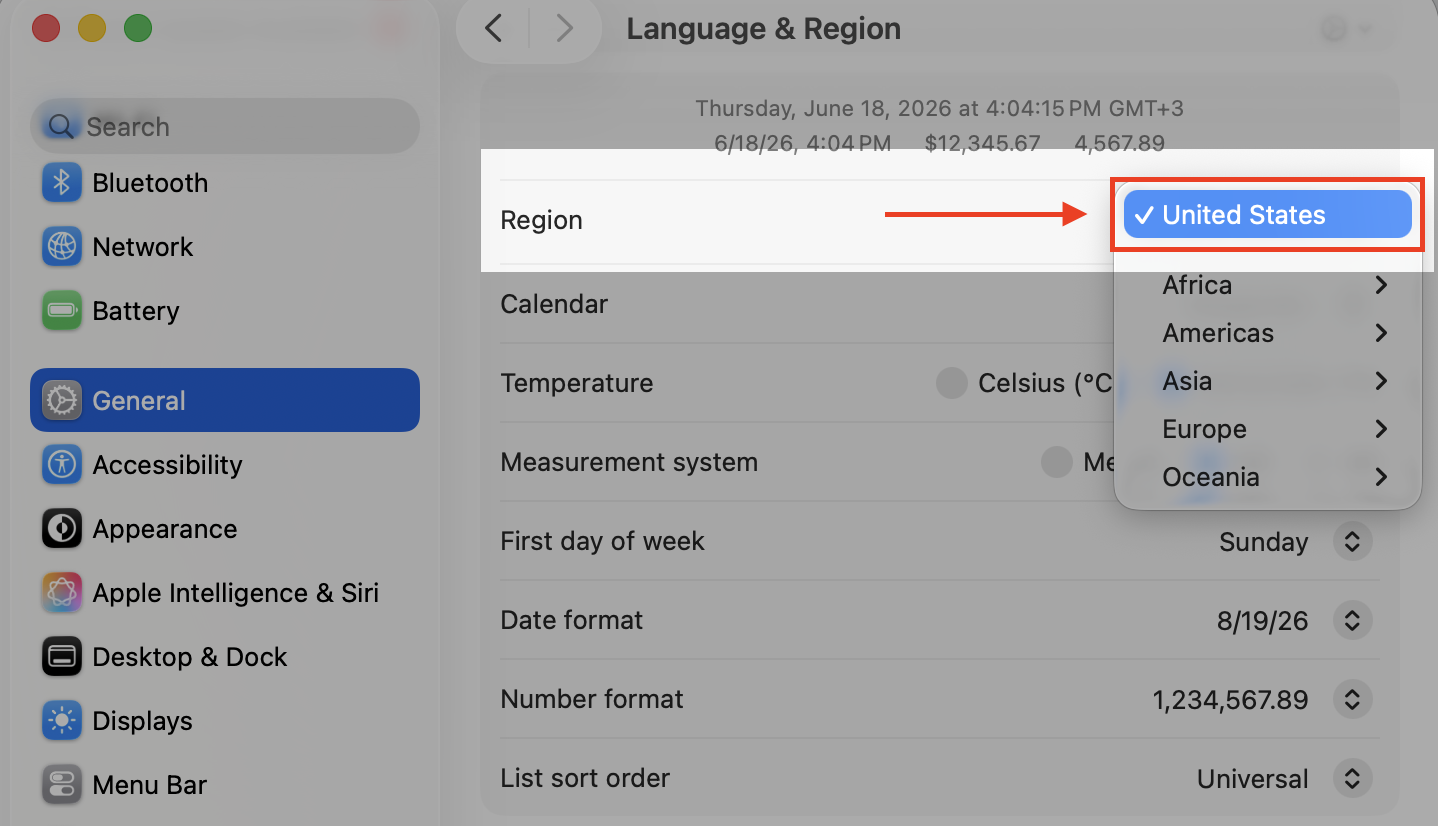
Set Region to your current country.
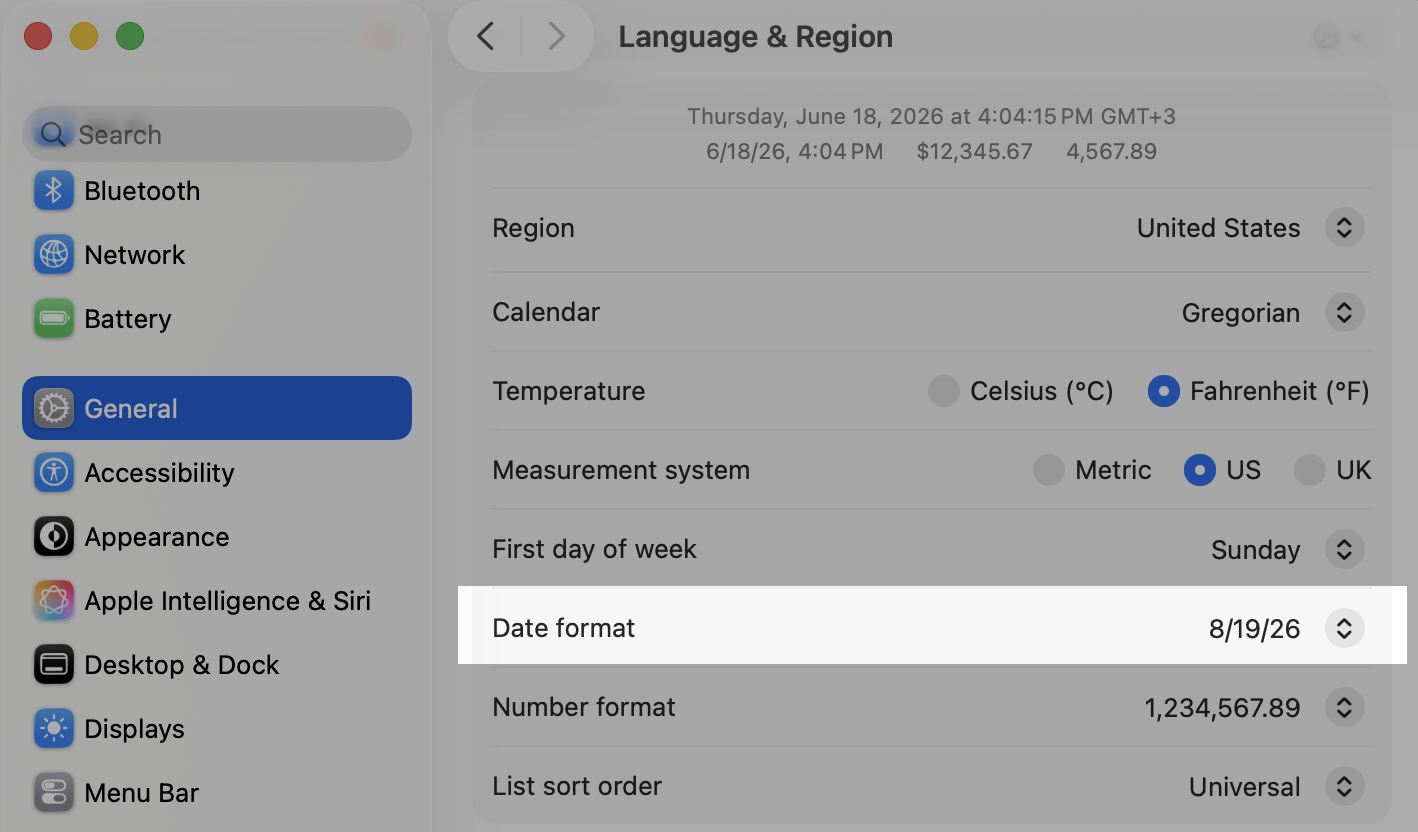
Check the Date and Time previews near the bottom to confirm they look right.
Step 1. Go to Apple Menu > System SettingsStep 2. Go to General > Language and RegionStep 3. Scroll down to the Region option and select the right optionStep 4. Check Date Format
8. Sync the time using Terminal
When the usual settings won’t budge, a single Terminal command can force your Mac to refresh the time from a server. It sounds technical, but, believe us, it’s just a bit of copy and paste. The open Terminal shortcut makes it quick to get started, so do this:
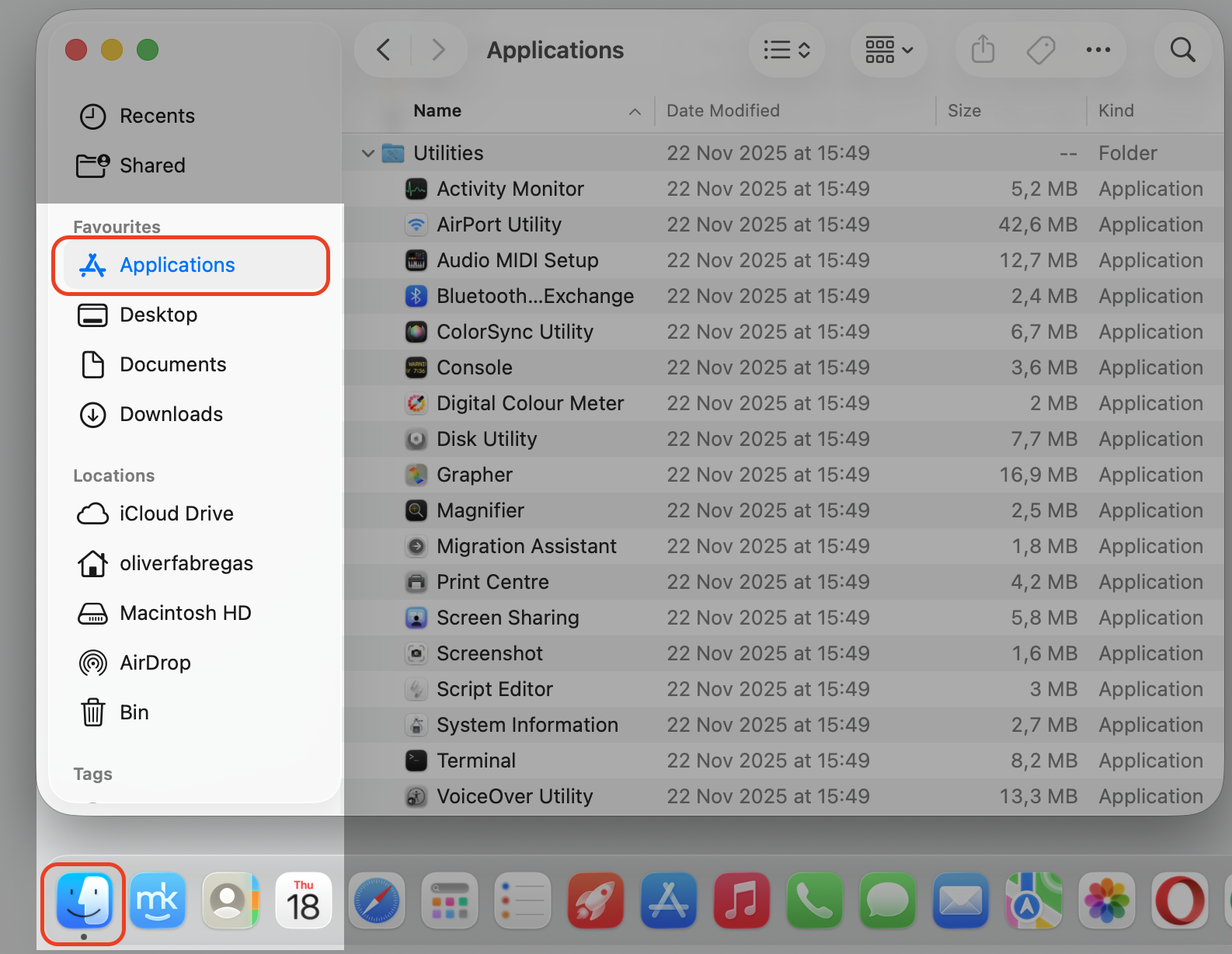
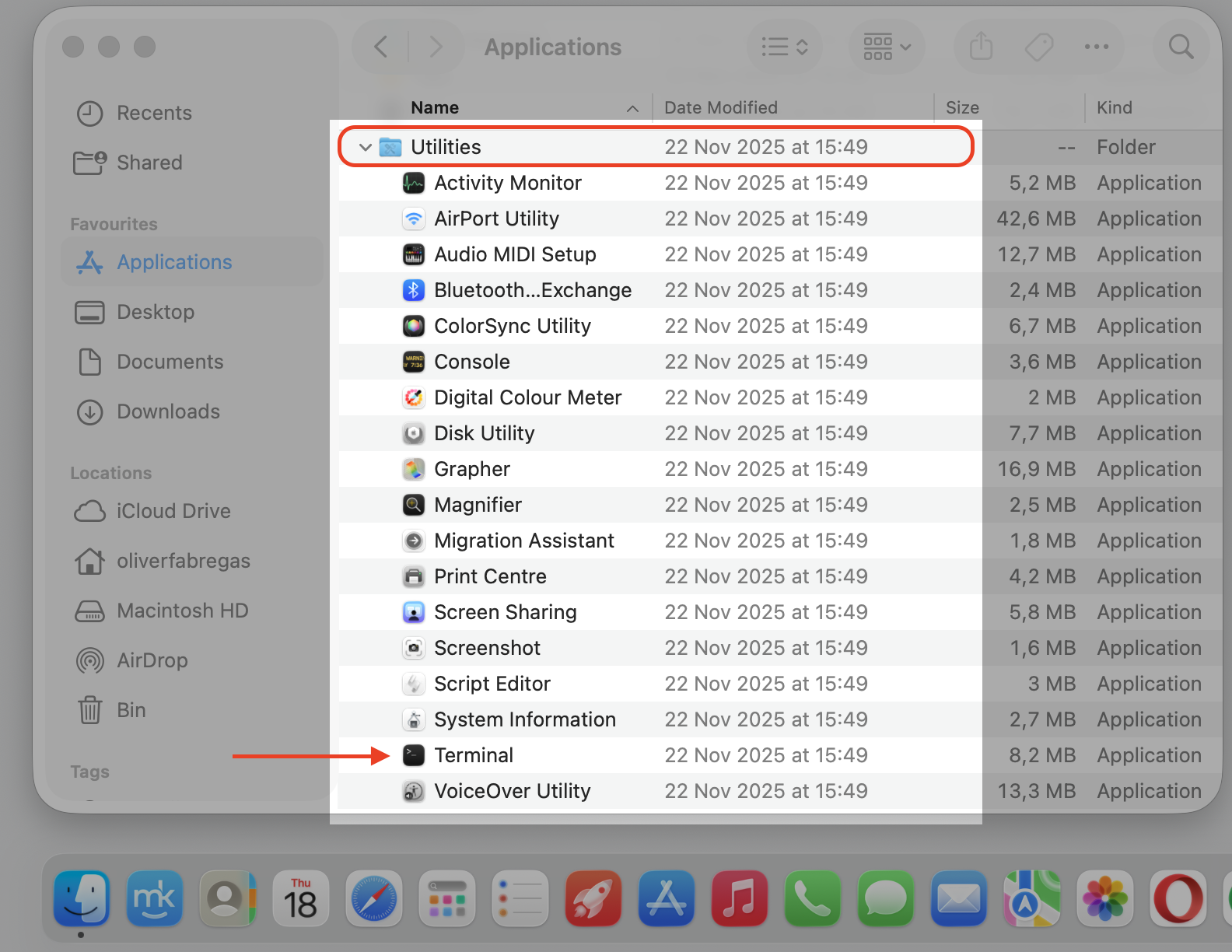
Open Terminal from your Applications > Utilities folder.
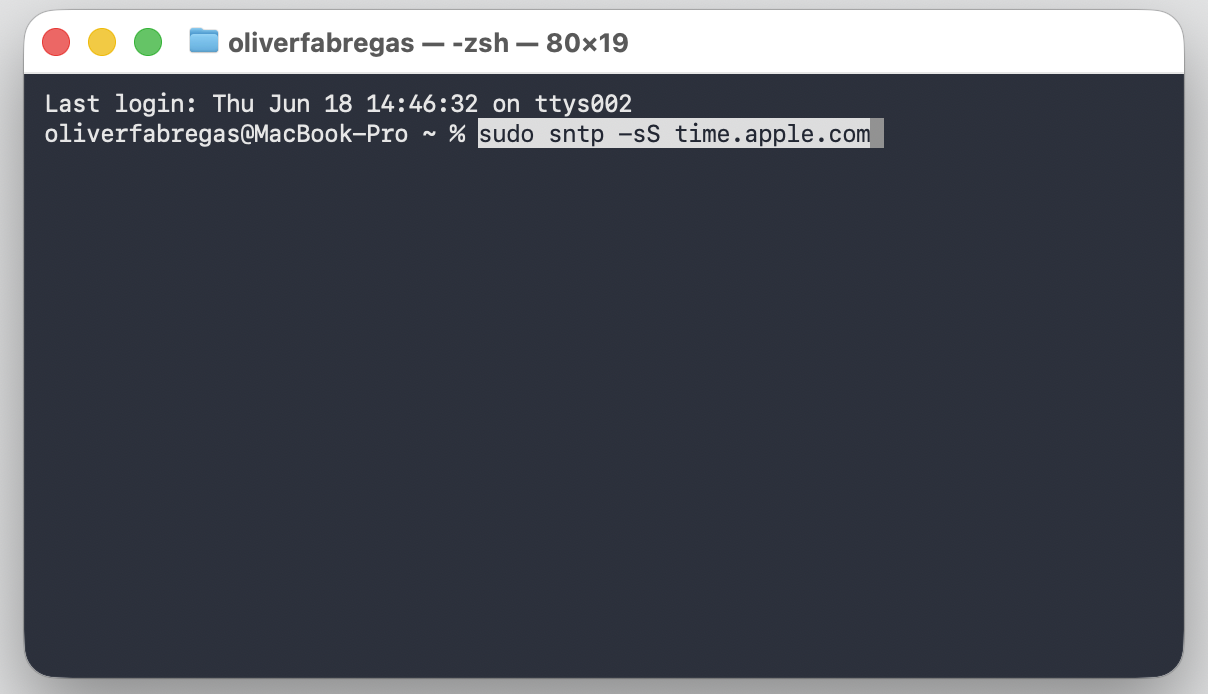
Type sudo sntp -sS time.apple.com and press Return.
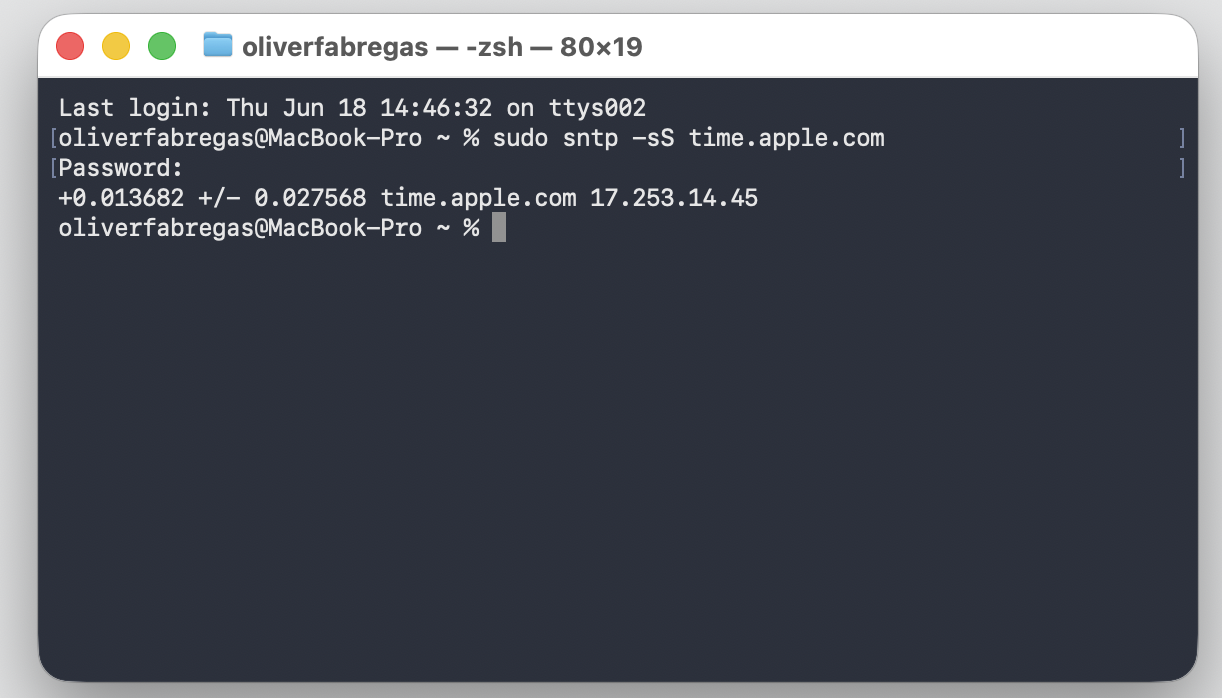
Enter your admin password when asked, then press Return to finish.
Step 1. Go to Finder > ApplicationsStep 2. Expand Utilities folder and select Terminal Step 3. Copy and paste the shown command and hit ReturnStep 4. Enter the user password and hit Return
9. Set the date and time manually
If you’re offline or syncing simply won’t work, you can type the time in yourself. It’s a handy stopgap until automatic updates are back. Just do the following:
Go to System Settings > General > Date & Time.
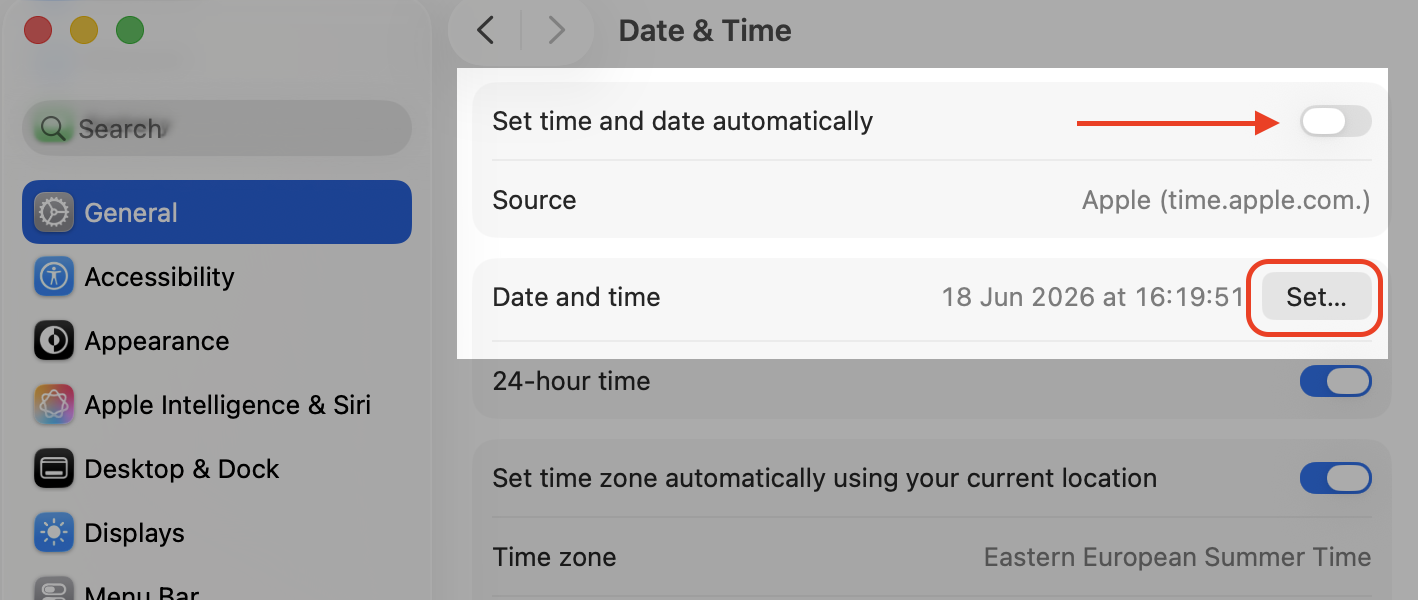
Turn off Set time and date automatically.
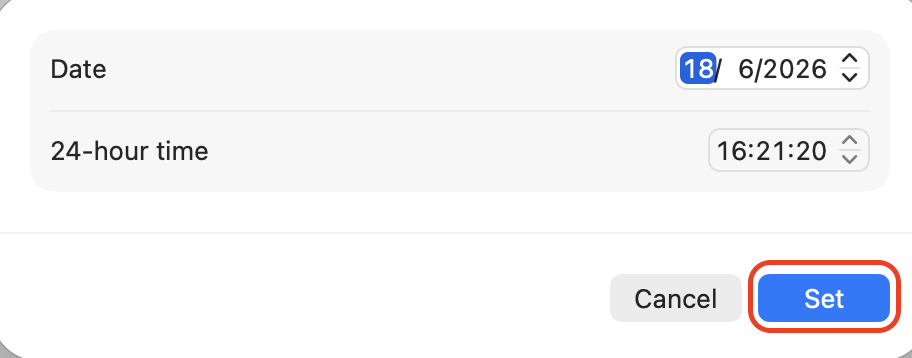
Click Set, then type the correct date and time and confirm.
Step 1. Go to Apple Menu > System SettingsStep 2. Go to General > Date and TimeStep 3. Turn off Set time and date automatically and select SetStep 4. Enter the date and time and press Set
What to do if the problem with date and time on Mac keeps coming back?
If the clock drifts again after every fix, something deeper is nudging it. To settle it for good, our team leaves a few recommendations for you:
Keep both Set time and date automatically and Set time zone automatically switched on.
Install macOS updates as they arrive, since they often carry quiet fixes.
If a Mac stays on for weeks, a clock that drifts can point to an aging internal battery worth checking with Apple.
Conclusion
A MacBook date and time wrong is usually a quick toggle away from being fixed. Once it’s right, keep things safe too—MacKeeper’s Antivirus scans for threats in real time. See how you can run your first scan in one click and remove anything suspicious if found.
We respect your privacy and
use cookies
for the best site experience.
Privacy Preferences Center
We use cookies along with other tools to give you the best possible experience while using the
MacKeeper website. Cookies are small text files that help the website load faster. The cookies we
use don’t contain any type of personal data meaning they never store information such as your
location, email address, or IP address.
Help us improve how you interact with our website by accepting the use of cookies. You can change
your privacy settings whenever you like.
Manage consent
All cookies
These cookies are strictly necessary for enabling basic website functionality (including page
navigation, form submission, language detection, post commenting), downloading and purchasing
software. The website might malfunction without these cookies.