Don’t like clutter? Then you probably want to know how to hide desktop icons on your Mac for a clean, distraction-free computing experience. We’re about to show you how to do that, but if you’re in the mood for decluttering, then try MacKeeper’s Login Items tool, and stop unneeded apps from loading at startup.
To hide all the icons on your macOS desktop, go to System Settings > Desktop & Dock, then untick Show items > On Desktop. You can also hide specific items by opening Finder. Choose Settings from the menu bar, and go to the General tab.
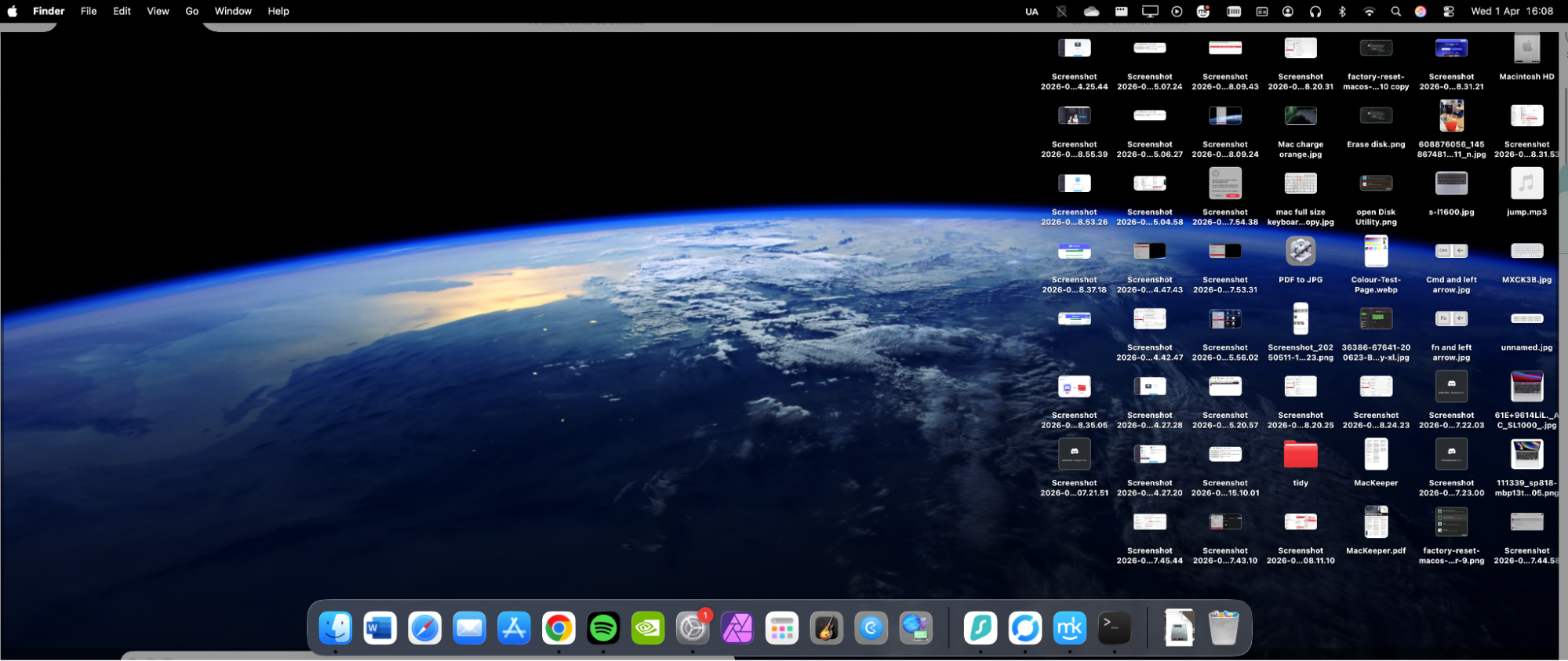
Having a cluttered desktop can make it hard to find things
Can you hide Mac icons on the desktop?
Yes, you can hide icons on Mac. When you unhide the icons, they’ll all return as they were. This is not the same as when you remove an icon from your Mac desktop, which deletes the icon. You’ll need to manually restore deleted icons if you want them back.
A note from our experts:
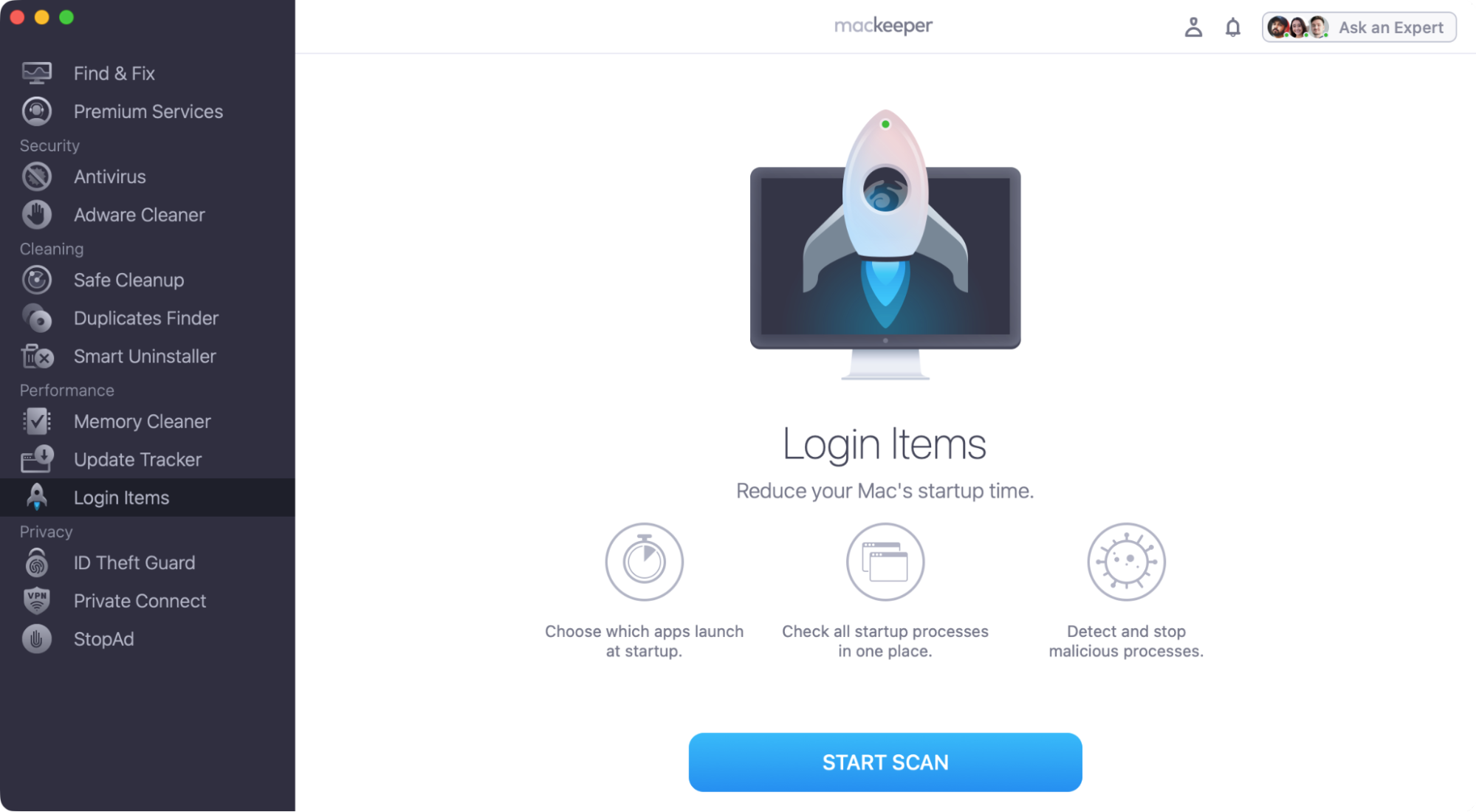
Alongside hiding and removing icons, you can optimize your Mac’s app management with MacKeepr’s Login tool. It’s as easy as 1, 2, 3:
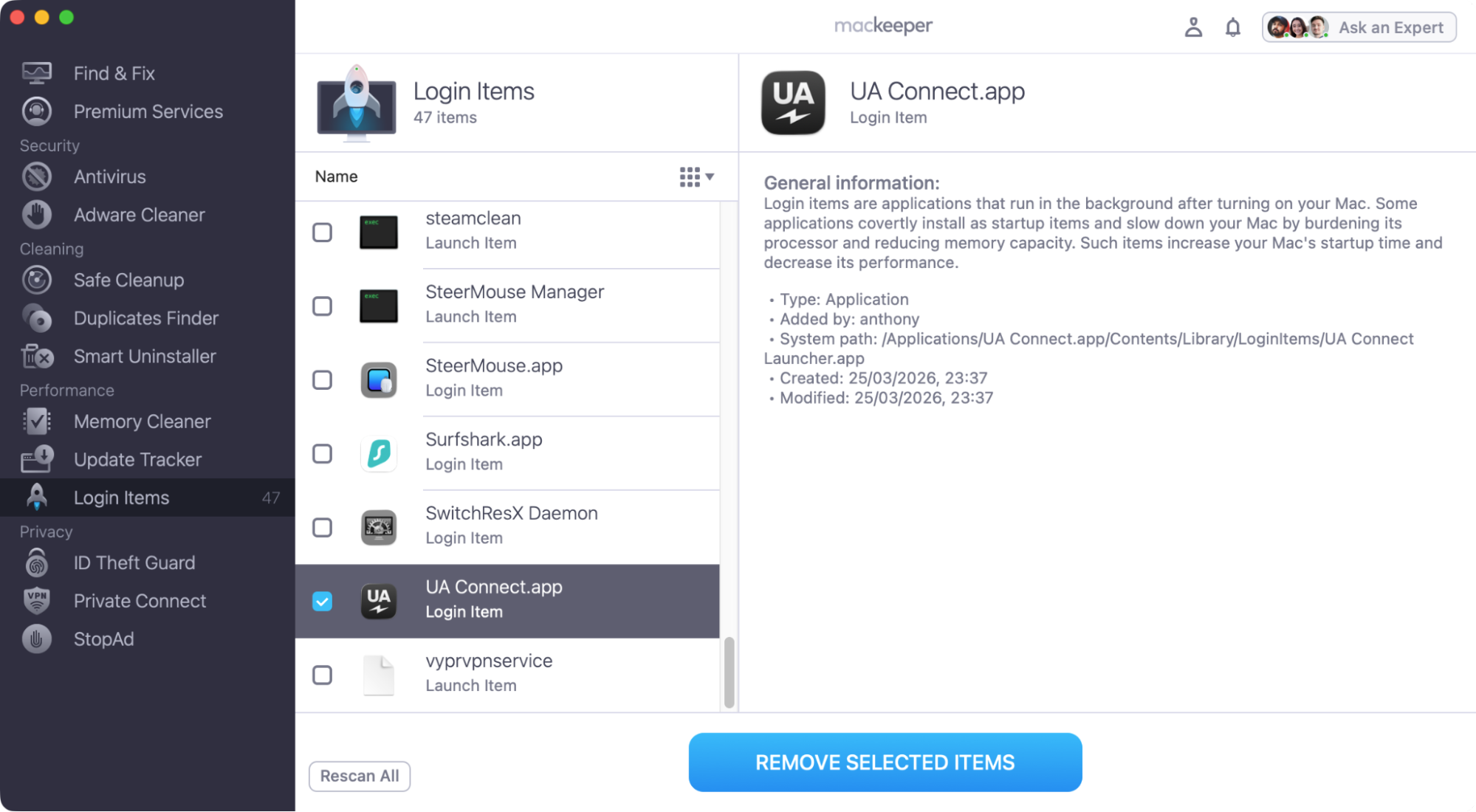
Look through the list of login items, and select what you want to remove.
Click Remove Selected Items.
Step 1. Select the Login Items tool, and click Start Scan.Step 2. Choose what to remove, and click Remove Selected Items
How to hide desktop icons on Mac?
There are a few different ways to hide icons on your Mac desktop, and which one you use depends on which icons you want to hide and how you prefer to work. For example, one of our methods relies on the macOS command-line tool, Terminal, which is better for expert users.
Now, on to our icon-hiding tips.
Using System Settings (macOS Ventura & newer)
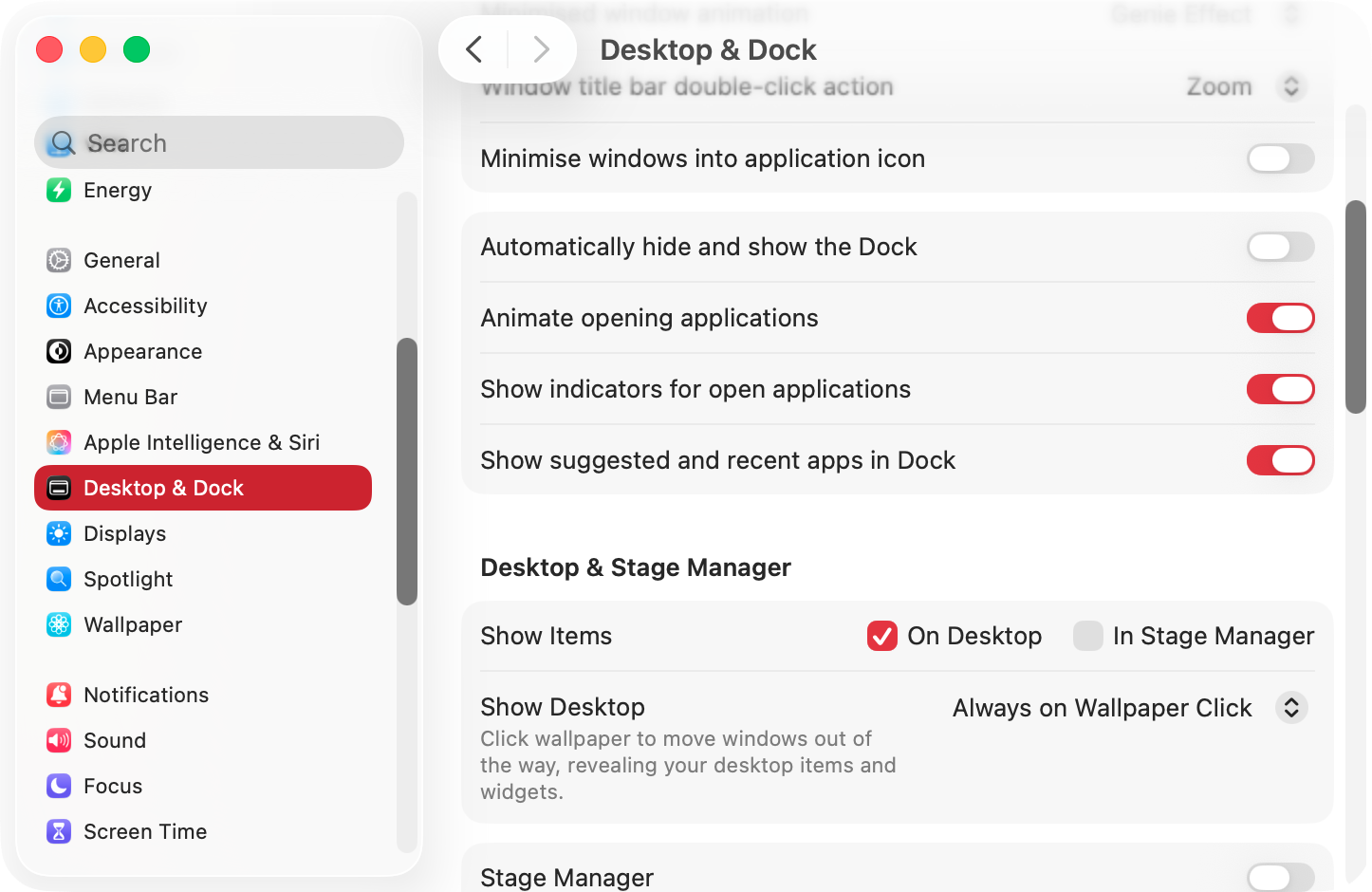
From macOS Ventura onwards, it’s been easy to hide all your Mac’s desktop icons using System Settings. When you hide desktop icons on your Mac, you’re not deleting them. If you navigate to your desktop in a Finder window, you’ll see everything that’s stored there, including shortcuts, pictures, and documents. The icons will also reappear when you click in an empty space to reveal the desktop.
To hide all your Mac icons in System Settings, do as follows:
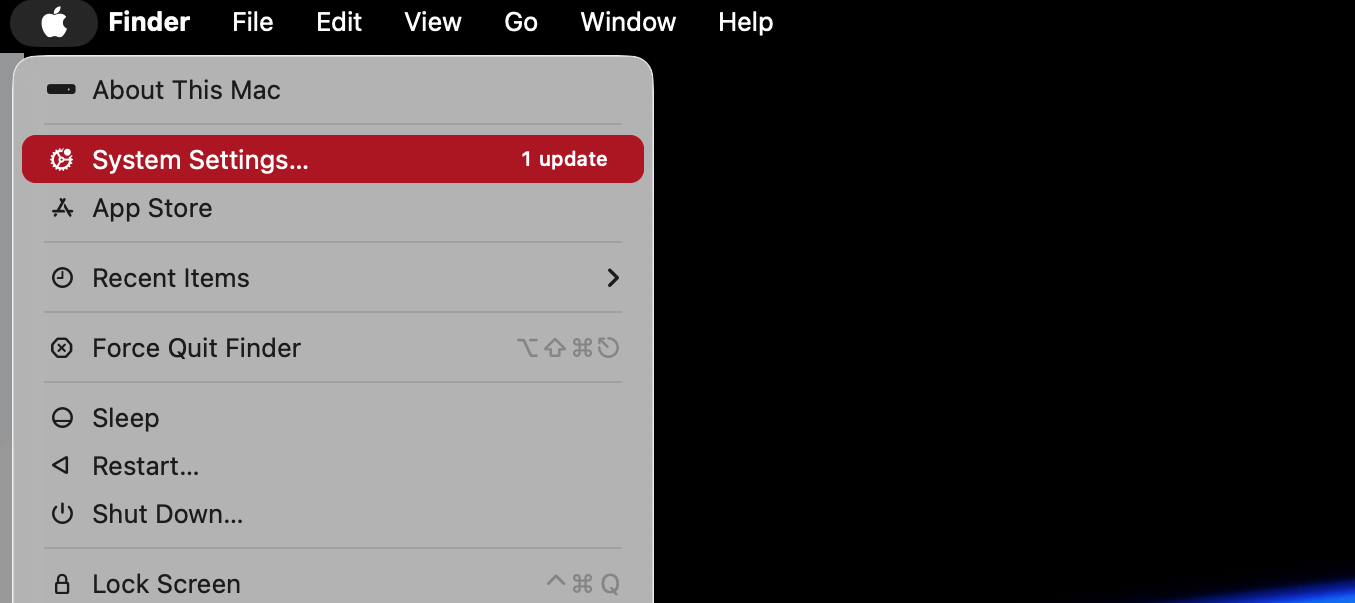
Click the Apple icon in the top-left of your screen, and select System Settings.
From the sidebar on the left, select Desktop & Dock.
Scroll down to Desktop & Stage Manager.
Next to Show Items, untick On Desktop.
Step 1. Open your System SettingsStep 2. Untick Show Items > On Desktop
Rather than just hiding all icons, you may want to take a more refined approach to tidying up your Mac. In that case, check out our guide on how to make your desktop look clean on Mac.
Via Finder settings (older macOS or specific items)
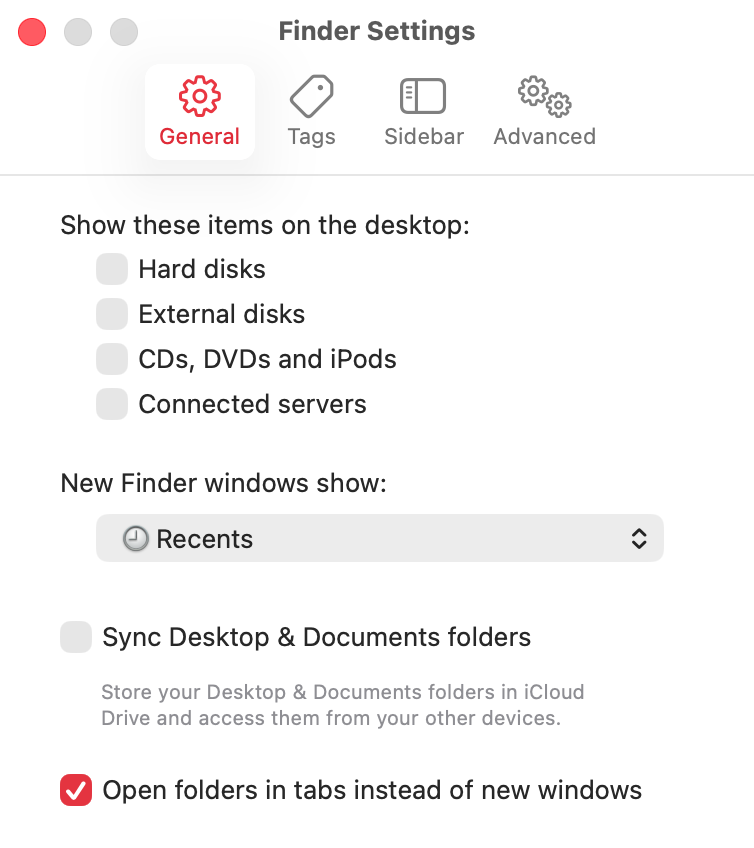
By default, macOS will show storage locations on your desktop, including hard drives and DVD drives. You can remove these icons from your Mac desktop without deleting them, simply by toggling off in your Finder settings. Here’s how we do that:
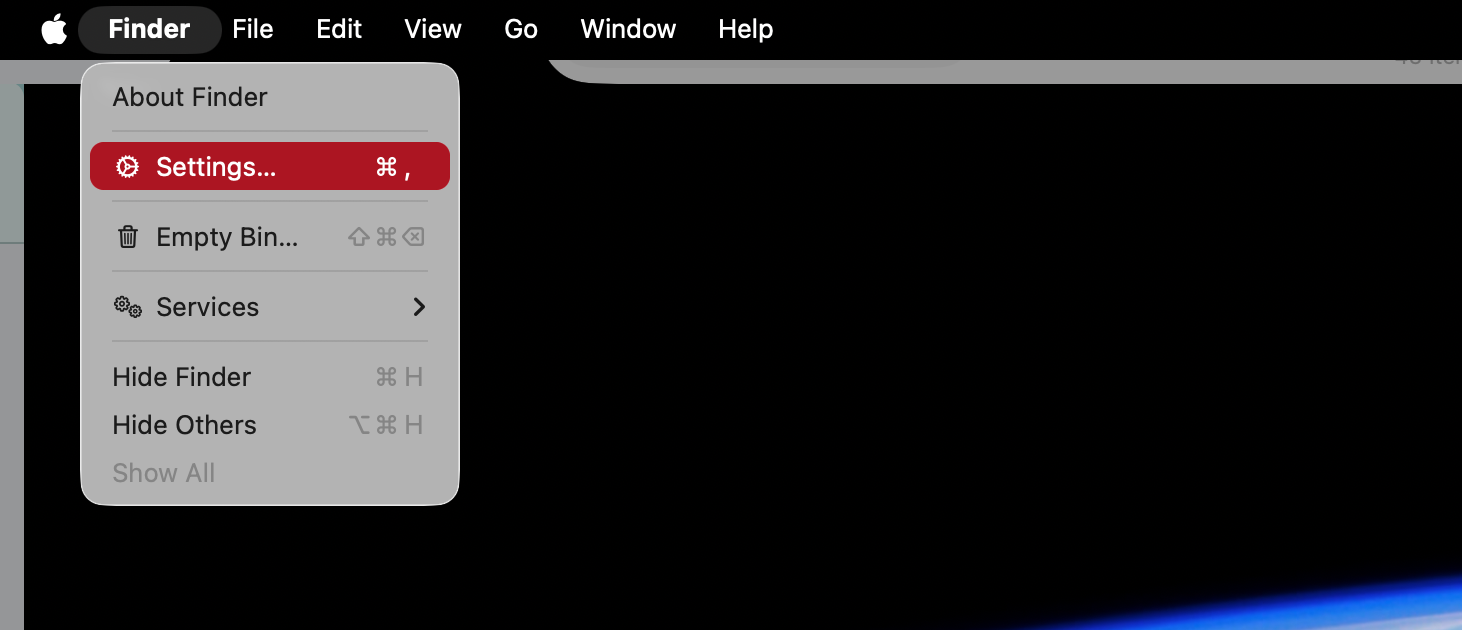
Open a Finder window, and select Finder > Settings from your menu bar.
Select the General tab, untick anything you want to hide. You can hide or show:
Hard disks
External disks
CDs, DVDs, and iPods
Connected servers
To unhide these icons, just return your Finder settings and retick the icons you want to show.
Step 1. Select Finder > SettingsStep 2. Choose which icons to hide
A hint from us:
Struggling to find what you’re looking for in your menu bar? Change the menu bar on your Mac, and get it looking how you want.
Hide all desktop icons using Terminal
Terminal is a completely text-based tool, and it’s built into every copy of macOS. It’s also very powerful, because it lets you control every aspect of your Mac or MacBook—more than you’d normally be able to do with the visual user interface.
While you can hide icons using Terminal, we think it’s important to warn you about the dangers. As long as you stick to the instructions we give you here, you’ll be fine, but if you type the wrong commands into Terminal, you can easily delete something your Mac needs to run. So be careful!
Now, as long as you’re confident with it, here’s how to hide desktop icons using Terminal:
First, let’s open Terminal. You can open it with Spotlight, or find it in Applications > Utilities.
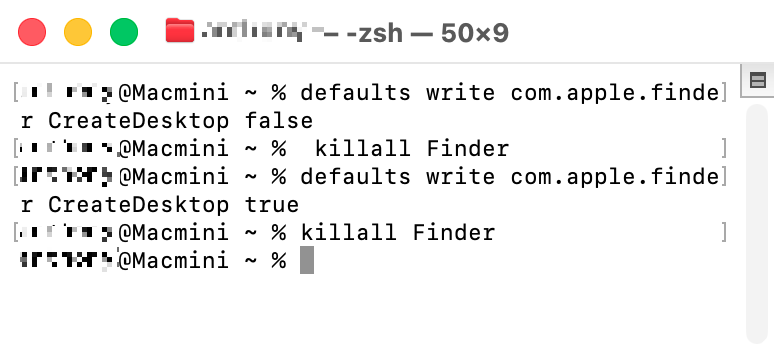
Now type in defaults write com.apple.finder CreateDesktop false, and press Enter. You can also copy and paste this command into Terminal.
Type or paste in killall Finder, and press Enter. This will relaunch Finder, and your desktop icons will be hidden.
To restore your desktop icons, run the command defaults write com.apple.finder CreateDesktoptrue, followed by killall Finder again.
You can hide everything on your desktop with Terminal
If you’re wondering why did desktop icons disappear on Mac, you might be able to restore them using the commands we’ve shown you here.
Hide specific icons using Terminal
Rather than hiding all your icons with Terminal, you can limit it to specific ones by toggling visibility off. This works with any kind of icon, including files and folders. Here’s how to do it:
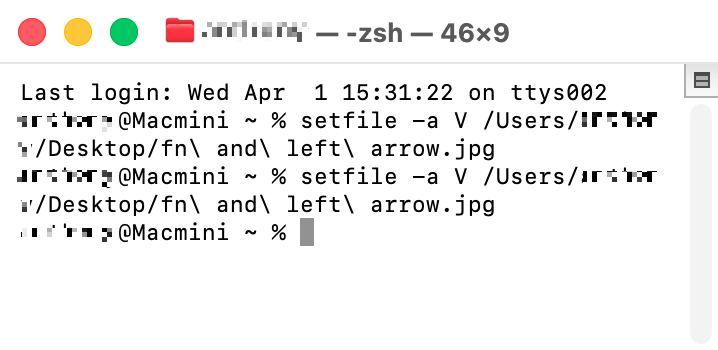
Open Terminal, and type in the command setfile -a v. Make sure to leave a space at the end, and don’t press Enter yet.
Drag and drop the icon you want to hide into the Terminal window, and press Enter. This will set the icon’s status to hidden.
To show hidden icons, press Cmd+Shift+. (period). Now, to permanently unhide the icons, repeat steps 1 and 2.
Use Terminal to make individual files and folders invisible
Combined with the other methods we’ve shown you in this guide, this can be a useful part of how to declutter MacBook and Mac icons. Just remember that you’ve hidden files, because if you forget about these files, you might end up wondering where all your disk space is disappearing to.
Delete or move icons for a cleaner desktop?
Although we’re focused on hiding desktop icons on Mac, we also recommend deleting or moving icons too. For example, you can delete old and unwanted screenshots, as well as other files and folders you no longer have use for.
Alternatively, if you don’t want to delete files, you can move them. Think about putting them in your Documents folder, or create a ‘Tidy’ folder on your desktop and put all your clutter in there instead.
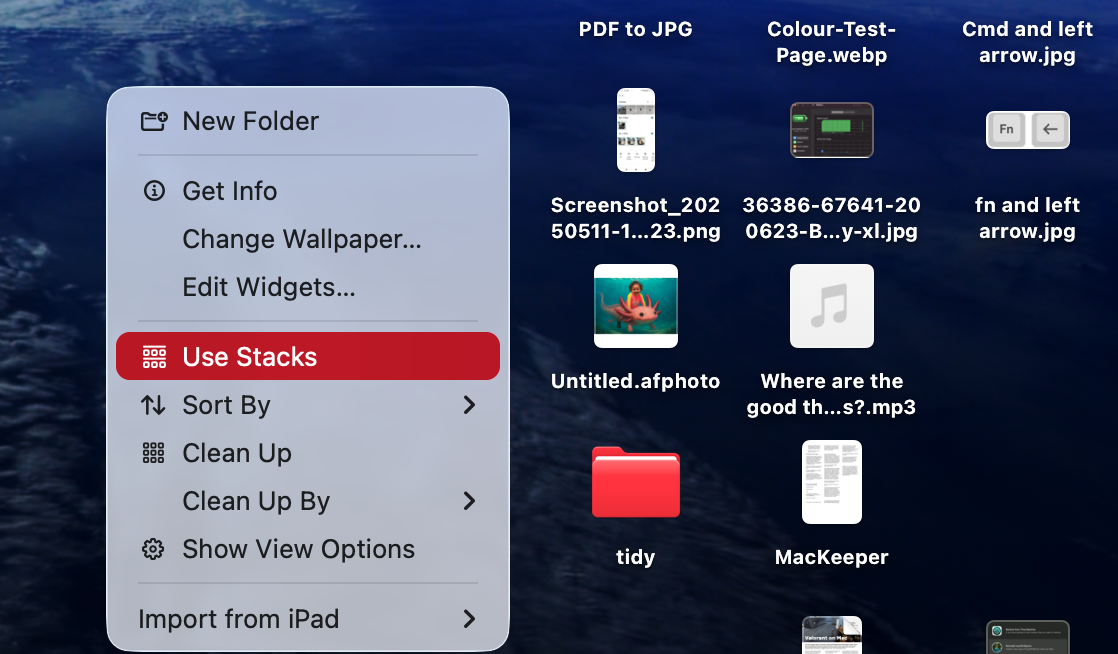
If you have macOS Mojave or later, you have another option too: Stacks. This handy organization function automatically groups certain file types into ‘stacks’. So if you have lots of photos and illustrations on your desktop, they’ll be put in an Images stack. Click on the Images stack icon, and it will reveal the files in that stack. To enable stacks, simply right-click on your desktop and select Use Stacks.
Stacks gives you an easy way to organize icons
Make tidy and stay tidy
How did your desktop get filled with icons in the first place? By understanding this, you can change your behaviour and keep your Mac clutter-free.
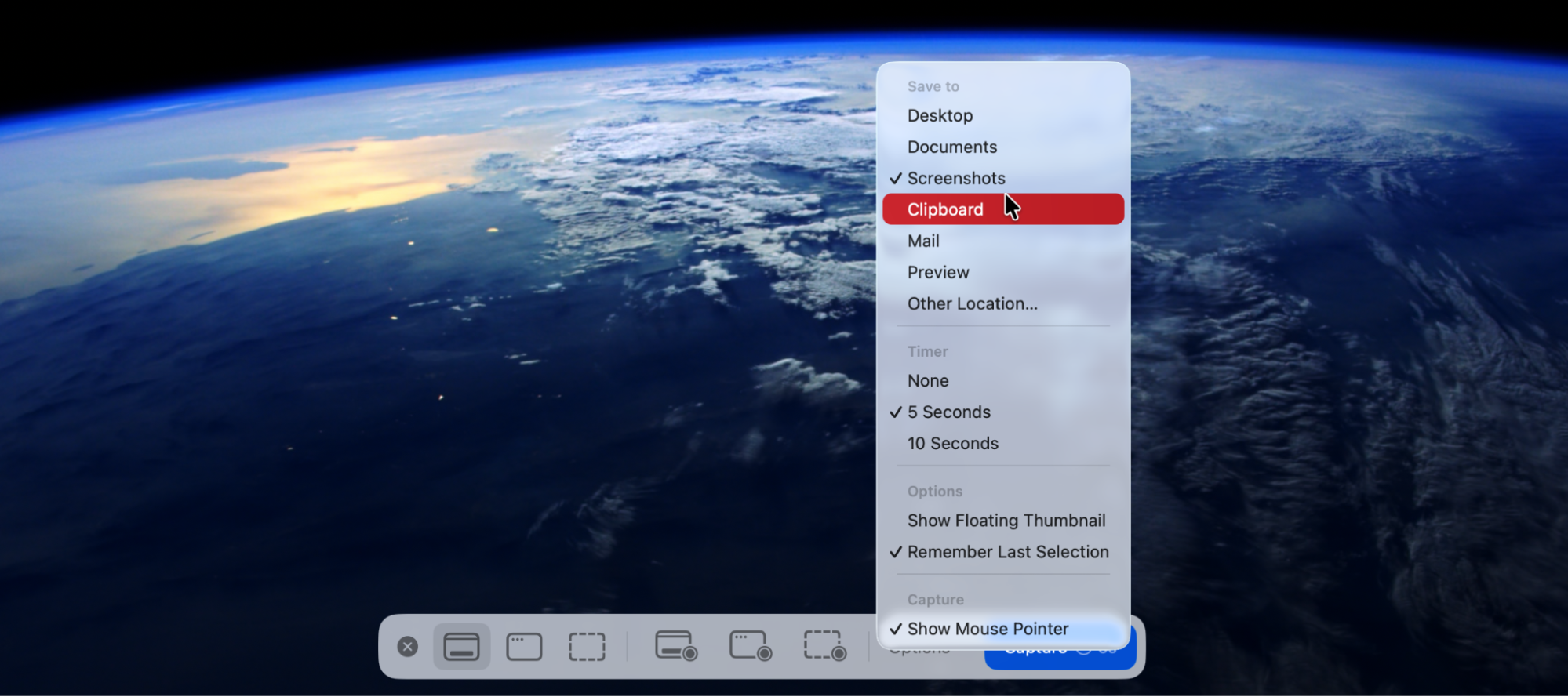
For us, it happens partly because we have our desktop set as the default location to save new screenshots. You can change the default location for screenshots in the settings of the Screenshot app—we suggest creating a new Screenshots folder in your Documents directory.
You might also have apps that download files to your desktop by default. By simply changing where apps download to you, you can avoid your Mac’s desktop from filling up with icons again. So check in your apps’ settings and change them as appropriate.
Change where screenshots are stored, and avoid clutter later
Say no to Mac clutter!
No one likes a cluttered desktop. When you have loads of icons filling up your screen, they look bad, you can’t find anything, and they slow you down. We’ve shown here just how easy it is to clear up your desktop without deleting anything—although we also recommend deleting anything you don’t need, and moving icons into folders to keep things tidy. But if you want to hide all or some desktop icons, you can use System Settings, Finder settings, or Terminal.
You can further declutter your Mac with MacKeeper’s Login Items tool. In just a few clicks, this handy tool will reveal LaunchAgents and LaunchDaemons, which automatically start as soon as you boot your Mac into macOS. You might be surprised by what you find, and by deleting unneeded login items, you can give your Mac a speed boost too.
We respect your privacy and
use cookies
for the best site experience.
Privacy Preferences Center
We use cookies along with other tools to give you the best possible experience while using the
MacKeeper website. Cookies are small text files that help the website load faster. The cookies we
use don’t contain any type of personal data meaning they never store information such as your
location, email address, or IP address.
Help us improve how you interact with our website by accepting the use of cookies. You can change
your privacy settings whenever you like.
Manage consent
All cookies
These cookies are strictly necessary for enabling basic website functionality (including page
navigation, form submission, language detection, post commenting), downloading and purchasing
software. The website might malfunction without these cookies.