You’re headed into an hours-long meeting or conference where charging ports are hard to come by. So you need to completely charge your MacBook fast and conserve your battery for the rest of the day. One way to prevent your battery from depleting quickly is by reducing your Mac’s active login items, which consume a lot of CPU resources in the background. MacKeeper’s Login Items tool simplifies this process by identifying your Mac’s most resource-intensive startup apps and helping you manage them.
On average, MacBook devices take about 30 minutes to reach a 50% charge, while reaching a full charge depends on your Mac model. For instance, MacBook Air (2022 or later) devices take about two or three hours using a 70W fast charger or higher. 14-inch MacBook Pro devices take approximately one hour and 45 minutes to reach a 100% charge using a 96W fast charger or higher. And 16-inch MacBook Pros take an hour and 40 minutes using a 140W fast charger or higher.
What is fast charging on a Mac?
Fast charging refers to an Apple feature introduced in MacBook Air 2022 models or later and 14- and 16-inch MacBook Pro models (2021 or later). It allows them to charge up to 50 percent of the battery in approximately 30 minutes, provided you use the appropriate adapters, cables, and displays. These often depend on the Mac model you own—either a MacBook Air (2022 or later) or a 14- or 16-inch MacBook Pro (2021 or later).
A tip from the MacKeeper team:
Does plugging your MacBook into a power source guarantee that it will charge? Not always, but there’s a way to know if your Mac is charging.
How long does it take to fully charge a Mac?
MacBook devices typically take between 1.5 and 4.5 hours to fully charge (0% to 100%). However, charging speed varies depending on two factors: the Mac model and the power adapter’s wattage. In addition, similar to iPhones, modern MacBook computers follow a two-stage charging approach, which includes fast-charging to 80% and then trickle charging to protect the battery health.
How to charge a MacBook properly?
There are several methods you can use to ensure you charge your MacBook device properly. Use official Apple chargers to protect your device against damage and extend its lifespan. Monitor battery health, as this impacts how fast your MacBook’s battery depletes. Reduce energy usage by closing unused apps and unnecessary login items. Avoid temperature extremes, as hot MacBooks consume more battery and suffer from faster capacity degradation. Optimize your settings to maximize daily runtime. Finally, keep your Mac updated to enhance energy efficiency routines.
1. Use official Apple chargers
We’ve found that using official Apple MacBook charger cables and adapters that came with our devices is useful for keeping our Macs running optimally and safely. While non-official chargers can be cheaper, they pose significant safety and functional risks, including electric shocks and fires, severe overheating, and permanent damage to your MacBook's battery or logic board.
This is because they sometimes deliver the incorrect voltage, causing significant damage that could end up being much more costly than buying a genuine charger, which is a long-term investment, although pricey.
Chances are that the charger you are using lacks compatibility with your MacBook device. Always use official Apple chargers to avoid disappointment.
2. Monitor battery health
Most Mac owners check battery health when buying a pre-loved Mac, but it’s also crucial for maximizing the MacBook battery life, ensuring optimal performance, and avoiding random shutdowns. Monitoring our Mac’s battery health has helped us intervene when the battery was failing to avoid further consequences.
Here’s how to check your Mac’s battery health:
Open the Apple menu and select System Settings (or System Preferences on older Macs).
In the sidebar, click on Battery and find the Battery Health mention in the opened window.
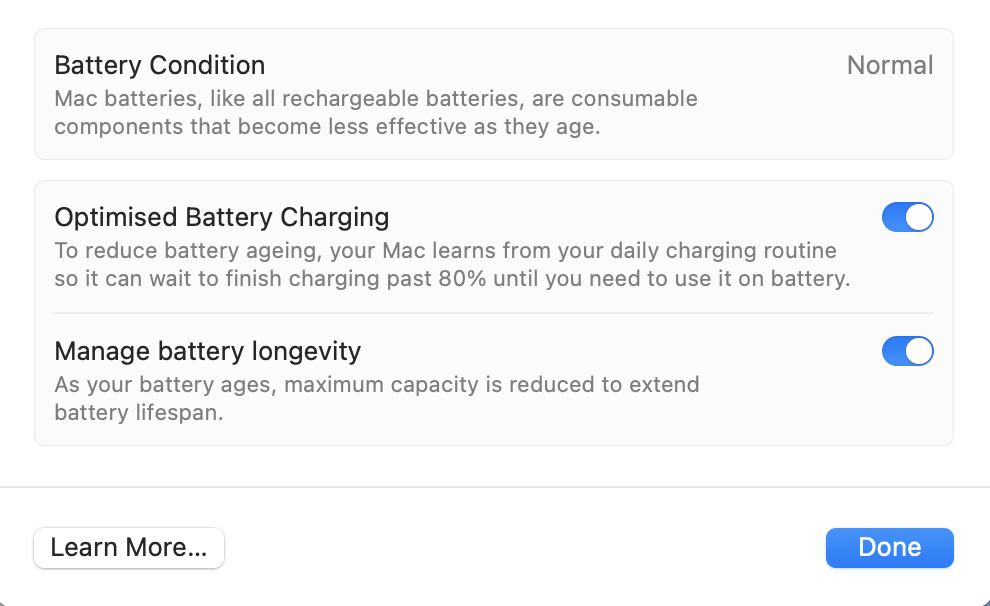
Click on the i symbol next to the Battery Health line to get the more detailed description and get navigation to the related functions.
Steps 1 & 2. Go to Apple menu > System Settings > Battery > Battery HealthStep 3. Click on the I symbol next to Battery Health for more detail
3. Reduce energy usage
Reducing energy usage is one of the most straightforward methods we use to increase our MacBook device’s battery life. It keeps our Mac running longer on a single charge, reducing the need to charge the battery frequently.
Follow this approach to reduce your Mac’s energy consumption:
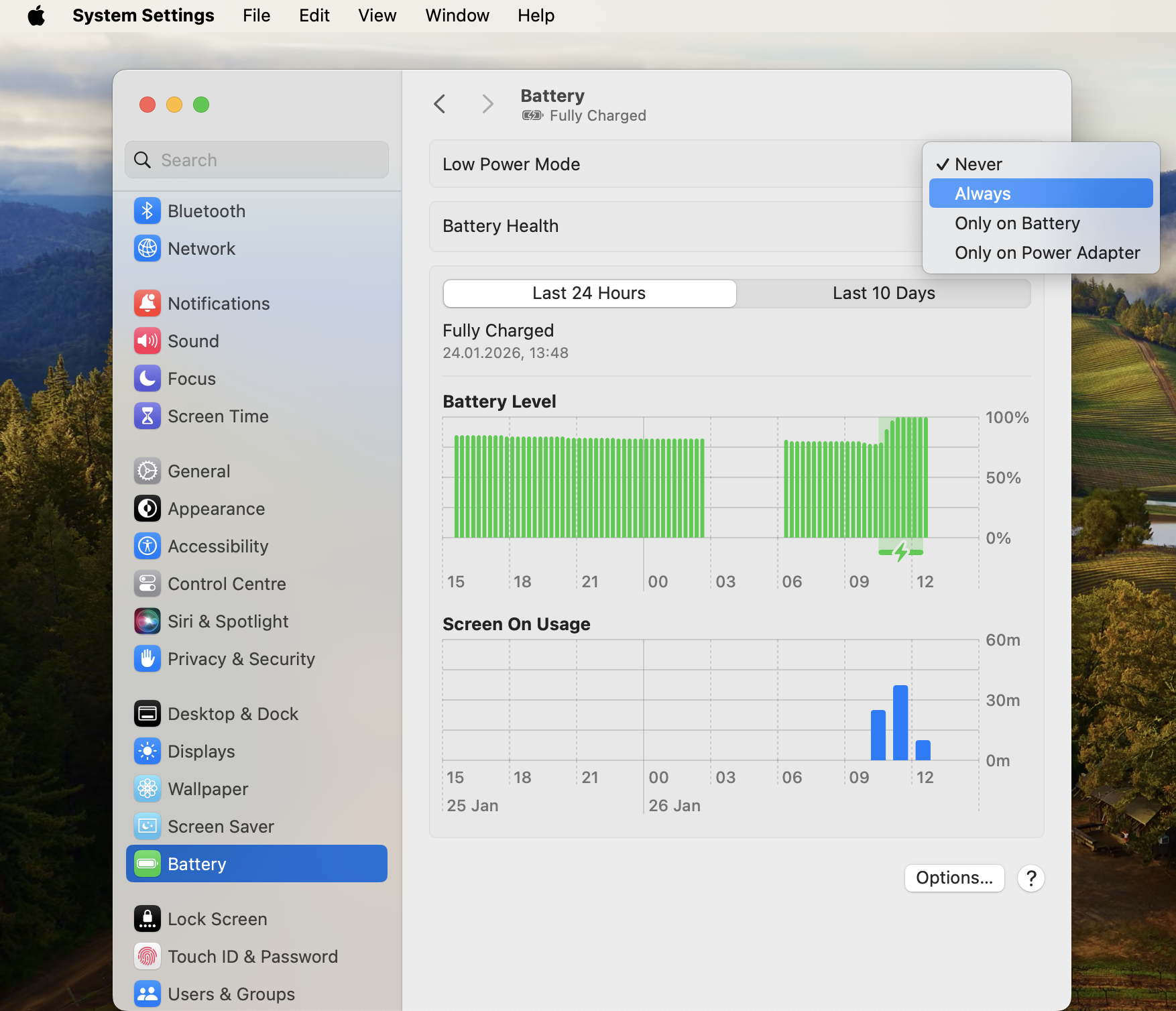
Select System Settings > Battery from the Apple menu.
Go to Low Power Mode, click on the drop-down menu, and select Always.
A note from our experts:
Keeping your Mac in Low Power Mode indefinitely adjusts the settings that help make it energy efficient—including reducing screen brightness and minimizing background activity. Another way to reduce your laptop’s background activity is to use MacKeeper’s Login Items tool, which simplifies this process by automating it.
Our solution quickly identifies startup apps that are constantly running and are also responsible for your MacBook battery draining so fast when not in use, allowing you to disable them for a smoother Mac experience and a healthier, more optimized battery. MacKeeper is owned by Clario Tech and notarized by Apple, making it a safe and reliable choice for your Mac.
Follow these steps to disable background apps using MacKeeper’s Login Items:
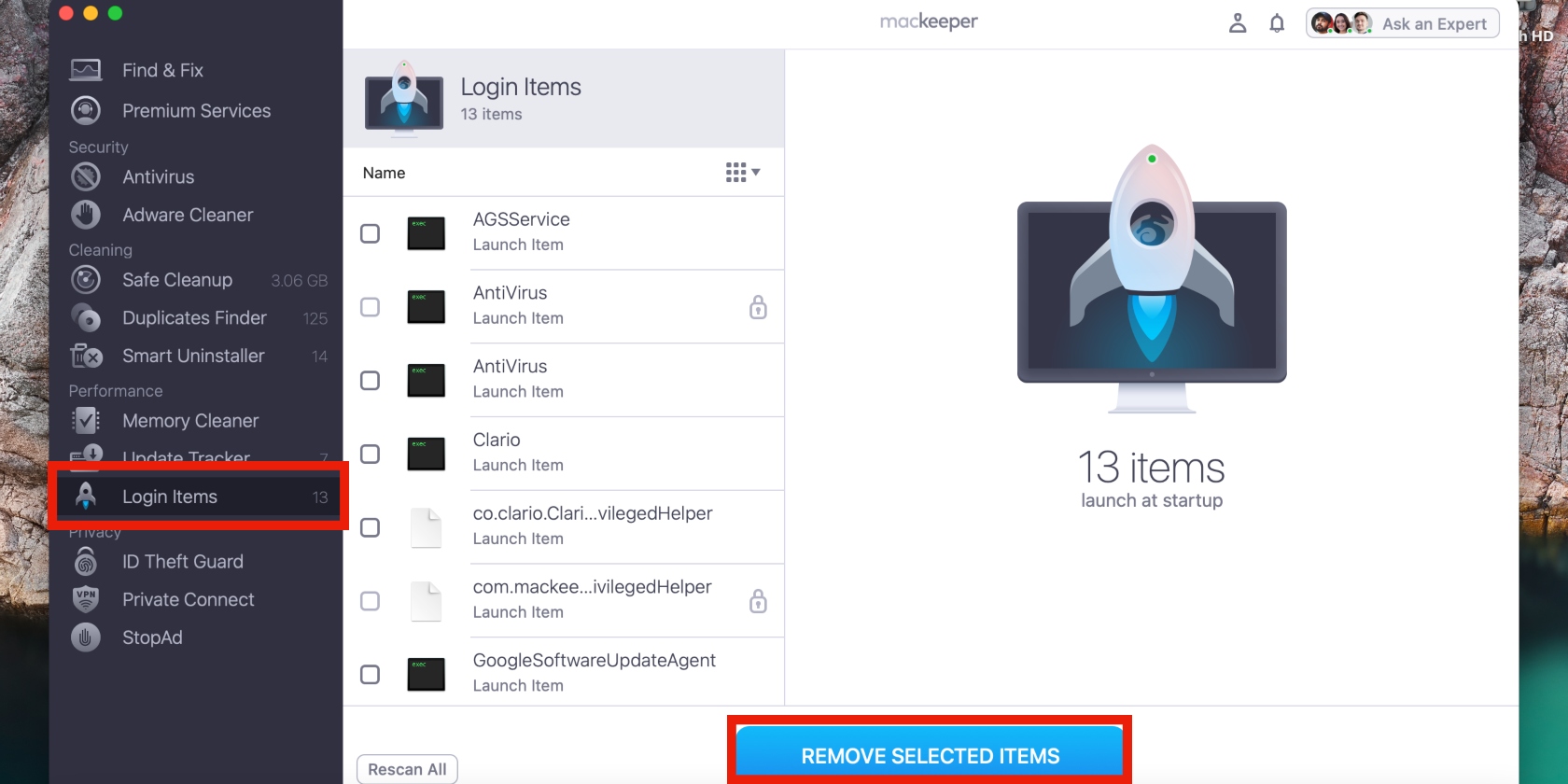
Head to the sidebar, click on Login Items, and select the items you want to get rid of.
Once that’s done, click the Remove Selected Items button to safely remove the login items you selected.
4. Avoid temperature extremes
We’ve noticed that our Macs perform poorly when exposed to extremely high or low temperatures. Exposing a MacBook battery to high temperatures can cause irreversible chemical damage, while exposing it to extremely cold conditions exposes it to condensation. For this reason, we recommend storing your MacBook at optimal temperatures, preferably those recommended by Apple.
Apple’s recommended temperatures:
Operating temperature: 50° to 95° F (10° to 35° C)
Storage temperature: -13° to 113° F (-25° to 45° C)
Relative humidity: 0% to 90% (non-condensing)
Operating altitude: Tested up to 10,000 feet (0 to 3048 meters)
5. Optimize settings
Apart from managing login items, we like to customize our Mac’s settings to support optimal performance and its battery’s lifespan.
To manage your Mac’s settings, do this:
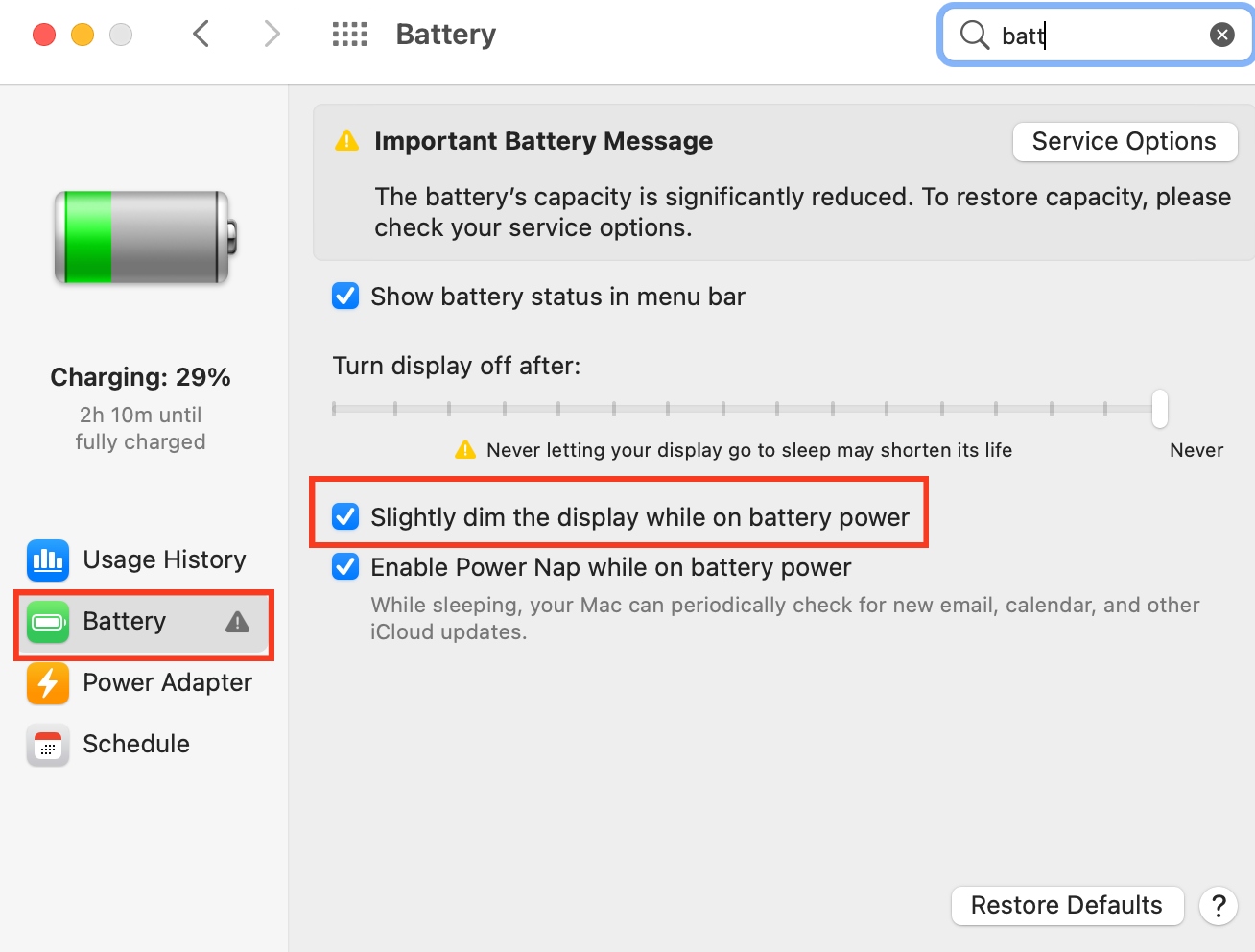
Select the Apple menu > System Settings > Displays > Advanced > Battery & Energy and choose the option to Slightly dim the display on battery. If using an older Mac, select System Preferences > Battery > enable the option to Slightly dim the display while on battery power.
Press the relevant keyboard brightness keys—F1 and F2—to adjust your screen’s brightness (we advise dimming your screen to conserve your battery).
Navigate to the menu bar, click on the Wi-Fi icon, and disable Wi-Fi when not in use.
Lastly, disconnect any accessories you aren’t using, such as headphones.
Step 1. Slightly dim the display while on battery powerStep 2. Adjust your screen’s brightness using keyboard keysStep 3. Disable Wi-Fi from the menu bar
6. Keep your Mac updated
Implementing the latest macOS updates is another way we get the most out of your Mac batteries. Mac updates help keep the Mac battery healthy by fixing software bugs that cause power drain and optimizing system efficiency. They also help your device manage power more efficiently. Use MacKeeper’s Update Tracker to manage Mac updates automatically in one central place.
Charge your Mac’s battery properly for optimal performance
MacBook devices take about 30 minutes to reach a 50% charge and up to 4.5 hours to charge fully. Now that you know the time it takes a MacBook to charge, you can work smarter and avoid being stuck with a dead MacBook battery. Ensure you charge your MacBook properly to prolong its lifespan. Use official Apple chargers, monitor battery health, reduce energy usage, avoid temperature extremes, optimize your settings, and keep your Mac updated.
We also highly advise you to reduce energy-consuming background activity by removing unnecessary startup apps. Use MacKeeper’s Login Items software to automatically identify the culprits and quickly remove them.
We respect your privacy and
use cookies
for the best site experience.
Privacy Preferences Center
We use cookies along with other tools to give you the best possible experience while using the
MacKeeper website. Cookies are small text files that help the website load faster. The cookies we
use don’t contain any type of personal data meaning they never store information such as your
location, email address, or IP address.
Help us improve how you interact with our website by accepting the use of cookies. You can change
your privacy settings whenever you like.
Manage consent
All cookies
These cookies are strictly necessary for enabling basic website functionality (including page
navigation, form submission, language detection, post commenting), downloading and purchasing
software. The website might malfunction without these cookies.