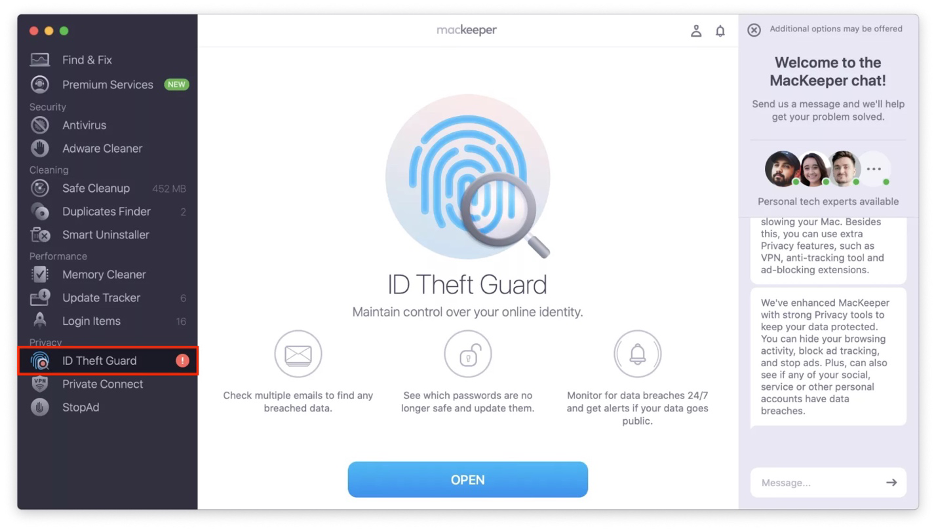
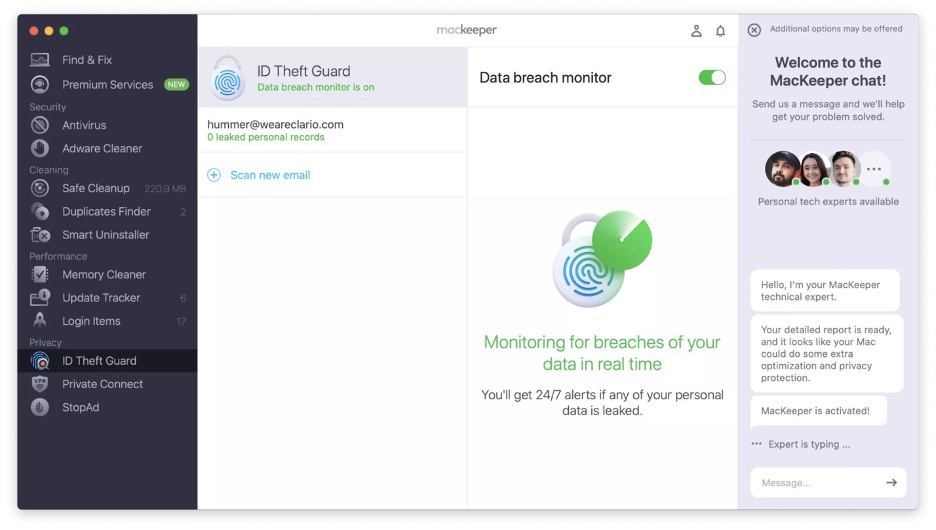
Blocking someone on a MacBook is not that hard. Still, you shouldn’t only be concerned about receiving emails from people you want to avoid, but also protect your email from possible data breaches. MacKeeper’s ID Theft Guard is a reliable tool that features powerful data breach monitoring and can protect your privacy.
Blocking someone on a Mac is simple and convenient. Open the Messages app on your laptop, select the person’s name, mobile number, or email address, and then choose the Block Contact option from the Conversations menu.
This straightforward method will stop the person from contacting you, which can be useful if you’re dealing with an annoying individual or facing more serious issues like harassment. In that case, you should also consider involving the authorities. Besides explaining how to block someone in Messages, my article will also provide you with instructions for blocking contacts in other popular Apple apps.
A note from our experts:
After reading our guidelines, you’ll easily block an unwanted user. To avoid data leakage, you’d better use a dedicated third-party app. MacKeeper’s ID Theft Guard alerts you in case of breaches.
This is how to use MacKeeper’s ID Theft Guard on your device:
From the sidebar, go to Privacy and open ID Theft Guard.
Click Scan new email.
Add your email address and click Start Scan.
Step 1. MacKeeper > ID Theft Guard > Scan new emailStep 2. Type in your email address > Start Scan
Can you block people on MacBook
You can block contacts on an Apple computer to prevent them from contacting you. However, you can usually only block emails and phone numbers registered on your device. If the person tries to contact you from a different number or email, you’ll need to block them again.
Blocking a number on a MacBook is easy if you know where to look. In this article, I’ll provide the exact steps to take the following:
Block numbers in the Messages app on Mac, for when someone with your phone number tries to text you
Block someone on FaceTime on MacBook, for when someone with your FaceTime contact tries to reach you
Block numbers on iMessage on Mac, for when another Apple user sends you an unwanted iMessage
Block someone on Mail on MacBook, to stop someone from sending you emails
Important:
Please note that I’m not discussing how to block apps on Mac in this case. If you need information on that, please refer to the linked blog article.
1. Block numbers in the Messages app on Mac
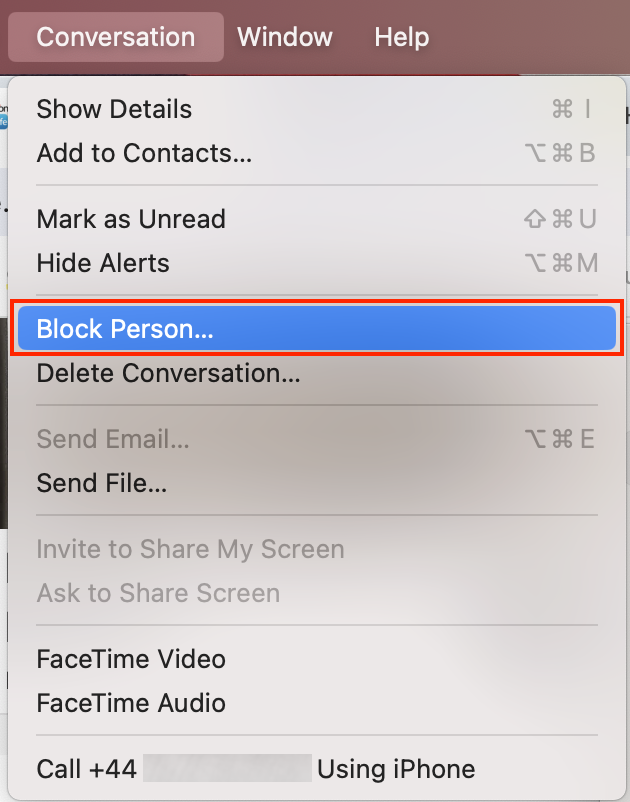
To block a contact from the Messages app, select the last message you received first. Then, you should click Block Person from the Conversation menu.
Need a fuller instruction? Follow these steps to block a number in the Messages app on your Mac:
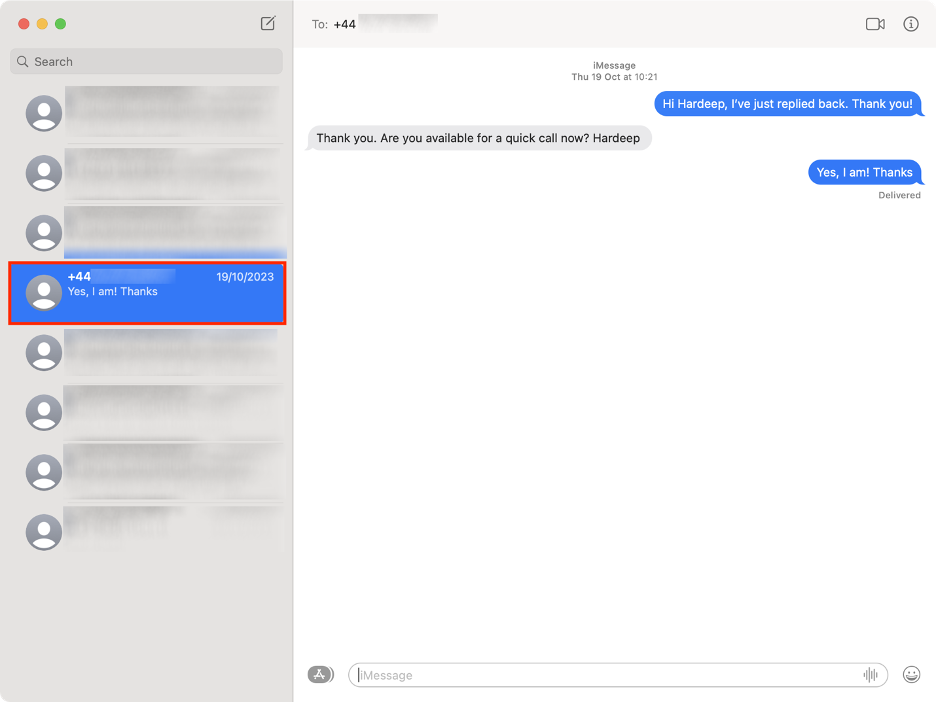
Open the Messages app on your device.
Click the conversation from the person you wish to block.
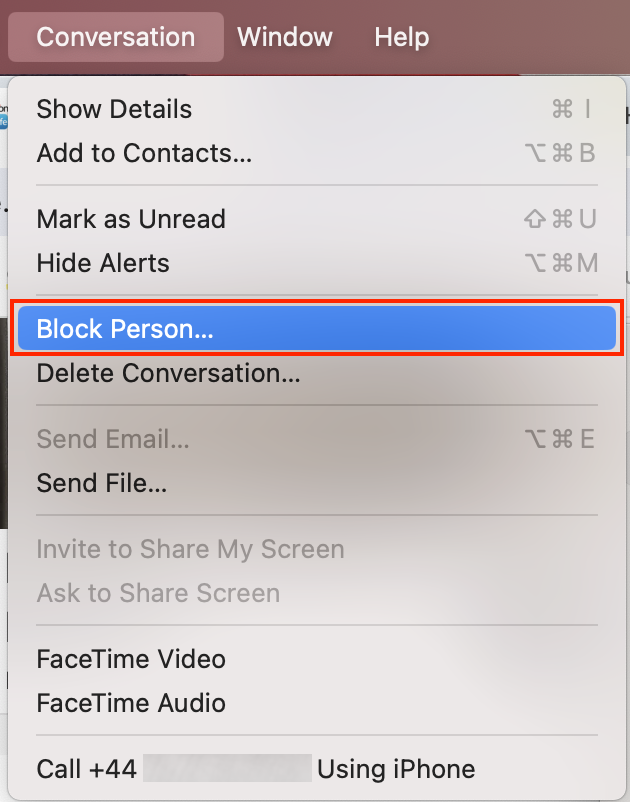
Select Conversation from the menu bar.
Click Block Person.
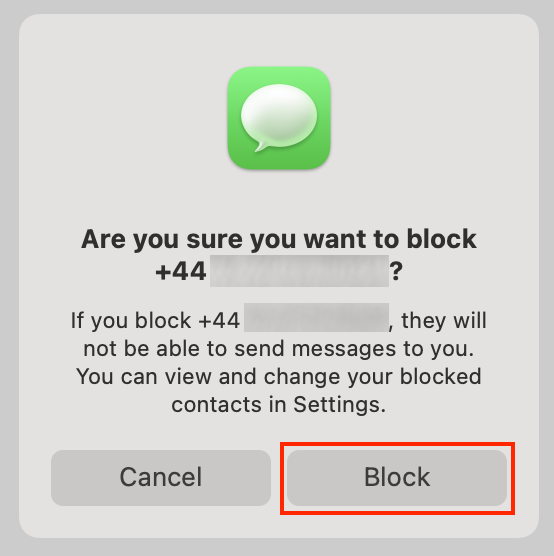
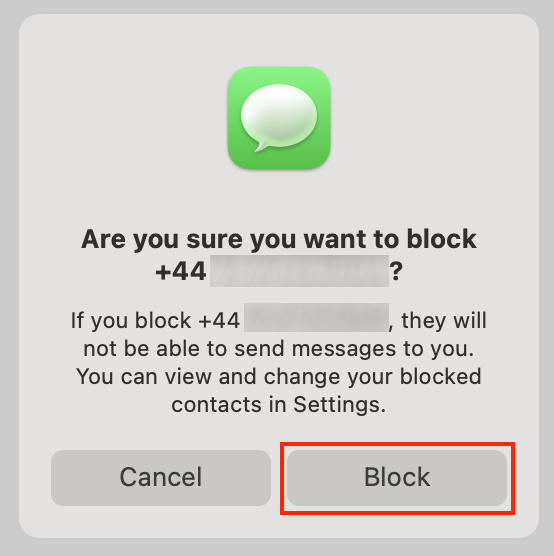
Click Block from the new window to confirm.
Step 1. Clicking the conversation from the contact you want to blockStep 2. Choosing Block Person from Conversation on the menu barStep 3. Clicking Block to confirm
2. Block someone on FaceTime on MacBook
To block someone who has contacted you via FaceTime, open the FaceTime app on your Mac or MacBook. Then, go to the Blocked list in Settings and click Add to select the contact to block.
Keep reading for my step-by-step instructions on how to block a person on FaceTime:
First, make sure the person you want to block is in your Contacts.
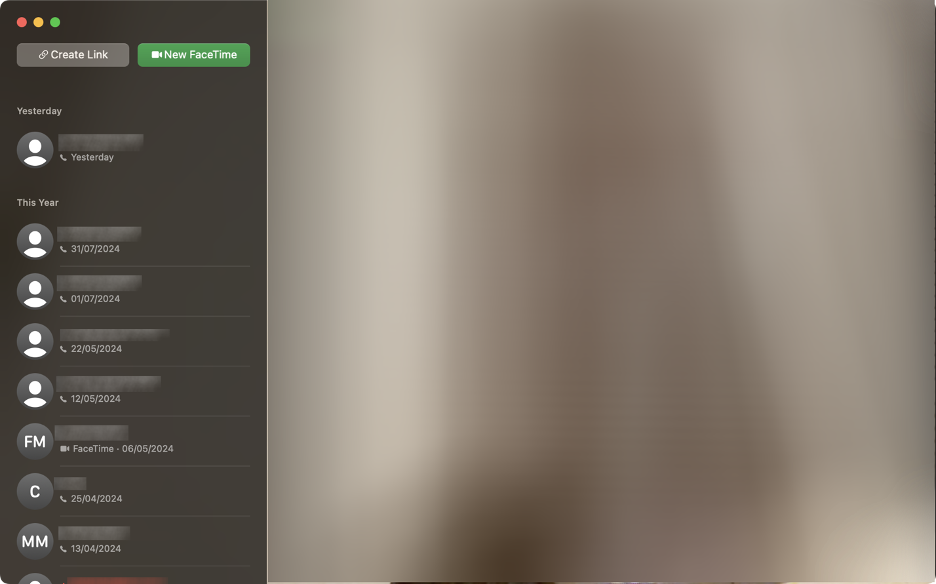
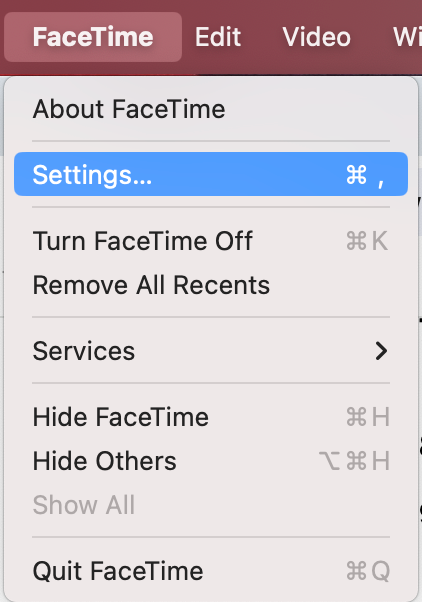
Open FaceTime.
Go to the menu bar and select FaceTime.
Click Settings from the dropdown menu.
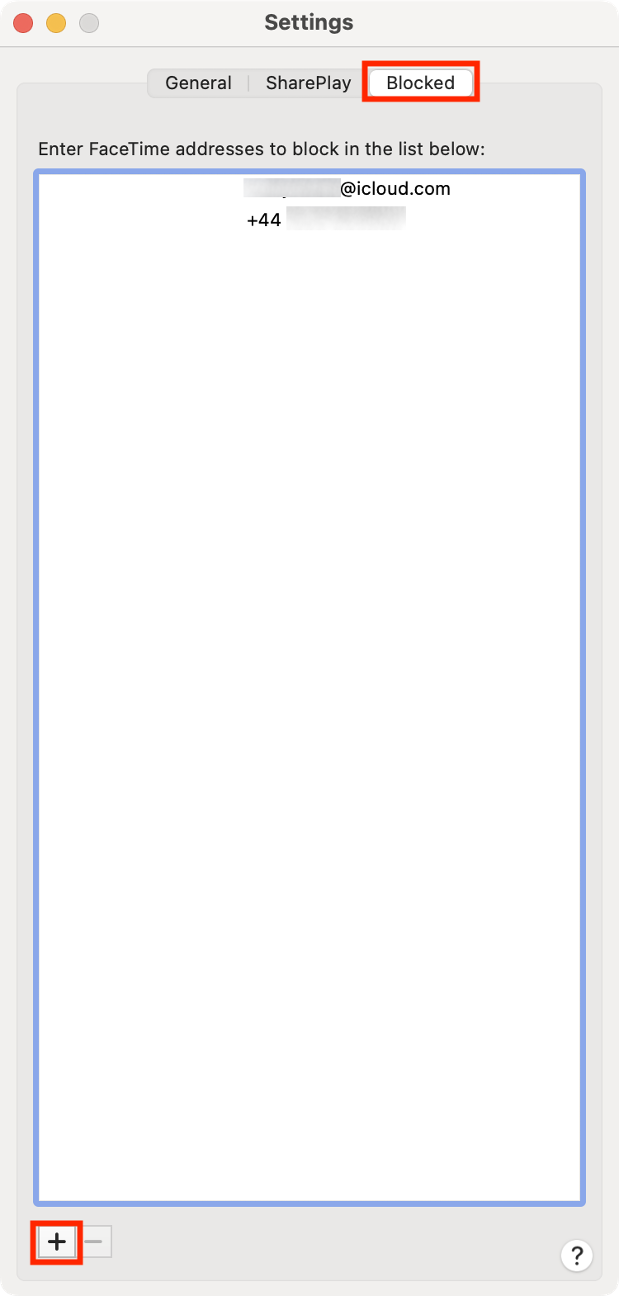
Select the Blocked tab.
Click +.
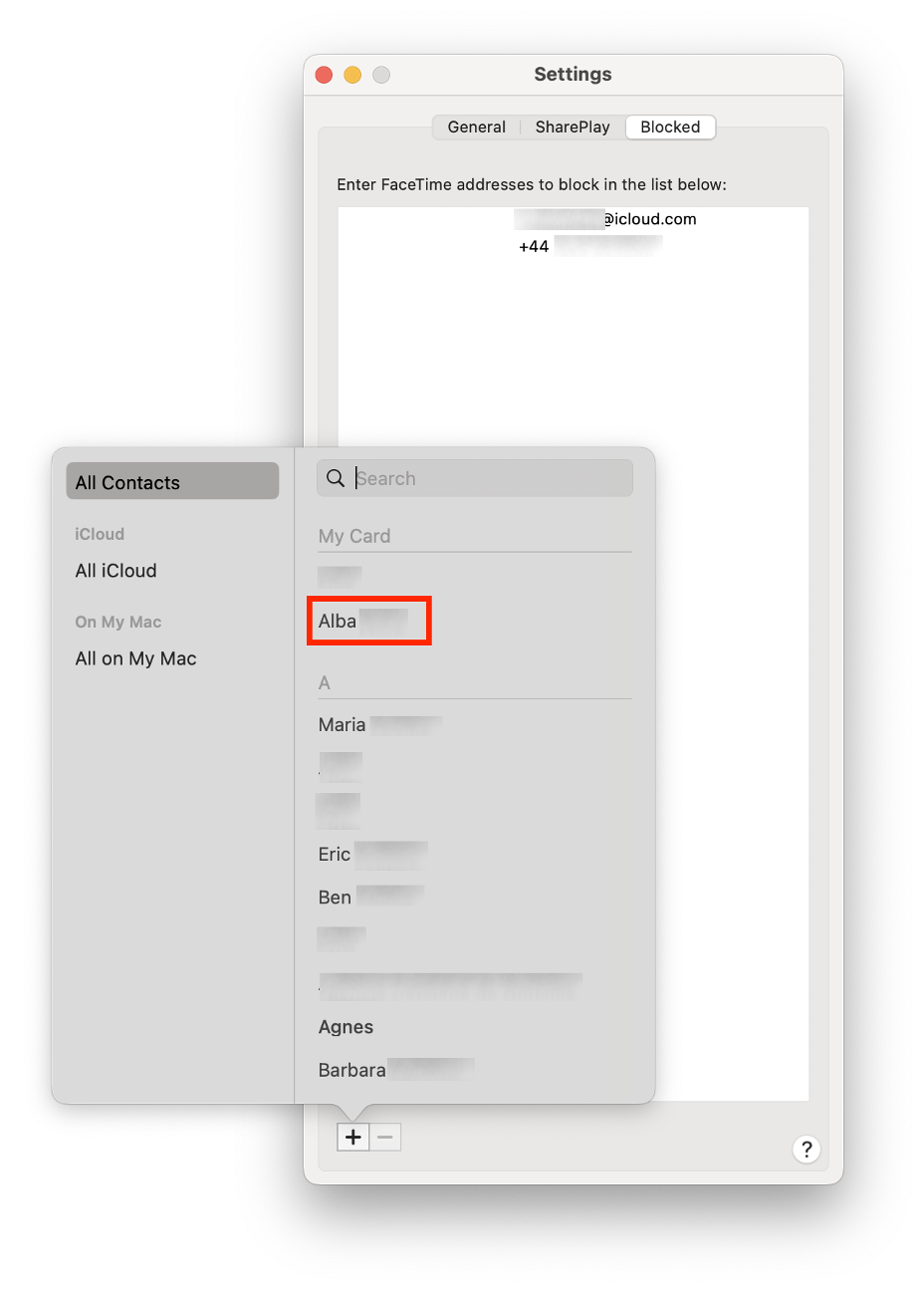
Select the person you wish to block from your Contacts list.
Close Settings.
Step 1. Launching FaceTimeStep 2. Selecting Settings from the FaceTime menuStep 3. Selecting the Blocked tab and clicking the + buttonStep 4. Selecting the contact you want to block
Important:
Are you concerned about your children accessing specific online content from a Mac? In the related piece, our team of experts explains how to block websites on Safari.
3. Block numbers on iMessage on Mac
If you want to block someone who’s sending you iMessages from another Apple device, the process is similar to blocking a Messages contact. Open the Messages app, select the conversation, and then block the person’s contact from the Conversation menu.
Want to see it gradually? To block a number in iMessage, follow these steps:
Launch Messages on your Mac.
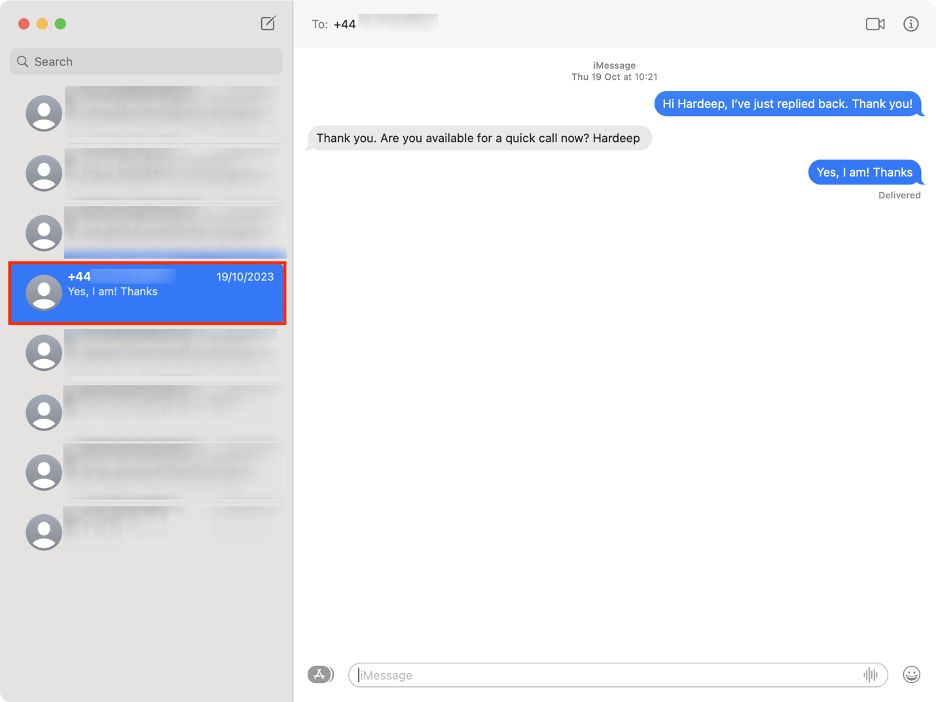
Select the iMessage conversation from the person you want to block.
Go to the Conversation tab from the menu bar.
Hit Block Person from the dropdown menu.
Select the Block button to confirm.
Step 1. Selecting the conversation from the contact you want to blockStep 2. Selecting Block Person from the Conversation menuStep 3. Selecting Block from the new pop-up window
4. Block someone on Mail on MacBook
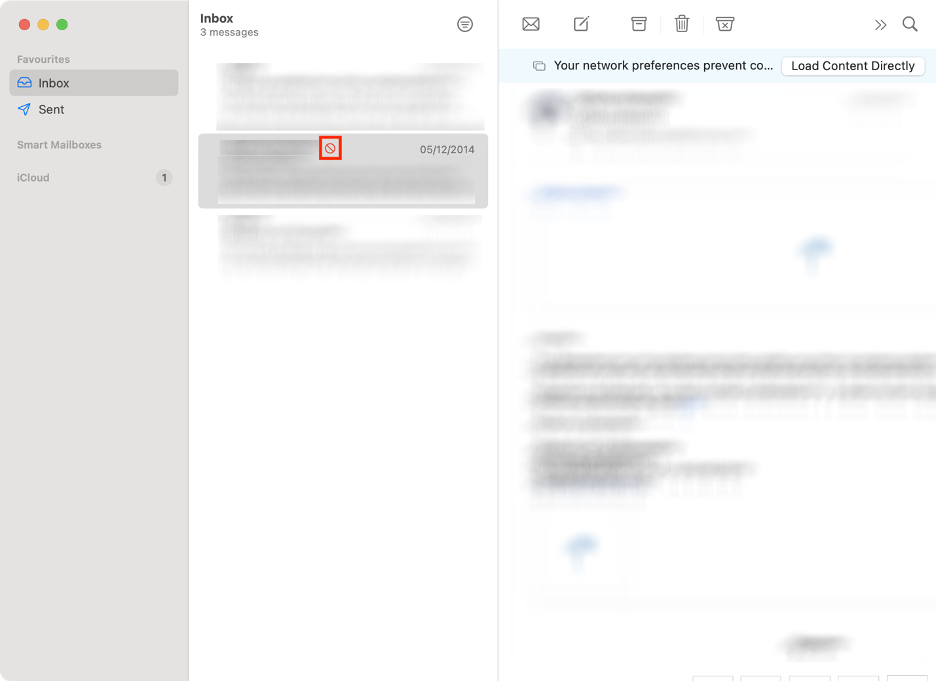
So far, I’ve covered blocking phone numbers, but you can also prevent someone from sending you unwanted emails. To do this, open the Mail app, select a message from that person, and choose BlockContact.
Here are the full steps to block someone in Mail:
Launch the Mail app on your Mac computer.
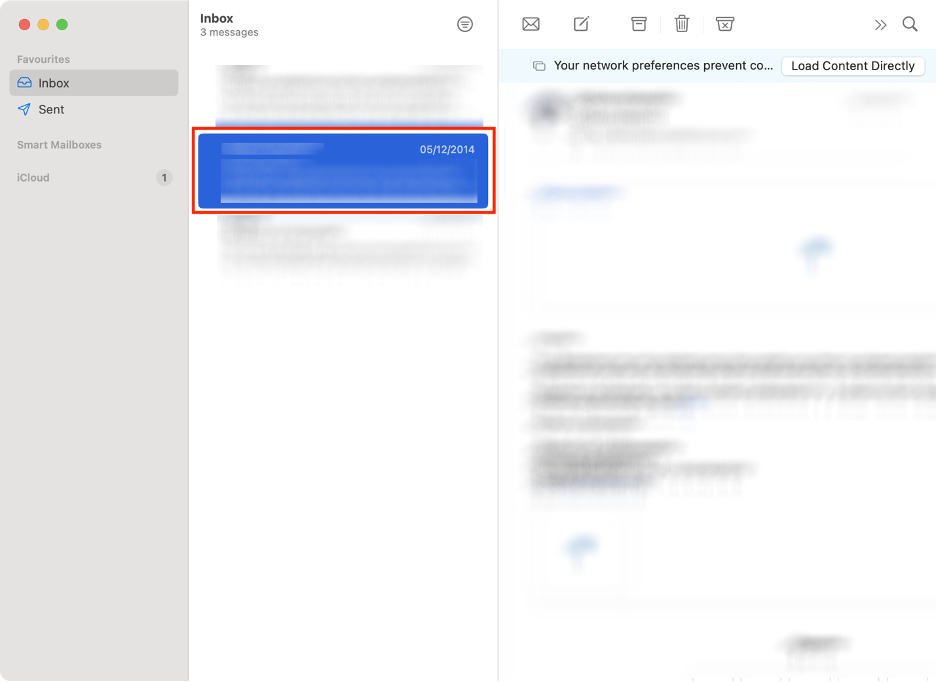
Find an email from the person you’d like to block.
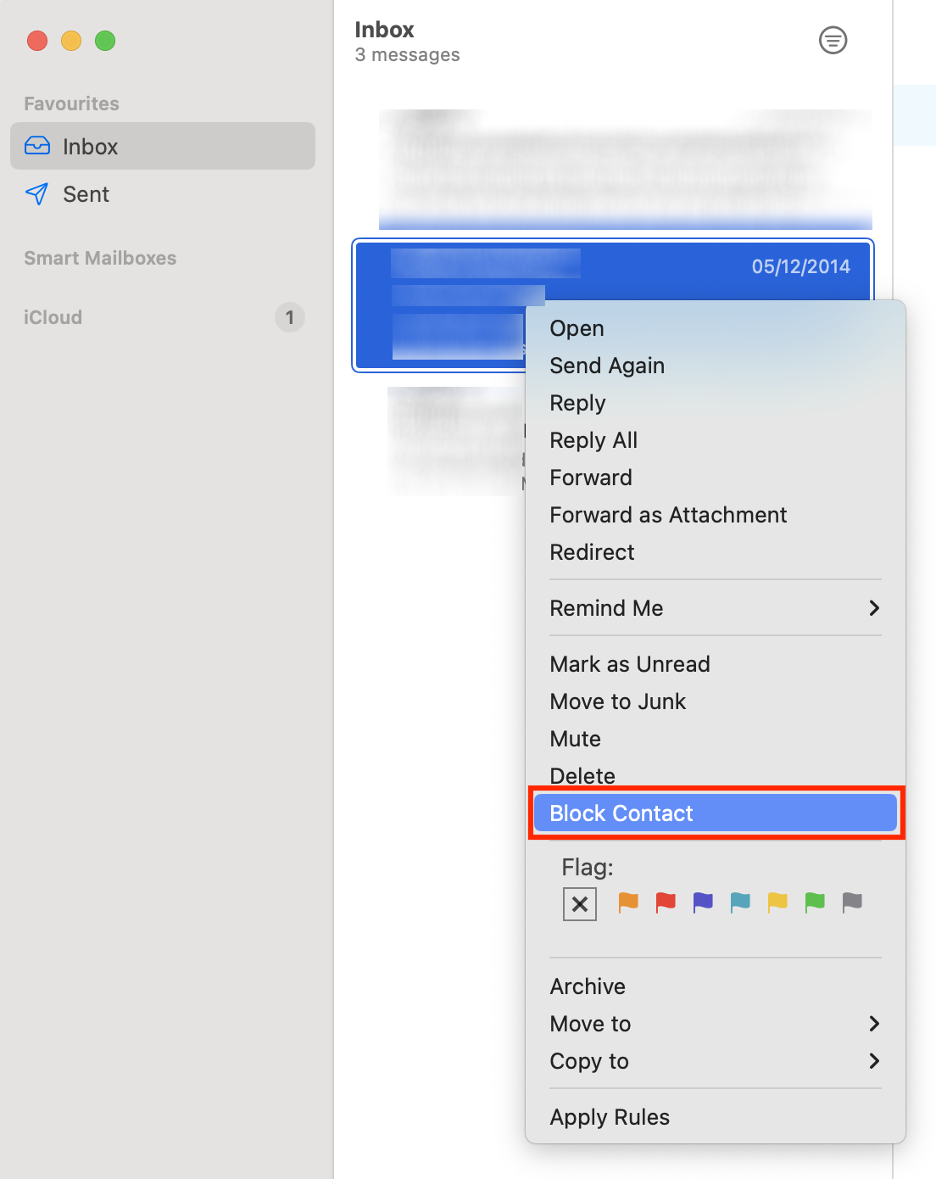
Right-click on the email preview.
Select Block Contact from the dropdown menu.
Look for the blocked symbol next to the blocked contact.
Step 1. Selecting an email from the contact you want to blockStep 2. Right clicking on the email and selecting Block ContactStep 3. Looking for the blocked symbol next to the blocked contact
Can you see blocked messages on MacBook
When you block a contact in Messages, FaceTime, or Mail, you can still see the history of messages you exchanged with that person. You’ll also be able to continue seeing the messages you’ve sent to a person who has blocked you, but your new messages won’t reach the recipient, and you won’t receive new messages from him or her.
Important:
Are you concerned about your children accessing specific online content from a Mac? In the related piece, our team of experts explains how to block websites on Safari.
How to see blocked contacts on Mac
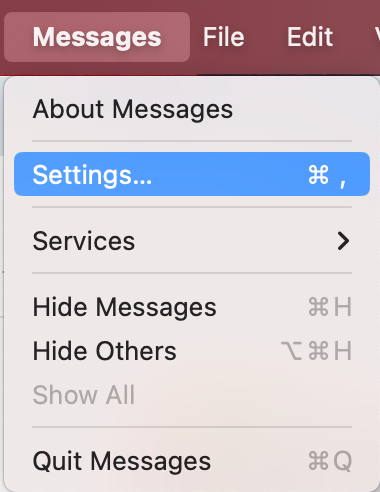
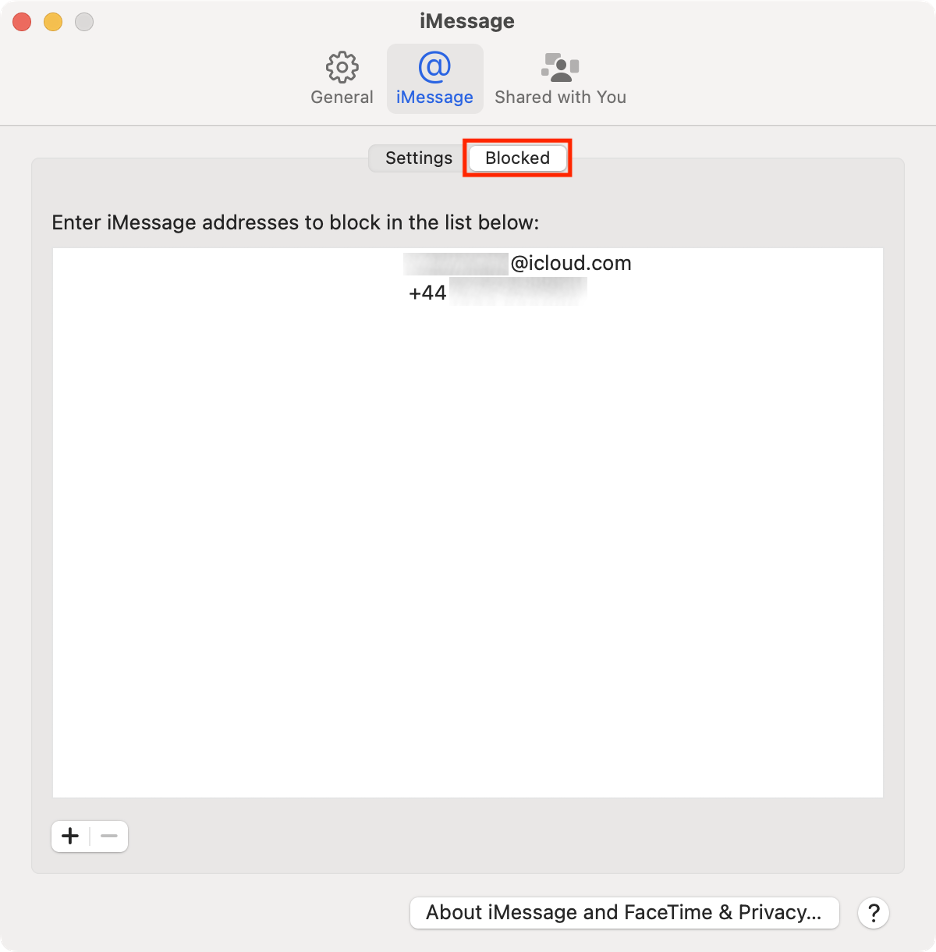
To view blocked contacts on your Mac, open the Messages app, click on its menu, and select Settings. Then, choose the Blocked tab to see the list of blocked contacts.
Here’s how the full instruction from me in steps for your convenience:
Open the Messages app on your Apple computer.
Go to Messages from the menu bar.
Select Settings from the dropdown menu.
Choose the Blocked tab in the new window.
Check the list of blocked contacts.
Step 1. Selecting Settings from the Messages menuStep 2. Selecting the Blocked tab to see blocked contacts
Why do blocked messages come through on Mac
If you continue to receive messages from a person you’ve blocked, or if the person who has blocked you continues to receive your messages, this is probably due to some kind of glitch.
In this case, it’s best to go through the steps for blocking a contact again. You can even try deleting and re-saving the contact and then blocking them again using my tips in this post.
The ultimate guide on how to block contact on MacBook
See how easy it is to block an annoying person from your Mac? In this post, I’ve covered how to do it using Apple’s messaging apps, but you can also do it in third-party apps such as social media platforms. However, if you want to block someone because you’re being harassed, I do advise notifying the police immediately.
Blocking someone on your Mac isn’t the only way to protect the information stored on your device. In addition to blocking, you can learn how to stop pop-ups on Mac. Another vital advice from me is installing a cybersecurity suite like MacKeeper, which includes key features such as ID Theft Guard.
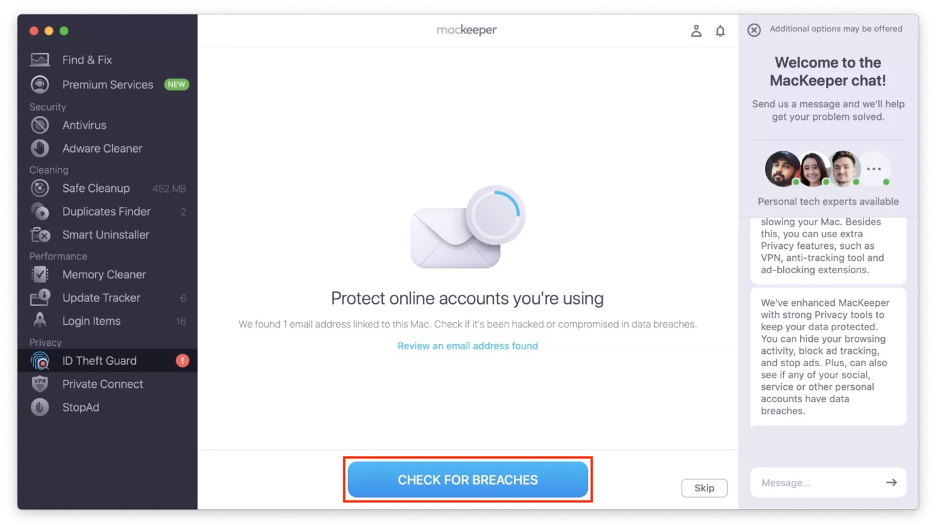
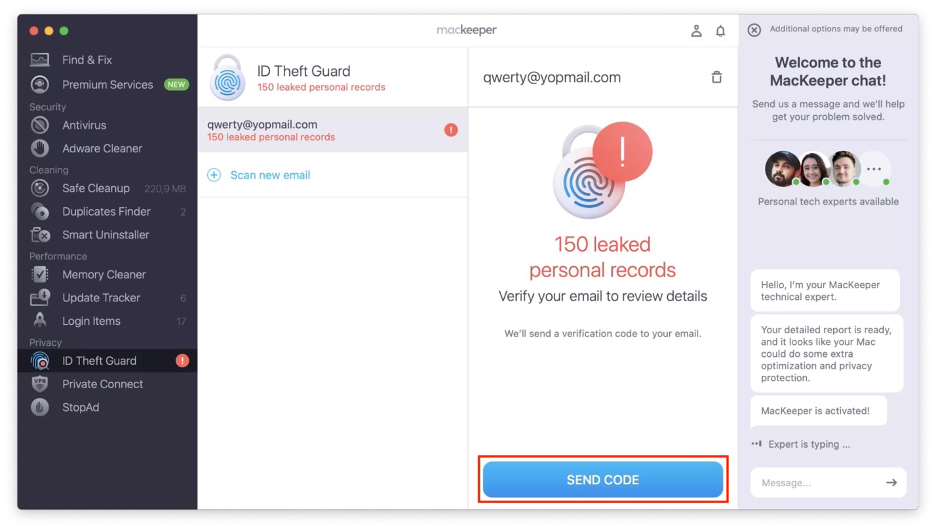
To use MacKeeper’s ID Theft Guard, follow the instructions below:
Under Privacy, open ID Theft Guard from the left sidebar.
Click Check for Breaches.
Click Send Code.
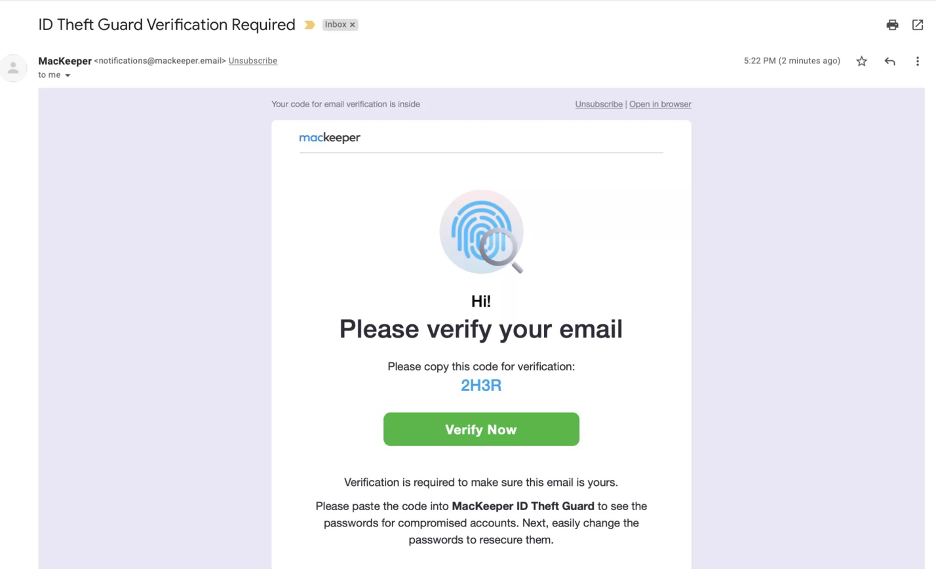
Go to your mail inbox and copy the 4-digit code.
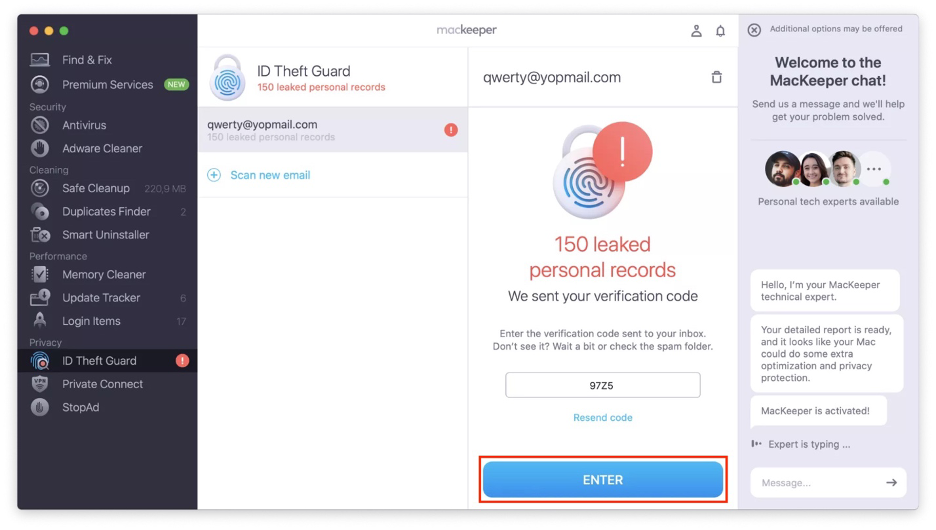
Go back to the MacKeeper app and paste the code.
Hit Enter.
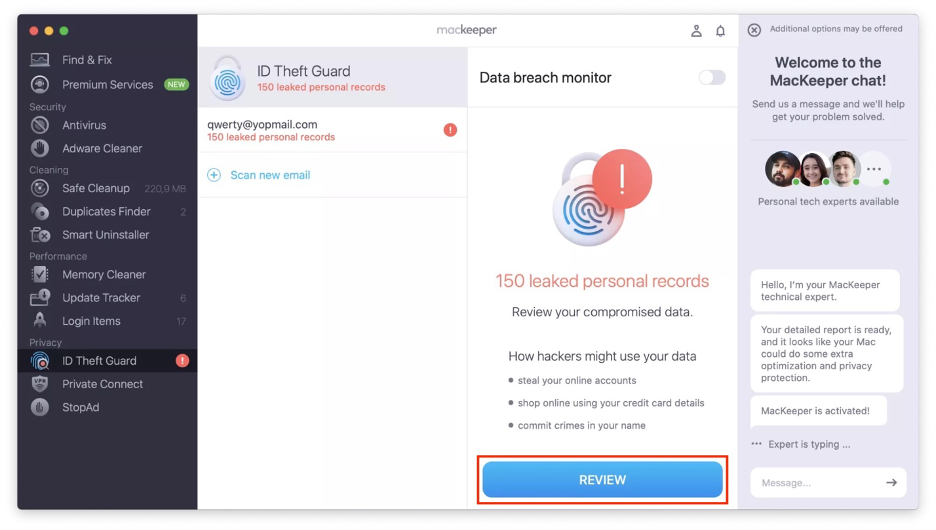
If data breaches are found, click Review.
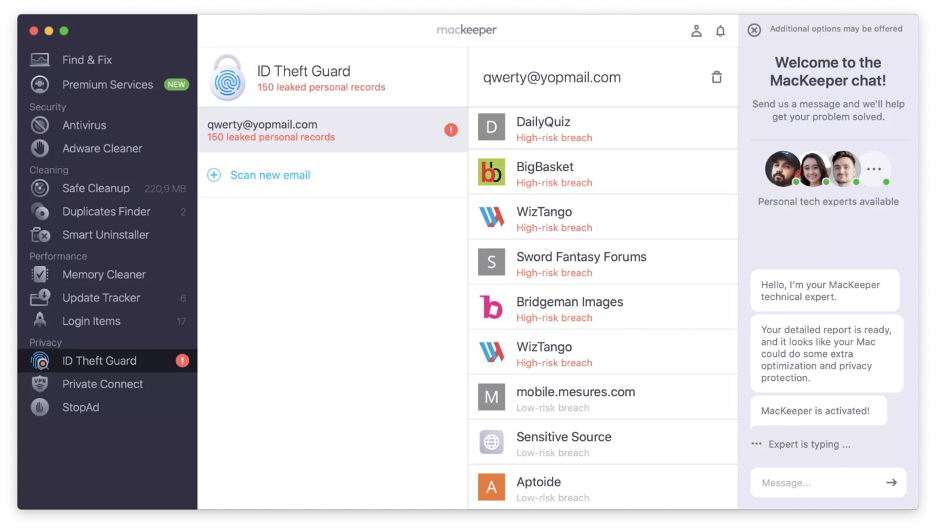
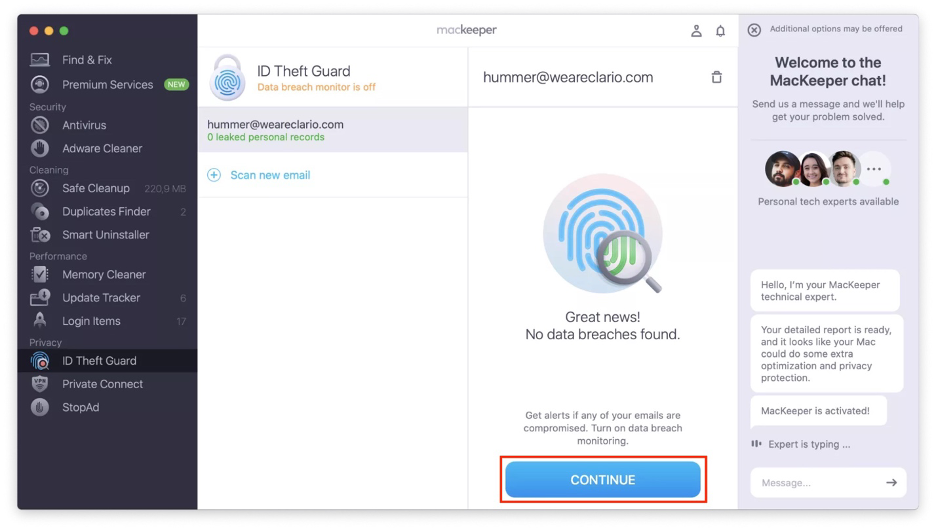
Check the results and follow the on-screen instructions to fix the breaches. Alternatively, if no data breaches are found, hit Continue.
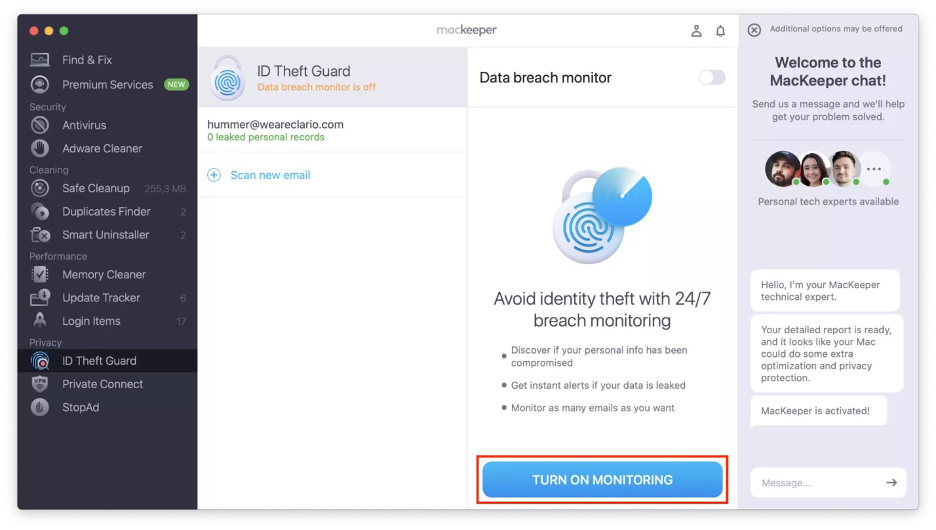
Finally, click on Turn On Monitoring to get instant alerts if there’s any breach.
Step 1. Opening ID Theft Guard from the sidebarStep 2. Clicking on Check for BreachesStep 3. Clicking on Send CodeStep 4. Copying the code from your mail inboxStep 5. Entering the code in the MacKeeper appStep 6. Clicking Review when breaches are foundStep 7. Reviewing and fixing data breachesStep 8. Clicking Continue if no breaches are foundStep 9. Clicking on Turn on MonitoringStep 10. Getting data breach alerts in real time
We respect your privacy and
use cookies
for the best site experience.
Privacy Preferences Center
We use cookies along with other tools to give you the best possible experience while using the
MacKeeper website. Cookies are small text files that help the website load faster. The cookies we
use don’t contain any type of personal data meaning they never store information such as your
location, email address, or IP address.
Help us improve how you interact with our website by accepting the use of cookies. You can change
your privacy settings whenever you like.
Manage consent
All cookies
These cookies are strictly necessary for enabling basic website functionality (including page
navigation, form submission, language detection, post commenting), downloading and purchasing
software. The website might malfunction without these cookies.