Although it’s somewhat complicated to change a user name on Mac after your account is set up, it’s at least possible—and a lot easier if you already have another administrator on your system. We’ll show you how to complete the process, plus how to remove Mac malware and viruses that can create new user accounts and make changes to your username using MacKeeper’s Antivirus from Clario Tech.
To edit a user name on Mac, we first need to sign into a different administrator account, or the other option is to create one if a second administrator doesn’t already exist. We can then change the name of the Users folder before going into System Settings > Users & Groups, selecting Advanced Options for the account we want to change, and then entering a new user name.
What does “user name” mean in macOS?
A user name in macOS is the name we give to our personal user account. It’s what we use to log into our Apple computer, alongside our account password. Our username also determines the name of our Users folder, which is where all our personal data is stored to separate it from other users’ data.
It’s important to note that an OSX user name is different from an Apple ID, which is the account you use to sign into Apple services, so there’s no need to worry about potential iCloud issues when you rename a macOS user account. It also won’t change your MacBook name, which requires a different process.
Why you might want to change your user name on Mac?
We see users typically want to edit a user name on Mac to make it shorter and easier to type, to reflect a change in their actual name, like after getting married, or to fix changes made by a virus. Although you can make separate user accounts on Mac, it’s not necessary just to change a username.
Some users also want to change or make a new user on an Apple computer before selling or giving it away. However, we strongly recommend that you factory reset the device instead to remove all data, otherwise the new owner will be able to find saved passwords on Mac, plus other sensitive information.
A note from our experts:
If your MacBook user name was changed by a virus or malware, it’s important to remove the threat from your computer before you do anything else. We highly recommend using MacKeeper’s Antivirus developed by Clario Tech, which not only blocks and removes existing infections, but also monitors your system in real time to stop new infections.
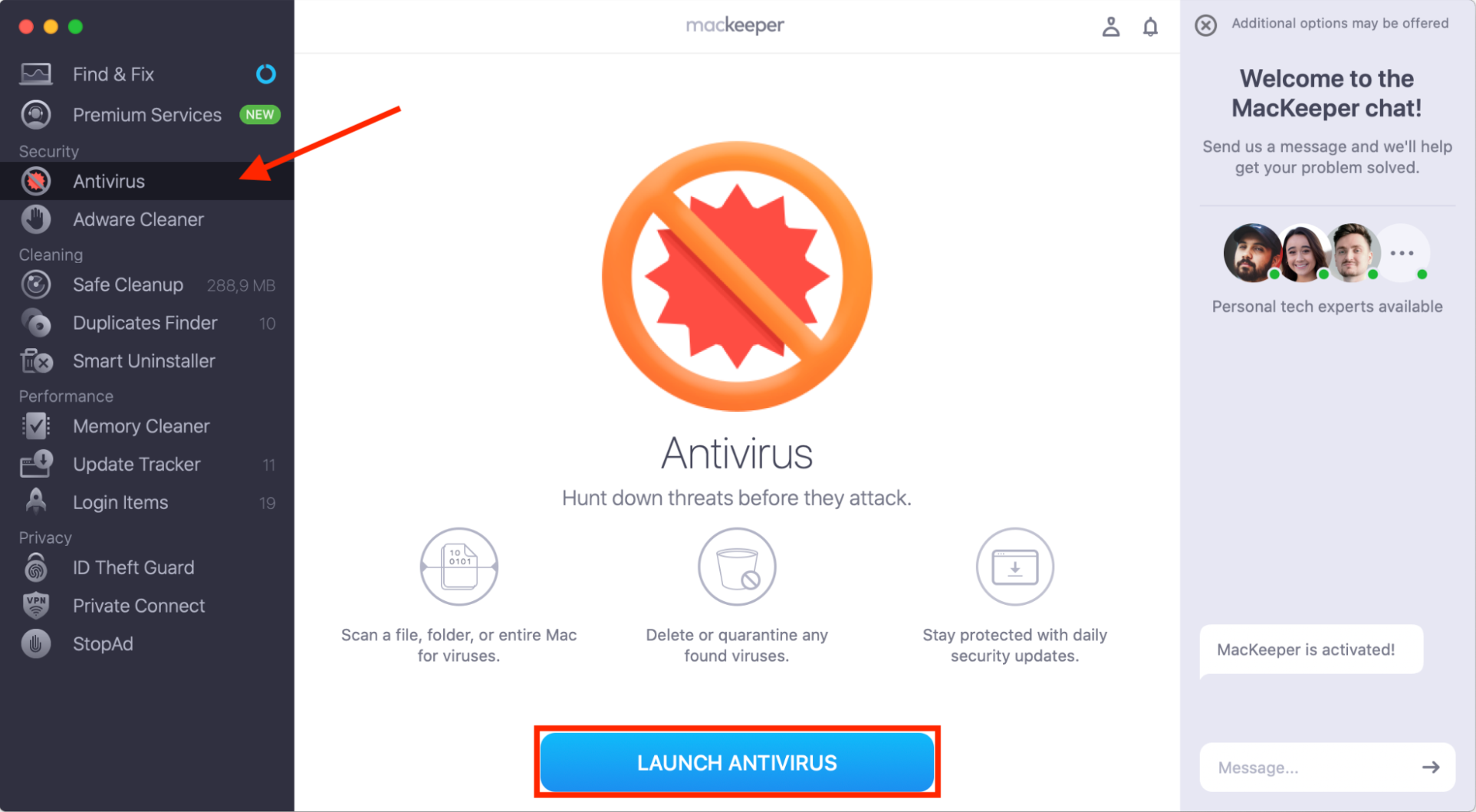
Select Antivirus in the MacKeeper sidebar, then click Launch Antivirus.
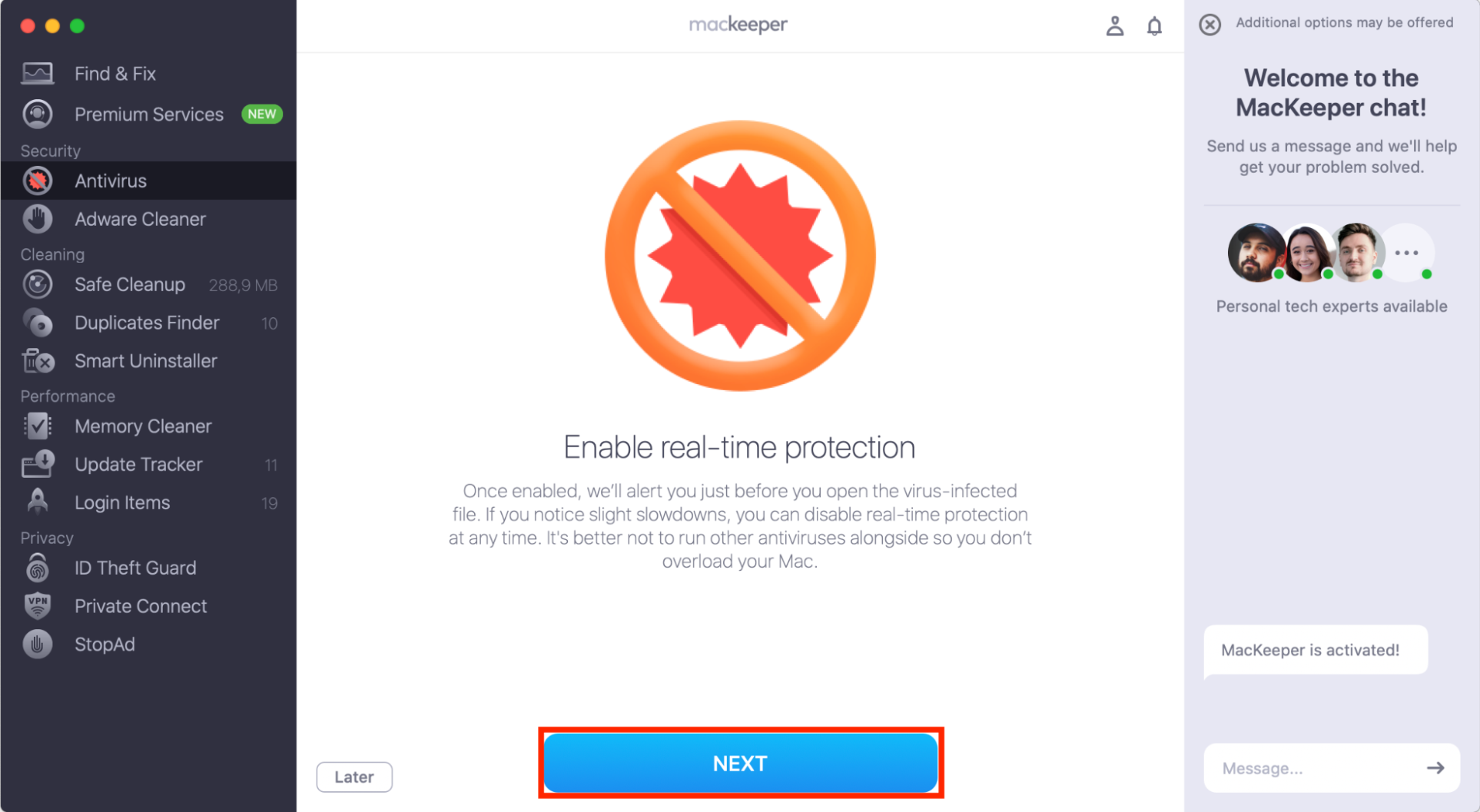
Choose Next and follow the steps on screen to enable real-time protection.
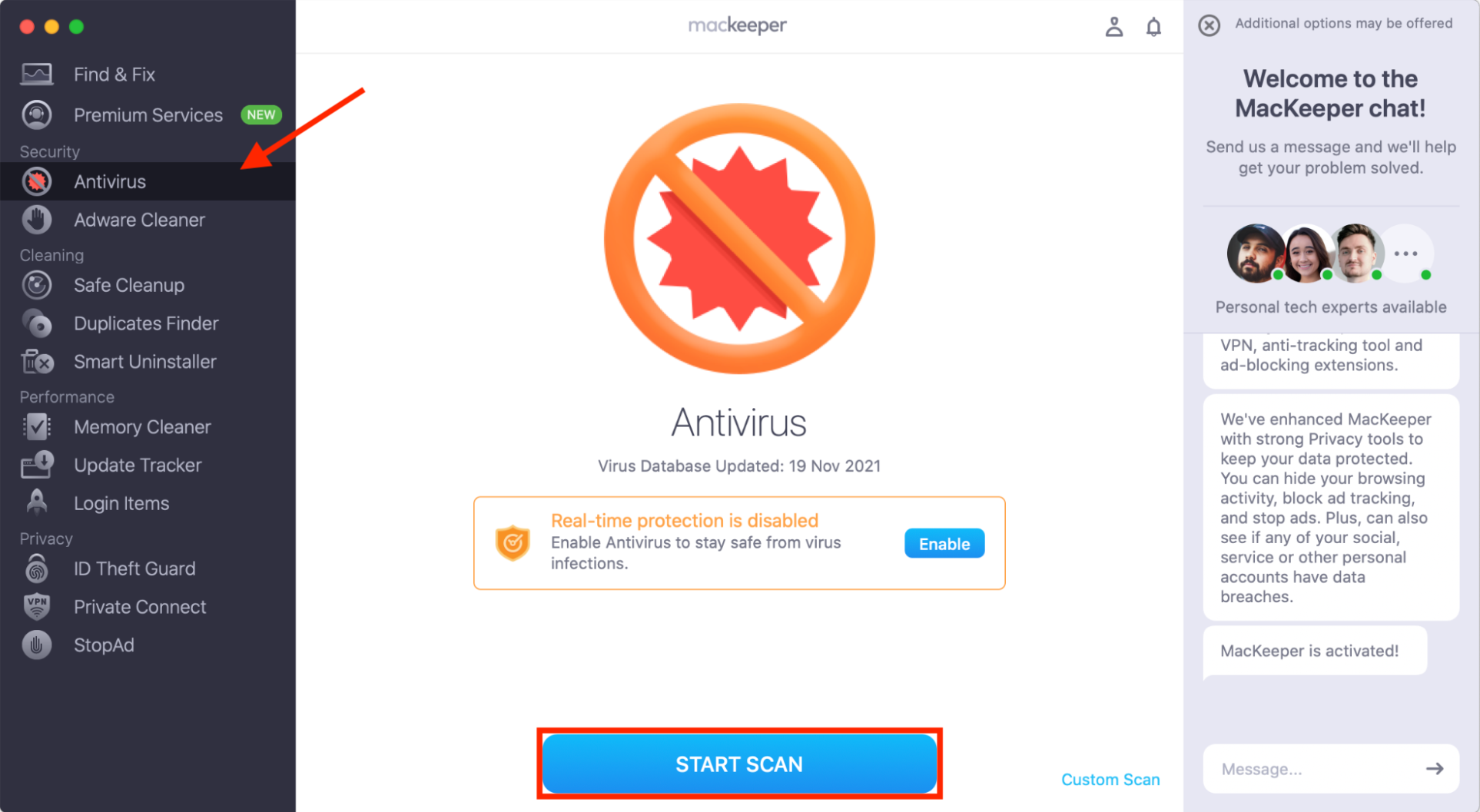
Once Antivirus is set up, click Start Scan to find any existing infections.
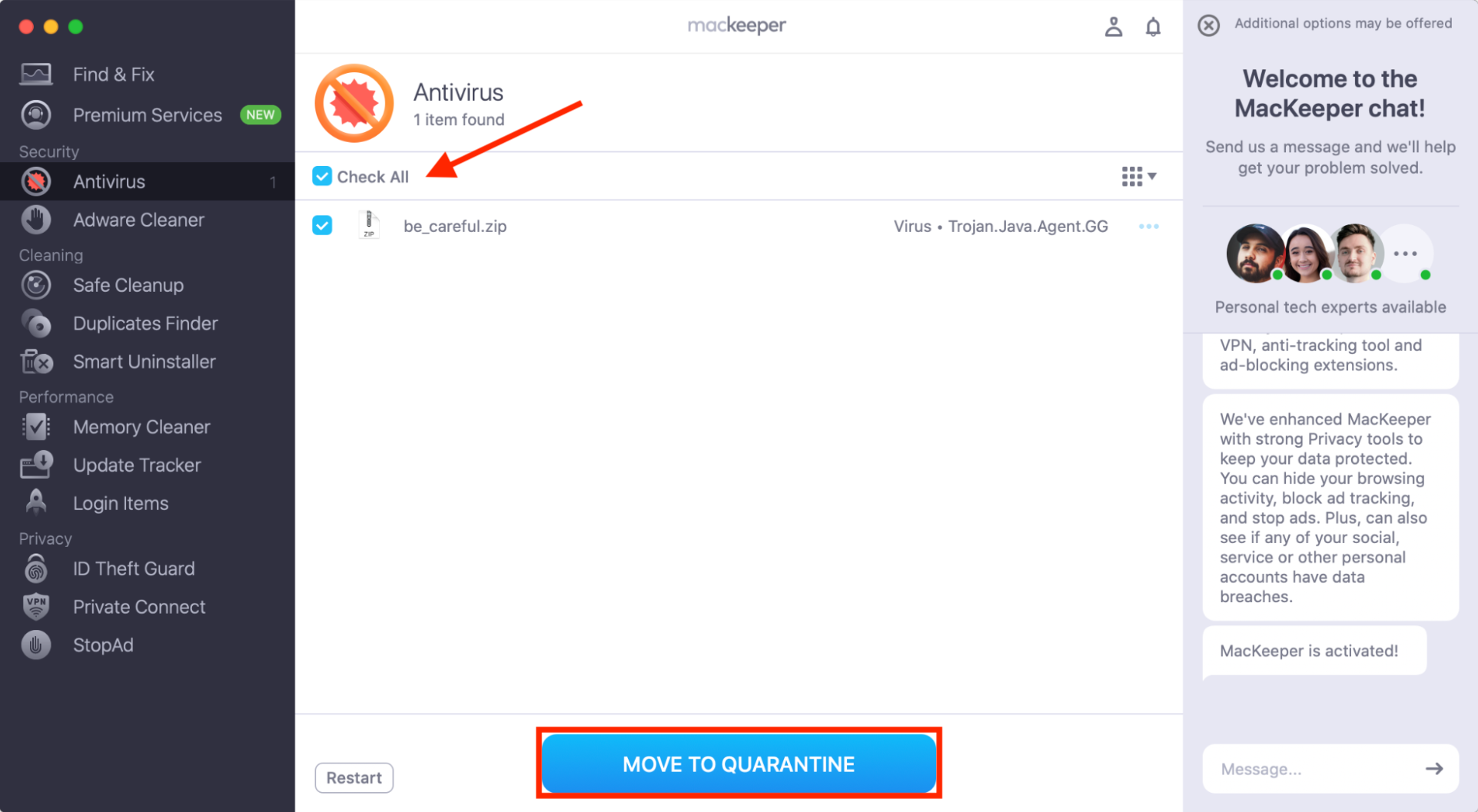
If malicious software is found, select it, then click Move to Quarantine.
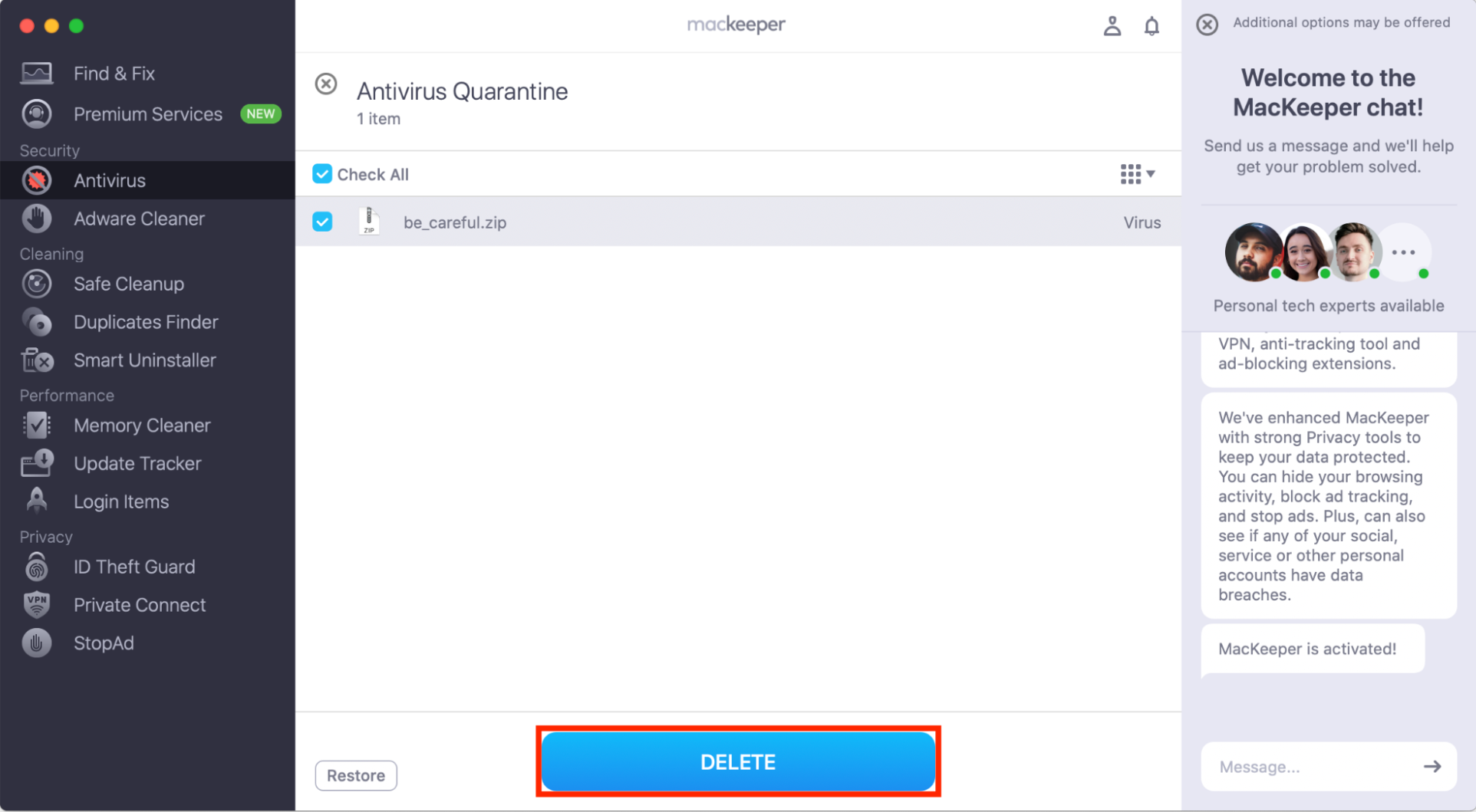
Restart MacKeeper when prompted, then select the Delete button to remove the viruses.
Step 1. Select Antivirus, then click Launch AntivirusStep 2. Click Next and follow the steps to enable real-time protectionStep 3. Click Start ScanStep 4. Select any detected threats and click Move to QuarantineStep 5. Click Delete to remove all viruses
Important preparations before you make new username on Apple computer
Before we rename a macOS user account, there are important steps to take to prevent potential data loss and to avoid issues:
Back up your data: Although data loss is unlikely if you do things correctly, it’s not impossible, so make a system backup just in case.
Update your Users folder: Change the name of your Users folder first to avoid losing access to personal files later.
The easiest ways to back up the data on your MacBook are to move important files to iCloud Drive, or to create a complete system image using Time Machine—both of which are baked into macOS. Alternatively, you can create copies of all the files you want to keep on an external storage device.
To update the Users folder for your macOS user account, follow these steps:
Log into a different administrator account on your Mac—not the account you want to rename.
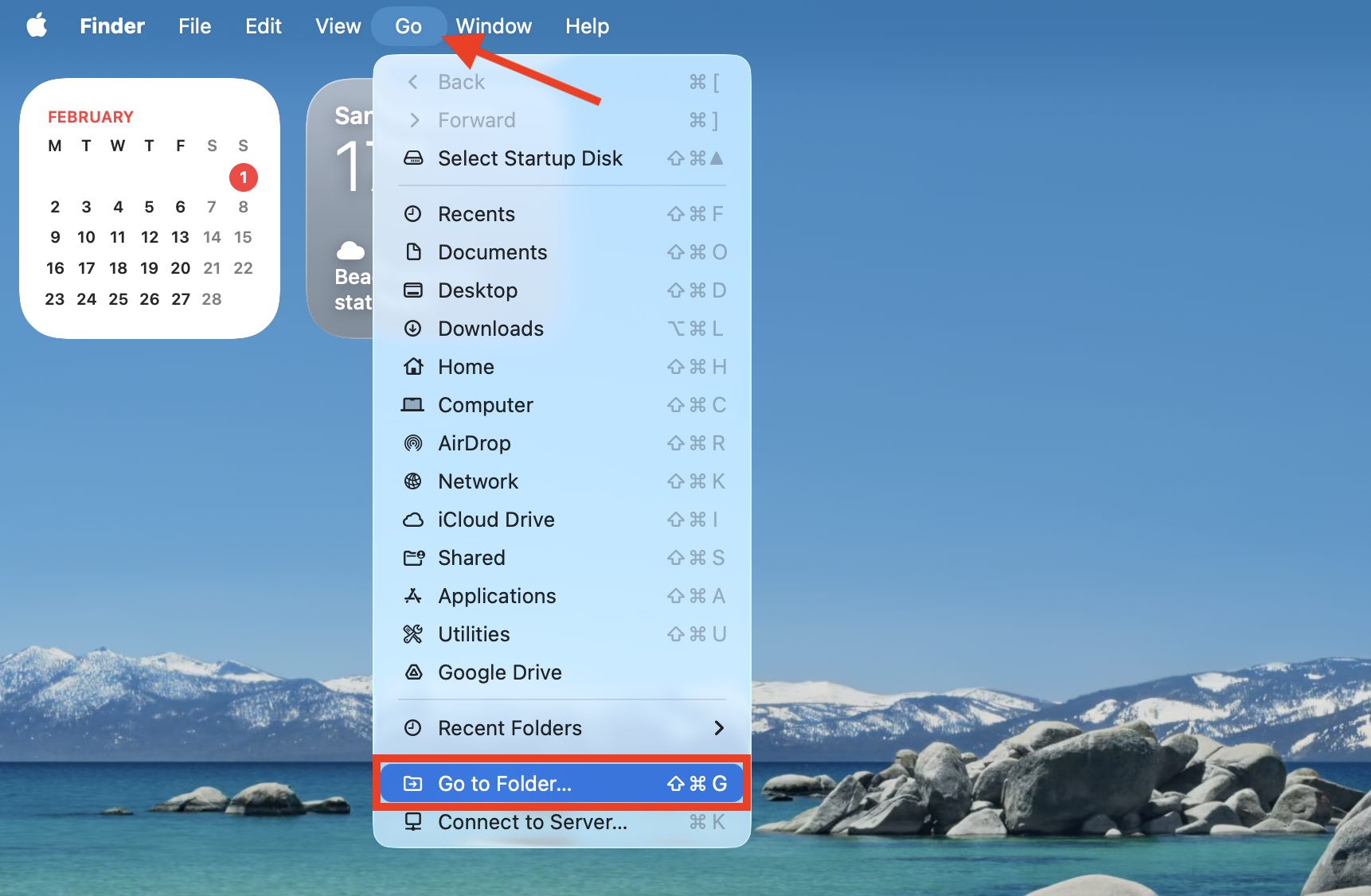
Open Finder, then select Go > Go to Folder in the menu bar.
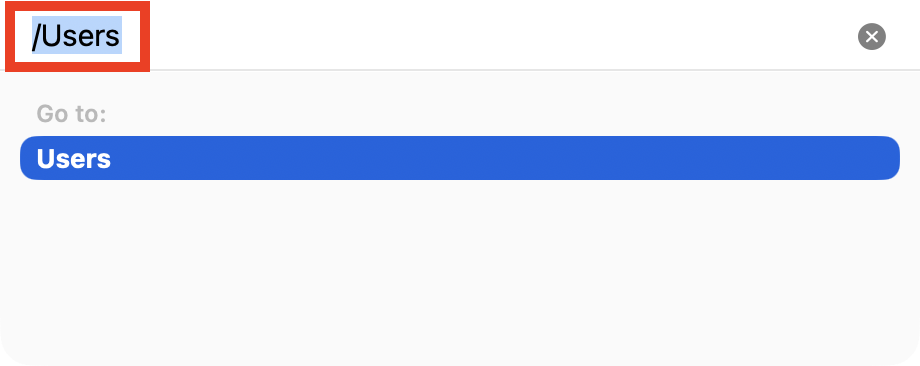
Type /Users and press Return.
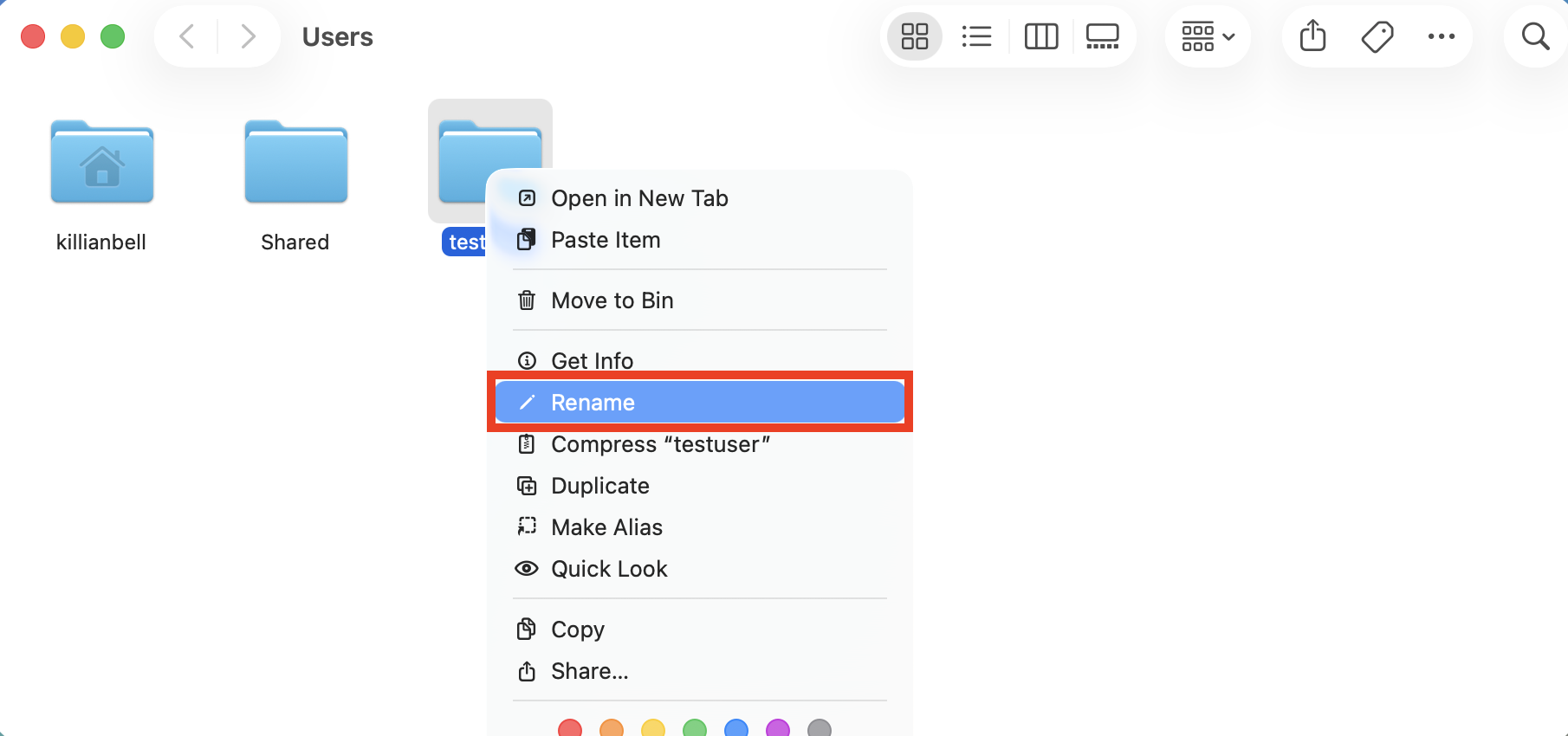
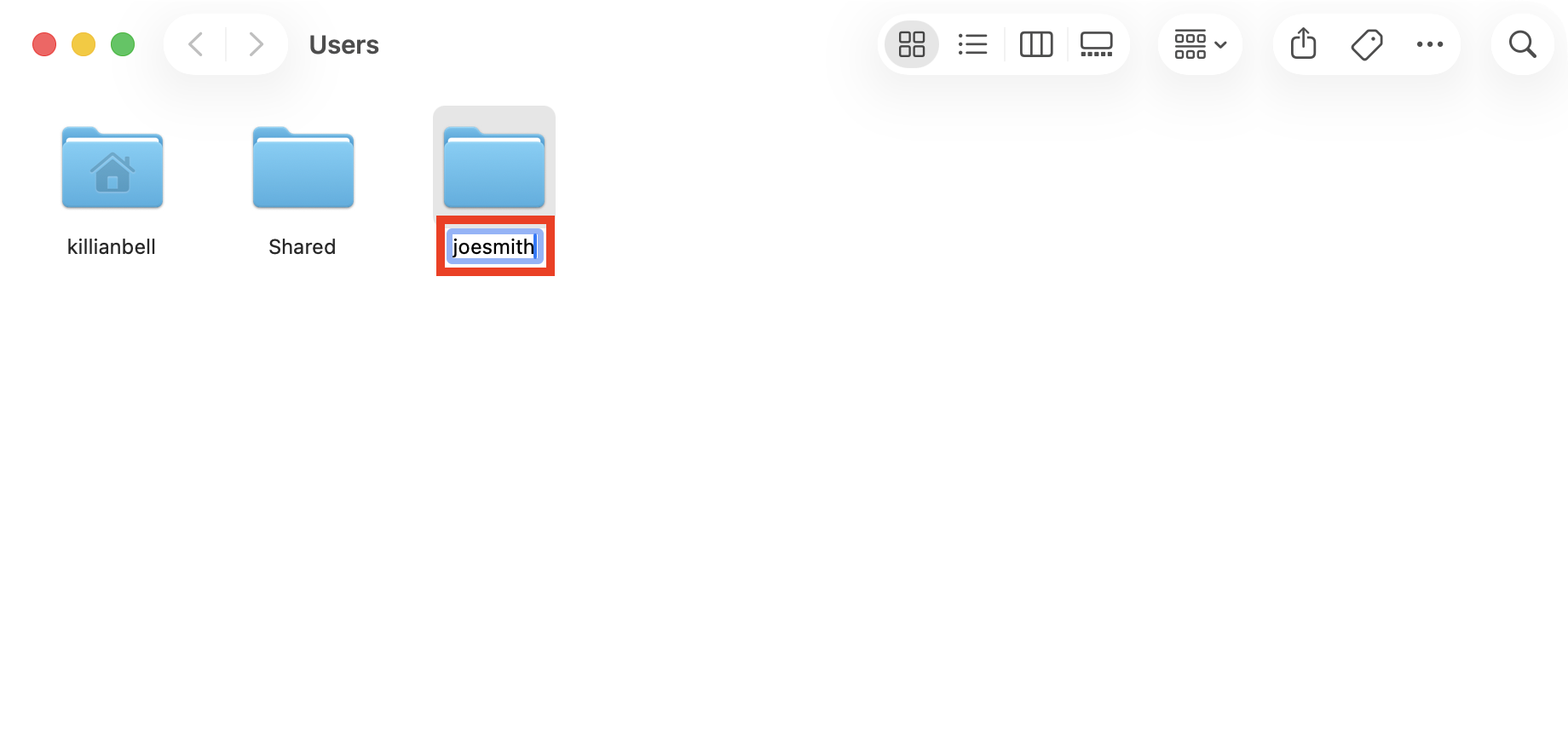
Right-click the appropriate Users folder, then choose Rename.
Enter your new username, then press Return to save it. For example, if you plan to rename your macOS user account to joesmith, the Users folder should also be joesmith.
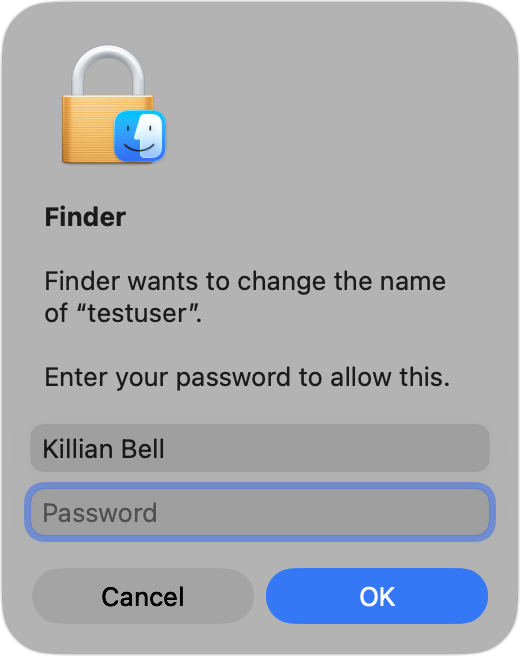
When prompted, enter the password for the admin account you’re using.
Step 1. In Finder, select Go > Go to FolderStep 2. Type /Users and press ReturnStep 3. Right-click the appropriate Users folder and select RenameStep 4. Enter the new username and press ReturnStep 5. Enter your password when prompted
A hint from our team: Remember, if you don’t update your Users folder on macOS before changing your username, you could lose access to your personal data and have account issues in the future.
How to rename user on macOS?
To rename a macOS user, we go into System Settings > Users & Groups, then right-click the profile we want to change to select Advanced Options. Both the user name and full name for the selected account can be changed, but before we do this, we should update the name of the Home directory in the Users folder to reflect the new username.
When you’re ready to change a user name on Mac, follow these steps:
Make sure you’re logged into a different admin account.
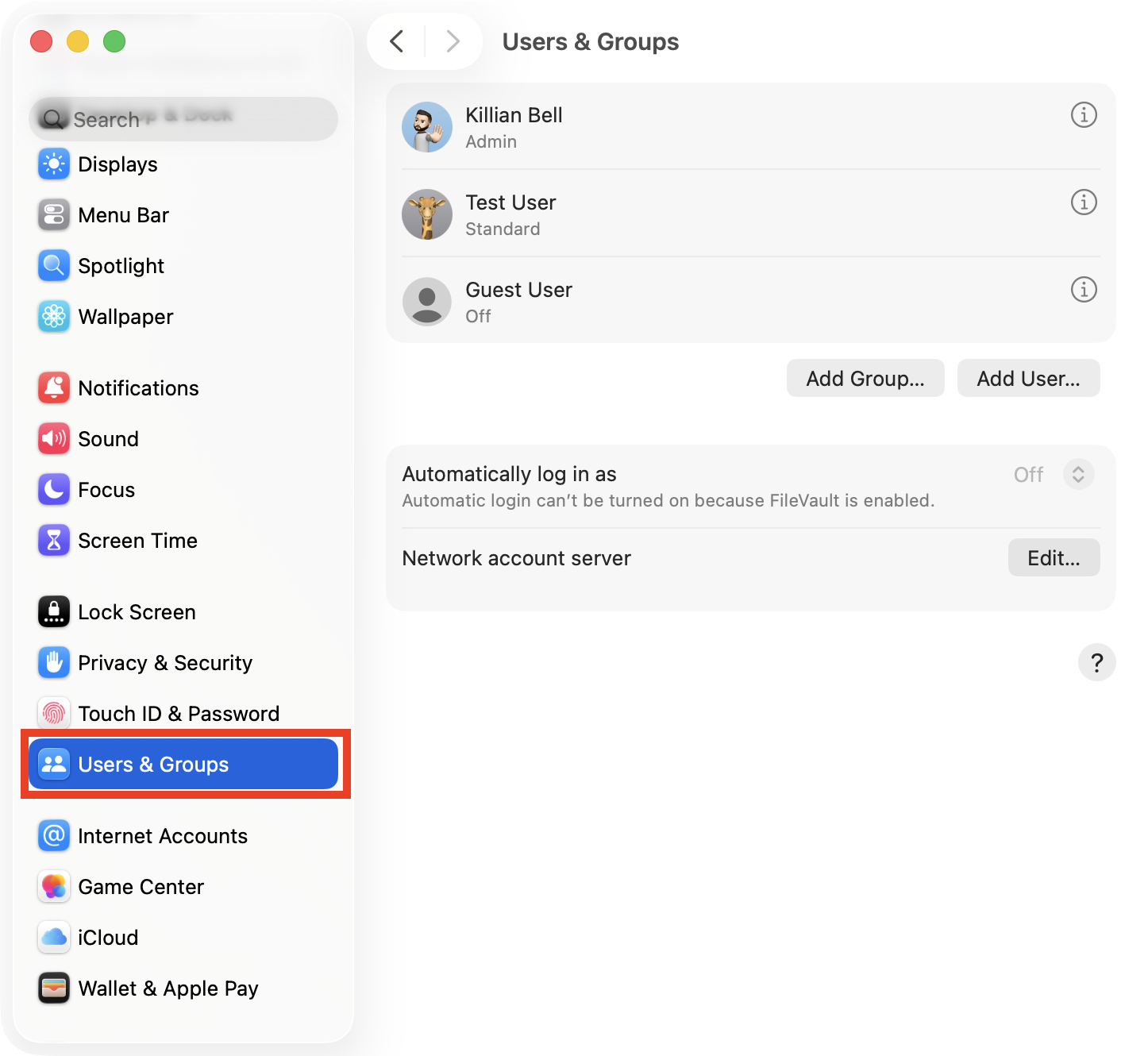
Open System Settings, then select Users & Groups.
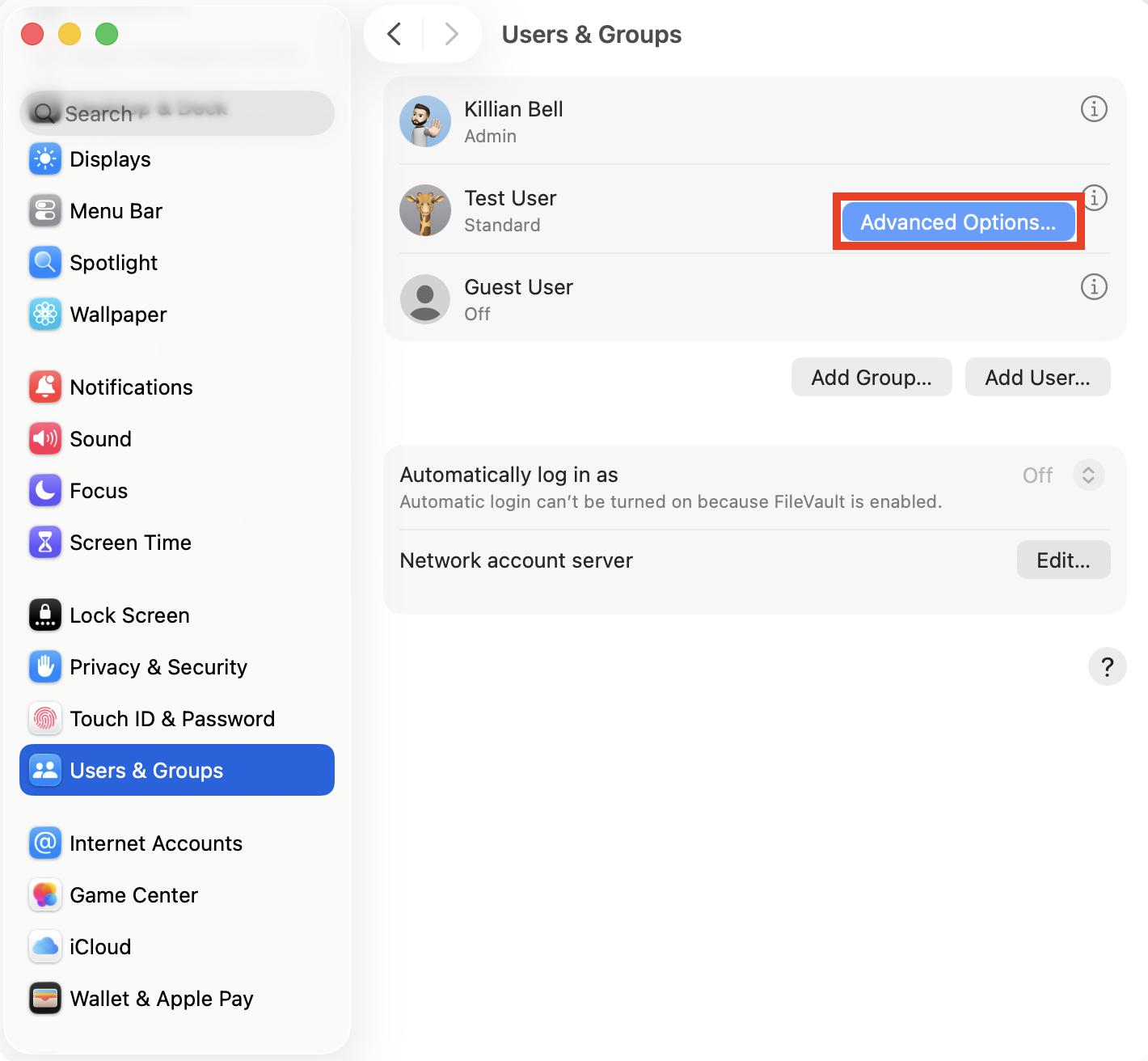
Right-click the user name you want to change, then choose Advanced Options.
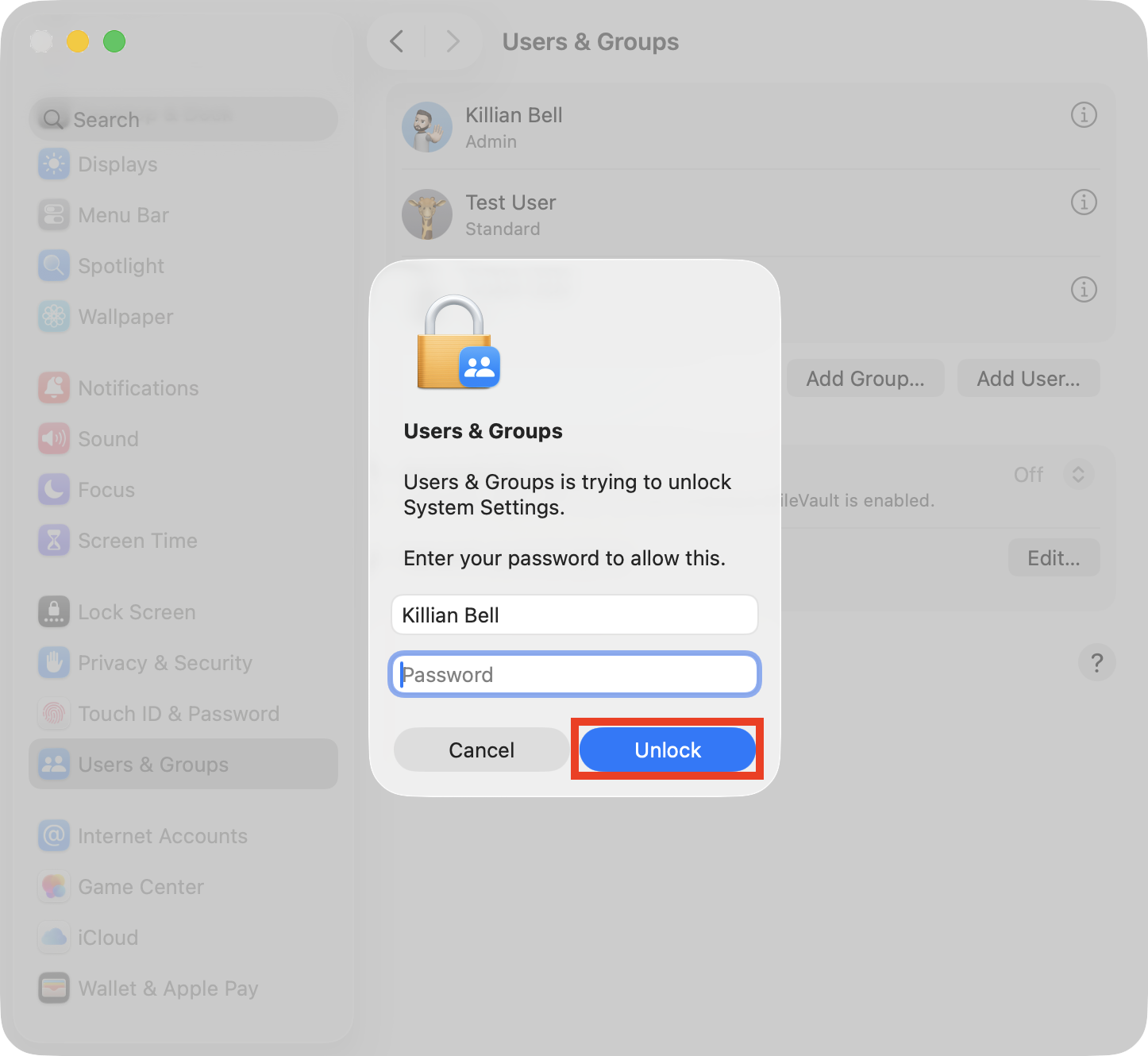
Enter the password for the account you're logged into when prompted and click Unlock.
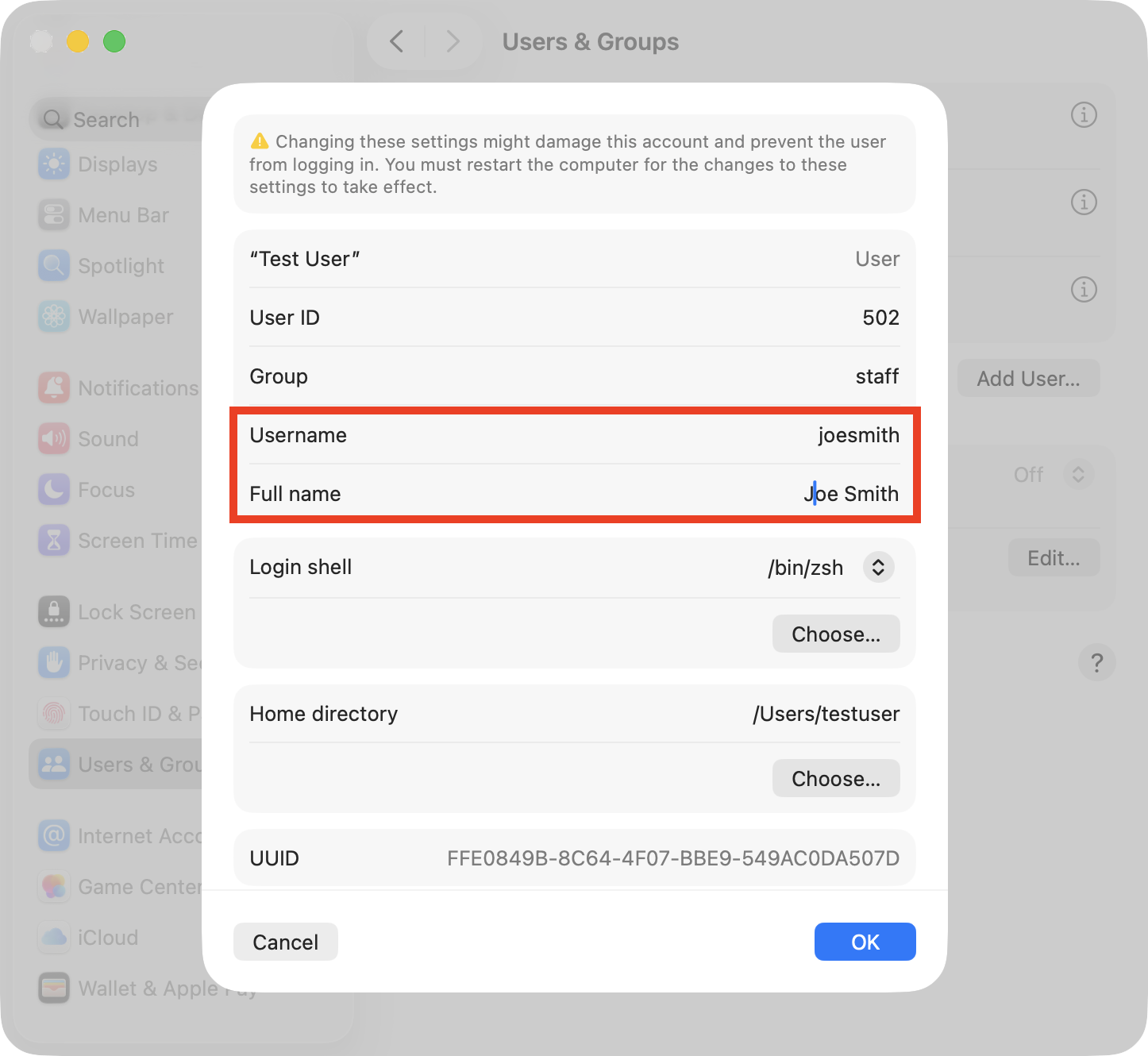
Change your account user name next to Username. You can also update your Full name here if you want to.
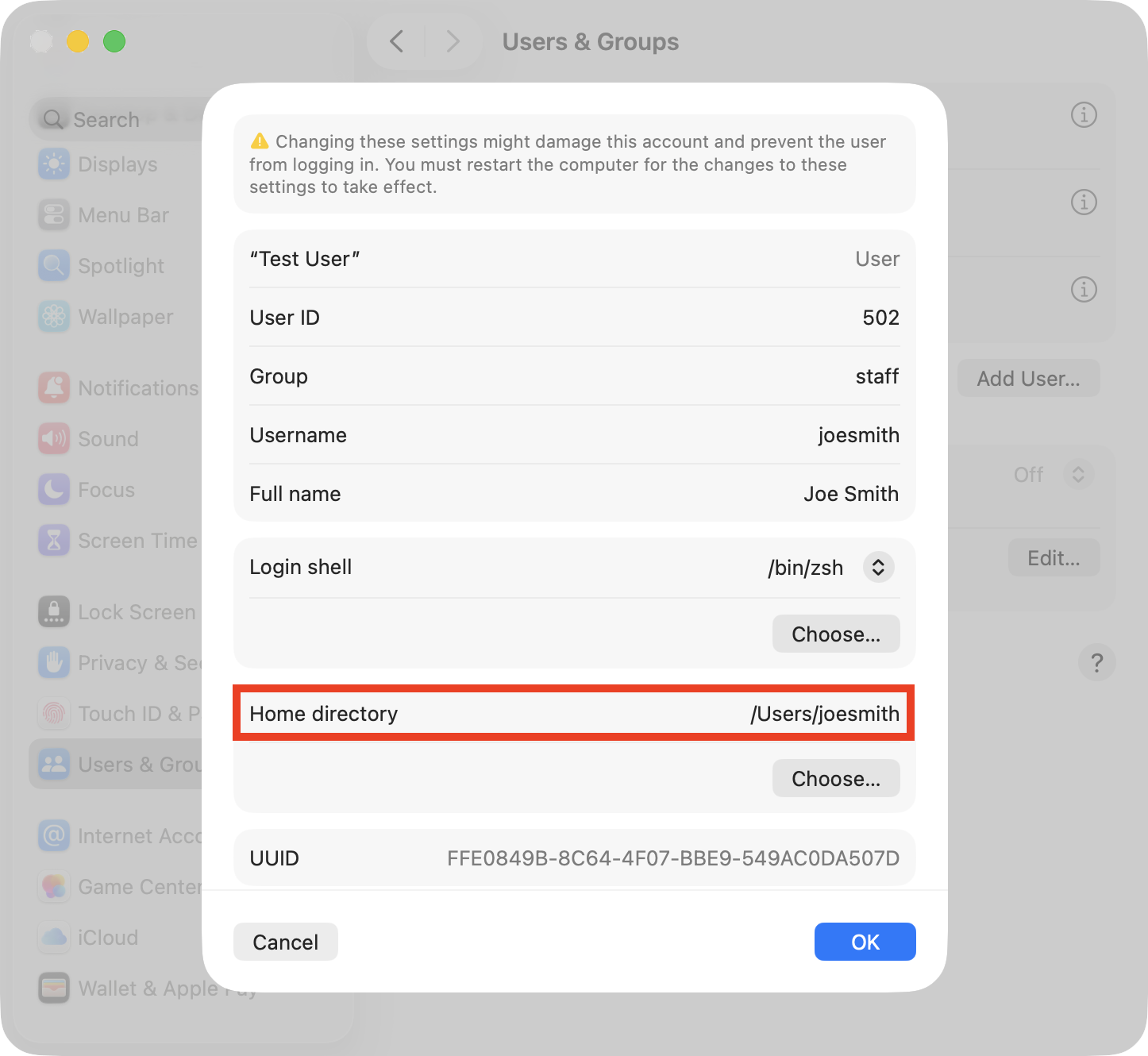
Update the Home directory to reflect the new name given to the Users folder. For instance, if your Users folder is now named joesmith, your Home directory should be /Users/joesmith.
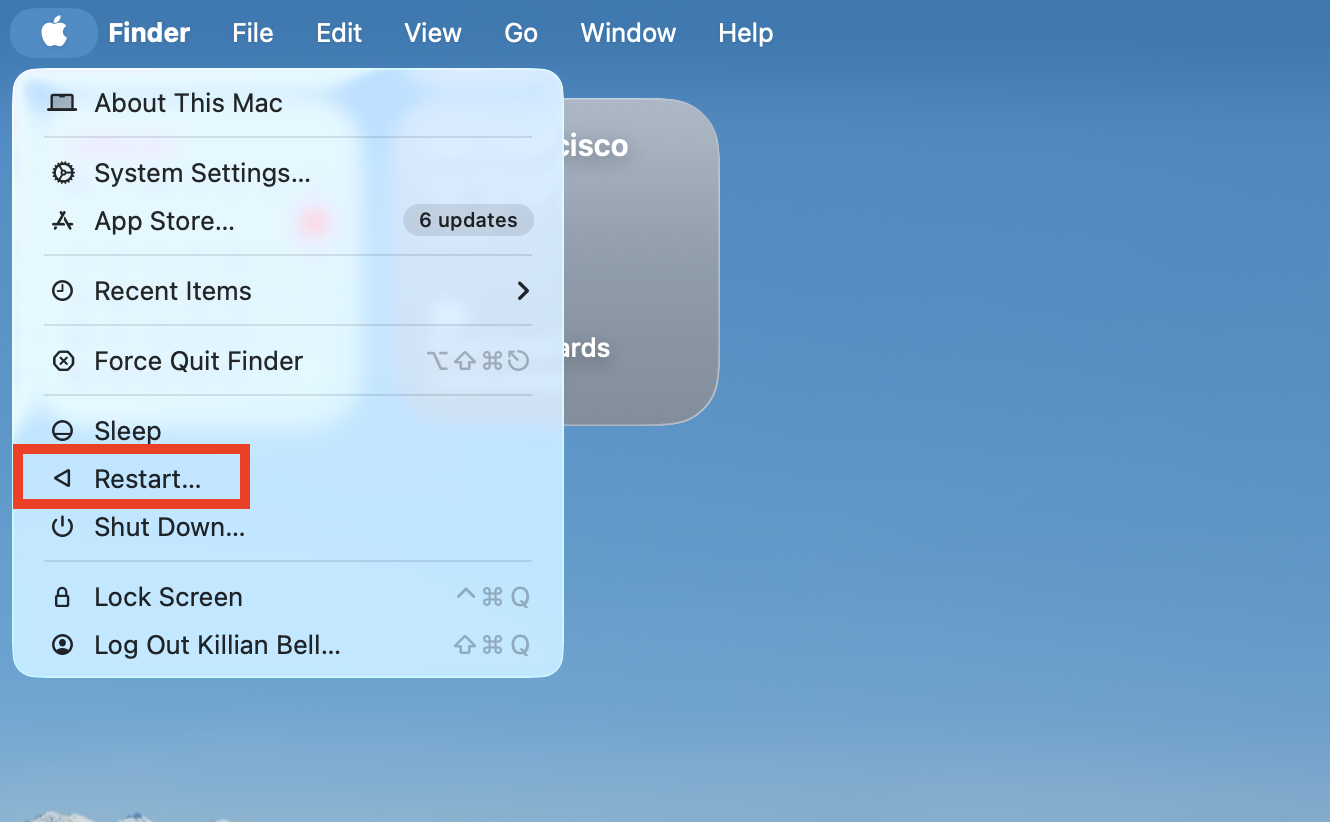
Click OK to confirm the changes, then Restart your Mac.
Step 1. In System Settings, choose Users & GroupsStep 2. Right-click the user you want to rename and choose Advanced OptionsStep 3. Enter your password and click Unlock when promptedStep 4. Update your username and full nameStep 5. Update the Home directoryStep 6. Restart your Mac
When your MacBook starts up again, you should immediately notice your user name has been updated on the login screen. You can select it and sign in using the same password, since this wasn’t altered. You can also change the lock screen on a Mac to display your name and password field rather than a user list.
Conclusion
Some users assume it’s impossible to edit a user name on Mac once it’s set up, but that’s not the case. While it may be somewhat tricky and can cause issues if you don’t do it correctly, you can change your username at any time by first renaming the Users folder, then updating the account in System Settings.
If your Mac user name is being changed or new users are being created by a macOS virus, you can remove the infection quickly and effectively using MacKeeper’s Antivirus from Clario Tech. You can also enable real-time system monitoring to block future threats as soon as they surface.
We respect your privacy and
use cookies
for the best site experience.
Privacy Preferences Center
We use cookies along with other tools to give you the best possible experience while using the
MacKeeper website. Cookies are small text files that help the website load faster. The cookies we
use don’t contain any type of personal data meaning they never store information such as your
location, email address, or IP address.
Help us improve how you interact with our website by accepting the use of cookies. You can change
your privacy settings whenever you like.
Manage consent
All cookies
These cookies are strictly necessary for enabling basic website functionality (including page
navigation, form submission, language detection, post commenting), downloading and purchasing
software. The website might malfunction without these cookies.