If you’re a regular Discord for Mac user, you might find your Apple Air or Pro device grinding to a halt more often than normal, with an accumulation of cache being the likely culprit. When you need to tackle a cleanup, MacKeeper’s Safe Cleanup can help do all the heavy lifting for you by removing digital junk in seconds–you’ll soon have your Mac operating again at a steady speed.
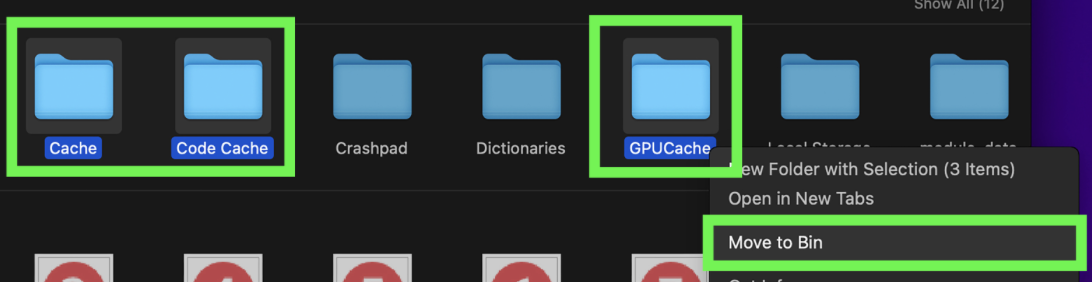
Removing Discord cache on Mac is not usually tricky, but finding it can be. First, Quit Discord in your Dock. Next, use Finder’s Go to Folder navigation. Enter the following path ~/Library/Application Support/discord/ and search for any files labelled Cache. Once you find them, Right-click and Move to Bin.
What is Discord cache on Mac?
Have you accidentally noticed that Discord not opening on Mac? That’s a sign the application is overrun with too much cache, causing a host of stored temporary files that aren't necessarily important and just demanding all your free space. If you don’t delete the accumulated Discird cache, it’ll overload the apps’ processes, slow down performance, and steal all your device’s storage.
How to find Discord cache on Mac?
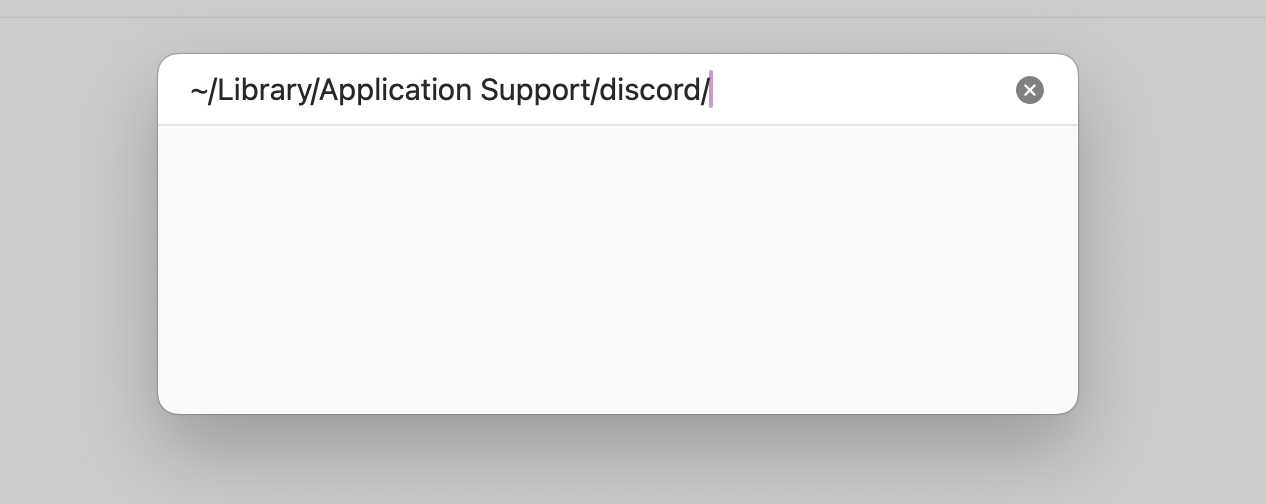
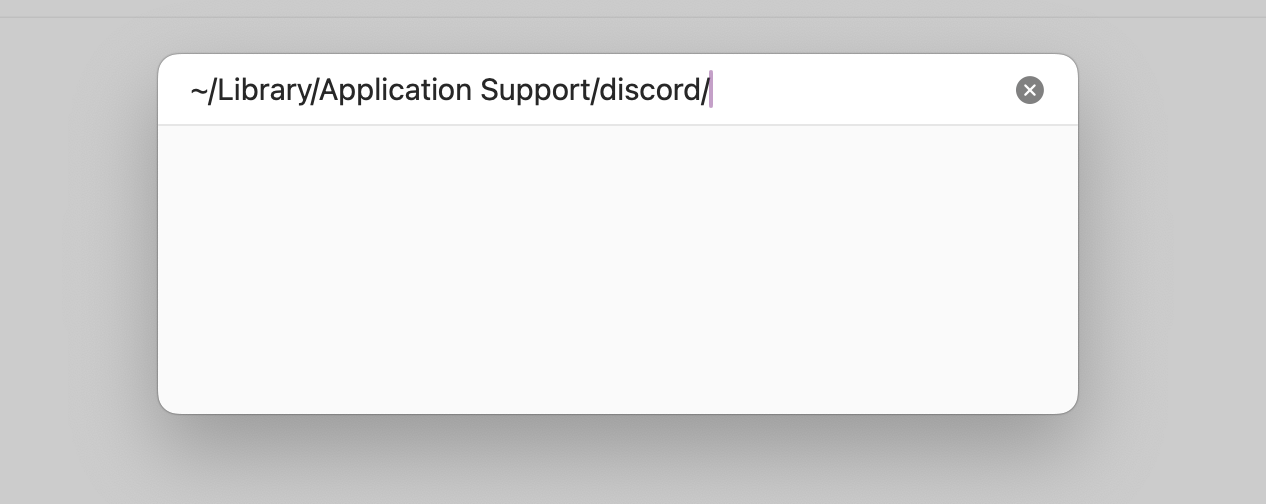
Creating more space can be tricky if you’re trying to clear app cache on Mac. Open Finder to access the Go to Folder feature. Type in: ~/Library/Application Support/discord/ to be taken to the Discord folders and look for Cache.
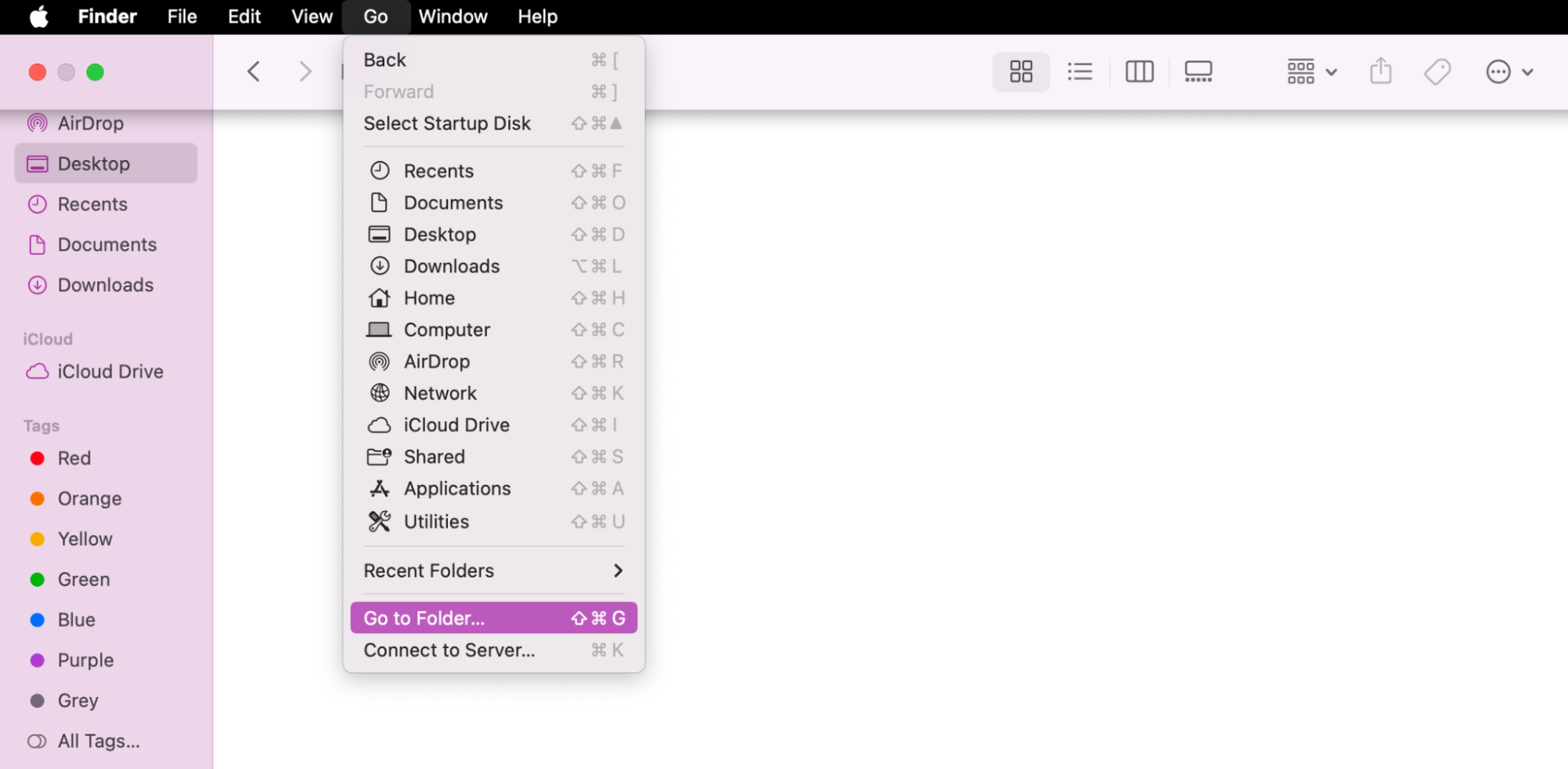
Step 1. In Finder, click on Go to FolderStep 2. Type in the following path:~/Library/Application Support/discord/Step 3. Look for folders labelled as Discord Cache
A note from our experts:
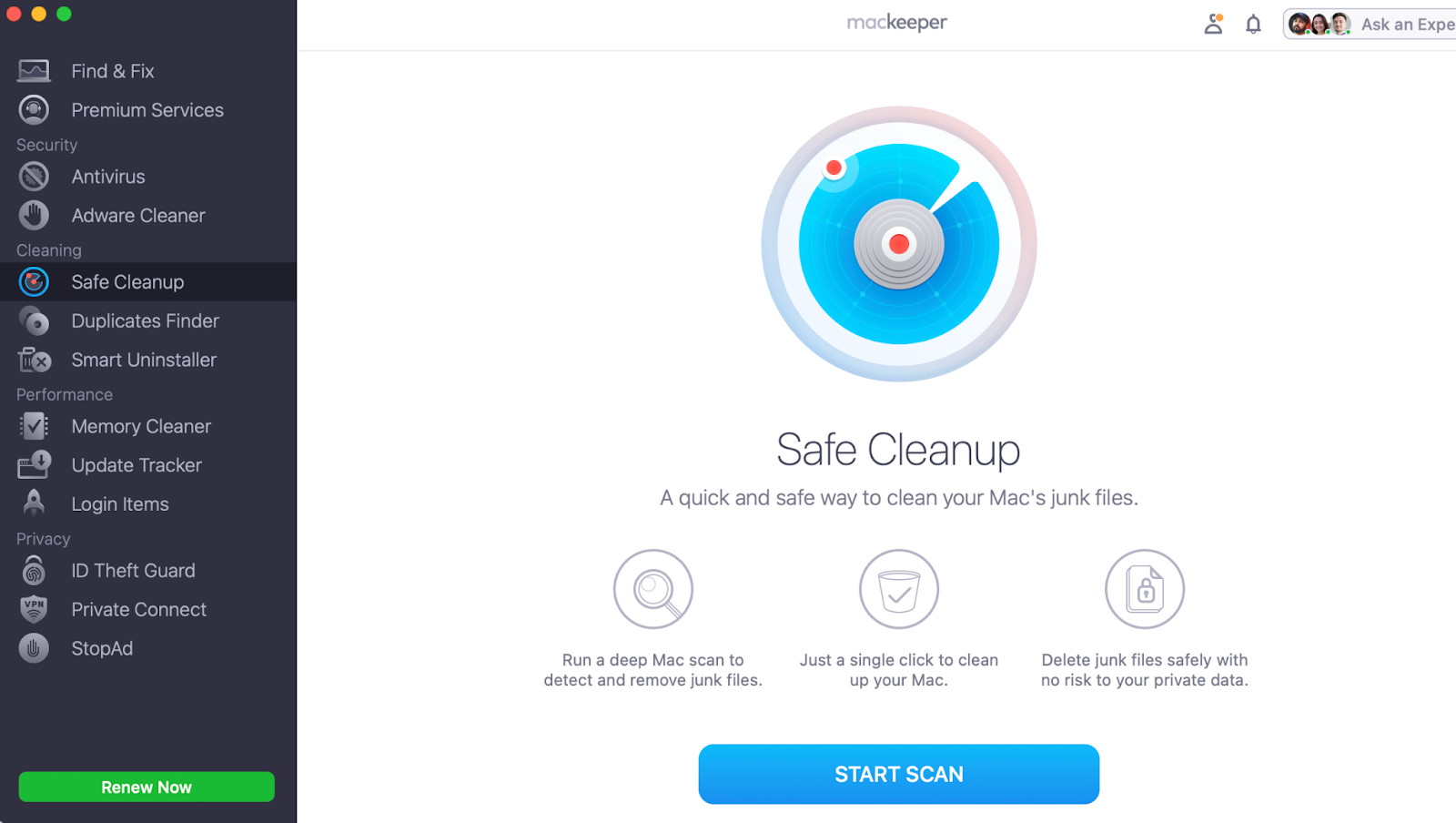
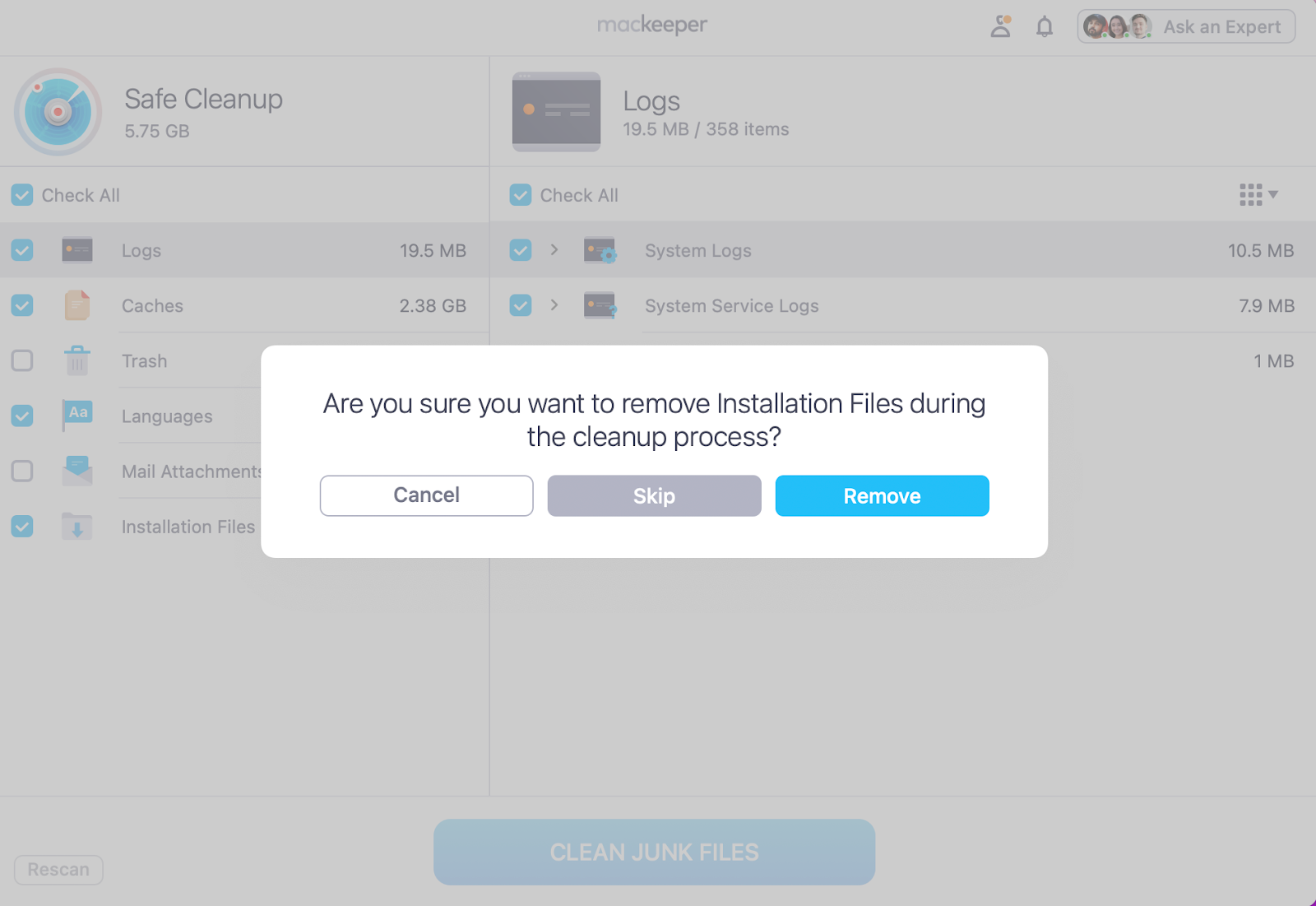
When you clear Discord cache manually, you free up resources and speed up your computer, but it can be time-consuming. Your MacBook scatters cache across multiple system folders, which makes it harder for you to track everything down on your own. We recommend MacKeeper’s Safe Cleanup—it’ll find and remove all unnecessary files in seconds.
Step 1. Open MacKeeper, go to Safe Cleanup, and press Start ScanStep 2. Tick all the Junk you no longer need, press Clean Junk Files, and Remove
How to delete Discord cache on Mac?
Ready to find out how to delete discord cache on Mac? While Discord is not a default macOS app, its cache can still be easily removed by using built-in Apple software like Finder.
We’ll walk you through the entire process, as follows:
Quit Discord
Open Finder
Choose Path
Delete Discord cache
Restart Discord
1. Quit Discord
The very first step before you clear Discord cache on Mac, is to make sure you close the Discord app before clearing anything.
Here are the two easiest ways to Quit Discord on Mac:
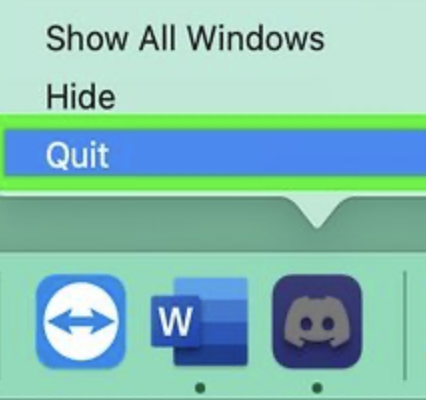
Right-click on the Discord icon in your Dock and select Quit.
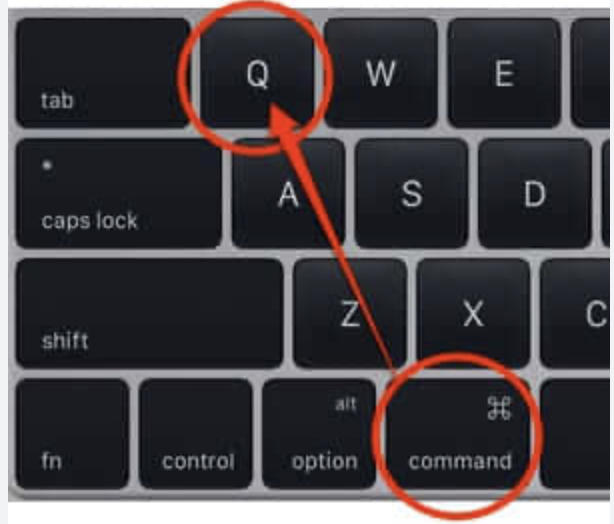
Alternatively, with the app open, you can just press Command + Q.
Step 1. Right-click on the Discord icon and choose QuitStep 2. With Discord open, press Command + Q to force quit instantly
2. Open Finder
The next step towards freeing your device of trash is to open Finder. This is important in this process as it’ll allow you to sort through and choose what to keep or remove from one convenient space.
Here’s how to open Finder:
Open your Dock.
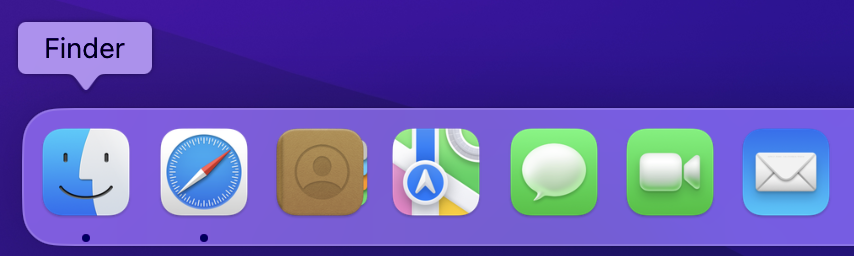
Click on Finder—the blue and white face icon.
Open Finder from your Dock
3. Choose Path
Once you open Finder, you’ll want to access the Go to Folder feature to enter the correct path.
Here’s how to open the Go to Folder and choose the right path:
In the menu tab, click on Go > Go to Folder.
Type in the path: ~/Library/Application Support/discord/
Press Enter.
In the search box, type in the path: ~/Library/Application Support/discord/ and press Enter
4. Delete Discord cache
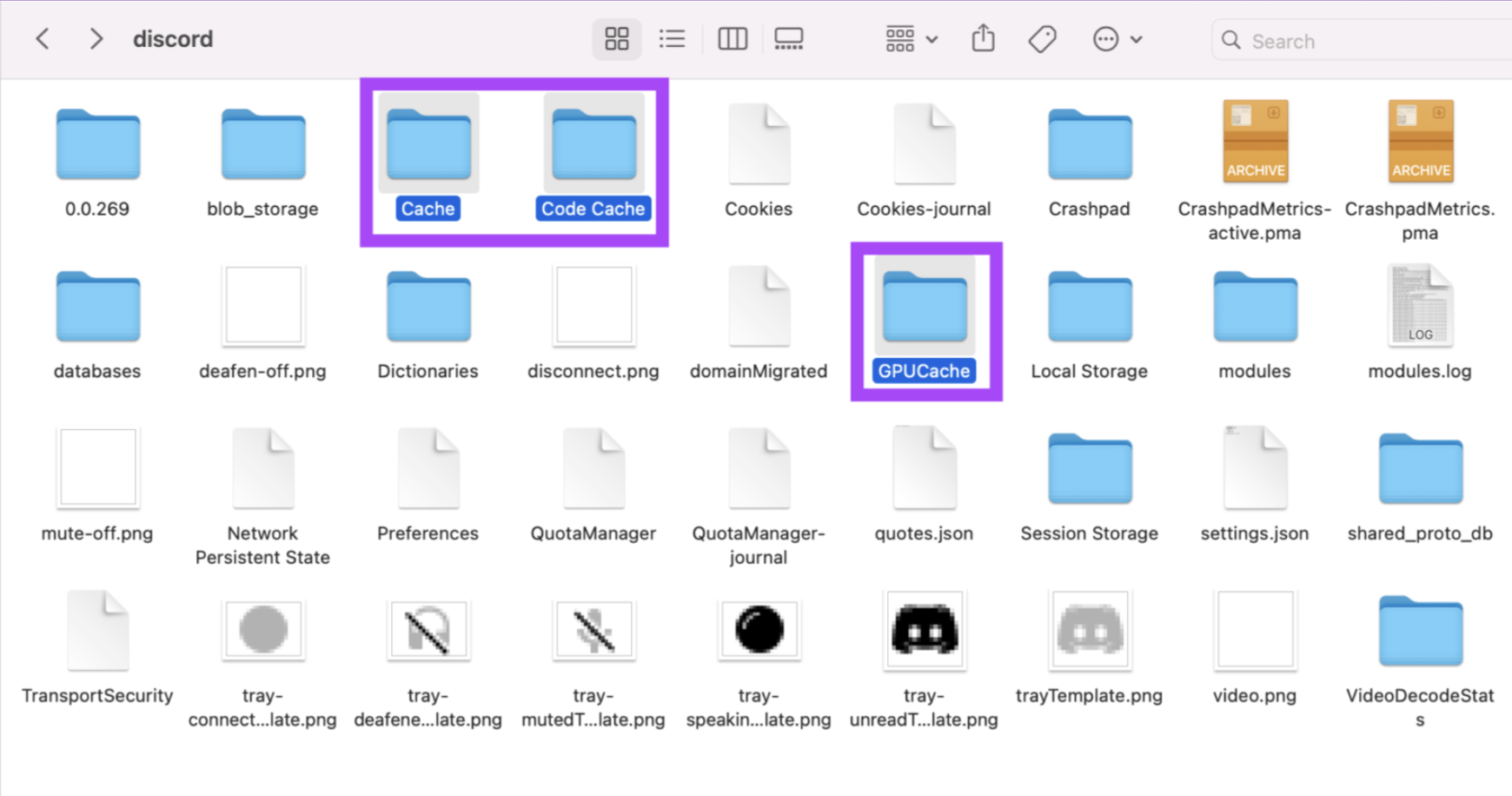
Once you’ve found Discord’s temporary folders, it’s time for us to show you how to clear cache on Mac for good. There are several labels to look out for, including Cache, Code Cache, and GPUCache.
Here’s how to delete Discord cache from your MacBook:
Search through the Discord folders, looking for the Cache labels.
Right-click the folders and choose Move to Bin.
Right-click all folders labelled as Cache and choose Move to Bin
5. Restart Discord
All that’s left now is to restart the Discord app to save your changes.
Here’s how we recommend restarting the app:
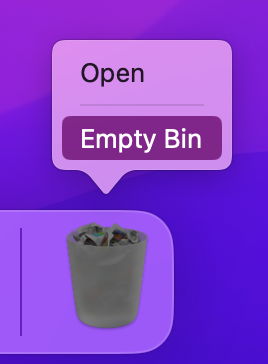
First, Right-click on your Bin icon and press Empty.
Re-openDiscord to create new cache folders.
Step 1. Empty BinStep 2. Press on the Discord icon in your Dock to reopen the app
Manual vs automatic clearing of Discord cache
Now you know how simple it can be to clear unwanted cache and junk from your Mac—the hardest part is locating temporary files, as they’re often buried. That’s where Finder’s Go to Folder helps. It allows you to open hidden locations, check recent activity, and select the files you need to remove to free up space.
If manually deleting Discord cache still feels like a chore, we recommend MacKeeper. With just a few steps, you can open our Safe Cleanup tool to start the process of letting it monitor your Mac for any junk and leftover files. In seconds, it works to remove clutter, reduce glitching, and improve speed—helping you keep your MacBook running smoothly while simultaneously freeing up valuable space and reducing overall system strain.
We respect your privacy and
use cookies
for the best site experience.
Privacy Preferences Center
We use cookies along with other tools to give you the best possible experience while using the
MacKeeper website. Cookies are small text files that help the website load faster. The cookies we
use don’t contain any type of personal data meaning they never store information such as your
location, email address, or IP address.
Help us improve how you interact with our website by accepting the use of cookies. You can change
your privacy settings whenever you like.
Manage consent
All cookies
These cookies are strictly necessary for enabling basic website functionality (including page
navigation, form submission, language detection, post commenting), downloading and purchasing
software. The website might malfunction without these cookies.