To clear out cache on Mac and fix sluggish YouTube loading, playback glitches, or site data buildup, you need to remove the stored browser files that YouTube leaves behind over time. MacKeeper’s Safe Cleanup gives you a faster and more convenient way to get rid of unnecessary caches, logs, and junk files, helping your Mac stay responsive without digging through system folders manually.
YouTube cache on a Mac is temporary website data, such as thumbnails, scripts, and other saved elements that help videos and pages load faster. When too much of this data builds up, YouTube may start lagging or behaving oddly. That’s when it makes sense to clear the YouTube cache on your Mac to free up space and improve browser performance.
Why clear the YouTube cache on Mac?
You may need to clear the YouTube cache on Mac to fix playback glitches, loading errors, or slow browsing. Over time, cached files accumulate and can interfere with how YouTube loads videos and thumbnails. Removing this temporary data refreshes stored website elements, frees up disk space, and often restores smoother streaming performance.
A note from our experts:
Clearing browser data helps, but many cache files and app logs remain stored across the system. We believe that using a dedicated cleanup tool can remove this hidden clutter more efficiently. MacKeeper offers memory optimization to eliminate unnecessary files and improve overall responsiveness as your Mac starts slowing down.
Follow these steps to clean cache files with Safe Cleanup:
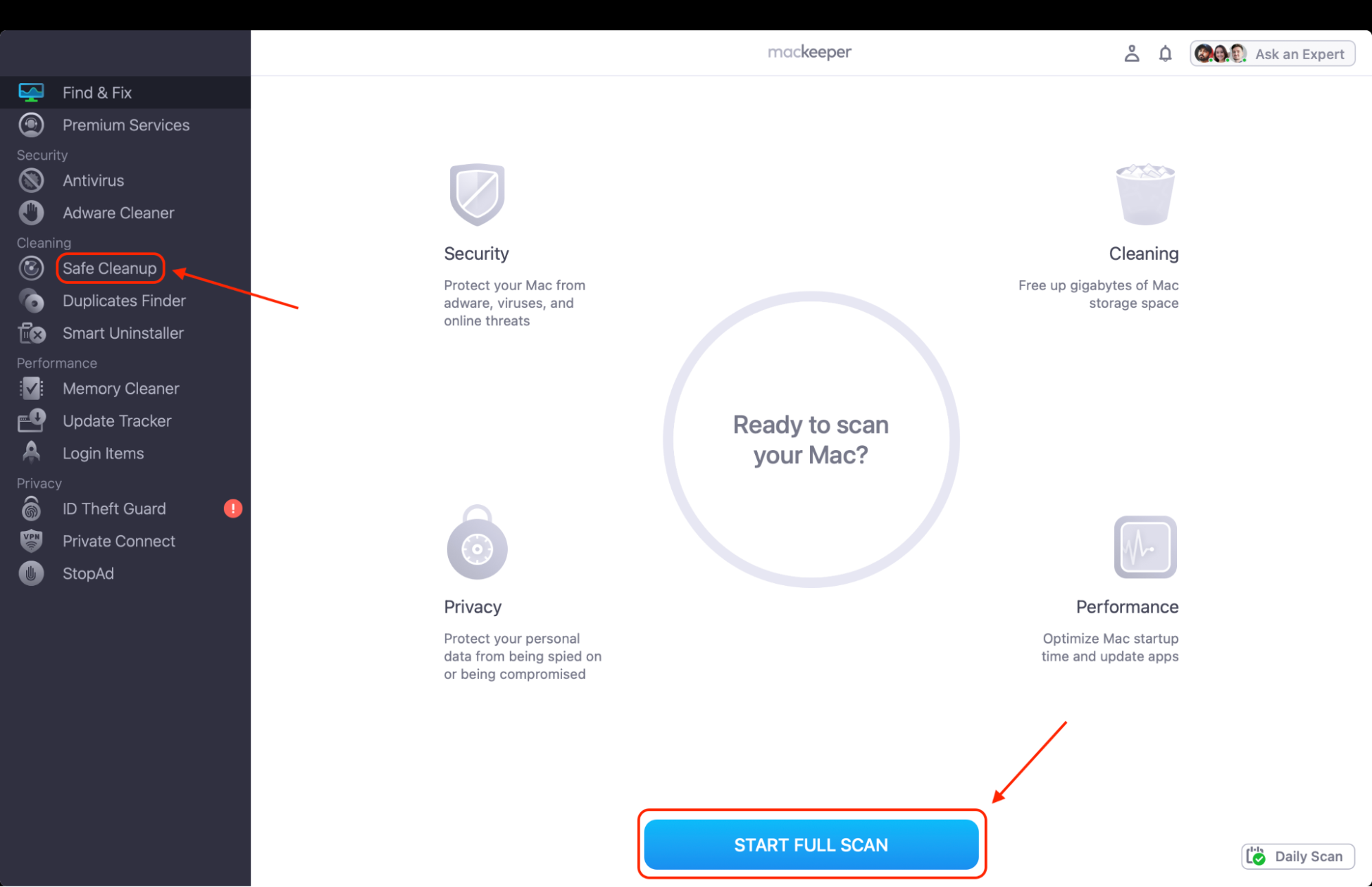
Open MacKeeper and select Safe Cleanup from the left-hand menu.
Click Start Full Scan to detect junk files, including caches and logs stored on your Mac.
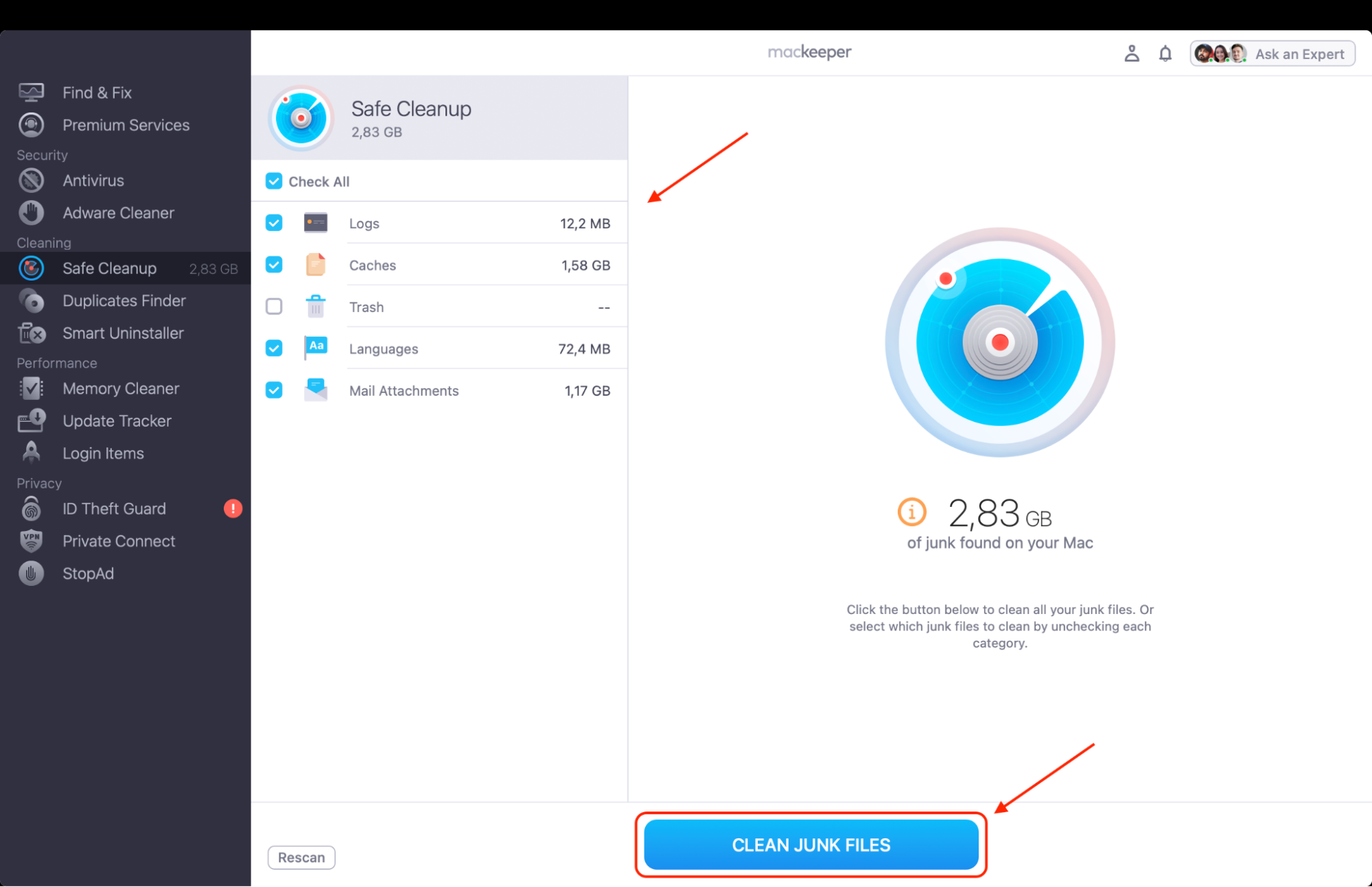
Review the results under categories such as Logs and Caches to see what’s taking up space.
Click Clean Junk Files to remove the detected items and free up storage, helping your Mac run more smoothly.
Step 1. Choose Safe Cleanup and hit the Start Full Scan buttonStep 2. Select the files you wish to remove and hit Clean Junk Files
How to delete YouTube cache on Mac?
To delete YouTube cache on Mac, you need to remove the stored website data from the browser you use to watch videos, such as Safari, Chrome, or Firefox. This clears temporary files like thumbnails, scripts, and other cached elements that may slow down playback. You can do this through your browser’s privacy or data settings, or by clearing system cache files in the ~/Library/Caches folder if you want a deeper cleanup.
1. Remove browser cache
If you’re experiencing the YouTube not working problem in your browser, such as buffering videos, missing thumbnails, or freezing pages, the quickest fix is to remove the YouTube cache on Mac directly from your browser settings. This method targets only website data stored by your browser, so it refreshes YouTube without affecting your files or system configuration.
To remove YouTube cache on Mac:
Identify the browser you normally use to watch YouTube (Safari, Chrome, or Firefox).
Open the browser’s privacy or data management settings.
Locate stored website data, cookies, and cached images/files.
Remove YouTube-related data or clear cached files entirely.
Restart the browser to apply the changes.
Reload YouTube and check if playback, thumbnails, or loading issues are resolved.
If problems persist, repeat the process or try clearing the full browser cache.
1.1. Safari
If you watch YouTube in Safari, clearing browser data is one of the fastest ways to refresh stored site elements. When you clear cache on Safari, you remove saved website files like thumbnails, scripts, and interface components that may cause loading glitches or outdated content.
Below, we’ve prepared the instruction on how to clear cache on Safari:
Open Safari on your Mac.
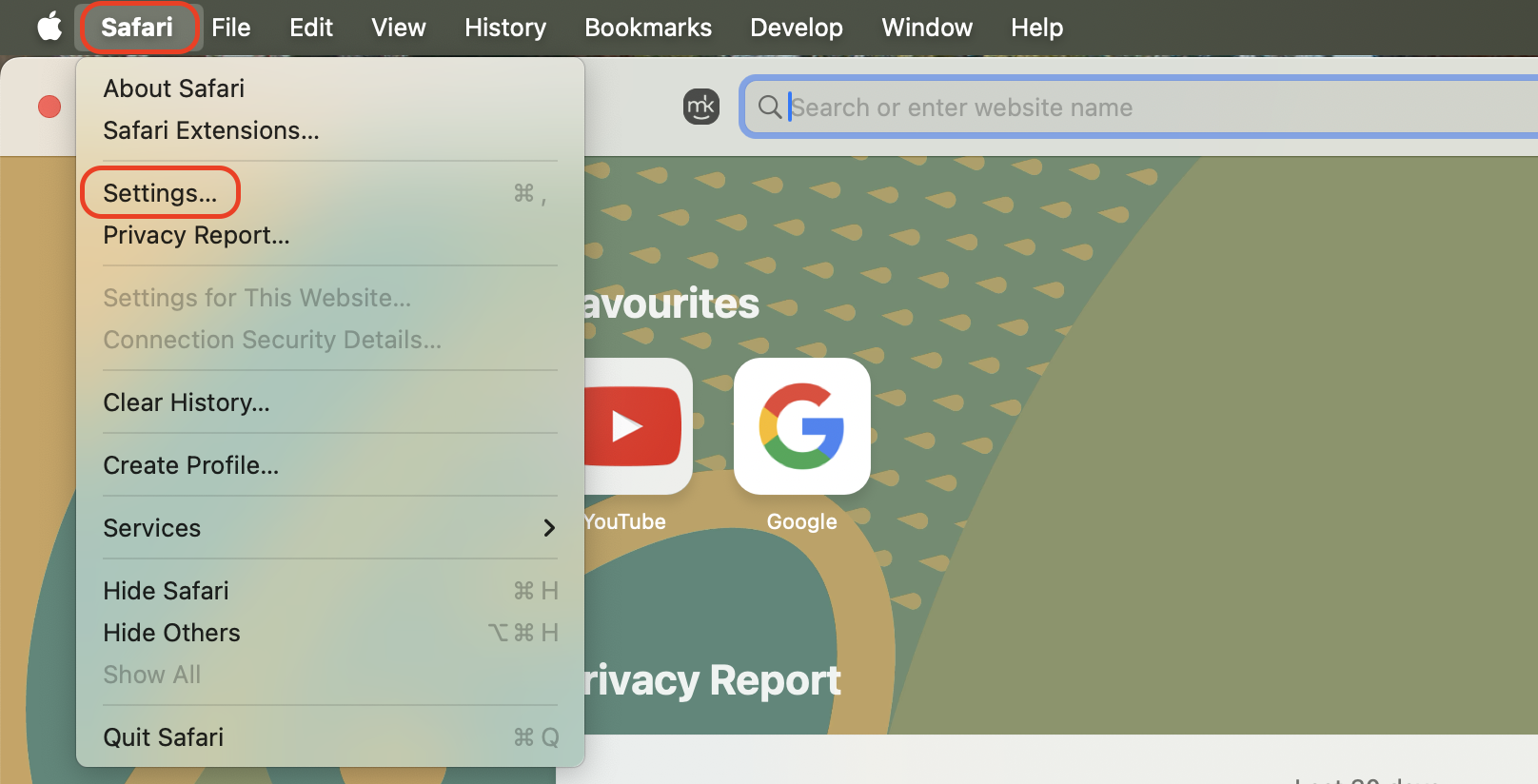
In the top menu bar, click Safari.
Select Settings (or Preferences, depending on macOS version).
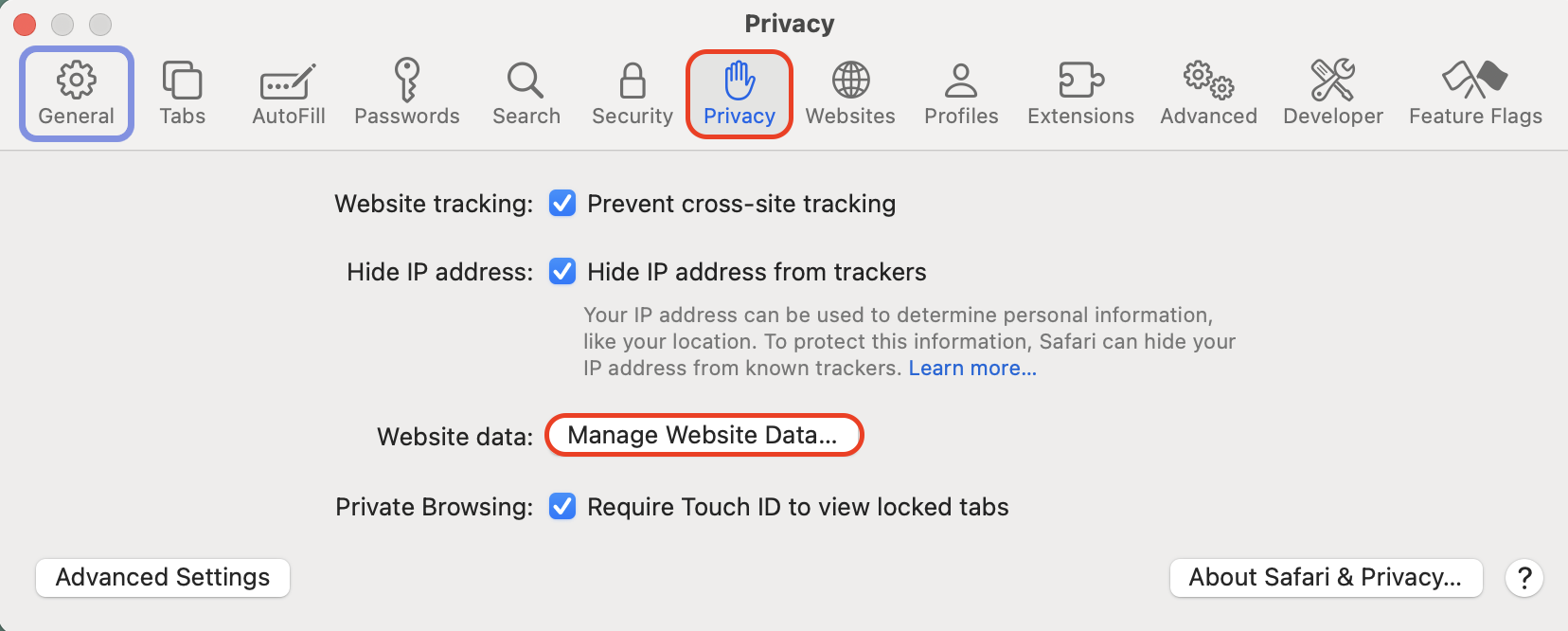
Navigate to the Privacy tab.
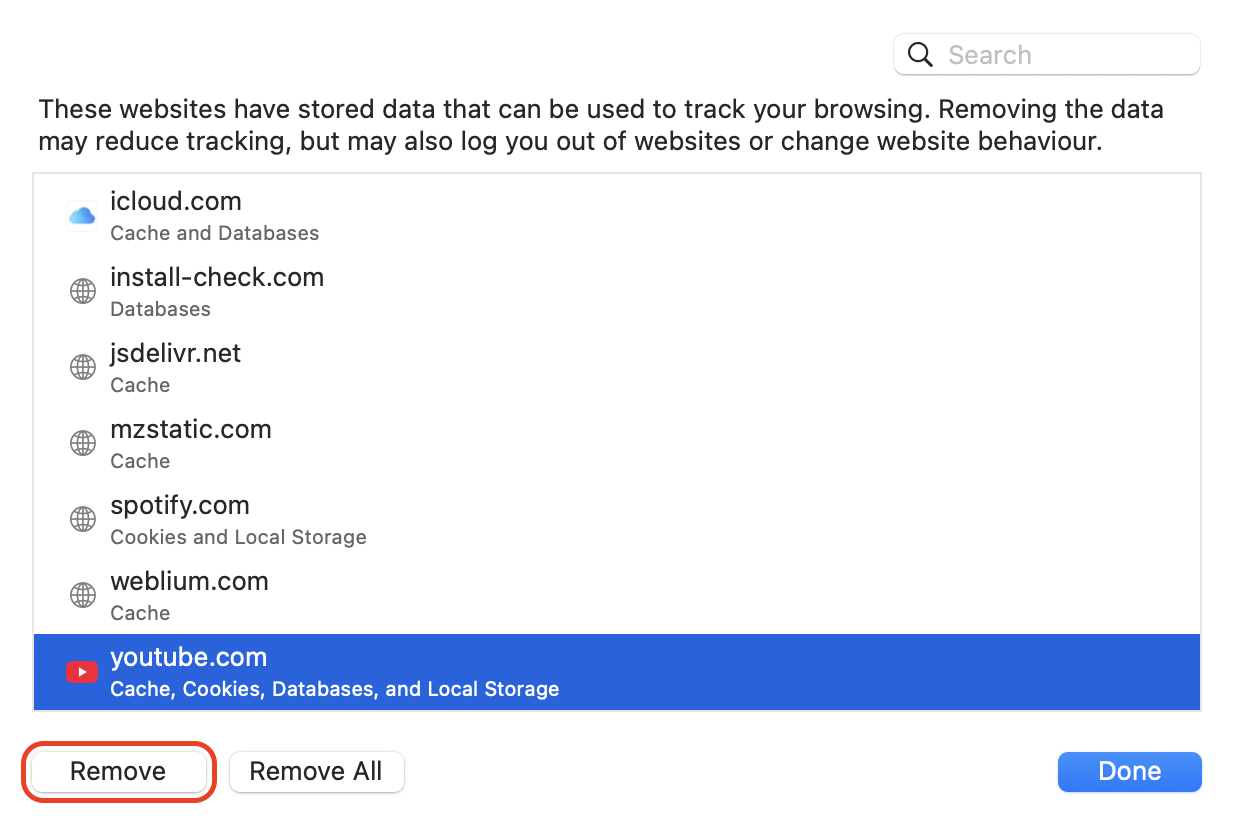
Click Manage Website Data.
Use the search bar to find YouTube.
Select youtube.com from the list.
Click Remove to delete stored data.
Press Done and close the settings window.
Reload YouTube to verify that videos and page elements load correctly.
Step 1. In the top menu bar of Safari, click Safari and select SettingsStep 2. Navigate to the Privacy tab and click Manage Website DataStep 3. Select youtube.com from the list and click Remove to delete stored data
1.2. Chrome
Chrome stores cached images, scripts, and temporary website files that help pages load faster. However, if too many of these accumulate, YouTube may lag or fail to load properly. Clearing them is straightforward when you clear Chrome cache through the browser’s built-in privacy controls.
Use this method to clear Chrome cache:
Open Google Chrome on your Mac.
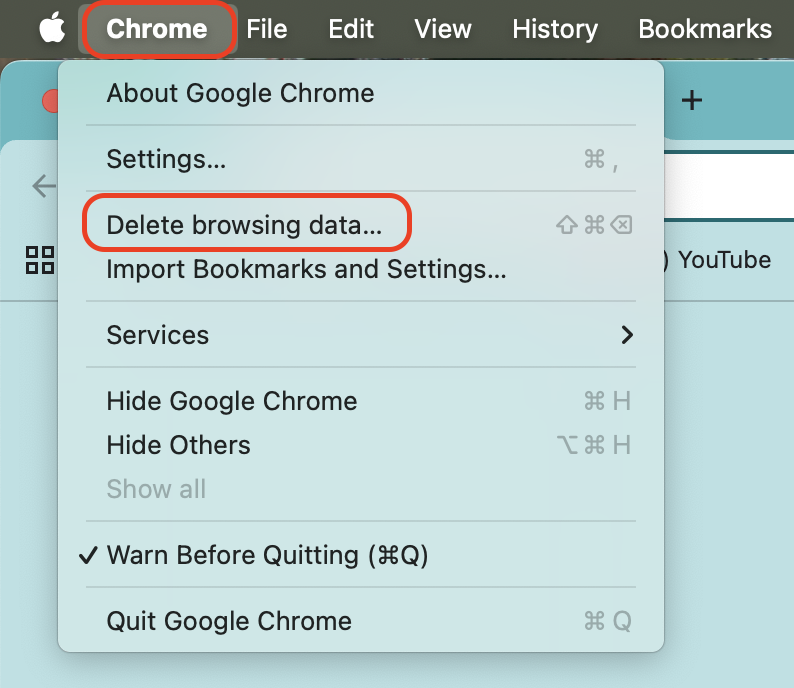
Click Chrome in the top menu bar.
Select Delete Browsing Data.
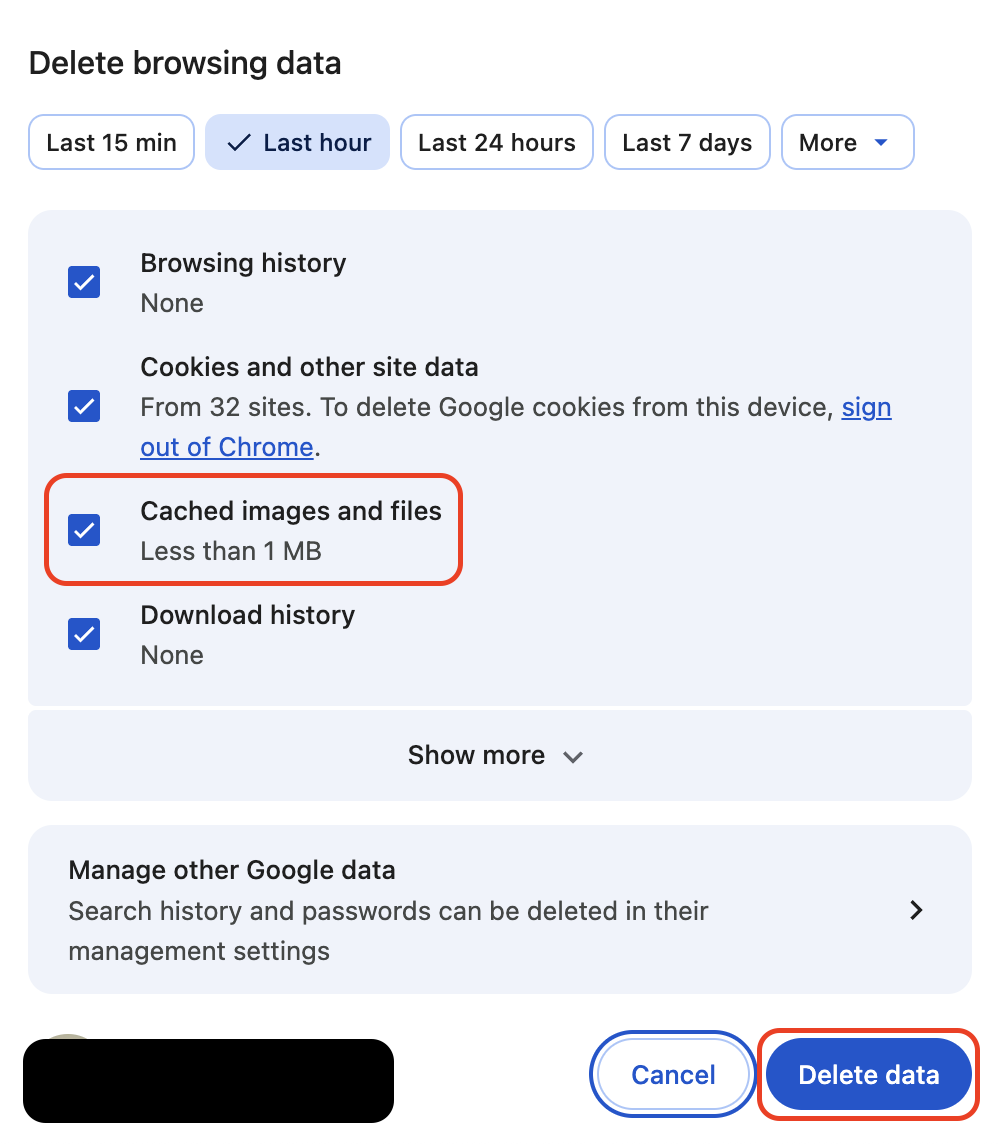
Choose a time range (select All time for a full reset).
Check the box for Cached images and files.
Optionally leave Browsing history and Cookies unchecked if you only want the cache removed.
Click Clear data.
Wait for Chrome to remove stored files.
Restart the browser.
Open YouTube again to confirm improved loading and playback.
Step 1. Click Chrome in the top menu bar and select Delete Browsing DataStep 2. Choose a time range (select All time for a full reset) and check the box for Cached images and files. Then click Clear data
1.3. Firefox
Firefox also stores temporary files that help websites load faster. But when this cache becomes outdated or corrupted, YouTube pages may display incorrectly or fail to play videos smoothly. Learning how to clear Firefox cache helps refresh the stored data and restore normal site performance.
Here’s how to clear Firefox cache:
Open Mozilla Firefox.
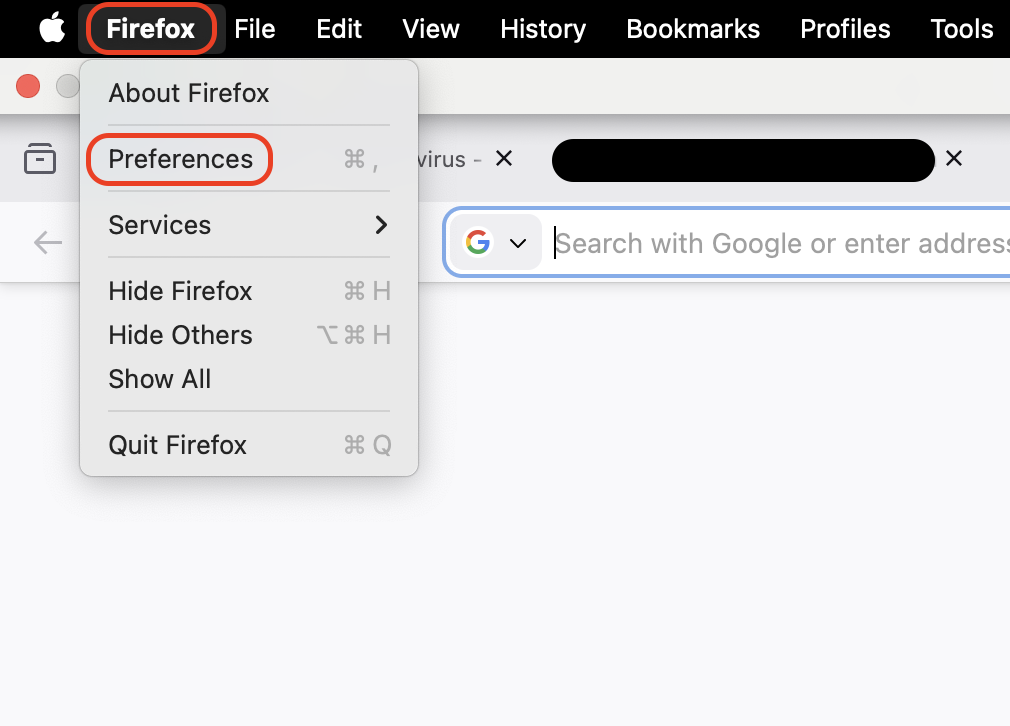
Click Firefox in the top menu bar.
Select Preferences or Settings.
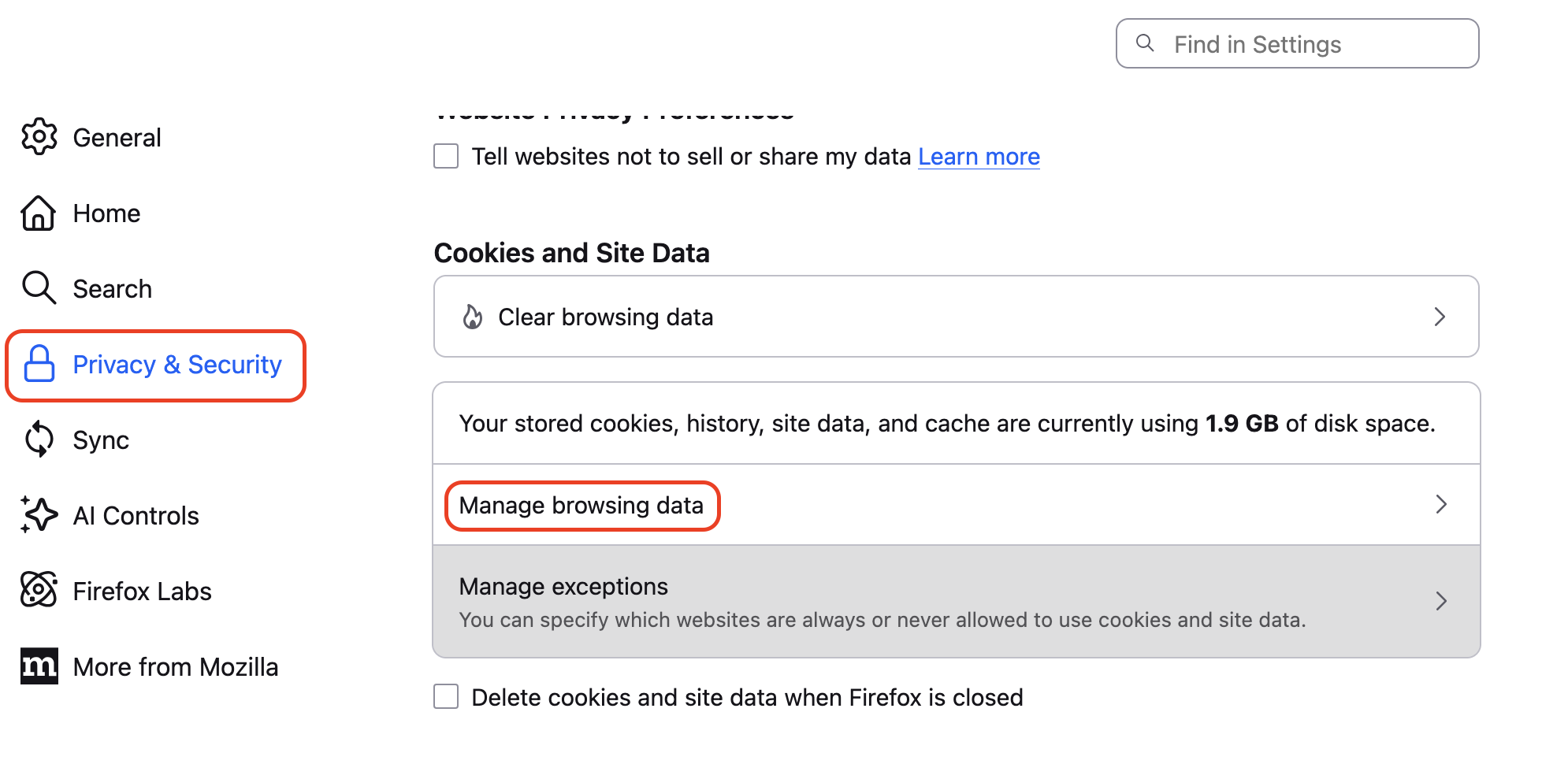
Navigate to the Privacy & Security section.
Scroll down to Cookies and Site Data.
Click Manage Data.
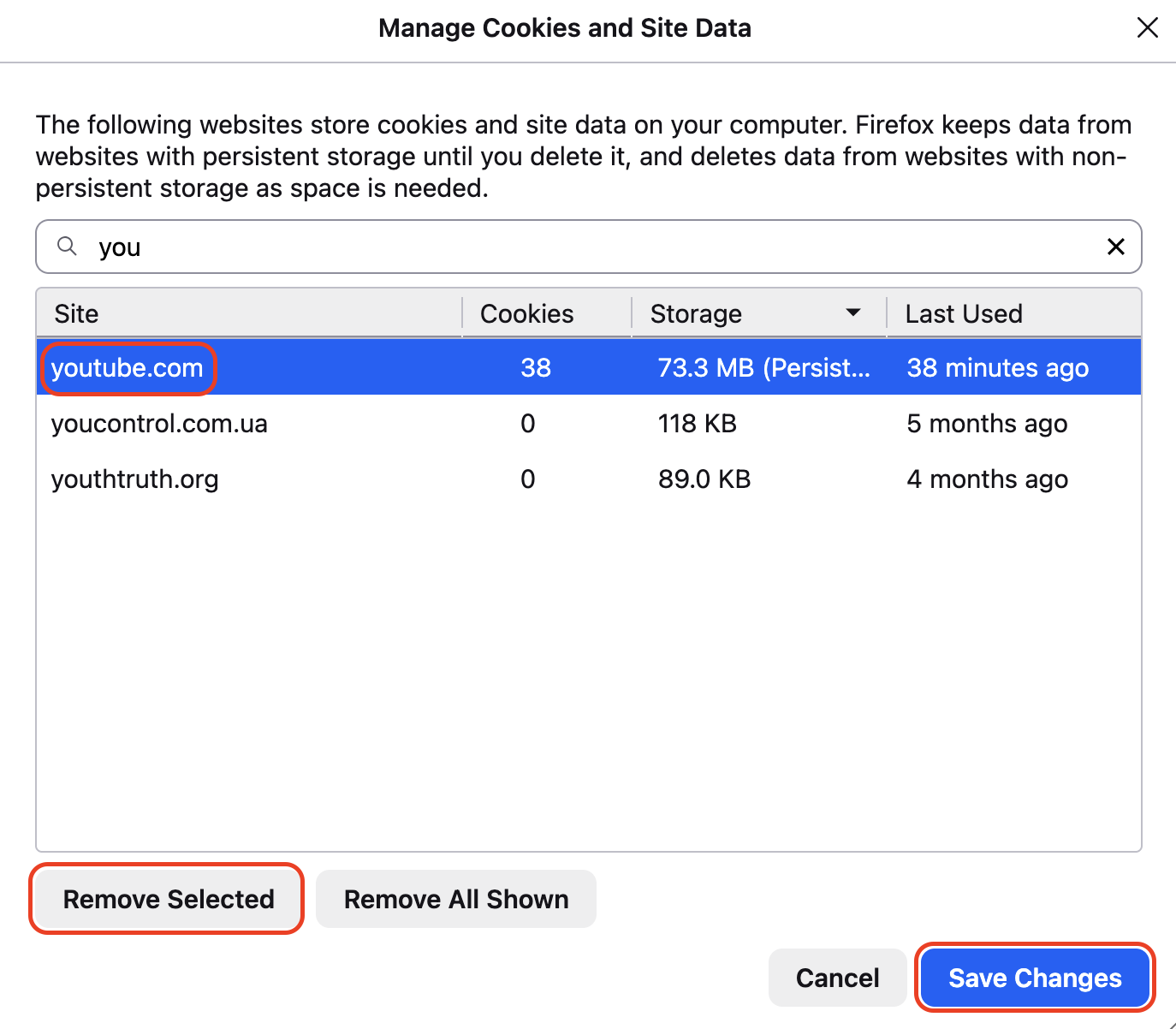
Search for YouTube in the list of stored sites.
Select the entry for youtube.com.
Click Remove Selected to delete the cached data.
Restart Firefox and reload YouTube to confirm the issue is resolved.
Step 1. Click Firefox in the top menu bar and select Settings or PreferencesStep 2. Navigate to the Privacy & Security section and scroll down to Cookies and Site Data, then click Manage Data and search for YouTubeStep 3. Select the entry for youtube.com and click Remove Selected to delete the cached data. Then hit Save Changes
2. Clear system cache on Mac
If browser cleanup doesn’t fully resolve performance problems, clearing the system cache can help. We’ve seen that this method removes cached data stored by macOS and various apps, not just your browser. When you clear cache at the system level, you remove temporary files that accumulate in background folders and may slow down your Mac over time.
Follow our guidelines below to clear cache:
Open Finder on your Mac.
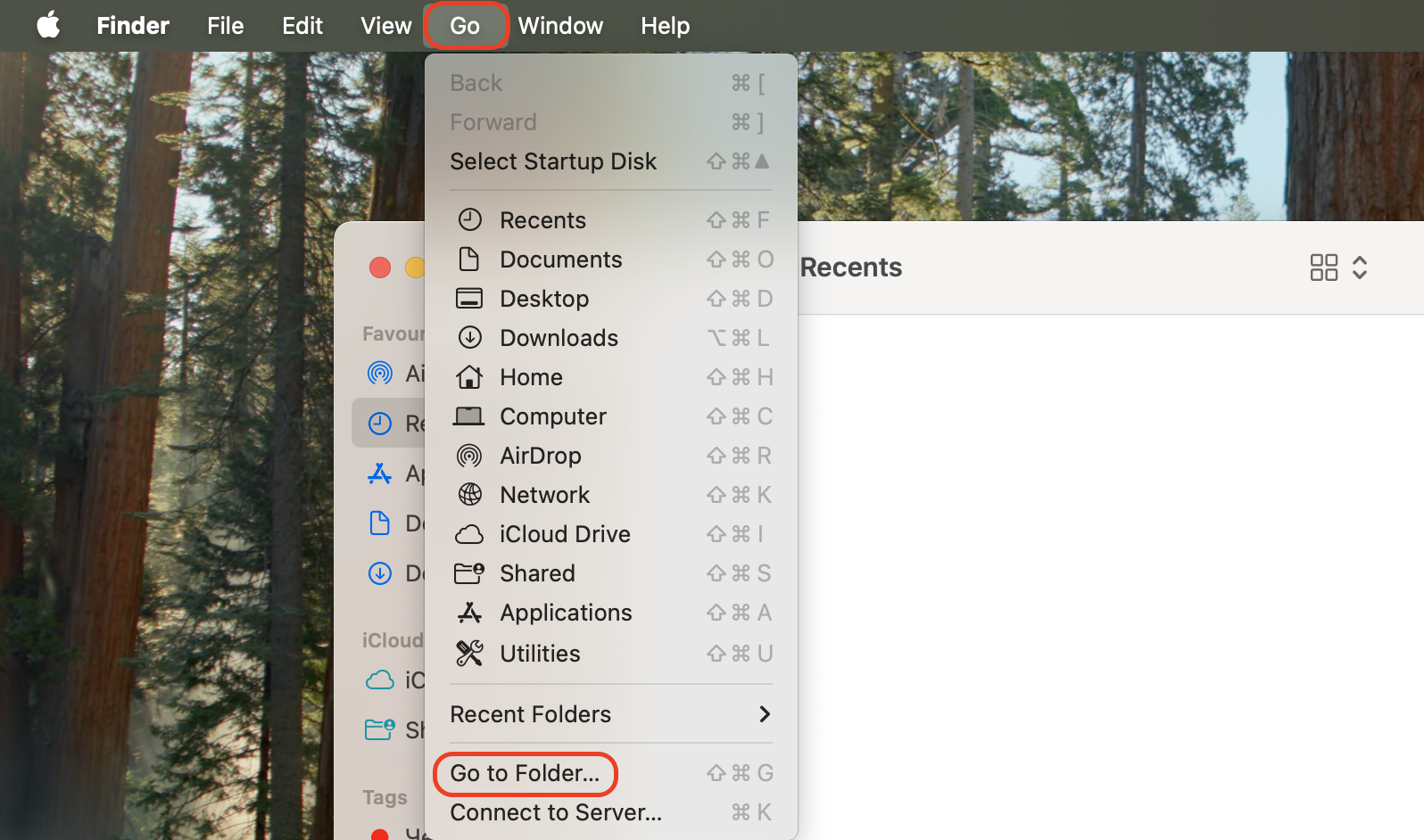
In the top menu bar, click Go.
Select Go to Folder.
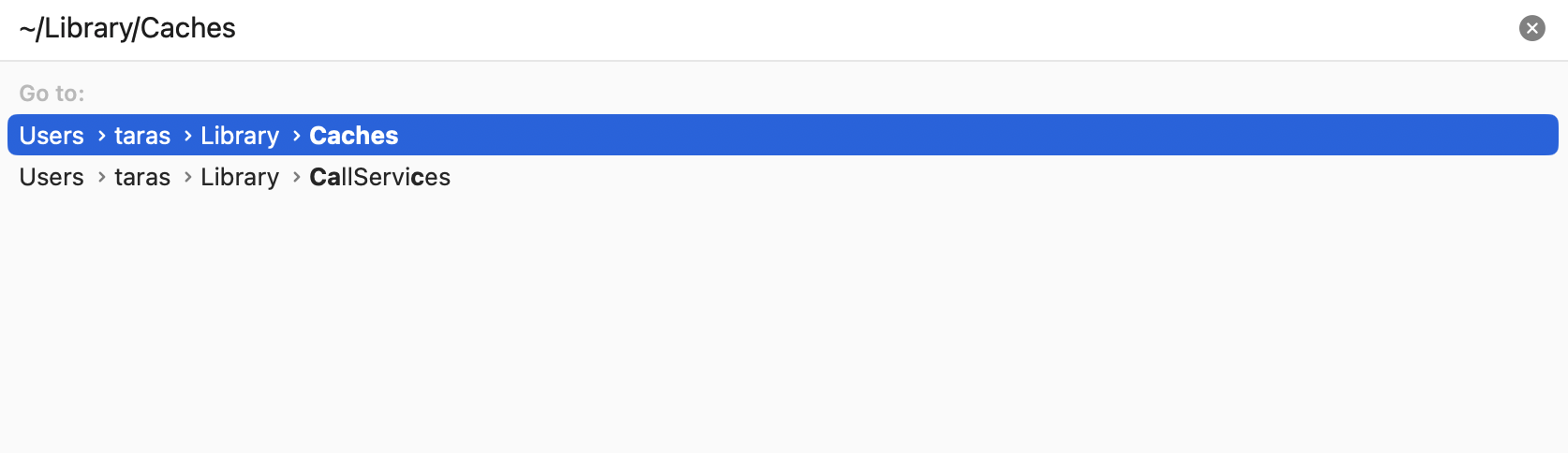
Type the path ~/Library/Caches.
Press Enter to open the system cache directory.
Browse the folders that store app and browser cache data.
Locate cache folders related to browsers or media playback.
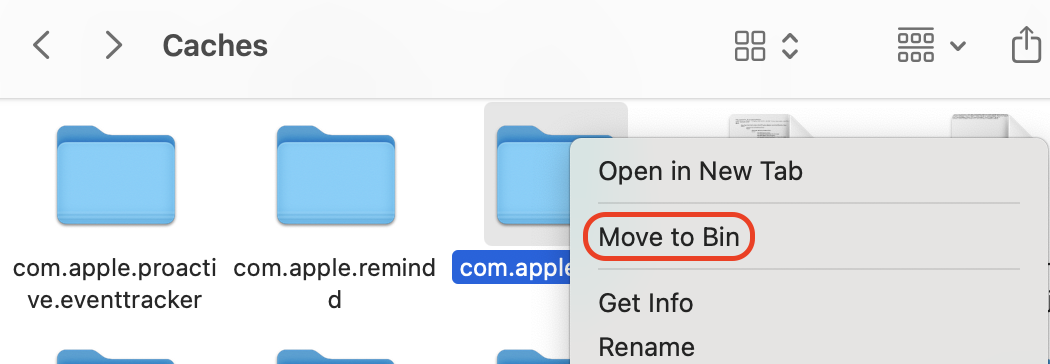
Move unnecessary cache folders or files to the Bin.
Empty the Bin to permanently remove the files.
Restart your Mac so the system rebuilds fresh cache files automatically.
Step 1. In the top menu bar, click Go and select Go to FolderStep 2. Type the path ~/Library/CachesStep 3. Locate cache folders related to browsers and move them to Bin
How to prevent YouTube cache from building up on Mac?
Cache files accumulate gradually as you watch videos, browse channels, or interact with YouTube’s interface. Every thumbnail, script, and interface element your browser loads may be temporarily stored to speed up future visits. Over time, these files accumulate and can cause playback glitches, slow page load times, or storage clutter.
Use our list of top practices to keep the YouTube cache from growing too large:
Clear browser cache periodically, especially if you watch YouTube daily.
Avoid keeping dozens of YouTube tabs open, as each tab stores additional temporary files.
Restart your browser occasionally to flush temporary memory data.
Update your browser regularly so caching mechanisms work efficiently.
Limit unnecessary browser extensions, which often generate extra cached resources.
Use private browsing mode when watching many videos in a single session to avoid excessive cache buildup.
Close inactive browser tabs to reduce background data accumulation.
Run a cleanup tool occasionally to remove leftover cache and log files across your system.
Conclusion
Clearing the YouTube cache on a Mac helps resolve buffering, playback glitches, and loading errors caused by outdated browser data. By removing cached files in Safari, Chrome, or Firefox, or clearing system cache, you allow YouTube to load fresh resources and perform smoothly.
For faster maintenance, we suggest using MacKeeper, which delivers real-time protection for macOS, and its Safe Cleanup can quickly remove leftover caches, logs, and other junk files that slow your system down.
We respect your privacy and
use cookies
for the best site experience.
Privacy Preferences Center
We use cookies along with other tools to give you the best possible experience while using the
MacKeeper website. Cookies are small text files that help the website load faster. The cookies we
use don’t contain any type of personal data meaning they never store information such as your
location, email address, or IP address.
Help us improve how you interact with our website by accepting the use of cookies. You can change
your privacy settings whenever you like.
Manage consent
All cookies
These cookies are strictly necessary for enabling basic website functionality (including page
navigation, form submission, language detection, post commenting), downloading and purchasing
software. The website might malfunction without these cookies.