Getting Google Chrome on a Mac is not difficult at all, but before installing any new apps, make sure that your Mac has enough storage space. Running low on space can cause performance issues, so it’s better to clean your storage with an appropriate tool. MacKeeper’s Safe Cleanup can help you free up some gigabytes—it finds and deletes a range of junk files, including caches, logs, and unwanted language files.
There are lots of reasons to install Chrome on Mac—it’s a fast, safe web browser, with a good in-built search engine and a variety of customization options.
And, if you browse the internet on your phone or tablet, you can even sign in to your account on Google for Mac to sync between your devices. This means that you can access the same saved passwords, browsing data, and autofill information on whatever device you’re using.
Once you’ve decided to get Google Chrome on Mac, it’s simple to download and install it. In this article, I’ll explain how to download and install Chrome for Mac, as well as give some tips for using it.
But first, here are the basics of how to install Chrome on Mac:
Download the Chrome for Mac installation file from Google Chrome’s website.
Go to your Downloads folder and open googlechrome.dmg.
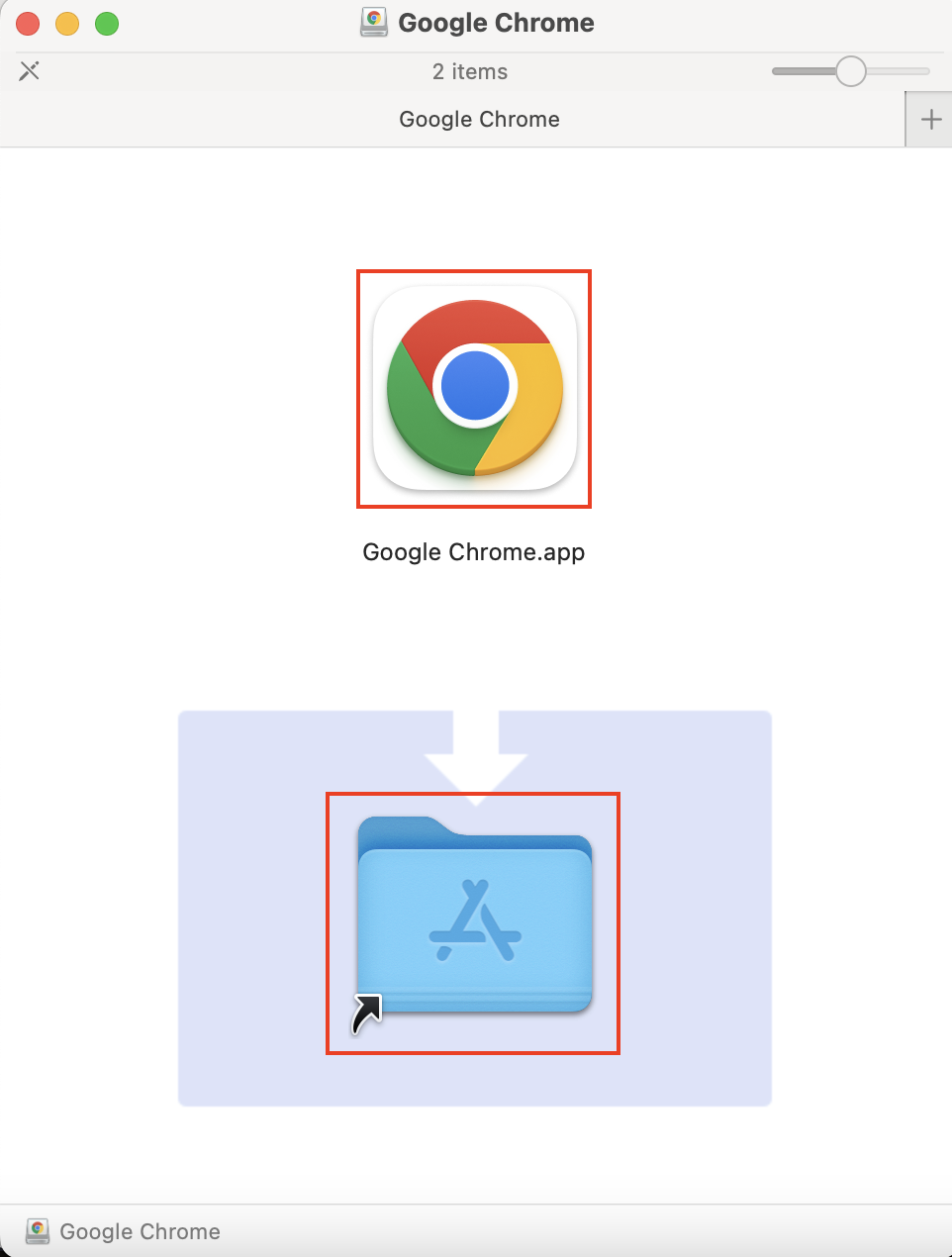
Drag Google Chrome.app into your Applications folder.
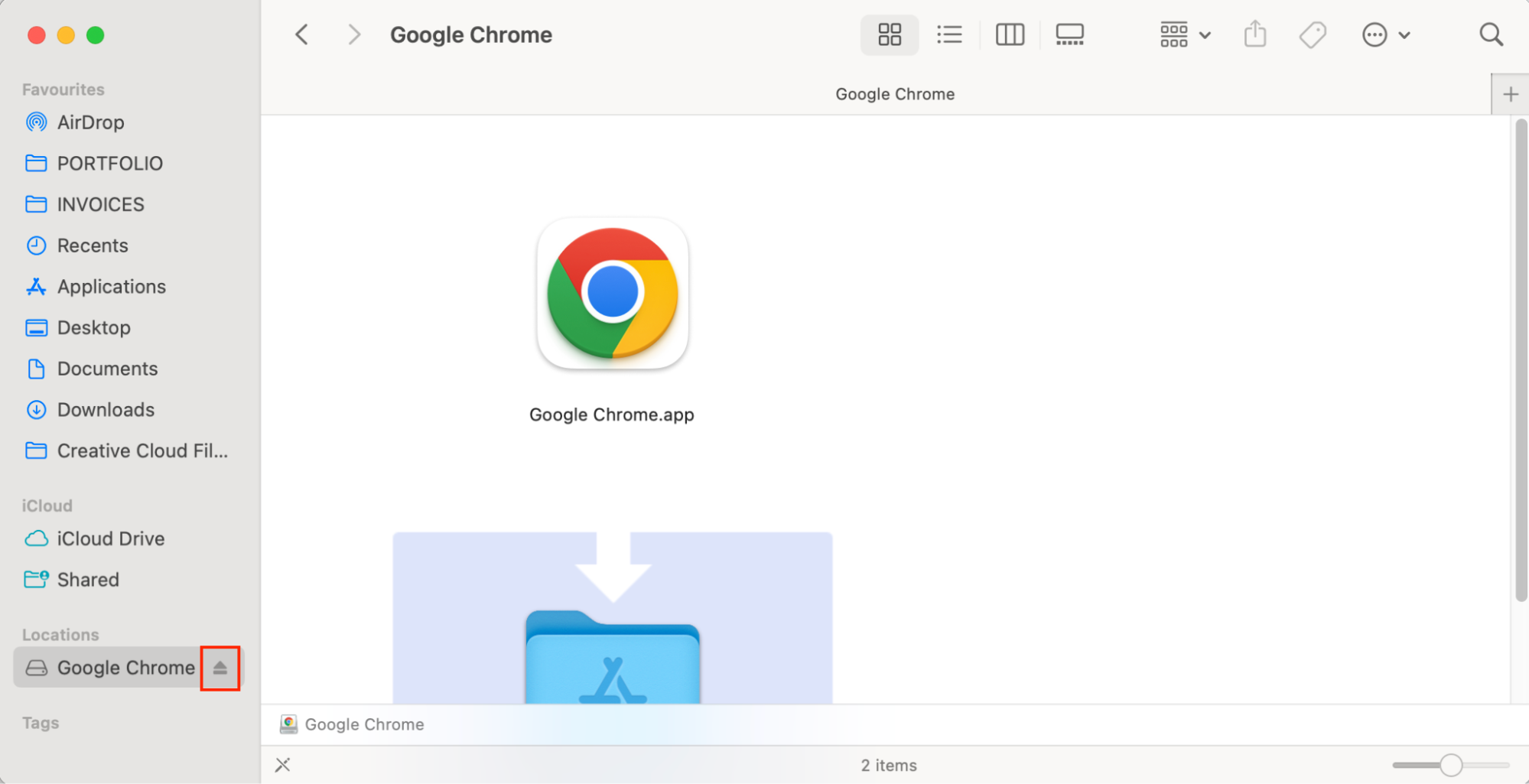
Open Finder, and click the Eject button next to Google Chrome on the sidebar.
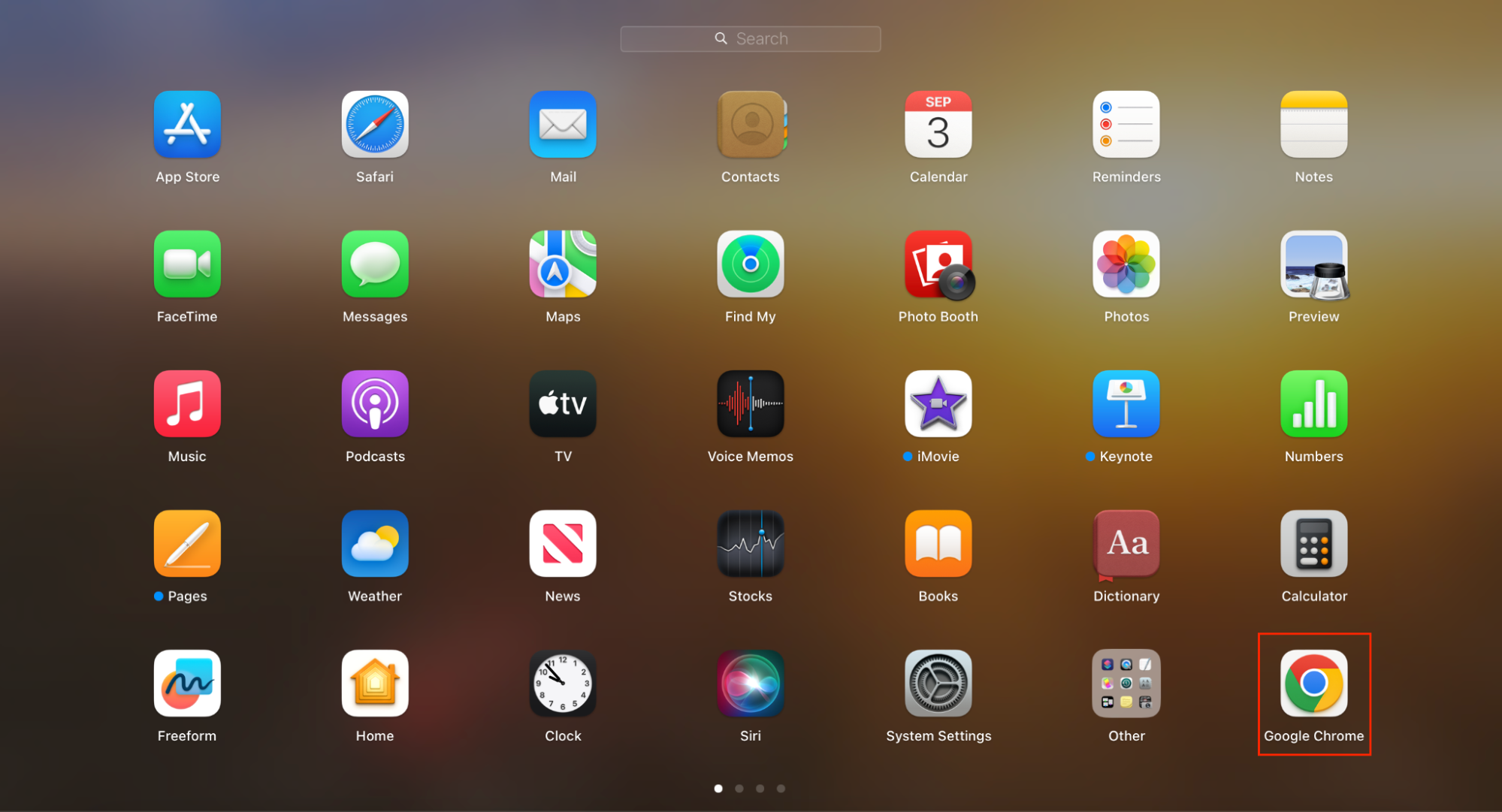
Open Chrome for Mac and enjoy using your new browser!
A note from our experts:
Before installing a new app on your Mac, free up space and get rid of digital junk. Clearing your Mac using MacKeeper’s Safe Cleanup takes you a few minutes, while the manual decluttering takes you forever.
You can run Chrome on a Mac. Google Chrome works on macOS, as well as Windows PCs, Chromebooks, Androids, and iOS. To install Chrome on Mac, you must be running macOS Catalina 10.15 or later.
It doesn’t matter whether you use a MacBook Air, Pro, iMac, or other Apple computer or have an Intel Processor or an Apple Silicon chip (such as M1, M2, M3, or M4).
You’ll need at least 200 MB of available storage space to download the Chrome for Mac installation files. I’m always running low on space on my MacBook, so I know this can be a concern. But don’t worry—there are solutions!
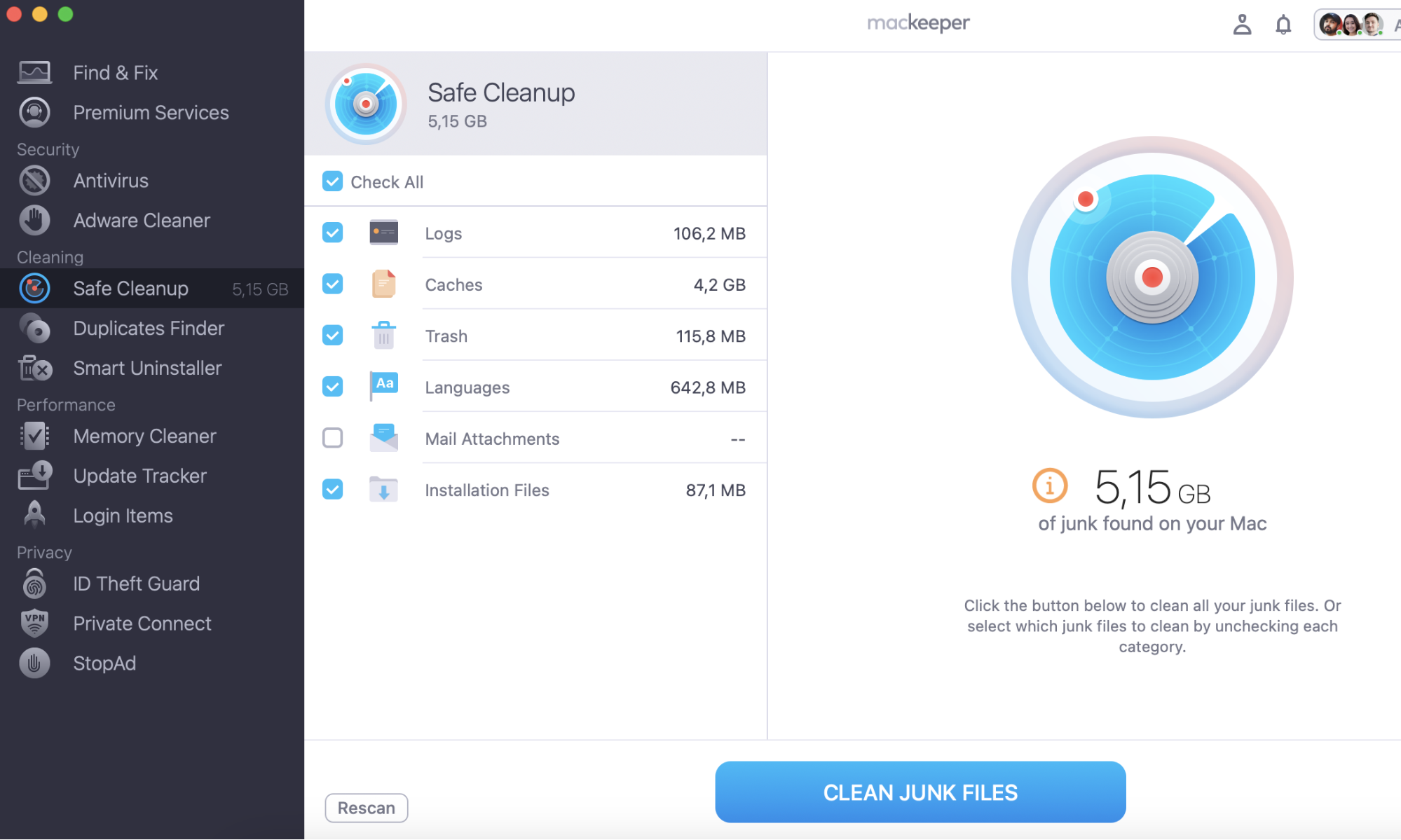
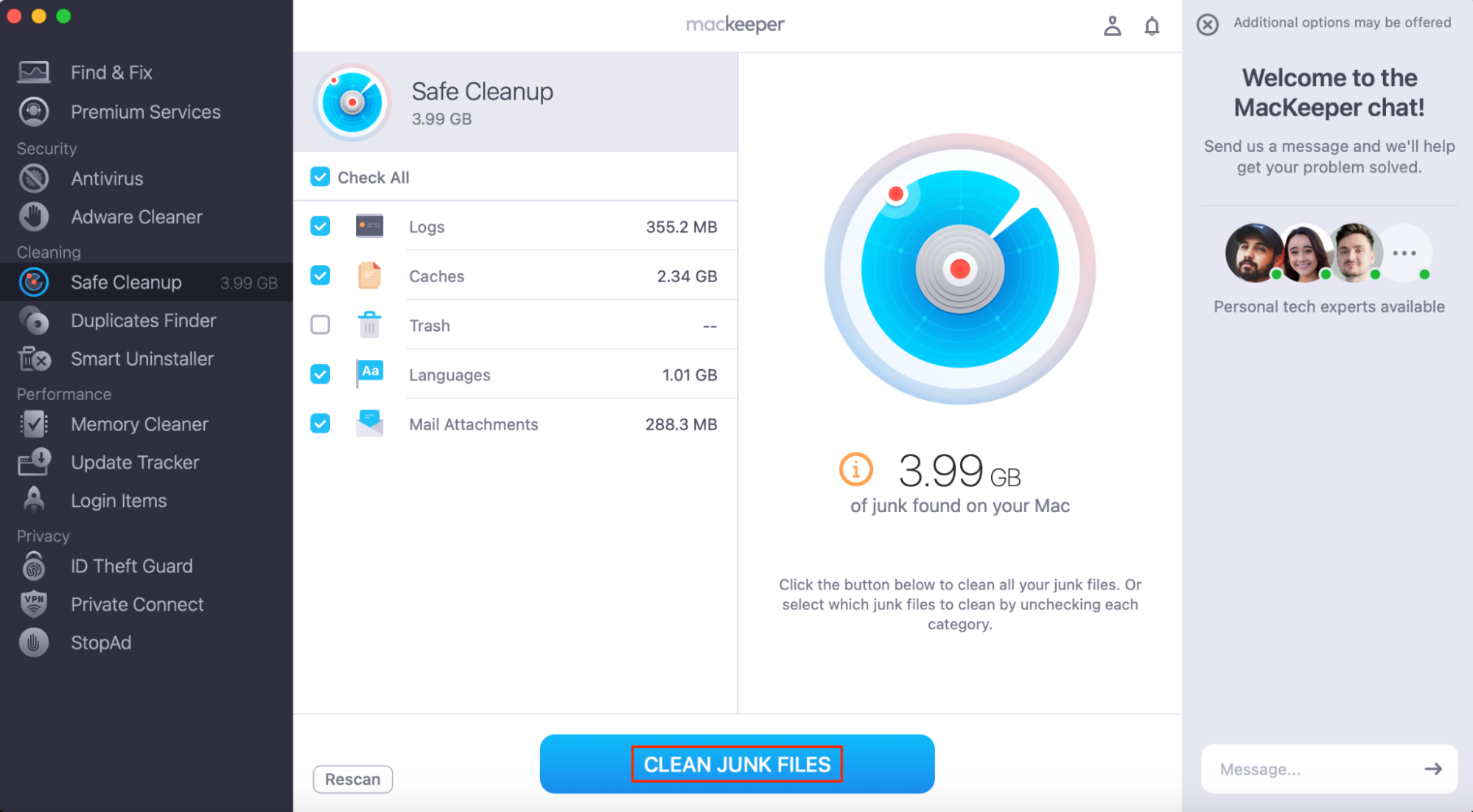
MacKeeper’s Safe Cleanup can help you find and remove junk files, freeing up a surprising amount of space—I was able to find nearly 4GB of junk on my Mac. Safe Cleanup looks for log and cache files, trash that hasn’t been permanently deleted, unused language files, and mail attachments that can be removed.
How to free up space on your Mac:
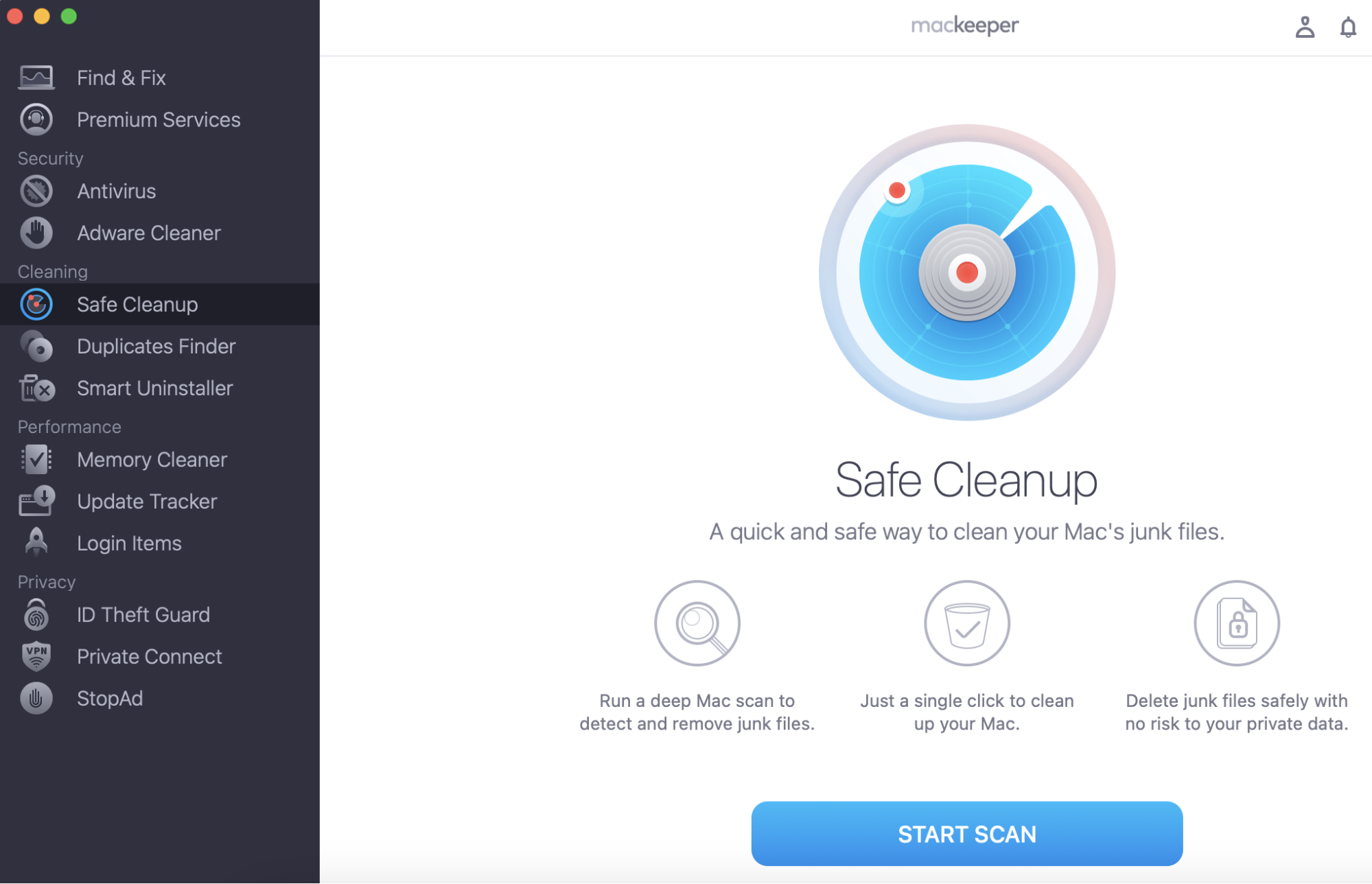
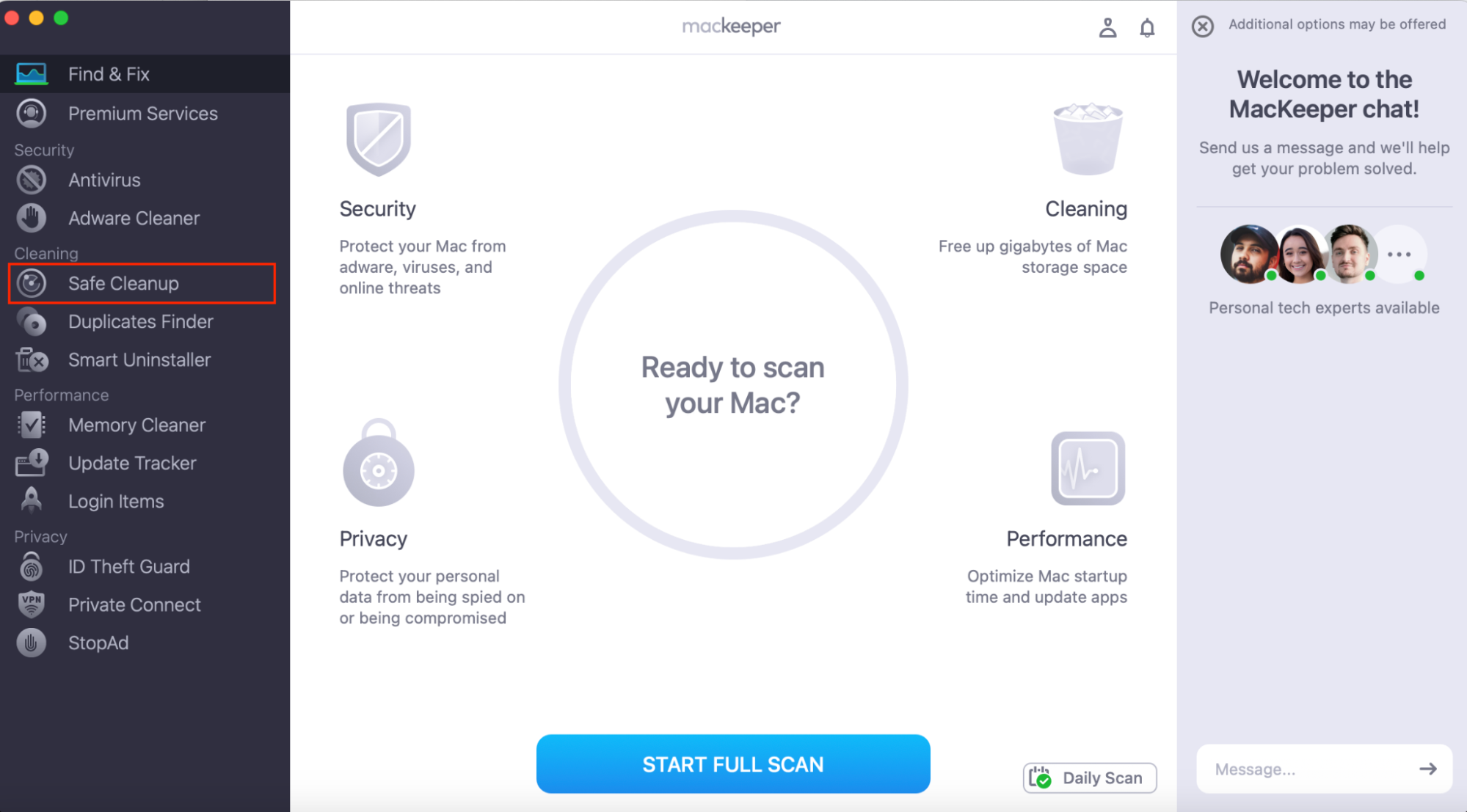
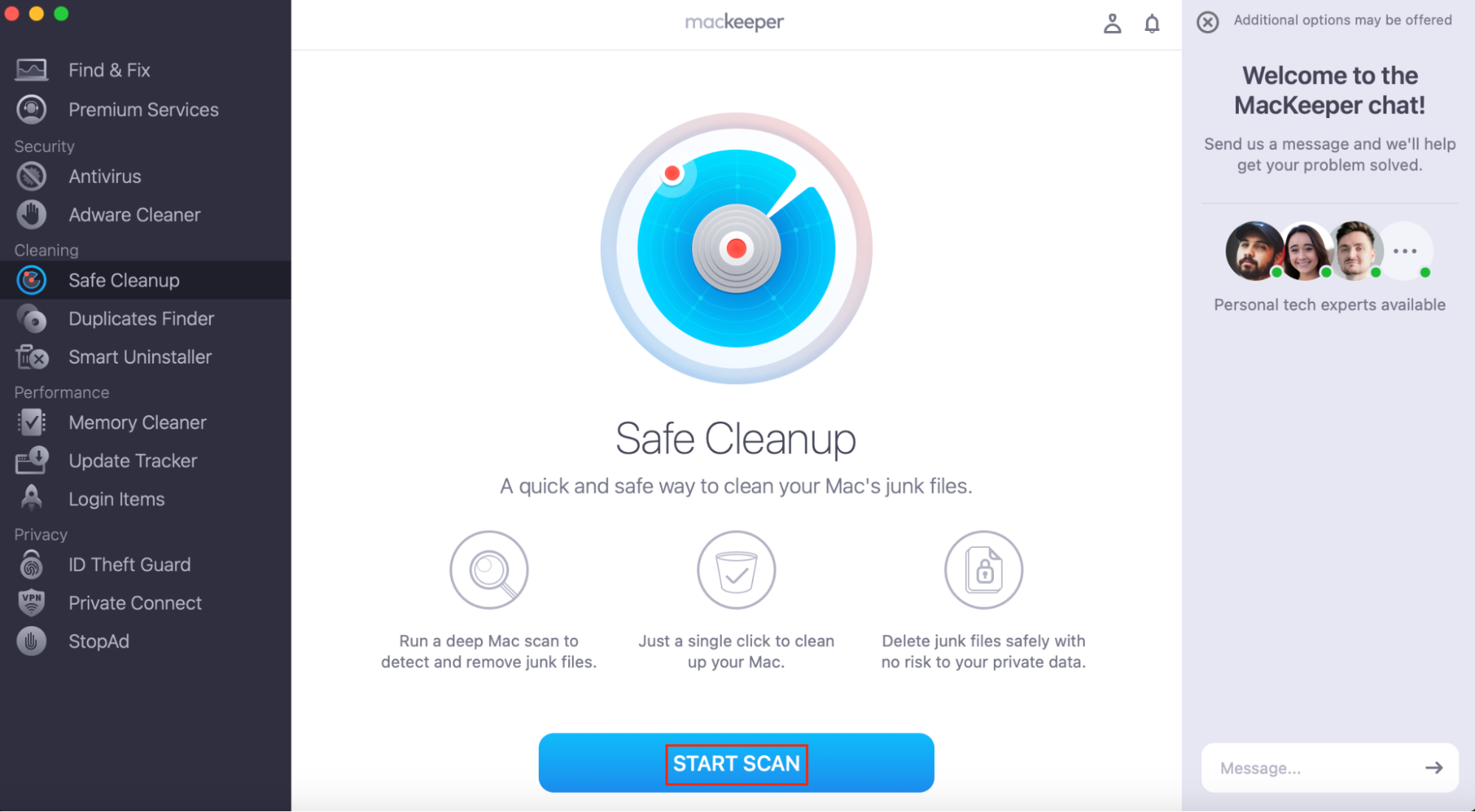
Open MacKeeper and choose Safe Cleanup from the sidebar.
Select Start Scan.
When the scan is complete, select the files you want to remove and click Clean Junk Files. You can expand each category (Logs, Caches, Trash, Languages, and Mail Attachments) to examine files in more detail.
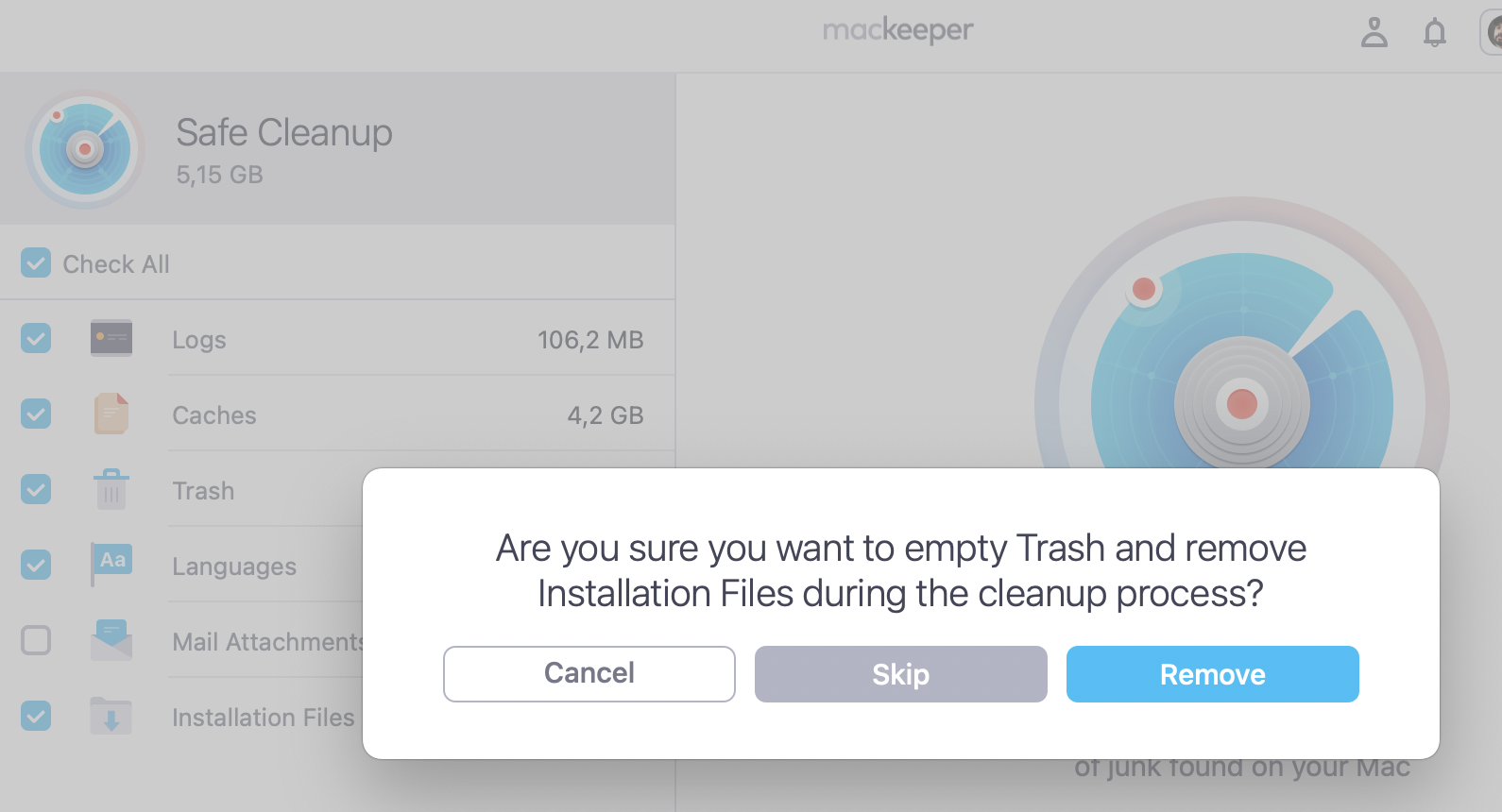
Step 1. Open MacKeeper and choose Safe Cleanup from the sidebarStep 2. Select Start ScanStep 3. Choose the files you want to remove and click Clean Junk Files
How to download Chrome for Mac
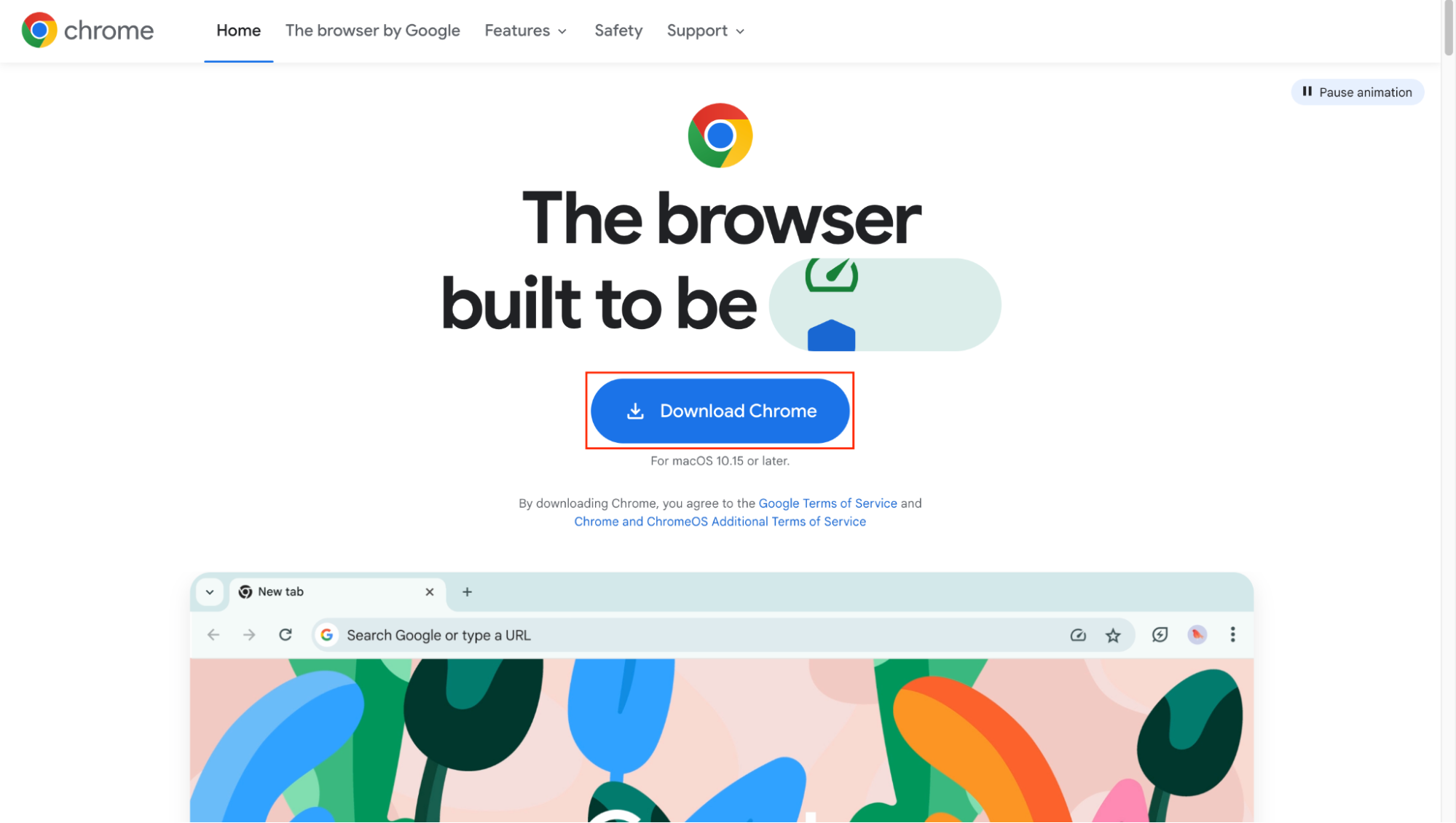
It’s very easy to download Chrome for Mac— go to the Google Chrome homepage and click the Download Chrome button. It should start the download automatically.
Click the Download Chrome button
The webpage should automatically recognize that you’re using a Mac and give you the installation files for Chrome for Mac.
A hint from our team: Chrome for Mac is free to download, but make sure you download it from the official site. This ensures that you’ll get the most up-to-date version of genuine software.
How to install Chrome on Mac
Once you’ve downloaded Chrome for Mac, installing it is simple:
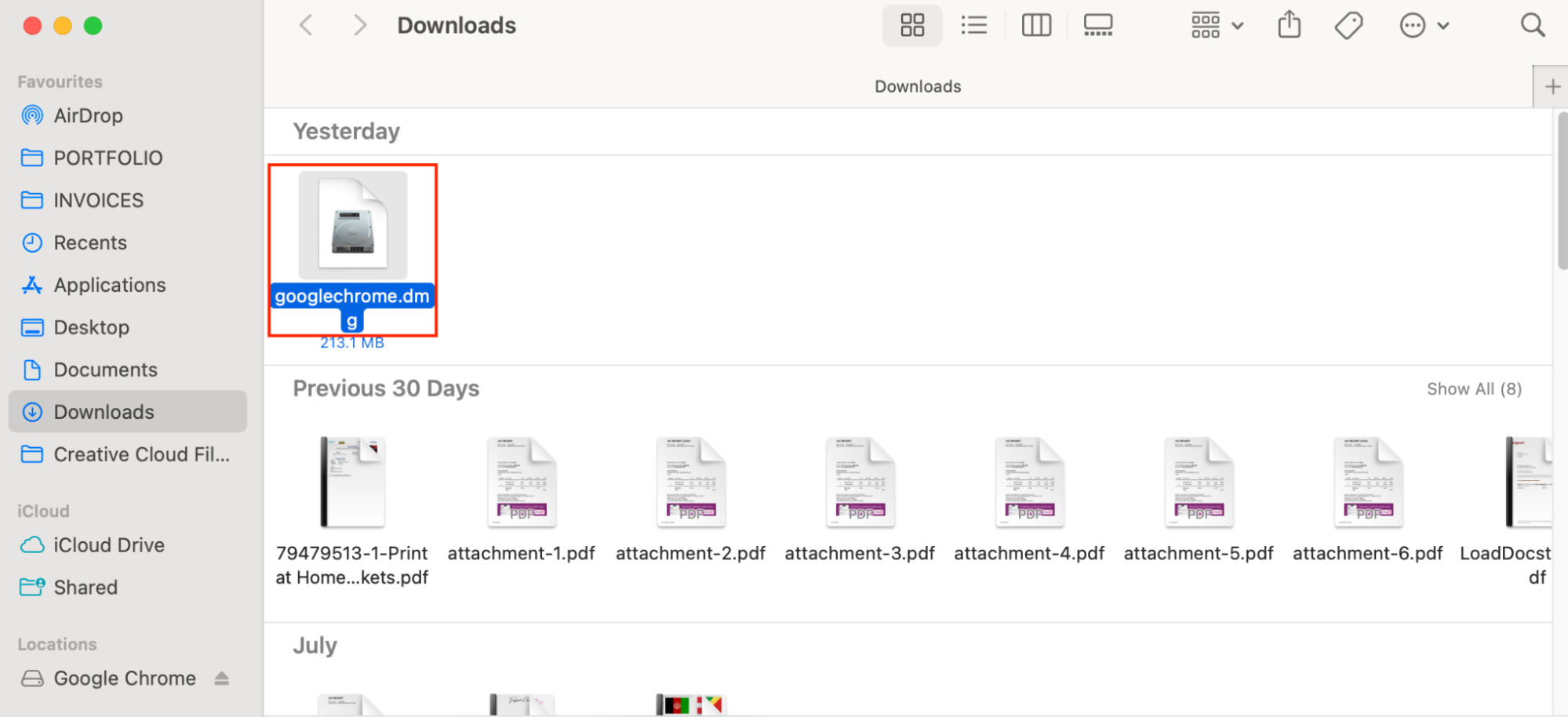
Open your Downloads folder—you can do this by clicking the Downloads folder in your Dock, or by going to Finder. (If your downloads automatically save in a different folder, open that folder instead.)
Open googlechrome.dmg.
Drag the Google Chrome icon into the Applications folder.
Open Finder, and, under Locations, choose the Eject button in the sidebar next to Google Chrome.
Open Chrome for Mac and begin browsing!
Step 1. Open your Downloads folderStep 2. Open googlechrome.dmgStep 3. Drag the Google Chrome icon into the Applications folderStep 4. Open Finder, and choose the Eject button in the sidebarStep 5. Open Chrome for Mac
Now that you’ve put Google Chrome on Mac, you might want to set it as your default browser. A default browser is the browser that automatically opens when you click a web link in an application, such as a Word document, PDF, or email.
Chrome may prompt you to set your default browser the first time you open it. However, if it doesn’t, or you want to change your default browser settings later, here’s what to do.
To set Chrome for Mac as your default browser:
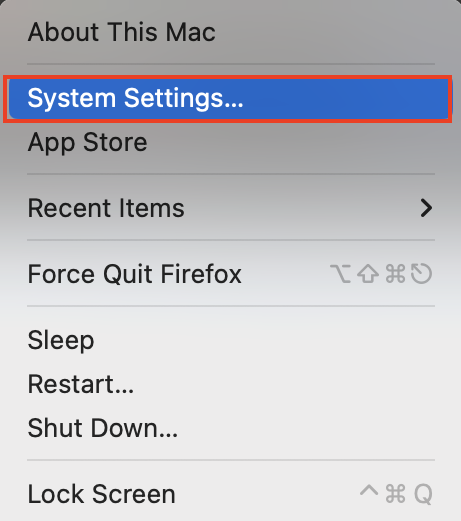
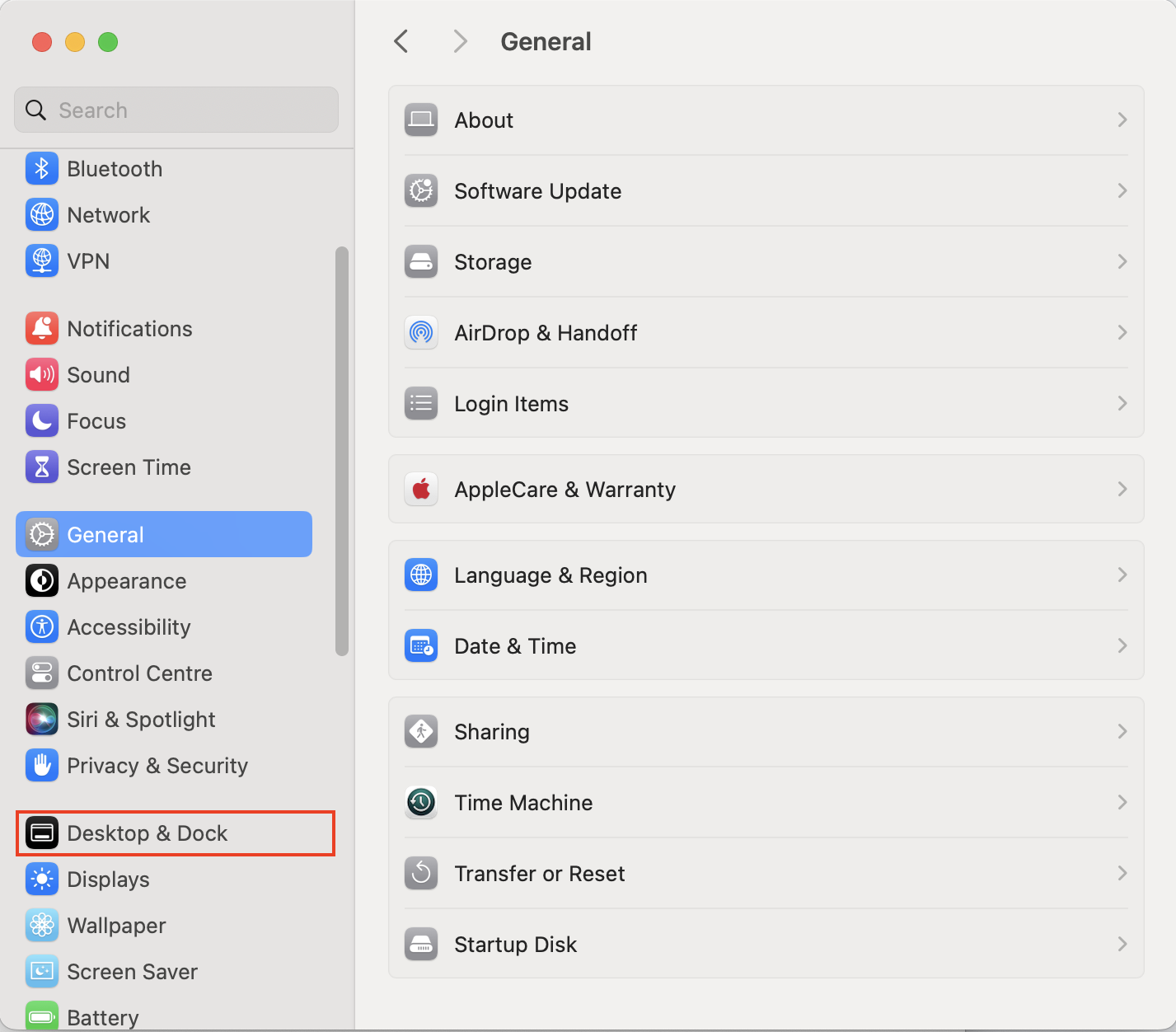
Go to Apple menu > System Settings.
Choose Desktop & Dock from the sidebar on the left—you may have to scroll down to find this option.
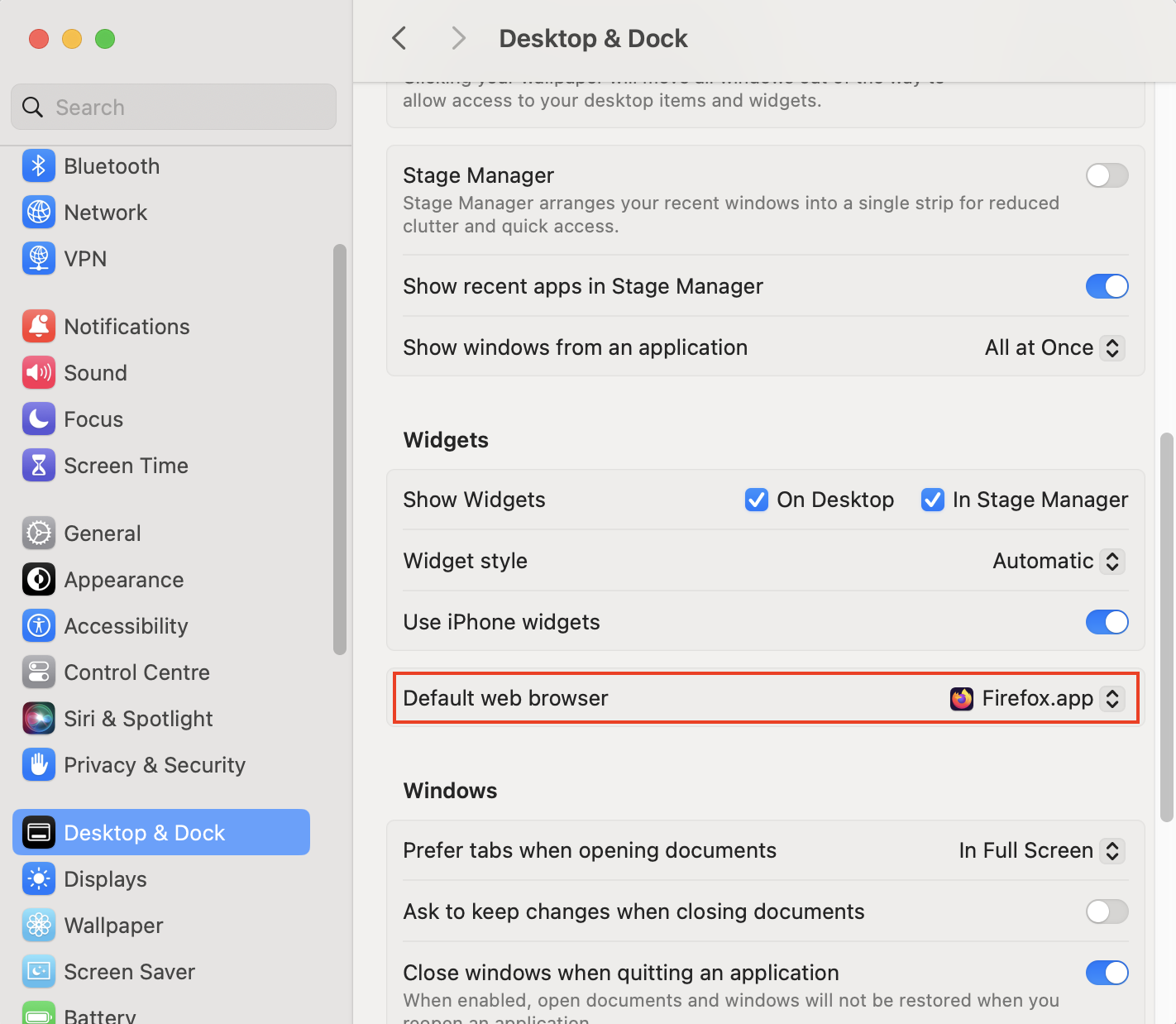
Under Widgets, find the option for Default web browser. Click the dropdown menu and choose Google Chrome.app.
Step 1. Go to Apple menu > System SettingsStep 2. Choose Desktop & Dock from the sidebarStep 3. Choose your default web browser
How to use keyboard shortcuts in Mac Google Chrome
When I’m using Chrome for Mac, I use a lot of keyboard shortcuts to make life easier. This means I don’t always have to move away from my keyboard to use my mouse or trackpad, and it lets me do things faster.
These commands can help you quickly access settings and preferences, switch between tabs, close windows, and more. You probably use them in other apps already, so I’ve put together a list of some of my most-used shortcuts for Chrome.
Keyboard shortcuts on Google Chrome for Mac:
Open a new tab: Command+T
Open a new window: Command+N
Close a tab or window: Command+W
Zoom in: Command++
Zoom out: Command+-
Move to a different tab: Command+1, Command+2, and so on
It’s important to update apps regularly. Outdated apps may pose a security risk—newer versions may have had vulnerabilities patched, and hackers may know how to exploit older versions.
When the app in question is your web browser, privacy and security are especially critical. After all, your browser has access to your usernames and passwords—and maybe even your online banking details. You want to ensure that they’re as safe as possible.
In addition, it just makes sense to keep your apps updated. Developers may release useful new features, and you want to be able to enjoy them.
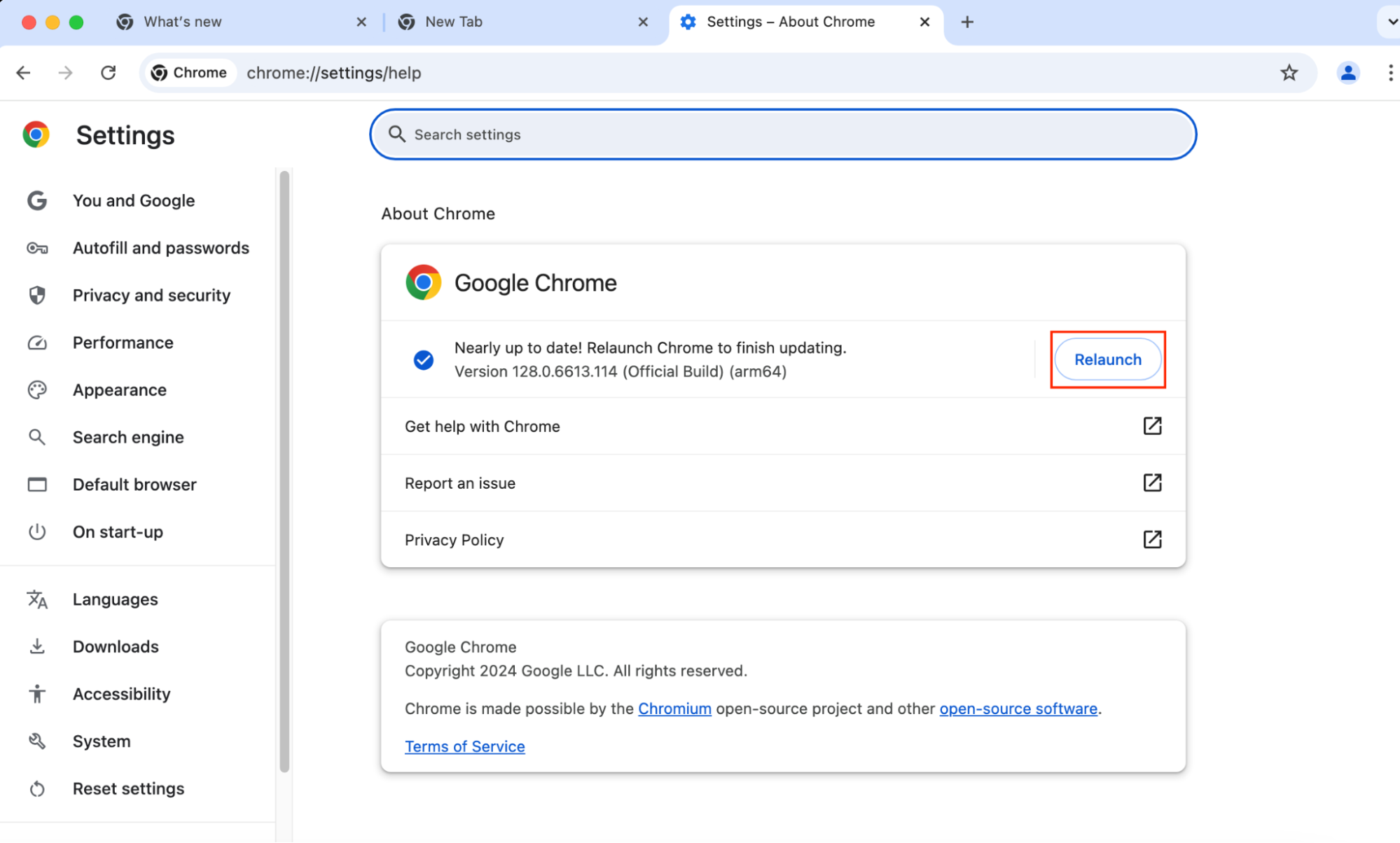
Fortunately, it’s easy to make sure Chrome is updated on your MacBook. Every time you open the app, it will automatically check for updates. However, if you don’t often close your web browser, you can also update Chrome for Mac manually.
To update Chrome for Mac:
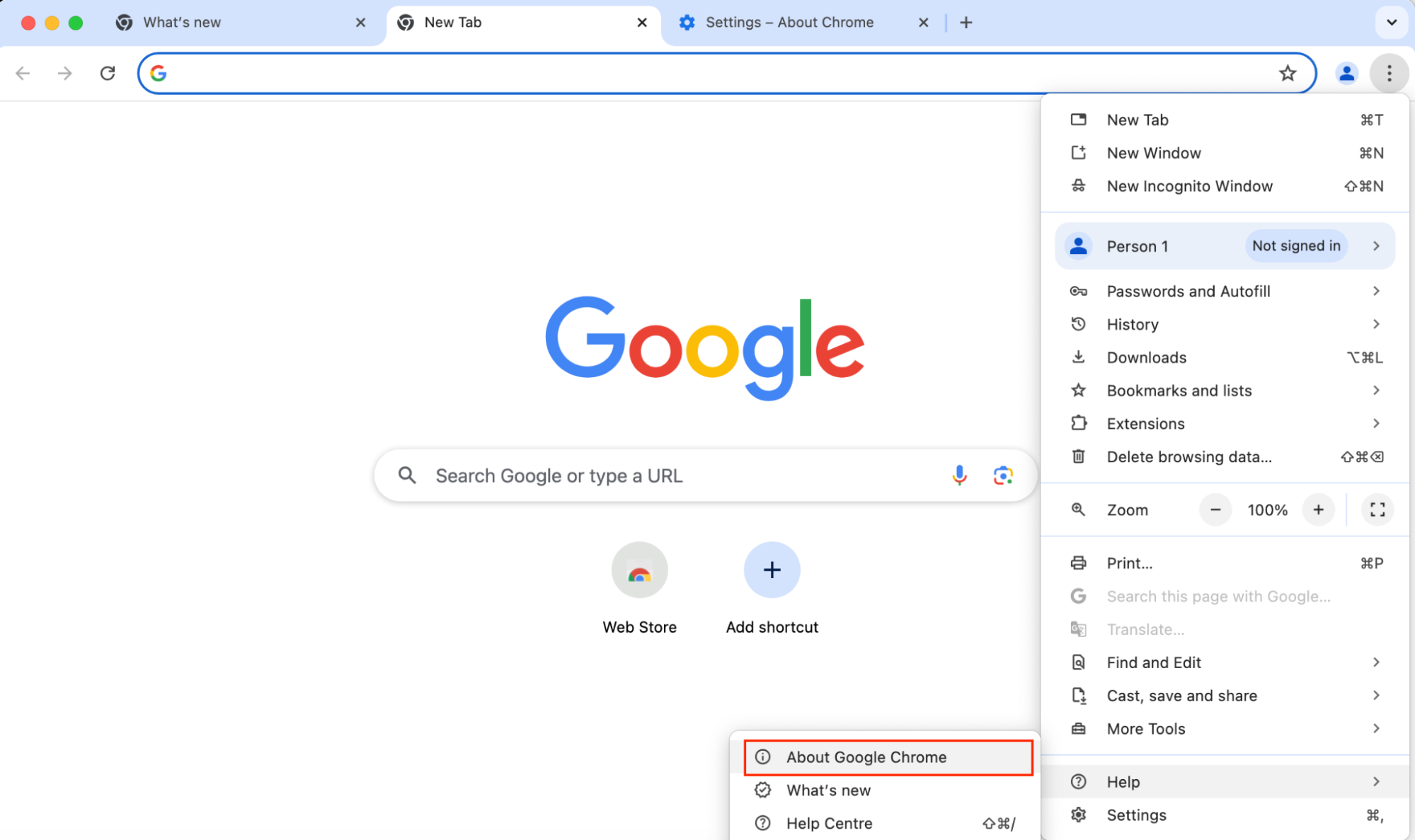
Go to the menu (three dots) > Help > About Google Chrome.
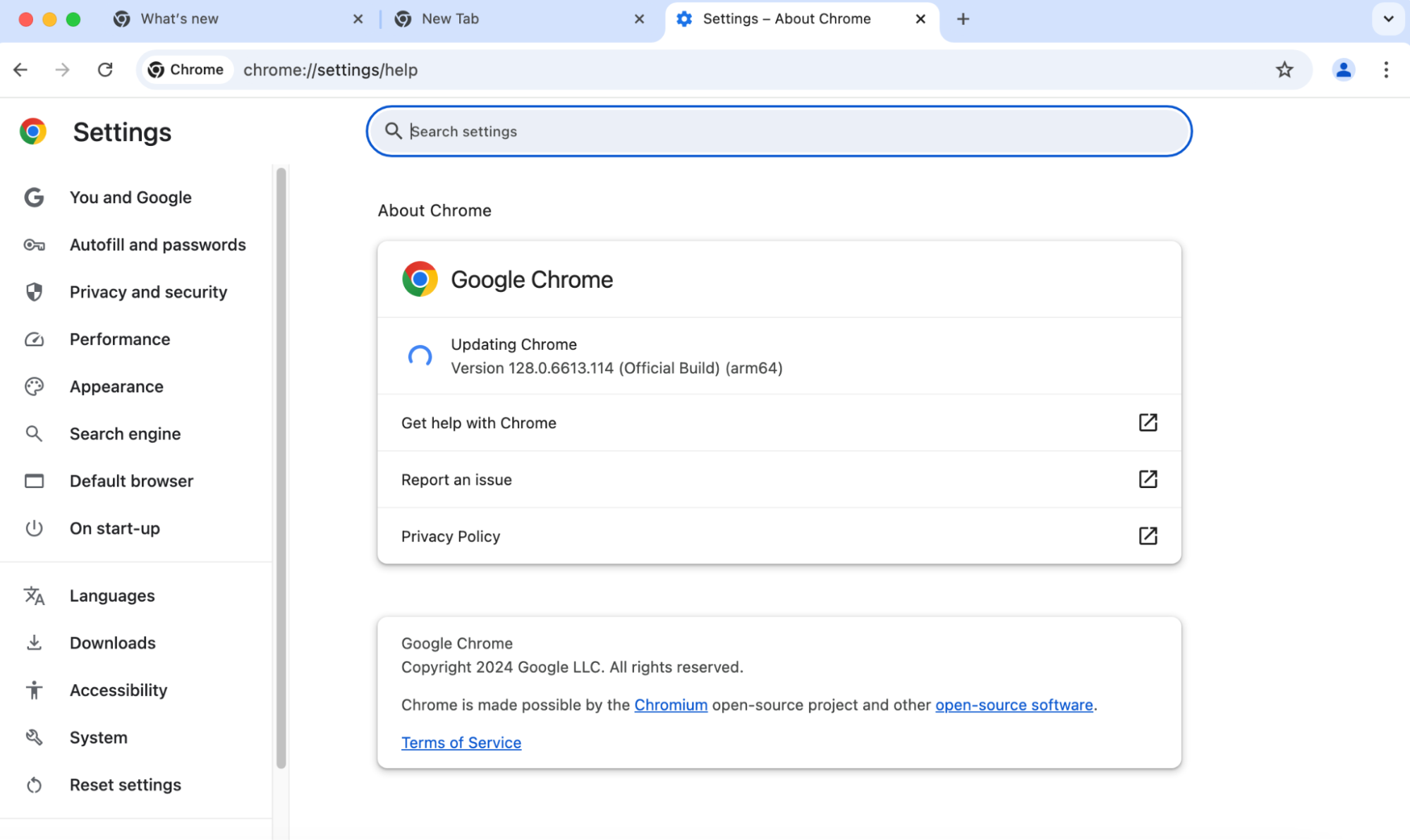
Wait for Chrome to search for updates.
Click the Relaunch button to finish updating Chrome.
Step 1. Go to menu (three dots) > Help > About Google ChromeStep 2. Wait for Chrome to search for updatesStep 3. Click the Relaunch button
Our expert’s tip: If the Relaunch button doesn’t appear, you’re already running the latest version of Chrome for Mac.
Conclusion
If you want to add Chrome to Mac, it’s a good decision. Google Chrome for Mac is the world’s most popular web browser for a reason. It generally runs quickly, has thousands of extensions to help you customize your experience, and lets you sync across devices.
However, there are lots of options out there. If you haven’t decided which web browser to use yet, check out our article on which is the best browser for your Mac.
Before you download any new app, make sure that you have enough storage space available on your Mac. MacKeeper’s Safe Cleanup can help you clear out junk files from your Mac, freeing up space and letting you install new apps easily.
We respect your privacy and
use cookies
for the best site experience.
Privacy Preferences Center
We use cookies along with other tools to give you the best possible experience while using the
MacKeeper website. Cookies are small text files that help the website load faster. The cookies we
use don’t contain any type of personal data meaning they never store information such as your
location, email address, or IP address.
Help us improve how you interact with our website by accepting the use of cookies. You can change
your privacy settings whenever you like.
Manage consent
All cookies
These cookies are strictly necessary for enabling basic website functionality (including page
navigation, form submission, language detection, post commenting), downloading and purchasing
software. The website might malfunction without these cookies.