Looking for a way to make Excel default on Mac? If your spreadsheets continue opening in Apple Numbers, you can change the default app in just a few minutes. While you’re trying to improve your workflow, use MacKeeper’s Smart Uninstaller to safely remove unused apps and their leftovers, helping your Apple laptop to run more efficiently and stay free of unnecessary clutter.
Fortunately, you can set Excel as default on Mac to make your workflow faster and more convenient. If your Excel files continue opening in Apple Numbers or another program that doesn’t suit your needs, keep reading to learn how to change the default app.
Once you change the default app, you won’t need to select Excel every time you open .xlsx or .xls documents, which saves you time significantly, especially if you work with spreadsheets regularly.
However, before making Excel the default app on your Mac, it’s a good idea to update Excel to make sure you have the latest version with the newest features and bug fixes.
There are two simple ways to make Excel the default app on your Mac: via Finder or via Shortcut.
A note from our experts:
While making the default Excel on Mac is a quick way to make everyday work easier, keeping your Mac organized is just as important for maintaining smooth overall performance. Removing outdated, unused, or problematic apps can help your system run more efficiently, including when you’re working with Excel. MacKeeper’s Smart Uninstaller can take care of it.
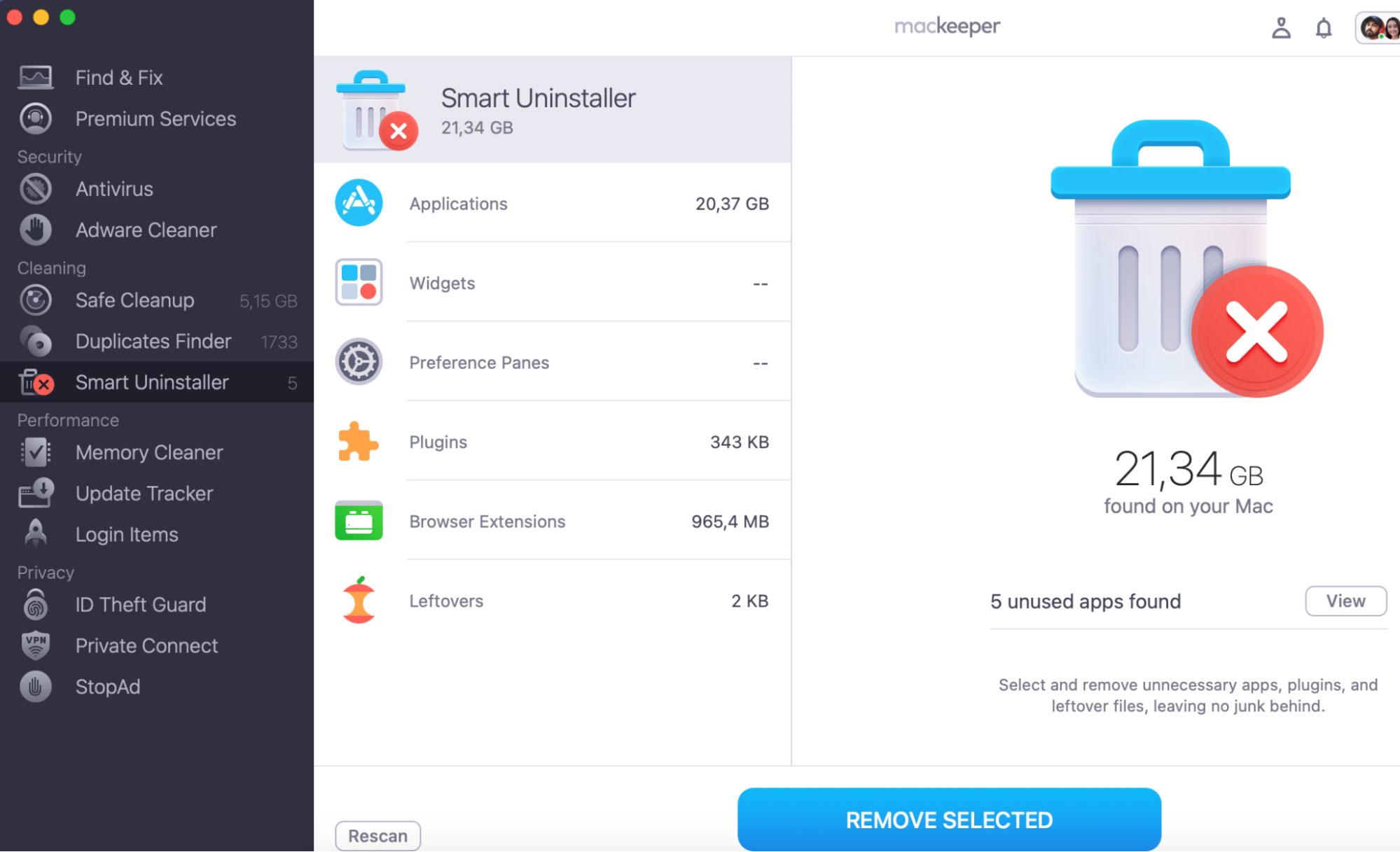
This tool quickly detects these apps and safely removes them, with their leftover files, such as caches, preferences, and support data, which can continue taking up valuable storage space even after the app itself has been deleted. A clean and well-organized Mac can make everyday tasks, including working with Excel spreadsheets, feel faster and more efficient.
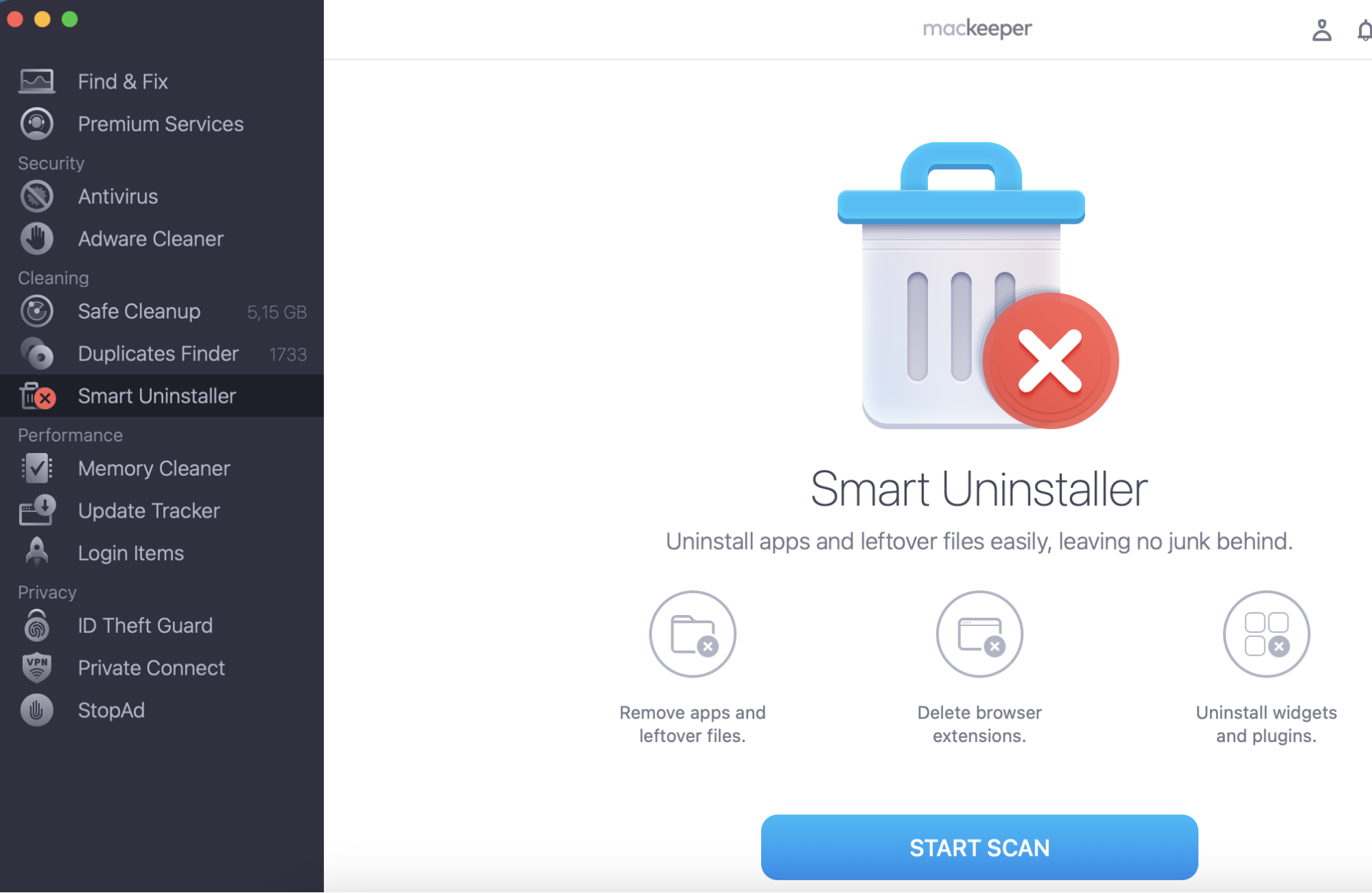
Do the following to clean your Mac using MacKeeper’s Smart Uninstaller:
The easiest way to change default to Excel on Mac is through Finder. This method makes changes for all files with the same extensions, so you won’t need to select Excel whenever you open a spreadsheet.
Here’s how to make Excel your default app on Mac via Finder:
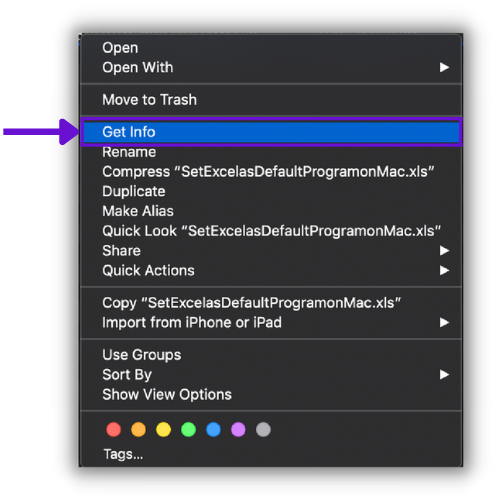
Make the Right-Click on your Excel file in Finder ➙ choose the Get Info option from the menu.
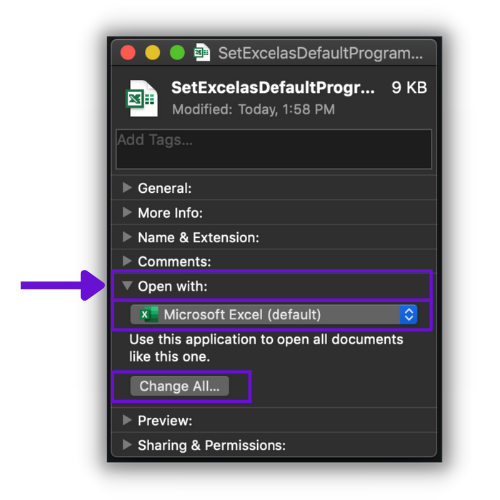
Find the Open With section in the window ➙ select Microsoft Excel ➙ click Change All.
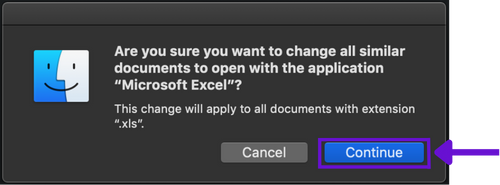
Click Continue to confirm the changes.
Step 1. Right-Click > Get InfoStep 2. Open With > Microsoft Excel > Change allStep 3. Continue
2. Change Excel as default on Mac via Shortcut
If you prefer Keyboard Shortcuts, you can use them for changing Excel as the default on Mac as well. This method lets you open the Get Info option directly from Finder, speeding up the process.
Before you begin, don’t forget to clear Excel cache to make it run smoothly by removing temporary files that may affect the app’s responsiveness.
Follow the instructions on how to make Excel the default app on Mac via shortcut:
Open Finder ➙ choose .xlsx or .xls file ➙press the Command (⌘) + I combination to launch the Get Info section.
Choose Microsoft Excel from the drop-down menu ➙ click Change All ➙ click Continue to confirm the changes.
From now on, your Mac will open all files with the same extensions in Excel by default. If you notice that Excel is so slow even after making it the default app, the issue may be caused by the outdated software or unnecessary data stored on your Mac.
Conclusion
Setting Excel as the default app on your Mac is a simple change that can save you time and optimize your everyday working process. Whether you use Finder or Shortcut, you can ensure your Excel files always open in the right app with just a few clicks.
If you want to do more than organize your spreadsheet files and keep your Mac running smoothly, consider using MacKeeper’s Smart Uninstaller. It safely detects and removes not only unnecessary, outdated, or problematic apps but also their leftovers, such as caches, logs, and preferences, which continue taking up storage space even after the app is uninstalled. Keeping your Mac free of clutter helps maintain better performance.
We respect your privacy and
use cookies
for the best site experience.
Privacy Preferences Center
We use cookies along with other tools to give you the best possible experience while using the
MacKeeper website. Cookies are small text files that help the website load faster. The cookies we
use don’t contain any type of personal data meaning they never store information such as your
location, email address, or IP address.
Help us improve how you interact with our website by accepting the use of cookies. You can change
your privacy settings whenever you like.
Manage consent
All cookies
These cookies are strictly necessary for enabling basic website functionality (including page
navigation, form submission, language detection, post commenting), downloading and purchasing
software. The website might malfunction without these cookies.