Need to display your hard drive on your desktop Mac but can’t find its icon? No panic! In most cases, the drive is simply hidden in Finder Settings. In this guide, I’ll show you how to make your hard drive visible. Moreover, I’ll also explain how to skip the troubleshooting process by getting Mac expert assistance with MacKeeper’s Premium Services.
A hard drive on Mac is the storage device that stores everything on your computer, including macOS, apps, photos, videos, documents, and other files. Unlike your Mac’s memory (RAM), which stores data while you’re using your computer, a drive holds your information even after your Mac is shut down.
Modern Macs come with an internal SSD (Solid-State Drive) instead of a traditional hard drive. SSDs are significantly faster than traditional hard drives, enabling your Mac to perform quickly, launch apps in seconds, and transfer files more efficiently.
However, you can also connect external drives to your Mac, such as portable SSDs, external hard drives, USB flash drives, or network storage devices. External hard drives are useful for creating backups, storing large media libraries, transferring files between devices, and freeing up space on internal storage.
Why hard drive isn’t visible on Mac desktop?
If your hard drive doesn’t appear on the desktop, it doesn’t mean there is a problem with your Mac or the drive itself. In most cases, the icon is hidden in Finder Settings.
There are some other reasons why your hard drive isn’t visible on the desktop:
The Hard disks option is disabled
An external drive isn’t properly connected
Finder isn’t performing correctly
The drive isn’t mounted
How to display hard drive on Mac desktop?
If you don’t see your hard drive on Mac desktop, don’t panic, it doesn’t mean it’s missing. In most cases, macOS simply hides your hard drive icon to keep the workspace clean. However, you can easily make it visible in a few steps.
There are several ways to get hard drive on desktop Mac. Perhaps the easiest and most common one is to enable it in Finder Settings. Once the drive icon appears, you can move it anywhere on your desktop, just like any other desktop icon.
If your hard drive is still inaccessible from the desktop, check if it’s recognized by macOS in Disk Utility. If it does, restarting Finder on your Mac is a good troubleshooting method.
If you notice that not only the hard drive but also folders and files become invisible, check what to do when Mac desktop icons disappeared.
A note from our experts:
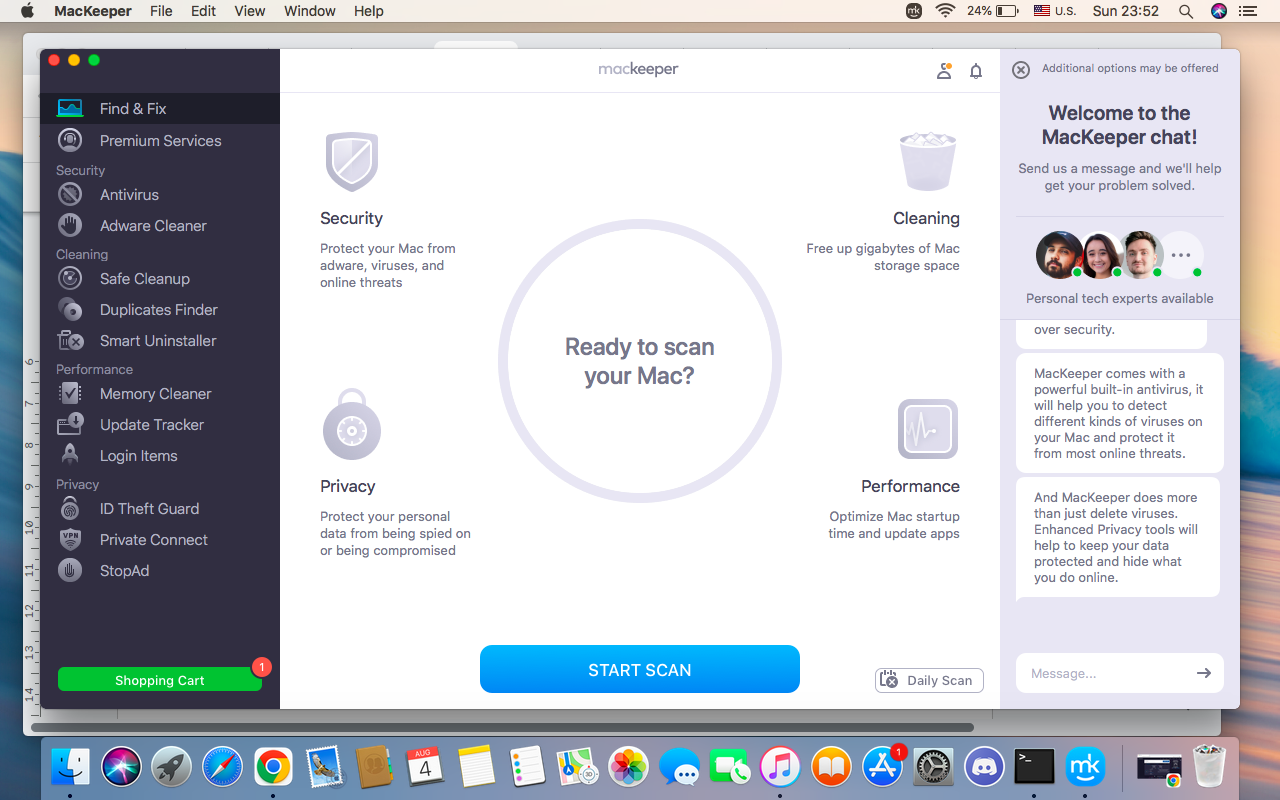
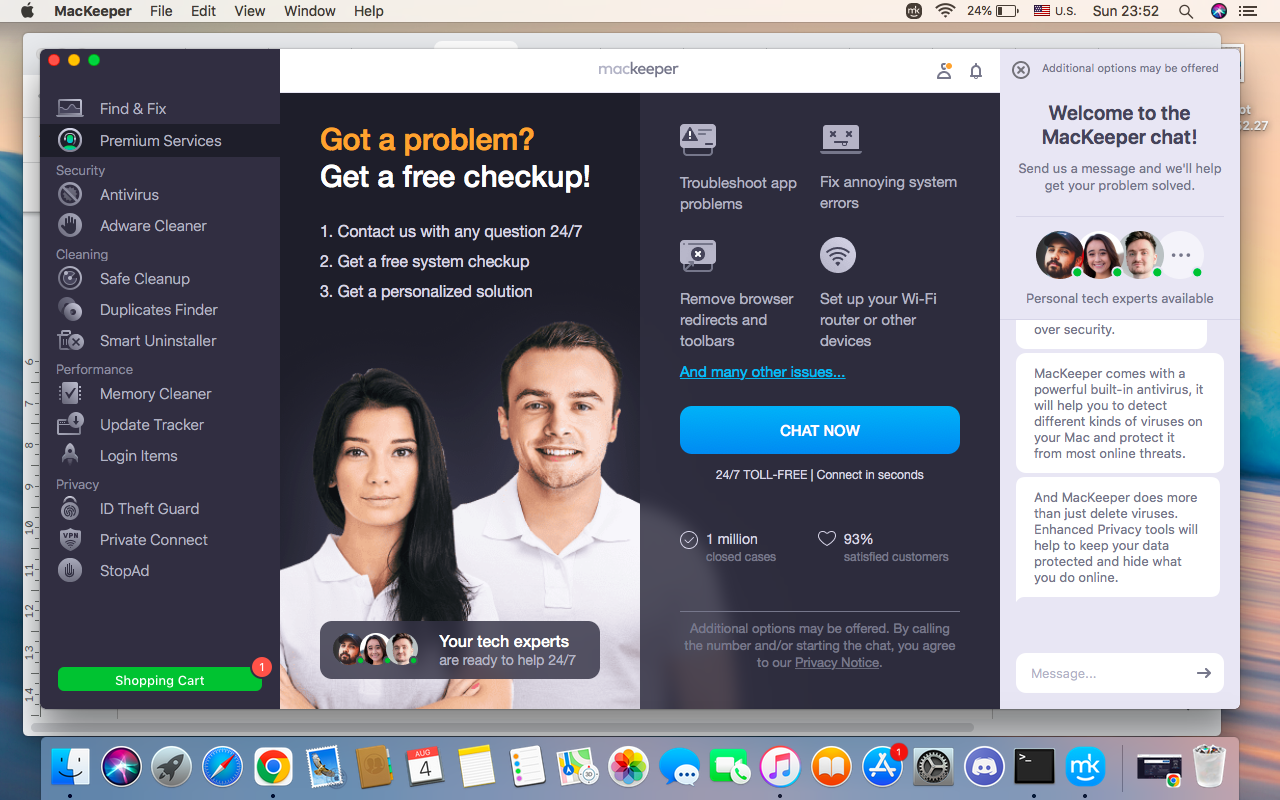
if you don’t have time to try multiple possible solutions to add hard drive to Mac desktop, or if the methods above don’t work, consider MacKeeper’s Premium Services that offer safe and efficient alternatives. Instead of spending time reading guides, trying different solutions to identify the issue, choose to connect with Mac experts who can determine why you can’t display the hard drive on the desktop remotely and offer you the most effective solutions.
Here’s how to get professional assistance in MacKeeper’s Premium Services:
Click the Chat Now button and wait for the MacKeeper’s specialist to join the chat.
Explain your problem in the conversation, such as you can’t put a hard drive on desktop Mac, and get expert instructions on how to fix it.
Try the solution.
Step 1. MacKeeper > Premium Services Step 2. Chat Now > wait for the MacKeeper’s expert to join > describe your problem > wait for the reply
1. Enable hard disk in Finder Settings
If macOS hides the hard disk from the desktop, you can make it visible by changing these settings in Finder. This won’t affect your files or modify any system settings.
Do the following to show hard drive on desktop Mac:
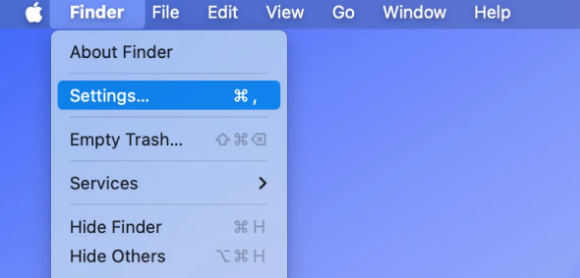
Open Finder > go to Finder Settings (or Preferences for macOS Monterey or earlier).
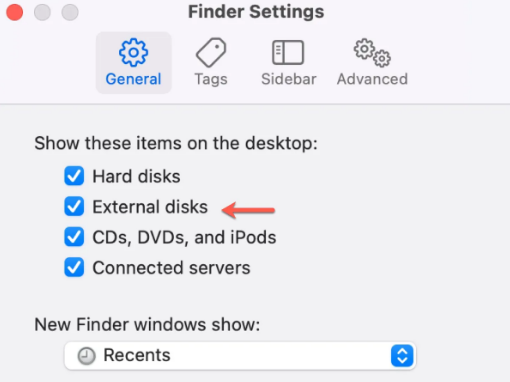
Choose General > enable Hard Disks under the Show these items on the desktop section > close the window, and then check the changes.
Step 1. Finder > Settings Step 2. General > Hard disks
Your hard drive icon should appear on the desktop immediately after you enable this option.
Besides, you can enable icons for external disks, CDs, DVDs, iPods, and connected servers to make them available directly from the desktop.
2. Show external drives on desktop
If you connect a USB flash drive or any external hard drive, but don’t see its icon on the desktop, the option to display external drives may simply be disabled in Finder. Fortunately, you can easily solve this issue by changing Finder settings.
Follow these steps to show external drives on desktop:
Open Finder > go to Finder Settings (or Preferences for macOS Monterey or earlier) from the menu bar.
Choose General > enable External Disks under the Show these items on the desktop section > close the window, and then check the changes.
Step 1. Finder > Settings Step 2. General > Hard disks
If the external drive is properly connected and recognized by macOS, you’ll see its icon on the desktop immediately. Alternatively, you can open the Sidebar tab and enable External disks there to make connected drives easier to access in Finder.
If the external drive still doesn’t appear, check whether macOS detects it in Disk Utility. If the drive isn’t recognized, or the problem isn’t solved, check what to do when external hard drive not showing up on Mac.
Conclusion
If you can’t display hard drive on desktop Mac, don’t worry, as in most cases it isn’t a serious issue. Often, you can resolve it by adjusting your Finder Settings or checking whether the drive is properly connected. Sometimes, just a few simple checks are enough to make the drive visible again.
If you don’t want to troubleshoot the issue by yourself, MacKeeper’s Premium Services offers quick and effective solutions for different problems. You can chat directly with a Mac expert who will help diagnose the problem remotely and recommend the most effective solution. With us, you can get expert assistance without spending hours trying different fixes on your own.
We respect your privacy and
use cookies
for the best site experience.
Privacy Preferences Center
We use cookies along with other tools to give you the best possible experience while using the
MacKeeper website. Cookies are small text files that help the website load faster. The cookies we
use don’t contain any type of personal data meaning they never store information such as your
location, email address, or IP address.
Help us improve how you interact with our website by accepting the use of cookies. You can change
your privacy settings whenever you like.
Manage consent
All cookies
These cookies are strictly necessary for enabling basic website functionality (including page
navigation, form submission, language detection, post commenting), downloading and purchasing
software. The website might malfunction without these cookies.